
Visual Testing
Visual Testing with Figma Designs
Prerequisites
Before you begin, ensure that you have referred to:
Visual Testing Using Figma
Section titled “Visual Testing Using Figma”-
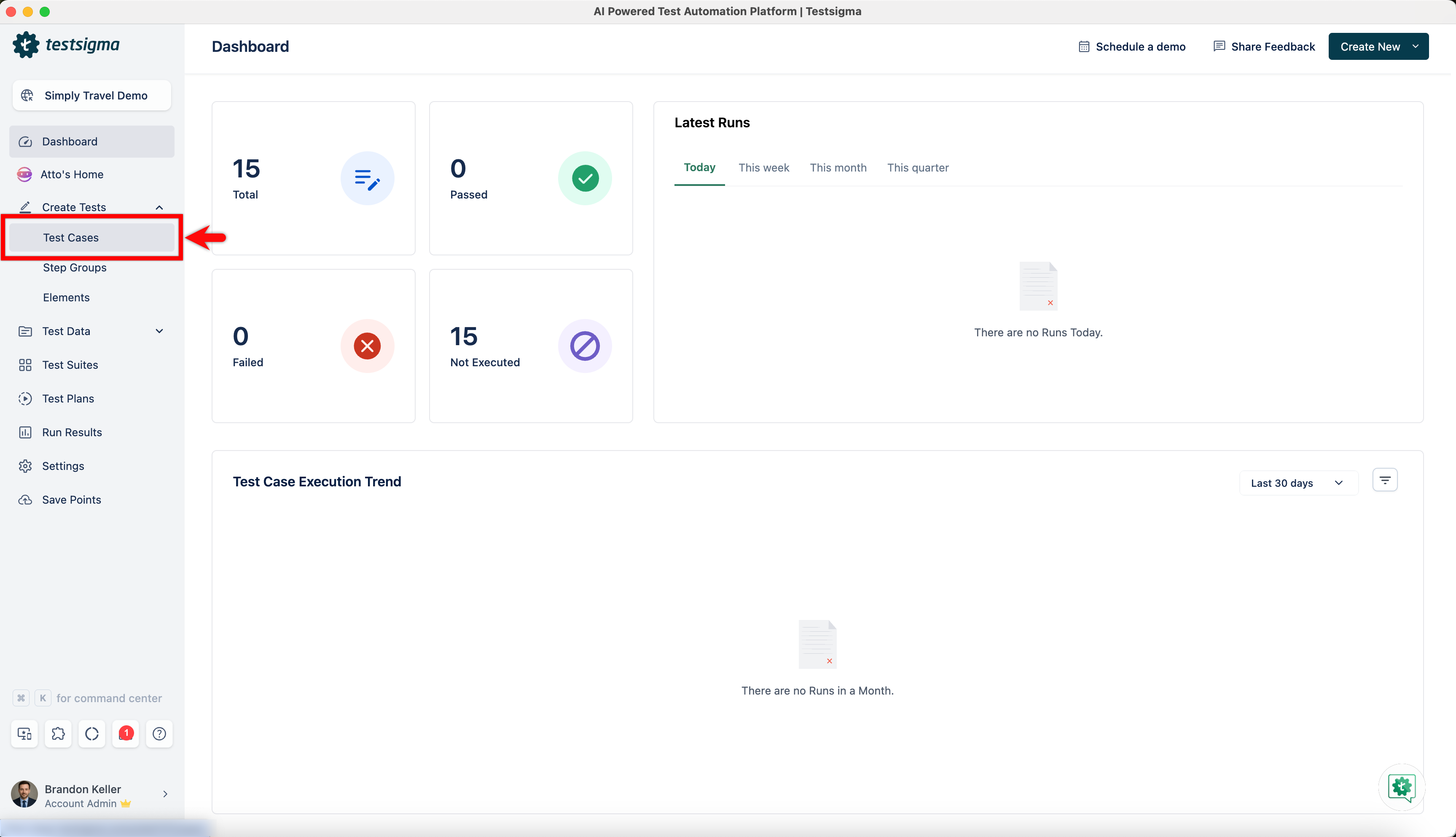
From the left navigation bar, go to Create Tests > Test Cases.
-
Create a test case or open an existing test case.
-
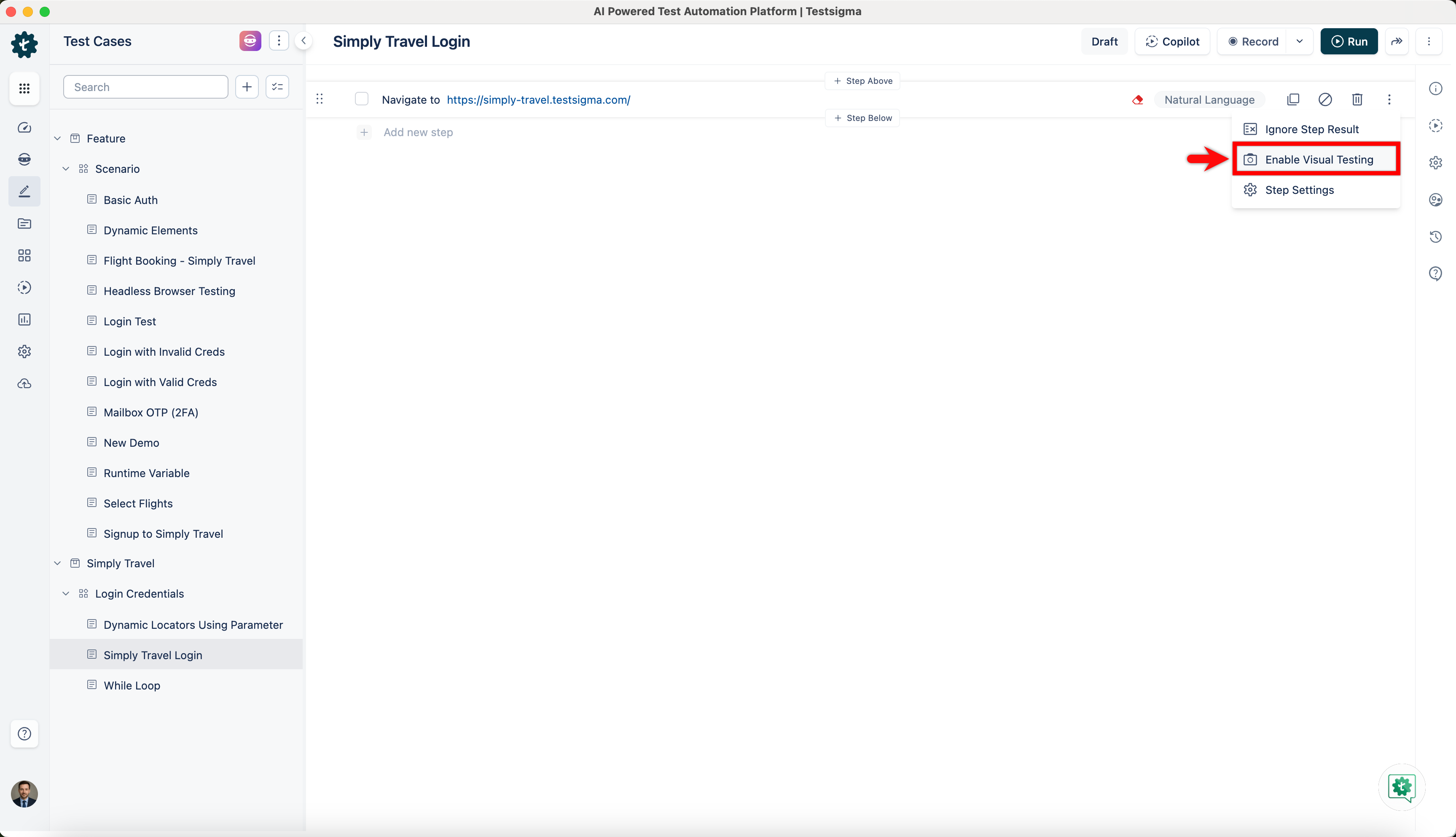
Click the Kebab menu next to the test step, and then select Enable Visual Testing from the dropdown menu.
-
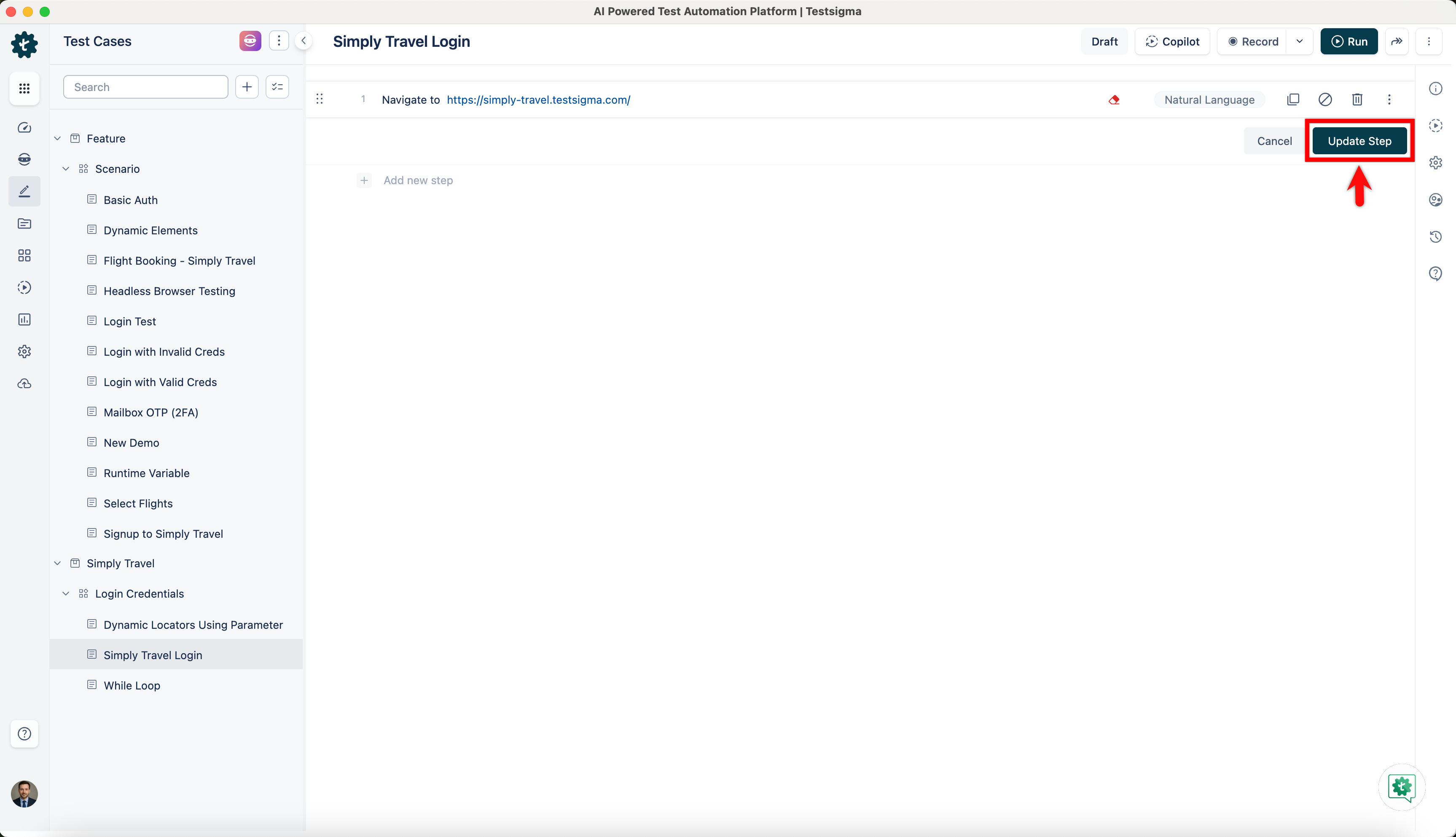
Click Update Step.
-
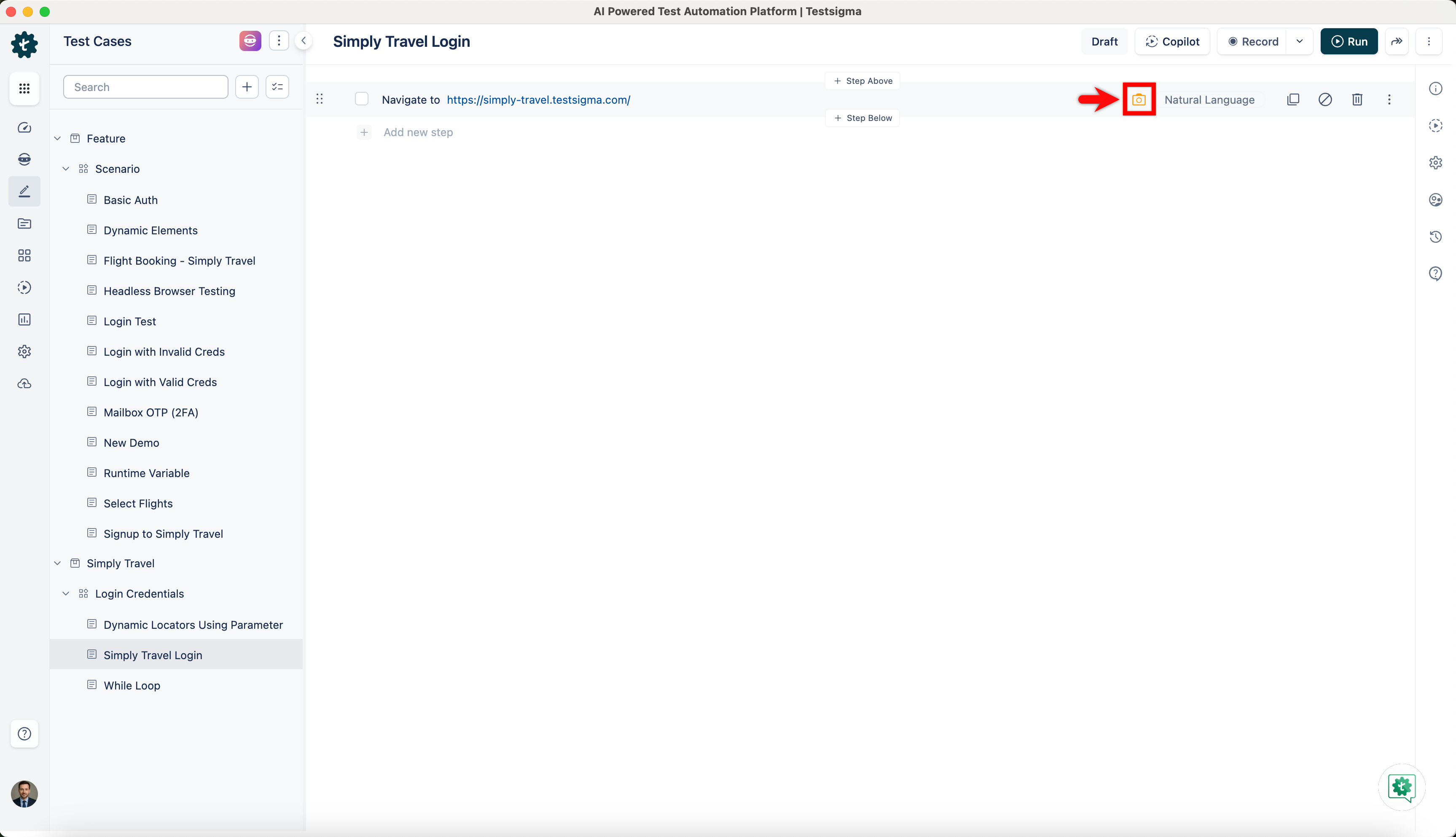
Hover over the test step, and then click the Camera icon. This will open the Visual Difference – Figma section.
-
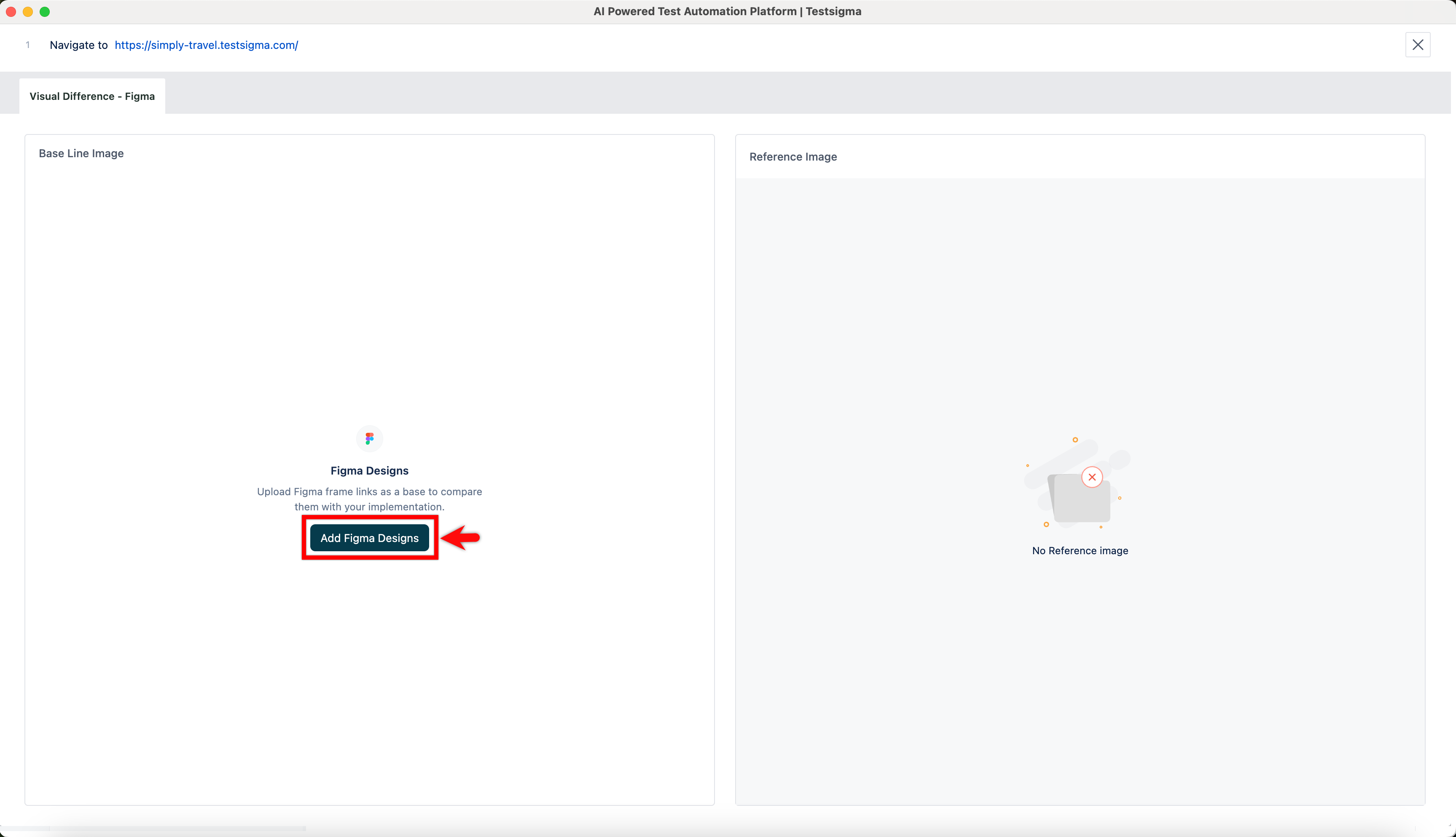
In the Base Line Image section, click Add Figma Designs.
-
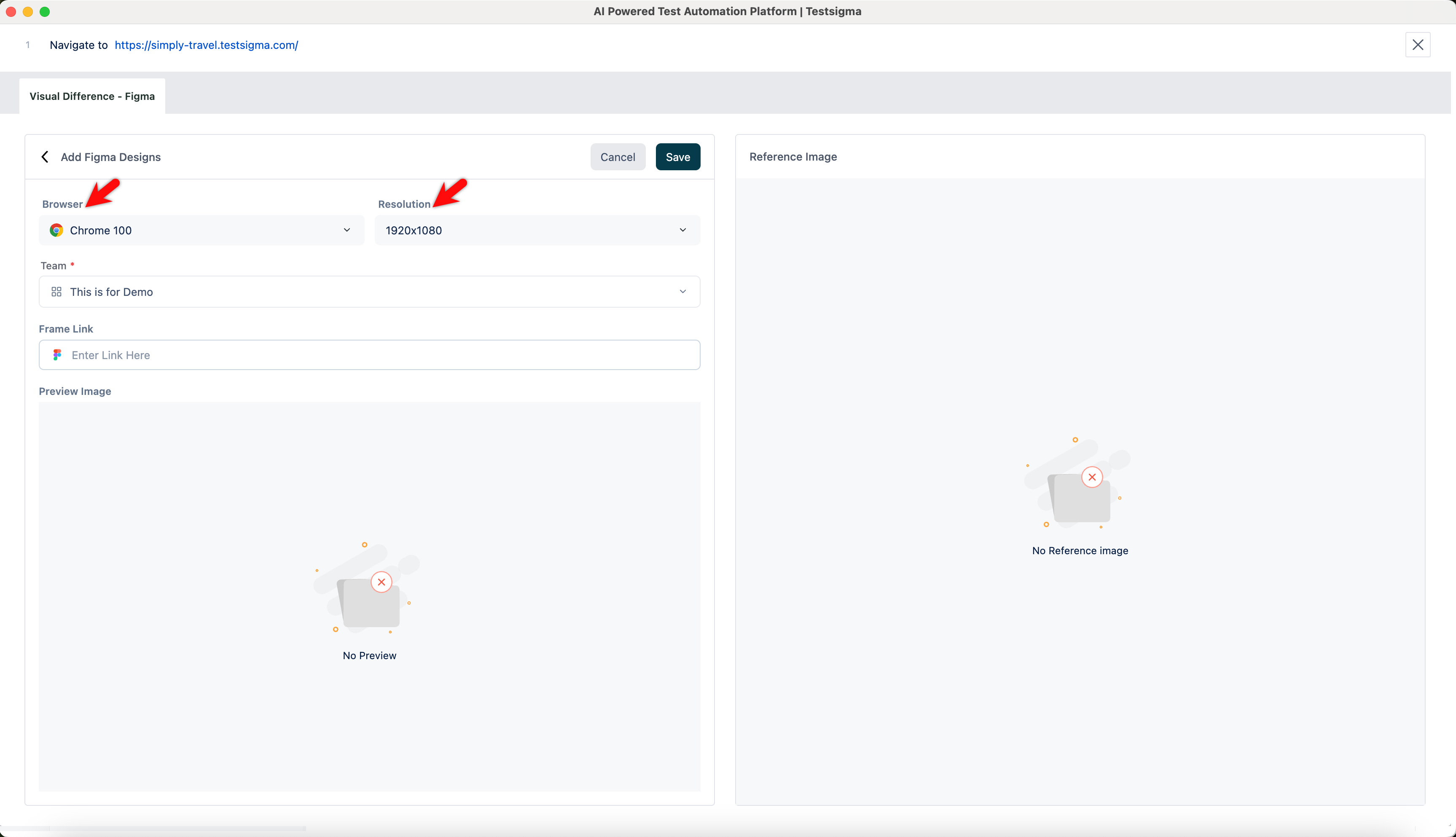
In the Add Devices section, select the Browser and Resolution from the dropdown menus.
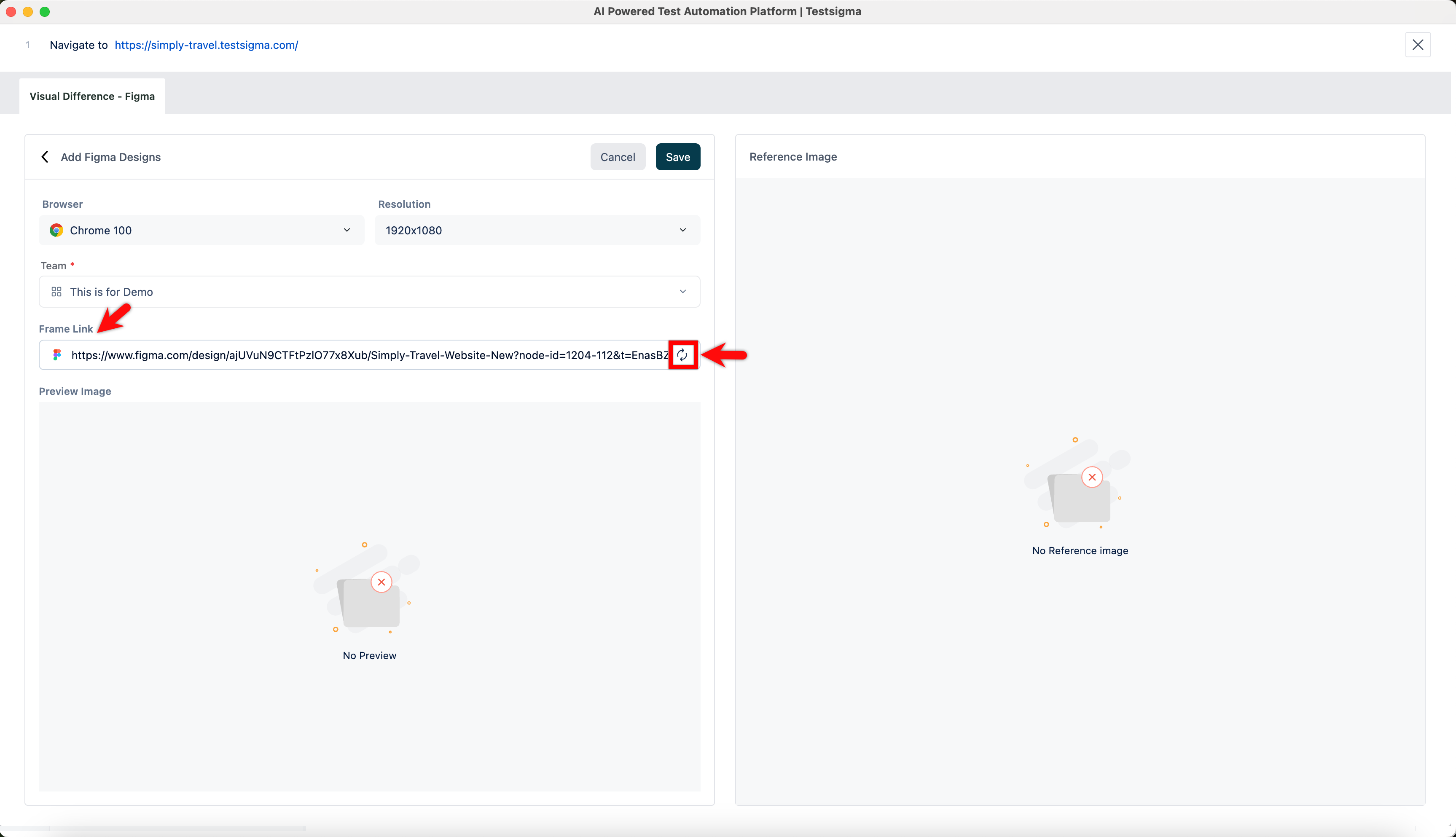
- In the Frame Link text box, enter the Figma frame link, and then click Refresh to verify.
-
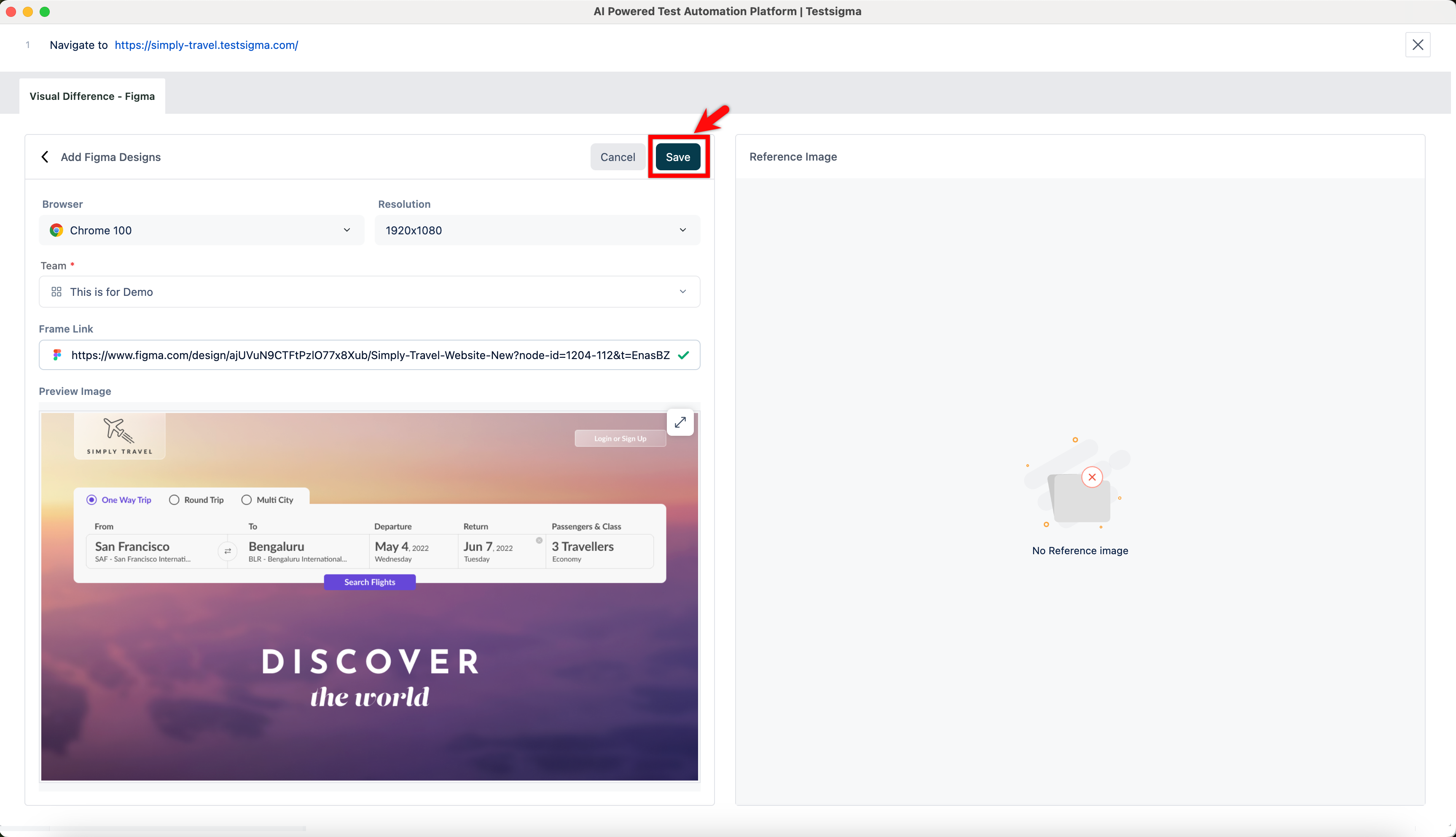
Click Save.
-
Execute the test case. In the test step result, click the Camera icon, and then select the Visual Difference – Figma tab to view the visual testing results.