
CI/CD
Integrate Testsigma with Codemagic
Prerequisites
Before you begin, ensure you have:
- A repository on a supported version control system (e.g., GitHub).
- A Codemagic account.
- A shell script in your repository that triggers Testsigma test execution.
Sign Up and Authorize Codemagic
Section titled “Sign Up and Authorize Codemagic”-
Navigate to Codemagic.
-
Sign up using your version control system (We’re using GitHub).
-
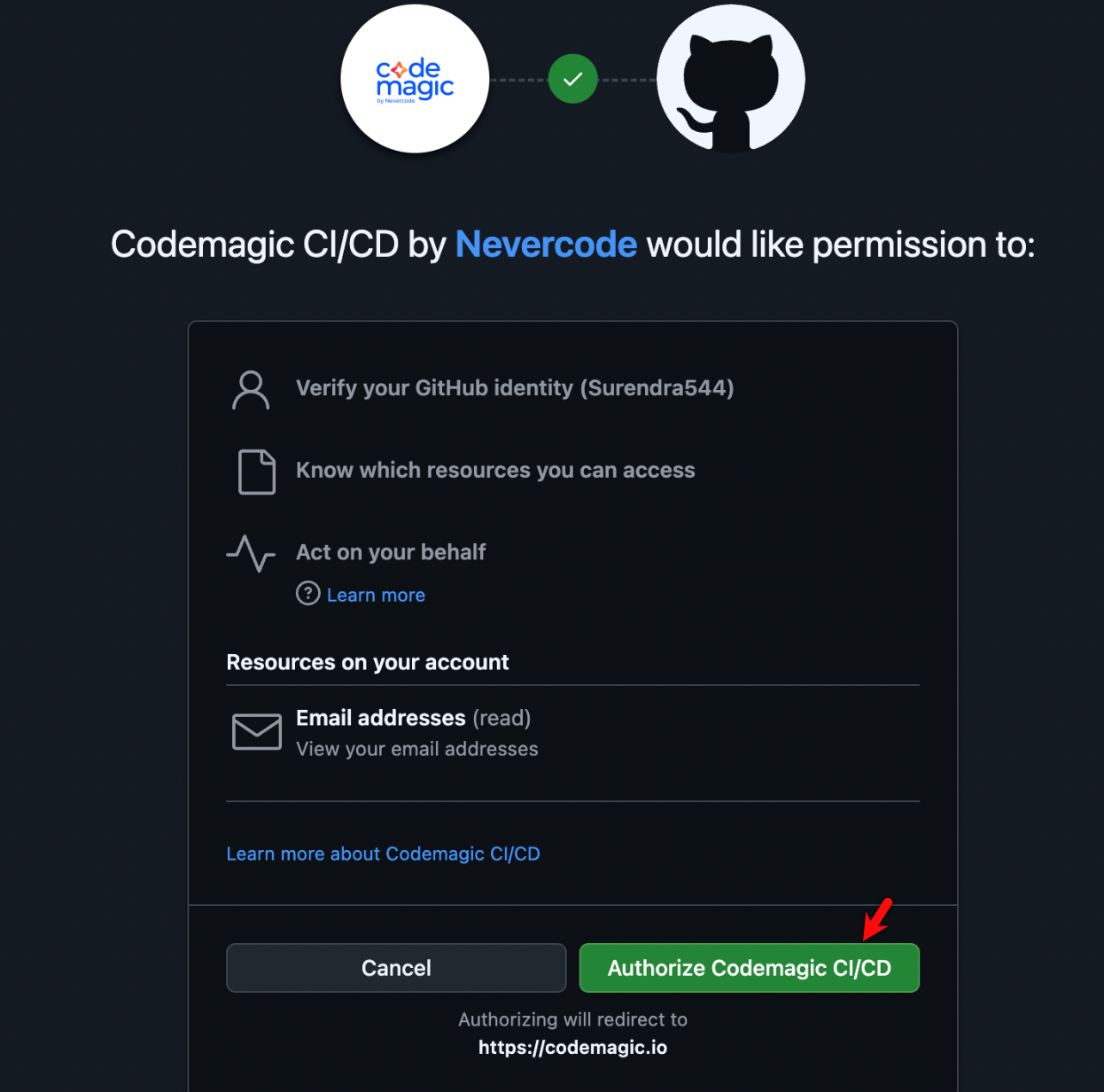
After signing in, authorize Codemagic by clicking Authorize Codemagic CI/CD.
-
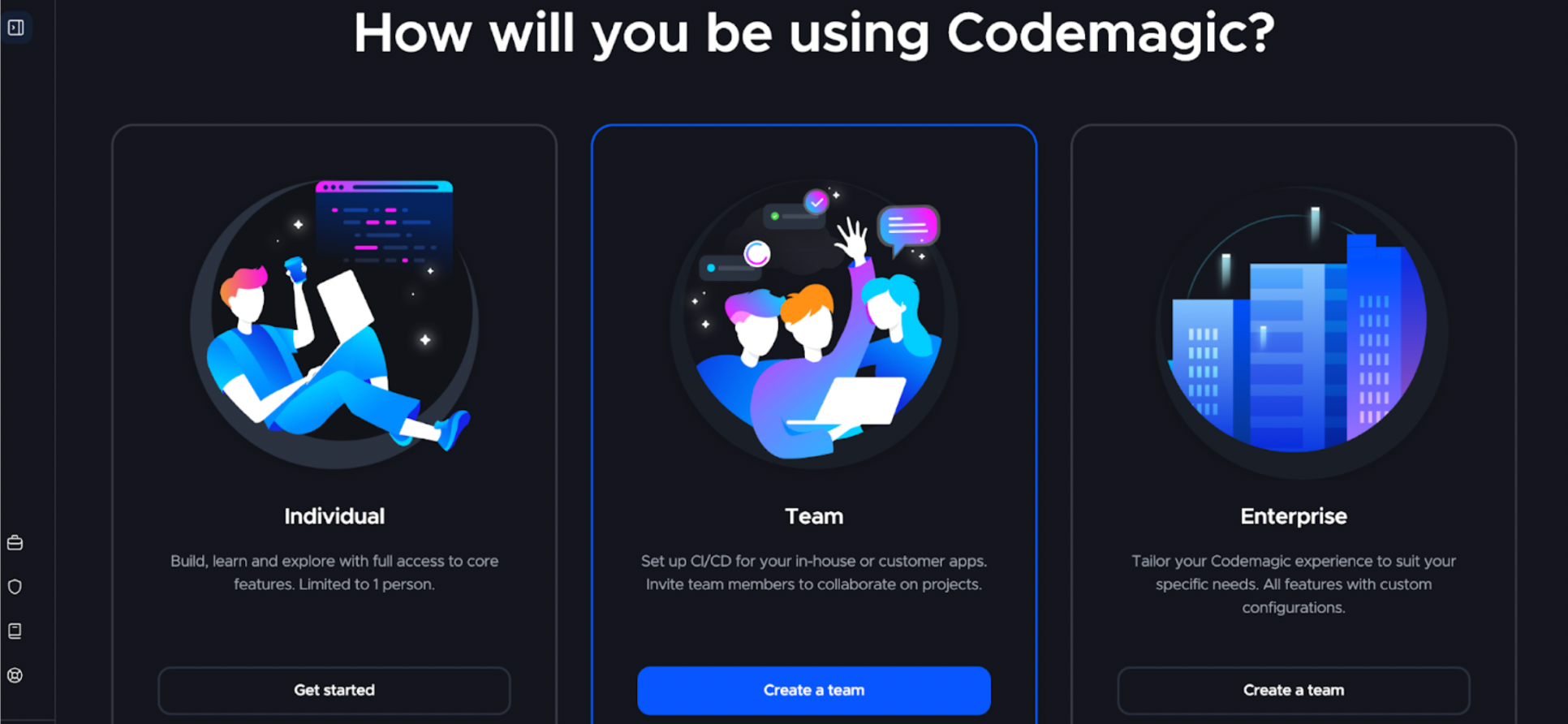
On the How will you be using Codemagic? page, select the preferred option.
-
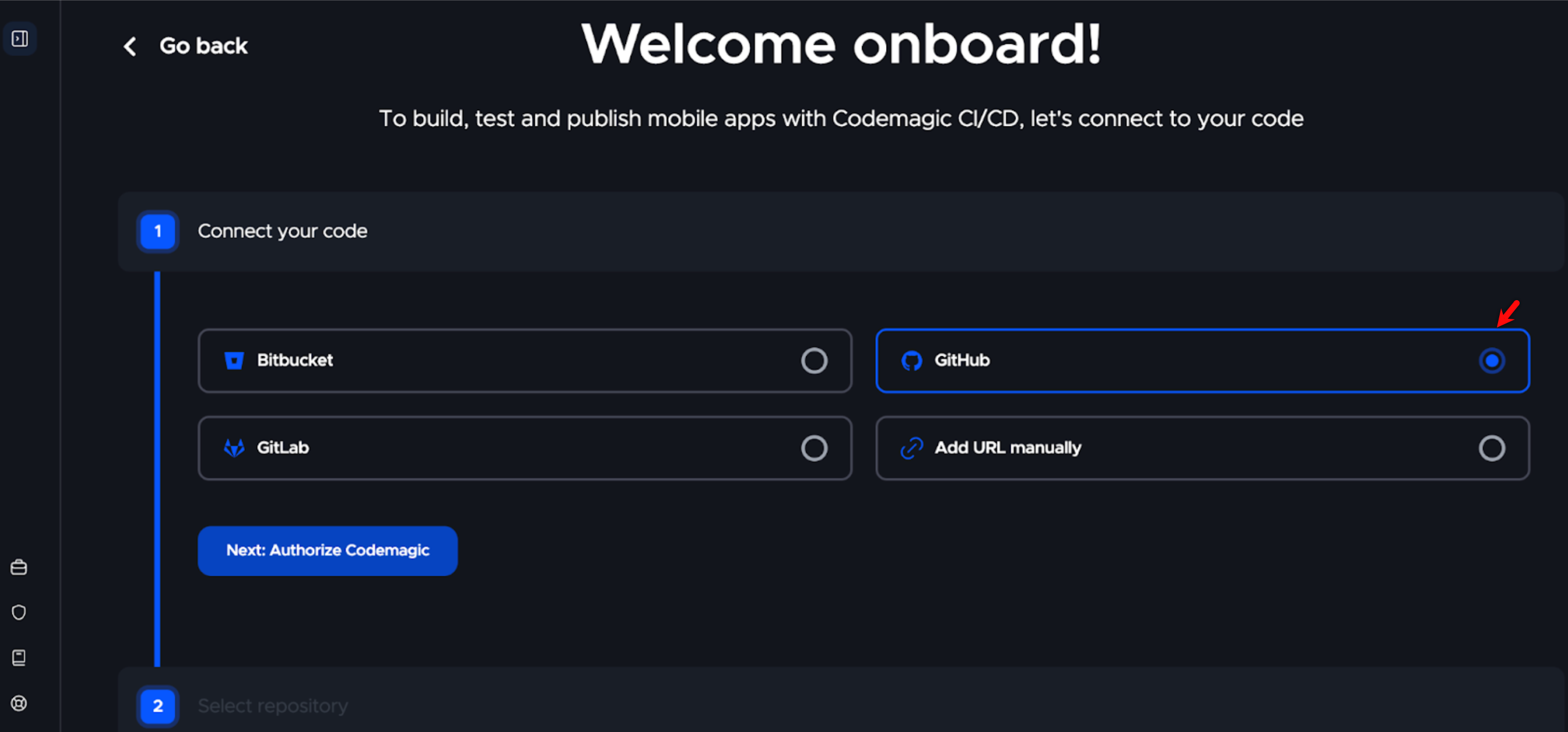
On the Welcome Onboard page, under Connect Code, choose your version control provider (e.g., GitHub).
Select and Configure Your Repository
Section titled “Select and Configure Your Repository”-
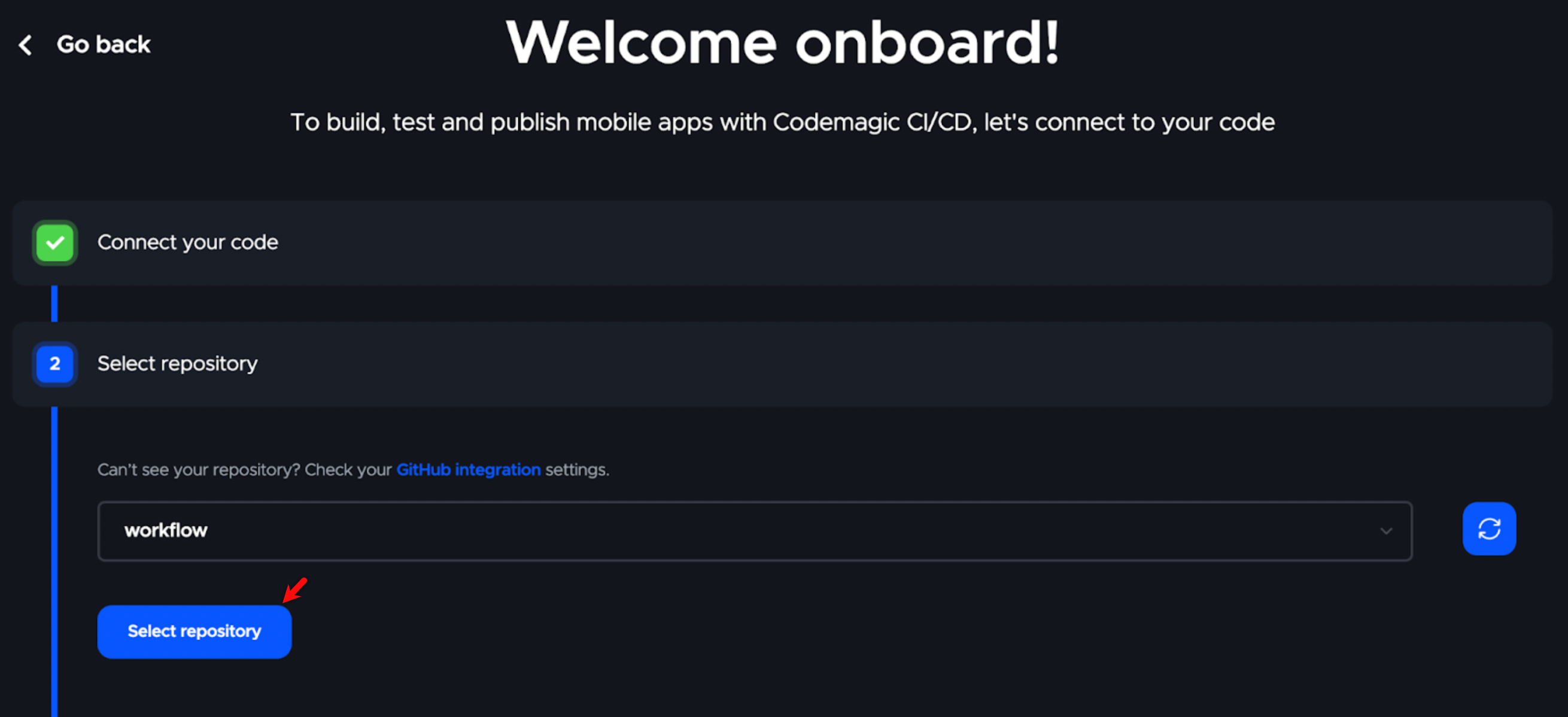
Under Select repository, choose the appropriate repository from the dropdown menu and click Select repository.
-
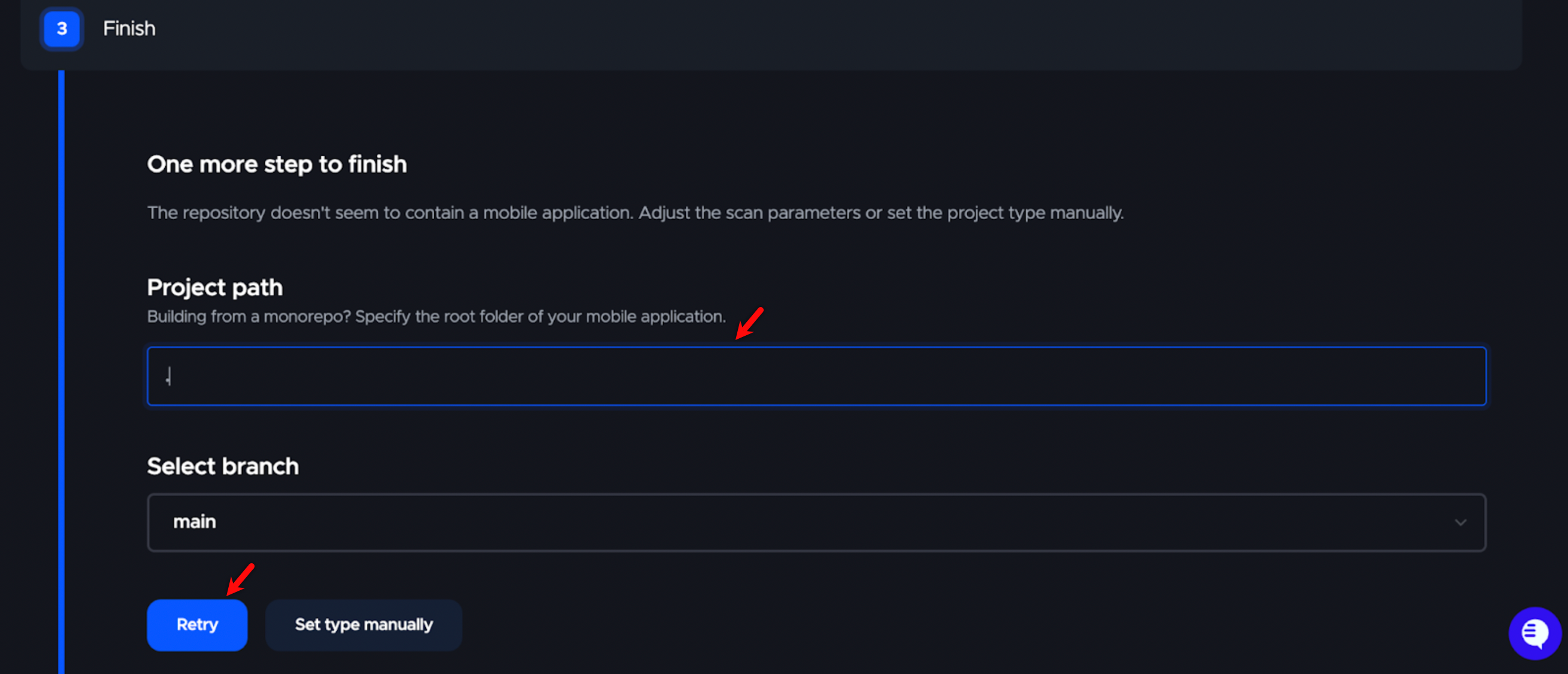
Enter the relative path to your project in the Project path field.
-
Click Retry to allow Codemagic to scan the repository.
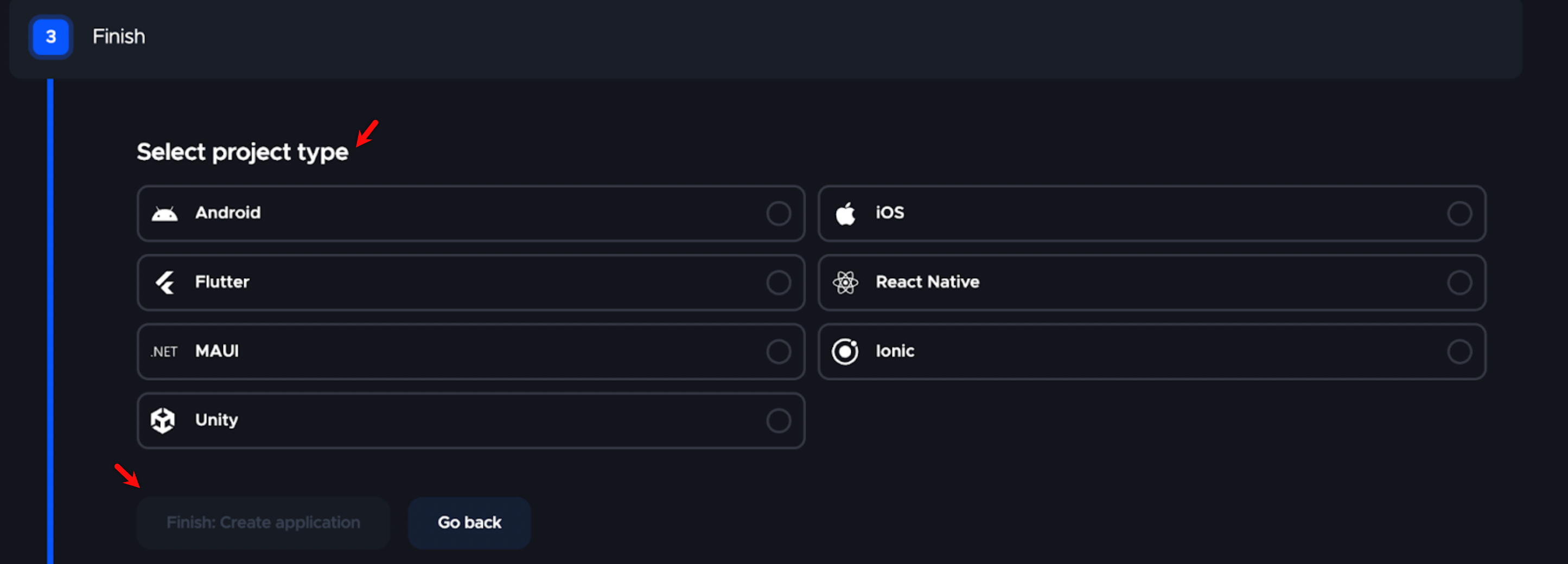
Alternatively, click Set Type Manually to specify the project type.
- Select the project type and click Create Application.
Configure the YAML Workflow
Section titled “Configure the YAML Workflow”-
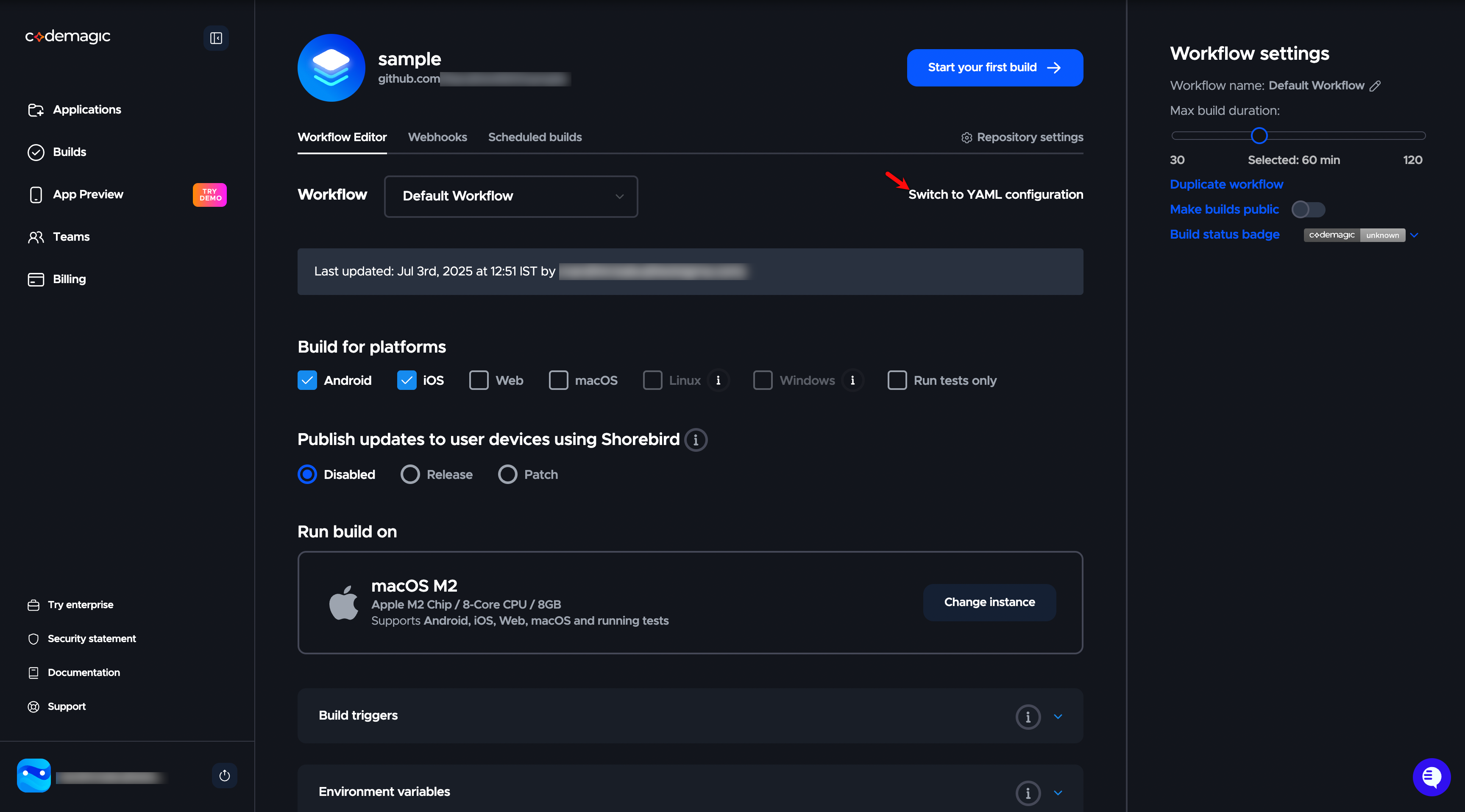
On the workflow screen, click Switch to YAML configuration.
-
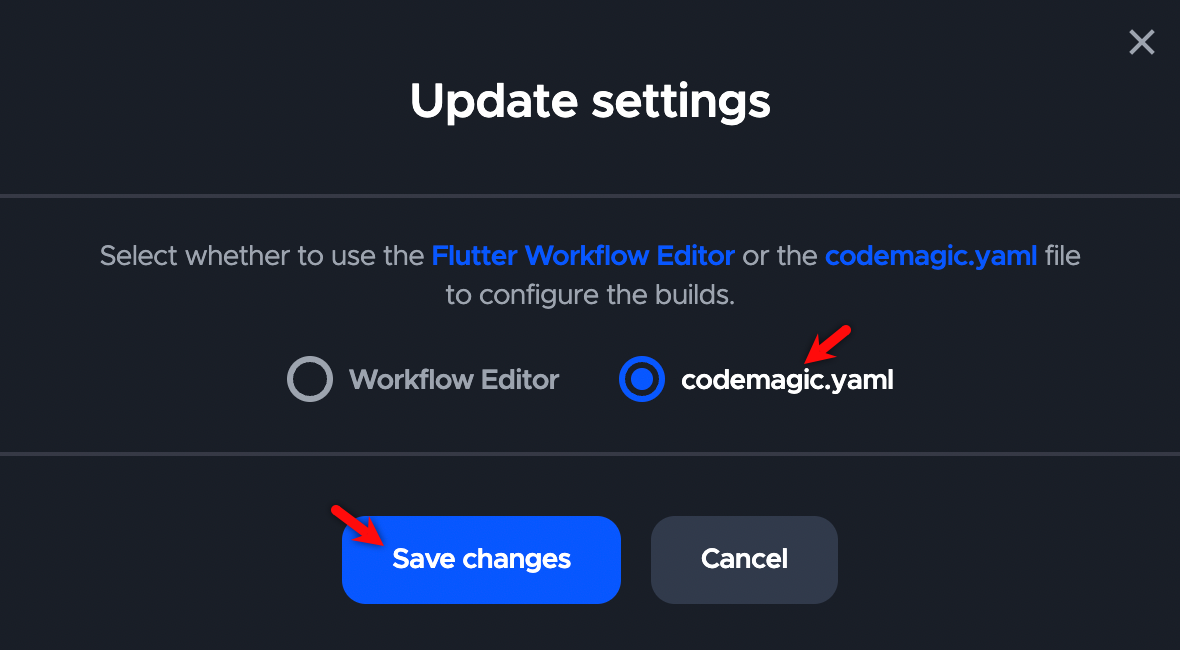
In the Update Settings dialog, select the codemagic.yaml radio button and click Save changes.
Add the YAML Configuration File
Section titled “Add the YAML Configuration File”-
In your repository, create a new file named codemagic.yaml at the root directory.
-
Add the following YAML script:
workflows: run-testsigma: name: Run Testsigma Shell Script scripts: - name: Trigger Testsigma script: | chmod +x ./magictrigger.sh ./magictrigger.sh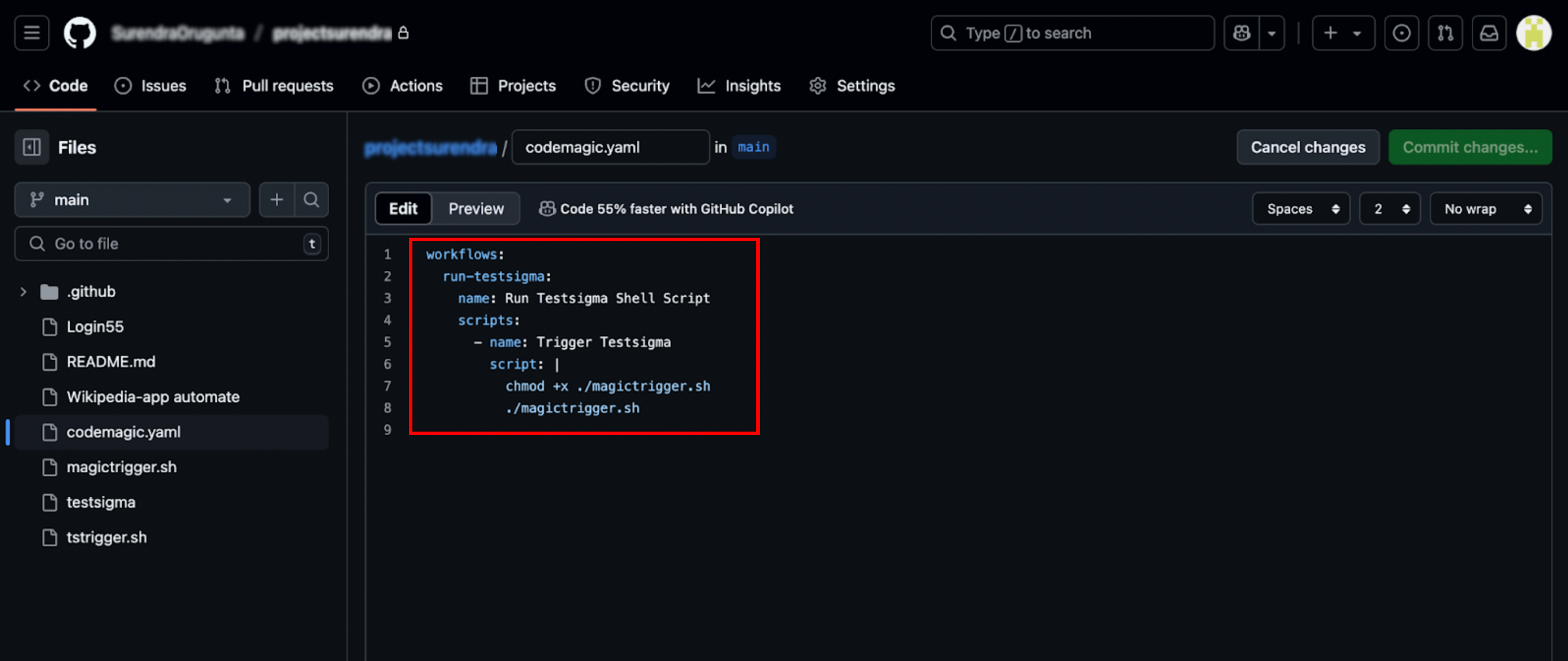
-
Commit and push the file to your repository.
-
(Optional) Configure Environment Variables, Webhooks, and other settings in Codemagic if necessary.
Trigger the Workflow
Section titled “Trigger the Workflow”-
Navigate to Codemagic.
-
Click Start new build.
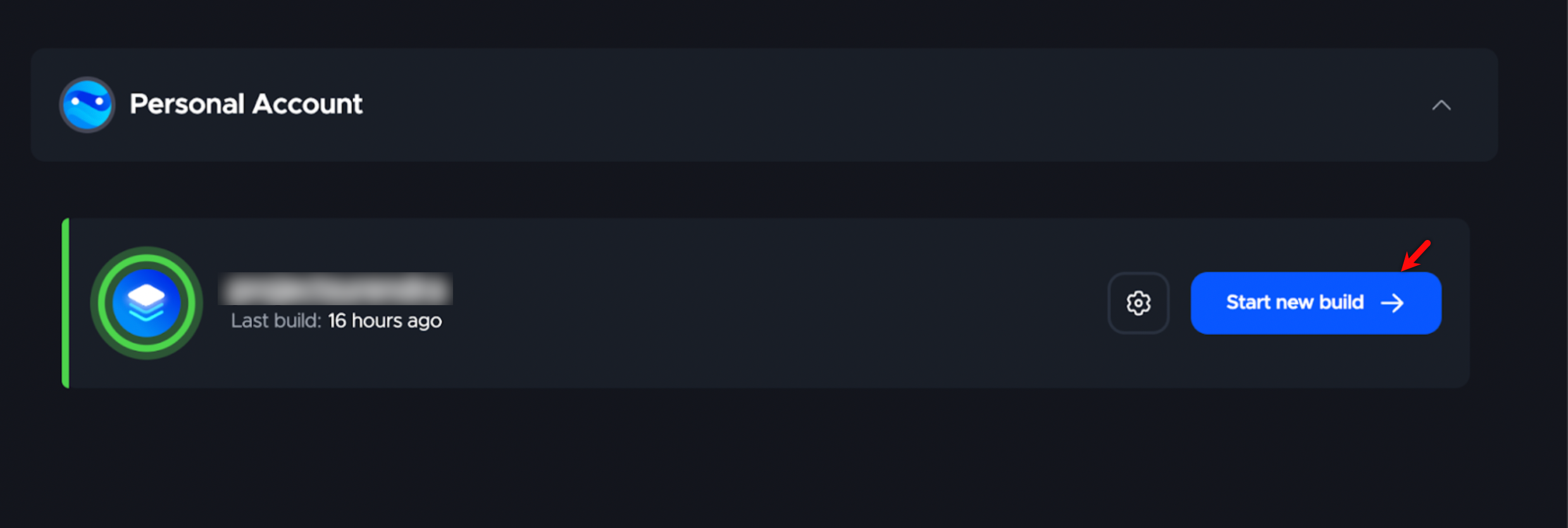
Codemagic will detect the codemagic.yaml file and initiate the workflow. After the build completes, you can view the execution logs and test results.