Test Cases
Manage Test Cases for Android & iOS Apps
Prerequisites
- Before you begin, ensure you have referred to the documentation on Creating Test Cases for Android & iOS Applications.
Edit a Test Case
Section titled “Edit a Test Case”-
From the left navigation bar, go to Create Tests > Test Cases.
-
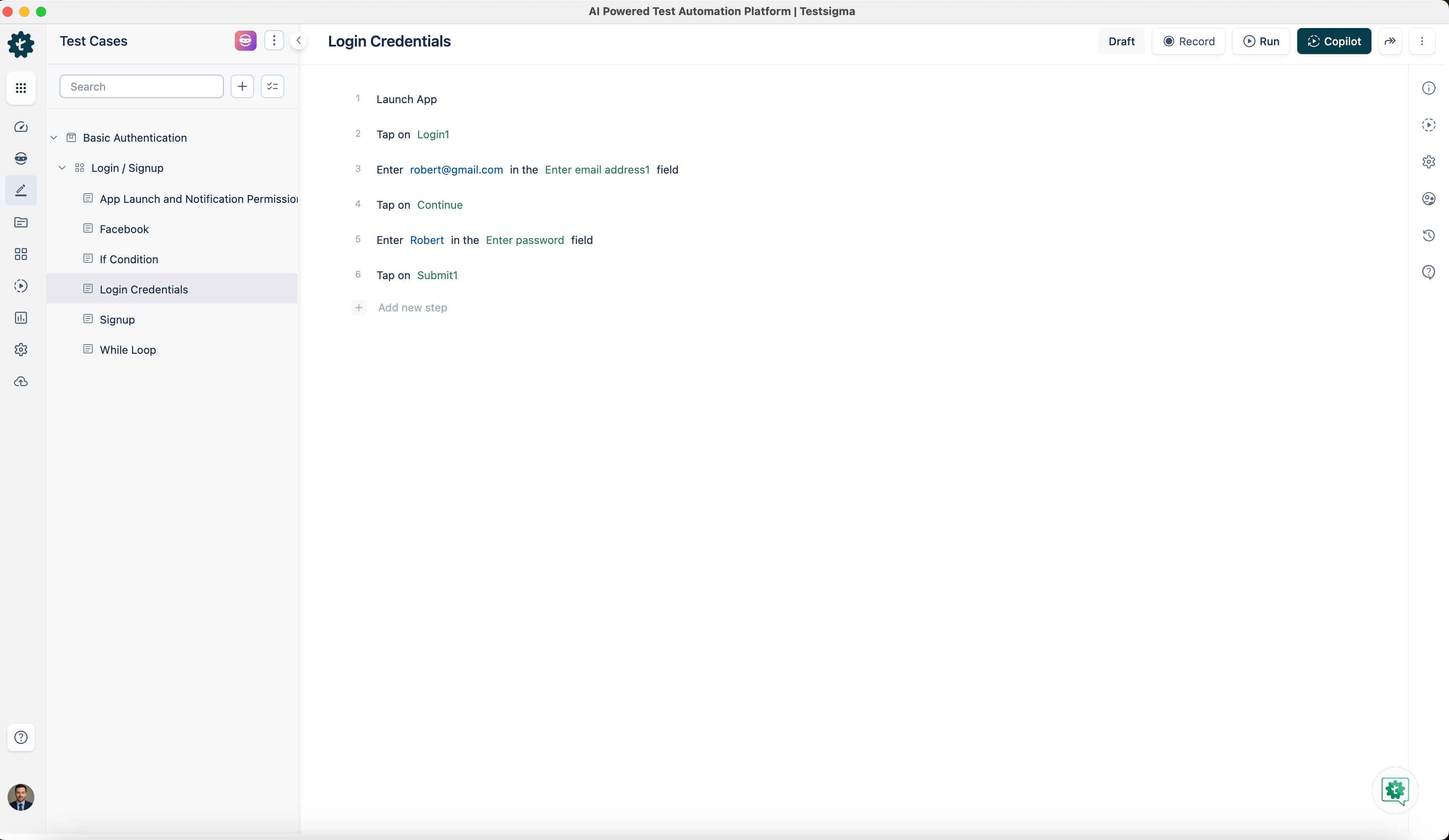
Expand a Feature, then expand a Scenario, and select the test case you want to edit.
-
On the Test Case Details page, you can edit the test case using the following options:
Add a New Step
Section titled “Add a New Step”-
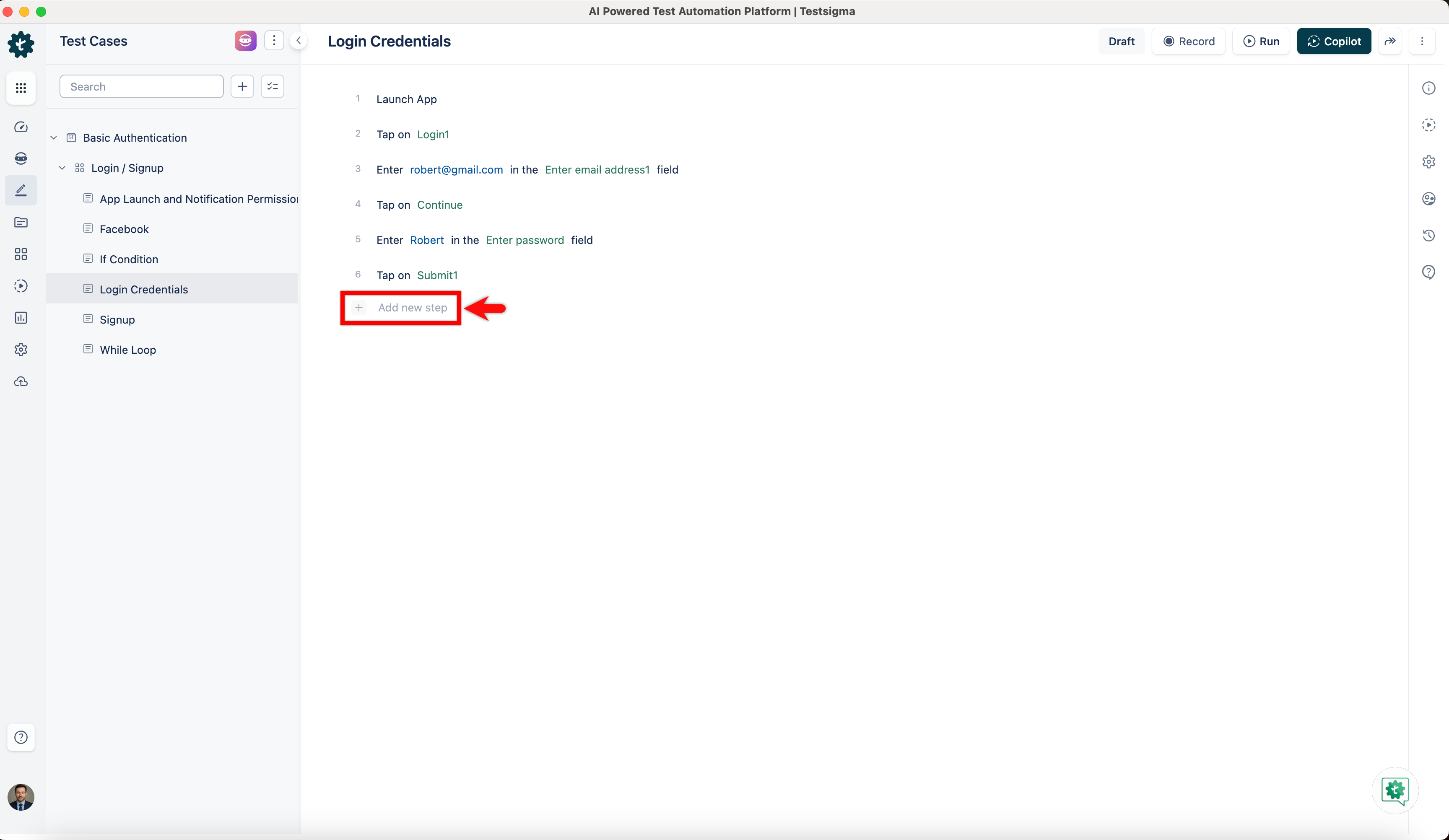
Click + Add new step at the bottom of the step list to append a new step at the end.
-
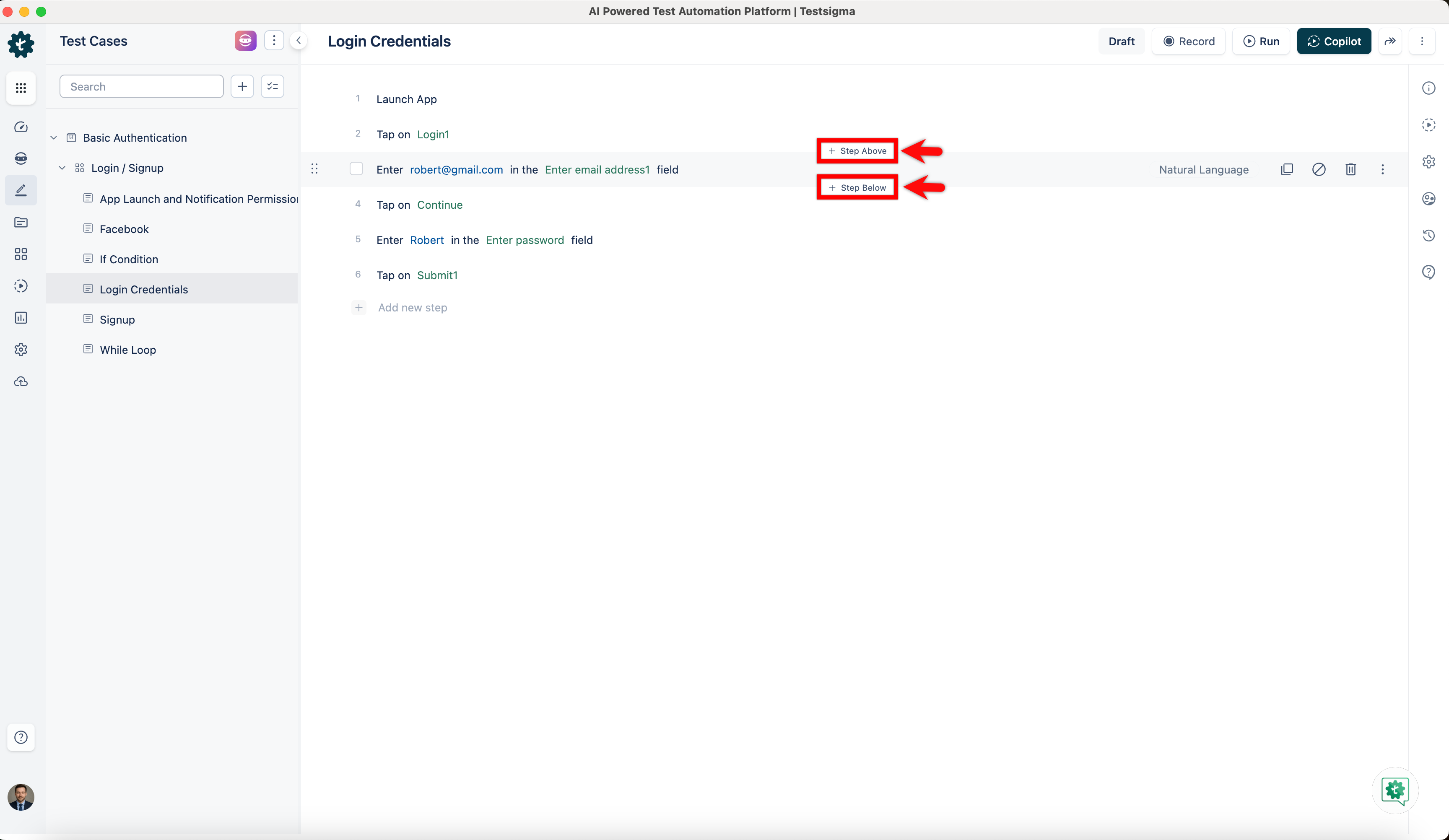
To insert a step at a specific position, hover over any existing step. Click + Step Above to insert a step before it, or + Step Below to insert a step after it.
Update an Existing Step
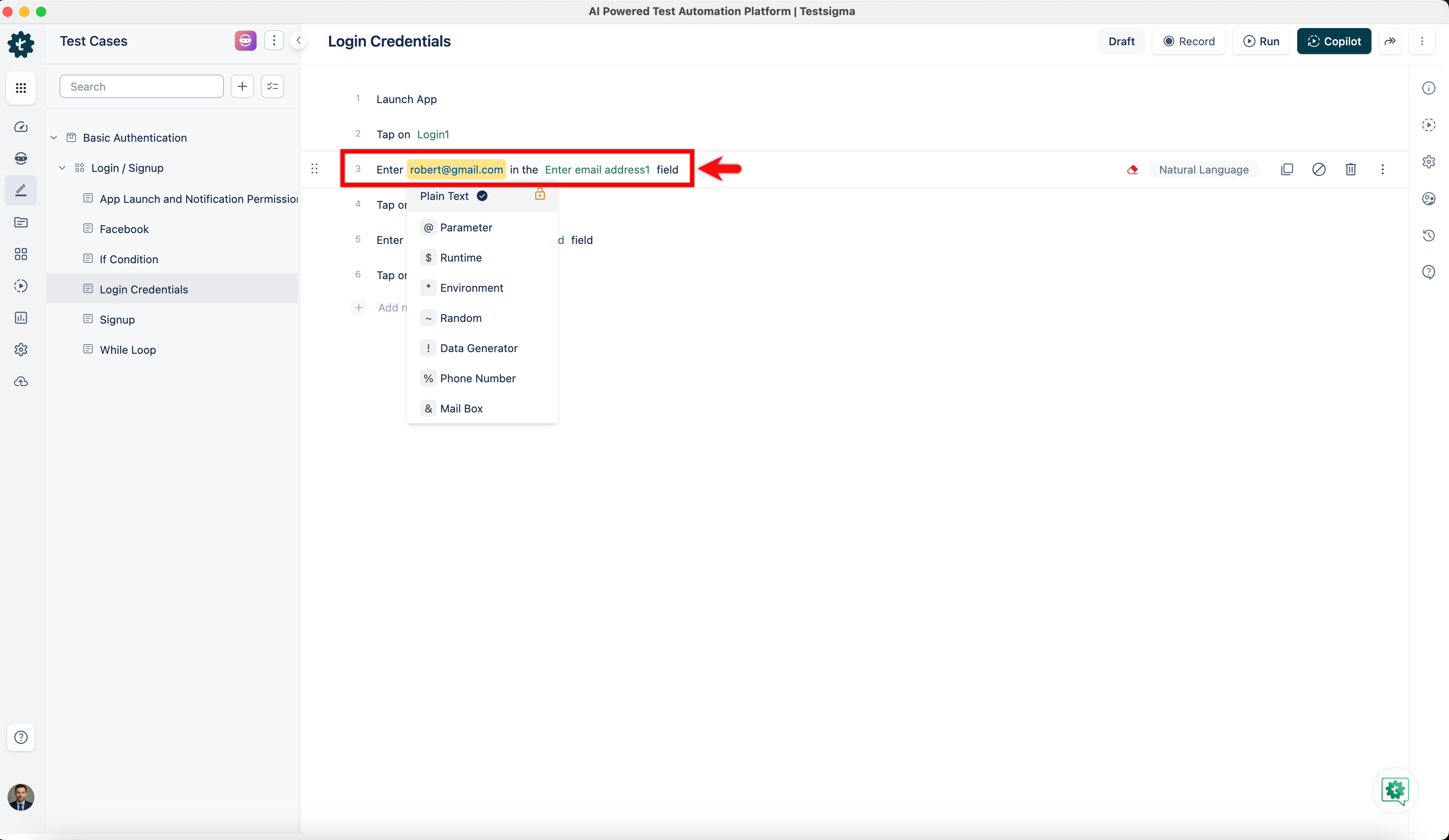
Section titled “Update an Existing Step”- Click on any existing step to make it editable. Modify the NLP action, test data, or element as needed.
Reorder Steps
Section titled “Reorder Steps”-
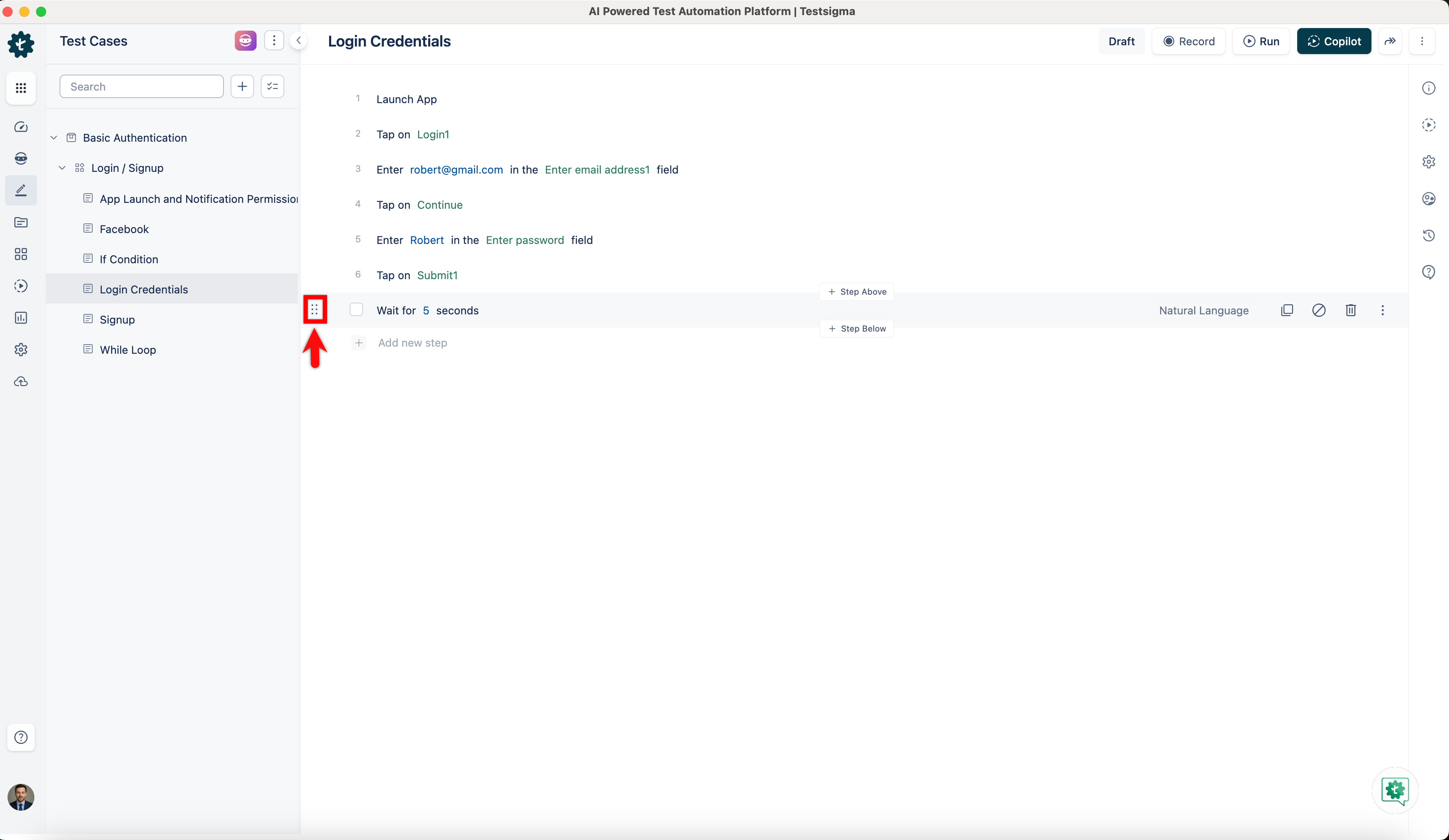
Hover over a step to reveal the drag handle (⠿) on the left side of the step.
-
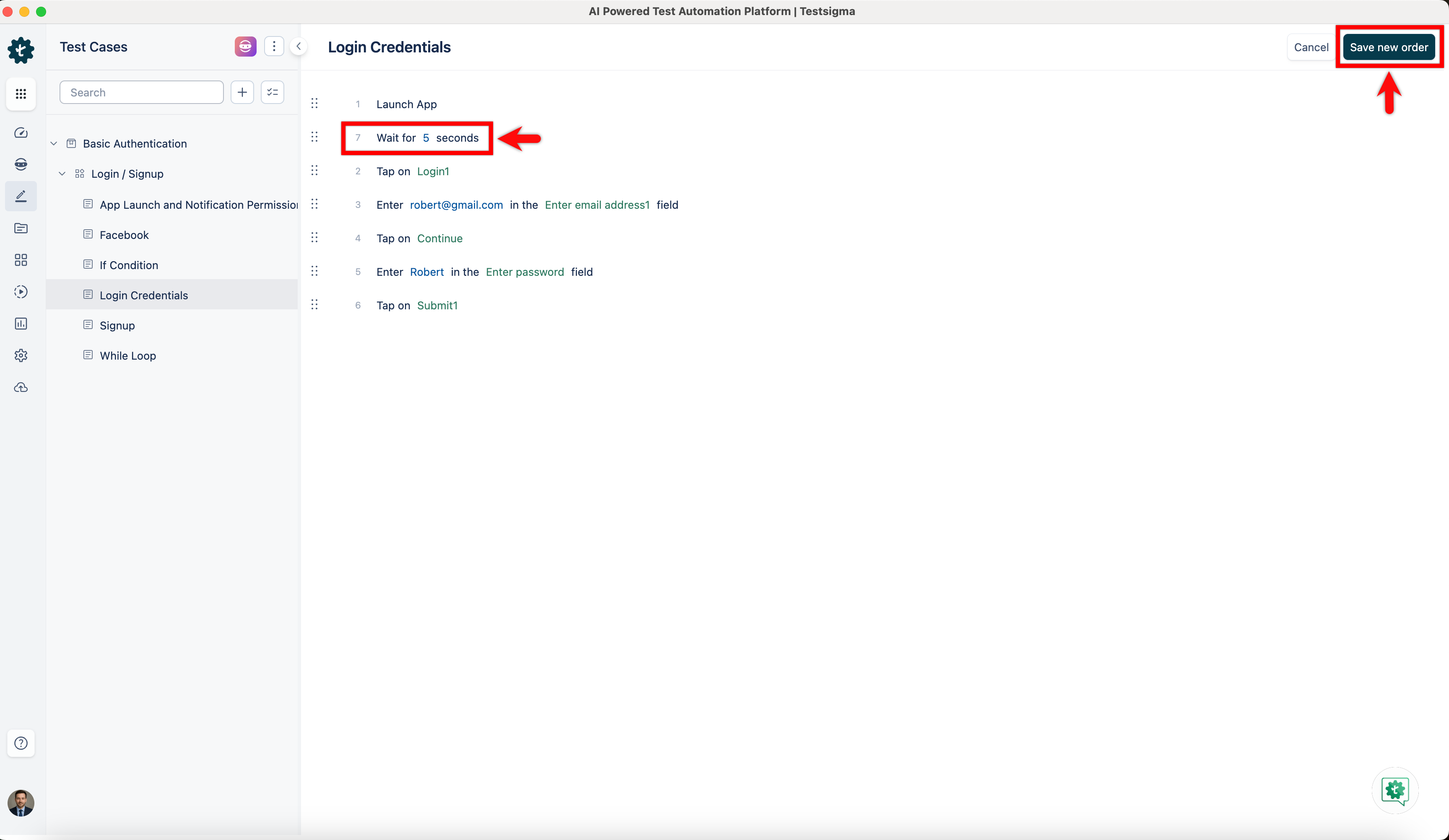
Click and drag the step to the desired position in the list and click Save new order.
Step Options (Ellipsis Menu)
Section titled “Step Options (Ellipsis Menu)”-
Hover over a step and click the ellipsis (⋮) icon on the right side to access additional options:
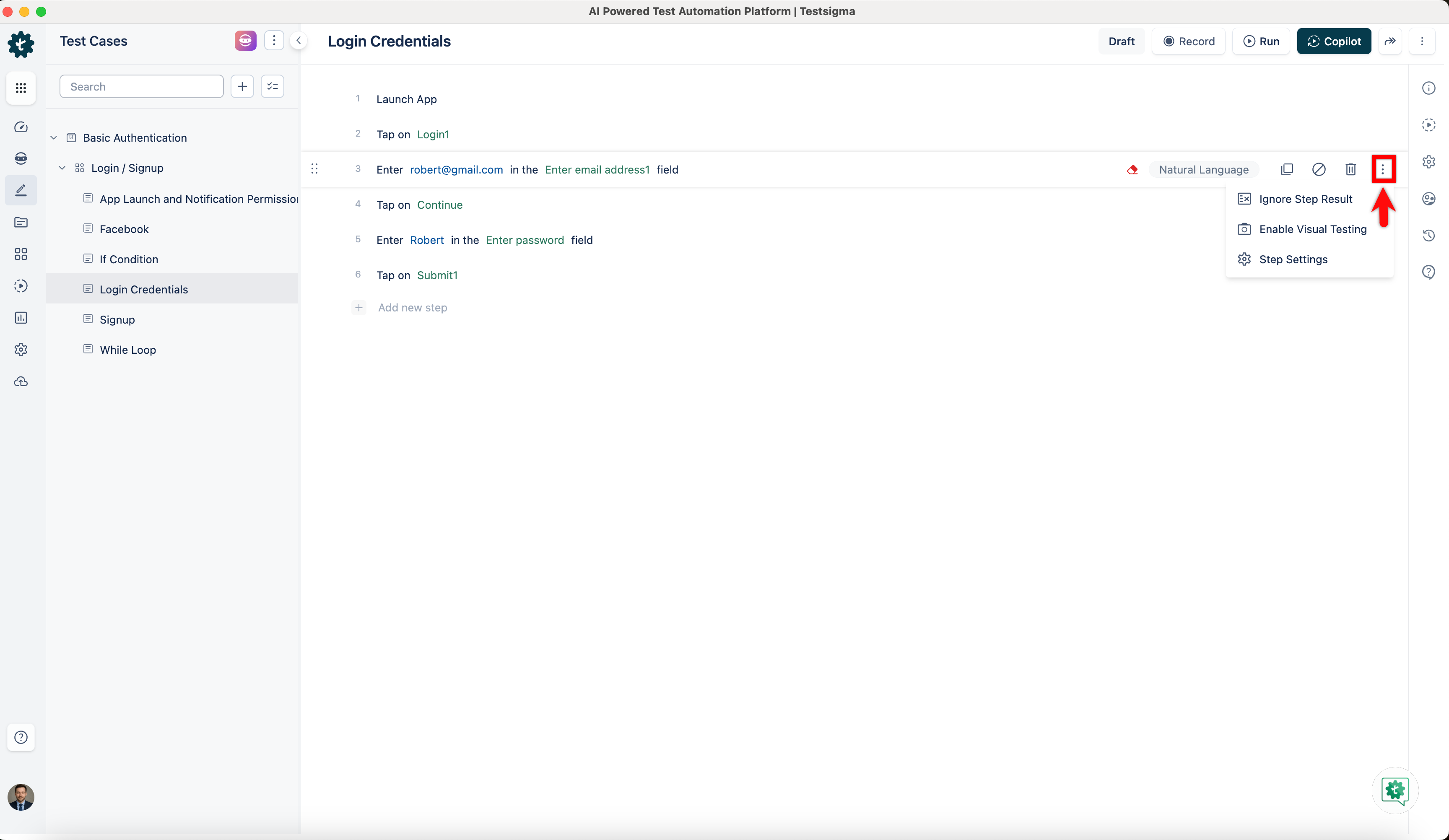
- Ignore Step Result: Marks the step so that its pass or fail result does not affect the overall test case result.
- Enable Visual Testing: Enables visual comparison for that specific step during execution.
- Step Settings: Opens the Step Settings overlay on the right, where you can configure the following:
- Pre-Requisite: Set another step as a prerequisite for this step.
- Step Timeout: Define the maximum time (in seconds, up to 120) allowed for the step to execute.
- Screenshot Capture: Choose when screenshots are captured: Always or Only on step failure.
- No. of Retries on Step Failure: Set how many times the step should be retried if it fails.
- Stop Test Case execution on Test Step failure: When enabled, the test case stops executing if this step fails.
- Ignore this step result in Test Case Result: When enabled, this step’s result is excluded from the overall test case result.
- Disable step: Disables the step so it is skipped during execution without being deleted.
- Enable Visual Testing for the step: Enables visual testing specifically for this step.
- Enable Accessibility Testing for the step: Enables accessibility testing for this step.
- Highlight element in screenshot: Highlights the element interacted with in the captured screenshot.
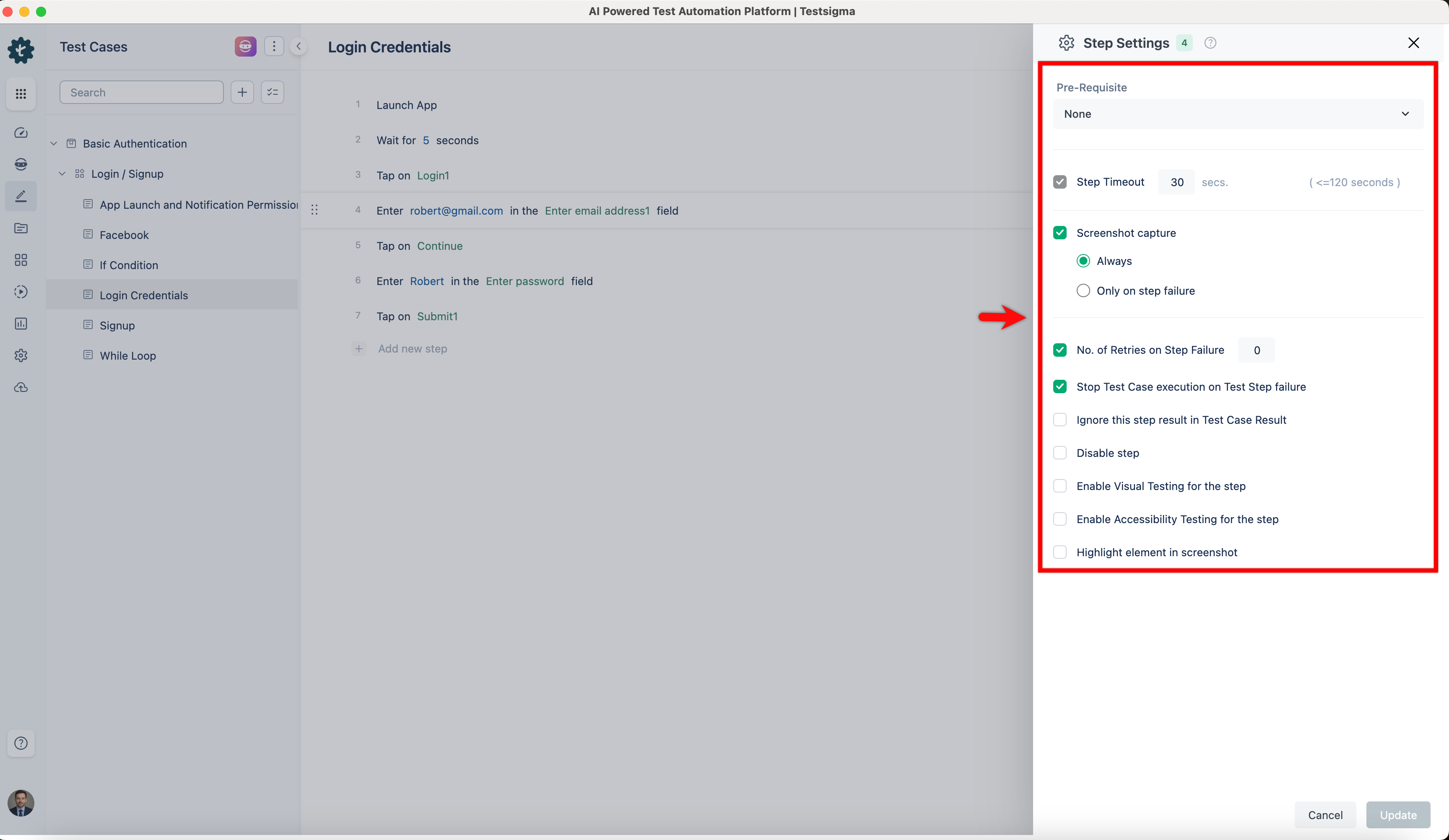
-
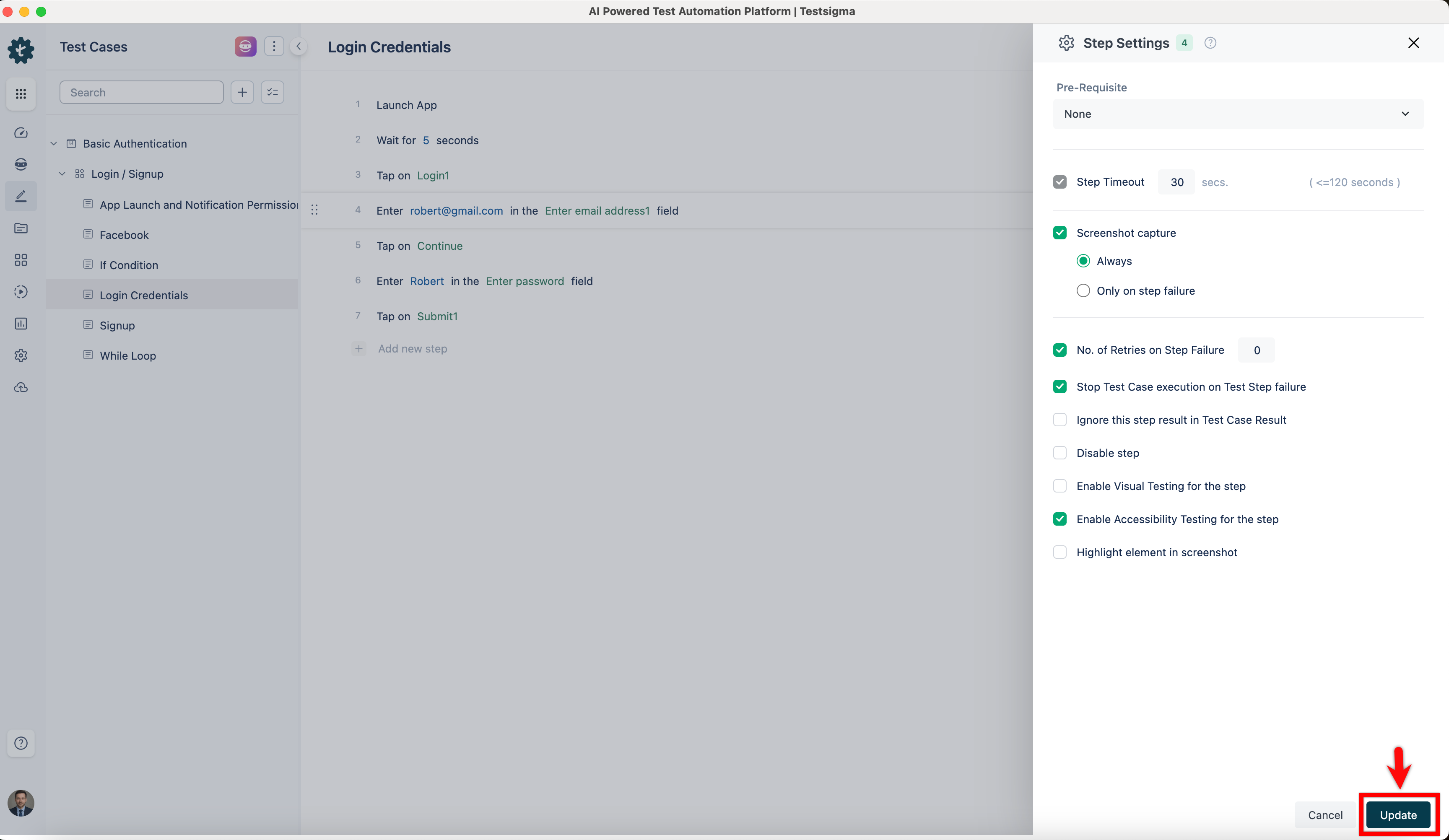
Click Update to save the Step Settings changes.
-
Use the right-side navbar to update advanced settings such as Test Case Info, Test Case Settings, and Manage Test Case options. Please refer to the documentation on Test Case: Advanced Options Guide for more information.
Delete a Test Case
Section titled “Delete a Test Case”-
From the left navigation bar, go to Create Tests > Test Cases.
-
Expand a Feature, and then expand a Scenario.
-
Delete the test case using one of the following methods:
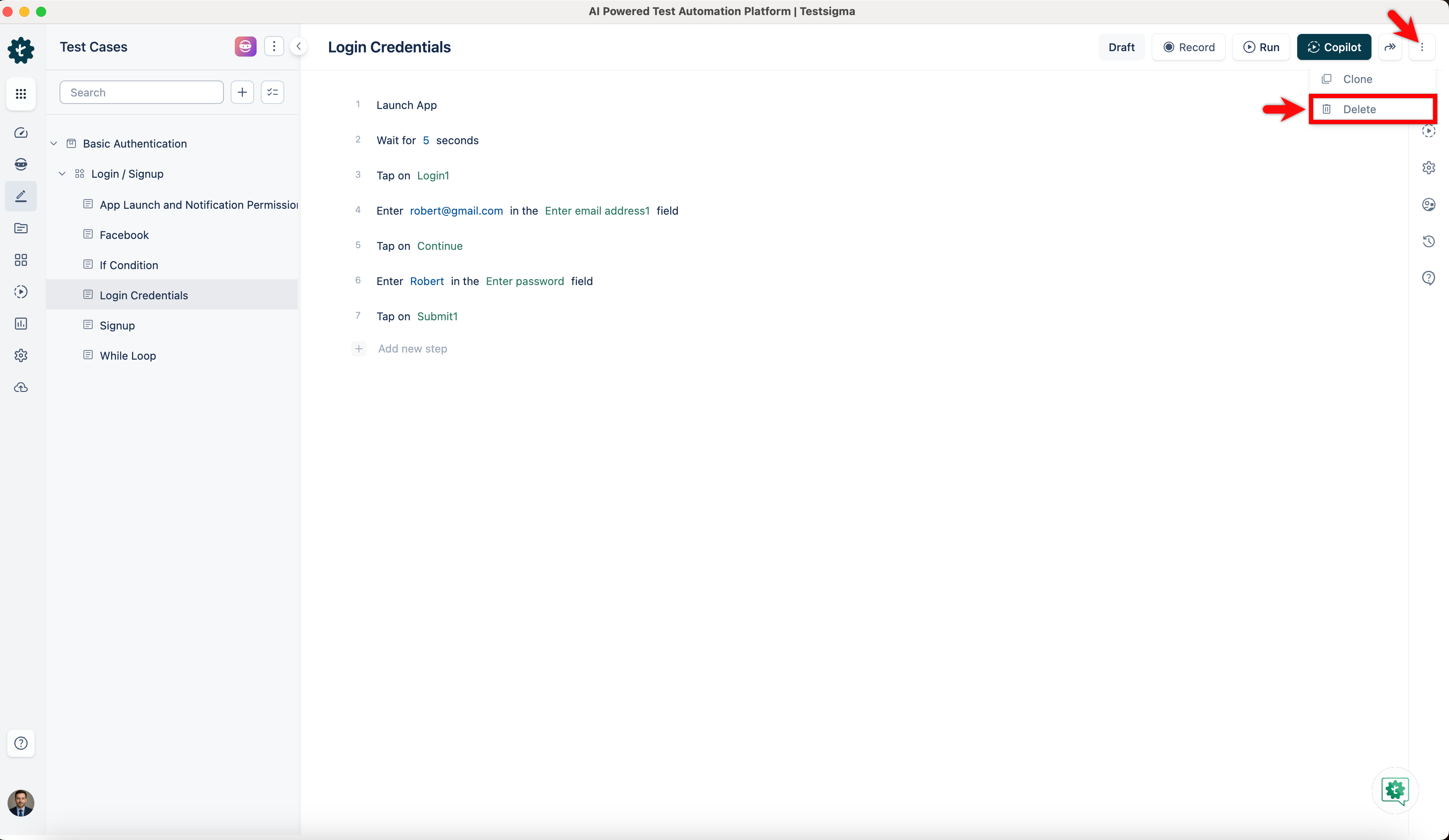
- Open the test case. In the top-right corner, click the More options (⋮) menu, and then click Delete.
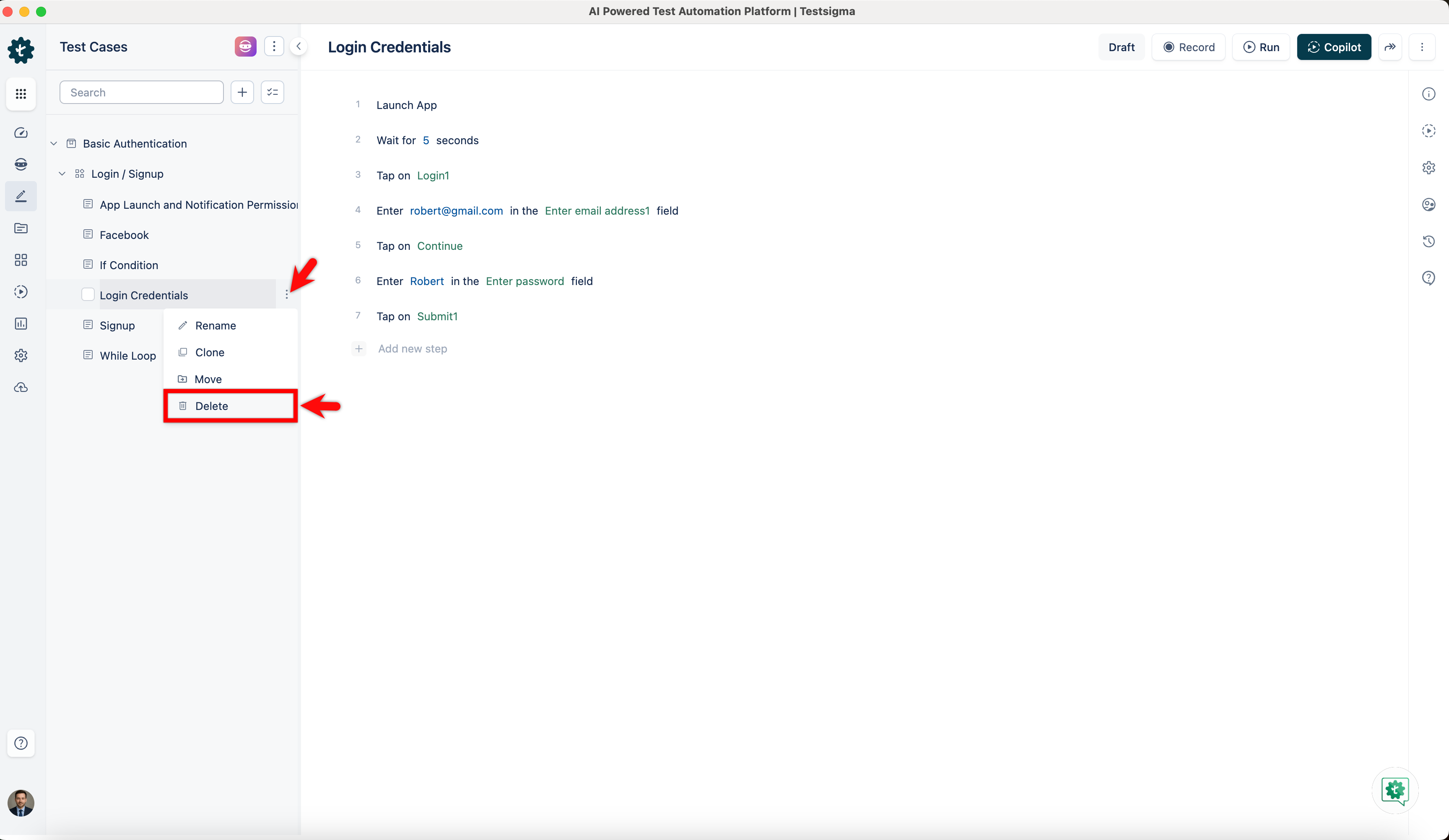
- In the expanded scenario section, select the ellipsis (⋮) icon next to the test case, and click Delete.
- On the Test Case List page, select one or more test cases, and then click the Delete icon in the menu bar.
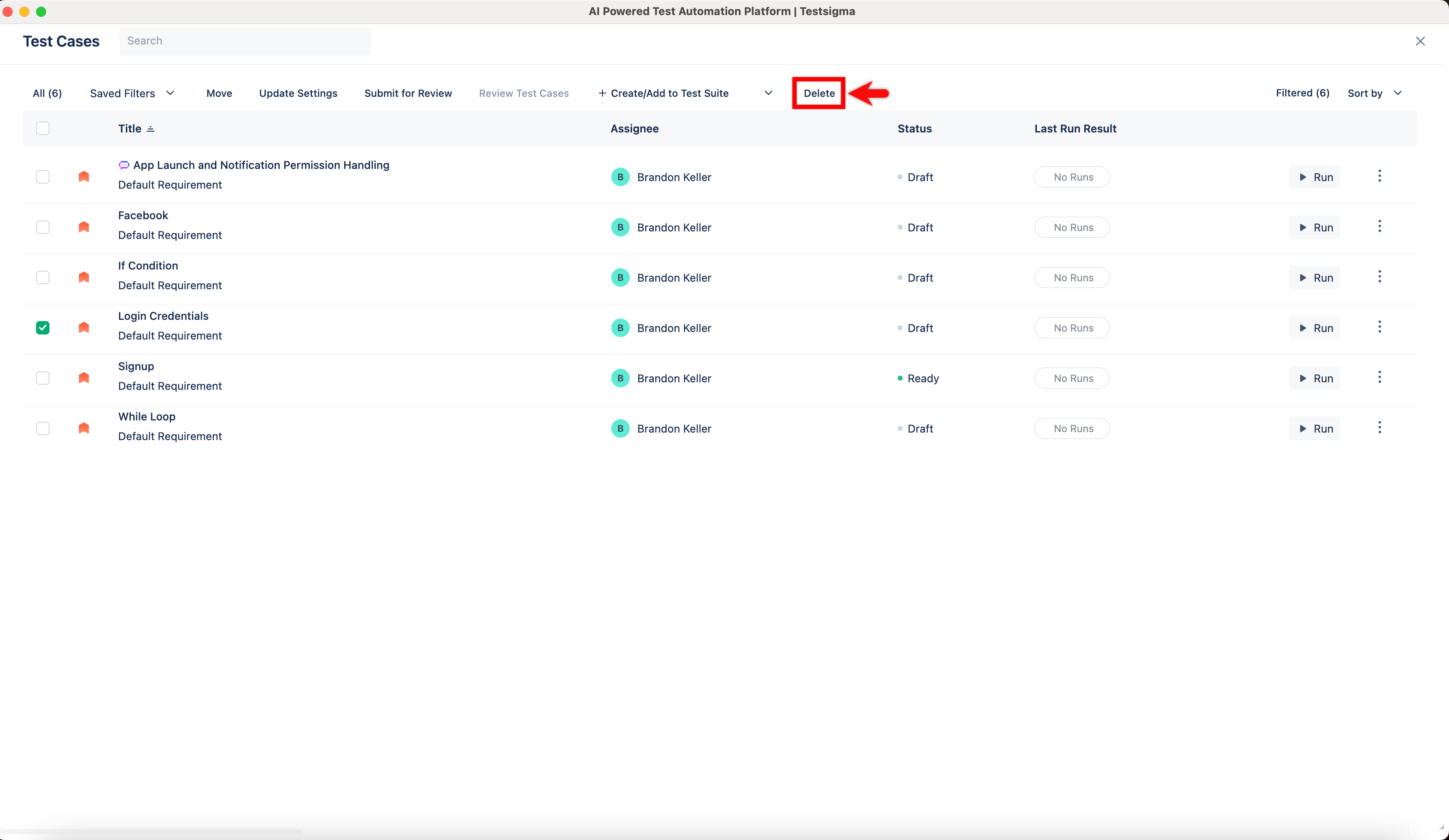
- Open the test case. In the top-right corner, click the More options (⋮) menu, and then click Delete.
-
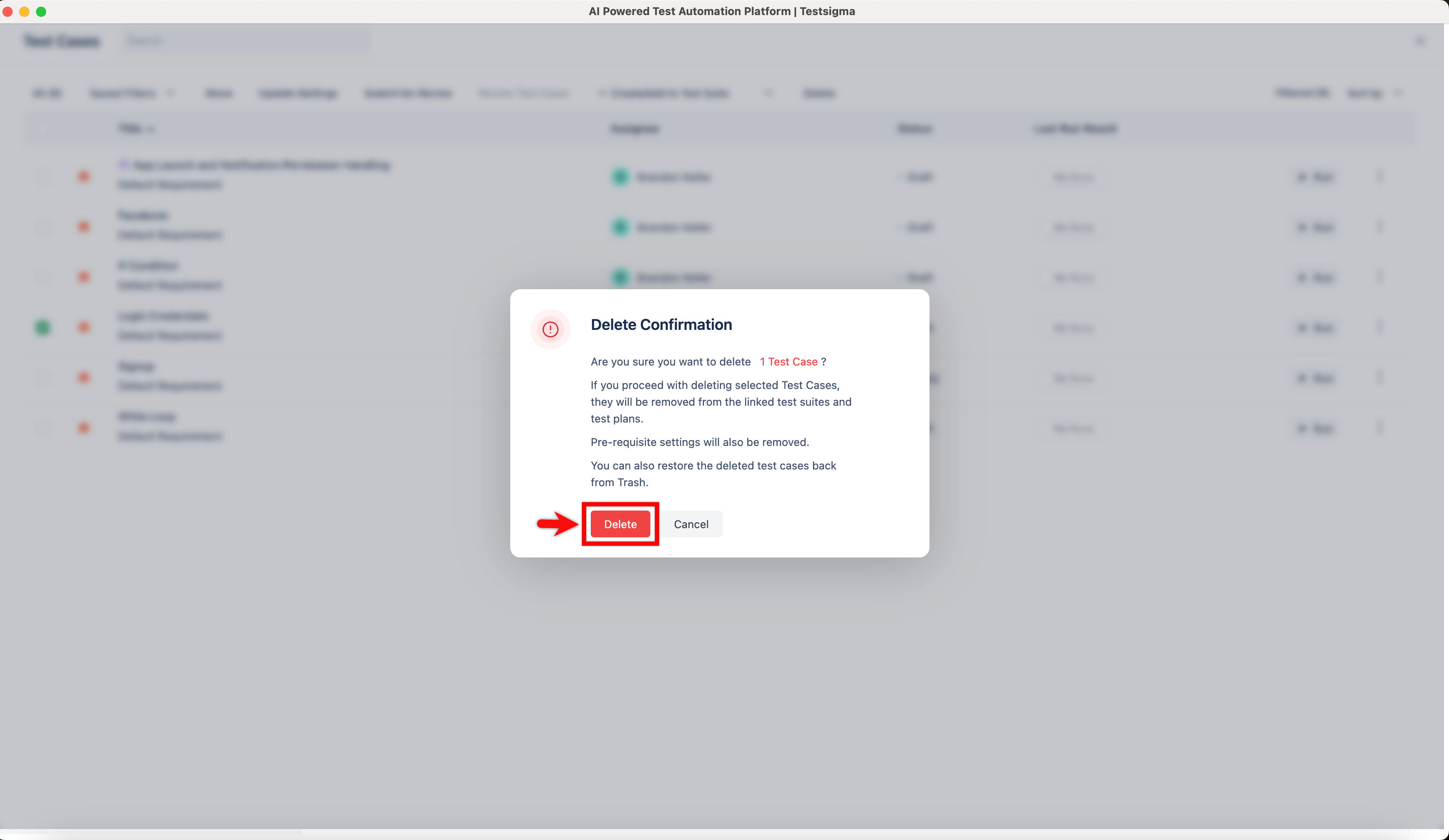
A Delete Confirmation pop-up will appear. Click Delete to remove the test case from the project.