
Test Cases
Test Step Settings
Prerequisites
Before you begin, ensure that:
- You have installed the Testsigma’s test step recorder. For more information on installing Testsigma’s test step recorder, refer to the documentation on installing Testsigma’s step test recorder.
- You have referred to the documentation on creating a test case.
Using Test Step Settings
Section titled “Using Test Step Settings”-
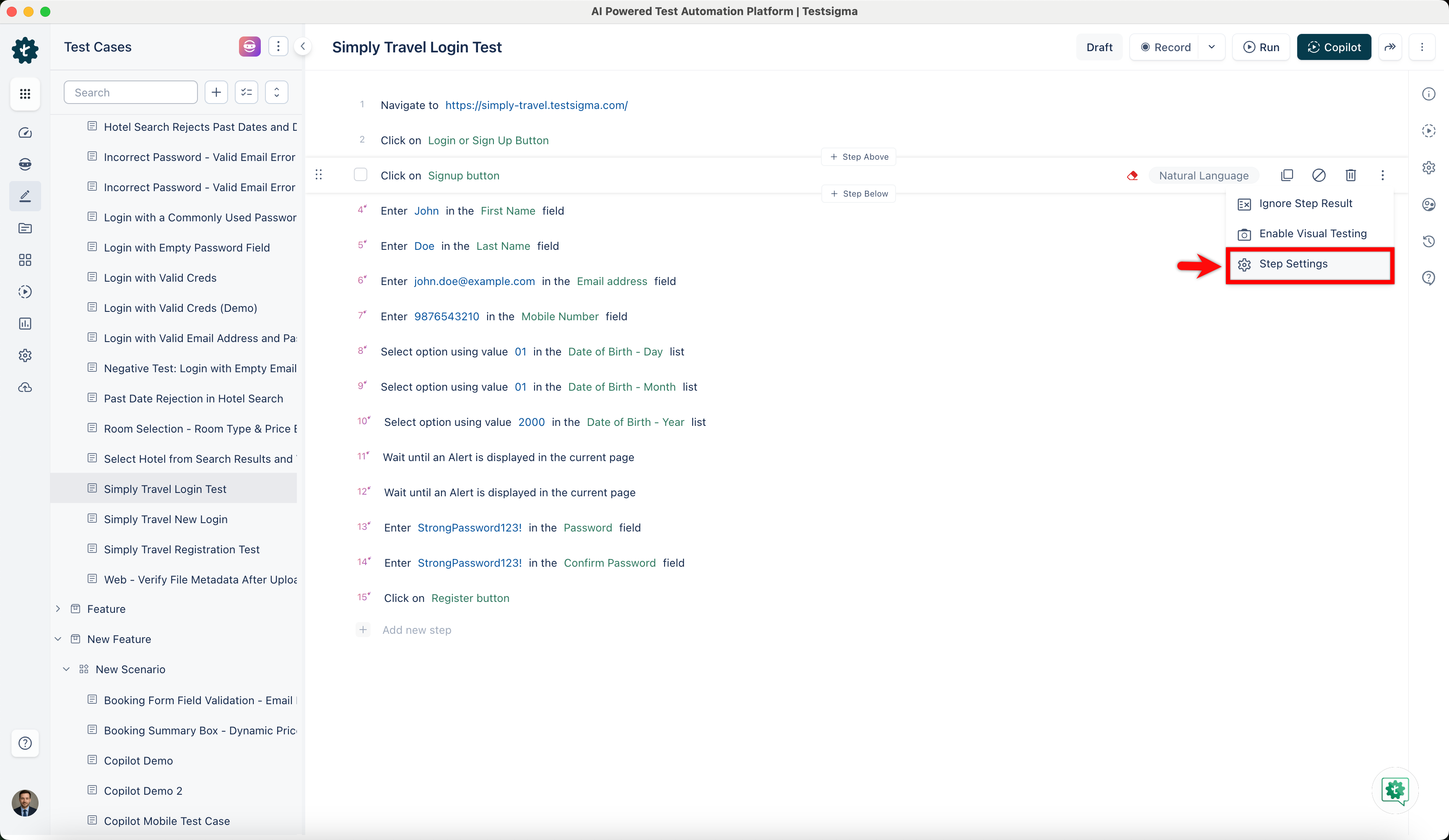
Hover on one of the recorded test steps, click the Kebab Menu and choose Step Settings from the dropdown.
-
On Step Details prompt, you can edit the following options.
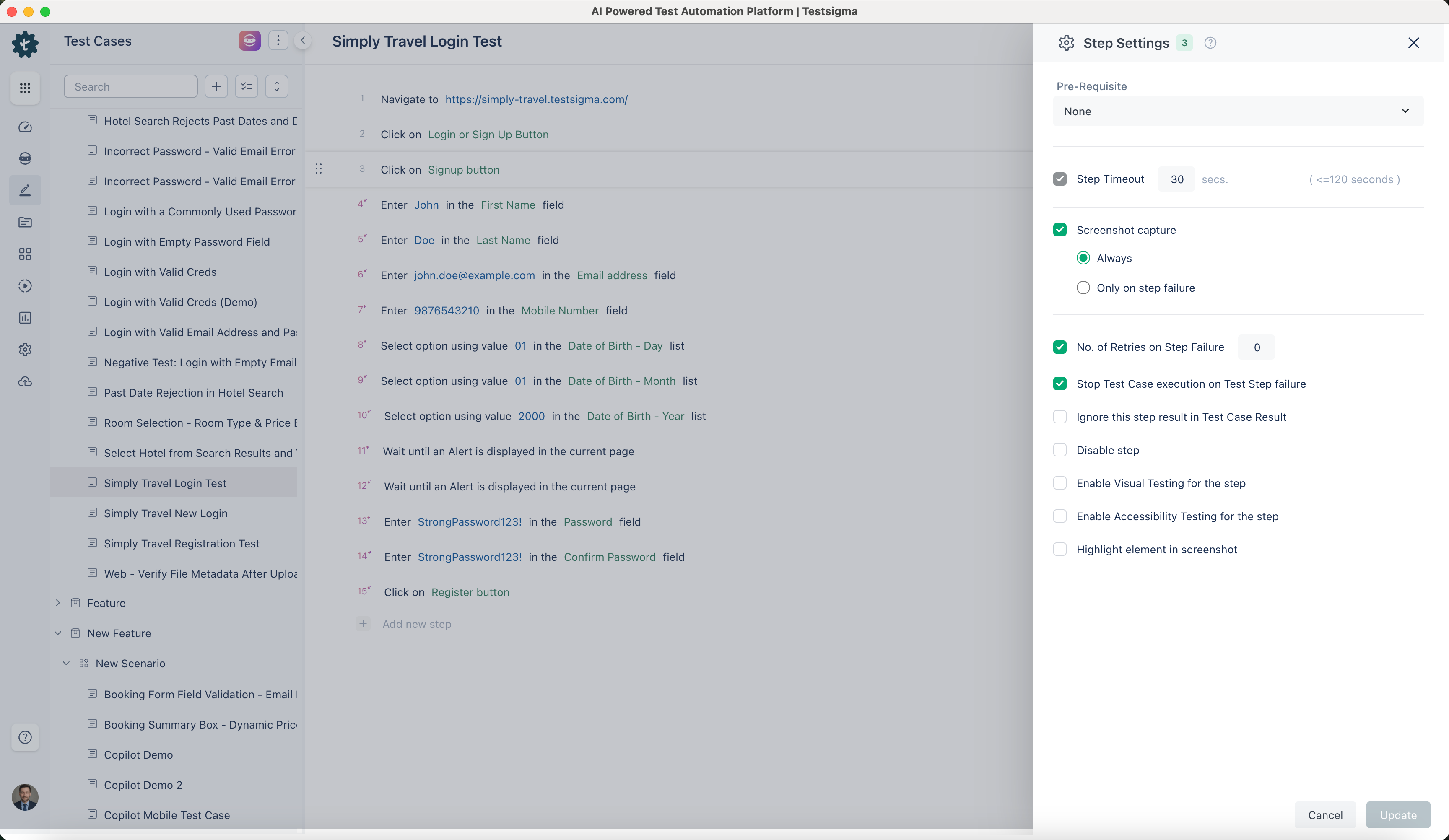
Available Settings:
Section titled “Available Settings:”| Settings | Description |
|---|---|
| Max wait time | Set the Maximum Wait Time limit for completing the test step. It will fail if the test step takes longer than the specified time (up to a maximum of 120 seconds). |
| Pre-Requisite | Select a prerequisite step from the list of available steps in the same test case. This step must be successfully done before the current step runs. |
| Stop Test Case execution on Test Step | It allows you to terminate test execution if the test fails at any step. By default, this option is checked, and test case execution will stop if the test step fails. |
| Ignore this step result in Test Case Result | It allows you to exclude the outcome of a particular step from the overall test result. |
| Enable Visual Testing for the Step | You can disable the test step by choosing this option, and the test step will not run. By default, this option is unchecked. |
| Disable Step | It allows you to capture and compare the visual appearance of an application’s user interface between different builds or versions. |