Projects
Test Case Types
Prerequisites
Before you begin, ensure that you have referred to:
Add a New Test Case Type
Section titled “Add a New Test Case Type”-
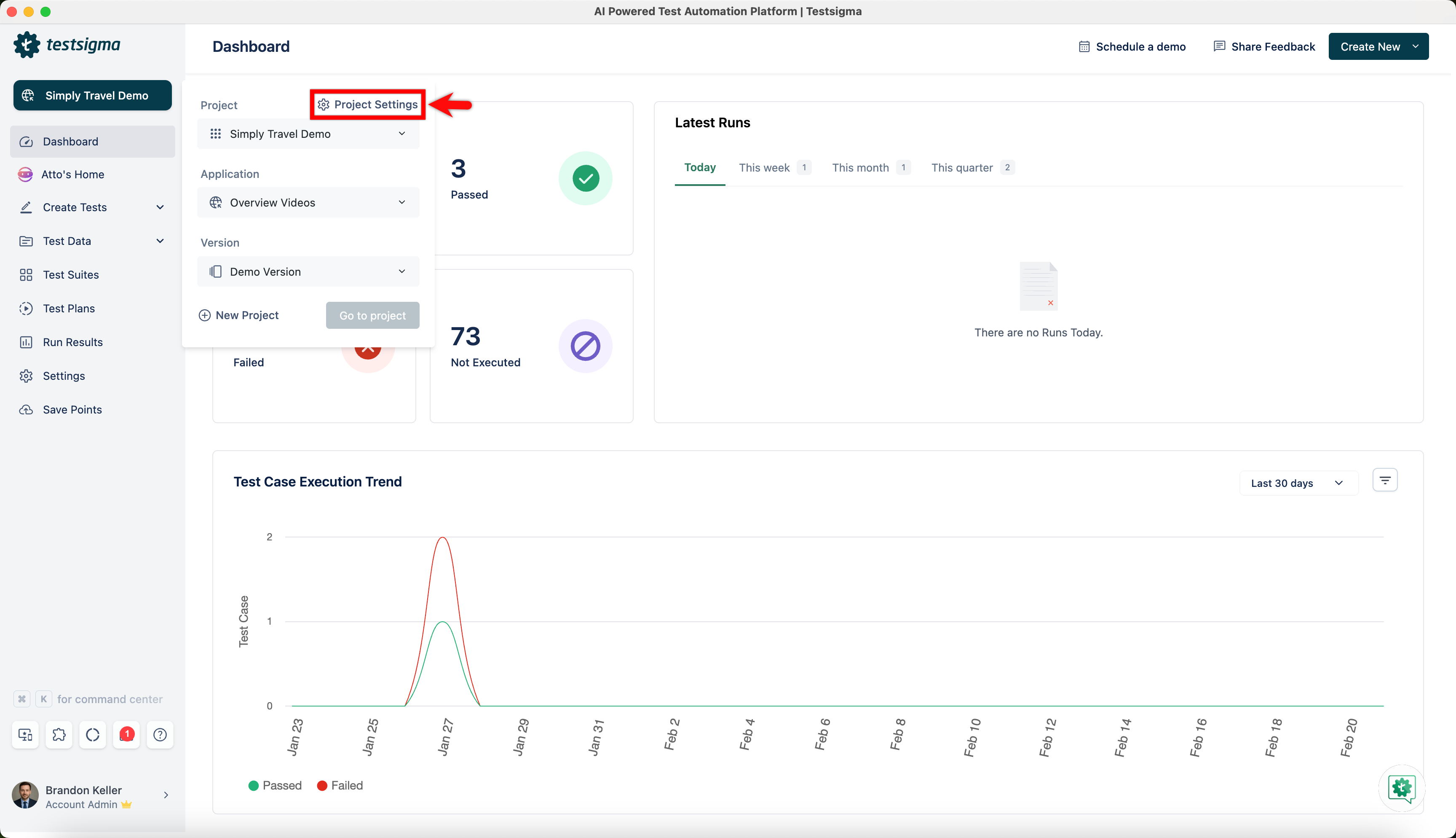
Navigate to Project and click Project Settings.
-
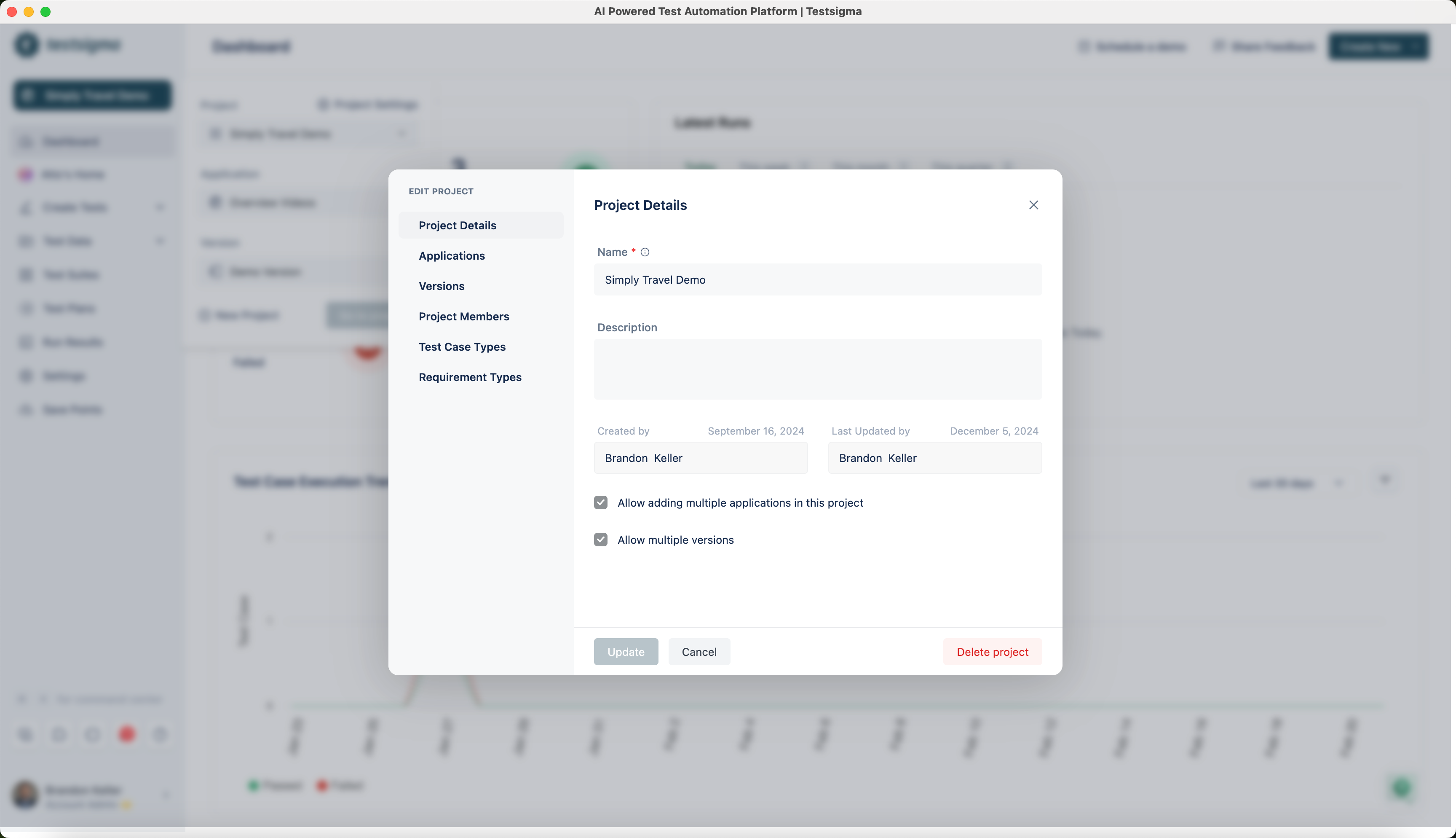
This will open Edit Project dialog.
-
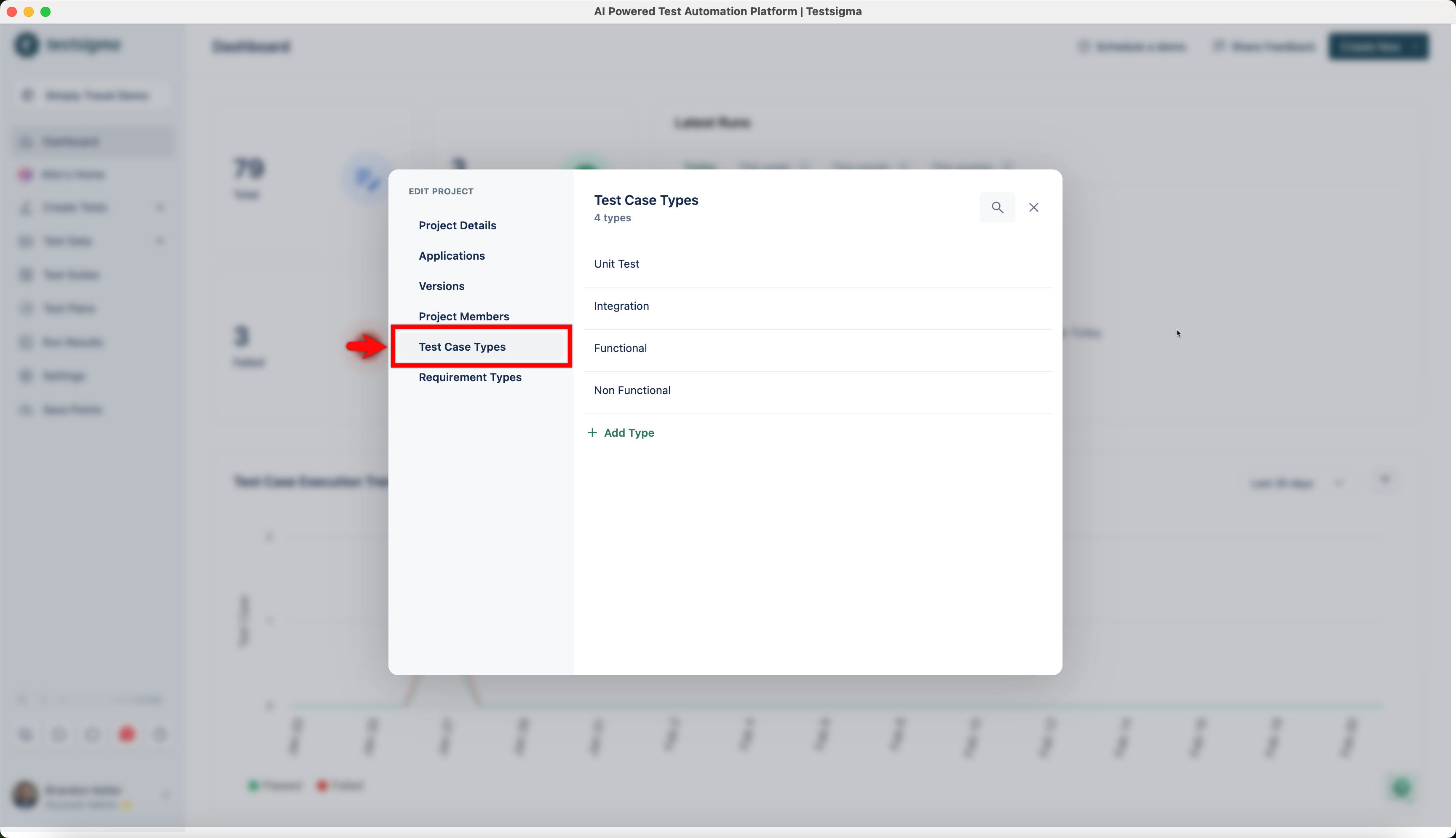
Click Test Case Types.
-
Click Add Type.
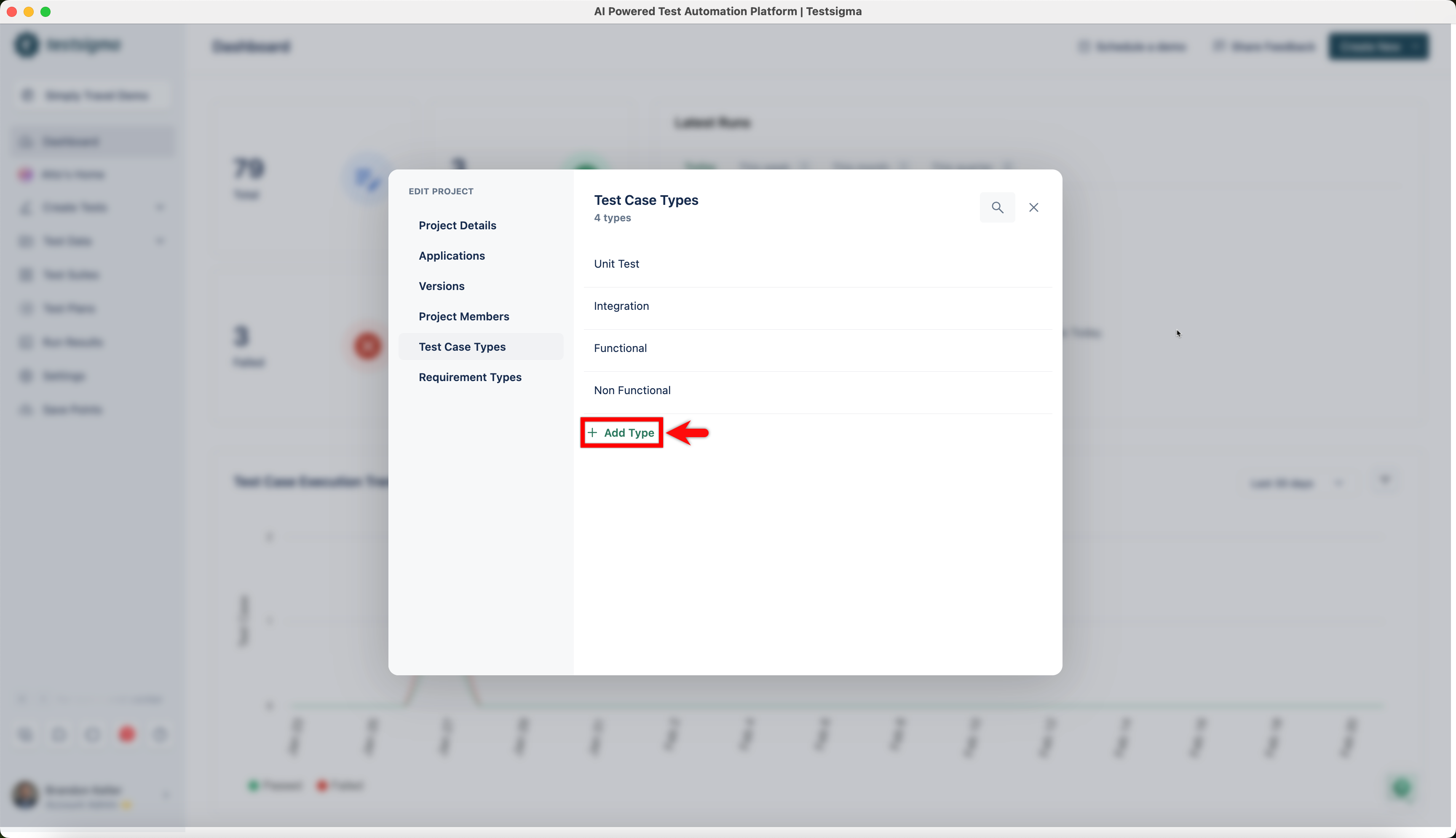
-
A new blank row will appear where you can start typing to add the new test case type. Once you’re done, press Enter.
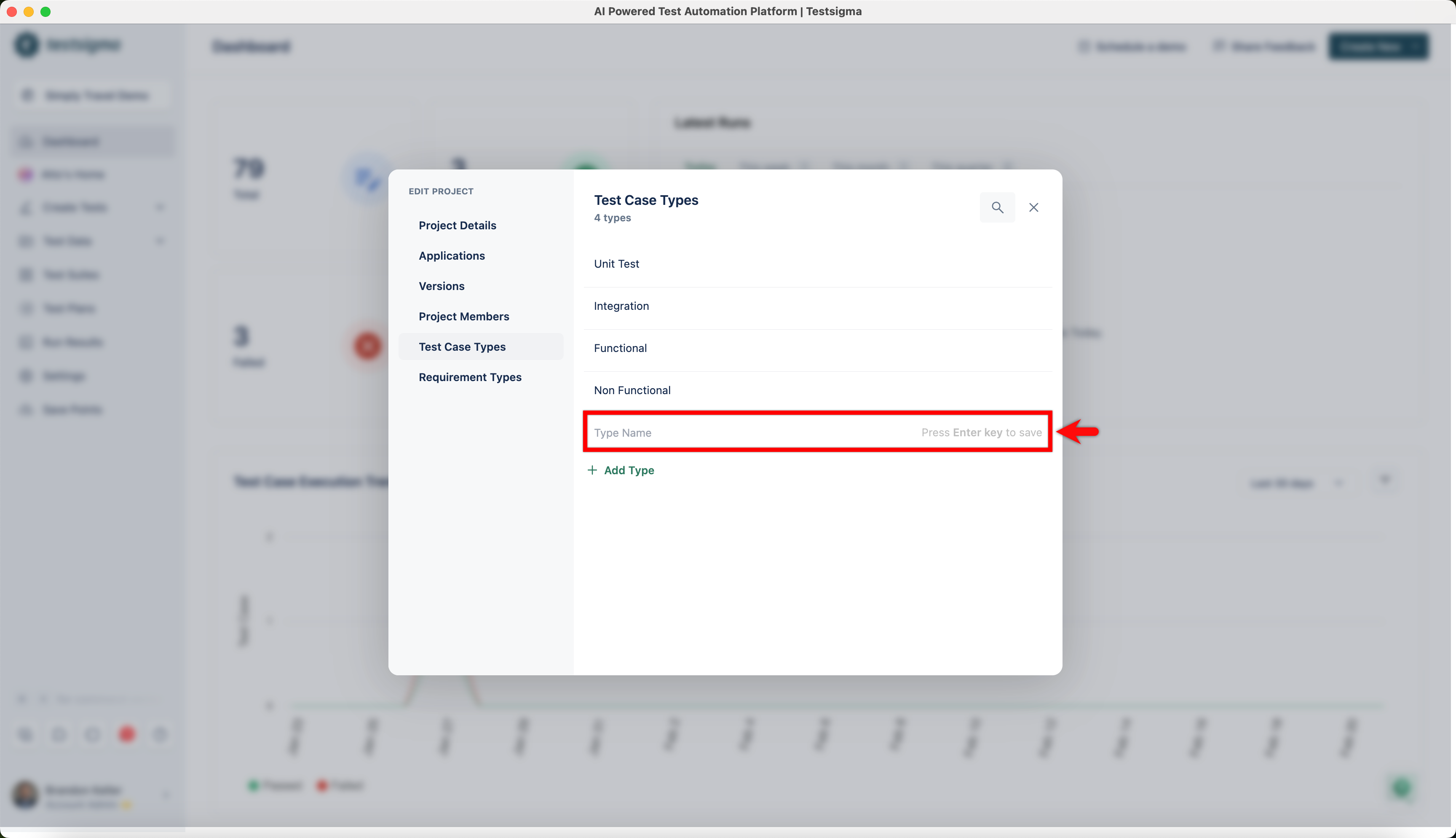
Delete a Test Case Type
Section titled “Delete a Test Case Type”- Hover over the test case type you want to delete and click on Delete.
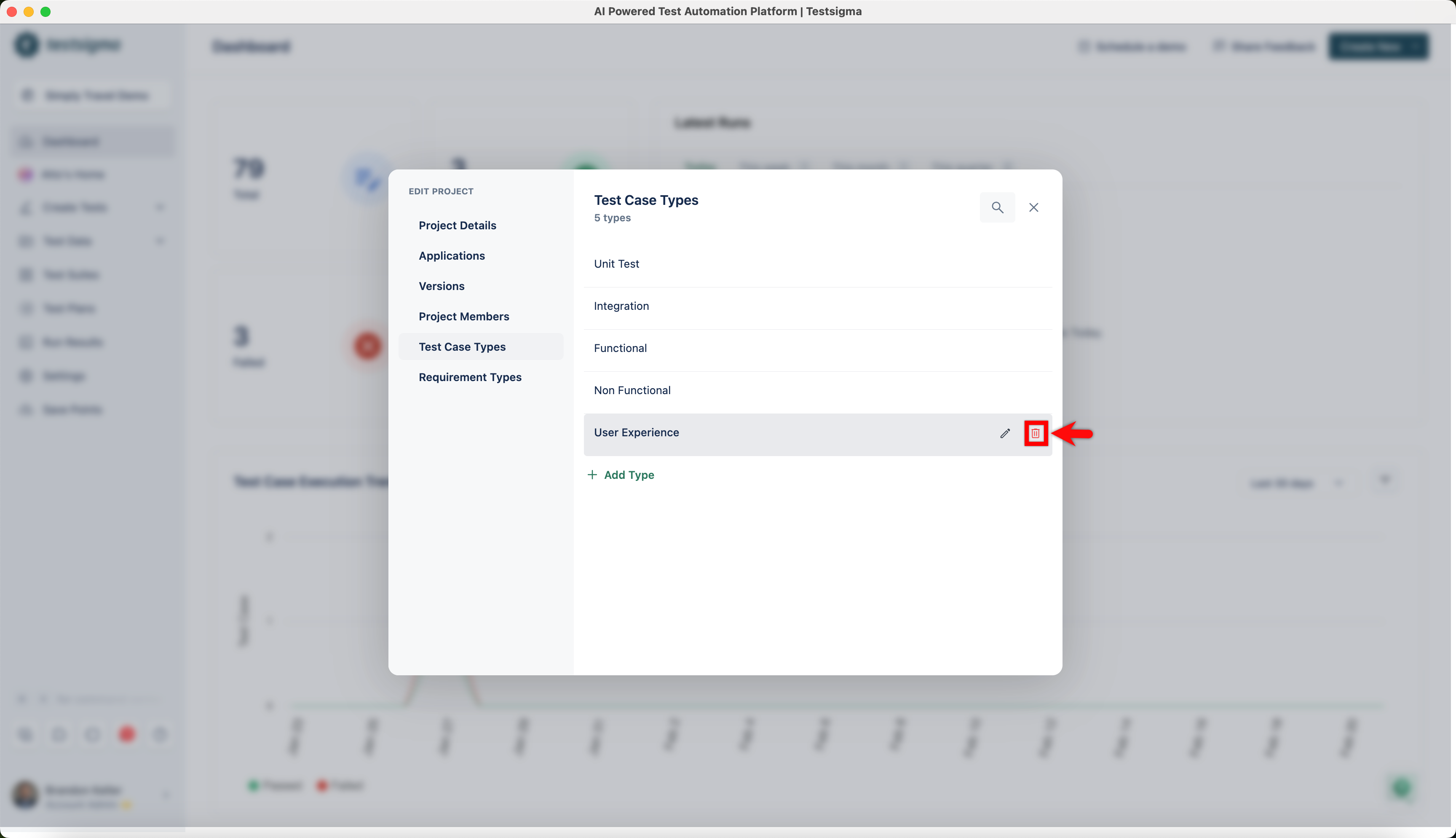
- On the Delete Test Case Type prompt, enter DELETE and click on Delete.
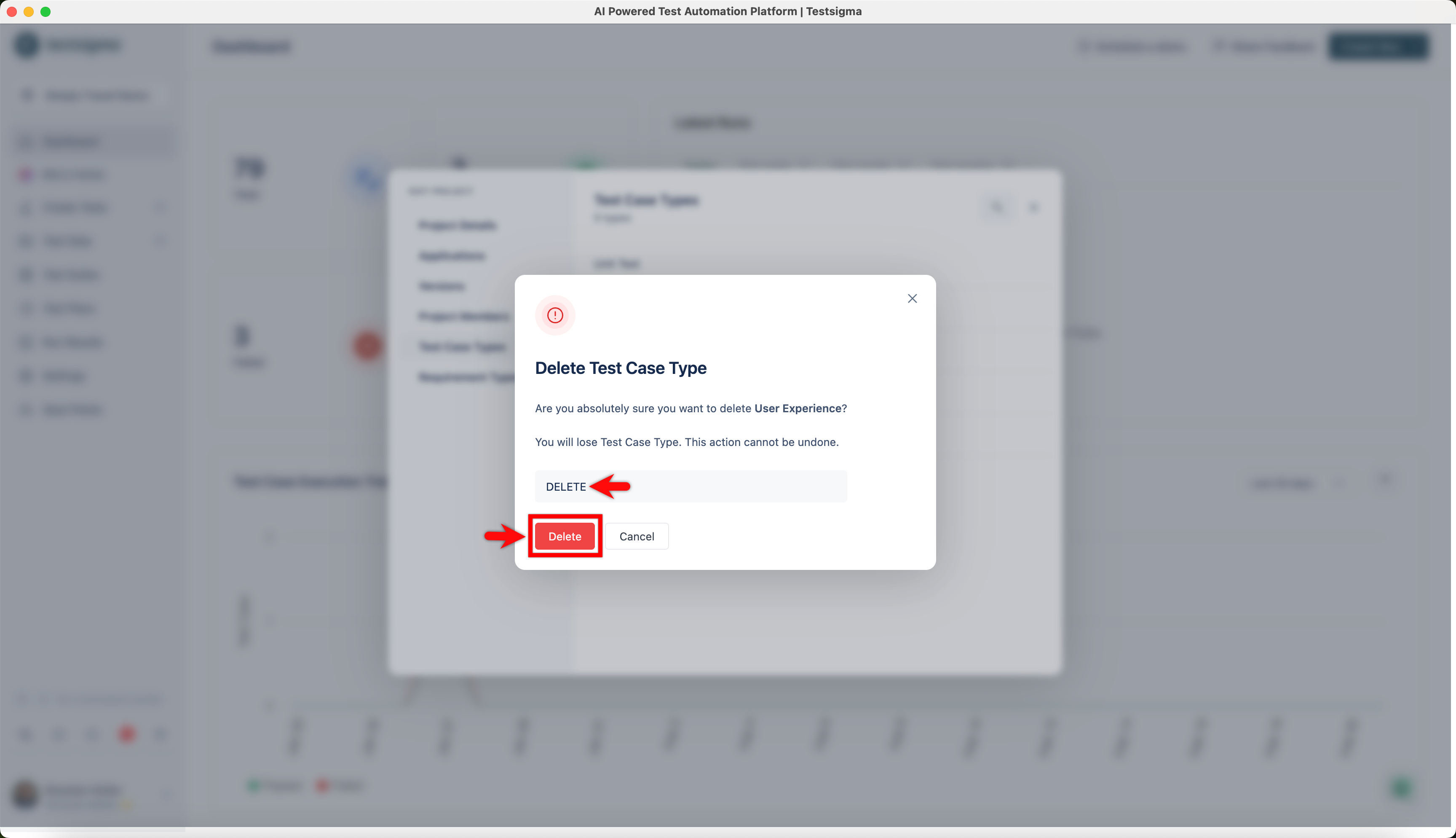
Alternatively, you can also unlink test cases associated with the test case type from the edit test case page. For more information, refer to edit test cases.
Edit a Test Case Type
Section titled “Edit a Test Case Type”-
Hover over the test case type and click on the Edit.
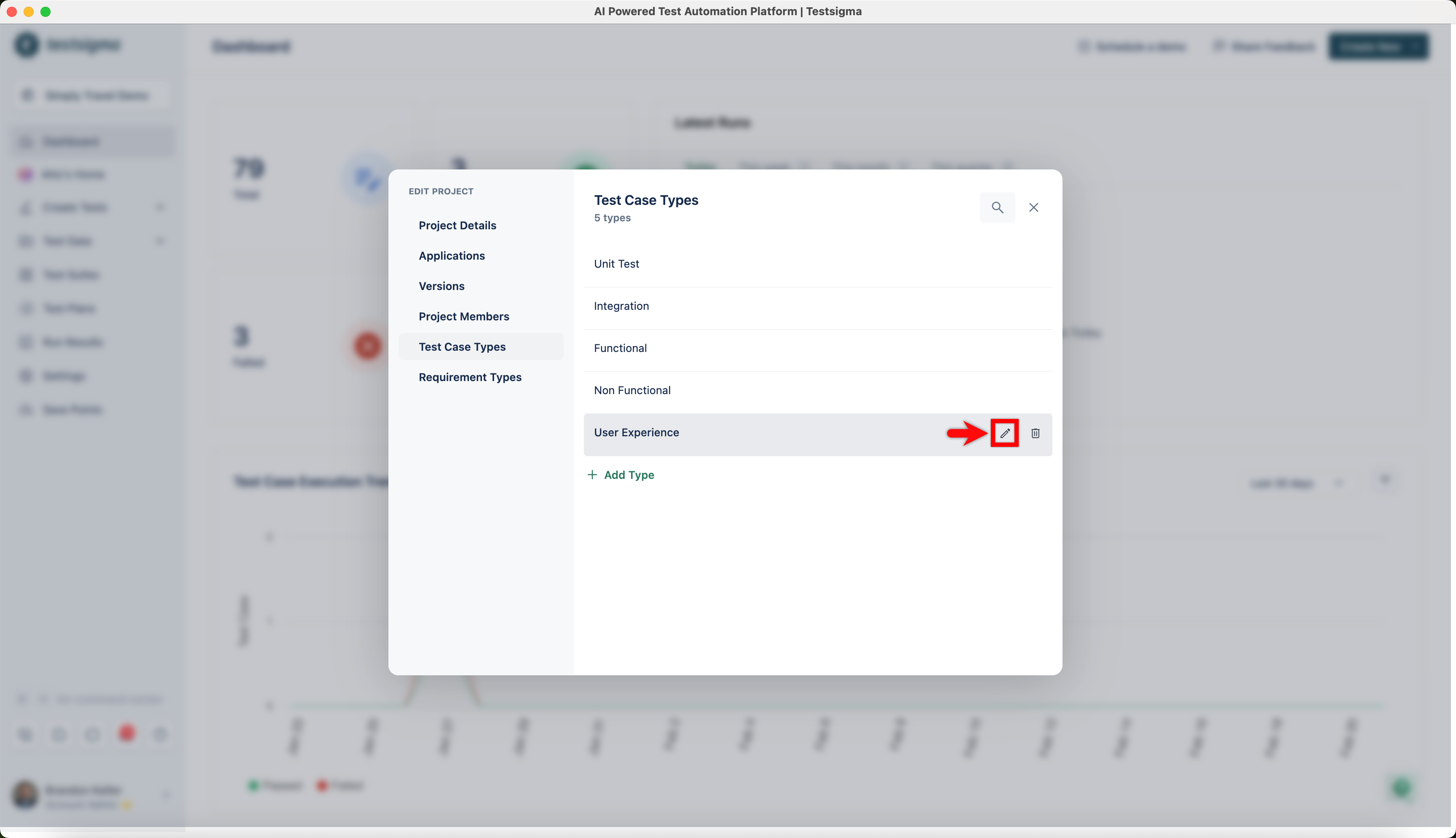
-
Edit the text of the test case type, press Enter to save the changes.
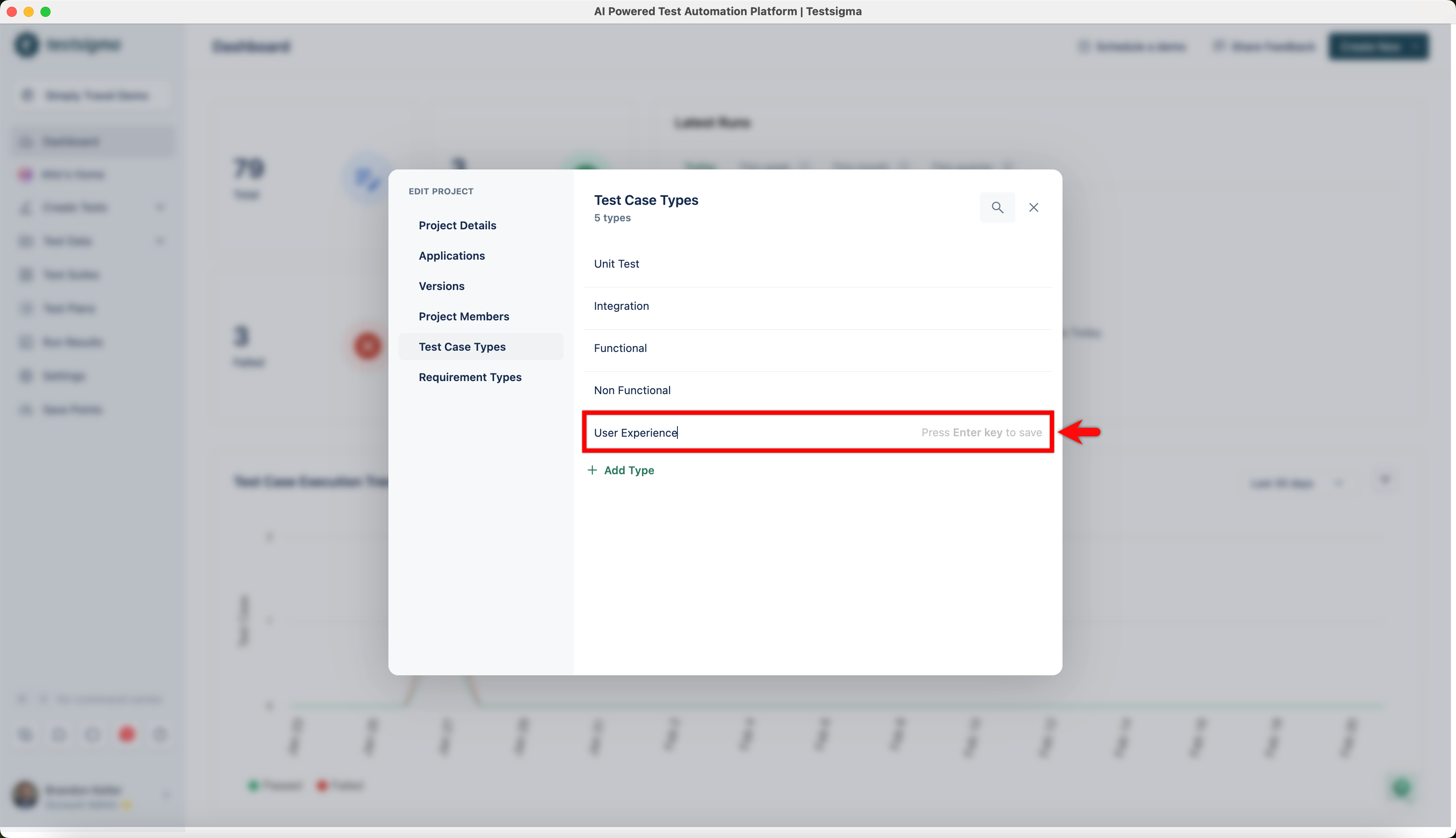
Steps to Assign a Test Case Type to a Test case
Section titled “Steps to Assign a Test Case Type to a Test case”-
From the left navigation bar, go to Create Tests > Test Cases.
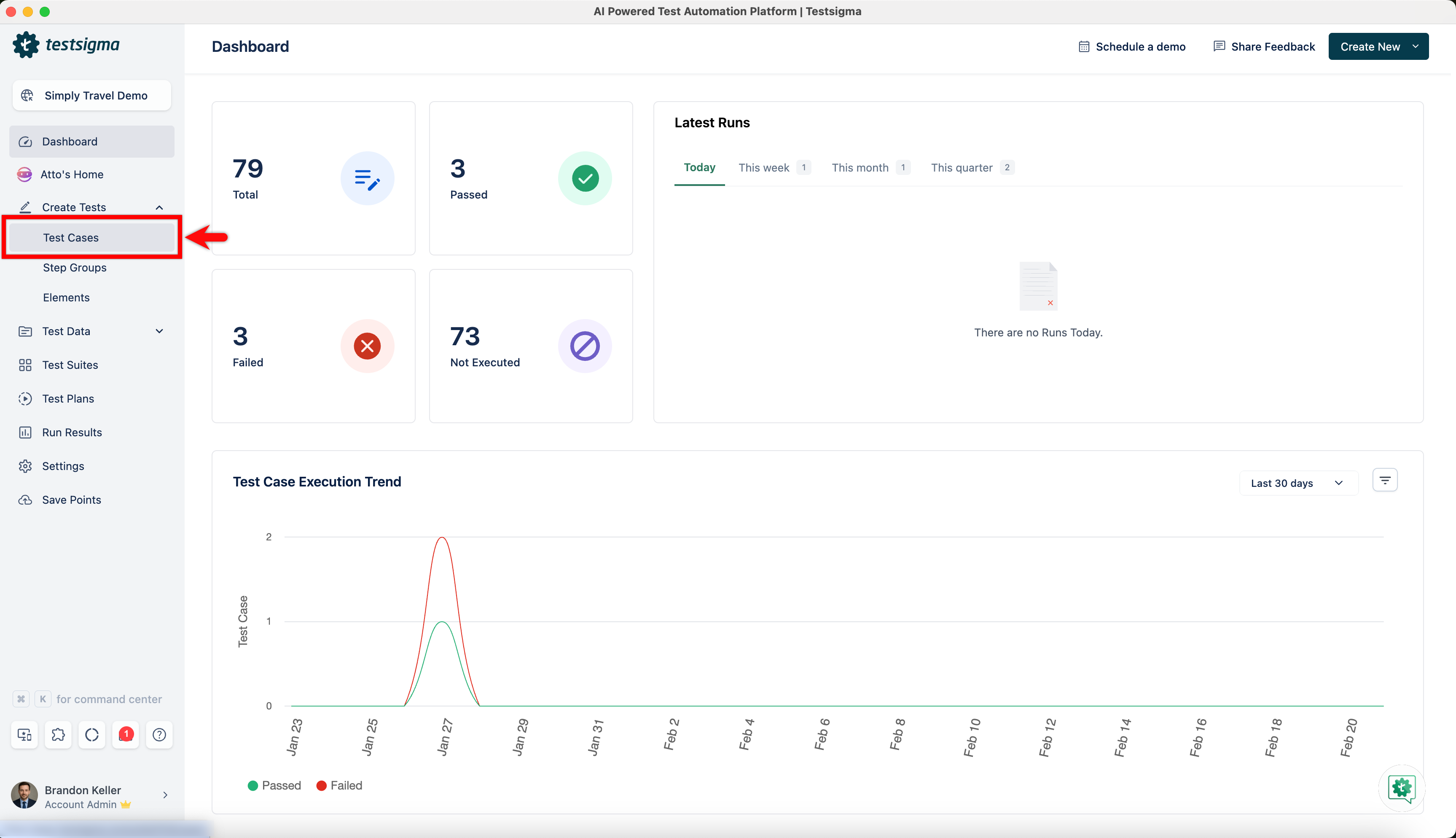
-
In the Test Case Explorer section, locate the Feature and Scenario containing the test case you wish to assign to a test case type and select the test case.
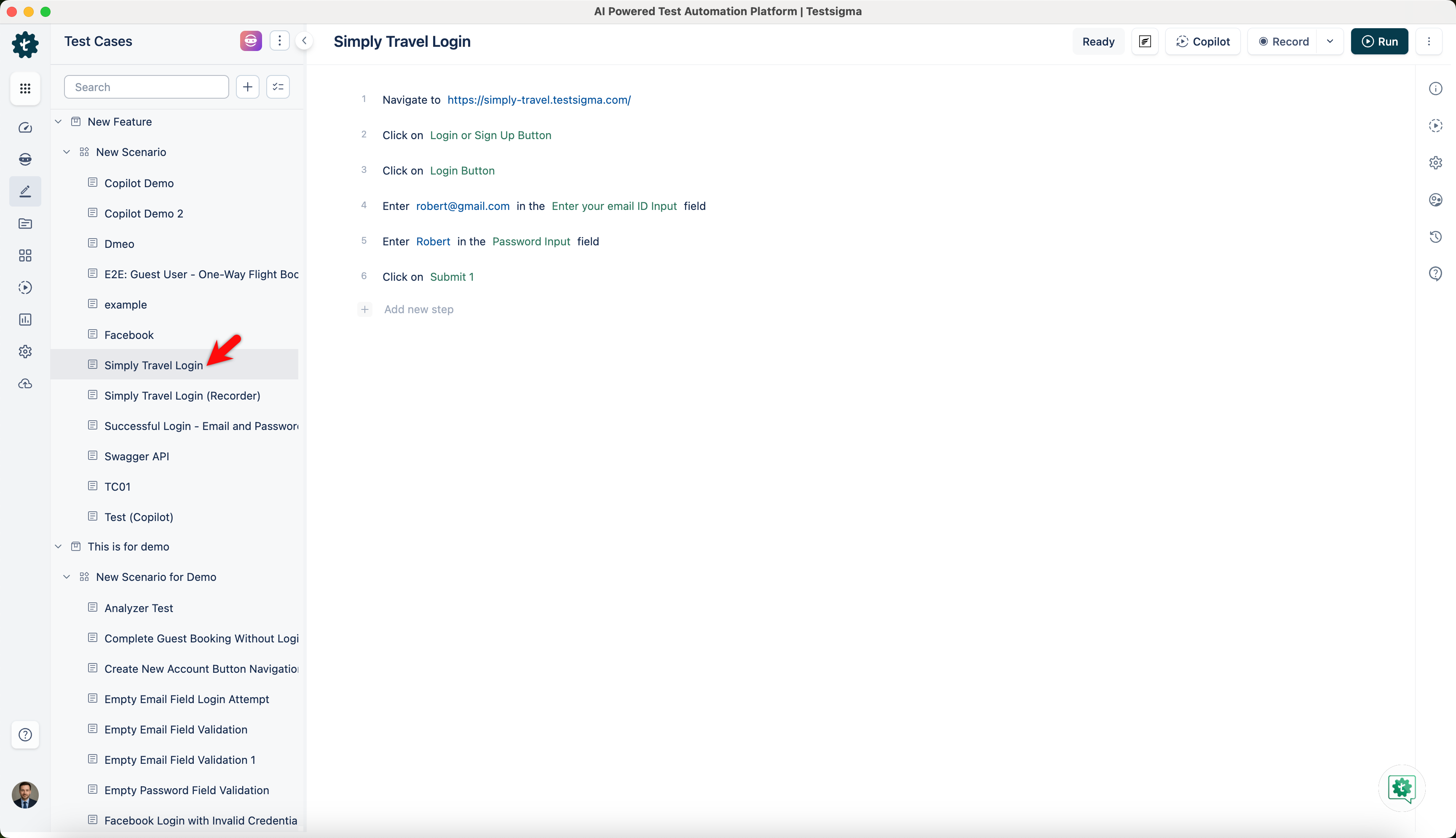
-
From the right navigation bar, click on Manage Test Case.
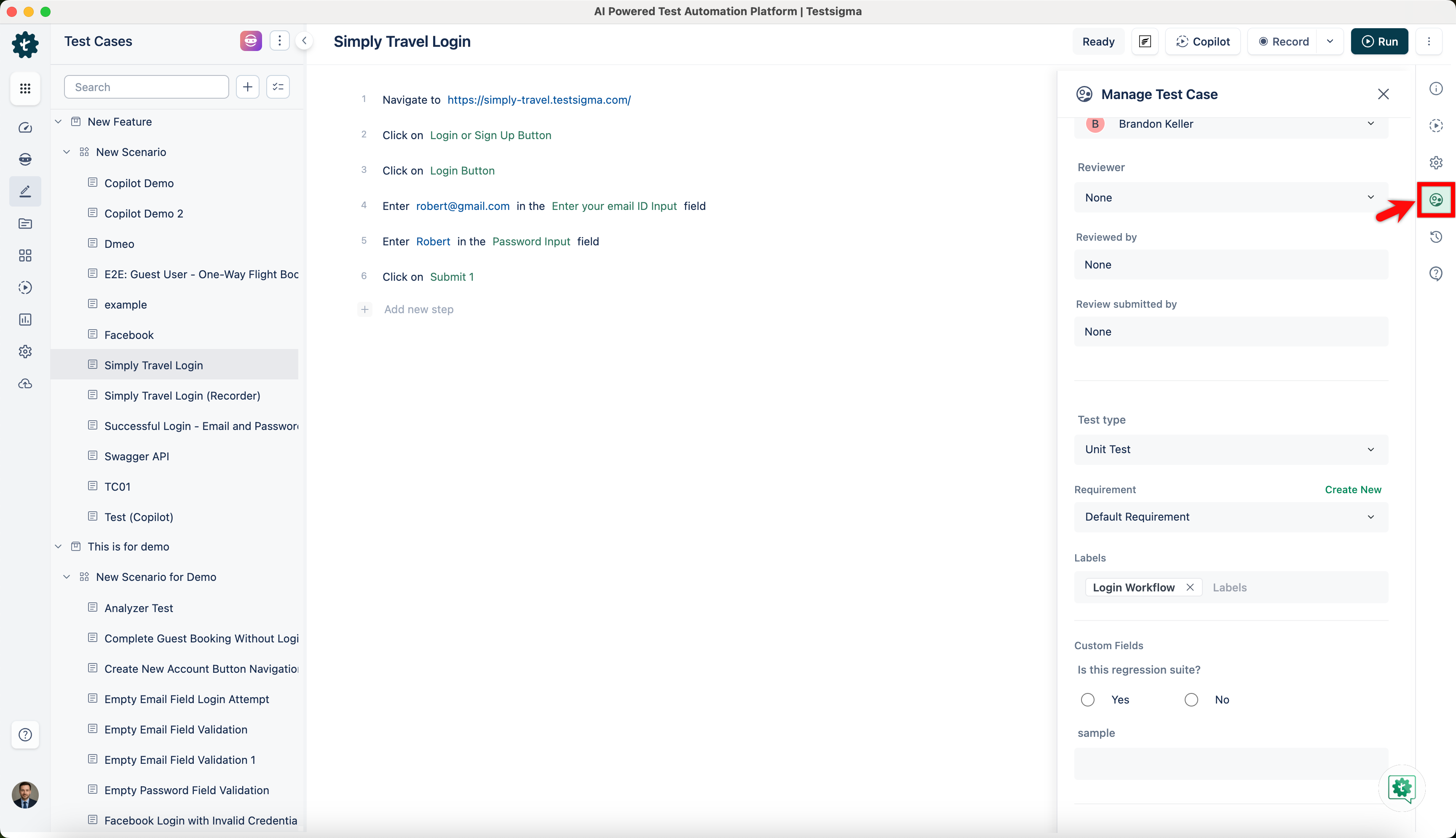
-
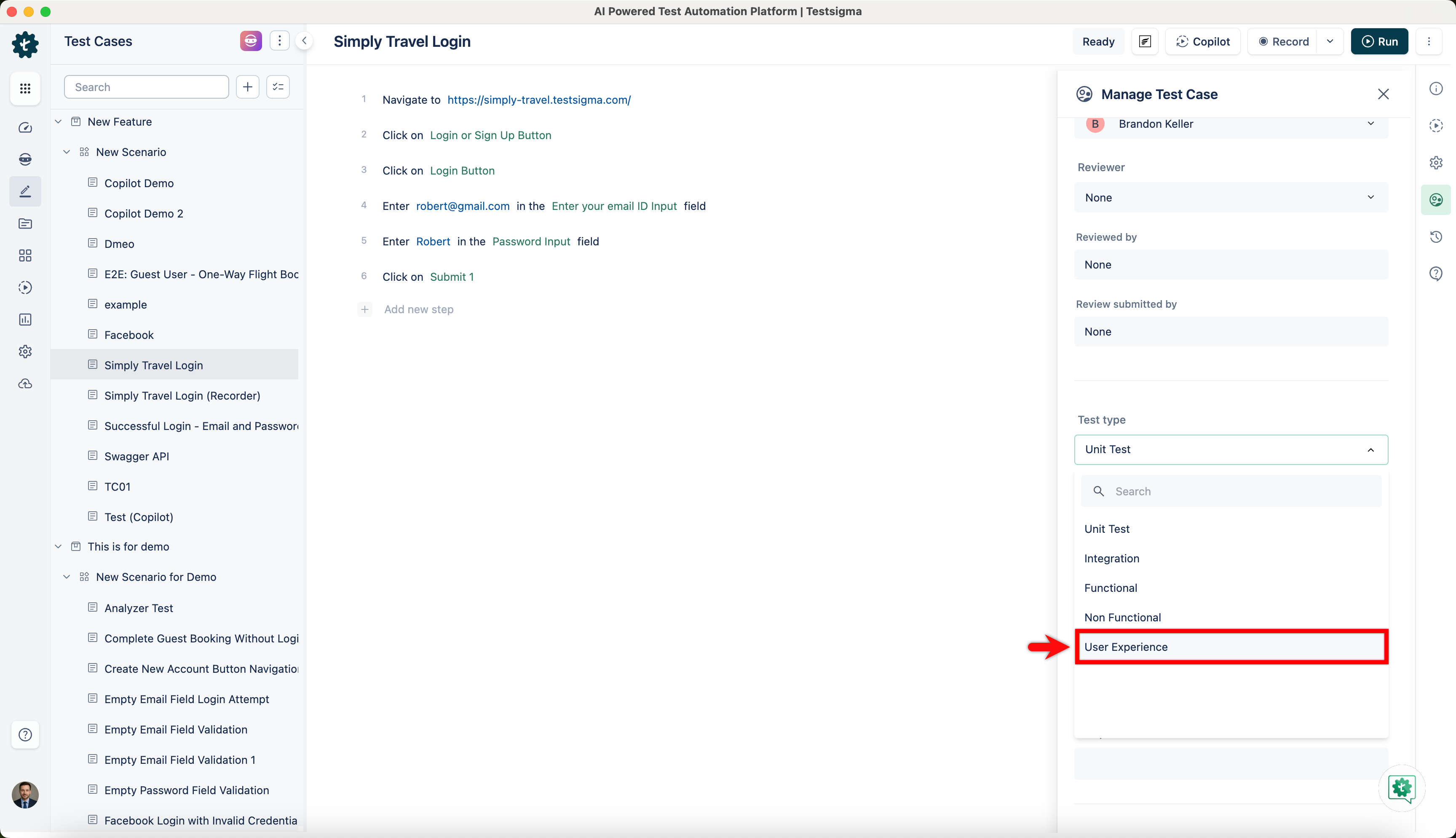
On Manage Test Case overlay, scroll down to Test Type and select test case type from the drop down menu.