
Configuration
Configure User Settings
Prerequisites
- Before you begin, ensure that you have an active Testsigma account.
User Settings
Section titled “User Settings”-
Click the User Profile menu in the bottom-left corner.
-
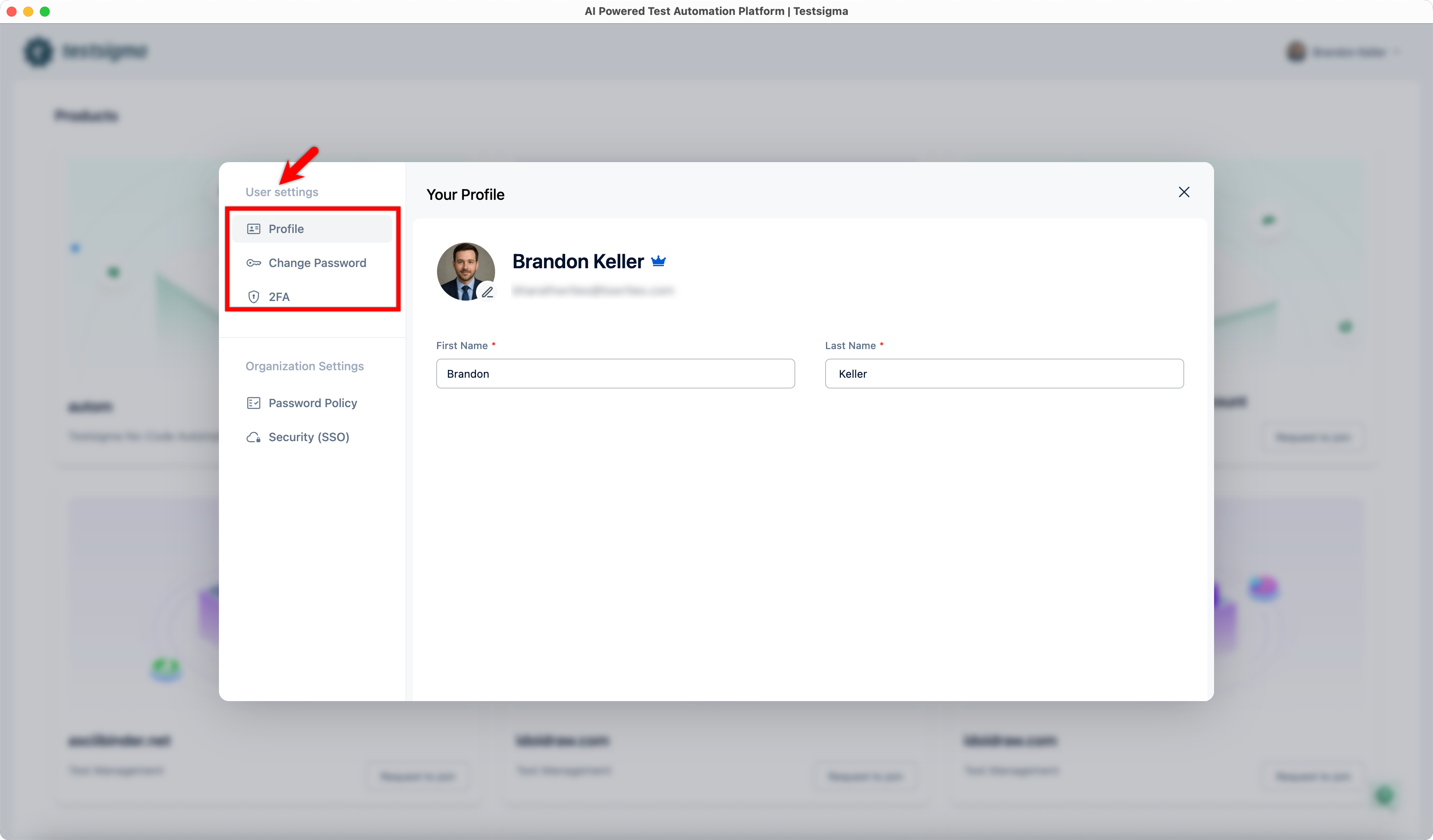
Under User Settings, you can update the following:
- Profile
- Change Password
- Two-Factor Authentication (2FA)
Profile
Section titled “Profile”-
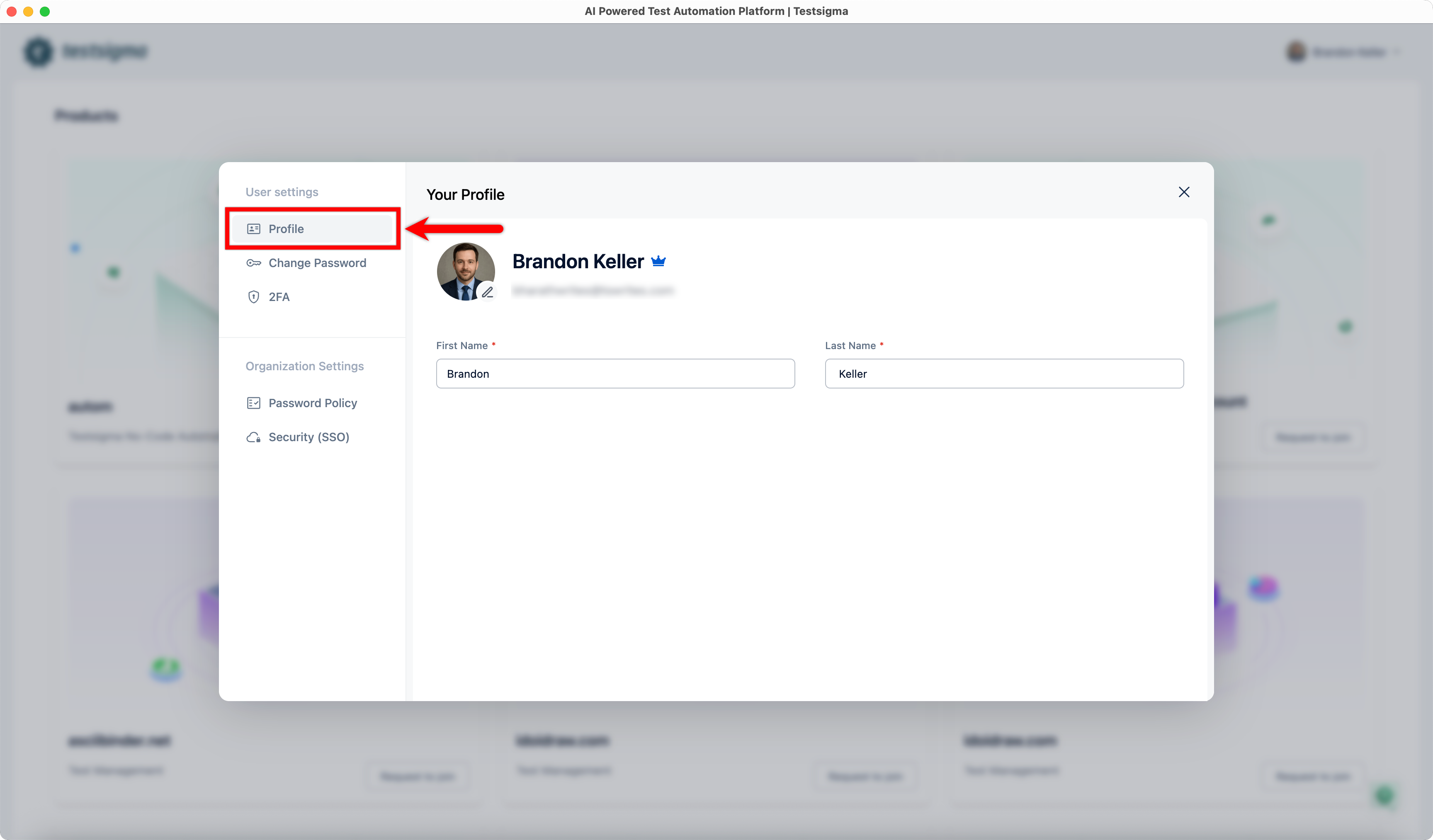
Select Profile under User Settings.
-
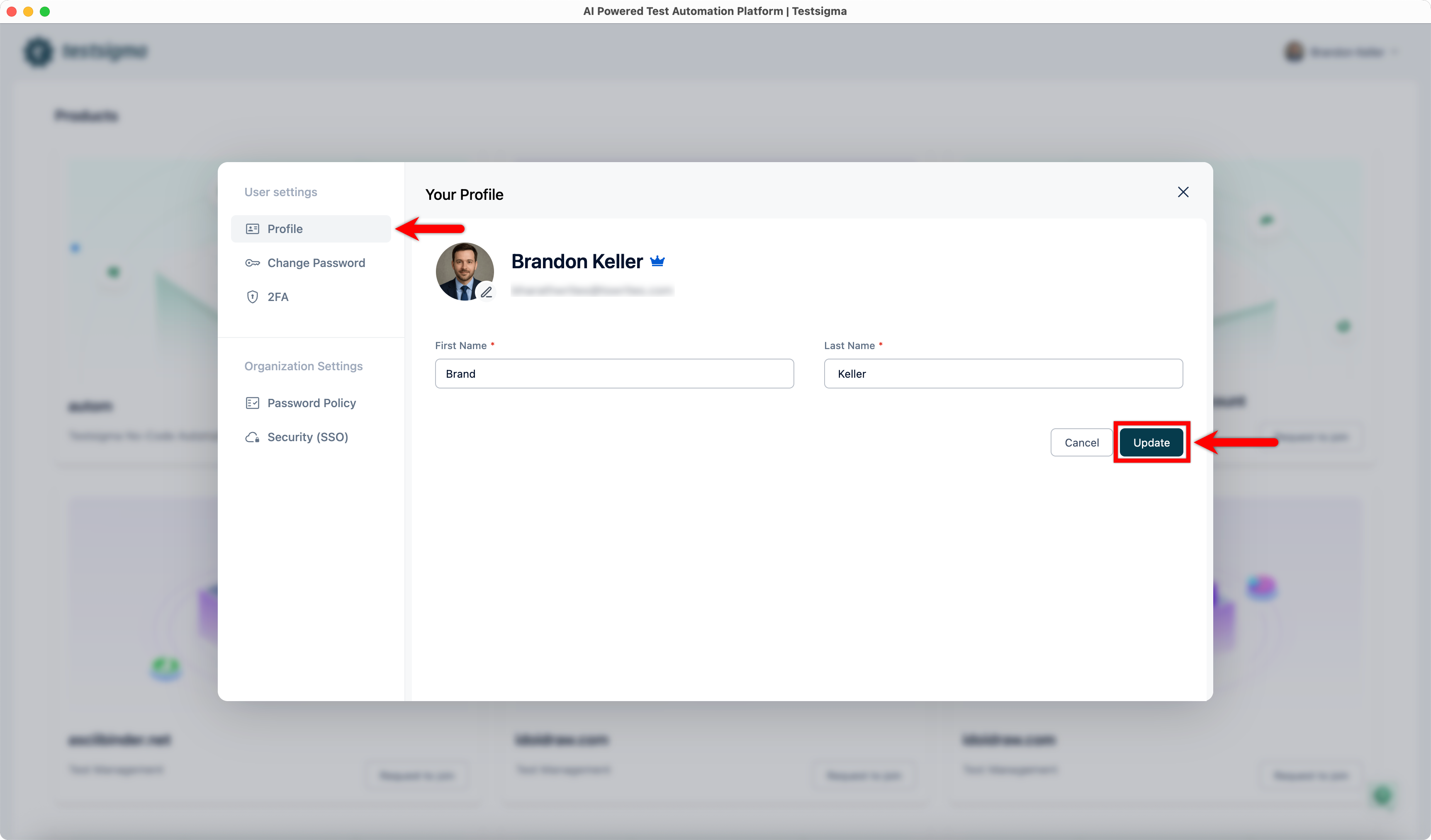
Edit the First Name and Last Name fields.
-
Click Update to save the changes.
Change Password
Section titled “Change Password”-
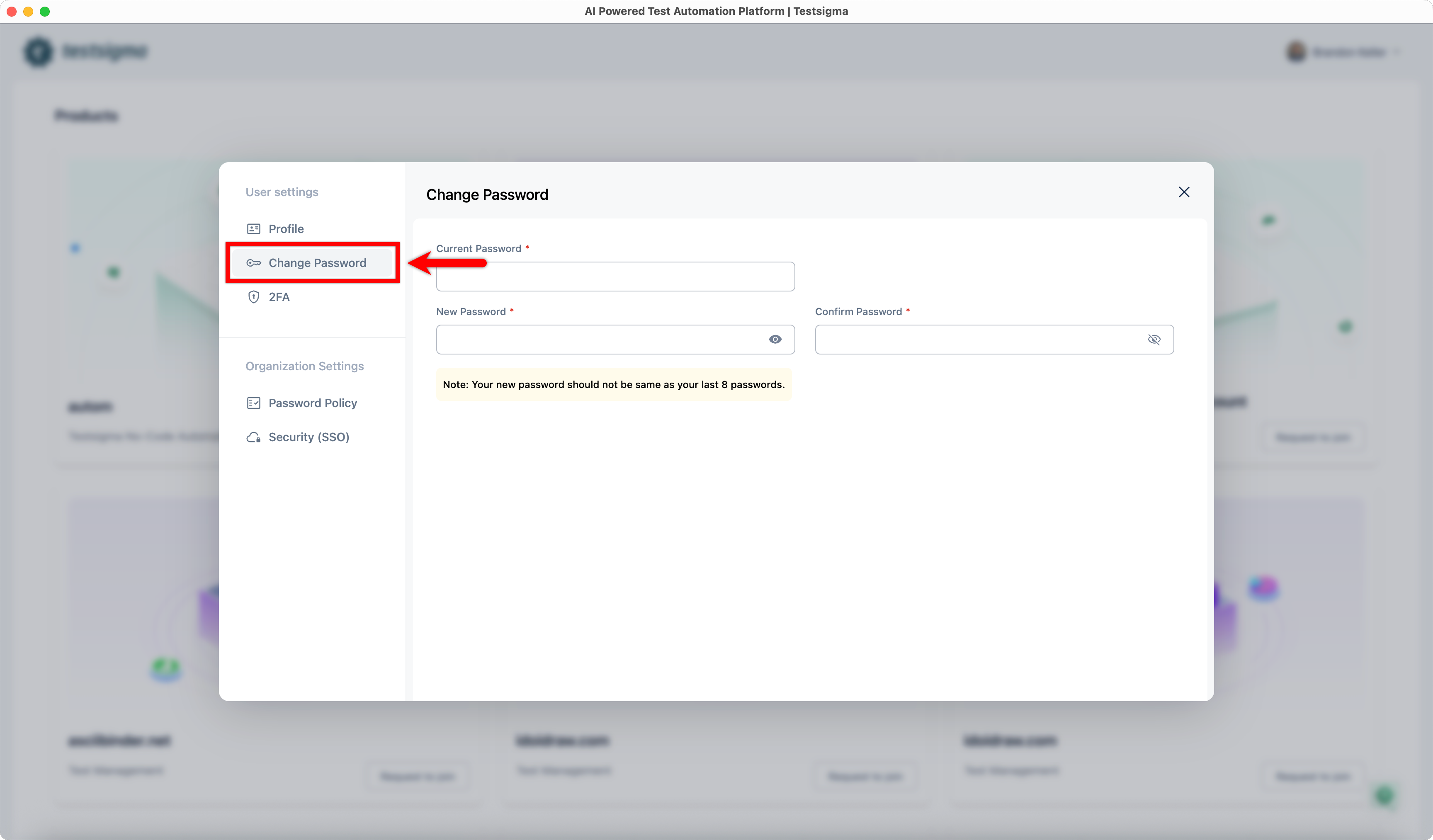
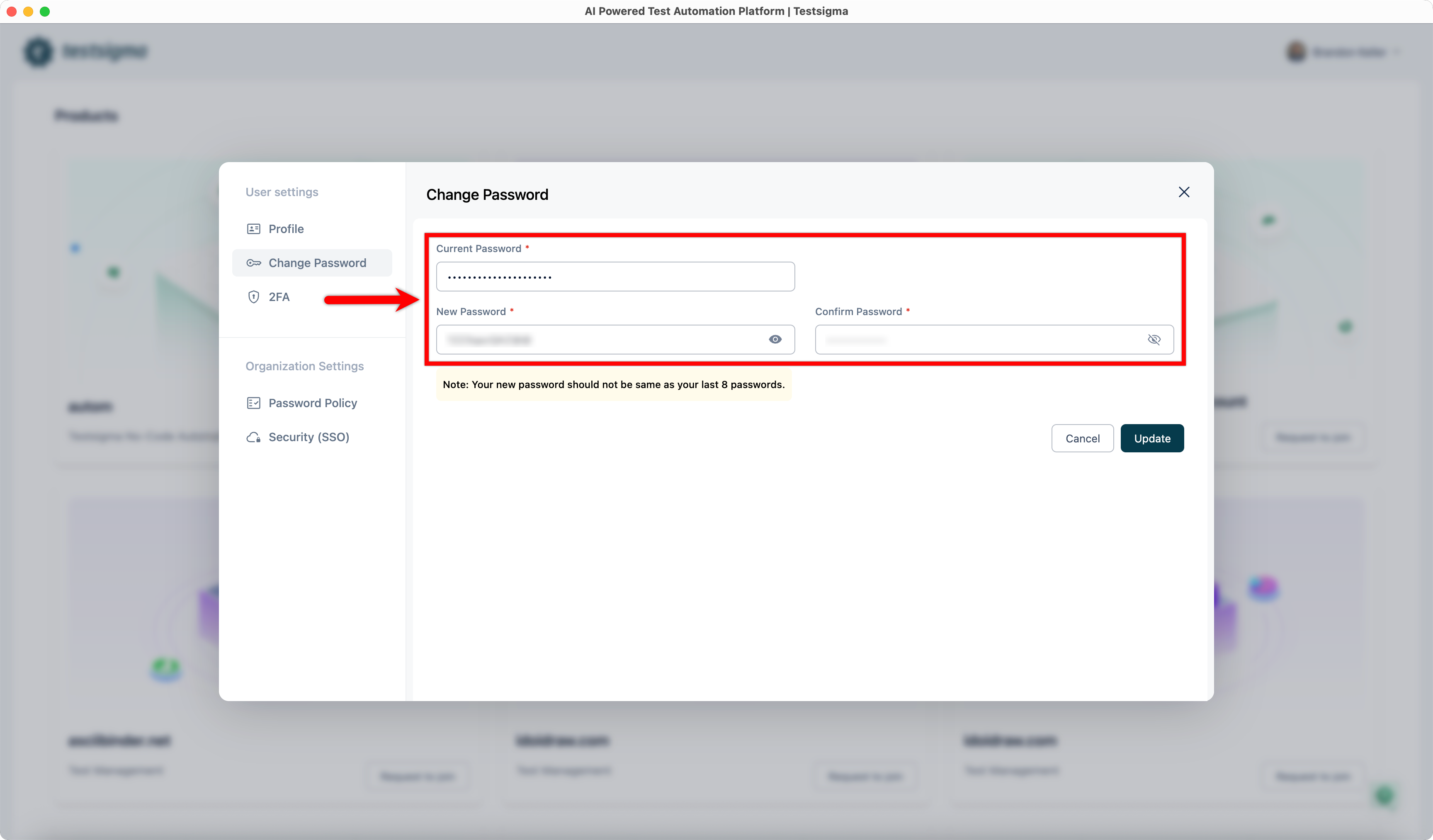
Select Change Password under User Settings.
-
Enter your Current Password, New Password, and Confirm Password.
-
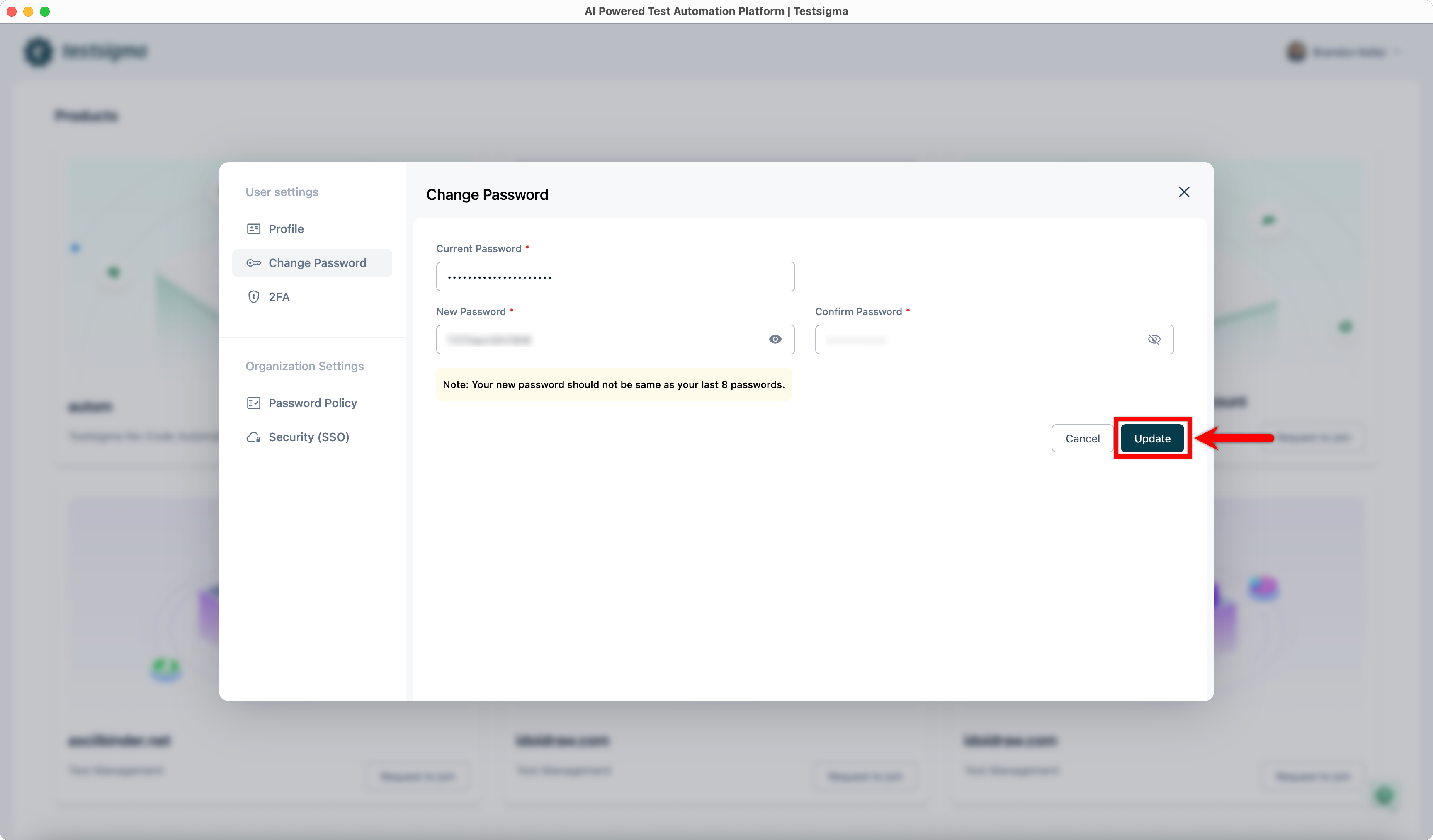
Click Update.
Two-Factor Authentication (2FA)
Section titled “Two-Factor Authentication (2FA)”You can enable 2FA to add an extra layer of security to your account.
For more details, see Two-Factor Authentication (2FA) in Testsigma.