FAQs
How to Test Flutter Apps Using Accessibility Mode?
Testing Flutter applications with traditional automation tools can be challenging because Flutter uses canvas-based rendering. This makes it difficult to directly inspect or interact with elements like buttons and text during test recording or execution.
However, Flutter offers built-in accessibility support through a semantic tree, a separate structure used by screen readers to describe UI elements. This semantic tree enables automation tools to identify and interact with UI elements using attributes such as aria-label. This article discusses how to test flutter apps using accessibility mode.
Steps to Test Flutter Apps Using Accessibility Mode
Section titled “Steps to Test Flutter Apps Using Accessibility Mode”-
Right-click anywhere on the Flutter app screen.
-
Select Inspect from the context menu.
-
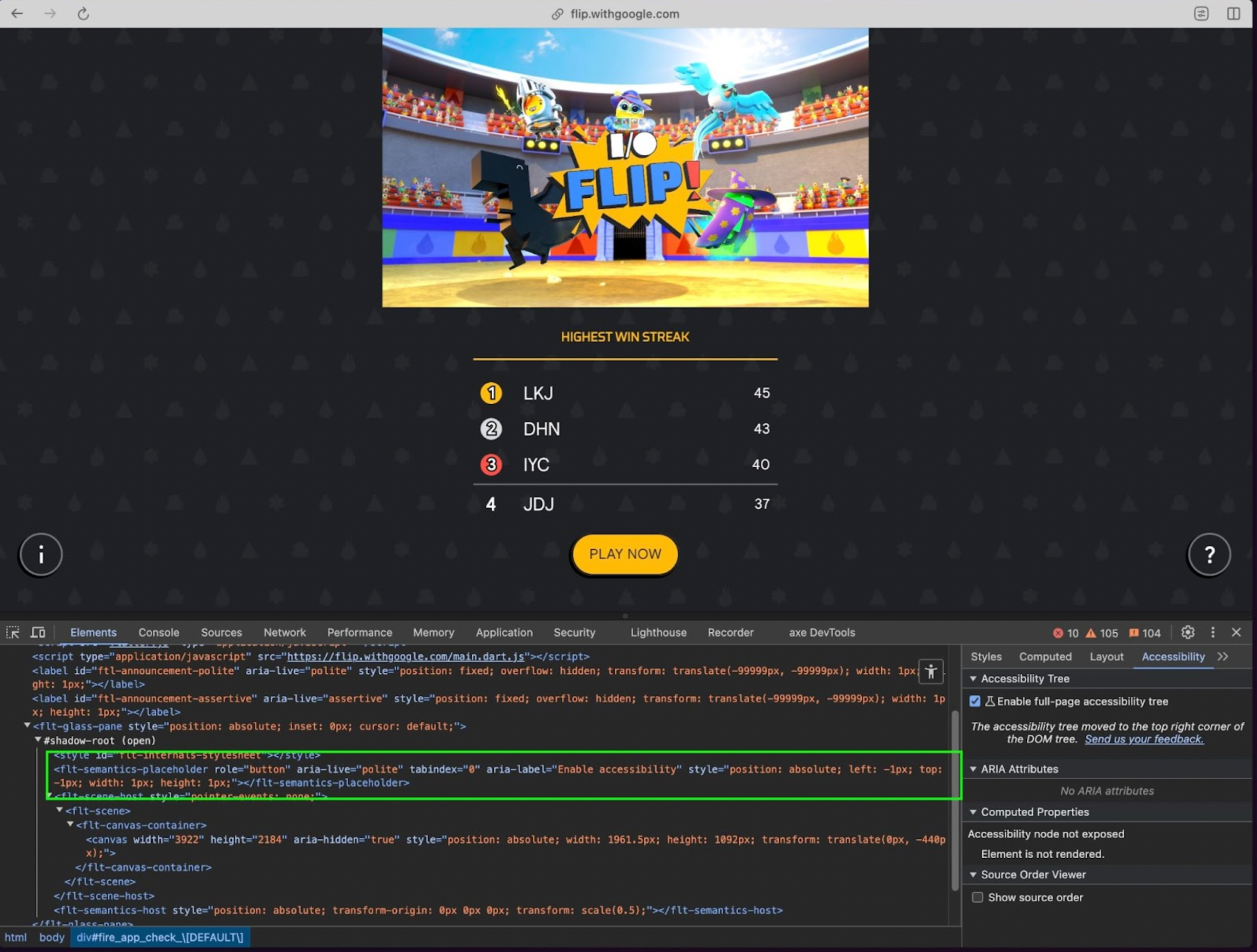
In the Elements tab, look for a hidden element that looks like this:
-
Click on the hidden element so it becomes selected in the DOM.
-
Open the Console tab in DevTools.
-
Run the following command in the console to activate accessibility mode:
$0.click();-
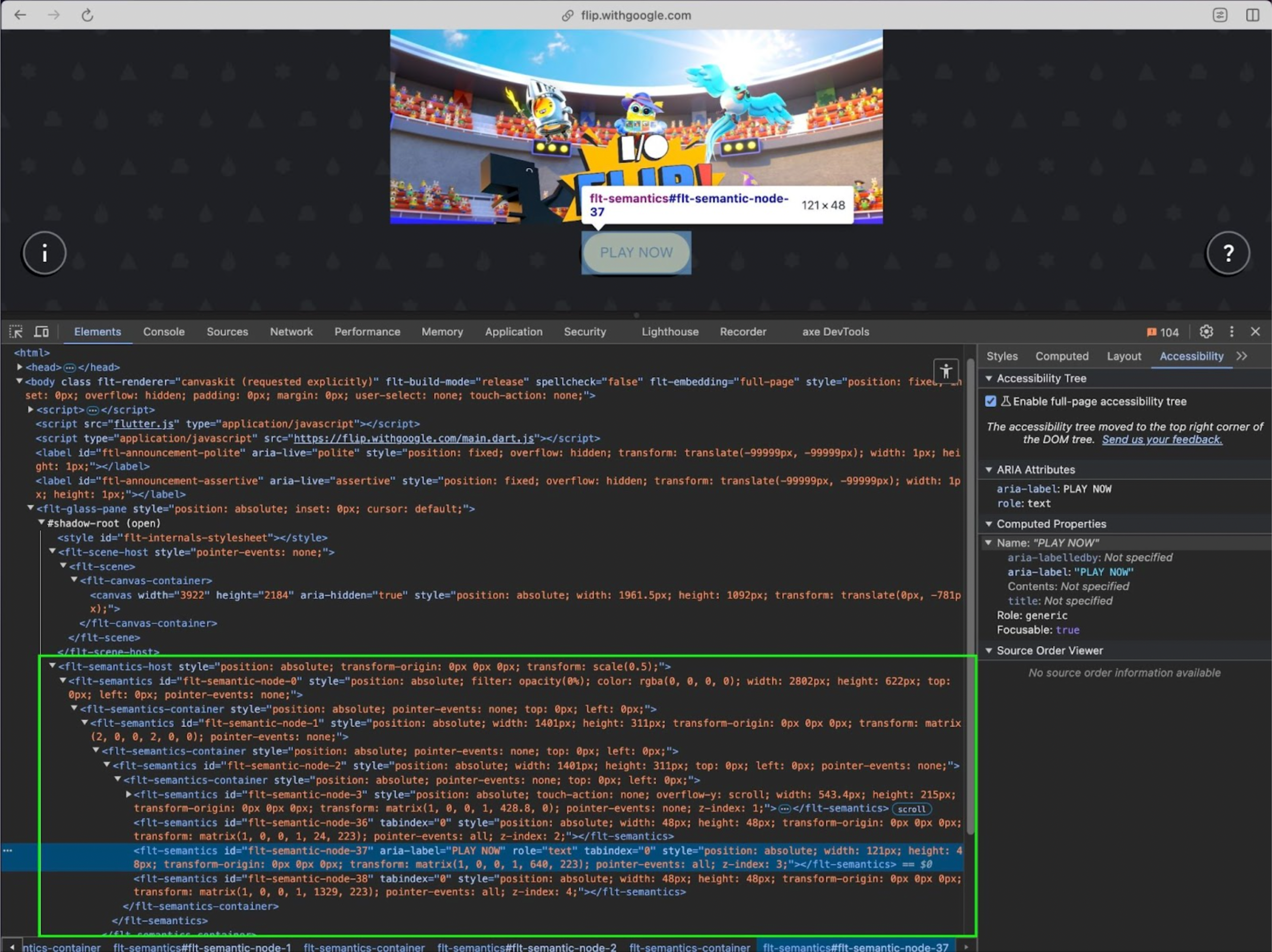
Check the Elements tab again. A whole new tree of elements will be added to the DOM. You should now see elements like:
-
Use these aria-label values to locate elements in your automation tests.
-
Start recording your test using your preferred automation tool.
-
Interact with the elements using their aria-label attributes.
- Run your test. It should now successfully interact with the Flutter UI using accessibility-based locators.