Projects
Manage Projects
Creating a Project
Section titled “Creating a Project”-
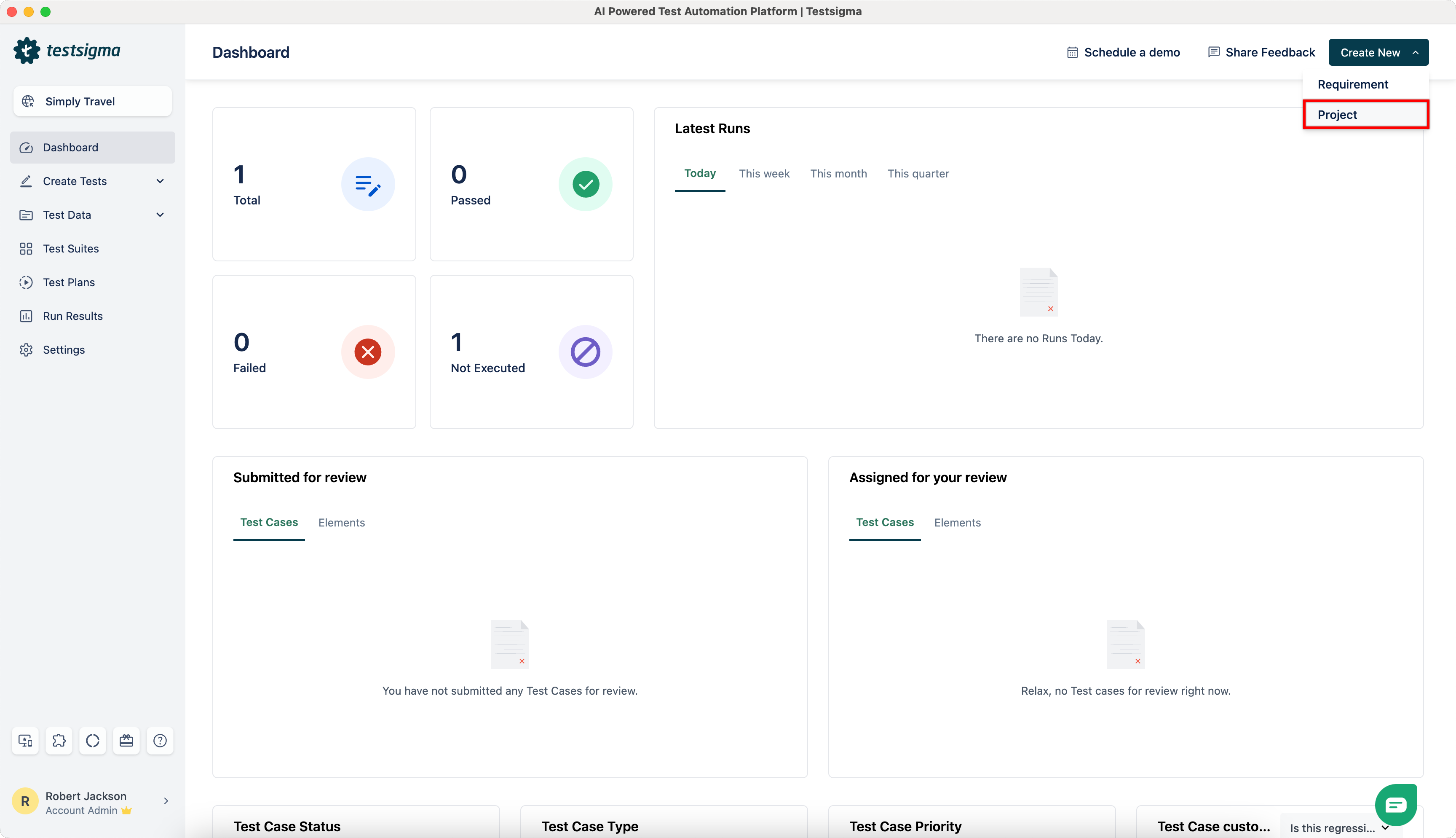
Navigate to Create New and click on Project from the dropdown menu.
-
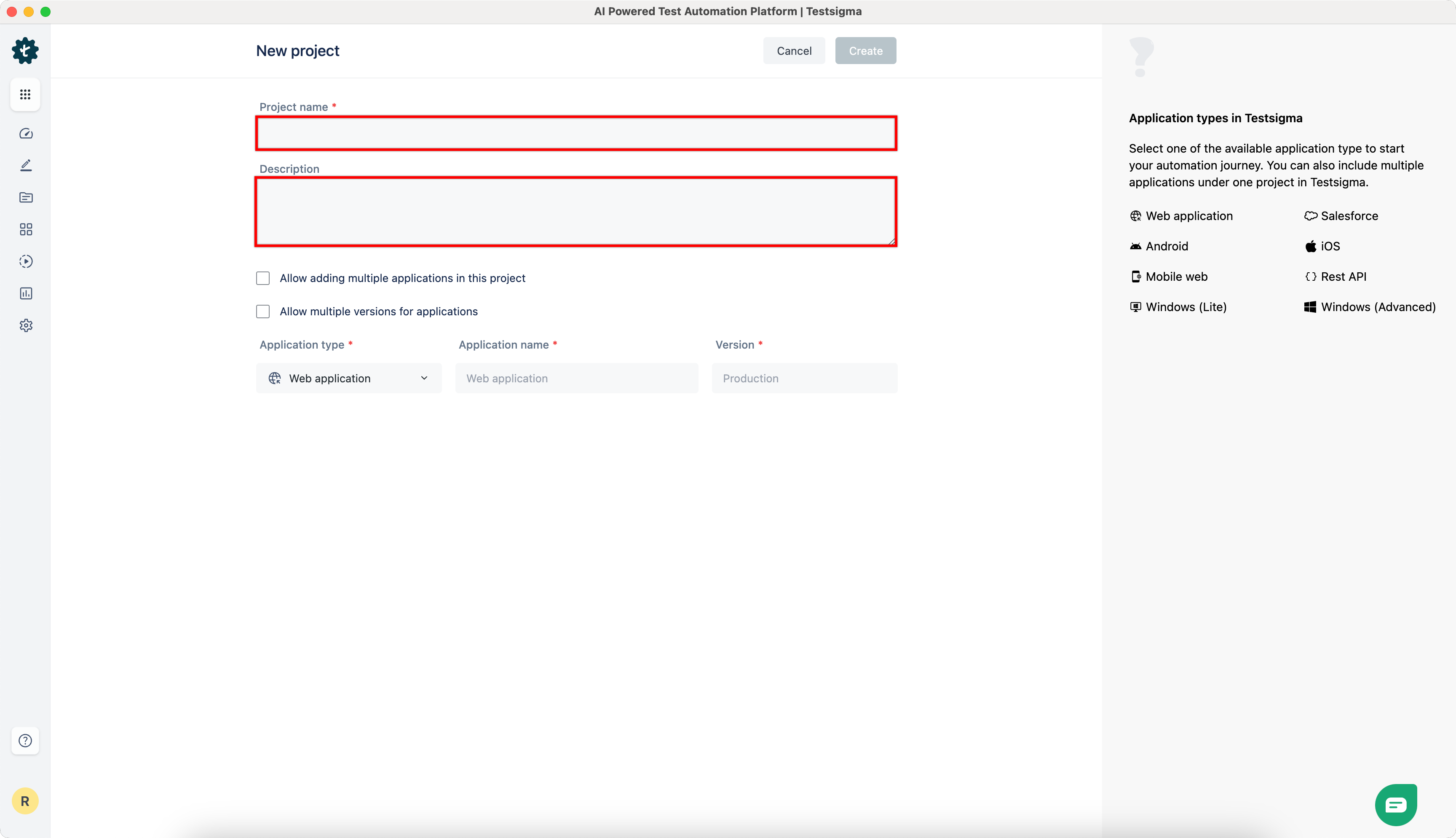
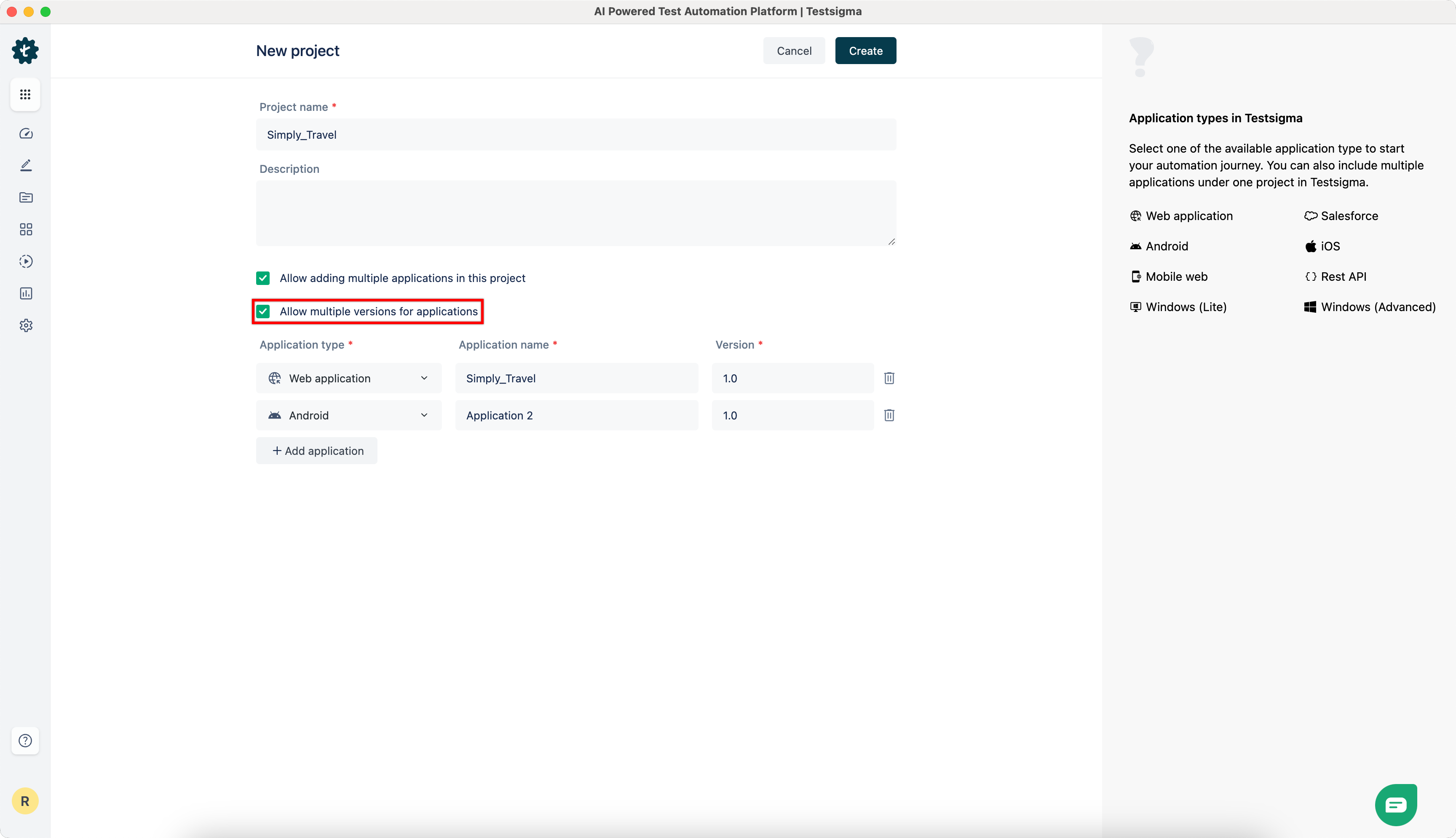
Enter the Project Name and Description (Optional).
-
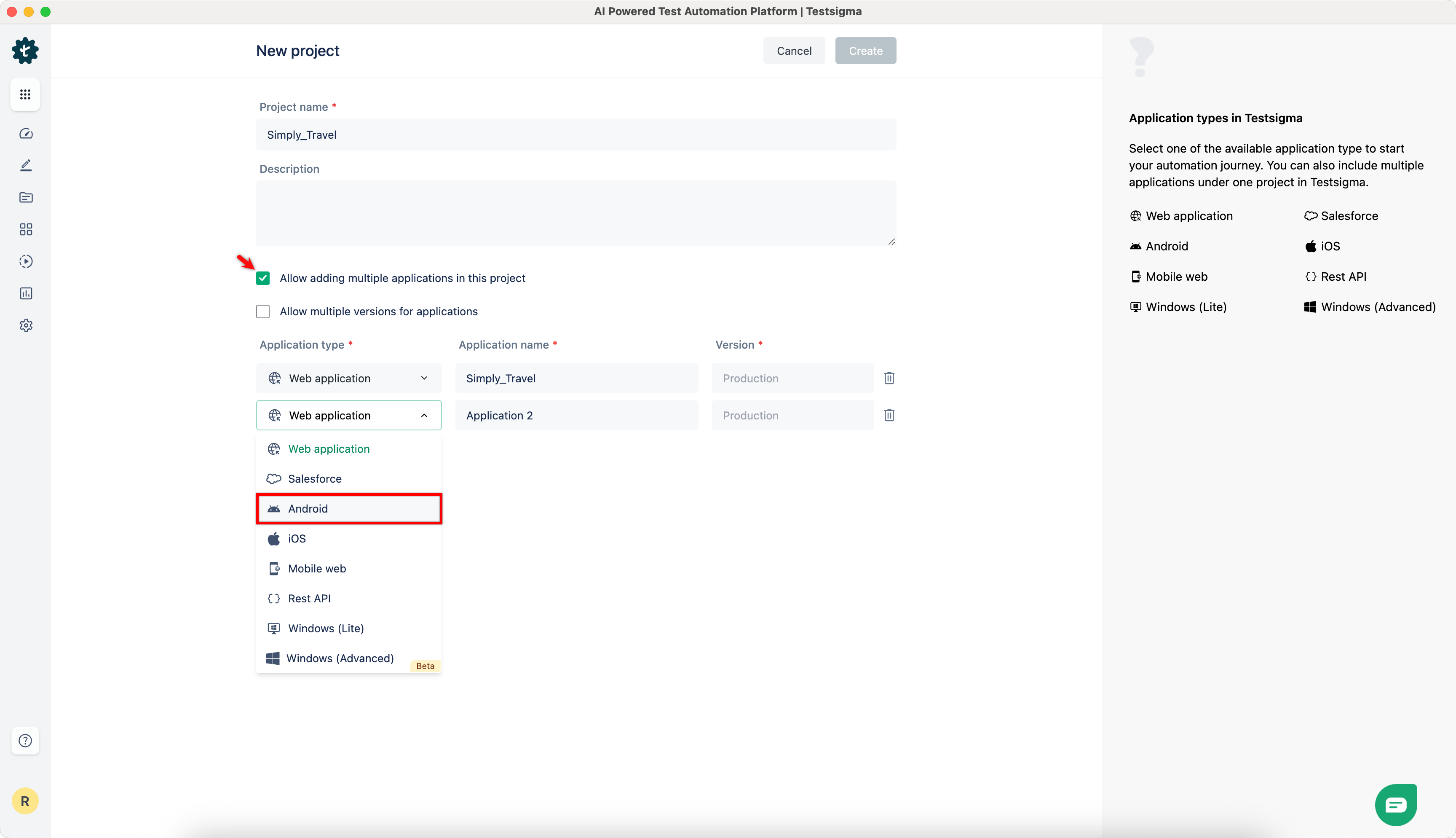
If your project involves multiple applications, check Allow adding multiple applications in this project checbox. To add an application, click Add Application, select the Application Type from the drop-down menu, and give it a Name. By default, the project is set up for a single application.
-
Also, if you want multiple versions for each application, check Allow multiple versions for applications checbox.
-
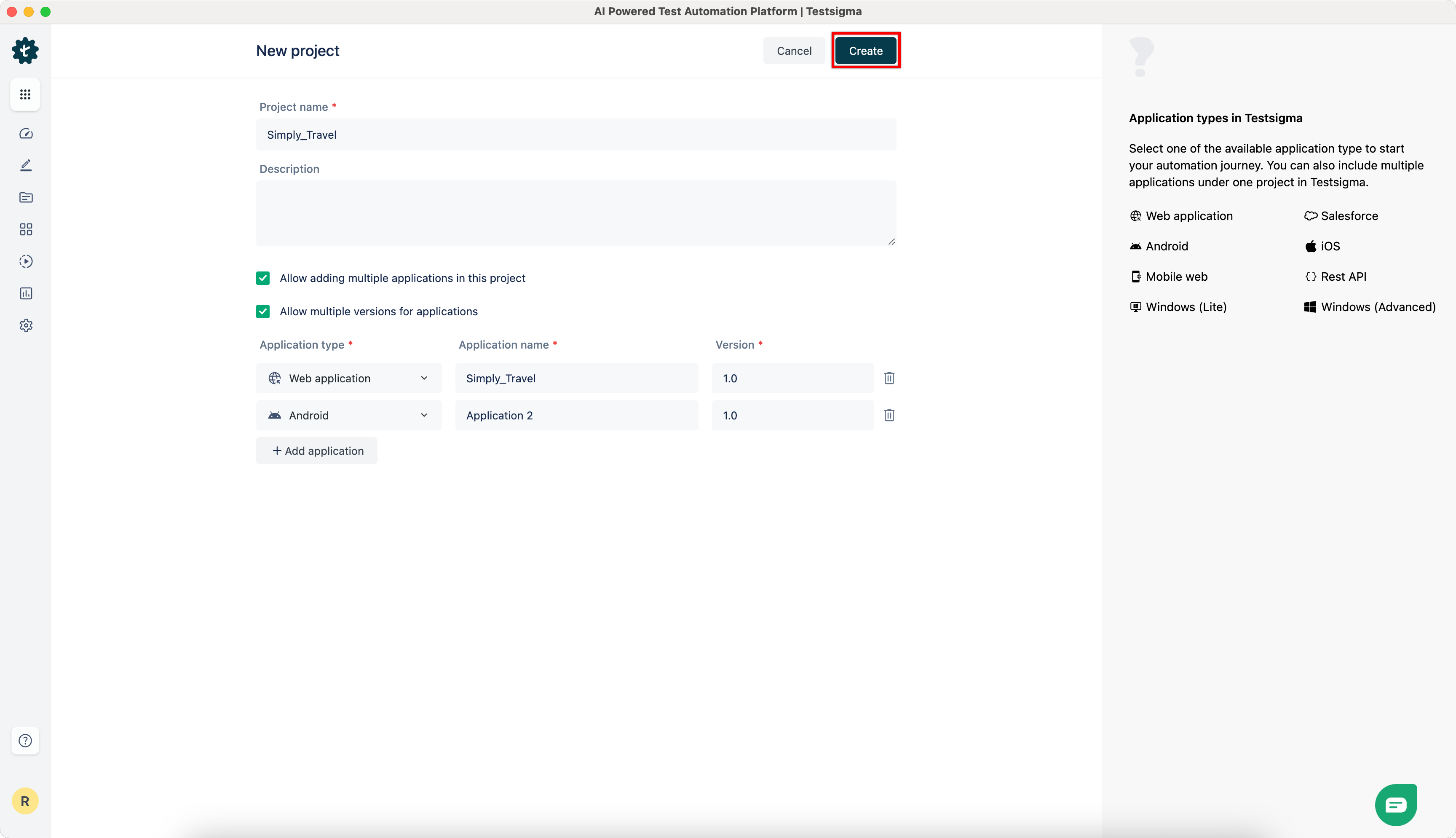
Click on Create.
Try this interactive demo to learn how to create a Project!
Section titled “Try this interactive demo to learn how to create a Project!”Editing a Project
Section titled “Editing a Project”-
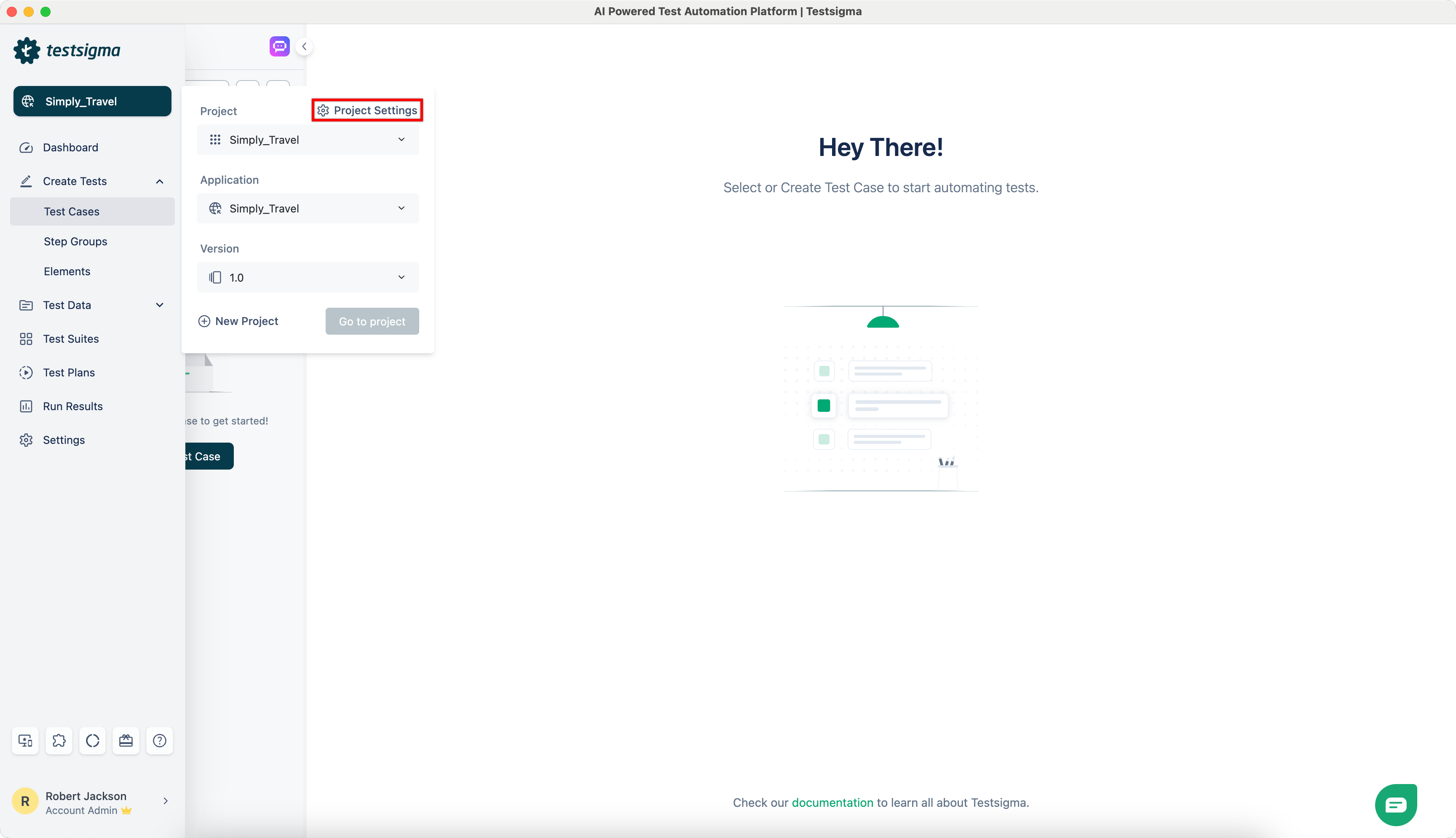
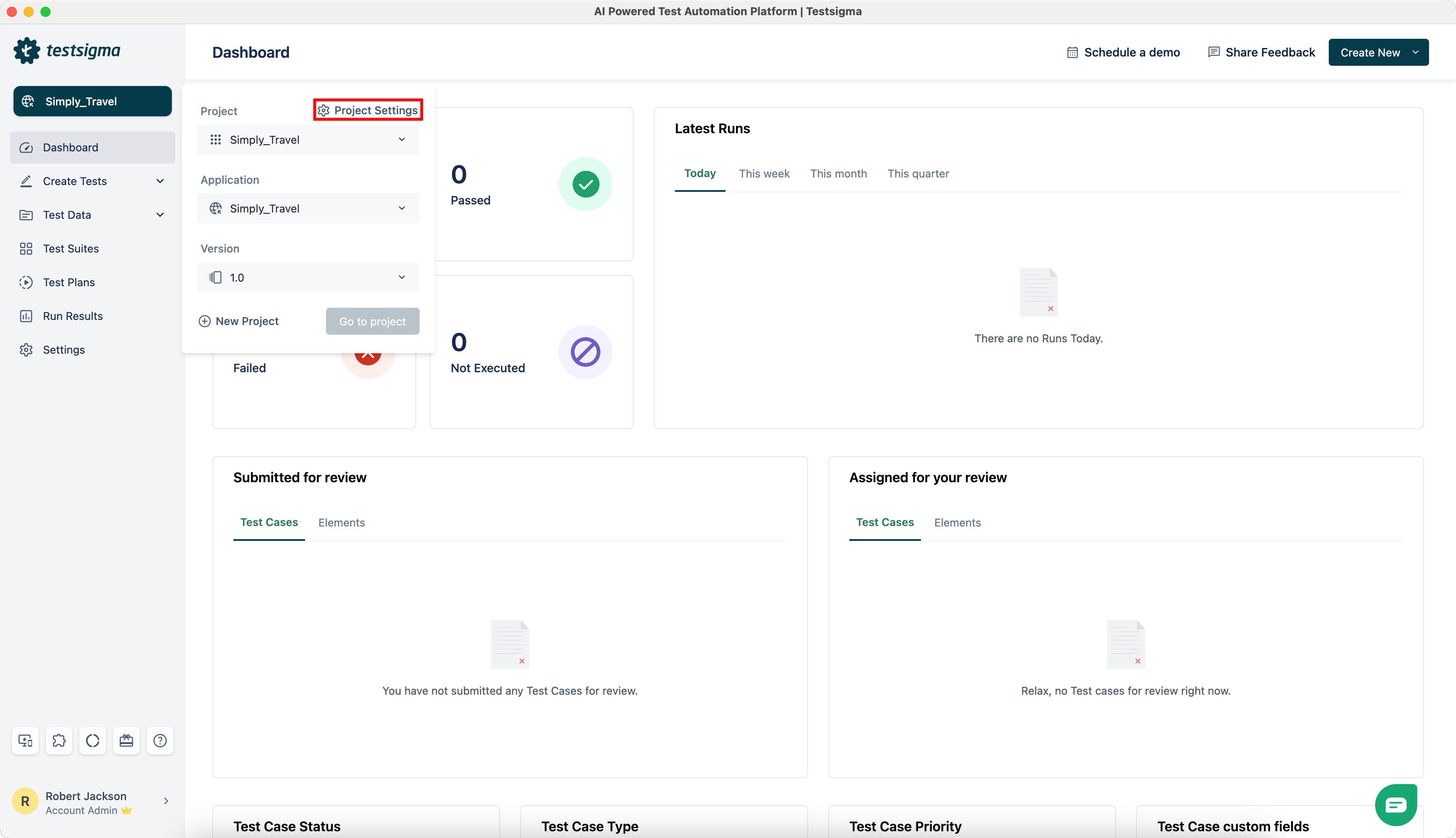
Navigate to Project > Project Settings.
-
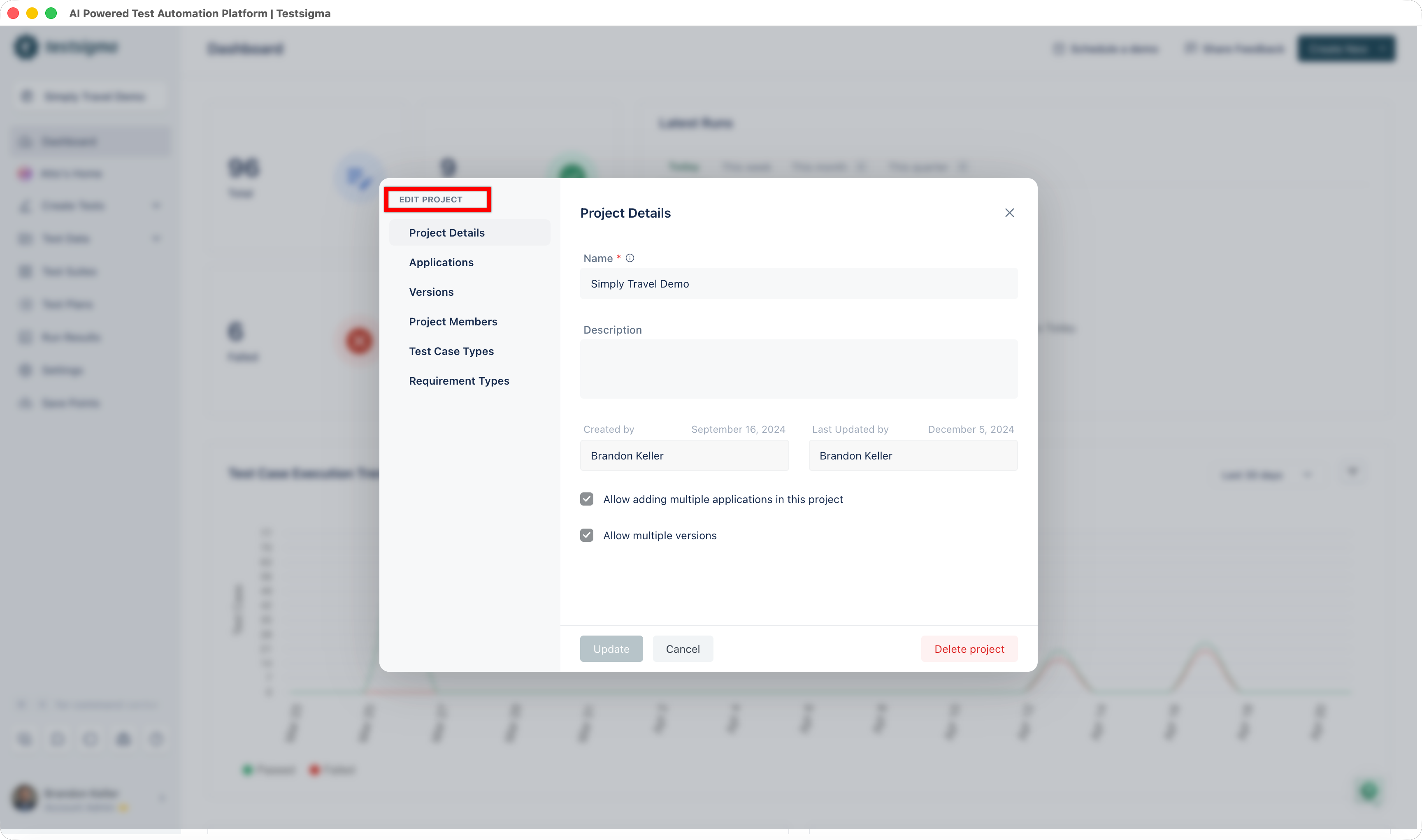
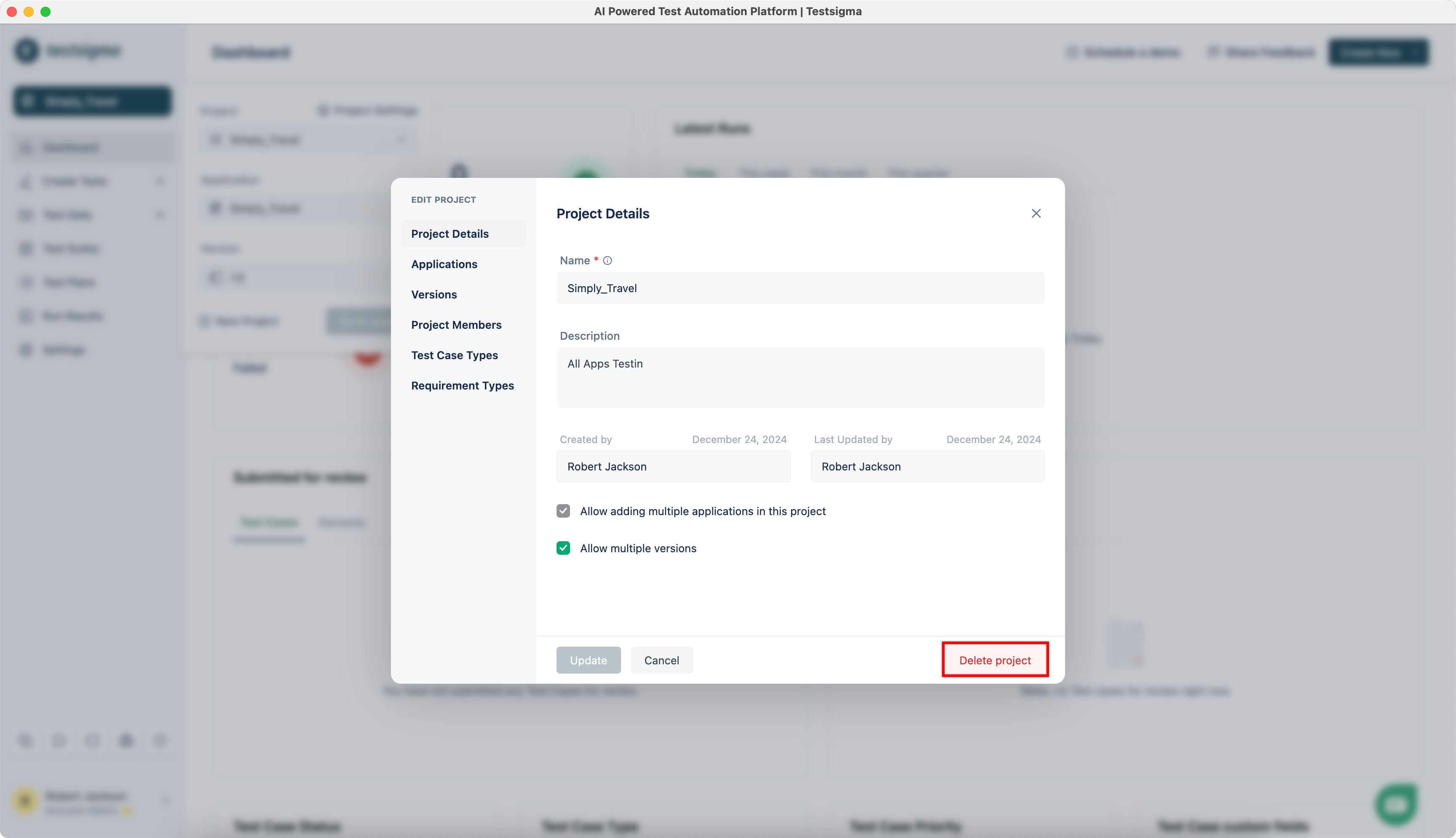
This will open the Edit Project dialog.
-
You can update Project Details, Multiple Applications and Versions from here. Also, you can add Project Members, Test Case Types, and Requirement Types on the same dialog.
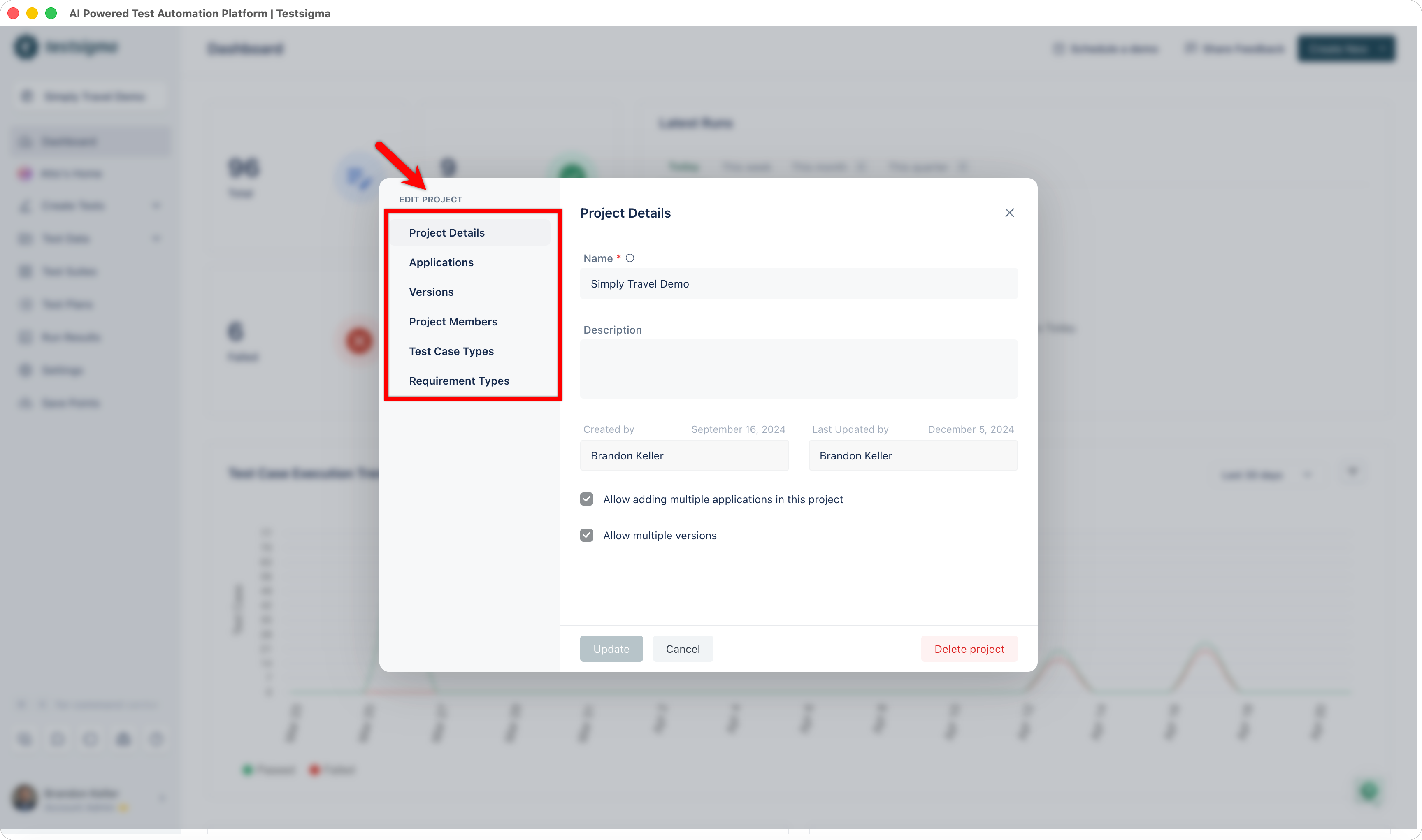
-
Click on Update to save the changes.
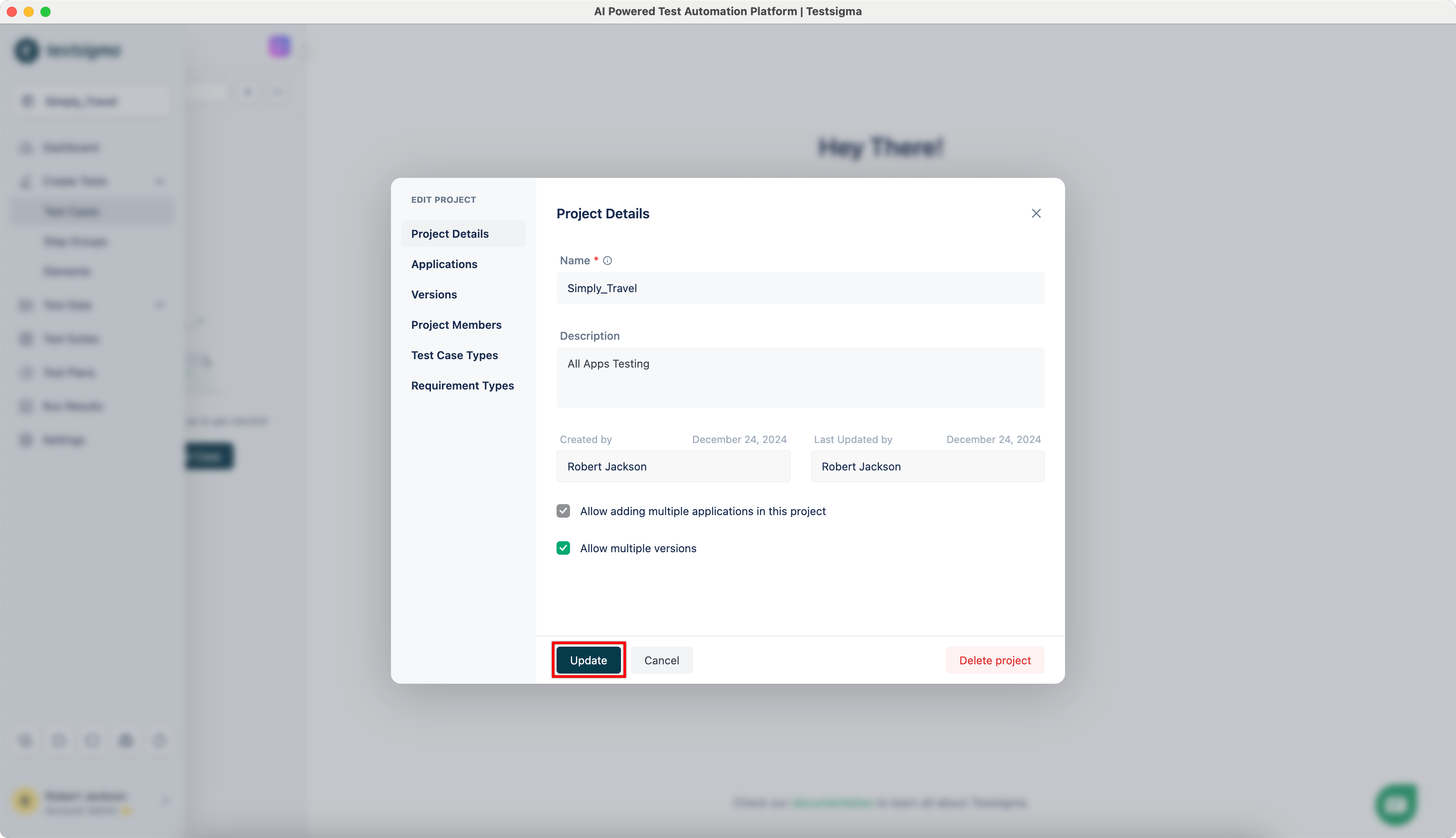
Adding, Editing, and Deleting Applications & Versions can be done under Project Settings > Applications.
Try this interactive demo to learn how to edit a Project!
Section titled “Try this interactive demo to learn how to edit a Project!”Switching Projects
Section titled “Switching Projects”-
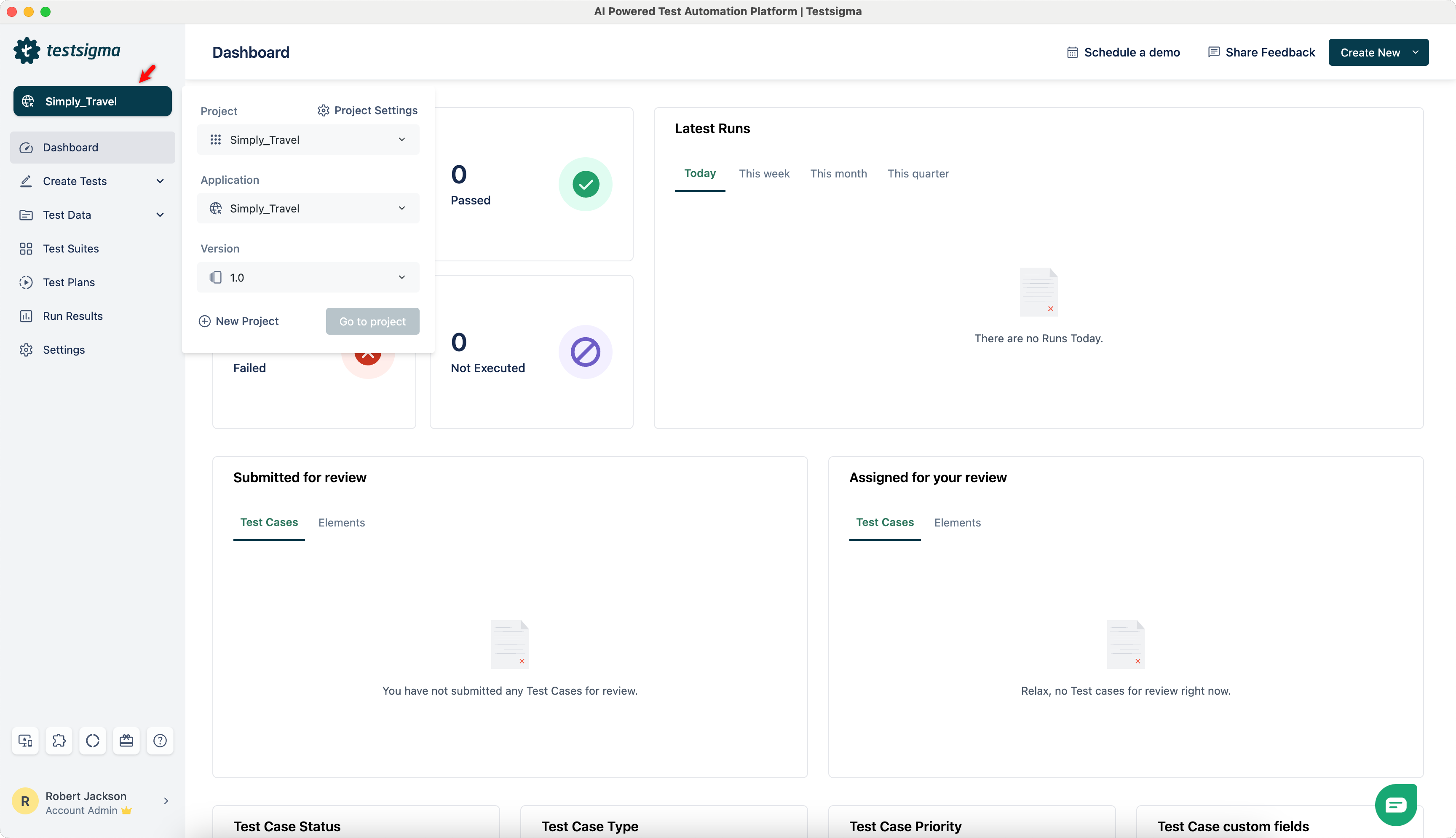
Click on the current Project from Dashboard.
-
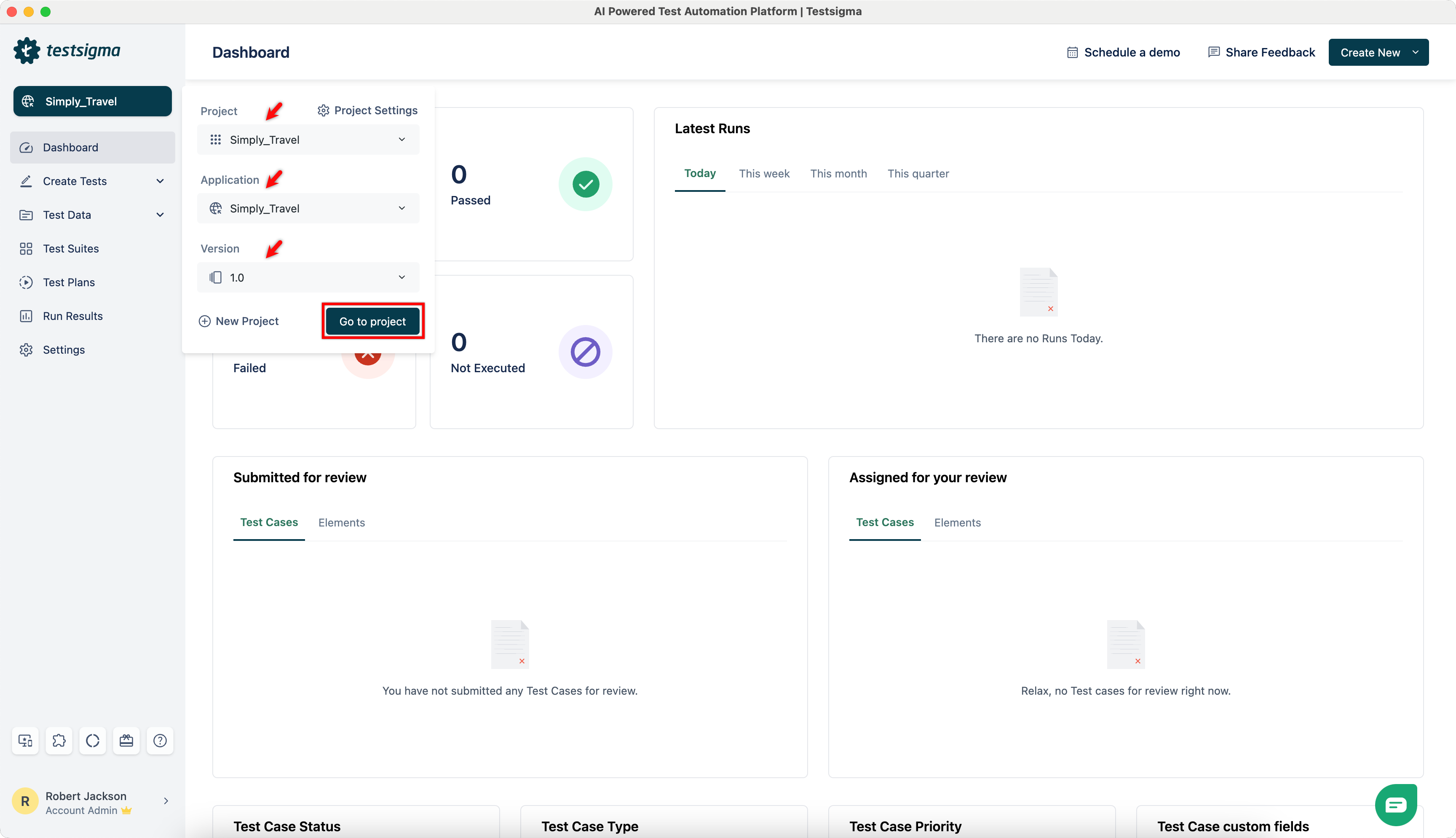
Select Project, Application, and Version from respective dropdowns and click on Go to project.
-
You’ll be redirected to the dashboard of the selected project.
Deleting a Project
Section titled “Deleting a Project”-
Navigate to Project > Project Settings.
-
Click on Delete.
-
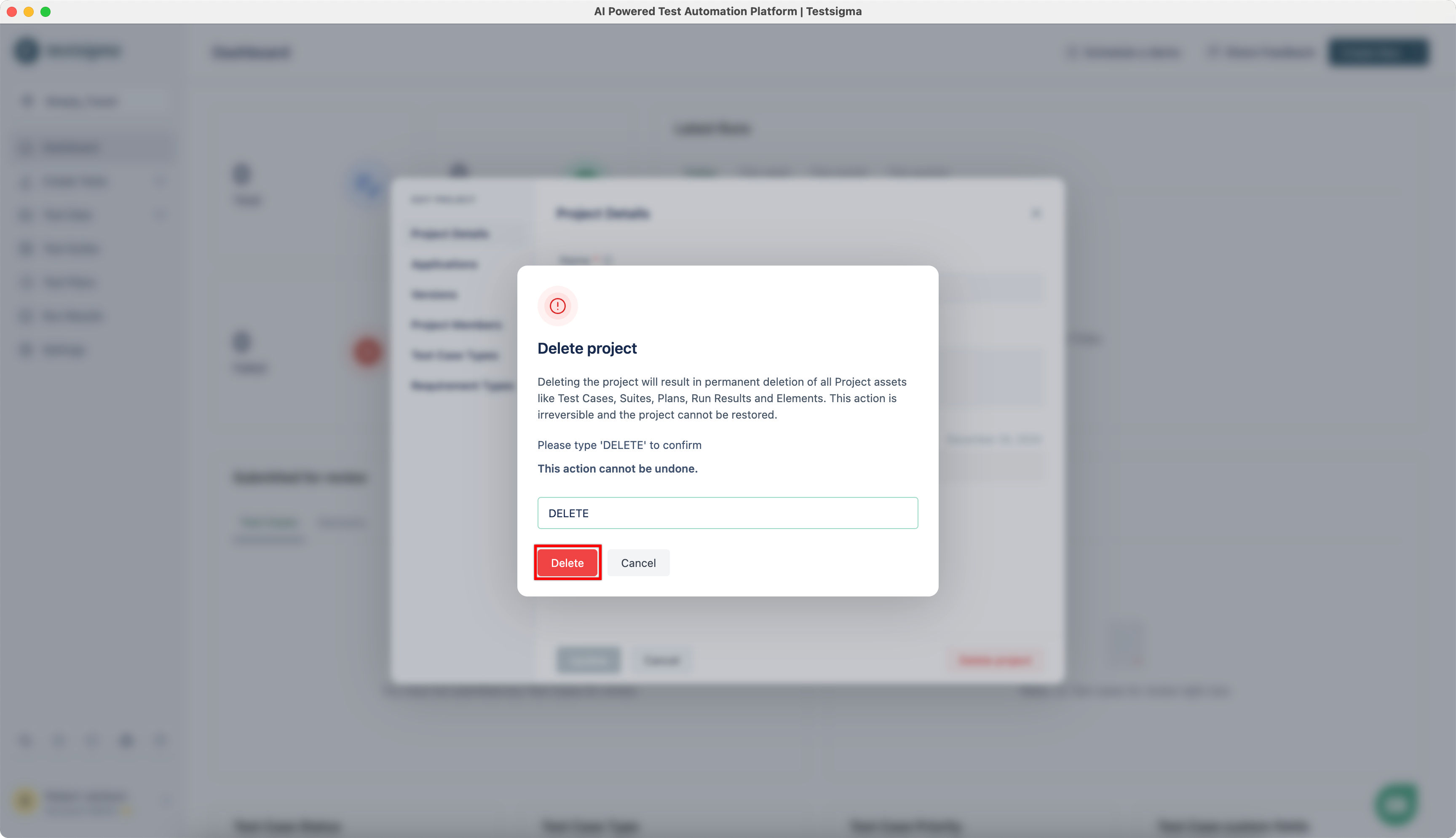
On the Delete project dialog, enter DELETE and click on Delete.

-
On the Delete project prompt, enter DELETE and click on Delete.