Test Plans
End-to-End Testing in Testsigma
Prerequisites
Before you begin, ensure that you have referred to:
Enable End-to-End Testing
Section titled “Enable End-to-End Testing”-
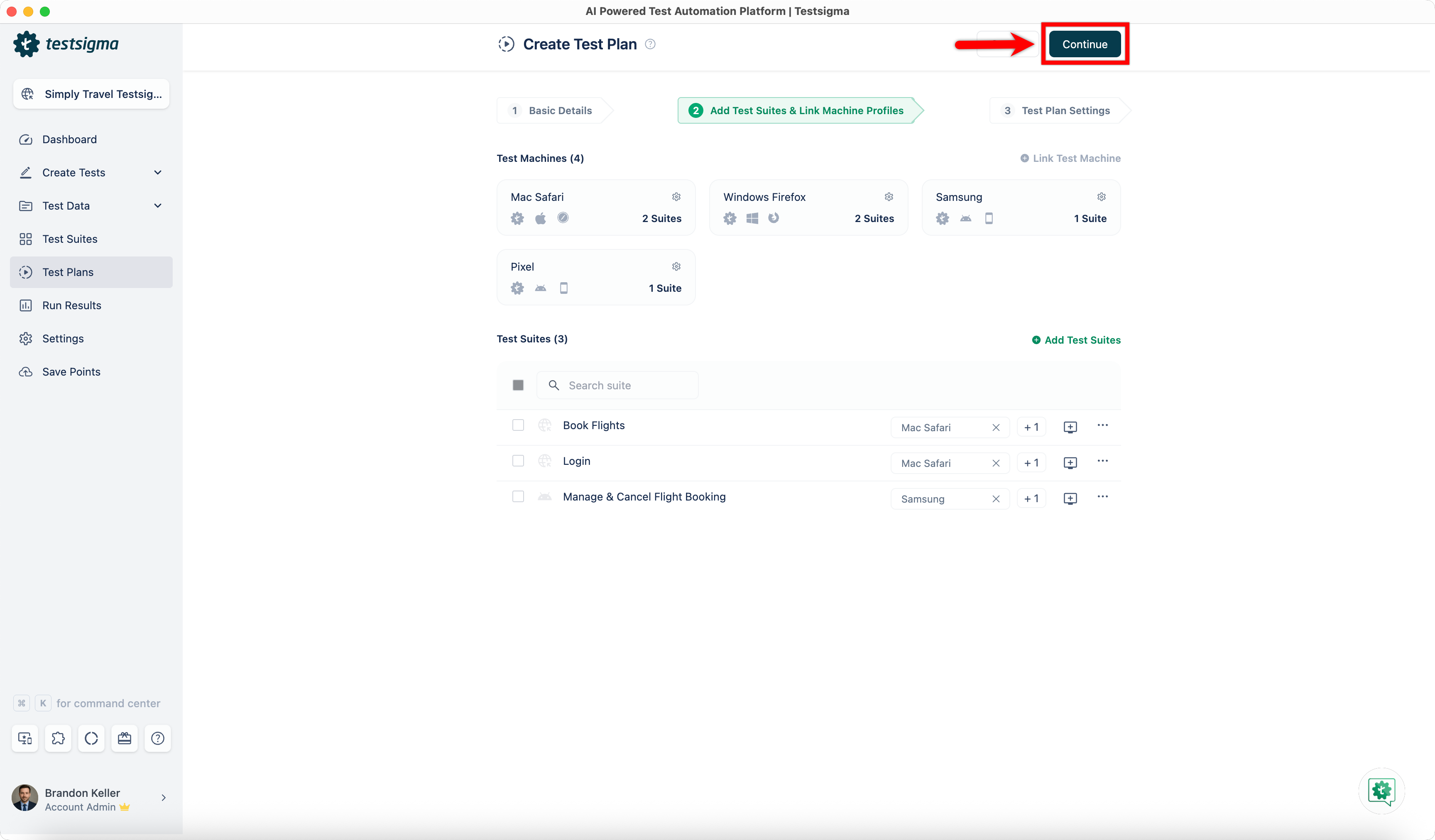
From the left navigation bar, go to Test Plans and click Create Test Plan.
-
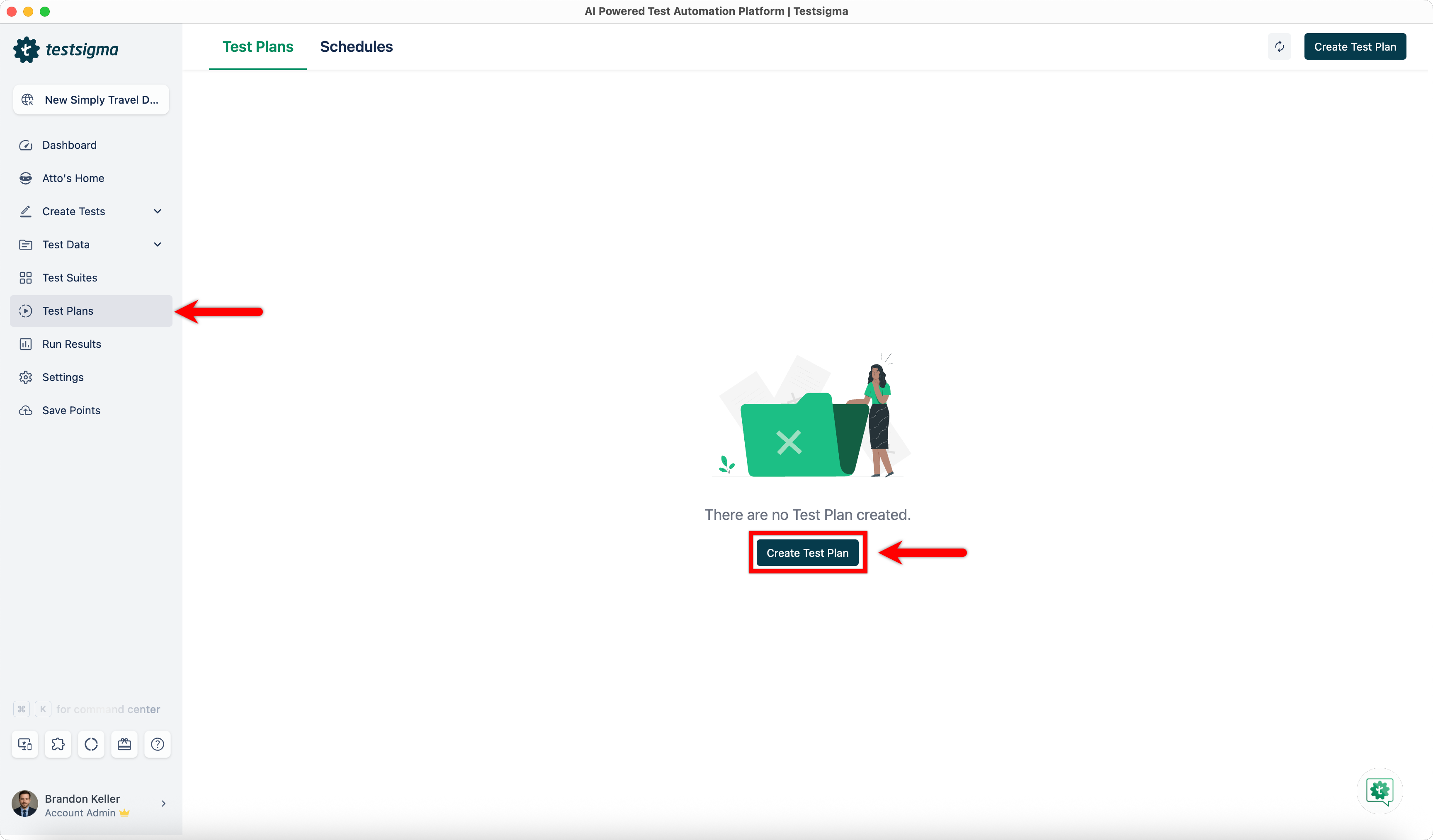
In the Basic Details tab, provide the following information and click Continue:
- Name (Required): Enter a title for the test plan.
- Description (Optional): Enable the Description toggle and briefly describe the purpose and scope of the test plan.
- Labels (Optional): Add labels to help organize and manage test plans.
- Test Plan Type (Required): Select Custom Test Plan.
End-to-end testing can be enabled only for Custom Test Plans.
-
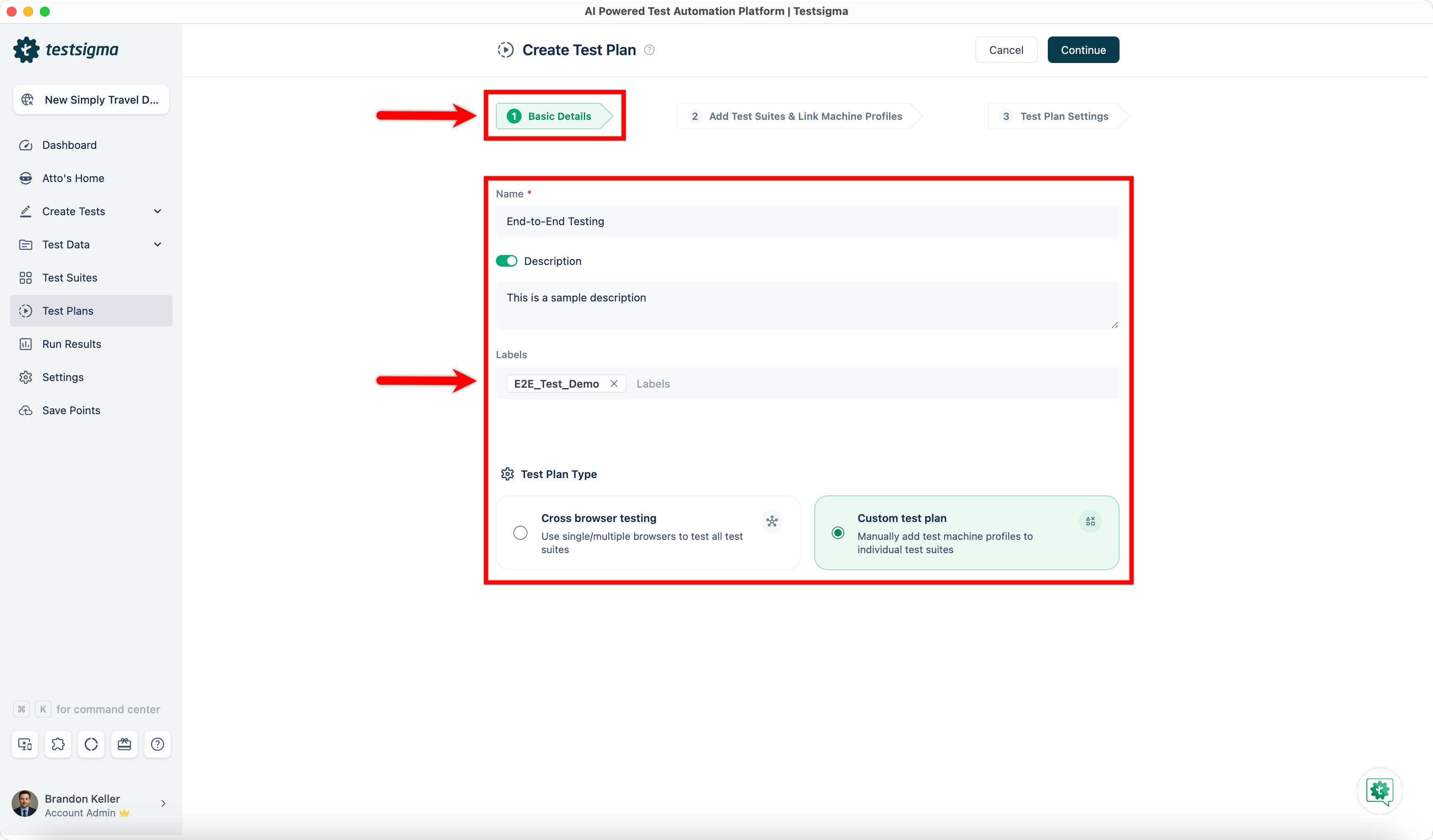
In the Add Test Suites & Link Machine Profiles tab, click Add Test Suites.
-
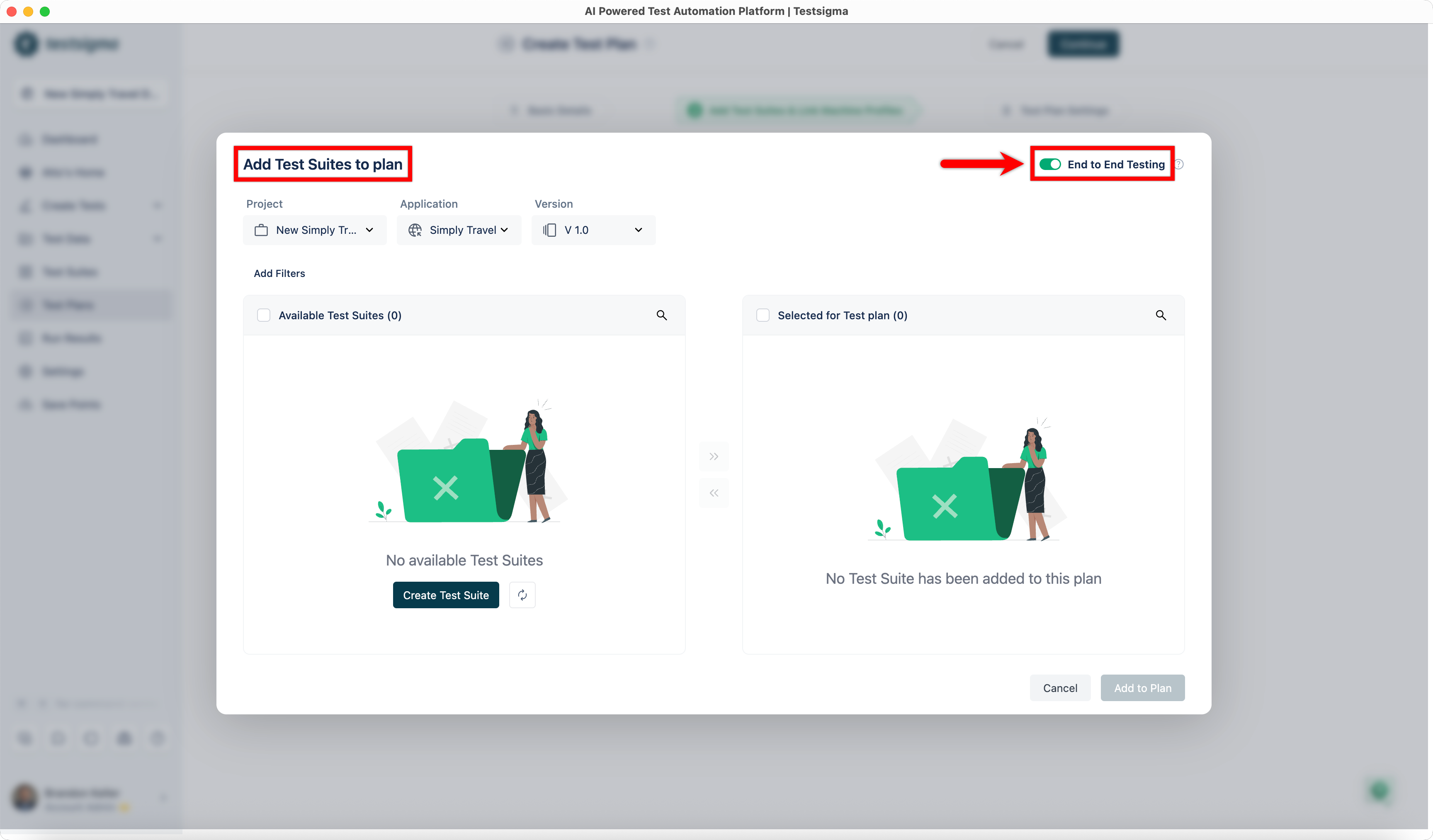
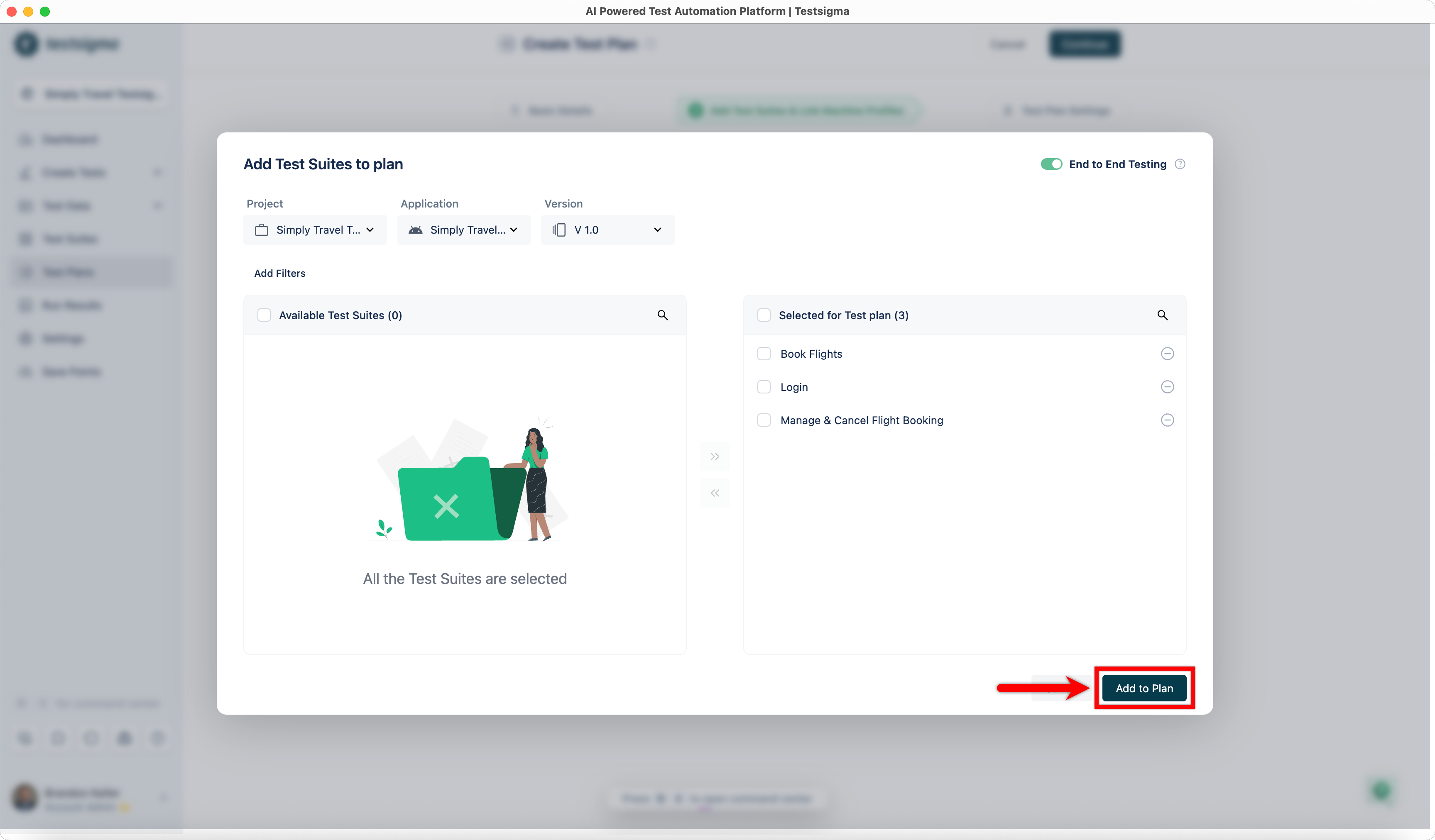
In the Add Test Suites to Plan dialog, enable the End-to-End Testing toggle.
Add Test Suites from Different Projects & Applications
Section titled “Add Test Suites from Different Projects & Applications”When end-to-end testing is enabled, you can add test suites from multiple projects and applications to a single test plan. You add test suites incrementally by selecting a project and application, adding the required suites, and then switching to another project or application to continue adding more suites.
-
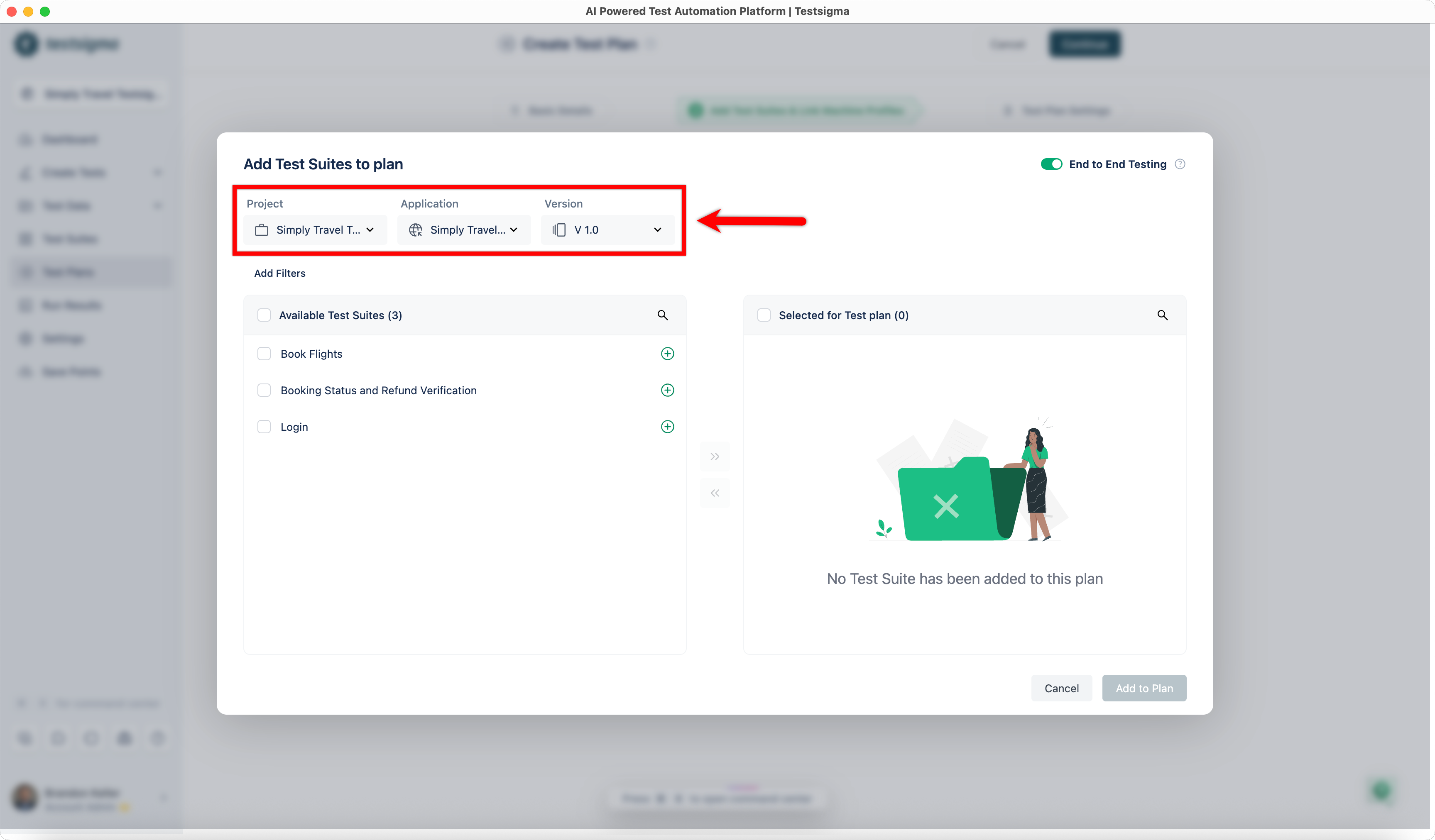
In the Add Test Suites to Plan dialog, select the Project, Application, and Version.
-
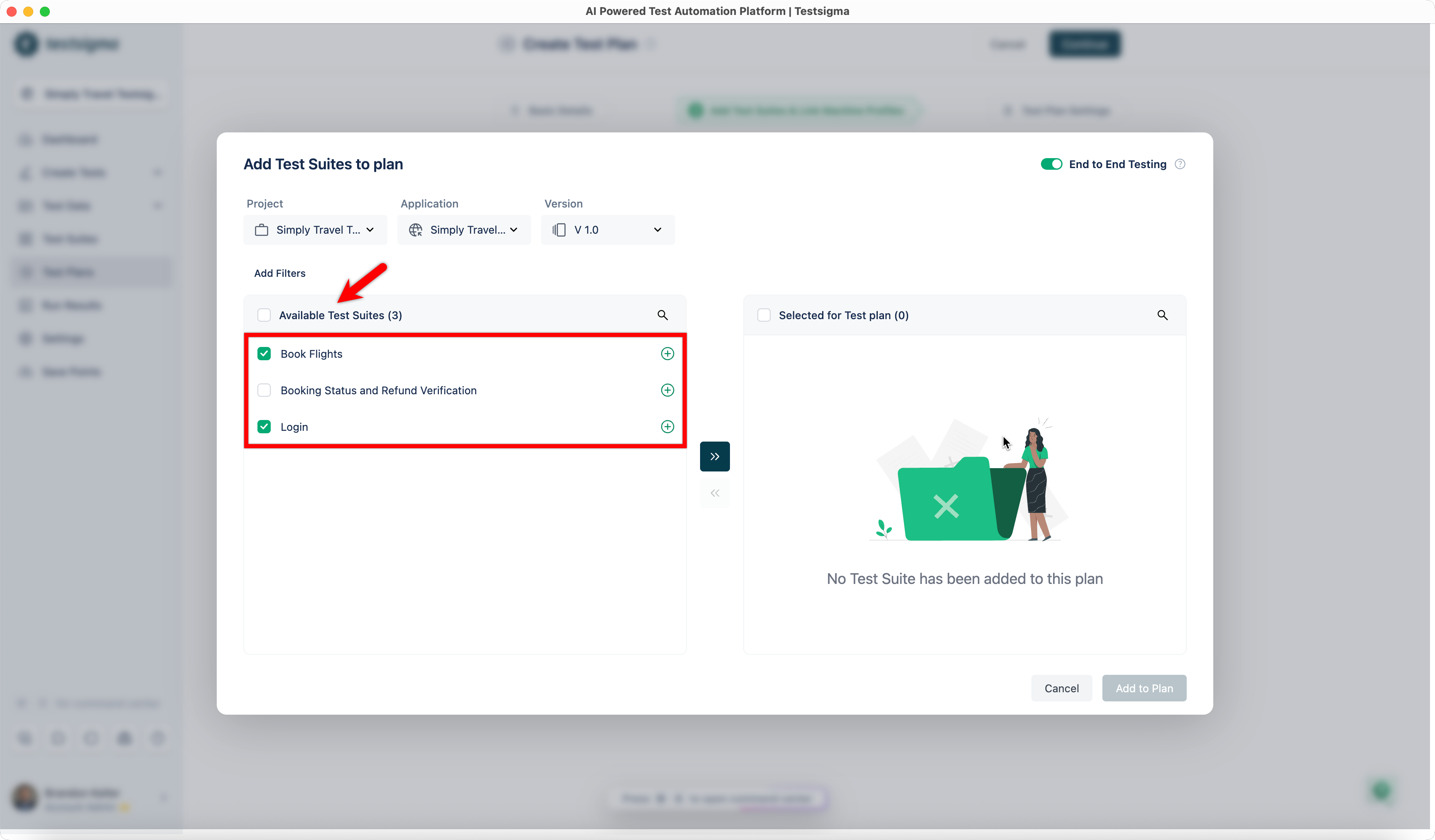
From the Available Test Suites list, select the required test suites and add them to the plan.
-
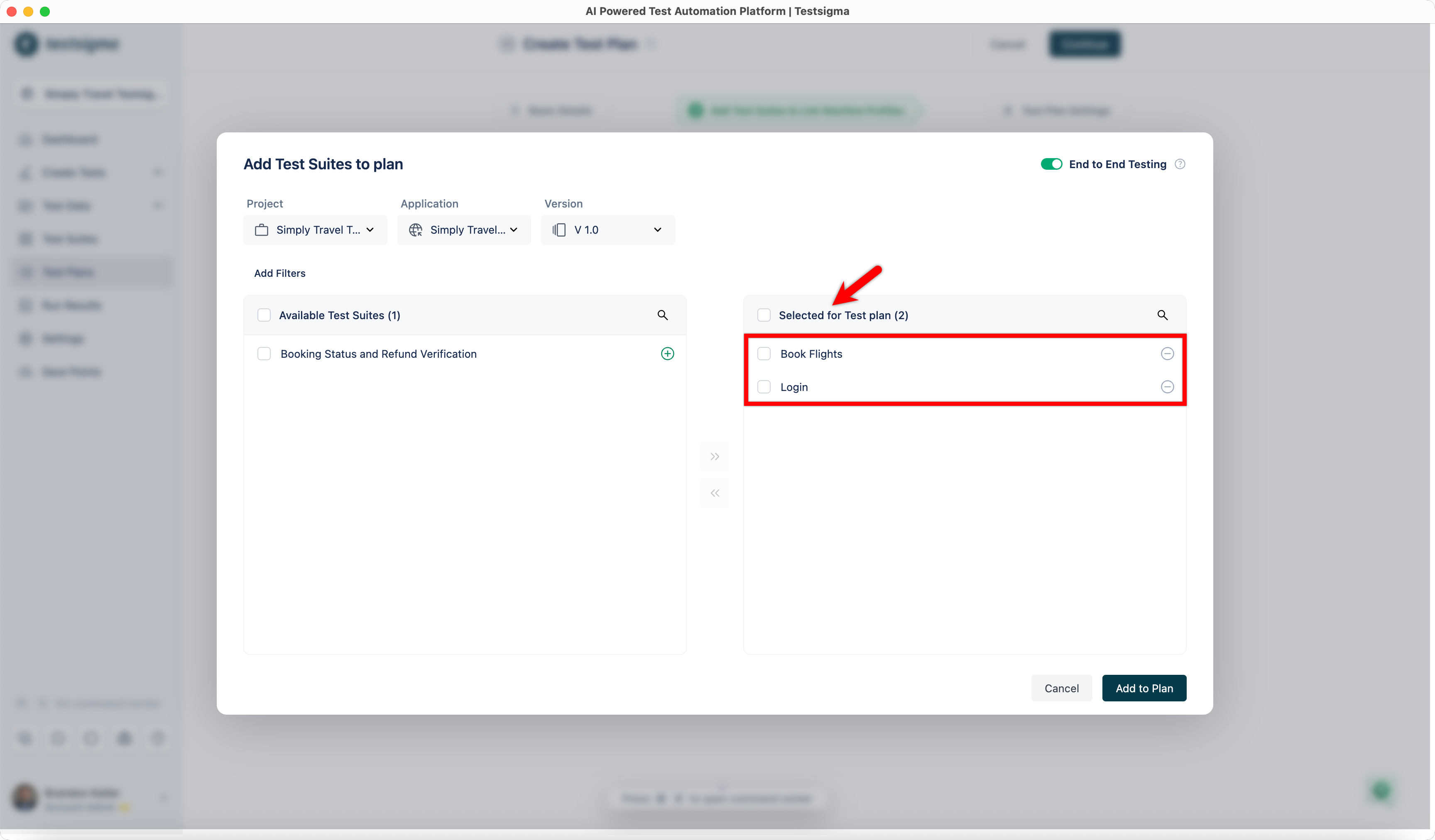
The selected test suites appear in the Selected for Test Plan section.
-
Change the Project, Application, or Version to add test suites from a different source.
-
Repeat steps 1–3 until all required test suites from different projects and applications are added.
-
Click Add to Plan.
-
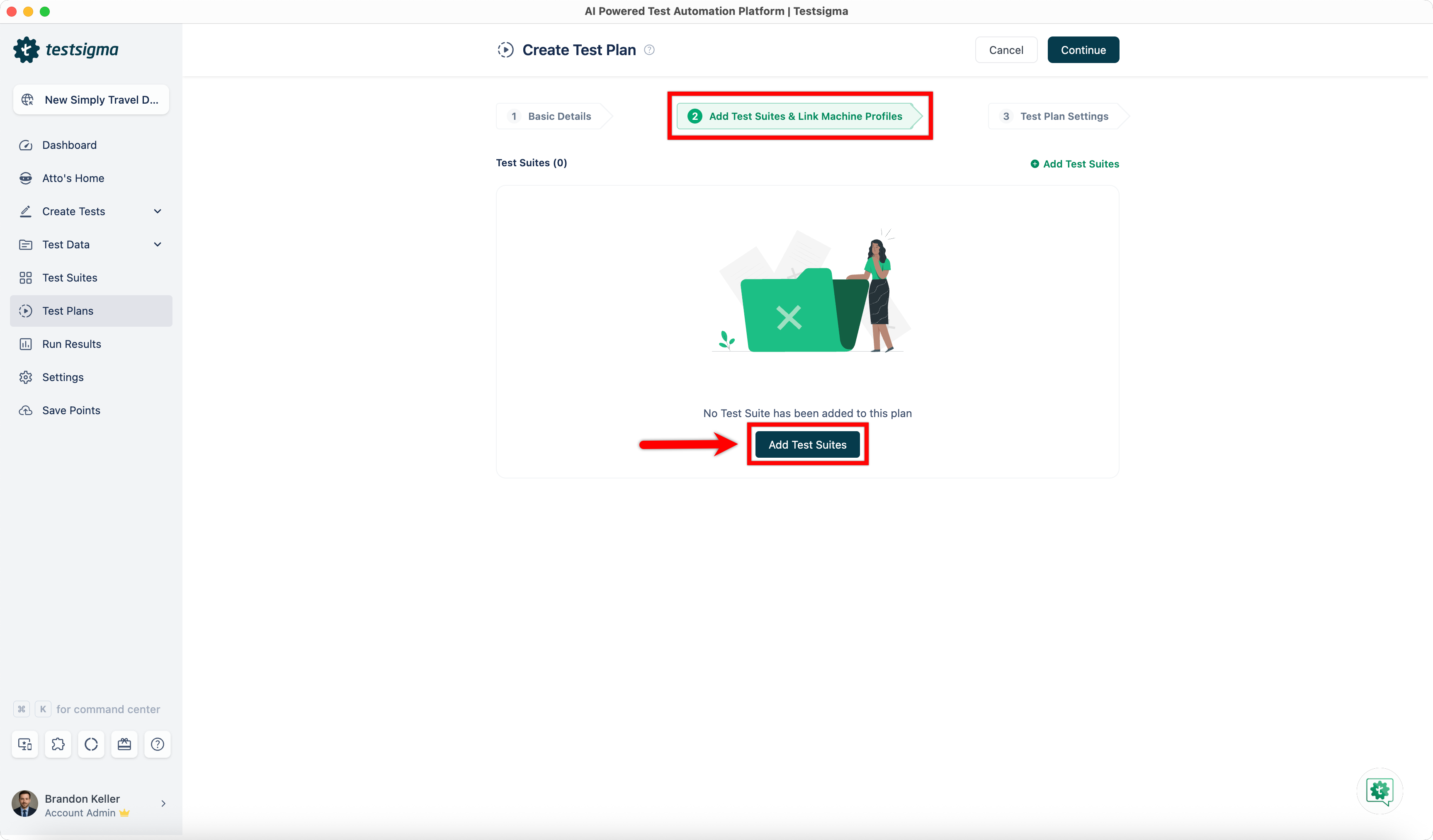
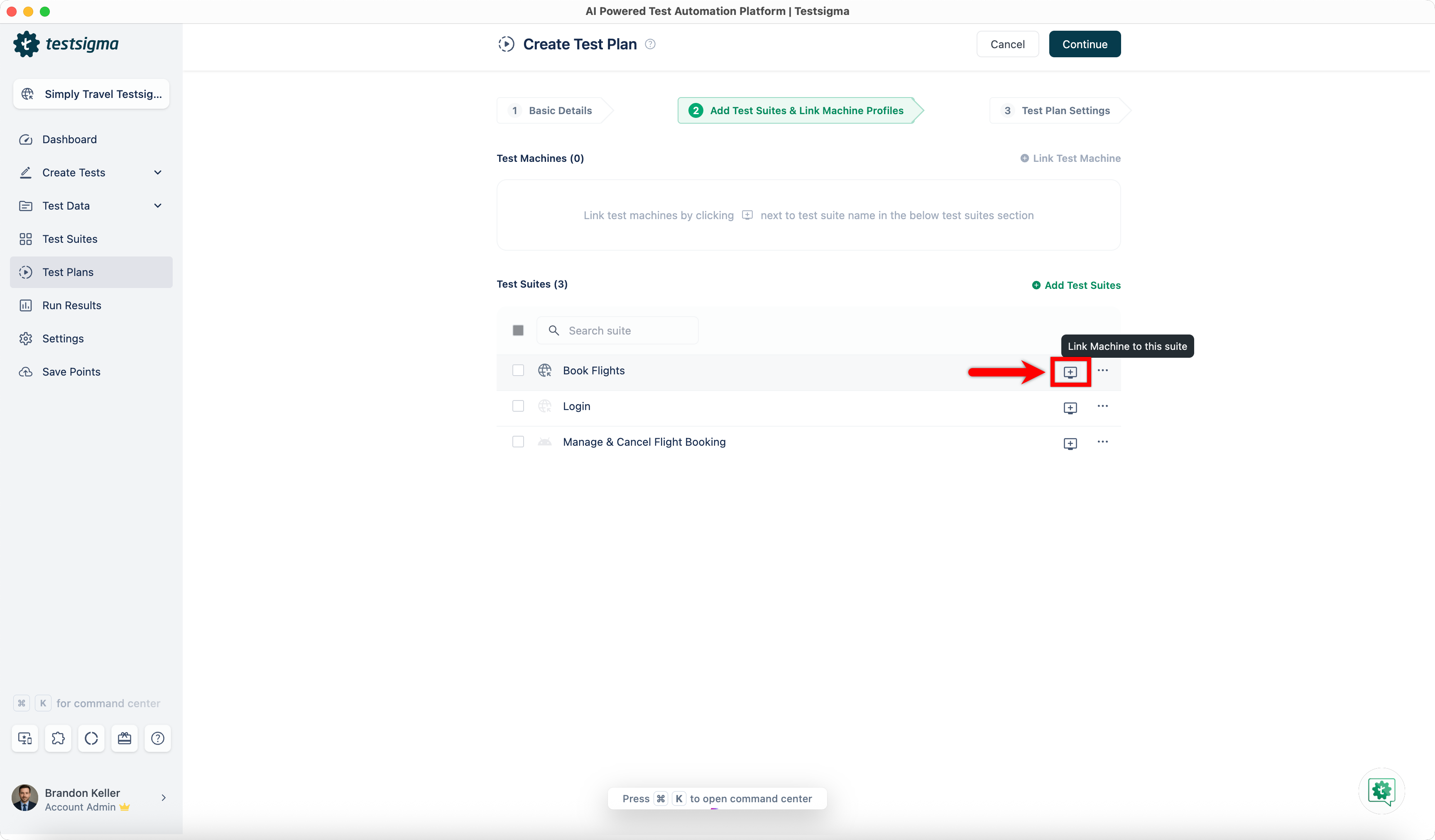
In the Add Test Suites & Link Machine Profiles tab, click Test Machine for a test suite.
-
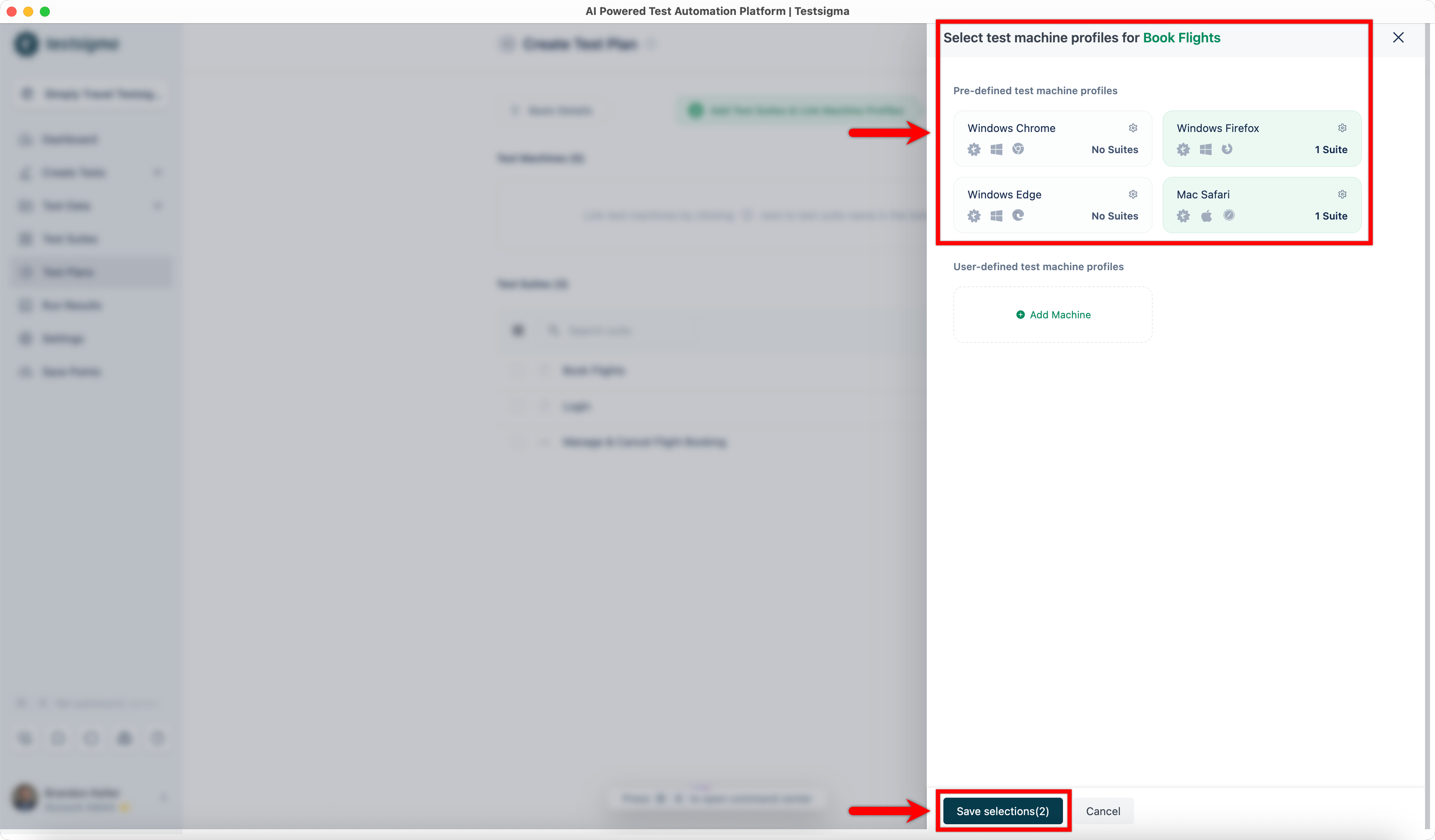
In the Select Test Machine Profiles overlay, select the required test machines and click Save Selections.
-
Repeat the same for each test suite, selecting machine profiles based on the application type.
-
Click Continue to proceed with the remaining test plan configuration.