
Elements
Verify Elements from Test Recorder
Prerequisites
Before you begin, ensure that:
- You have installed the Testsigma Chrome Extension. For more information on installing Testsigma Chrome Extension, refer to the documentation on Testsigma Chrome Extension.
- You have a web application that is available for testing.
Steps to Verify Elements from Test Steps
Section titled “Steps to Verify Elements from Test Steps”-
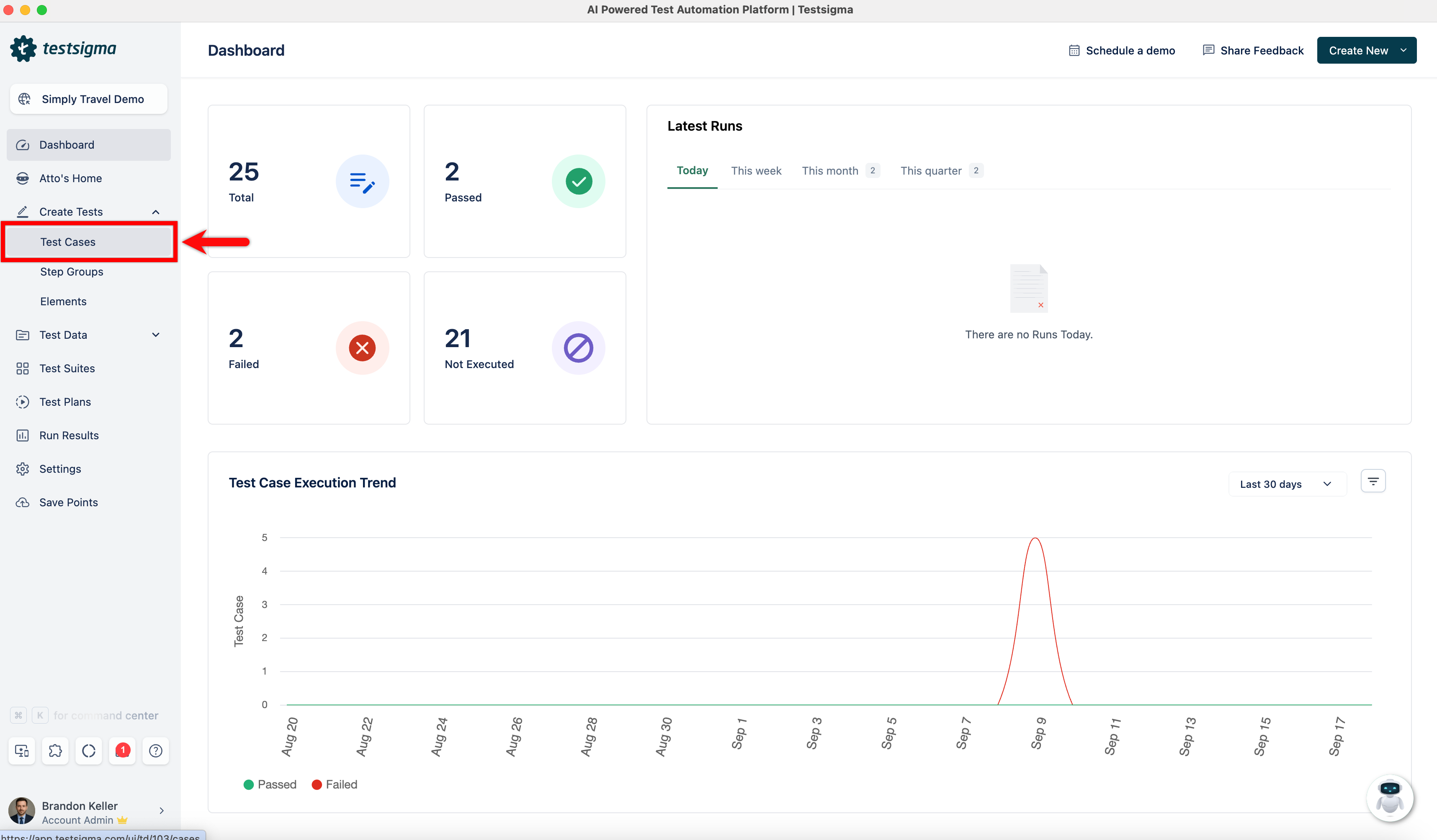
From the left navigation bar, go to Create Tests > Test Cases.
-
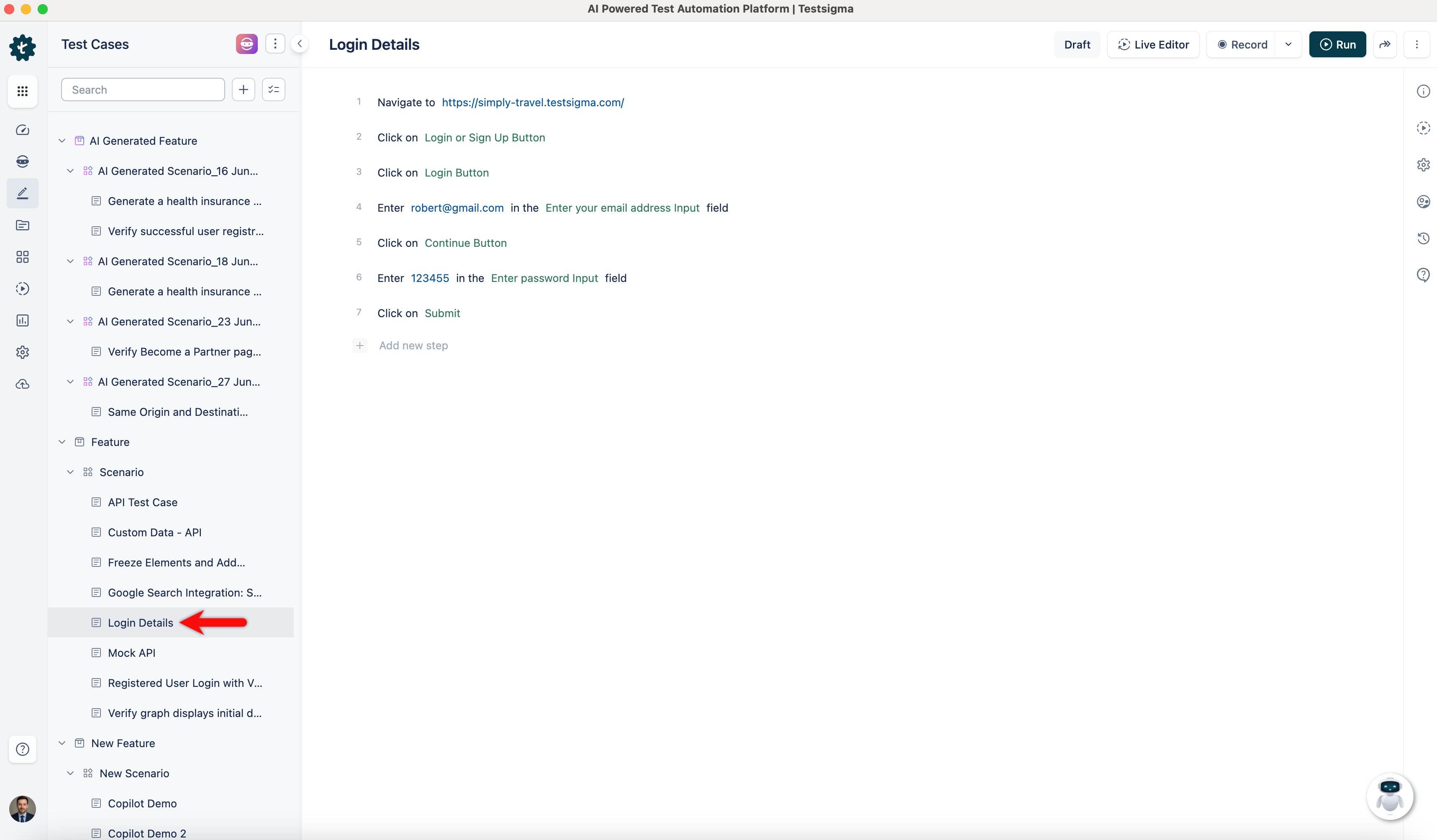
Create a test case by selecting Create Test Case in the top right corner, or open an existing test case.
-
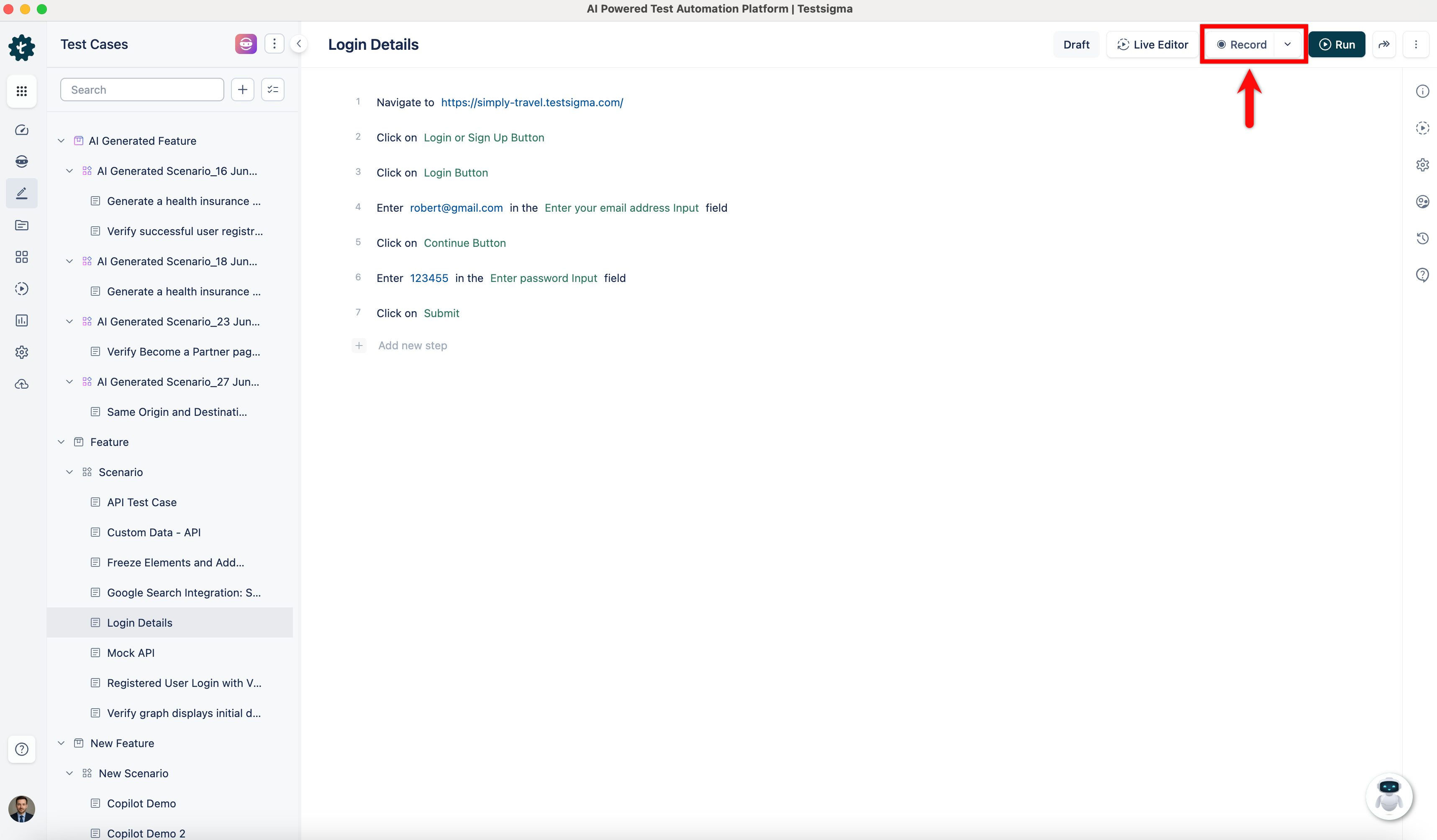
On the Test Case Details page, click Record in the top right corner.
-
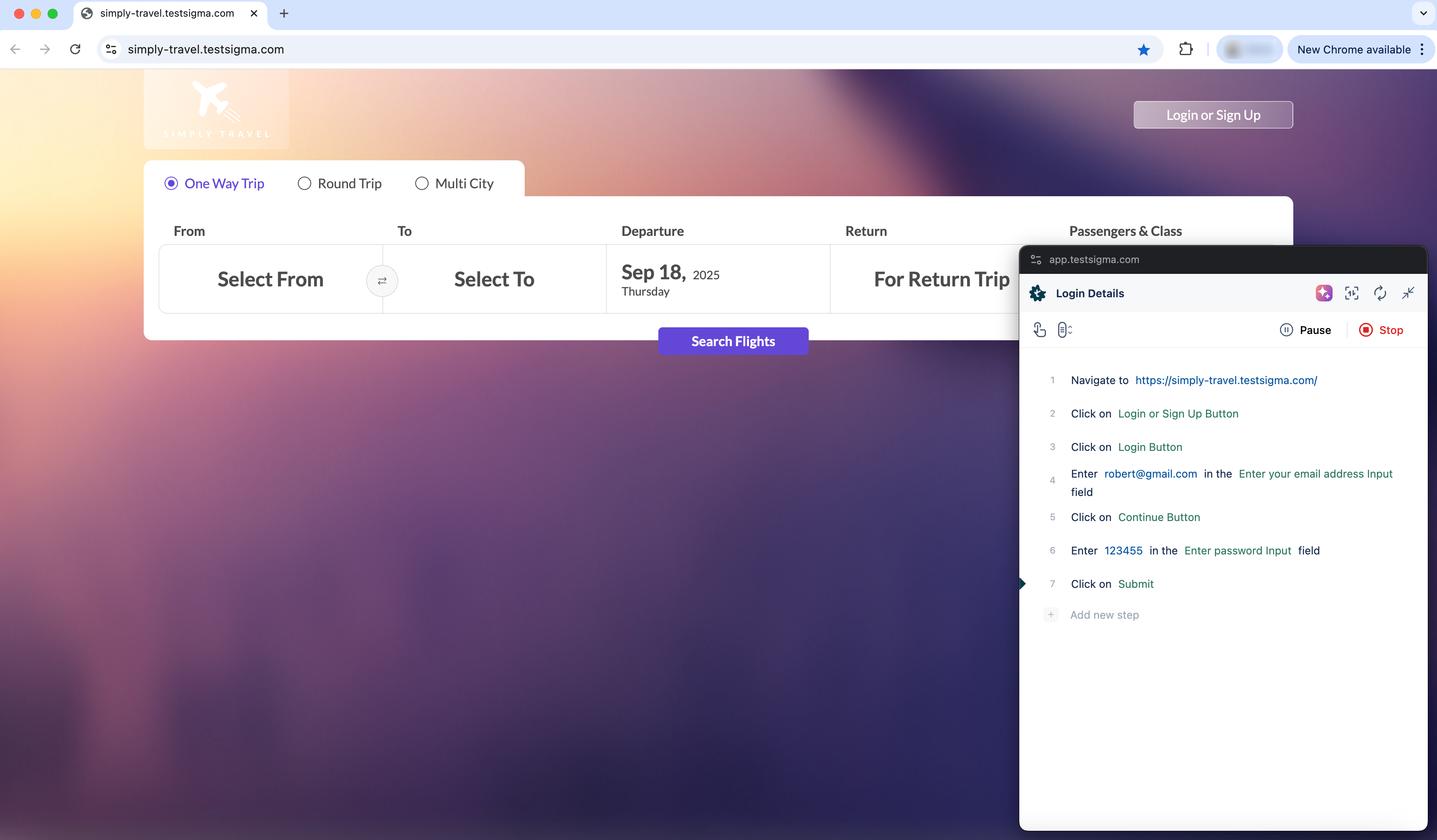
A new window with the given URL will open, allowing you to record the test steps.
-
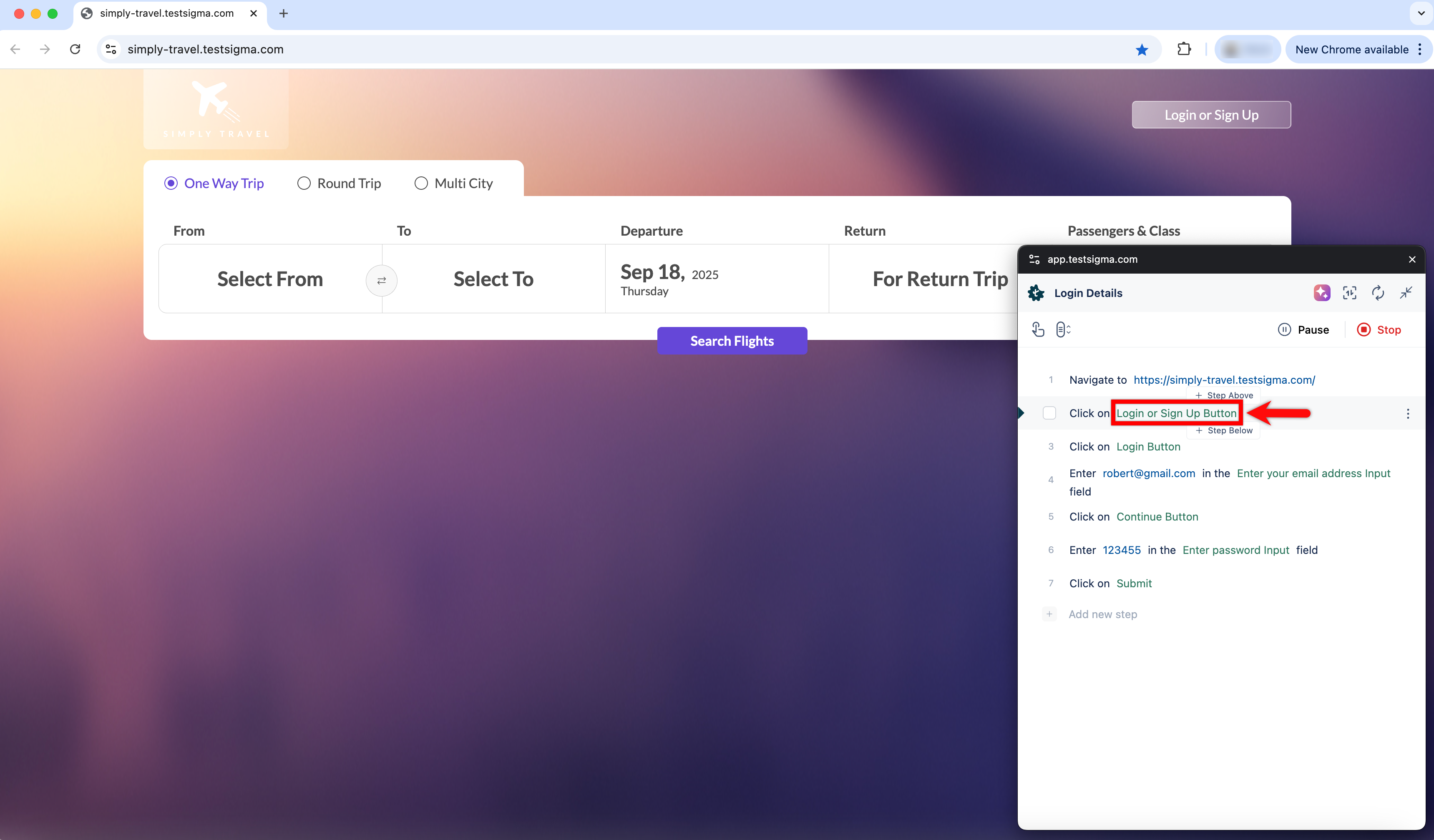
Go to the test step and hover over the element which you want to verify.
-
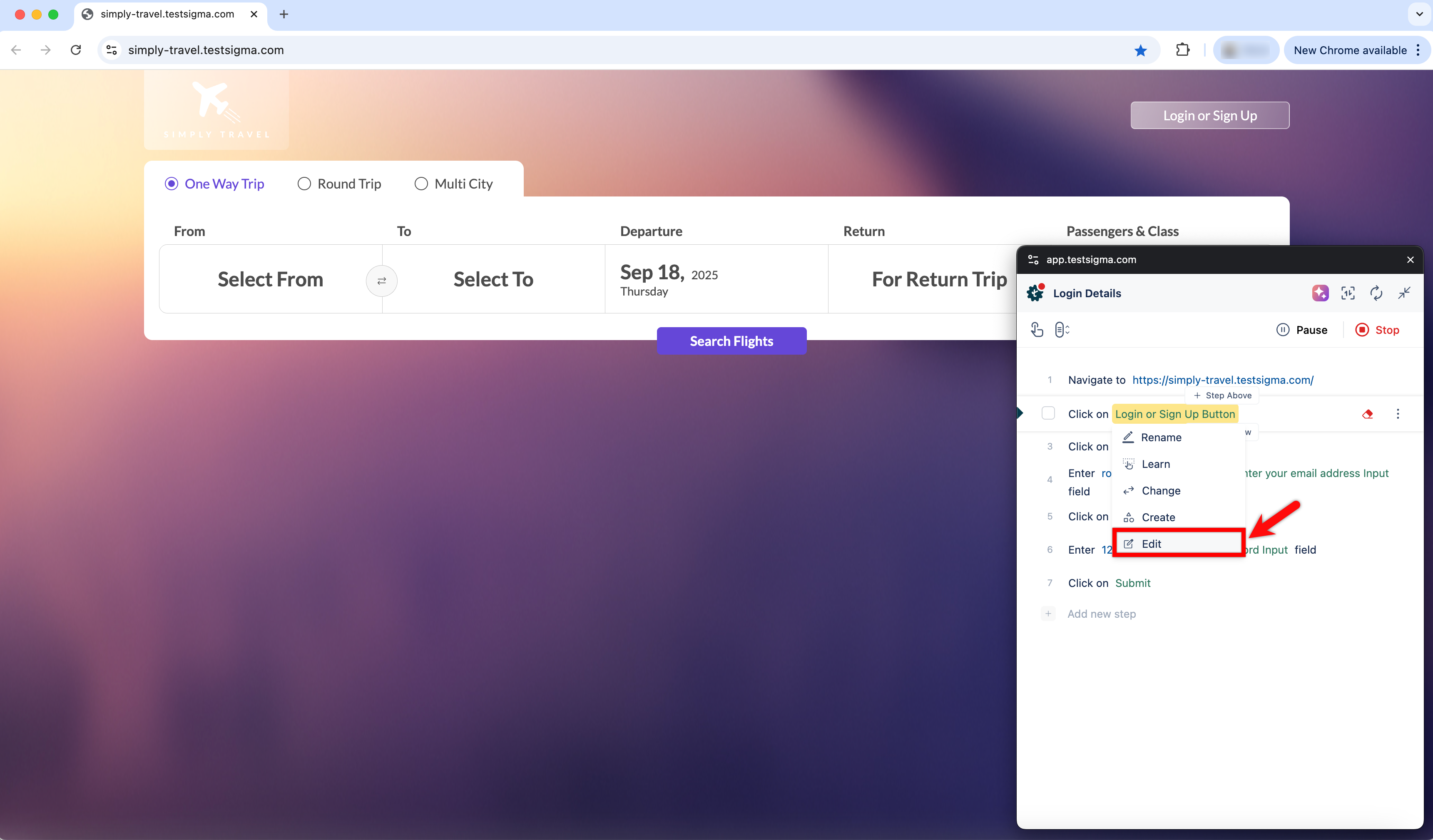
Click on element and choose Edit Element from the drop down menu. This will open the Update Element screen on Recorder.
-
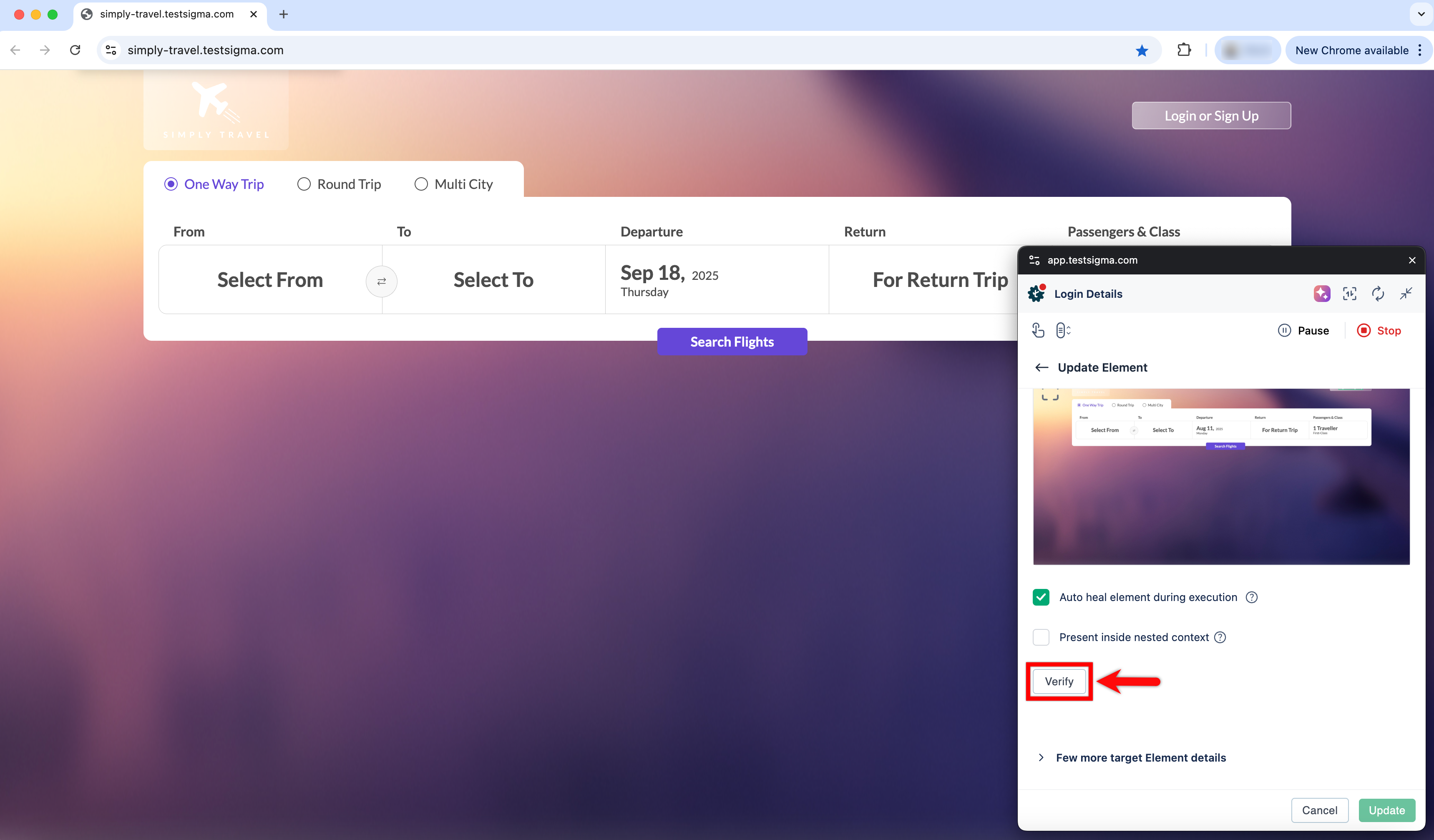
Click on Verify to validate the element location. The element will be highlighted on the web page.
-
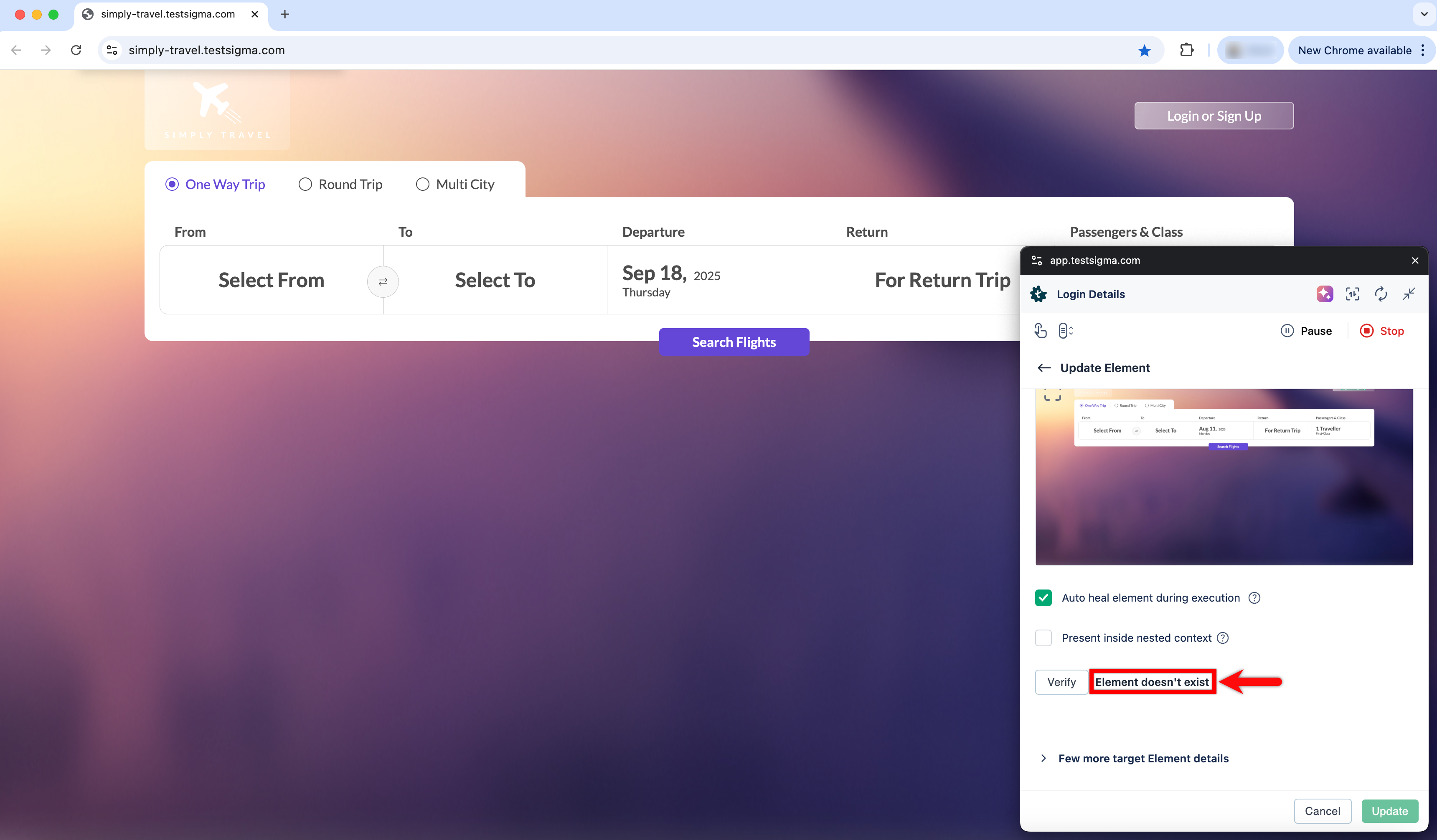
If the element location is incorrect, a message will display indicating that the element doesn’t exist.
-
Correct the element location and continue verifying until the recorder highlights the correct element on the web page.
Steps to Verify Elements from Elements
Section titled “Steps to Verify Elements from Elements”-
From the left navigation bar, go to Create Tests > Elements.
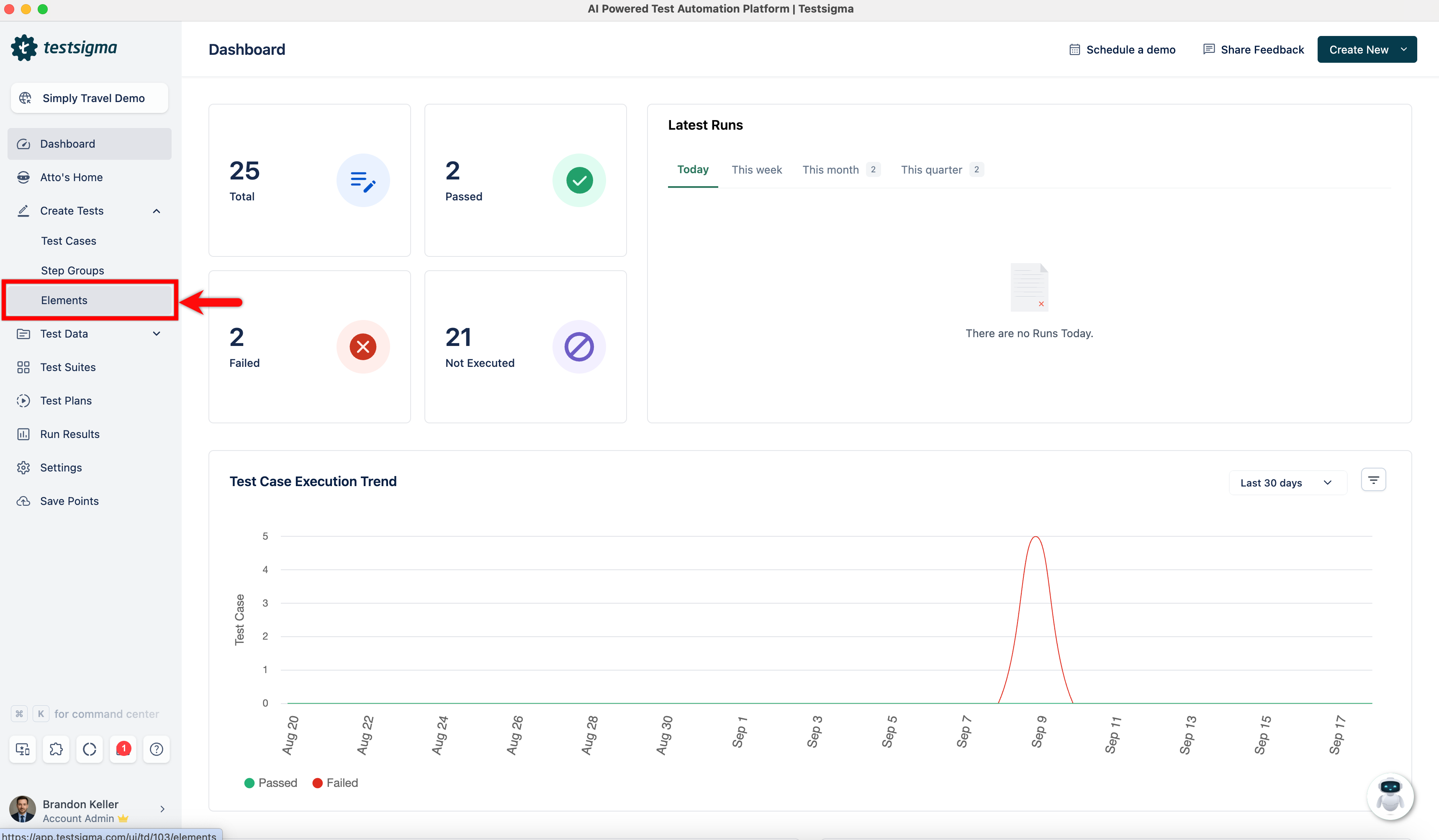
-
Create an element by clicking on Record in the top right corner.
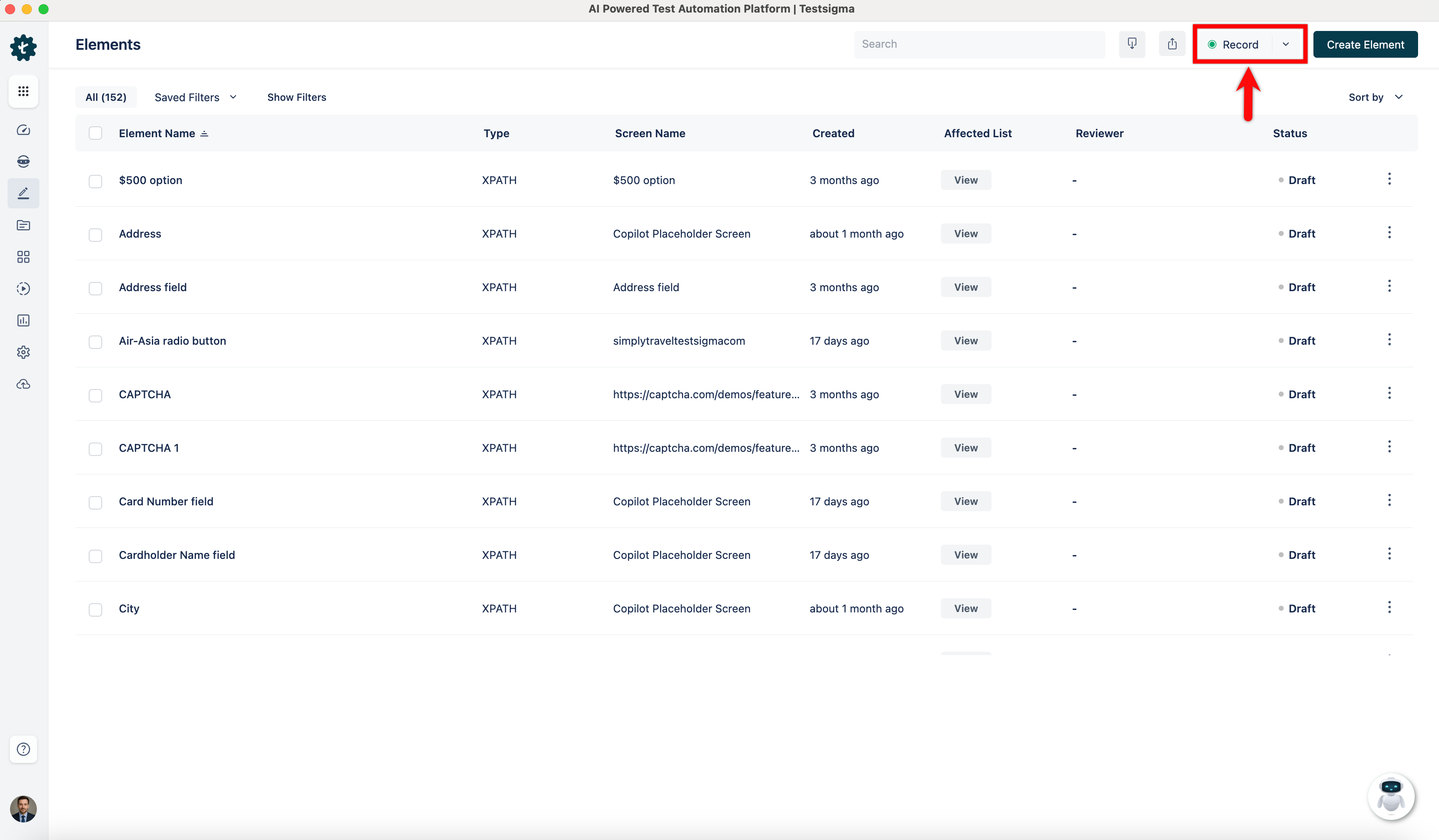
-
In the new window, enter the URL of the website that you want to record.
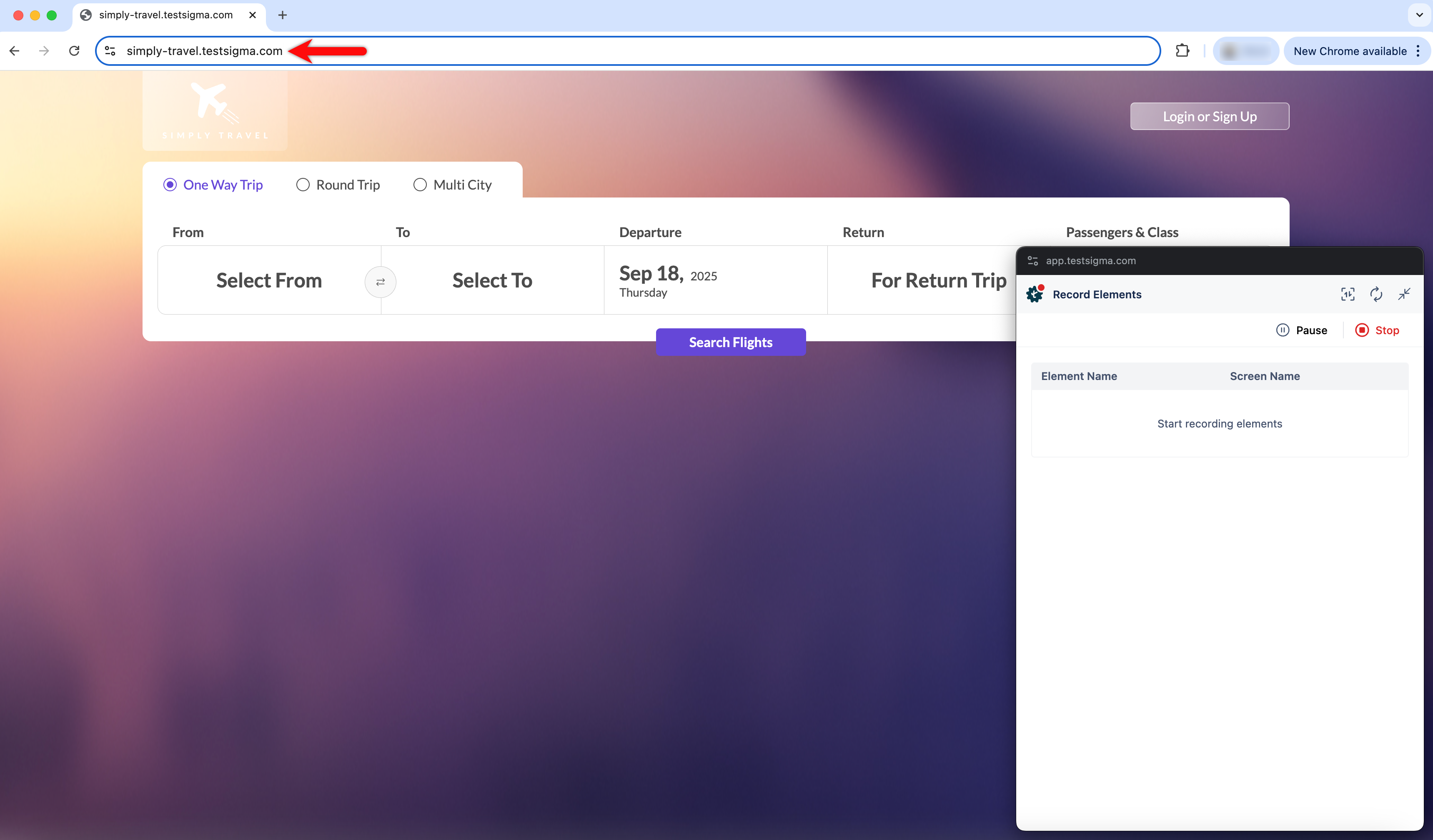
-
Click on the element you want to record.
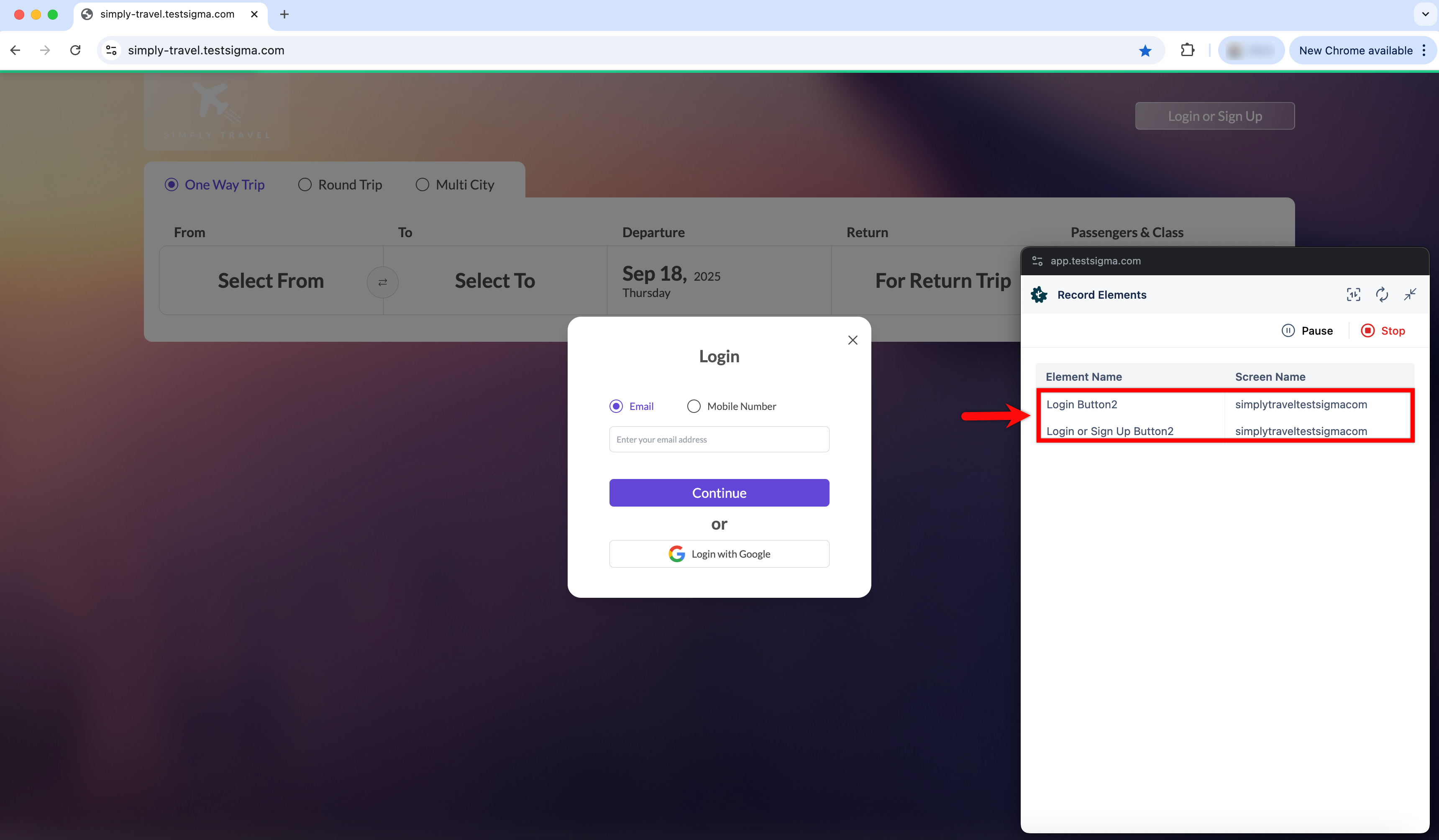
-
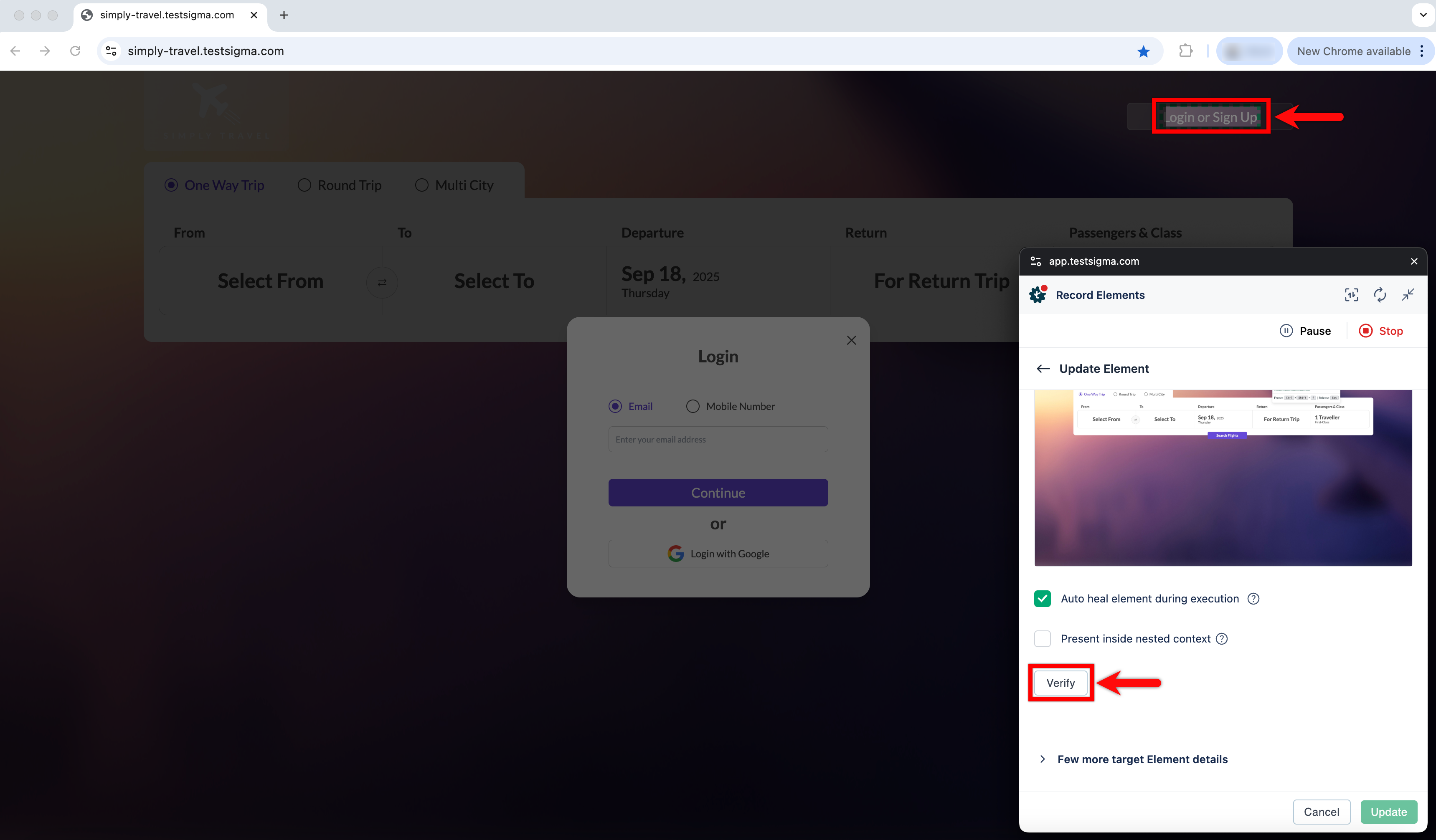
Click on Verify to validate the element location. The element will be highlighted on the web page.
-
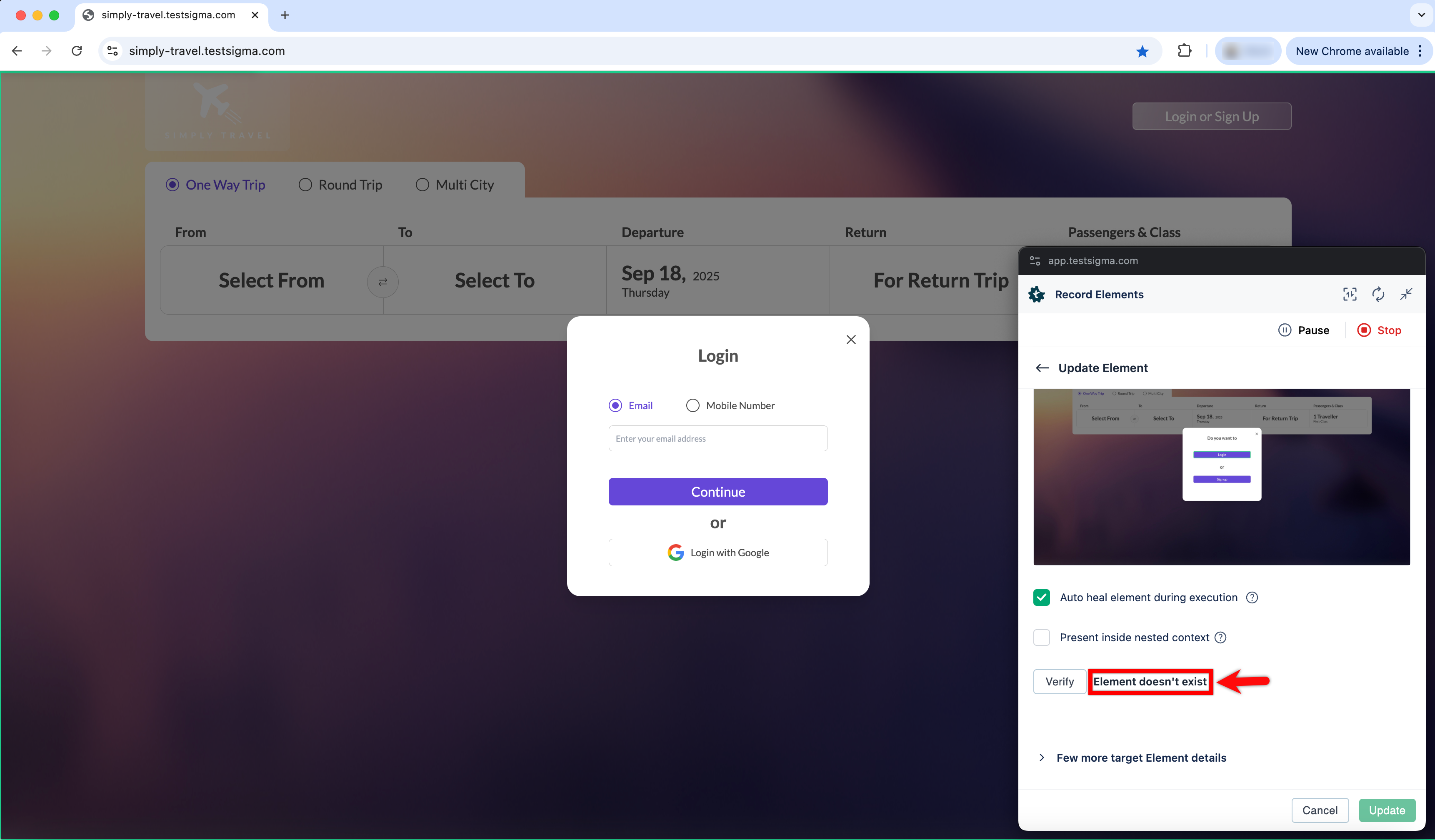
If the element location is incorrect, a message will display indicating that the element doesn’t exist.
-
Correct the element location and continue verifying until the recorder highlights the correct element on the web page.