
Integrations
TestRail Integration with Testsigma
Prerequisites
Before you begin, ensure that:
- You have a valid Host URL, Username, and Password from TestRail.
- You have referred to the documentation on creating test cases.
- You have referred to the documentation on creating test plans.
Steps to Integrate Testsigma with Testrail
Section titled “Steps to Integrate Testsigma with Testrail”-
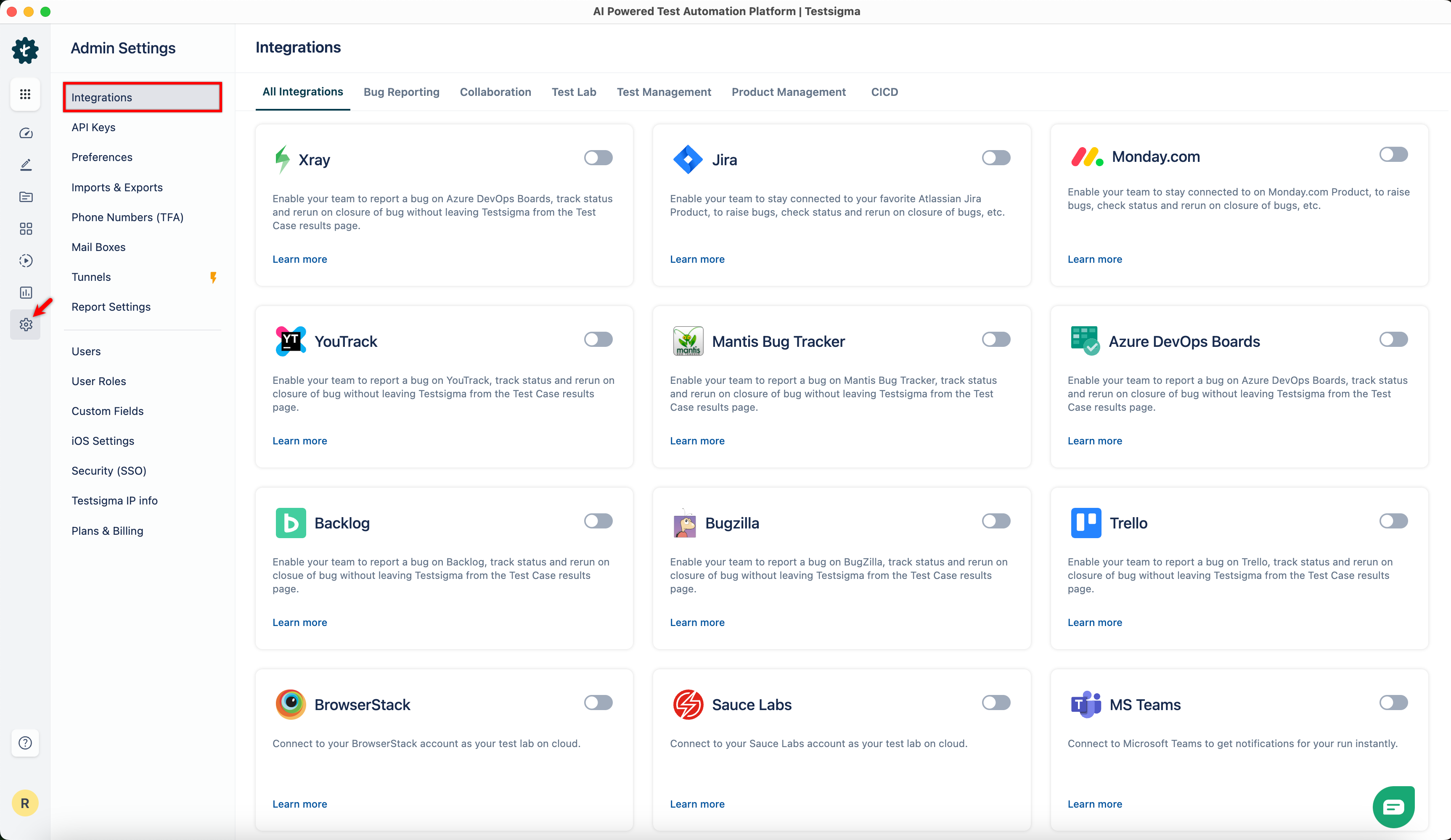
From the left navigation bar, go to Settings > Integrations.
-
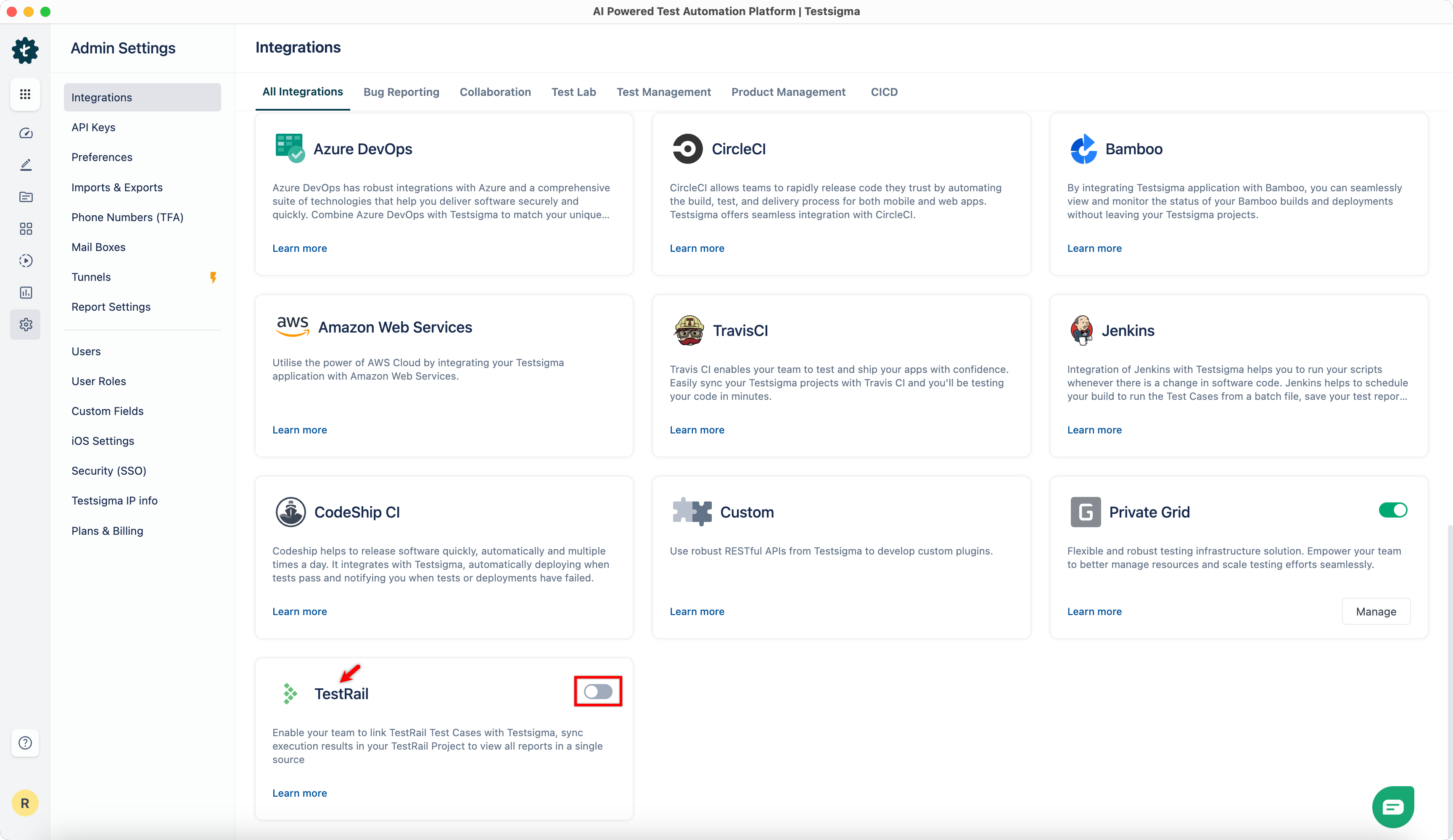
Enable toggle on Testrail widget.
-
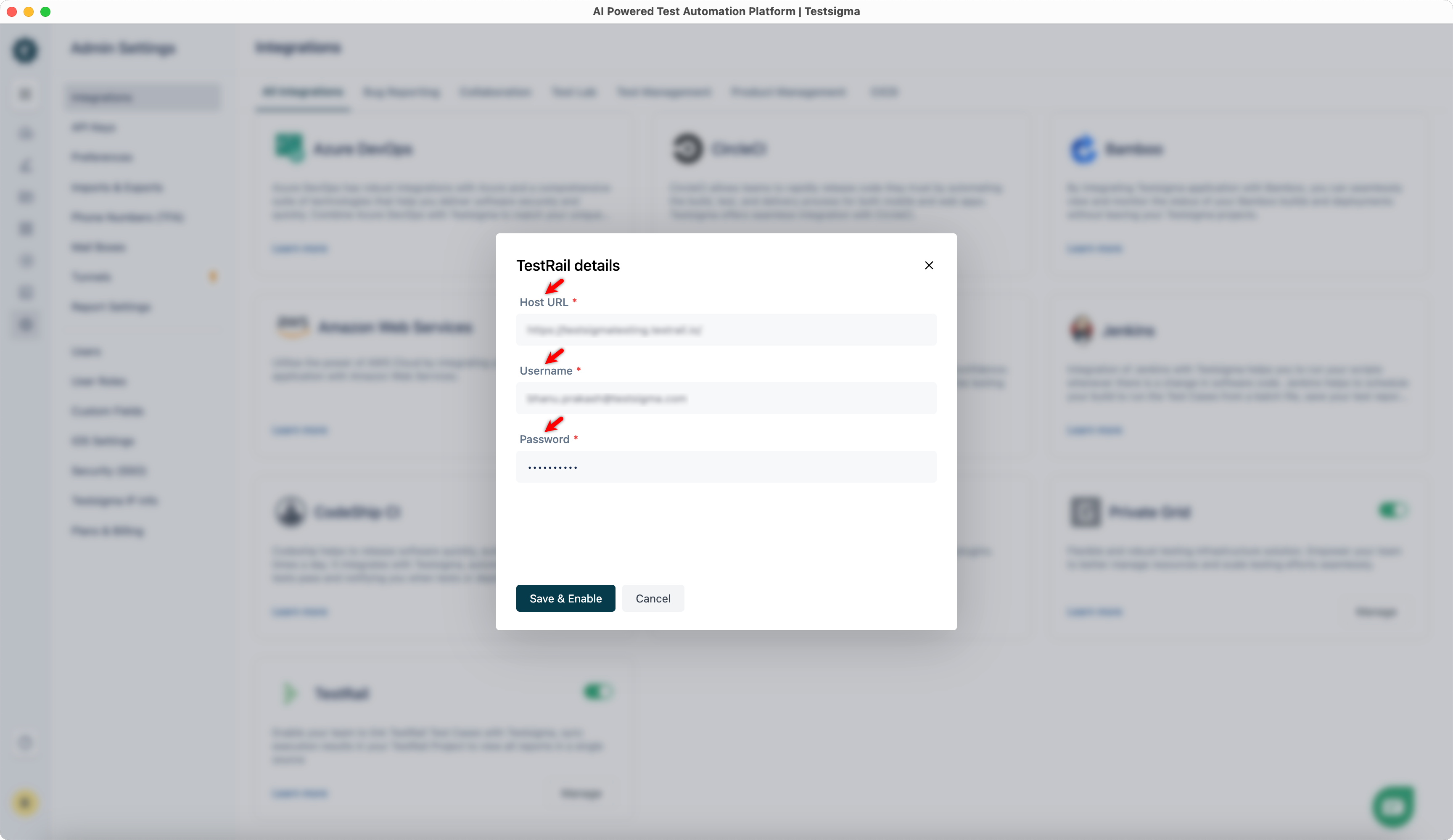
On the Testrail Details dialog, enter Host URL, Username, and Password.
-
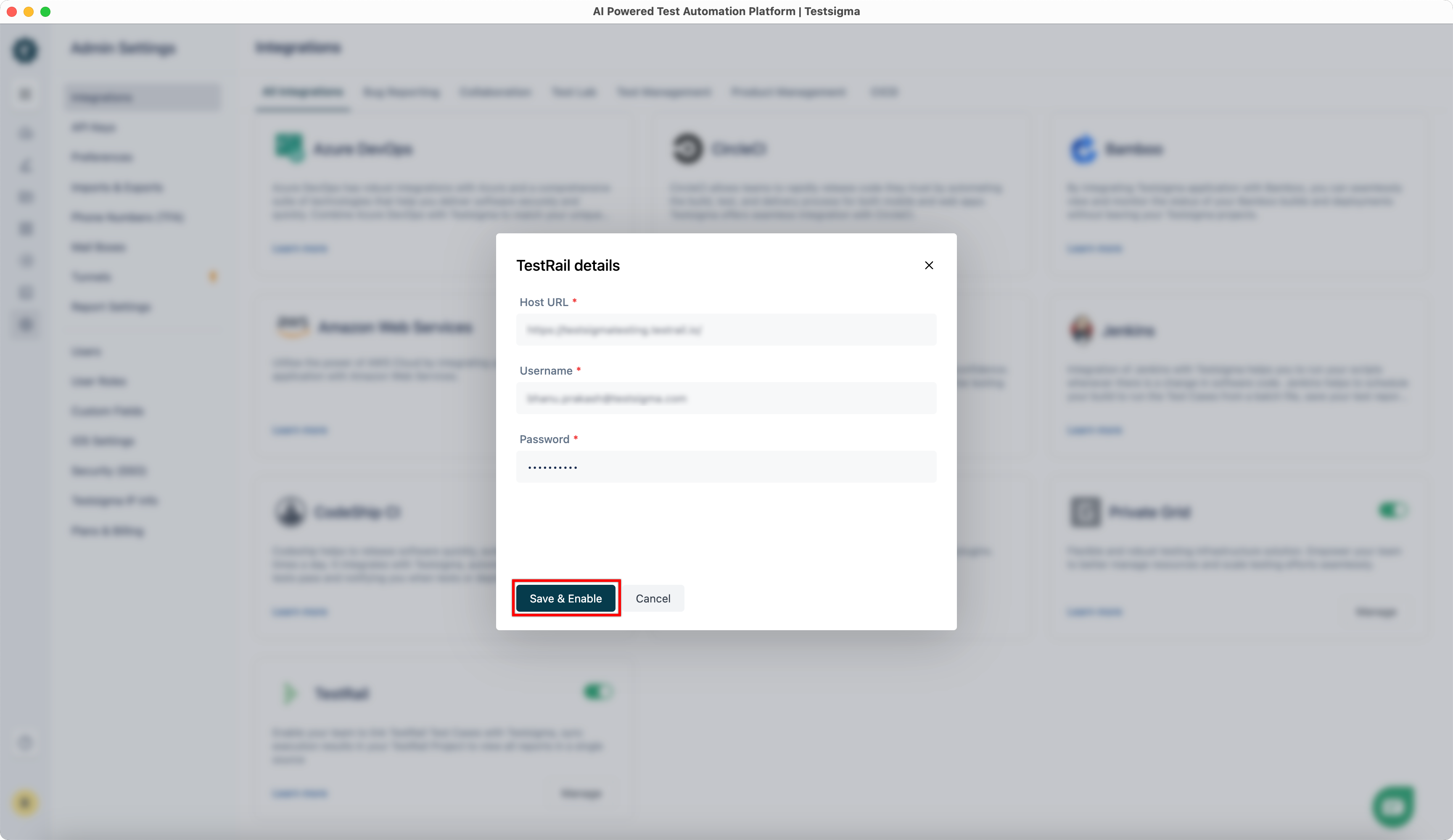
Click Save & Enable.
Steps to Link Testrail ID with Testsigma Test Case
Section titled “Steps to Link Testrail ID with Testsigma Test Case”- Open the test case in TestRail and copy its ID.
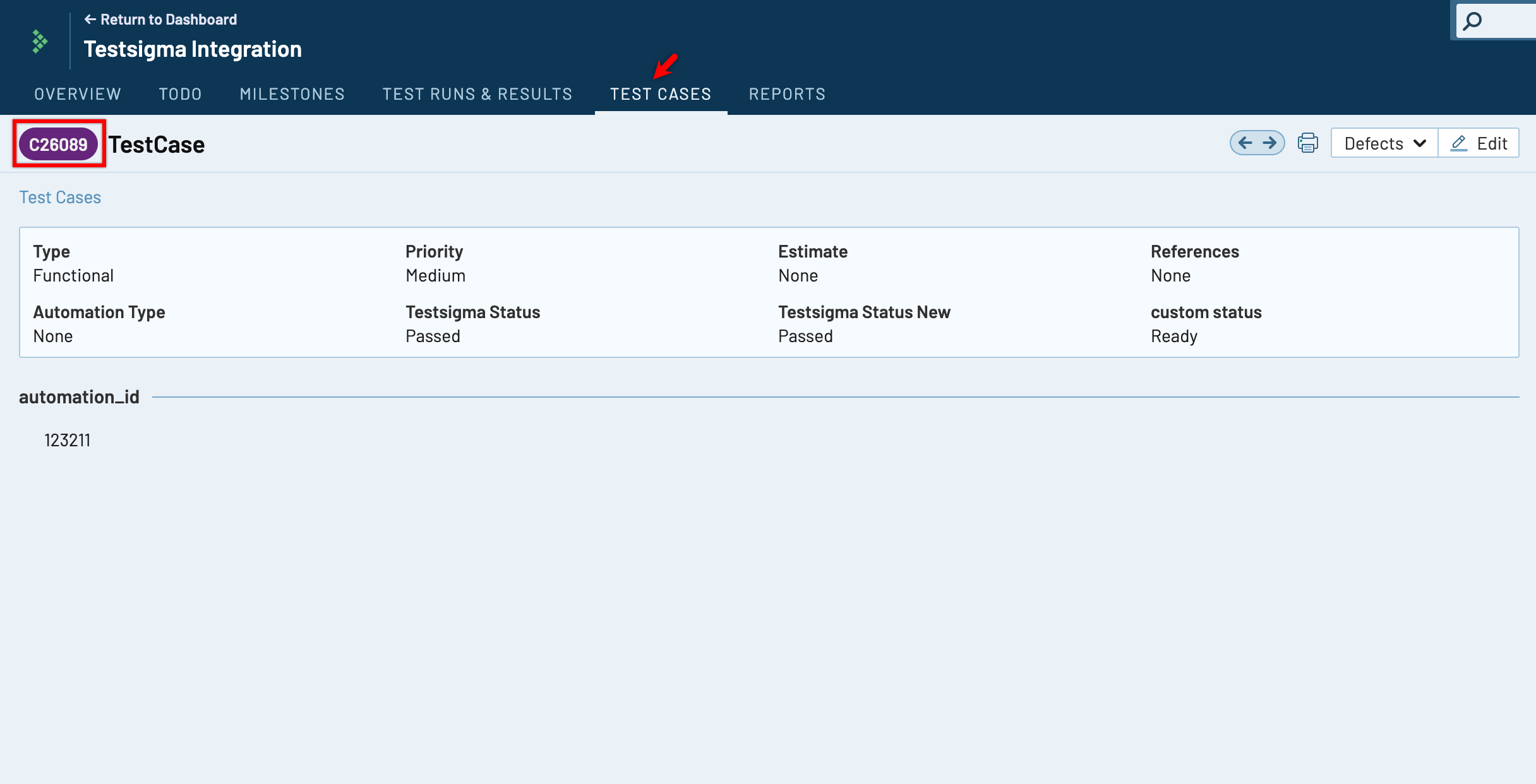
-
Navigate to the test case you want to link in Testsigma and select Manage Test Case from the Utility Panel.
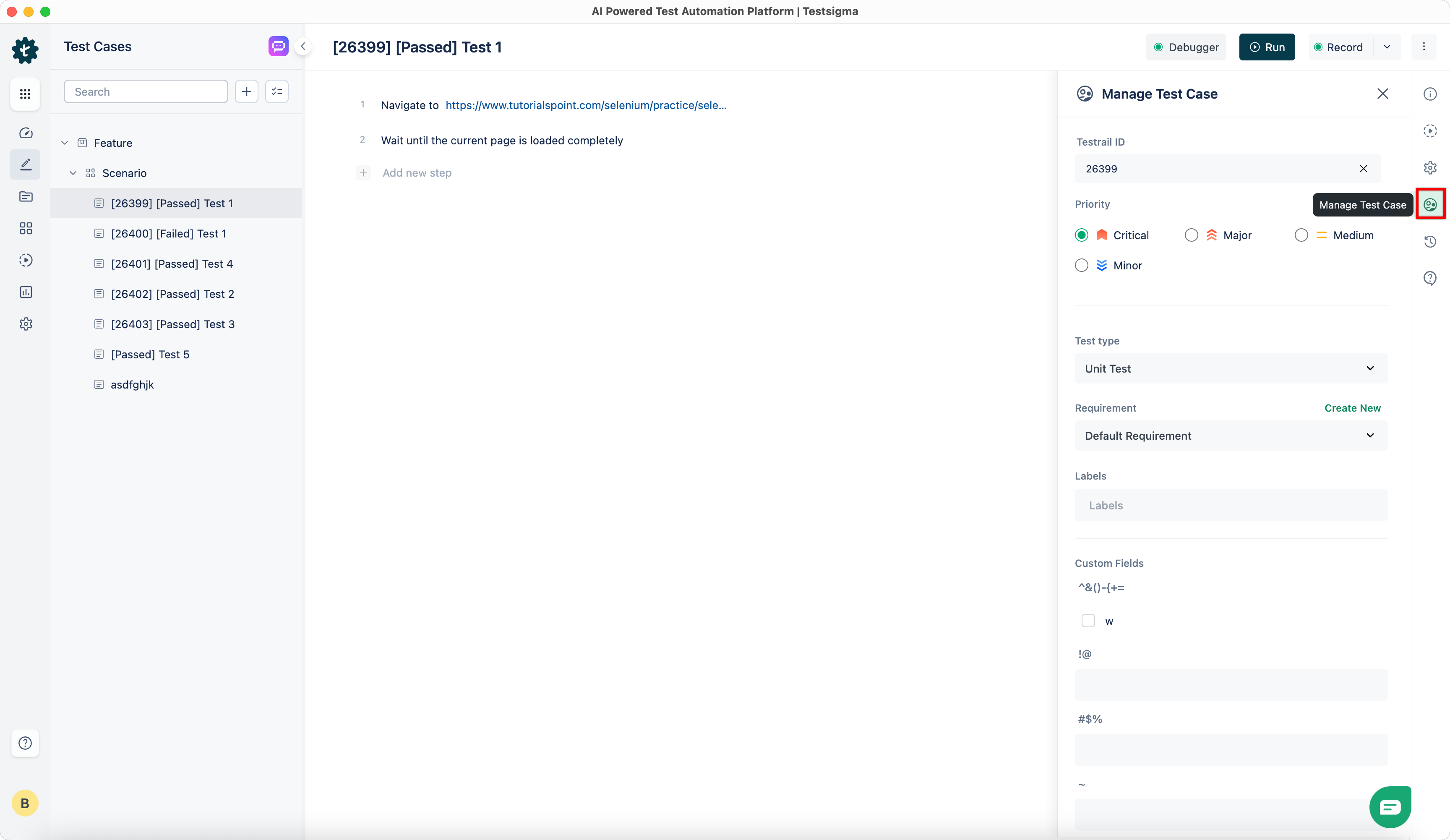
-
Enter the TestRail ID in the input box and click the link icon.
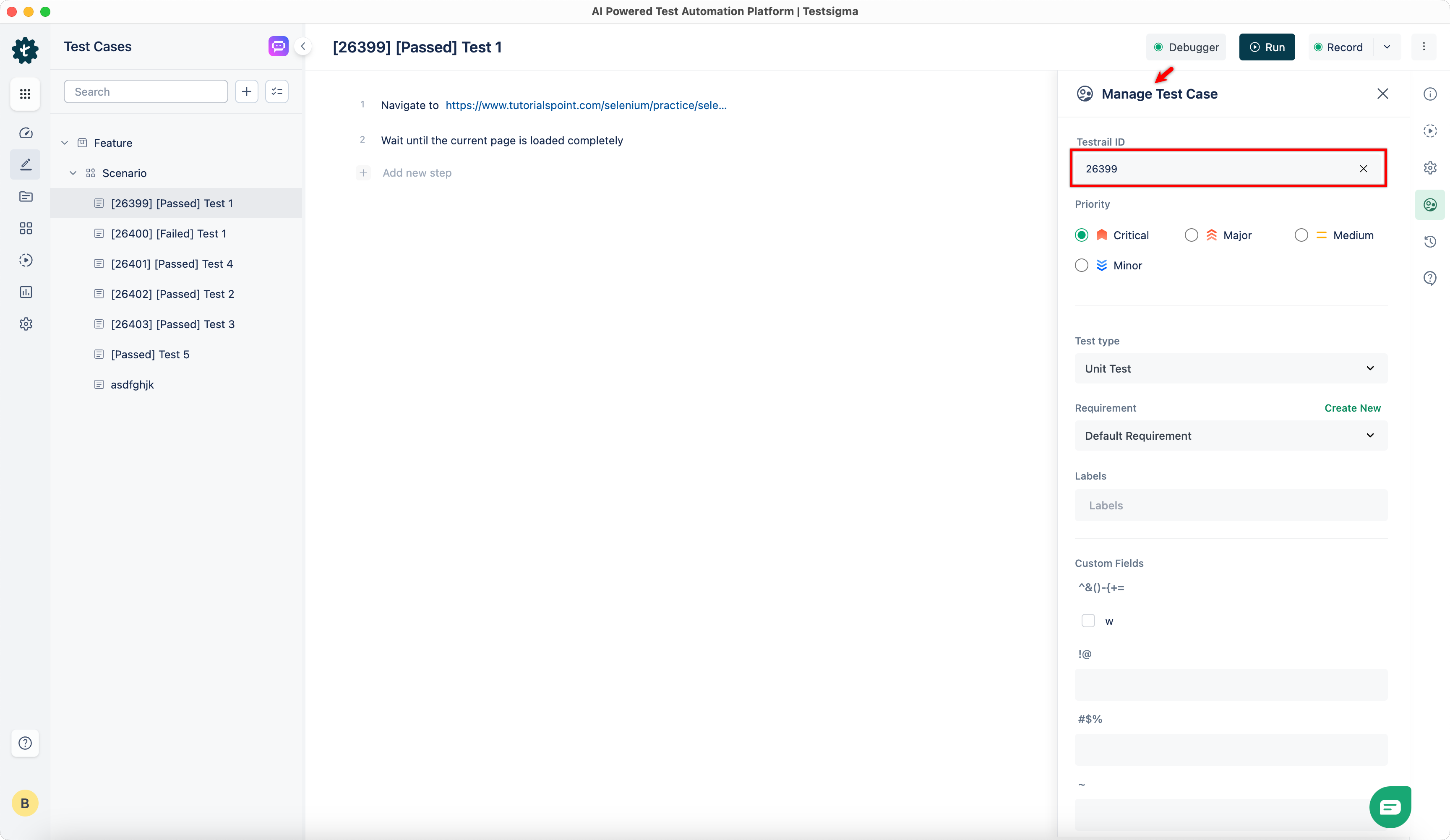
Follow steps 1-3 for each TestRail test case you want to map in Testsigma.
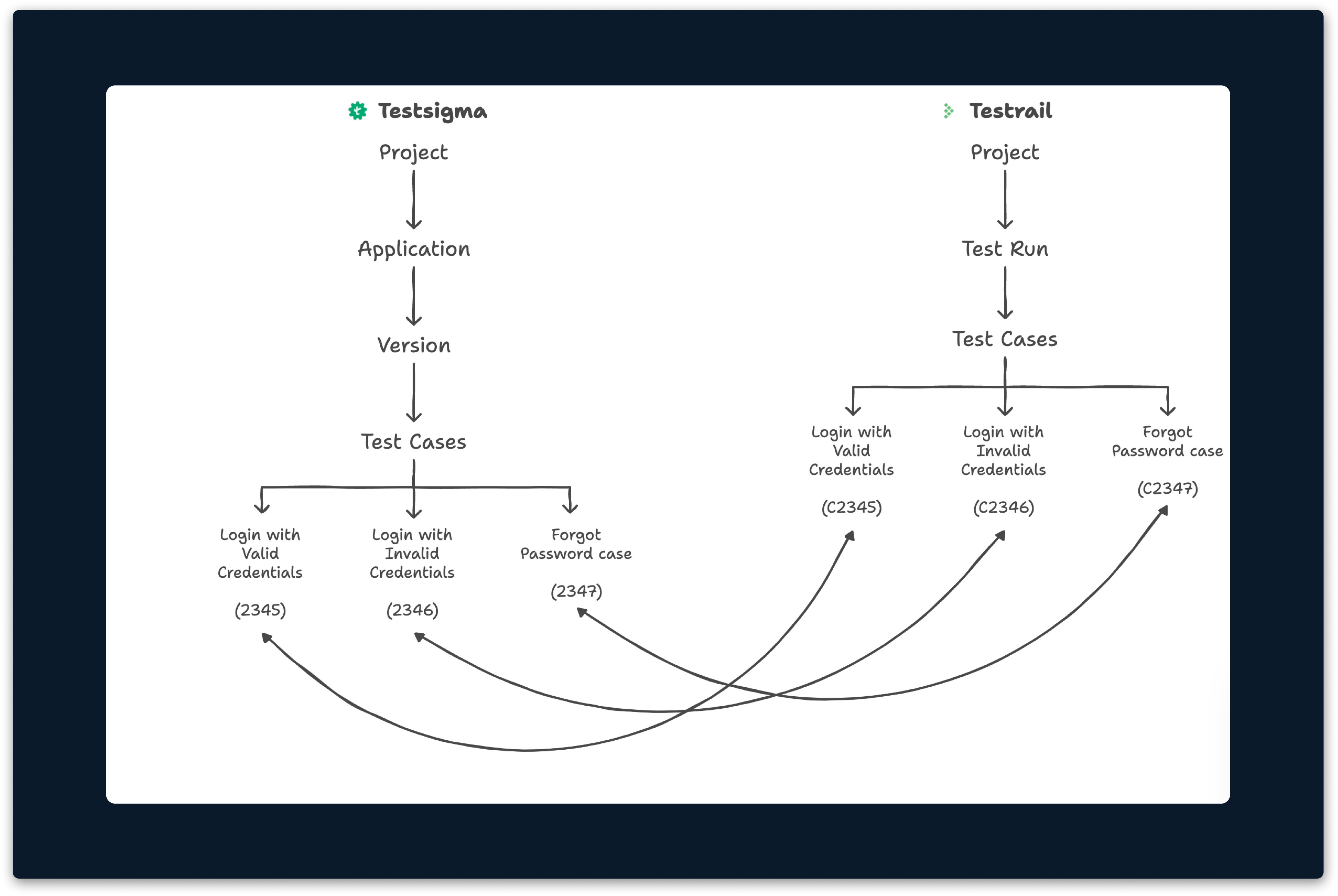
Here’s a structured hierarchy flow of test case linkage between Testsigma and TestRail, including Test Case IDs.
Steps to Execute Test Plan
Section titled “Steps to Execute Test Plan”-
After linking the test cases in Testsigma, create a test suite with the linked test cases and add it to a test plan.
-
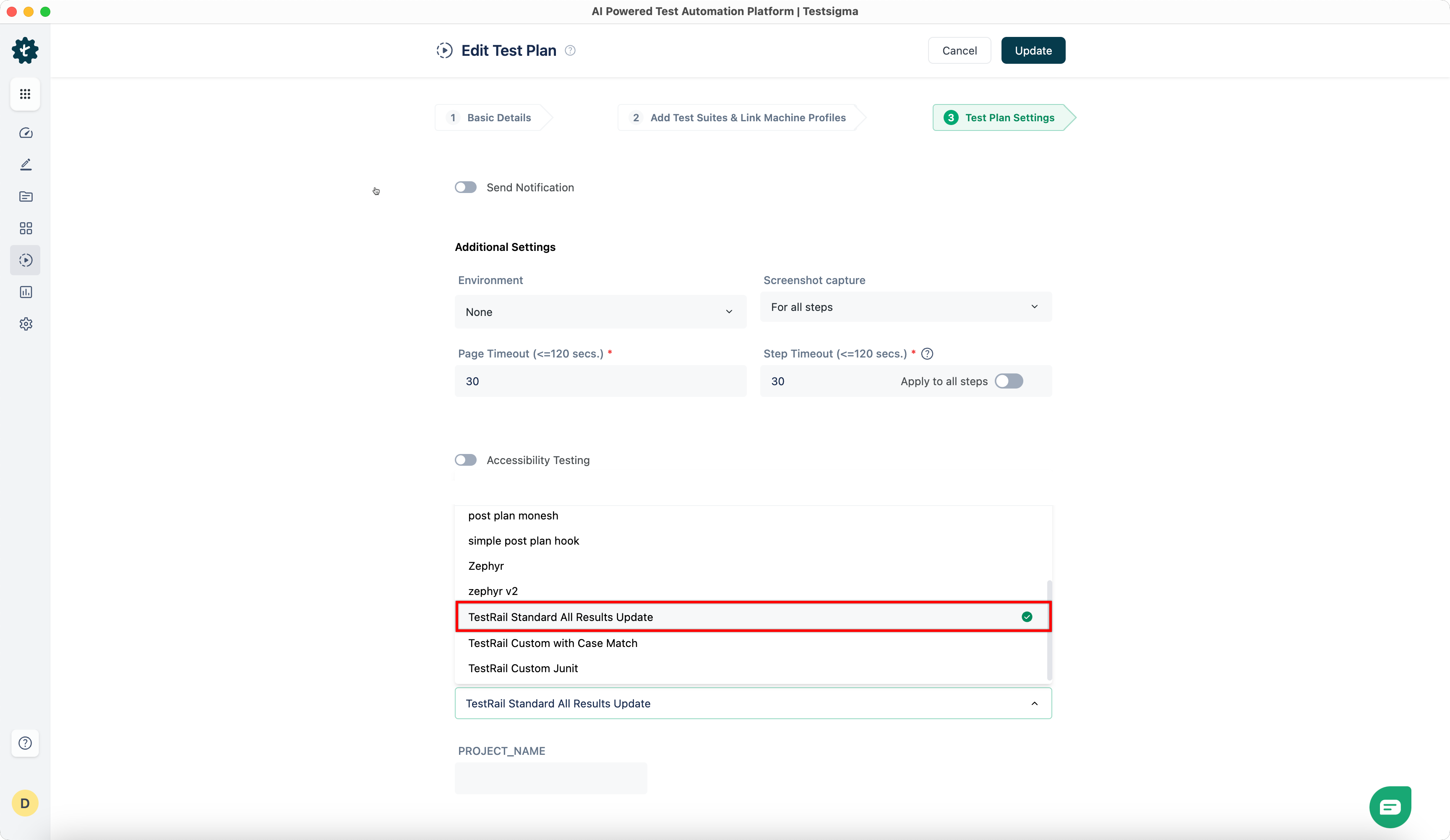
In the Test Plan Settings, select Standard TestRail Addon from the Post Plan Hook dropdown menu.
-
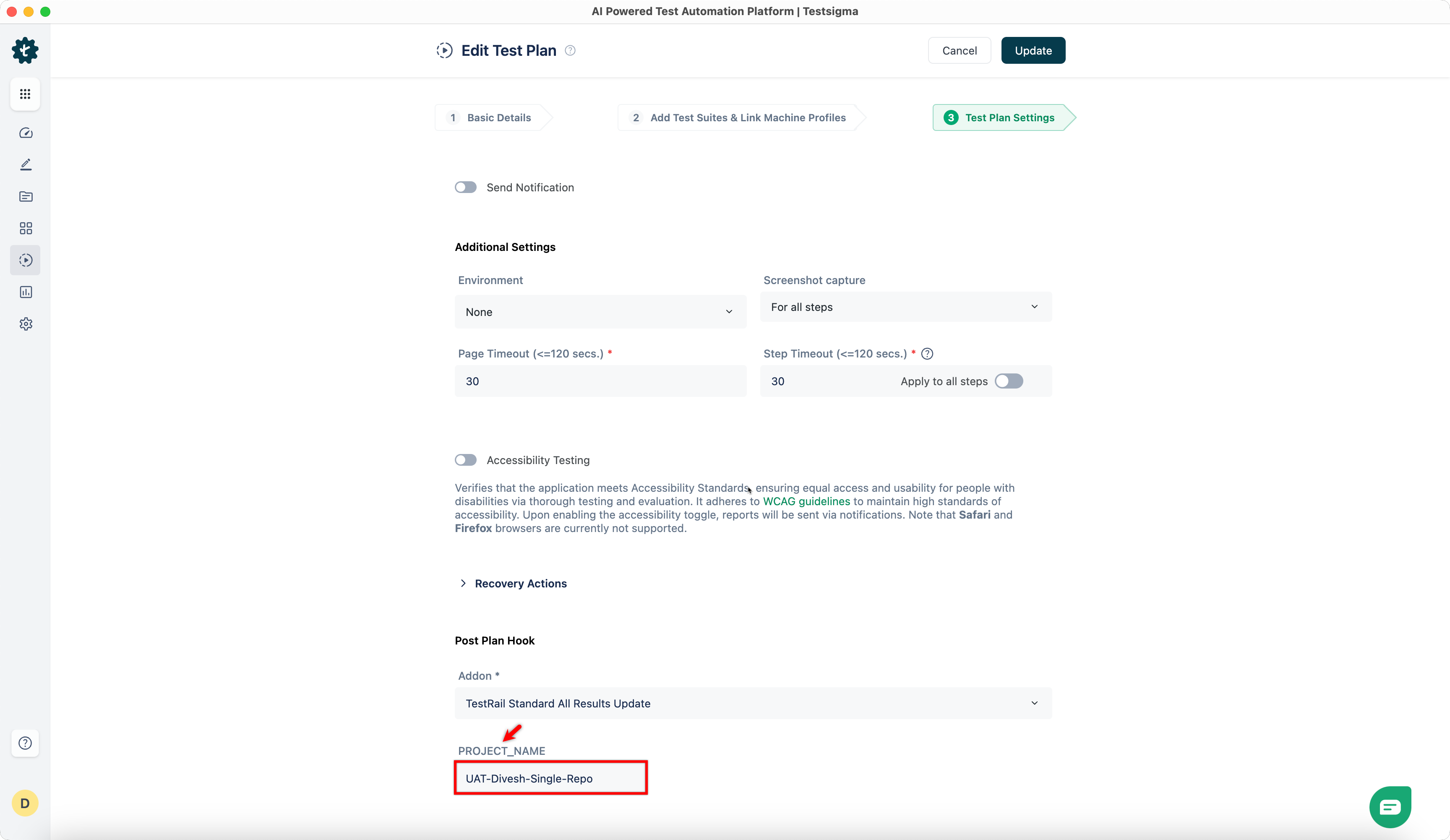
Enter the project name in the PROJECT_NAME text box.
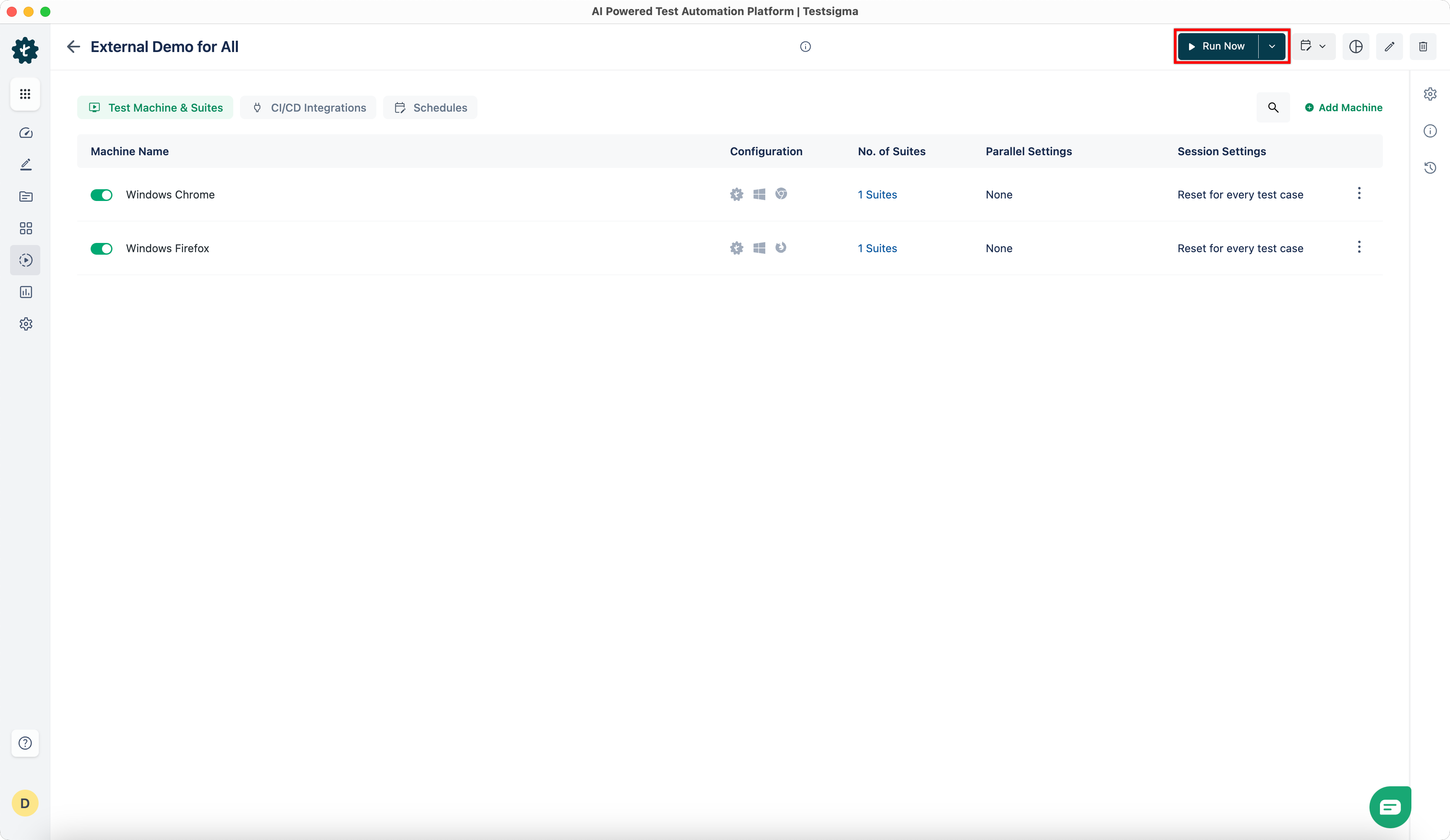
- Go to Test Plans and click Run Now to execute the test plan. This will create a duplicate of the test run and display the result once the execution is complete.
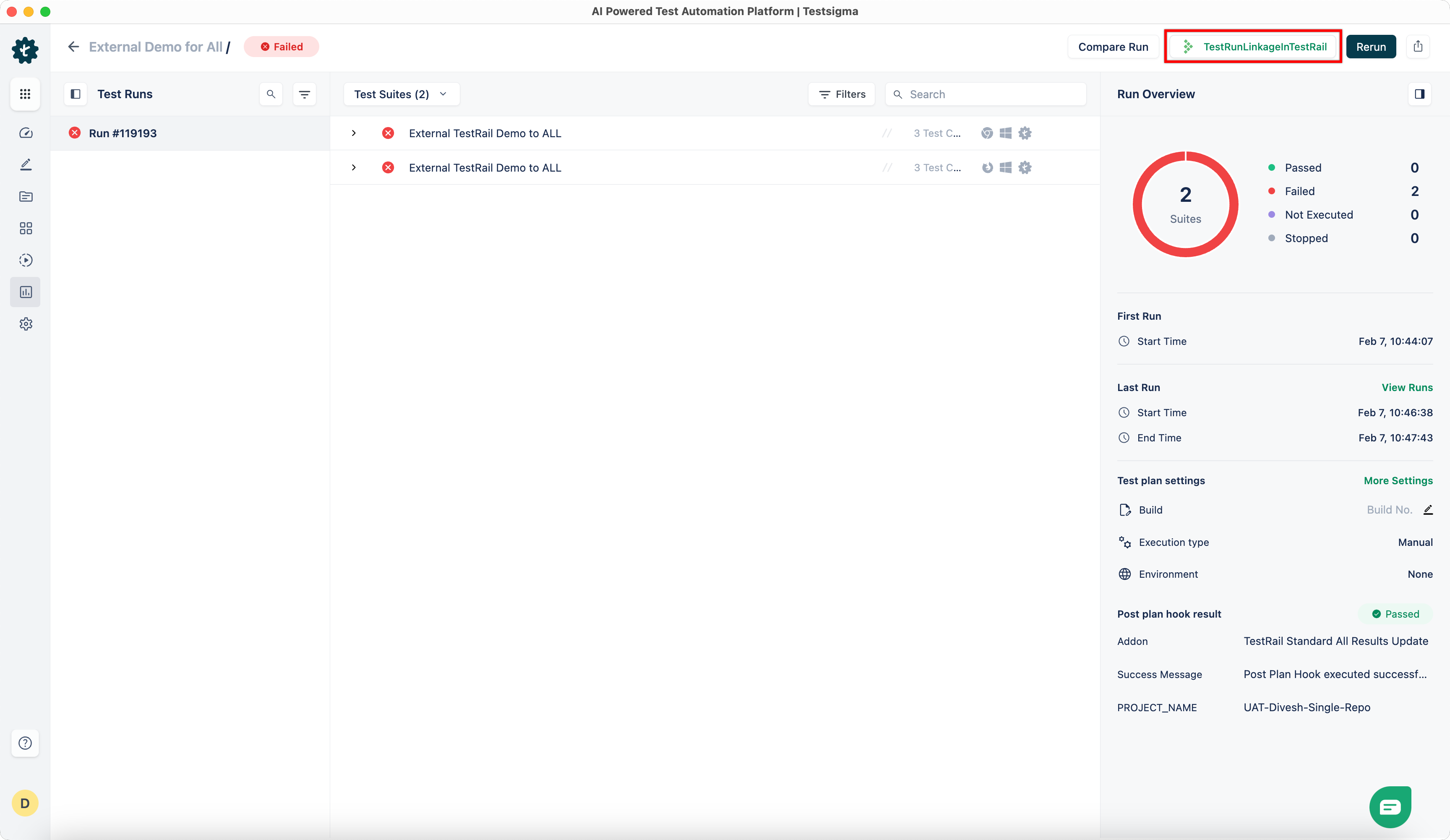
- Click on the TestRail Result Link in the top right corner to navigate to the run result. The result will be displayed along with the Run ID created in Testsigma.
Trigger TestRail Test Runs Using APIs
Section titled “Trigger TestRail Test Runs Using APIs”You can also trigger TestRail test runs using APIs. Click here to download the Postman collection.
a. Authorization: Bearer Token (copied from Settings > API Keys in Testsigma).
b. Provide the following details in Request Body
-
TestRail Run ID: The unique identifier for the test run in TestRail.
-
Hook Data: Includes the following parameters:
-
Testsigma API Key: Copied from Settings > API Keys in Testsigma.
-
Project Name: The name of the project associated with the test execution.
-
Template URL: The URL of the template JUnit file used to configure result data.
-
-
Title: Provide a title.
-
Execution Lab: Specifies the execution environment or lab used for running the test cases.