Testsigma Agent
Setting up Android Local Devices
Prerequisites
Before you begin, ensure that:
- You have referred to the documentation on setting up Testsigma Agent.
- You have enabled Developer options in your Android device.
Setup Instructions:
Section titled “Setup Instructions:”-
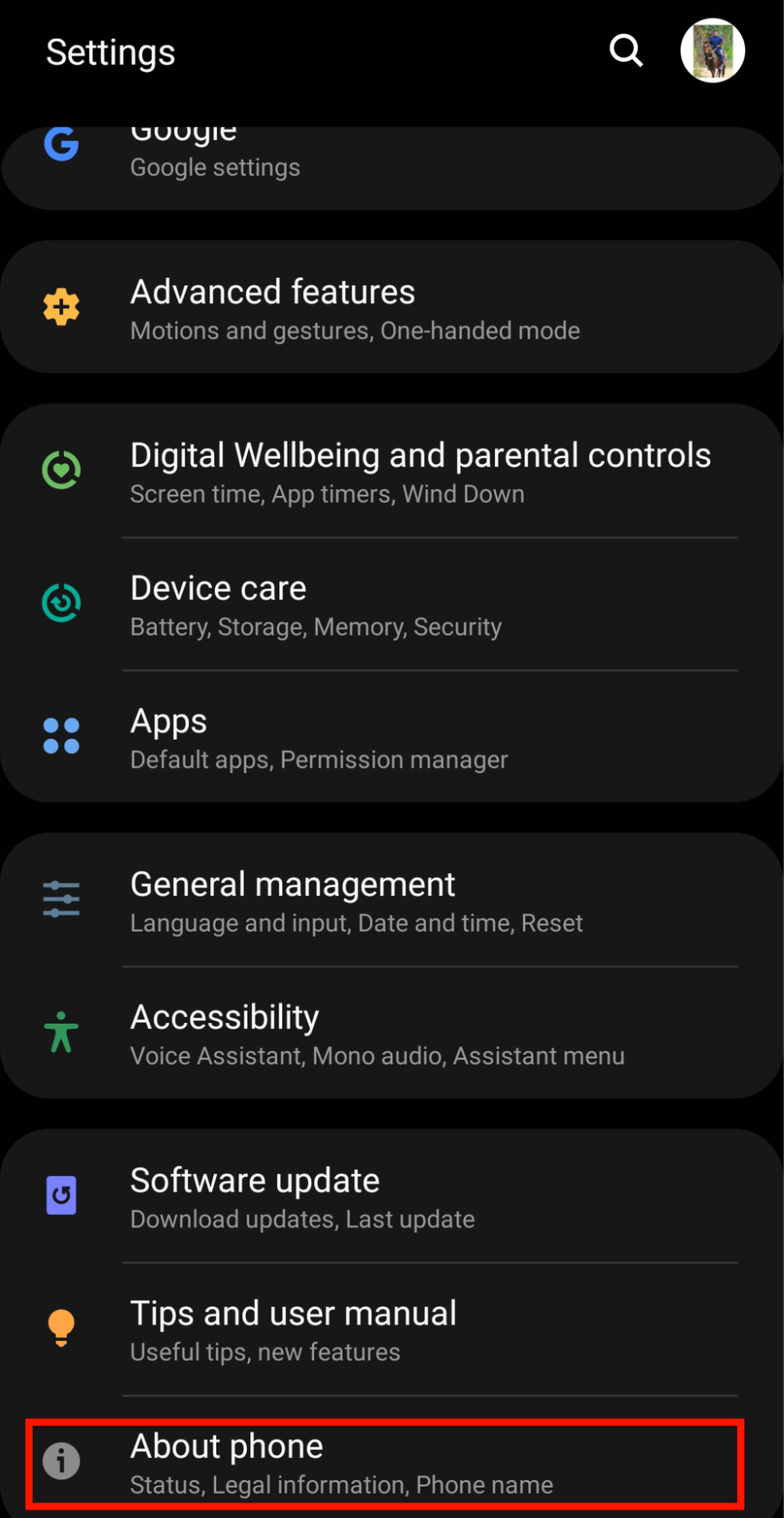
Open Settings and tap on About Phone.
-
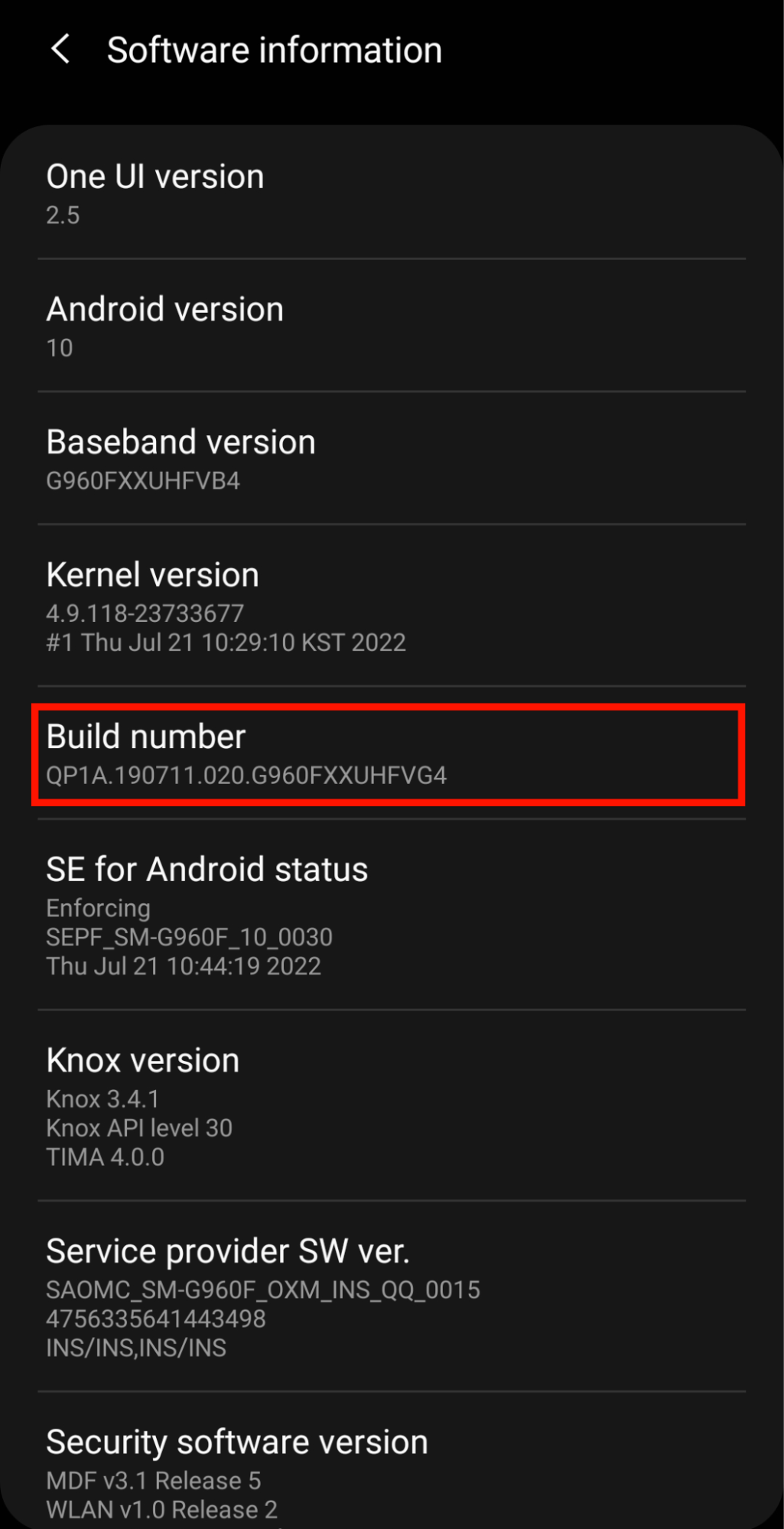
Go to Software information and tap on Build number 7 times.
-
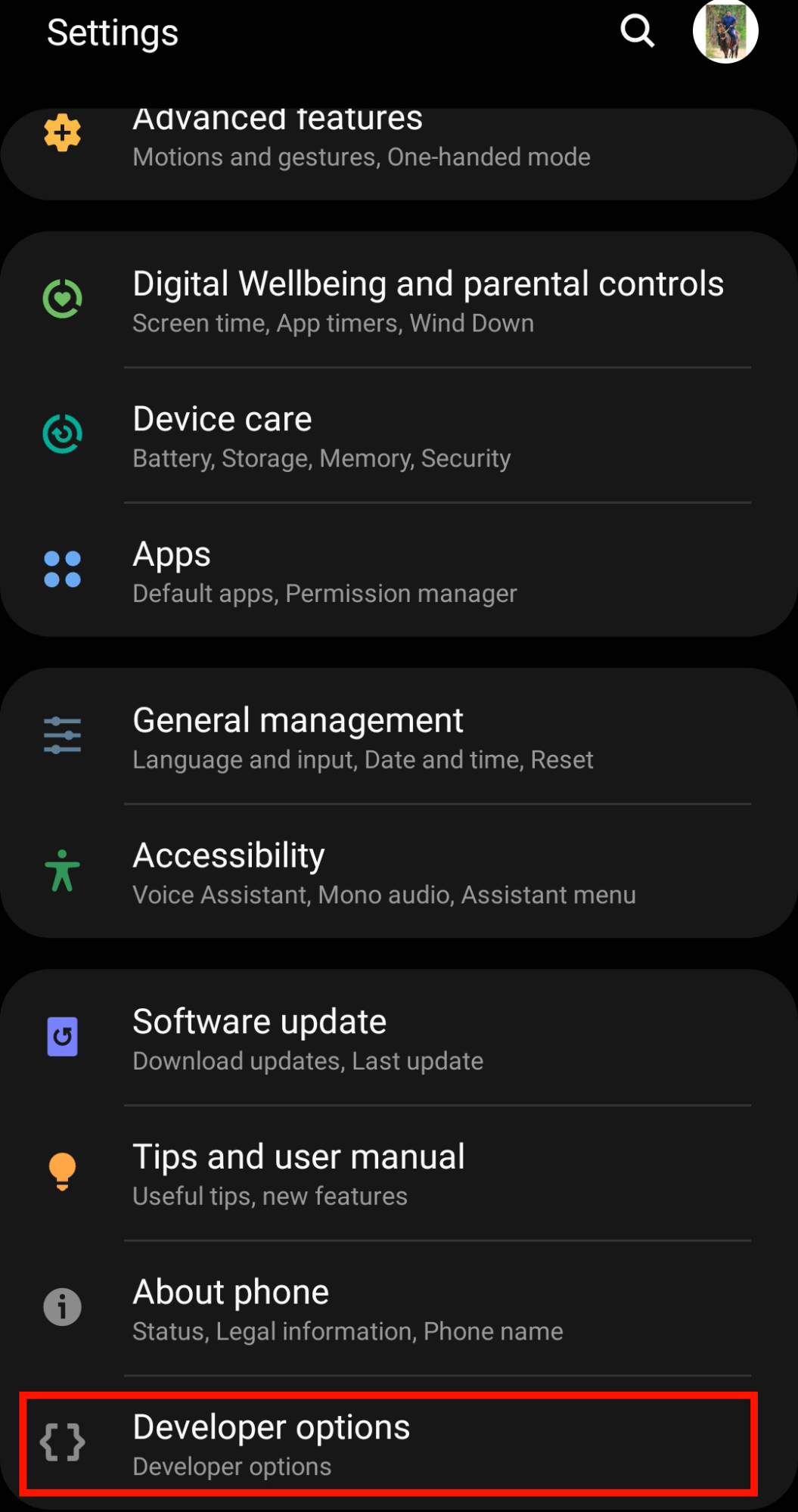
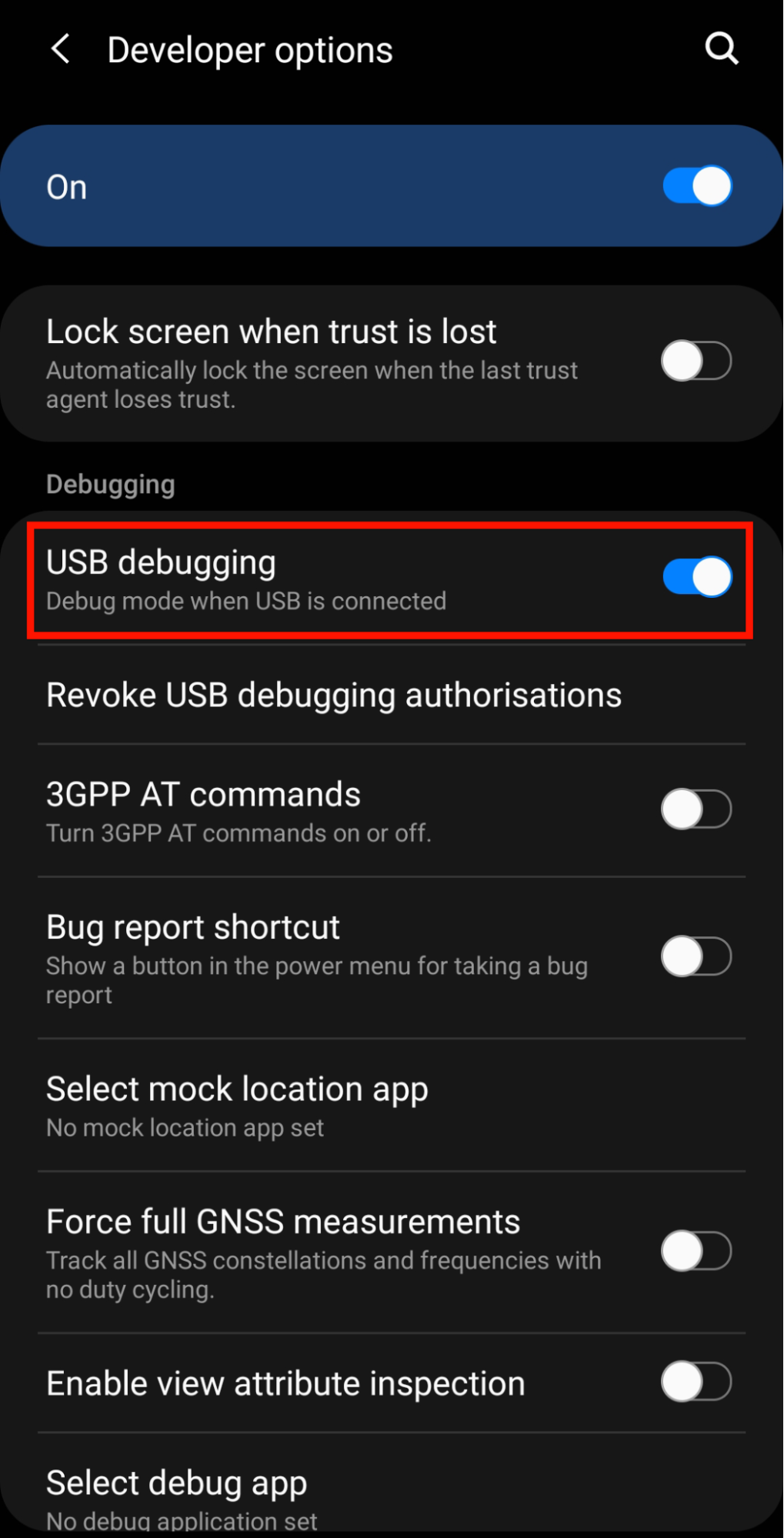
Open Developer Options from Settings.
-
Enable USB Debugging toggle.
-
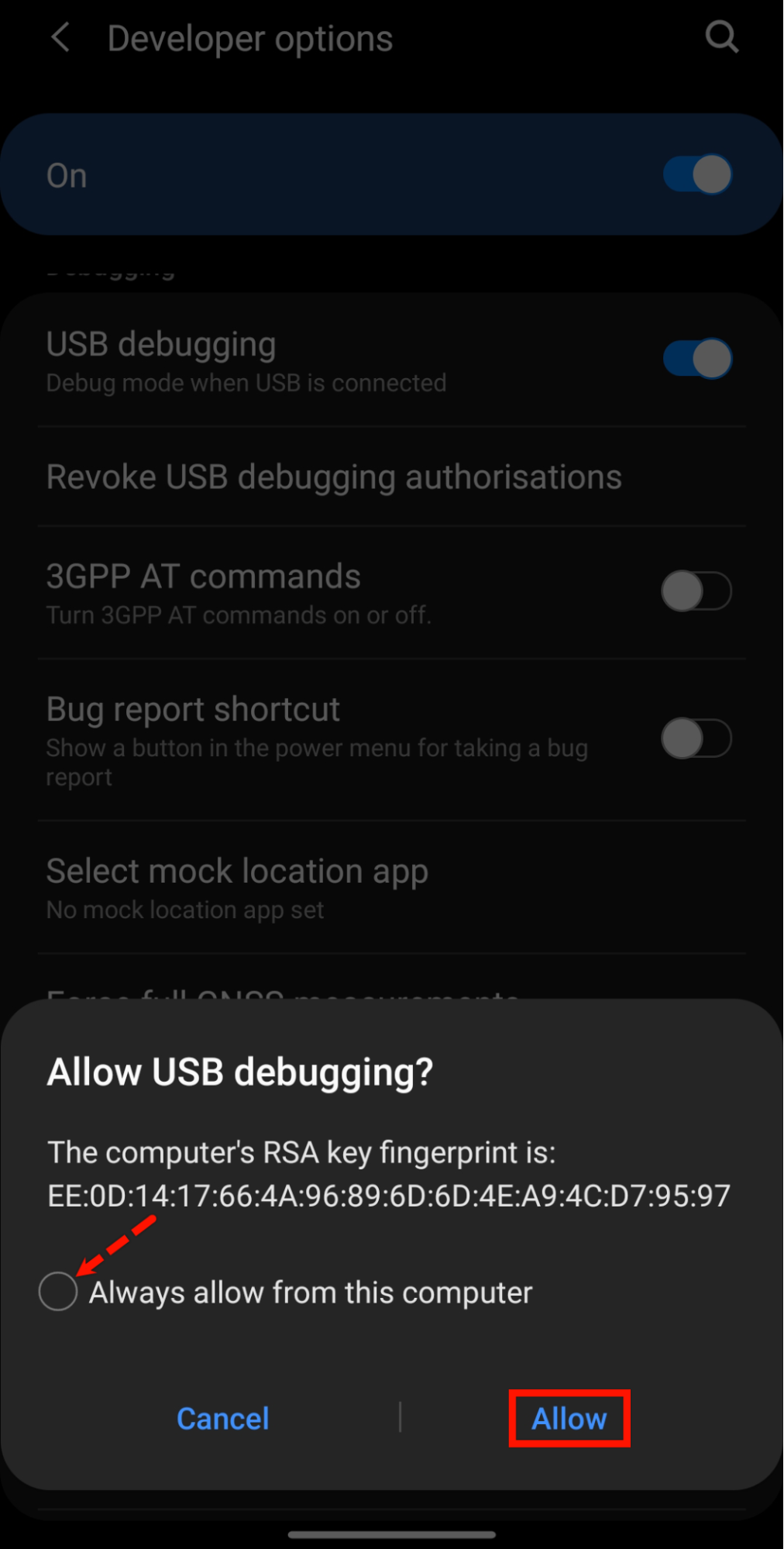
Connect your Android device to the machine (Where Testsigma Agent is installed and registered). Accept the alert Allow USB Debugging. You can select the checkbox Always allow from this computer if present.
-
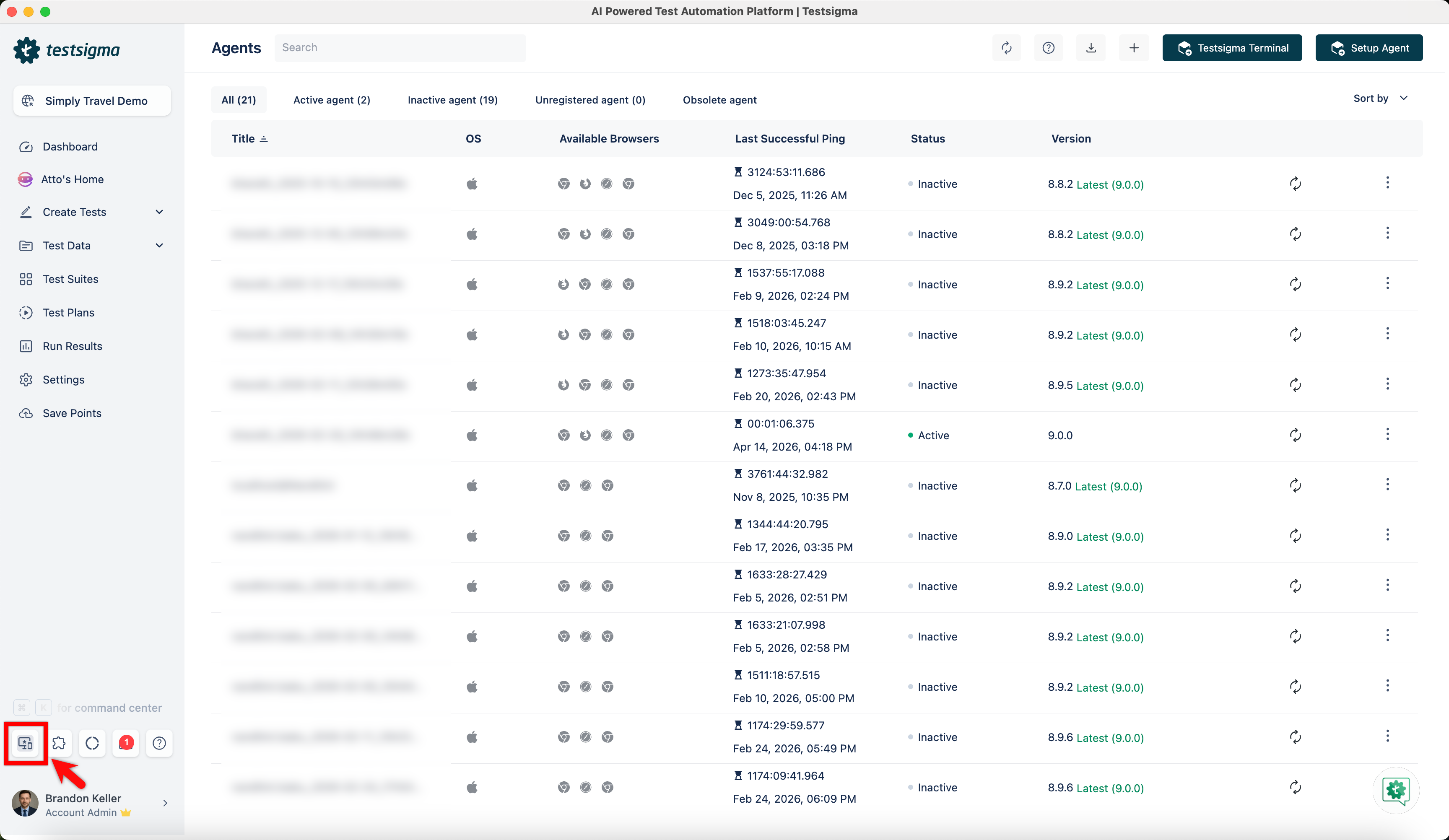
Navigate to Agents page in Testsigma app and click on the registered agent.
-
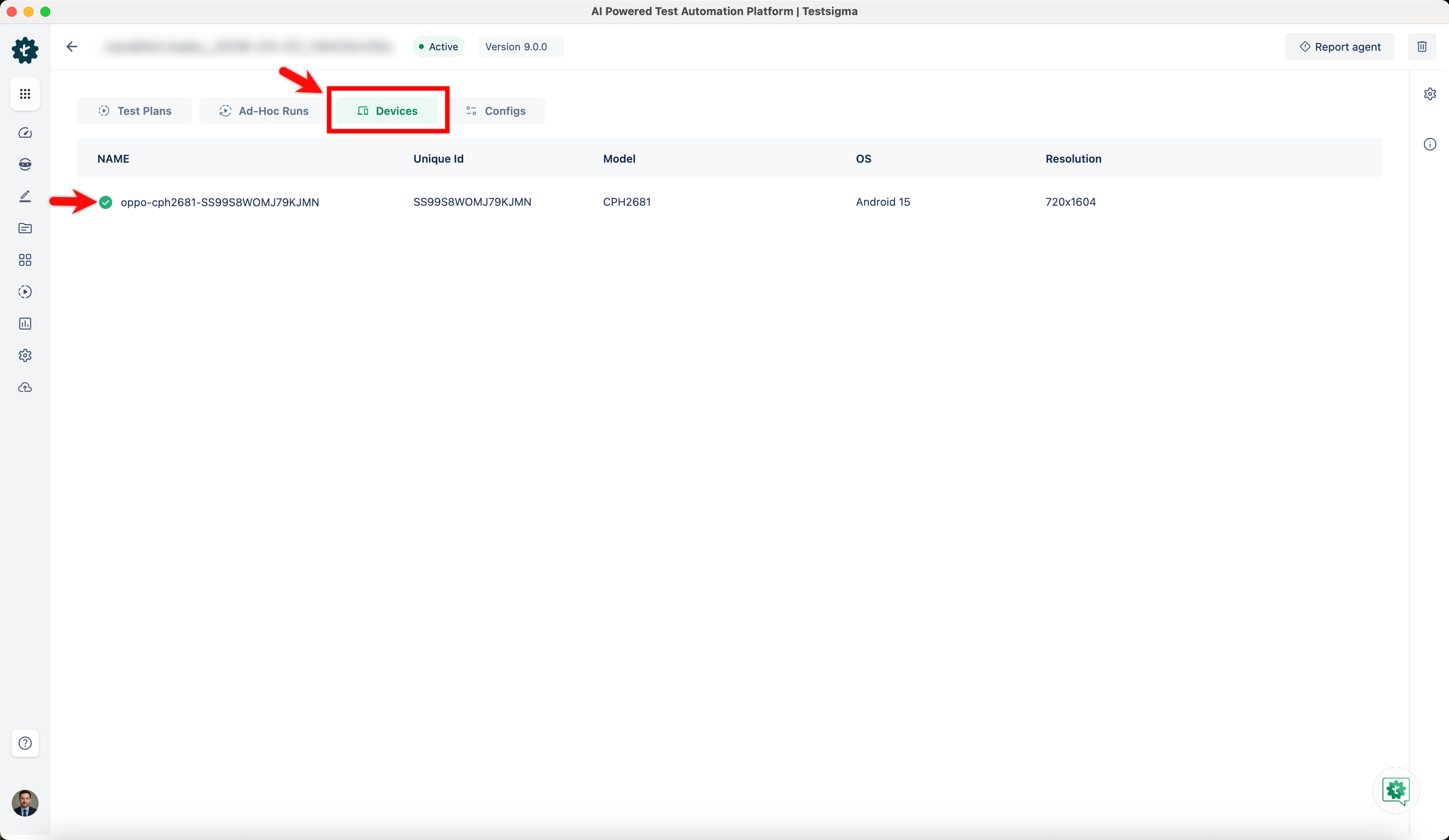
Under Devices, you can see the device that is connected to the registered agent as shown below.
-
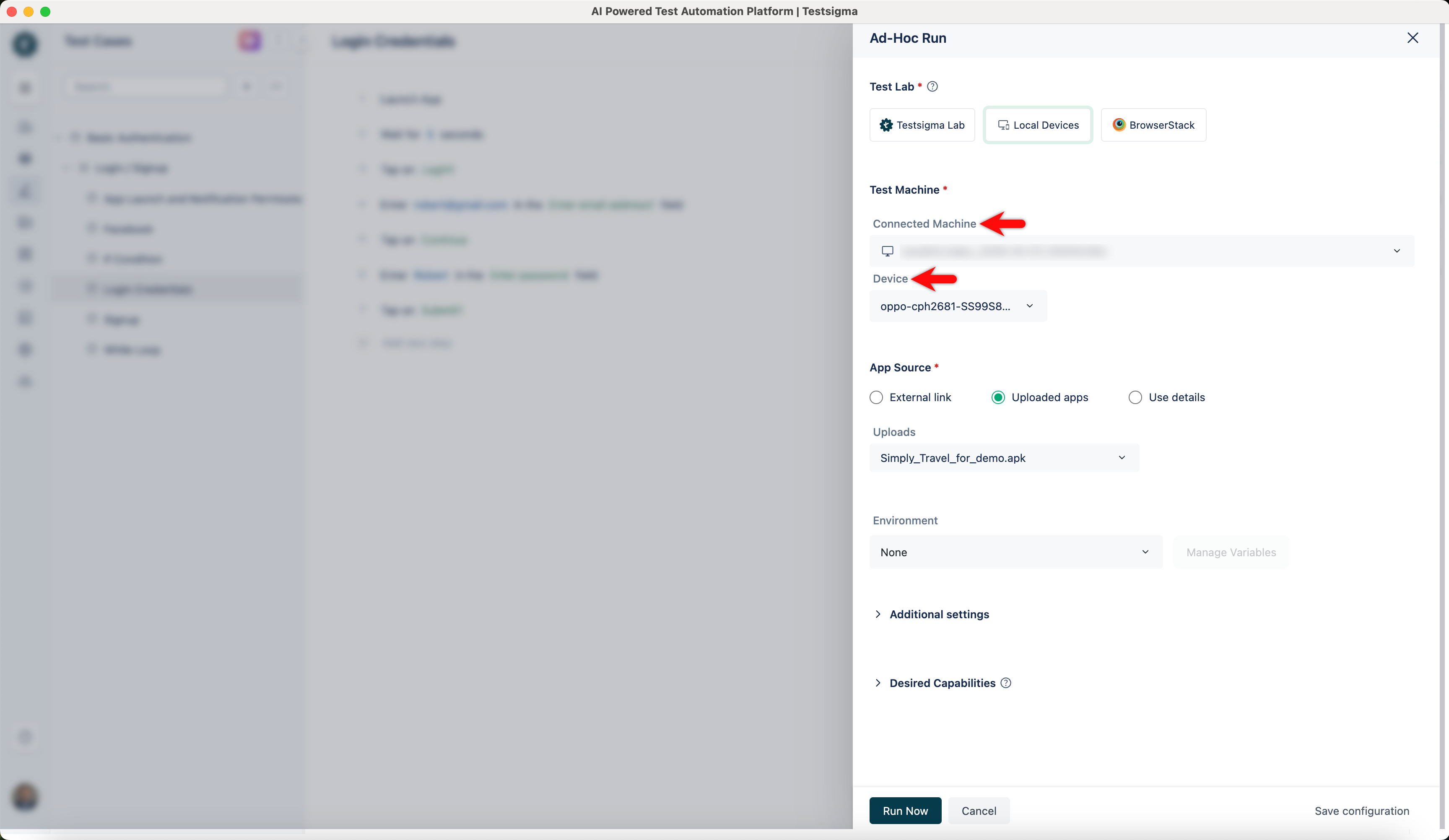
To execute android tests on this Device, you can select the Connected Machine and Device.