Test Cases
Custom Fields for Test Cases
Prerequisites
Before you begin, ensure that you have referred to:
Create a Custom Field
Section titled “Create a Custom Field”-
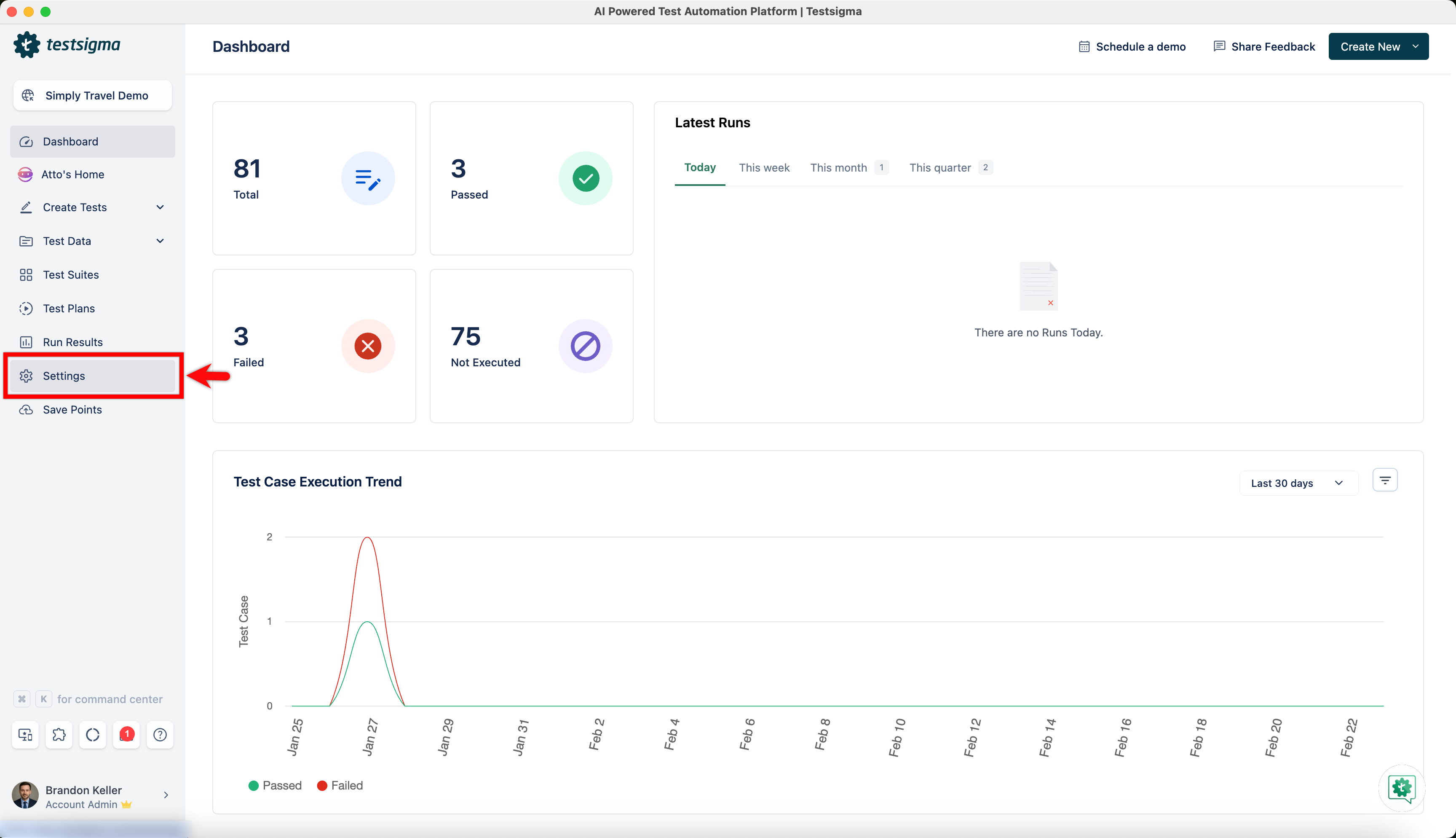
From the left navigation bar, go to Settings.
-
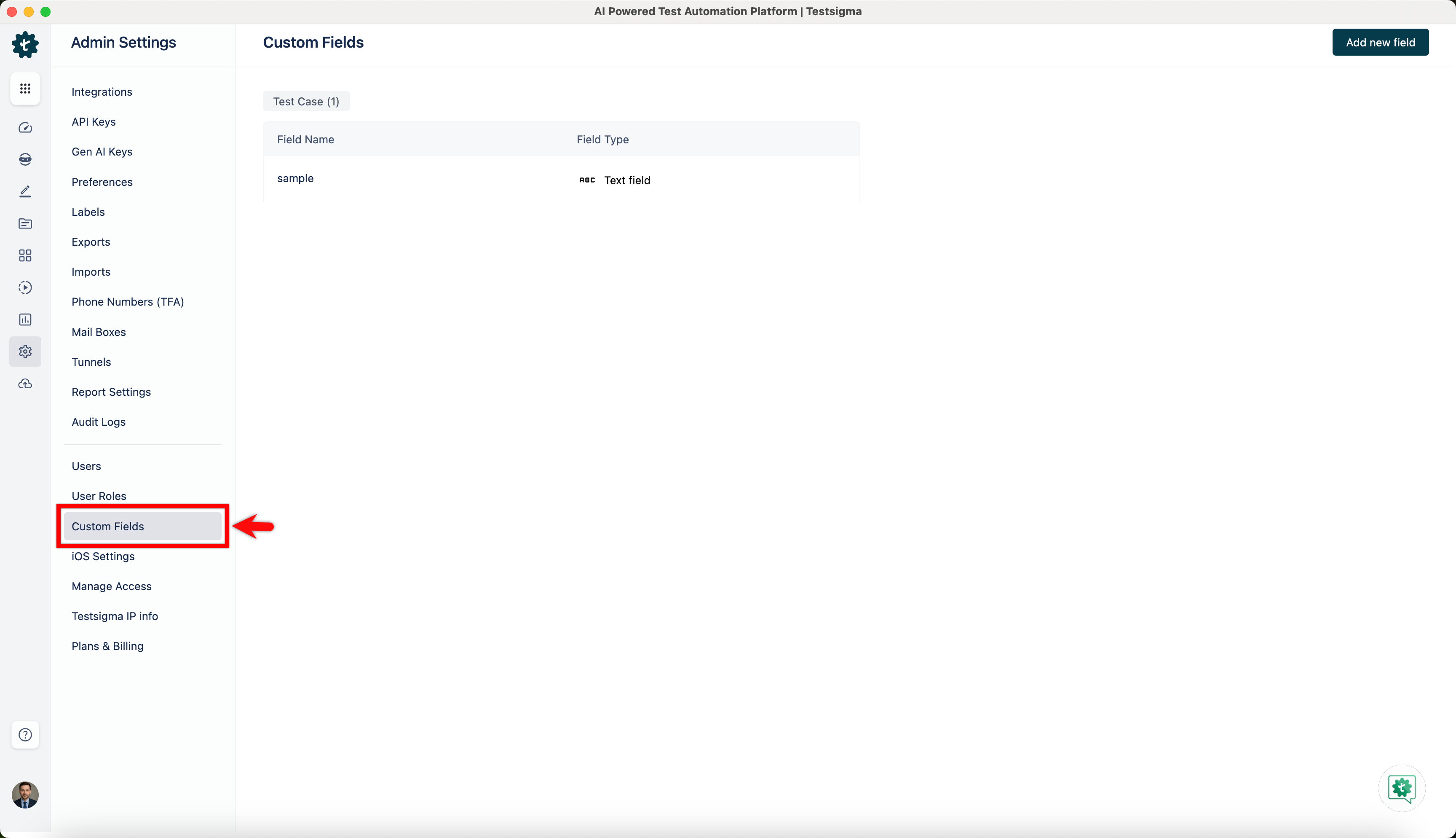
In the Admin Settings section, click on Custom Fields.
-
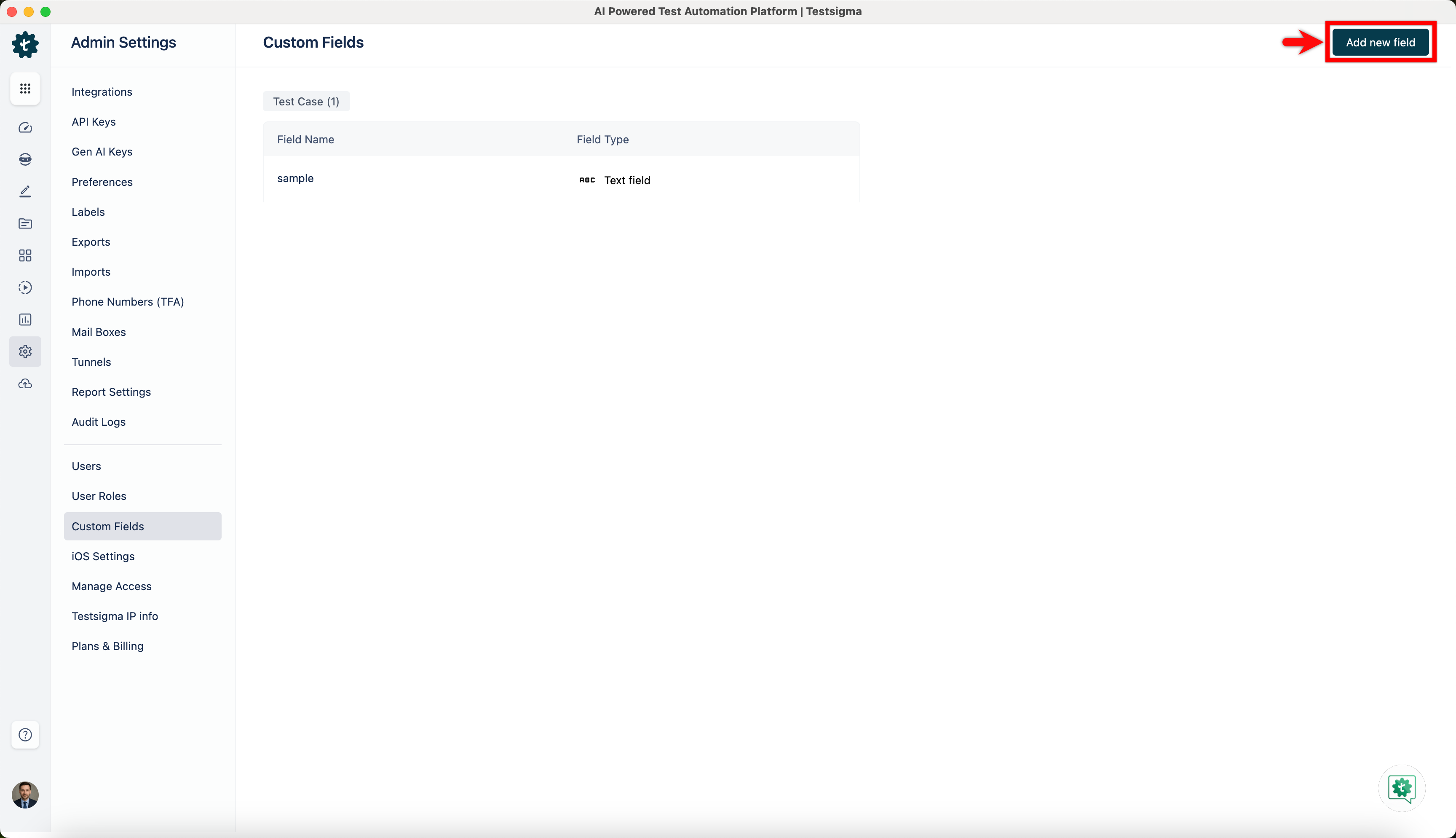
Click Add new field.
-
In the Add new field in the Test Case overlay,
-
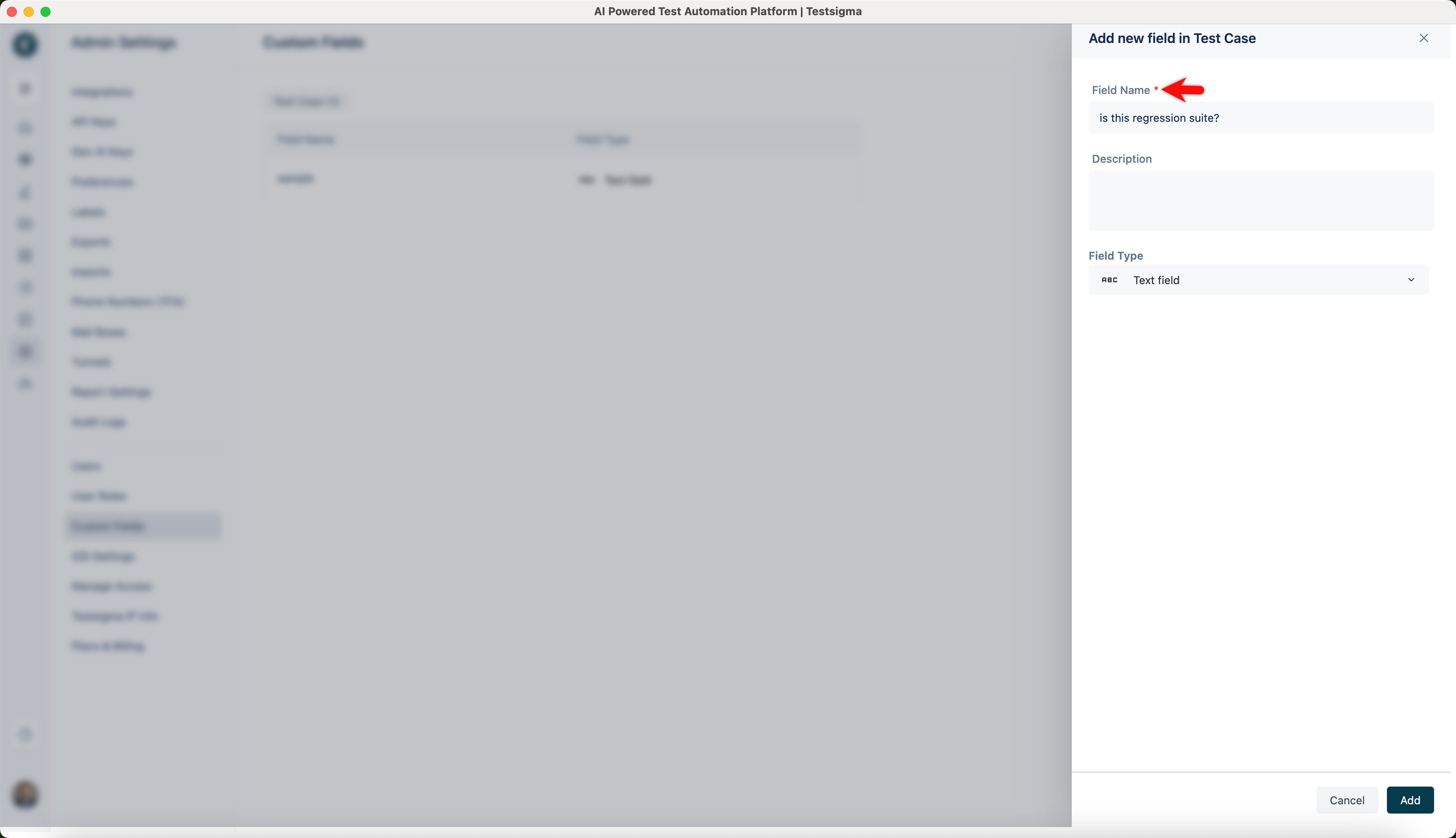
Enter the name in the Field Name field.
-
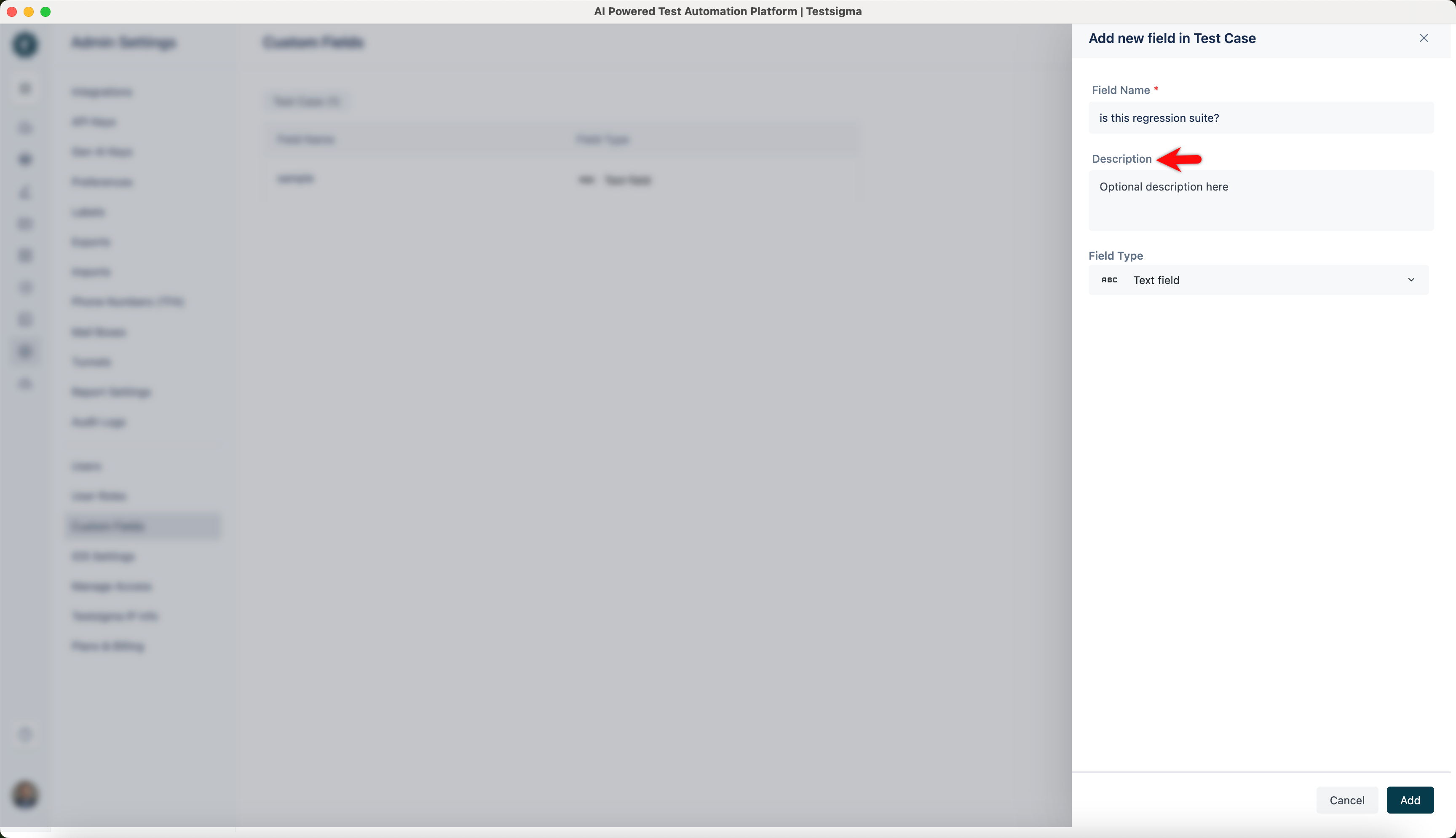
Enter the description in the Description field.
-
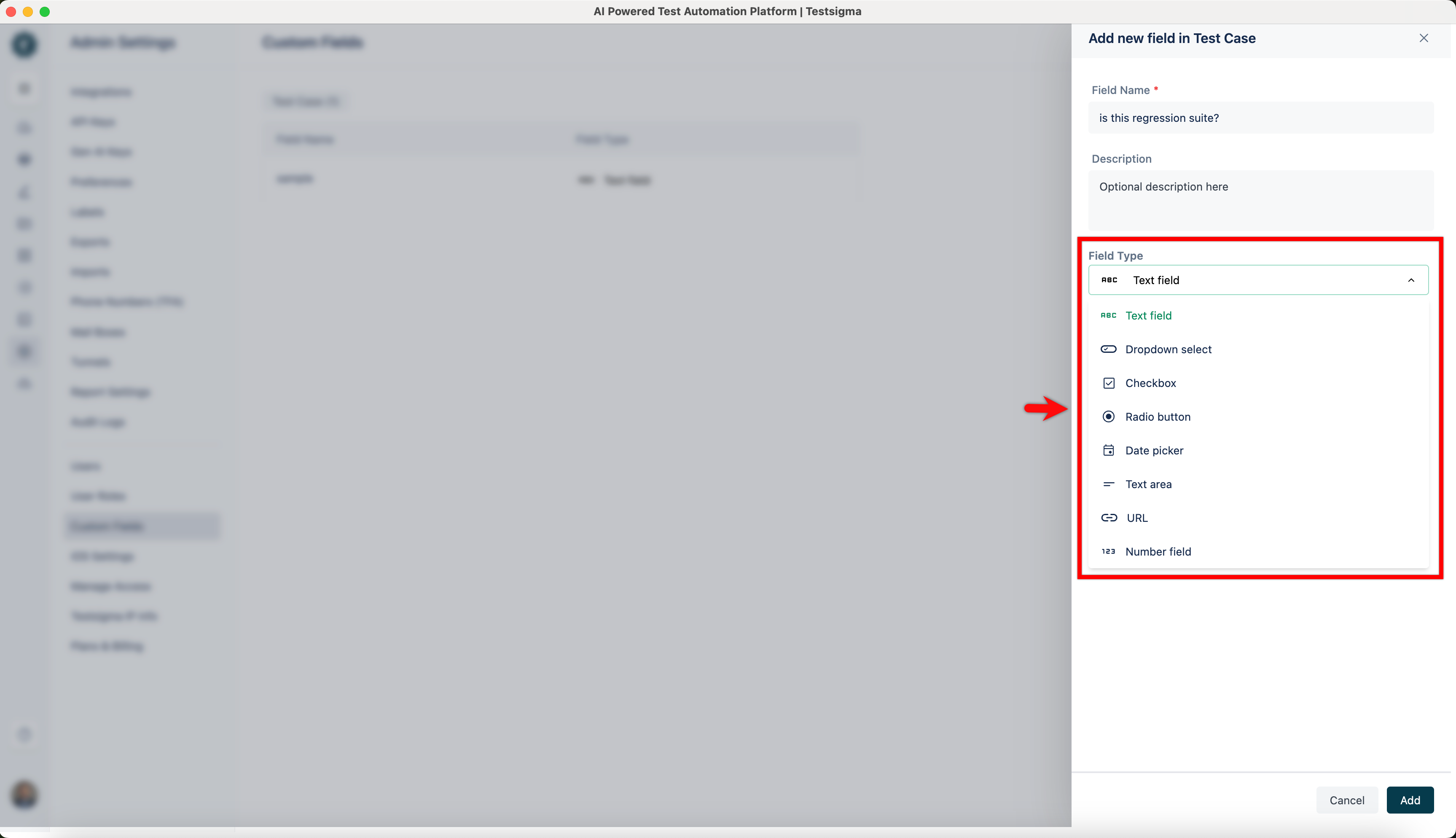
Choose the Field Type from the dropdown menu.
-
-
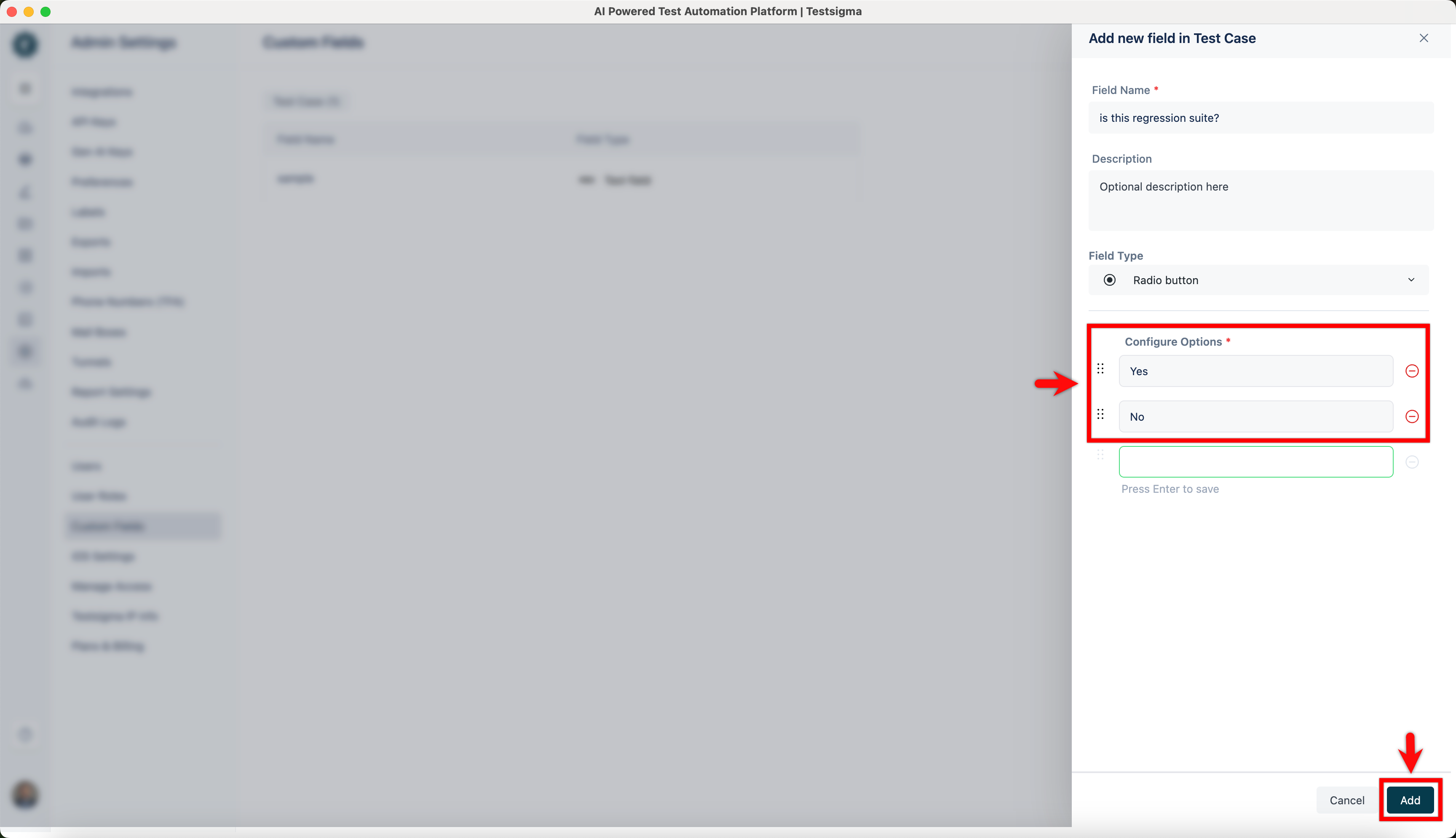
Configure the options and click Add.
Add the Custom Field to a Test Case
Section titled “Add the Custom Field to a Test Case”-
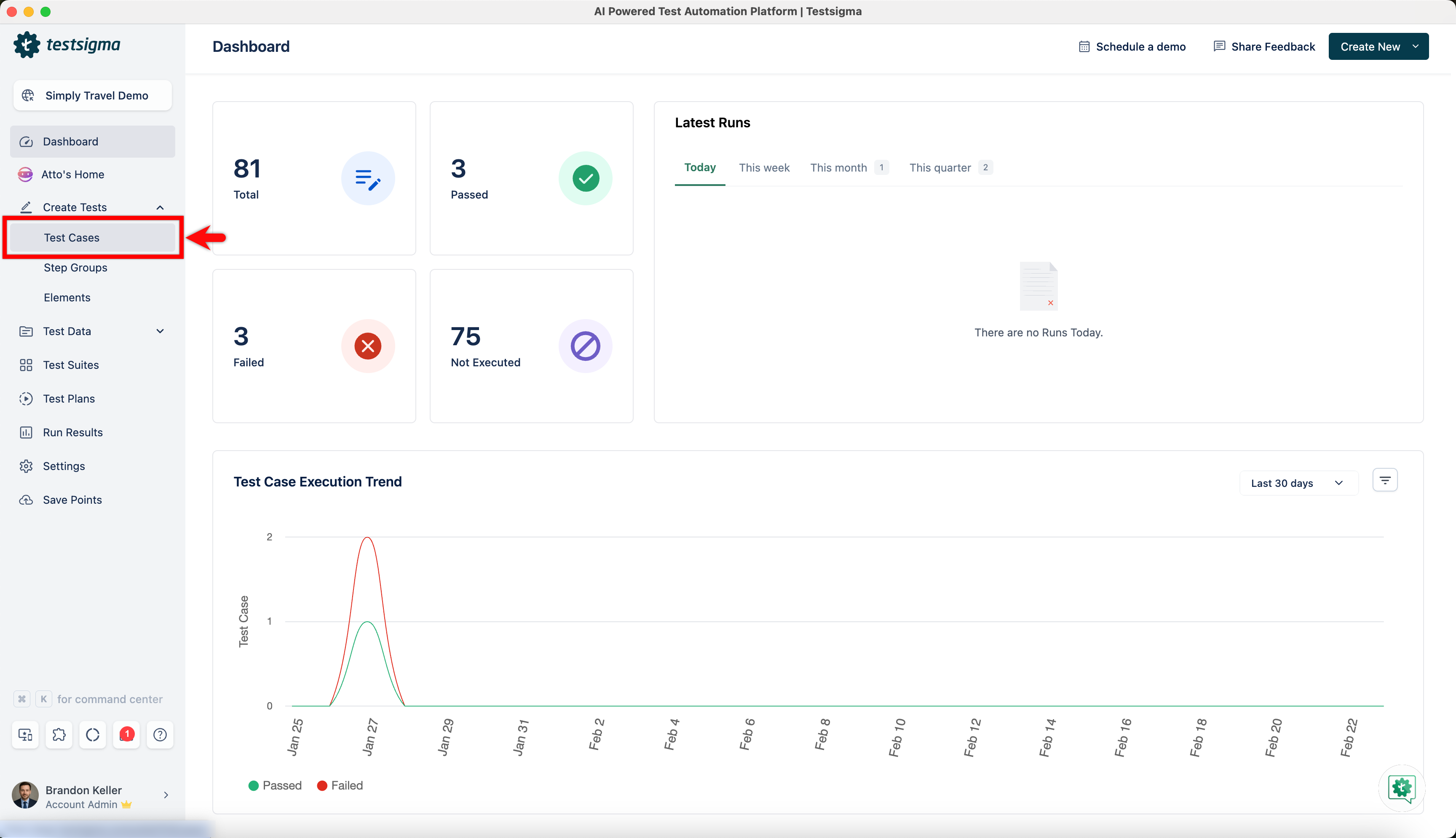
From the left navigation bar, go to Create Tests > Test Cases.
-
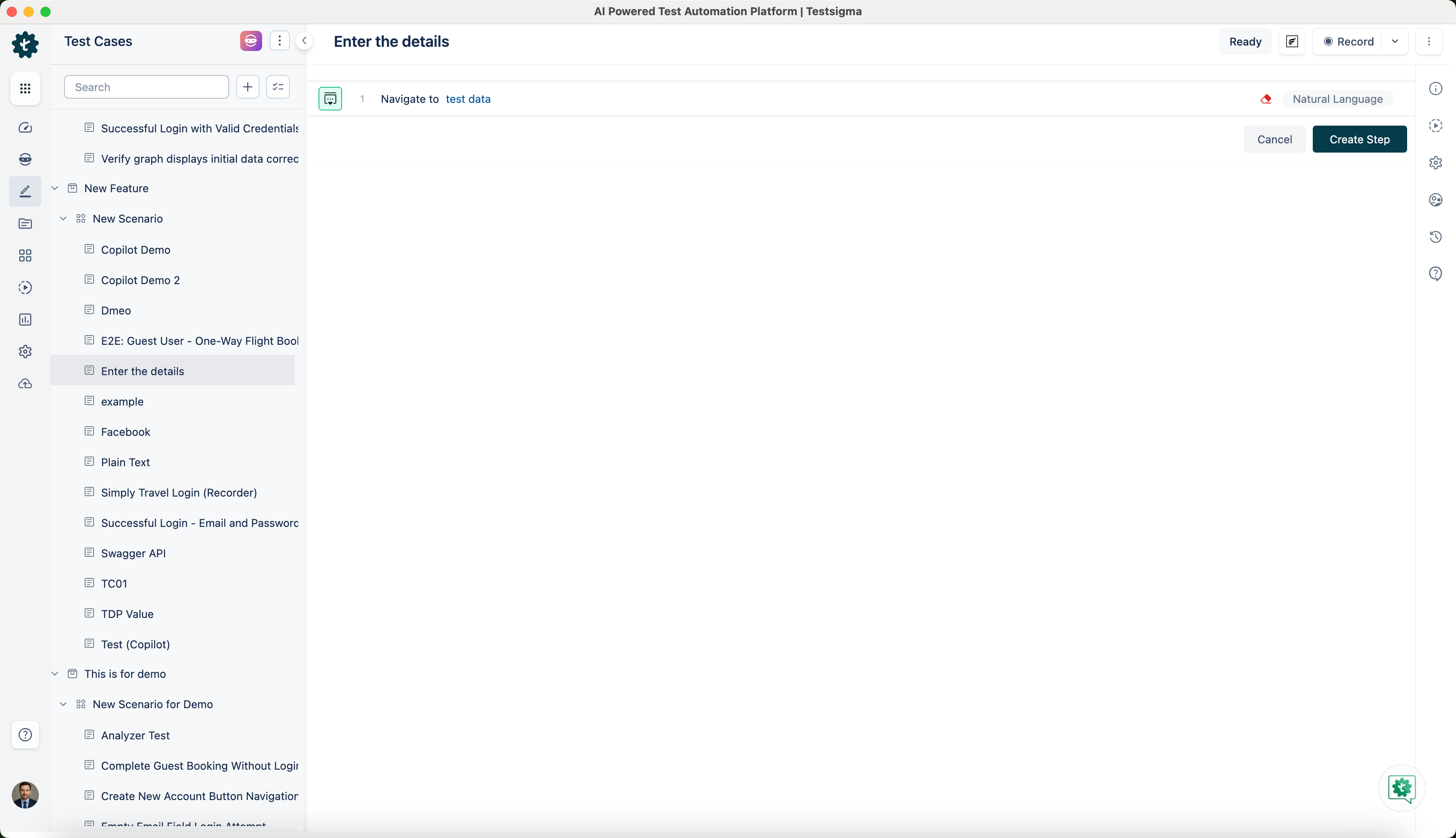
Select the Test Case for which you want to add the Custom Field.
-
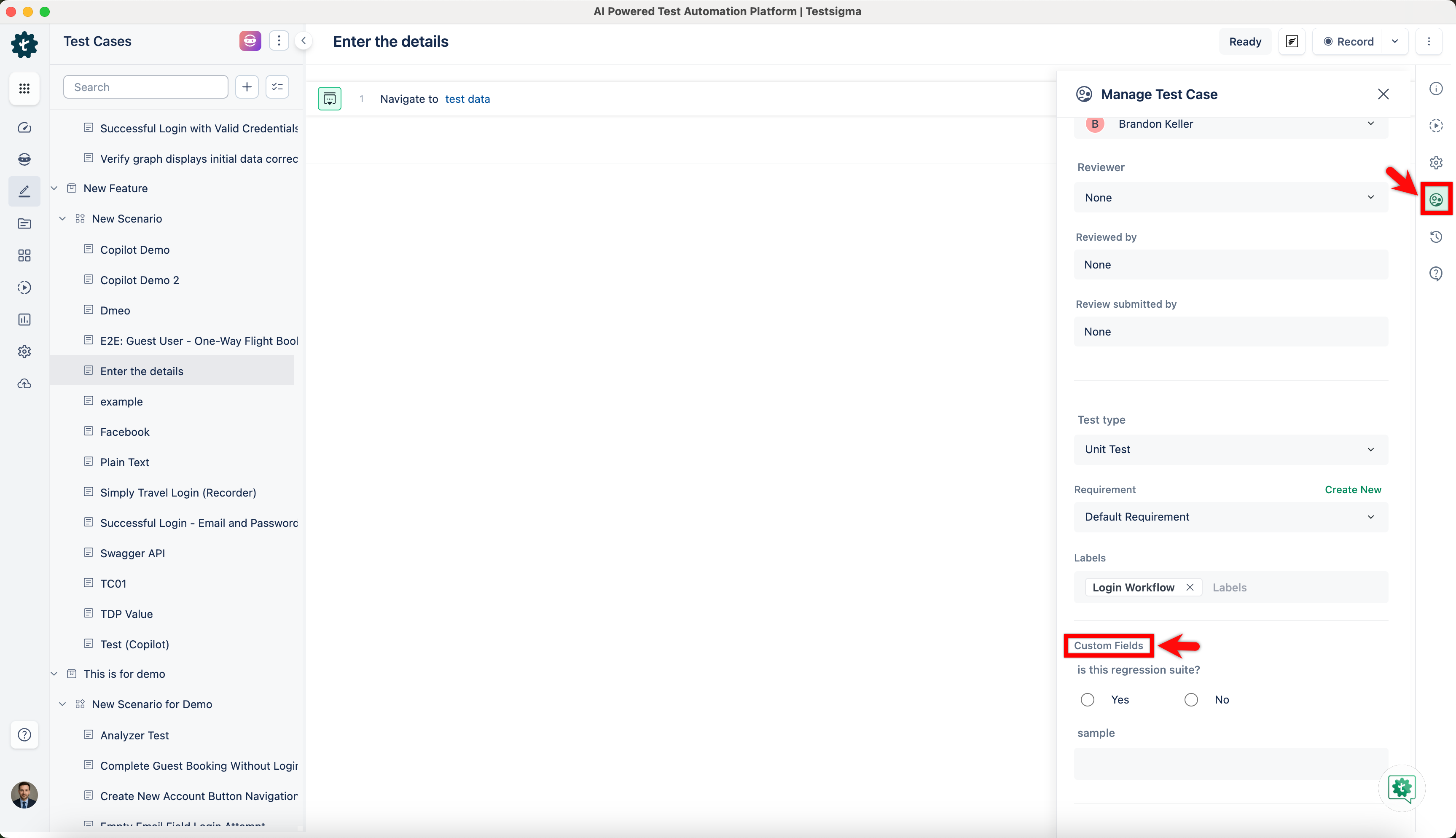
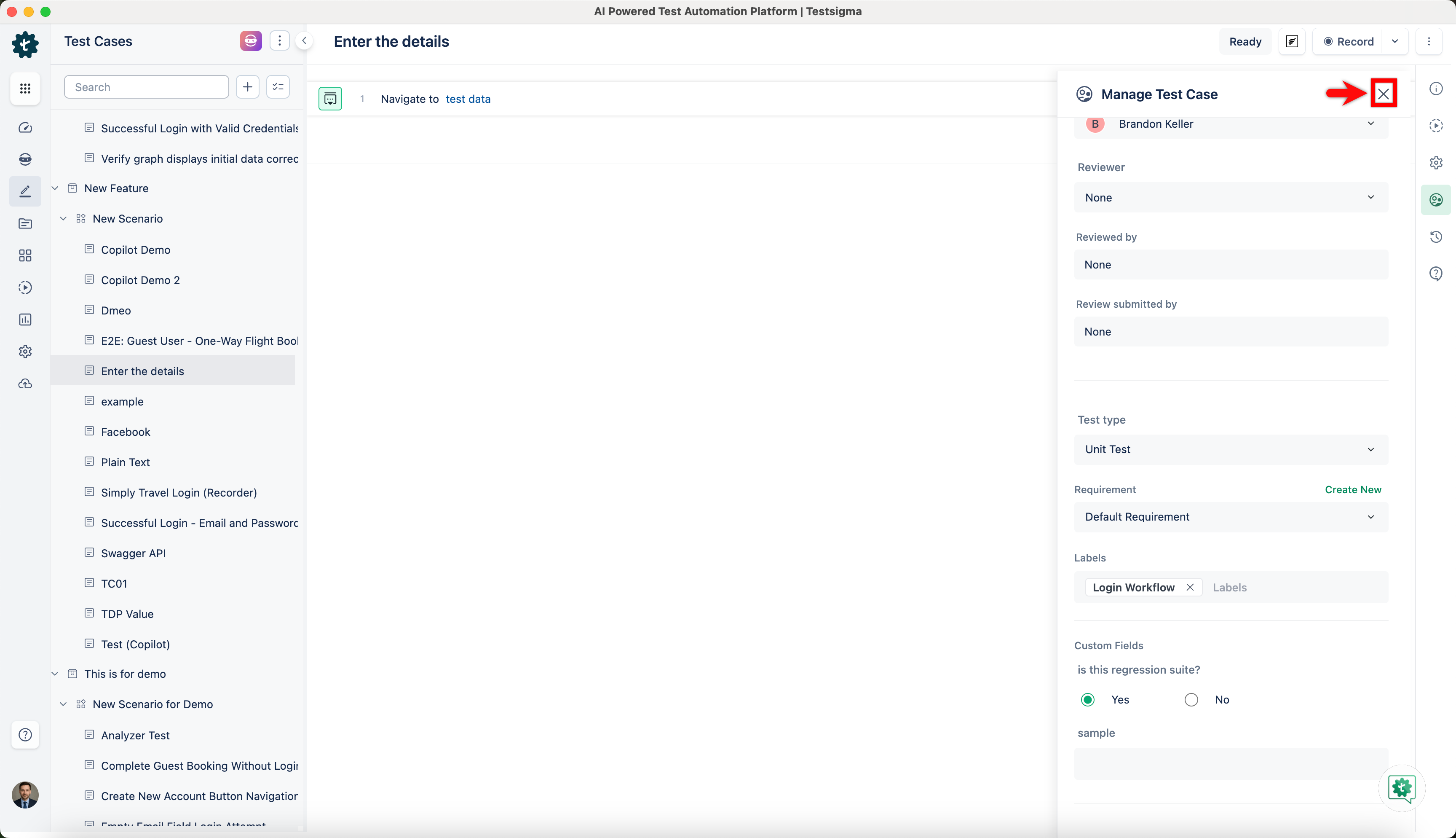
From the utility panel, click on Manage Test Case and scroll down to view the Custom Fields section.
-
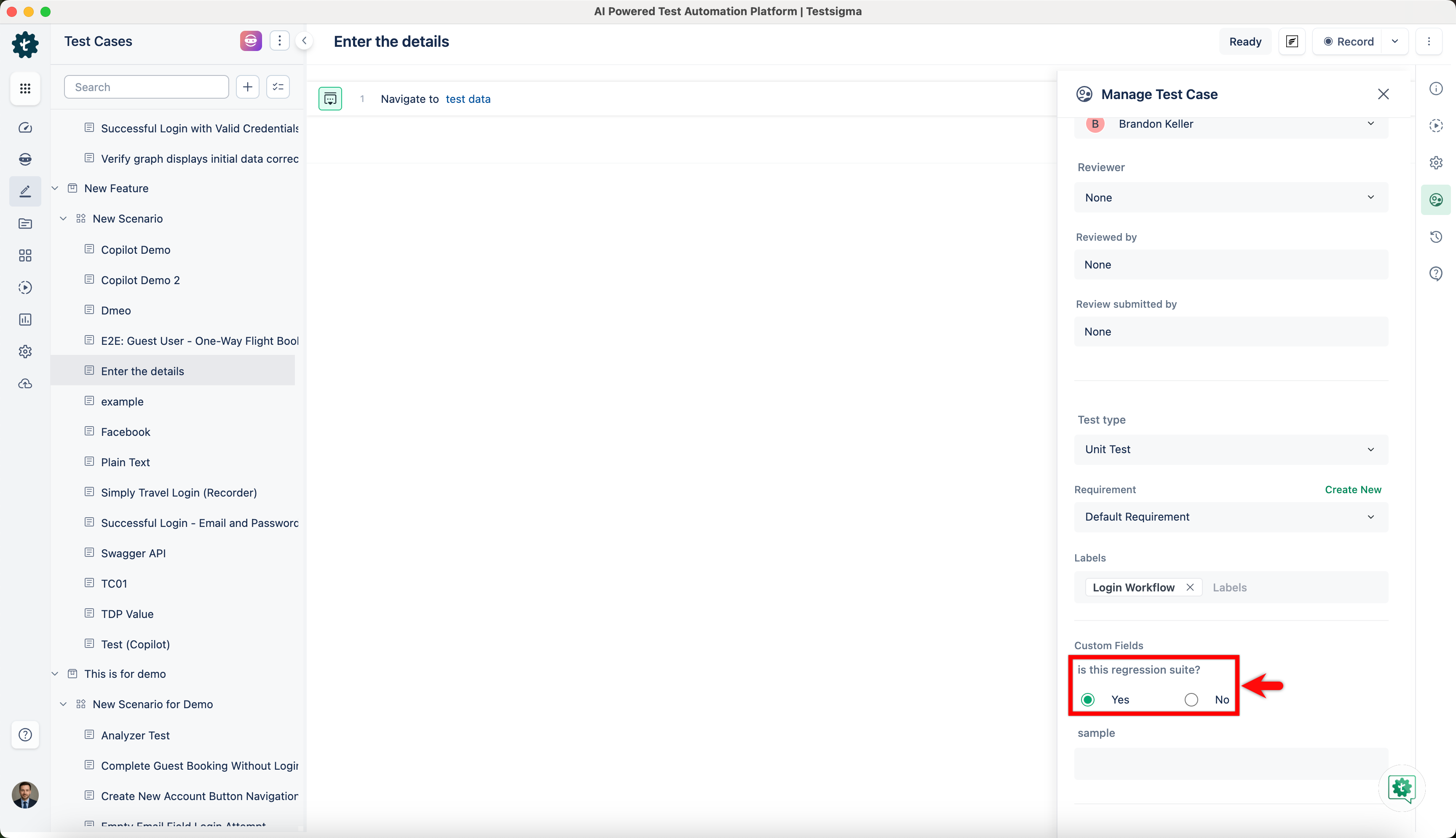
Enter the required details.
-
Click Close.
Filter Test Cases Using Custom Fields
Section titled “Filter Test Cases Using Custom Fields”-
From the left navigation bar, go to Create Tests > Test Cases.
-
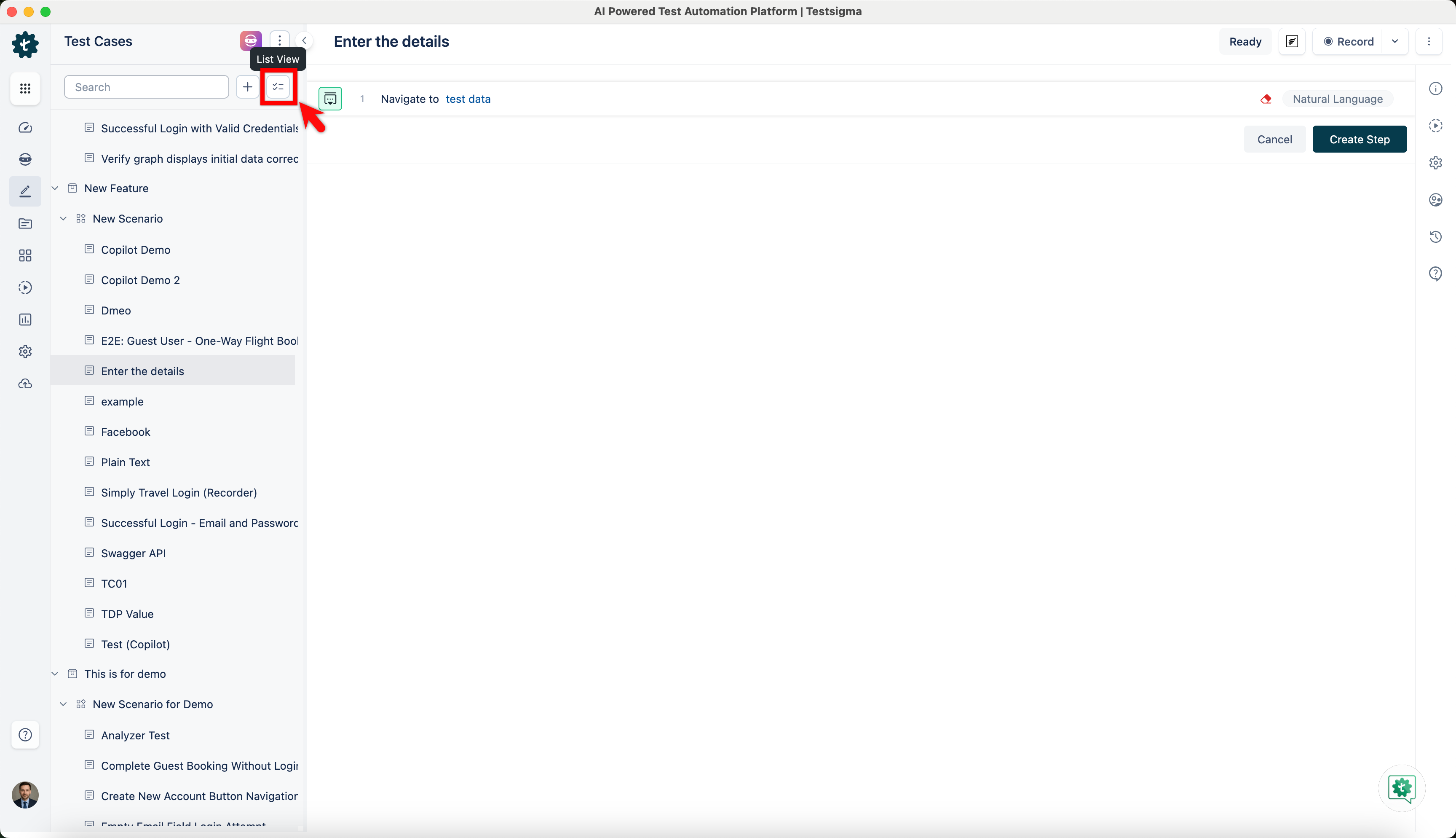
In the Test Case Explorer section, click on List View.
-
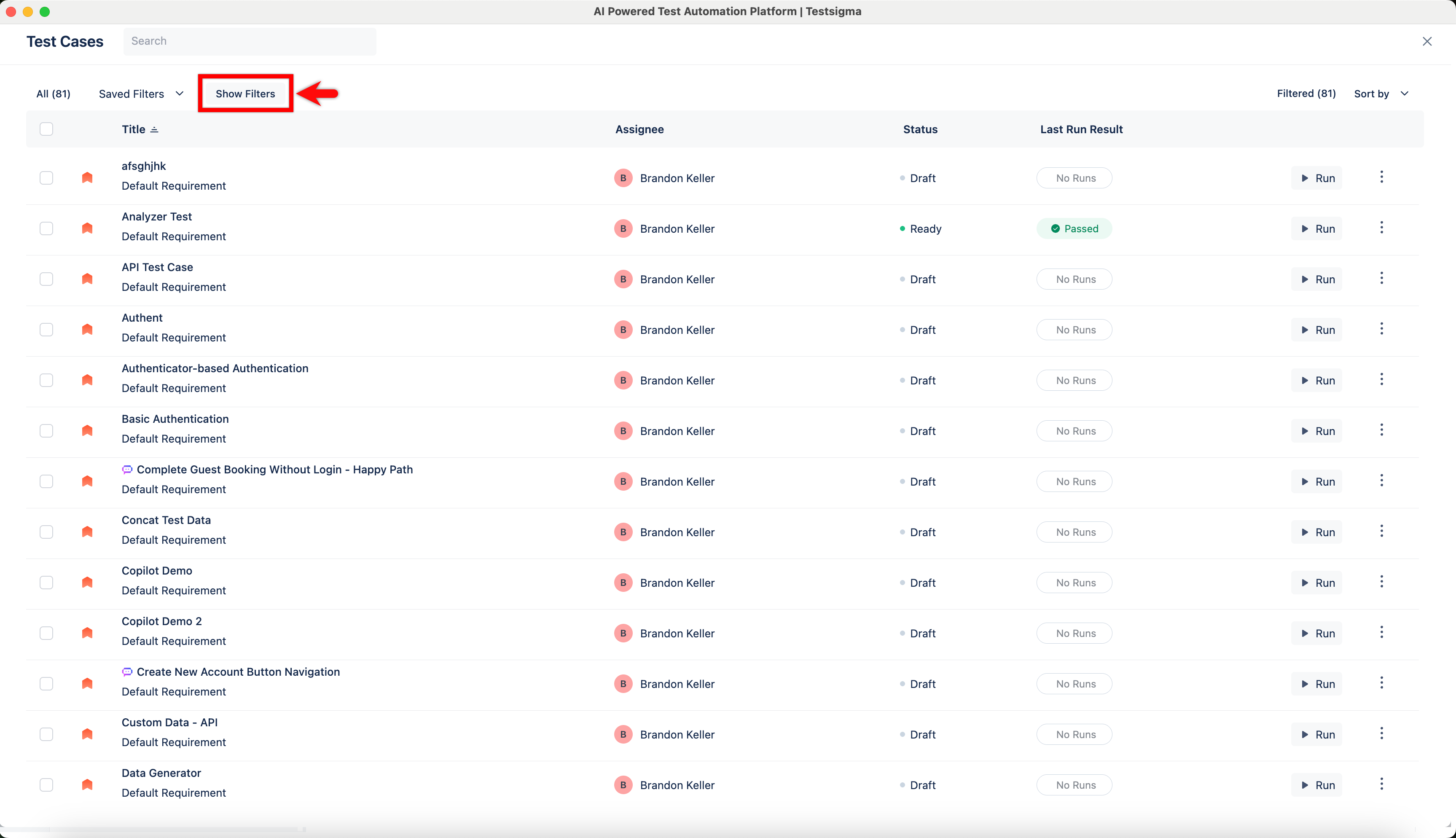
In the Test Cases screen, click on Show Filters.
-
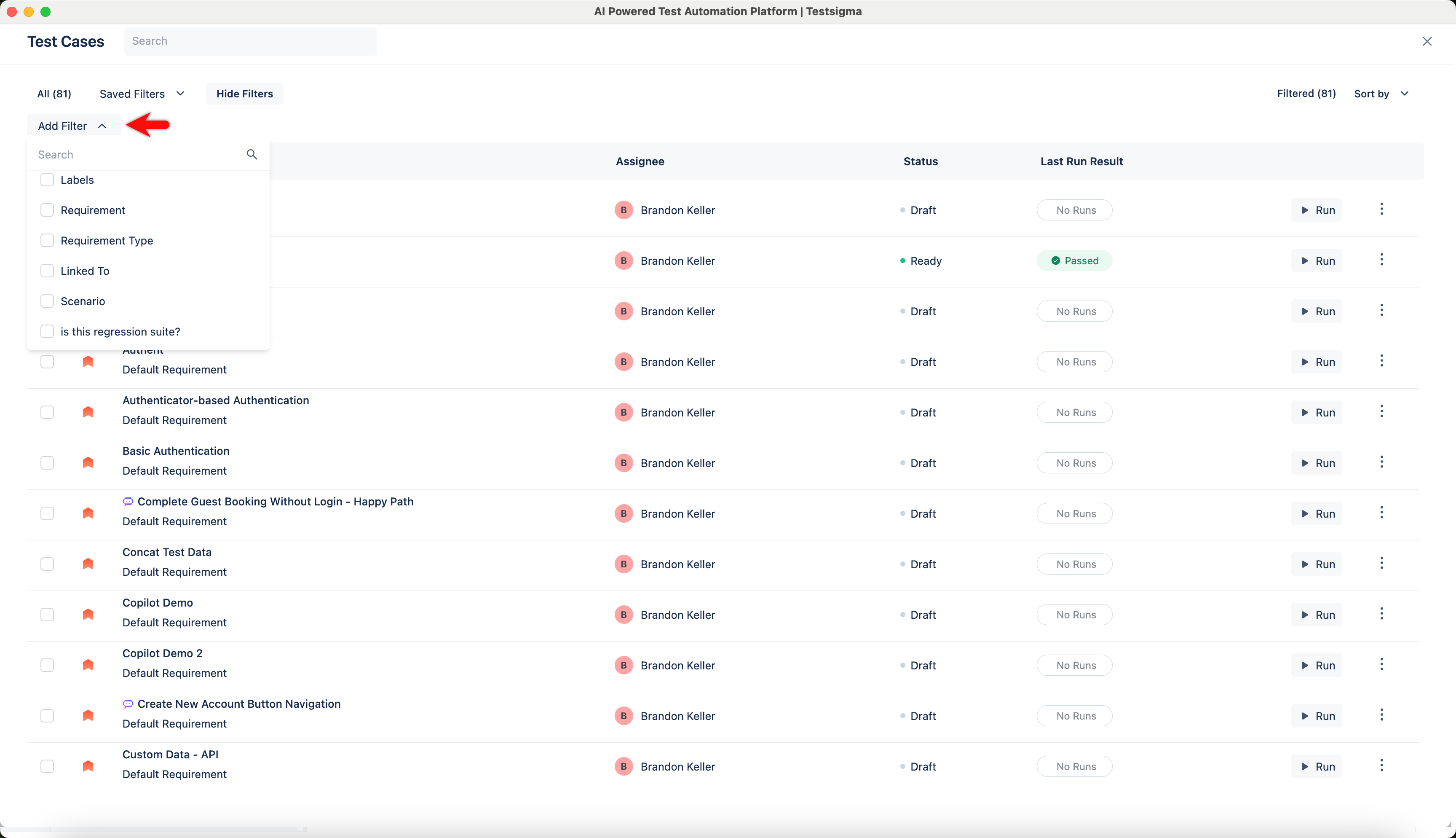
Expand Add Filter and select the available custom field.