
Testsigma Terminal
Installing Testsigma Terminal
Prerequisites
Ensure you have the following requirements:
- System Requirements: Minimum 8 GB memory (dedicated for tests), at least 20 GB disk space, and a dual-core processor or higher.
- Ports: Ensure ports 8383, 8484, and 18329 are available.
- Installation Size: Download size is 850 MB; extracted size is 1.5 GB. The ZIP file is automatically deleted after extraction to: Windows:
%user_profile%\.testsigma\TestsigmaTerminal\; Linux/Mac:$HOME/.testsigma/TestsigmaTerminal/.
Download Formats Available
Section titled “Download Formats Available”Testsigma Terminal is available in the following formats:
| Platform | Executable | Compressed |
|---|---|---|
| Mac (Intel) | .dmg | .zip |
| Mac (M Series) | .dmg | .zip |
| Windows | .exe | .zip |
| Linux | .bin | .zip |
| Docker | .docs | — |
Steps to Install Testsigma Terminal
Section titled “Steps to Install Testsigma Terminal”-
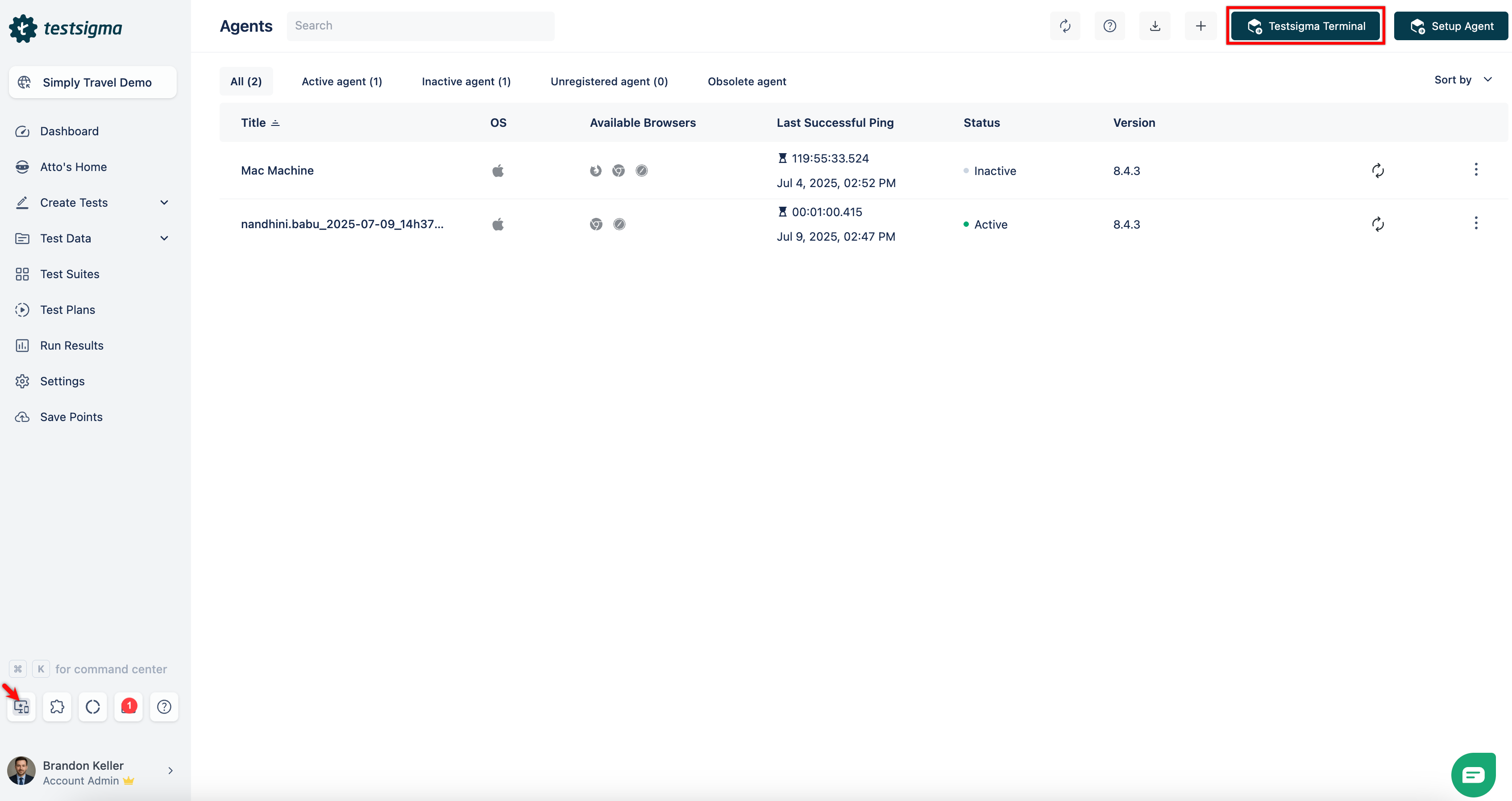
From the left navigation bar, go to Agents, and click Testsigma Terminal in the top-right corner.
-
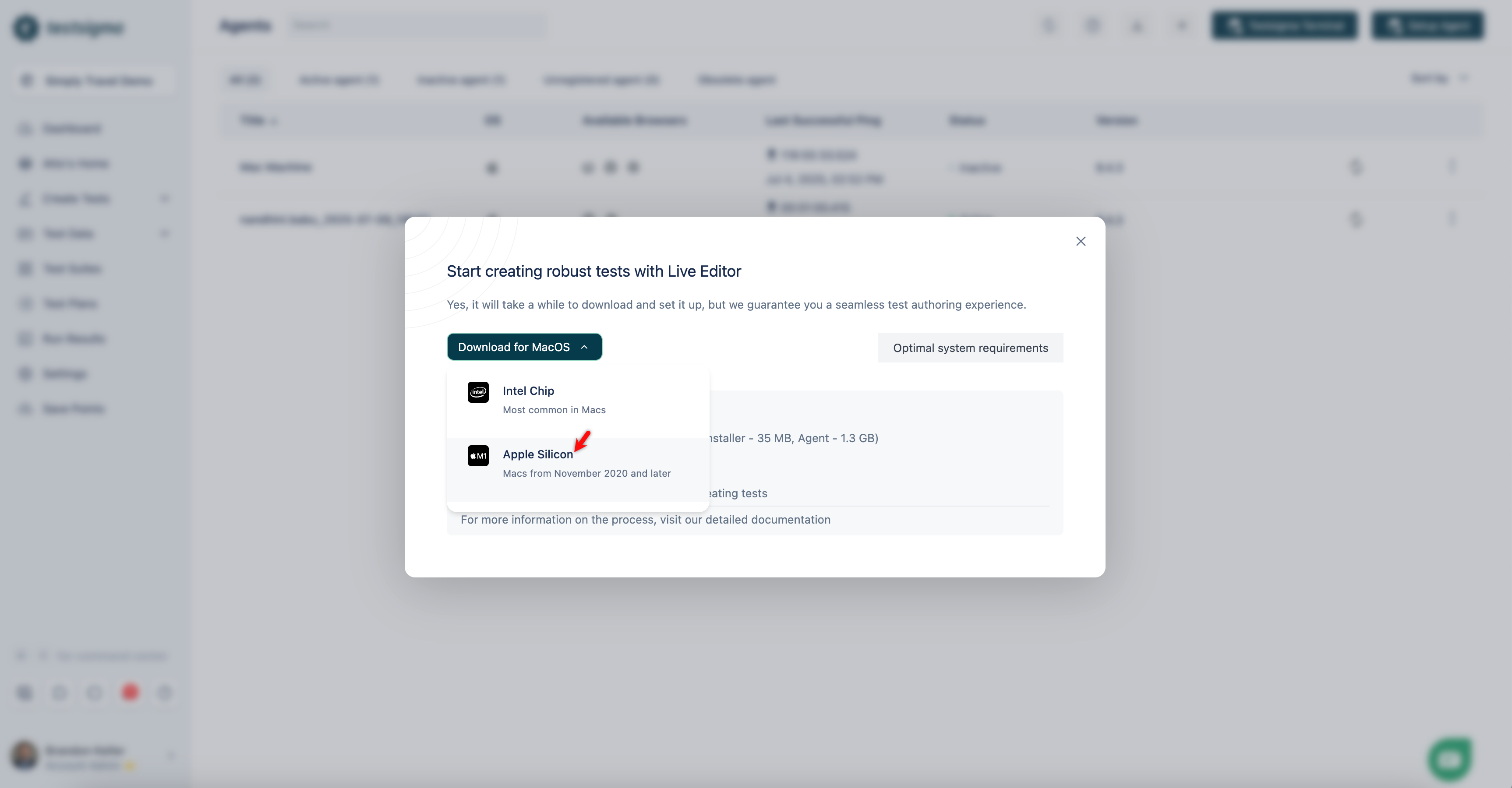
In the dialog box that appears, select the machine configuration. Testsigma automatically downloads the Testsigma Terminal application.
-
Install and open the Testsigma Terminal application.
-
Upon launching the application, you can proceed in one of two ways:
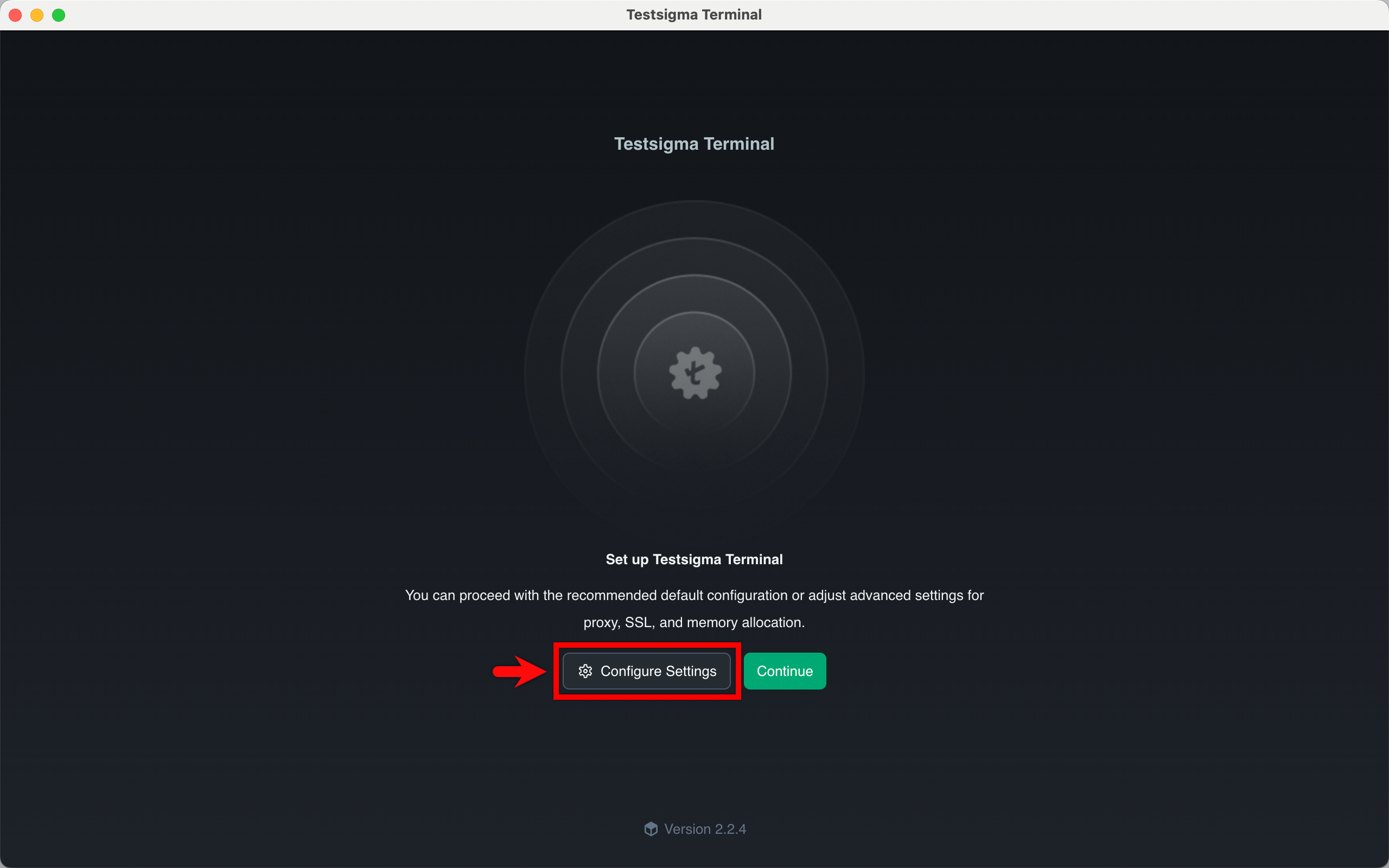
- Click Configure Settings to manage security and certificates, network and proxy rules, or runtime/JVM preferences. Click Continue to save these changes and click Login to Testsigma. For more information, please refer to the documentation on the Components of Testsigma Terminal.
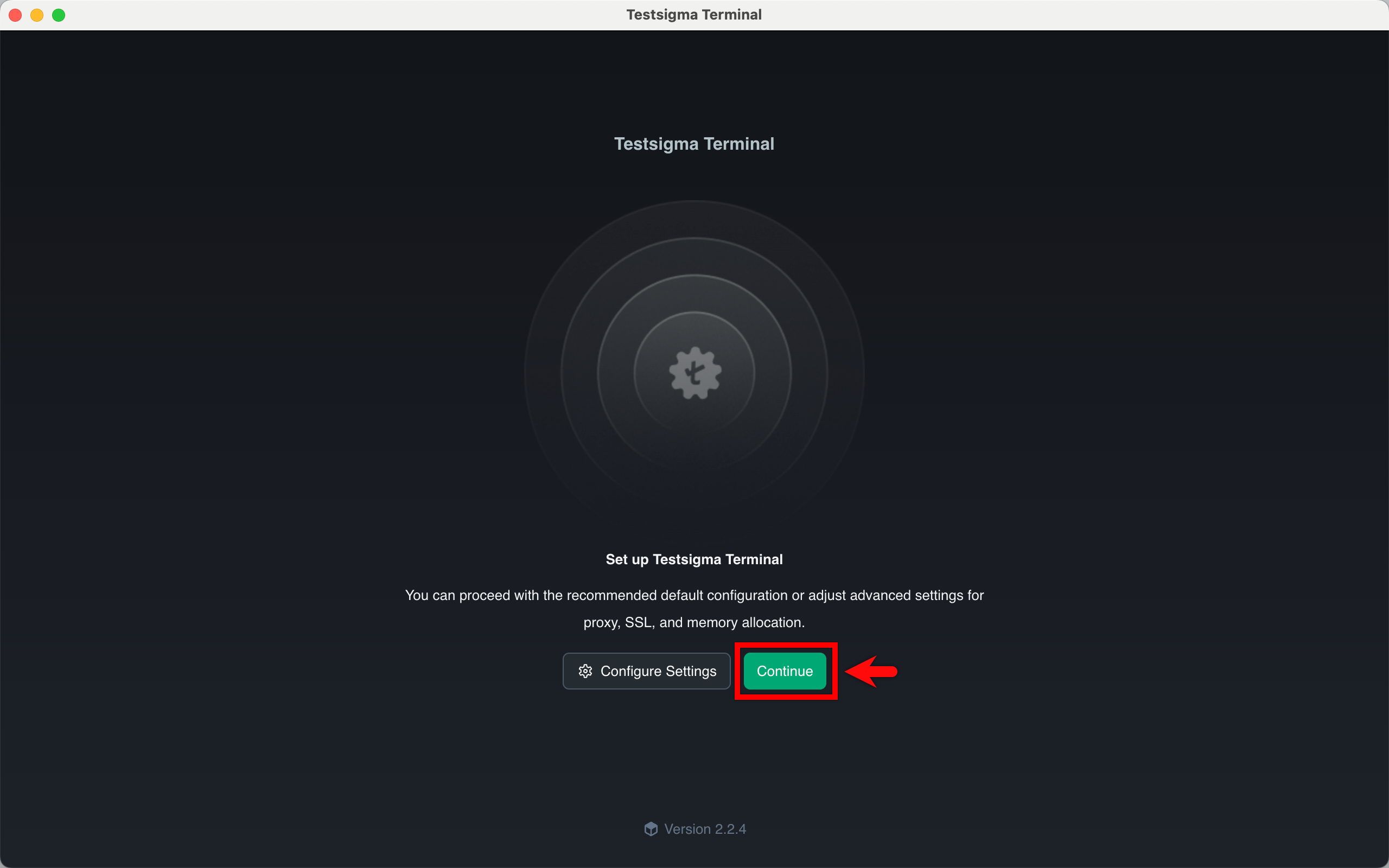
- Click Continue and then click Login to Testsigma directly to continue with the default settings. You will be redirected to Testsigma.
- Click Configure Settings to manage security and certificates, network and proxy rules, or runtime/JVM preferences. Click Continue to save these changes and click Login to Testsigma. For more information, please refer to the documentation on the Components of Testsigma Terminal.
-
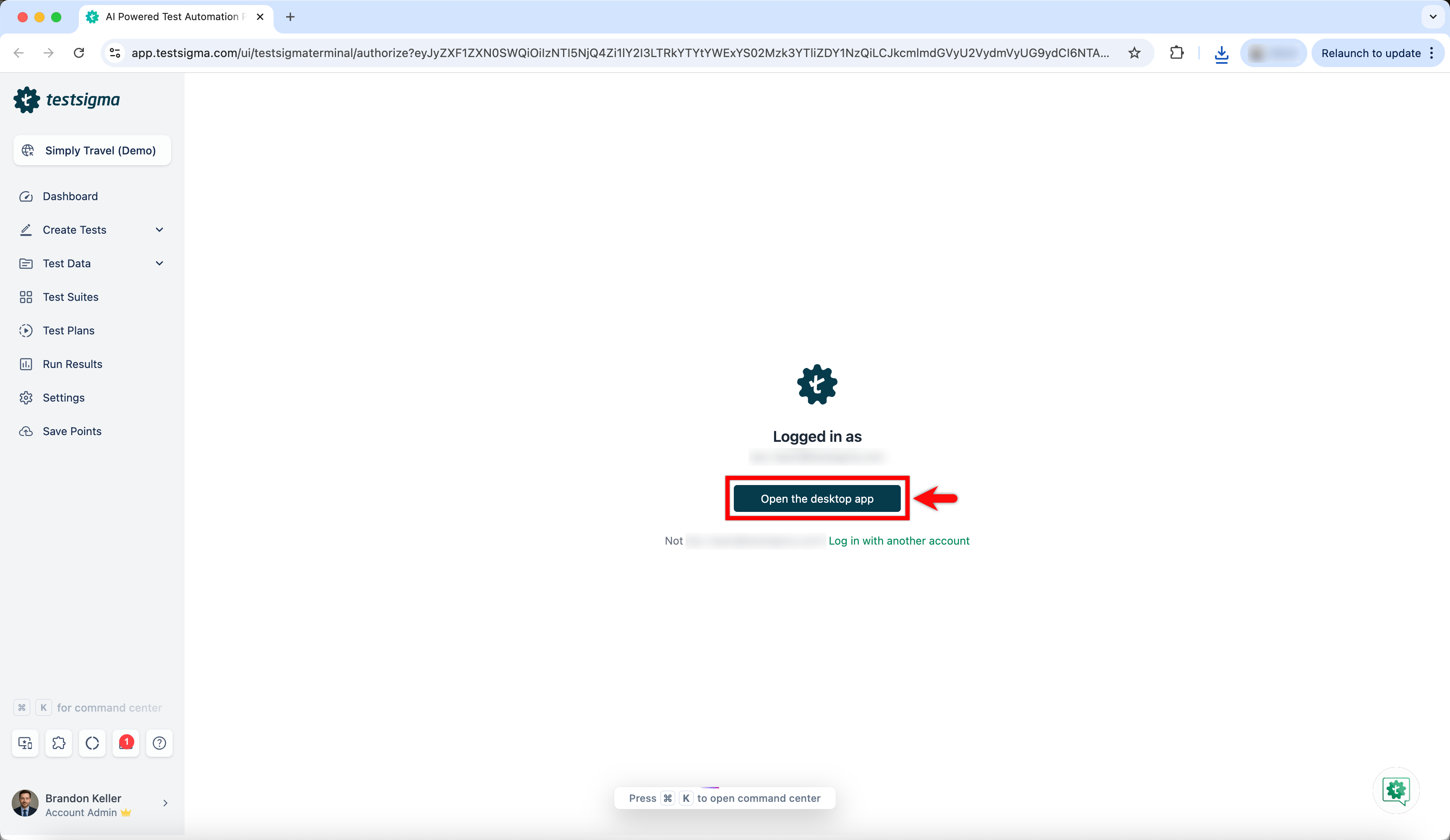
Click Open the desktop app. The Testsigma Terminal opens.
-
Wait until Testsigma Terminal downloads the necessary files and completes the installation.
Steps to Uninstall Testsigma Terminal
Section titled “Steps to Uninstall Testsigma Terminal”-
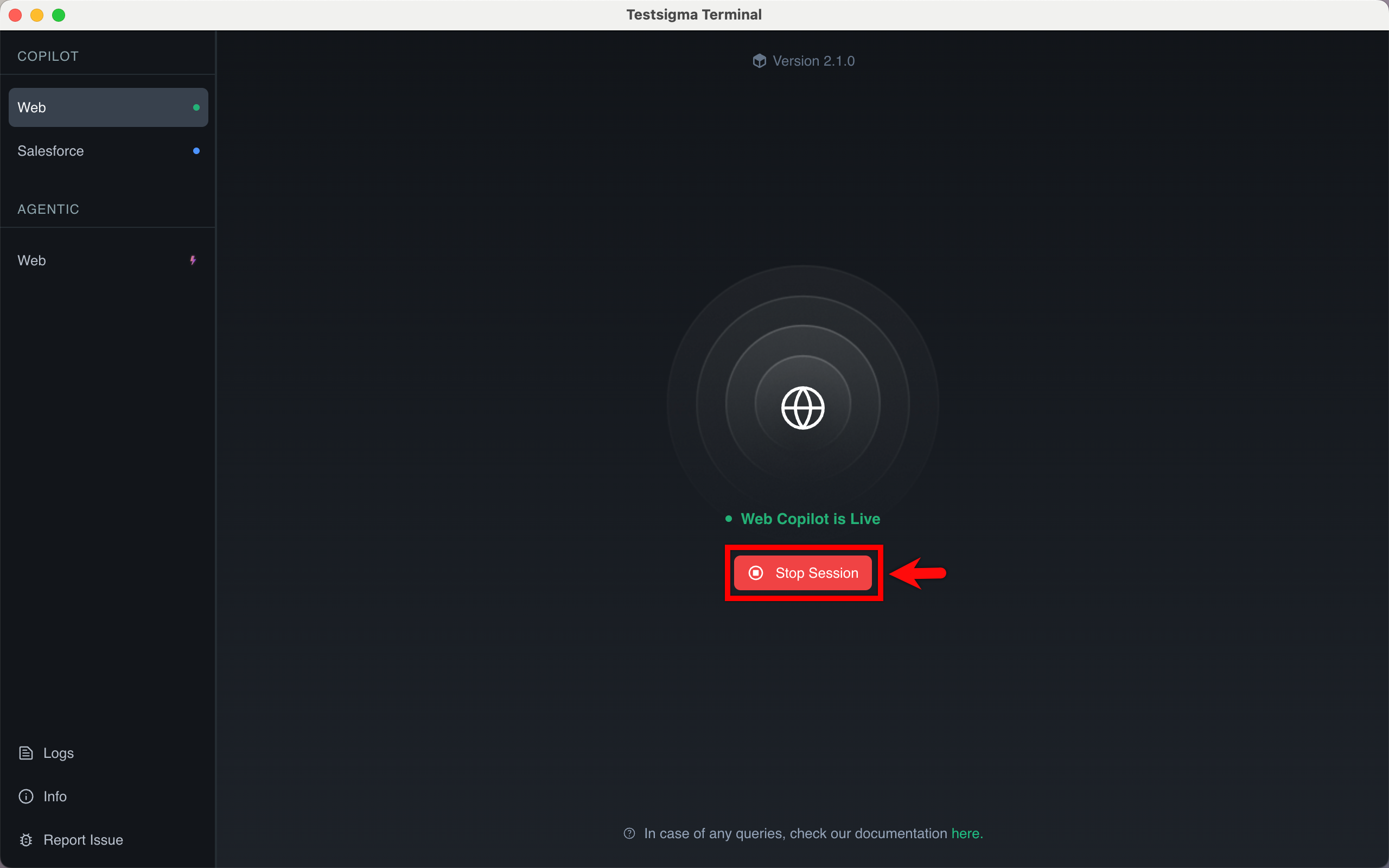
Click Stop session to exit the Copilot.
-
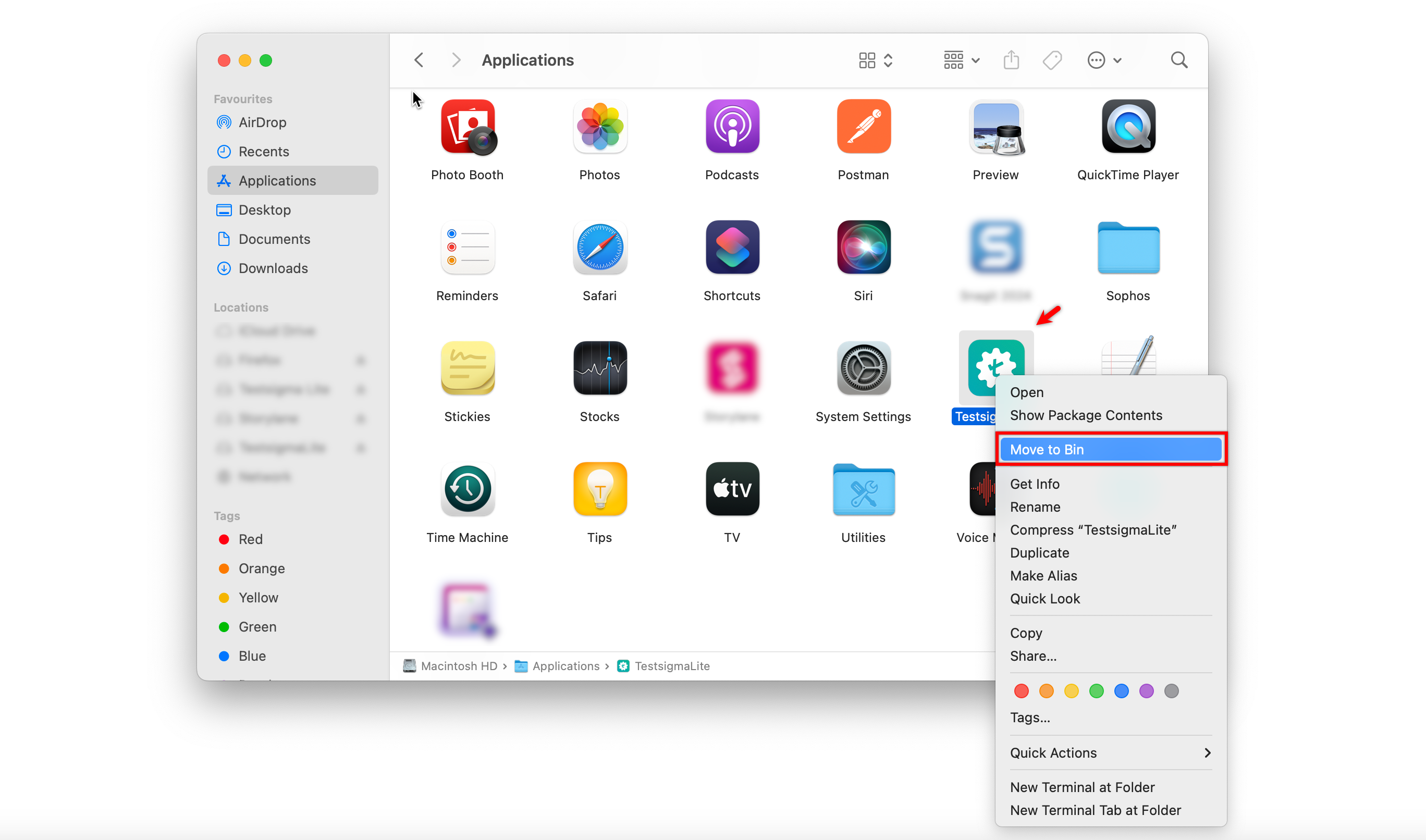
Uninstall/Remove Testsigma Terminal application.
-
Go to Disk > Users >
user_folder> Library > Application Support > Testsigma and remove Testsigma folder.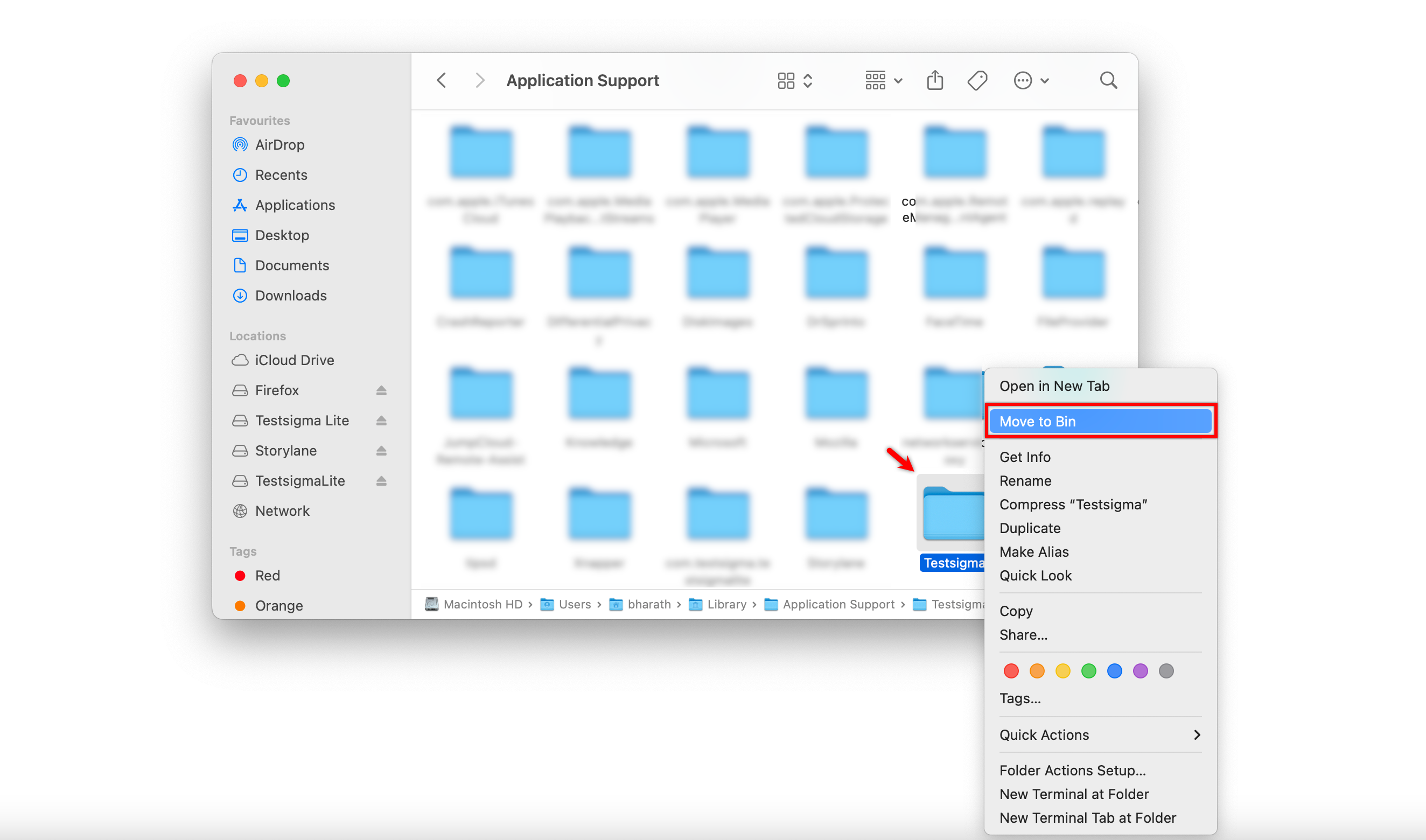
-
To stop the agent running in the background, follow these steps to find and terminate the process:
For macOS/Linux
Section titled “For macOS/Linux”- Open the Terminal.
- Run the following command to get the Process ID (PID):
lsof -i :8383 - Copy the PID and use the following command to terminate the process:
kill -SIGKILL <PID>
For Windows
Section titled “For Windows”- Open PowerShell.
- Run the following command to get the Process ID (PID):
Get-Process -Id (Get-NetTCPConnection -LocalPort 8383).OwningProcess - Copy the PID and use the following command to terminate the process:
Stop-Process -Id <PID> -Force
File/Folder Locations of Testsigma Terminal
Section titled “File/Folder Locations of Testsigma Terminal”Agent Properties
Section titled “Agent Properties”- Windows: %user_profile%\AppData\Roaming\Testsigma\Agent\config\agent.properties
- Linux: $HOME/.testsigma/agent/config/agent.properties
- Mac: /$HOME/Library/Application Support/Testsigma/Agent/config/agent.properties
Remove Testsigma Agent Traces
Section titled “Remove Testsigma Agent Traces”- Windows: %user_profile%\AppData\Roaming\Testsigma\Agent\
- Linux: $HOME/.testsigma/agent/
- Mac: /$HOME/Library/Application Support/Testsigma/Agent/
Remove Testsigma Terminal Traces
Section titled “Remove Testsigma Terminal Traces”Testsigma Terminal state.
- Windows: %user_profile%\AppData\Roaming\com.testsigma.testsigmaterminal\
- Linux: $HOME/.testsigma/com.testsigma.testsigmaterminal/
- Mac: /$HOME/Library/Application Support/com.testsigma.testsigmaterminal/
Shortcuts to View Hidden Files:
Section titled “Shortcuts to View Hidden Files:”- Mac: Press Command (⌘) + Shift + . in Finder.
- Windows: Press Windows + R, type control folders, go to the View tab, and select Show hidden files, folders, and drives.