Test Suites
Dynamic Test Suites
Prerequisites
Before you begin, ensure that you have referred to:
Create a Dynamic Test Suite
Section titled “Create a Dynamic Test Suite”-
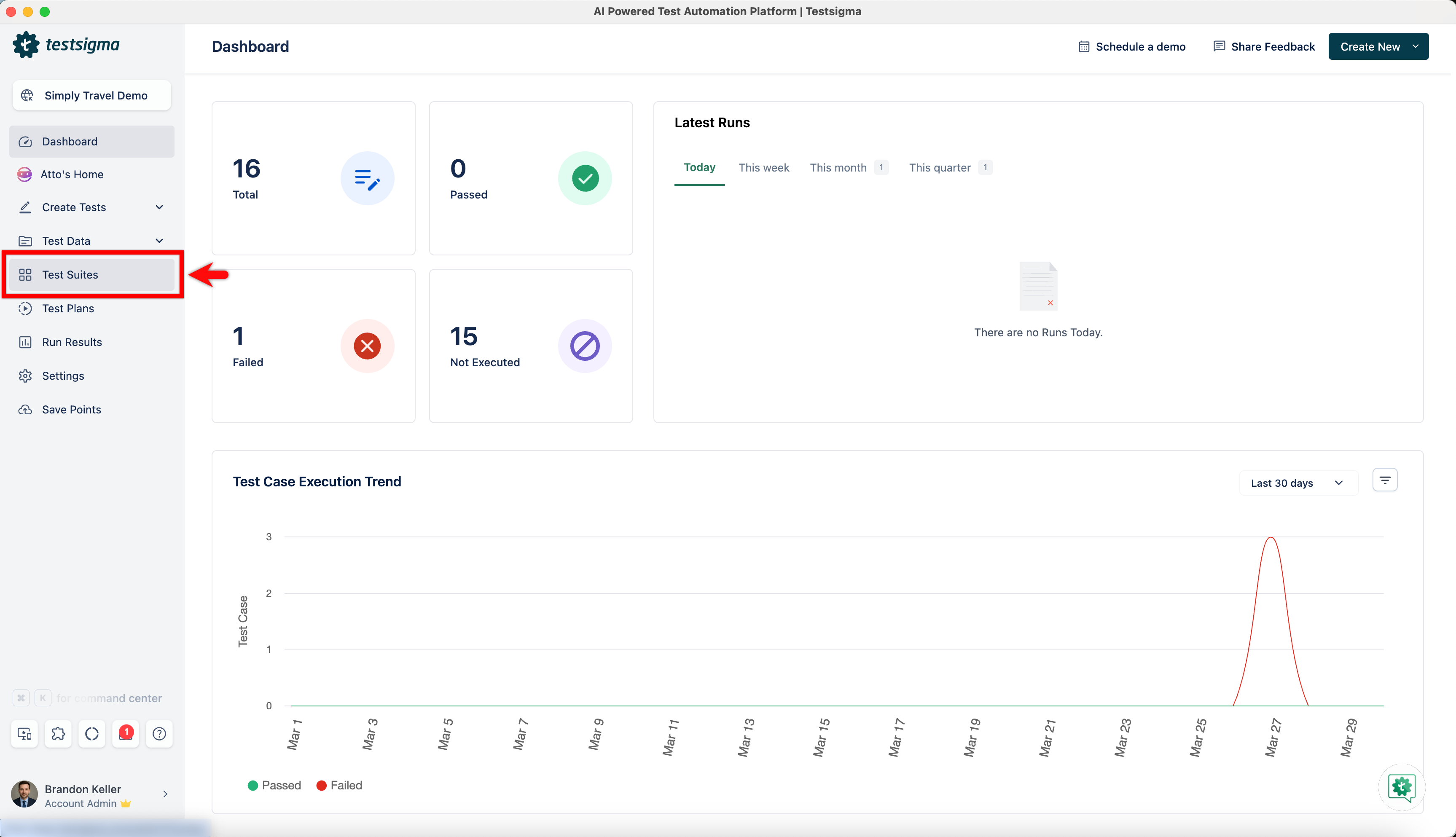
From the left navigation bar, navigate to Test Suites.
-
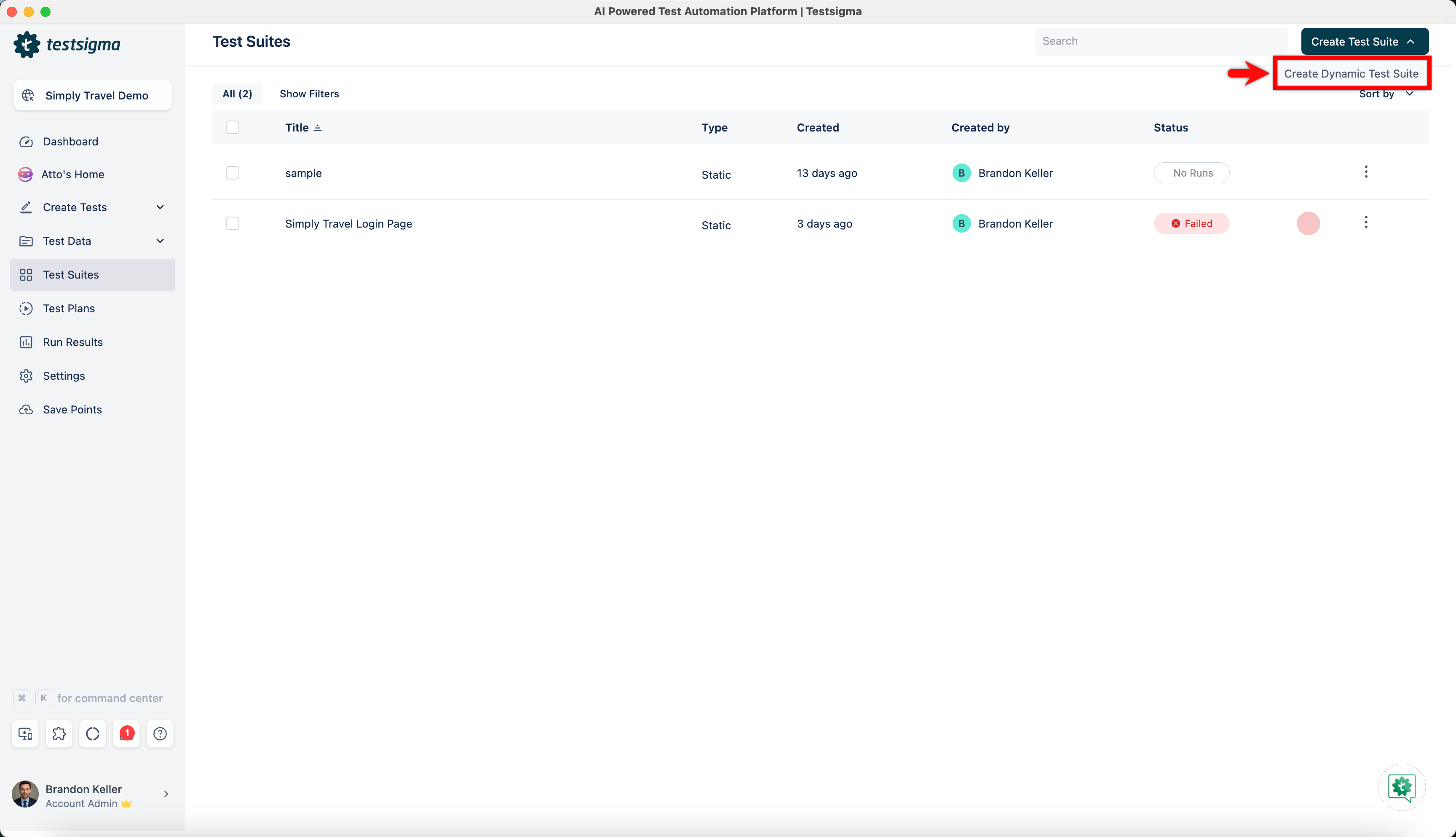
Expand Create Test Suite and click Create Dynamic Test Suite.
-
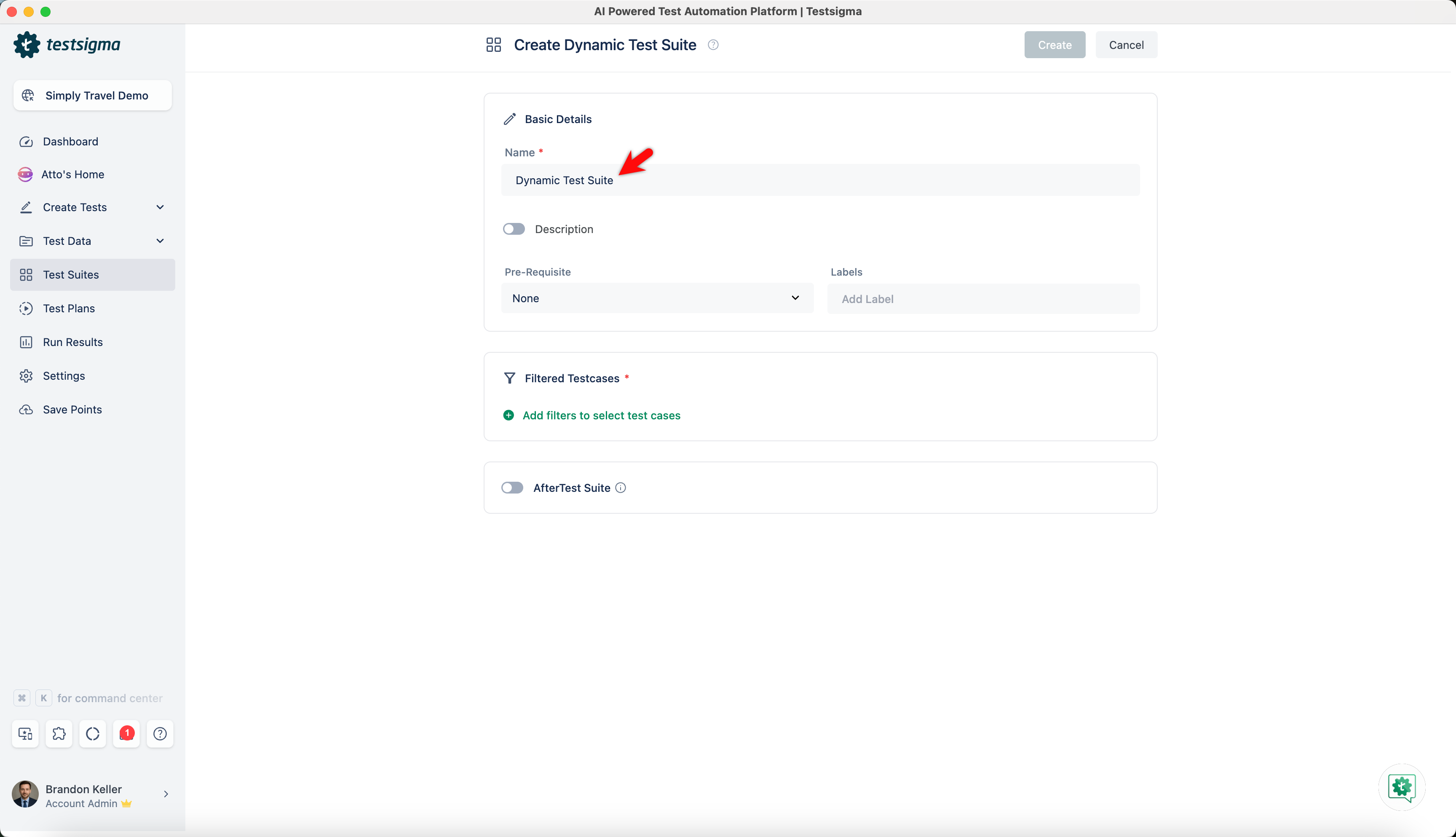
In the Basic Details section, enter a name in the Name field
-
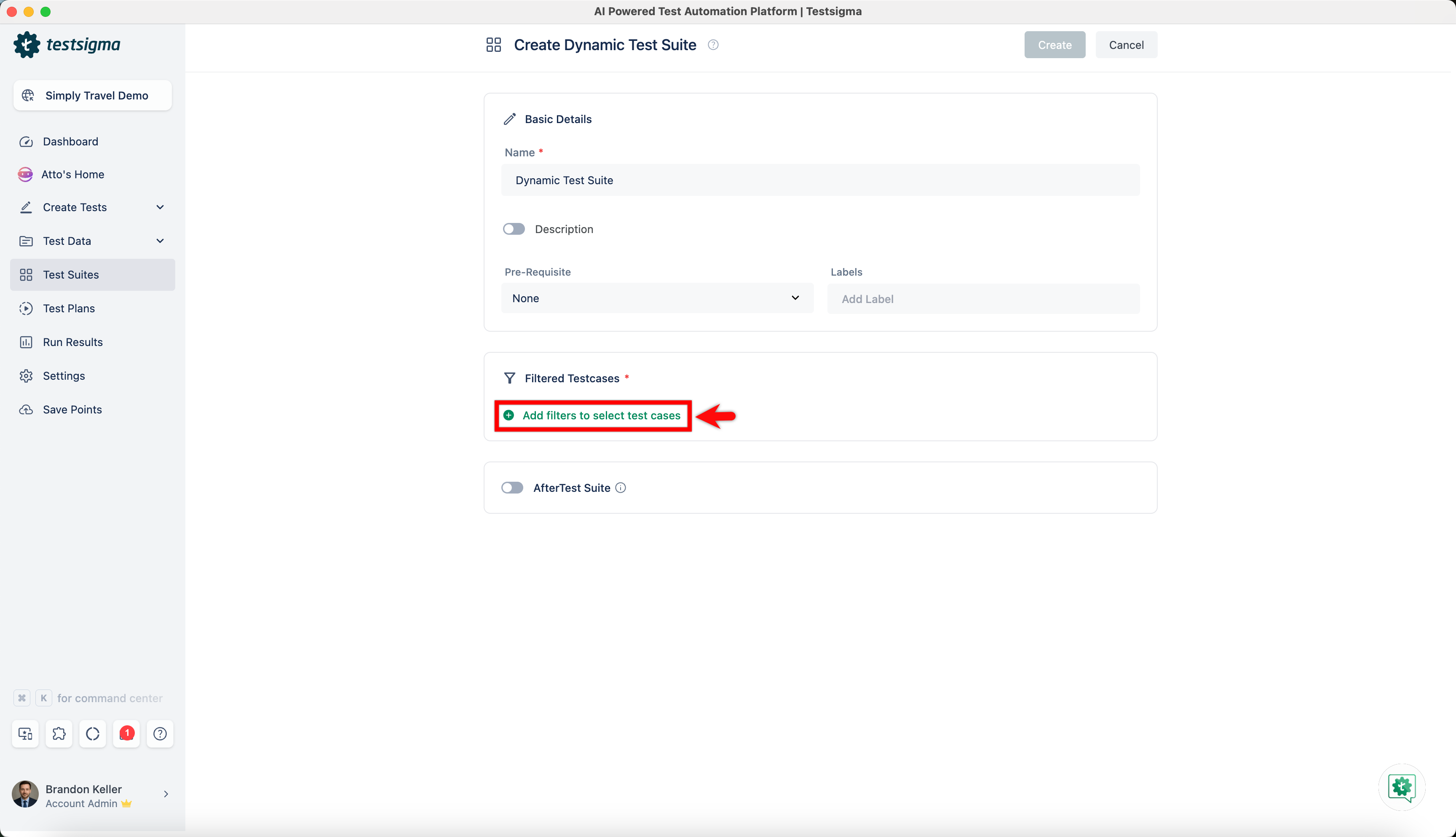
In the Filtered Testcases section, click Add filters to select test cases.
-
In the Add/Remove filters to select test cases screen, expand Add Filters and select the required filters.
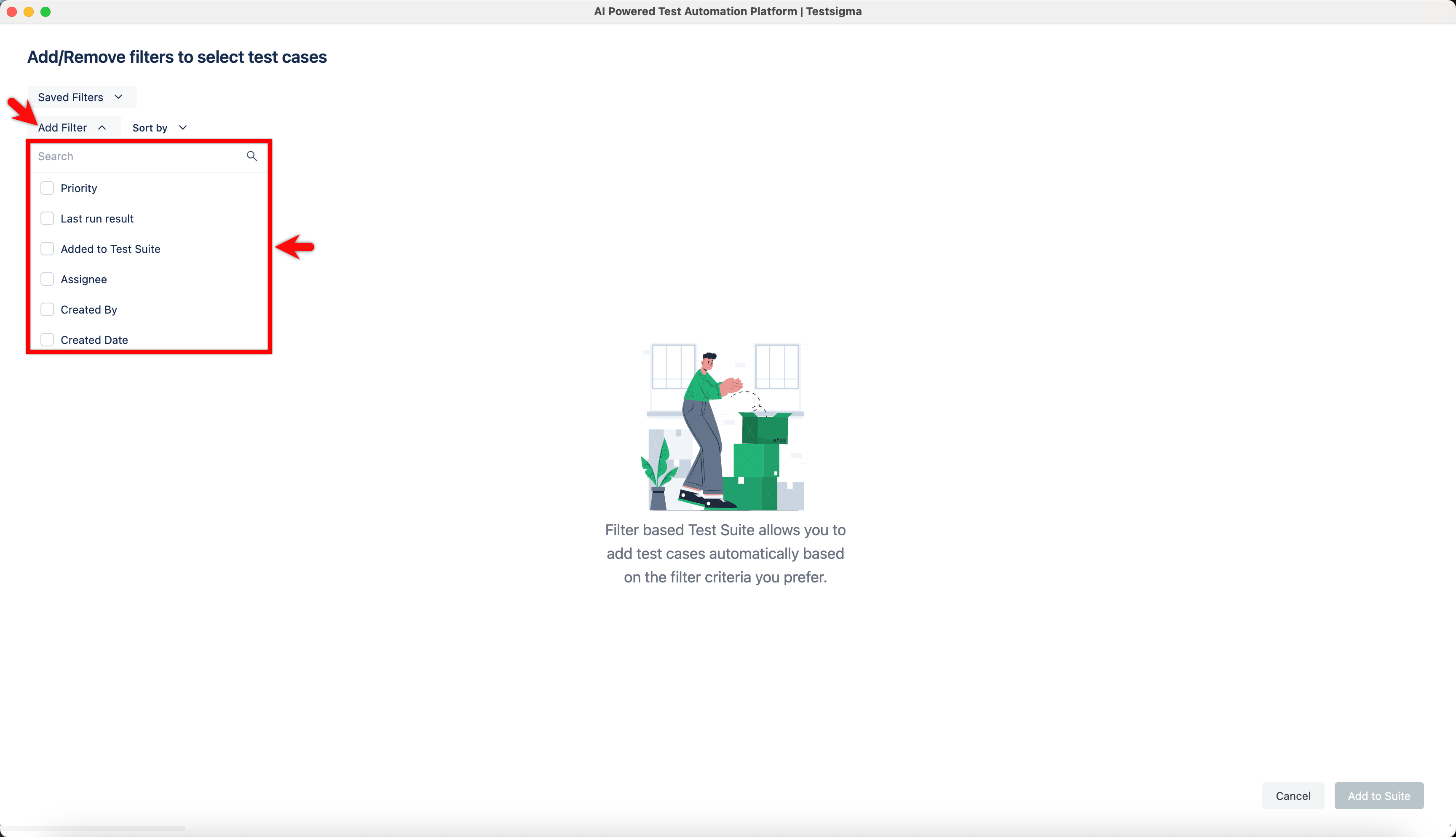
The system automatically selects test cases based on the applied filters.
-
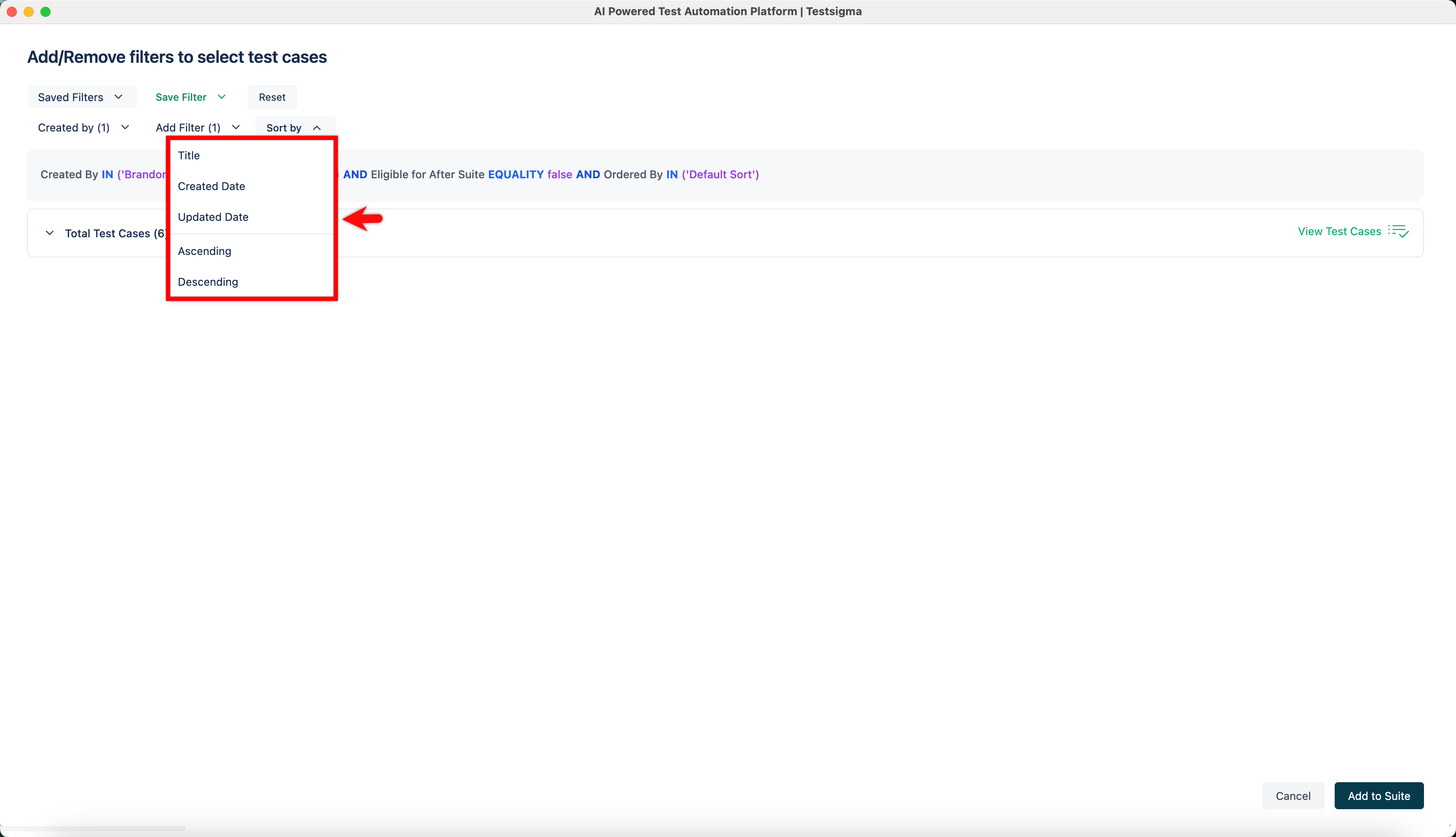
Once the test cases are filtered, expand Sort by to arrange them as needed.
-
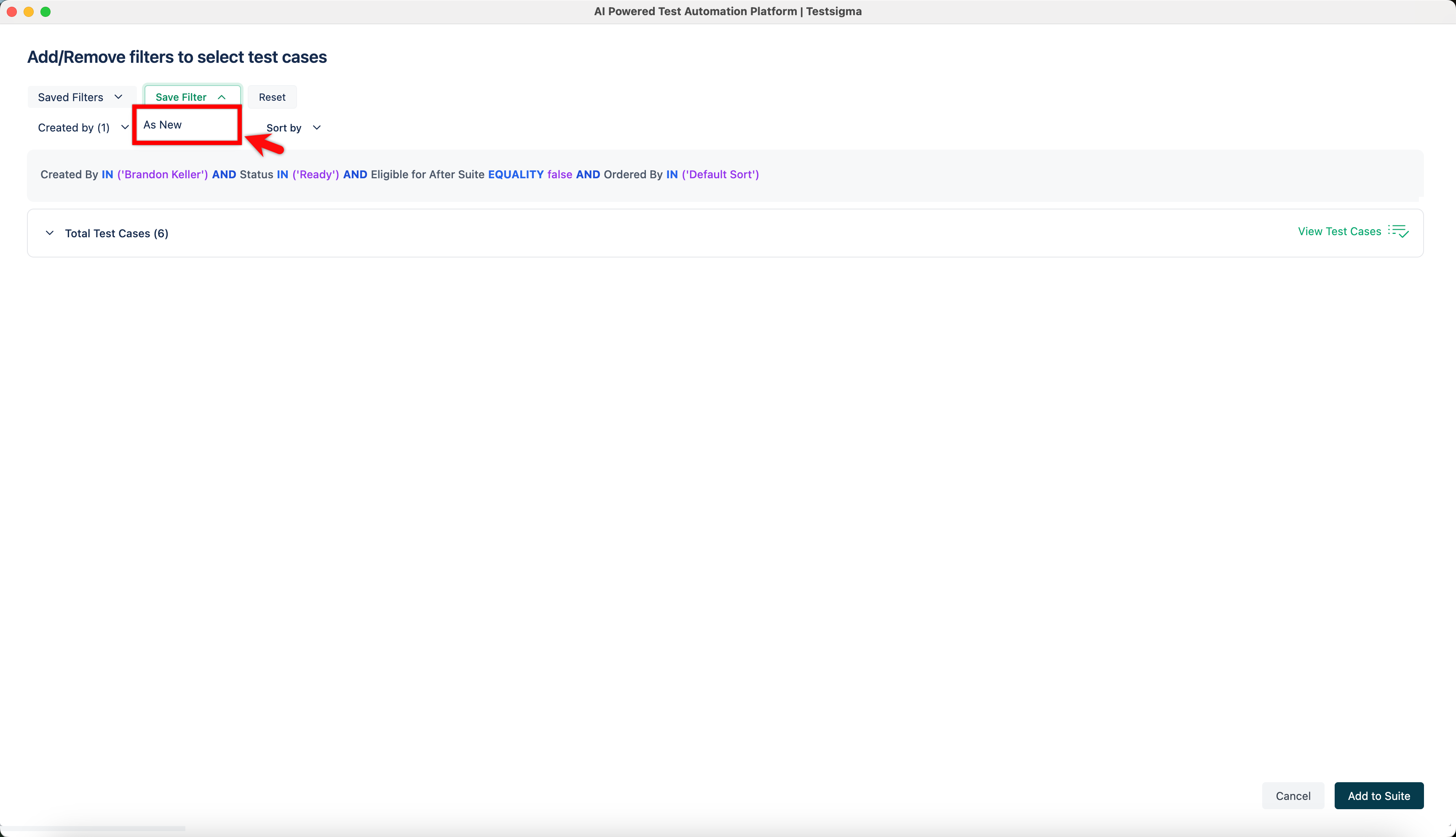
After filtering and sorting the test cases, expand Save Filter and select As New.
-
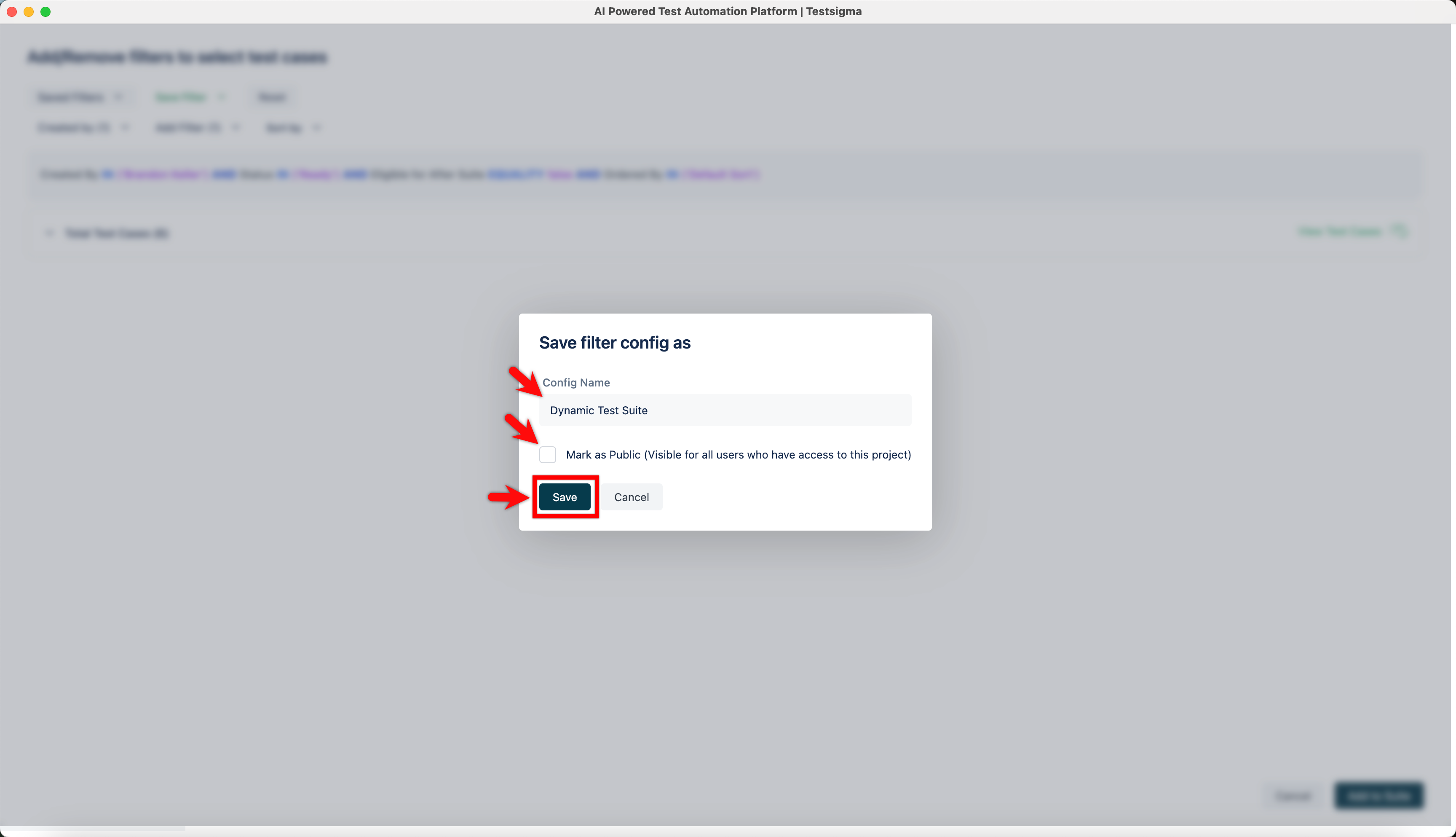
In the Save filter config as dialog, enter the name for the filter, select the Mark as Public checkbox if required, and click Save.
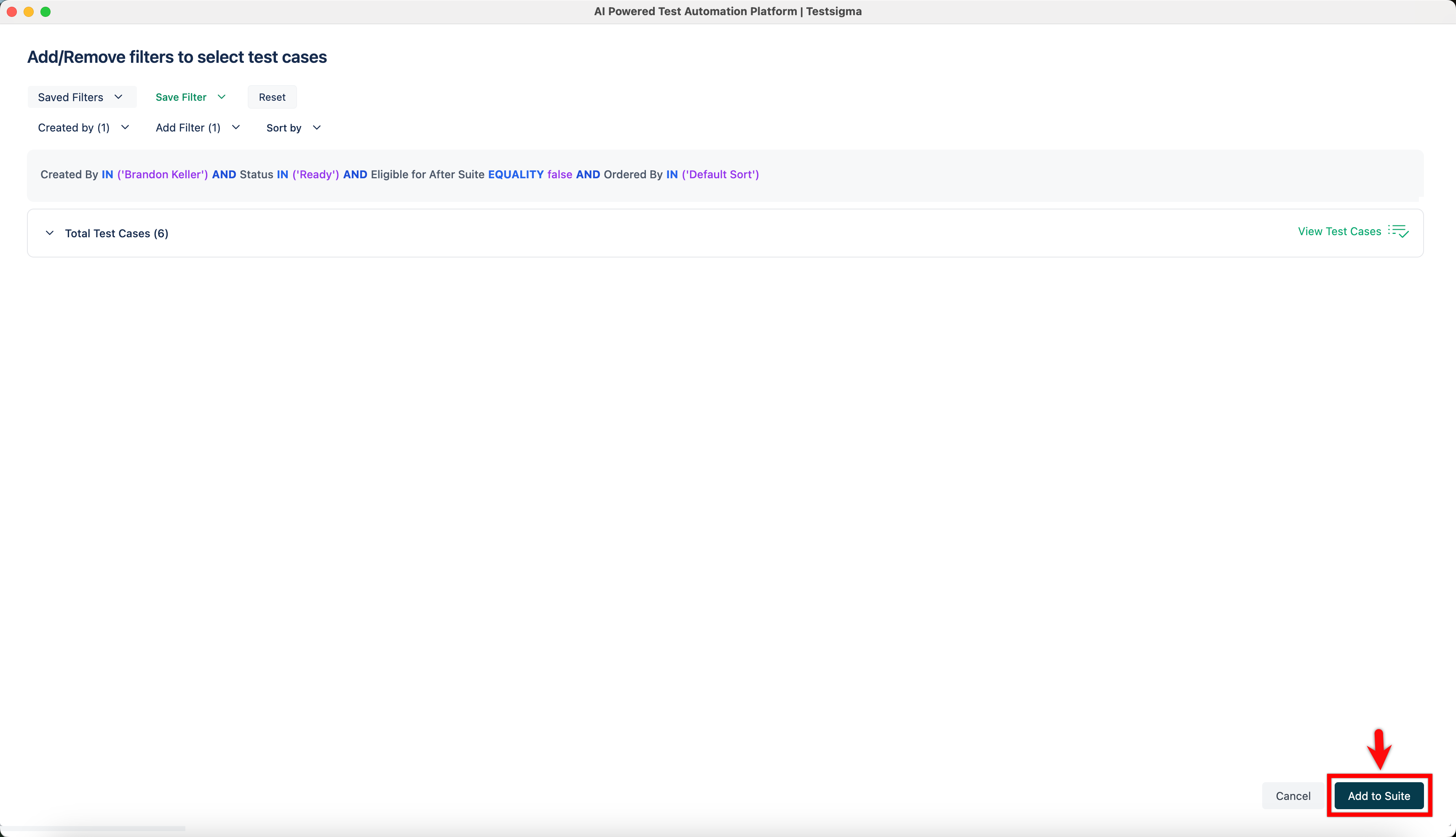
- Click Add to Suite.
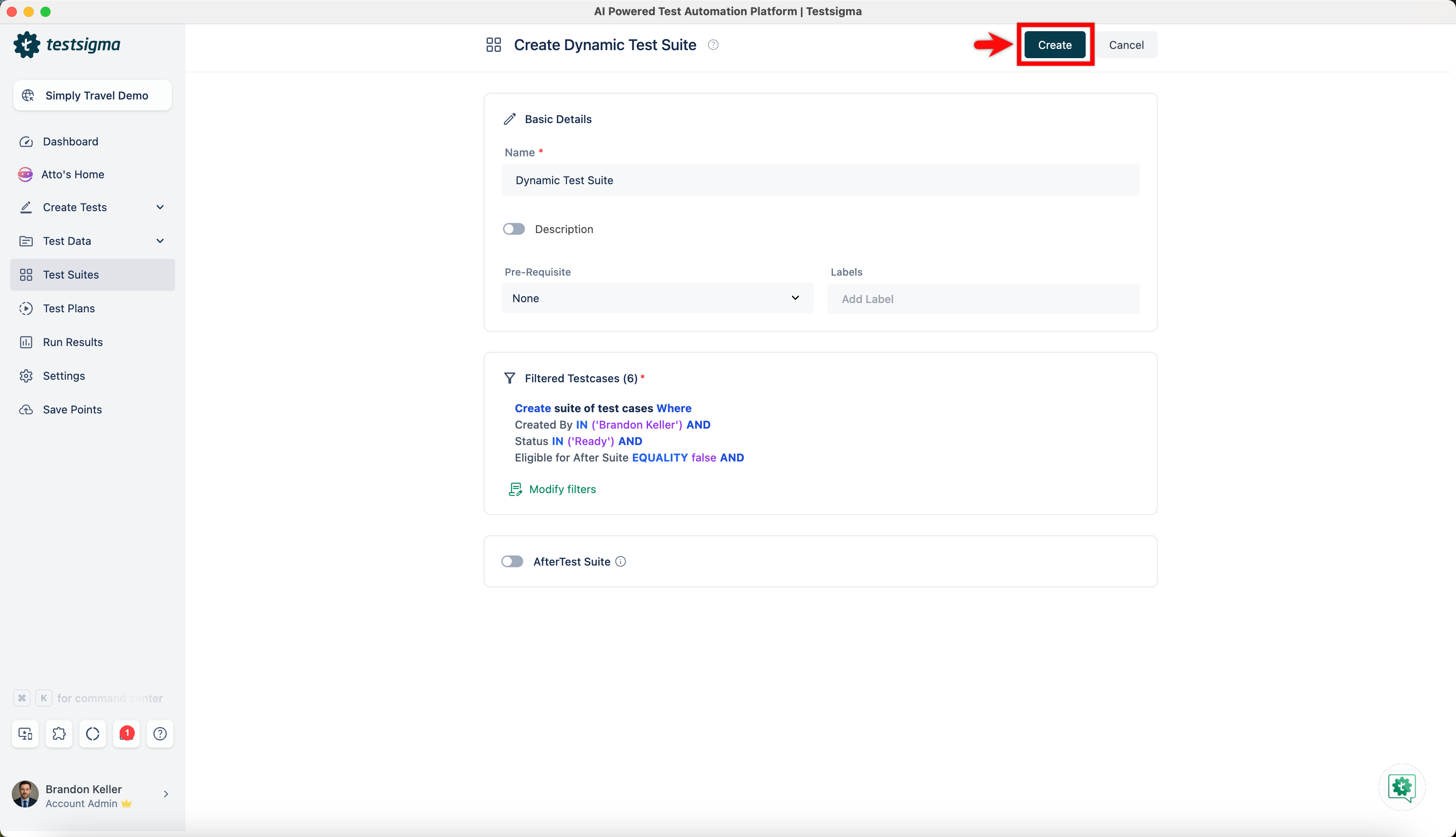
- Click Create.
Edit a Dynamic Test Suite
Section titled “Edit a Dynamic Test Suite”-
From the left navigation bar, navigate to Test Suites.
-
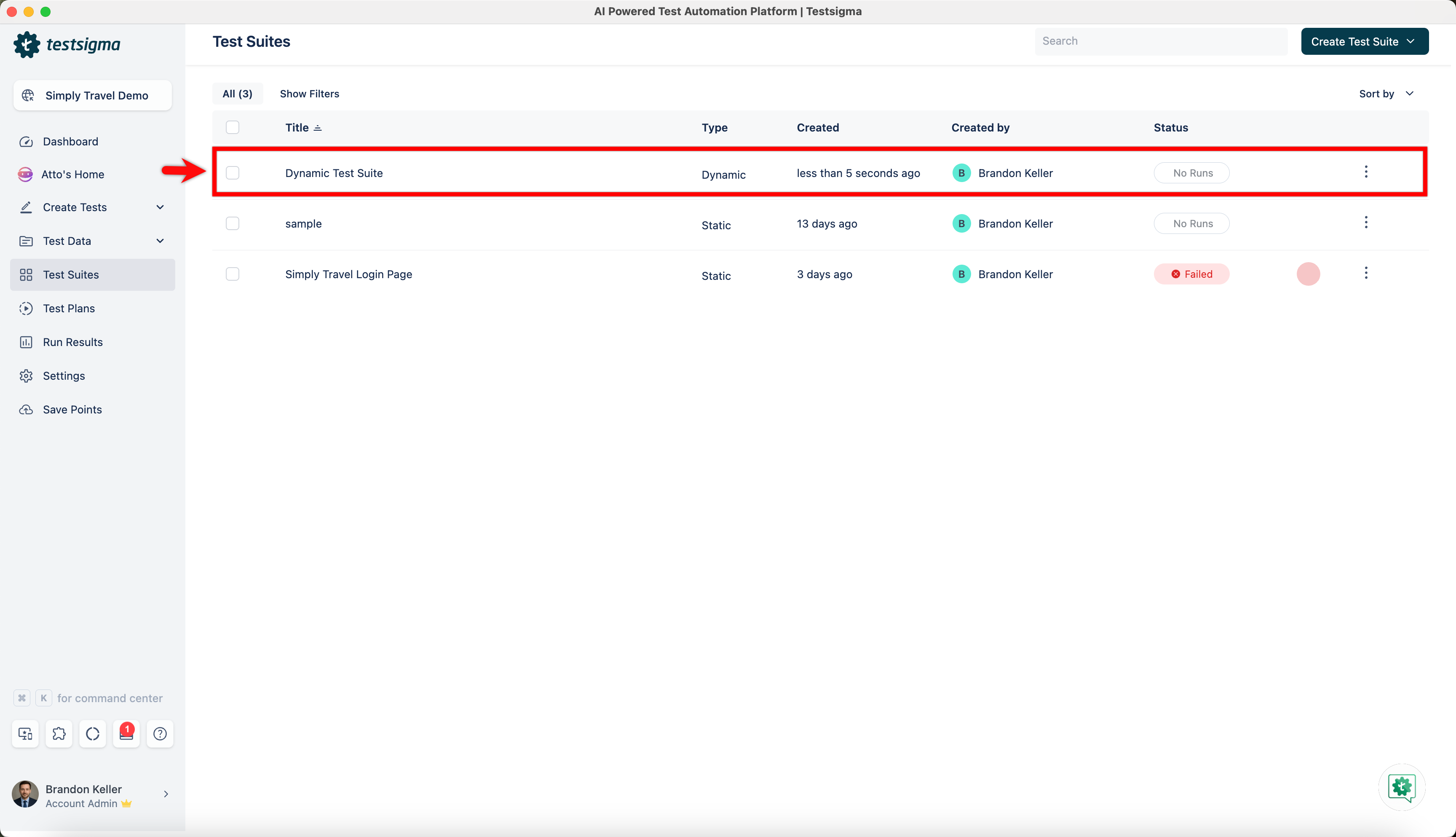
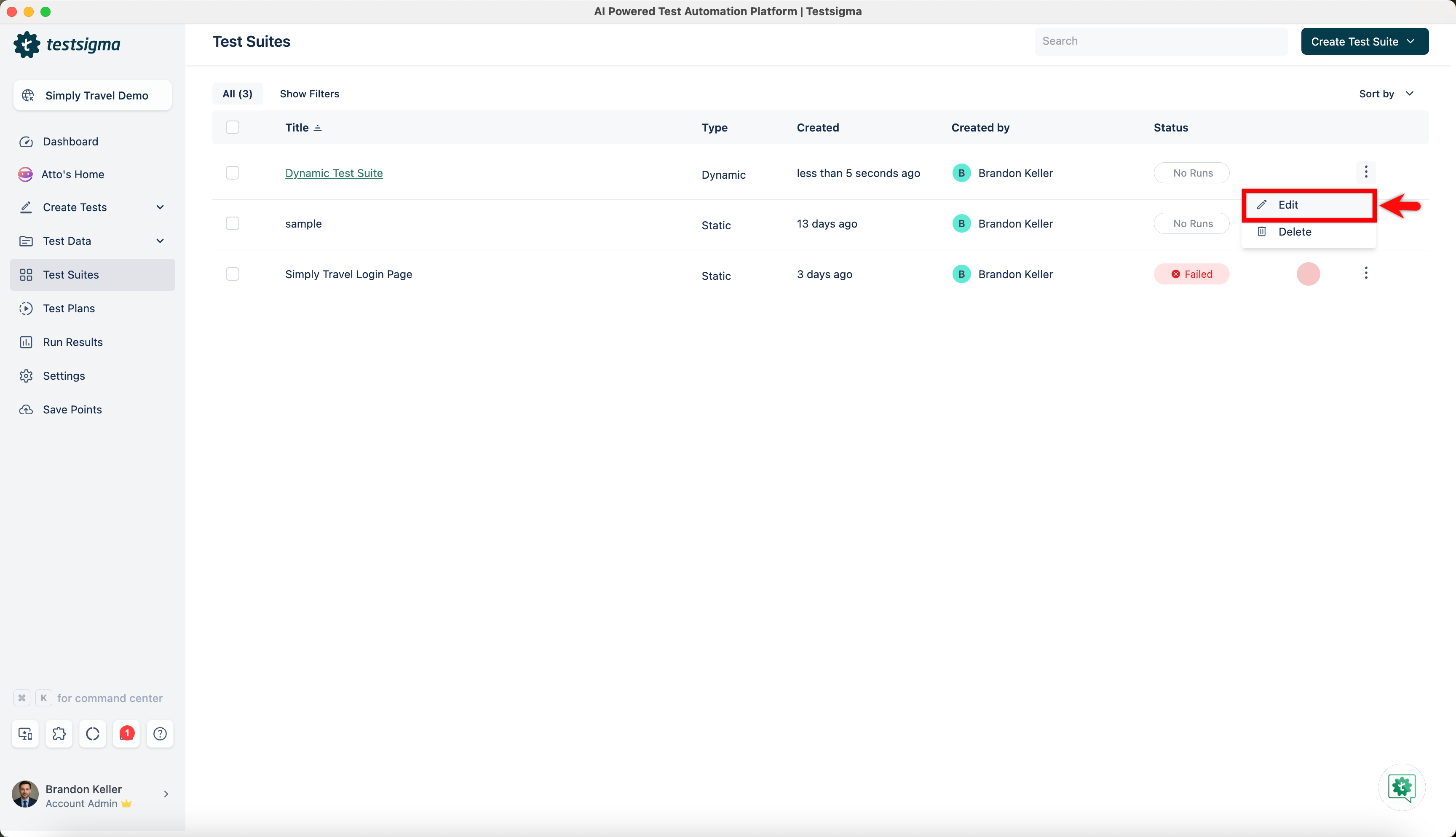
In the Test Suites screen, locate the dynamic test suite you want to edit.
-
Click the ellipsis icon next to the test suite and select Edit.
-
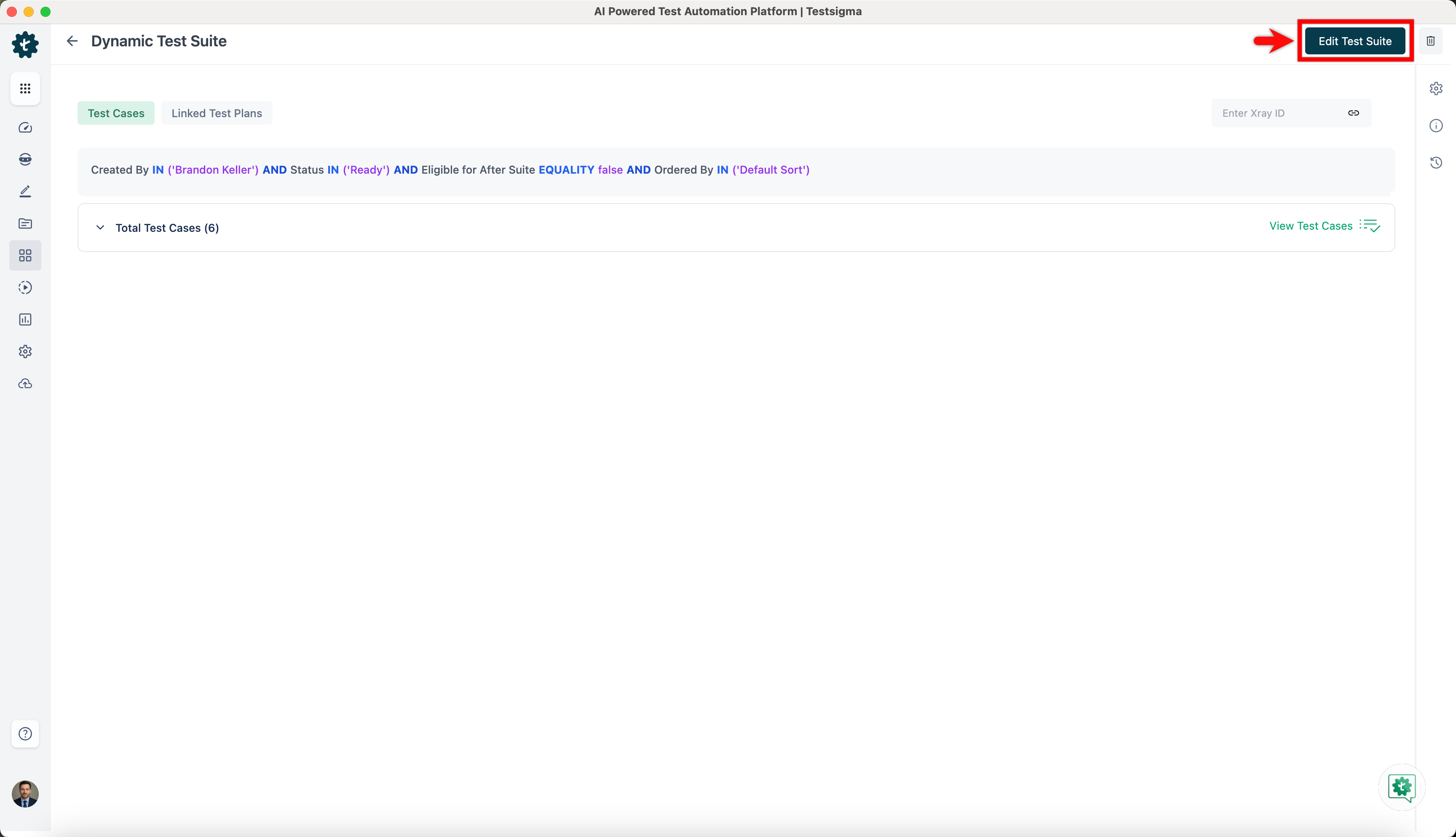
Click Edit Test Suite.
-
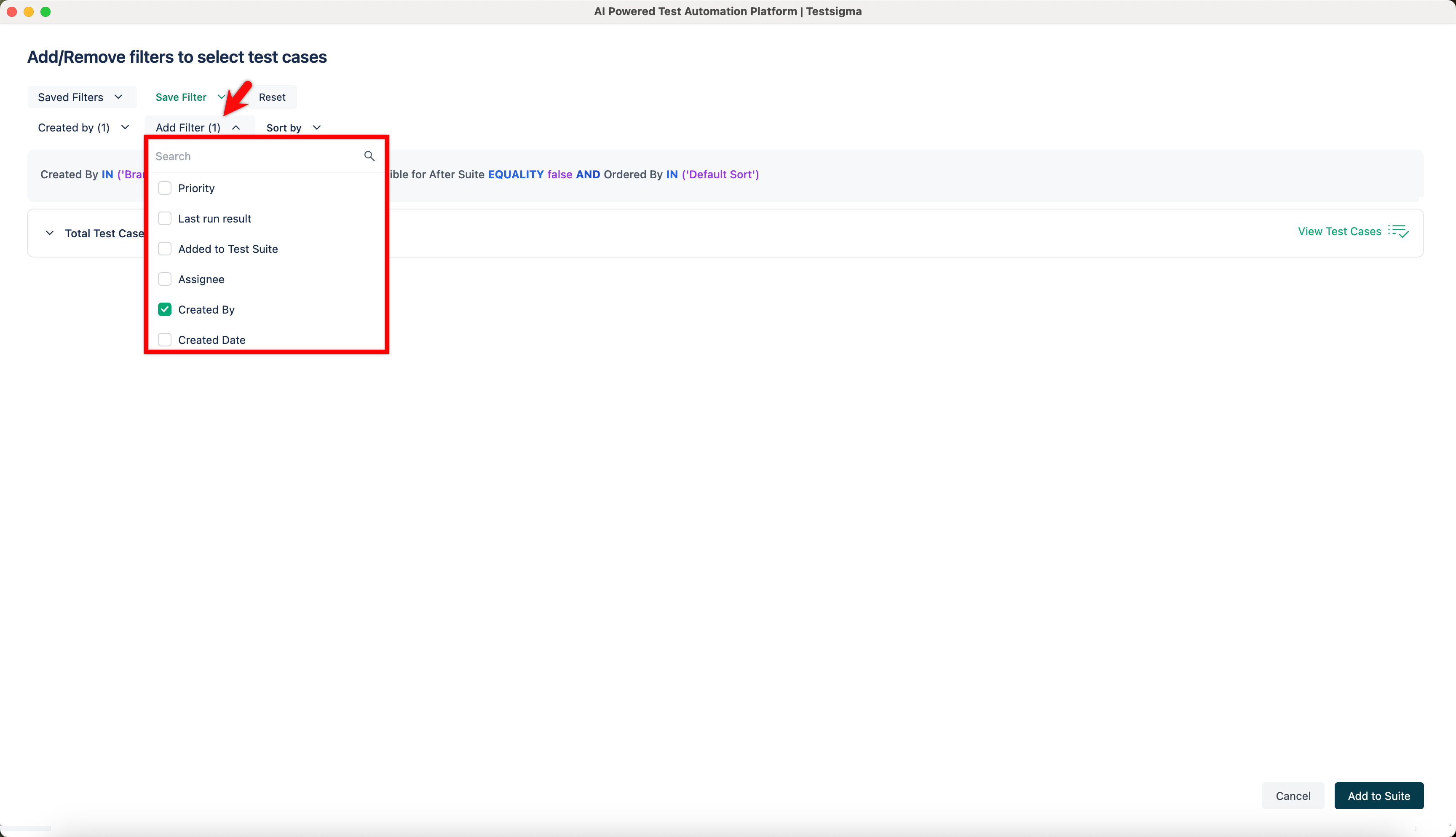
In the Add/Remove filters to select test cases screen, expand Add filters and select the required filters.
-
After modifying the filters, expand Save Filter and choose one of the following:
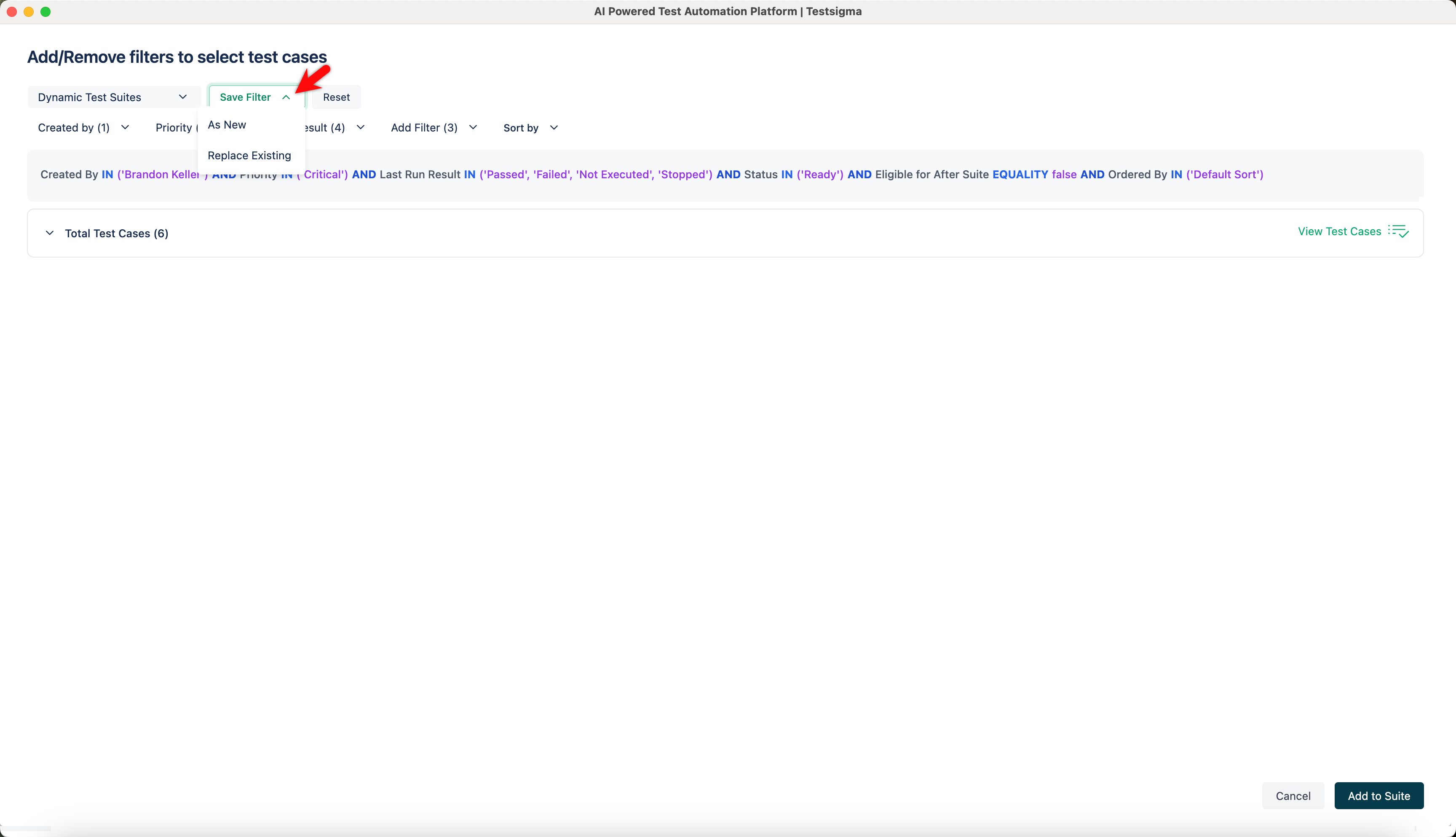
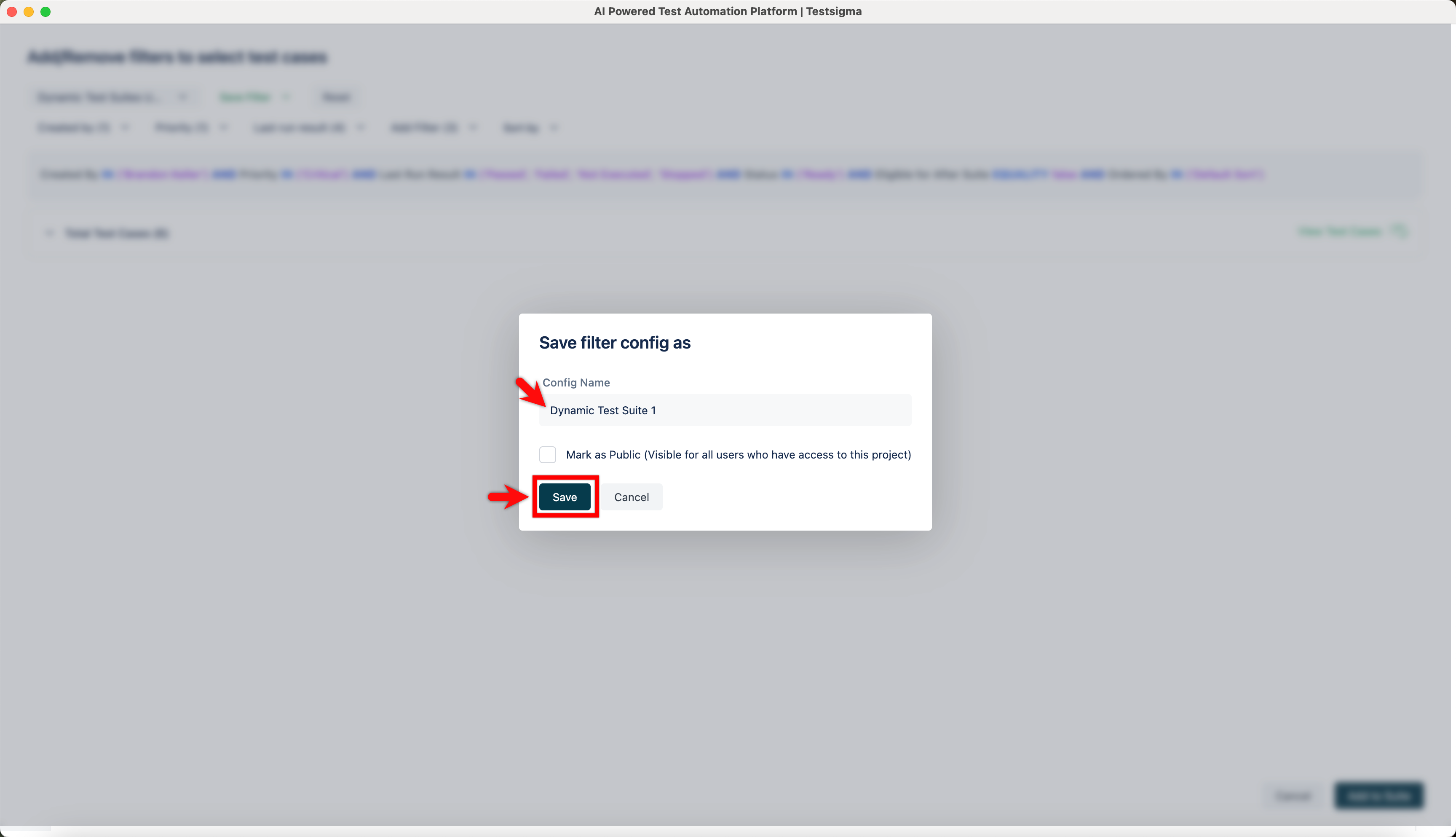
As New: Opens the Save filter Config as dialog. Enter a name for the new filter and click Save.
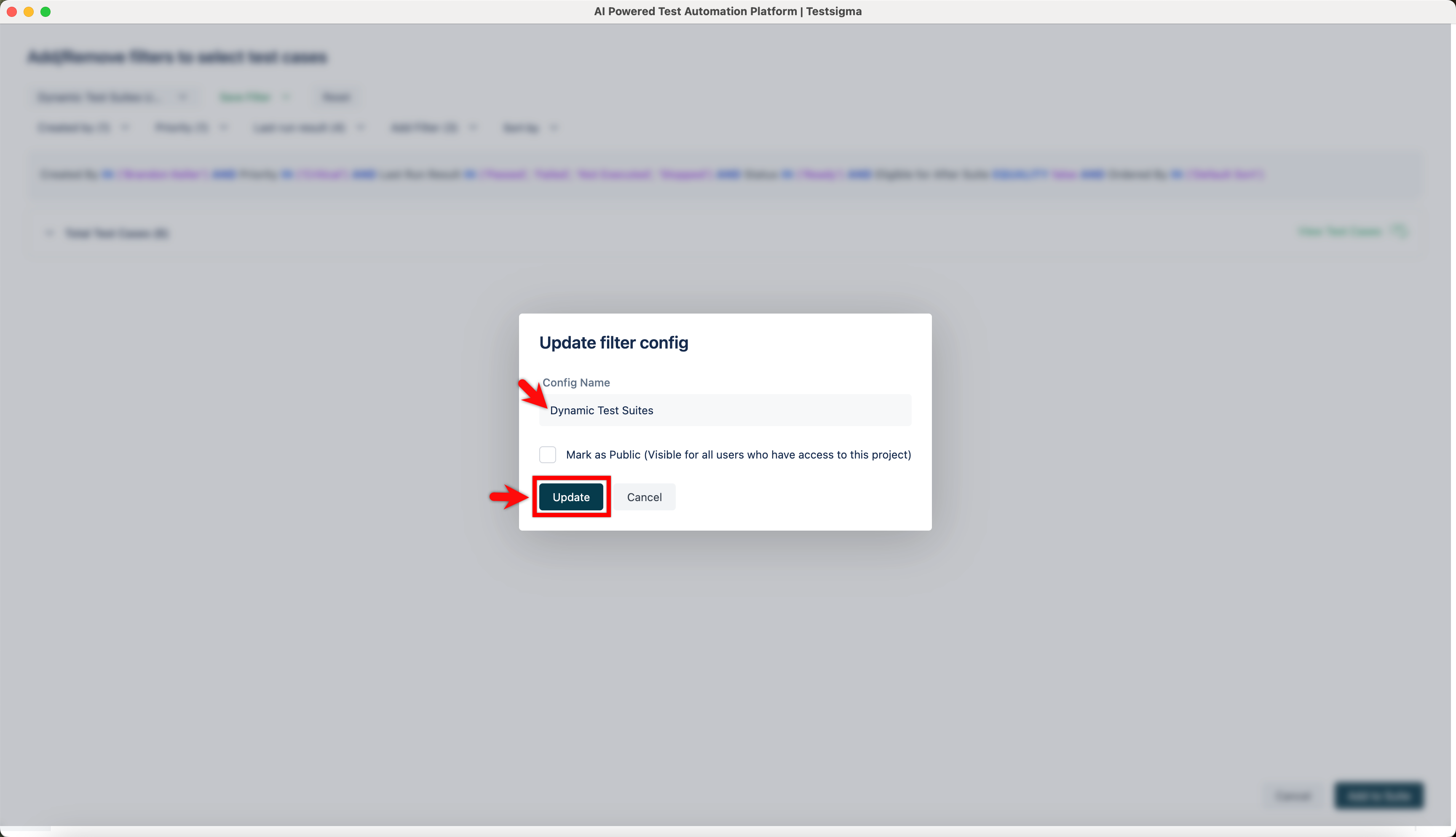
Replace Existing: Opens the Update filter config dialog. Edit the name if needed and click Save
-
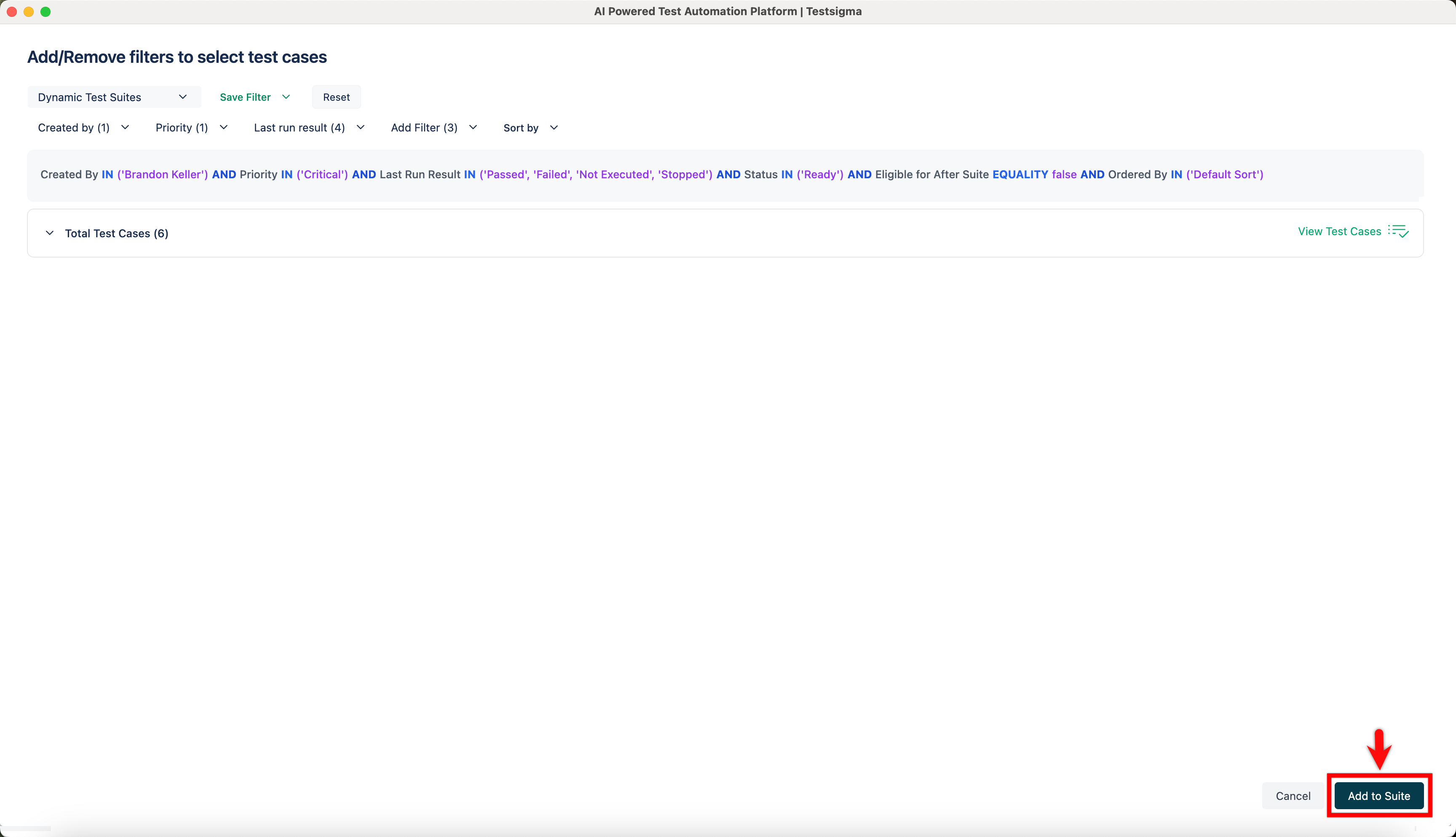
Click Add to Suite.
Delete a Dynamic Test Suite
Section titled “Delete a Dynamic Test Suite”-
From the left navigation bar, navigate to Test Suites.
-
In the Test Suites screen, locate the dynamic test suite you want to edit.
-
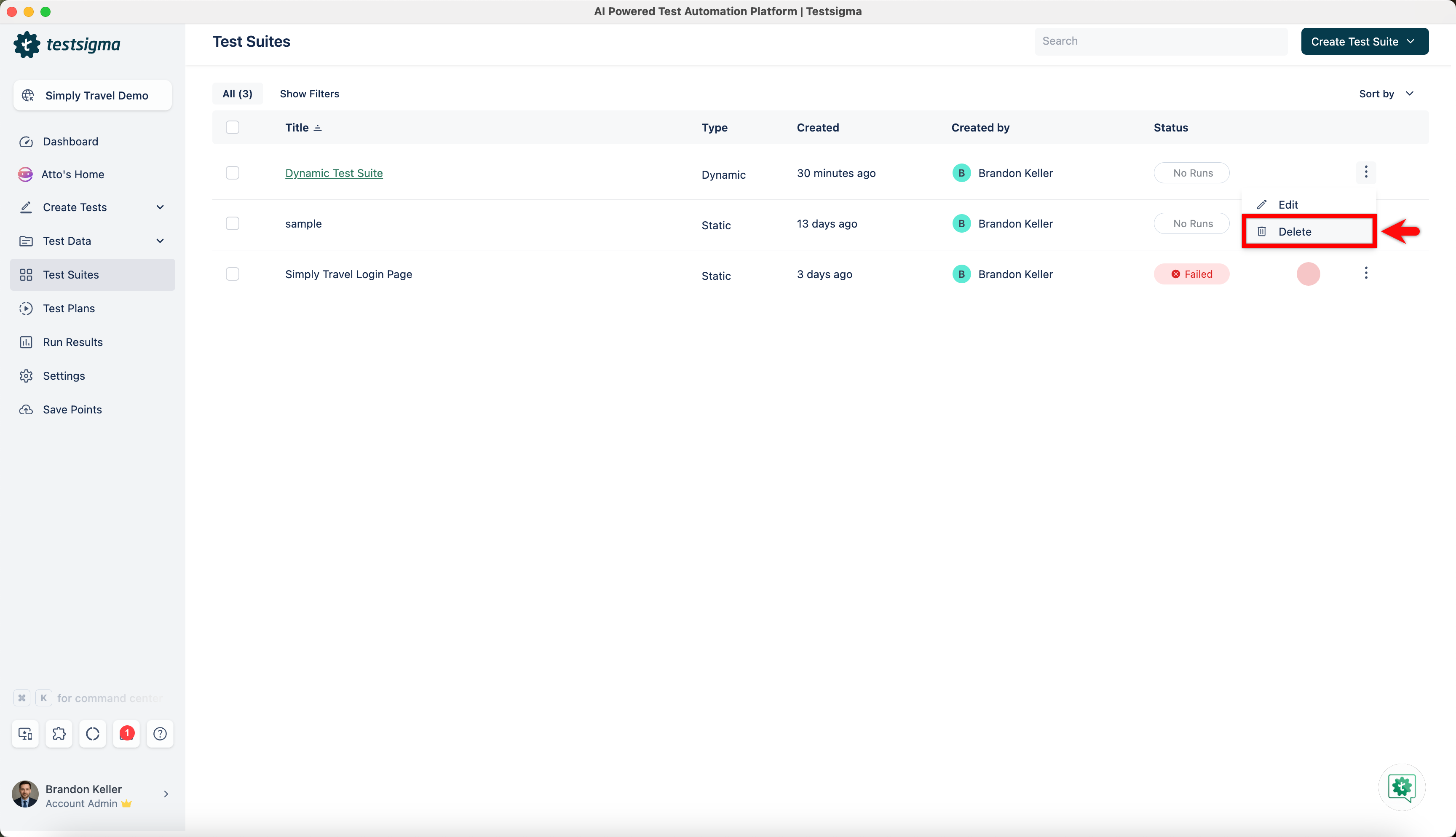
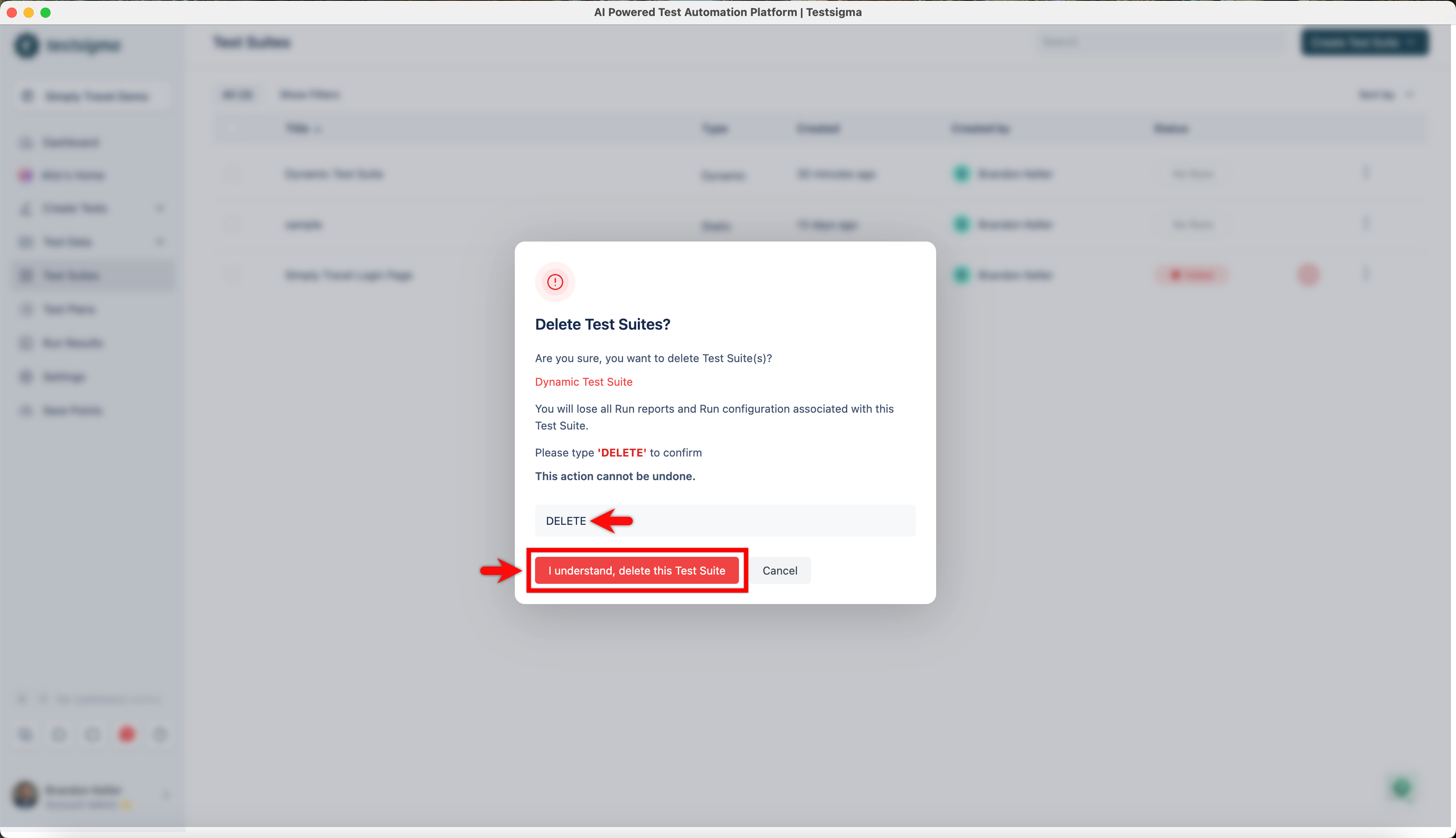
Click the ellipsis icon next to the test suite and select Delete.
- In the Delete Test Suites dialog, enter DELETE to confirm the deletion and then click on I understand, delete this Test Suite.
Add a Dynamic Test Suite to a Test Plan
Section titled “Add a Dynamic Test Suite to a Test Plan”-
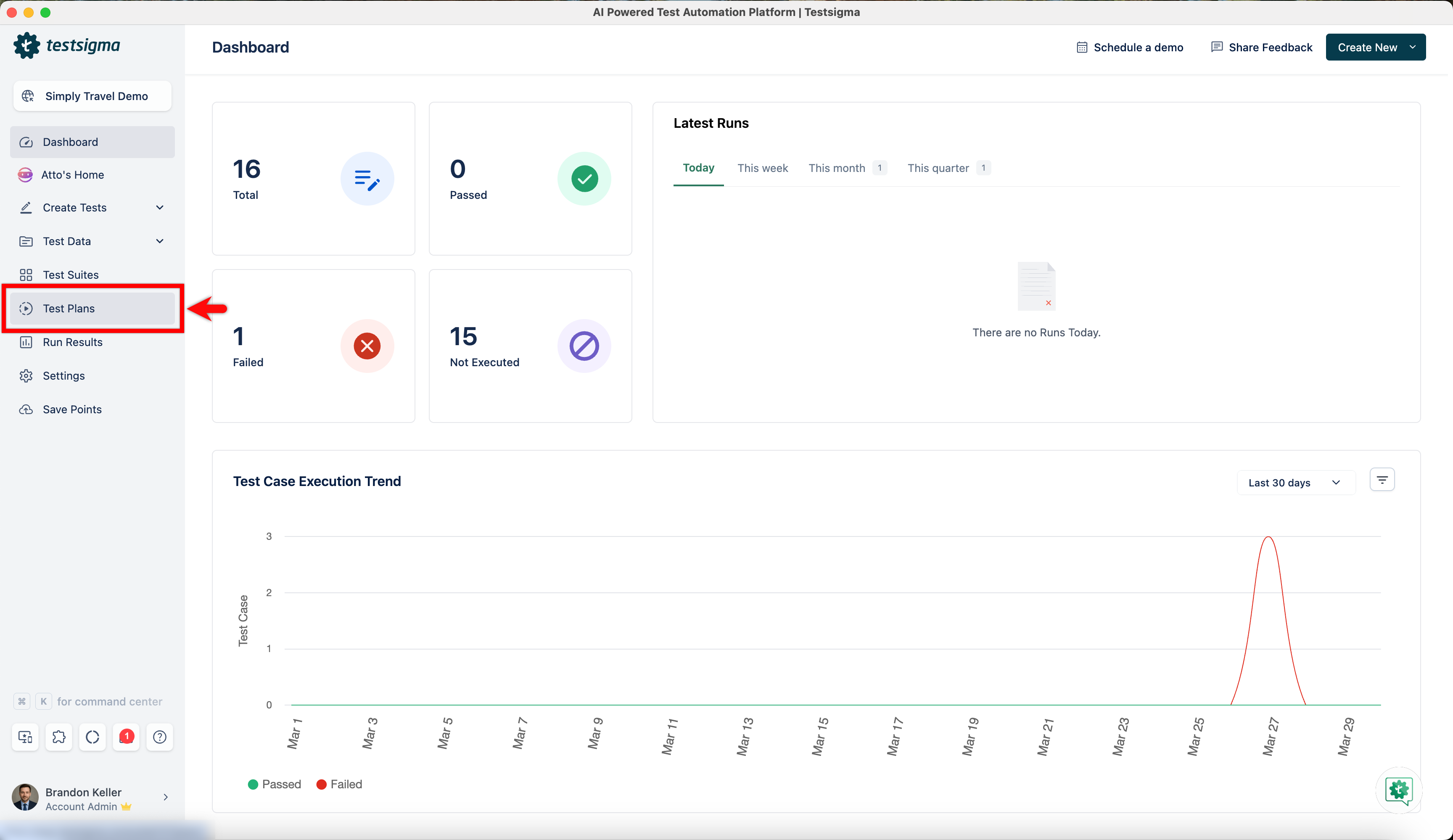
From the left navigation bar, navigate to Test Plans.
-
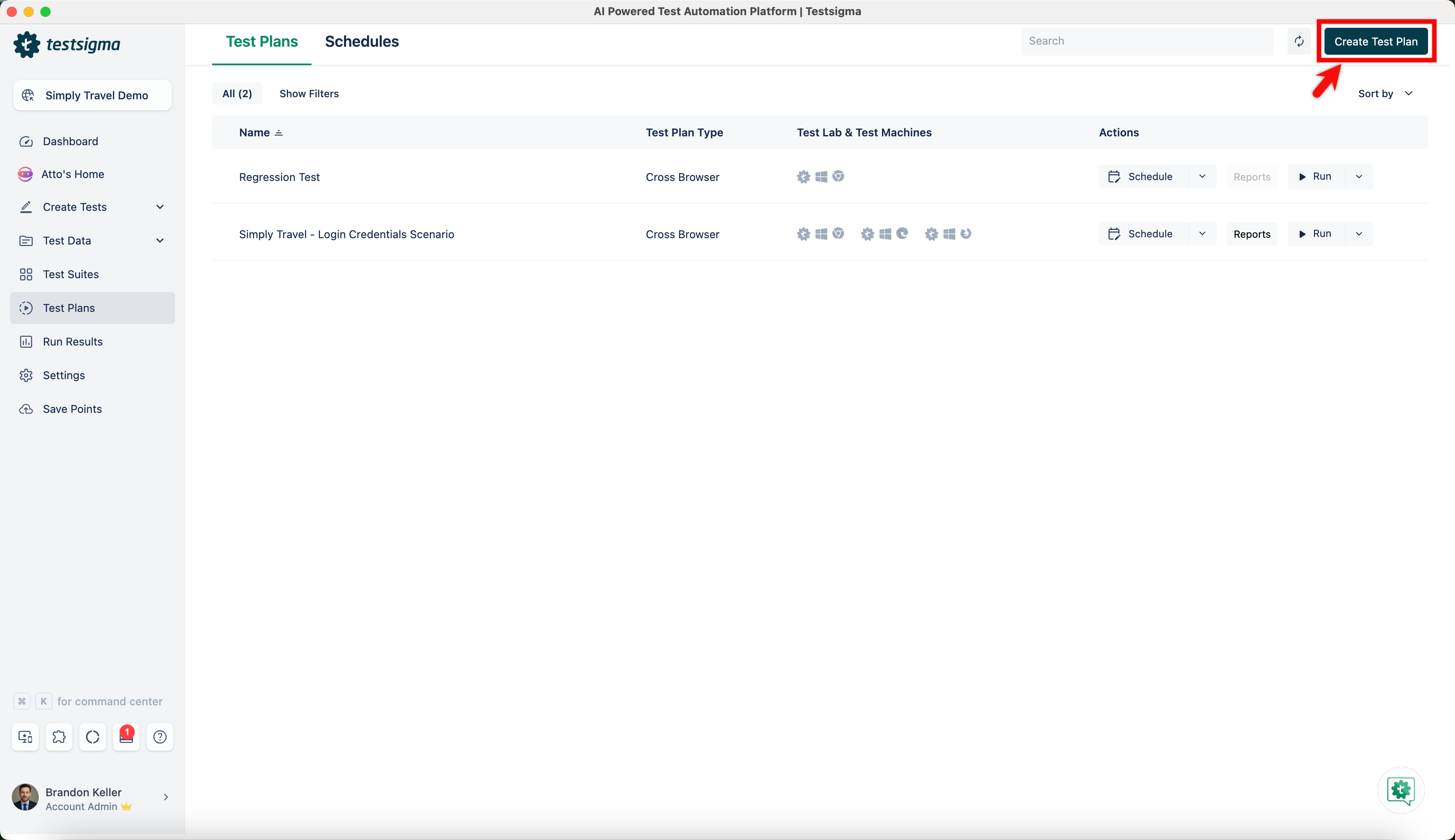
Click Create Test Plan.
-
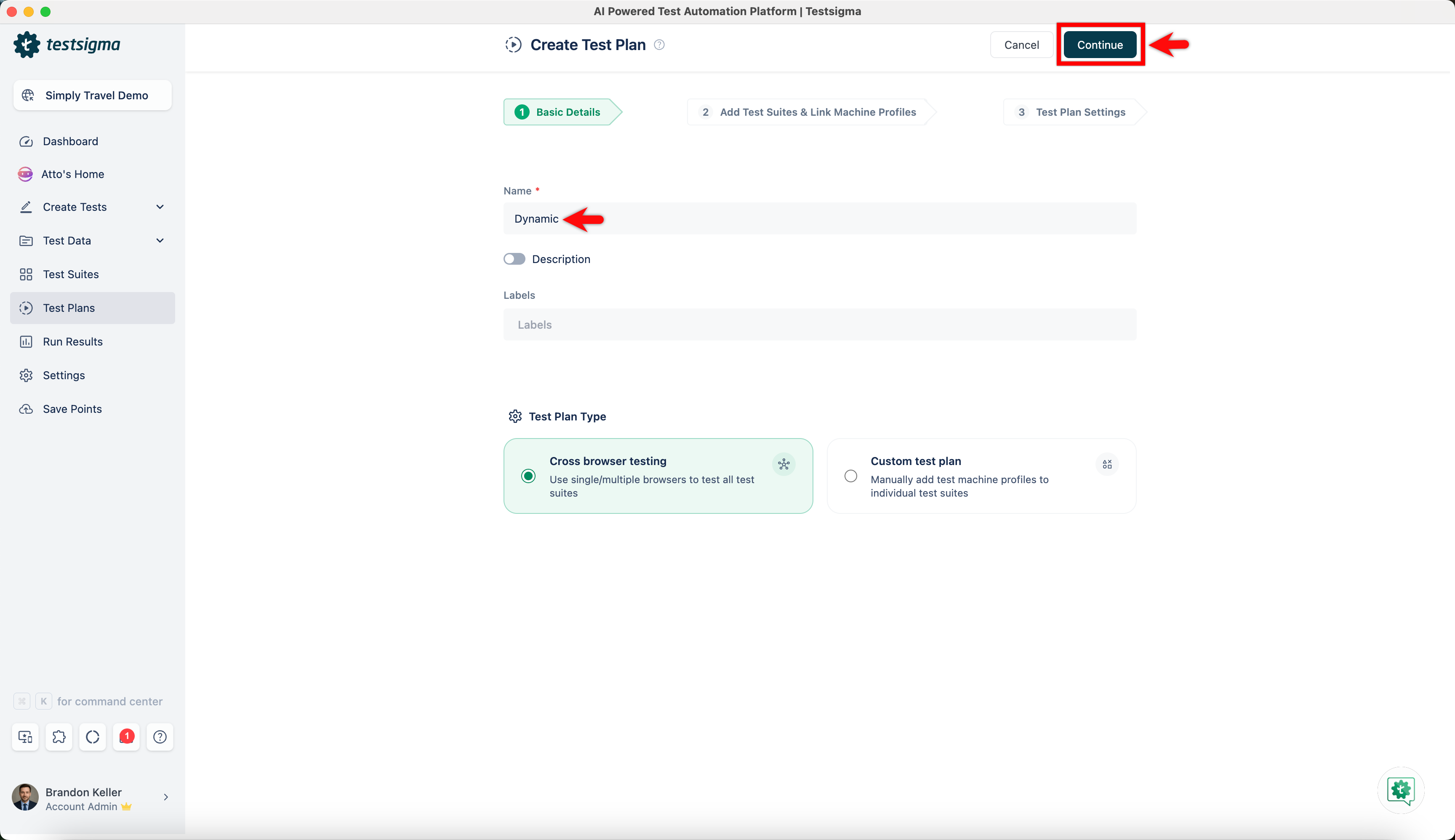
In the Basic Details tab, enter the required name for the test plan and click Continue.
-
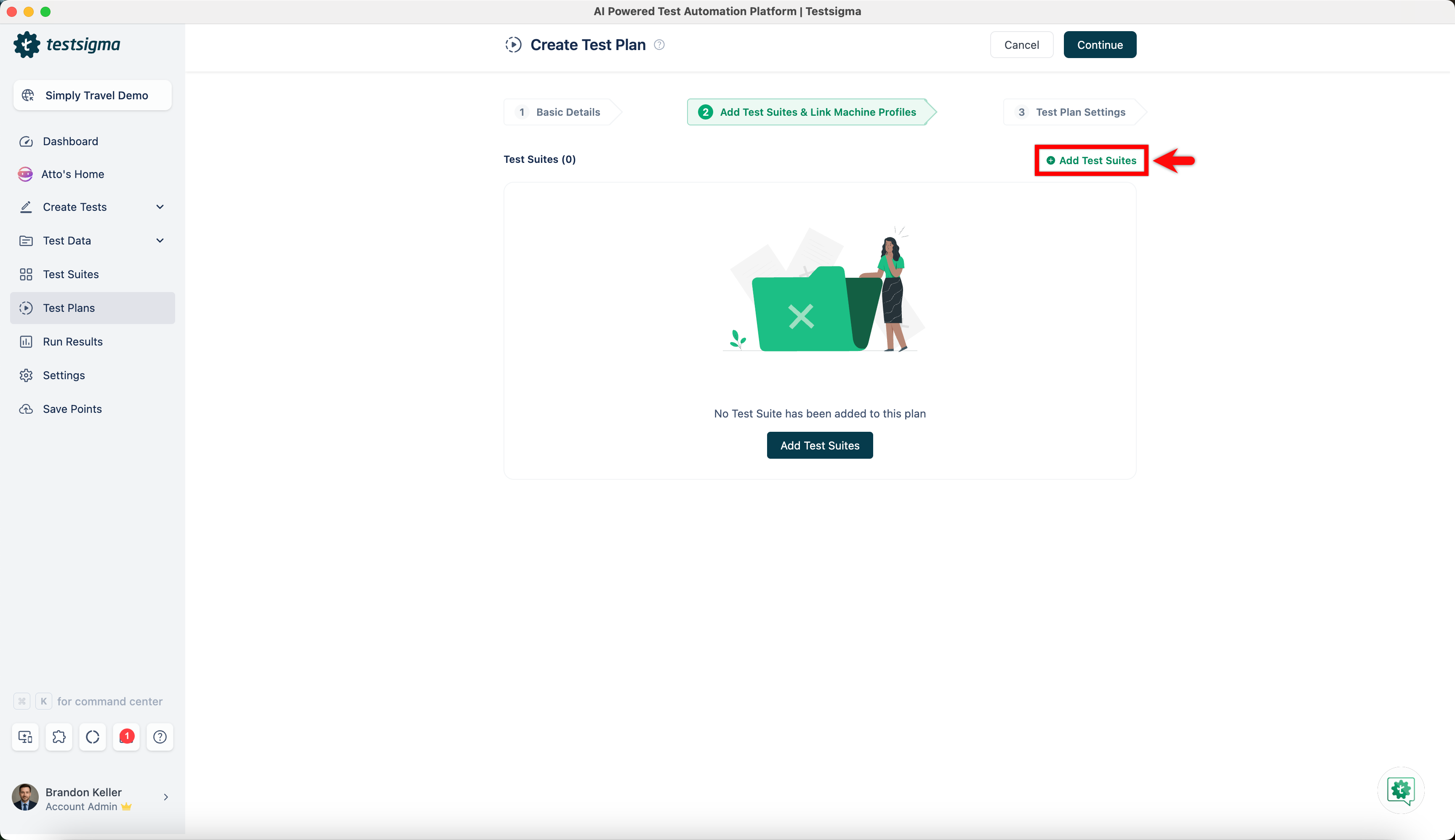
In the Add Test Suites & Link Machine Profiles tab, click + Add Test Suites.
-
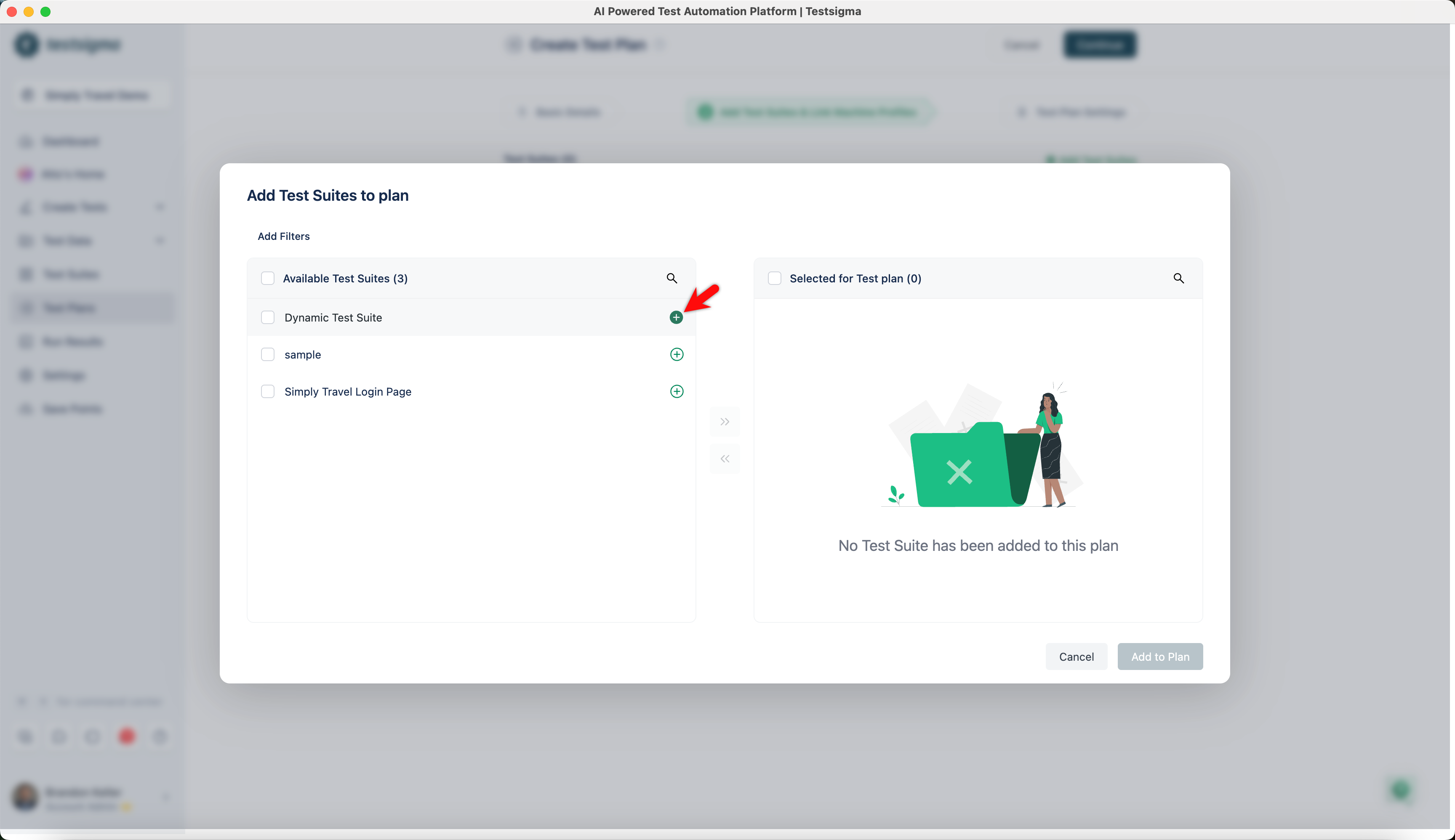
Click the + icon next to the newly created dynamic test case along with other required test cases.
-
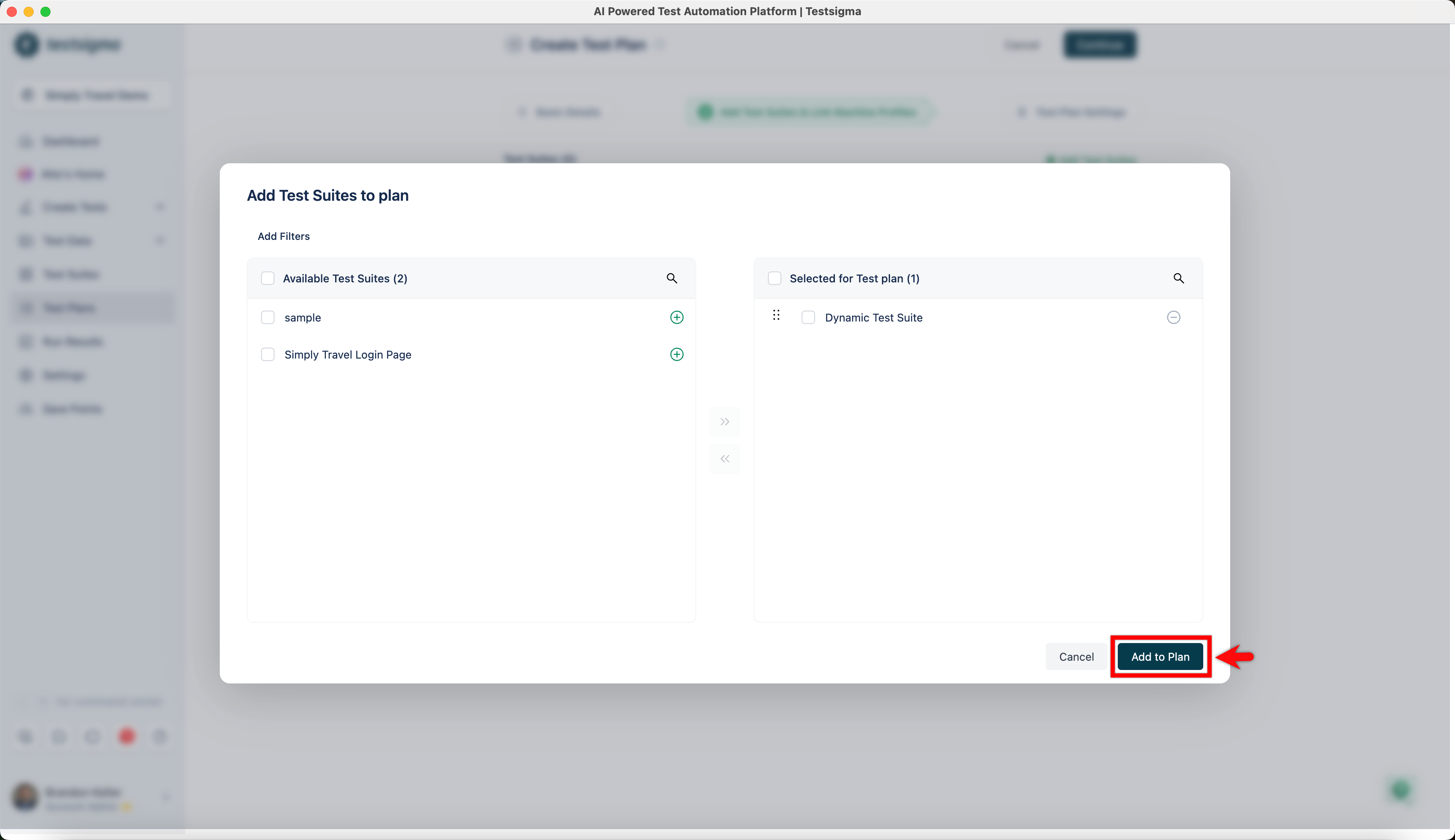
Click Add to Plan.
-
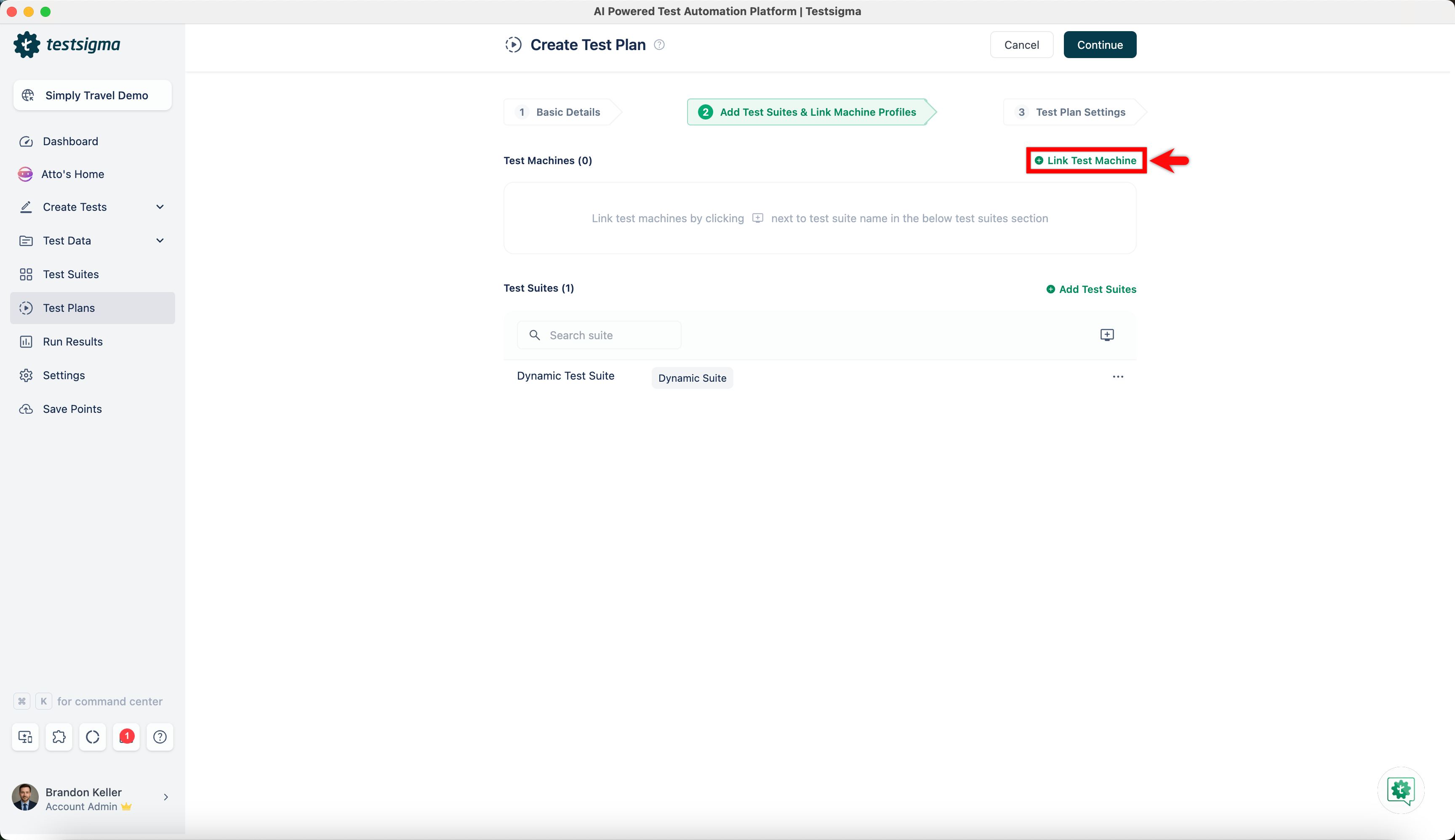
Click + Link Test Machine.
-
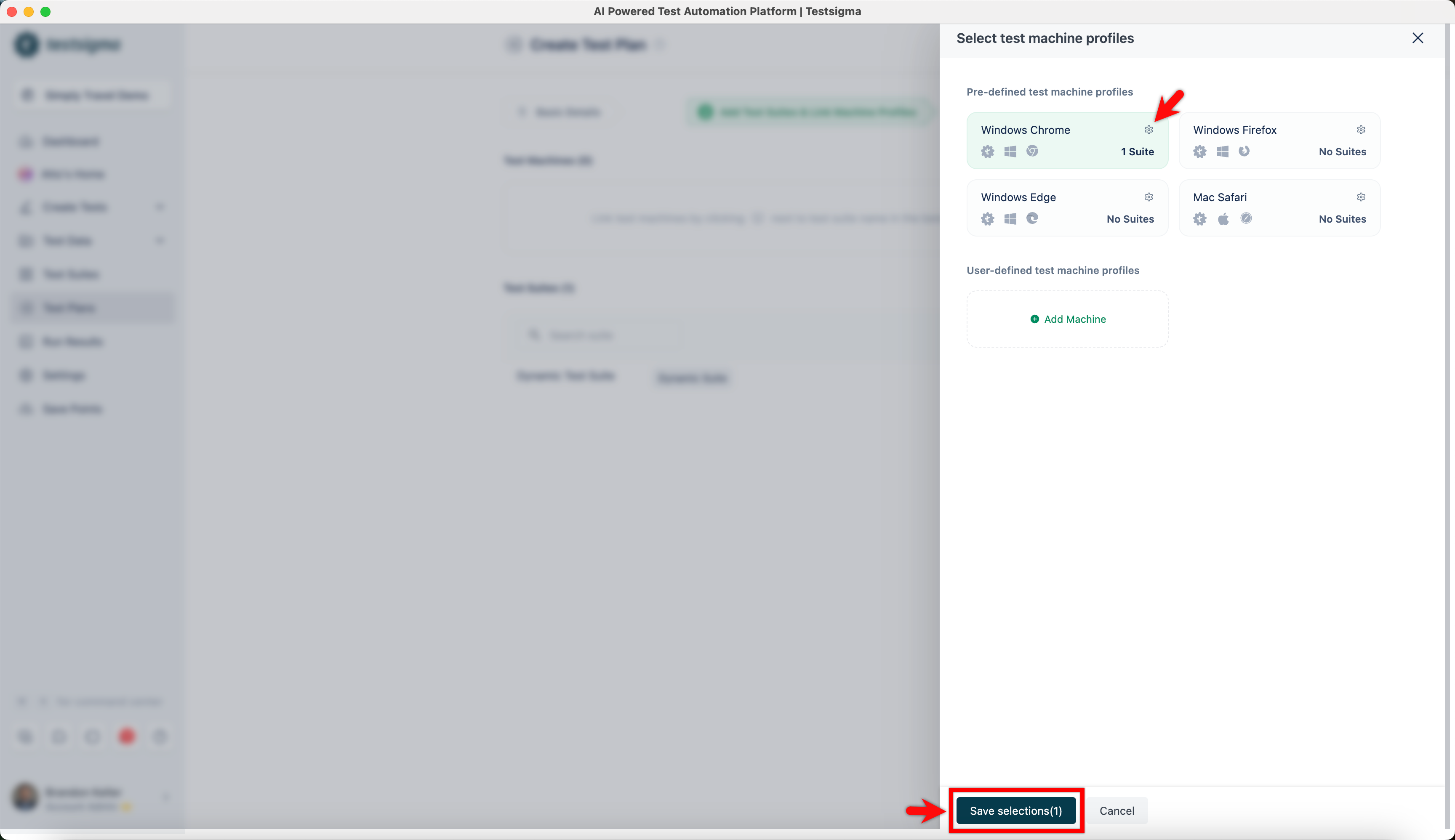
In the Select test machine profiles overlay, select the required test machines and click Save selections.
-
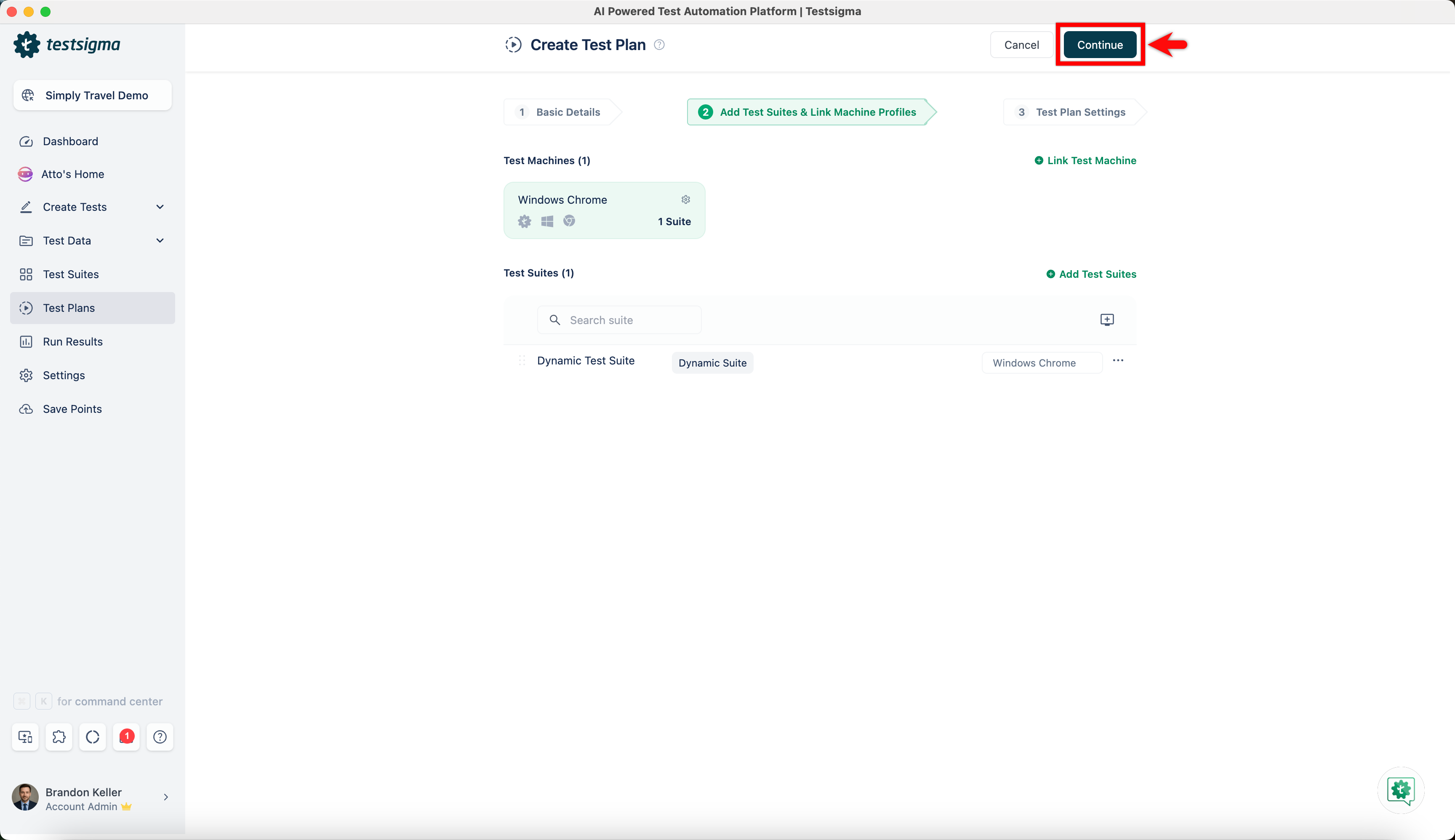
Click Continue.
-
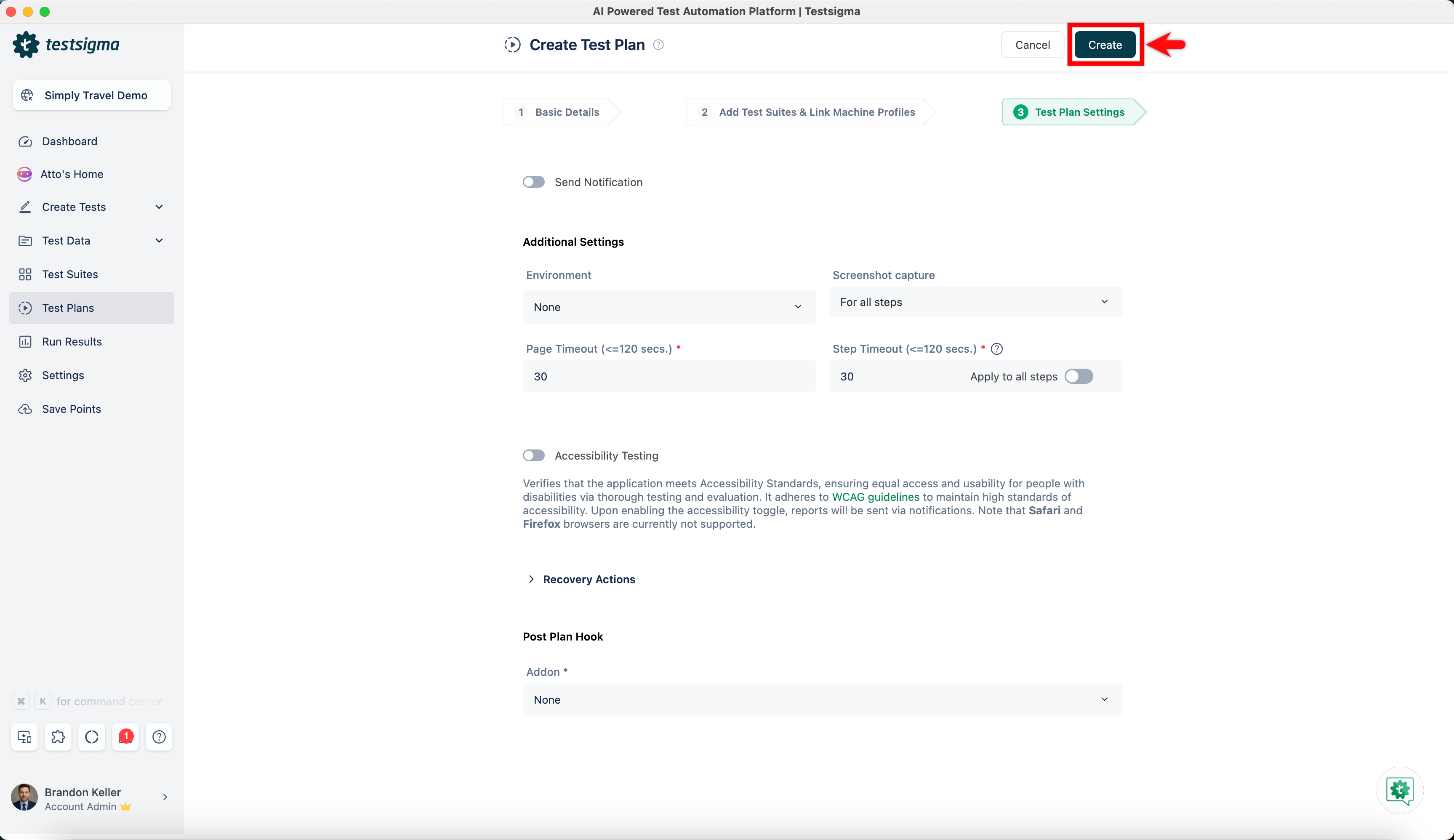
In the Test Plan Settings tab, configure the required fields and click Create.
Add a Dynamic Test Suite to a Scheduled Test Plan
Section titled “Add a Dynamic Test Suite to a Scheduled Test Plan”-
From the left navigation bar, navigate to Test Plans.
-
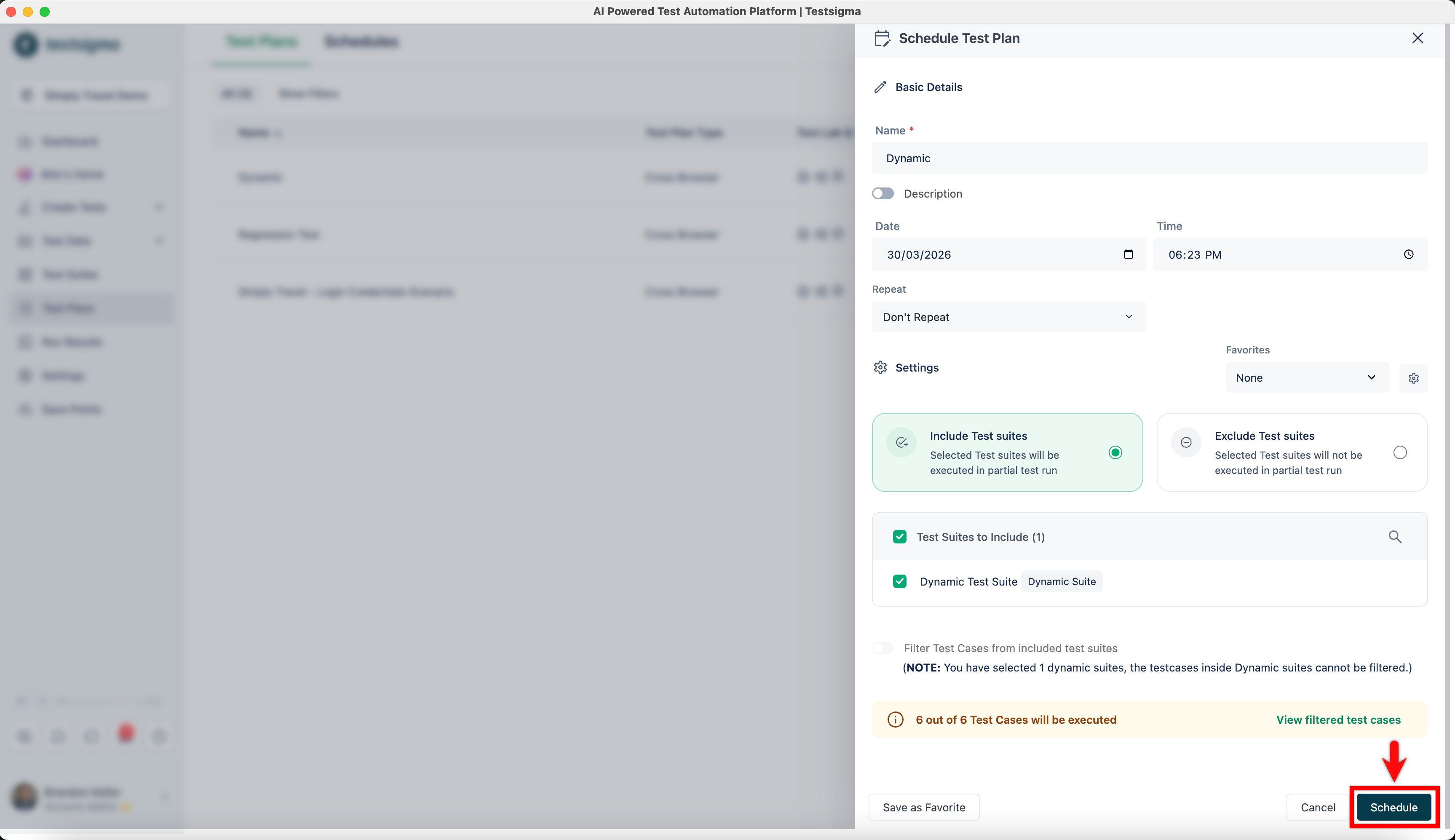
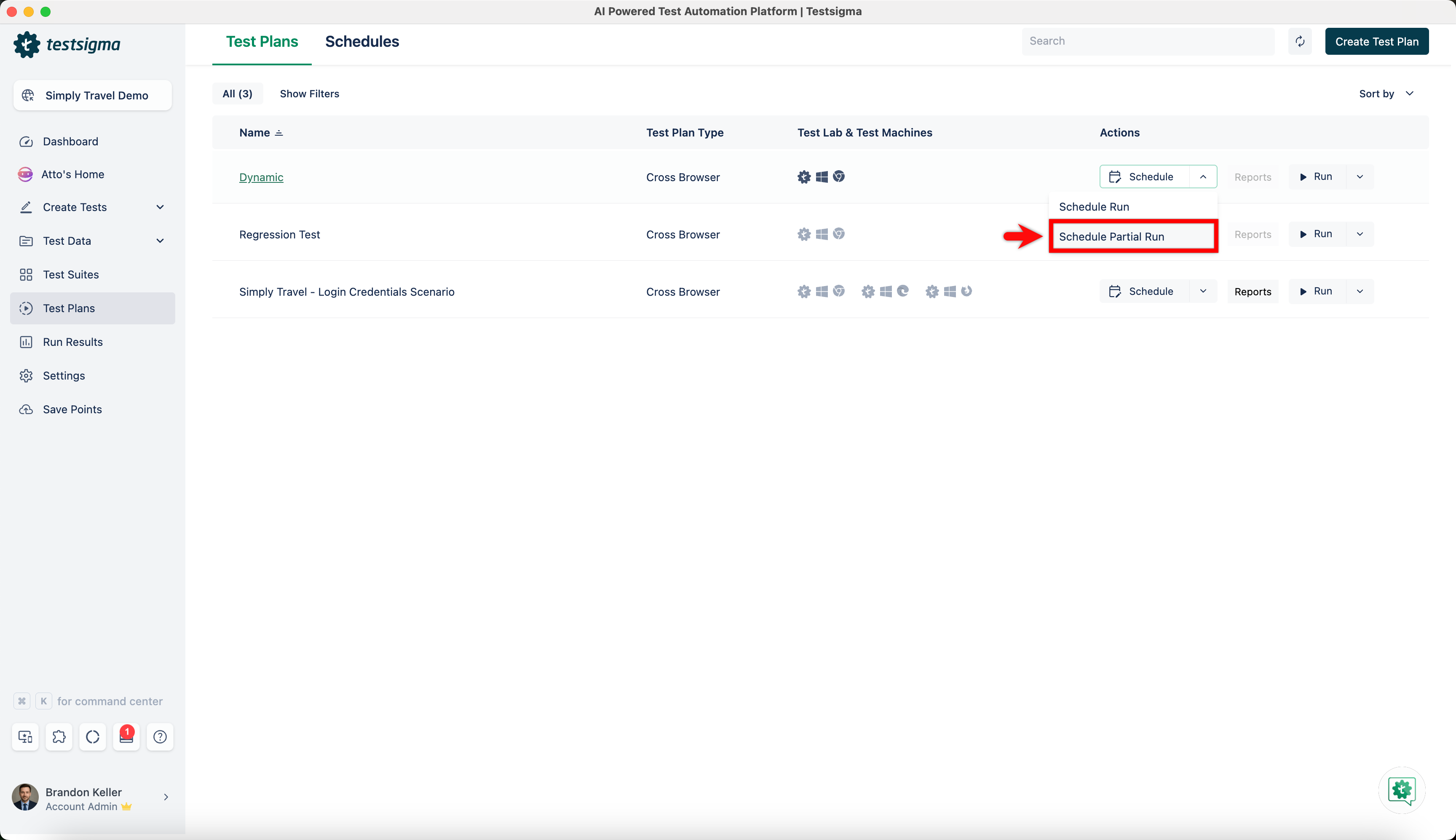
Expand Schedule for the dynamic test suite and click Schedule Partial Run.
-
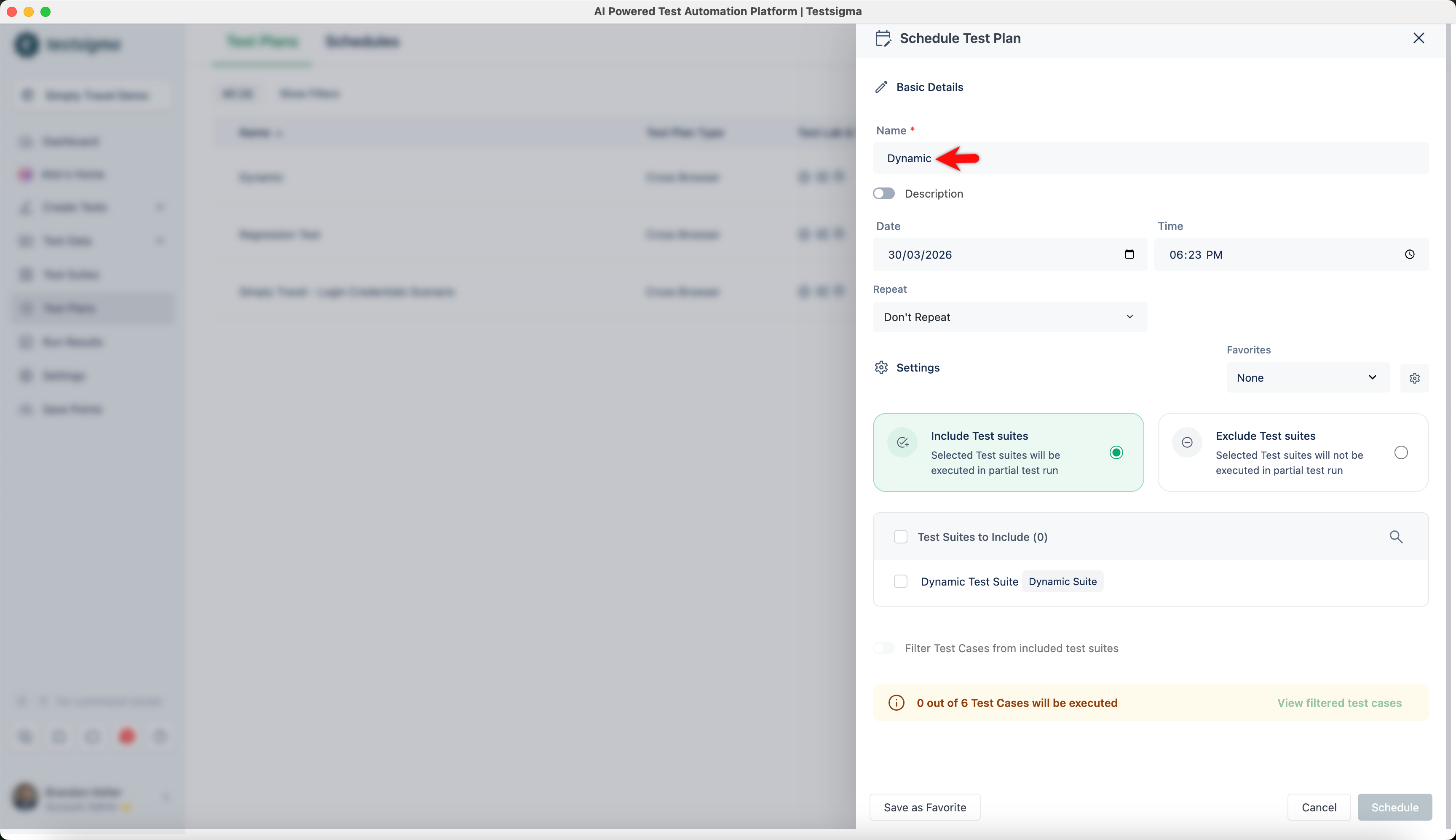
In the Schedule Partial Test Plan overlay, enter the required name in the Name field.
-
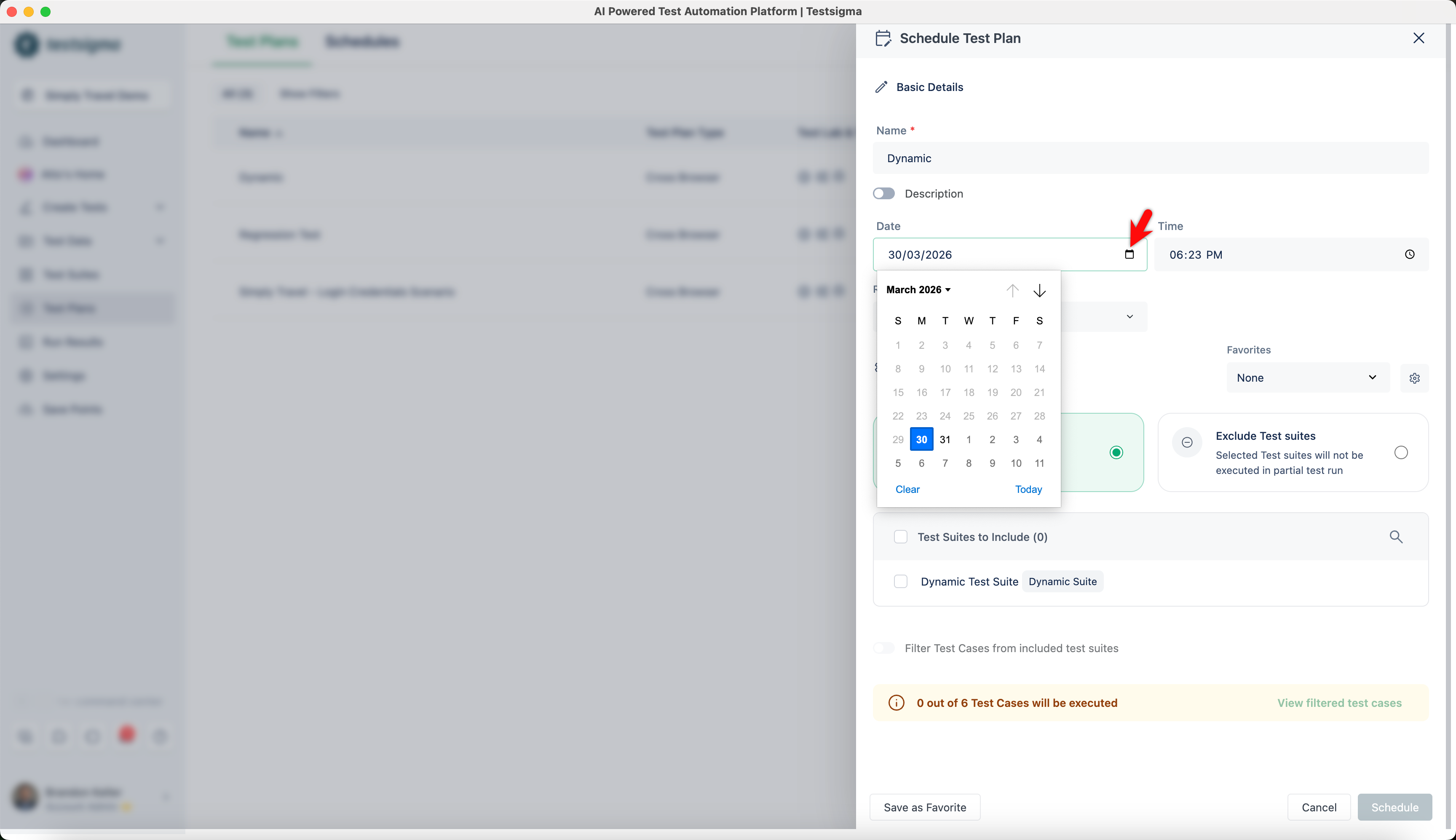
Click the calendar icon in the Date field and select the required date.
-
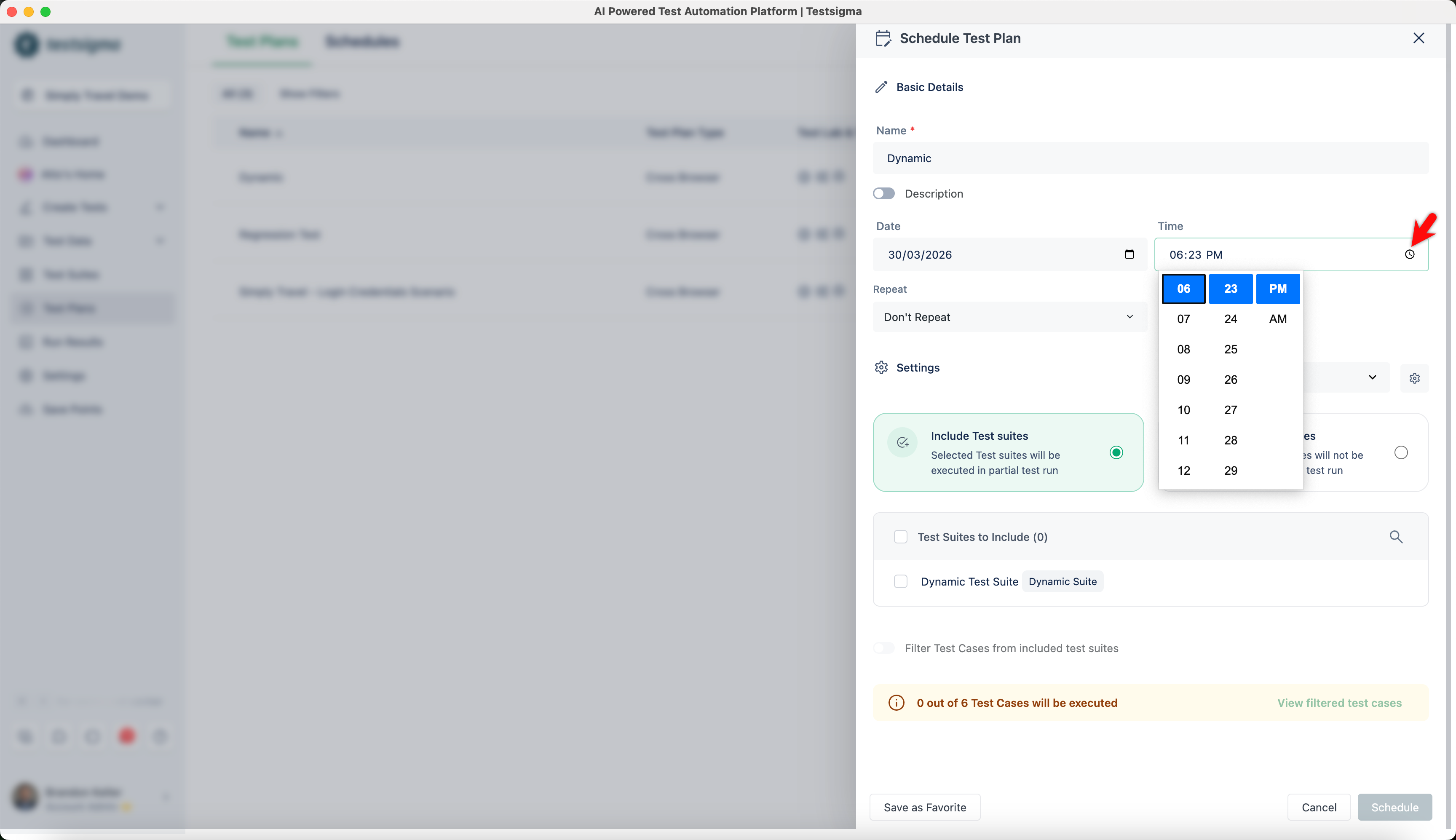
Click the clock icon in the Time field and select the required time.
-
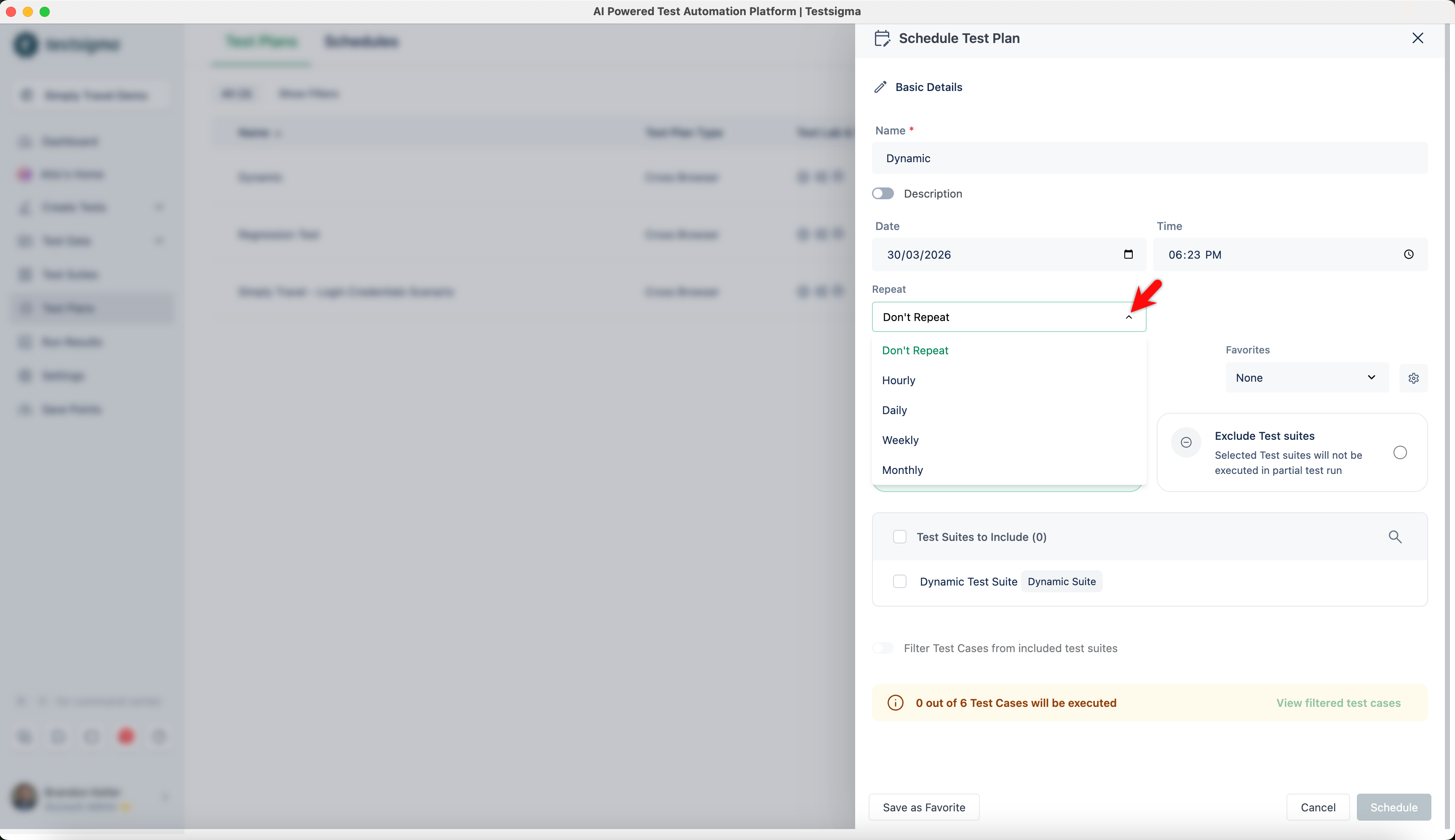
In the Repeat section, expand Repeat and select the required option.
-
In the Test Suites to Include section, select the required test suites.
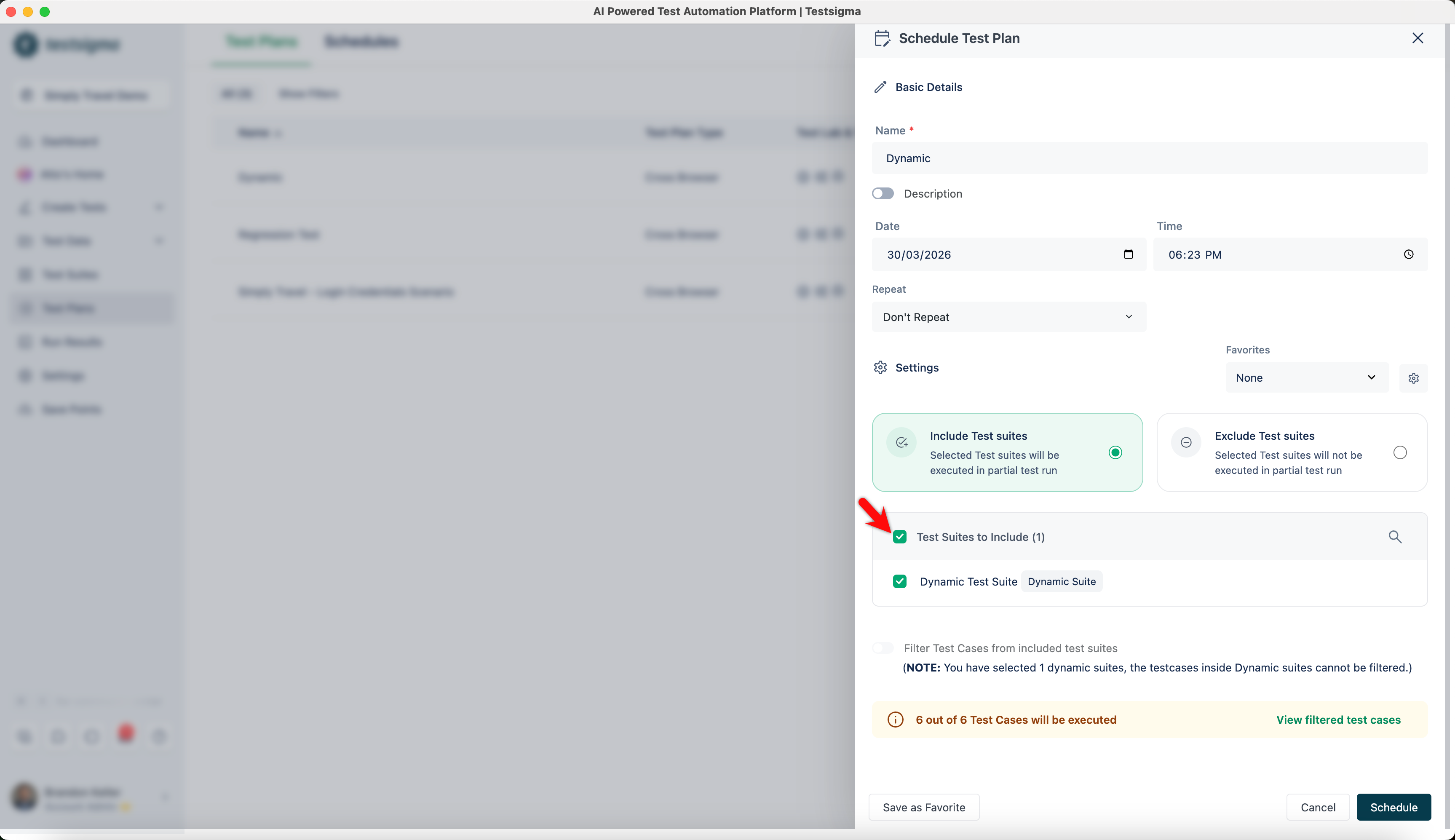
- Click Schedule.