
Test Plans
Headless Browser Testing
Prerequisites
Before you begin, ensure that you have referred to:
Enabling Headless Browser Testing in Test Case
Section titled “Enabling Headless Browser Testing in Test Case”Click the toggle button for Headless Test on the Ad-hoc Run page of the test case to enable headless testing for a specific test case. Then, start the test by clicking Run Now. 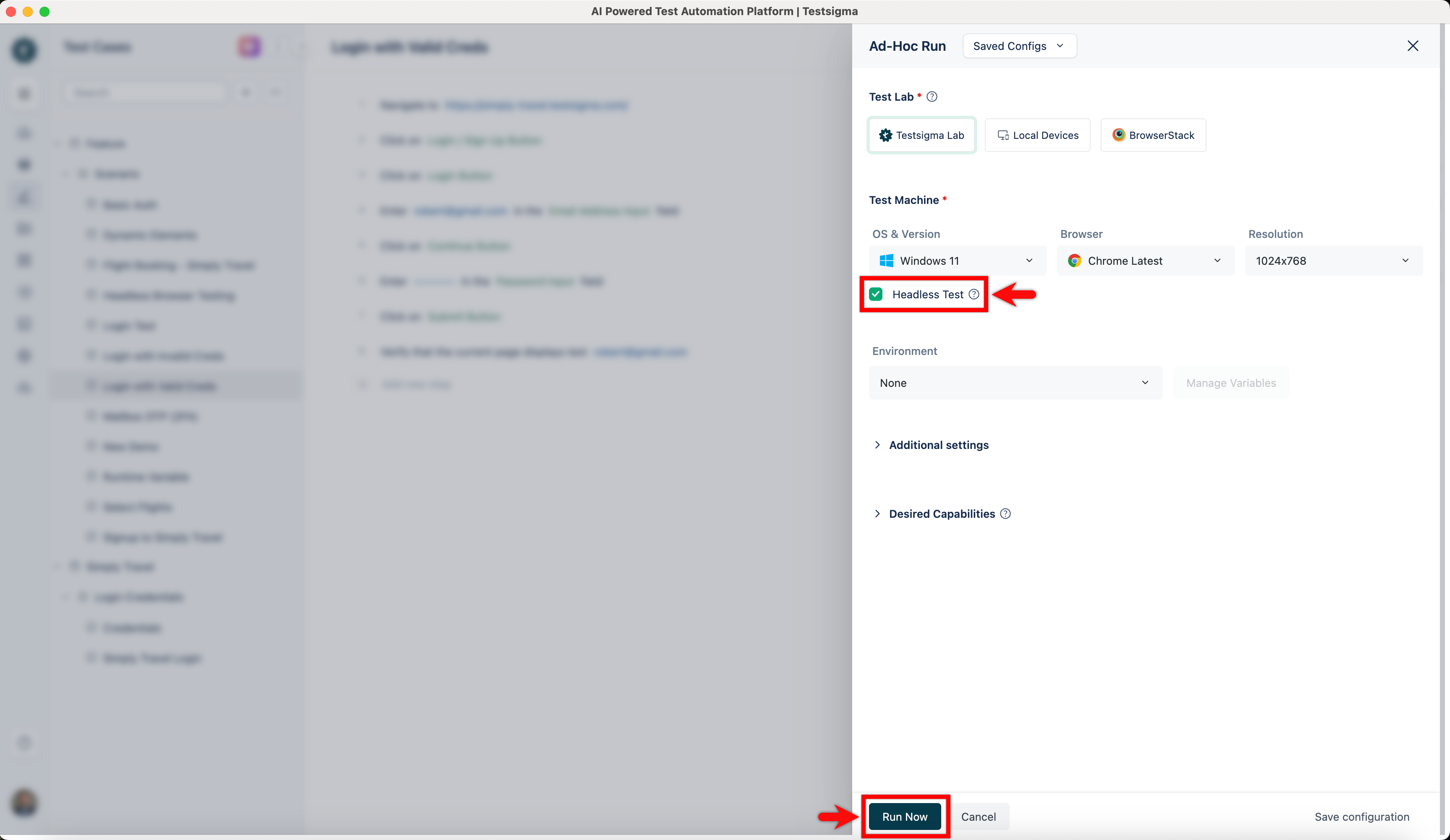
Enabling Headless Browser Testing in Test Plan
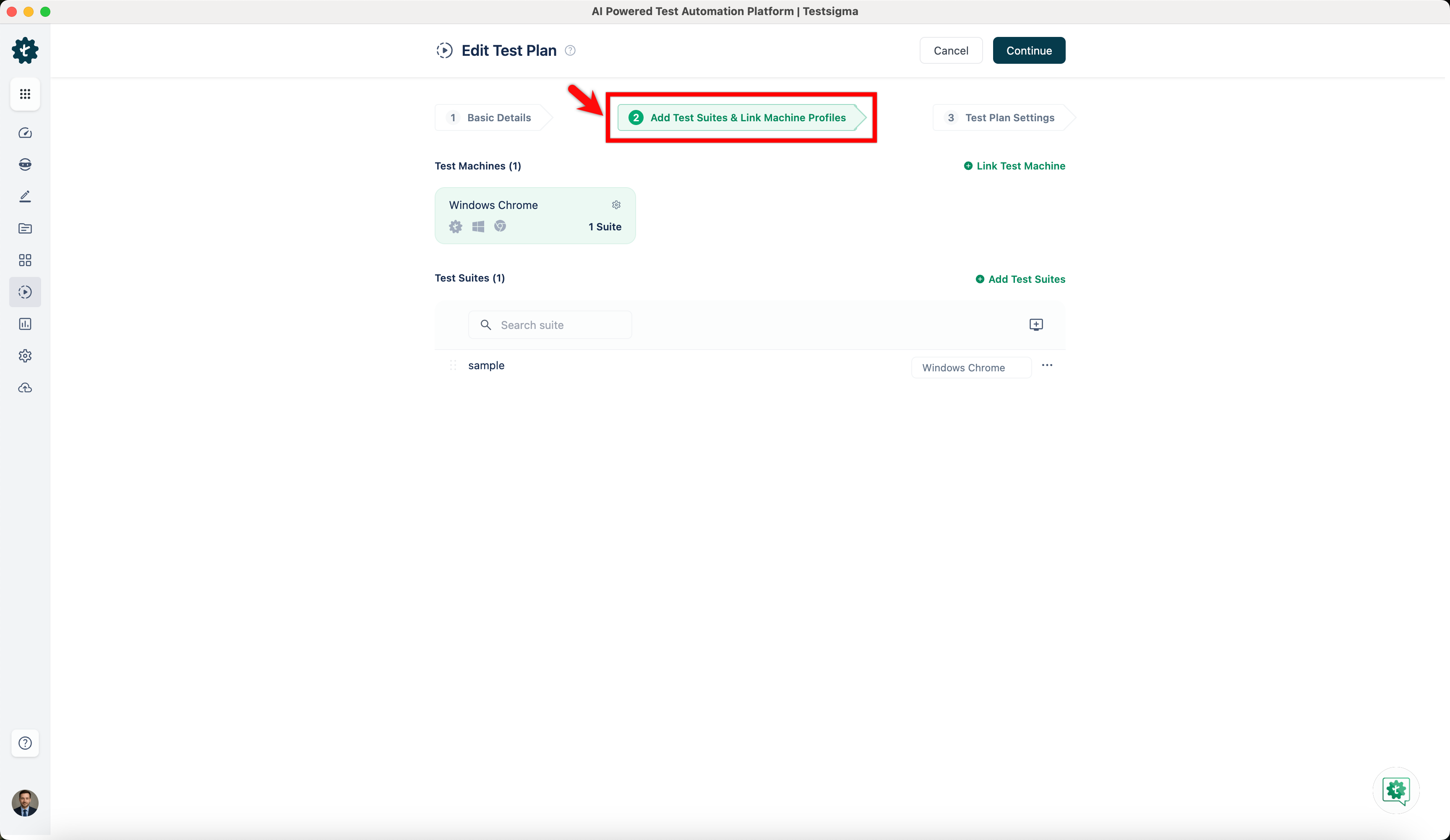
Section titled “Enabling Headless Browser Testing in Test Plan”- Navigate to the Add Test Suites & Link Machine Profiles tab on the Create or Edit Test Plan page to enable headless testing.
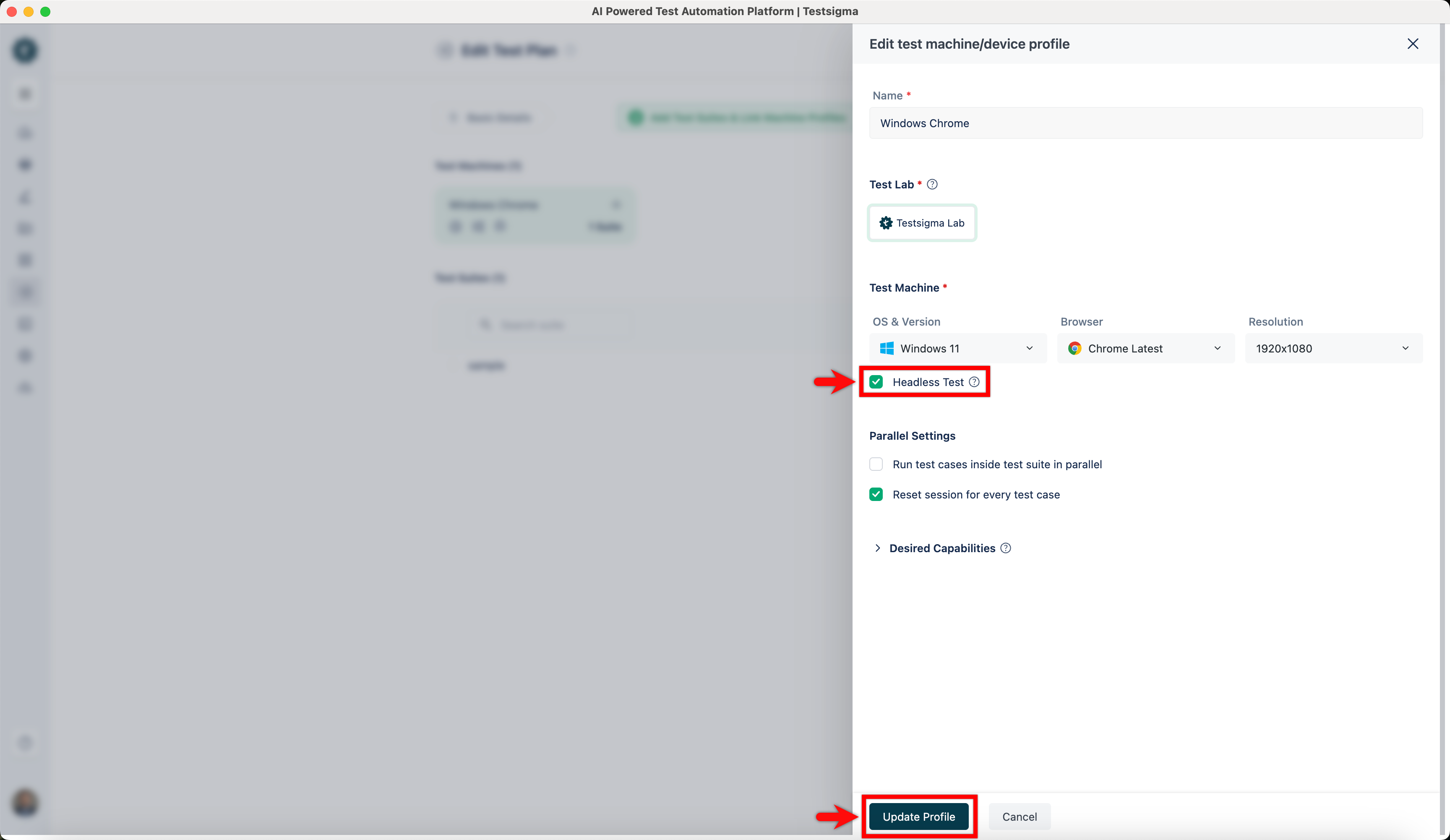
- Click on Test Machine Settings for the test machine to enable headless testing for the Test Plan. An overlay screen for Editing the test machine/device profile will appear. Then, enable the toggle for Headless Test and click Update Profile.
Results of Headless Browser Testing
Section titled “Results of Headless Browser Testing”After running the test case, click the Watch Video button on the test execution results page to check if the browser was running in headless mode. Please note that Testsigma does not record videos during headless testing. 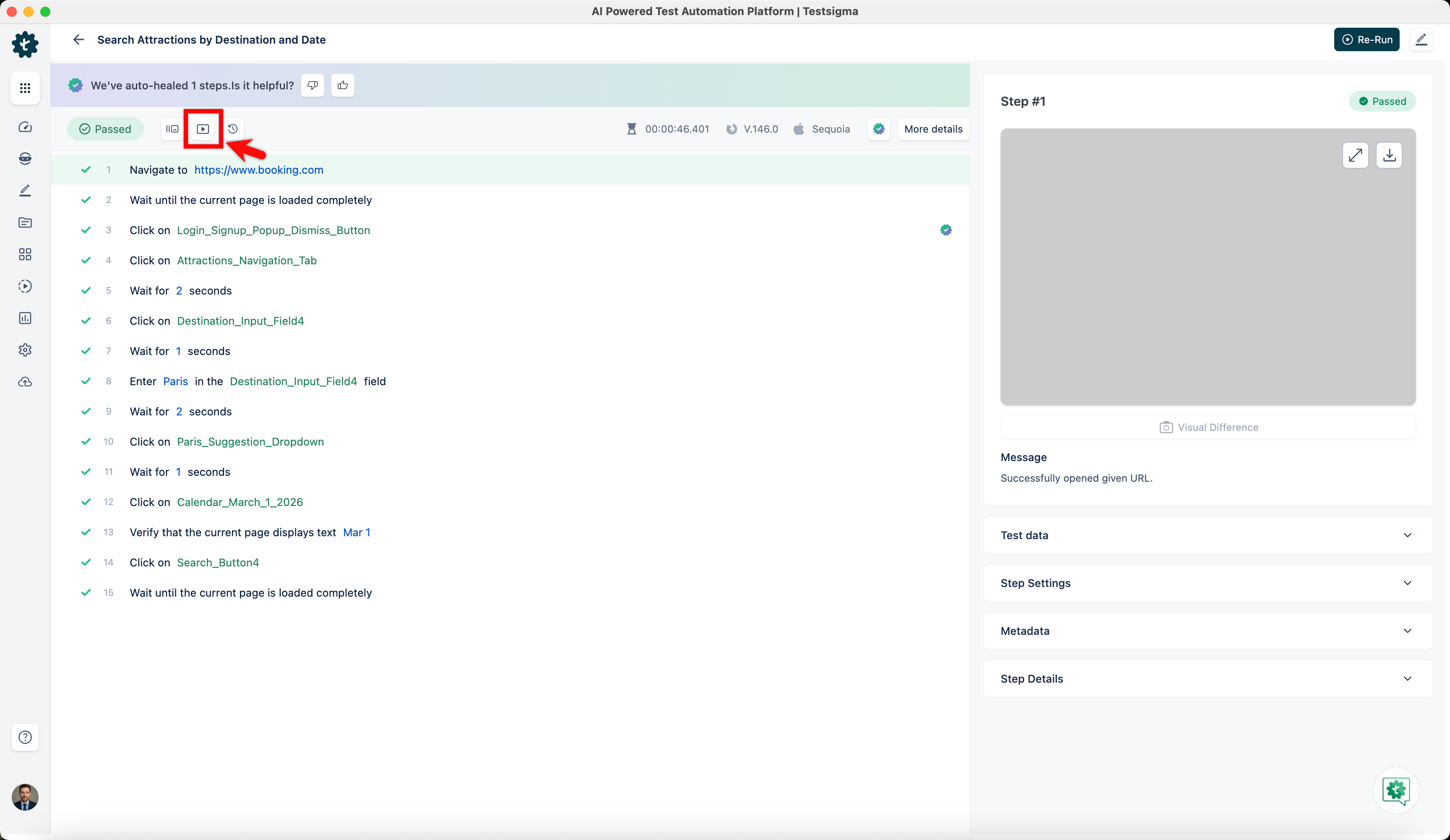
Benefits of Headless Browser Testing
Section titled “Benefits of Headless Browser Testing”| Benefits | Description |
|---|---|
| Faster Execution | Headless browsers can run tests faster than traditional GUI-based testing because they do not render graphical elements. |
| Improved Scalability | Headless browser testing enables faster test cycles and improved scalability by allowing parallel execution of tests on multiple virtual machines or containers. |
| Lower Resource Consumption | Headless testing allows you to maximise resource allocation for other critical tasks without needing a GUI by requiring fewer system resources. |
| Compatibility Testing | Headless browser testing allows you to test web applications on different browsers and versions without manual intervention. |