
FAQs
Why do Errors Occur When I Try to Download Files from The Exports Page?
When downloading large files from the Exports page, you might encounter errors due to network interruptions, incomplete data fetches, or browser caching issues. Slow or unstable connections can result in partial file loads, while cached incomplete versions may also trigger errors during export.
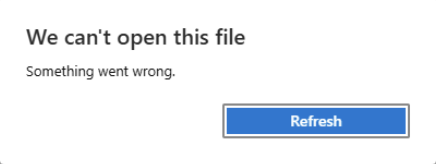
This article discusses how to resolve errors when exporting large files.
Steps to Resolve the Errors
Section titled “Steps to Resolve the Errors”For Chrome
Section titled “For Chrome”-
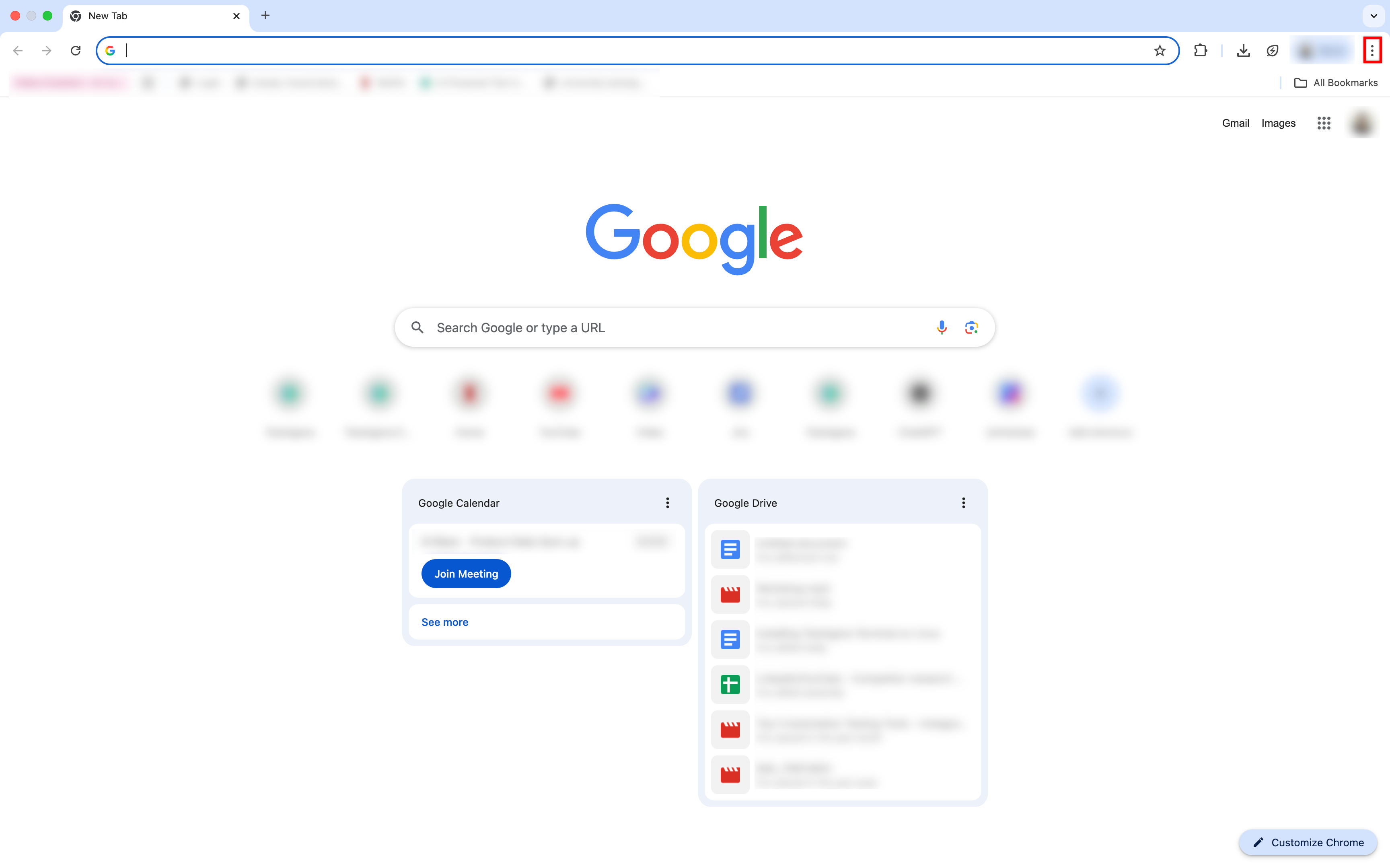
Open Google Chrome and click the More options icon in the top-right corner.
-
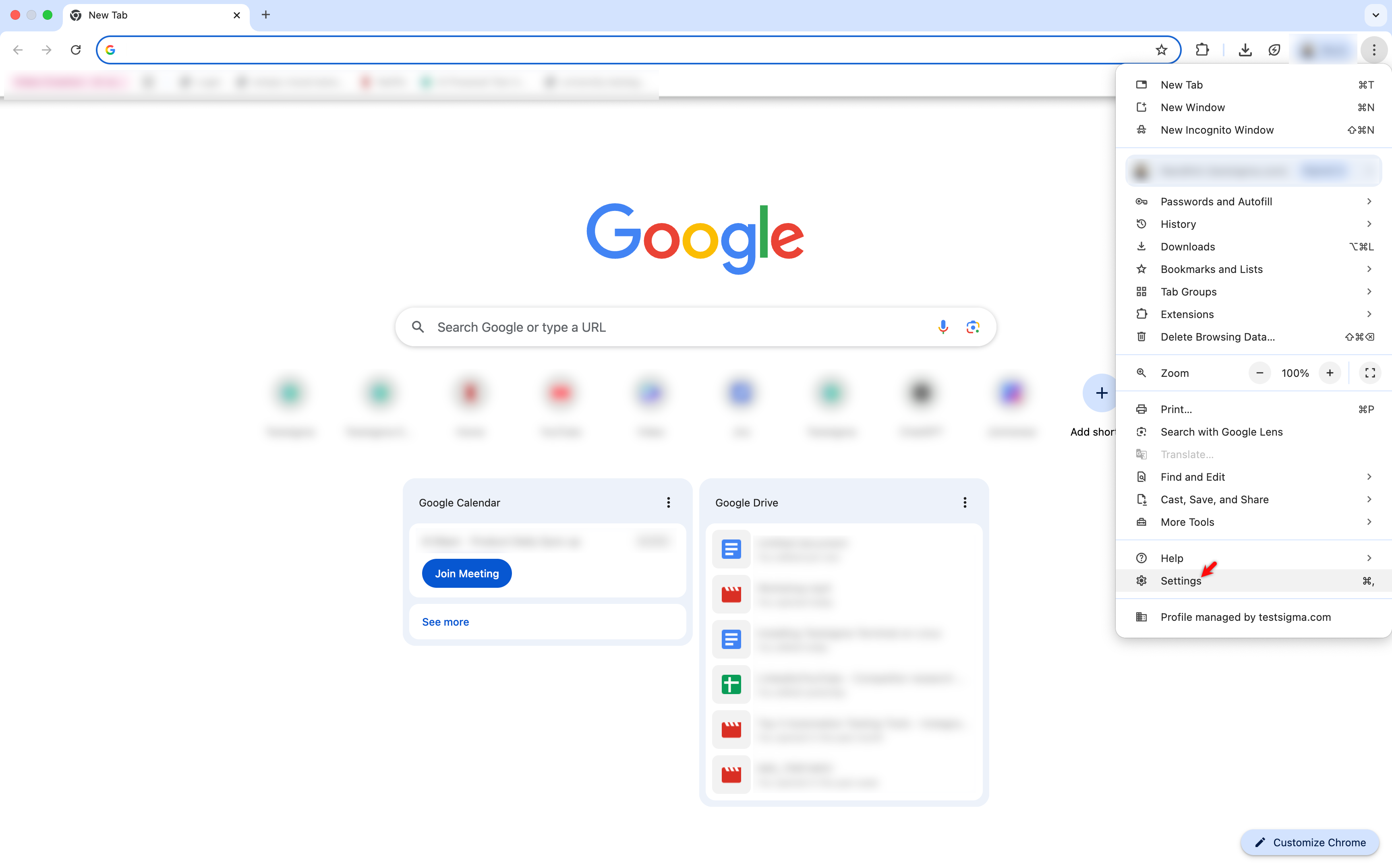
Select Settings from the menu.
-
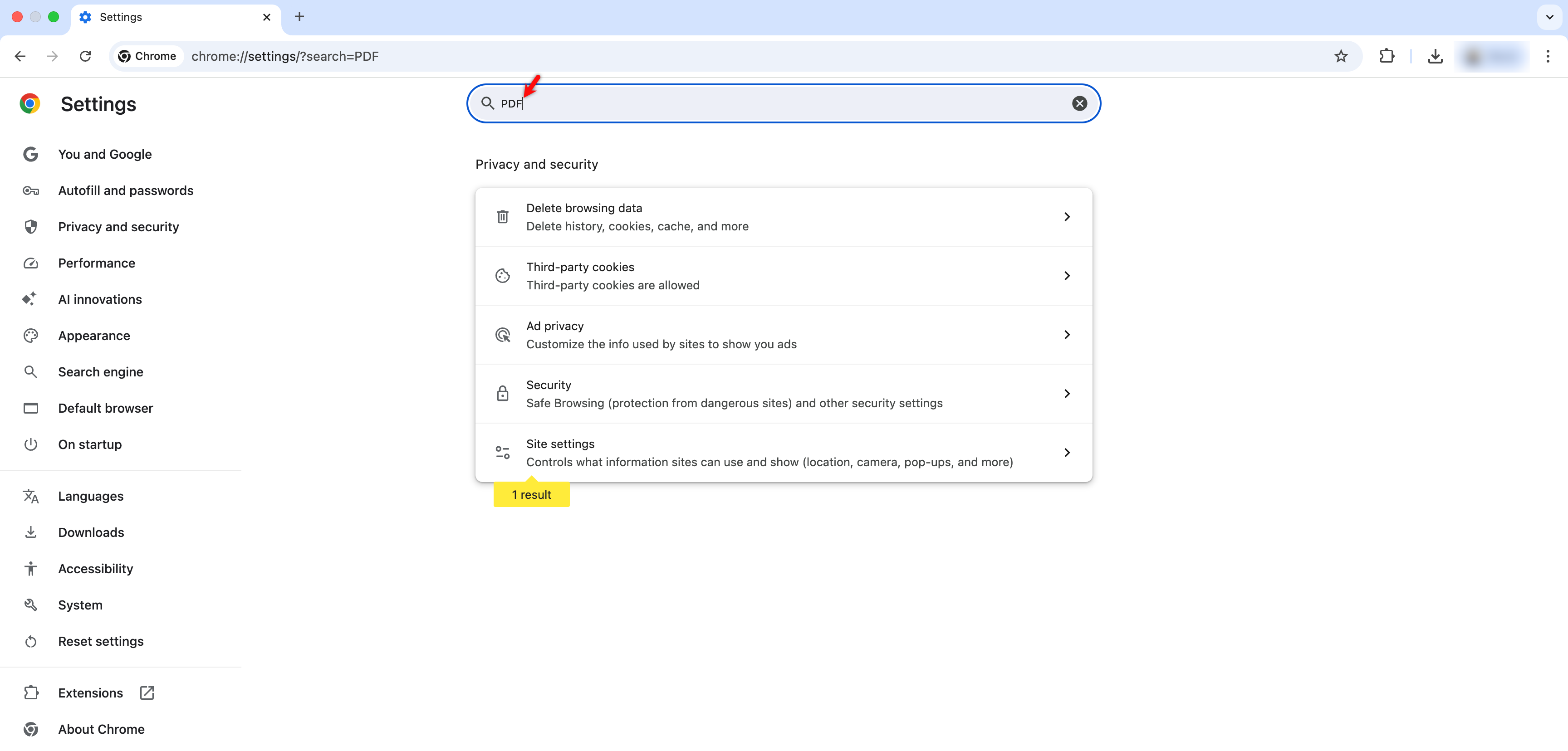
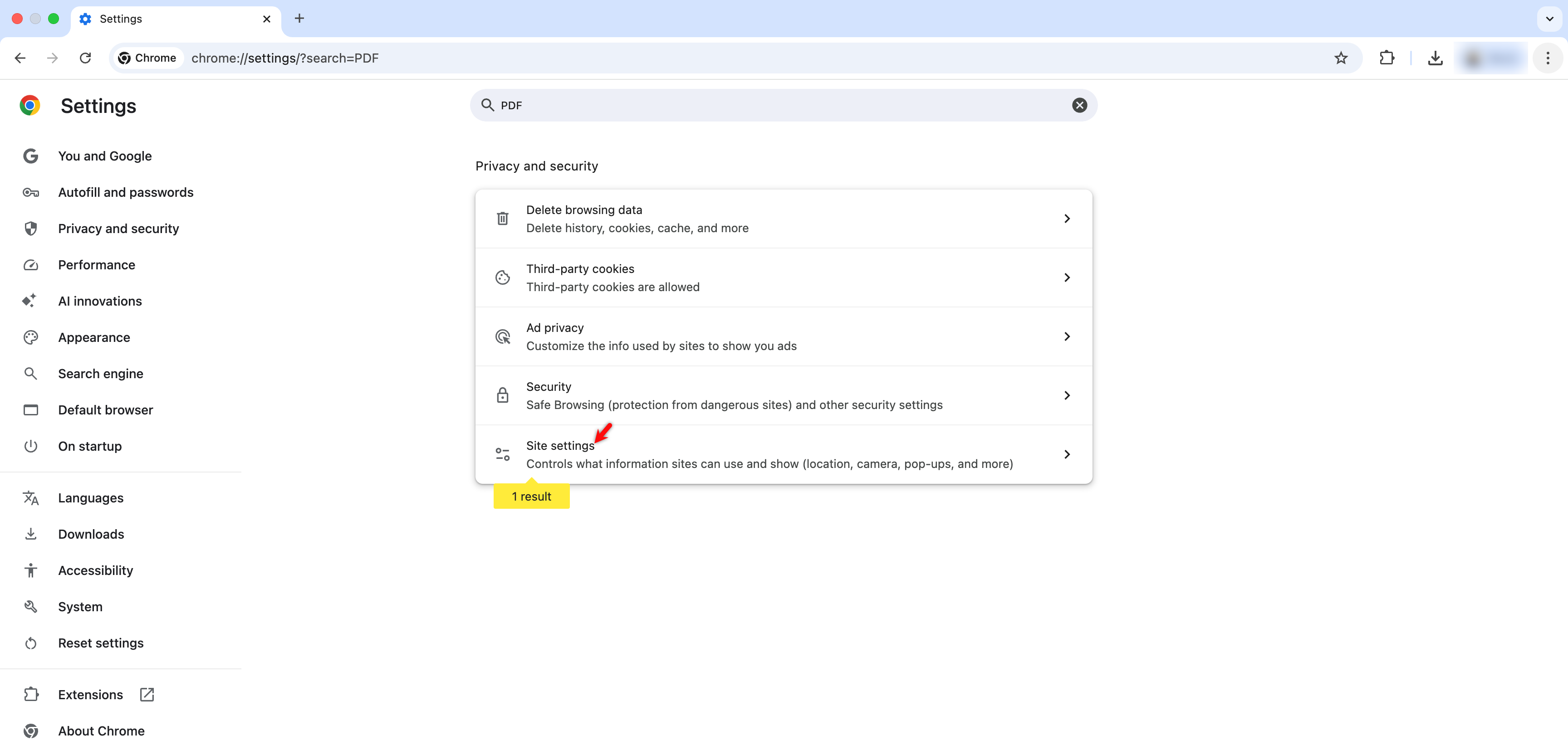
In the Settings page, type PDF in the search bar.
-
Click Site Settings under the search results.
-
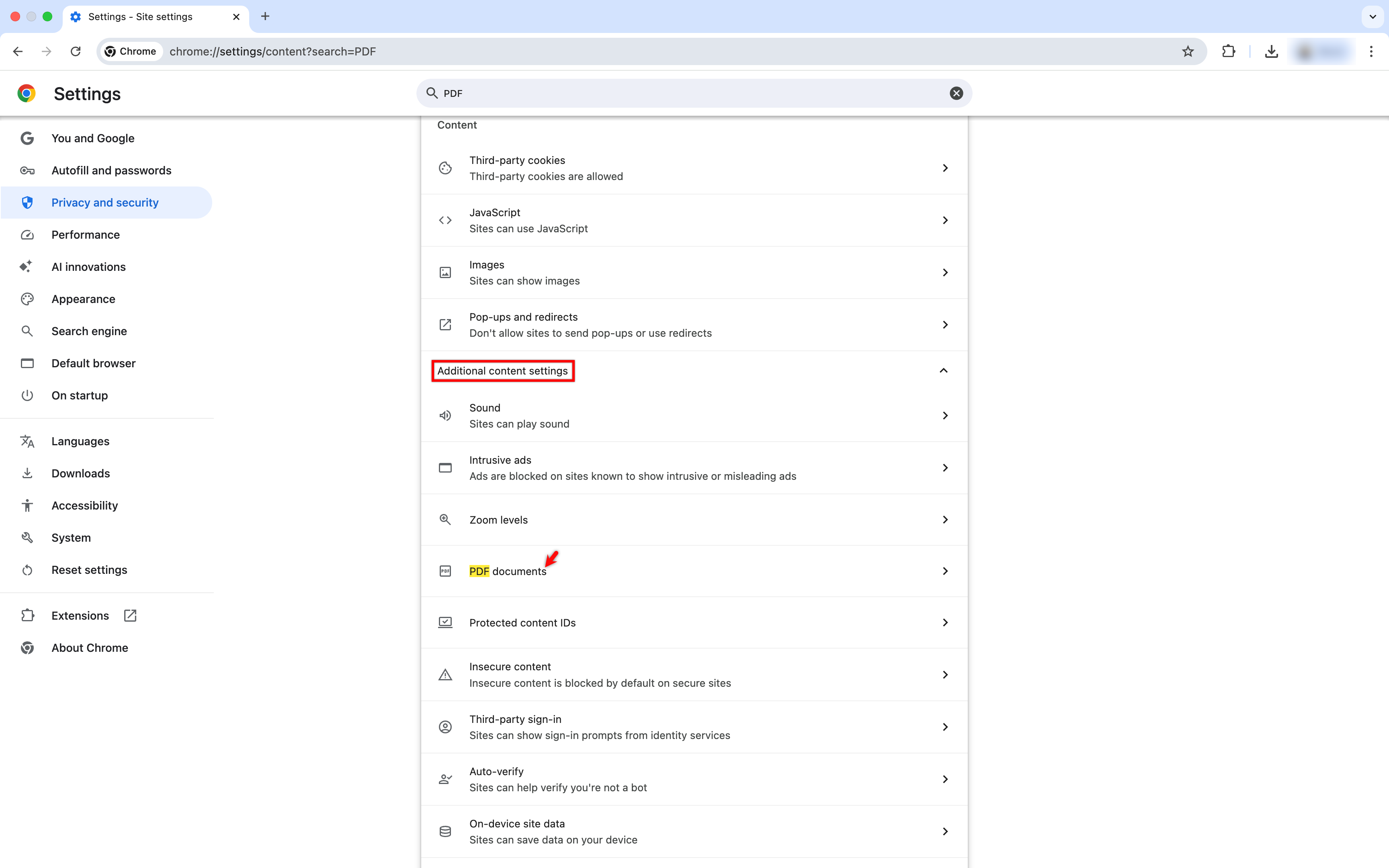
Scroll down, expand Additional content settings, and click PDF documents. !
-
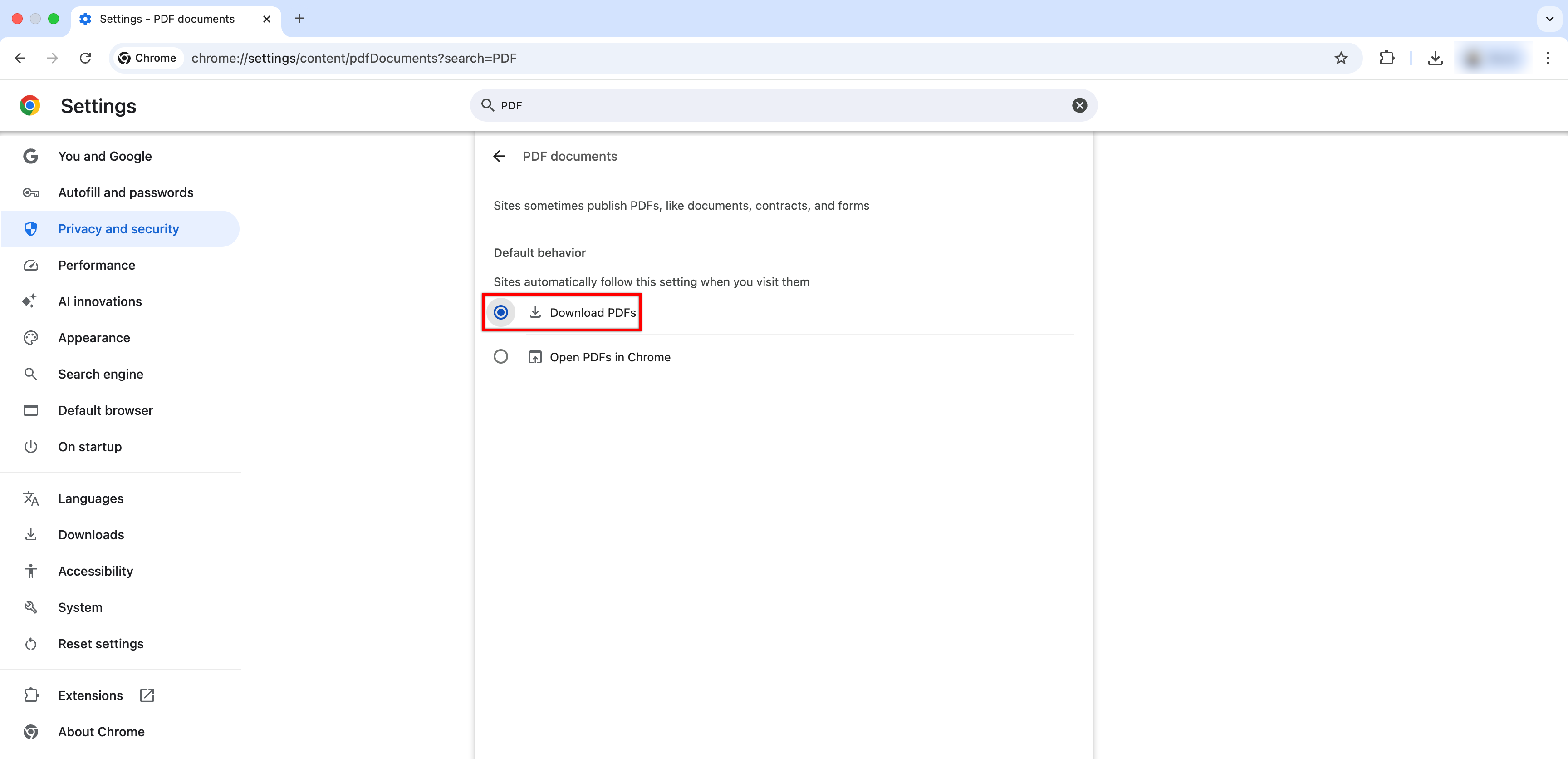
Select the Download PDFs radio button.
-
Return to the Exports page and click Download to reattempt the file download.
For Edge
Section titled “For Edge”-
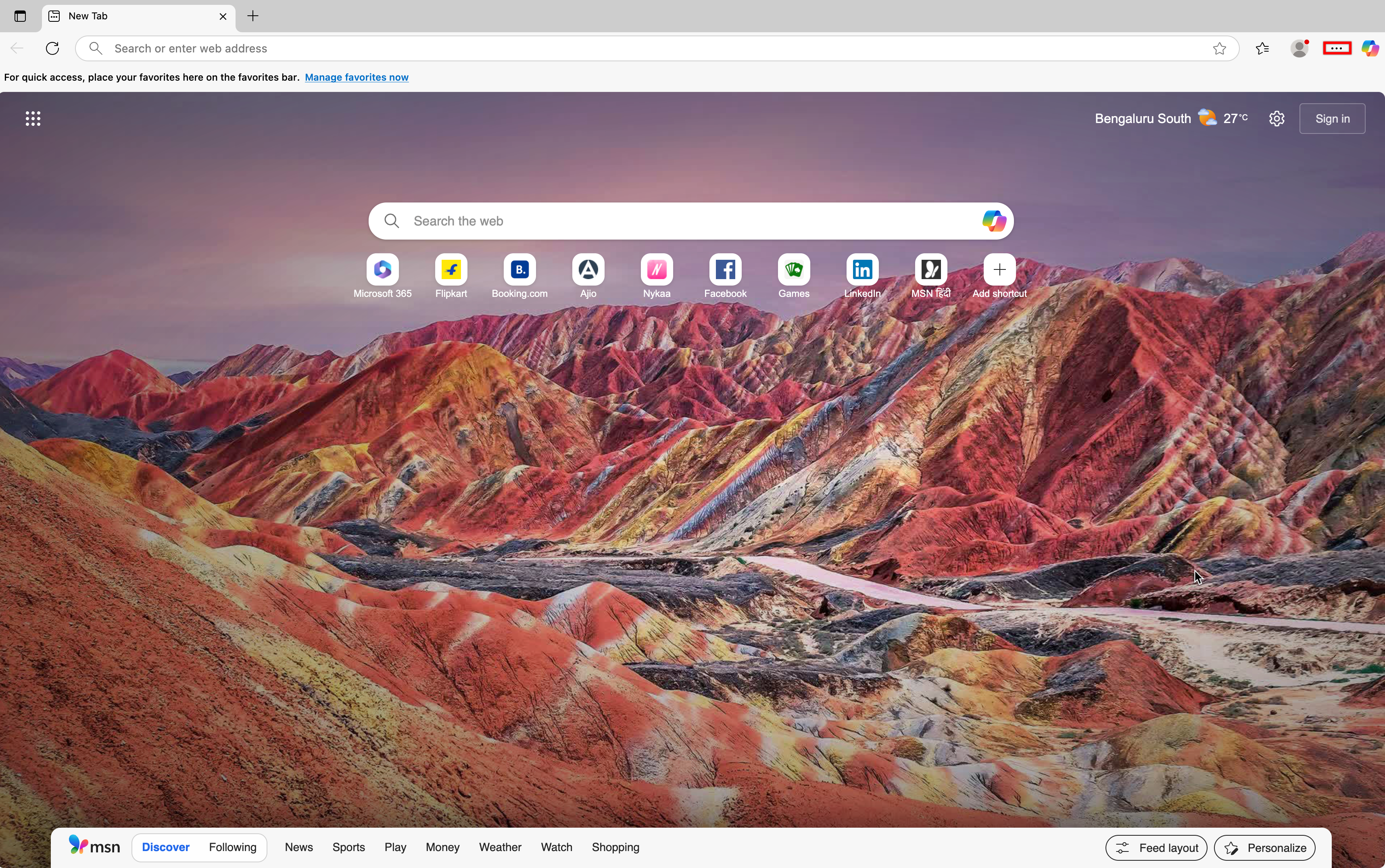
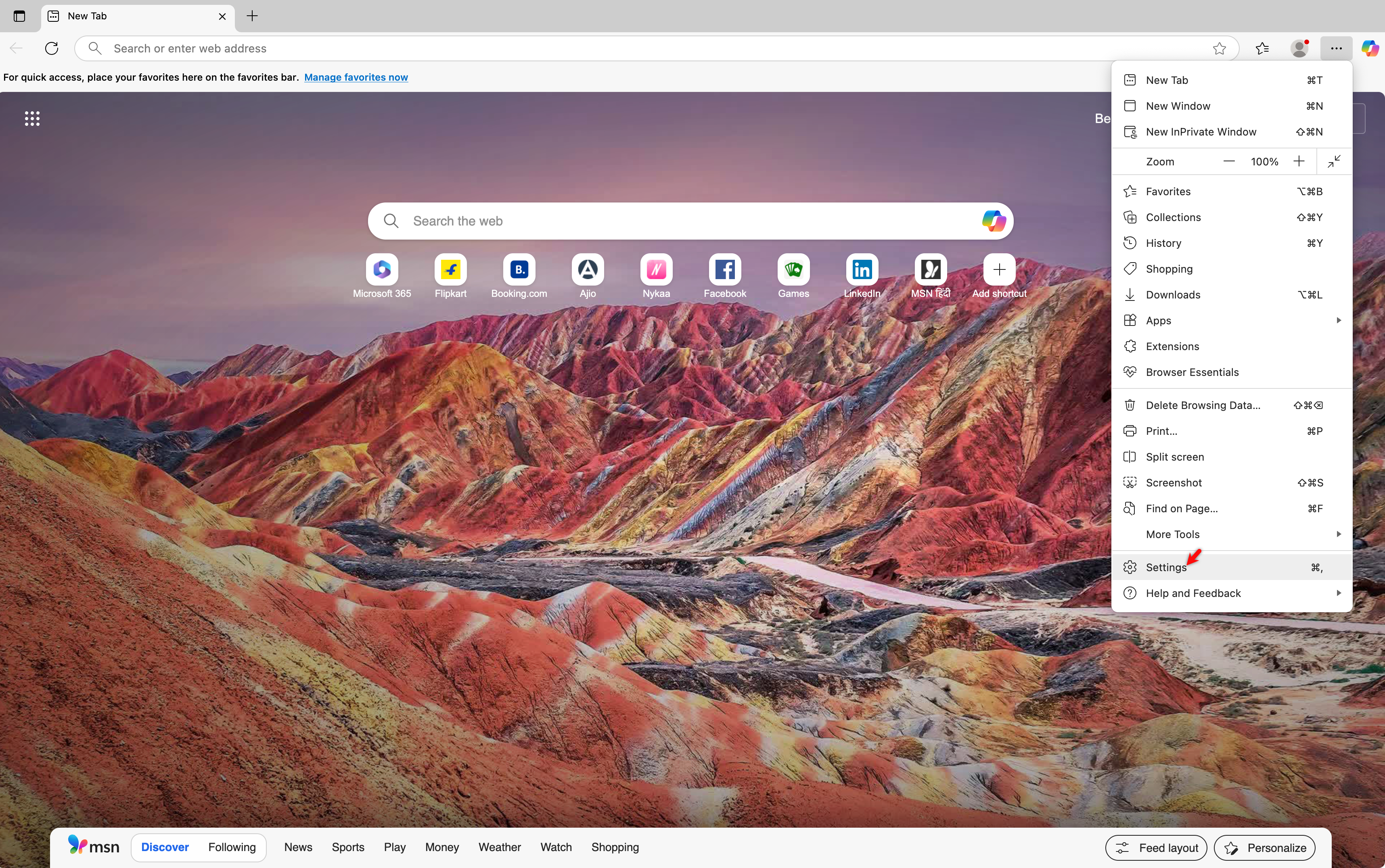
Open Microsoft Edge and click the More Options icon in the top-right corner.
-
Select Settings from the menu.
-
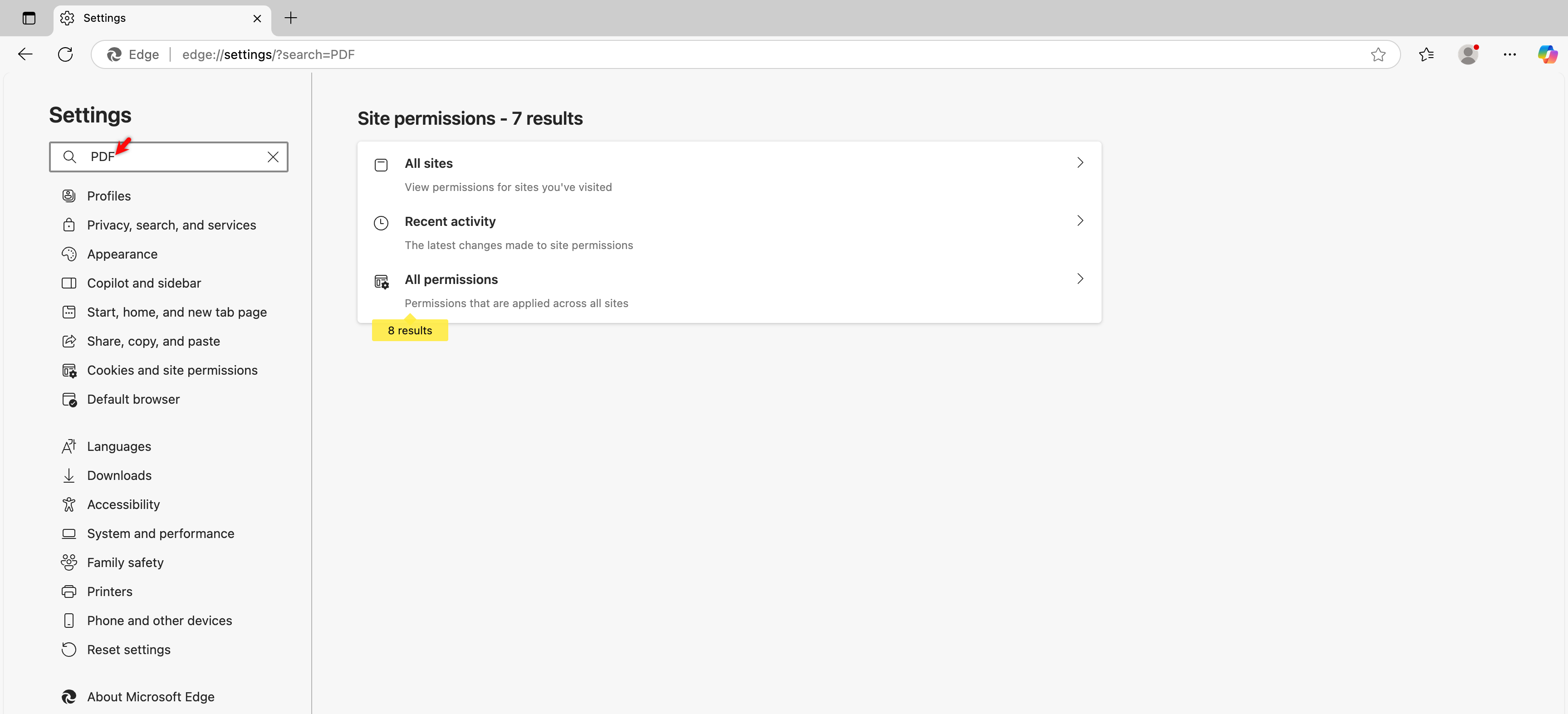
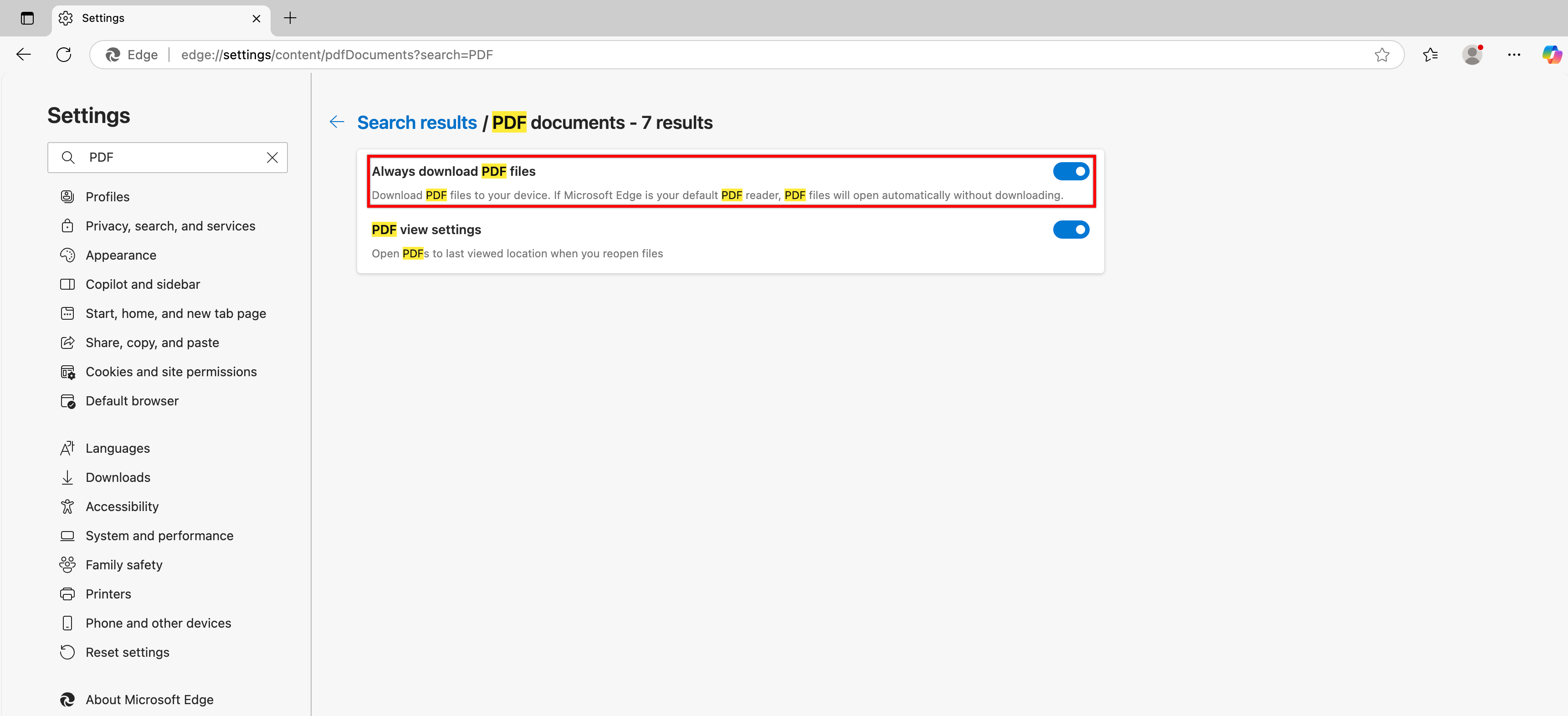
In the Settings page, type PDF in the search bar.
-
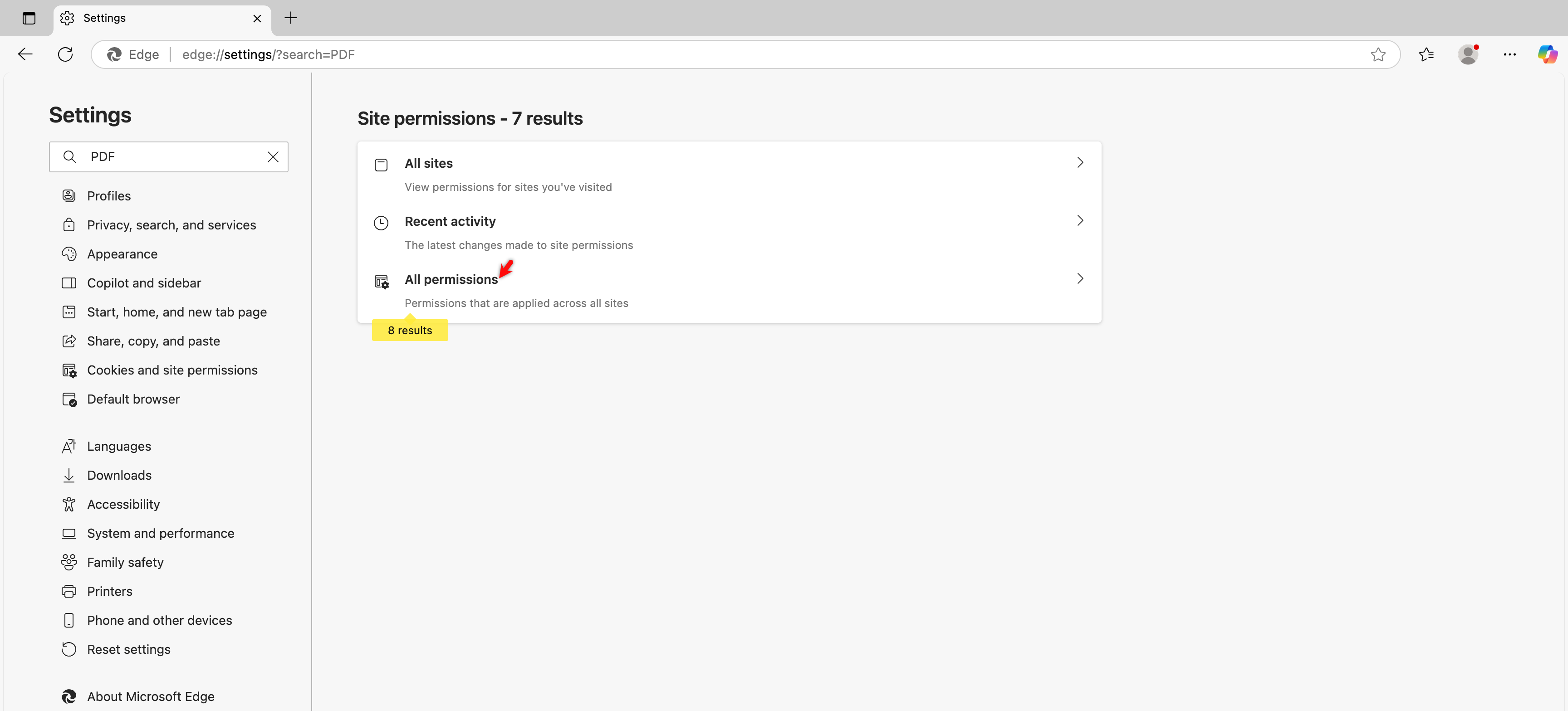
Click All Permissions under the search results.
-
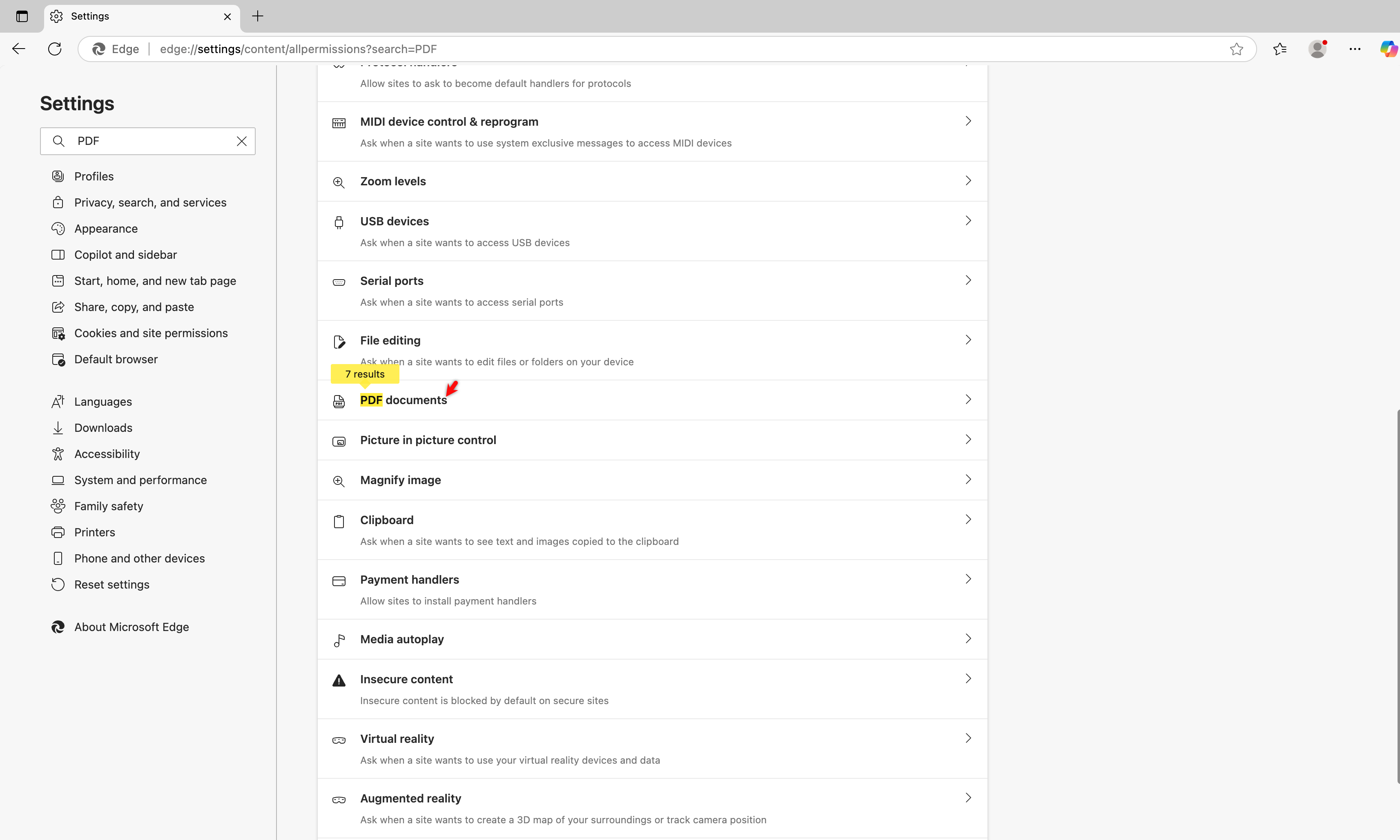
Scroll down and select PDF documents.
-
Enable the Always download PDF files toggle.
-
Return to the Exports page and click the Download button to reattempt the file download.