
Test Data
Update Test Data Profile
Prerequisites
Before you begin, ensure that you have:
- Reviewed Create a Test Data Profile.
- The updated file ready to import.
Steps to Update Test Data Profile
Section titled “Steps to Update Test Data Profile”-
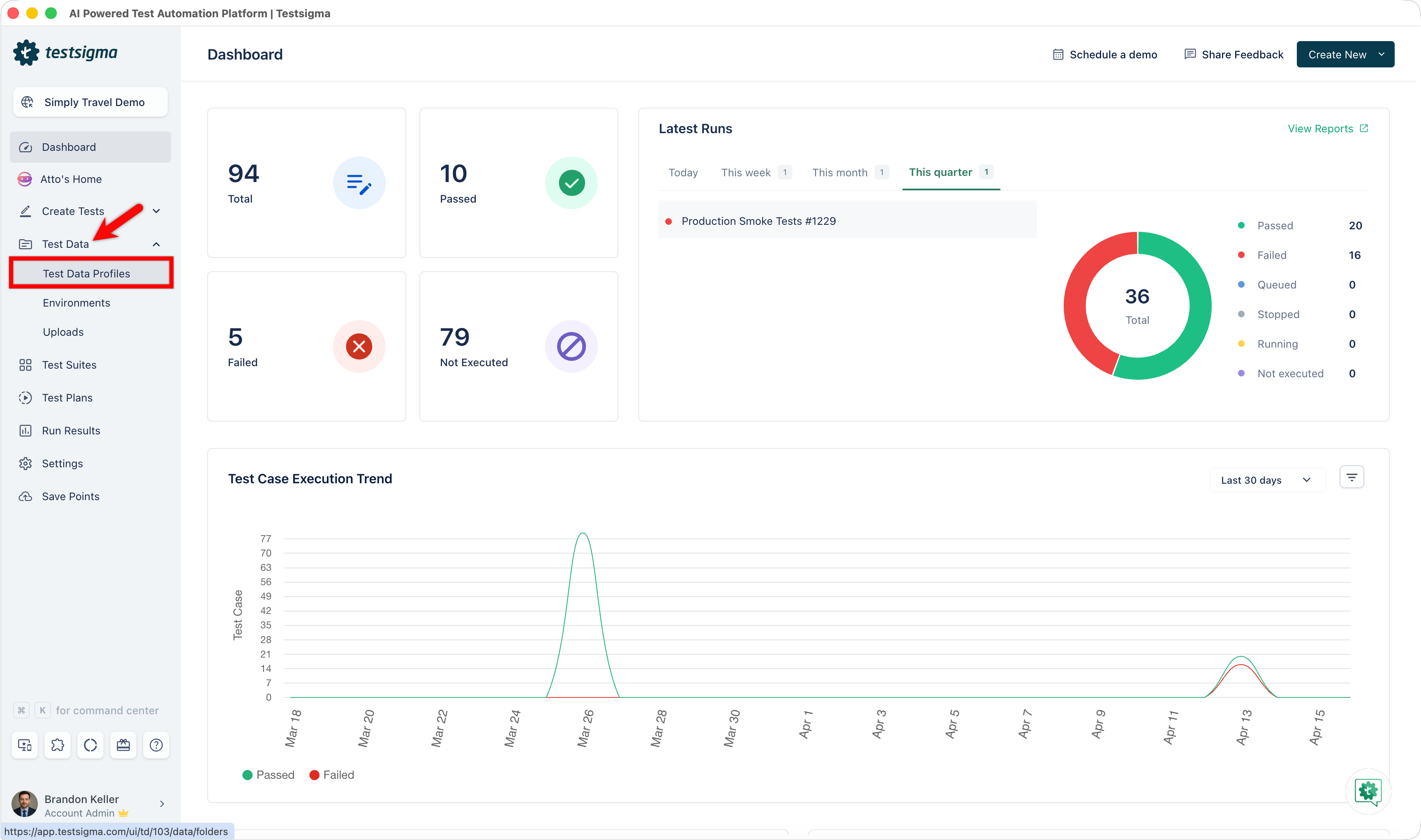
From the left navigation bar, go to Test Data > Test Data Profiles.
-
Locate the Test Data Profile you want to update using one of these methods:
-
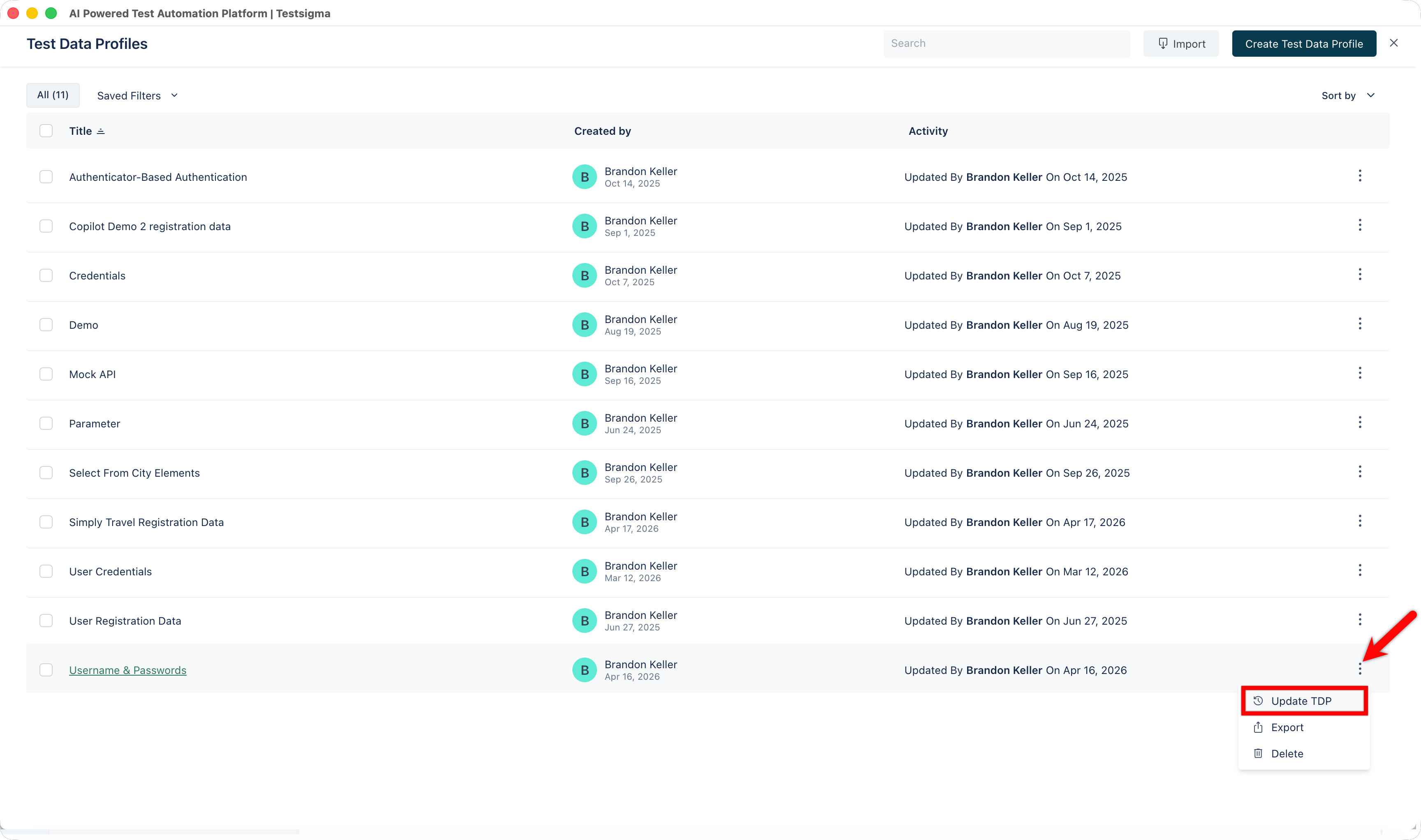
In the List View, select the Kebab menu (⋮) next to the TDP, then select Update TDP.
-
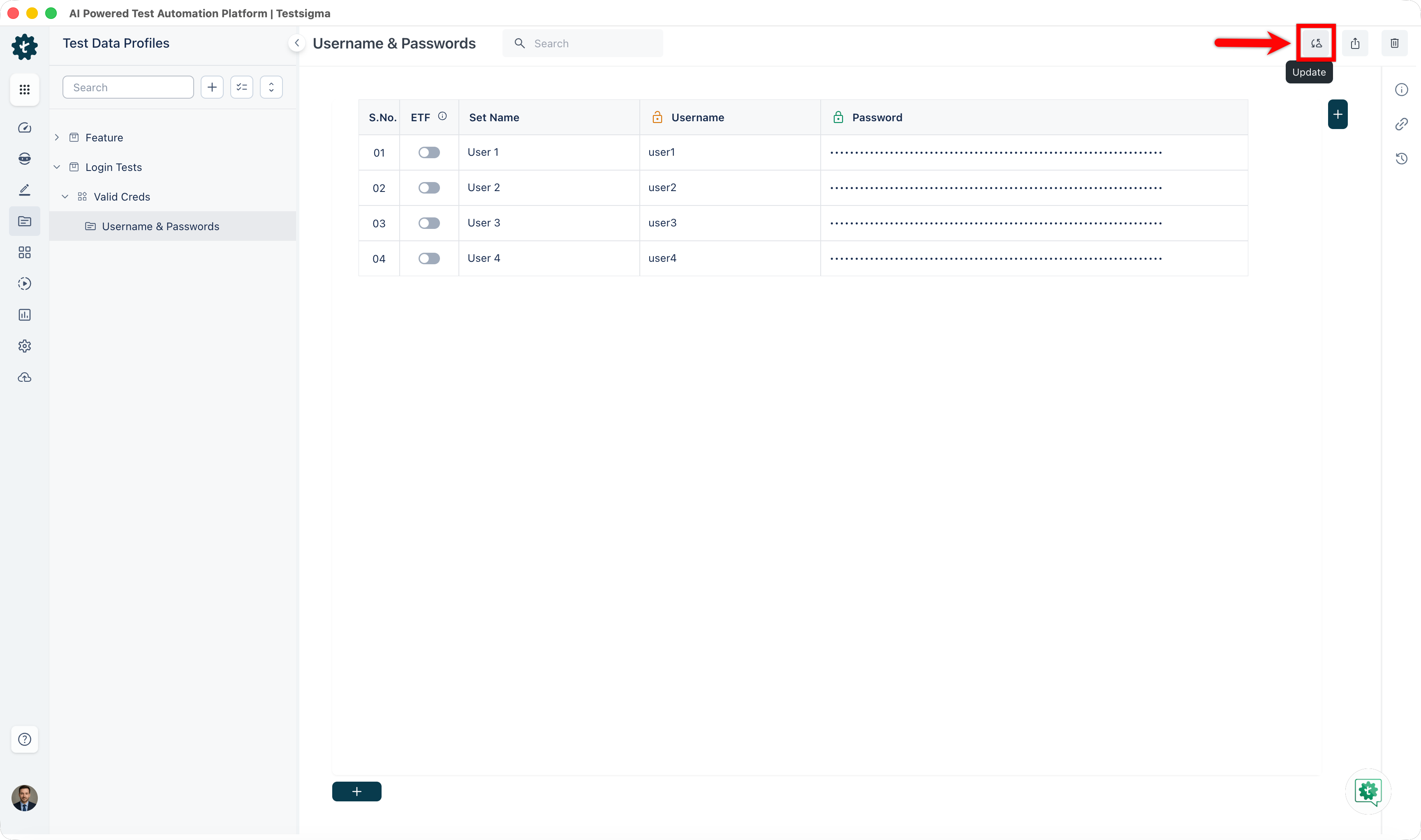
In the left panel, expand the feature and scenario that contains the Test Data Profile, open it from the folder tree, then select Update in the top-right corner.
-
-
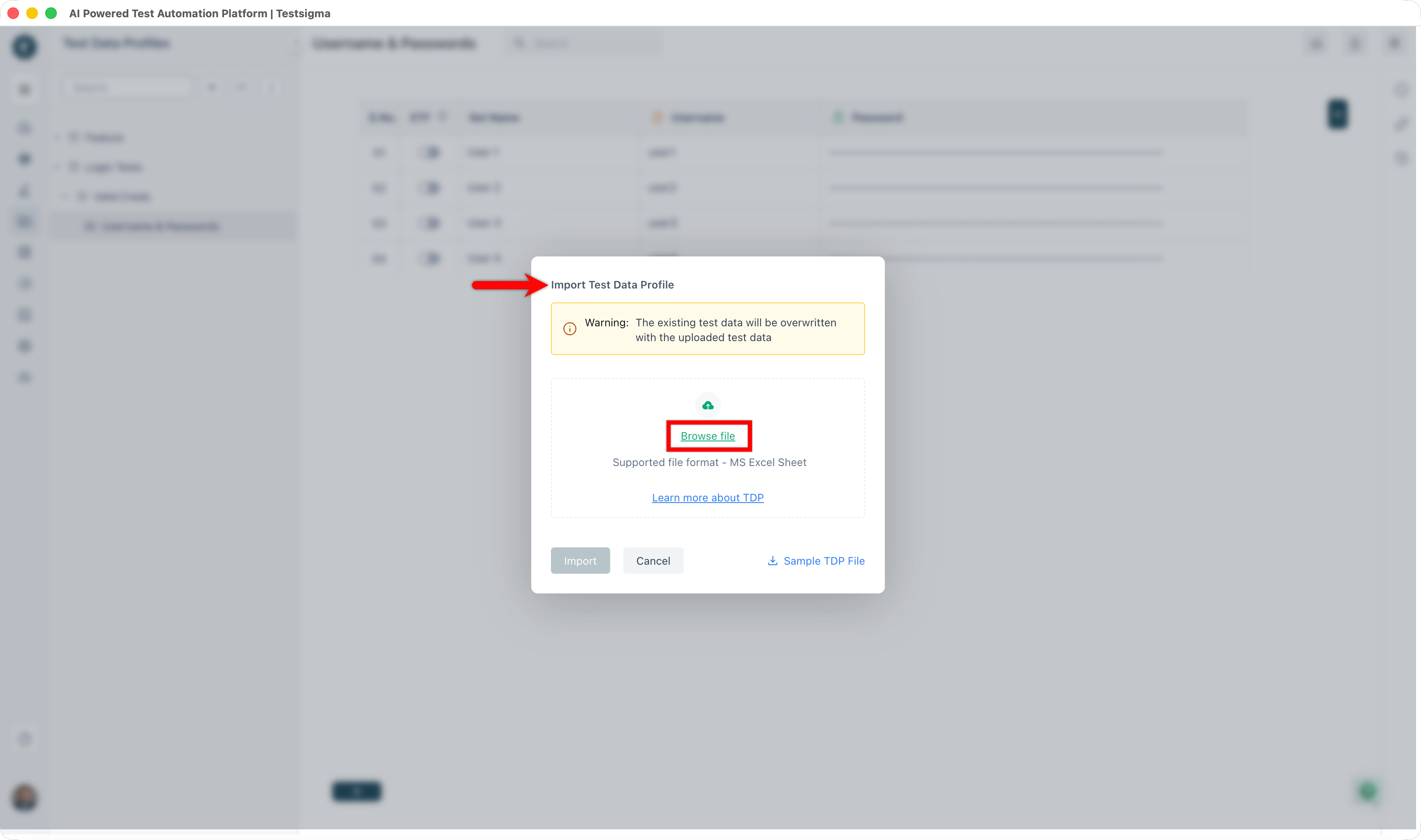
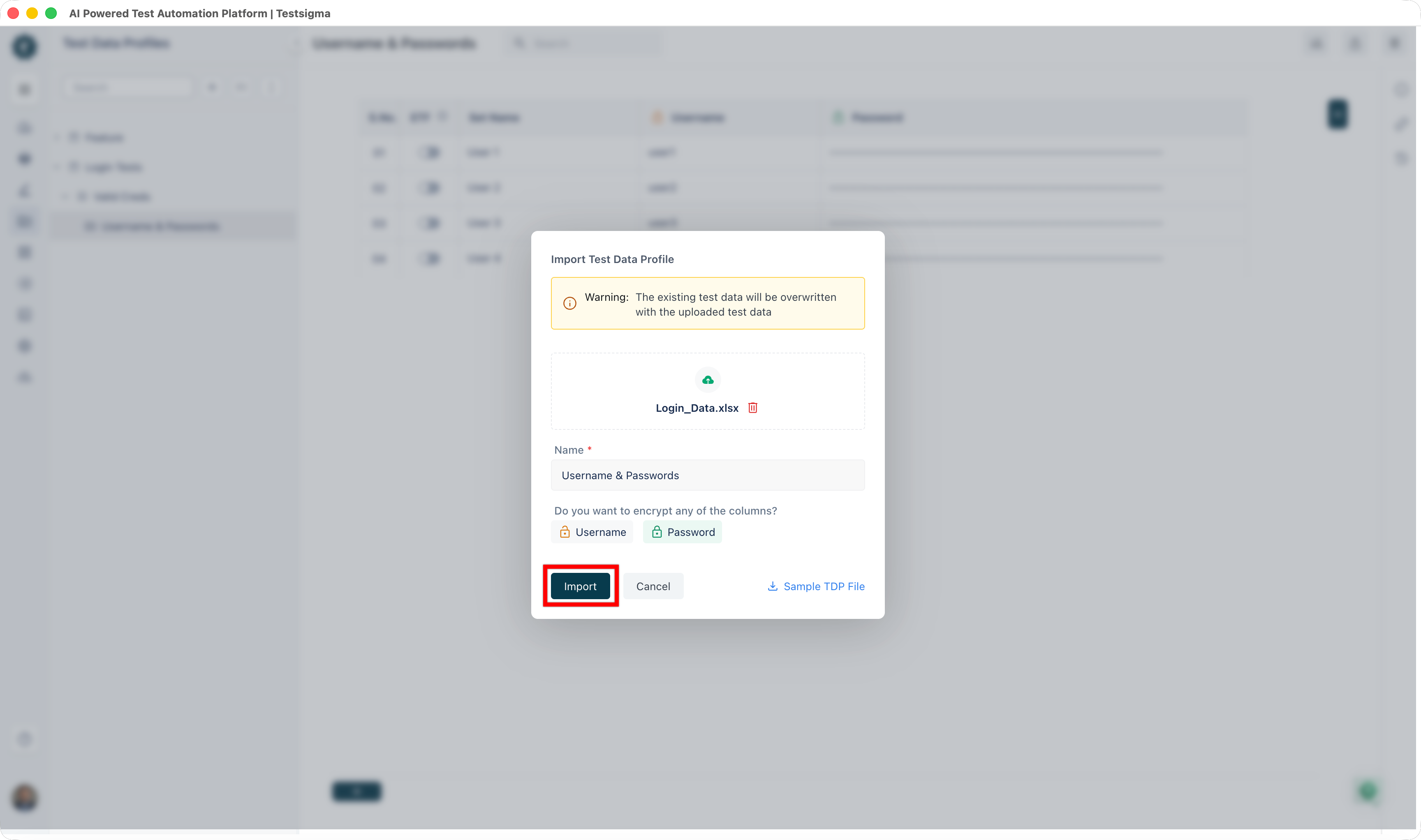
In the Import Test Data Profile dialog, select Browse File and choose the replacement file.
-
Select the columns you want to encrypt.
-
Click Import.
A confirmation email is sent when the update completes.
Related Articles
Section titled “Related Articles”- Folder Structure for Test Data Profiles
- Create a Test Data Profile
- Update Values in a Test Data Profile