
Elements
Create Elements Manually
Prerequisites
Before you begin, ensure that:
- You have referred to the documentation on creating projects.
- You have a mobile web application that is available for testing.
Steps to Create an Element
Section titled “Steps to Create an Element”-
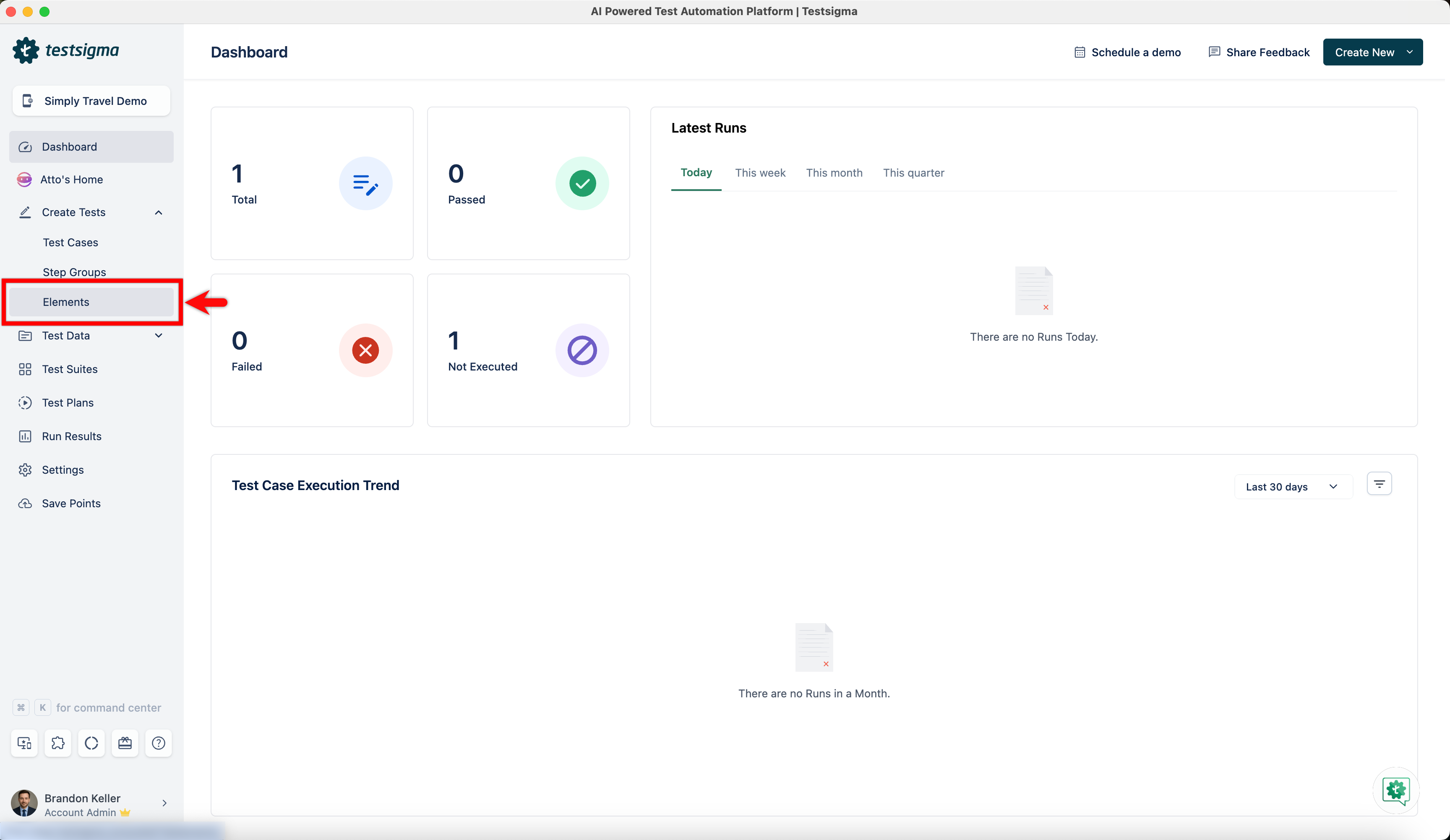
From the left navigation bar, navigate to Create Tests > Elements.
-
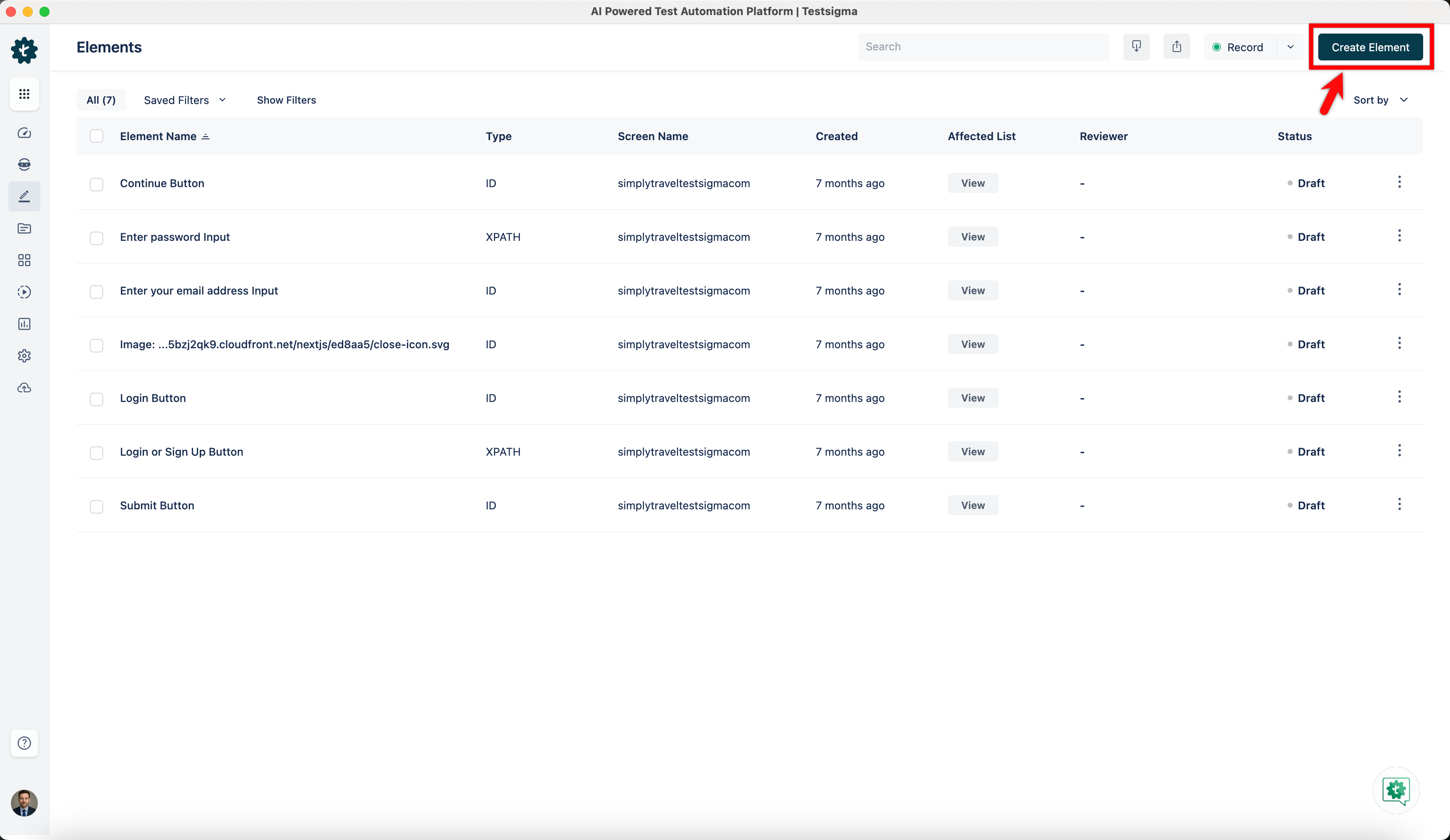
Click Create Element.
-
In the Create Element Overlay, enter all the details:
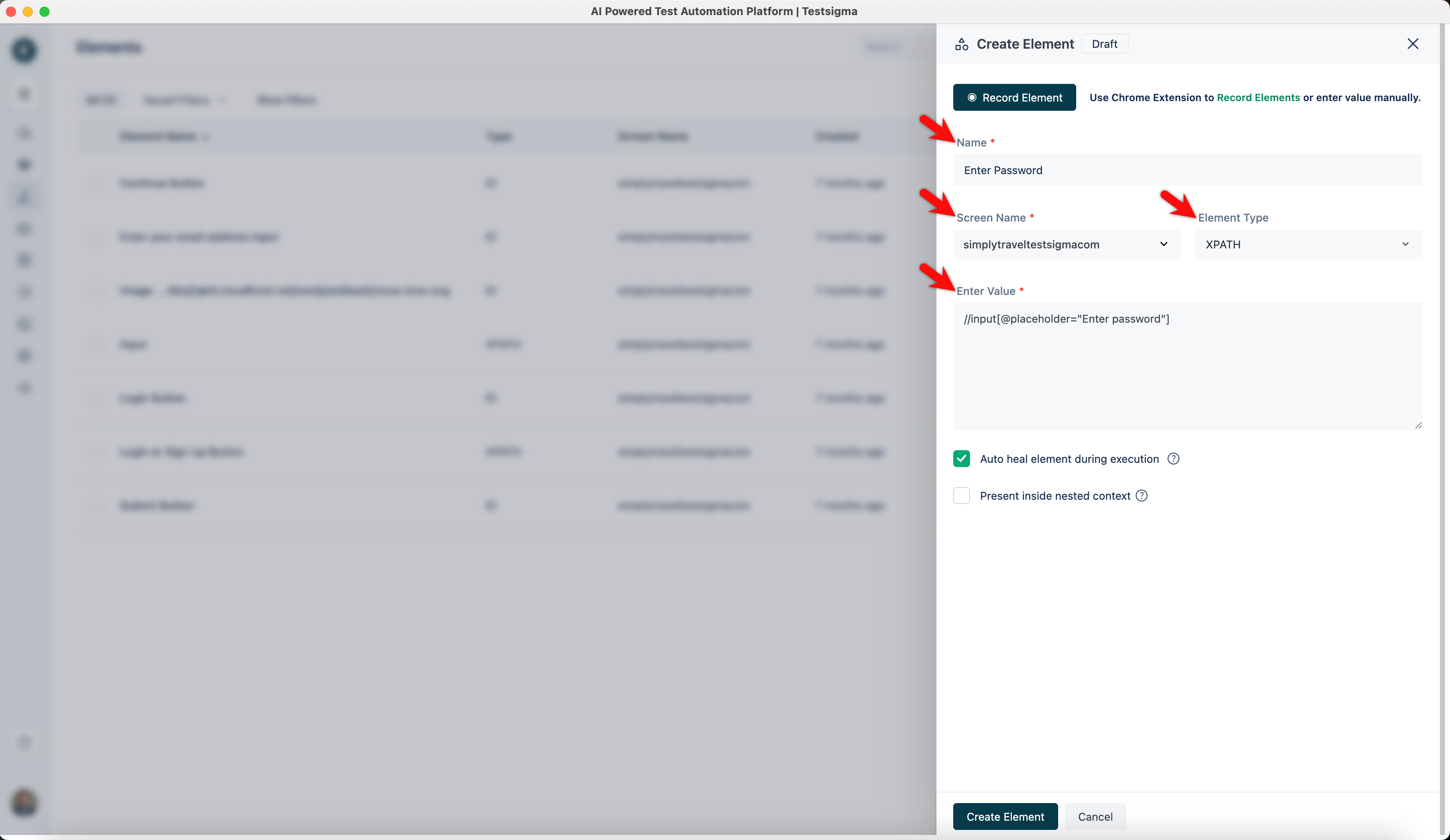
- Name: Enter the name you want to give your element.
- Screen Name: Mention the screen that your element resides on.
- Element Type: There are 5 types of element types supported in Testsigma. This field is a drop-down list; you can select any of them: XPATH, ID, Name, Class Name, or Accessibility ID.
- Enter Value: Enter the value corresponding to the Element Type you selected.
-
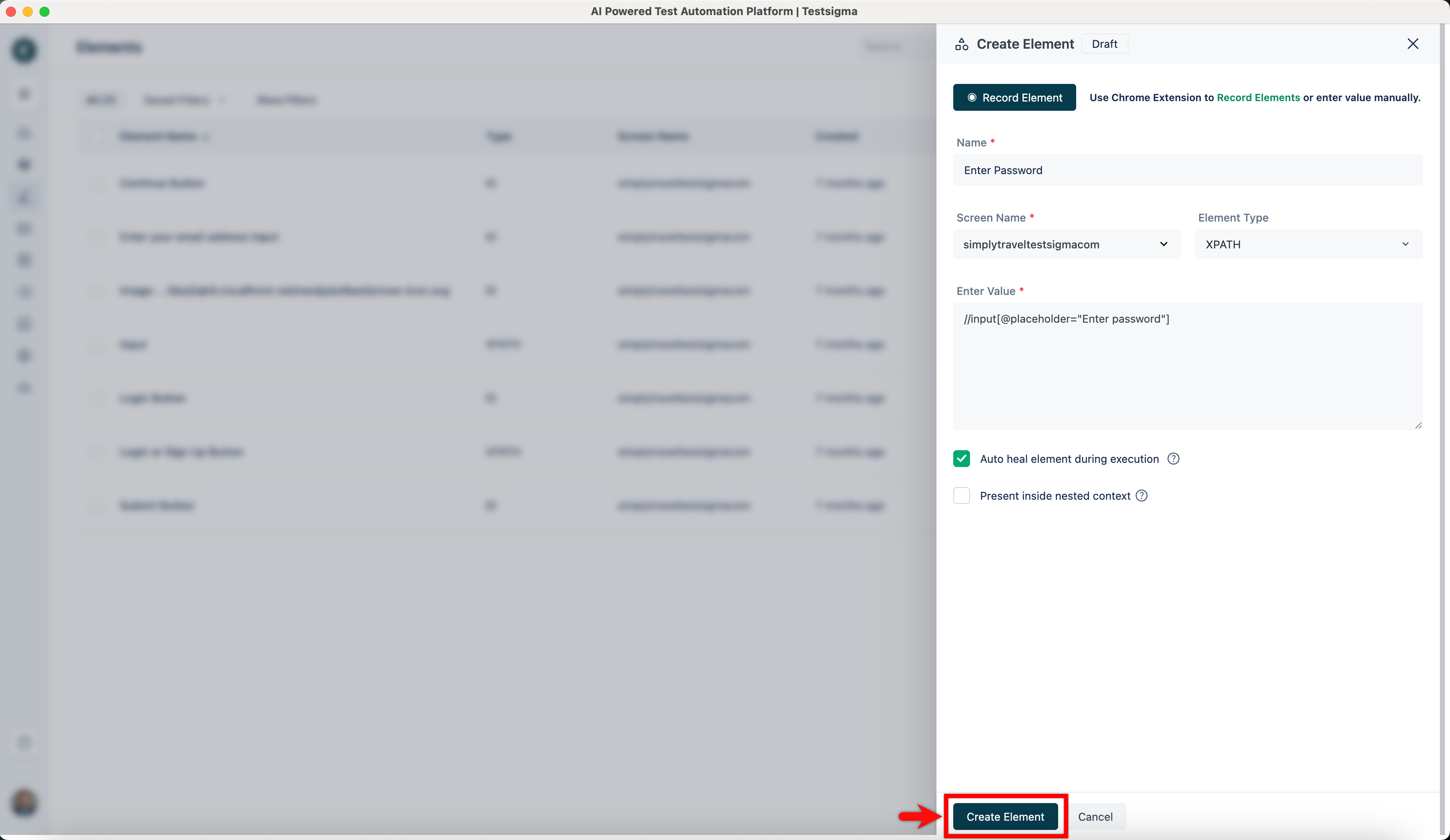
Click Create Element.
-
The element will be saved in the elements list.