
FAQs
How to Execute Android/iOS Tests in Emulators/Simulators?
You can execute Android and iOS test cases in emulators or simulators using Testsigma. This feature is useful when you do not have access to physical devices but still want to execute tests. You can also perform cross-device testing by starting multiple emulators or simulators.
To quickly help you understand, this video demonstrates how to execute Android tests in an emulator using the Testsigma Agent.
Prerequisites
- Before you begin, ensure you know how to start emulators/simulators and the Testsigma Agent is running on your machine.
Execute Test Cases in an Emulator
Section titled “Execute Test Cases in an Emulator”-
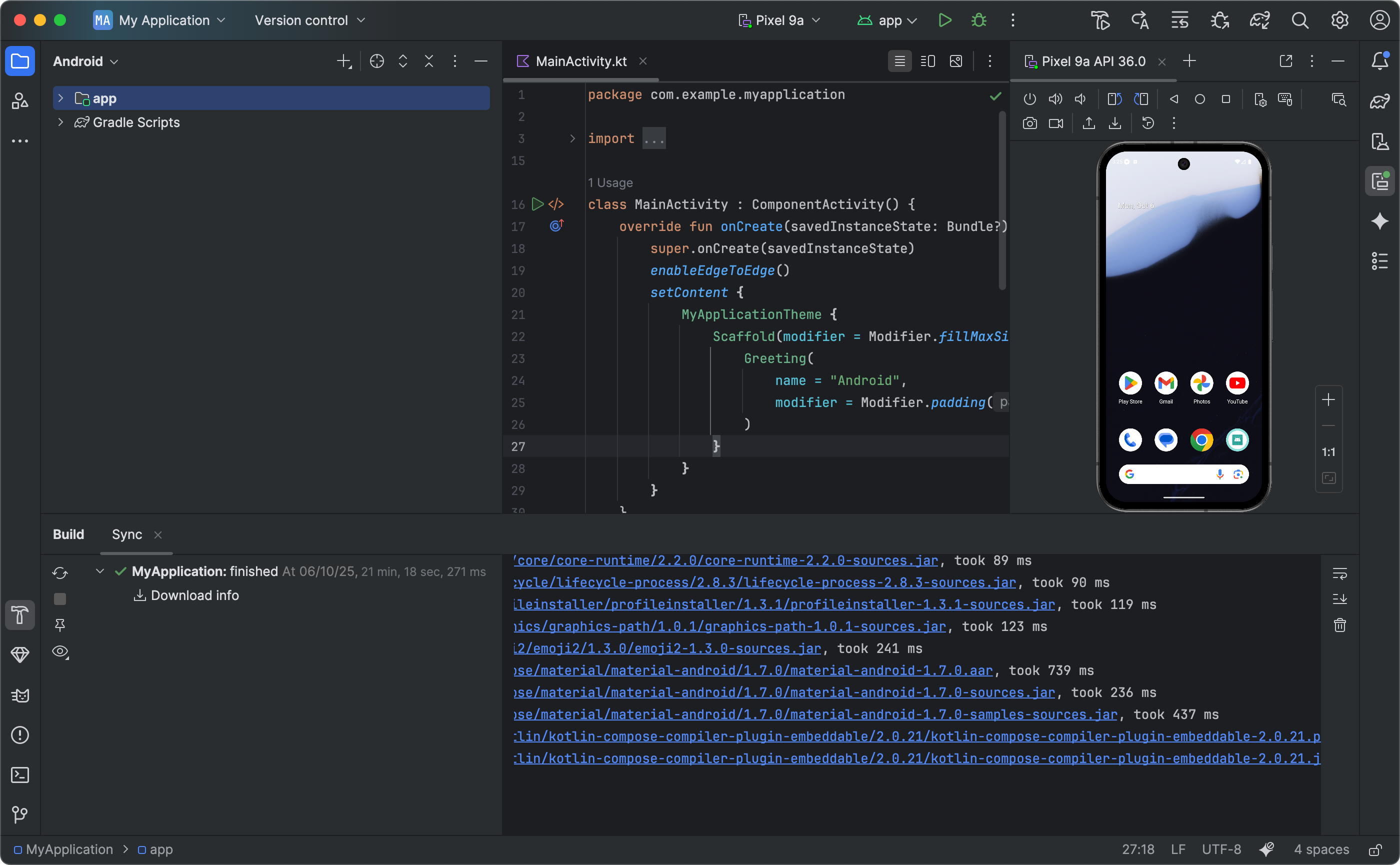
Install Android Studio, add a device and start it.
-
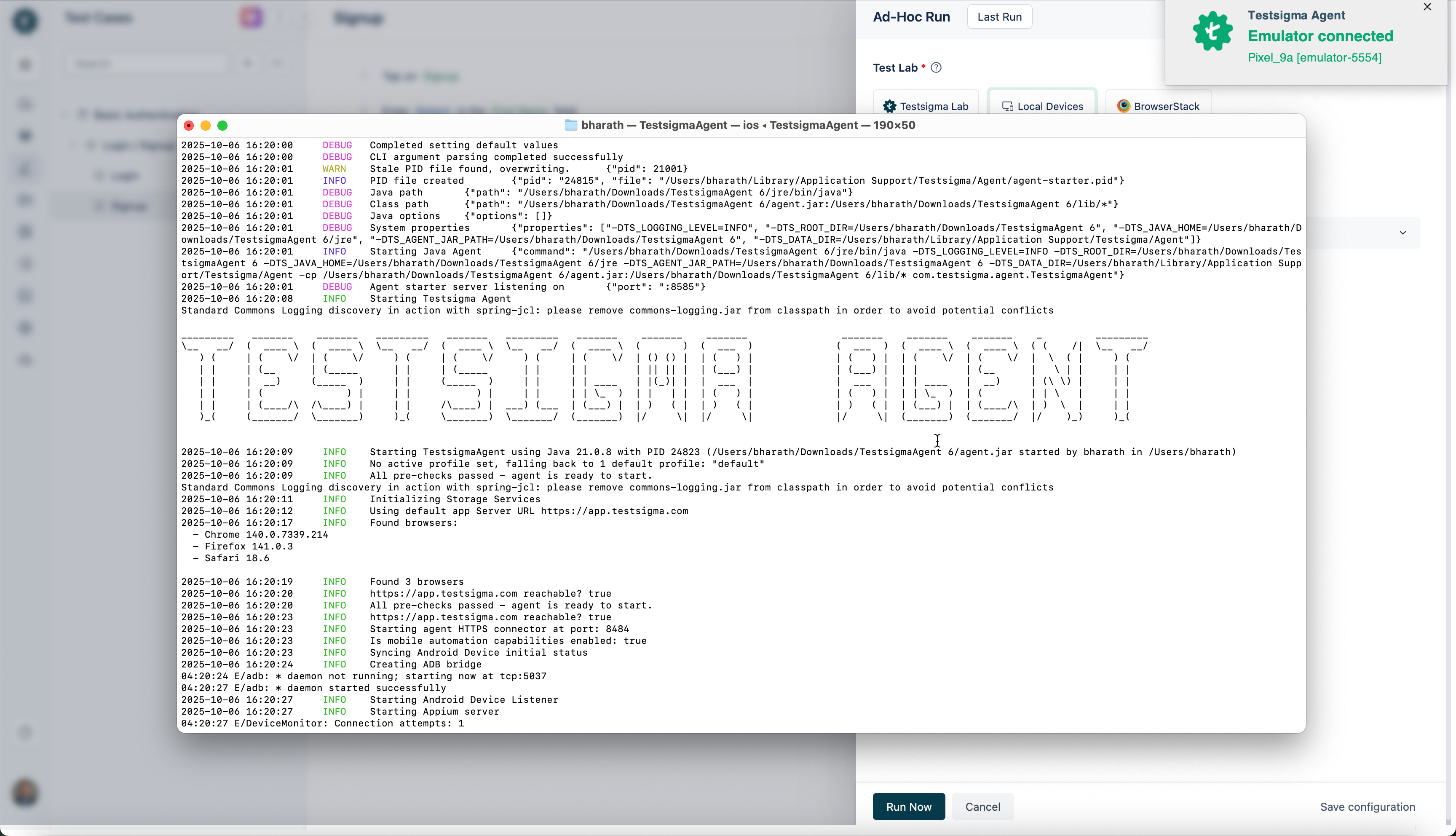
Start the Testsigma Agent on your machine.
-
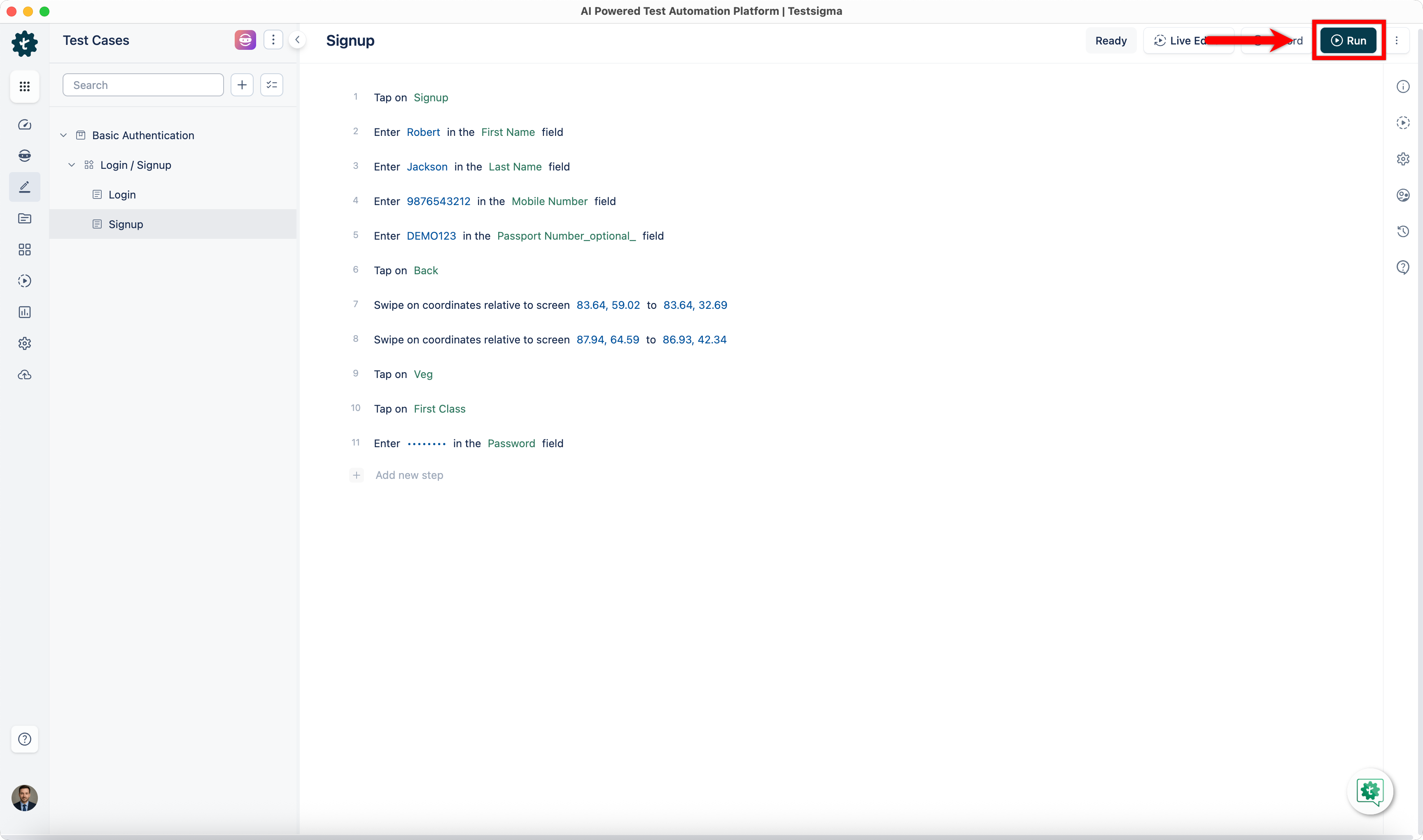
In the Testsigma application, go to Test Cases and open the test case you want to execute.
-
On the Test Case details page, click Run in the top-right corner.
-
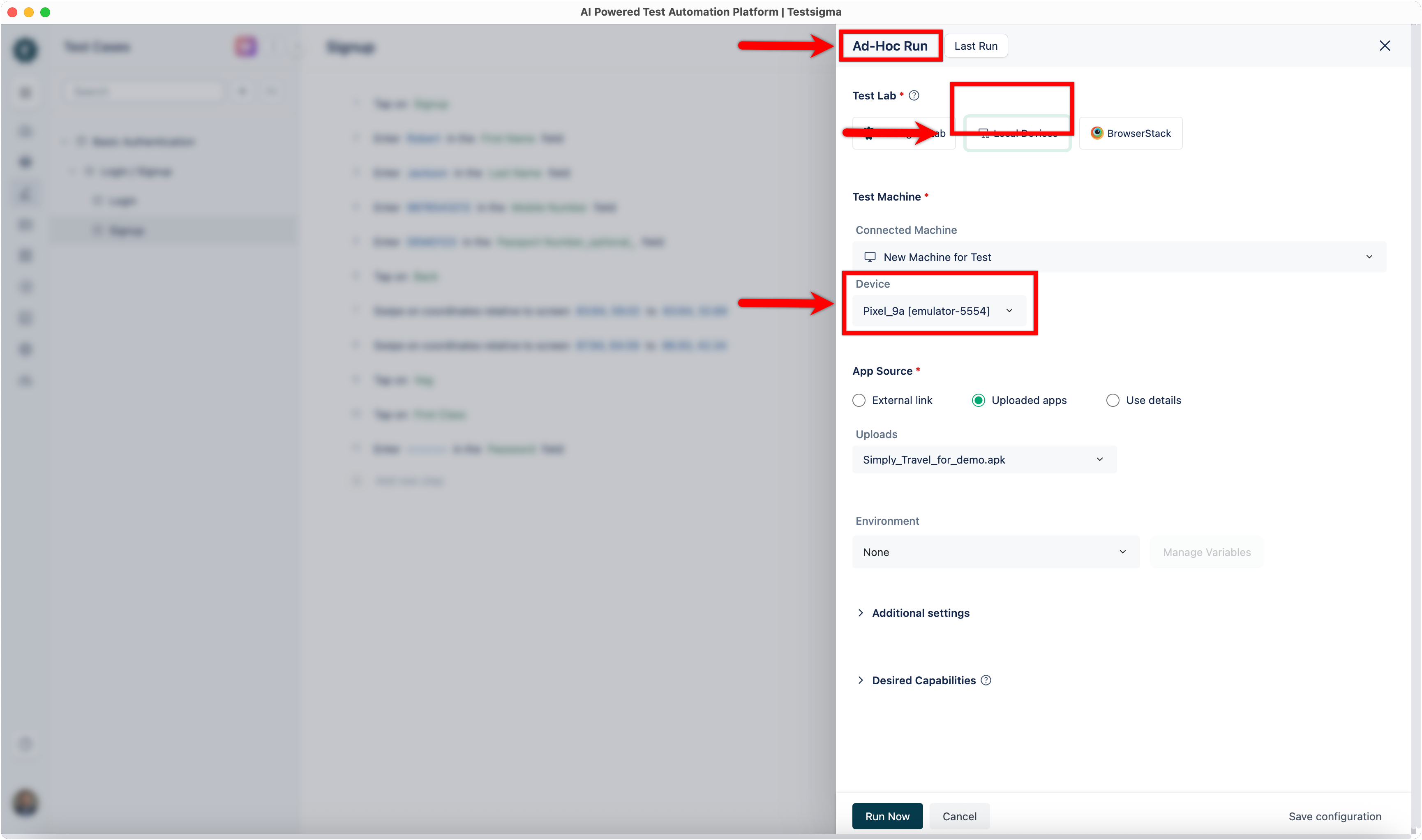
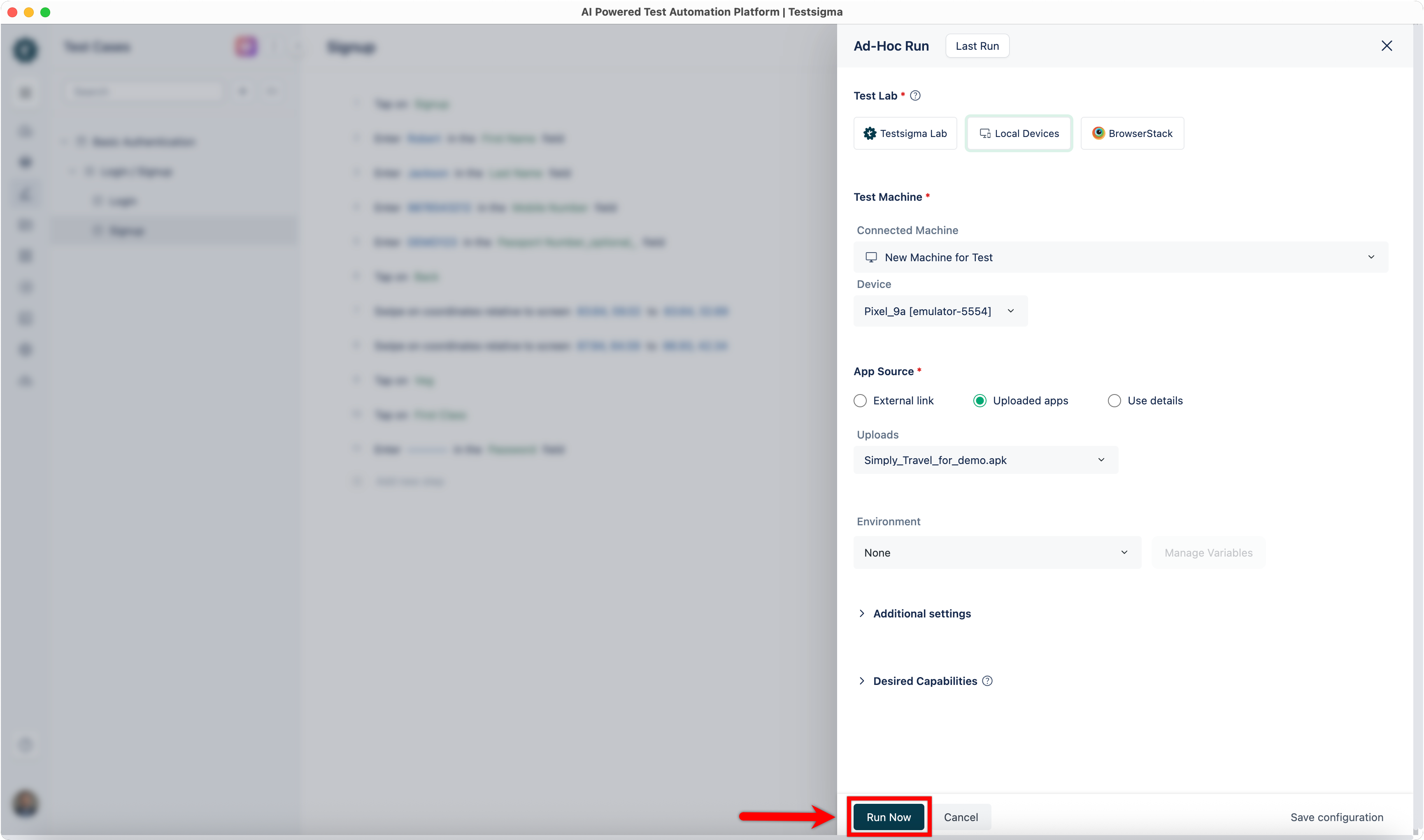
In the Ad-Hoc Run overlay, select Local Devices and verify that the connected emulator appears under Test Machine.
-
Click Run Now to execute the test case in the emulator.
-
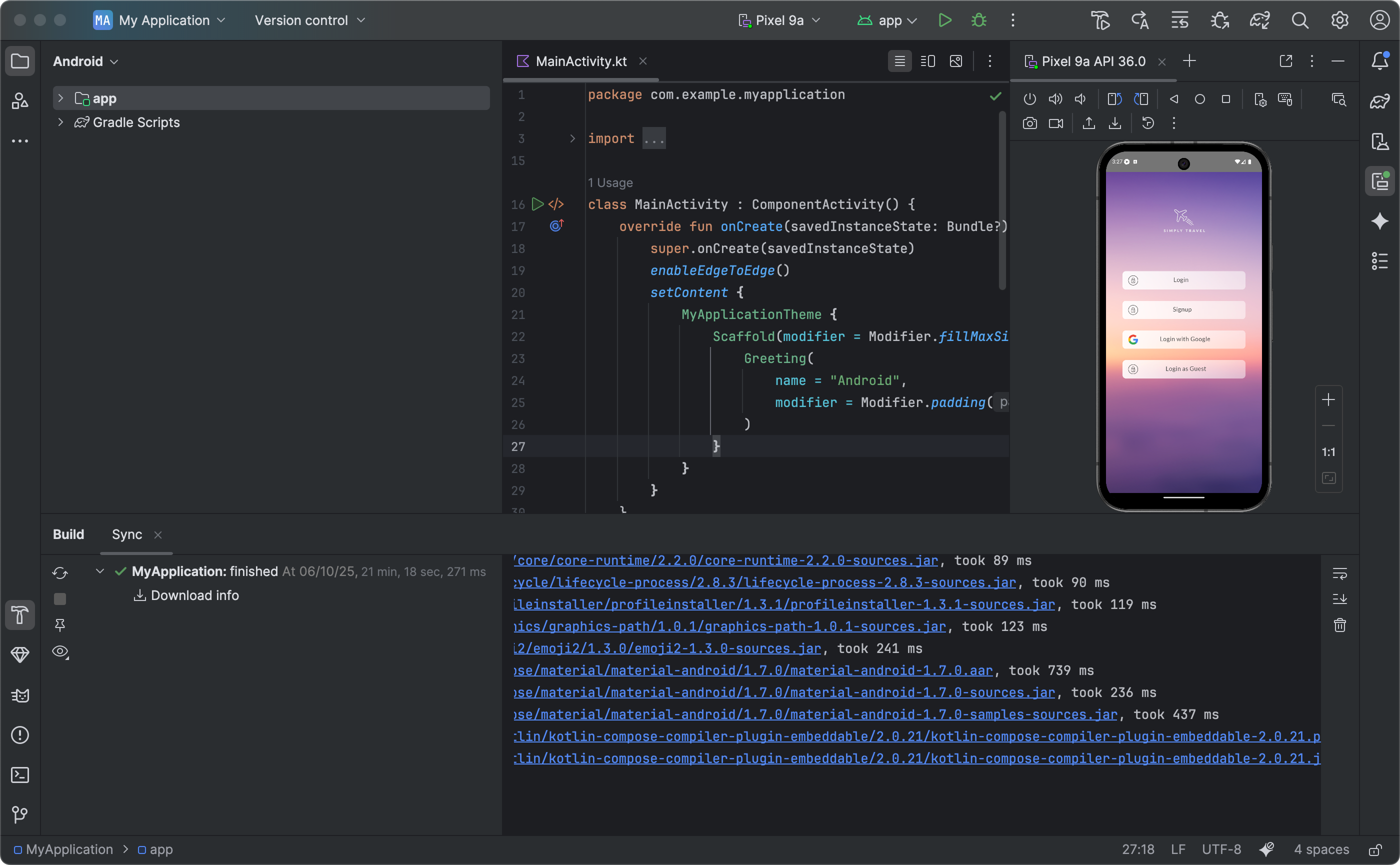
The Test Case will execute in that emulator.
Troubleshooting:
Section titled “Troubleshooting:”-
Emulator not detected: Ensure that the emulator is running before starting the Testsigma Agent.
-
Agent not showing emulator: Restart the Testsigma Agent and verify that the ADB (Android Debug Bridge) is properly configured.
-
Test execution fails to start: Check that the selected device in Android Studio matches the emulator connected to the Agent.
Execute Test Cases in a Simulator
Section titled “Execute Test Cases in a Simulator”-
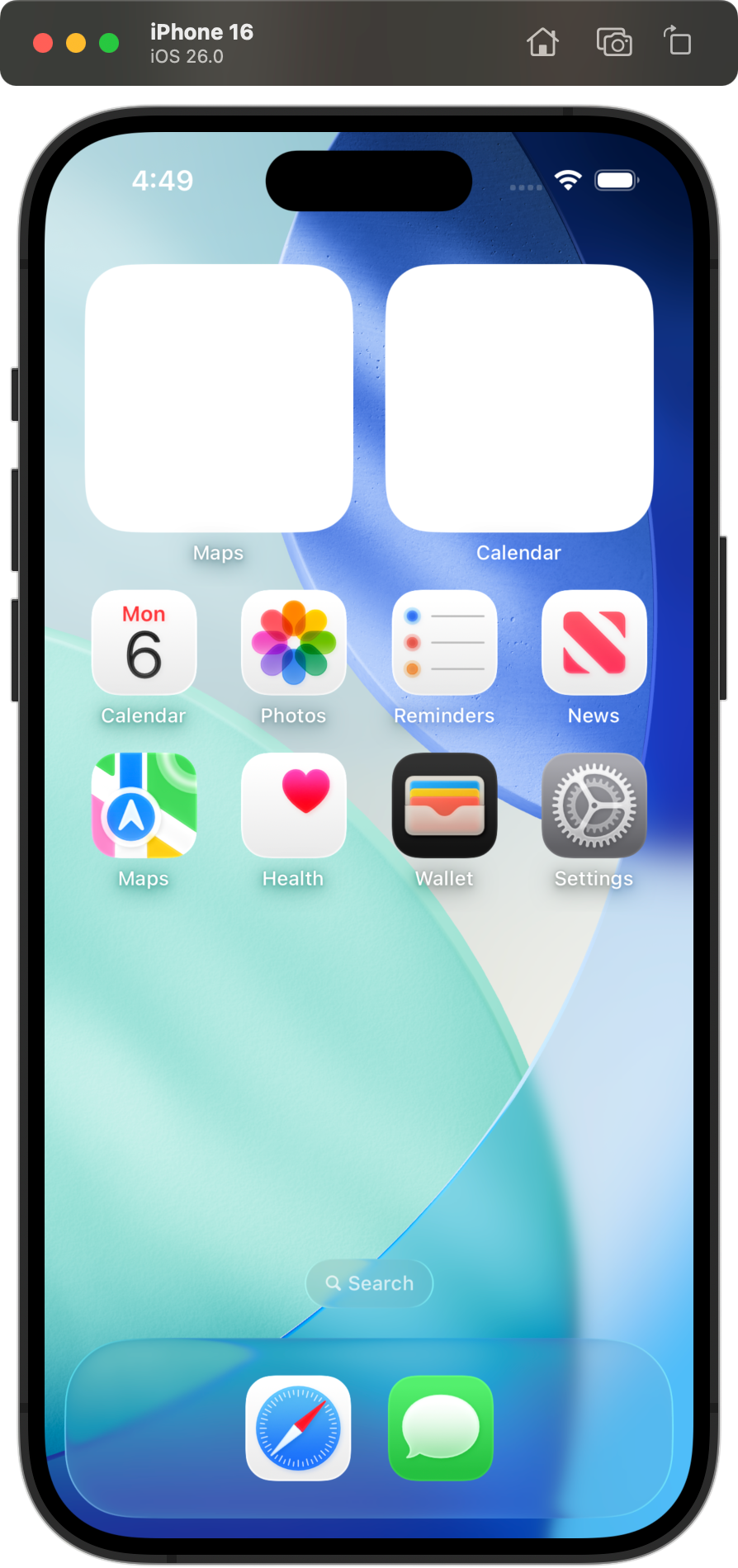
Install Xcode. Add or open a simulator with a device of your choice.
-
Start the Testsigma Agent on your machine.
-
In the Testsigma application, go to Test Cases and open the test case you want to execute.
-
On the Test Case details page, click Run in the top-right corner.
-
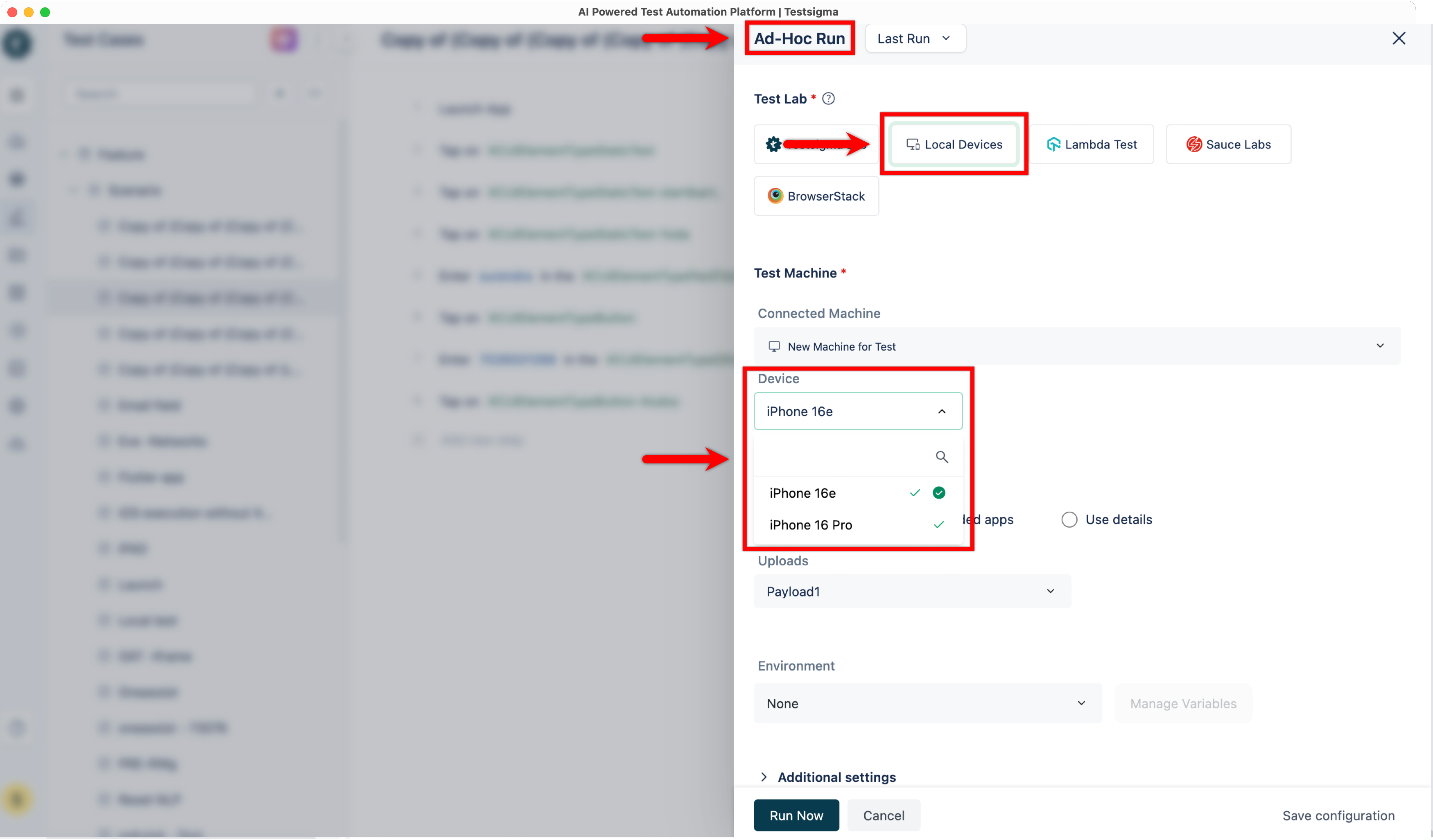
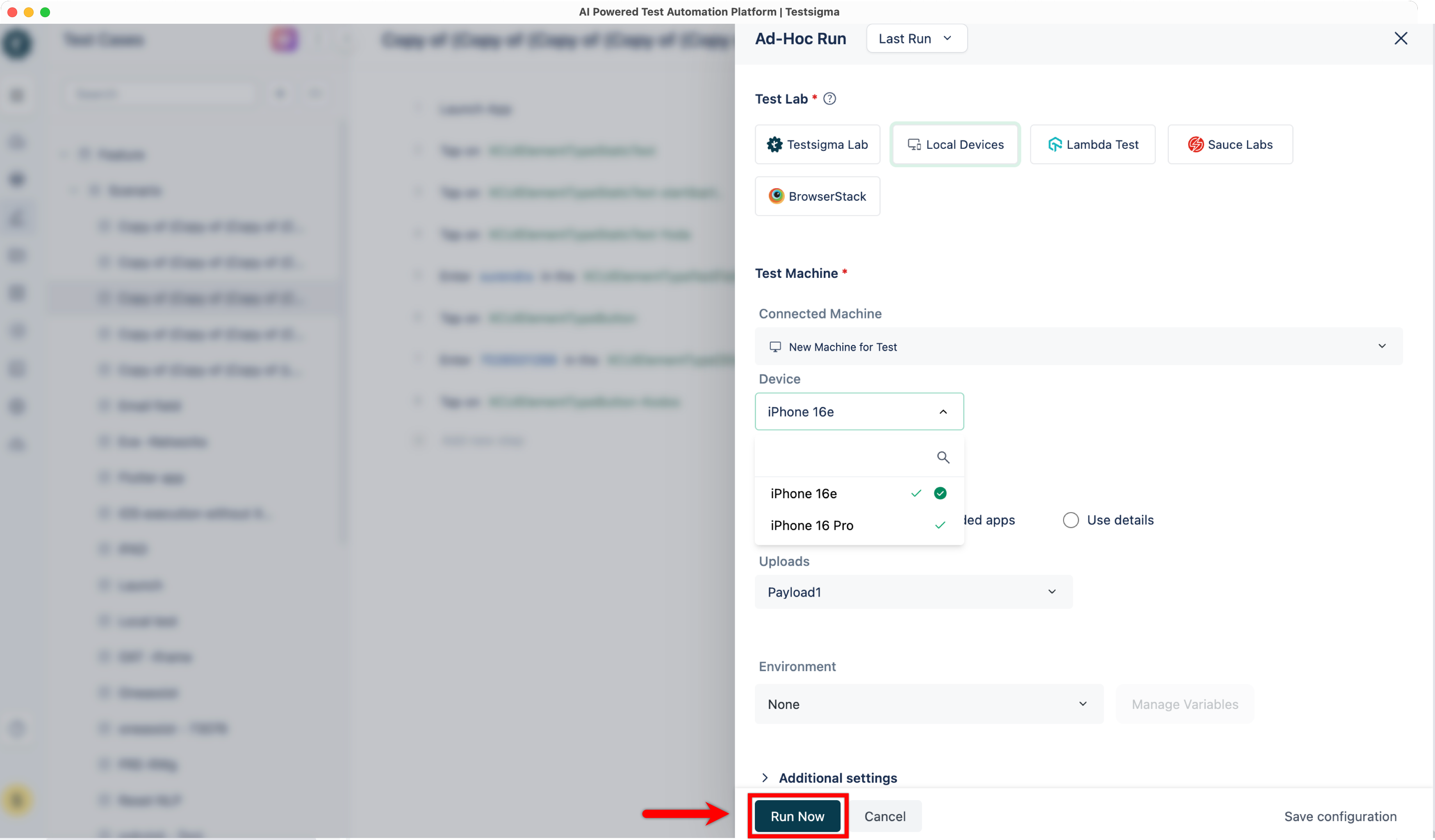
In the Ad-Hoc Run overlay, select Local Devices and verify that the connected simulator appears under Test Machine.
-
Click Run Now to execute the test case in the simulator.
-
The Test Case will execute in that simulator.
Troubleshooting:
Section titled “Troubleshooting:”-
Simulator not detected: Ensure that the simulator is running before starting the Testsigma Agent.
-
Agent not showing simulator: Restart the Testsigma Agent and confirm that Xcode Command Line Tools & Devices are installed.
-
Test execution fails to start: Check that the simulator device version is compatible with the test configuration in Testsigma.