
Configuration
Two-Factor Authentication (2FA)
Prerequisites
- Before you begin, ensure that you have an authenticator app for your organization.
Enable Two-Factor Authentication
Section titled “Enable Two-Factor Authentication”-
Click the User Profile menu in the bottom-left corner.
-
Select 2FA under User Settings.
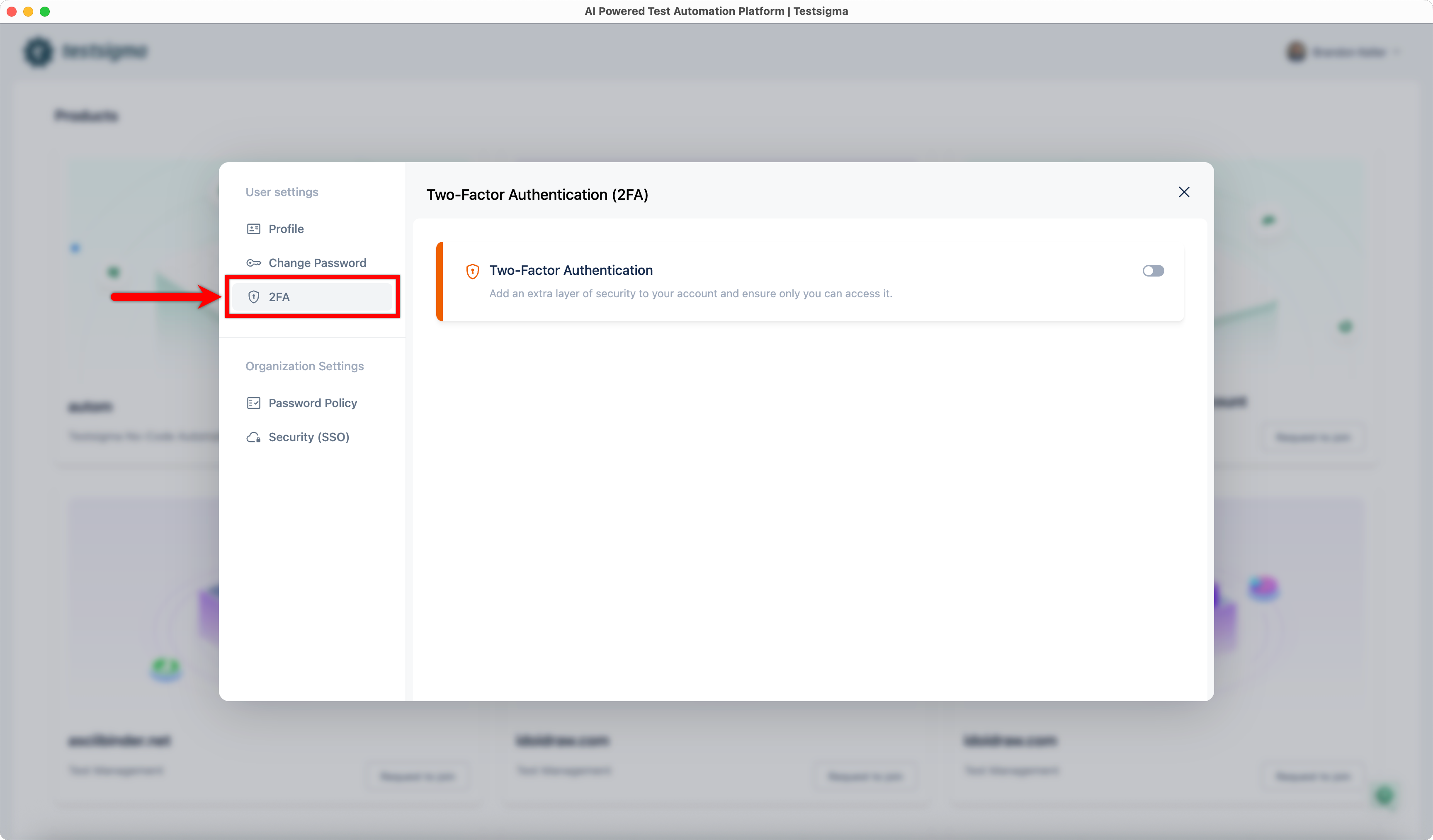
-
Turn on the Two-Factor Authentication toggle. This will open the Confirm Your Password dialog.
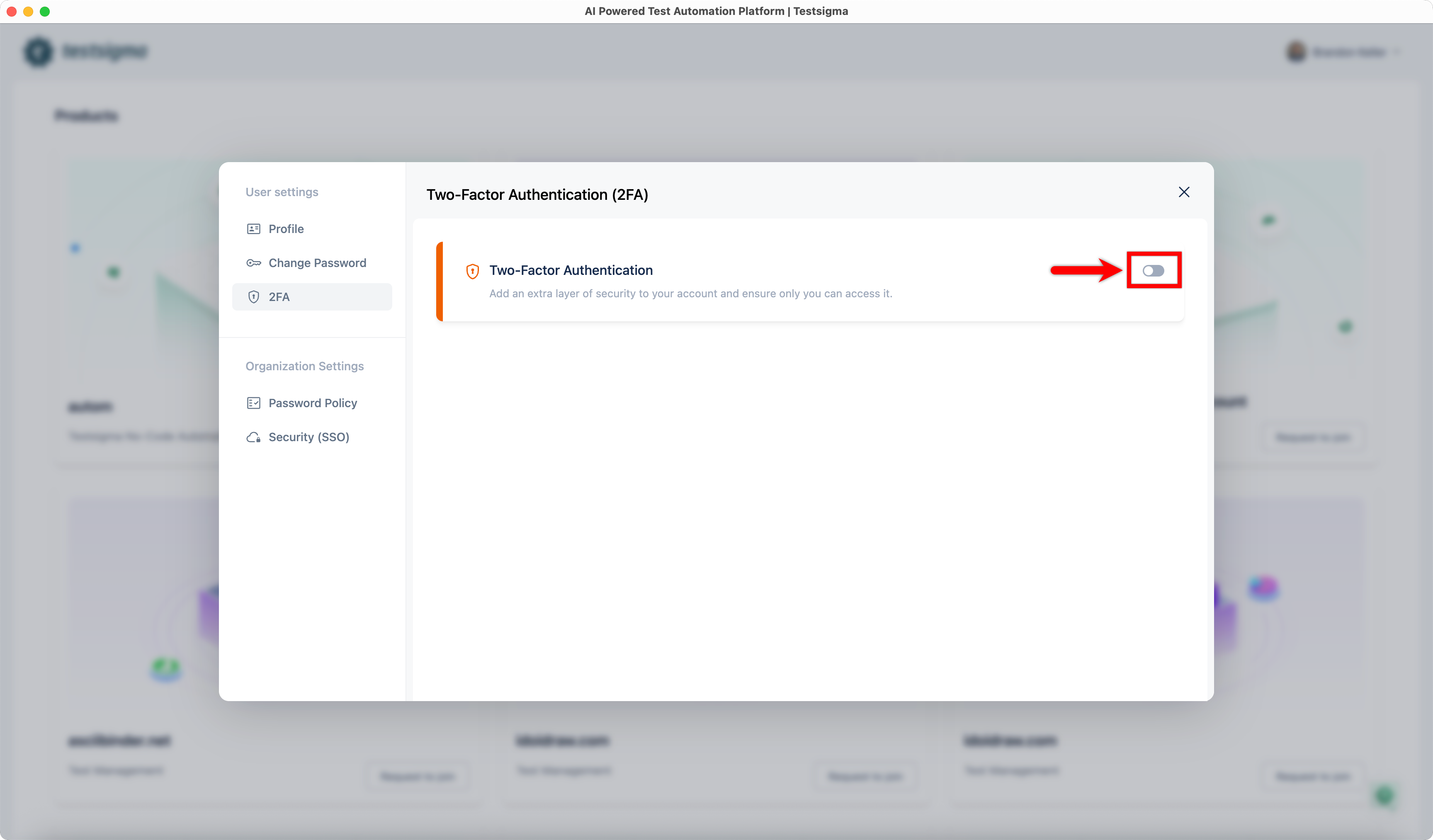
-
In the Confirm Your Password dialog, enter your password, and click Continue. This will open the Set Up Authenticator App dialog.
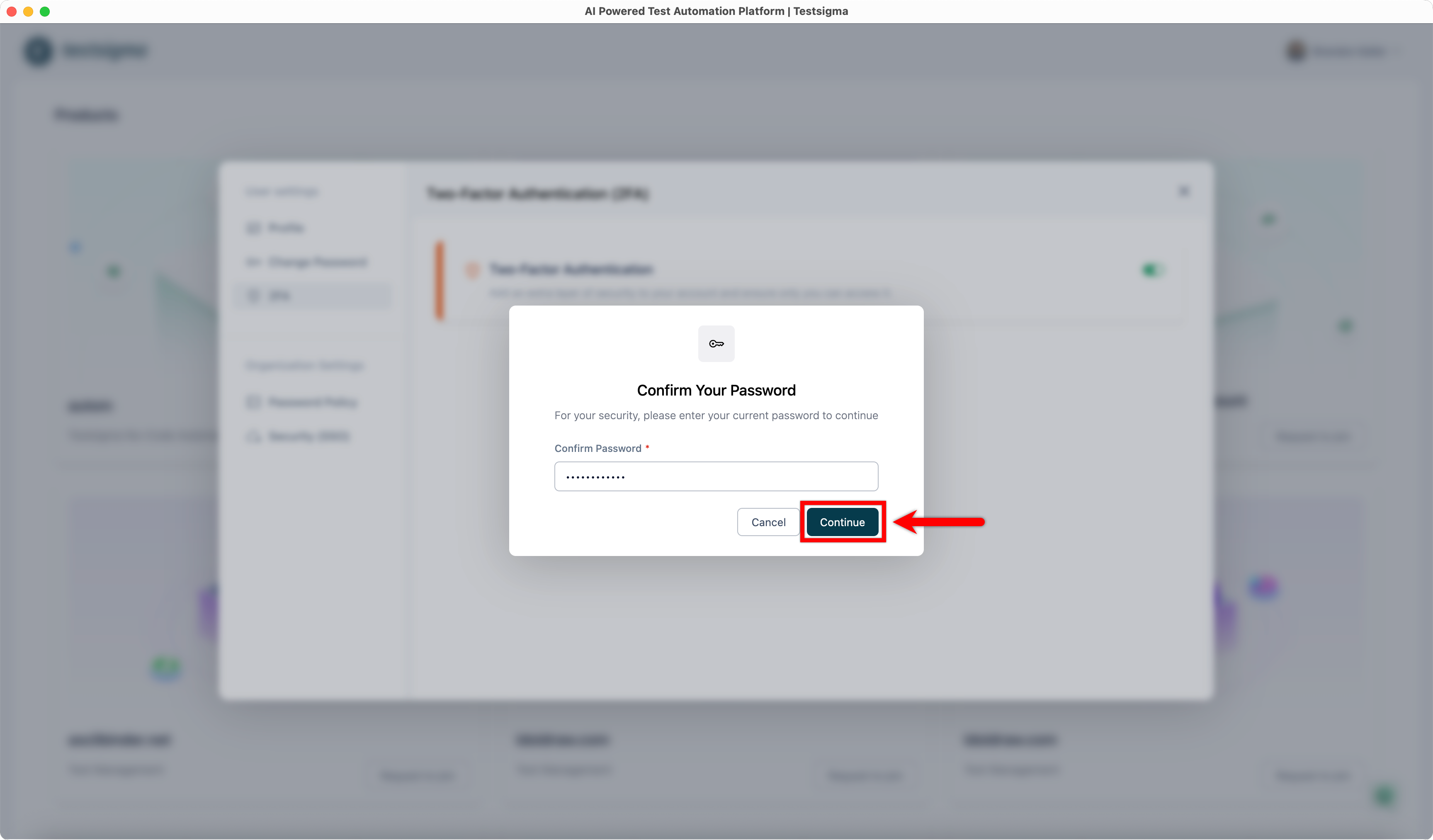
-
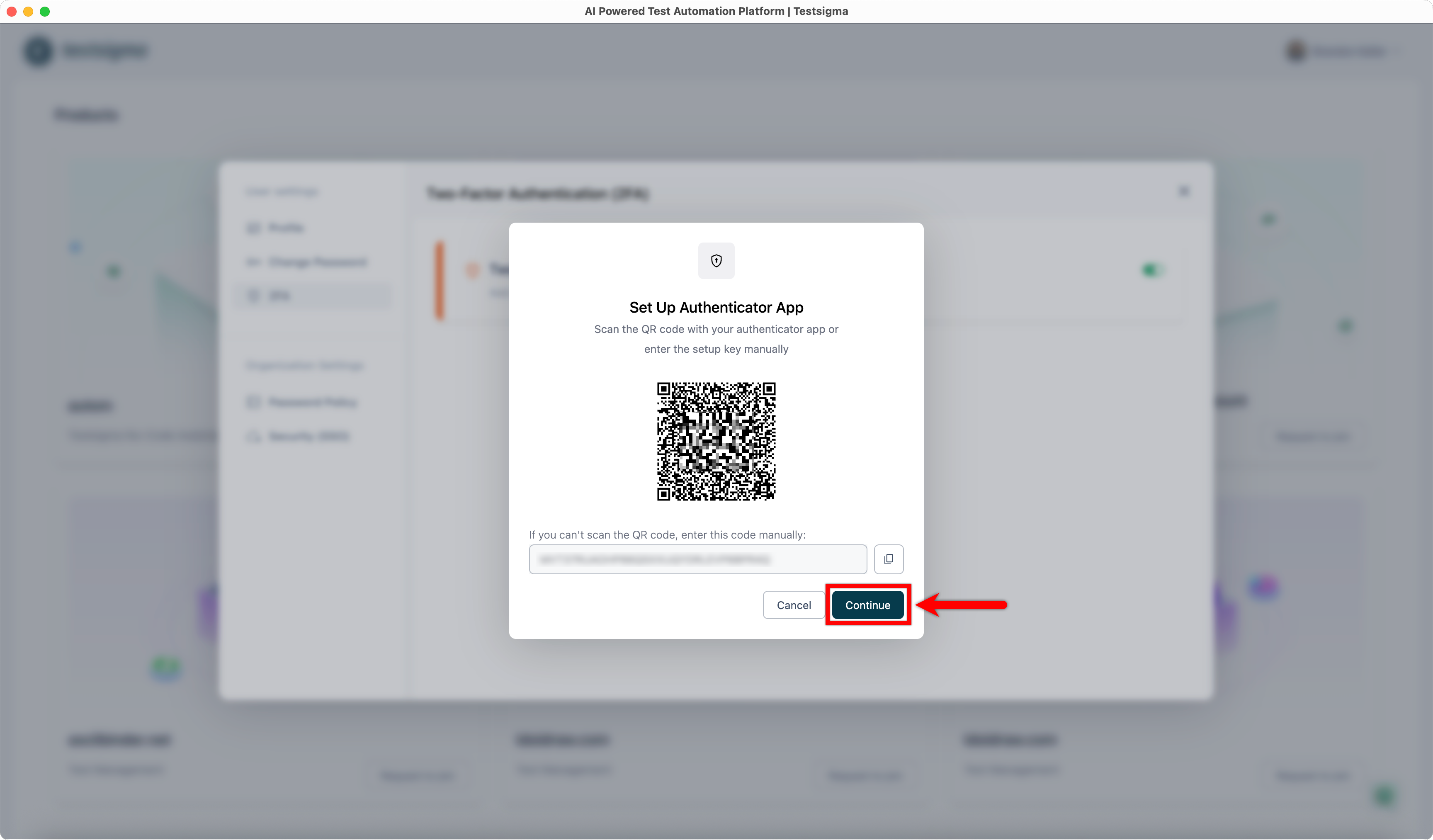
In the Set Up Authenticator App dialog, scan the QR code or enter the setup key in your authenticator app.
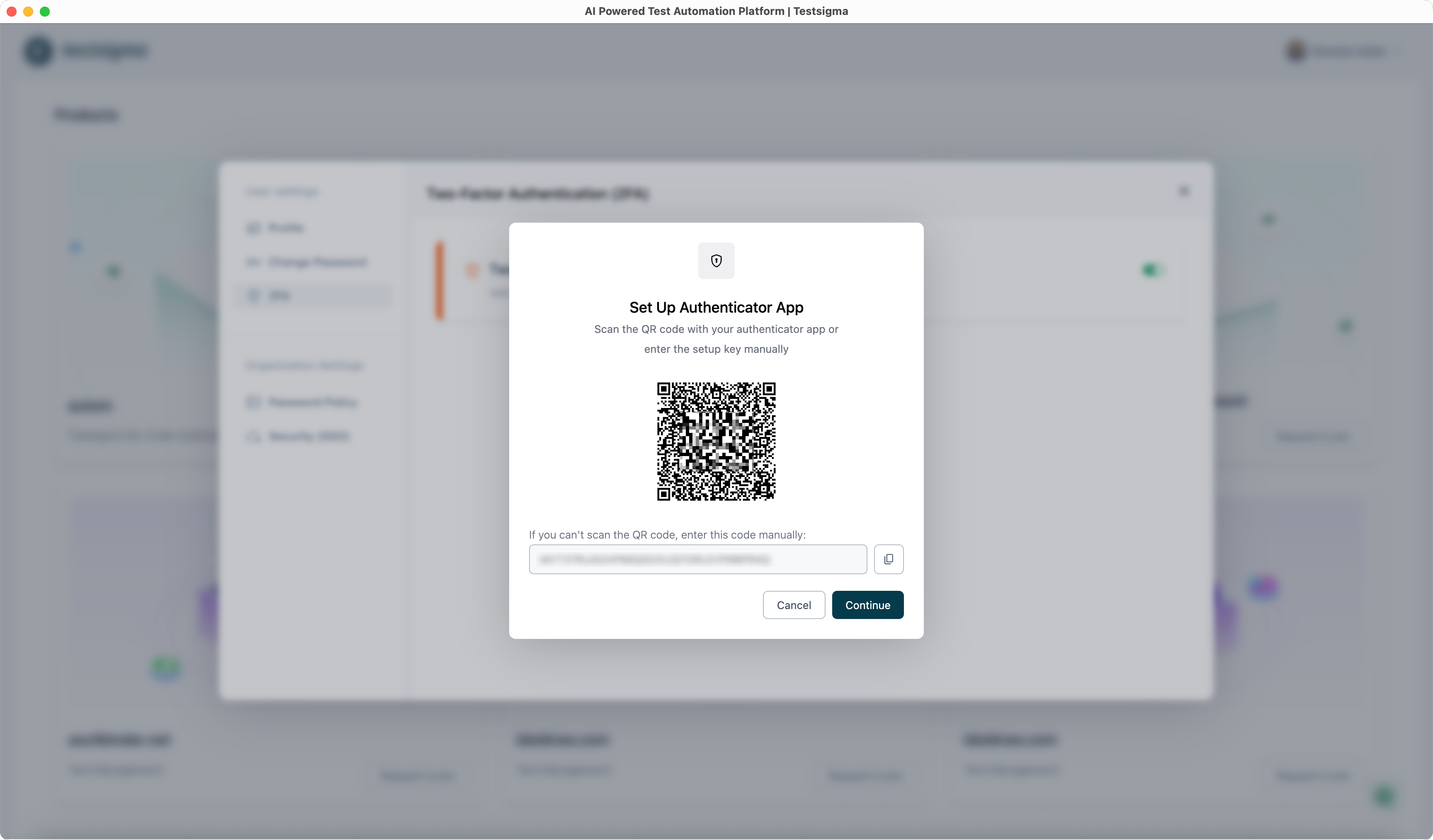
-
Click Continue. This will open the Verify Authenticator App dialog.
-
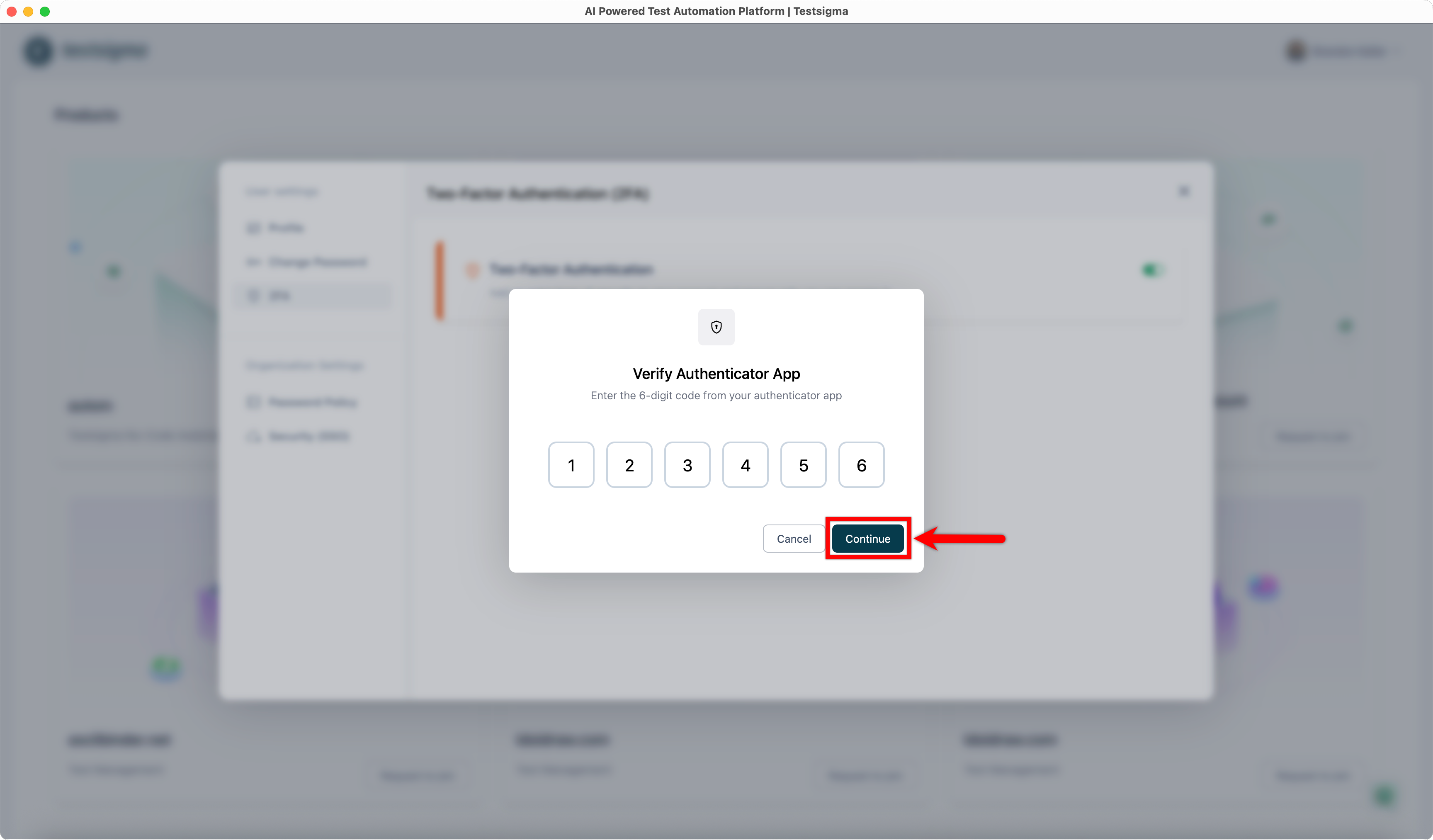
In the Verify Authenticator App dialog:
- Enter the 6-digit code from your authenticator app.
- Click Continue.
-
You have now successfully enabled Two-Factor Authentication for your Testsigma account.