Projects
Manage Applications
Add Application
Section titled “Add Application”-
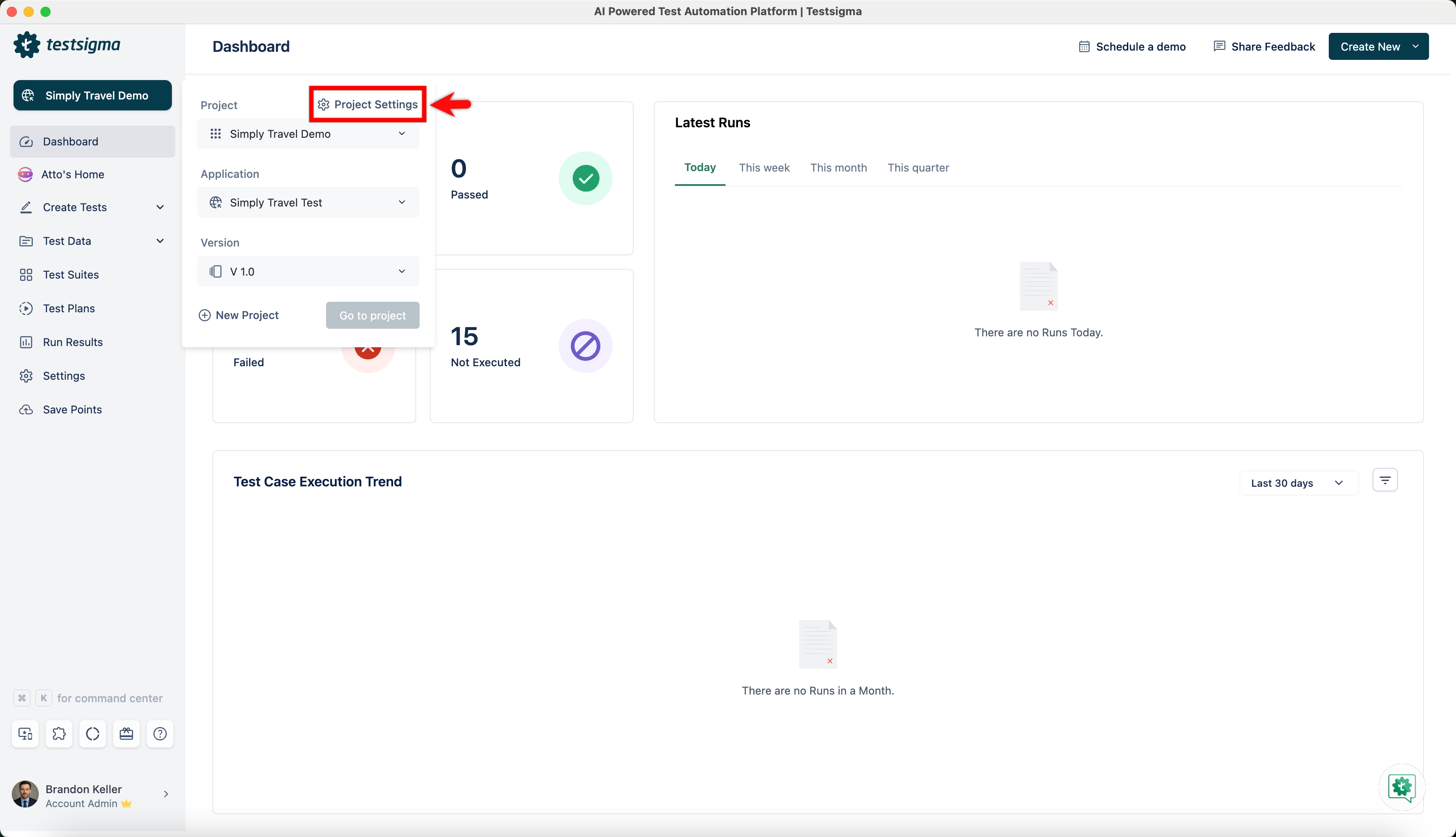
Navigate to Project Settings.
-
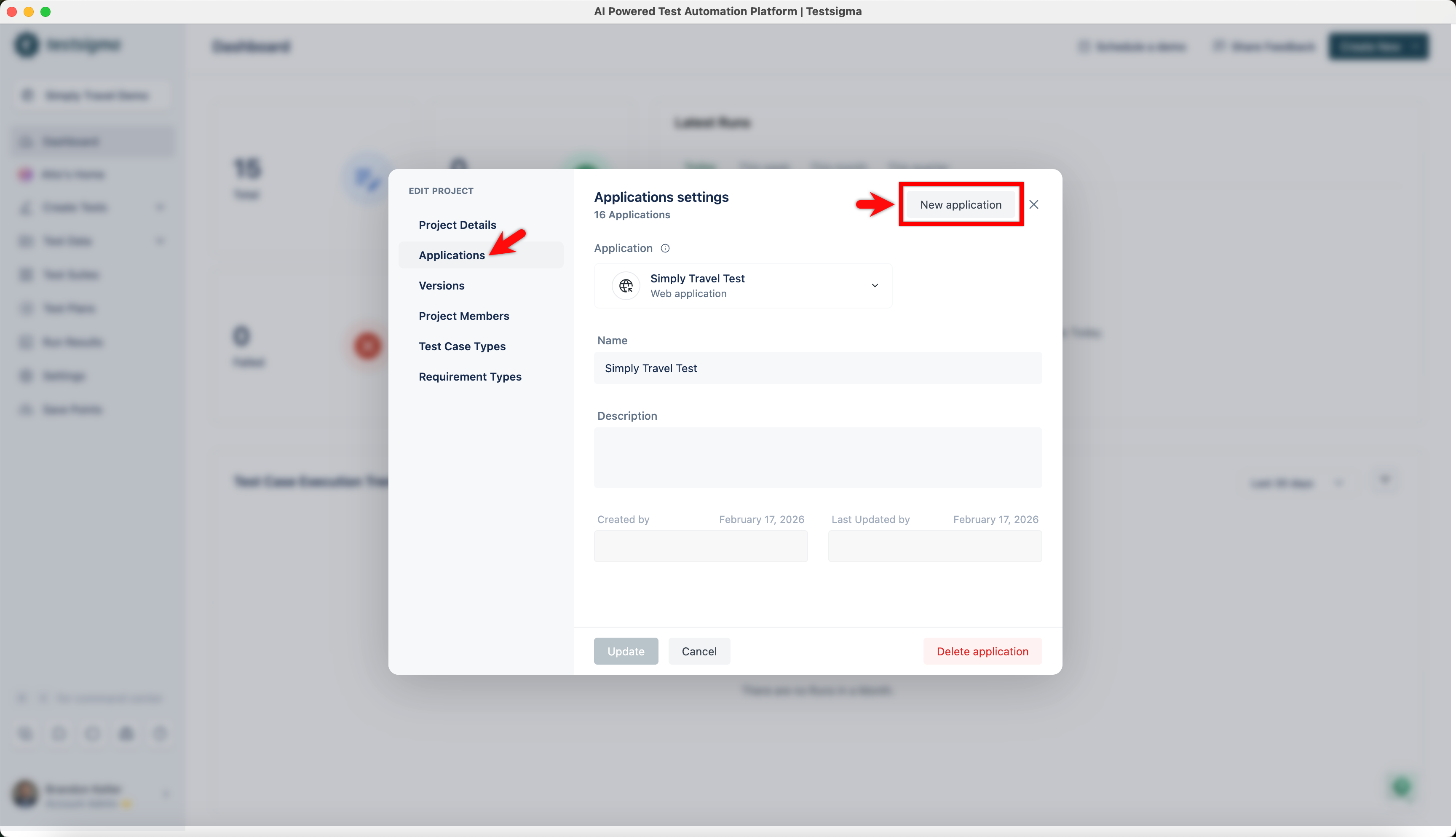
In the EDIT PROJECT dialog, click Applications on the left menu and click New Application.
-
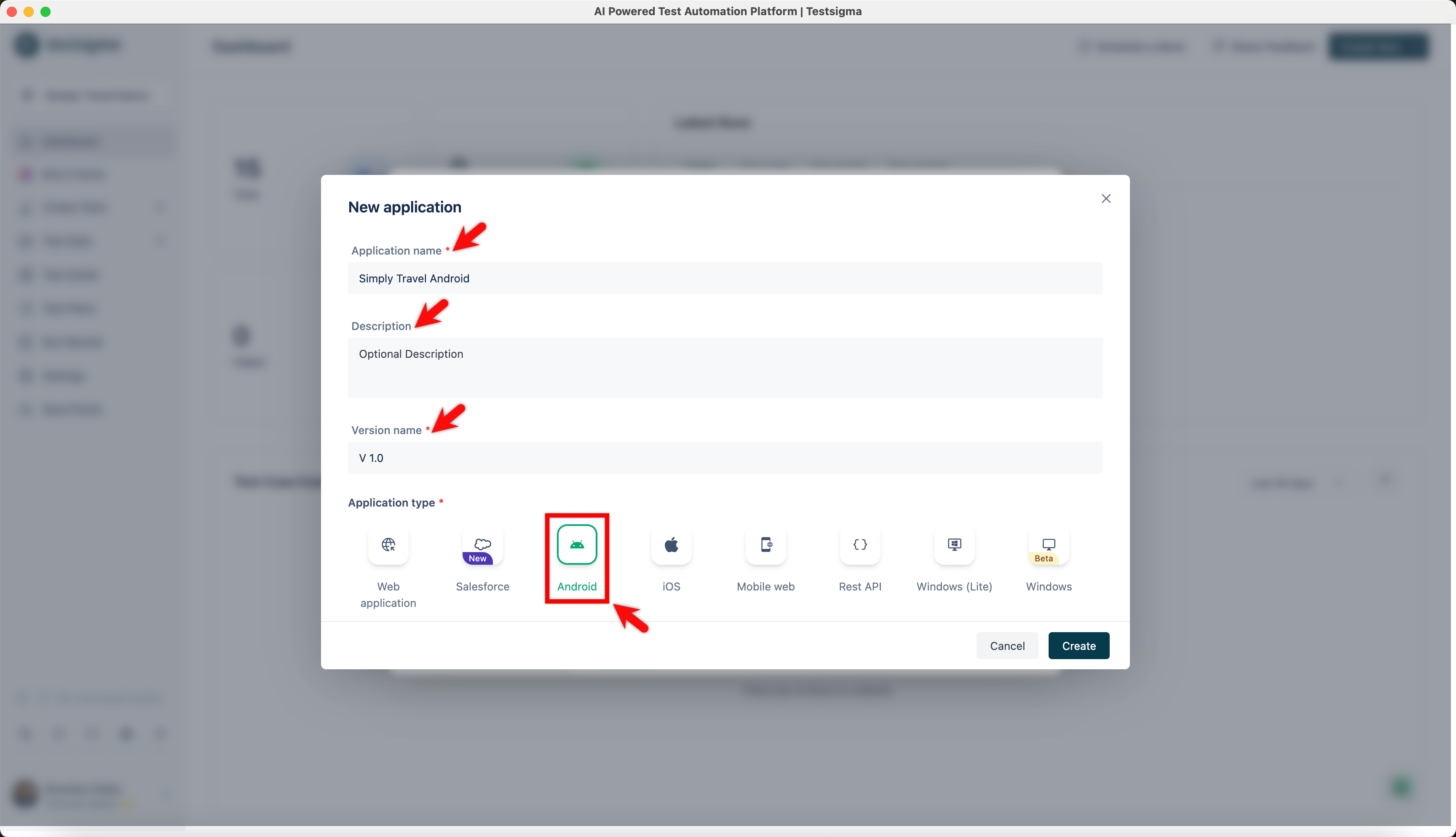
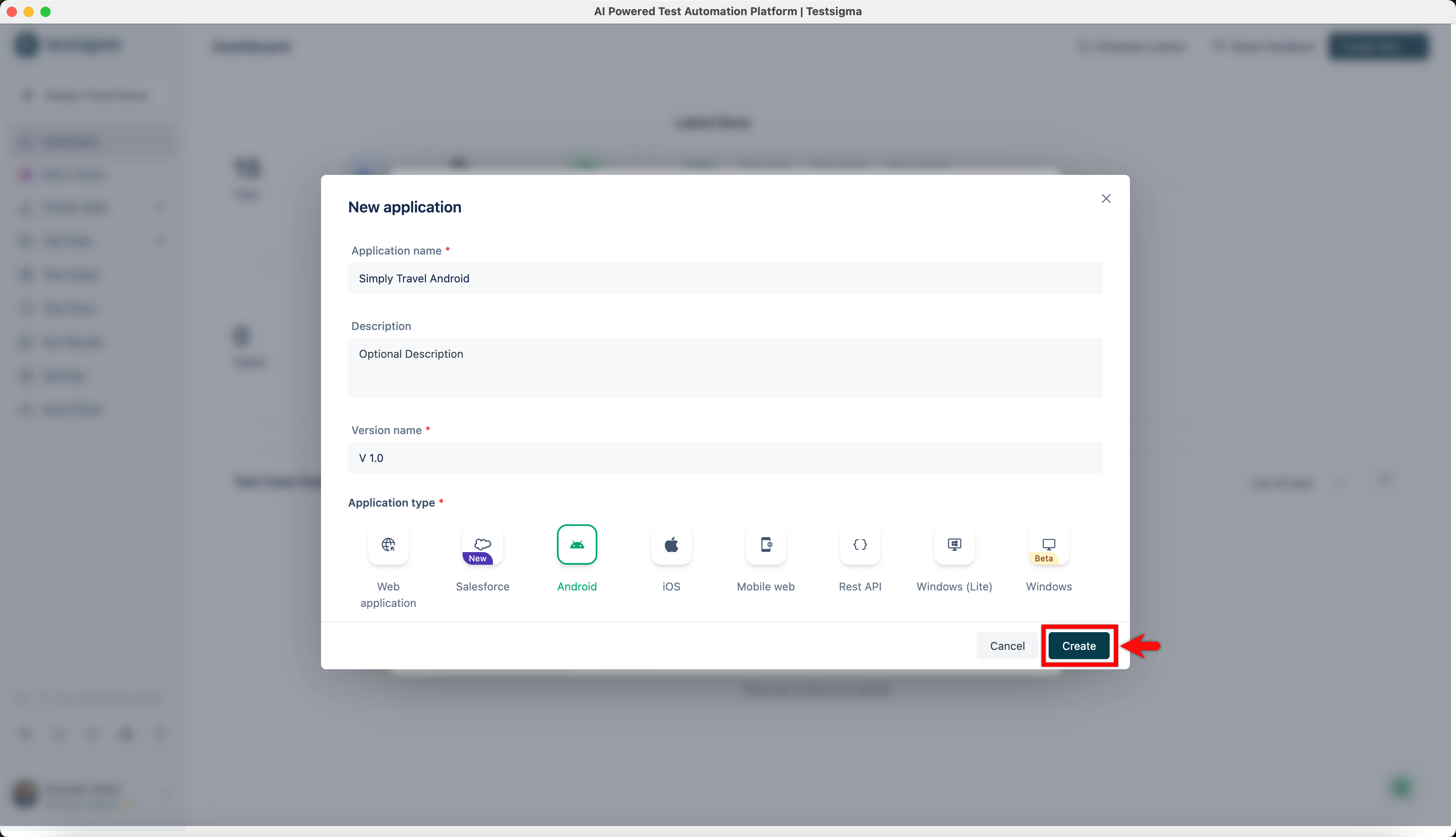
On New application dialog, enter Application name, Description, Version name, and select Application type.
-
Click on Create.
Edit Application
Section titled “Edit Application”-
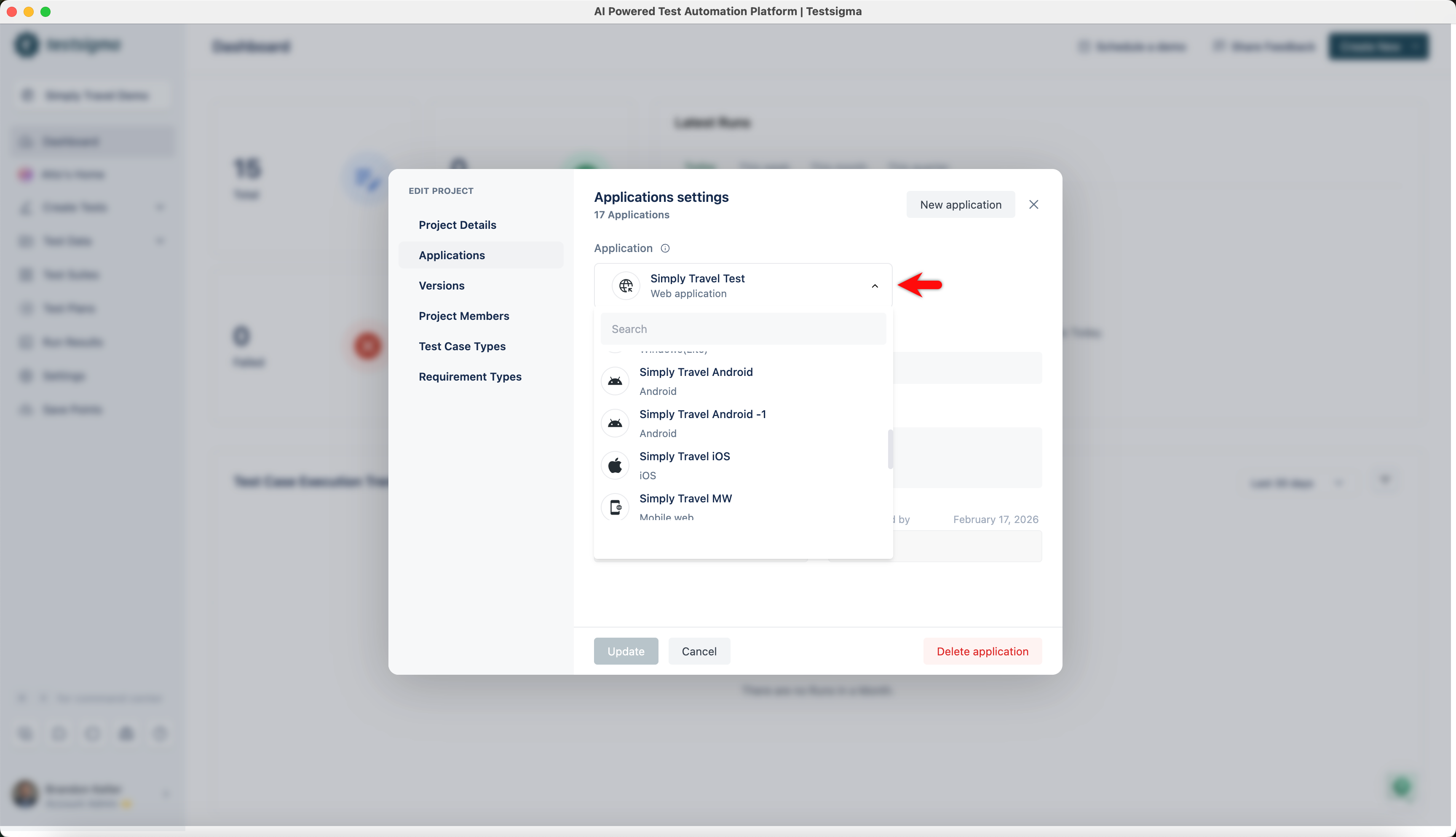
Navigate to Project Settings > Edit Project > Applications, and select application you want to edit from the dropdown.
-
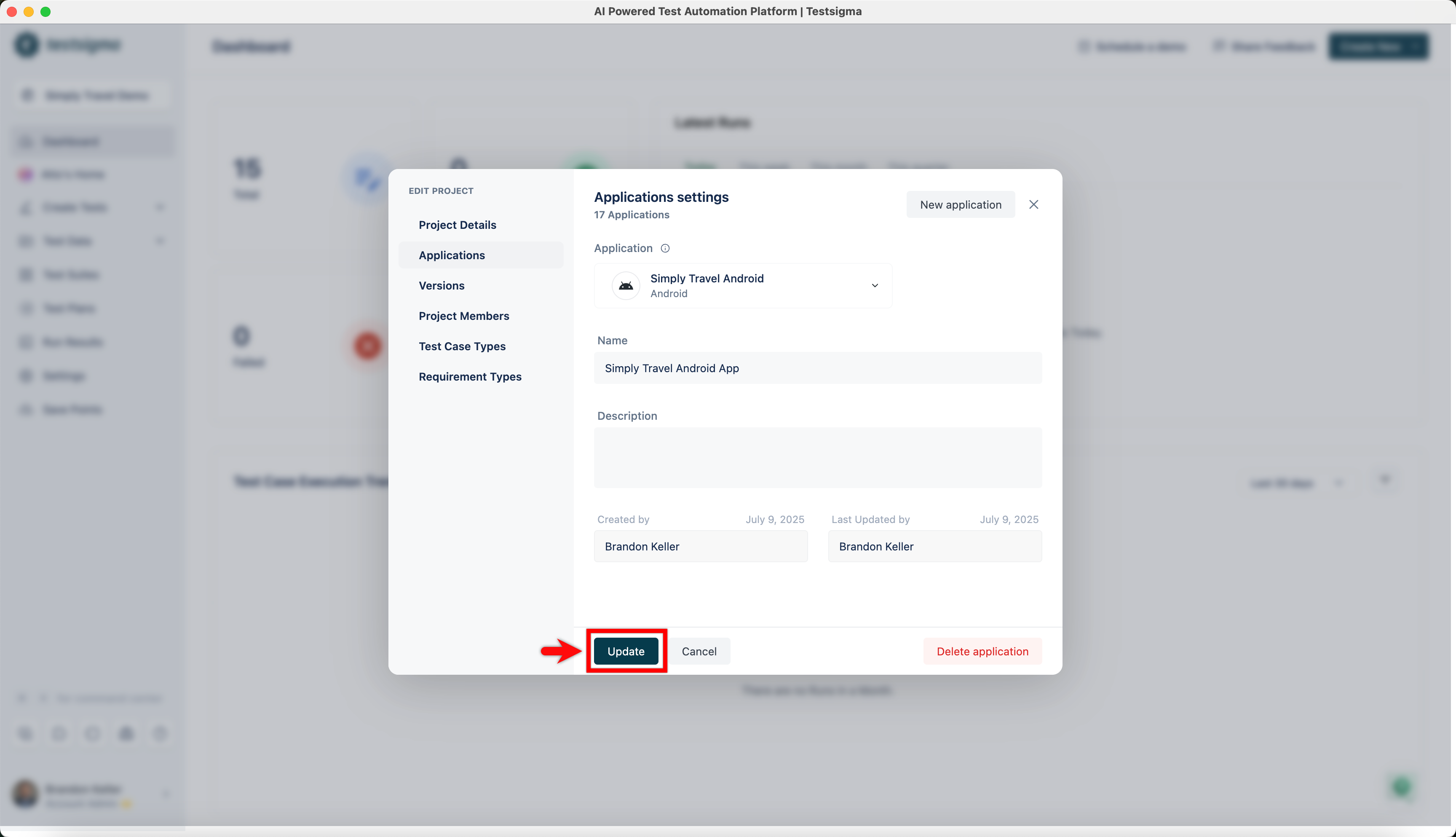
Make the required changes and click on the Update to save the changes.
Delete Application
Section titled “Delete Application”-
Navigate to Project Settings > Edit Project > Applications, select application you want to edit from the dropdown.
-
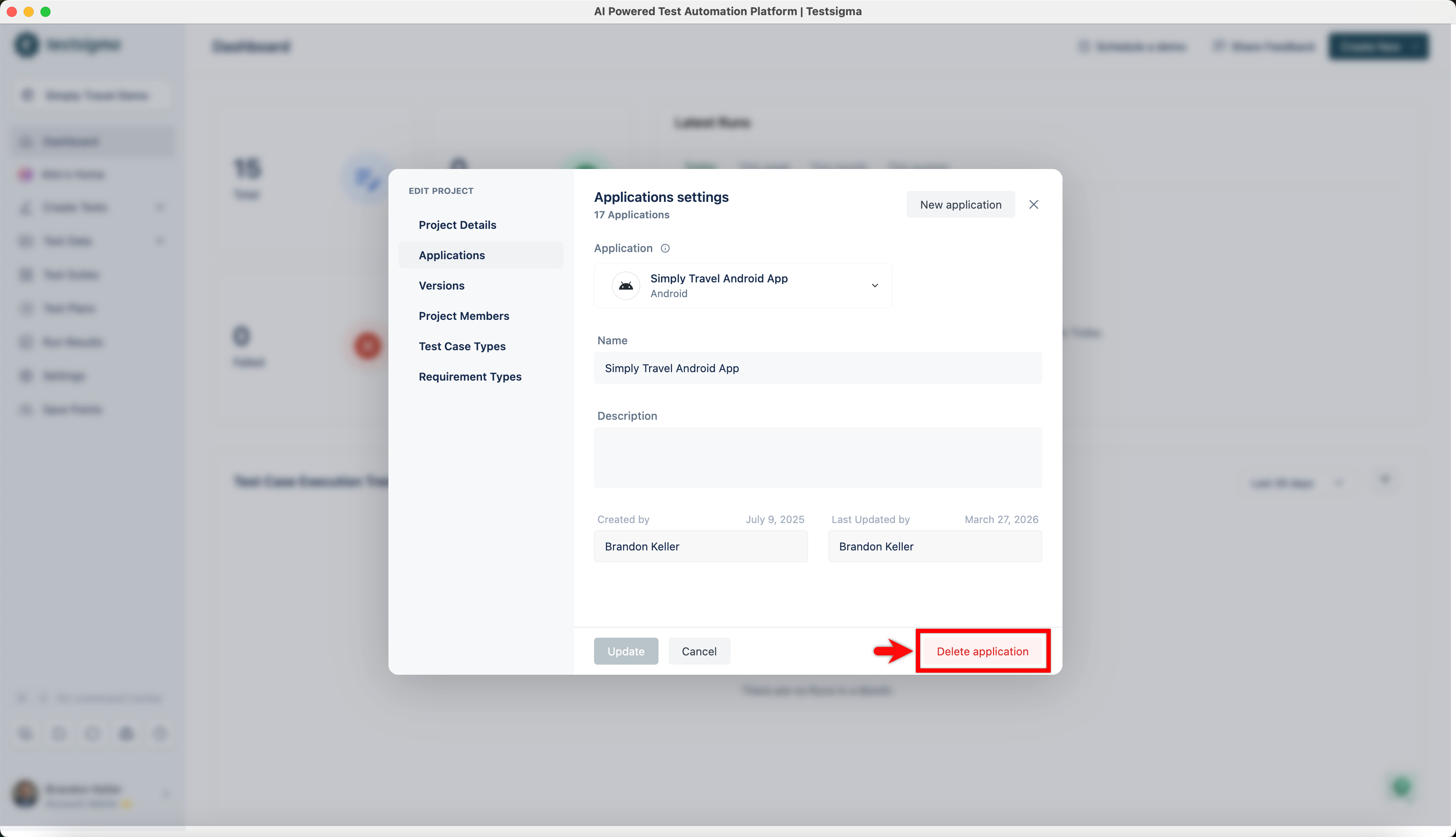
Click Delete Application.
-
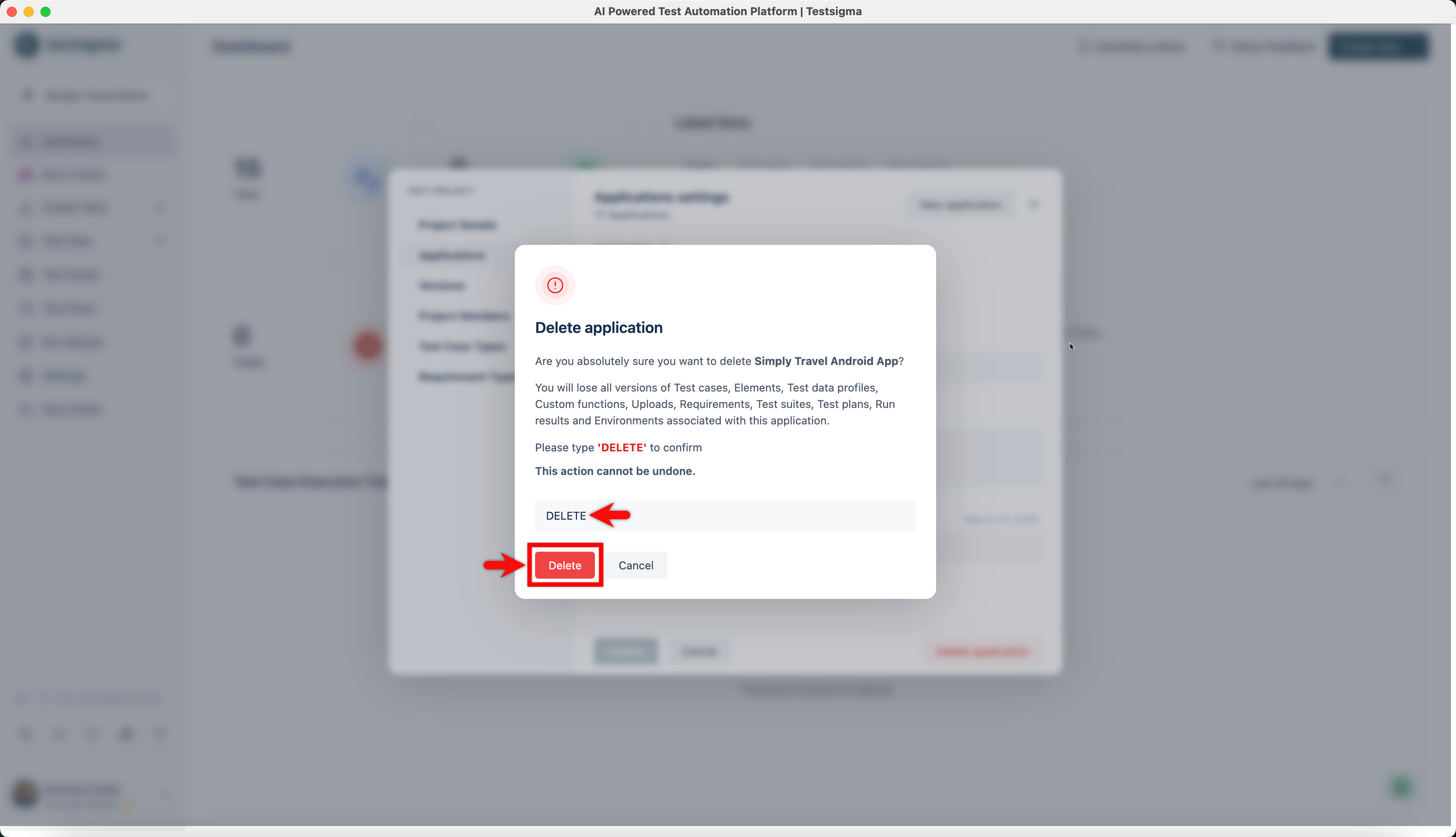
Clicking on the Delete button for the application shows a warning Delete Project prompt. Enter DELETE, and click Delete to confirm the deletion.