Desired Capabilities
Network Logs
#
Prerequisites
Before you begin, ensure that you have referred to:
Enable Network Logs in Test Case
Section titled “Enable Network Logs in Test Case”-
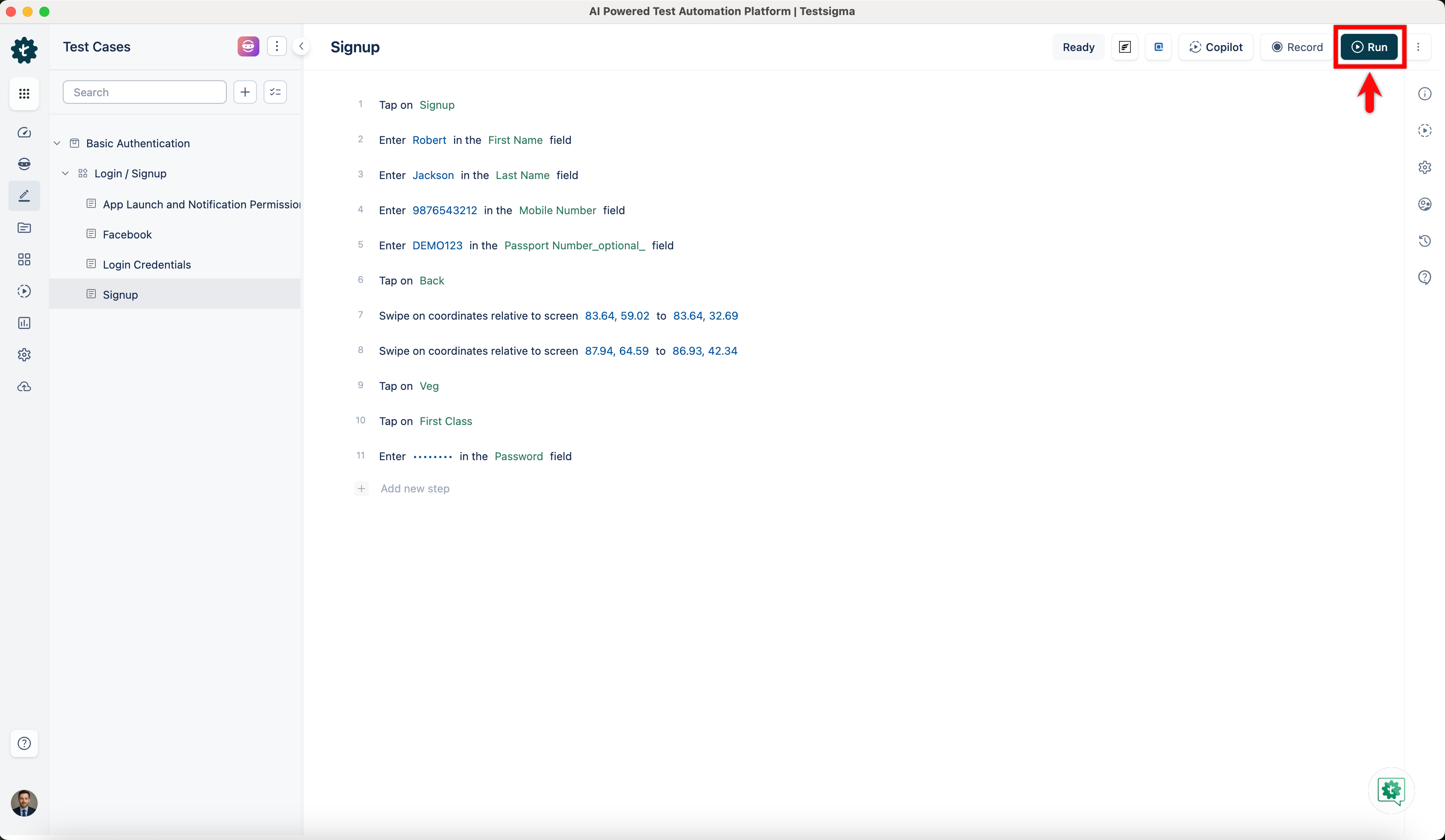
Click Run at the top-right corner of the Test Case details page.
-
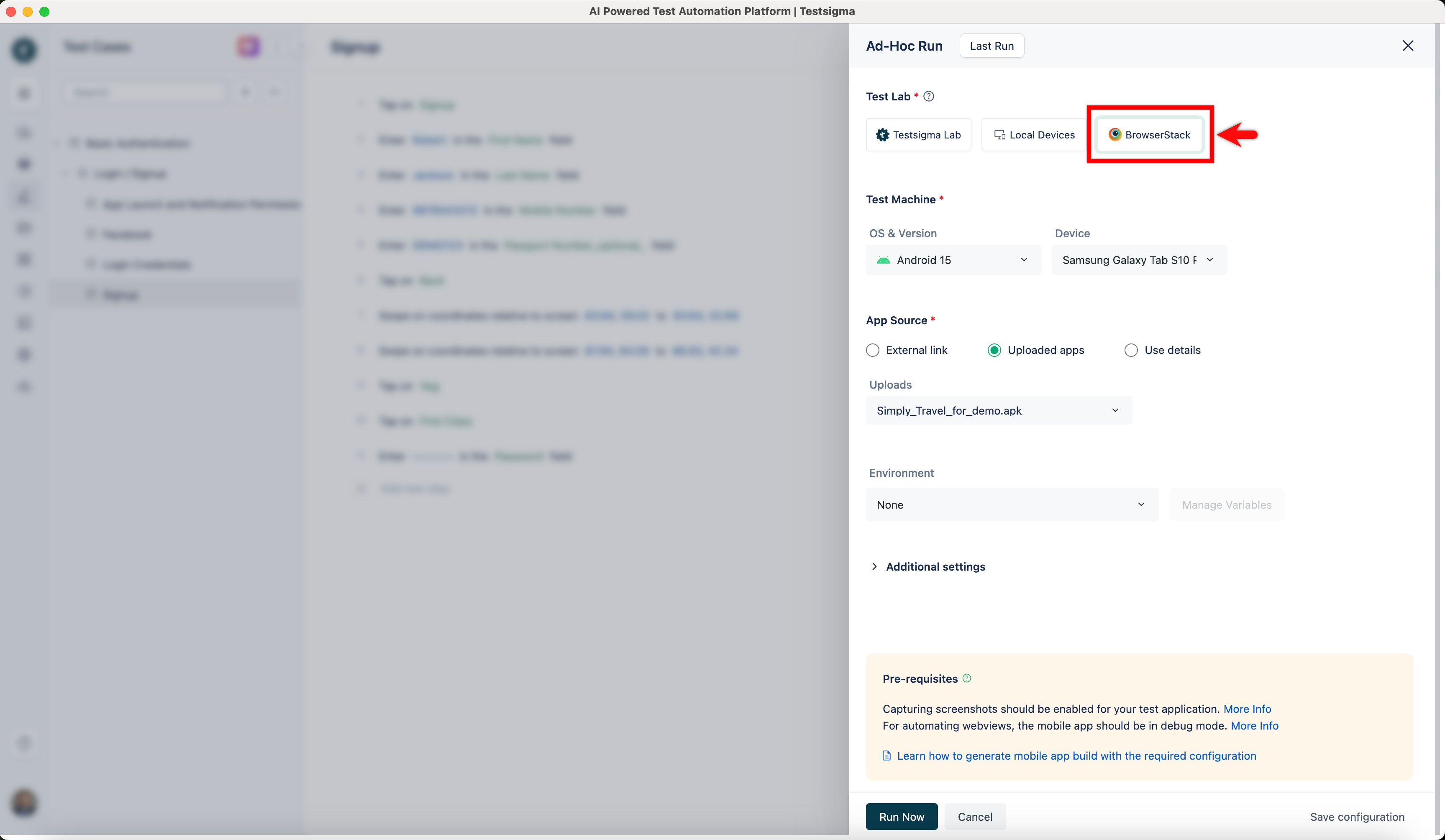
In the Ad-hoc Run overlay, select BrowserStack as Test Lab.
-
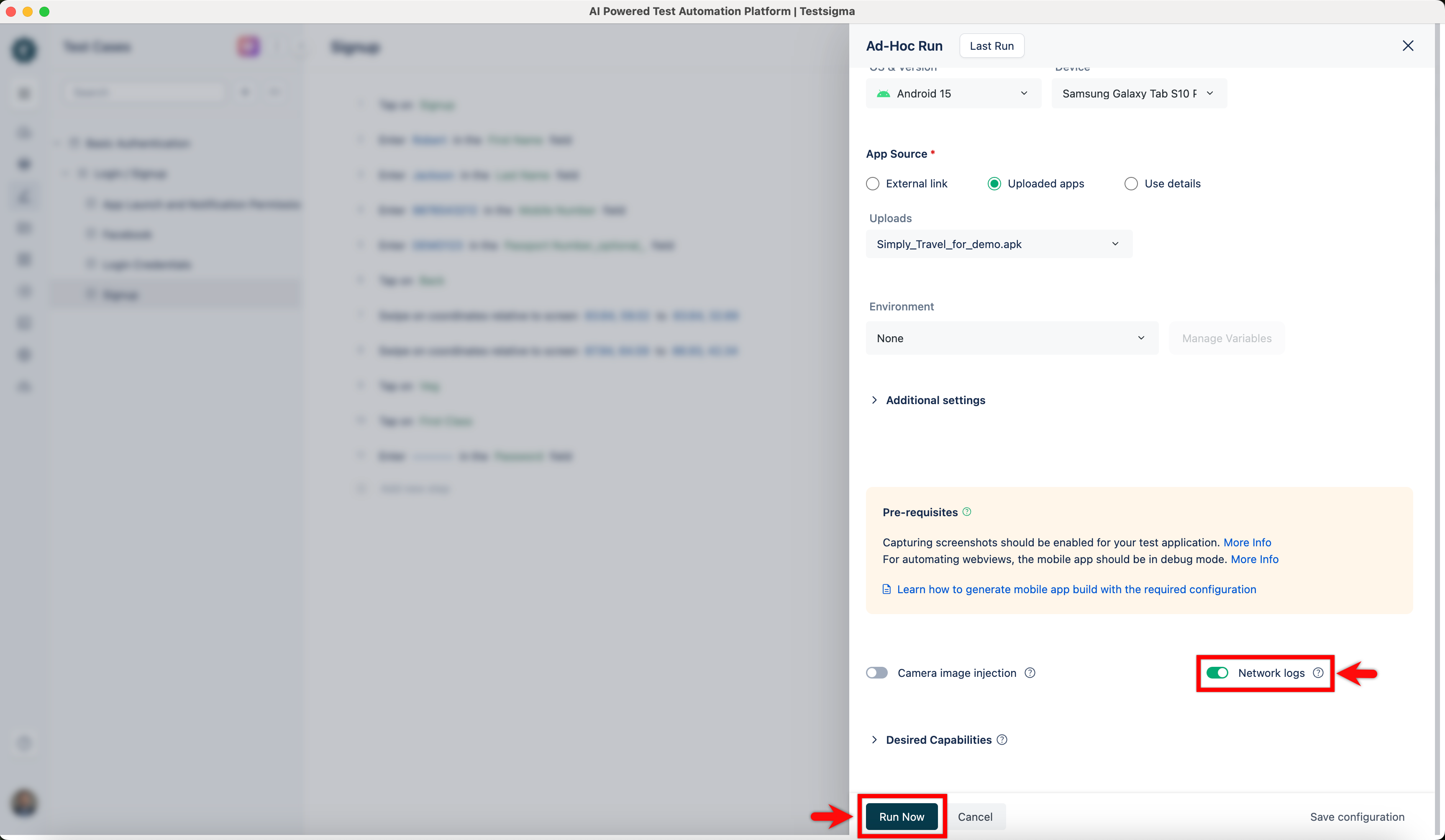
Enable the Network Log toggle, and click Run Now to start test execution.
Enable Network Logs in Test Plan
Section titled “Enable Network Logs in Test Plan”-
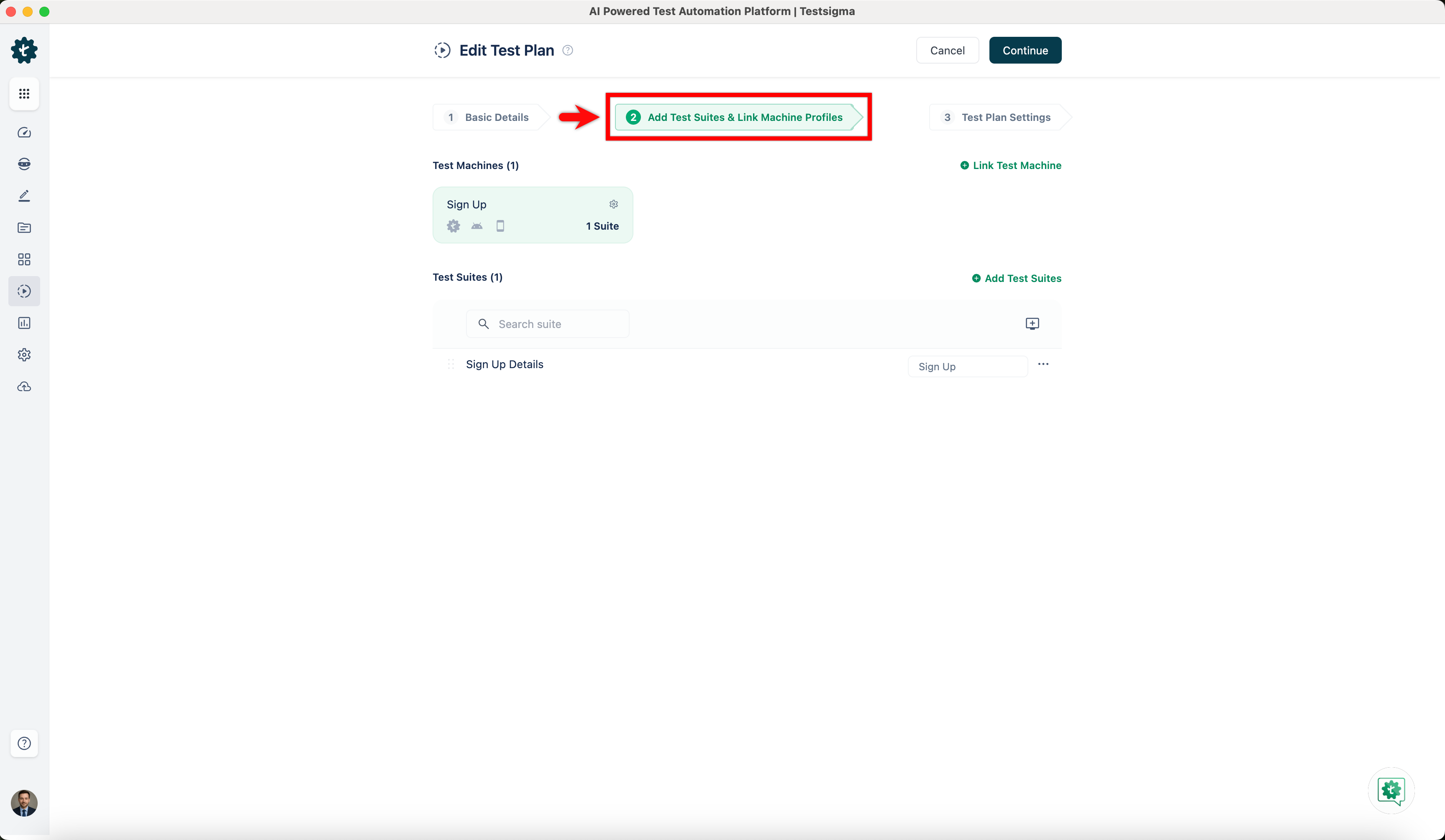
Navigate to the Add Test Suites & Link Machine Profiles tab on the Create or Edit Test Plan page.
-
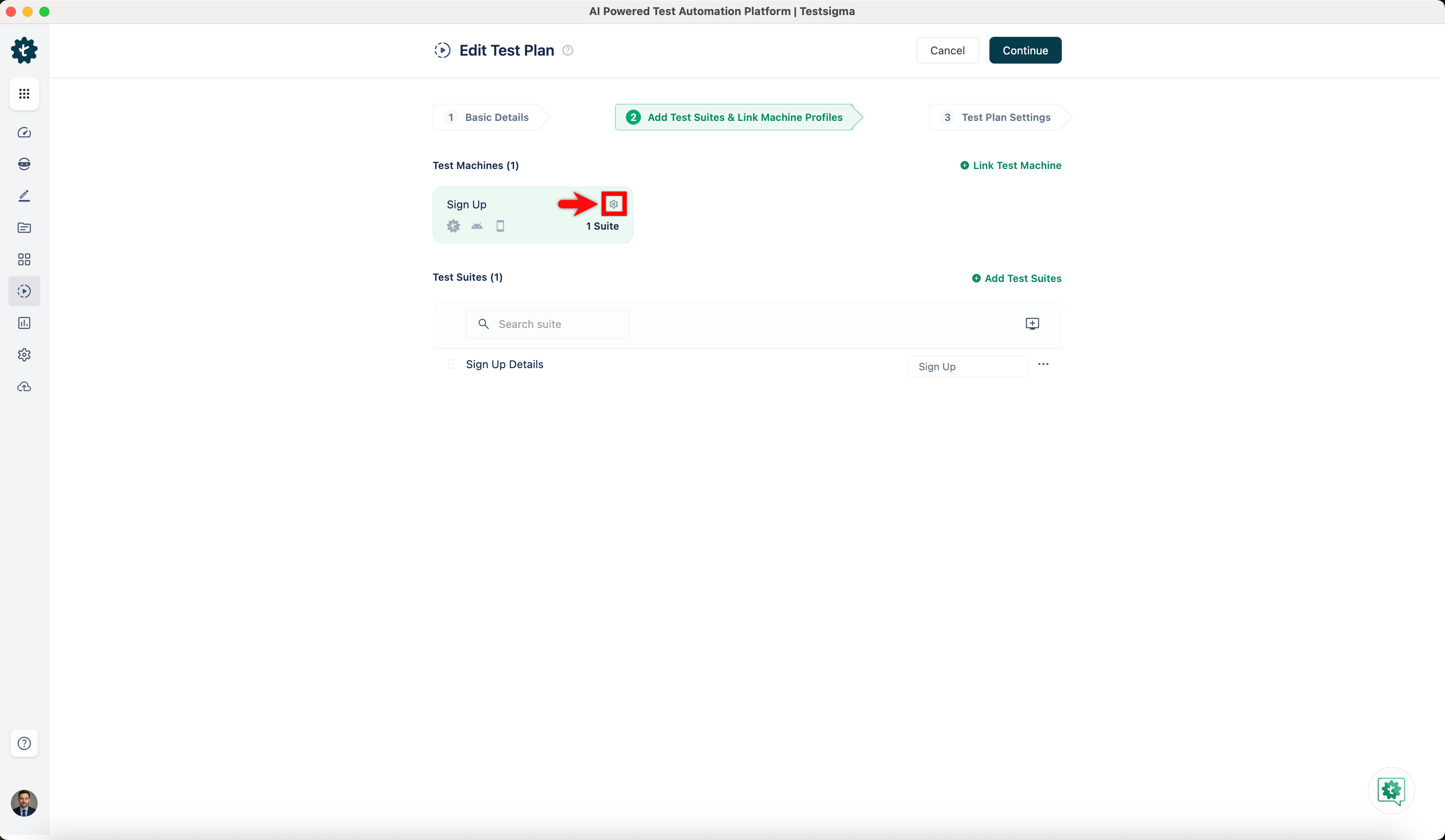
Click the Test Machine Settings icon, and the Add or Edit test machine/device profile overlay will appear.
-
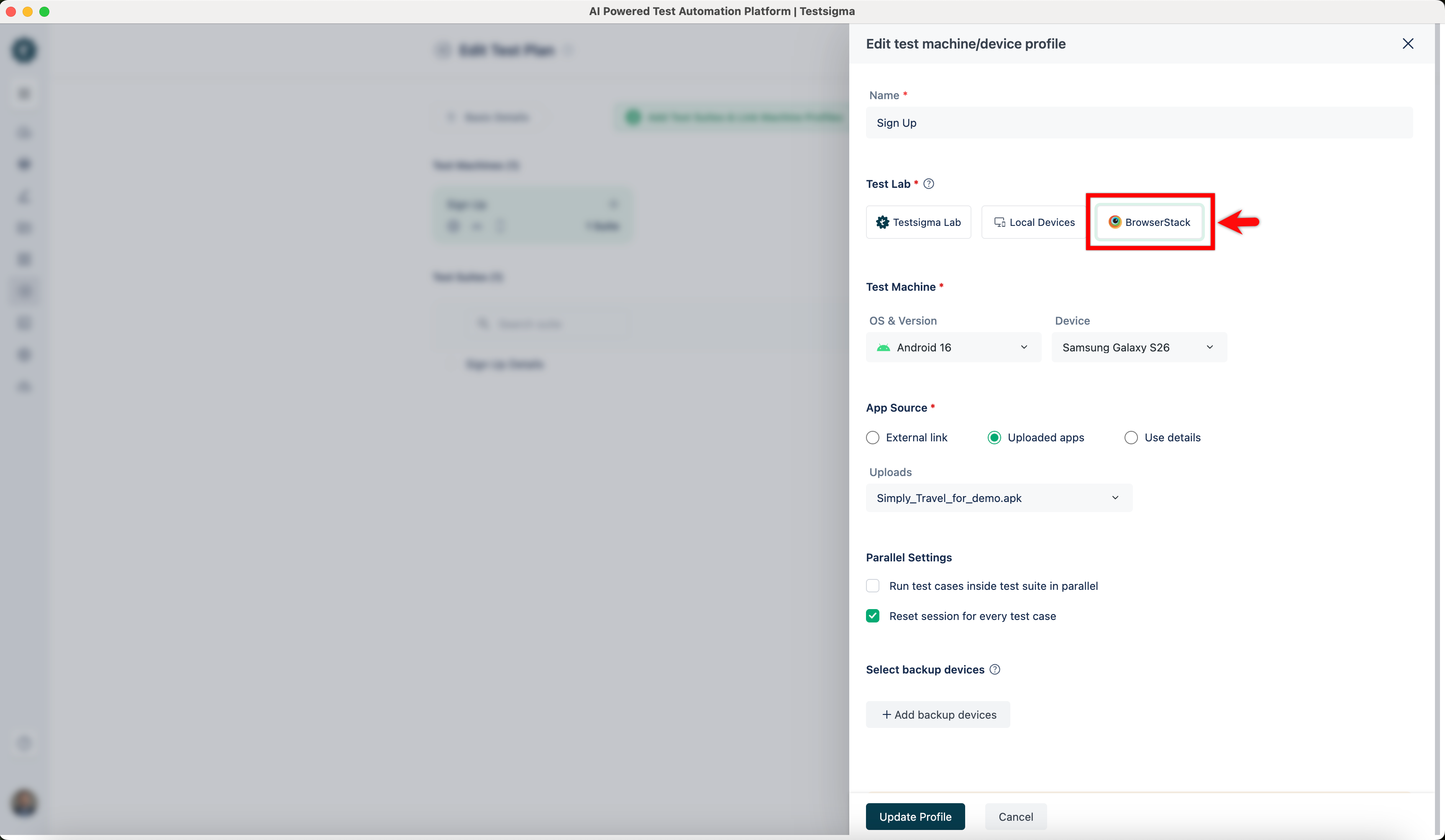
In the Add or Edit test machine/device profile overlay, select BrowserStack as Test Lab.
-
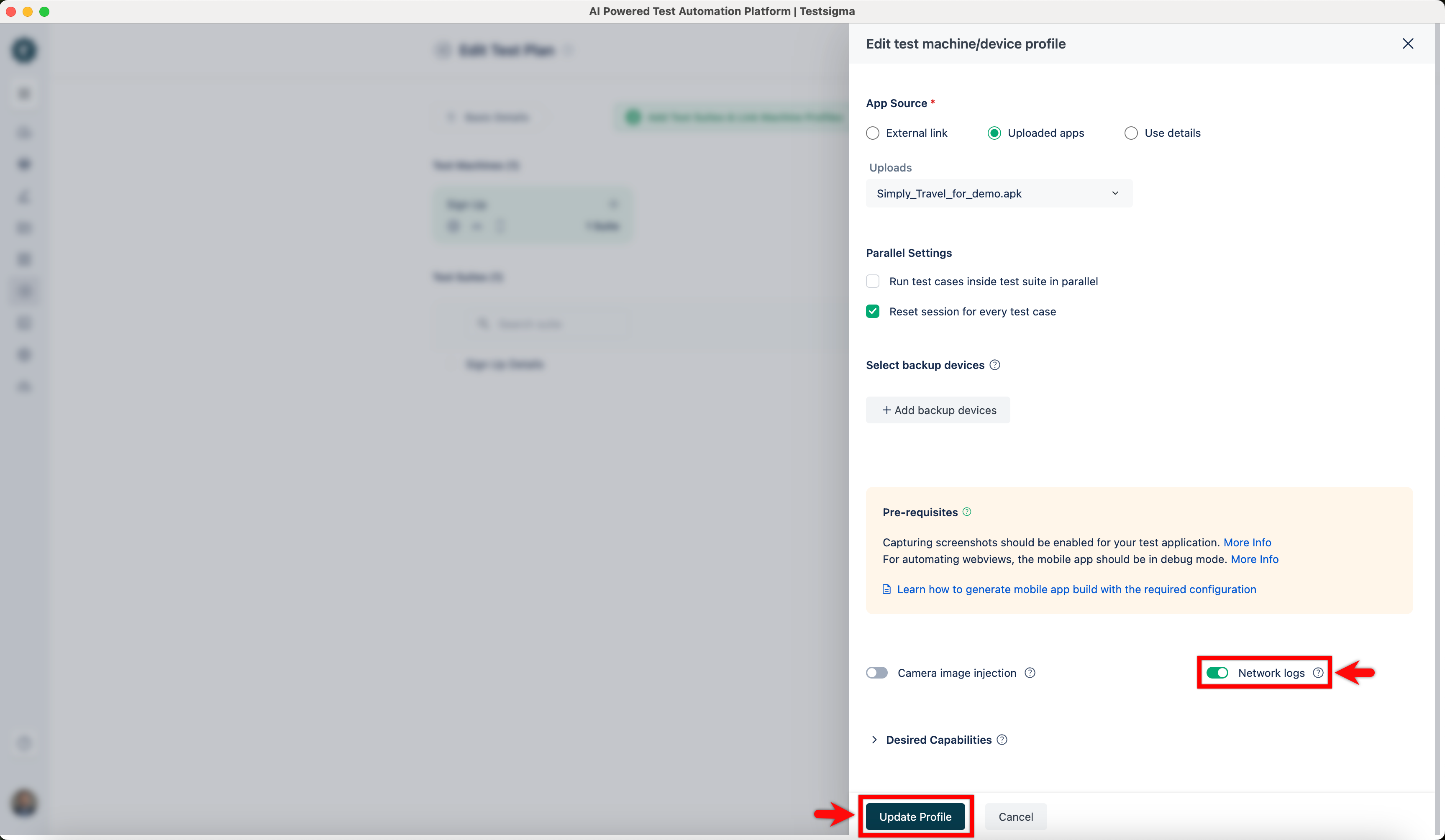
Enable the Network Log toggle, and click Create/Update Profile.
Network Log Management
Section titled “Network Log Management”After completing the test execution on the Run Test Case Page, you should follow these steps to access and analyse the captured network logs:
-
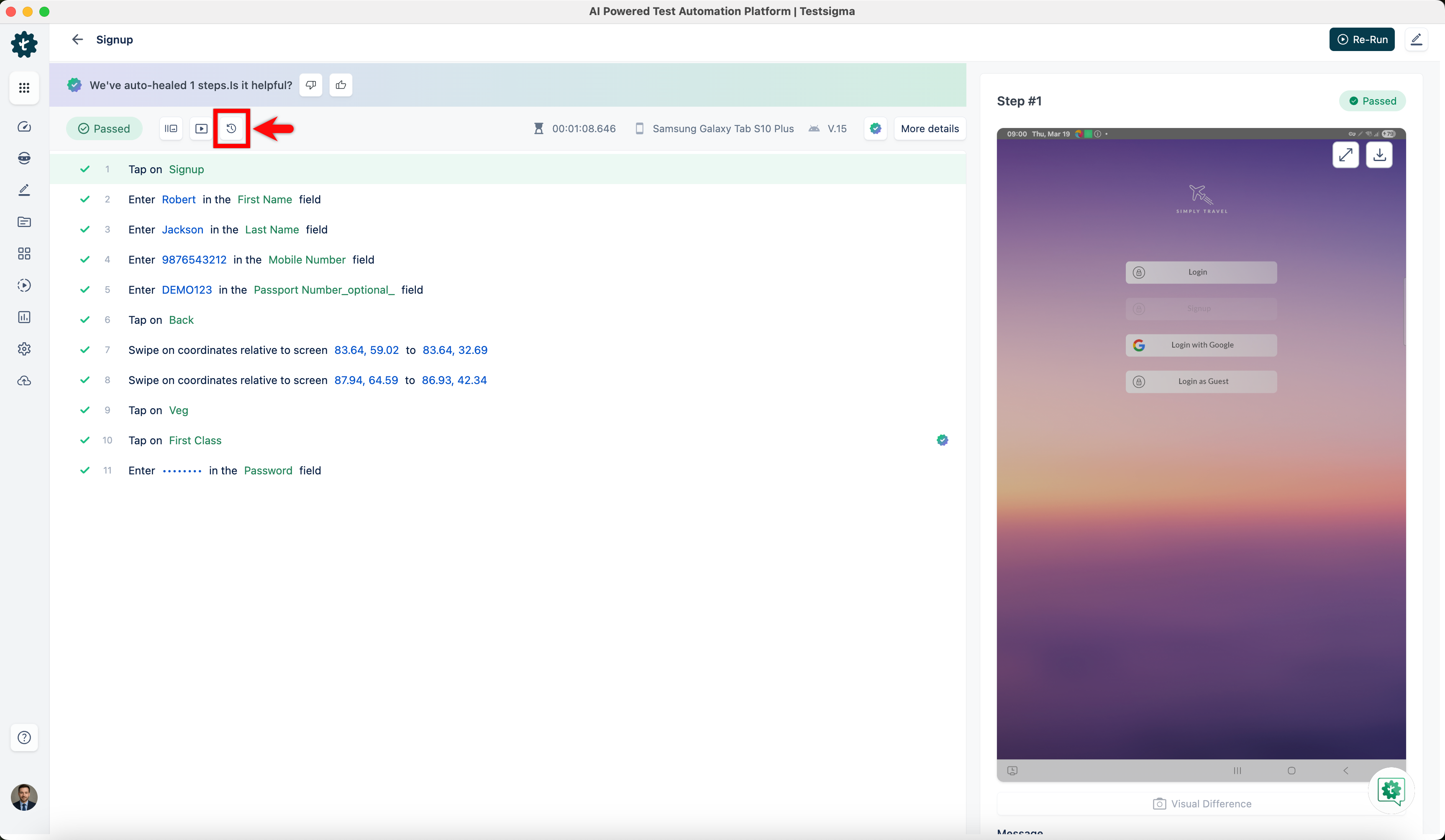
Click the Show Logs button in the Run Results page. This opens the Logs page.
-
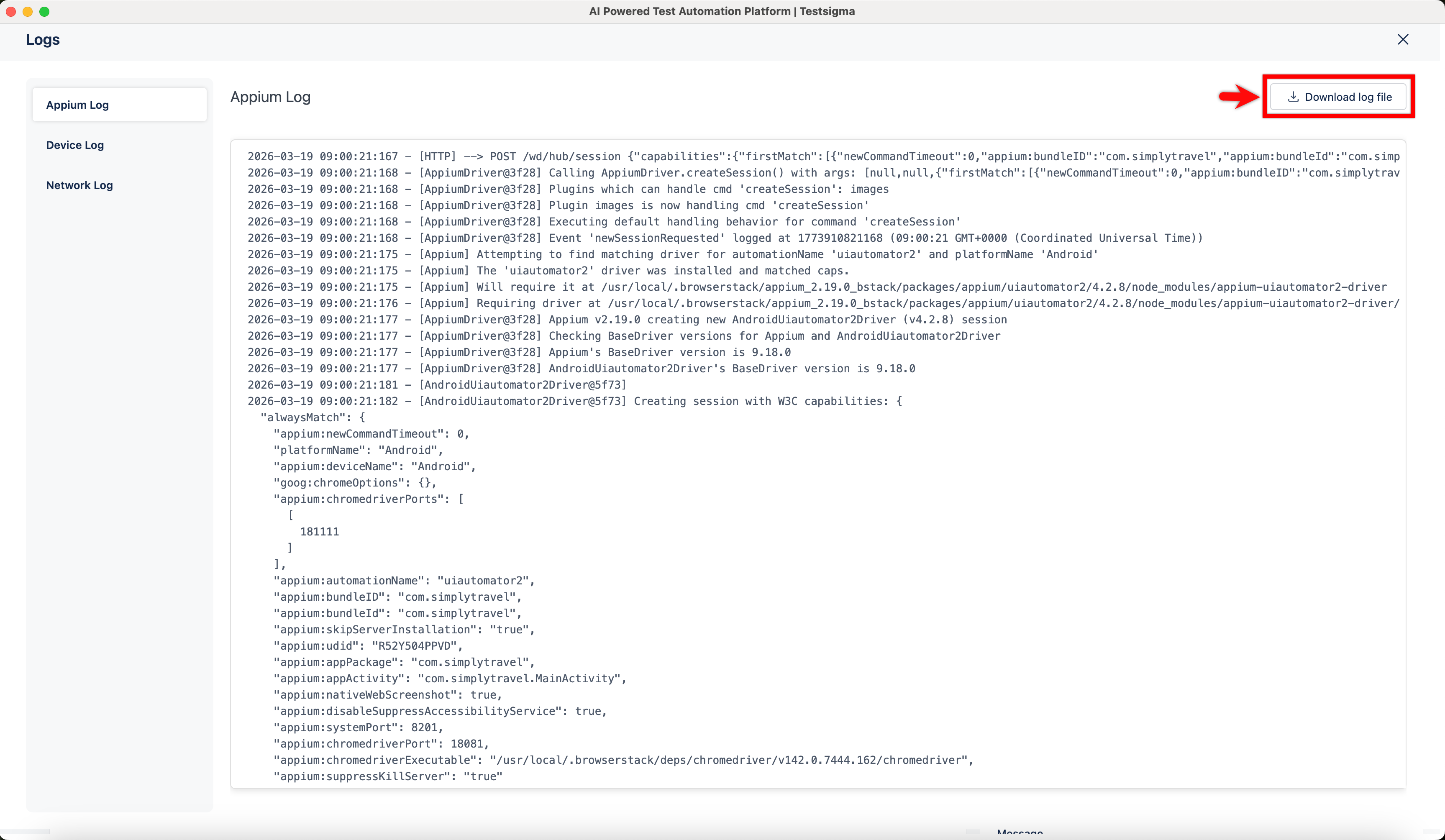
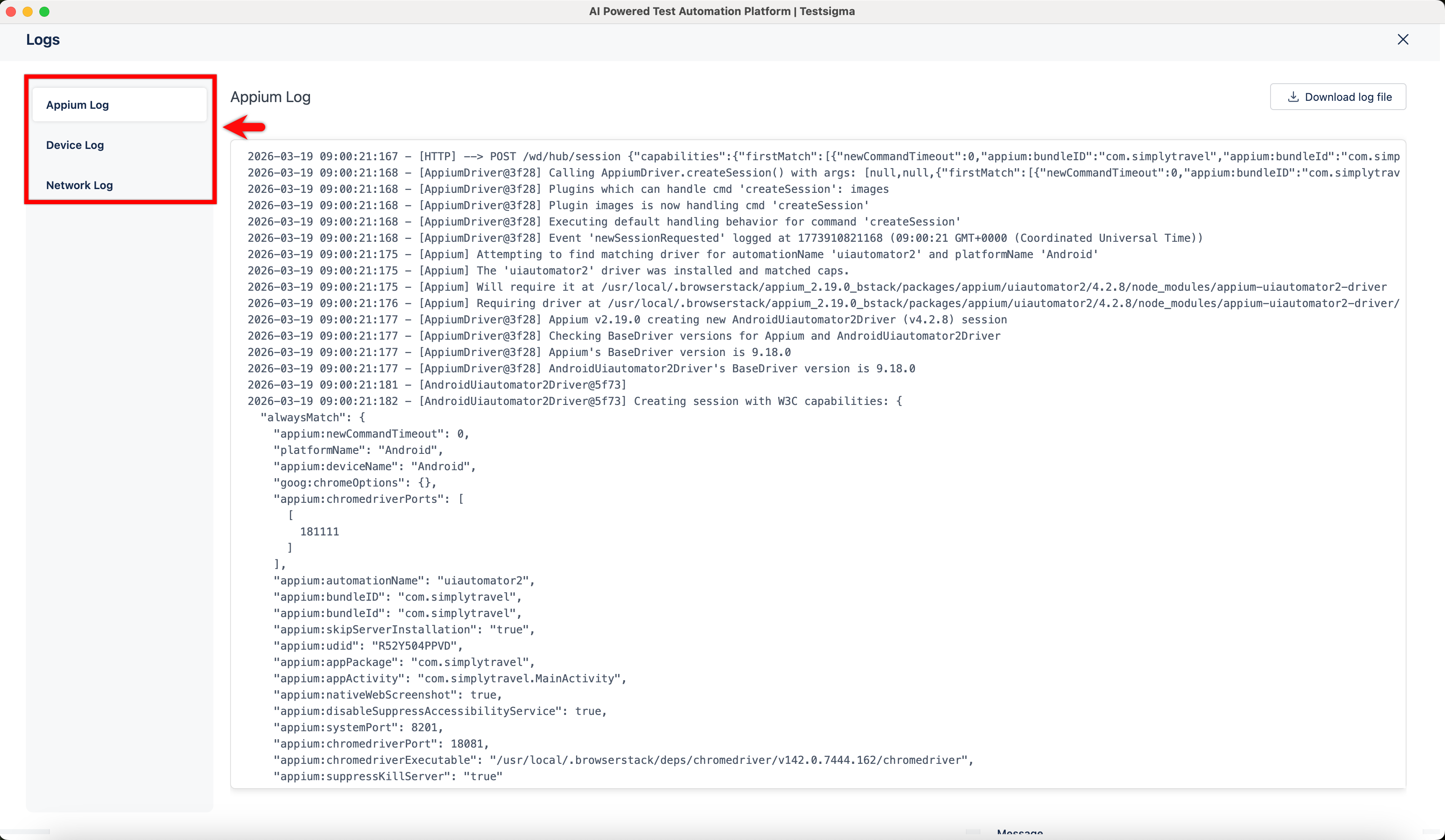
The Logs page provides a centralized view where you can access Appium, Device, and Network logs helping you monitor different parts of test execution in one place.
-
Click Download log file at the top-right corner of the Logs screen to retrieve the network log file in HAR format. You can then analyse the network logs offline.