Test Data
Test Data Type: Mail Box
Prerequisites
Before you begin, ensure that you have referred to:
Adding Mail Box in a Test Step
Section titled “Adding Mail Box in a Test Step”Follow these steps to include an email address provided by Testsigma using the Mailbox test data type in a Test Step:
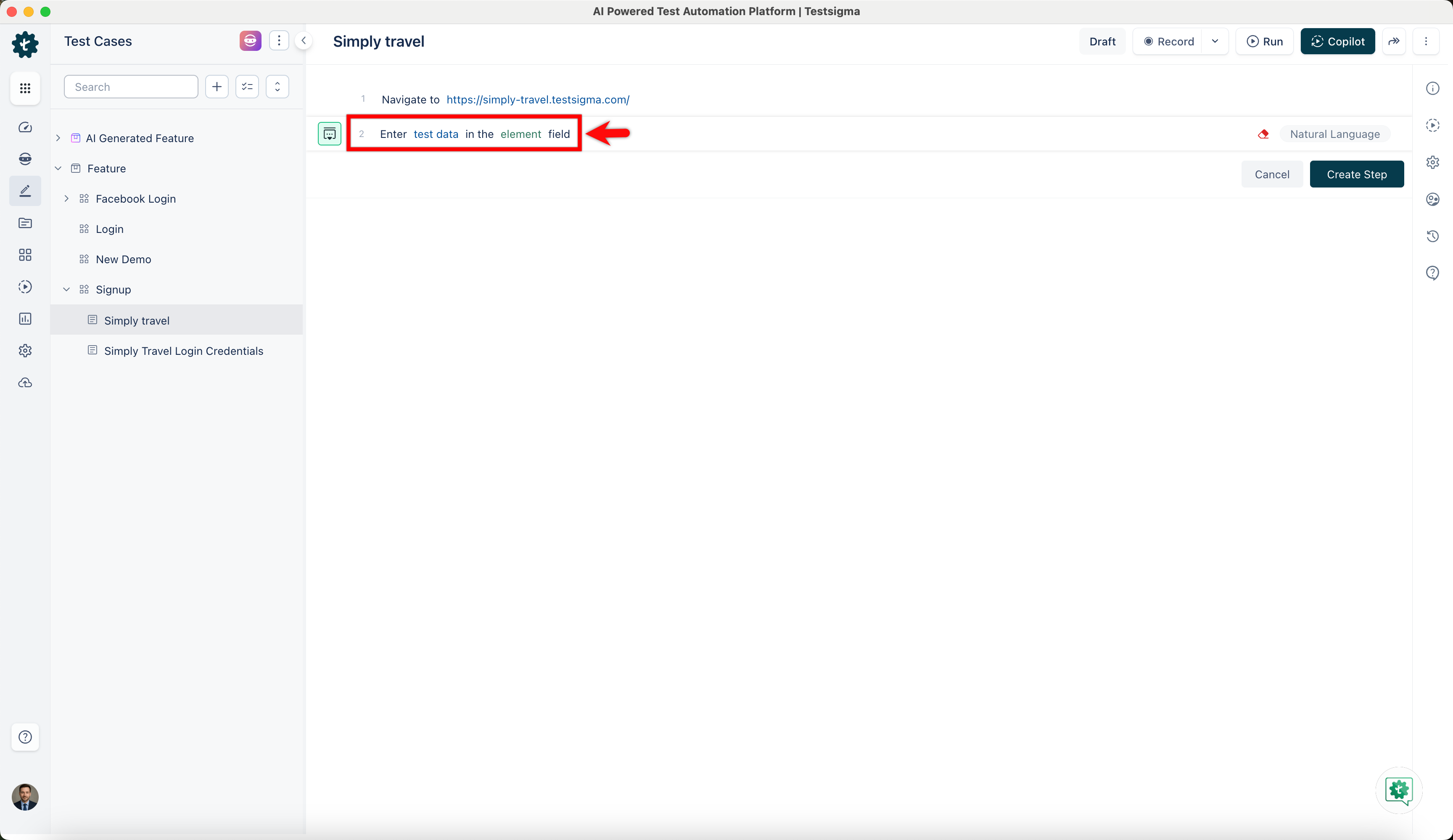
- Use NLP to create a new step in the Test Case and include a placeholder for test data.
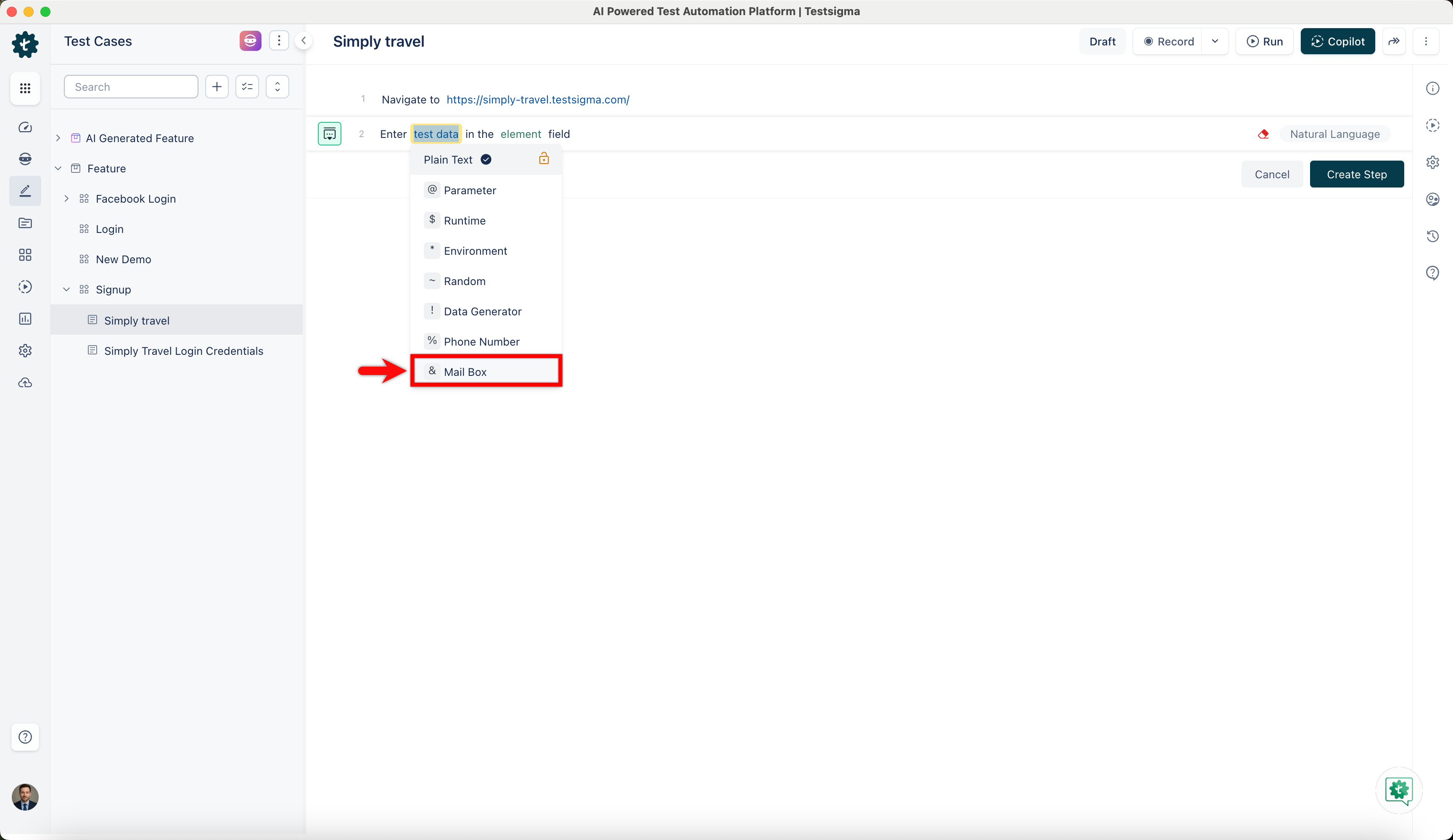
- Click the test data placeholder to replace it, and then select the & Mail Box from the Test Data Types dropdown menu.
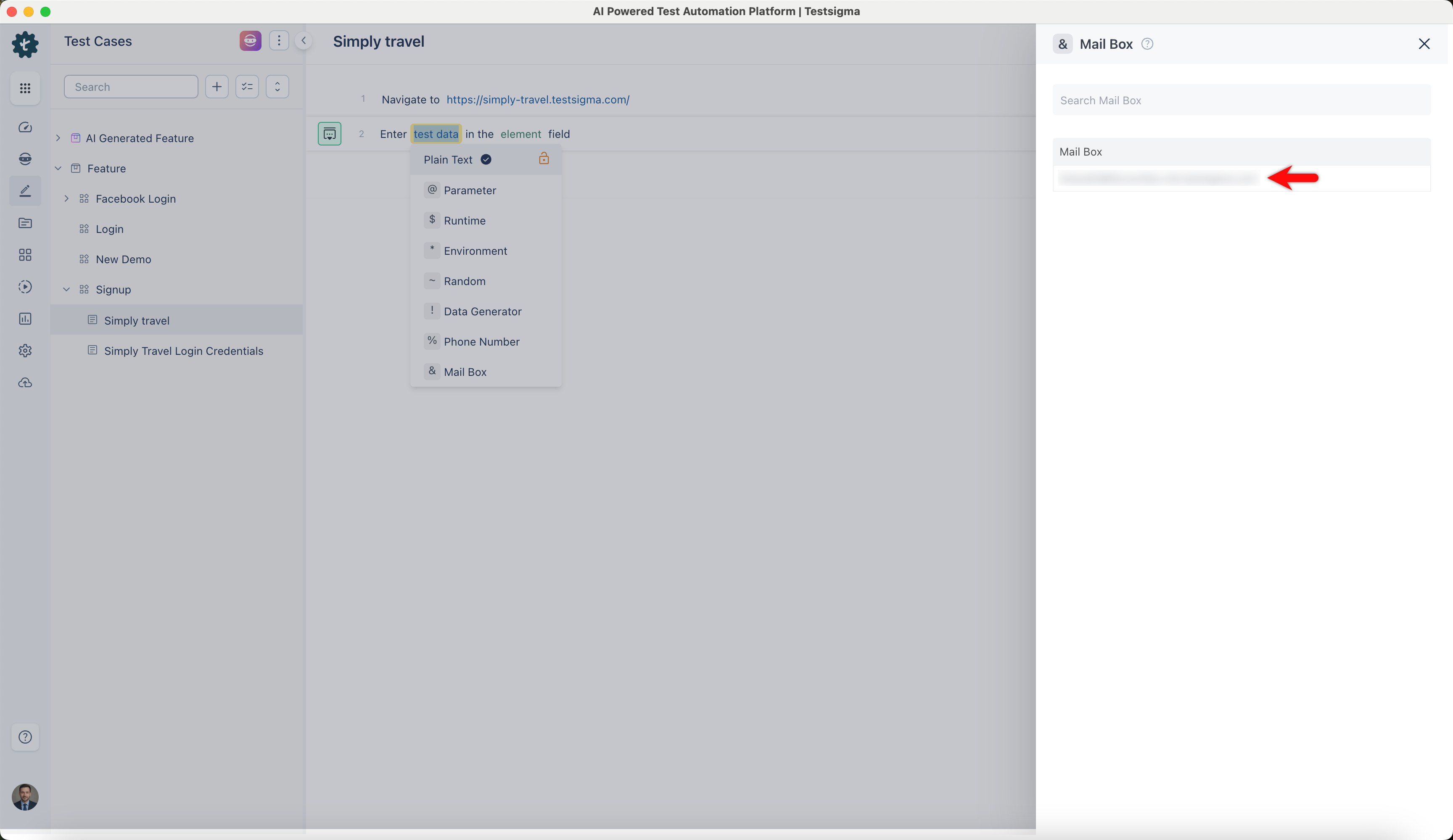
- Select the Email from the right-side panel.
Fetching OTP from Mail Box
Section titled “Fetching OTP from Mail Box”Follow these steps to retrieve OTP or any data from the selected Mailbox using Test Data Generators in Testsigma:
- Use NLP to create a new step in the Test Case that adds a placeholder for test data and an element for entering the OTP code in the OTP field.
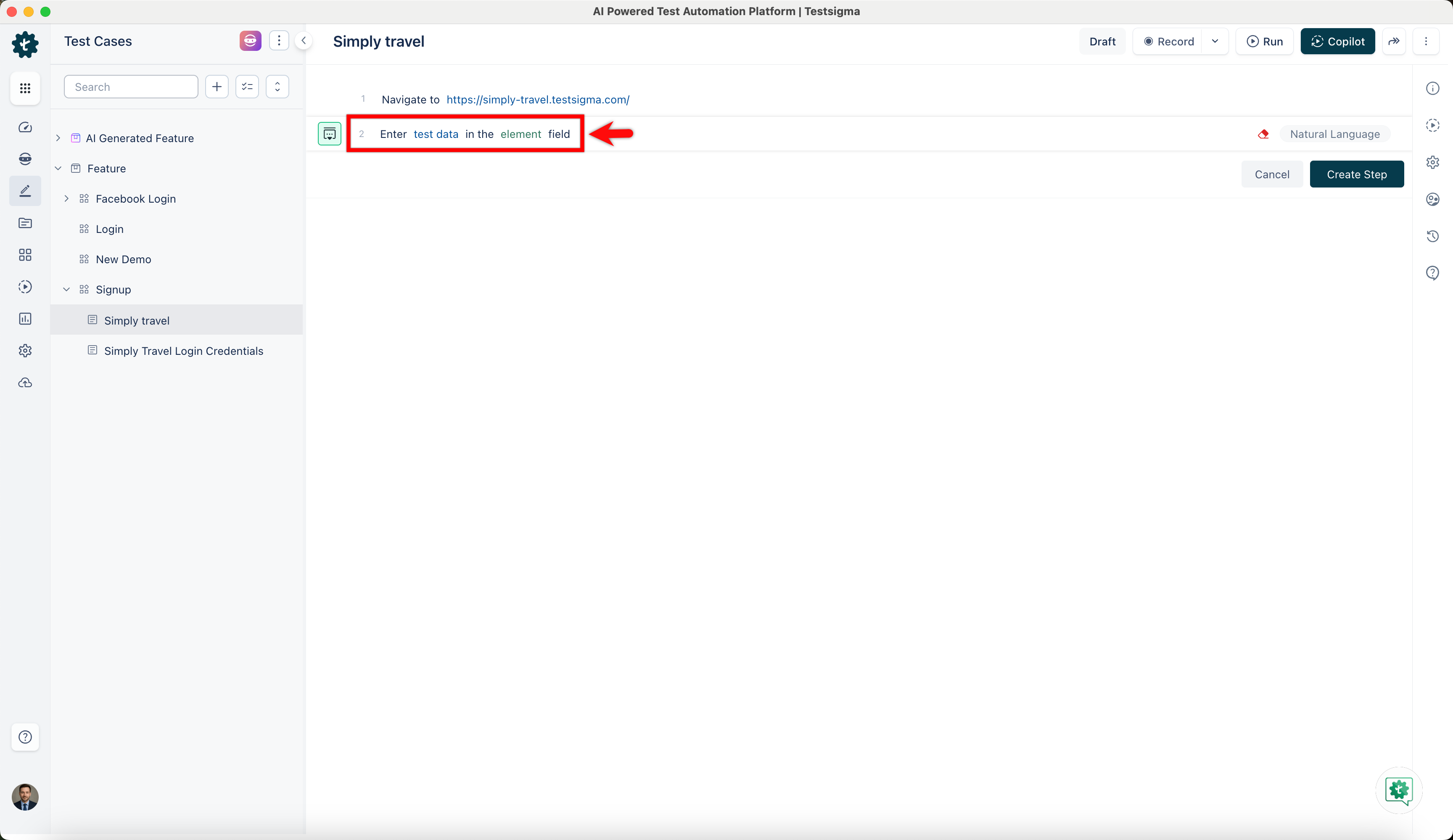
- Click the test data placeholder to replace it, and then select the ! Data Generator from the Test Data Types dropdown menu.
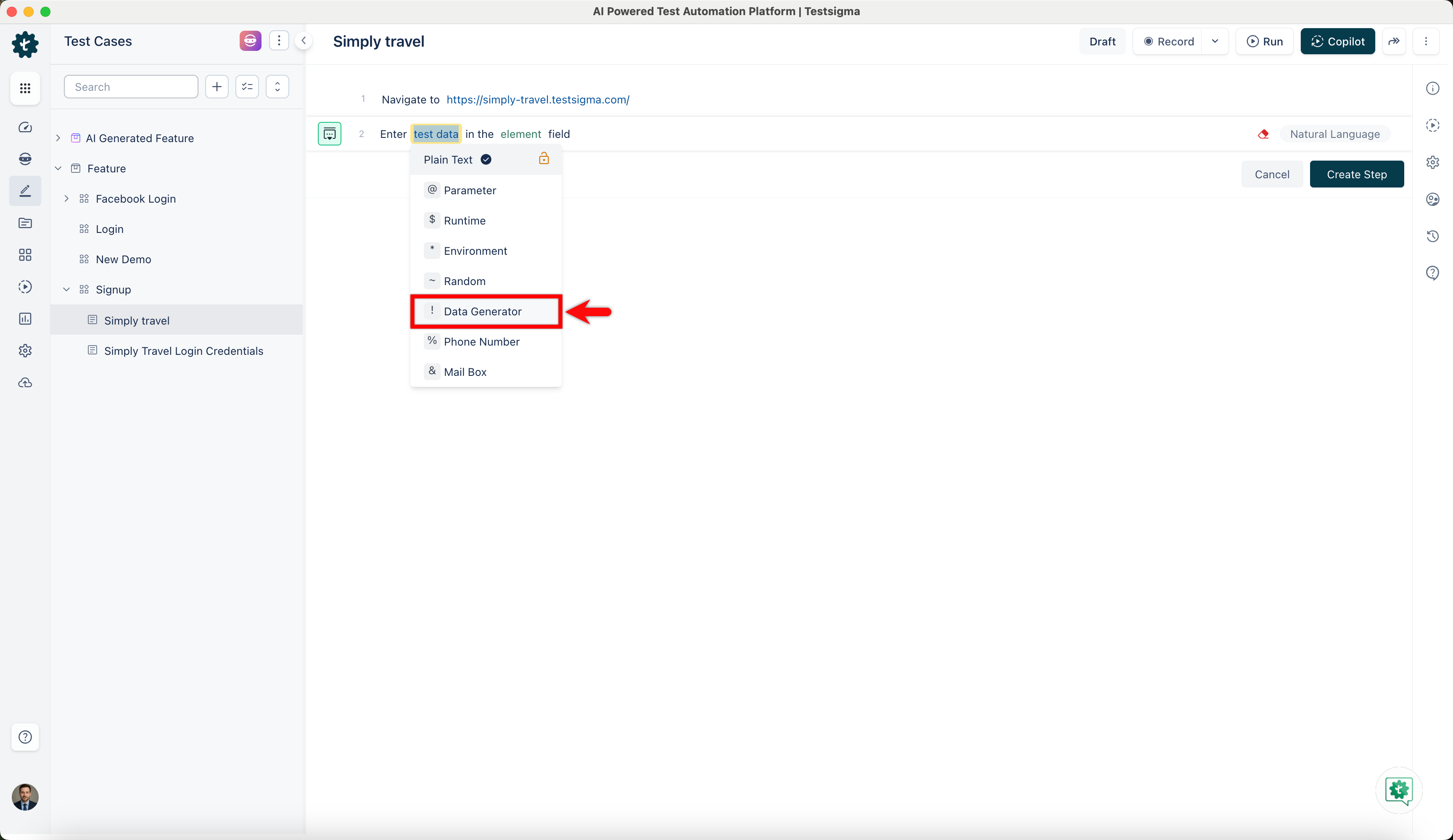
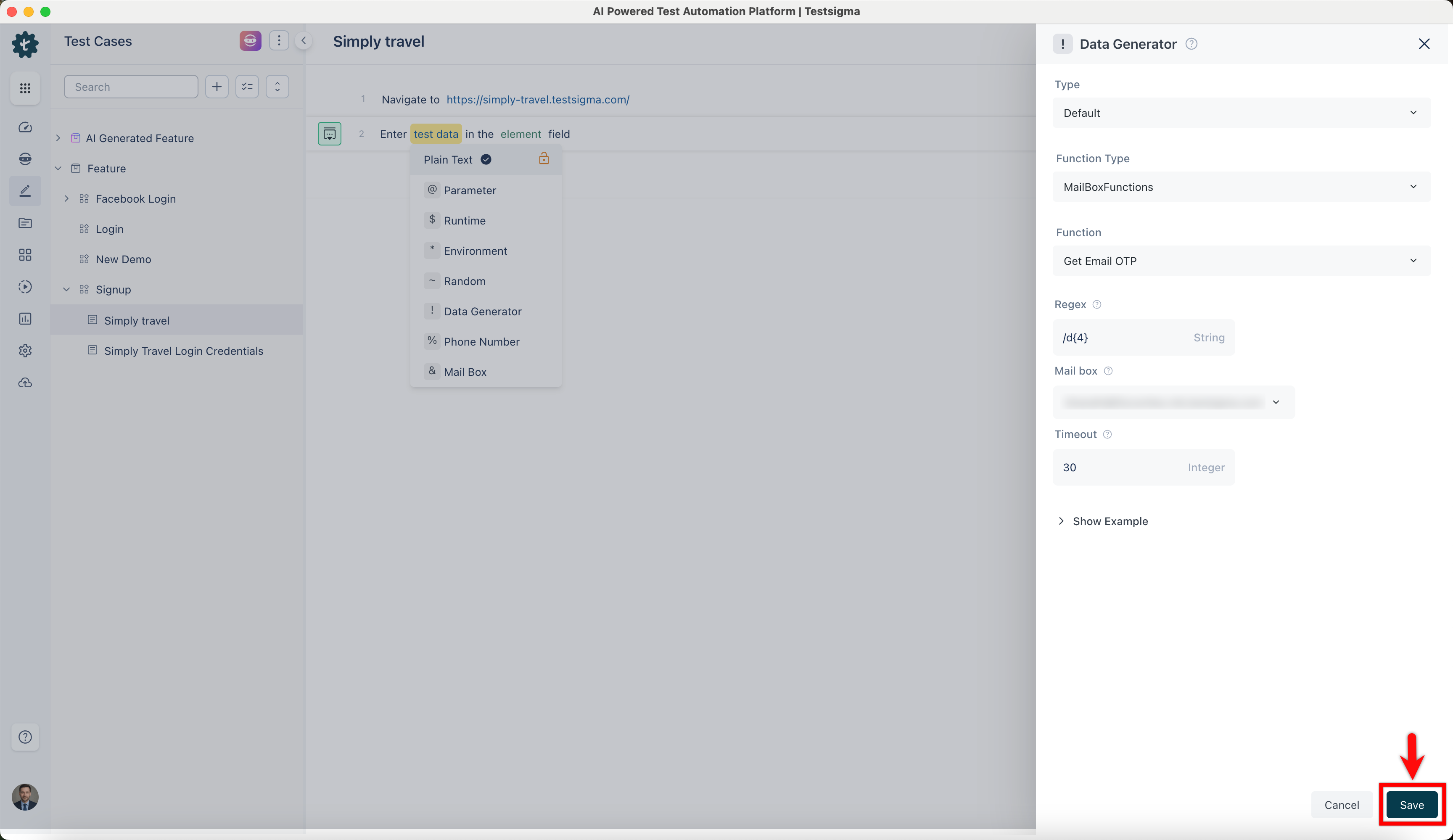
- On the right sidebar, select Data Generator type as the default, Function type as MailBoxFunctions, and choose the function as Get Email OTP from the dropdown menu.
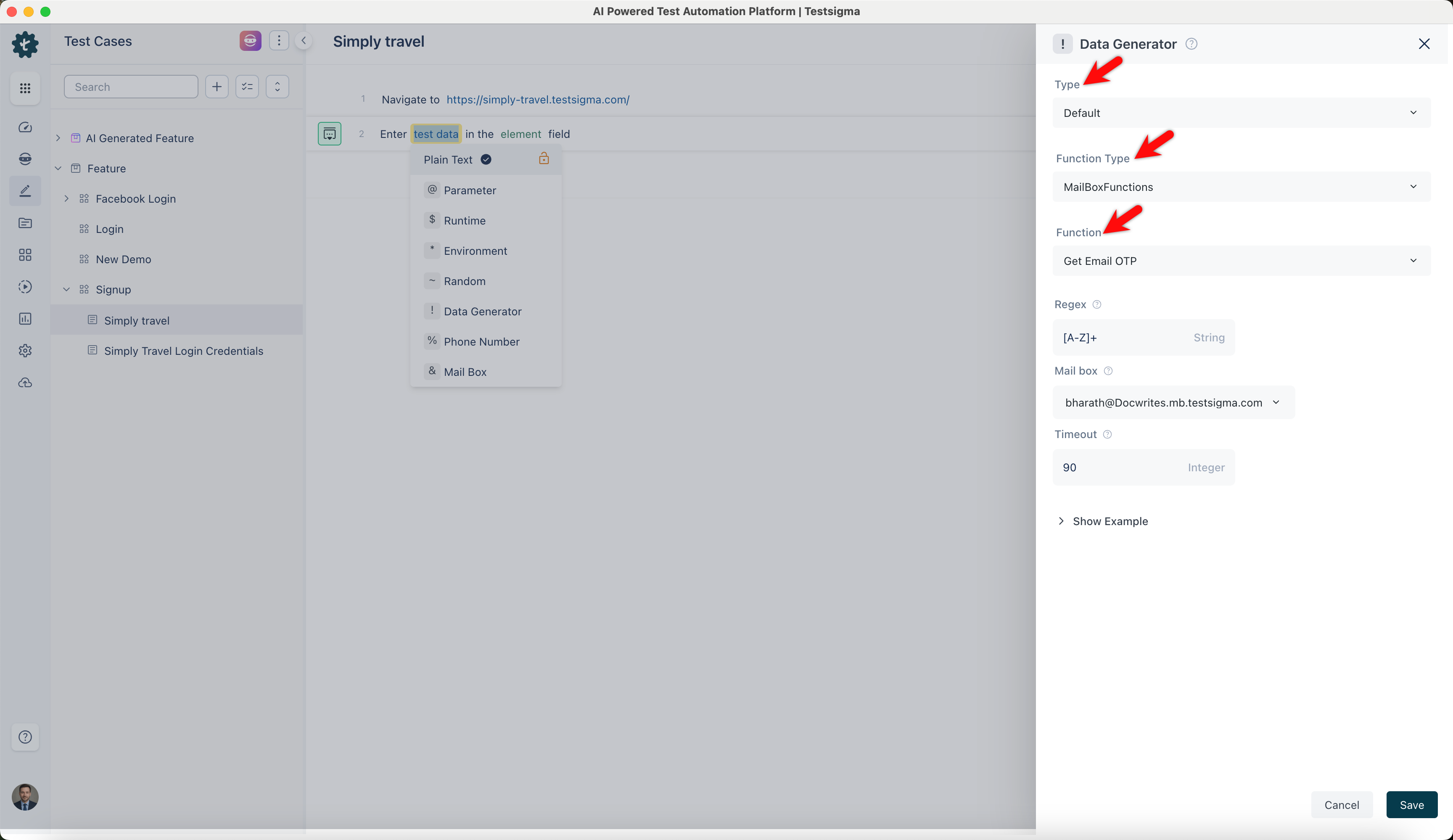
- Configure the Test Step by providing the necessary details for the function:
- Regex: A search pattern is created by a sequence of characters. For instance, \d{4} matches four consecutive digits (0-9).
- MailBox: Select Mail Box from the drop-down list. It stores incoming email messages.
- Timeout: Set the time for how long a program or system should wait for a specific task to finish. In this example, we will wait for 30 seconds.
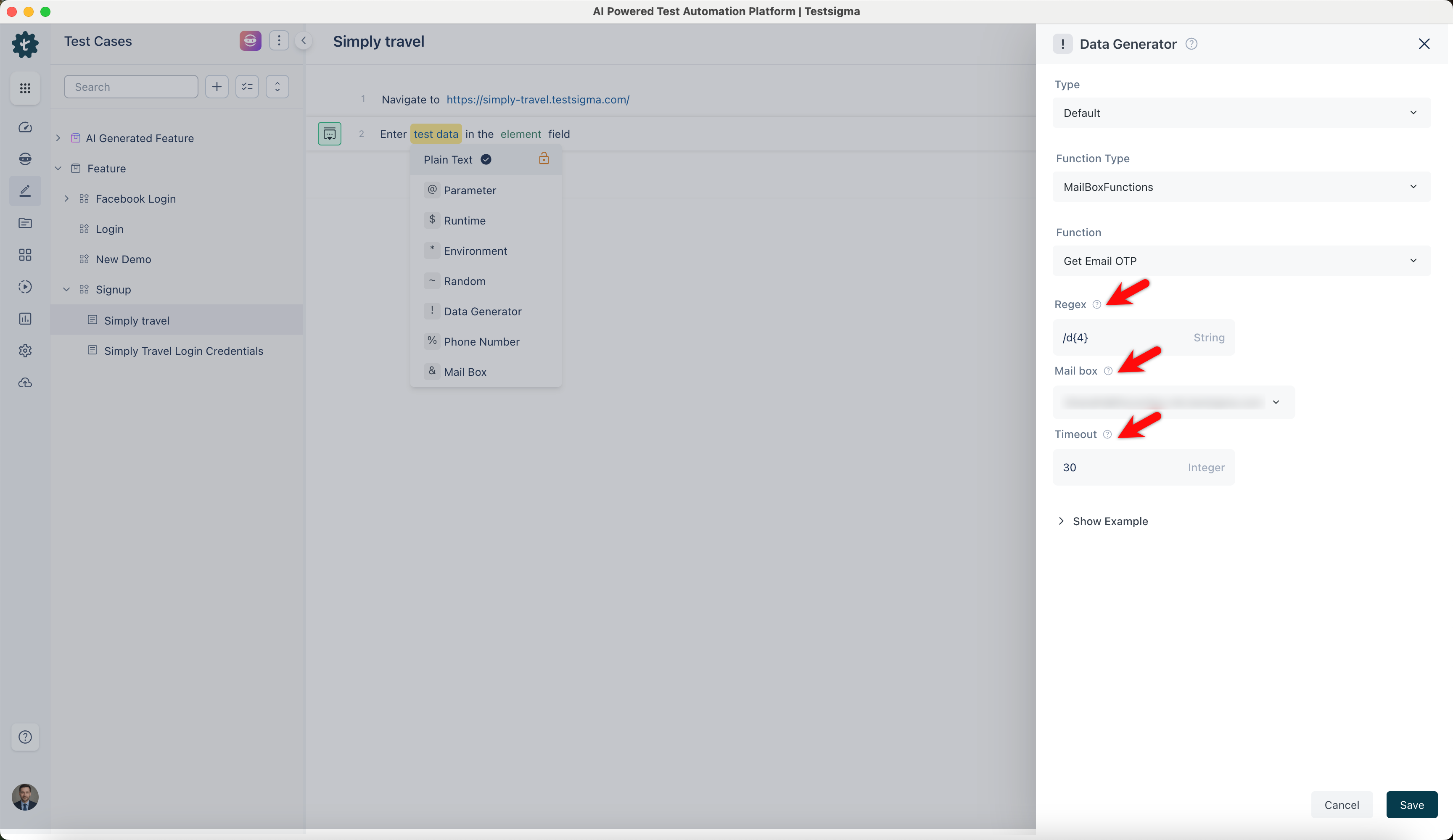
- Click Save to store the provided arguments in the data generator for this test step.
Store Data as a Runtime Variable from Mail Box
Section titled “Store Data as a Runtime Variable from Mail Box”Follow the below steps to save the data obtained from the Mailbox as a runtime variable to use later in the test case using Test Data Generators in Testsigma.
-
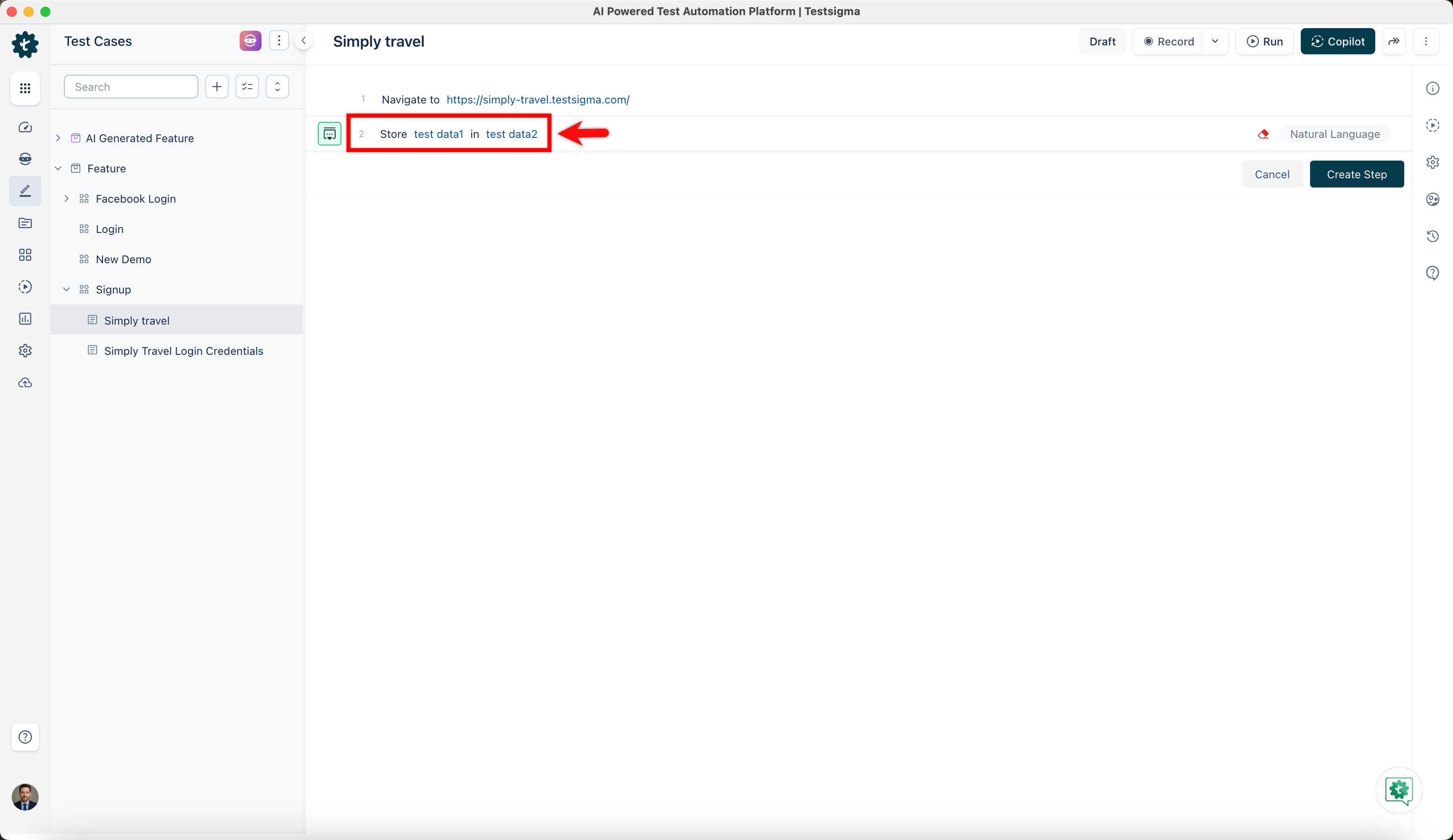
Create a new step in the Test Case using NLP that adds two placeholders for test data to store data as runtime variables.
-
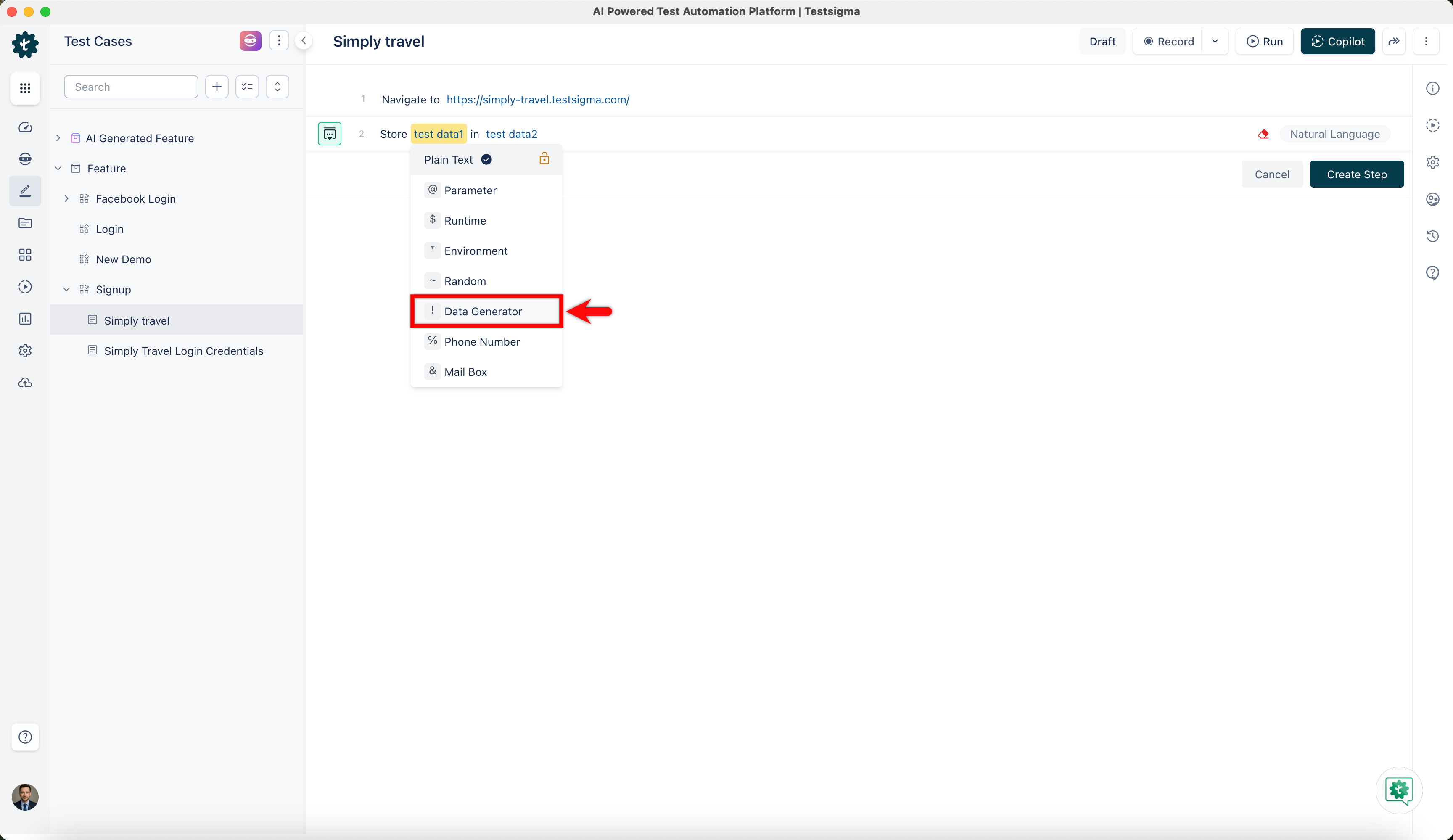
Click the test data1 placeholder to replace it, and then select the ! Data Generator from the Test Data Types dropdown menu.
-
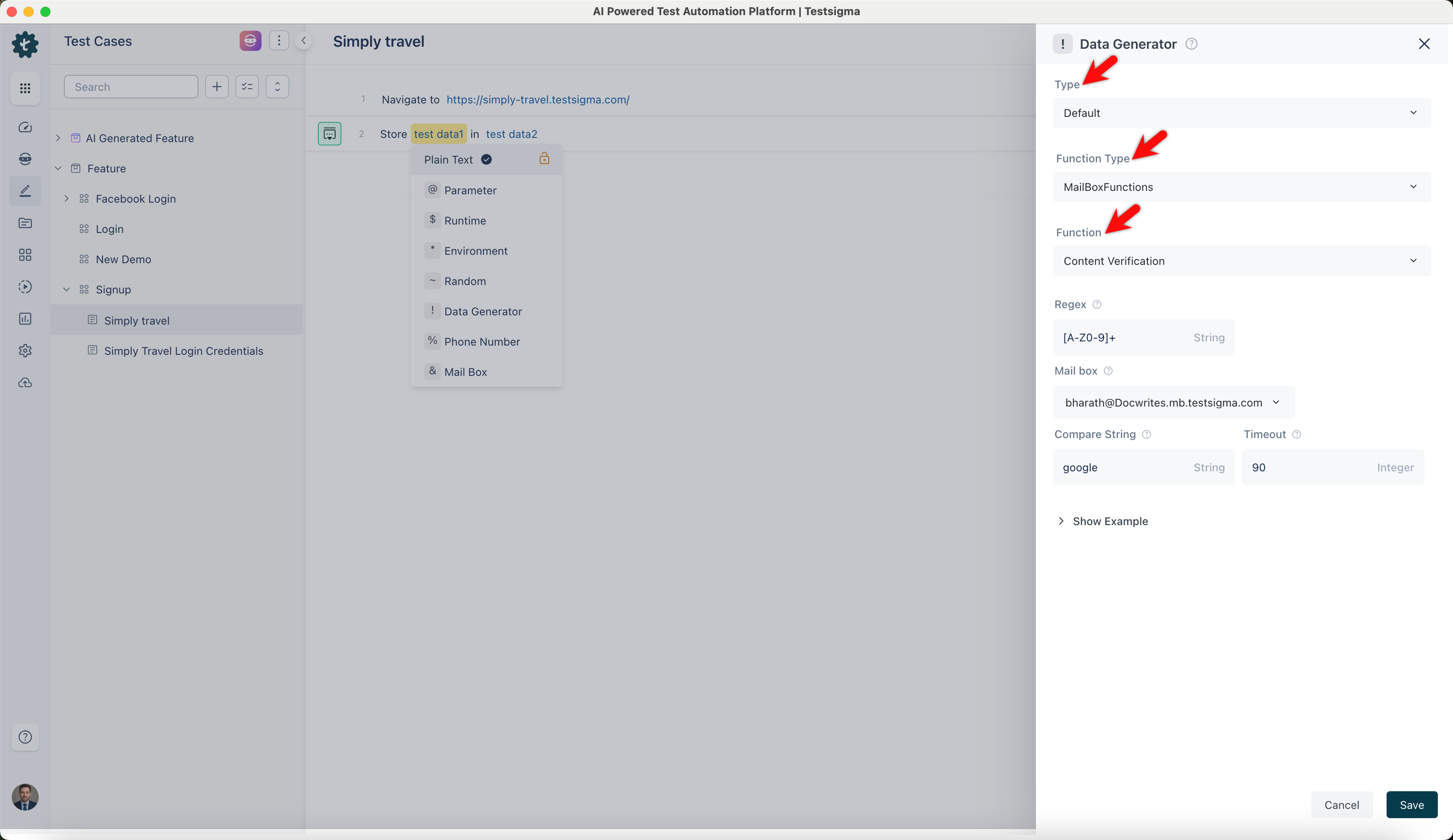
On the right sidebar, select Data Generator type as the default, Function type as MailBoxFunction, and choose the Function as Content Verification from the dropdown menu.
-
Configure the Test Step by providing the necessary details for the function:
- Regex: A search pattern is created by a sequence of characters. For instance, \d{4} matches four consecutive digits (0-9).
- MailBox: Select Mail Box from the drop-down list. It stores incoming email messages.
- Compare String: Provide the CompareString function, which compares two strings and determines if they are identical.
- Timeout: Set the time for how long a program or system should wait for a specific task to finish. In this example, we will wait for 30 seconds.
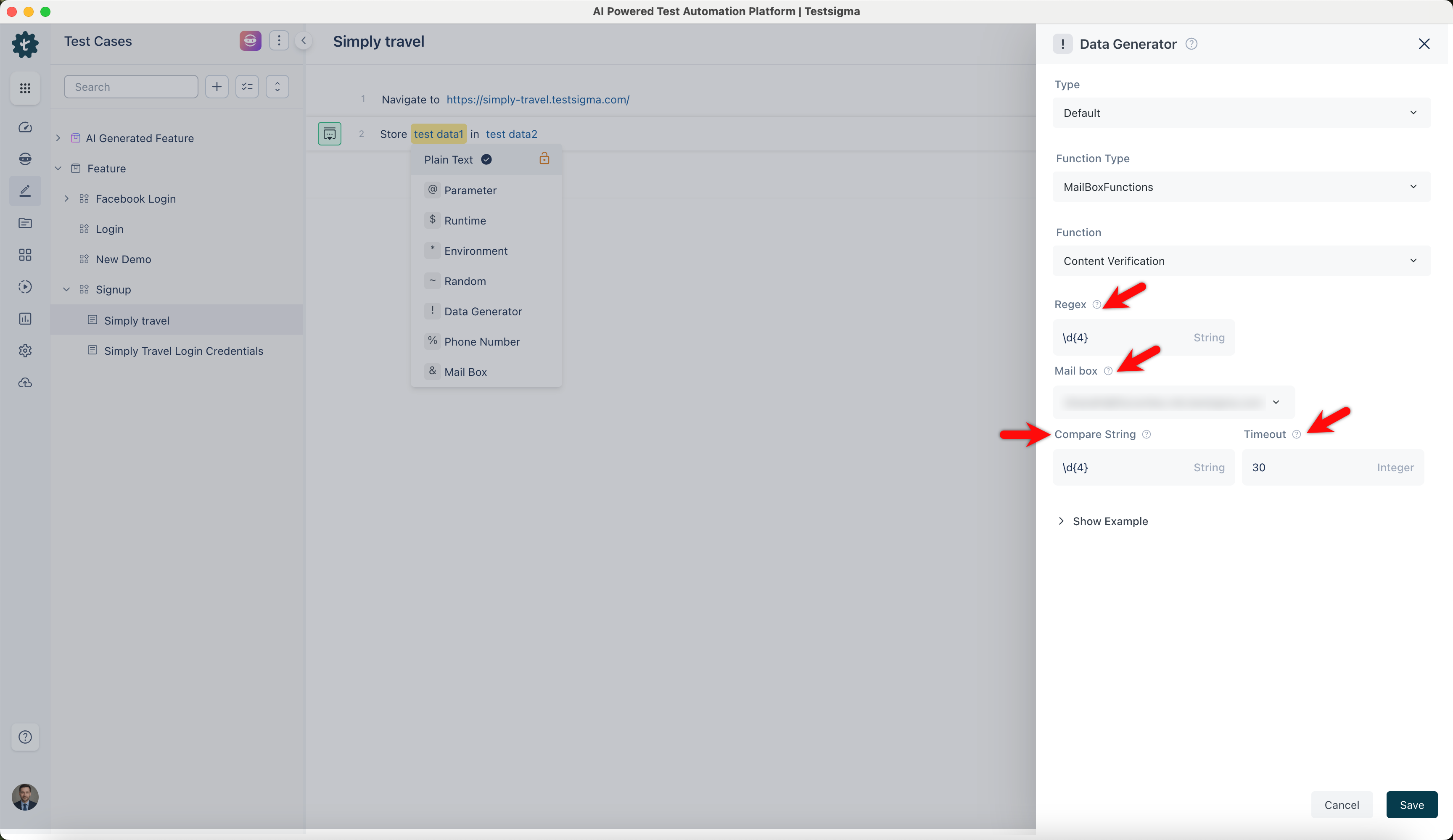
-
Click Save to store the provided arguments in the data generator for this test step.
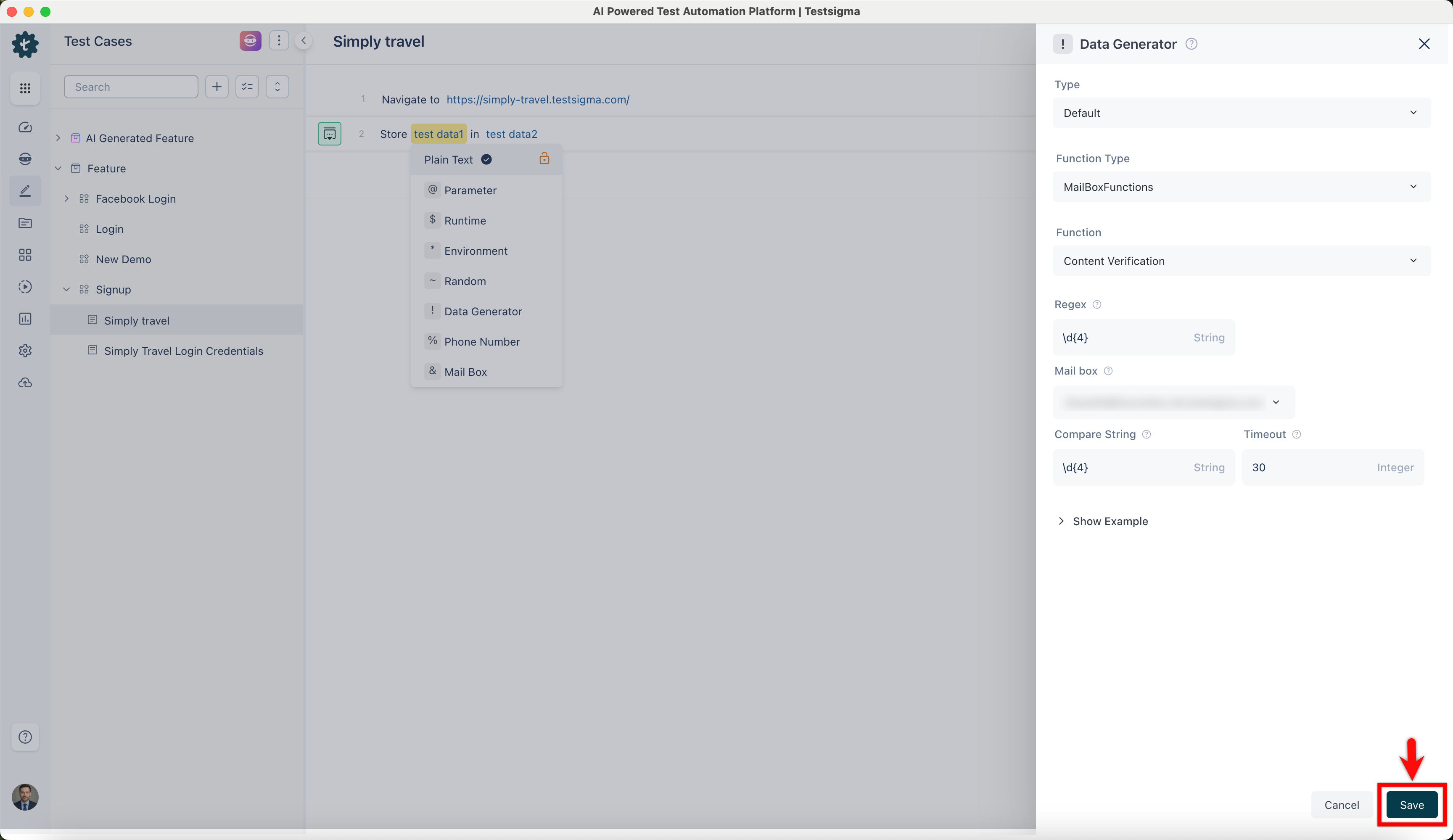
-
Substitute specific text for the testdata2 placeholder and create a step to generate a runtime variable that stores the value in that text.
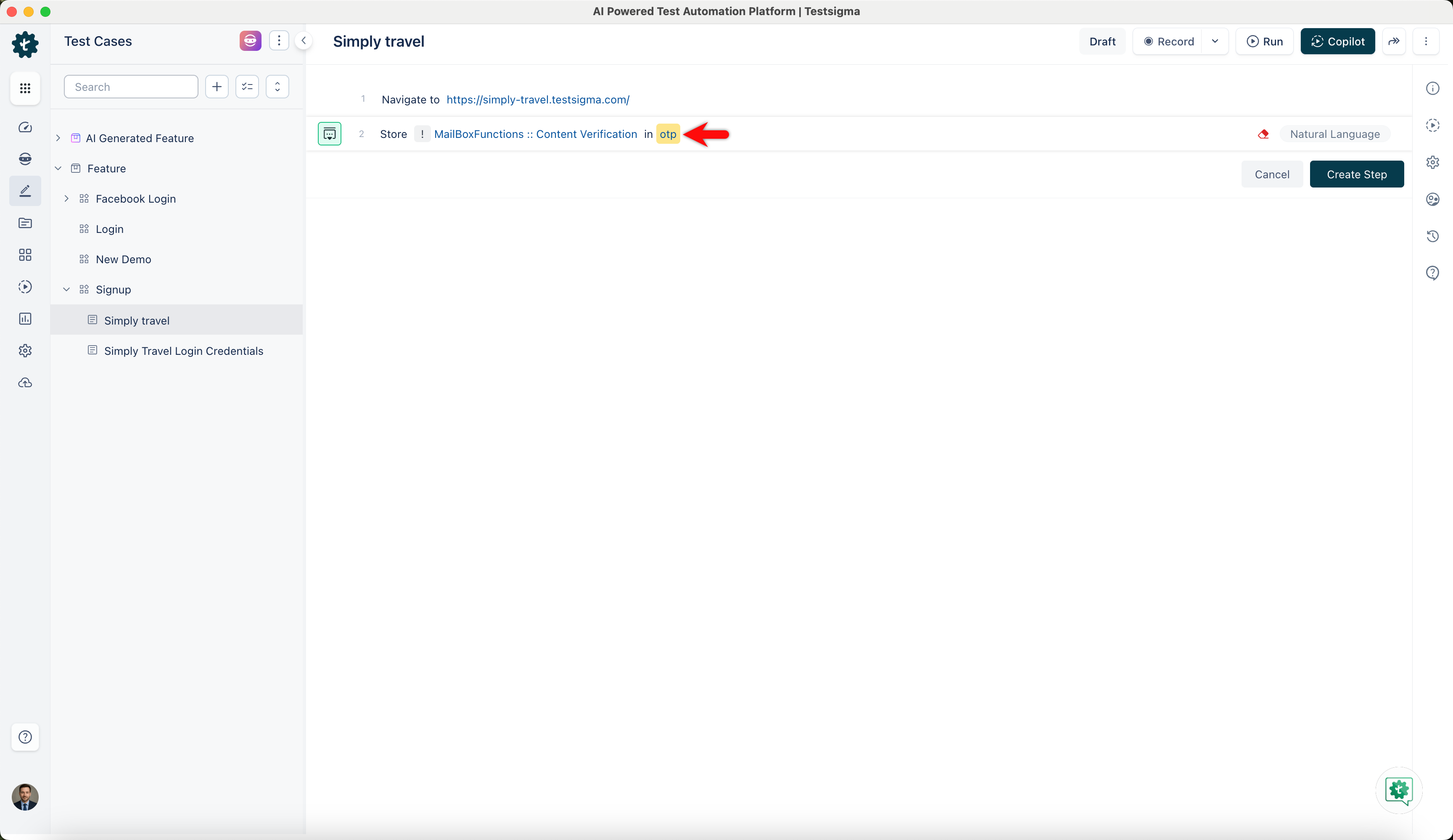
Create Mail Box Alias in Test Step
Section titled “Create Mail Box Alias in Test Step”During a test step, you can create a mailbox alias that connects an additional email address to your primary email account. This allows you to generate multiple email addresses that all direct to the same inbox. When you execute the test, it generates a unique mailbox for each alias.
-
Create a new step in the Test Case using NLP that adds two placeholders for test data to create a mailbox alias.
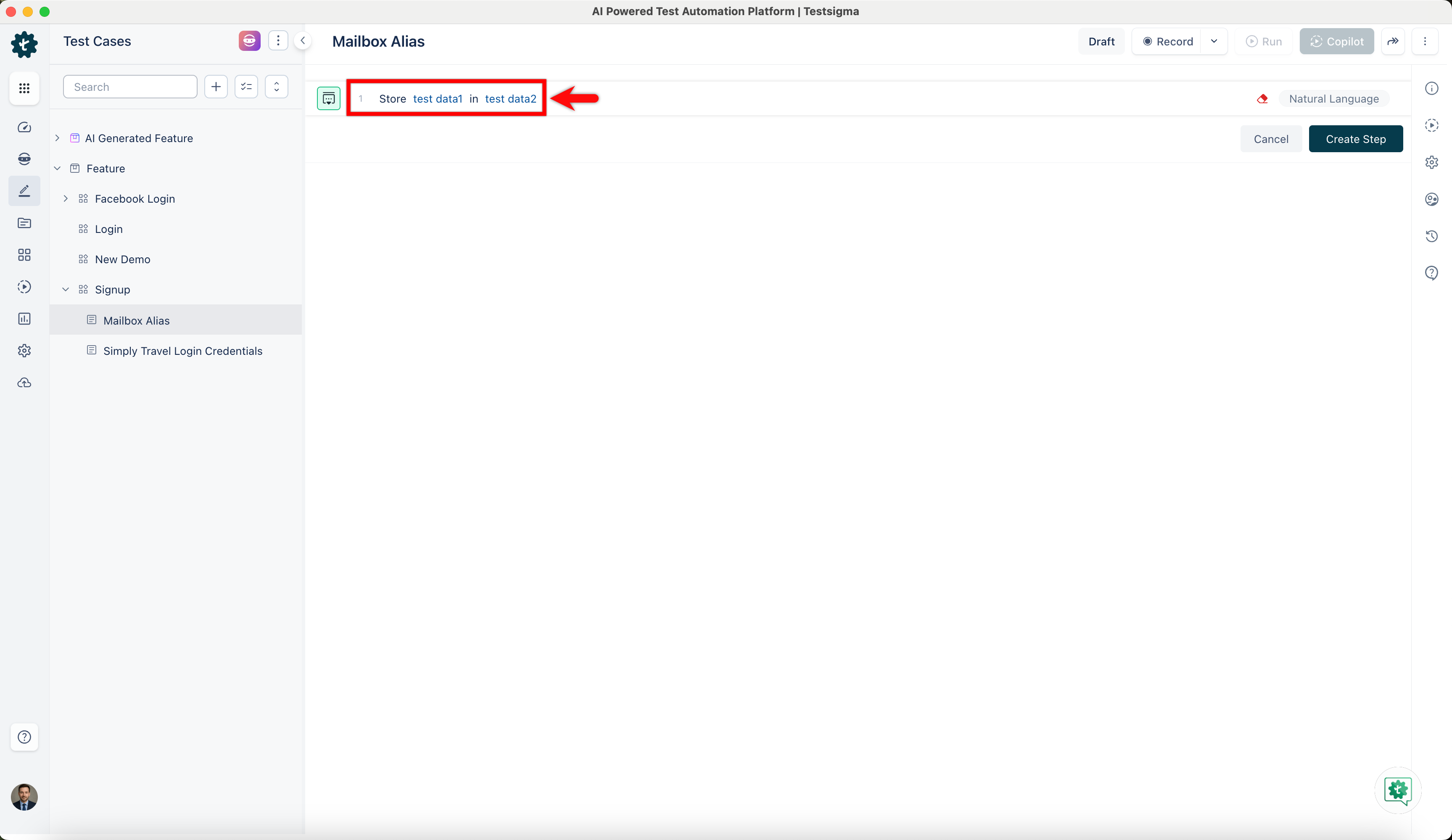
-
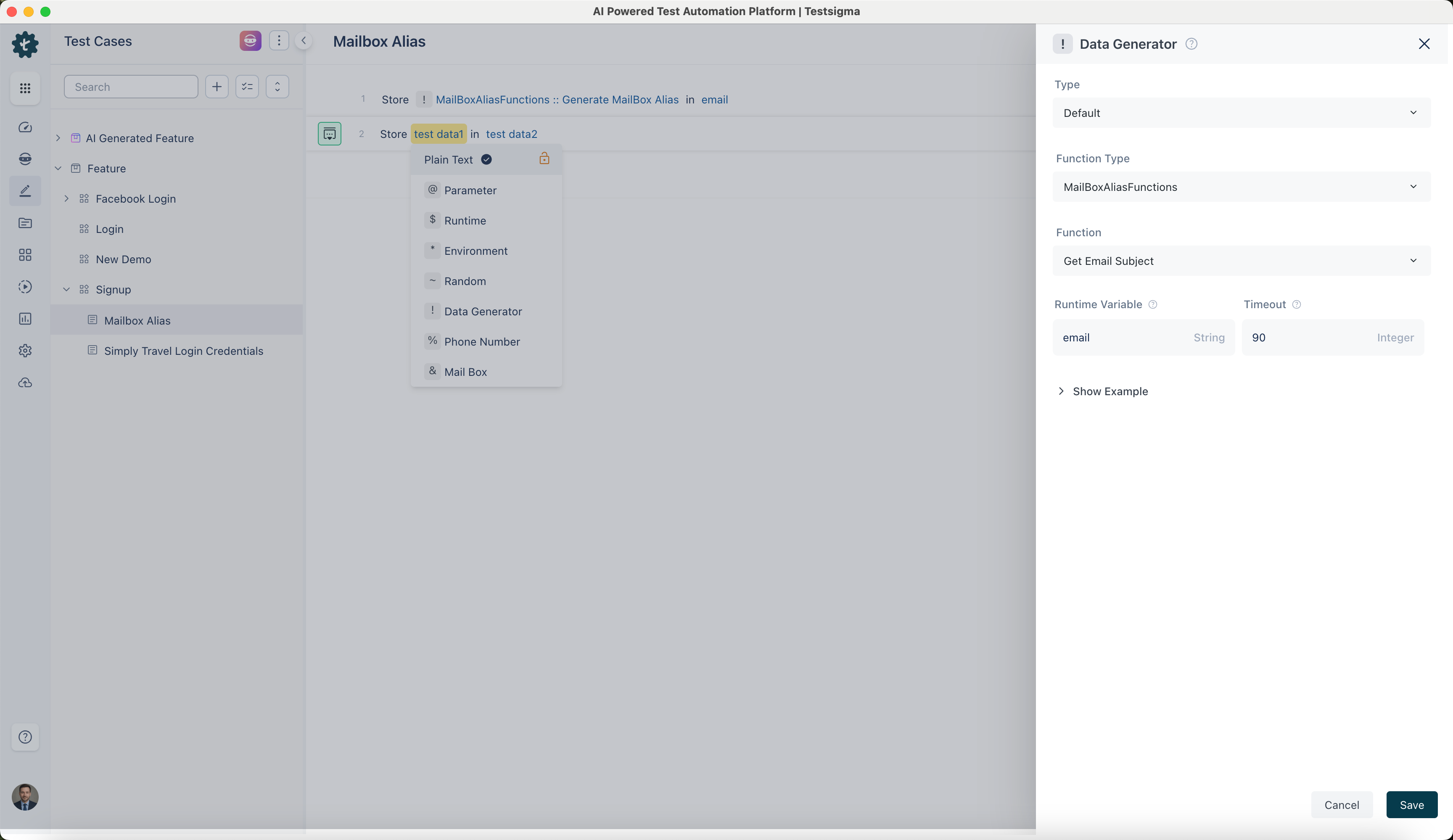
Click the test data1 placeholder to replace it, and then select the ! Data Generator from the Test Data Types dropdown menu.
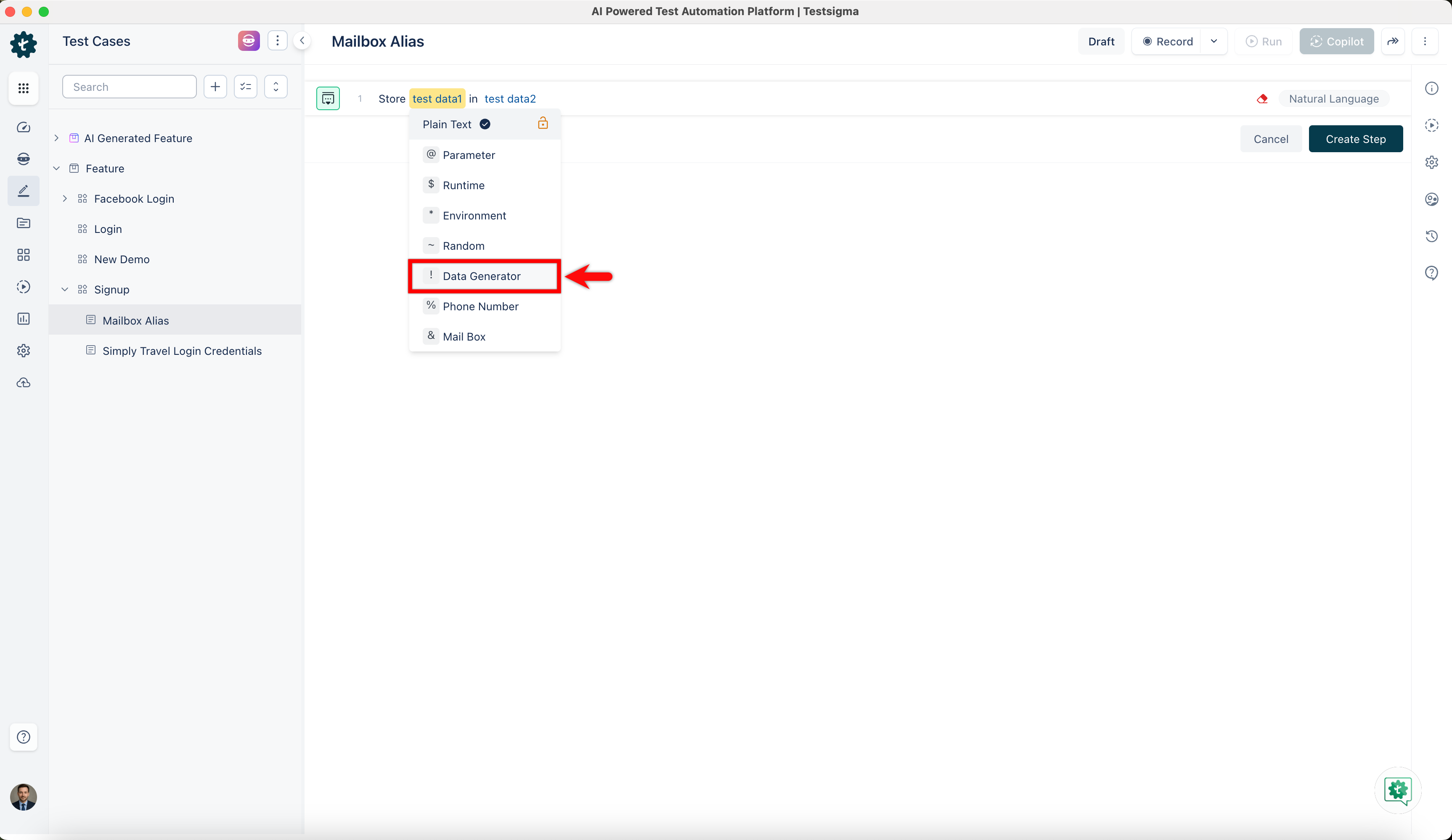
-
On the right sidebar, select Data Generator type as Default, Function type as MailBoxAliasFunction, and choose the Function as Generate MailBox Alias from the dropdown menu.
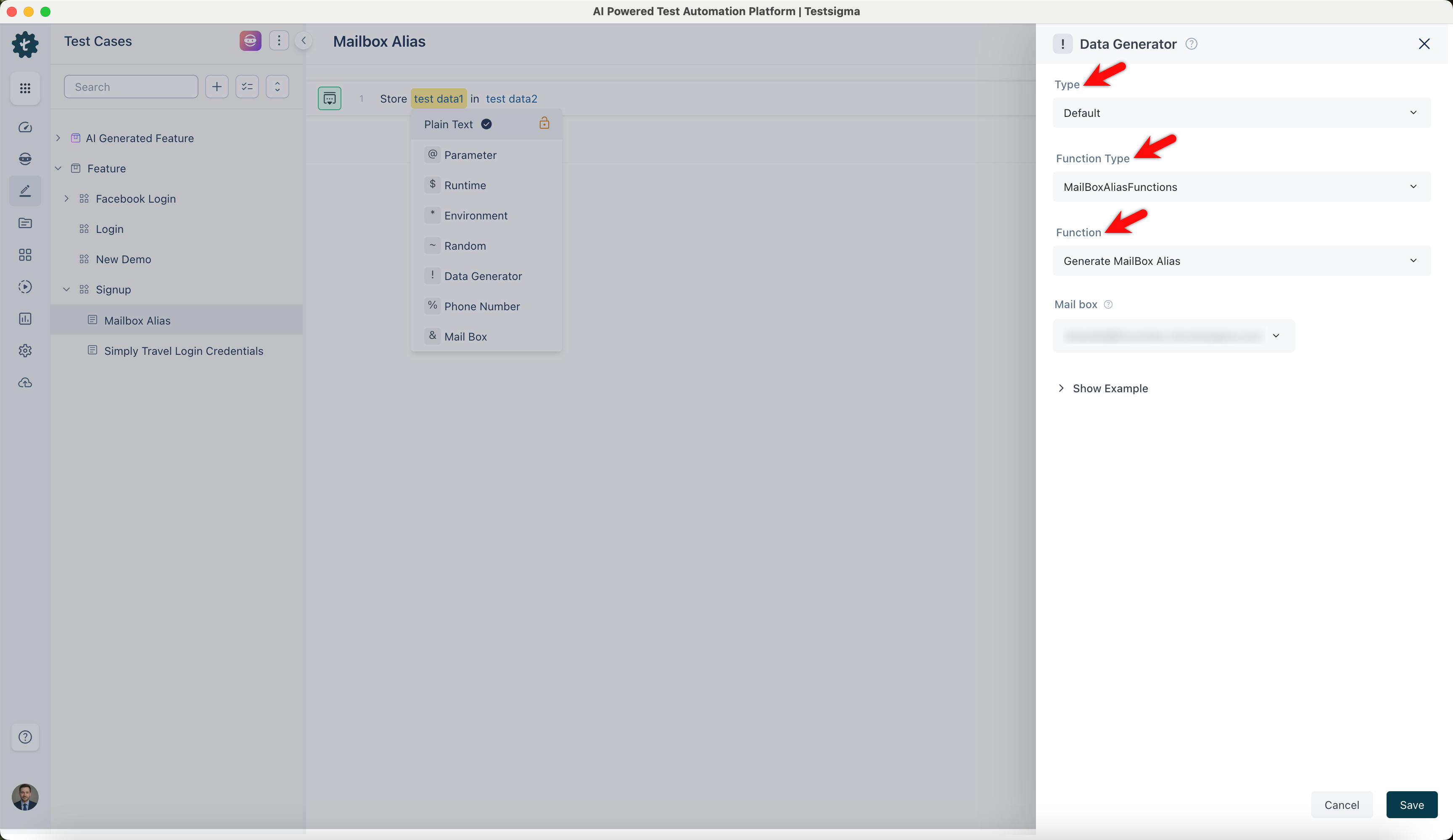
-
Select Linked Mail Box to create a unique mailbox every time and click Save.
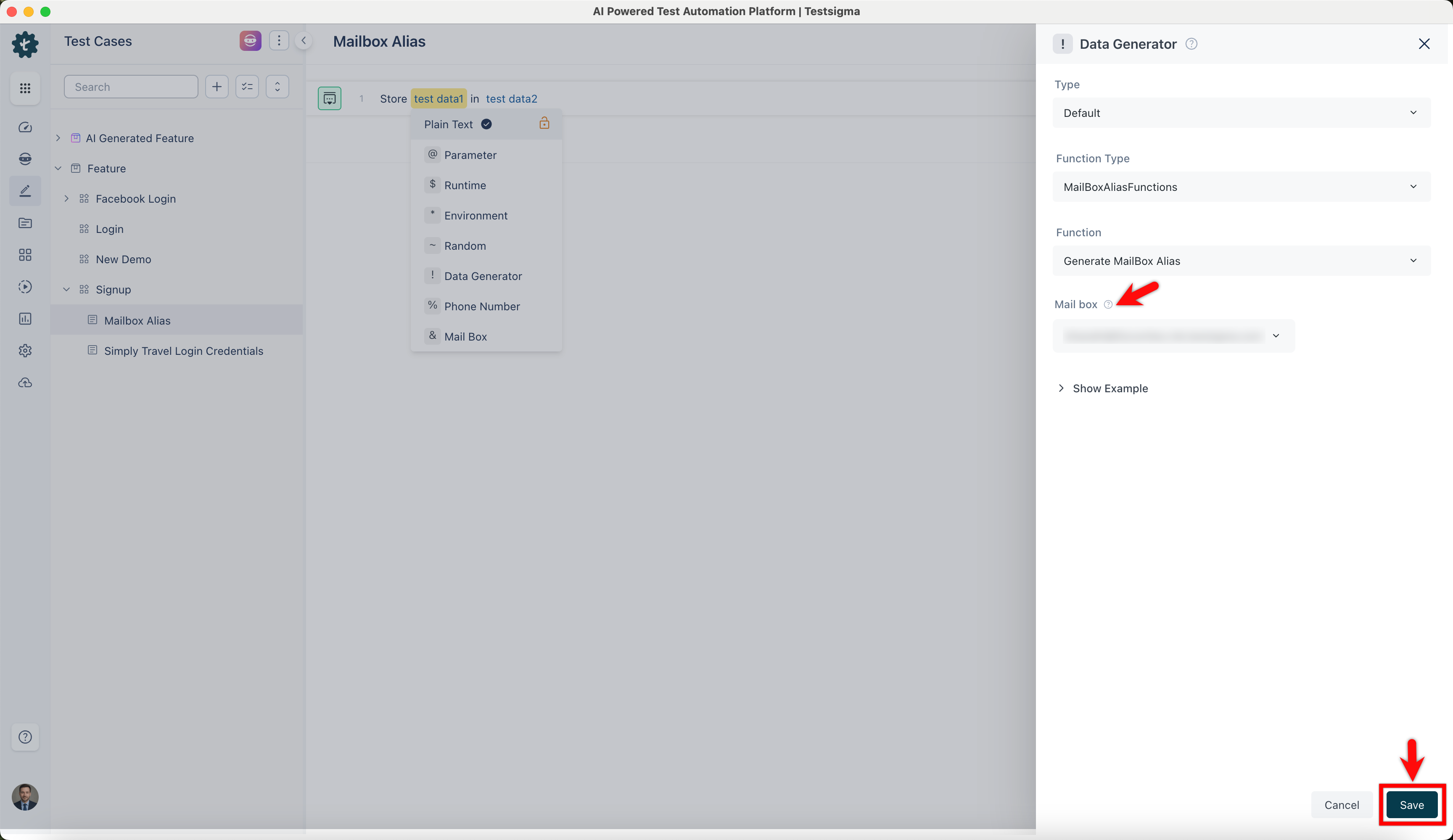
-
Substitute specific text for the testdata2 placeholder and click Create Step to save the test step. It stores the mailbox within the text as a runtime variable.
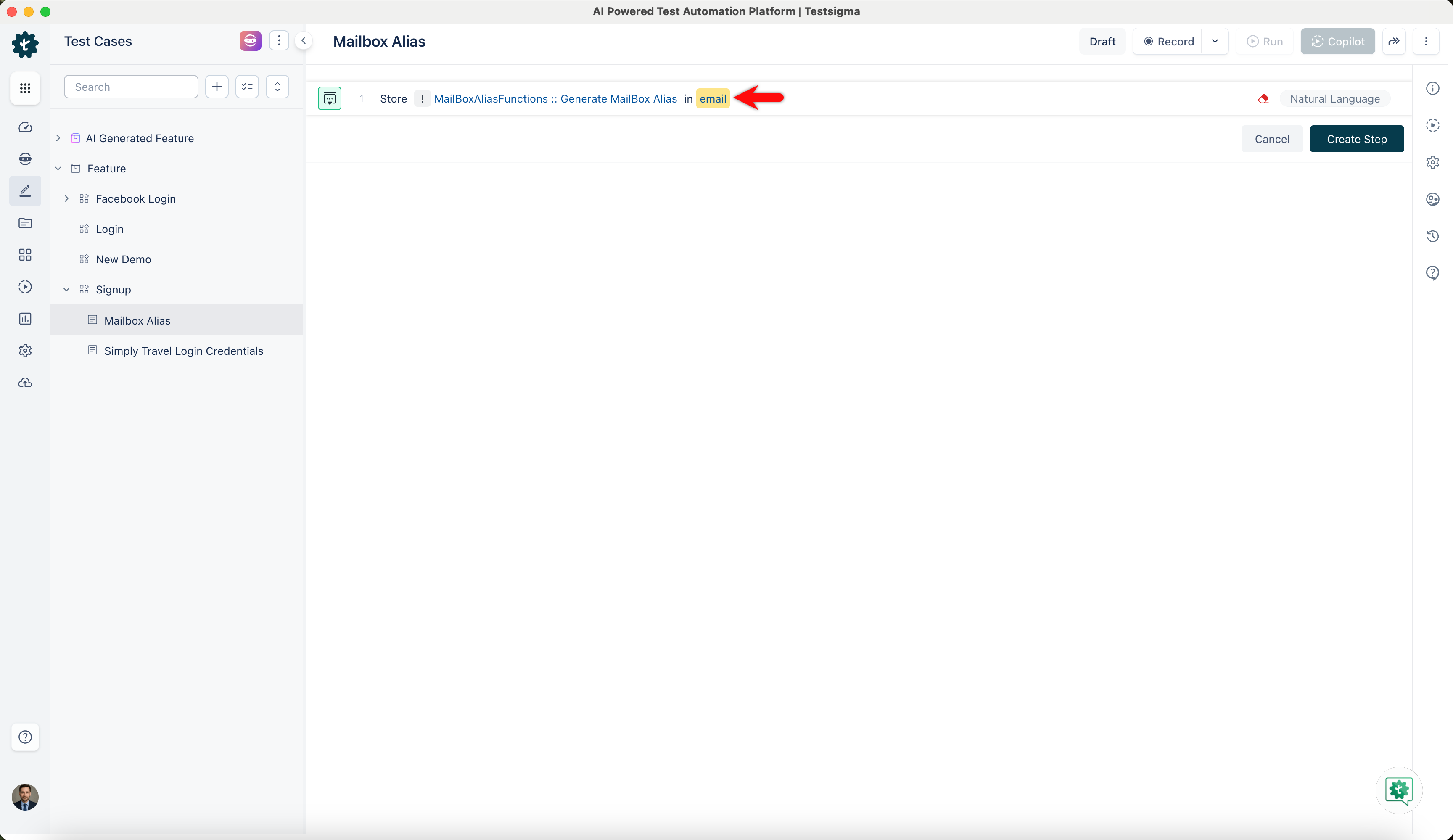
Generate Mail Box Alias for Test Cases Execution
Section titled “Generate Mail Box Alias for Test Cases Execution”With Testsigma, you can generate new mailbox aliases every time during test case execution, improving efficiency and reusability by making it easy to use in many test steps or test cases. If you have only a few email addresses but need to test functions related to emails for various new accounts, Testsigma can help.
| Data Generators | Actions | Inputs |
|---|---|---|
| ! MailBoxAliasFunctions :: getEmailContent | This will get the entire email’s content into a variable. | |
| ! MailBoxAliasFunctions :: getEmailSubject | This will get the entire email’s subject into a variable. | |
| ! MailBoxAliasFunctions :: getOTP | This will fetch the OTP sent to the email box into a variable. | |
| ! MailBoxAliasFunctions :: urlWithText | This will fetch the URL that contains some required text. | |
| ! MailBoxAliasFunctions :: urlWhichContains | This will fetch the URL that contains some required parameters. | |
| ! MailBoxAliasFunctions :: urlMatchingRegex | This will fetch the URL that contains a URL matching the required regex. |
Below is a screenshot showing a test case generating a mailbox alias and getting content from the email.
Sample Test Case for 2FA using Mailbox
Section titled “Sample Test Case for 2FA using Mailbox”Two-factor authentication provides additional protection for your application. With Testsigma, you can easily set up Mailbox, retrieve OTP using mailbox functions, and perform tests securely. This article discusses testing 2FA for MailBox.
Prerequisites
Before you begin, ensure that:
- You have referred to the documentation on creating test cases.
- You have referred to the documentation on creating mailbox &
- You have referred to the documentation on creating data generator.
- Also, you need to have a dedicated Mailbox for your account. Contact support@testsigma.com for more information.
Creating Test Case for 2FA Using MailBox
Section titled “Creating Test Case for 2FA Using MailBox”-
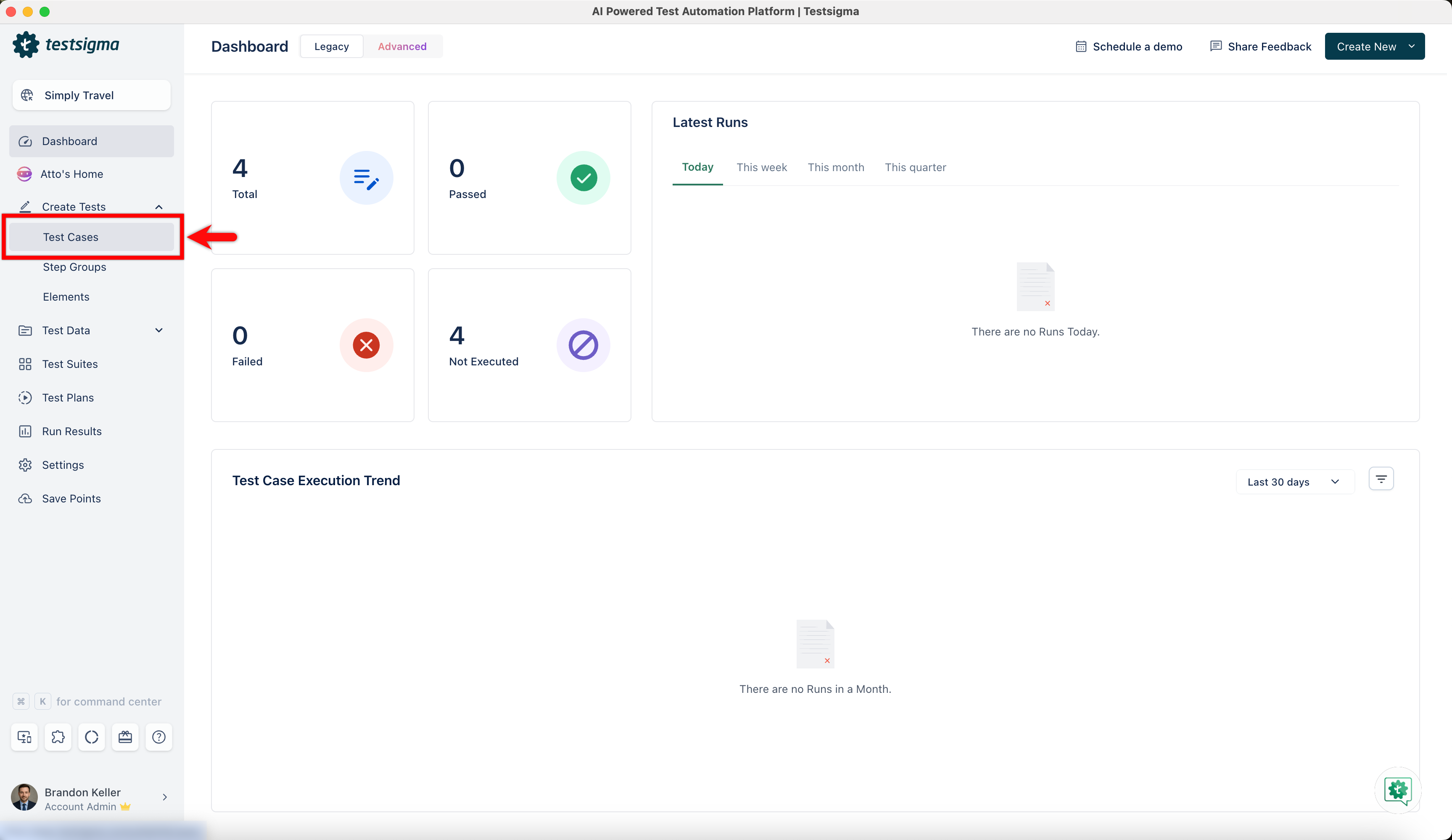
Navigate to Create Tests > Test Cases, and click on Create Test Case.
-
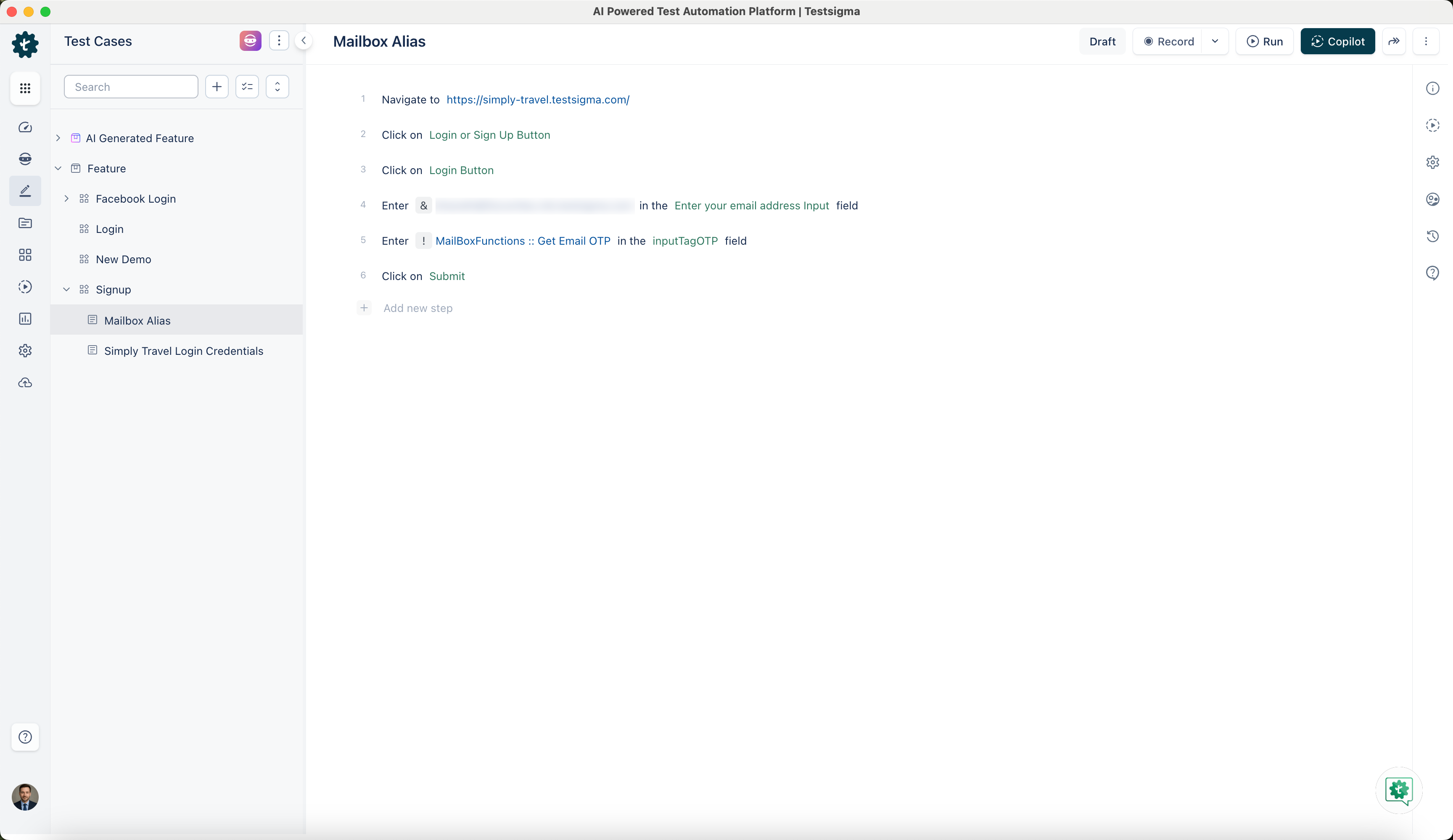
On the Test Case details page, create test steps manually or using the recorder.
-
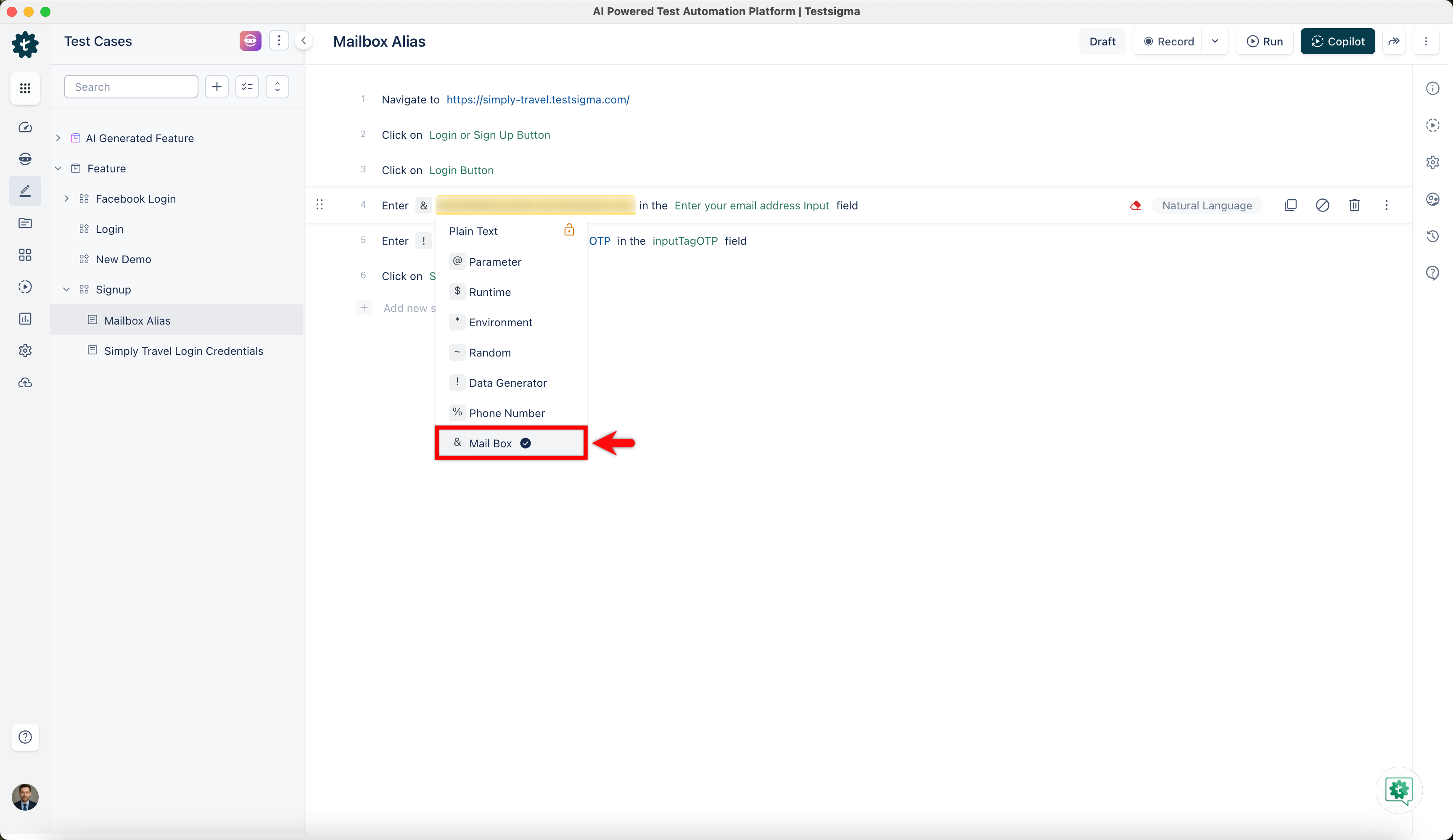
For Step 4, we use & Mailbox and enter the email linked to the account in the email input field.
-
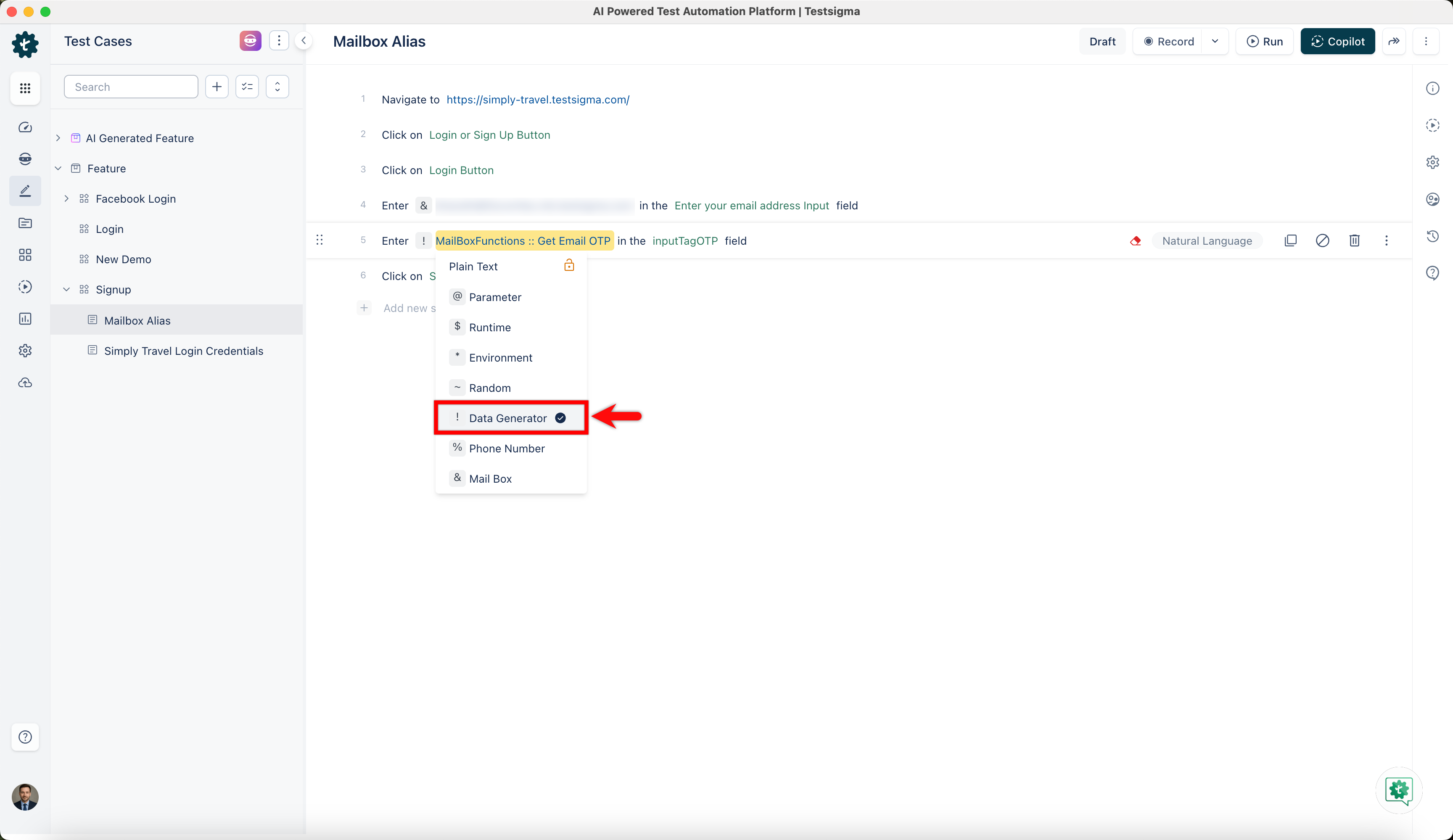
In Step 5, we click on the ! Data Generator. This will open ! Data Generator overlay.
-
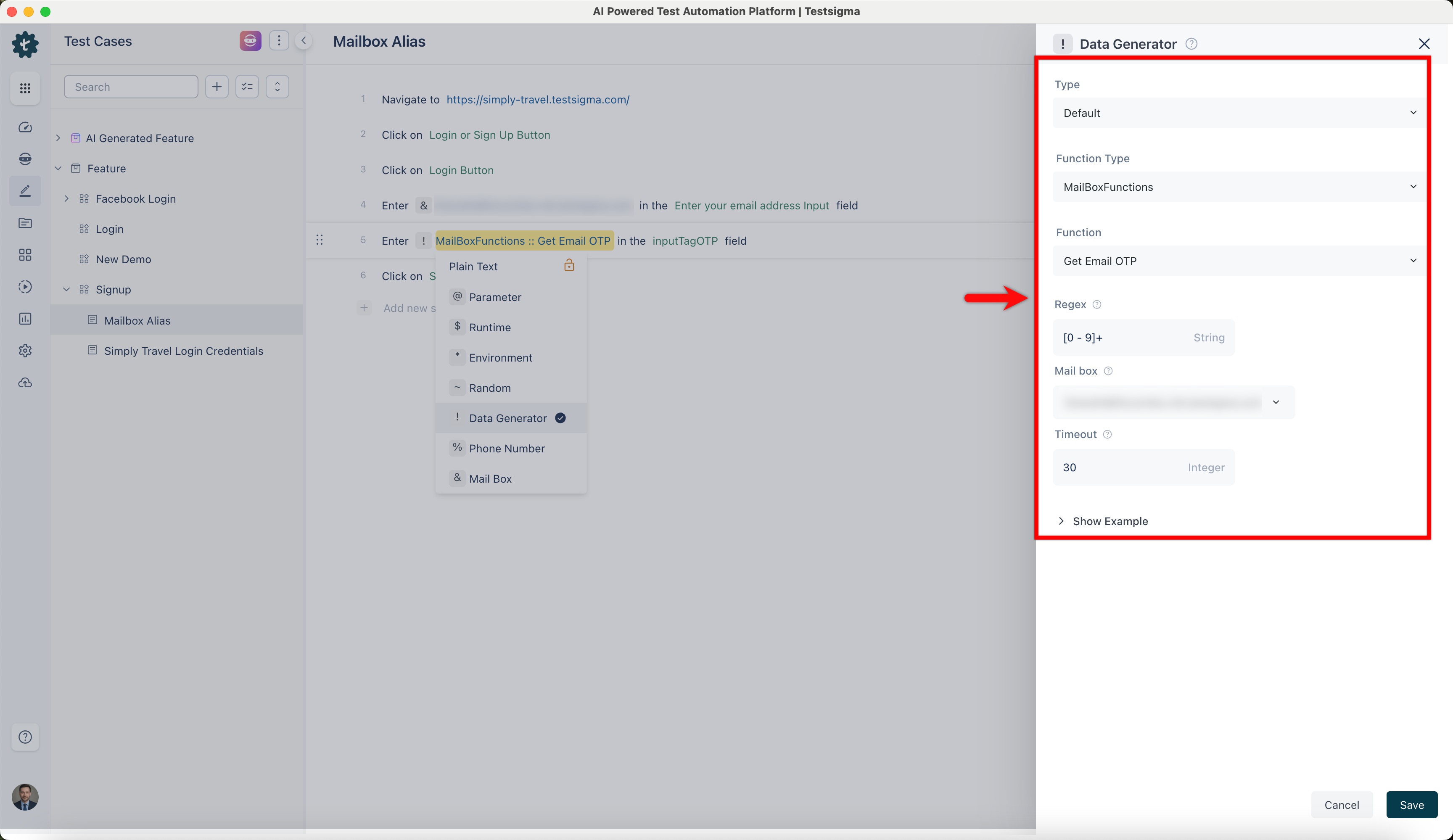
On the ! Data Generator overlay, select Type, Function Type, Function, Enter Regex, Runtime Variable, Timeout and click on Save. Here, we add regex [0 - 9]+, which extracts the first encountered series of numbers. The extracted data, which is OTP, will be stored in the runtime variable. For more information on examples of regex, refer to https://regex101.com/.
-
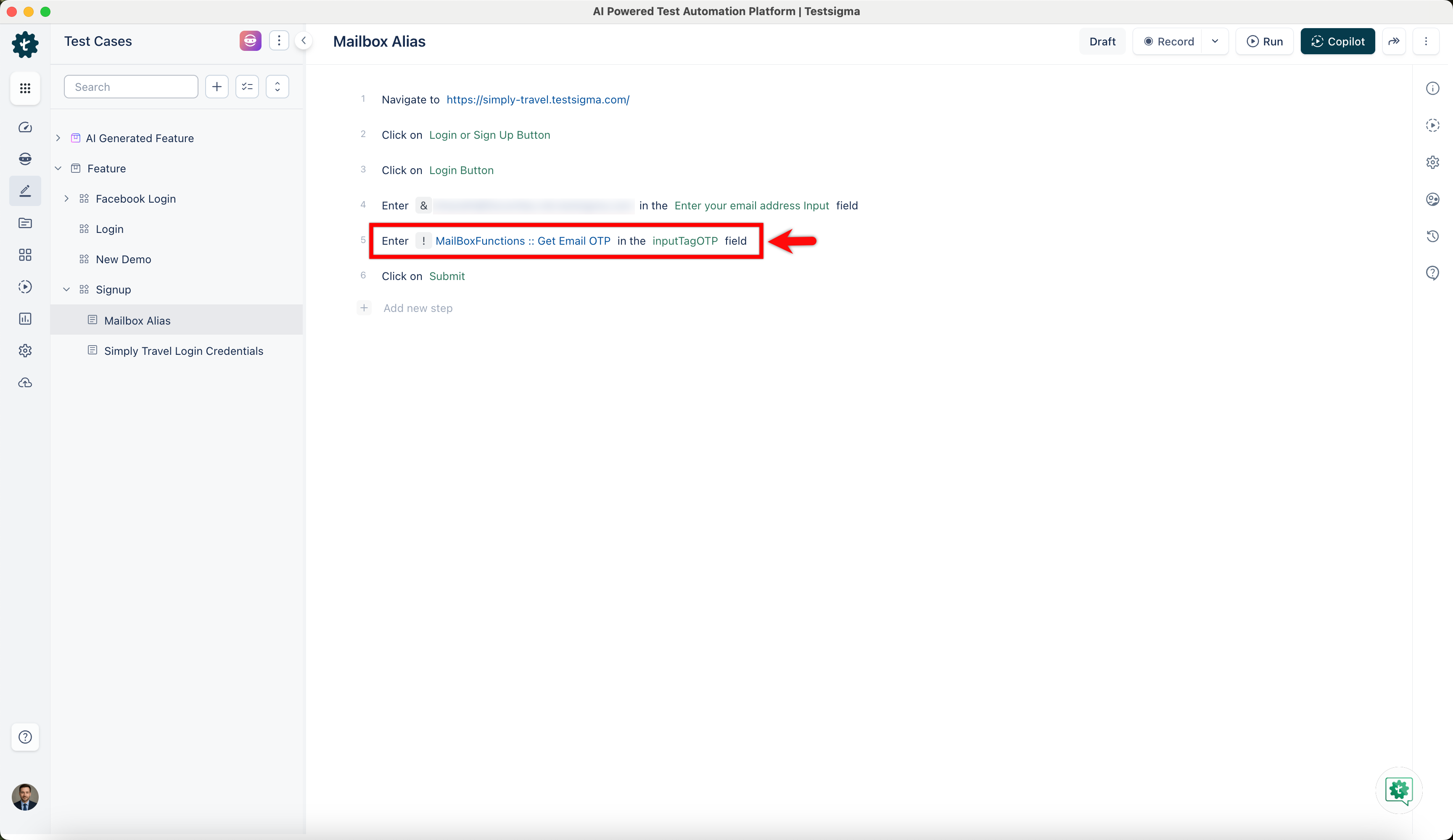
This will help fetch OTP and enter it in the input element.
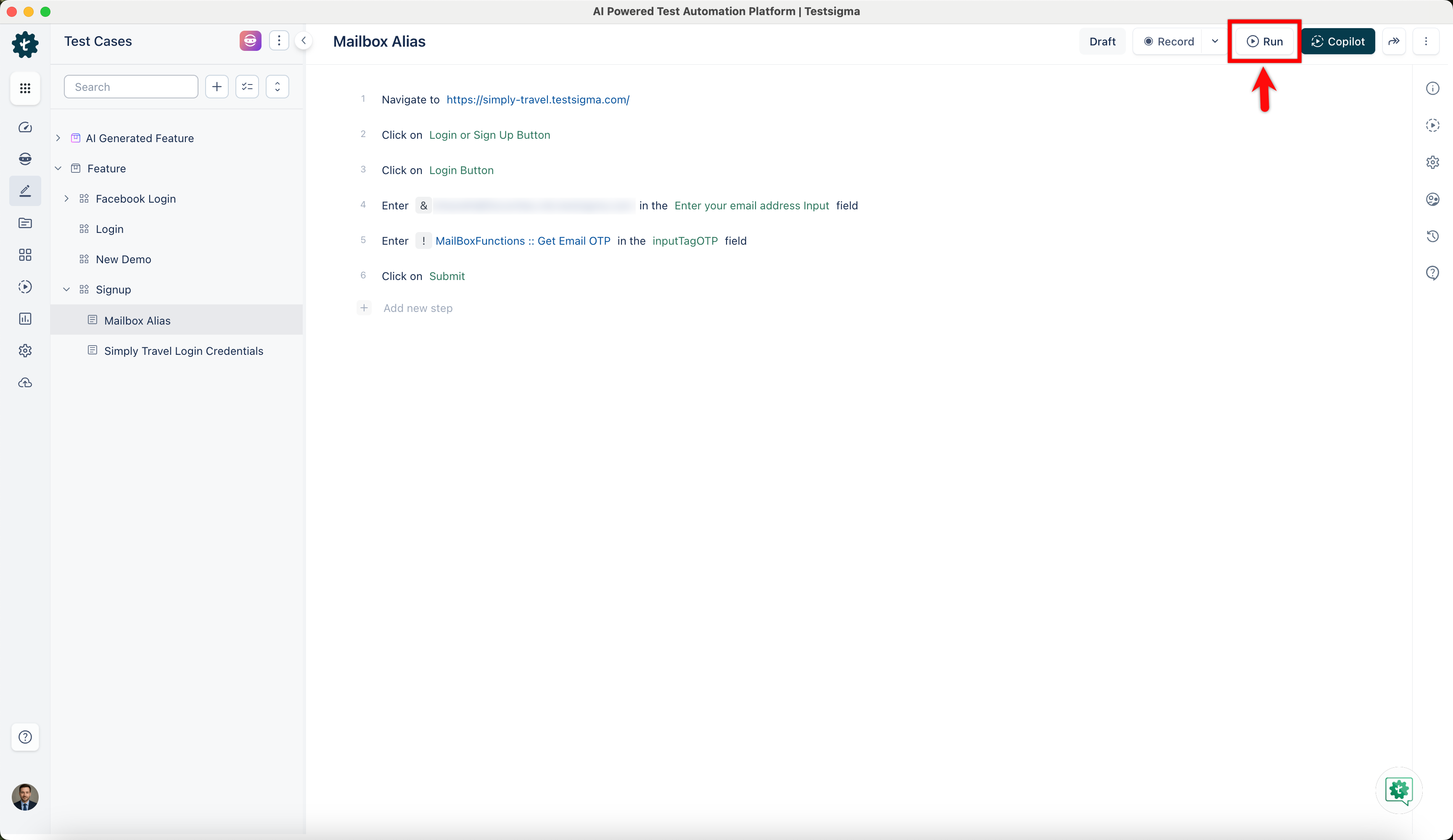
- Click on Run to execute the test case.
Setup the Email Forwarding for Automation Mailbox
Section titled “Setup the Email Forwarding for Automation Mailbox”In some cases, app restrictions will prevent the delivery of OTPs to the Testsigma Mailbox. In this case, you can use the Testsigma SMS Forwarder App, which forwards messages to a designated mailbox and allows you to retrieve OTPs conveniently.
Prerequisites
Before you begin, ensure that:
- You have the Testsigma SMS Forwarder application.
- You have referred to the documentation on creating mailbox &
- You have referred to the documentation on creating data generator.
- Also, you need to have a dedicated Mailbox for your account. Contact support@testsigma.com for more information.
Setting Up Forwarding Rules (Gmail)
Section titled “Setting Up Forwarding Rules (Gmail)”Access Gmail Settings
-
Open your Gmail account.
-
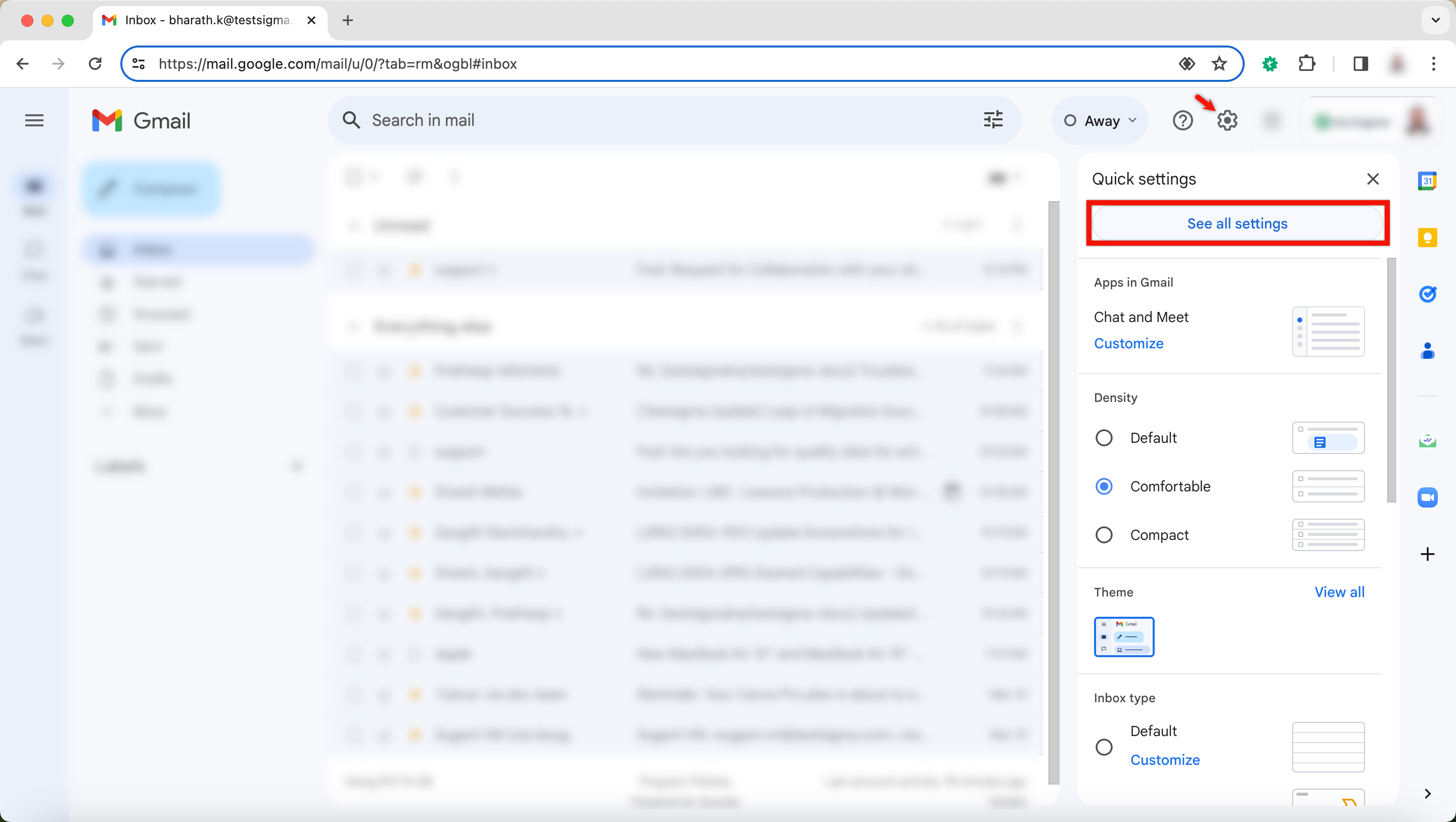
Click on the gear icon in the upper-right corner.
-
Select See all settings.
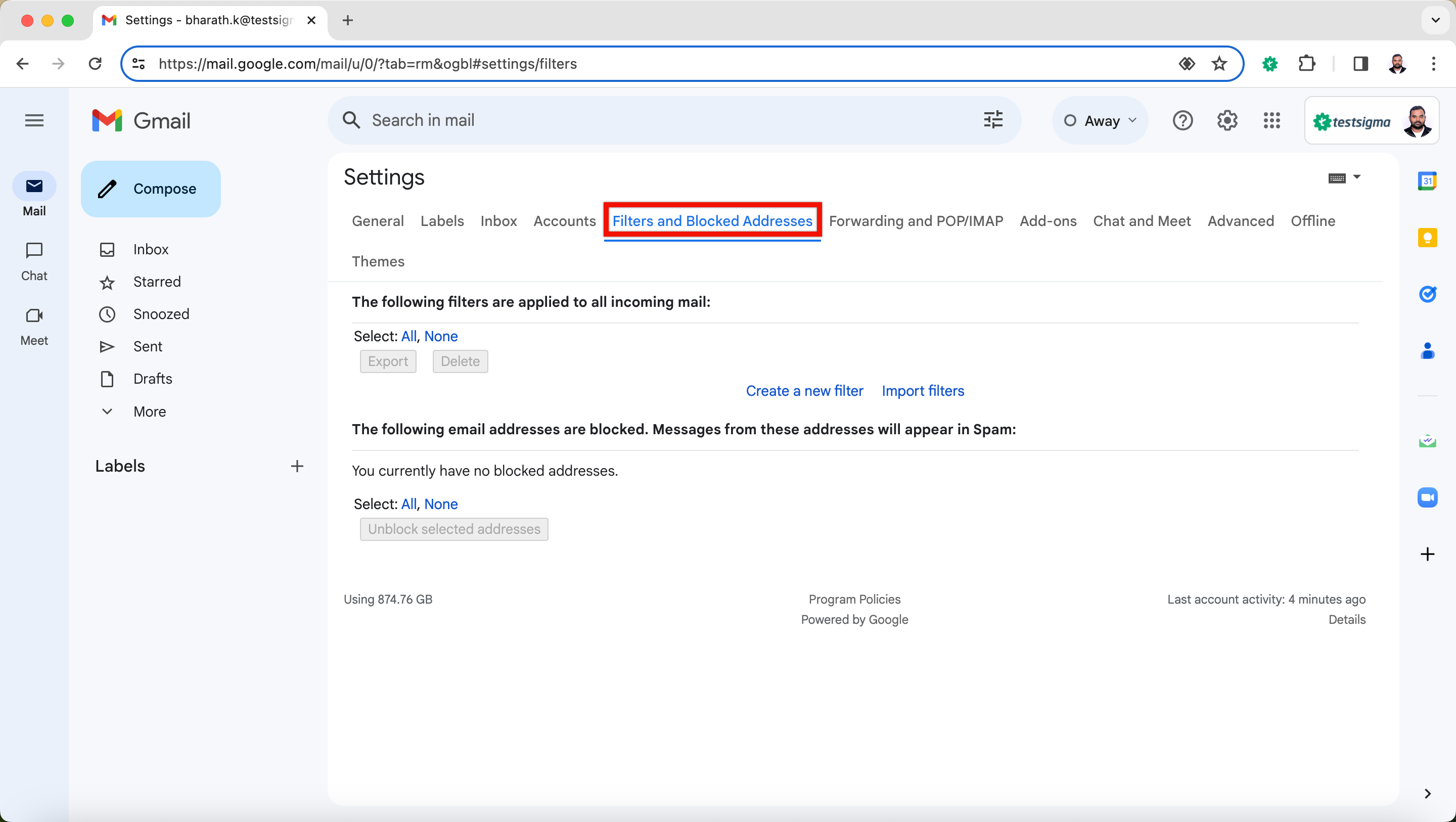
Navigate to Filters and Blocked Addresses
-
From the settings, click on the Filters and Blocked Addresses tab.
-
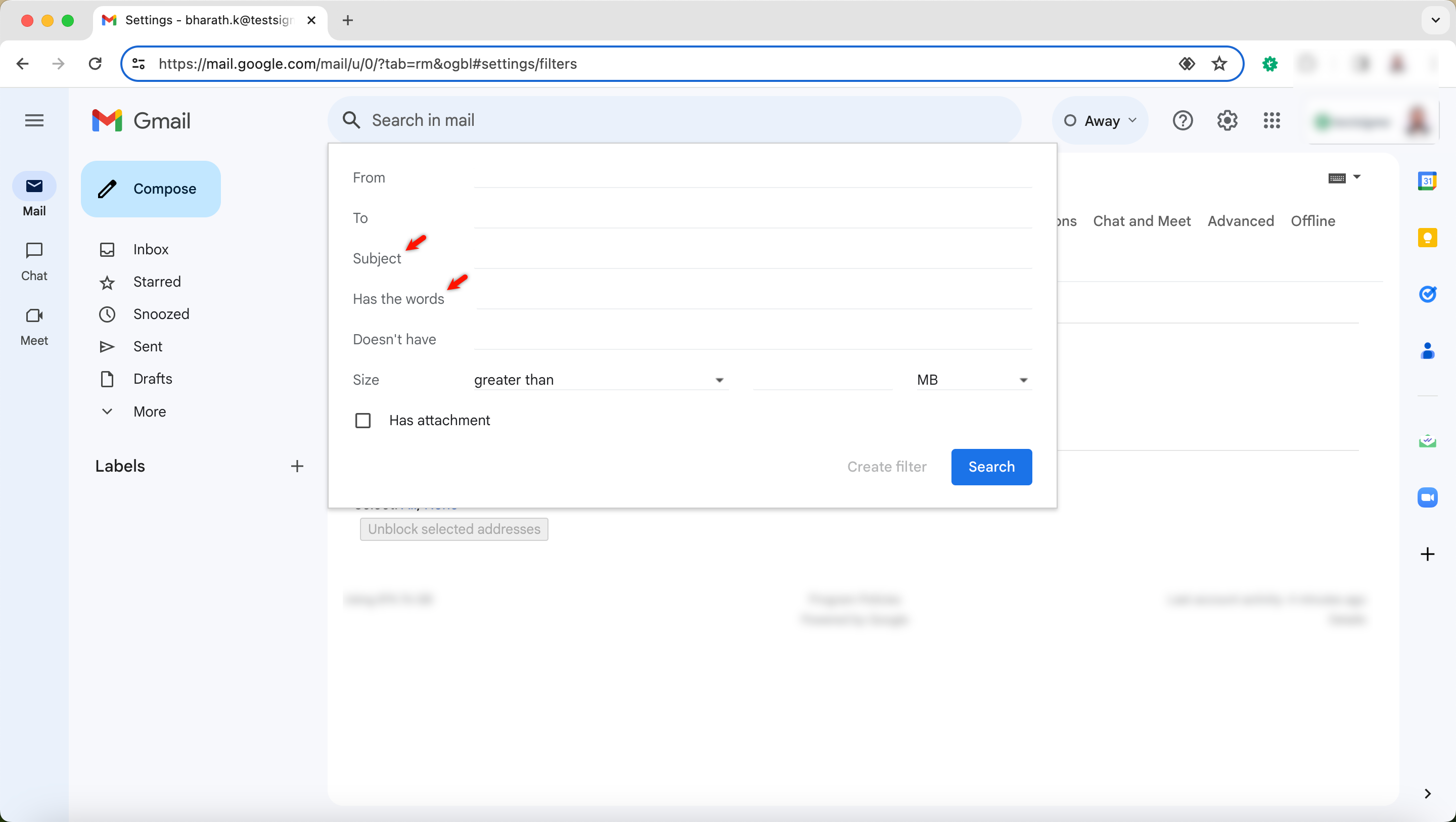
Create a filter to forward emails with specific content or subject. In this case, we can have text that is constant and is present in all emails that we want to forward.
Create a New Filter
- Click on Create a new filter.
- Specify the criteria for the filter: - Subject: Define the subject of the email that you wish to forward. - Has the words/Doesn’t have words: Include text that is present in all emails you want to forward.
Configure Forwarding Address
-
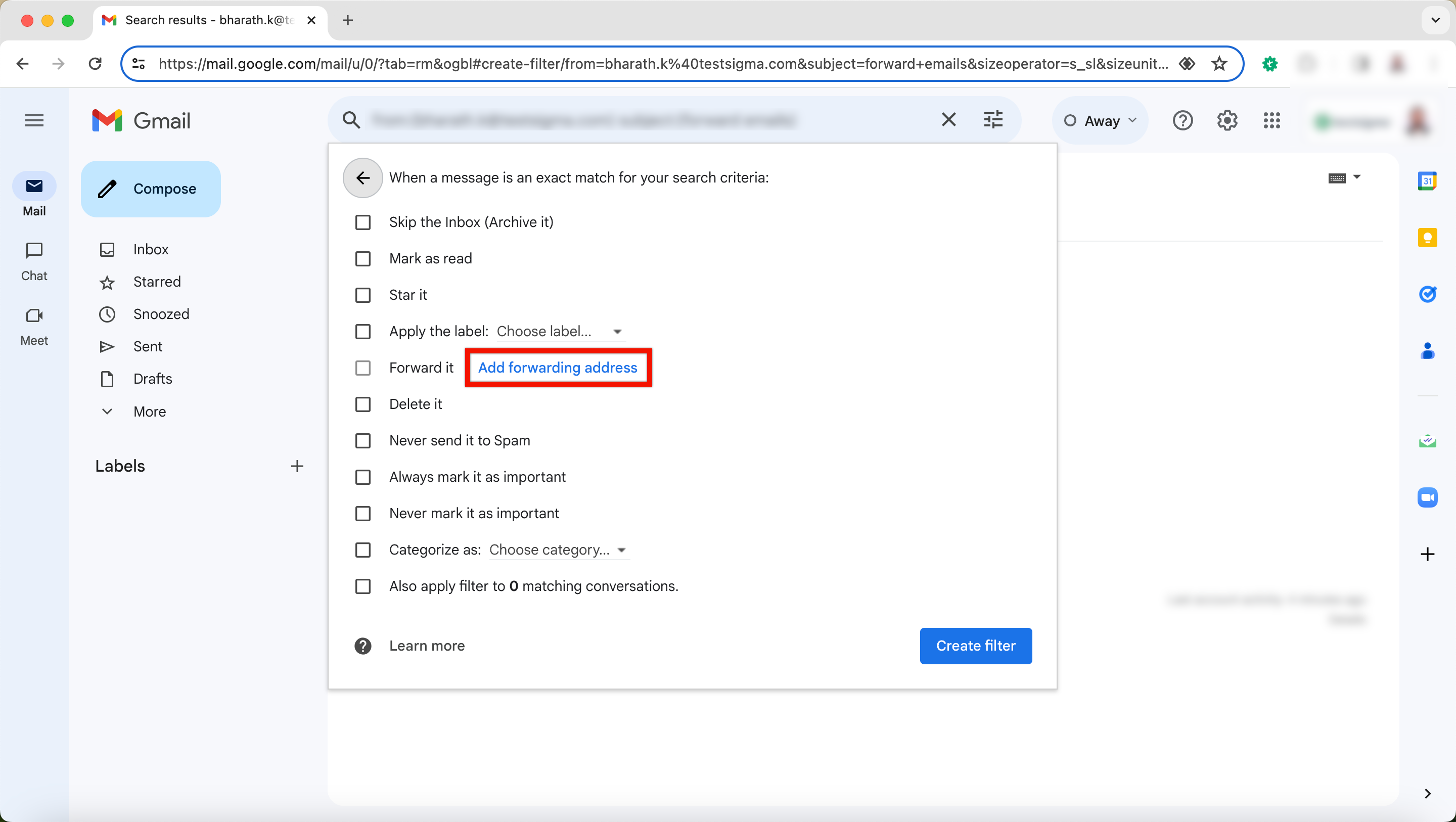
After creating the filter, click on Add forwarding address on When a message is an exact match for your search criteria overlay.
-
Click on Add Forwarding address and add the designated automation email ID.
-
Complete the setup by entering the OTP.