
Runs
Test Plan Executions
Prerequisites
Before you begin, ensure that you have referred to:
Steps to Create and Execute Test Plan
Section titled “Steps to Create and Execute Test Plan”-
Create a test case with all the necessary steps.
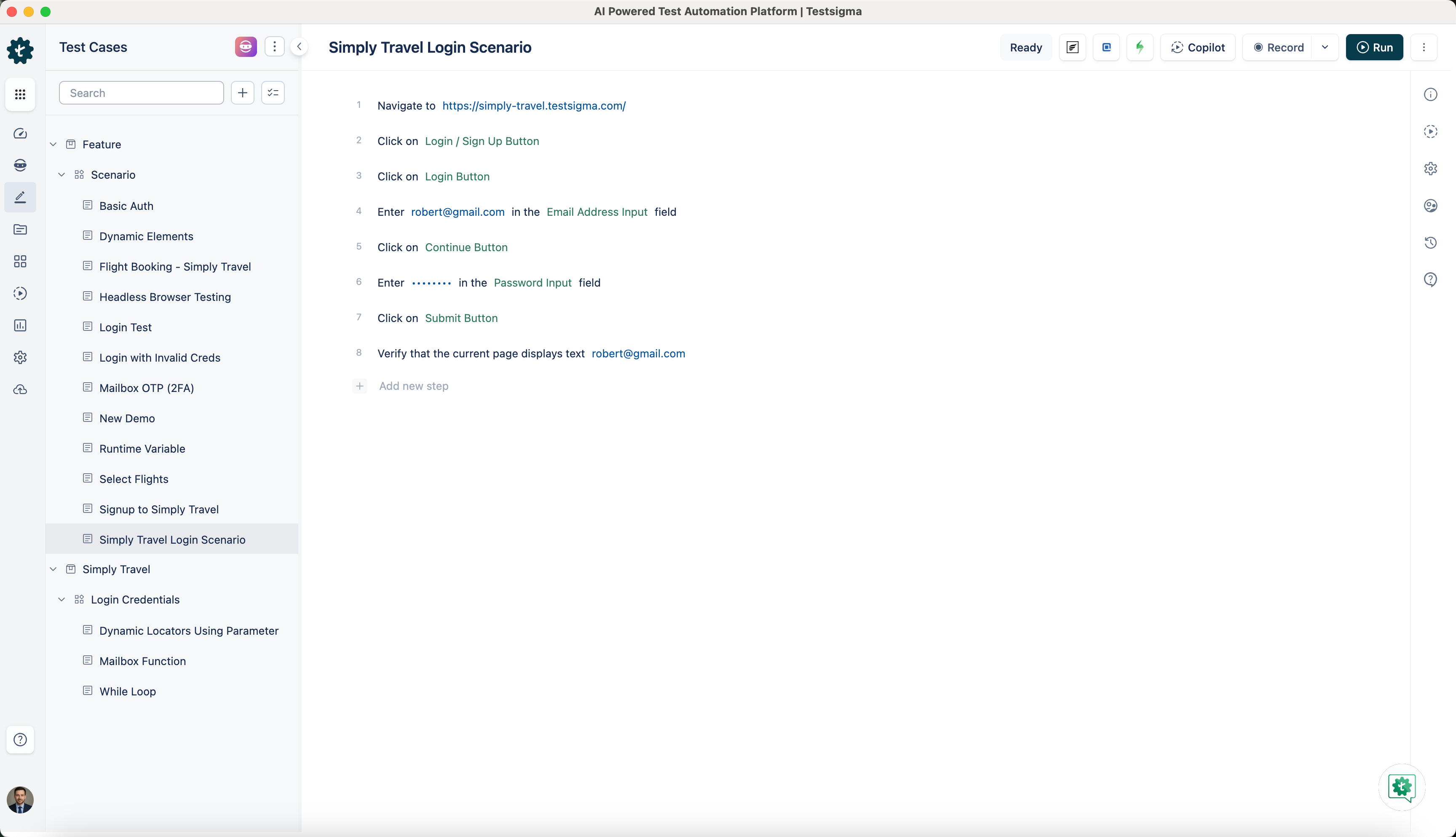
-
Create a test suite and add the test case created in step 1 to this test suite.
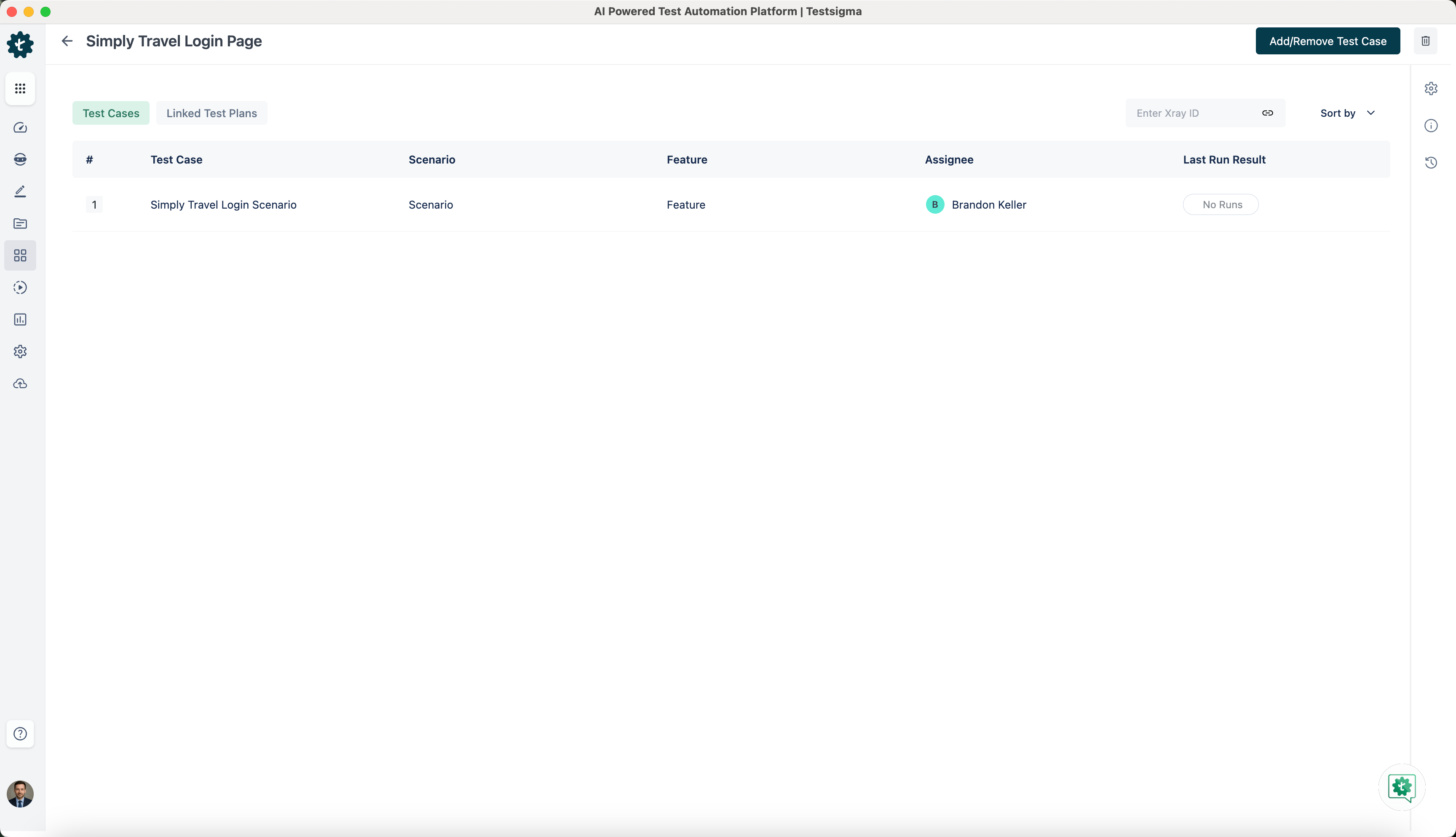
-
Create a test plan and add the test suite we just created to this test plan.
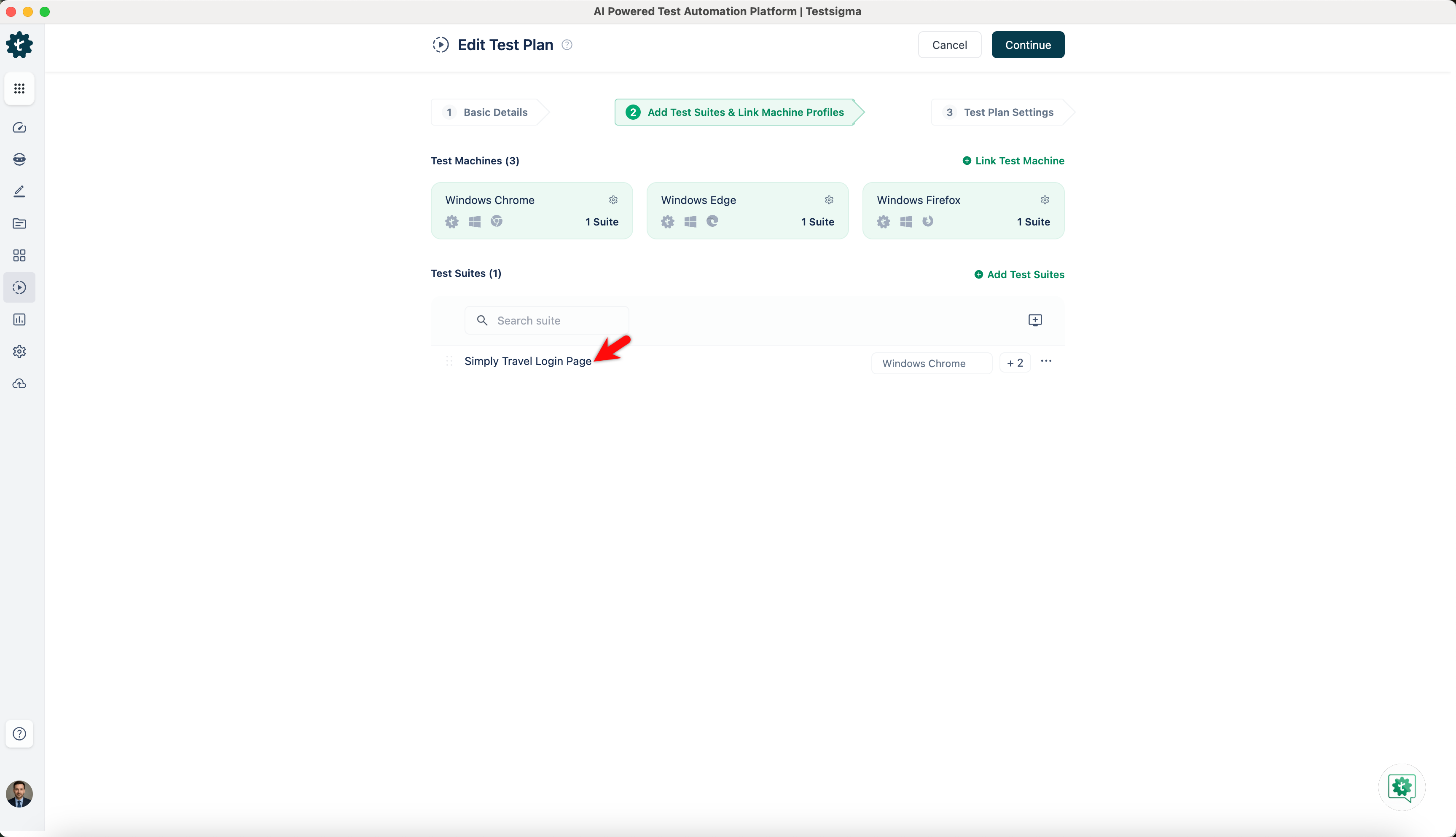
-
Click on the Run Now to start the test plan execution.
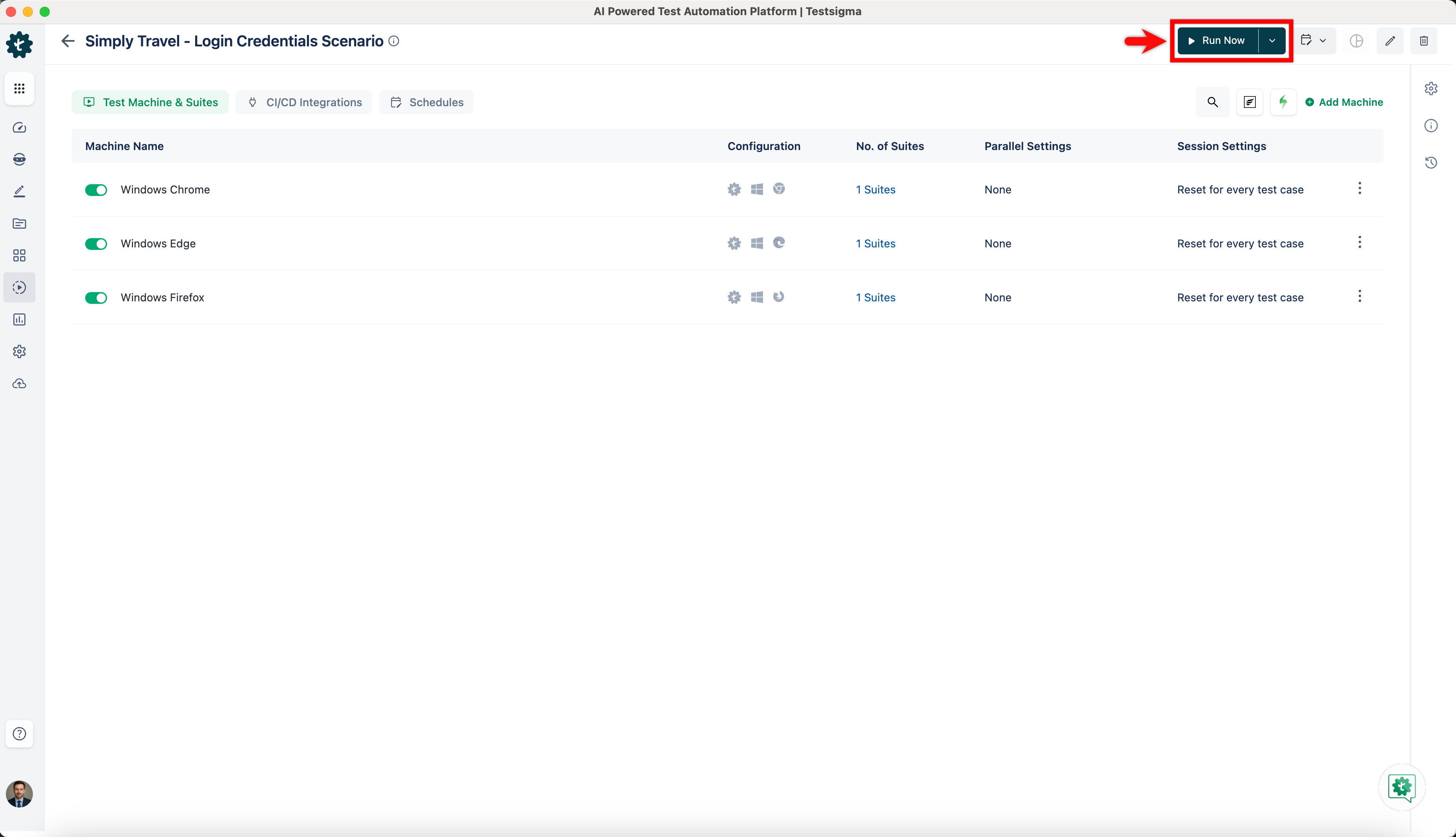
Partial Test Runs
Section titled “Partial Test Runs”There are instances when you need to execute your test plan only partially instead of executing the complete one. With Testsigma, you can do that. You can filter the tests based on some attributes or select the test suites you’d like to include or exclude for test execution and then only execute the selected test cases.
Lets see how we can do that:
-
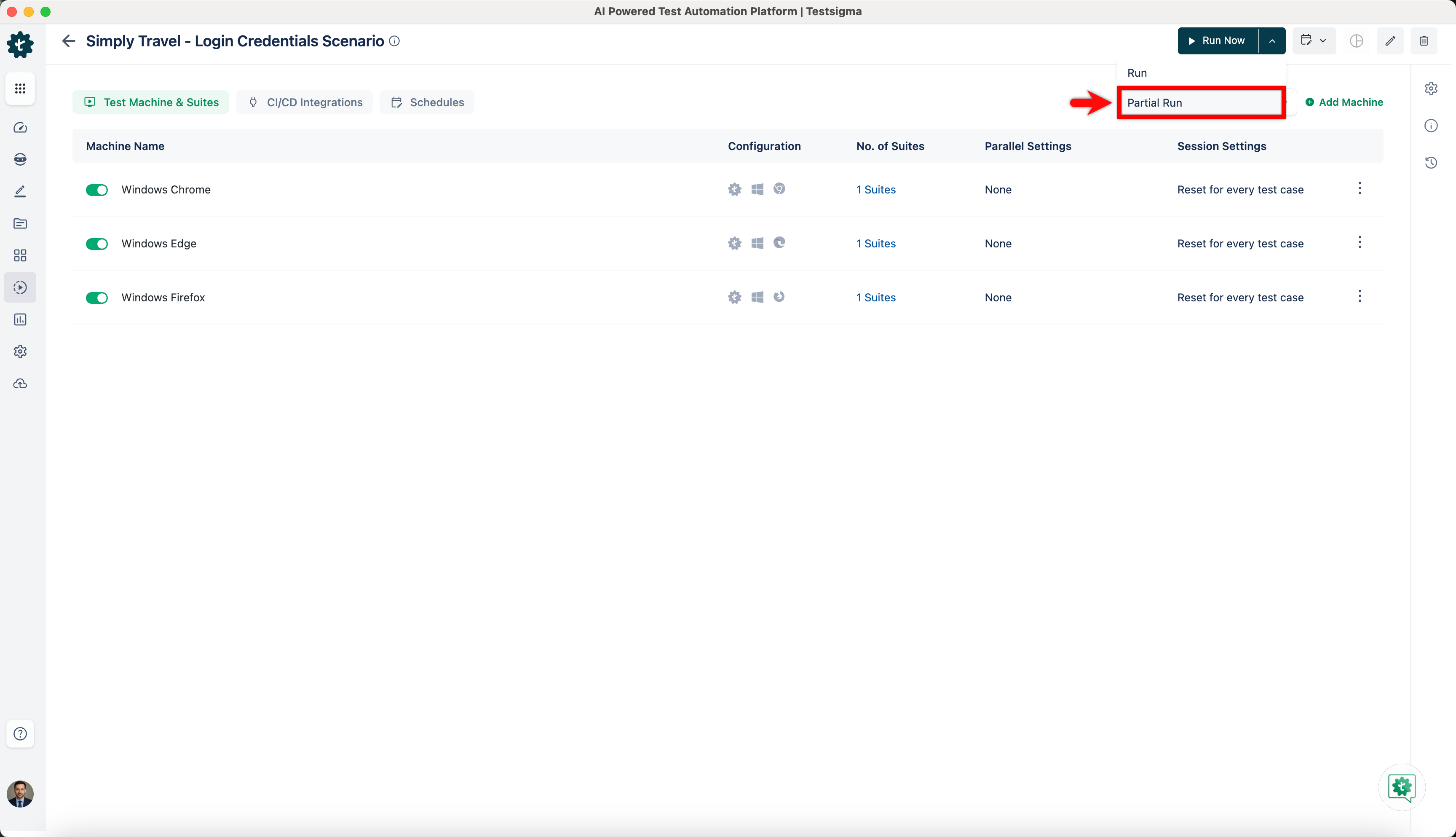
Go to the test plan that you want to execute partially and open the dropdown and click on Partial Run.
-
On Partial Test Plan Run overlay, configure the options according to how you want to select the test cases for your partial test run:
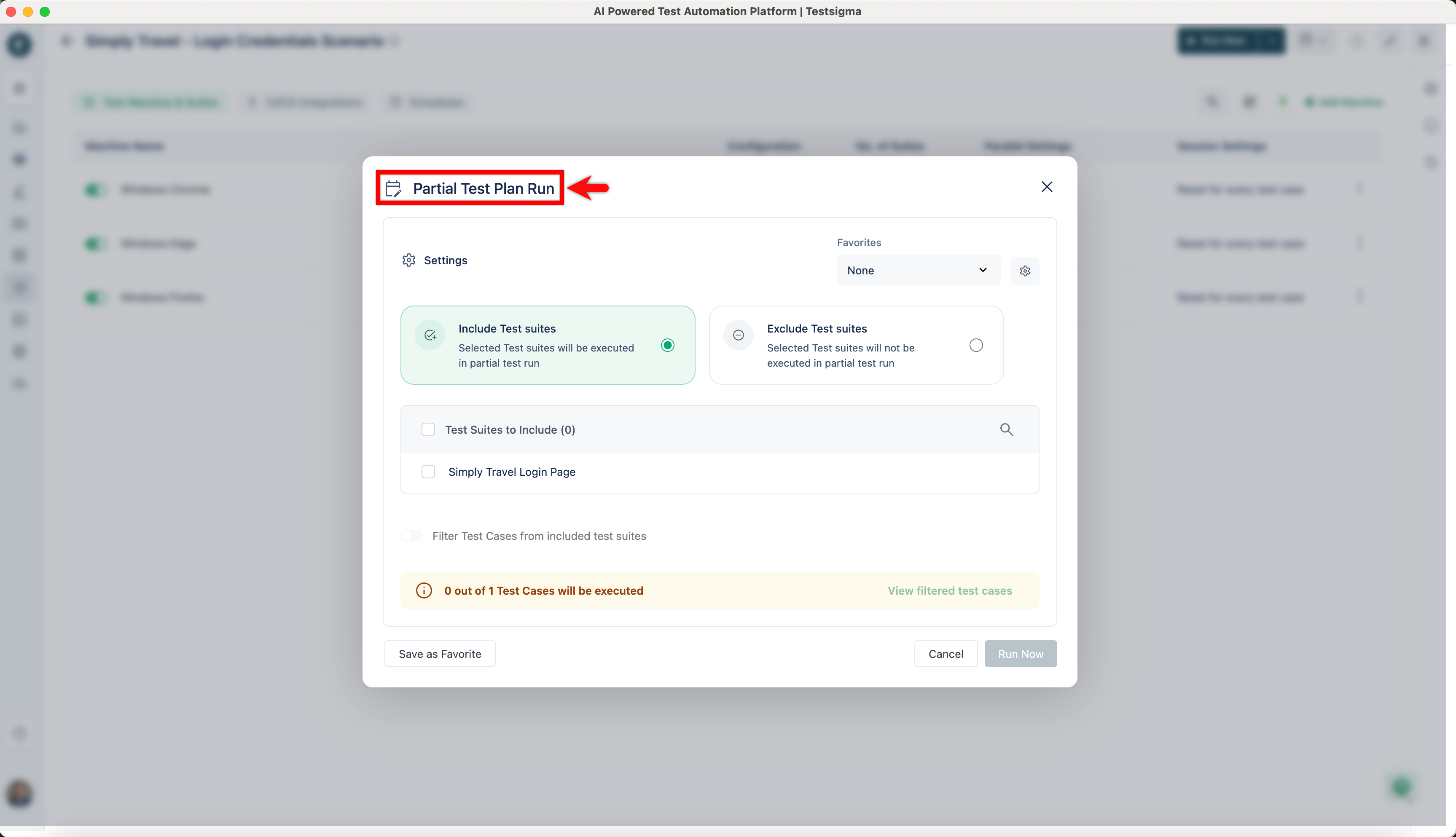
Below are the options you see:
-
Include or Exclude test suites : You can include or exclude the test suites from the partial test run by selecting the radio button Include or Exclude.
-
Test Suites to Include: Specify the test suites that should be included from the dropdown.
-
Test Case Filters: You can identify the test cases to be included in the test suites using the below filters:
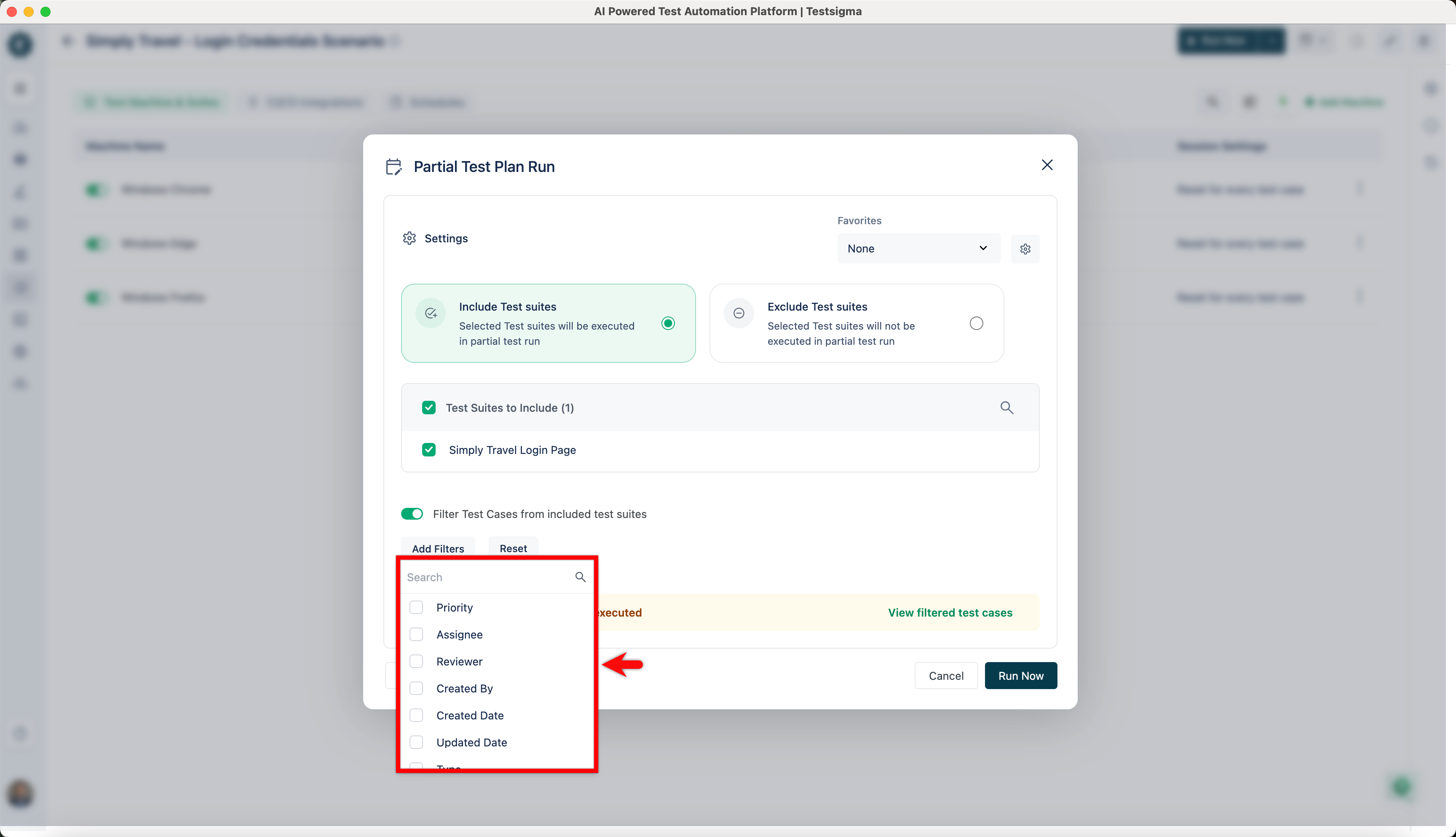
- Labels: Filter the test cases according to the labels assigned to them.
- Type: Filter the test cases according to the type of test cases there are.
- Requirement: Filter the test cases according to the requirements assigned to them.
- Requirement Type: Filter the test cases according to the requirement types assigned to them.
- Priority: Filter the test cases according to priority.
- Created by: Filter the test cases according to their creators.
- Assignee: Filter the test cases according to their assignees.
- Reviewer: Filter the test cases according to their reviewers.
Once you have applied the filters, you can:
- View filtered test cases by clicking on the View Filtered Test Cases button.
- Save the configuration as a favourite for later use by clicking on the Save As Favorite button.
- Start the execution of the filtered test cases by clicking on the Run Now button.
Test Plan Run Results
Section titled “Test Plan Run Results”-
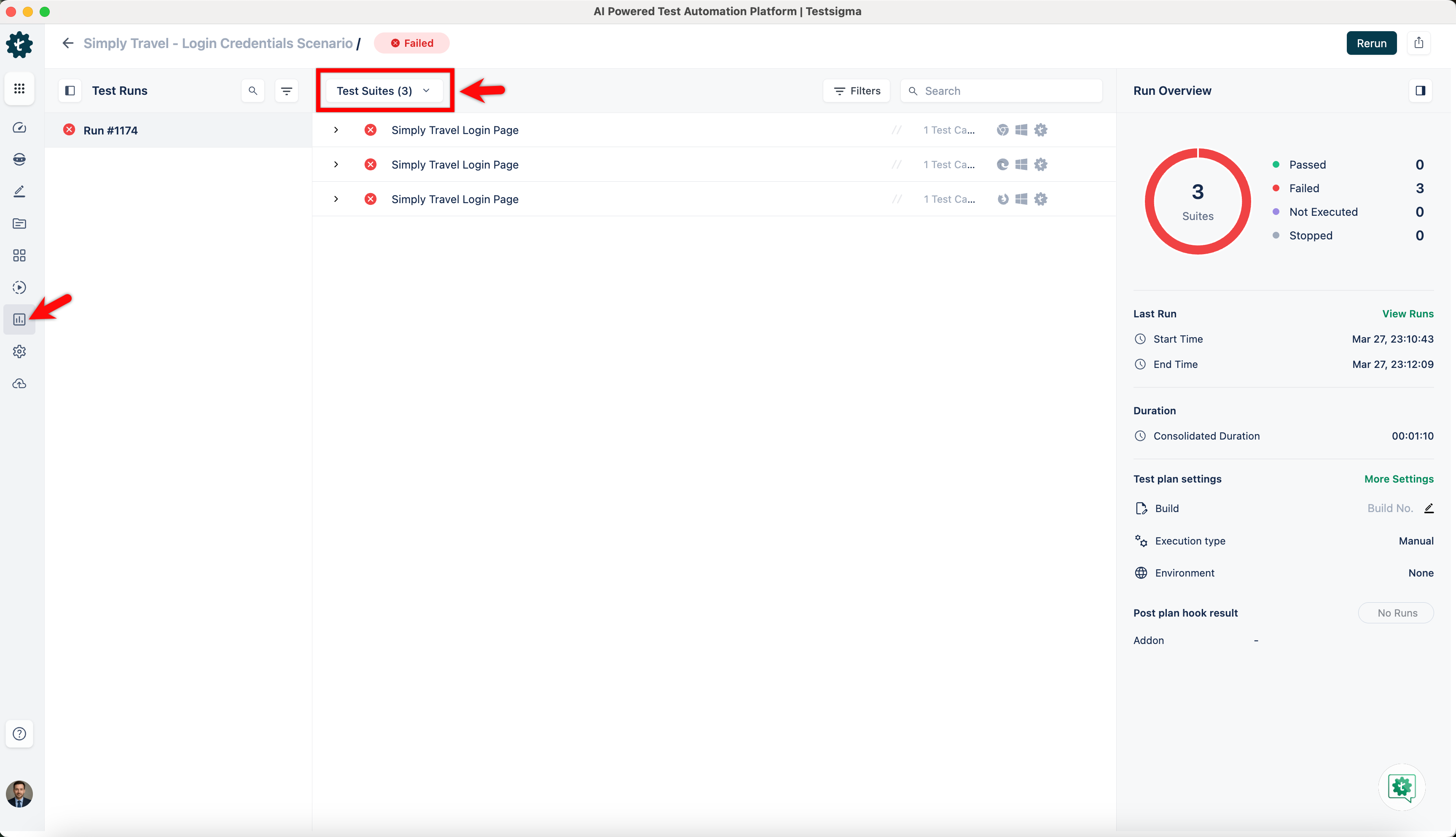
From the left navigation bar, go to Run Results and click on the test plan for which you want to check the results.
-
By default, you’ll see the results at test suite level.
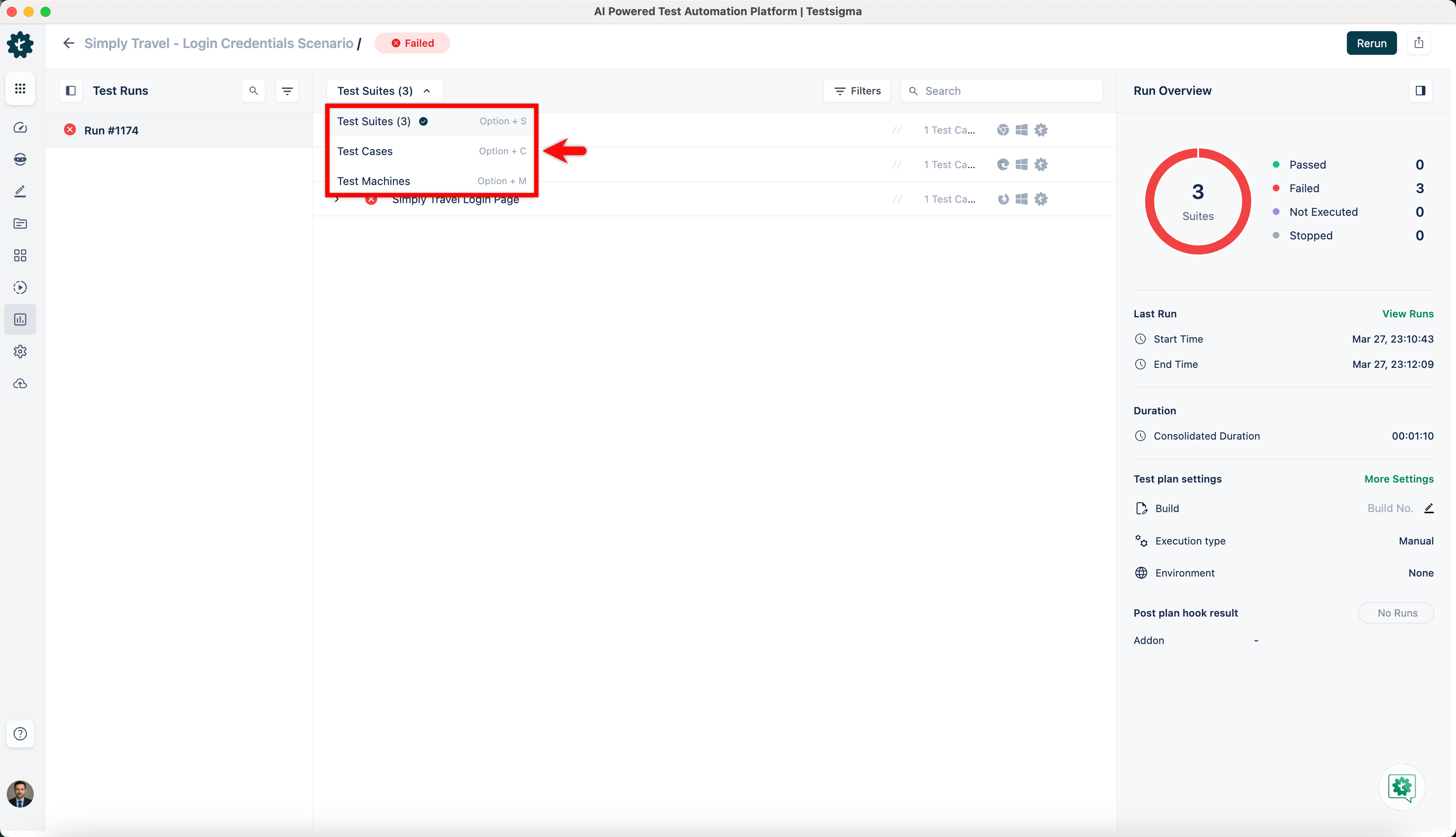
For more information on viewing and downloading results of a test plan on test case, test suite or test machine levels, refer to the documentation on viewing test plan run results.