Test Cases
Test Case List Actions
Search Test Cases
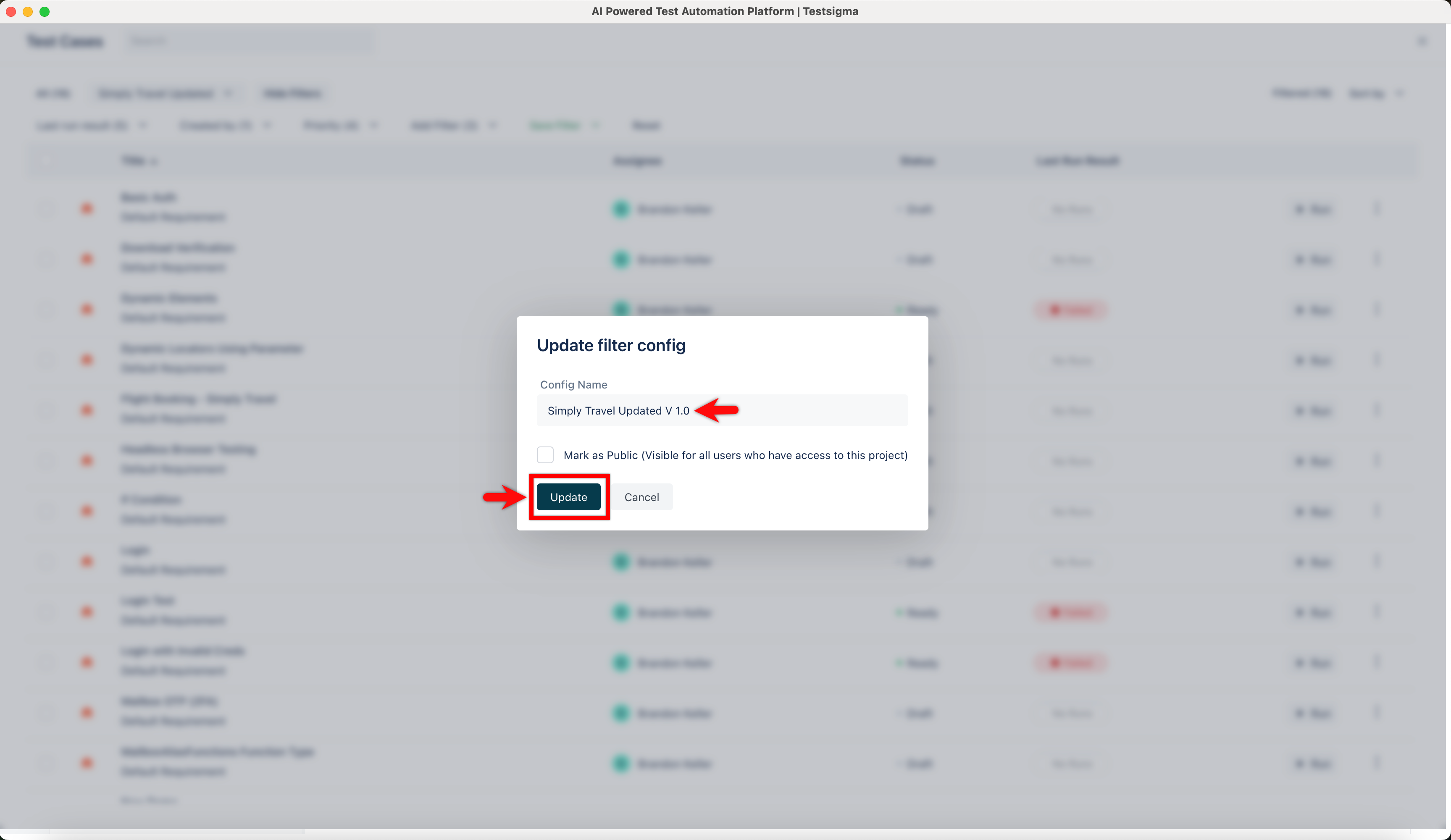
Section titled “Search Test Cases”From the left navigation bar, go to Create Tests > Test Cases and click the list view icon.
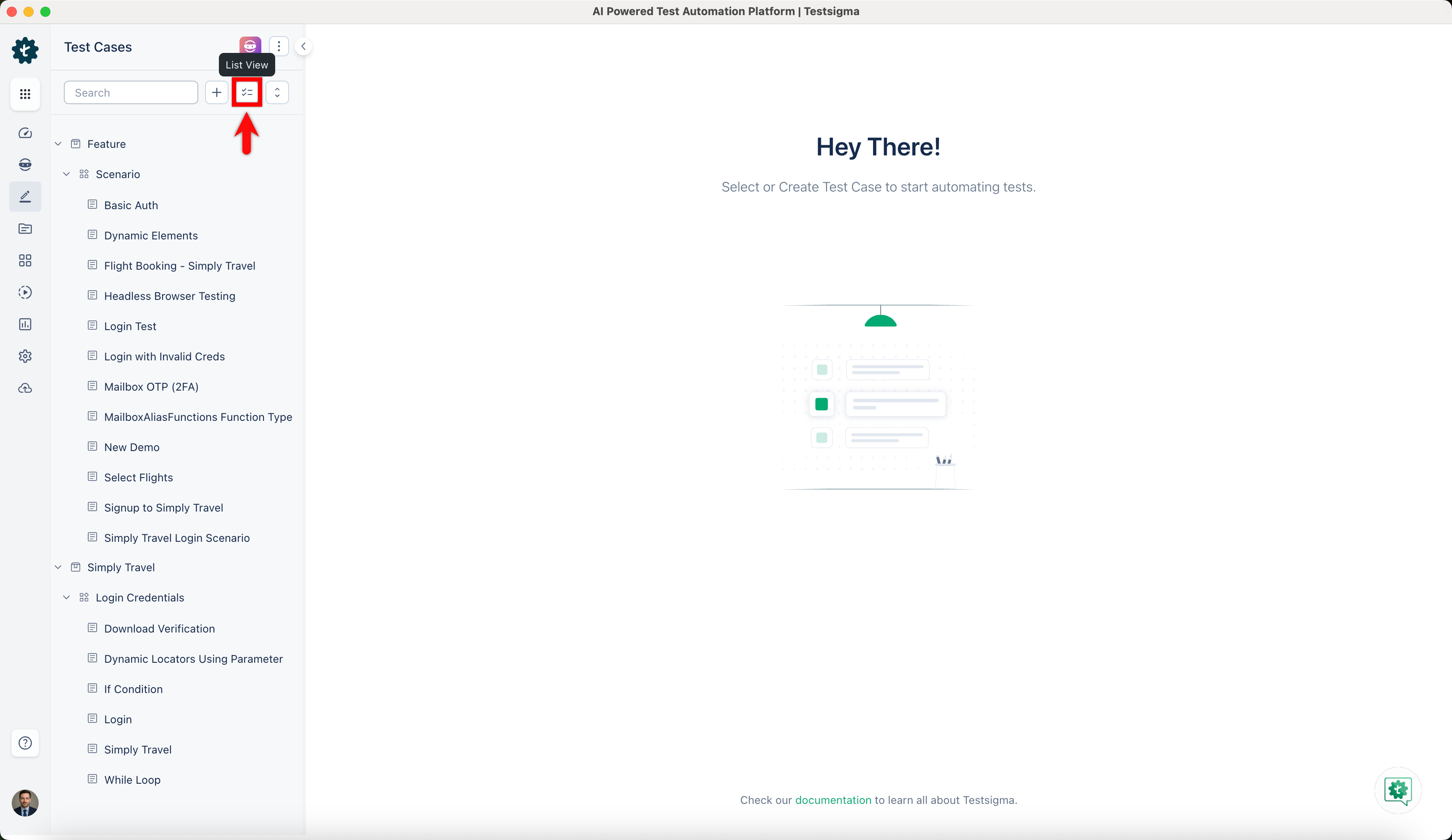
Click inside the Search bar in the top right corner of the Test Case List page and type the name of the Test Case you want to find. As you type, Testsigma will show you matching test cases. View the test case you want by clicking on it in the search results
Sort Test Cases
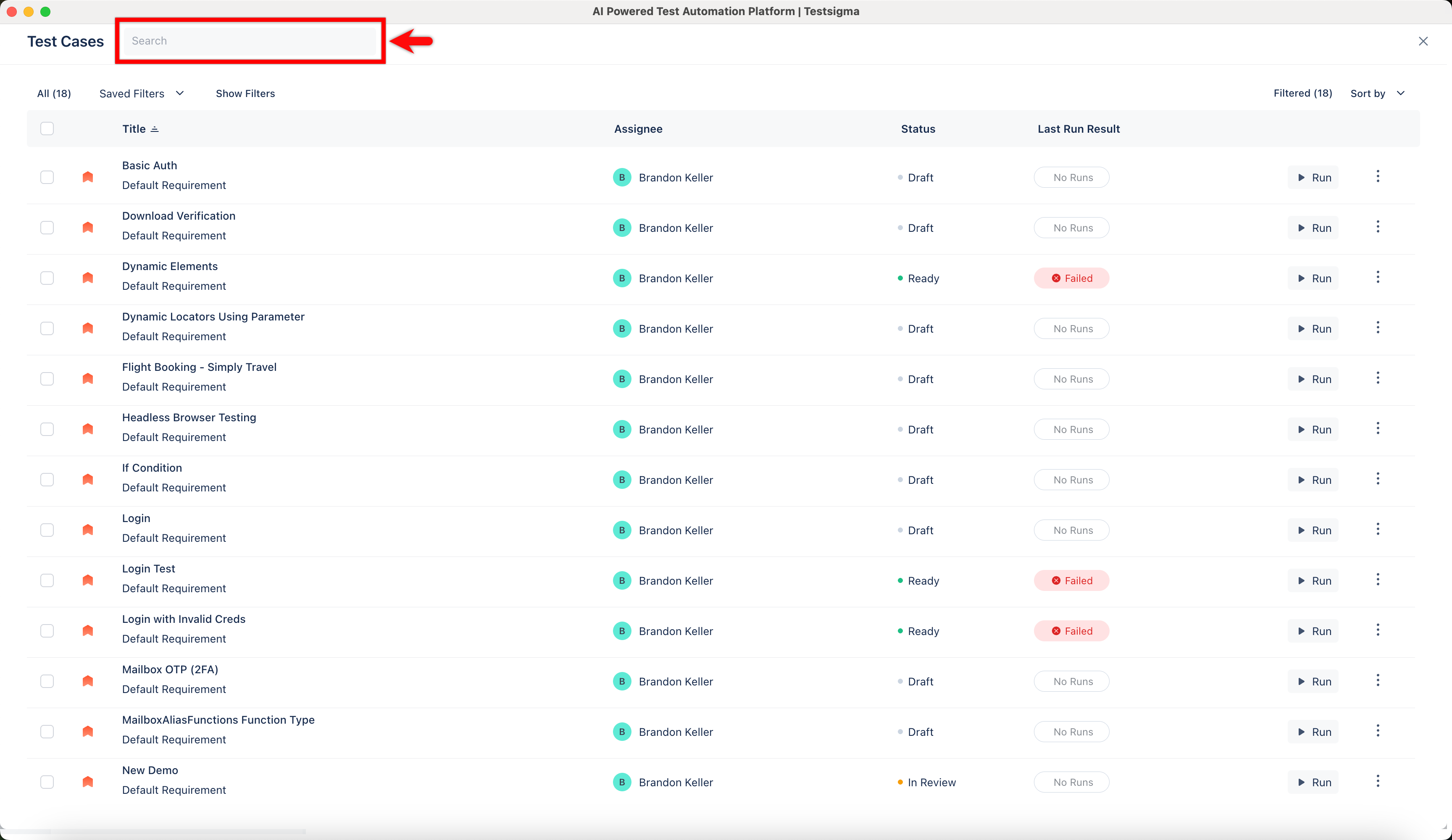
Section titled “Sort Test Cases”Click the Sort by option in the menu bar on the Test Cases List page and arrange your test cases based on criteria such as Title, Created Date, or Updated Date. Sorting will help you prioritise and manage your test cases easily.
Filter Test Cases
Section titled “Filter Test Cases”-
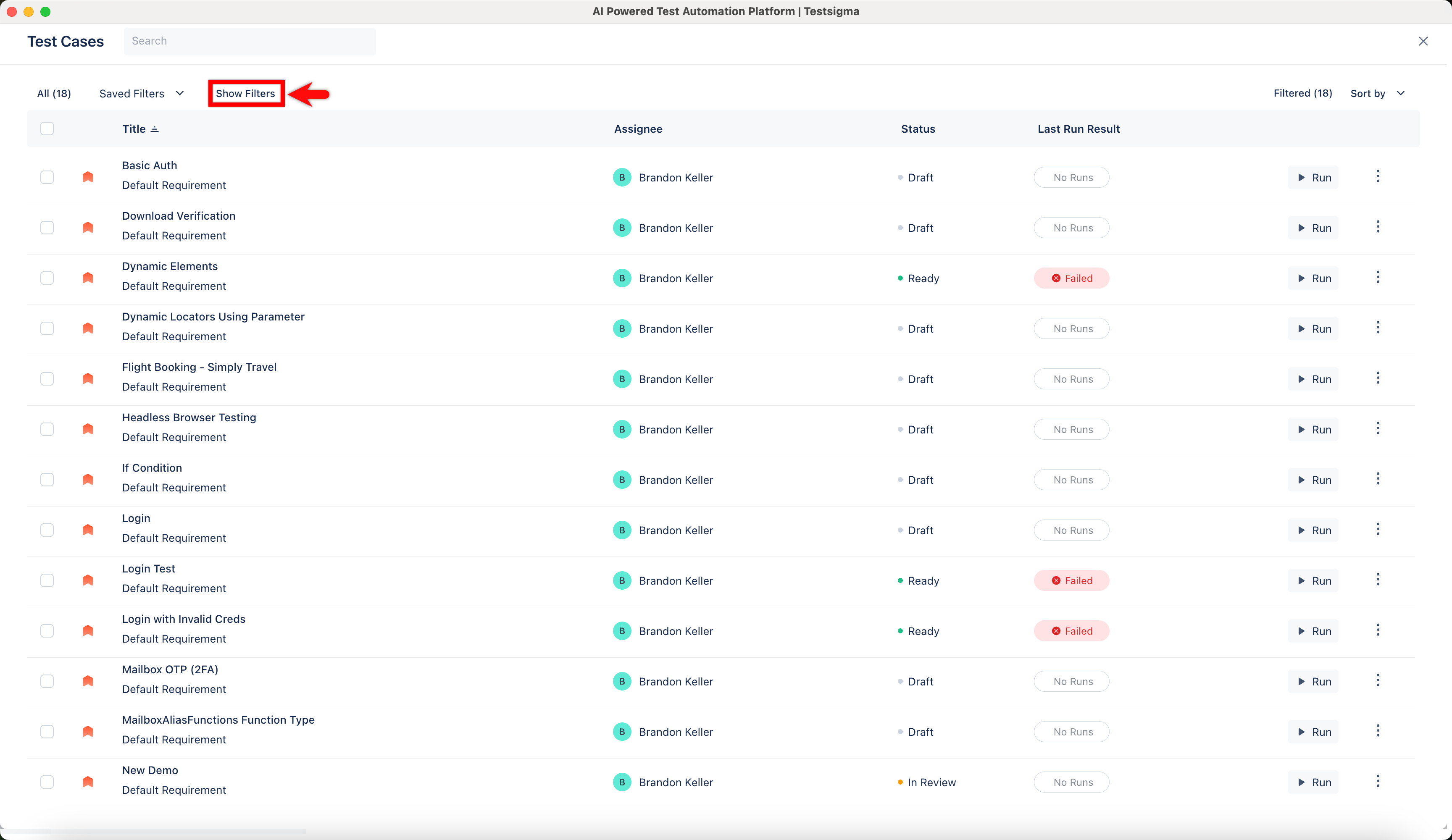
Click on Show Filters in the menu bar on the Test Cases List page.
-
Select Add Filter from the drop-down list. Choose from the following filtering options: Status, Priority, Last run result, Added to Test Suite, Assignee, Created By, Created Date, Updated Date, Reviewer, Test Case Type, Labels, Requirement and Requirement Type.
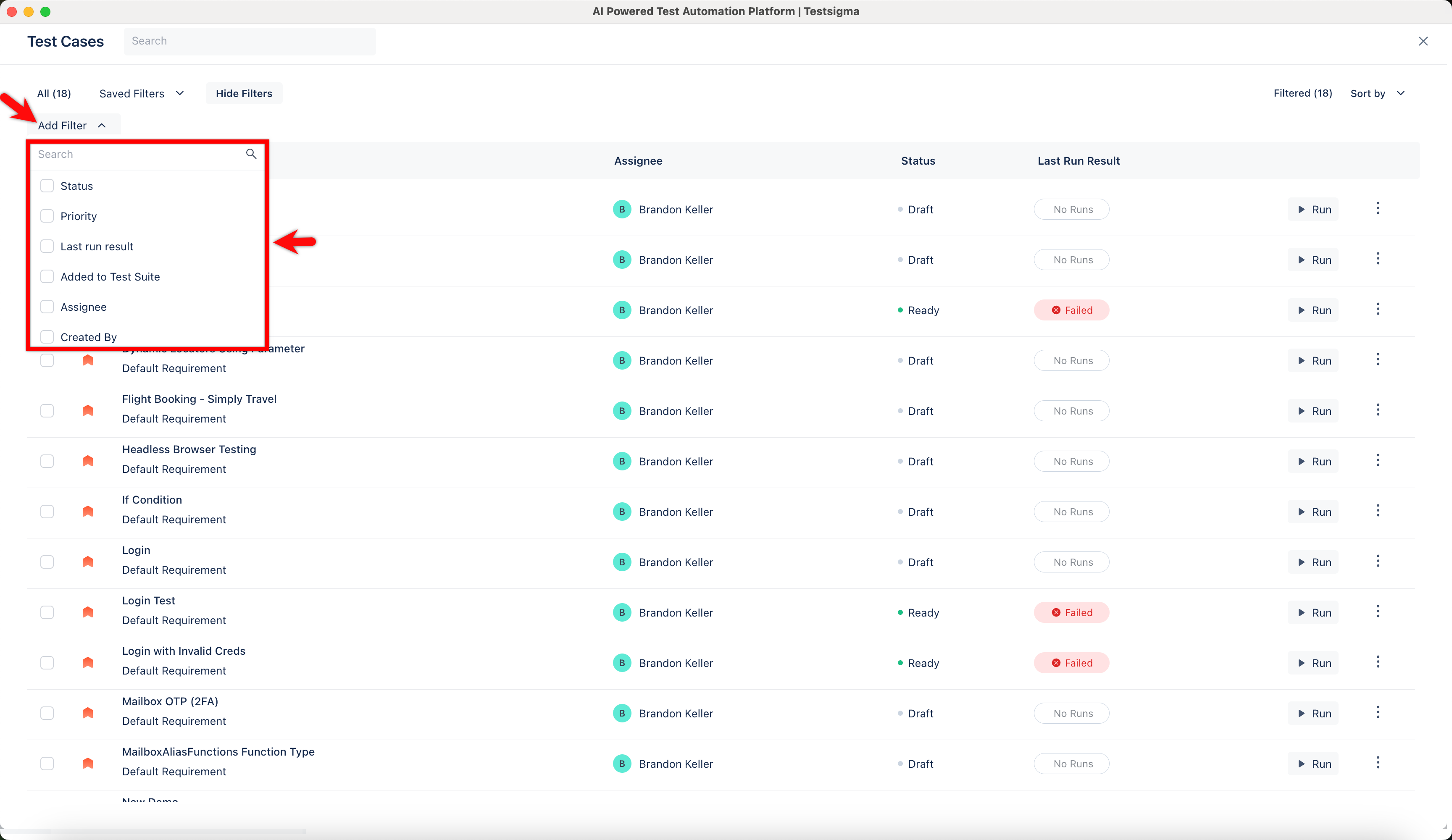
You can filter Test Cases using user-defined custom and default fields. You can modify the filtering options by selecting Add Filter from the drop-down list and using multiple filters to obtain granular results.
Save Test Case Filter
Section titled “Save Test Case Filter”-
Click Show Filters in the menu bar on the Test Cases List page.
-
Click Add Filter to open the drop-down list and select the desired filters.
-
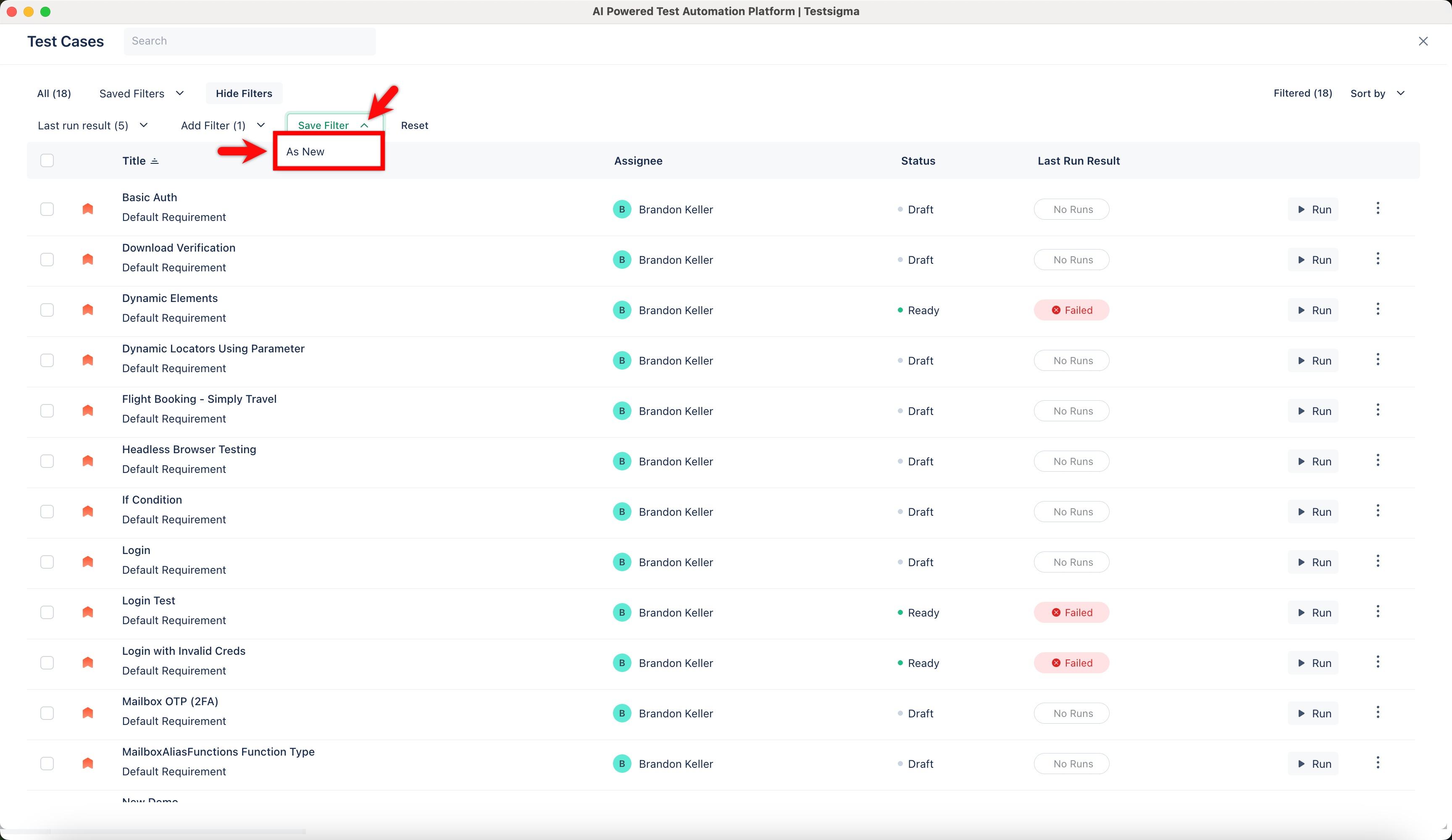
Click Save Filter will make the drop-down list appear for saving the current filter, and select As New.
-
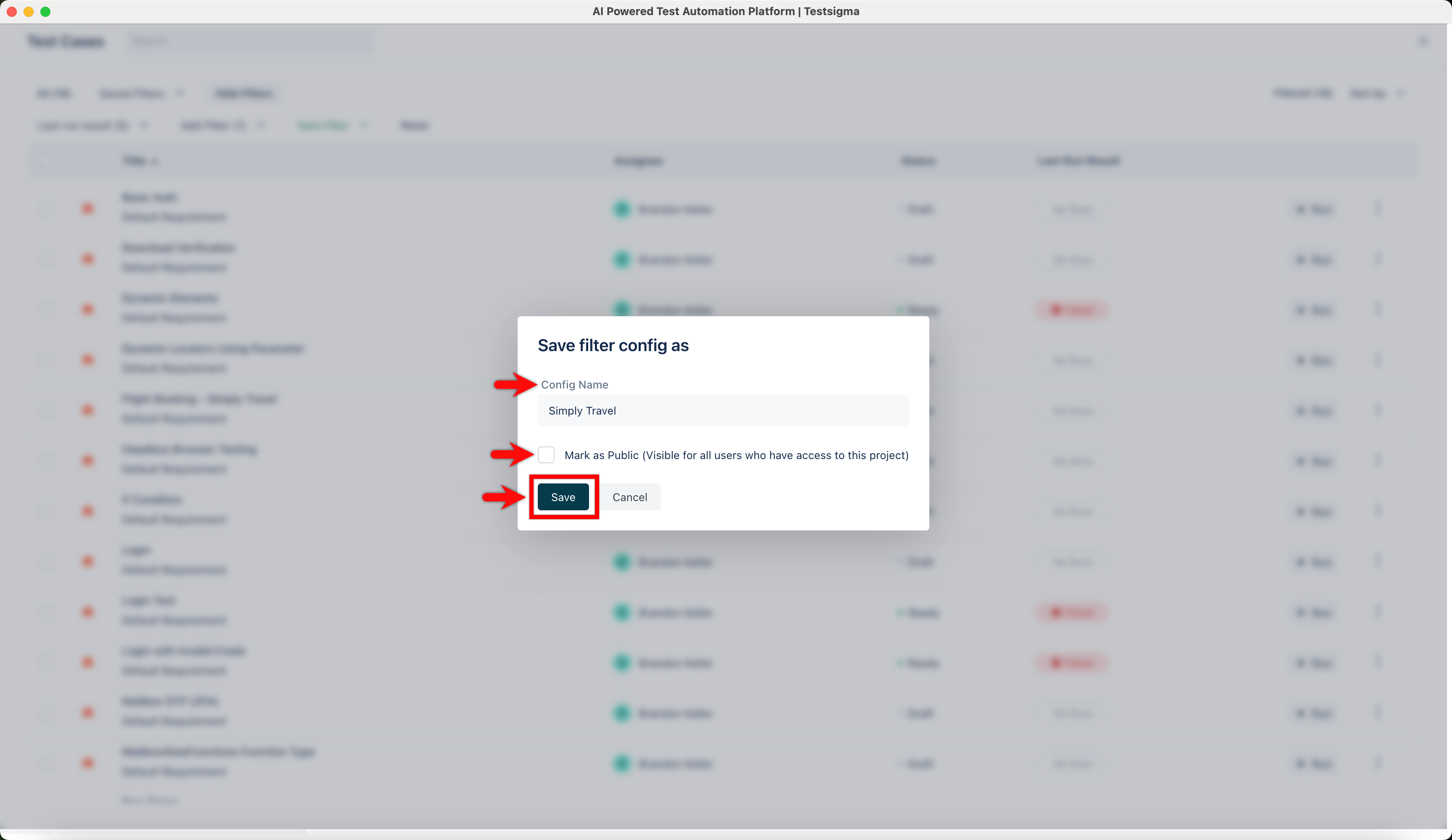
In the Save filter config as dialog, enter a name, select the Mark as Public checkbox if needed, and click Save.
-
Click Reset to discard the current filter.
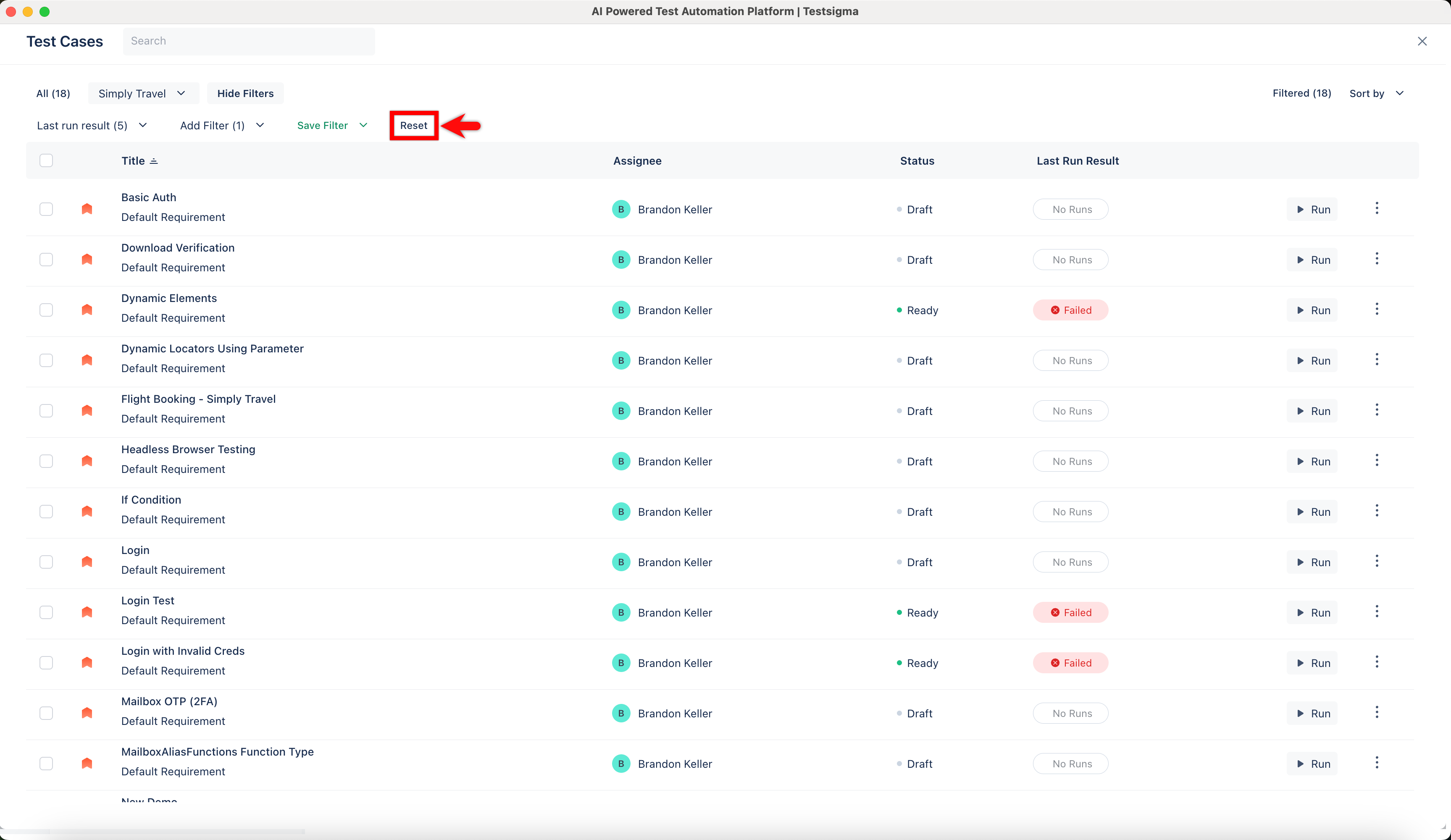
View Saved Test Case Filters
Section titled “View Saved Test Case Filters”-
Click on Saved Filters in the menu bar to open the drop-down list on the Test Cases List page.
-
Find the saved filter within Custom or Predefined Filters and choose it to view the filtered version.
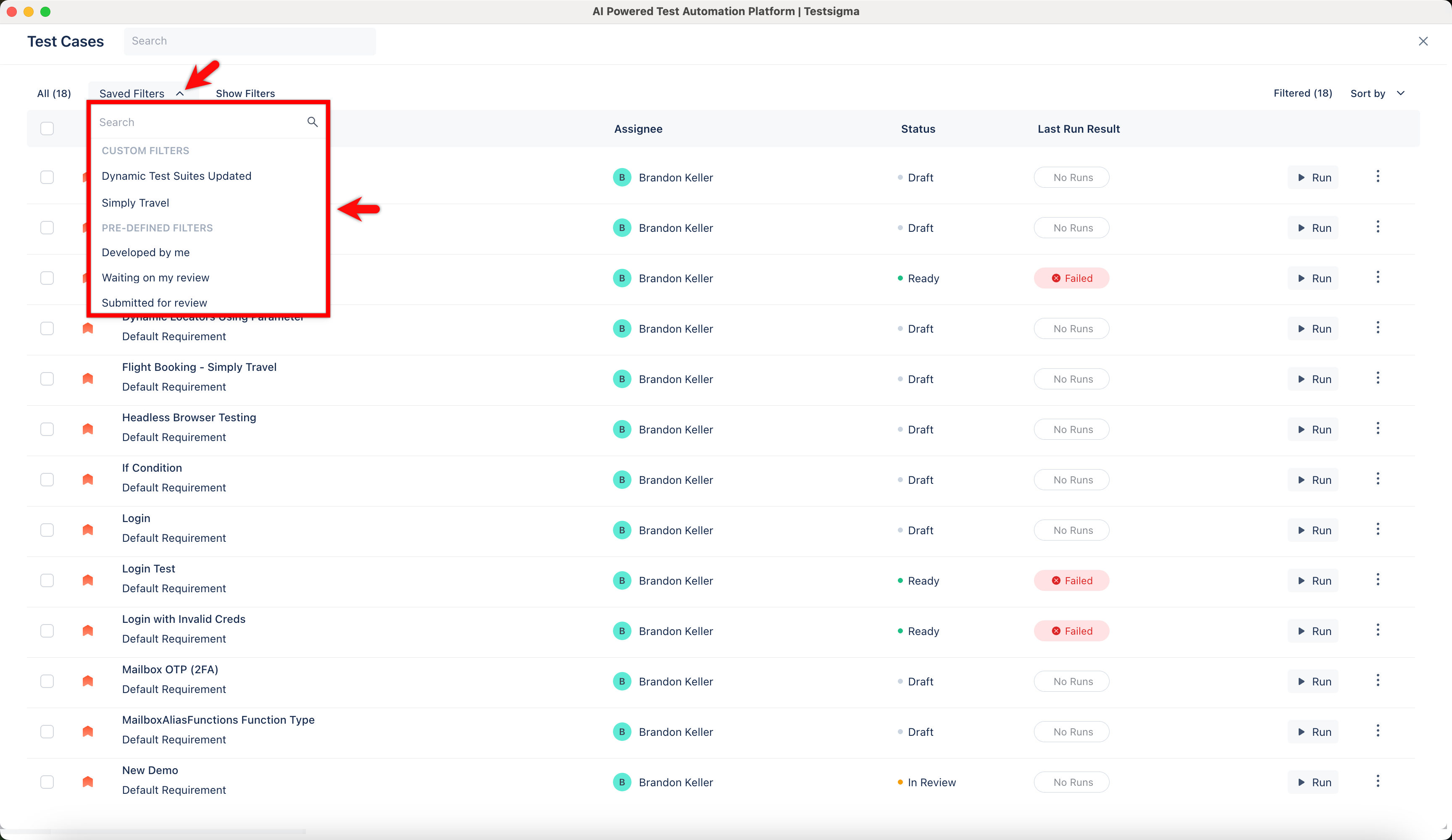
Update Saved Test Case Filter
Section titled “Update Saved Test Case Filter”-
In Test Case List Page, expand Saved Filters and click on a filter.
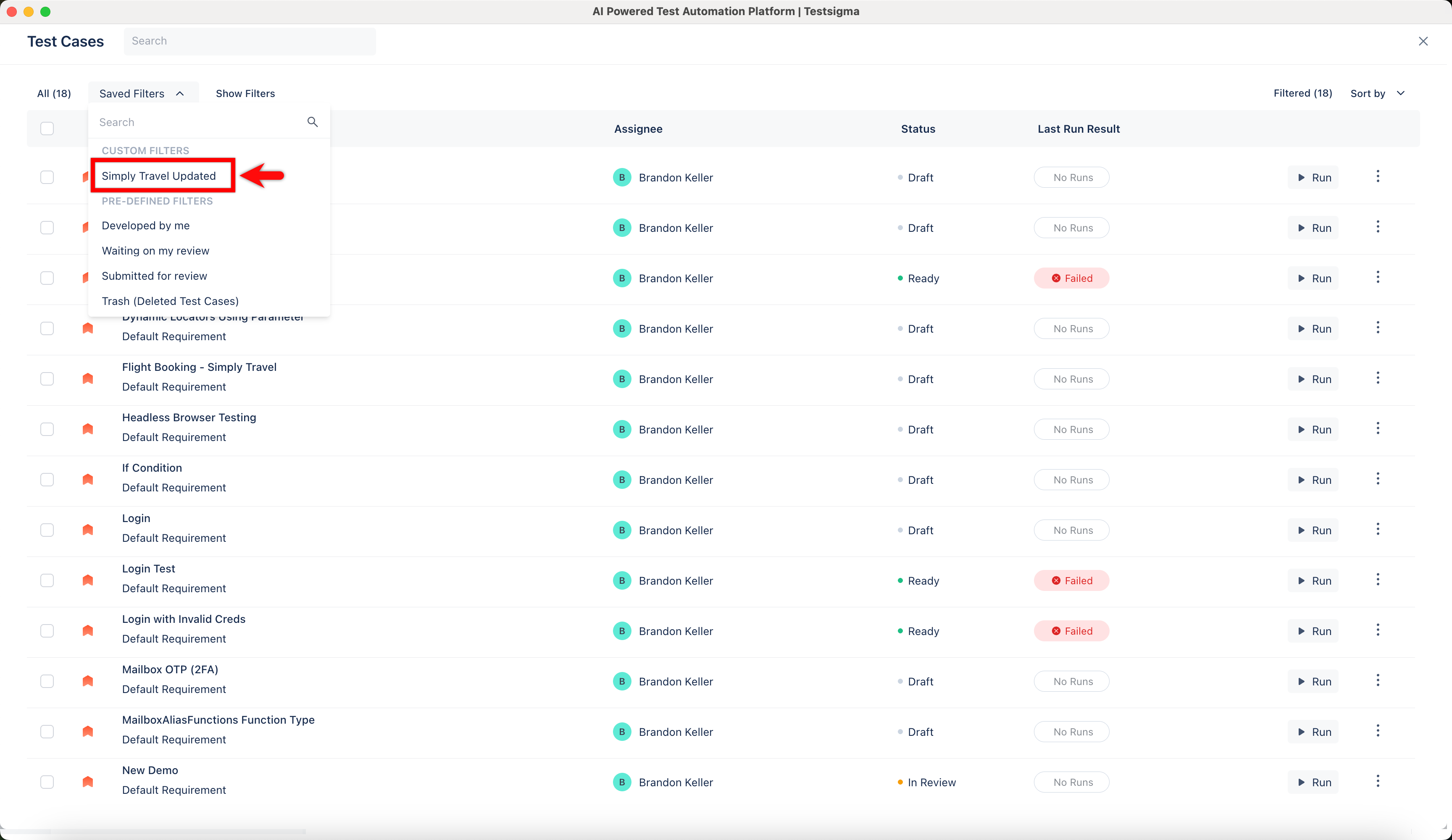
-
Click Show Filters to view all the existing filters and add the required filters.
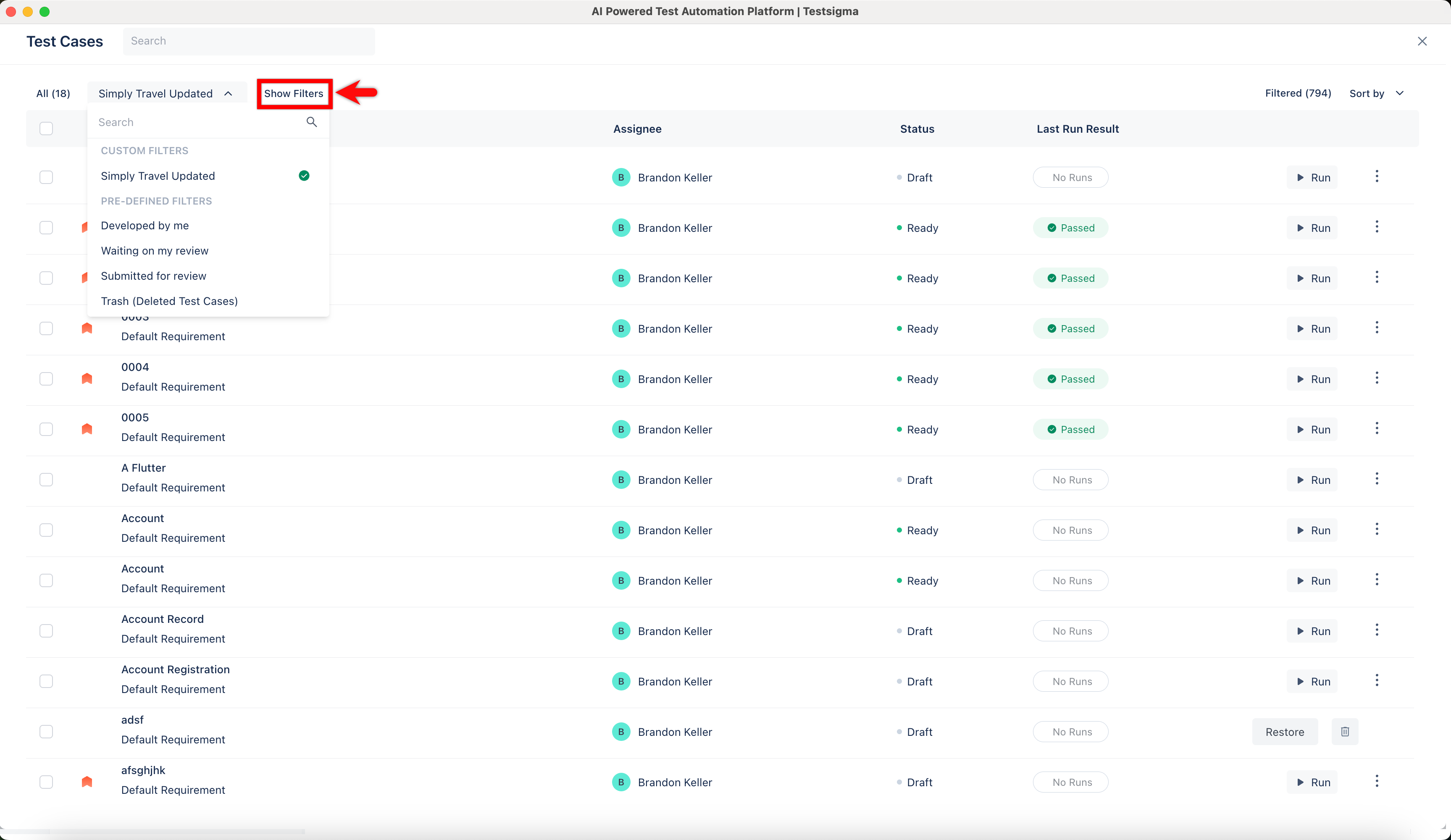
-
Once you have added the filters, expand Save Filter and click Replace Existing.
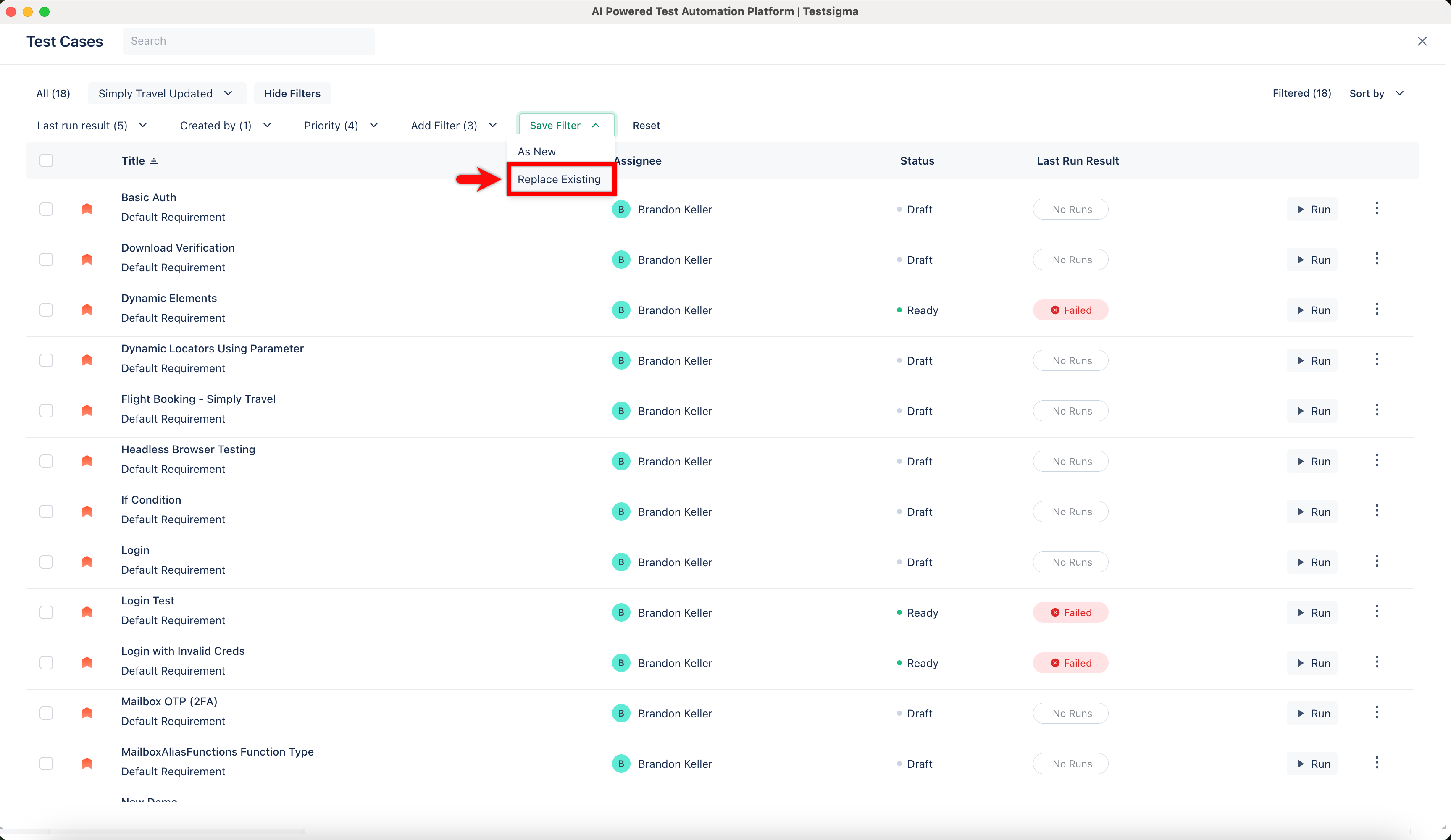
-
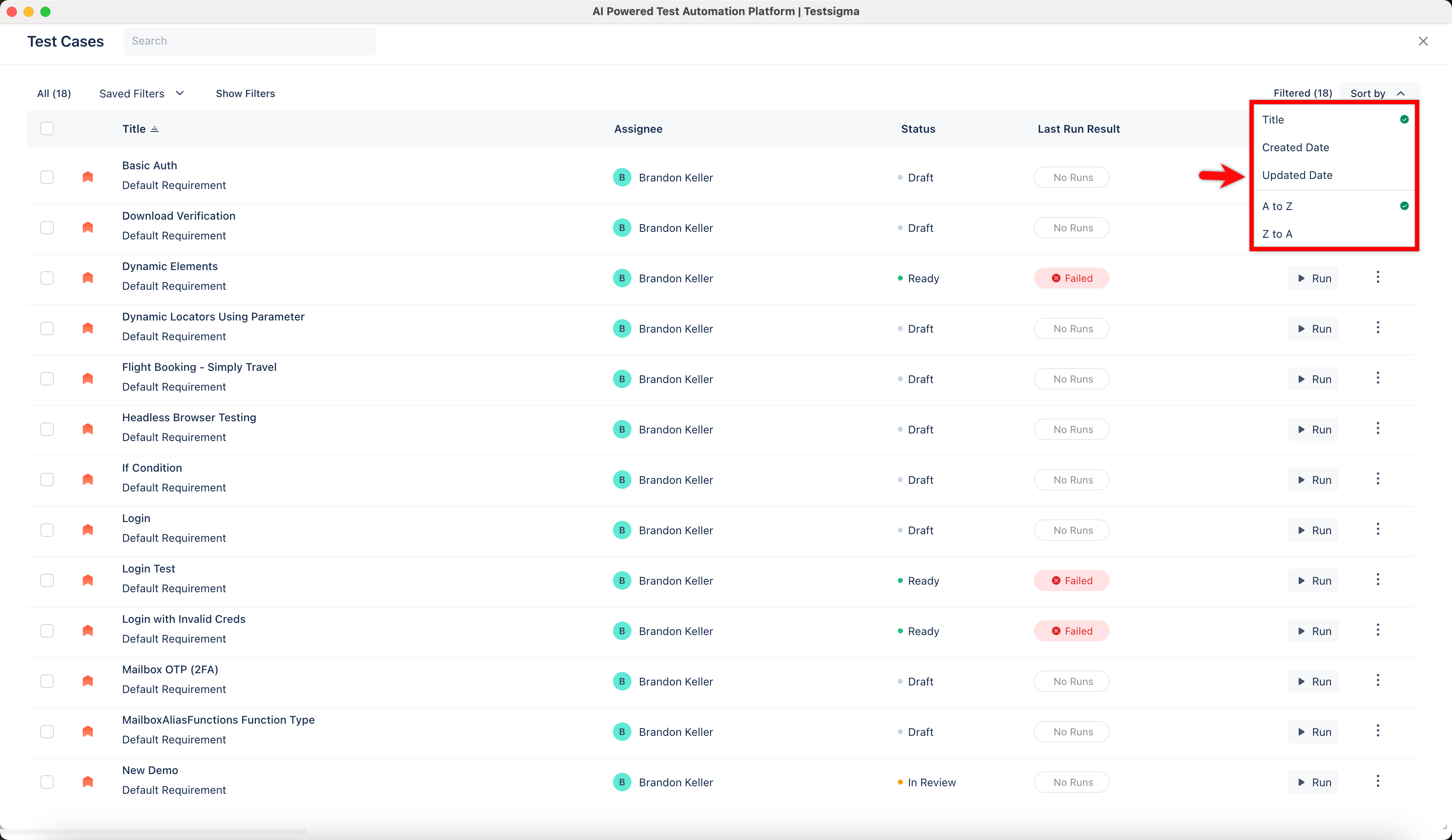
In the Update filter config dialog, edit the name, and click Update.