Configuration
Manage Access: Grant/Revoke Permissions
Prerequisites
- Before you begin, ensure you have Admin access to your Testsigma account.
Managing Access
Section titled “Managing Access”-
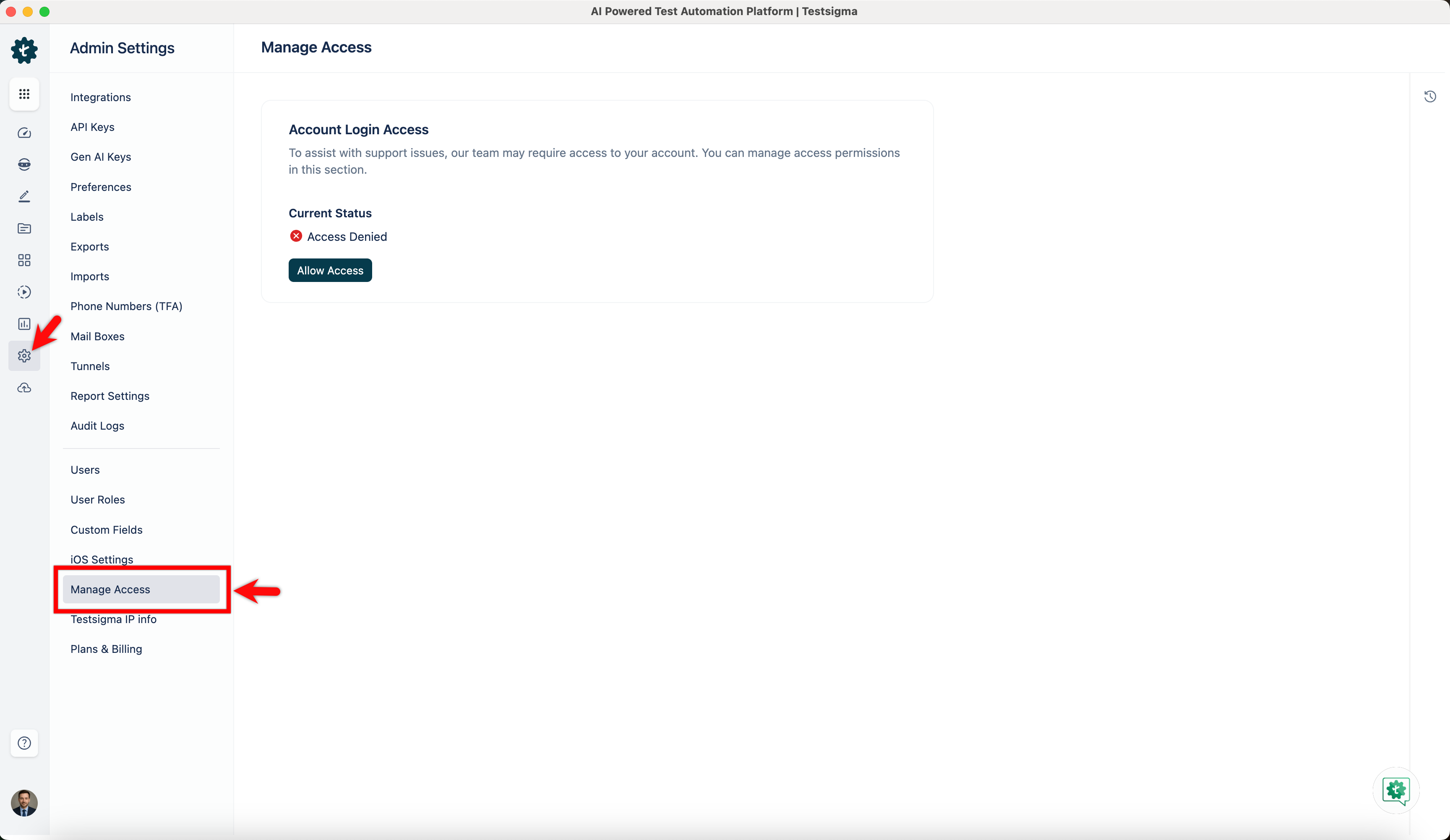
From the Dashboard, go to Settings > Admin Settings > Manage Access.
-
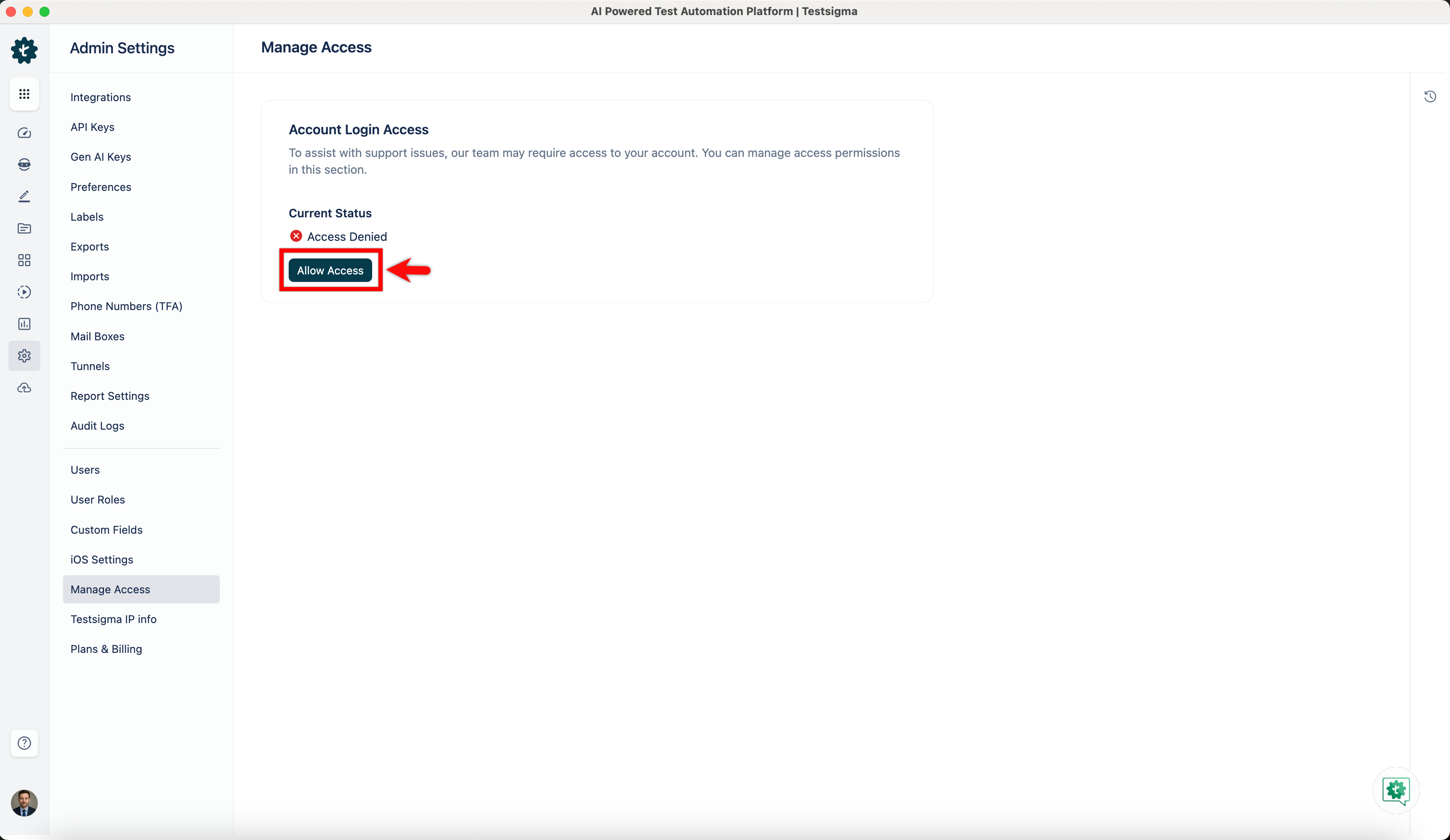
In the Manage Access section, click Allow Access.
-
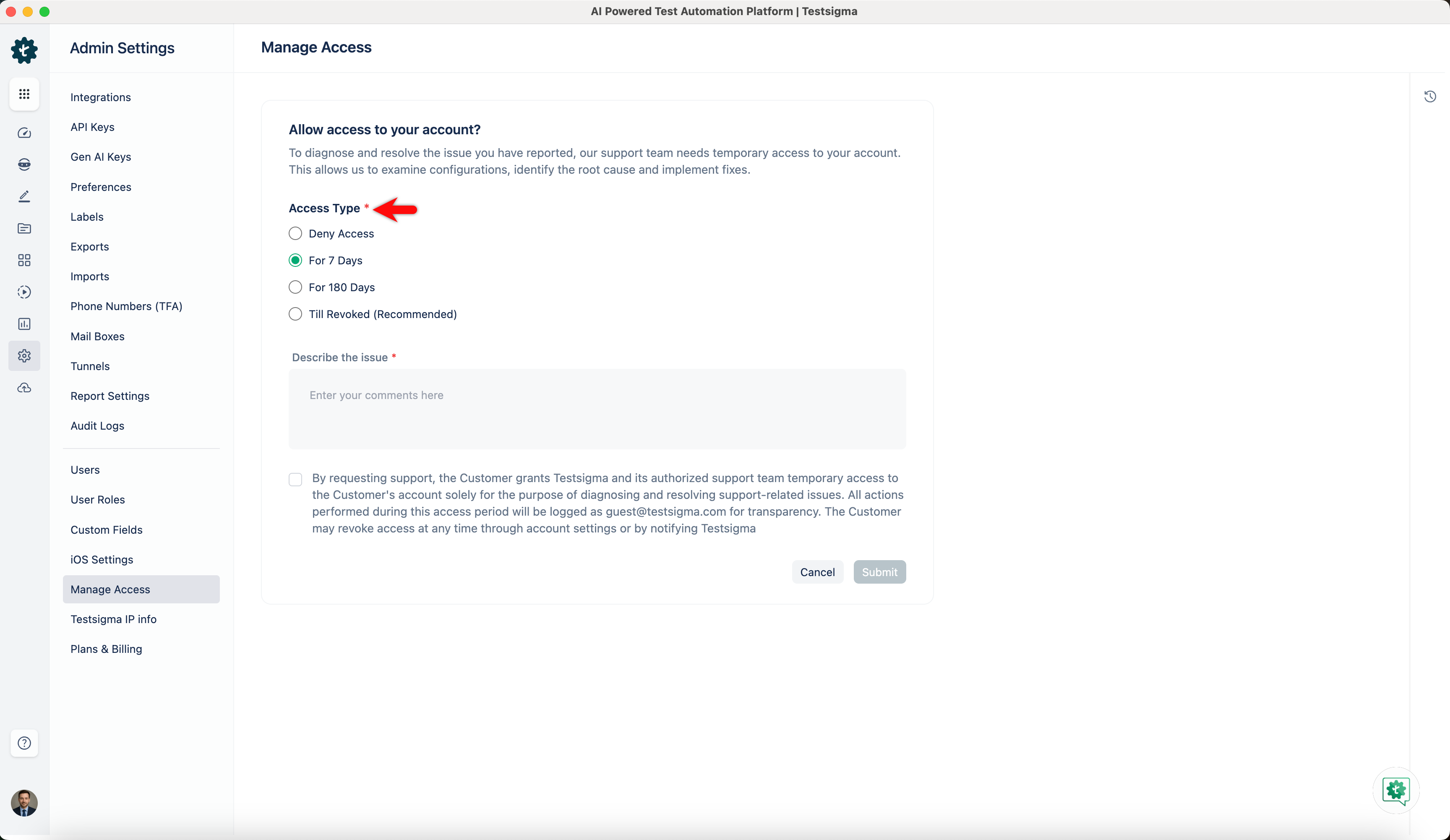
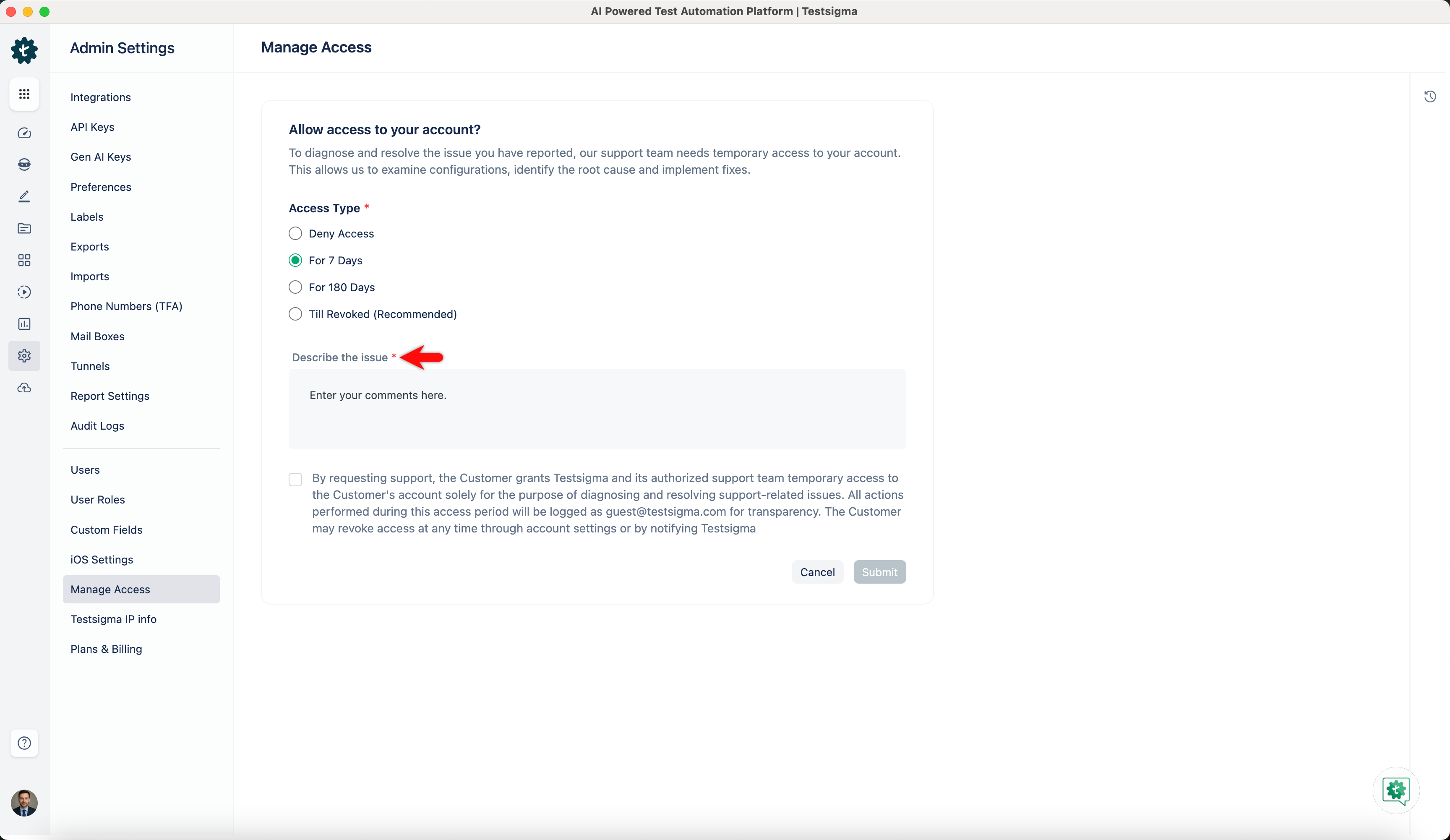
Select the Access Type from the available options.
-
In the Describe the Issue field, briefly explain the reason for providing access.
-
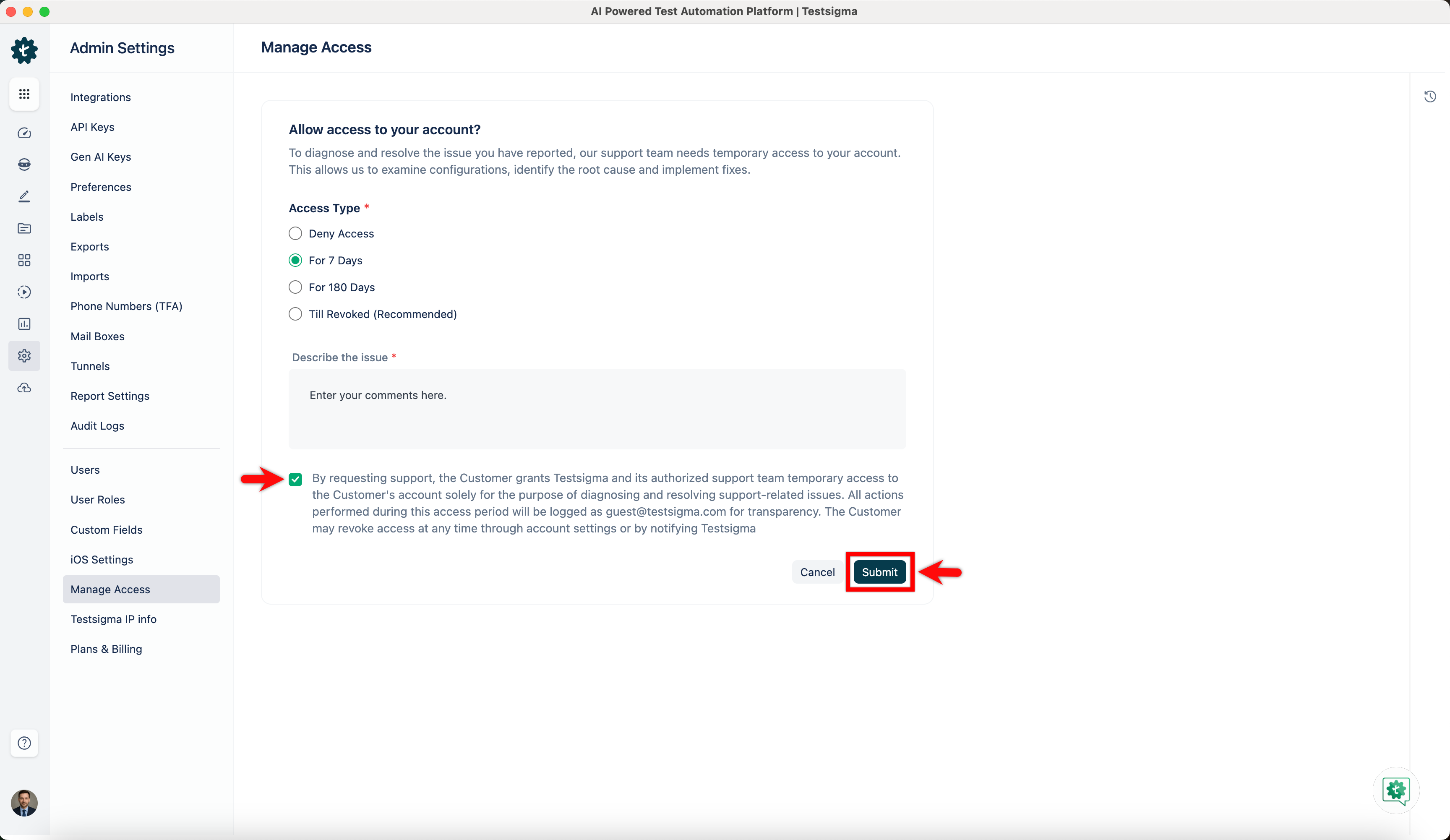
Select the consent checkbox and click Submit to grant access.
-
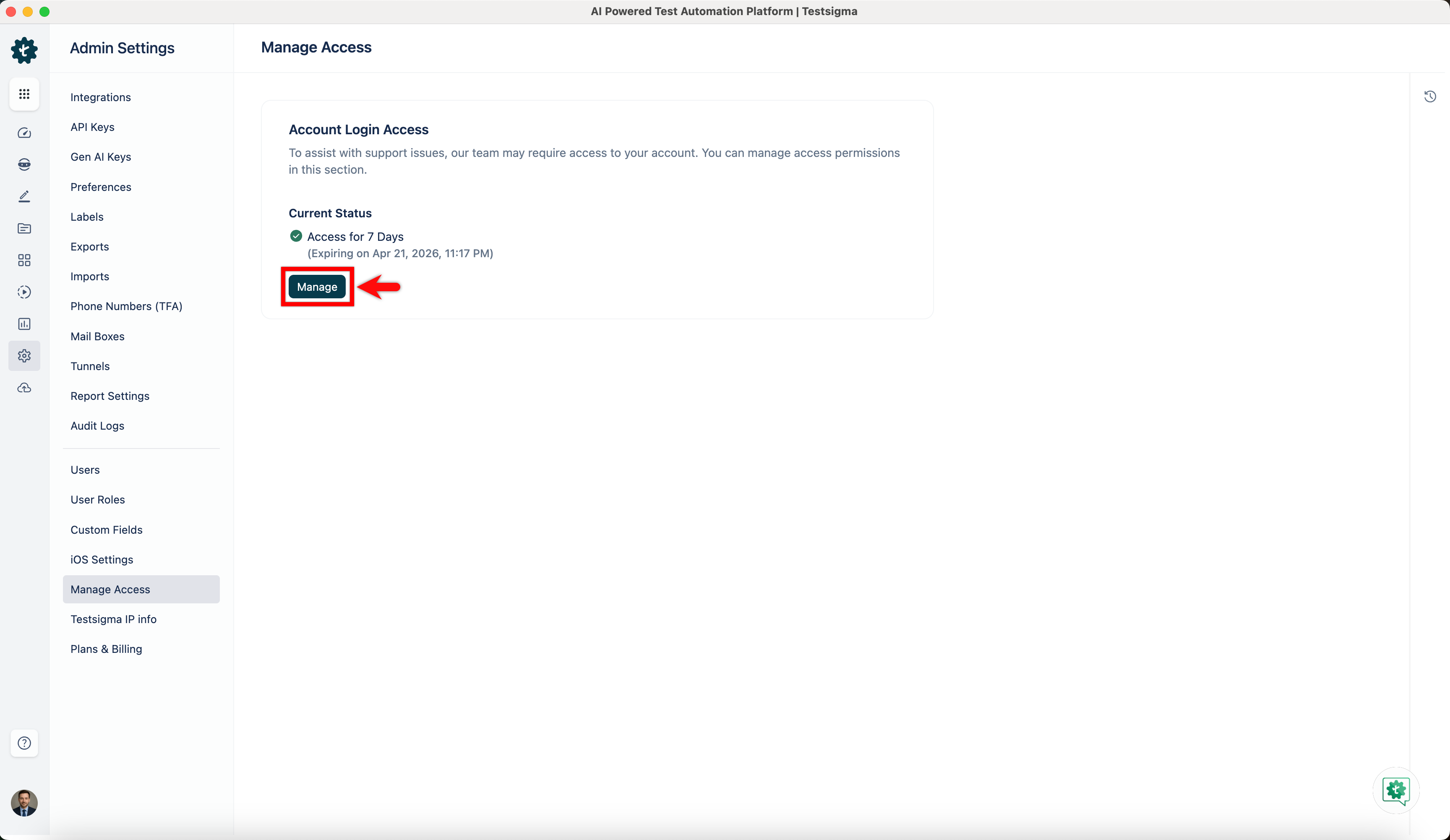
View the Current Status and Access Expiry information on the same page.
-
Click Manage to update or revoke access as needed.
Security and Privacy
Section titled “Security and Privacy”-
Testsigma logs all support actions under the user guest@testsigma.com, ensuring full traceability.
-
Access is strictly limited to the scope necessary for troubleshooting and issue resolution.
-
The support team follows industry standard security protocols and best practices at all times.
-
You retain full control over access and can revoke it anytime based on your needs.
View Access Logs
Section titled “View Access Logs”-
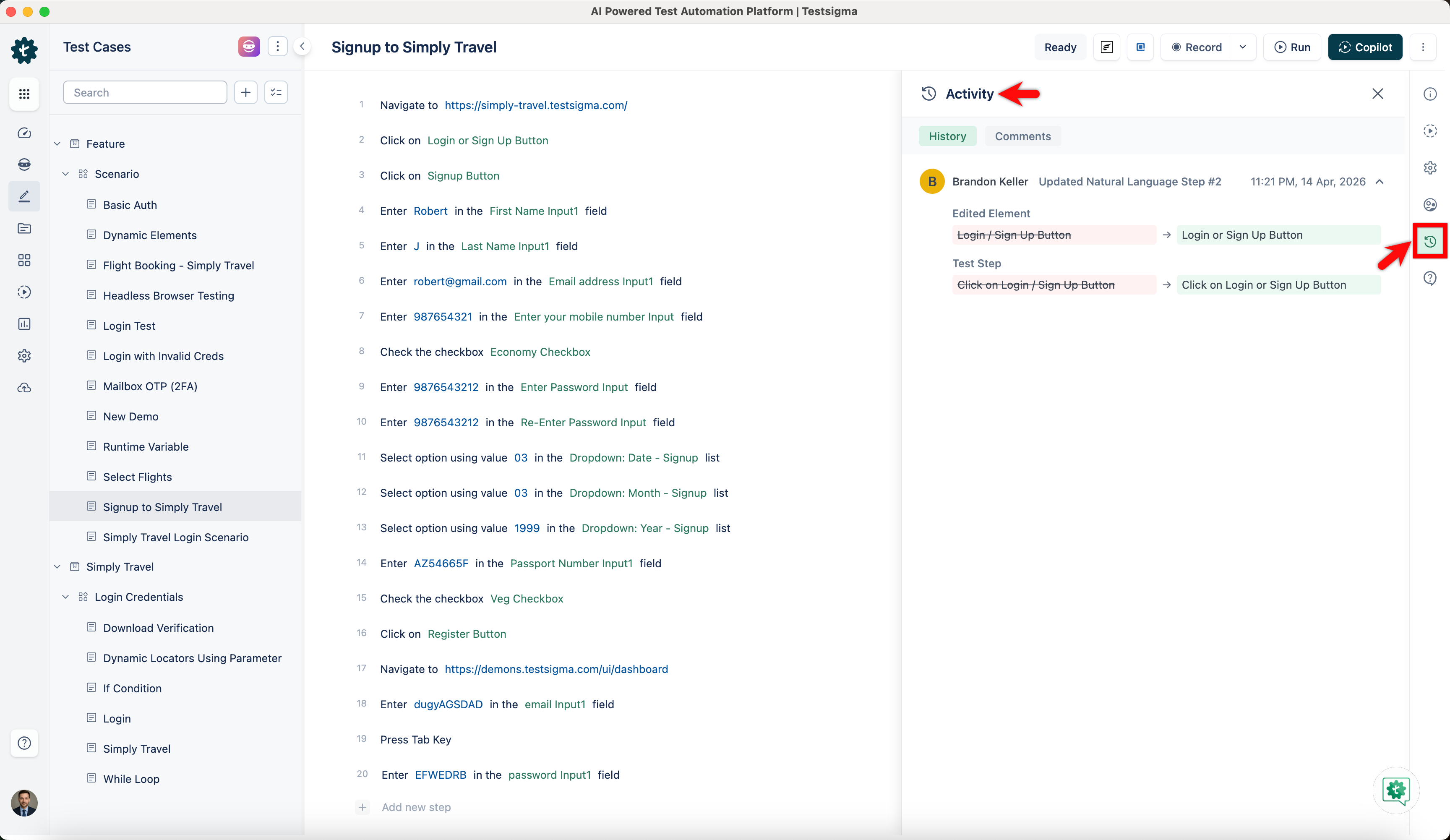
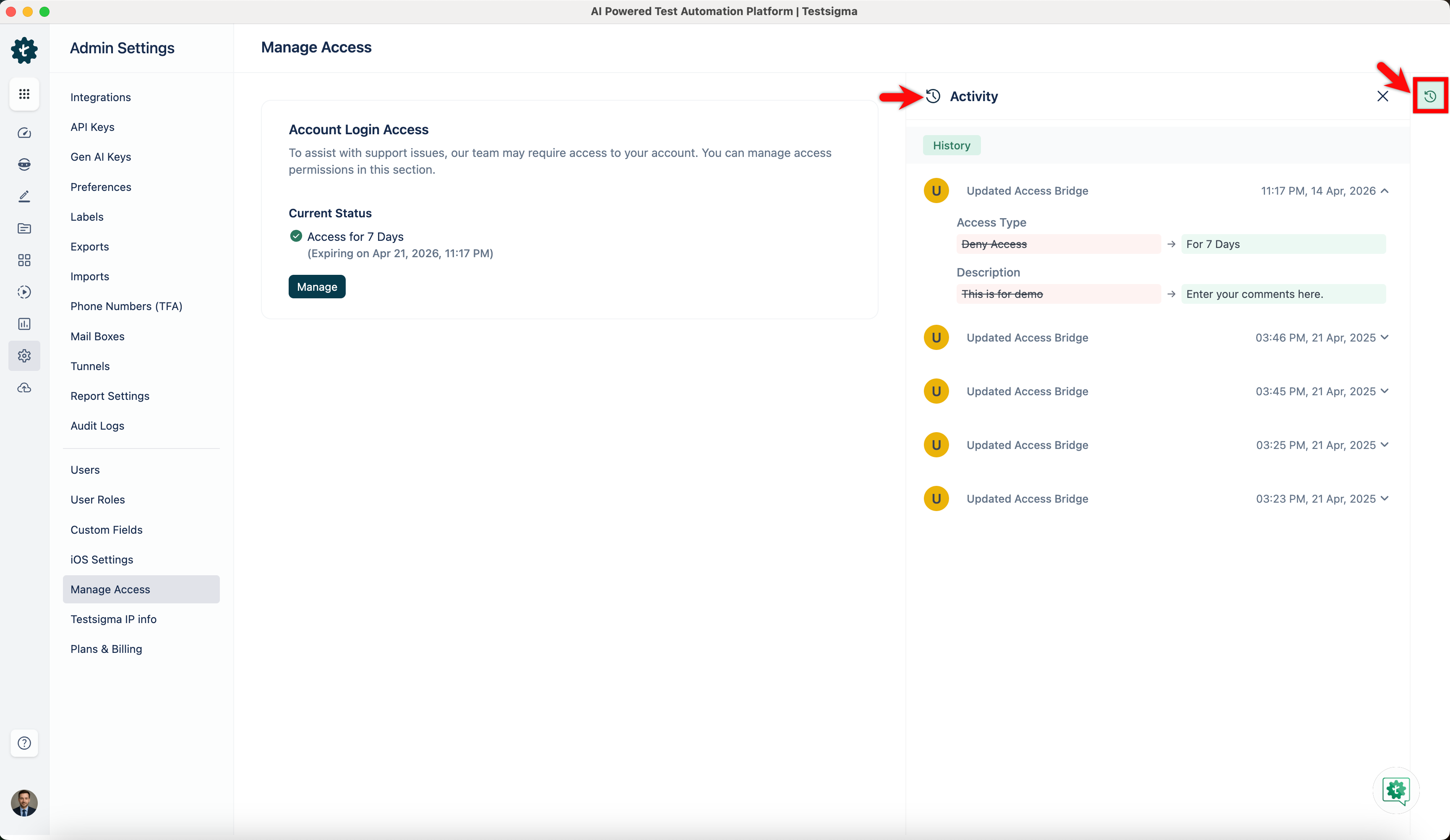
View access-related logs by clicking Activity in the Utility Panel. The system stores logs for 3 years.
-
You can also view logs in the relevant test cases, elements, test suites, and test plans for actions performed by Testsigma Guest.