
Testsigma Agent
Update Testsigma agent manually
For Windows
Section titled “For Windows”If the Testsigma Agent is already running, we need to stop it before updating the Agent. You will see a Testsigma Agent icon in the System Tray if it is already running.
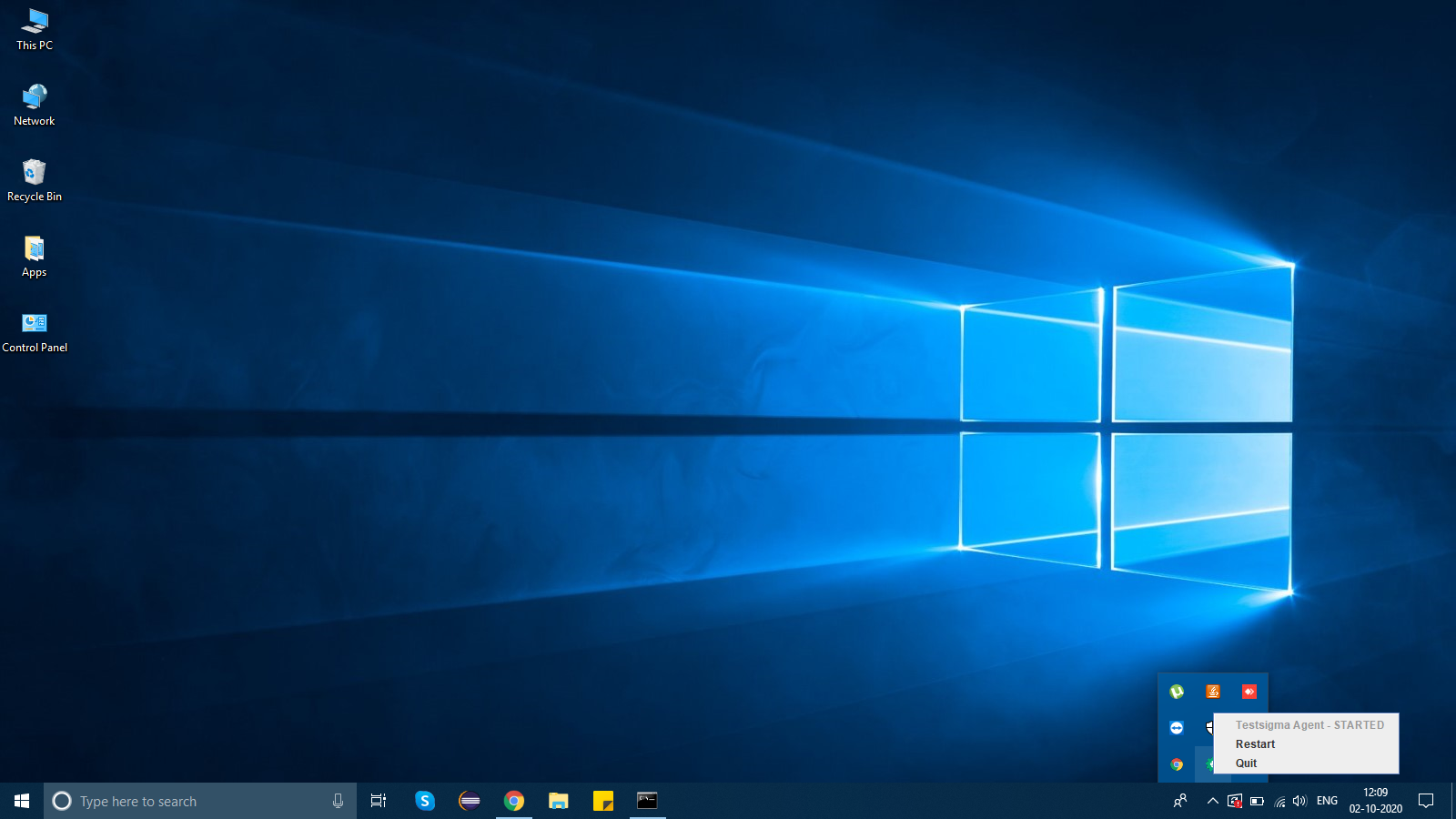
Else, skip to Step 3.
- First, open a new Command Prompt and navigate to the directory where Testsigma Agent is located. For example, cd D:/TestsigmaAgent
- Execute the stop.bat script by typing the following command and pressing Enter. ./stop.bat
- Delete the contents of the ‘TestsigmaAgent’ folder.
- From the Testsigma Agents page, download the latest Agent by clicking on the ‘Download Agent’ button on the top right corner. The Testsigma Agent zip file will be downloaded.
- Extract the contents of the ‘TestsigmaAgent’ folder within the downloaded zip file and place it in the ‘TestsigmaAgent’ folder in your machine.
- Once again, open a new Command Prompt and navigate to the directory where Testsigma Agent is located as in Step 1.
- Start the Testsigma Agent by typing the following command and pressing Enter key. ./start.bat
For Mac/Linux
Section titled “For Mac/Linux”If the Testsigma Agent is already running, we need to stop it before updating the Agent. You will see a Testsigma Agent icon in the Status bar if it is already running.
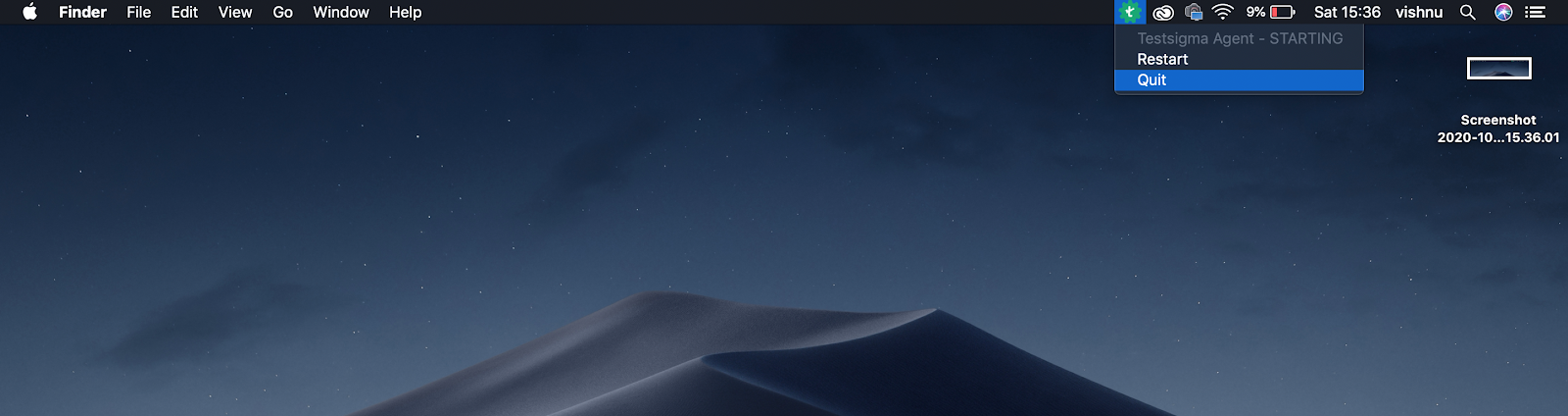
Else, skip to Step 3.
- First, open a Terminal and navigate to the directory where Testsigma Agent is located.
For example, cd /Users/< username >/TestsigmaAgent - Execute the stop.sh script by typing the following command and pressing Enter. ./stop.sh
- Delete the contents of the ‘TestsigmaAgent’ directory.
- From the Testsigma Agents page, download the latest Agent by clicking on the ‘Download Agent’ button on the top right corner. The Testsigma Agent zip file will be downloaded.
- Extract the contents of the ‘TestsigmaAgent’ directory within the downloaded zip file and place it in the ‘TestsigmaAgent’ directory in your machine.
- Once again, open a new Terminal and navigate to the directory where Testsigma Agent is located as in Step 1.
- Start the Testsigma Agent by typing the following command and pressing Enter key.
./start.sh