Testsigma Terminal
Components of Testsigma Terminal
Prerequisites
- Before you begin, ensure that the Testsigma Terminal is installed on your device.
Navigating the Left Panel
Section titled “Navigating the Left Panel”-
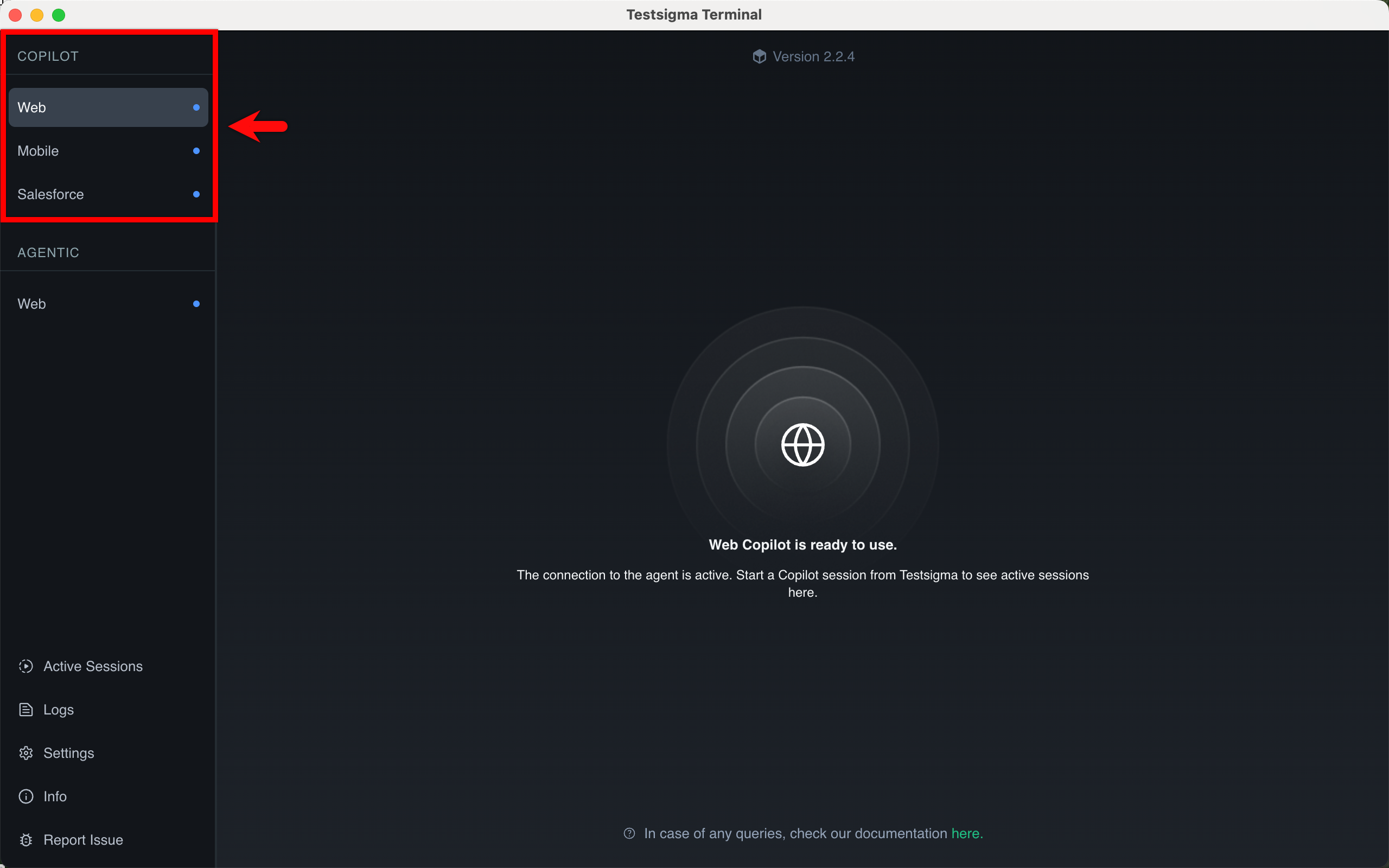
On the Testsigma Terminal, review the left navigation panel, which contains two sections:
- Copilot – supports execution for web, Salesforce, and desktop applications.
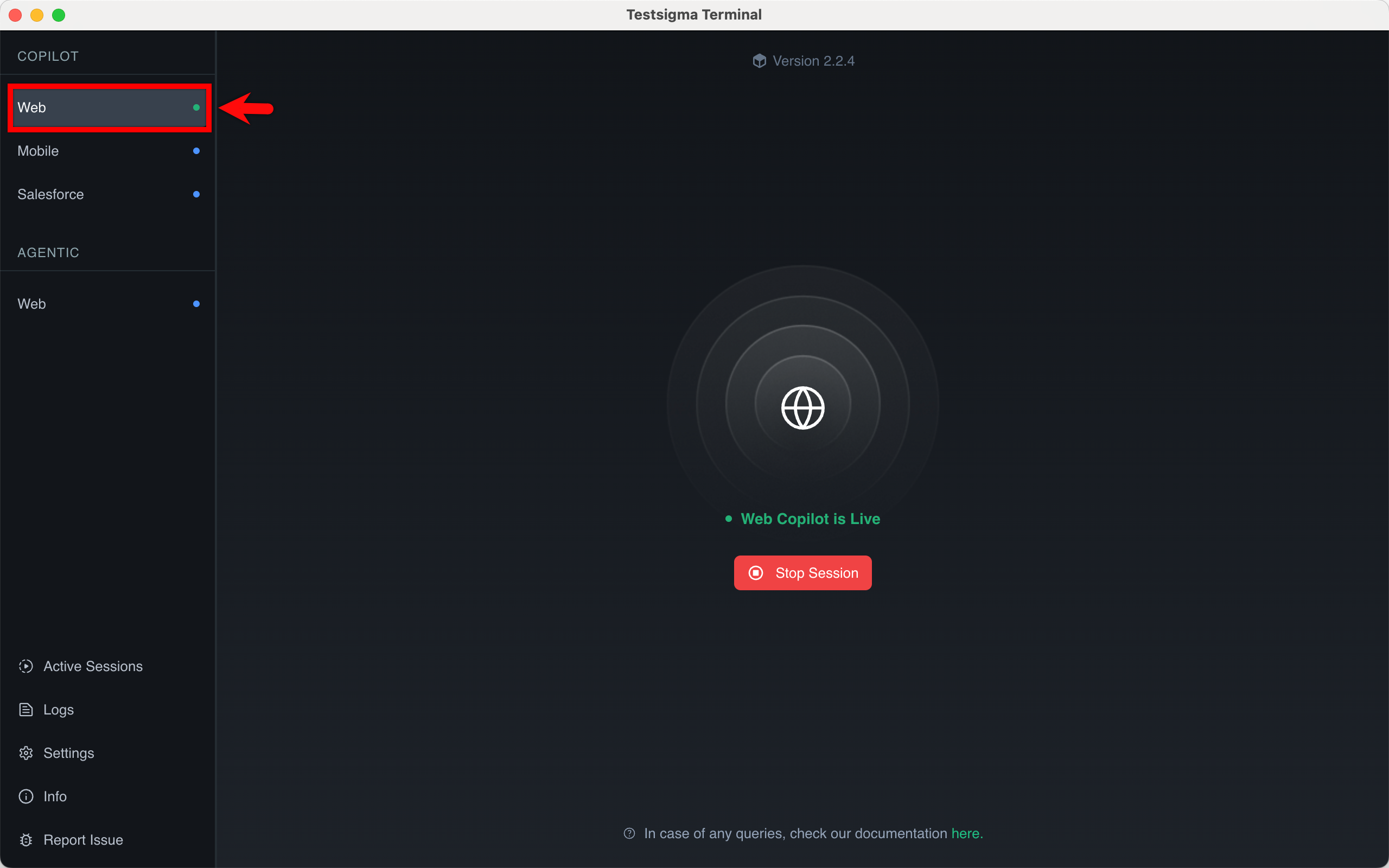
[[info | NOTE:]] | When you execute a test case, whether it’s Web, Desktop, or Salesforce, the corresponding | application listed under Copilot changes its status indicator from blue to green to show | that an active session is running.
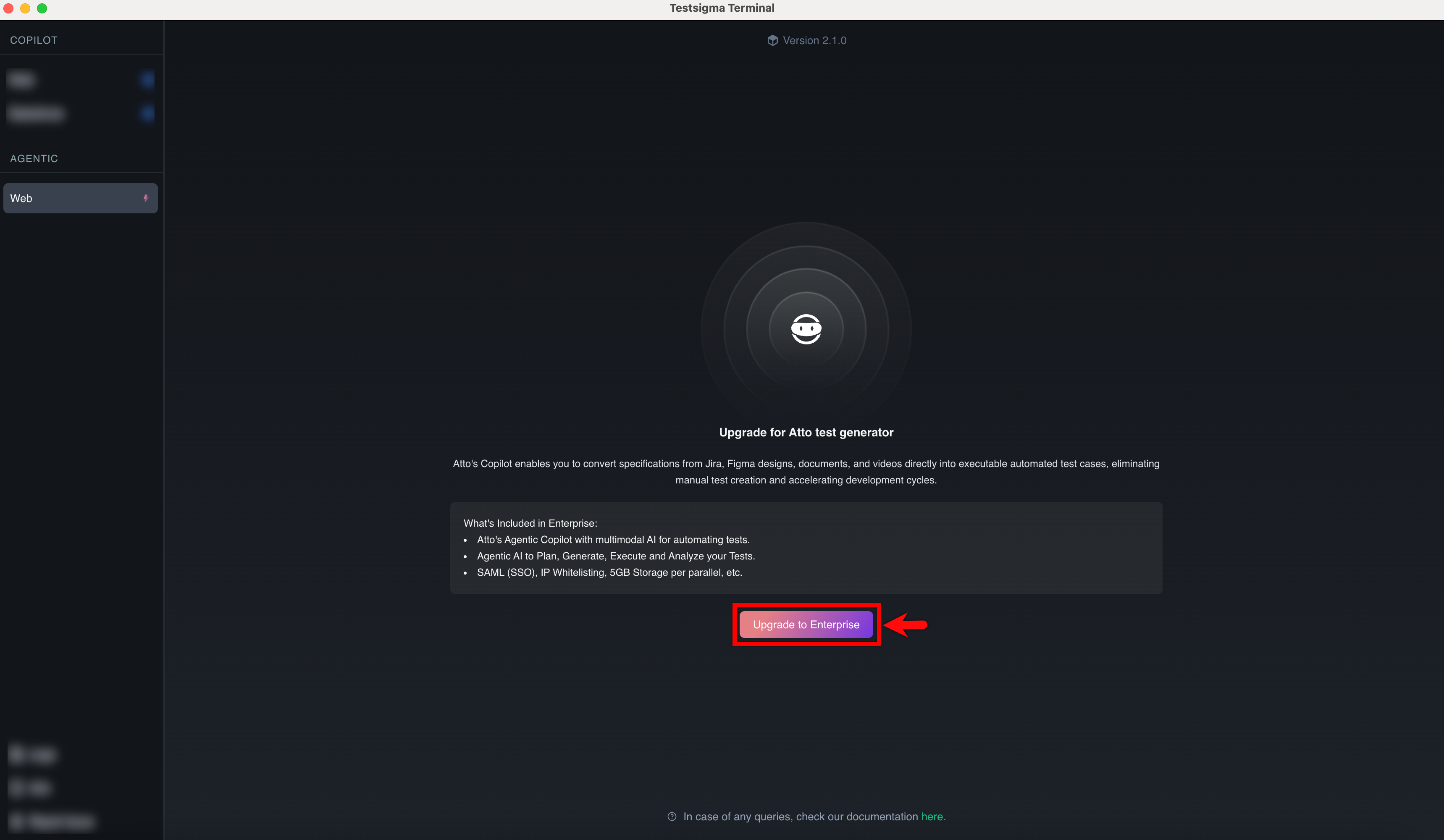
- Agentic – displays upgrade availability for Web, Salesforce, and Desktop applications. Click Upgrade to Enterprise to enable enterprise-level Agentic features for the selected application.
-
Click Active Sessions from the left navigation panel to monitor ongoing local executions.
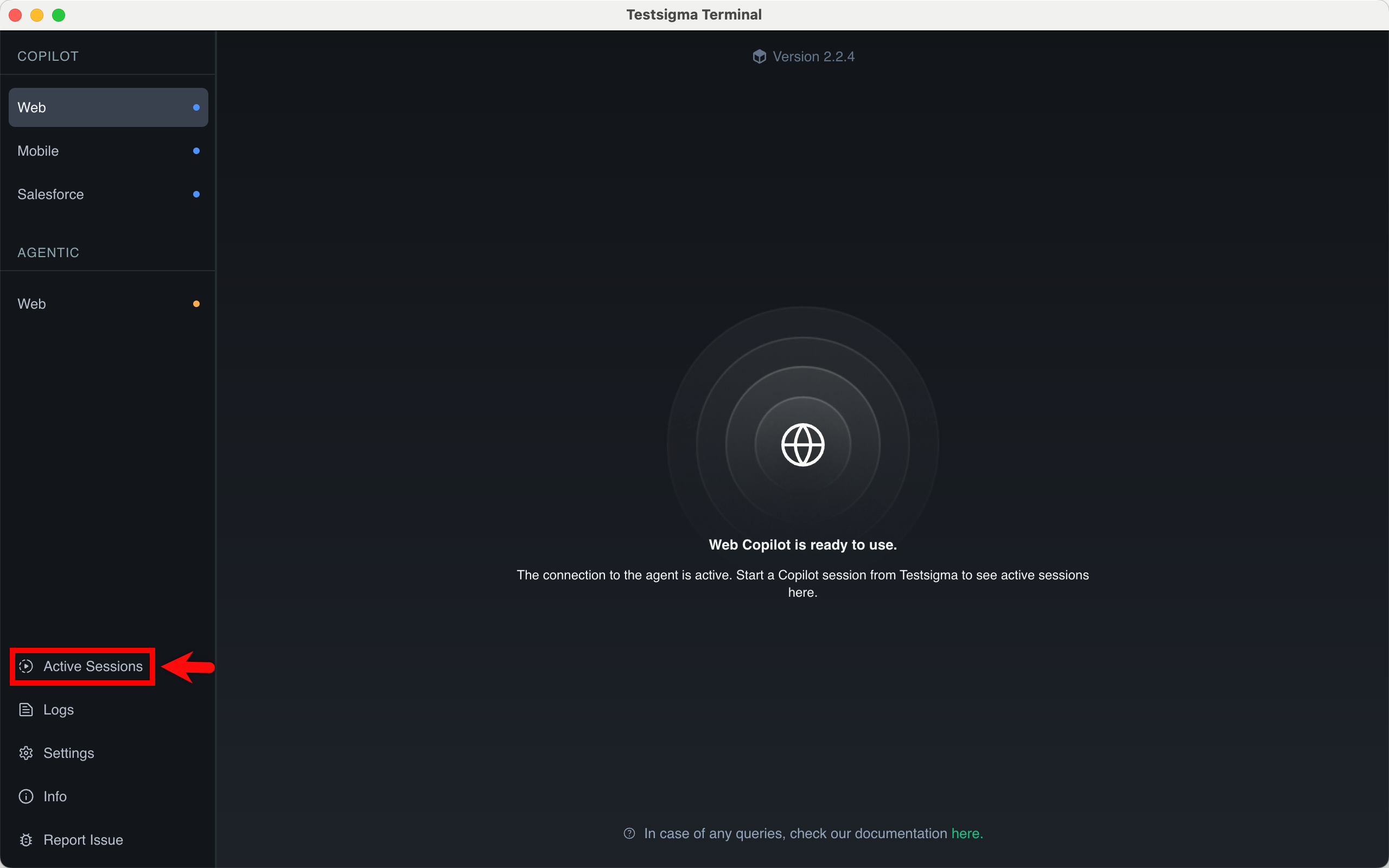
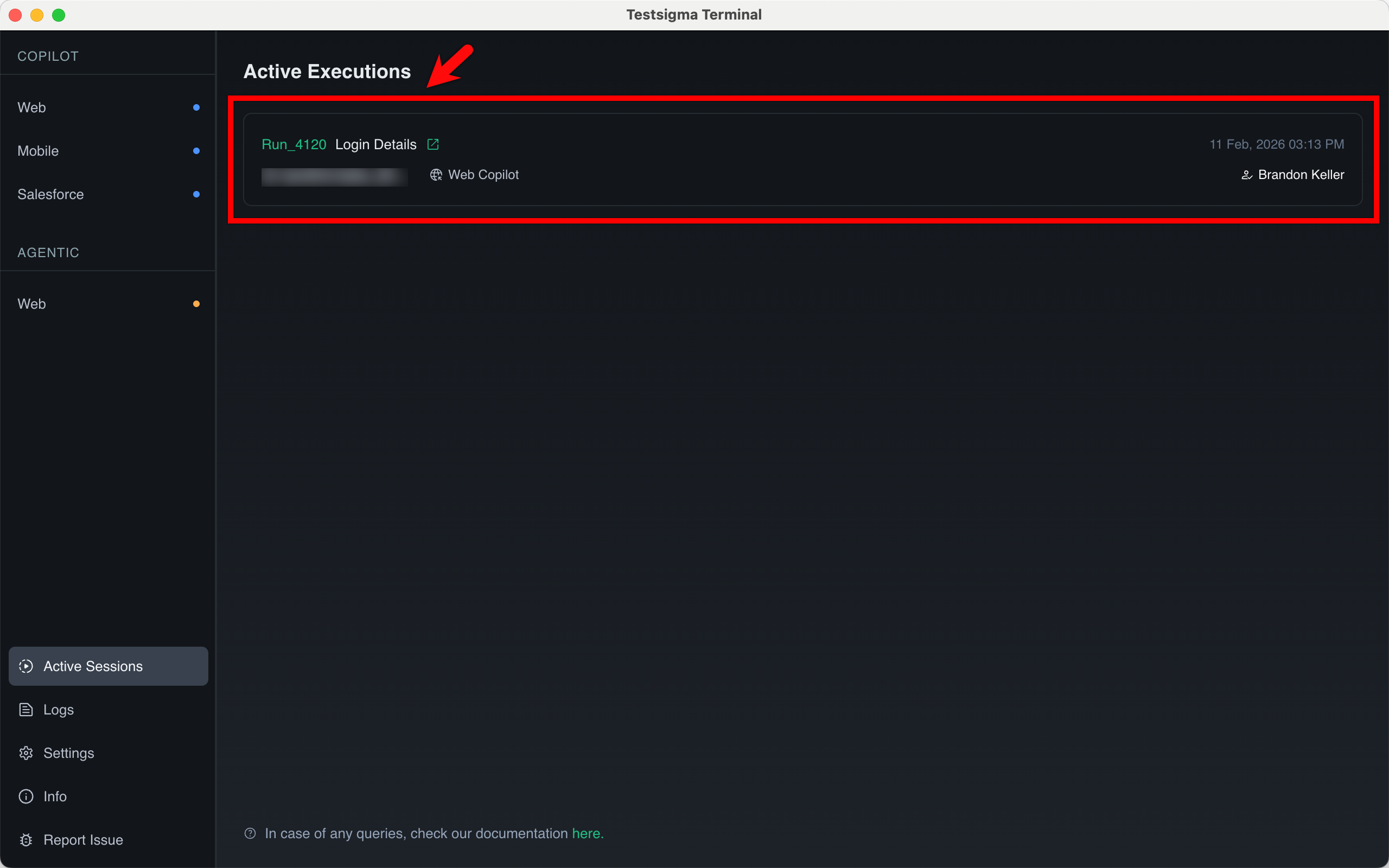
The Active Sessions page provides real-time visibility into all test runs executed through the local agent.
On this page, you can:
- View the Run ID and test name.
- Identify the execution type (for example, Web Copilot).
- See the user who triggered the execution.
- Check the timestamp of the active run.
- Monitor execution status without navigating back to the Testsigma dashboard.
-
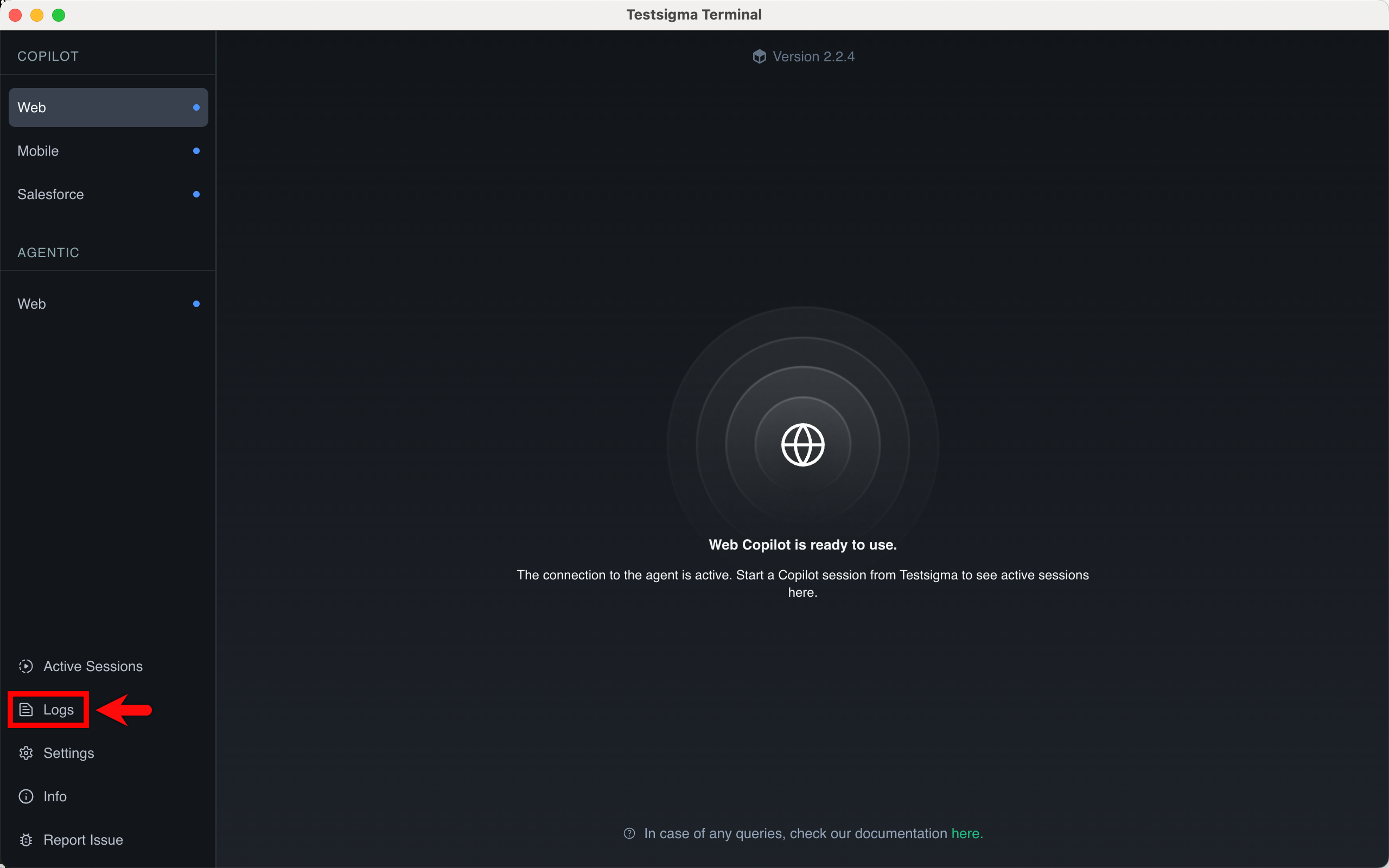
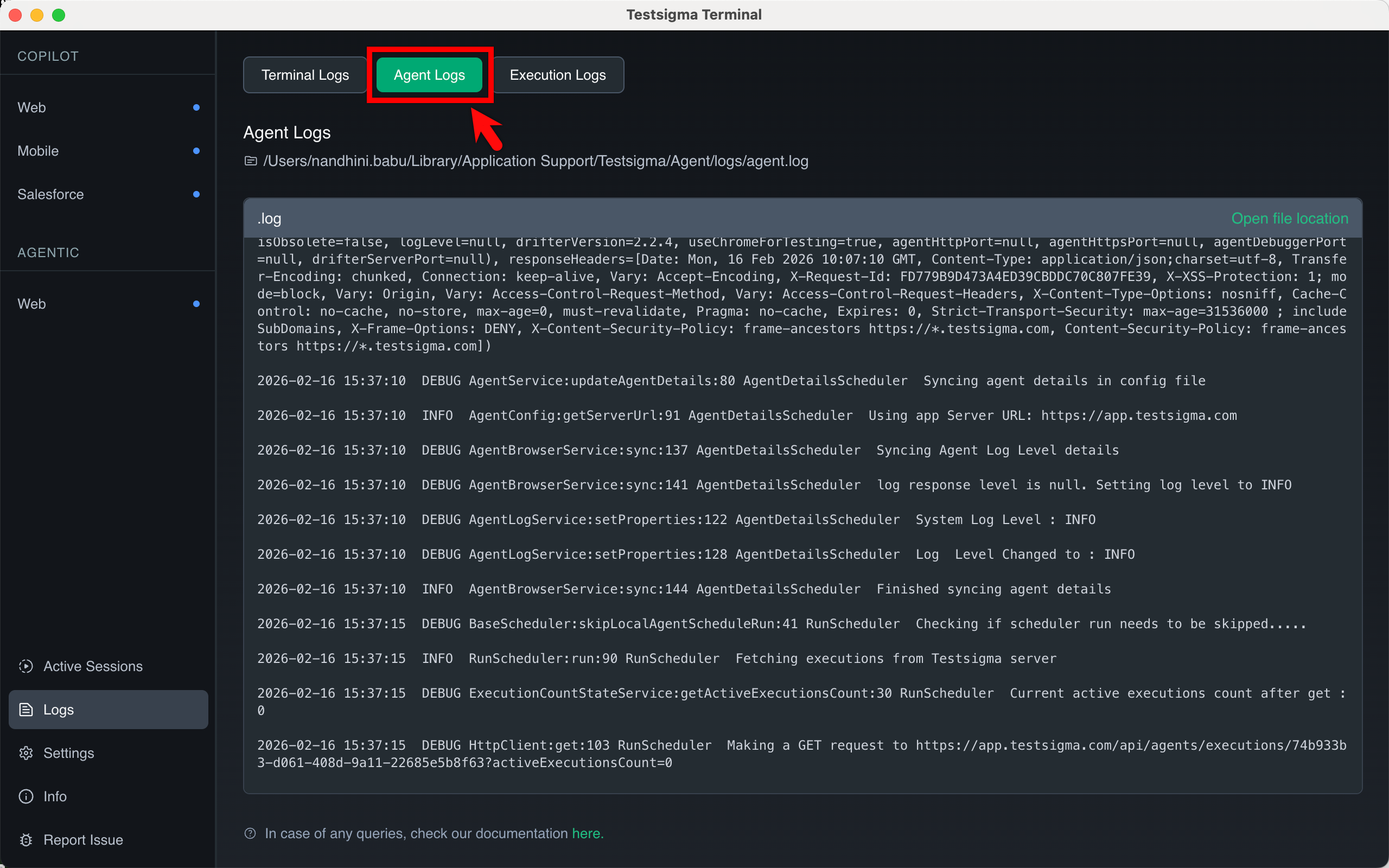
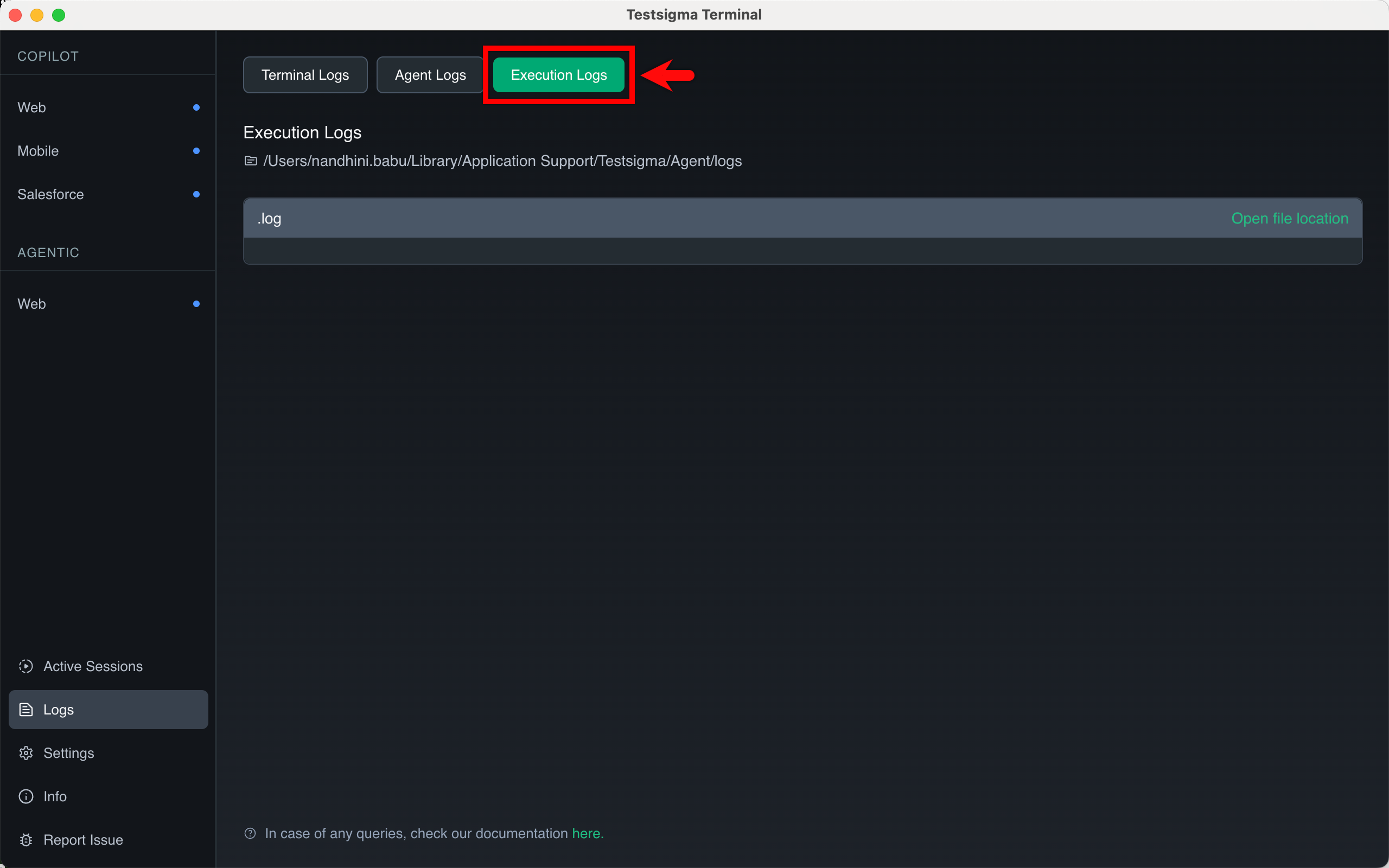
To view logs, click Logs from the left panel. The Logs page provides a complete overview of debugging information, organized across three tabs for easy access and analysis.
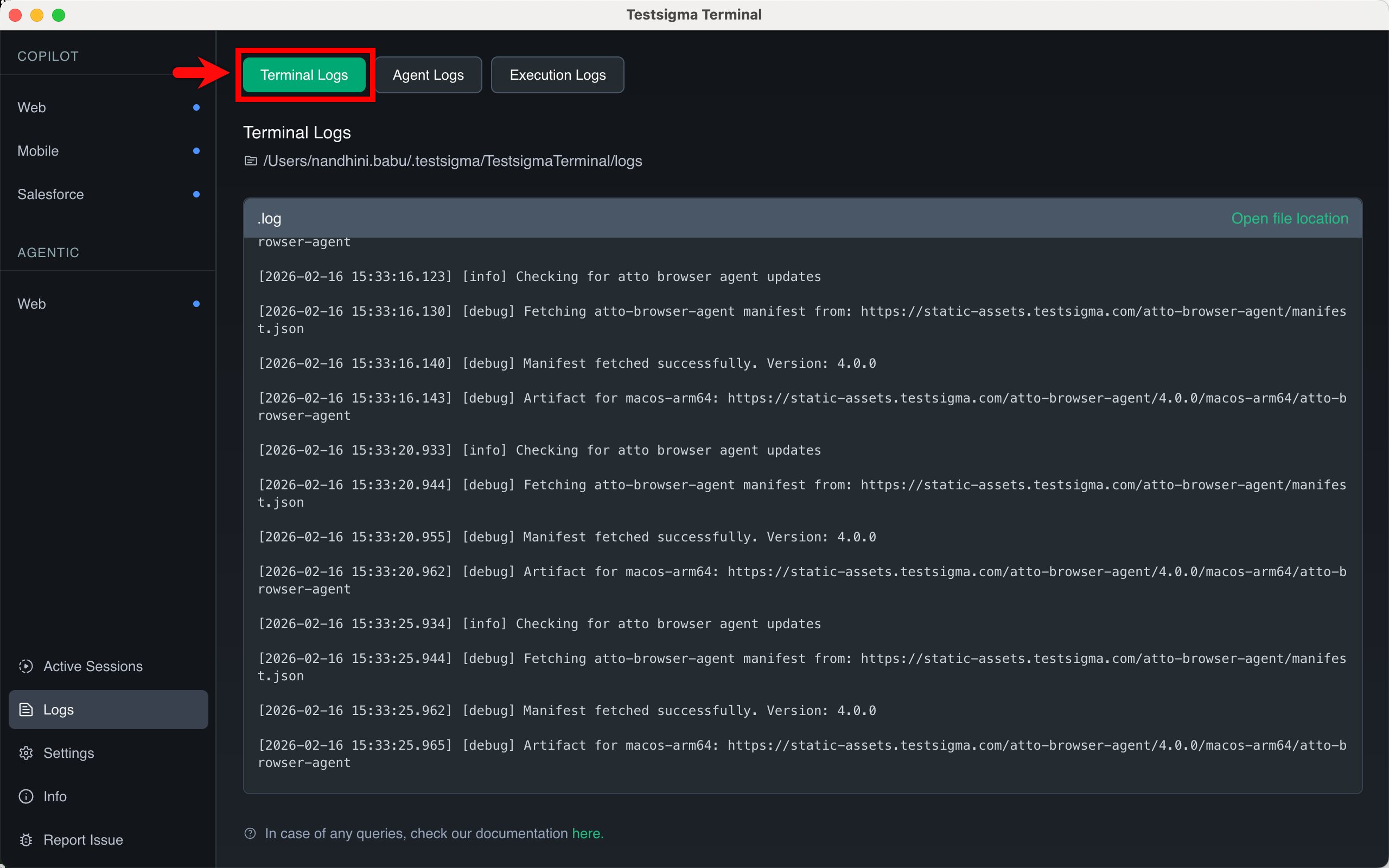
- Terminal Logs – These logs show the status and setup of the Testsigma Terminal app.You will find information about agent and packages installation, system configuration, and the communication status between the Terminal and the Copilot agent.
- Agent Logs – These logs show everything that happens inside the execution agent (Copilot) while it is running a test. This includes the communication records and all the steps taken during test execution.
- Execution Logs – These logs show the real-time activity for the test you are currently running. You will find specific information related to the execution active in the Copilot.
- Terminal Logs – These logs show the status and setup of the Testsigma Terminal app.You will find information about agent and packages installation, system configuration, and the communication status between the Terminal and the Copilot agent.
-
To customize the terminal behavior, click Settings from the left panel.
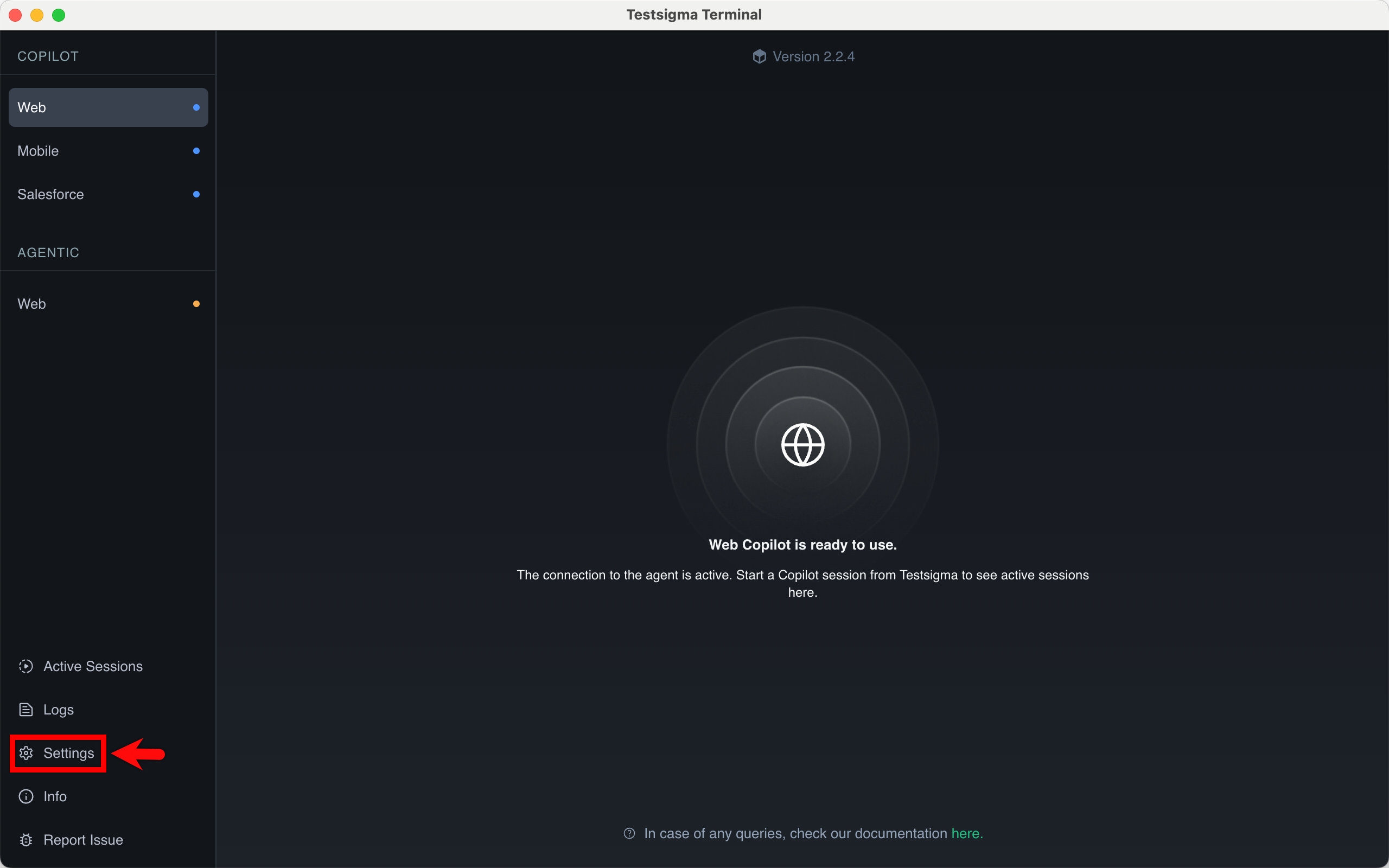
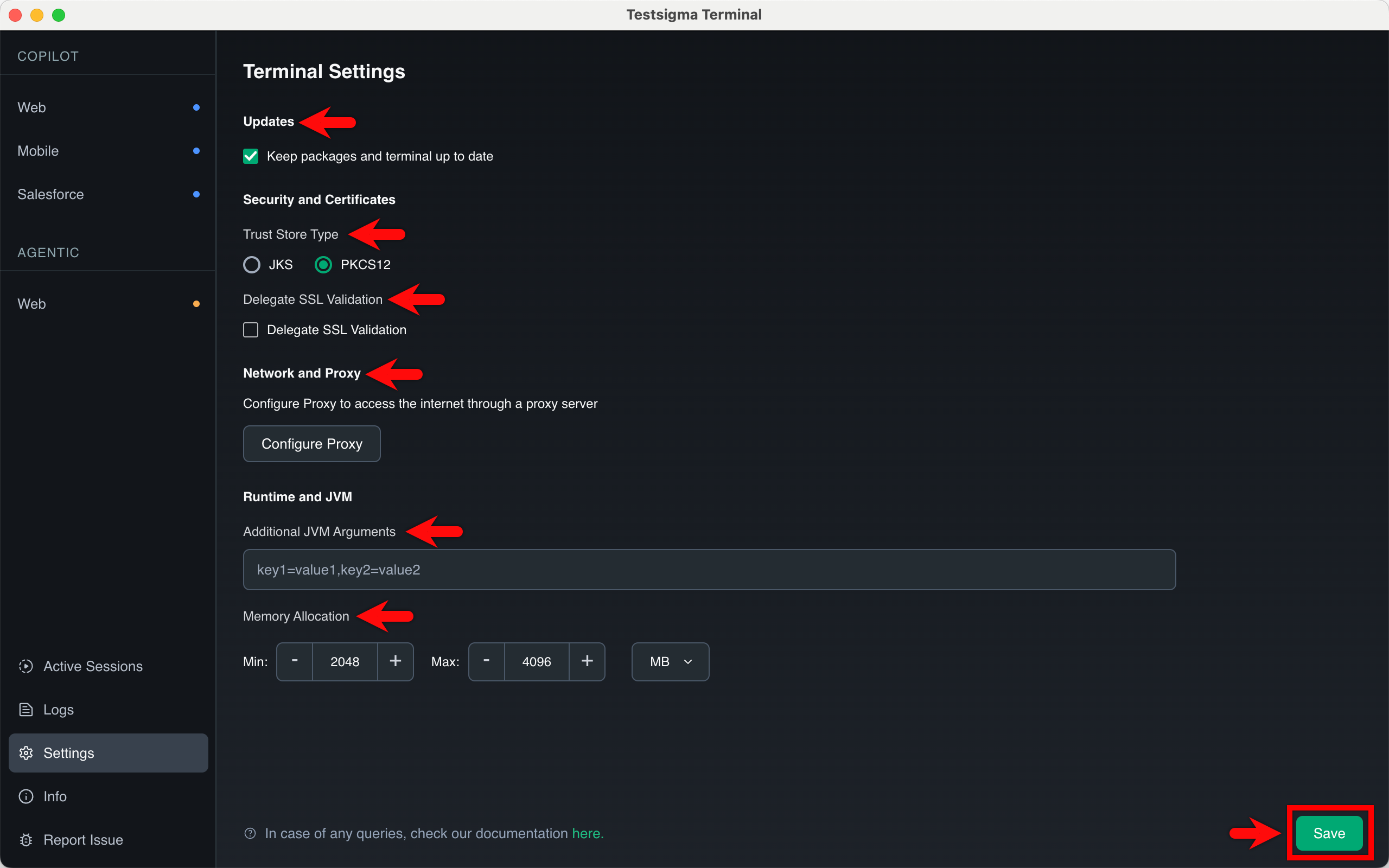
In the Terminal Settings page, you can perform the following actions:
-
Updates
- Keep packages and terminal up to date: Select this checkbox to allow the Terminal to download required dependencies and application updates automatically.
-
Security and Certificates
- Trust Store Type: Select between JKS (Java KeyStore) or PKCS12 formats for managing security certificates.
- Delegate SSL Validation: Select the checkbox to manage how the Terminal validates SSL certificates during execution.
-
Network and Proxy Click Configure Proxy to define network rules for both HTTP and HTTPS traffic. For each protocol, you can specify:
- Proxy Host and Port: The address and port of your proxy server.
- Proxy User and Password: Credentials for authenticated proxy access.
- Non Proxy Hosts: Define specific addresses (e.g., localhost, 127.0.0.1) that should bypass the proxy server.
-
Runtime and JVM
- Additional JVM Arguments: Pass custom parameters to the Java Virtual Machine using key-value pairs (e.g., key1=value1).
- Memory Allocation: Manually define the Min and Max memory limits to optimize Terminal performance based on your system hardware.
- Flexible Units: Use the dropdown menu to specify these memory values in either MB or GB.
Once you have configured the settings, click Save.
-
-
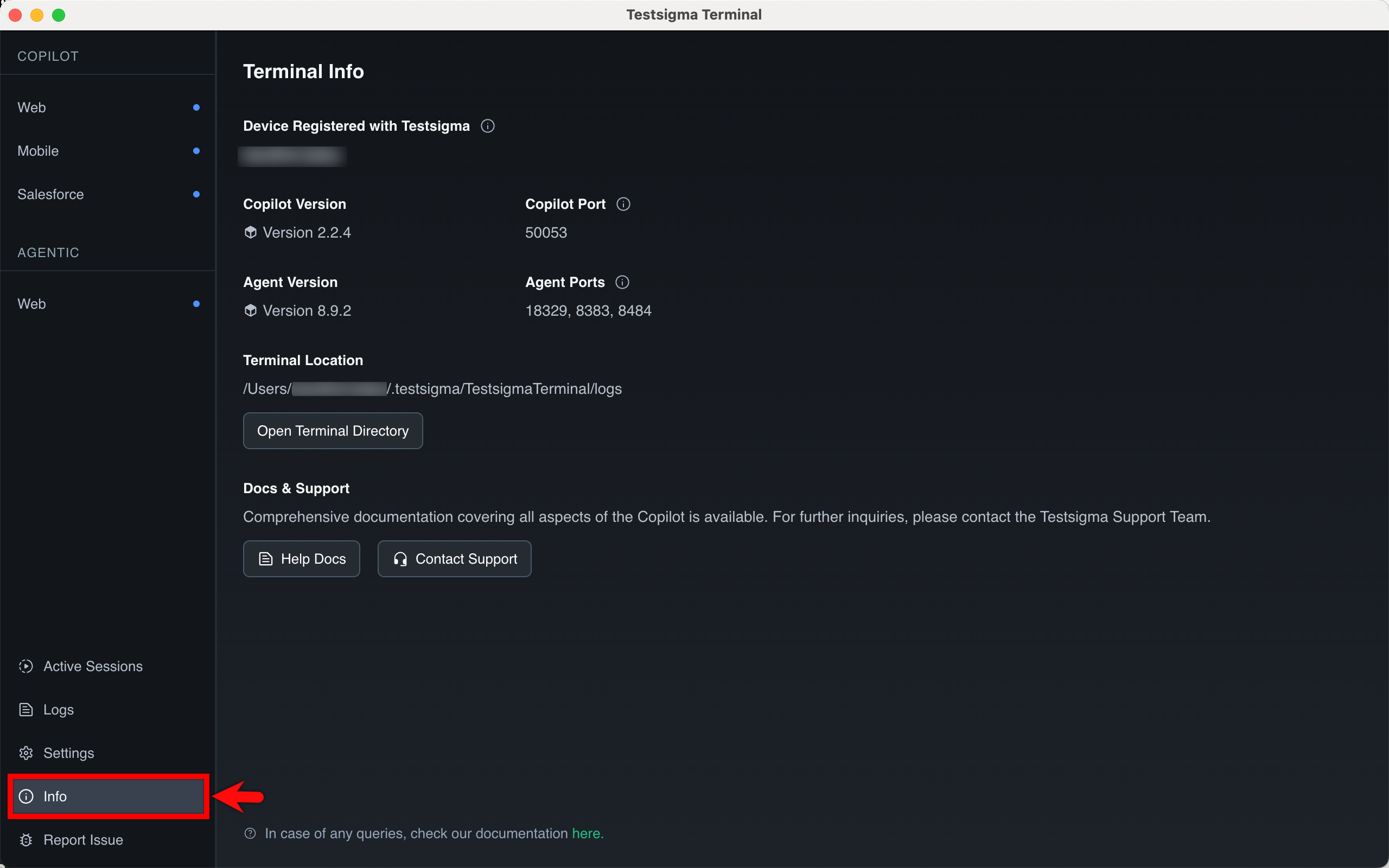
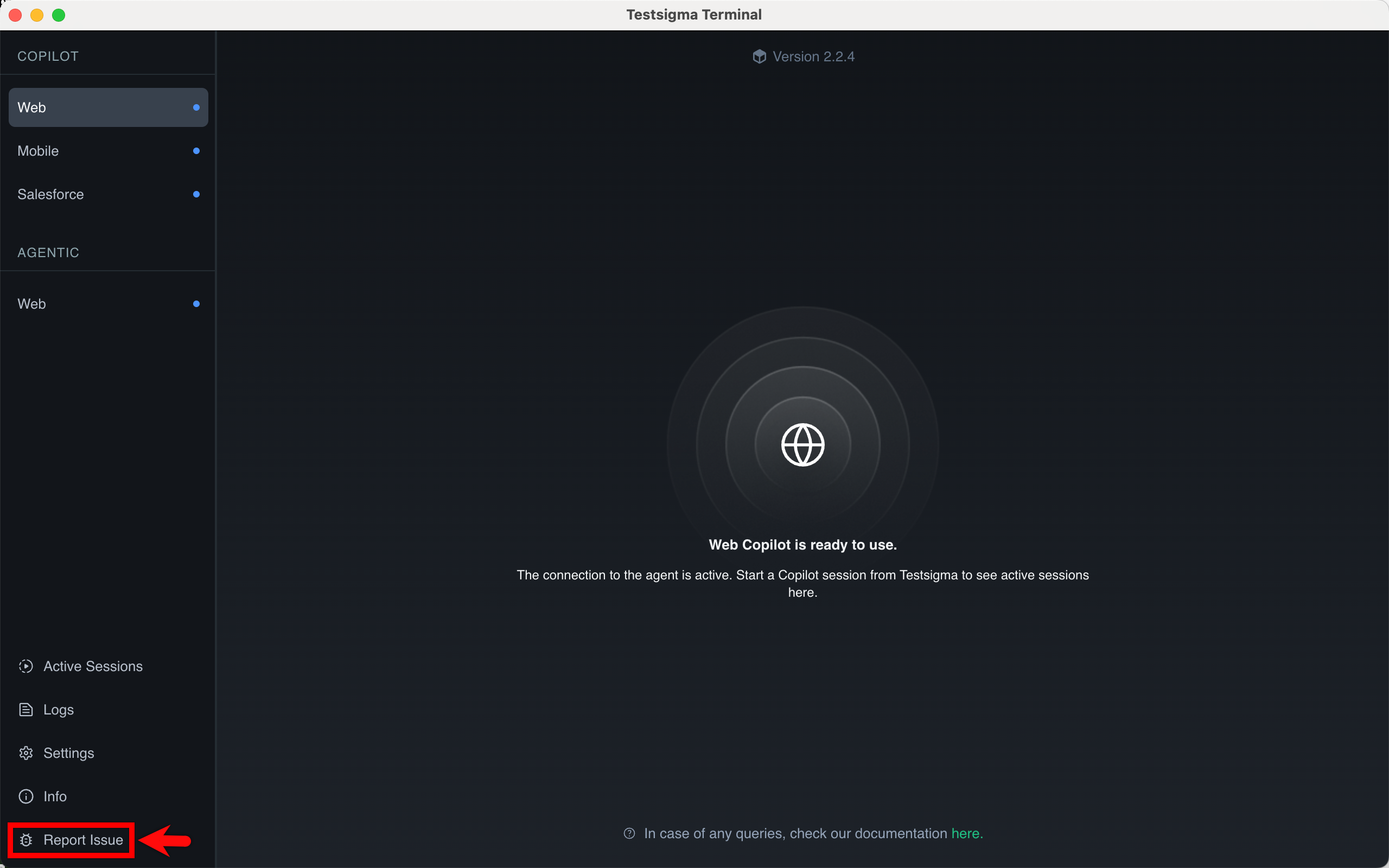
If you encounter issues with Testsigma Terminal, click Report Issue from the left panel.
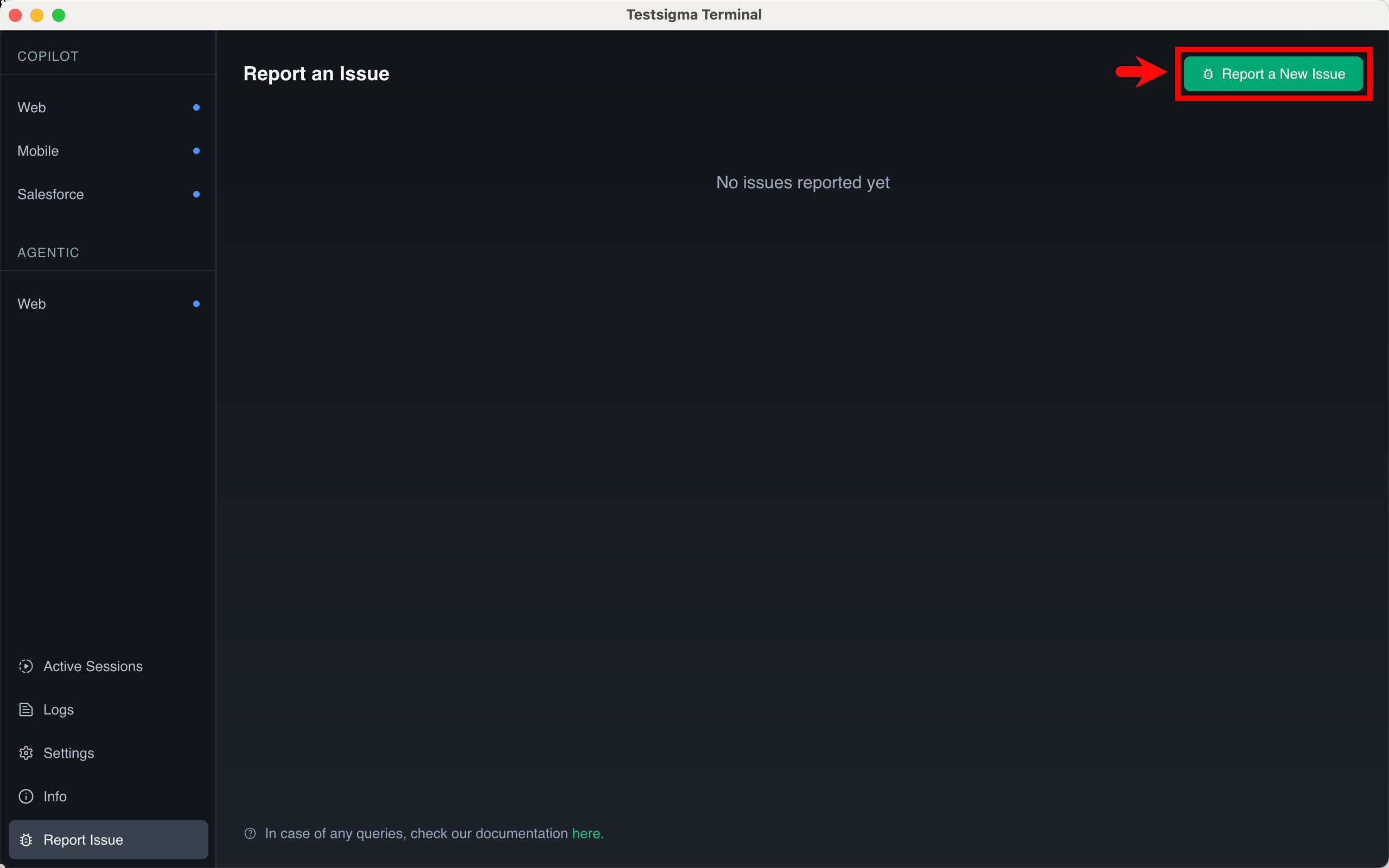
- On the Report an Issue page, click Report a New Issue.
- Enter a title and description.
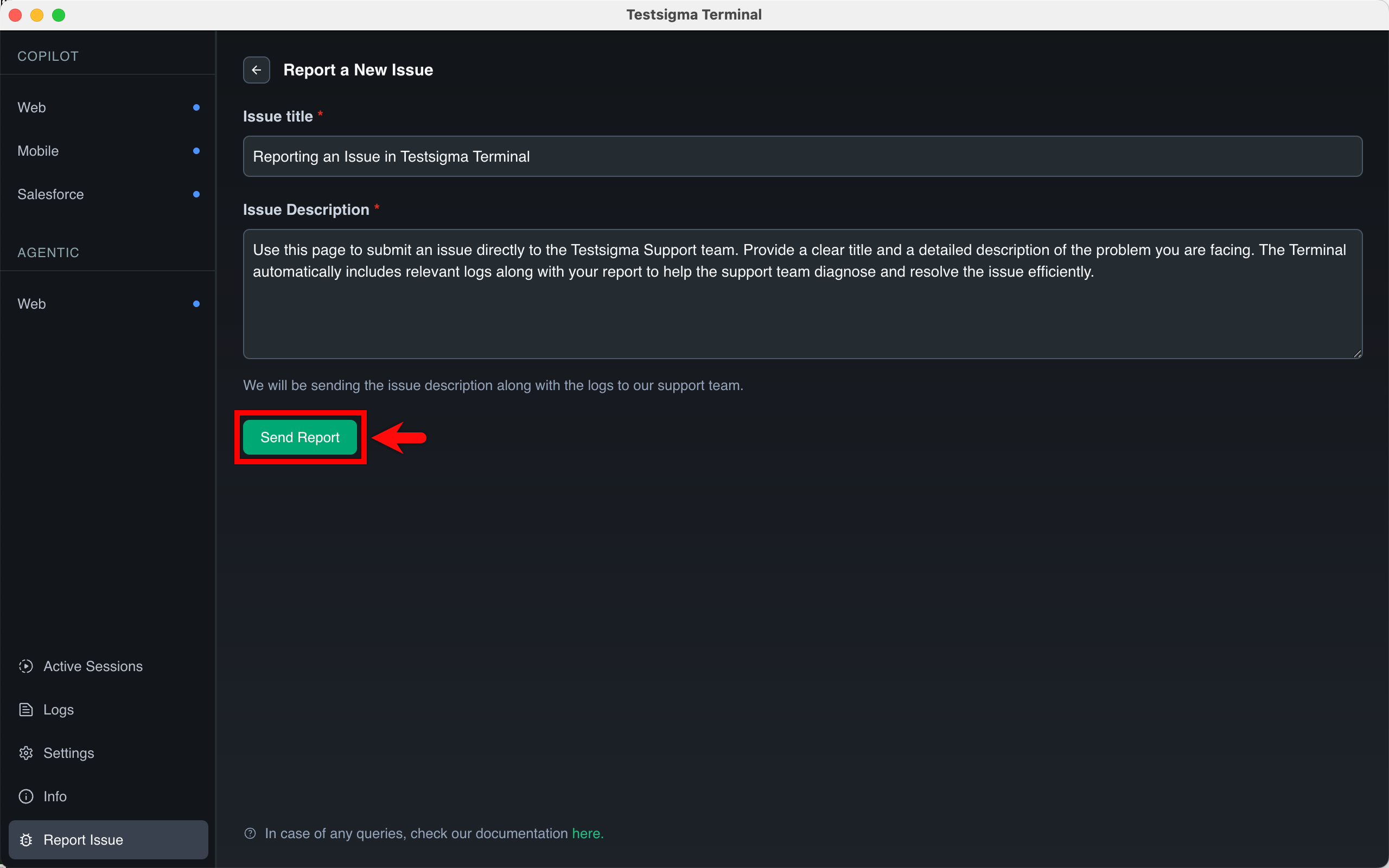
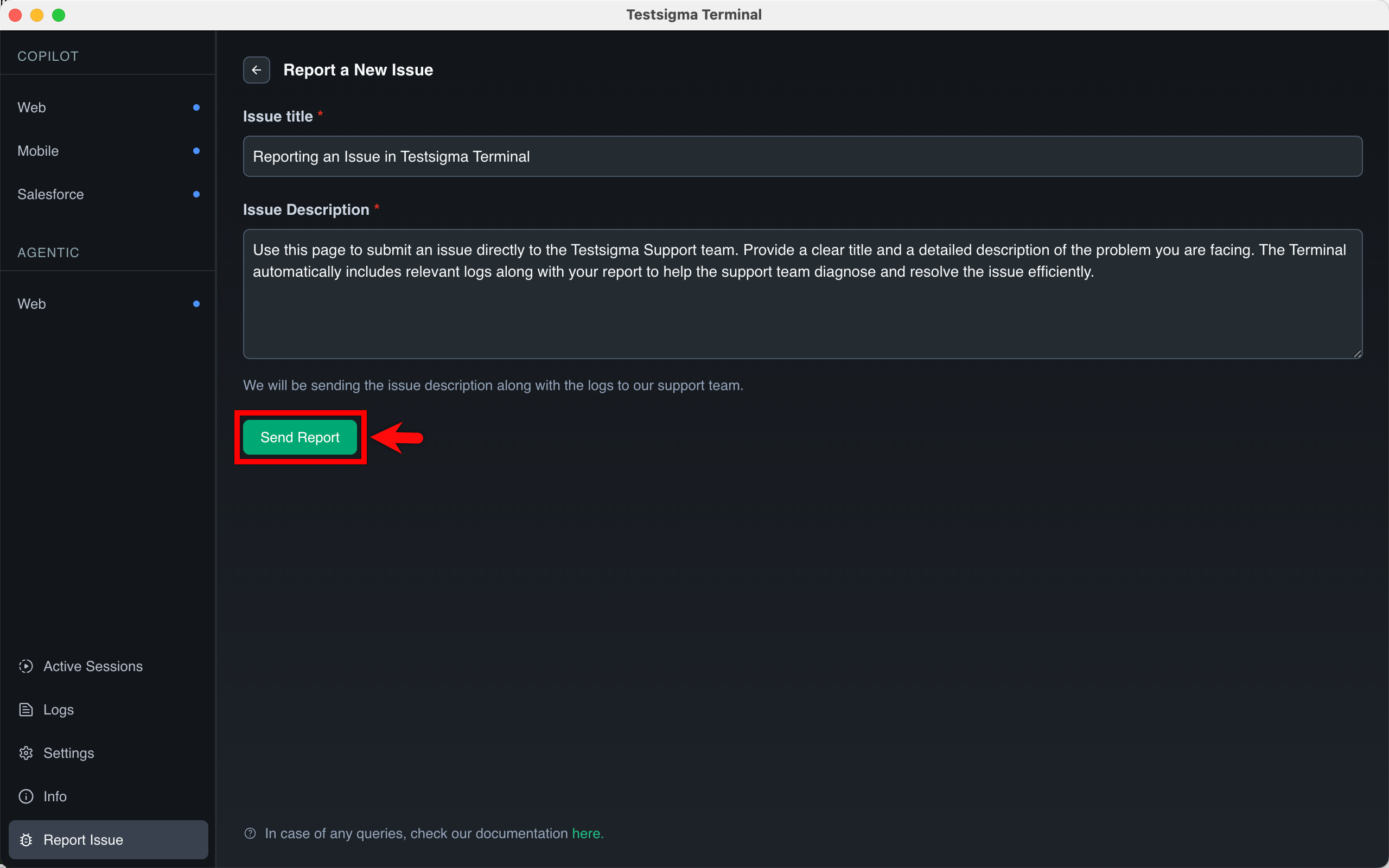
- Click Send Report.
- On the Report an Issue page, click Report a New Issue.