
Test Step Recorder
Install Testsigma Recorder Extension: Firefox
Add Testsigma Recorder Extension to Firefox
Section titled “Add Testsigma Recorder Extension to Firefox”- Open your Firefox browser and navigate to Testsigma Recorder.
- Click on Add to Firefox.
- Click Add when prompted for permission.
Testsigma Recorder Extension Options
Section titled “Testsigma Recorder Extension Options”-
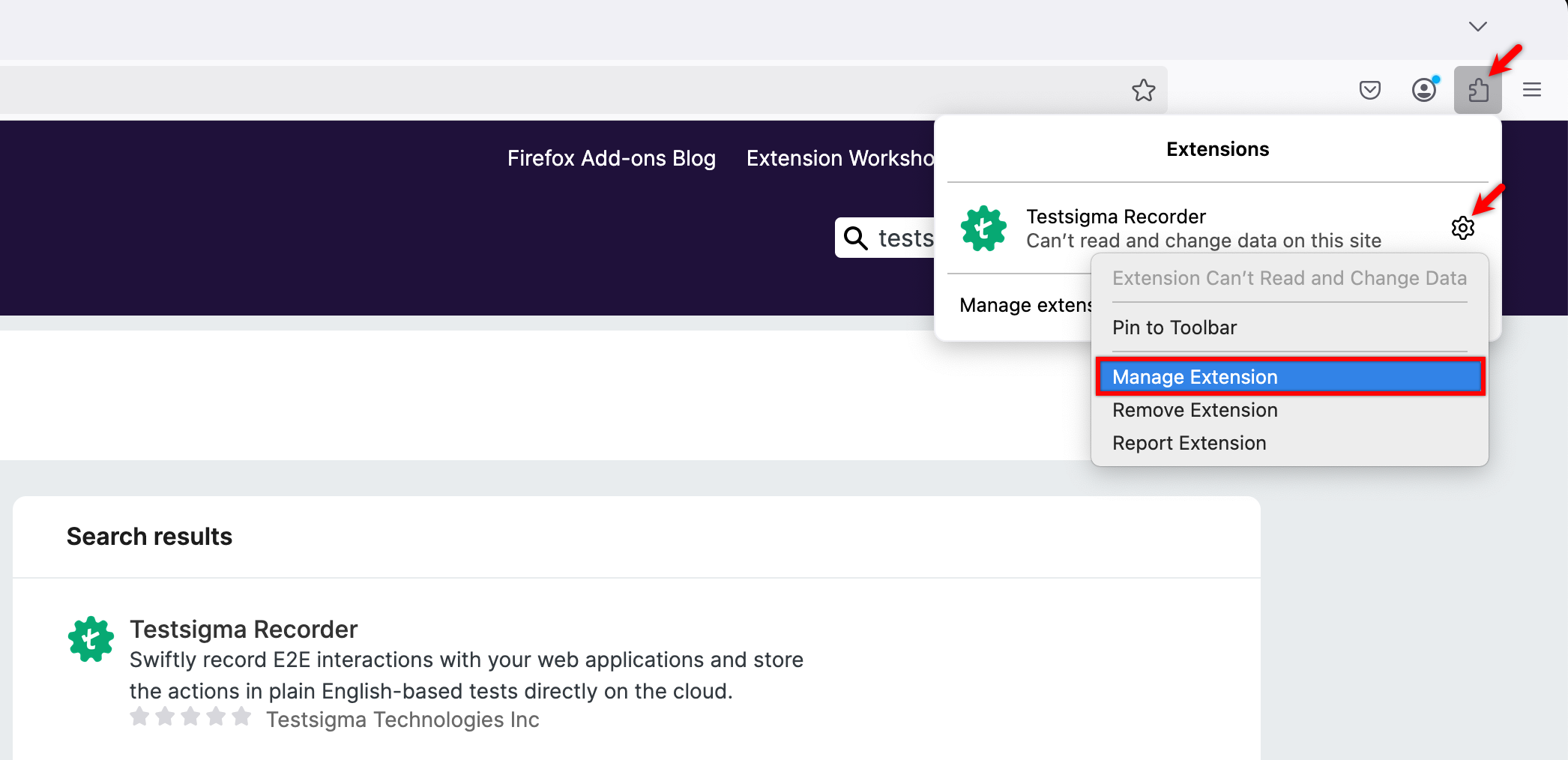
Navigate to Extensions > Extension Settings > Manage Extensions.
-
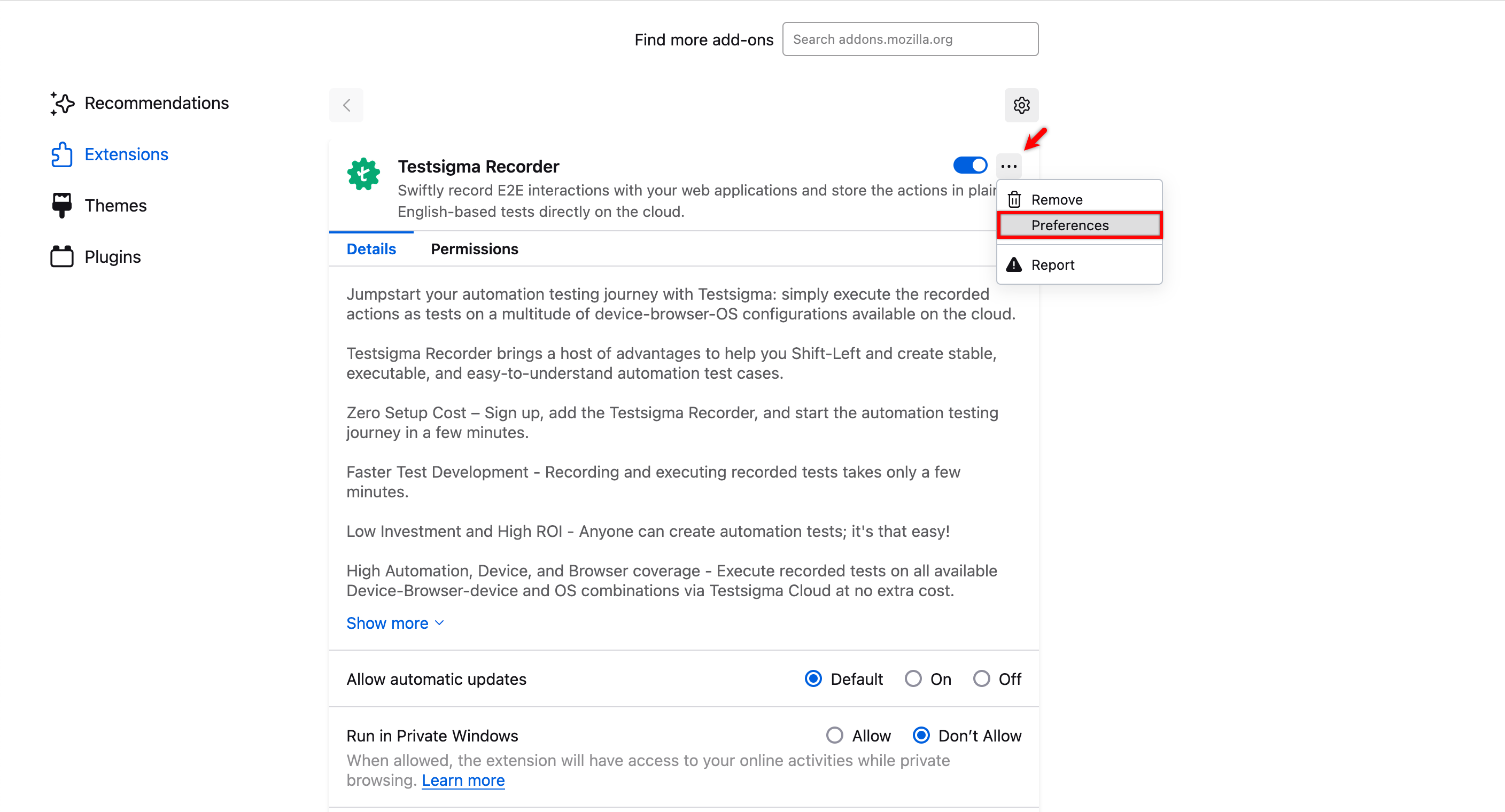
On Testsigma Recorder Extension Details, click Meatballs icon and select Preferences.
-
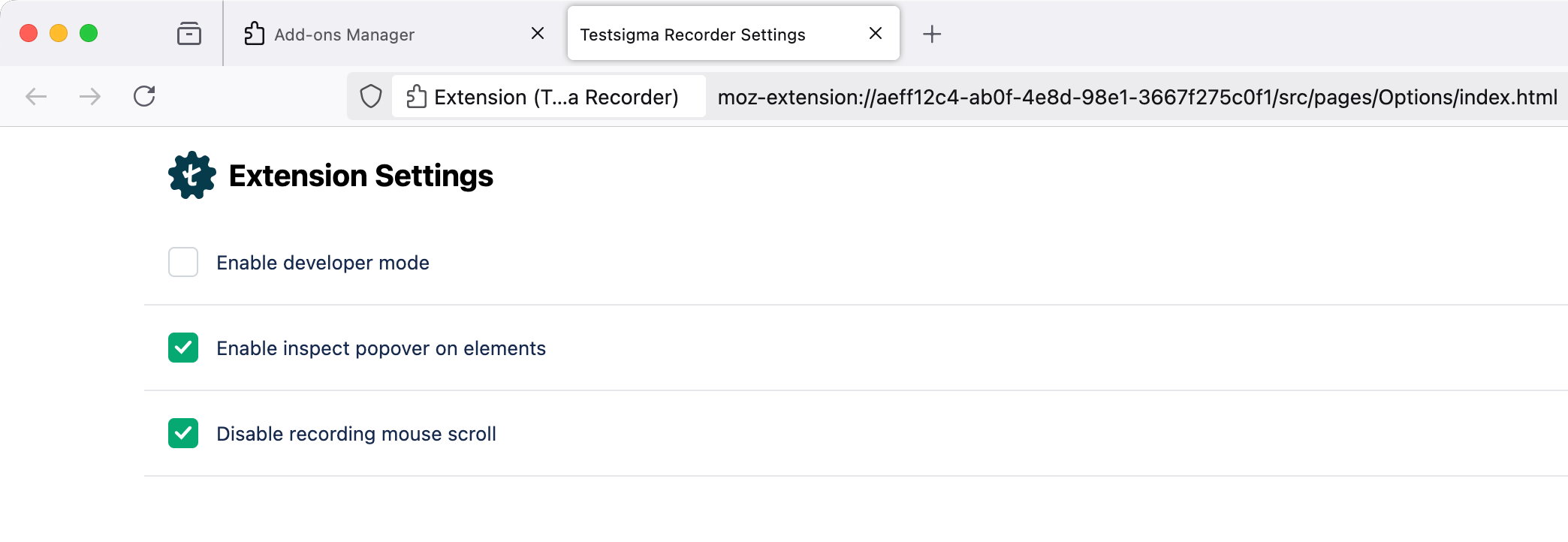
You can see the following options:
-
Enable Inspect Popover on Elements
-
Disable Recording Mouse Scroll
-
Enable Developer Mode
-
a. Enable Inspect Popover on Elements
Section titled “a. Enable Inspect Popover on Elements”This option highlights elements with a green rectangular box during web recording, which helps you with visual guidance for accurate element selection.
b. Disable Recording Mouse Scroll
Section titled “b. Disable Recording Mouse Scroll”This option will prevent the automatic addition of scroll NLPs in test cases, which helps you create clean test cases, especially for static applications without infinite loading.
c. Enable Developer Mode
Section titled “c. Enable Developer Mode”Activates Browser Developer Mode for advanced debugging, enabling element inspection, troubleshooting locators, and gaining deeper insights into application behavior.
Enable Access Permissions in Firefox
Section titled “Enable Access Permissions in Firefox”After installing the extension, configure it as follows:
Allow Extension to Access Data
Section titled “Allow Extension to Access Data”-
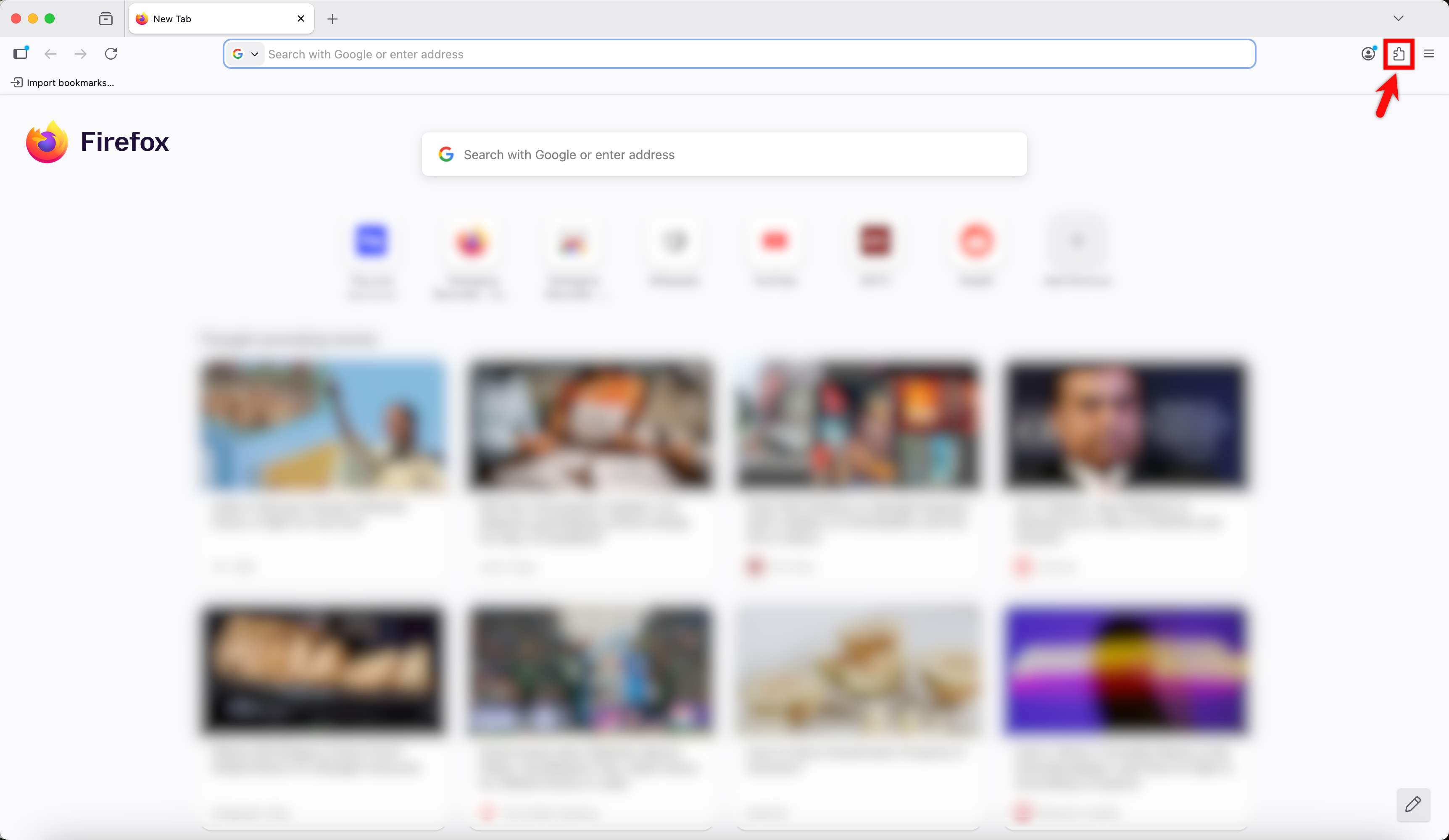
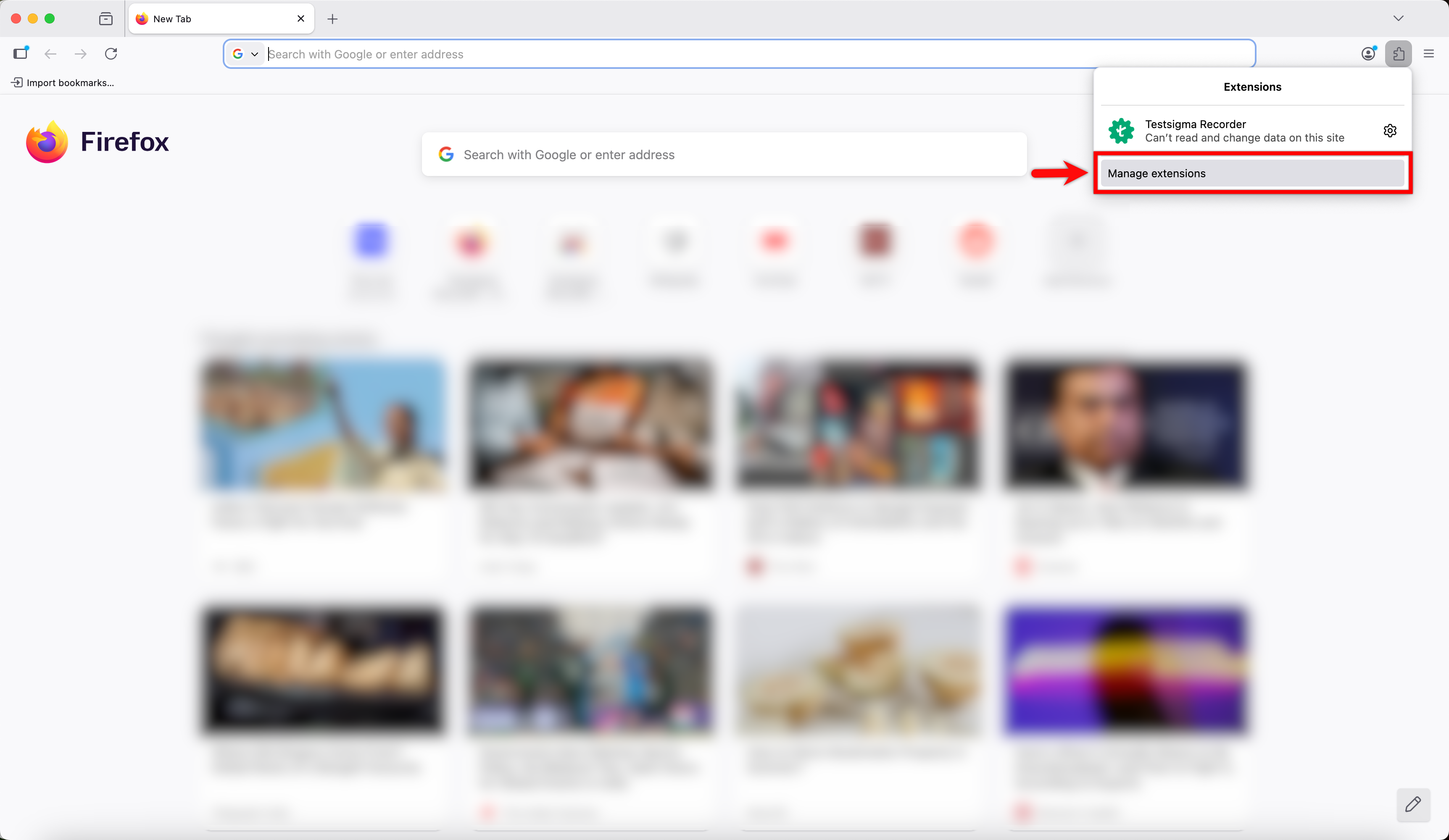
Click the Extension icon in the top right corner.
-
Navigate to Manage extensions.
-
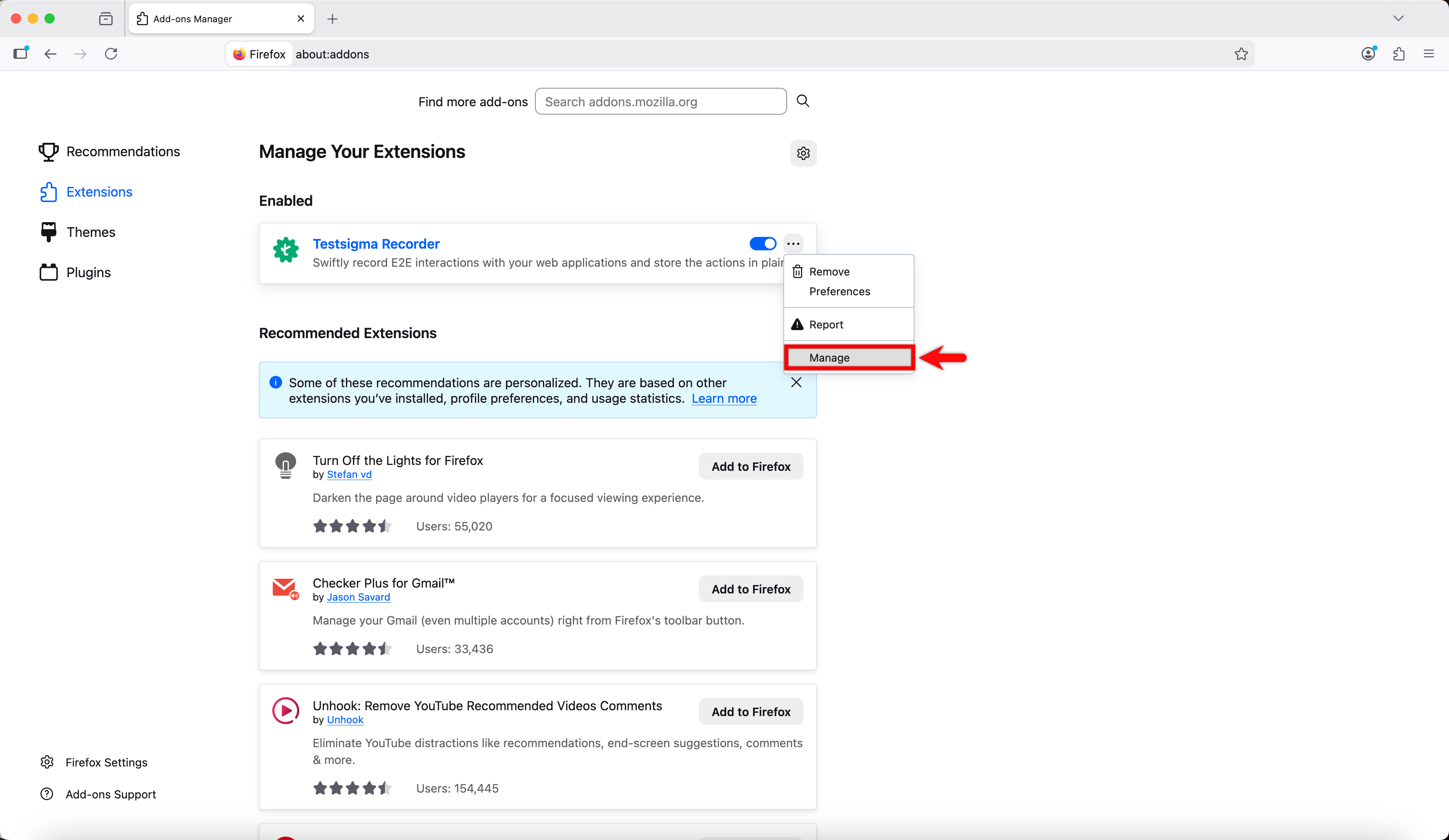
In the Testsigma Recorder extension and click on the Menu icon, then select Manage.
-
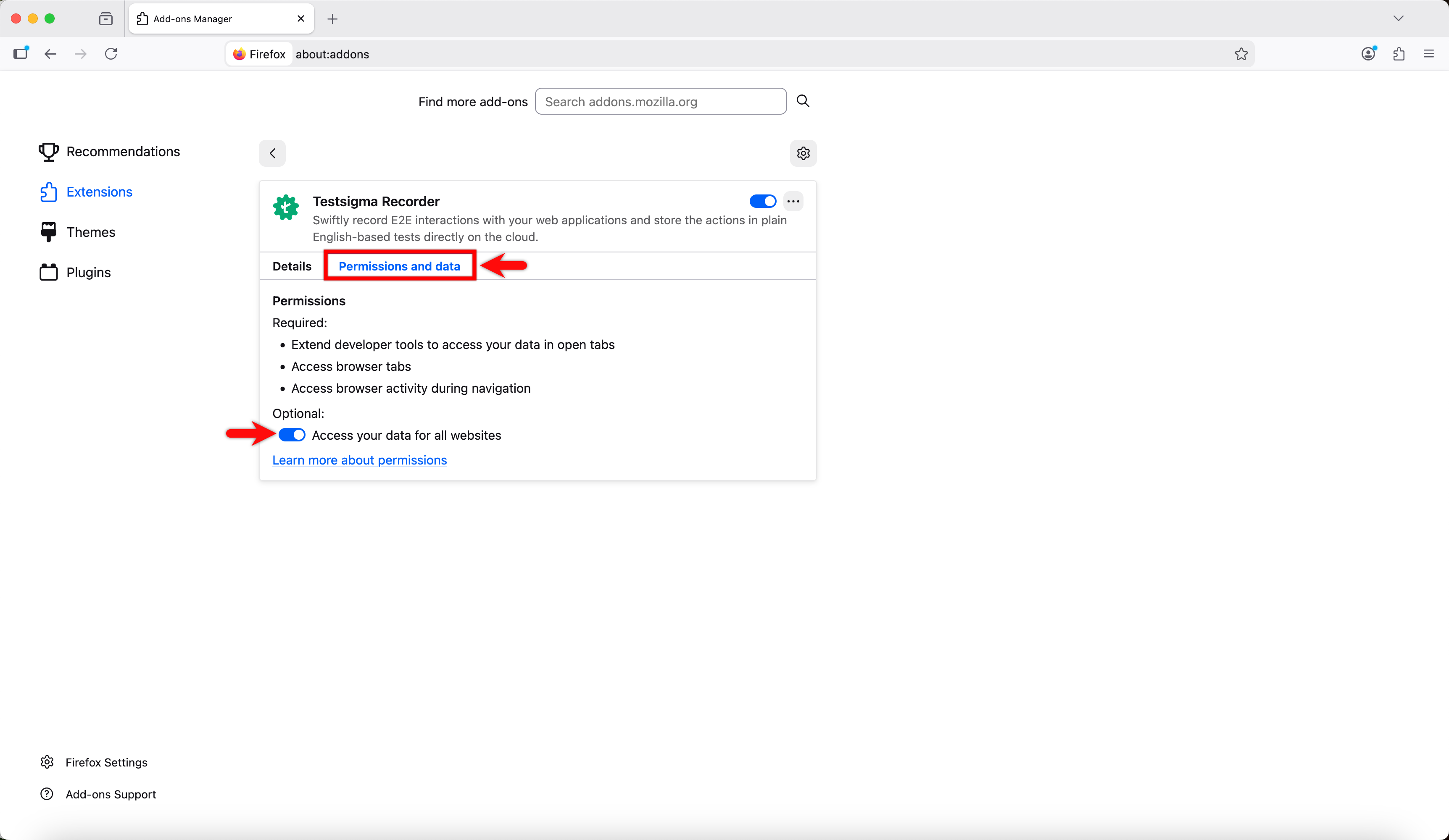
Under Testsigma Recorder details, go to the Permission tab and toggle on Access your data for all websites.
Privacy & Security Settings
Section titled “Privacy & Security Settings”-
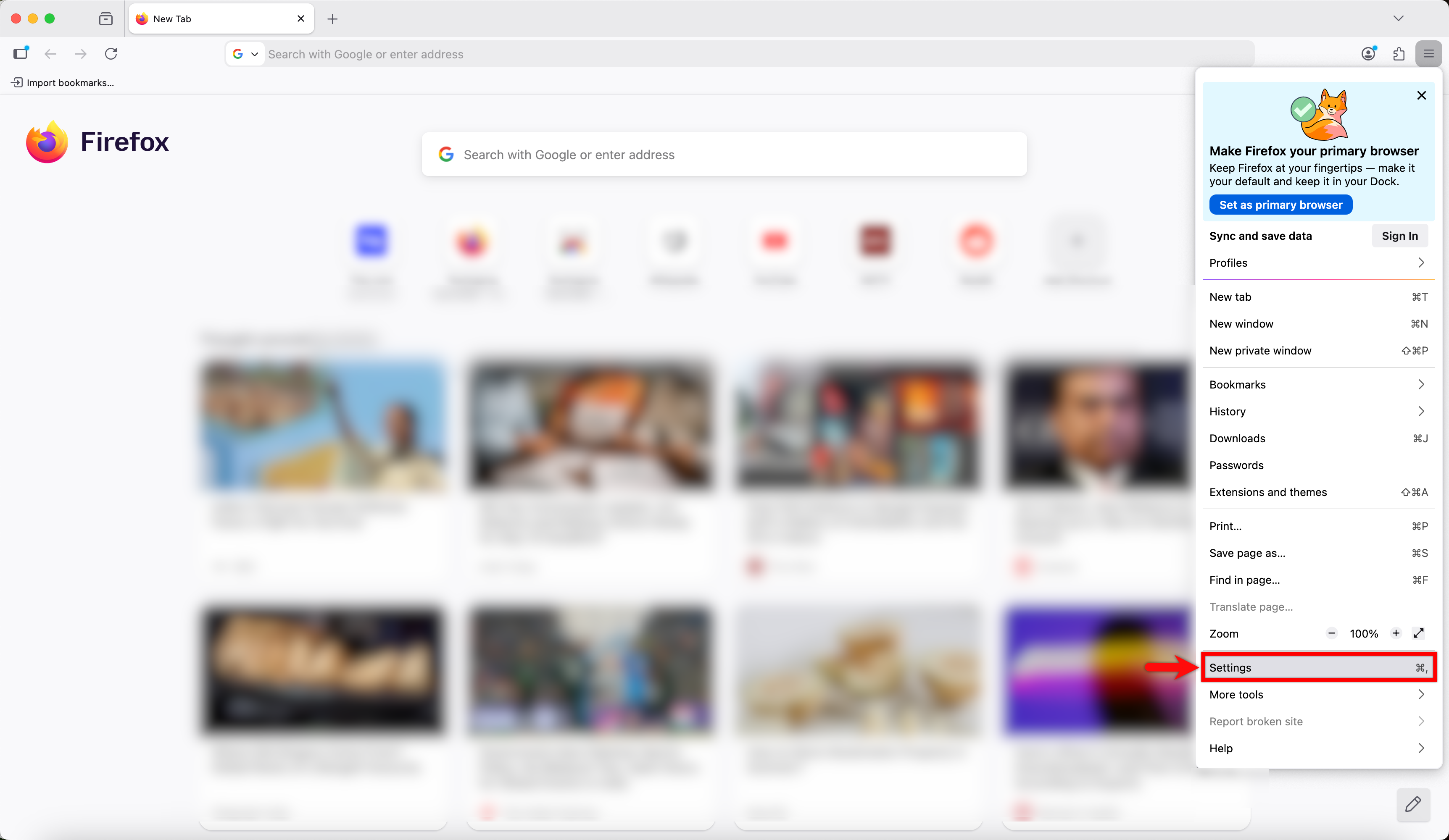
Click the Menu icon and select Settings.
-
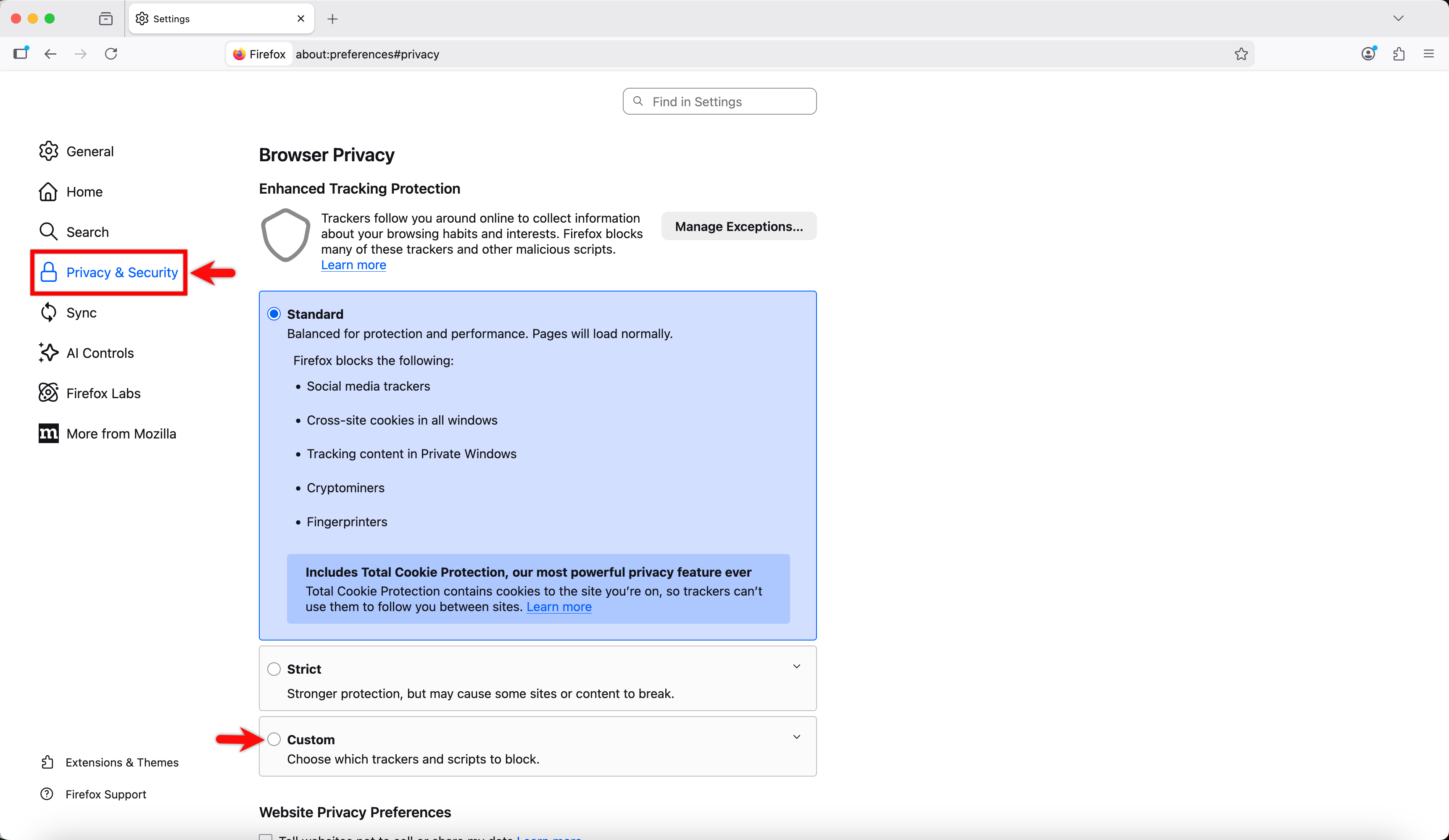
Go to Privacy & Security and choose Custom in Enhanced Tracking Protection.
-
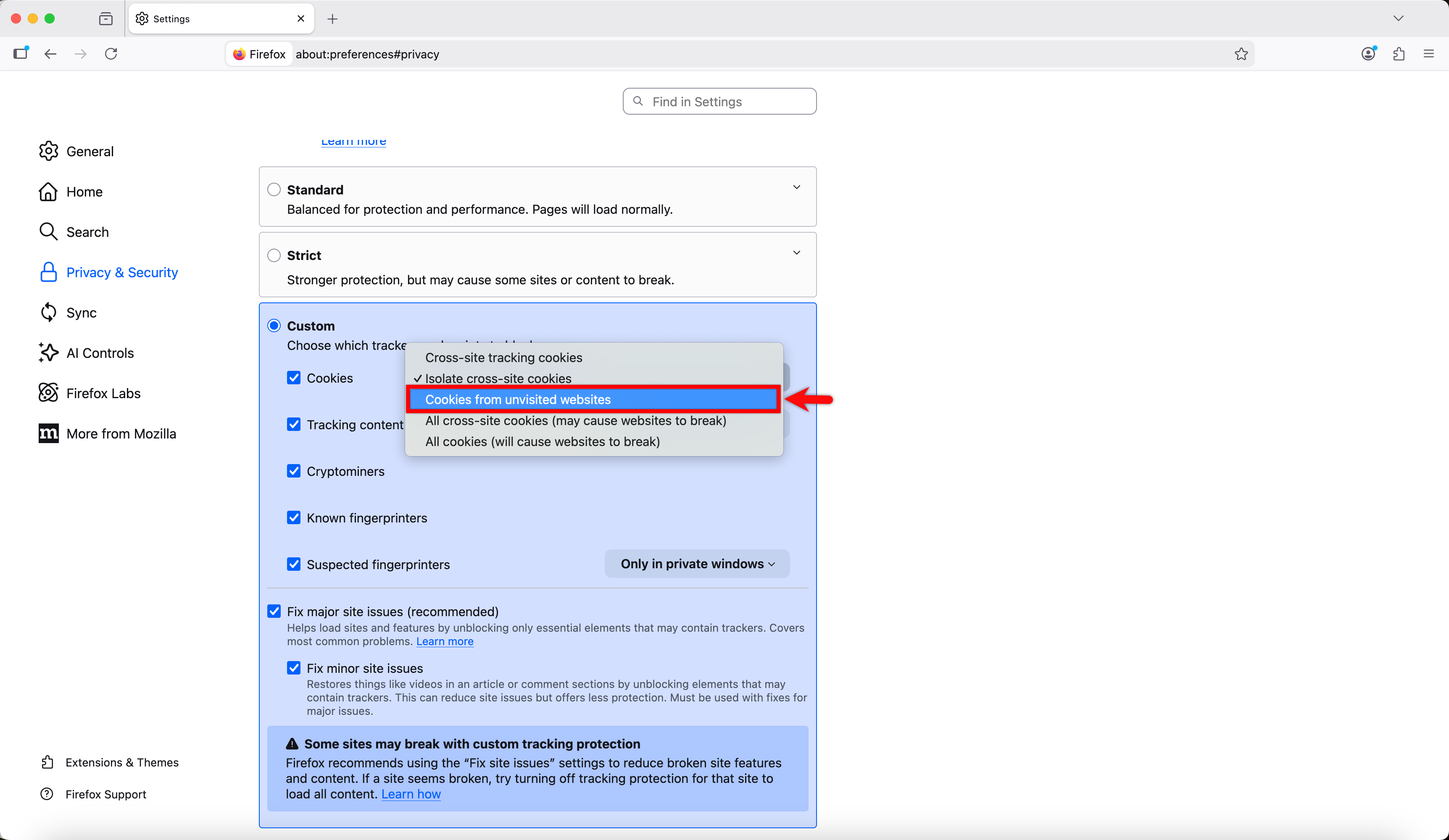
In the Custom settings, select Cookies from unvisited websites from the dropdown next to Cookies.
-
Click Reload All Tabs to apply the changes in the browser.