Elements
Record Multiple Elements Using Recorder
Prerequisites
Before you begin, ensure that:
- You have referred to the documentation on creating projects.
- You have referred to the documentation on creating applications.
- You have installed the Testsigma Chrome Extension. For more information on installing Testsigma Chrome Extension, refer to the documentation on Testsigma Chrome Extension.
- You have a mobile web application that is available for testing.
Steps to Record Elements for Mobile Web Apps
Section titled “Steps to Record Elements for Mobile Web Apps”-
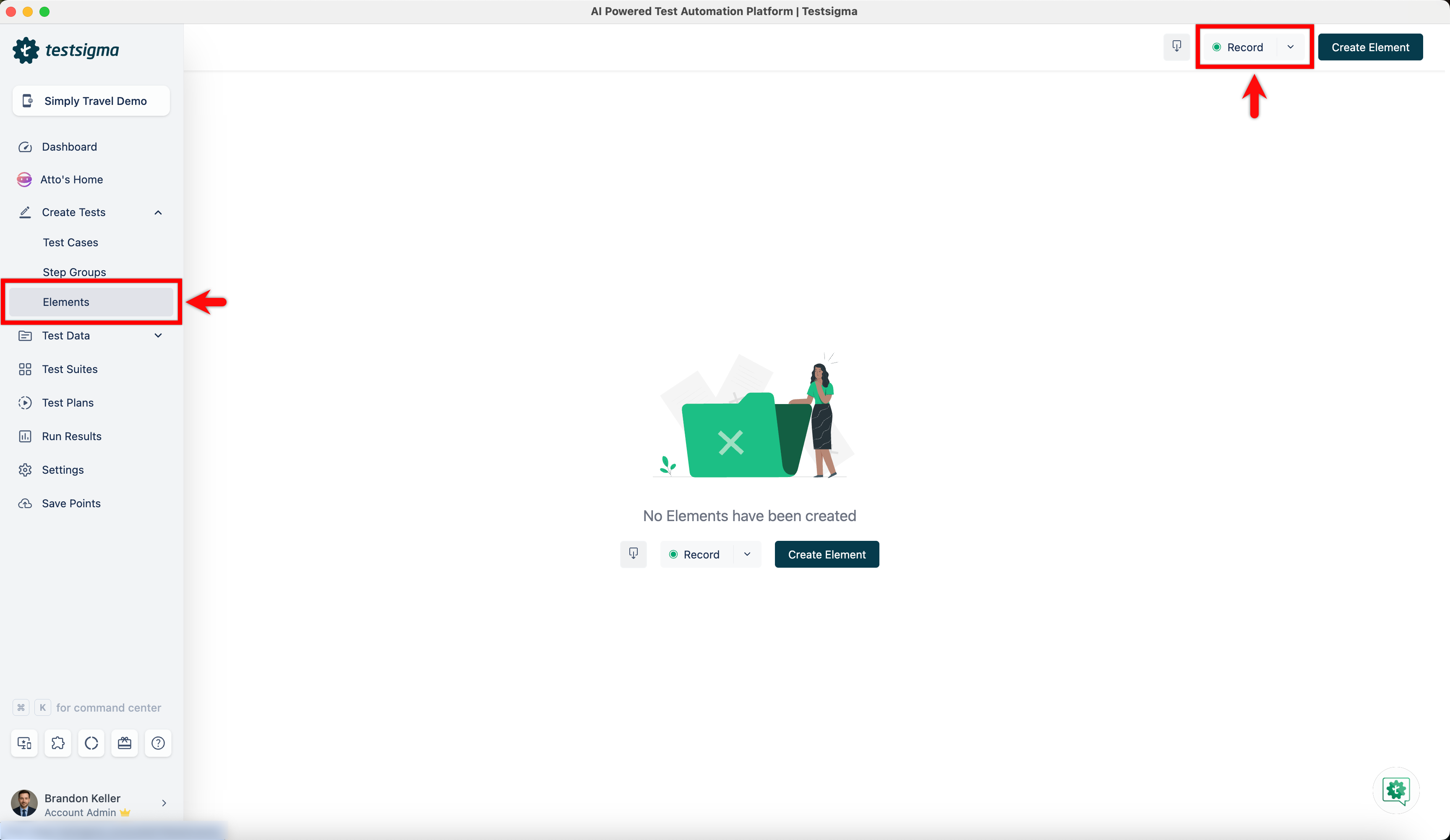
From the left navigation bar, go to Create Tests > Elements, and click Record.
-
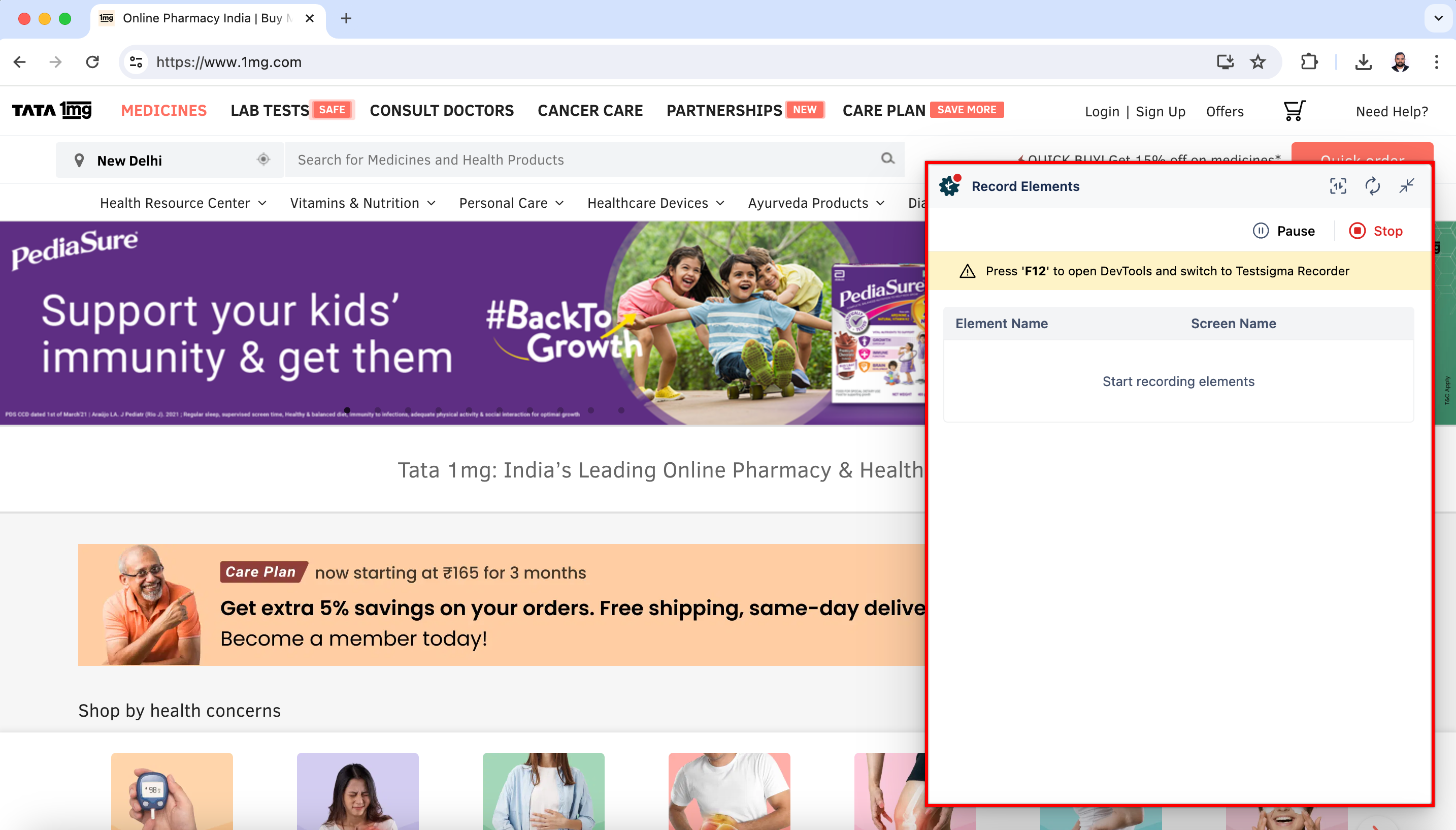
This will open a new window. Enter the URL from which you want to capture the elements. The Testsigma Recorder will appear and be ready to start recording. In this case, we are recording elements for the 1mg website.
-
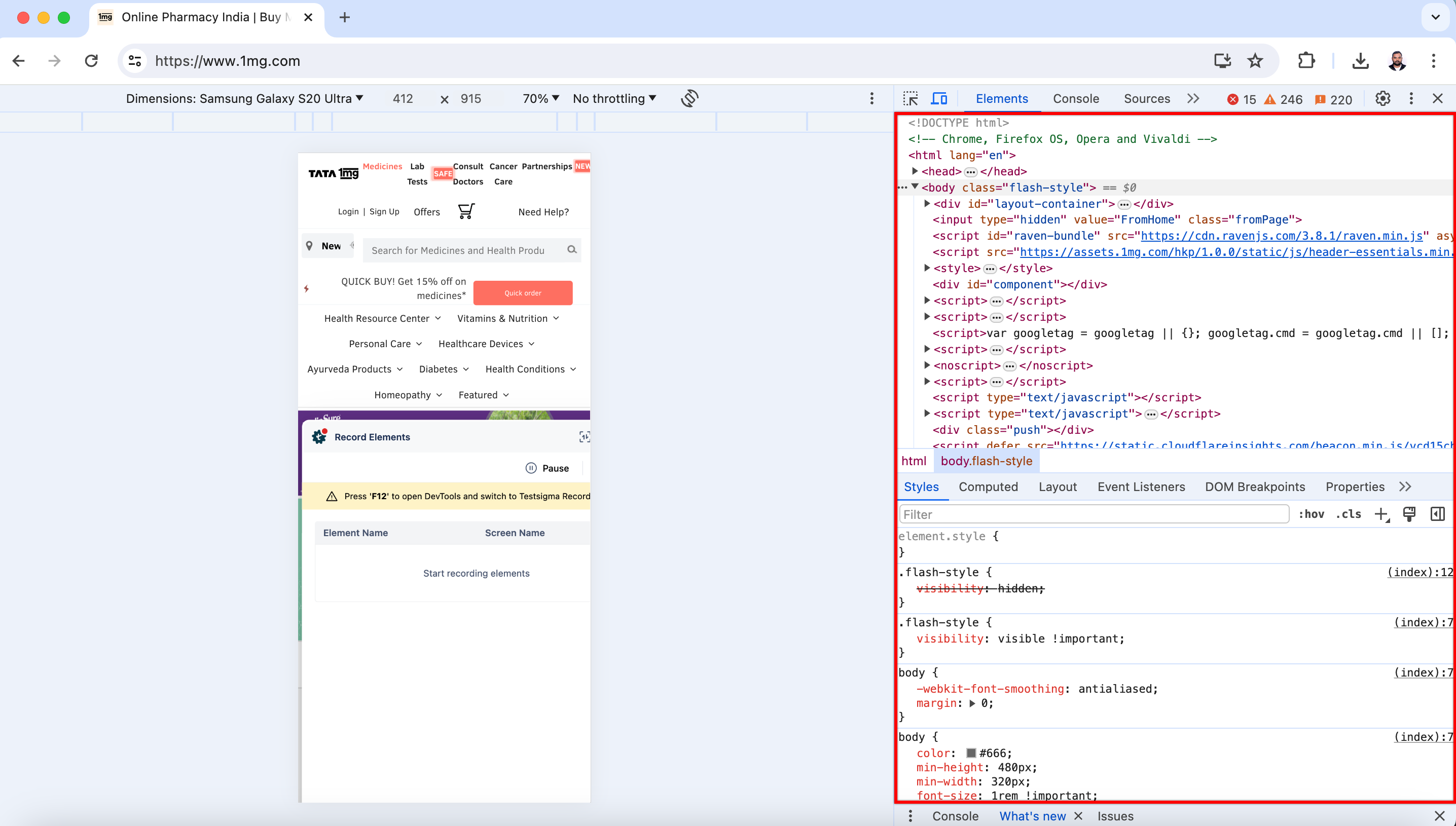
Press F12 to open Chrome Developer Tools and dock the tools to the right side of the window for a better experience.
-
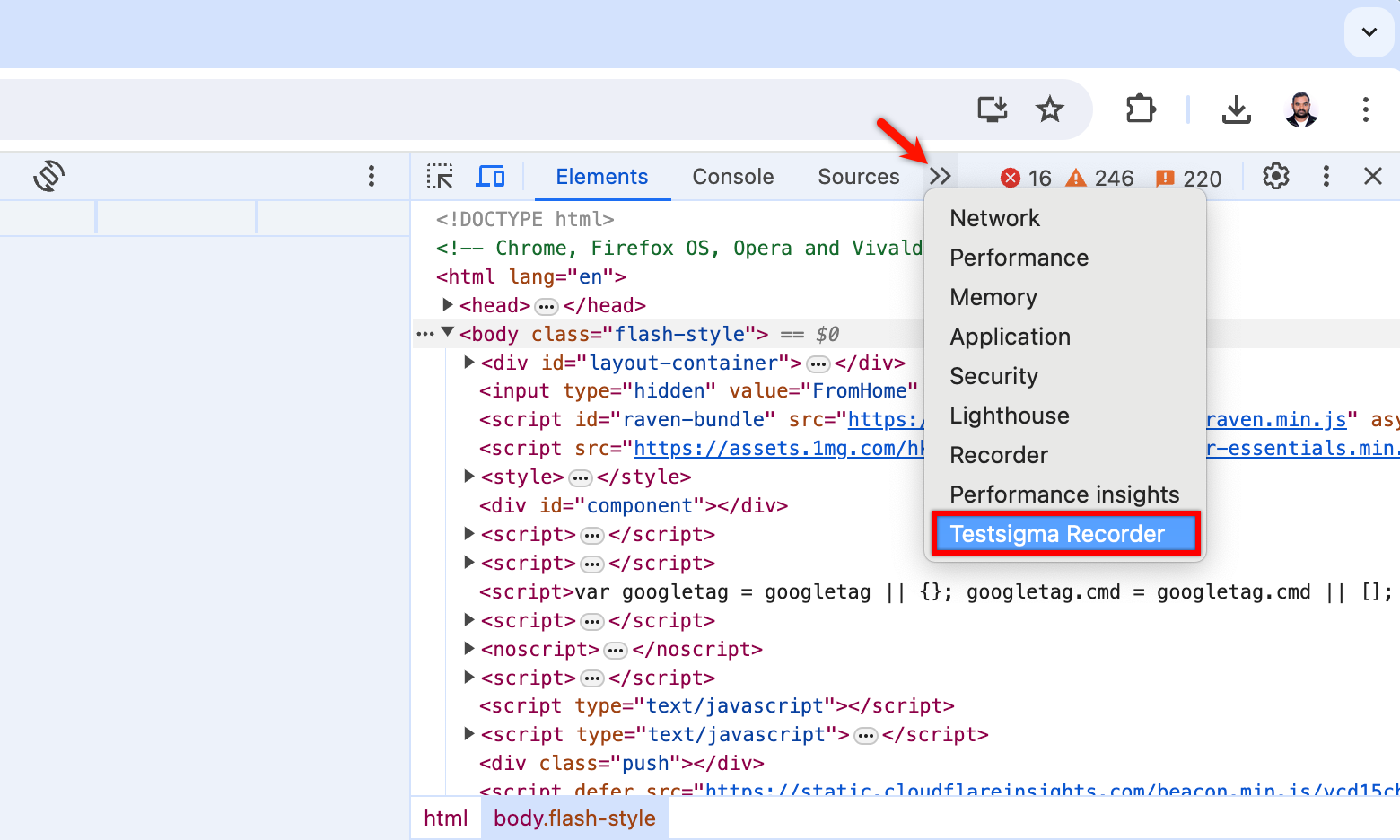
Click on >> and select Testsigma Recorder from the dropdown menu.
-
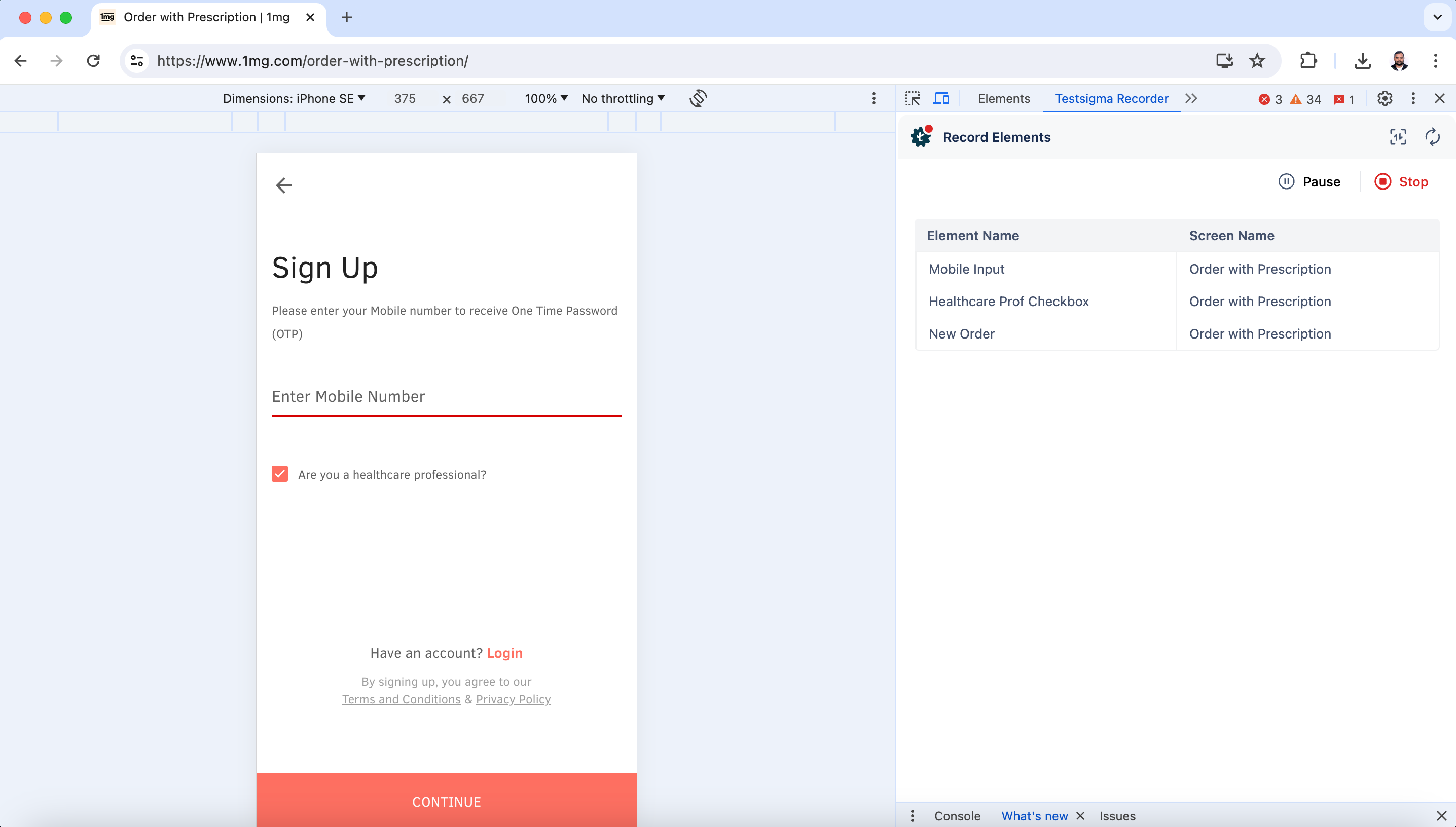
This will open Testsigma Recorder on the Developer Tools screen.
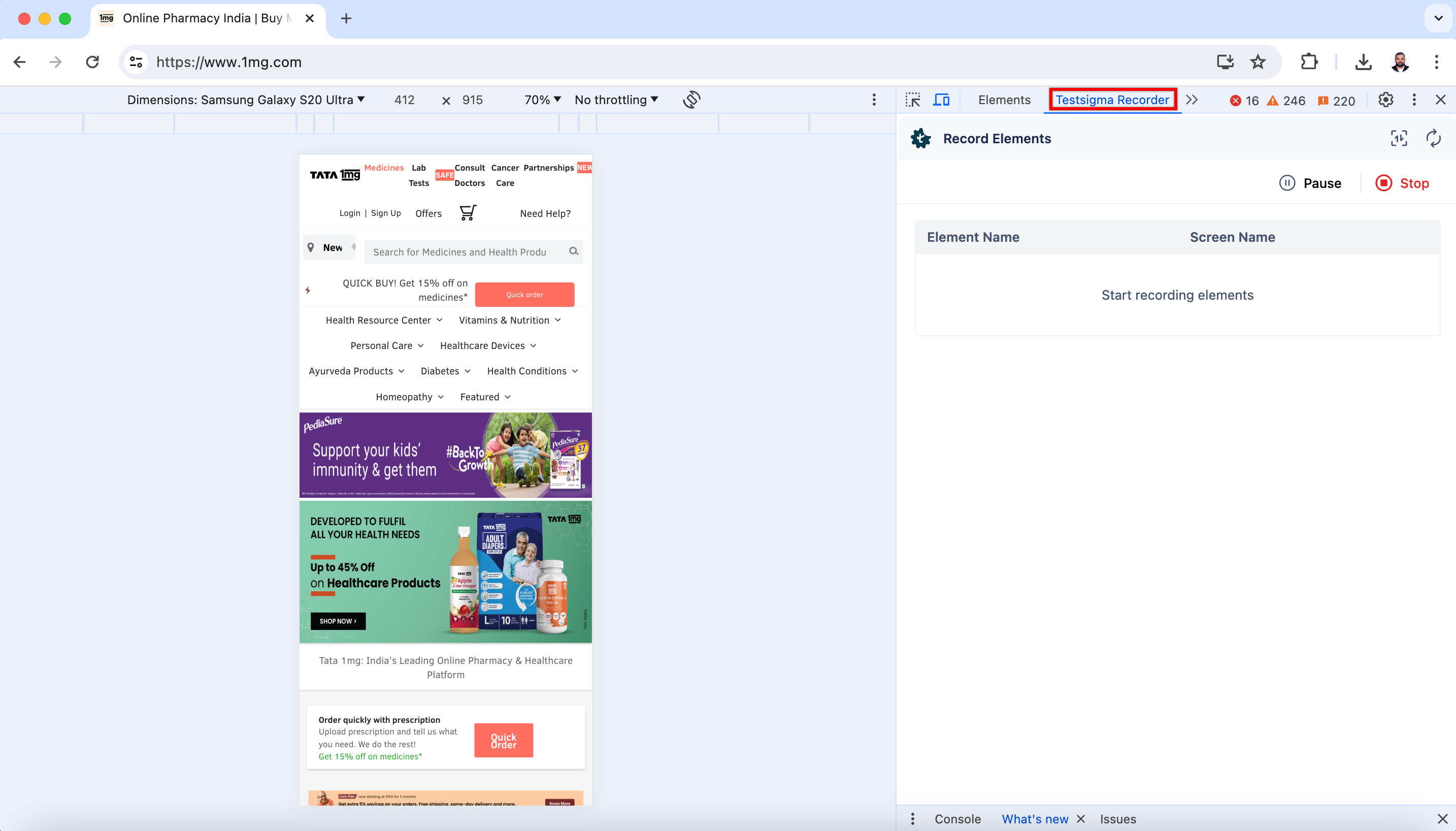
- Once the dimension is selected, click directly on the elements to capture them, and click Stop when you are done capturing the required elements.