
Test Cases
Test Step Type: Blocks
Prerequisites
Before you begin, ensure that you have referred to:
Create a Block using Test Step Type
Section titled “Create a Block using Test Step Type”Follow the below steps to add a block using the test step type:
-
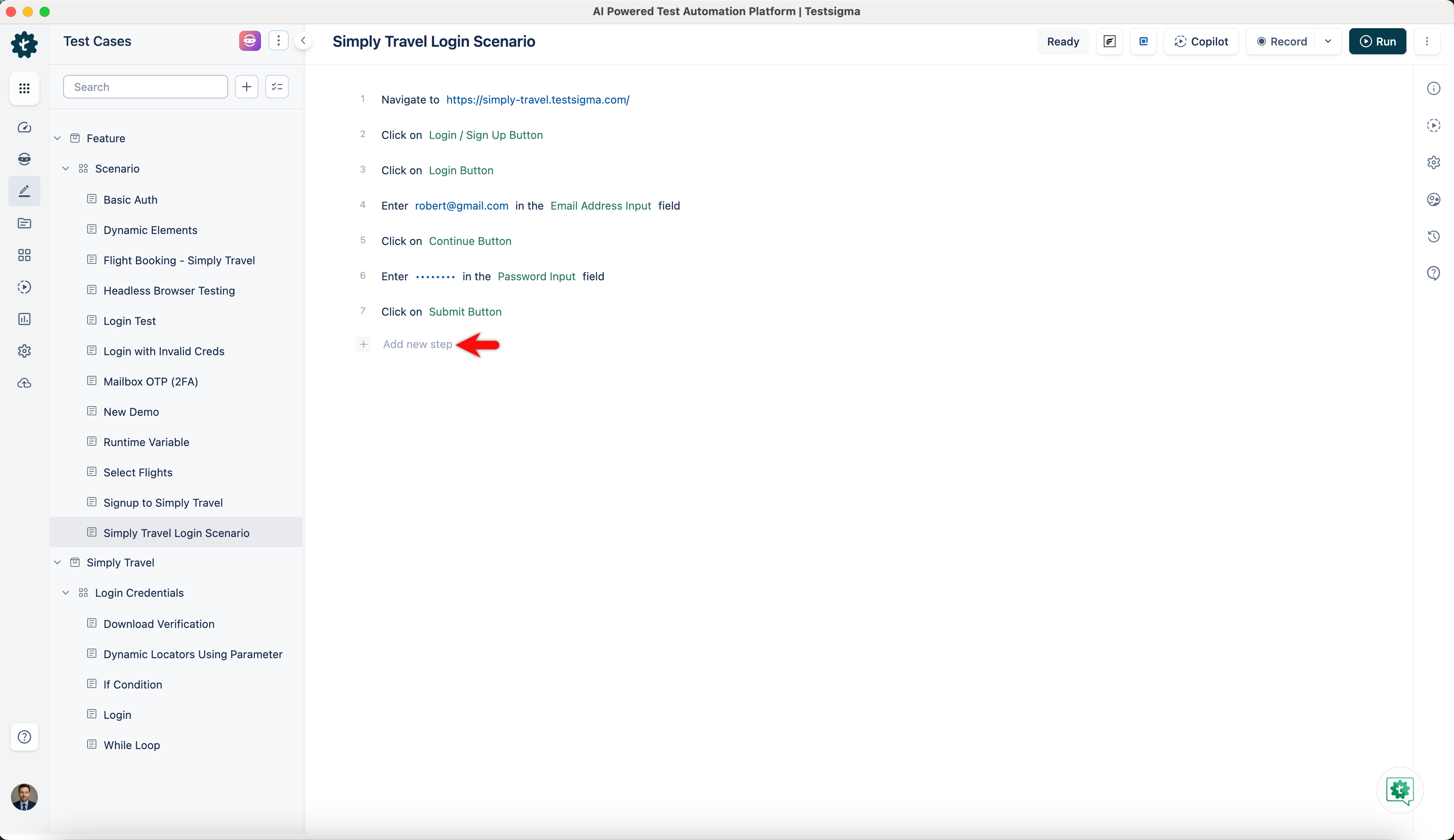
Click + Add new step on the Test Case Details page where you want to insert a block.
-
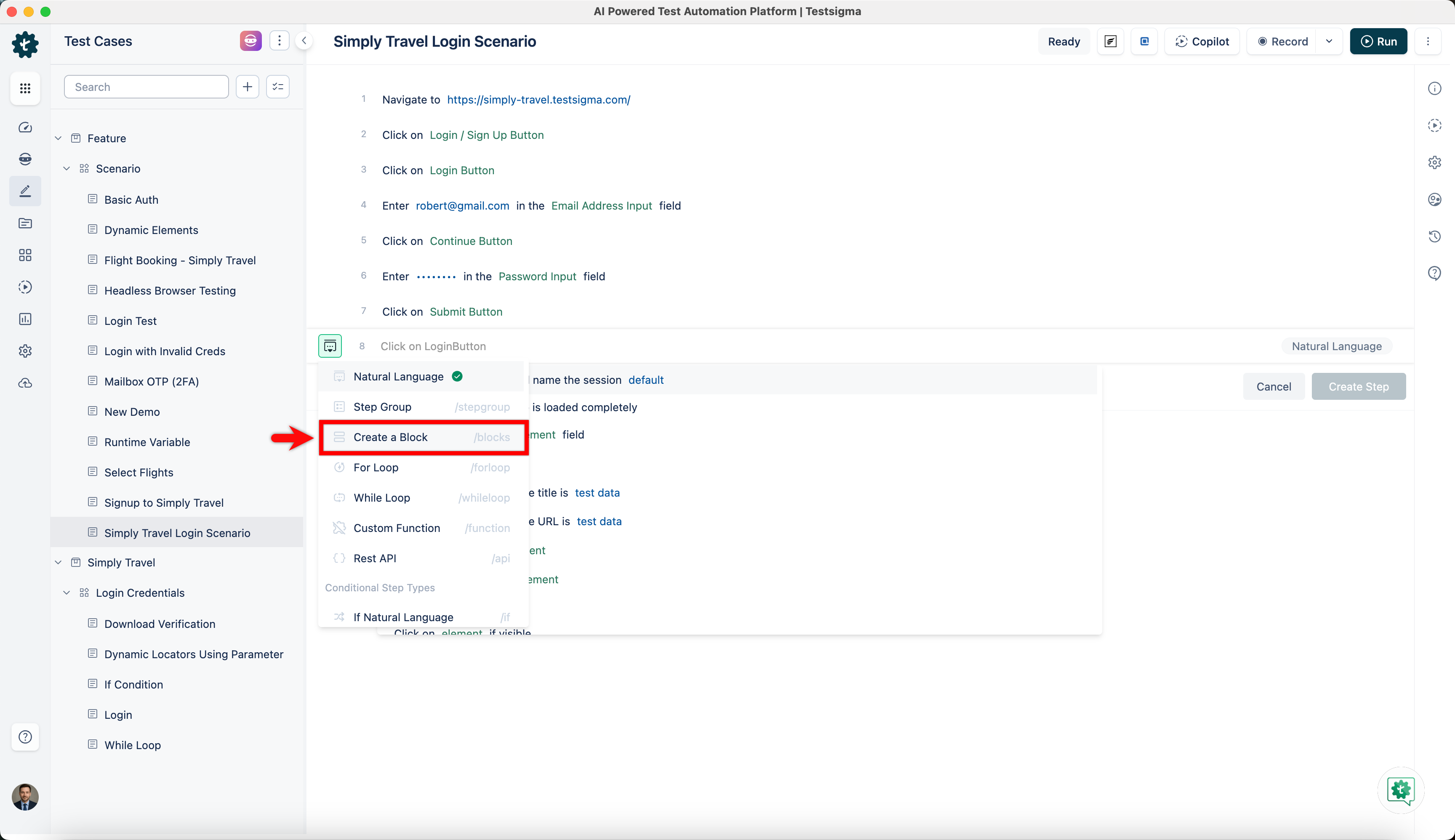
Click on the Test Step Type button located before the new test step and select Create a Block from the dropdown list that appears.
-
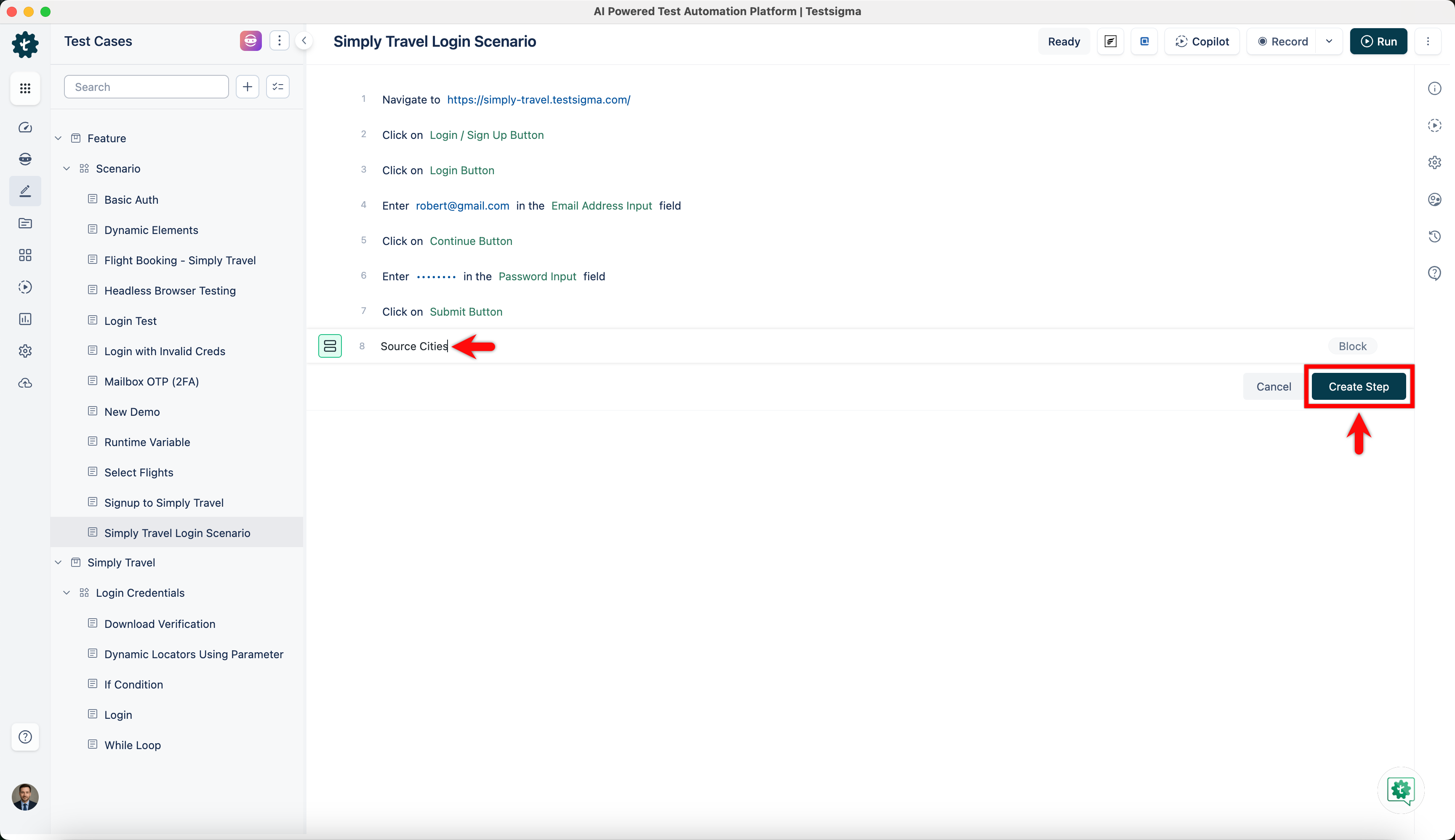
Once you’ve selected the block, enter a title and click Create Step.
-
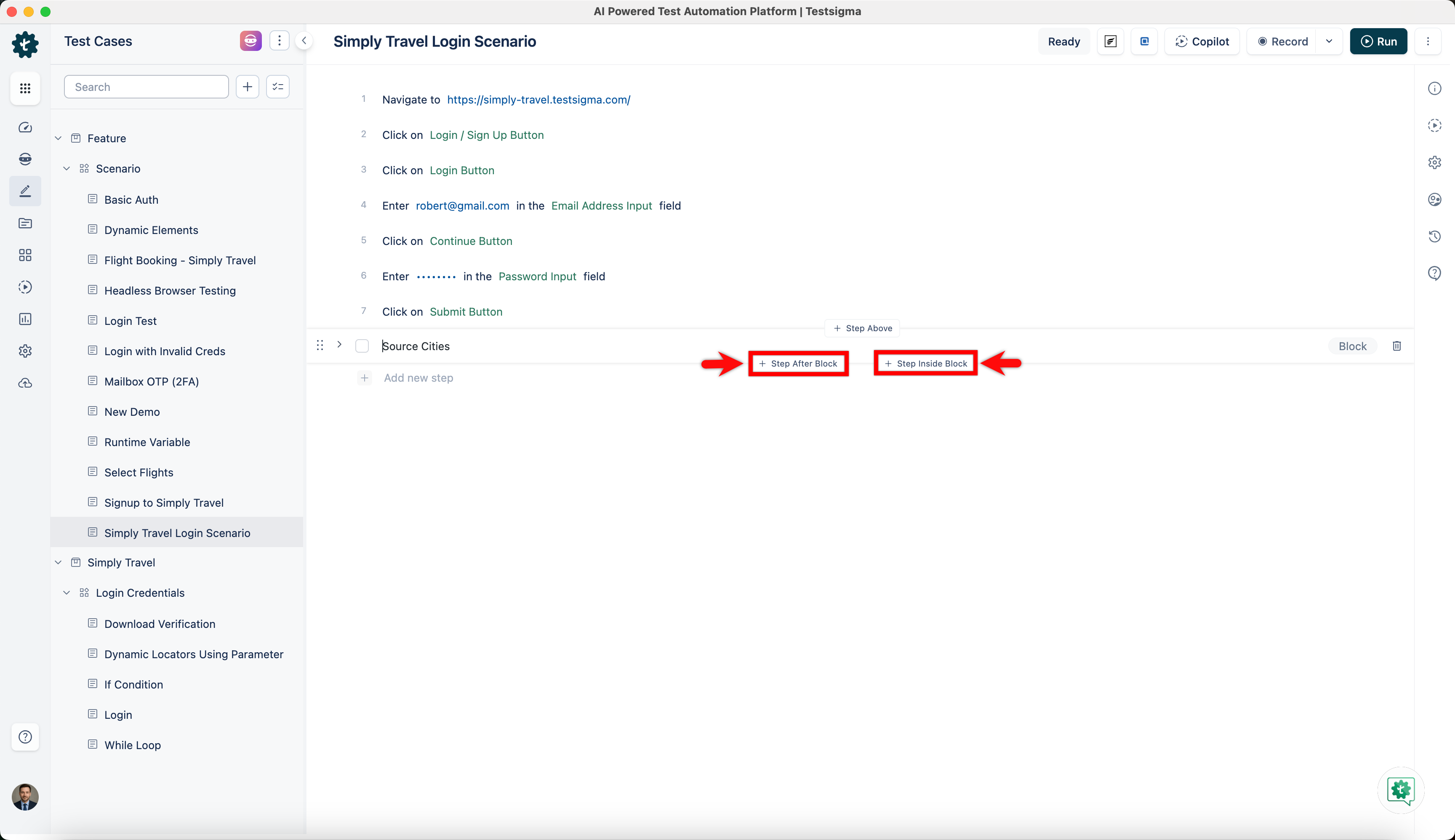
To add a step within the block, click Step Inside Block, and to add a test step after the block, click Step After Block.
Create a Block using Bulk Action
Section titled “Create a Block using Bulk Action”Follow the below steps to add a block using the bulk action:
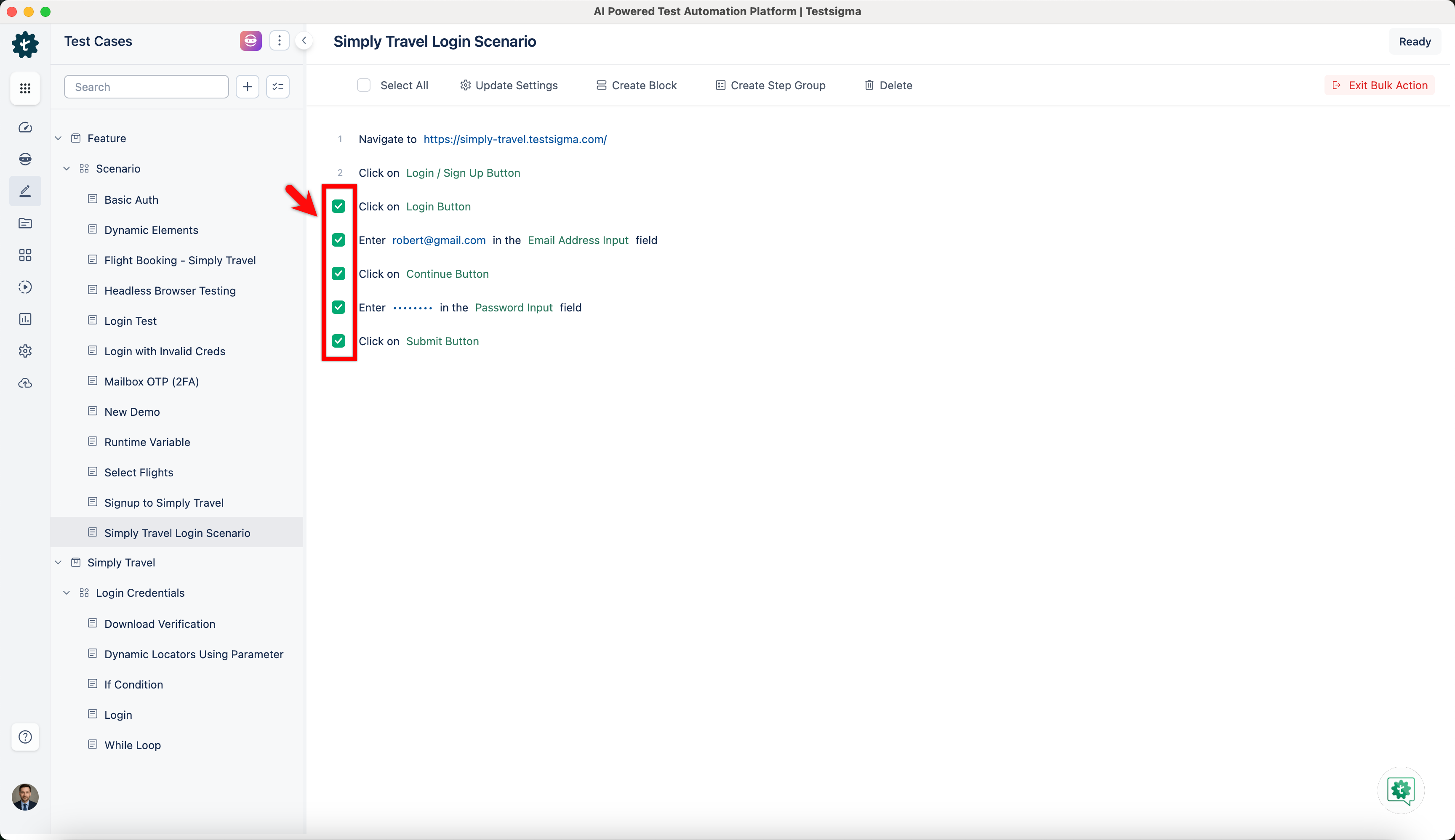
- Add the test steps you want to the block by selecting them on the Test Case Details page.
-
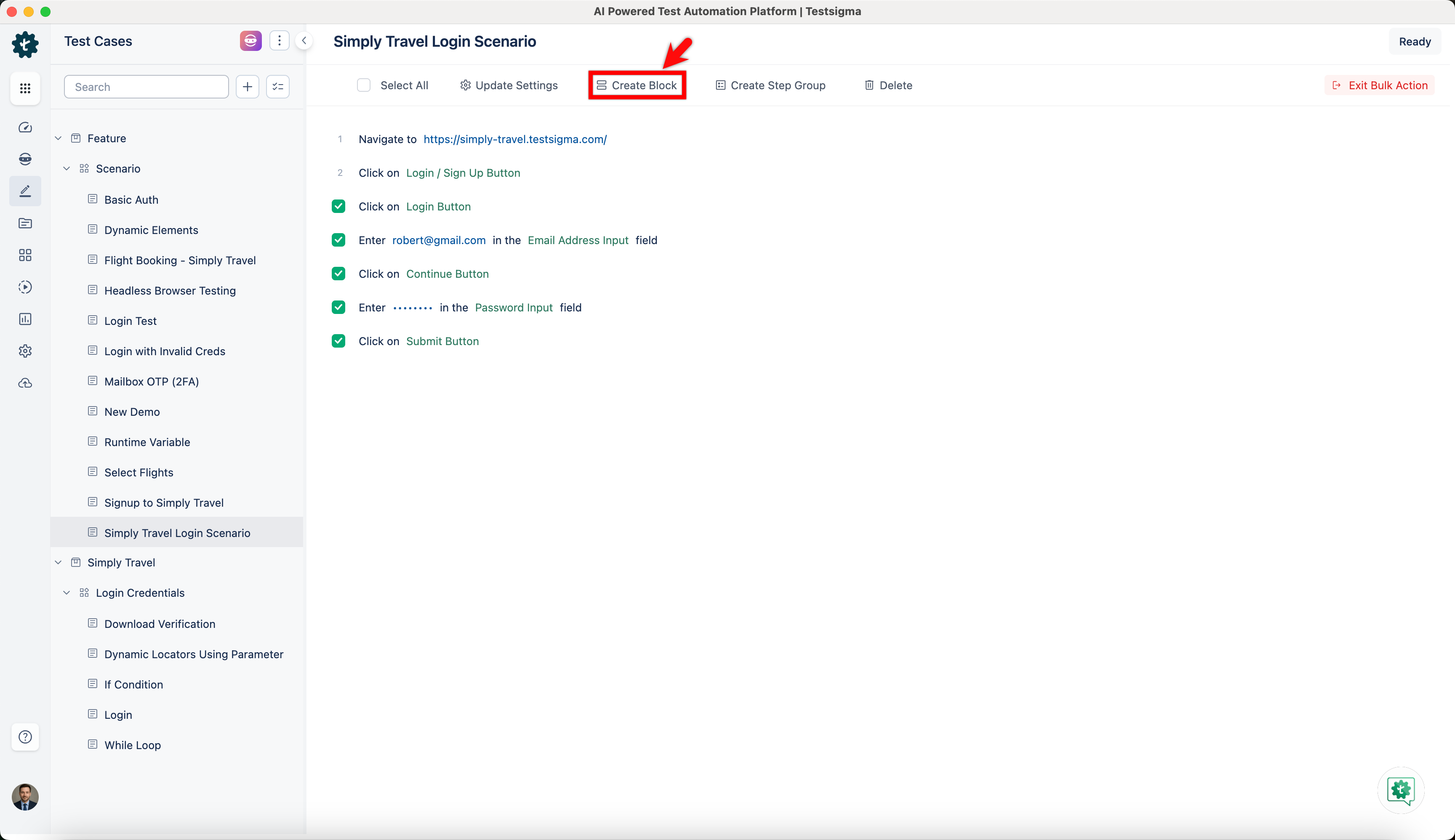
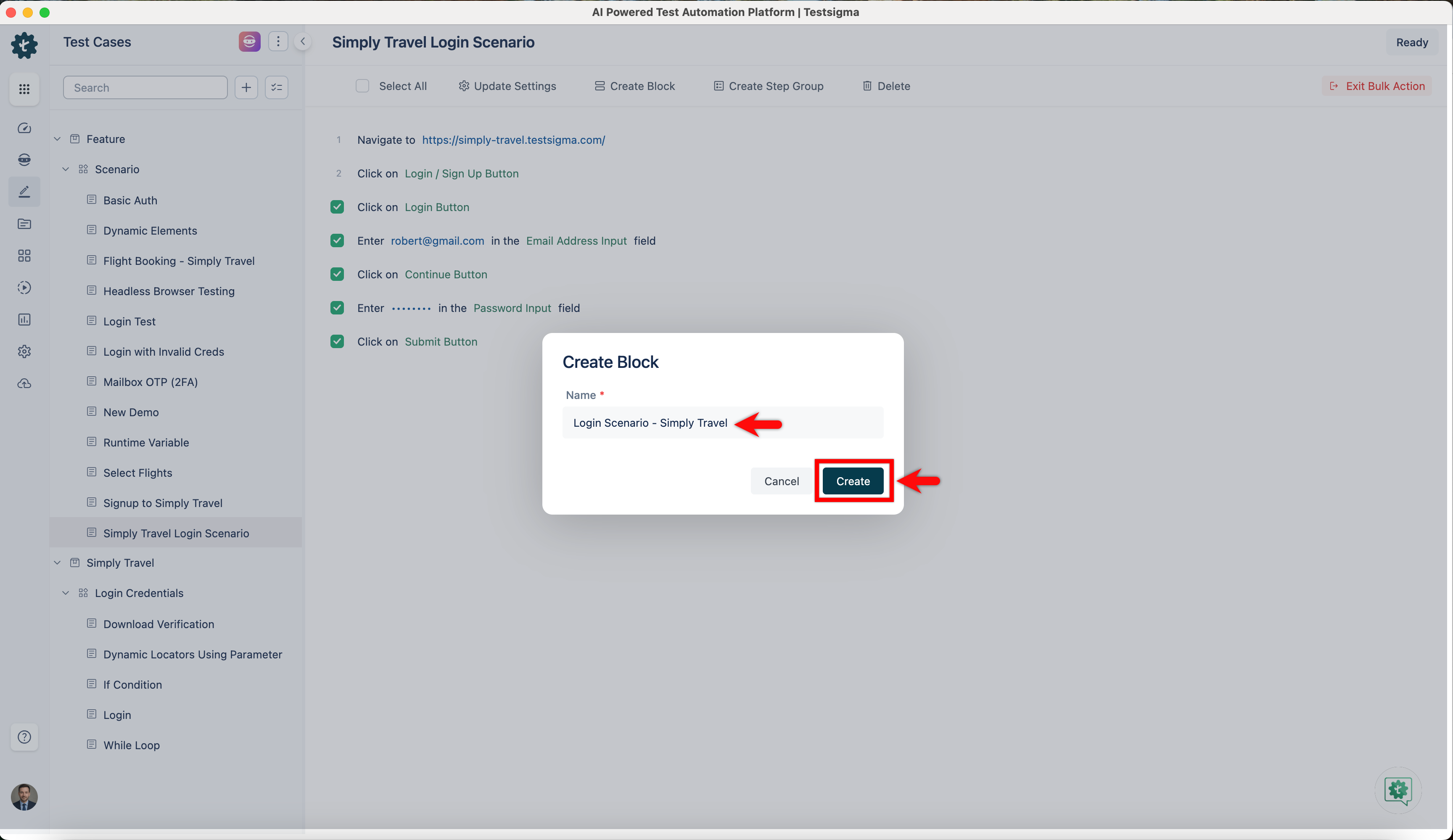
Click the Create Block option in the menu bar, and a Create Block pop-up window will appear. Enter the title and click Create.
-
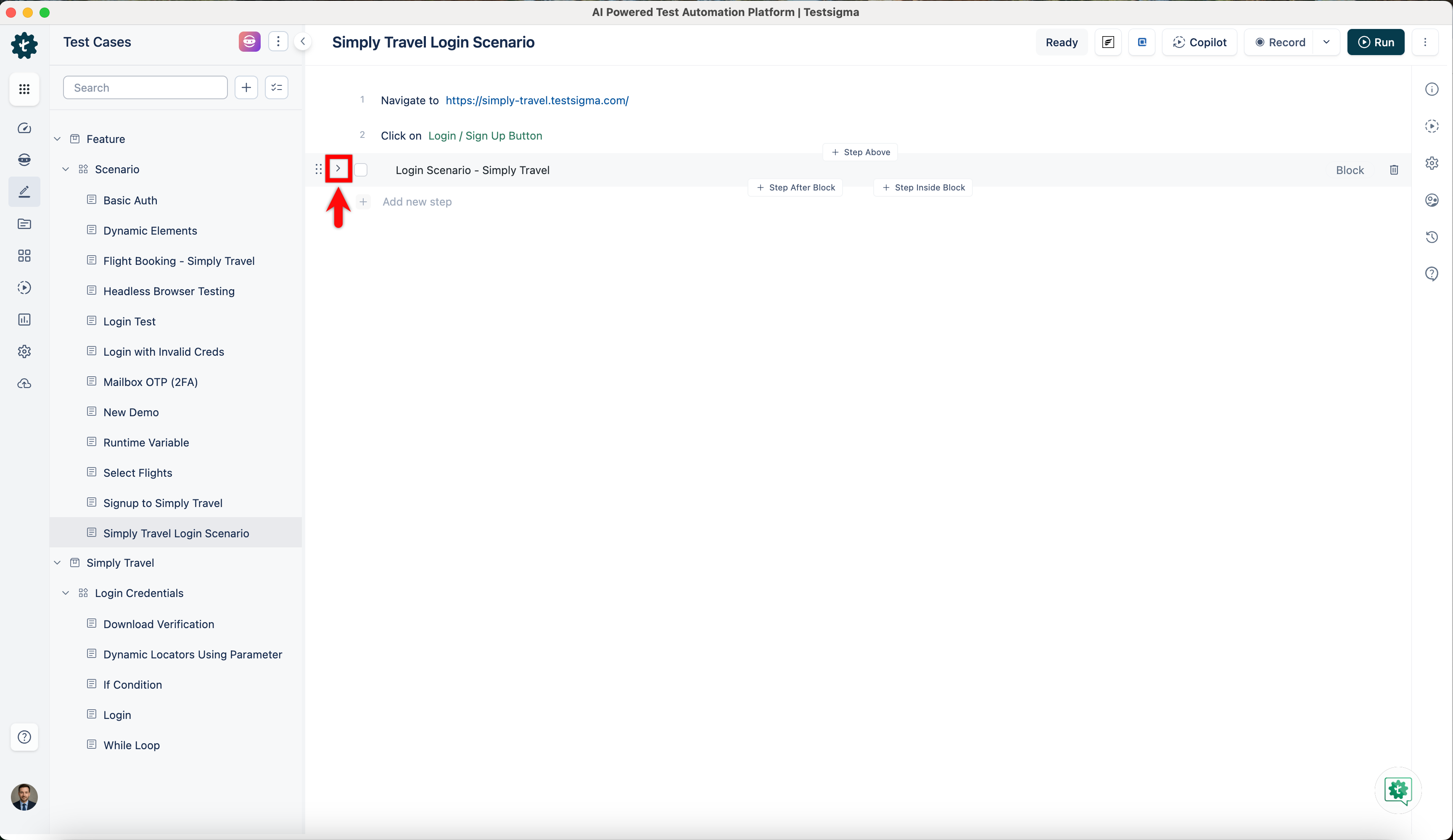
Click the > icon on the left to expand and view the selected steps within the collapsed block with the given title.
Editing a Block
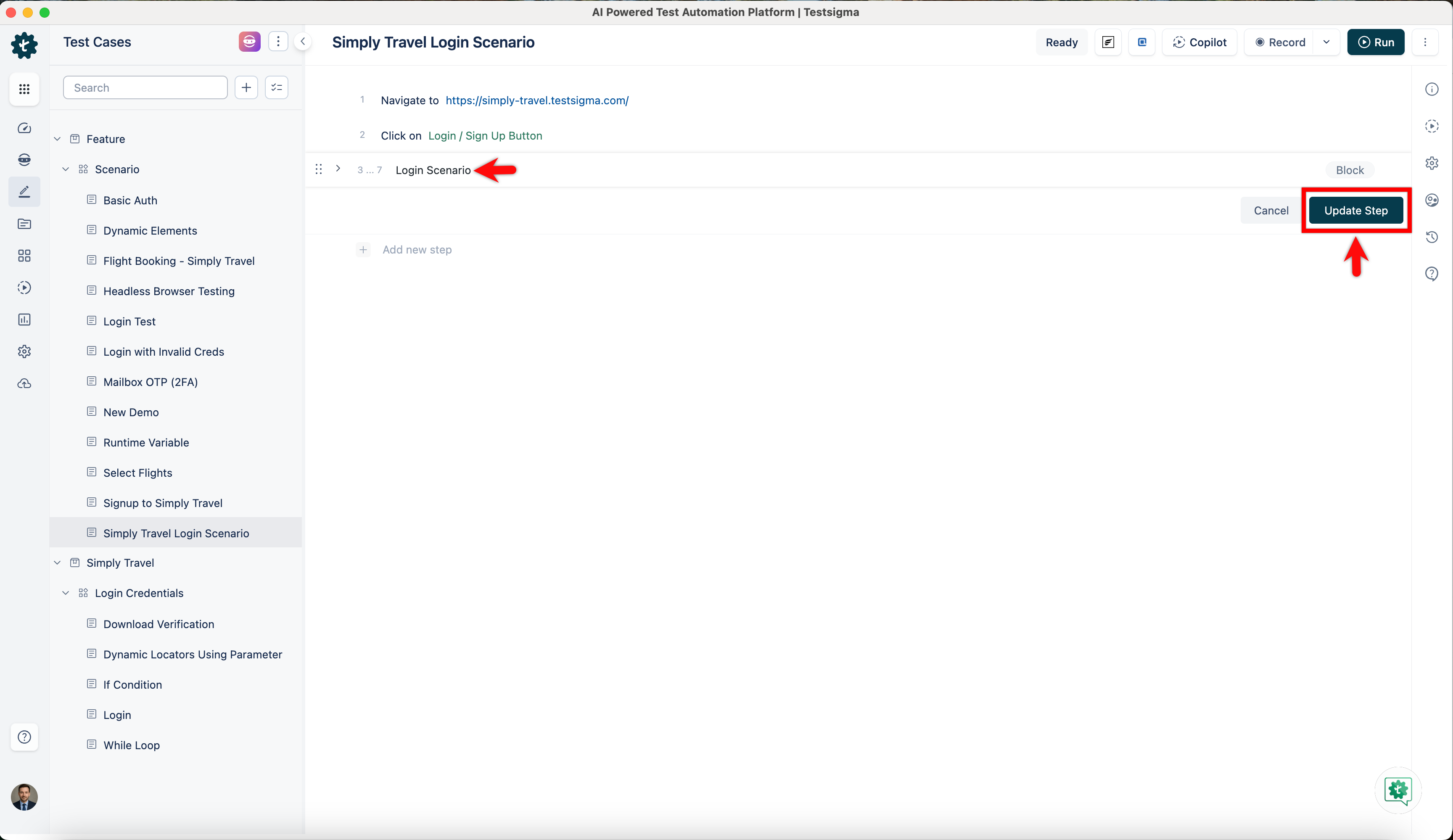
Section titled “Editing a Block”Open the test case with the Step Block you want to edit. Choose the block, edit its name, and click Update Step to save.
Click the > icon to view the steps within the block. To add a test step, click Step Inside Block, or click the ellipsis icon in the test step to access additional options.
Deleting a Block
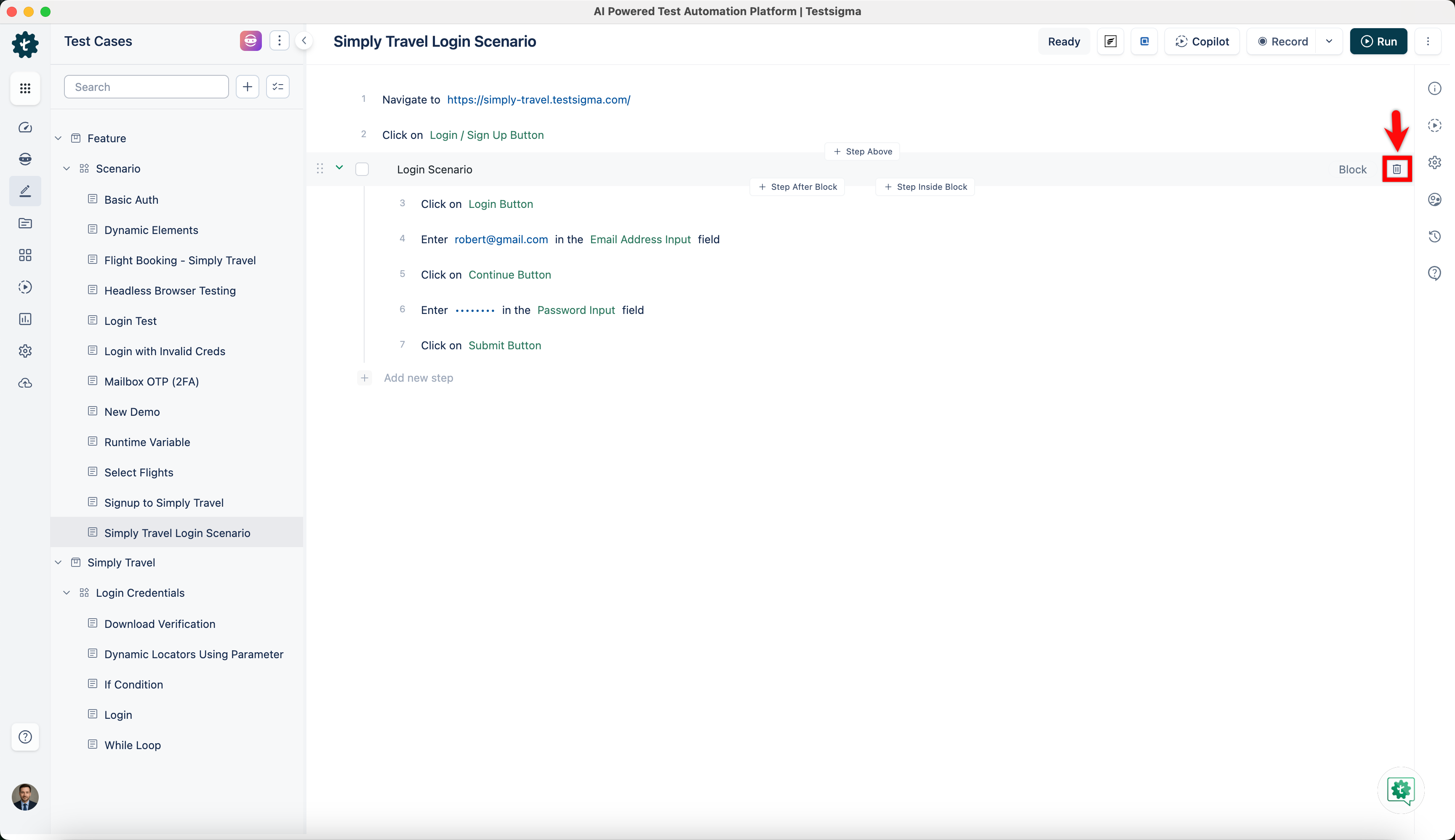
Section titled “Deleting a Block”To delete a Step Block, open the test case containing it and click the Delete button corresponding to the Block Step.
Clicking on the delete button will delete the block, as it is only considered a label for the test steps, and the test steps inside it will remain intact.
Actions Possible on a Block
Section titled “Actions Possible on a Block”- Reordering Steps: Within a Step Block, you can change the order of steps.
- Moving Block: You can move a Step Block and its contained steps to a different location within the same test case.
Actions not Possible on a Block
Section titled “Actions not Possible on a Block”- Nesting Blocks: You cannot nest Step Blocks inside other Step Blocks.
- Converting to Regular Steps: Once created, you cannot directly convert a Step Block into an individual test step.