Test Cases
Label Management in Testsigma
Prerequisites
Before you begin, ensure that you have referred to:
Steps to Create a Label
Section titled “Steps to Create a Label”-
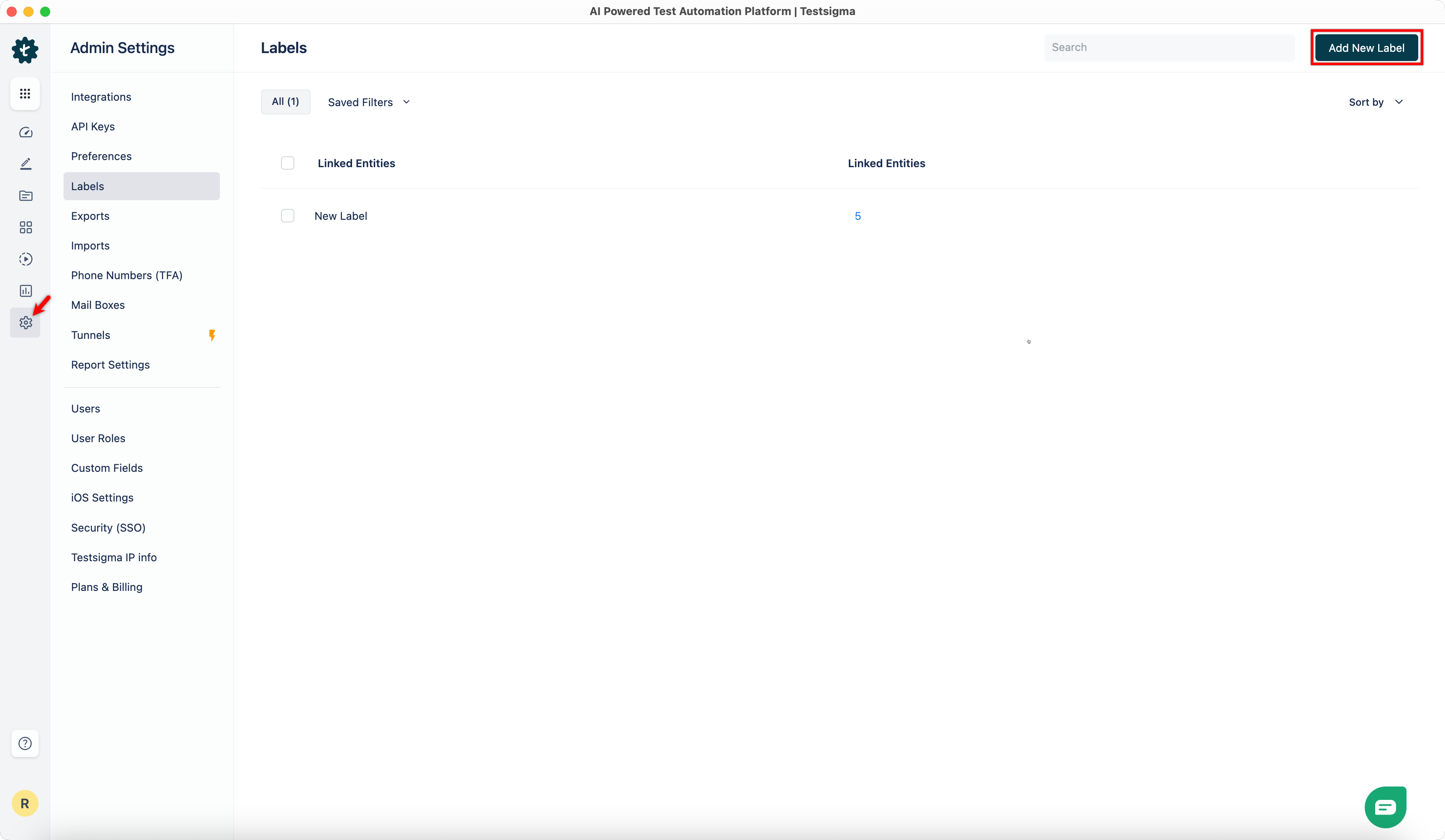
From the left navigation bar, go to Settings > Labels, and click Add New Label in the top-right corner.
-
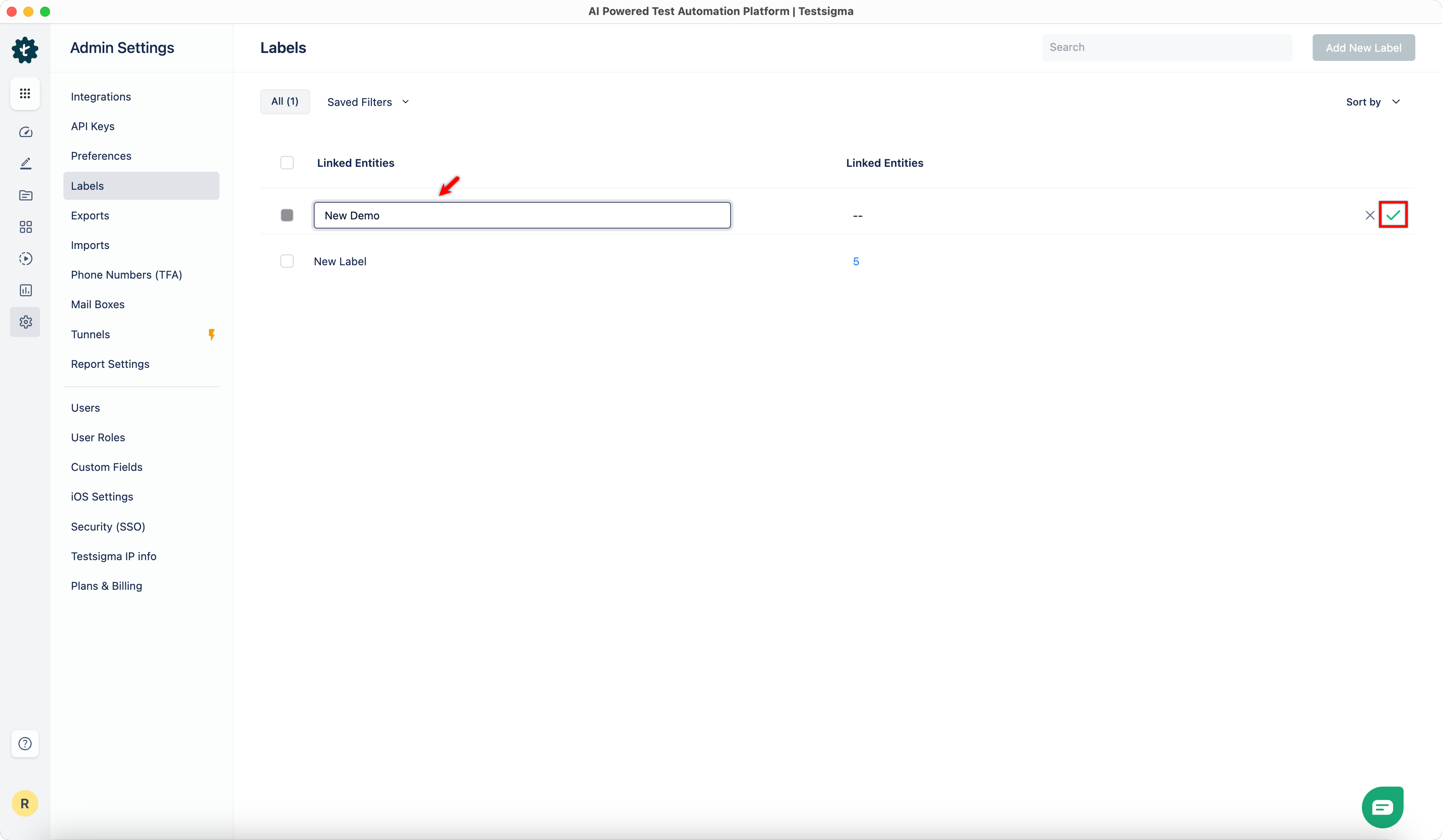
Enter a name and click the tick mark icon to save the label.
-
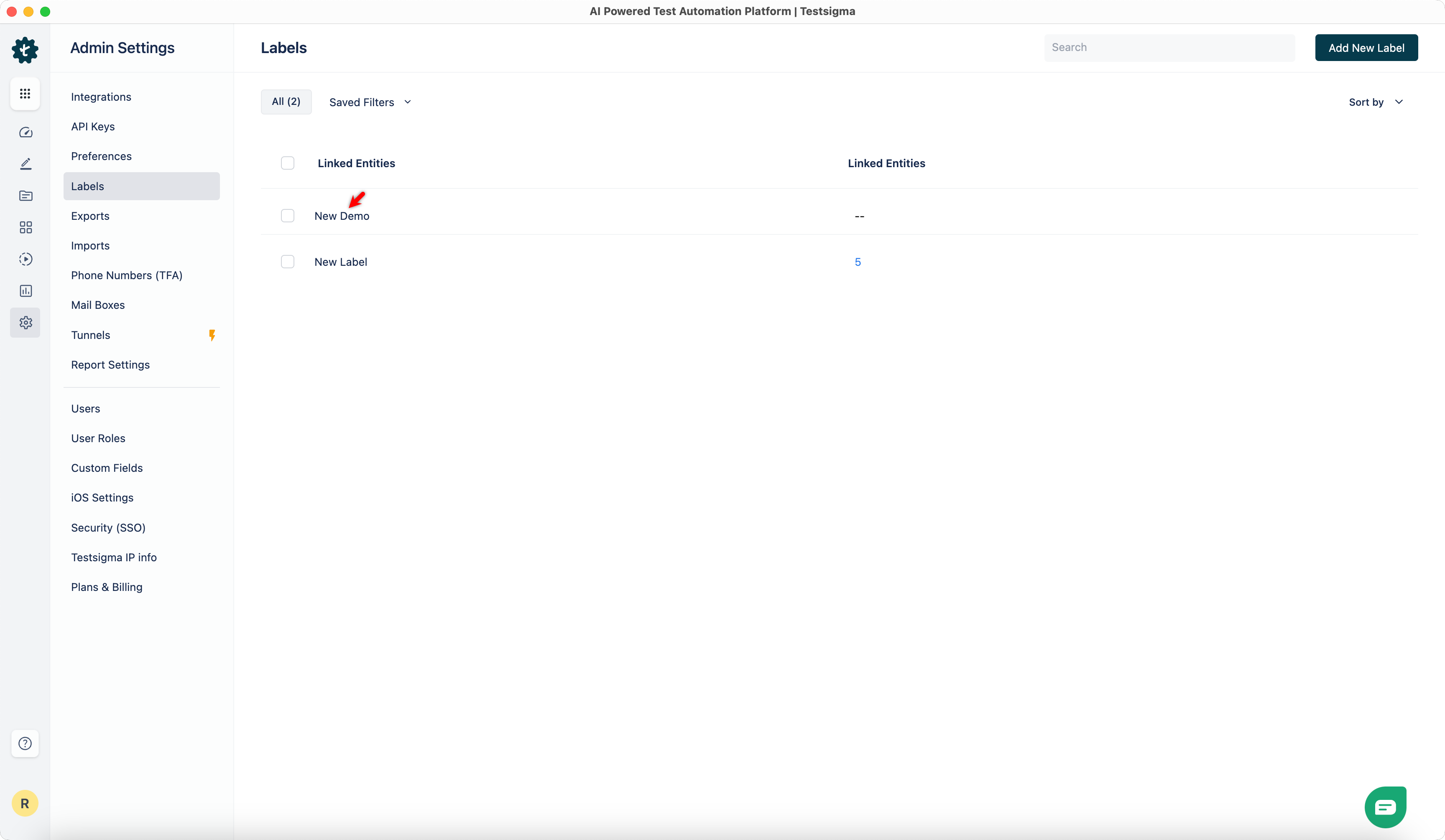
The label will be added to the list.
Steps to Associate Label to Test Case
Section titled “Steps to Associate Label to Test Case”-
From the left navigation bar, go to Create Tests > Test Cases.
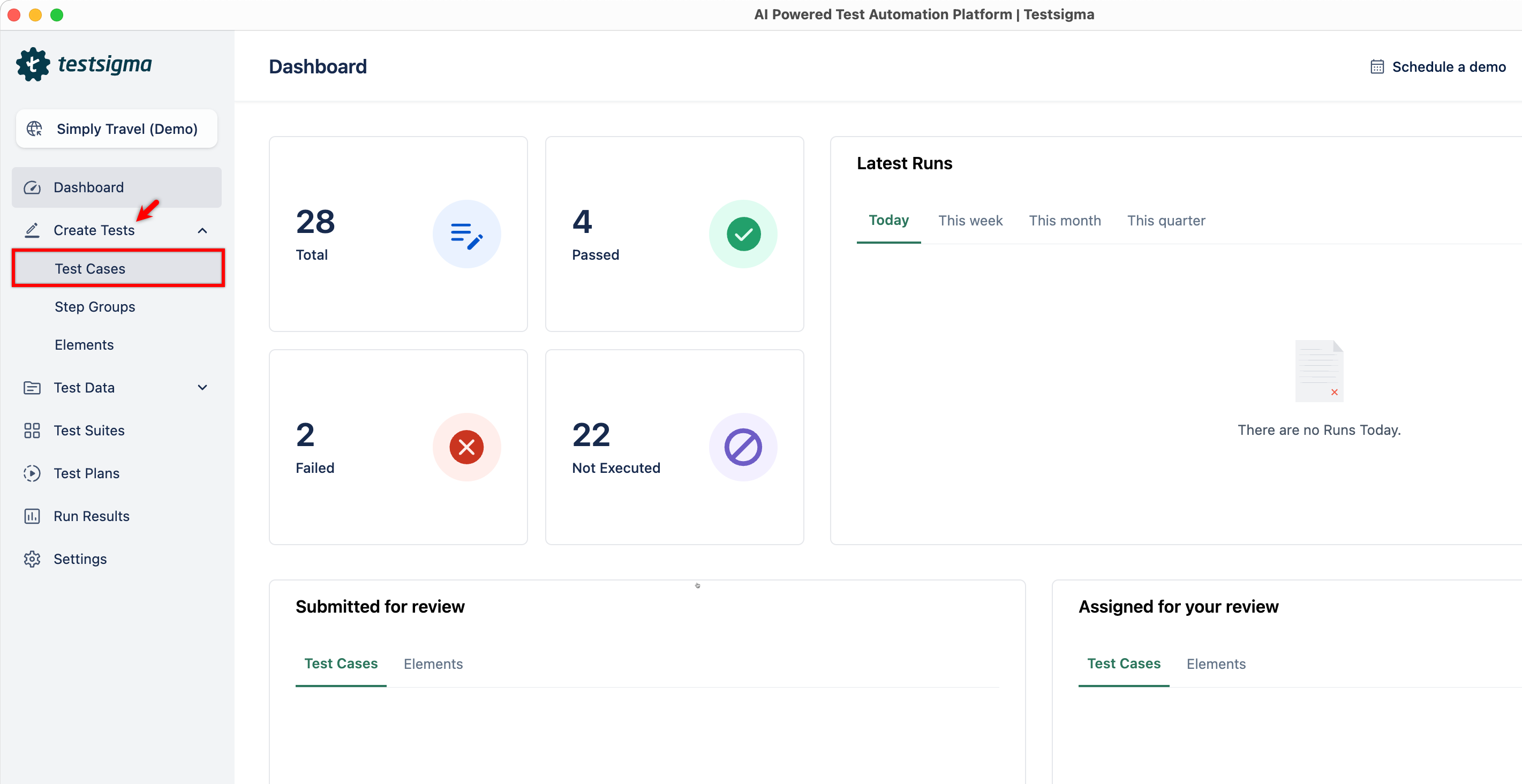
-
Create a test case or open an existing test case.
-
In the Utility Panel, click Manage Test Case, and scroll down to Labels.
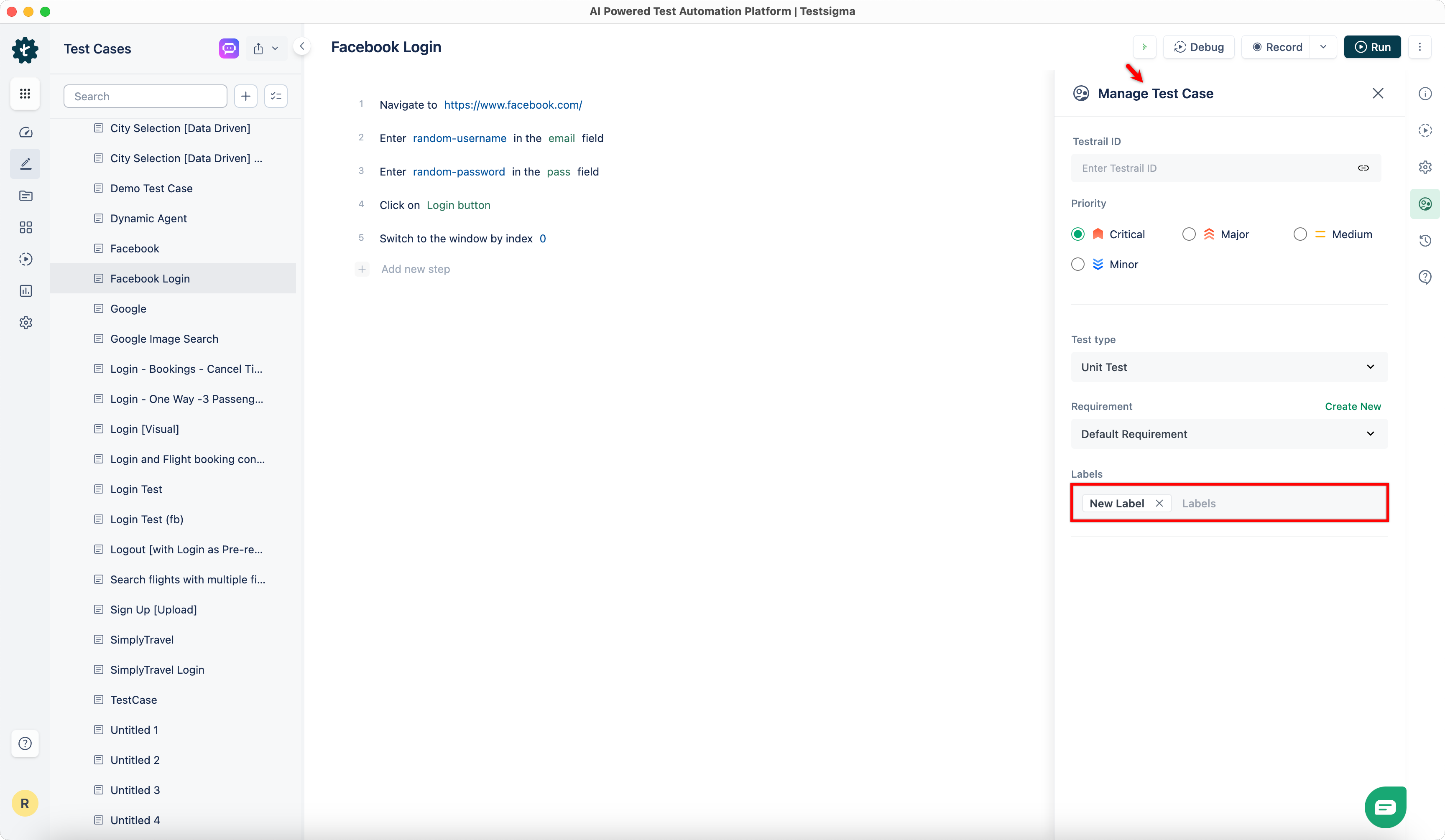
-
Click Labels, then select the labels you want to associate with the test case from the dropdown menu.
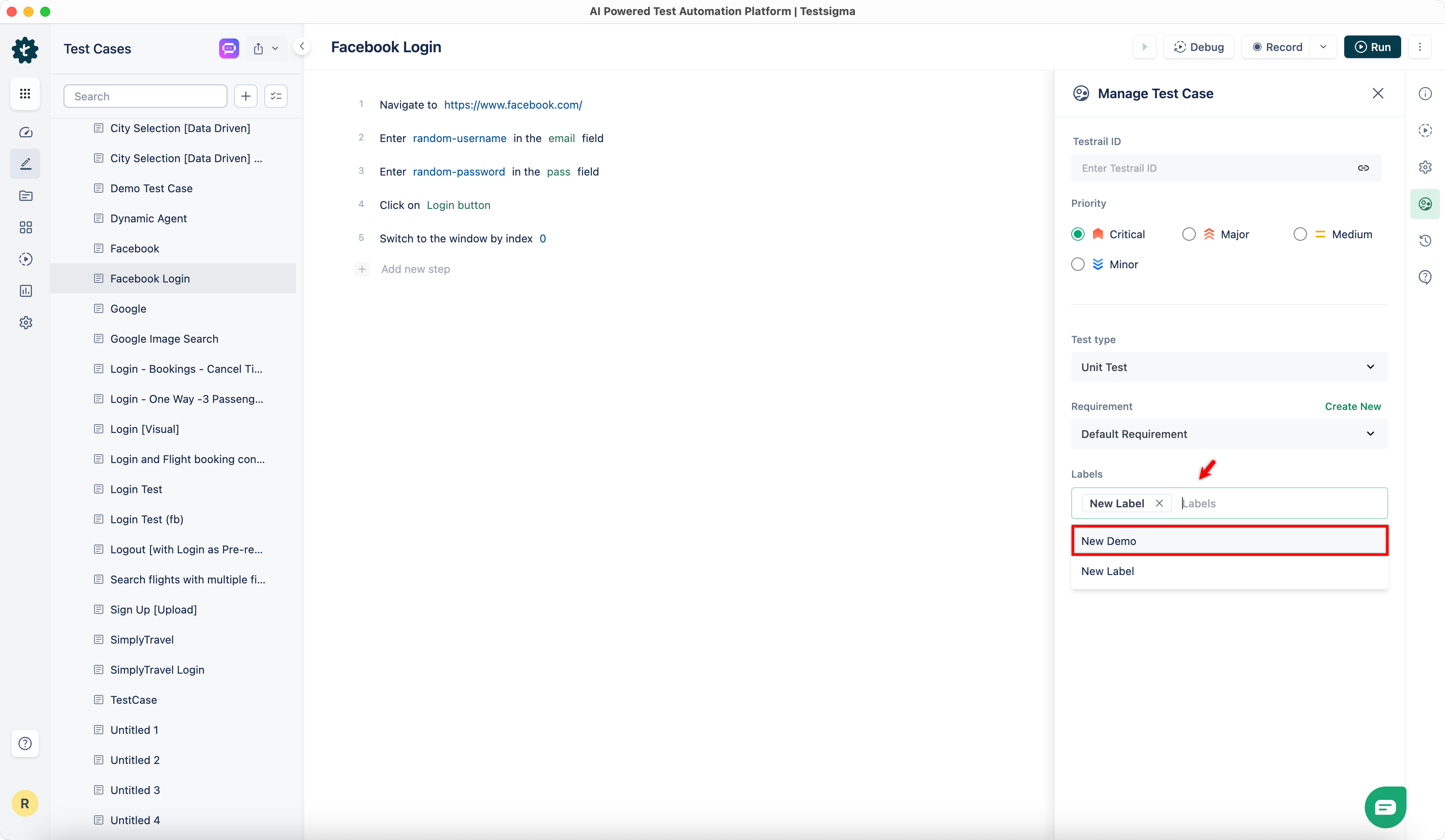
-
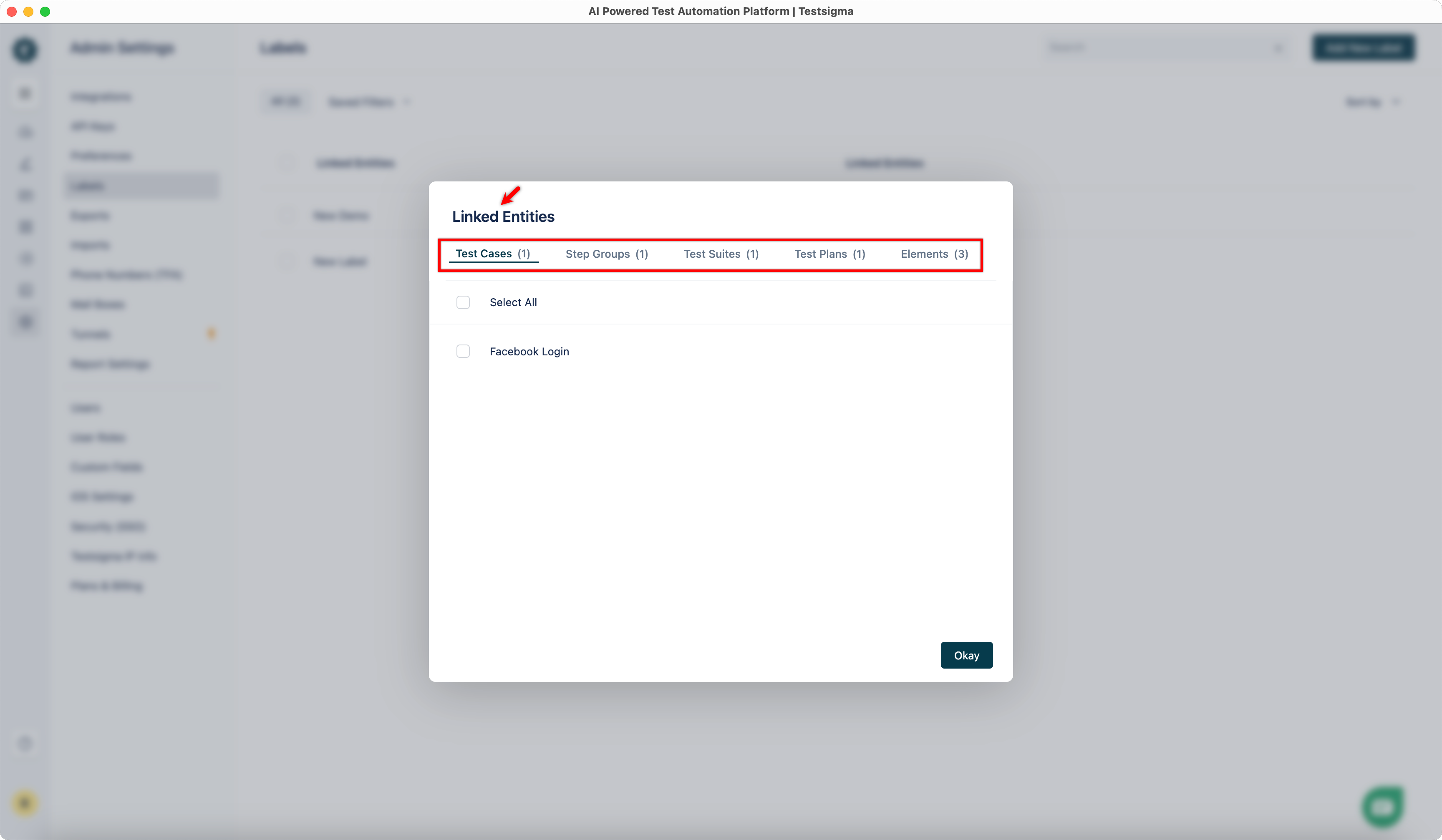
Now go to Settings > Labels, select a label, and click the number corresponding to it to view assets associated with a label.
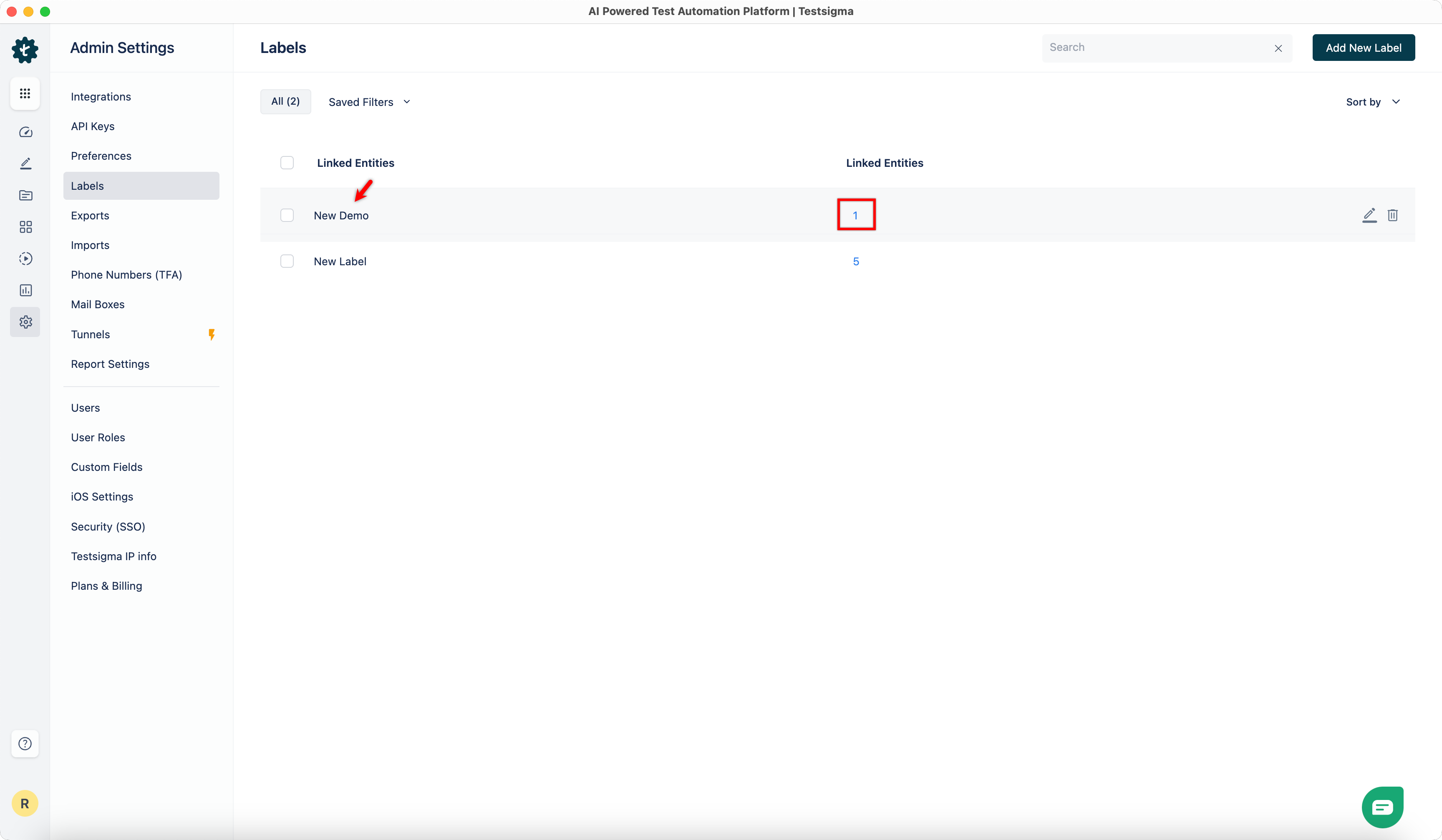
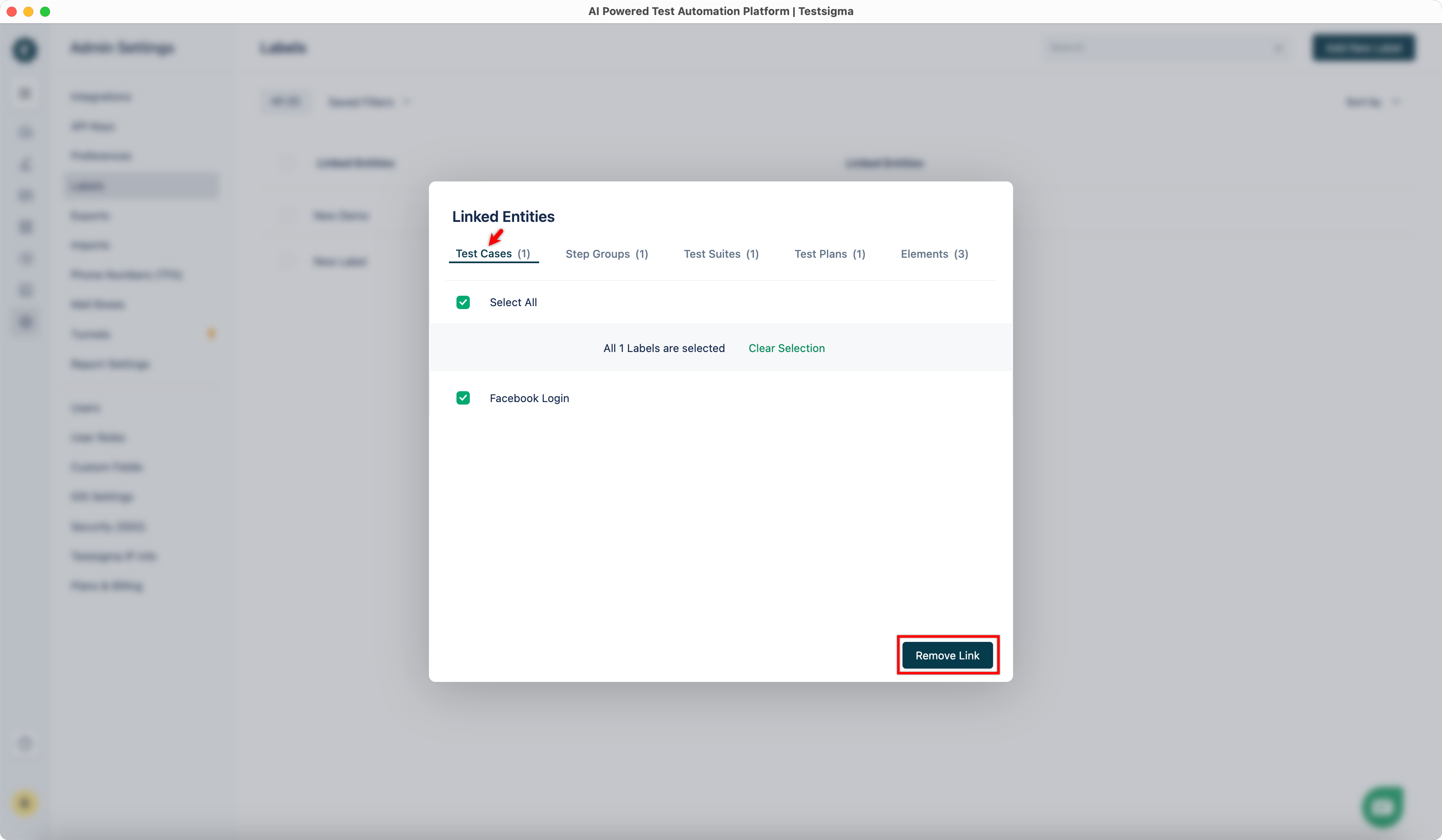
- All entities linked to a label, such as Test Cases, Elements, Step Groups, Test Suites, and Test Plans, appear in this dialog.
Steps to Unlink Labels from Entities
Section titled “Steps to Unlink Labels from Entities”-
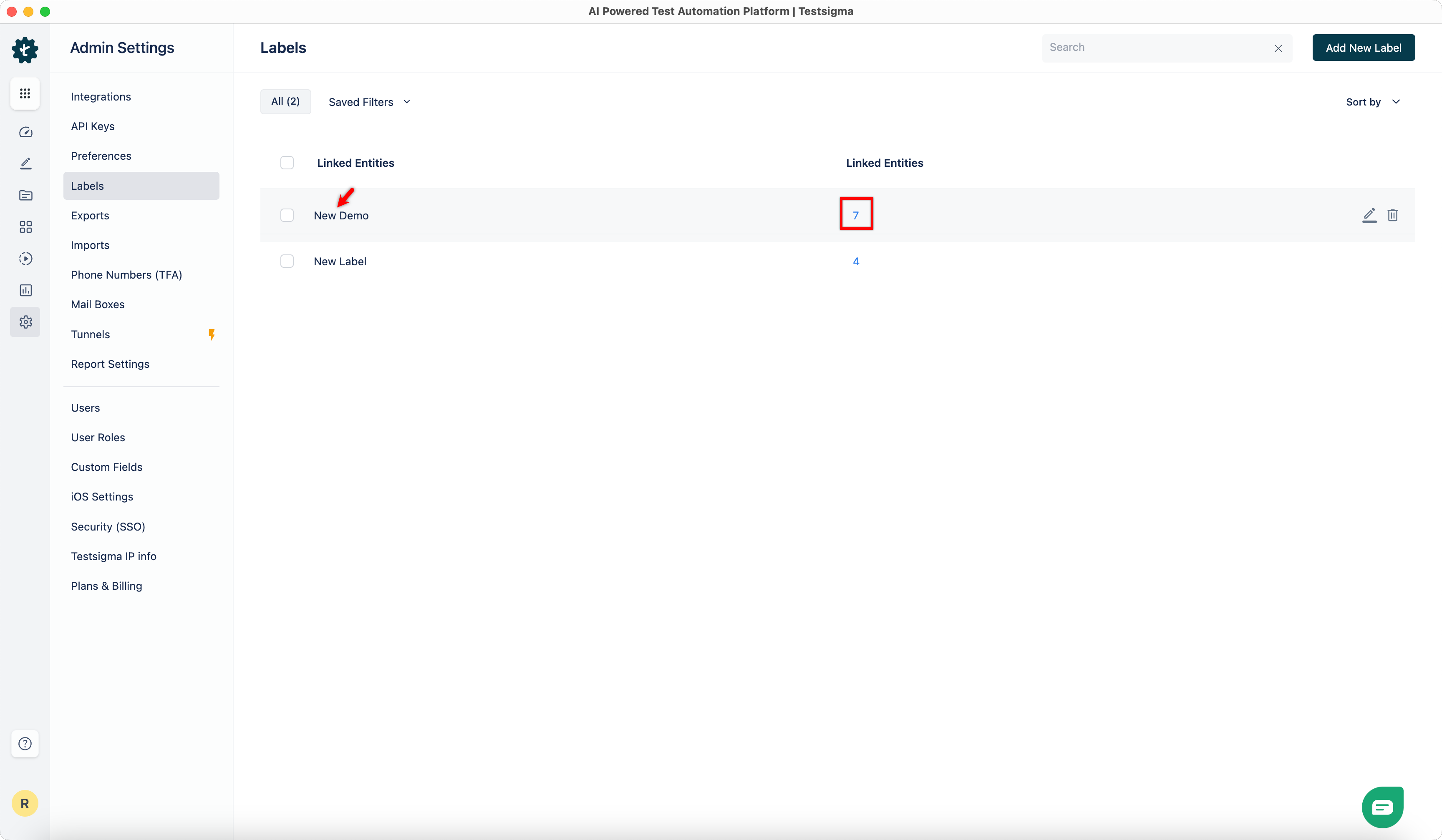
From the left navigation bar, go to Settings > Labels, select a label, and click the number corresponding to it to view the associated assets.
-
In the Linked Entities dialog, go to the Entity tab, select the assets you want to unlink, and click Remove Link.