Test Plans
Manage Test Suites in Test Plans
Prerequisites
Before you begin, ensure that you have referred to:
Editing Test Suites in a Test Plan
Section titled “Editing Test Suites in a Test Plan”-
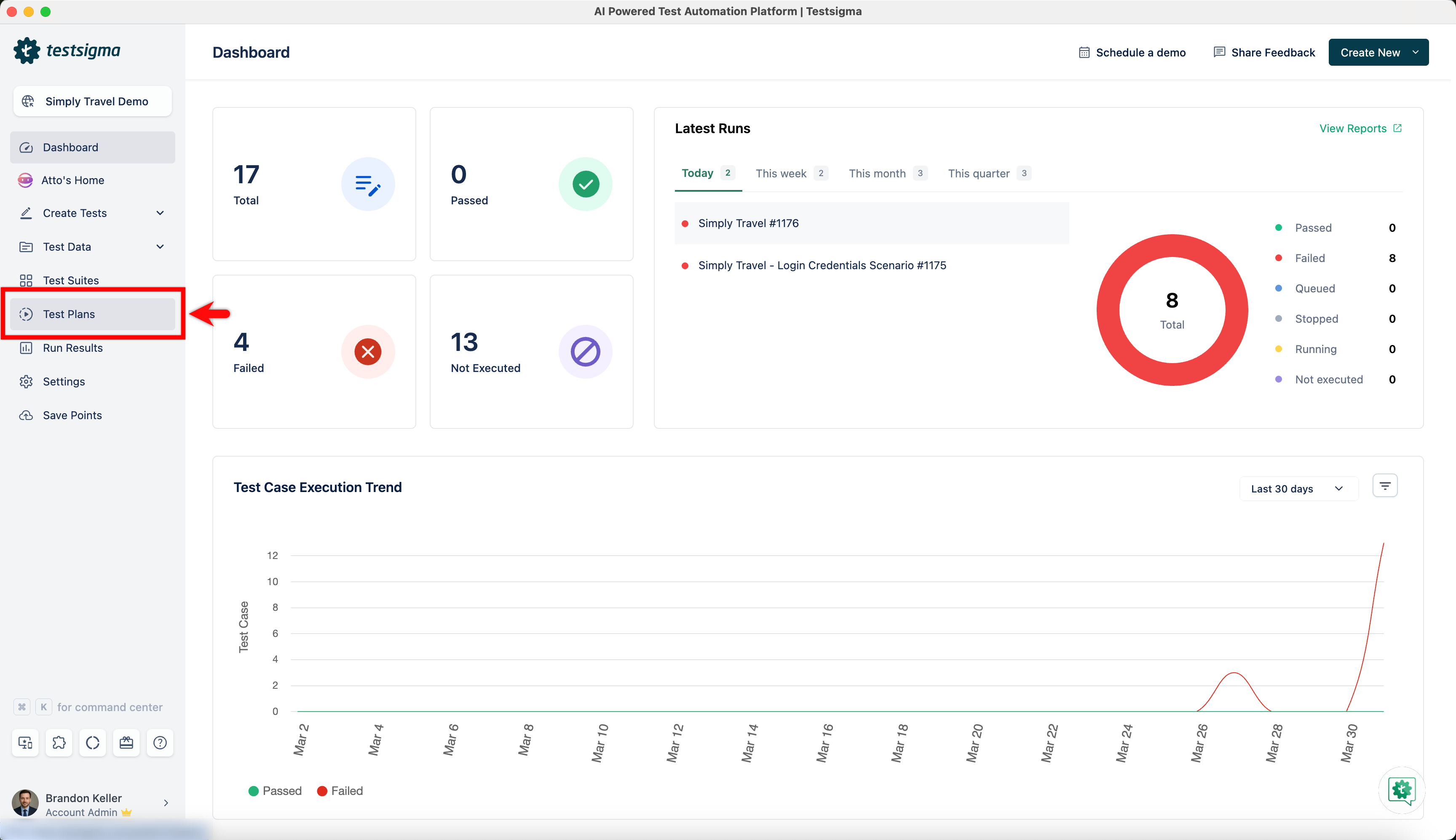
Navigate to Test Plans, create a test plan or click on any existing test plan.
-
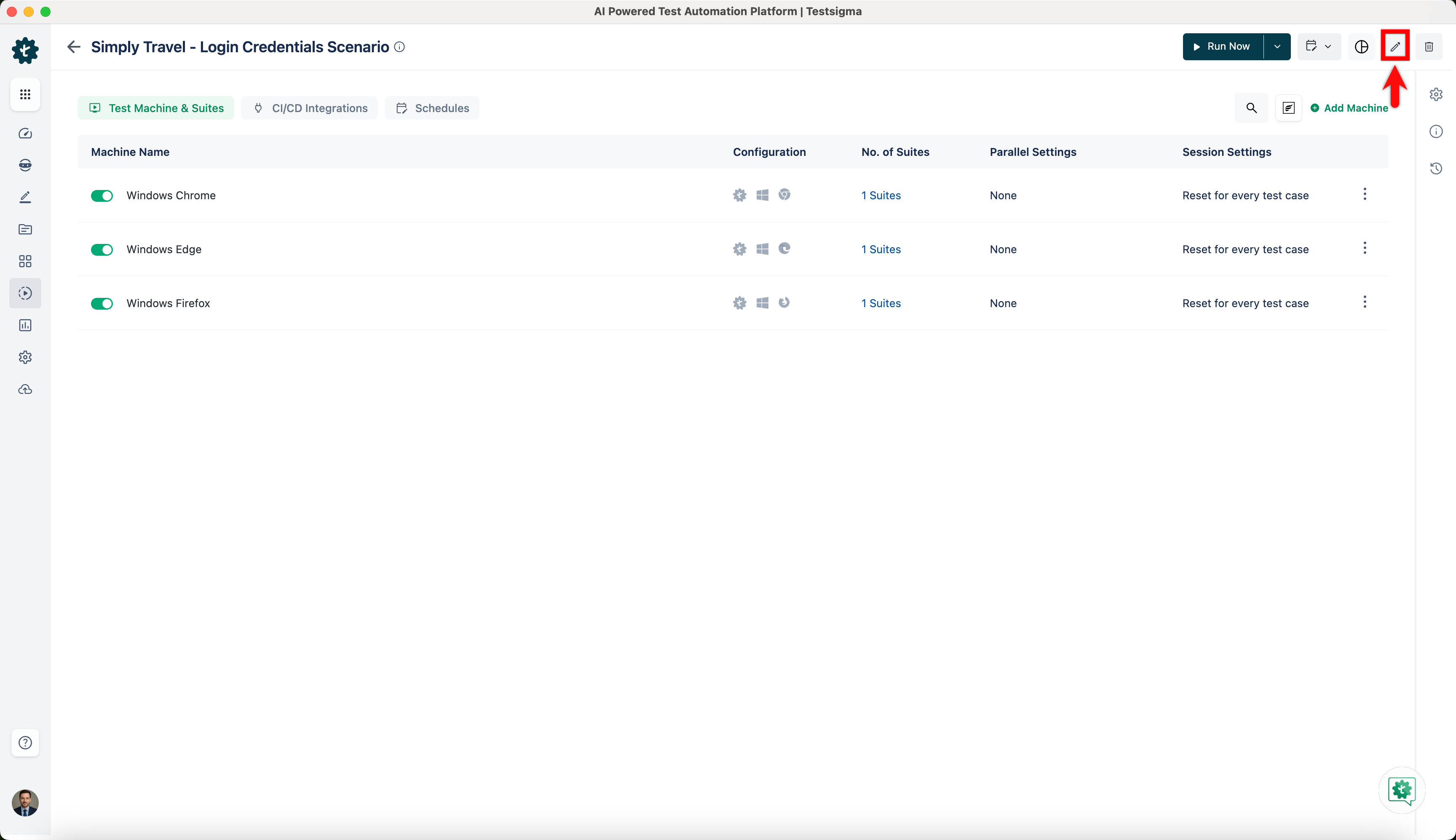
Click on Edit.
-
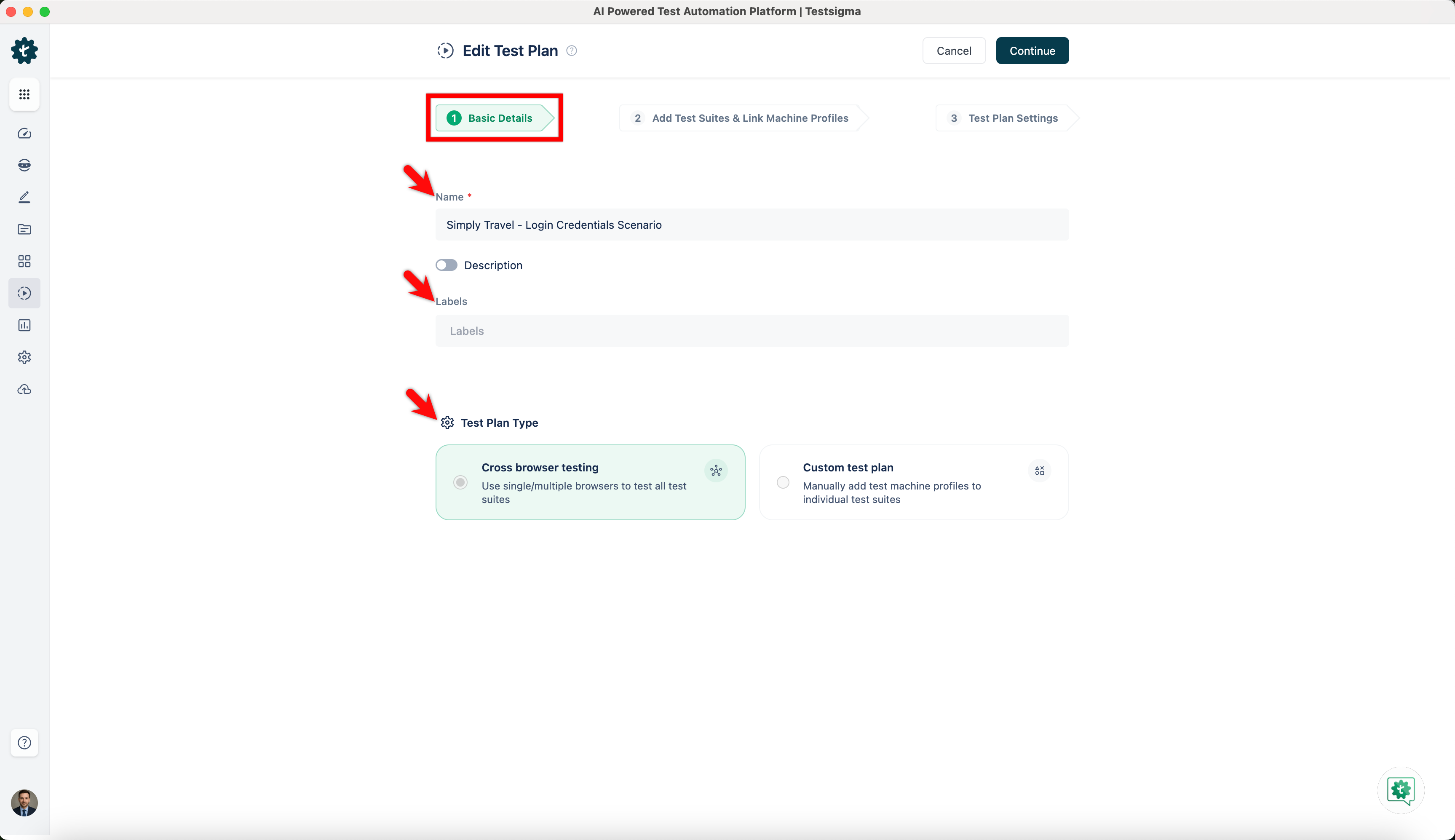
On the Edit Test Plan page, there are 3 sections.
-
Basic Details: You edit test plan Name, Labels and Test Plan Type on this section.
-
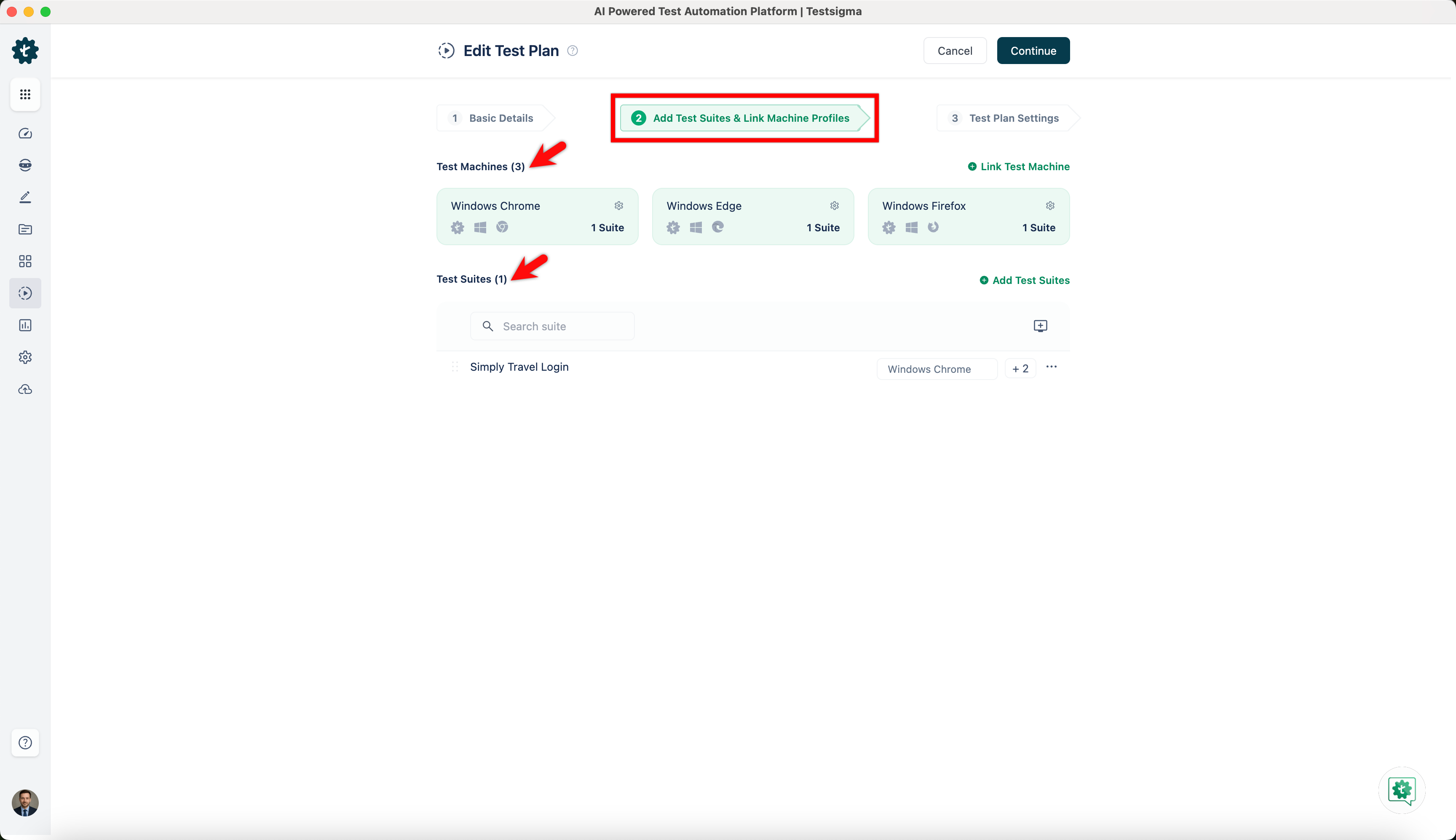
Add Test Suites & Link Machine Profiles: You can add/remove test suites and test machines on this section.
-
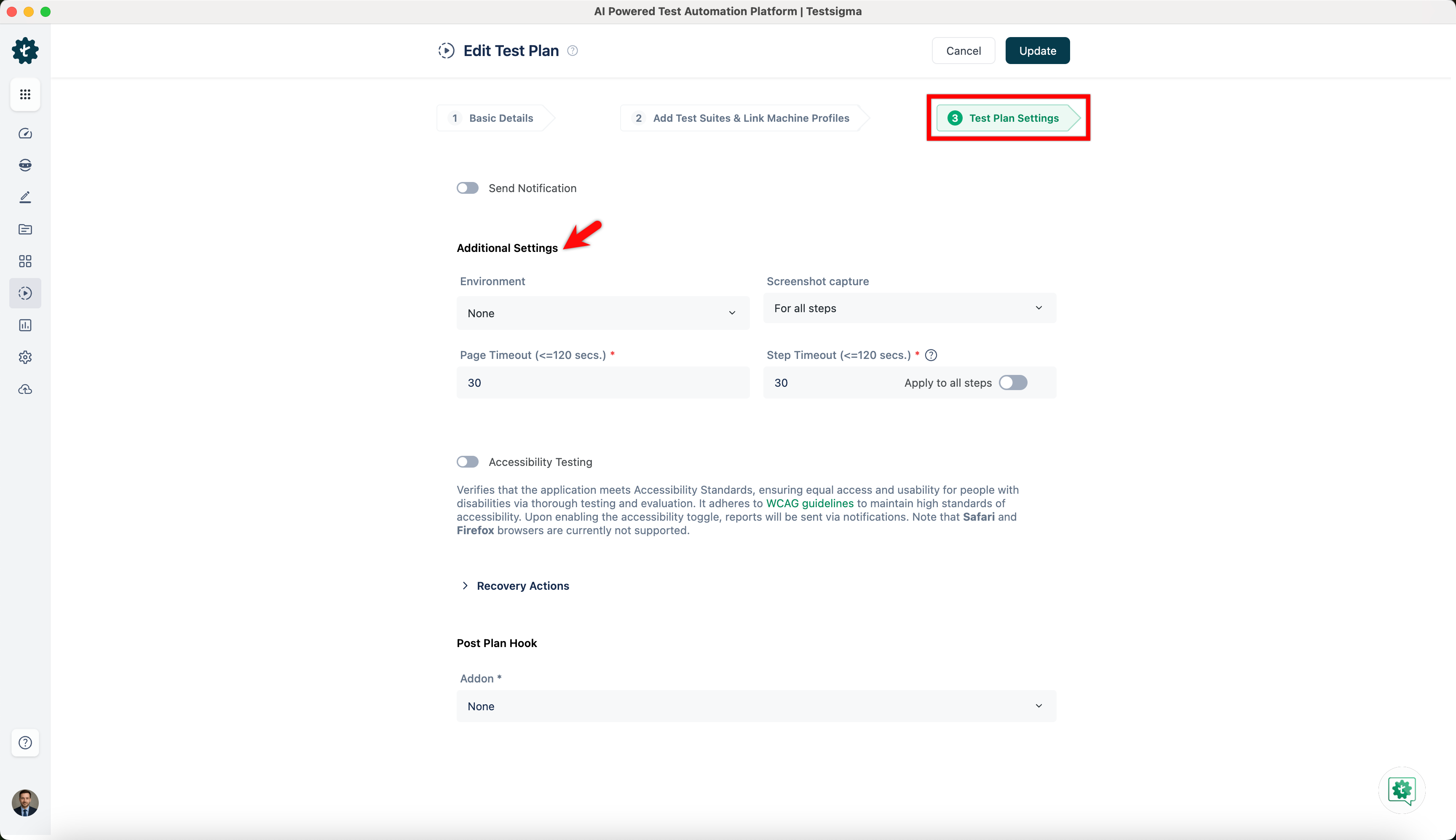
Test Plan Settings: You can edit Additional Settings on this section.
-
Alternatively, you can also add/remove test suites directly from the test plan details page.
Manage Test Suites from Test Plan Details Page
Section titled “Manage Test Suites from Test Plan Details Page”-
Navigate to Test Plans and click on any existing test plan.
-
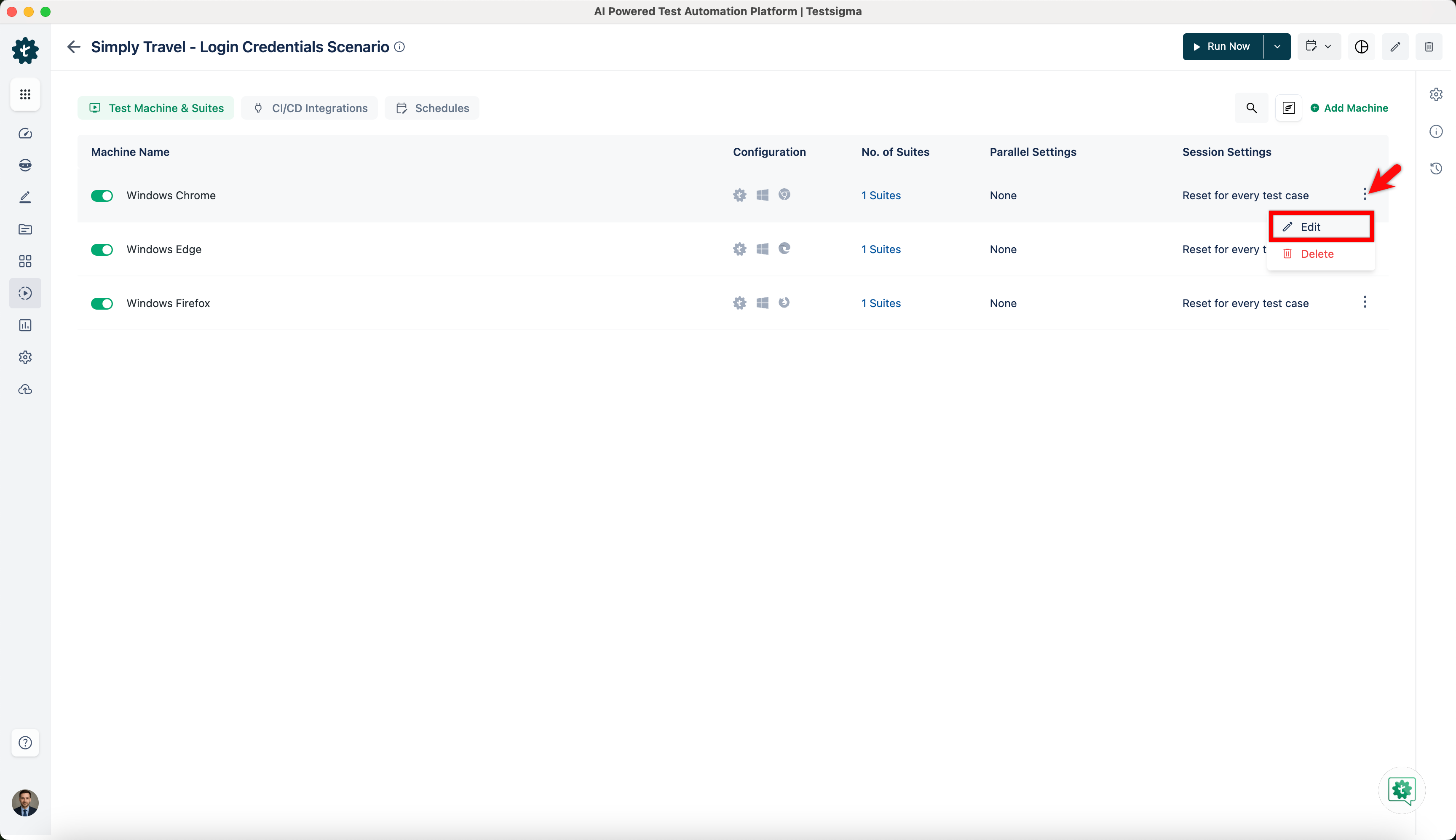
On the test plan details page, hover over the test machine for which you want to add/remove test suites, click on Kebab Menu, and click on Edit.
-
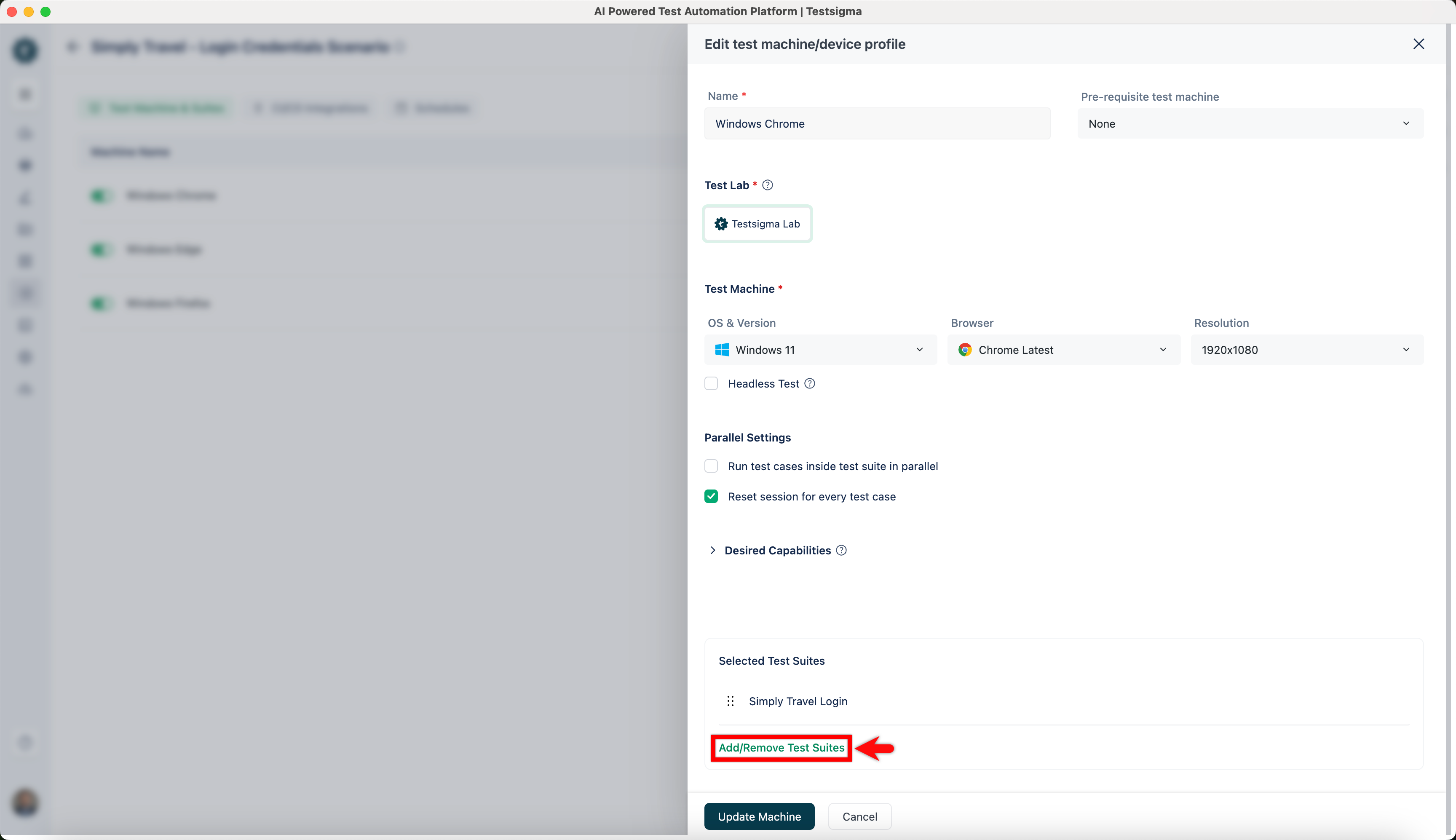
On the Edit test machine/device profile overlay, click on Add/Remove Test Suites.
-
An overlay of Add test suites to plan opens.
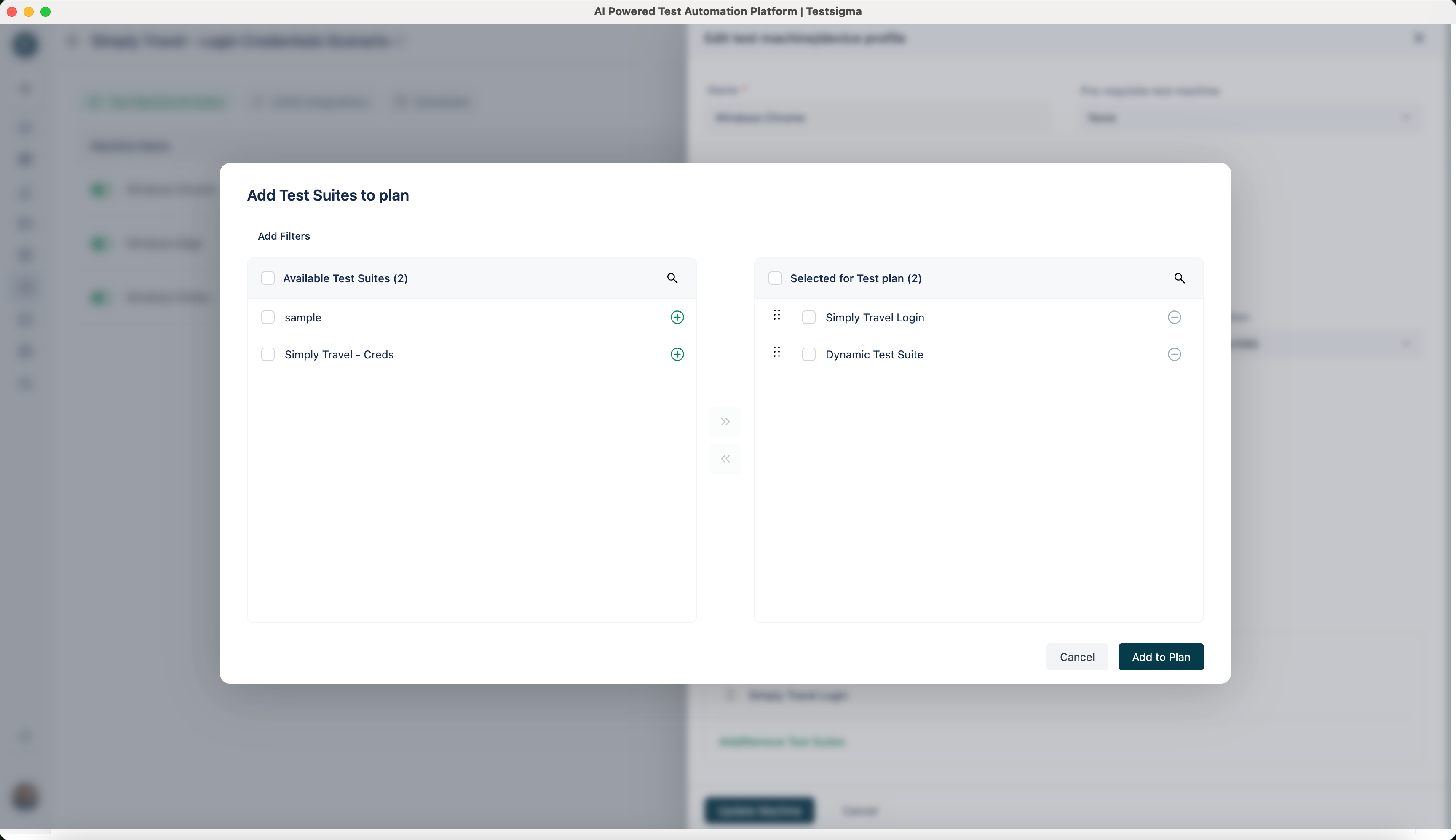
-
To add a test suite, click on the ‘+’ button of the test suite of your choice from Available Test Suites.
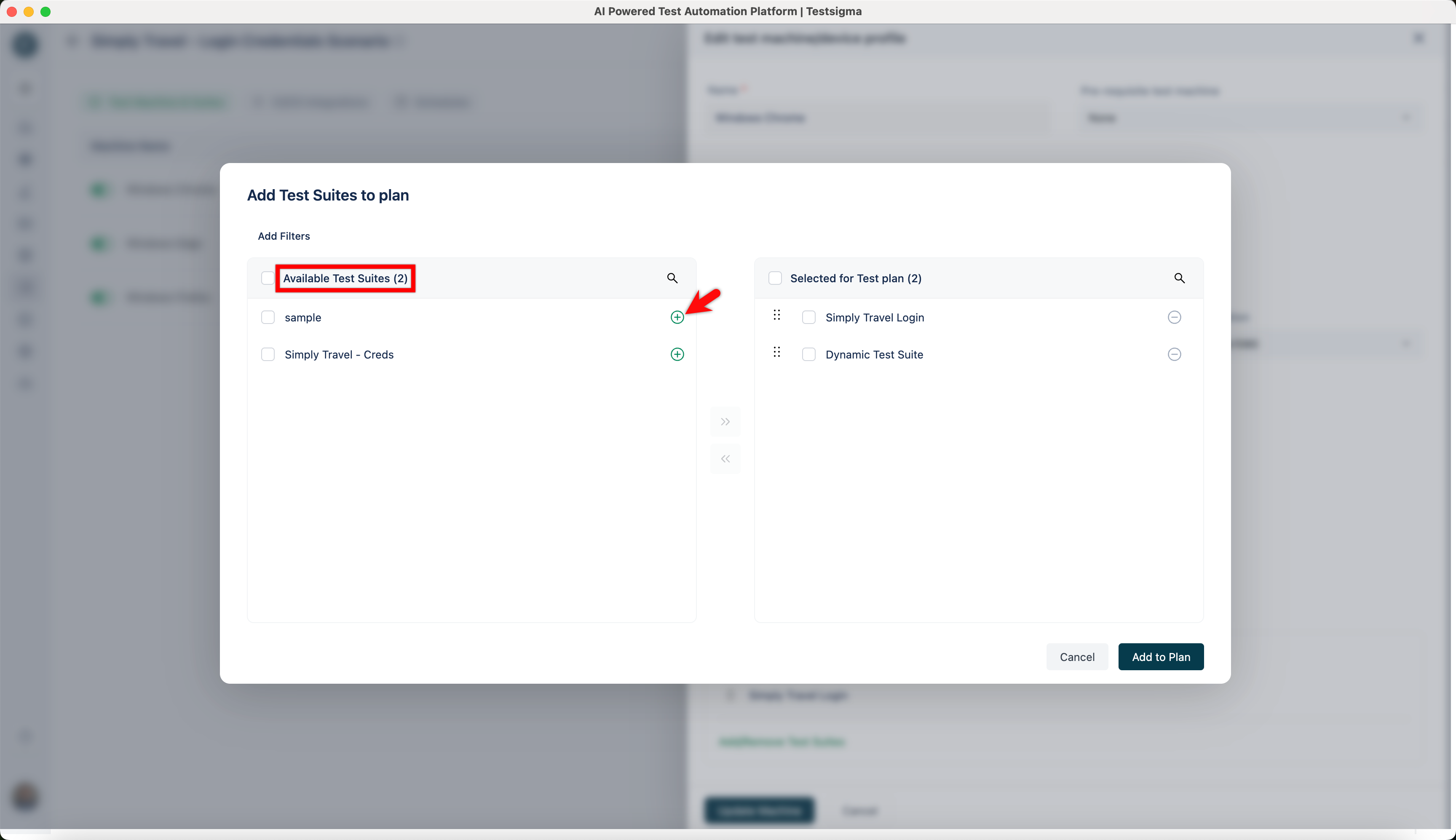
-
To remove a test suite, click on the ‘-’ button of the test suite of your choice from Selected for Test Plan.
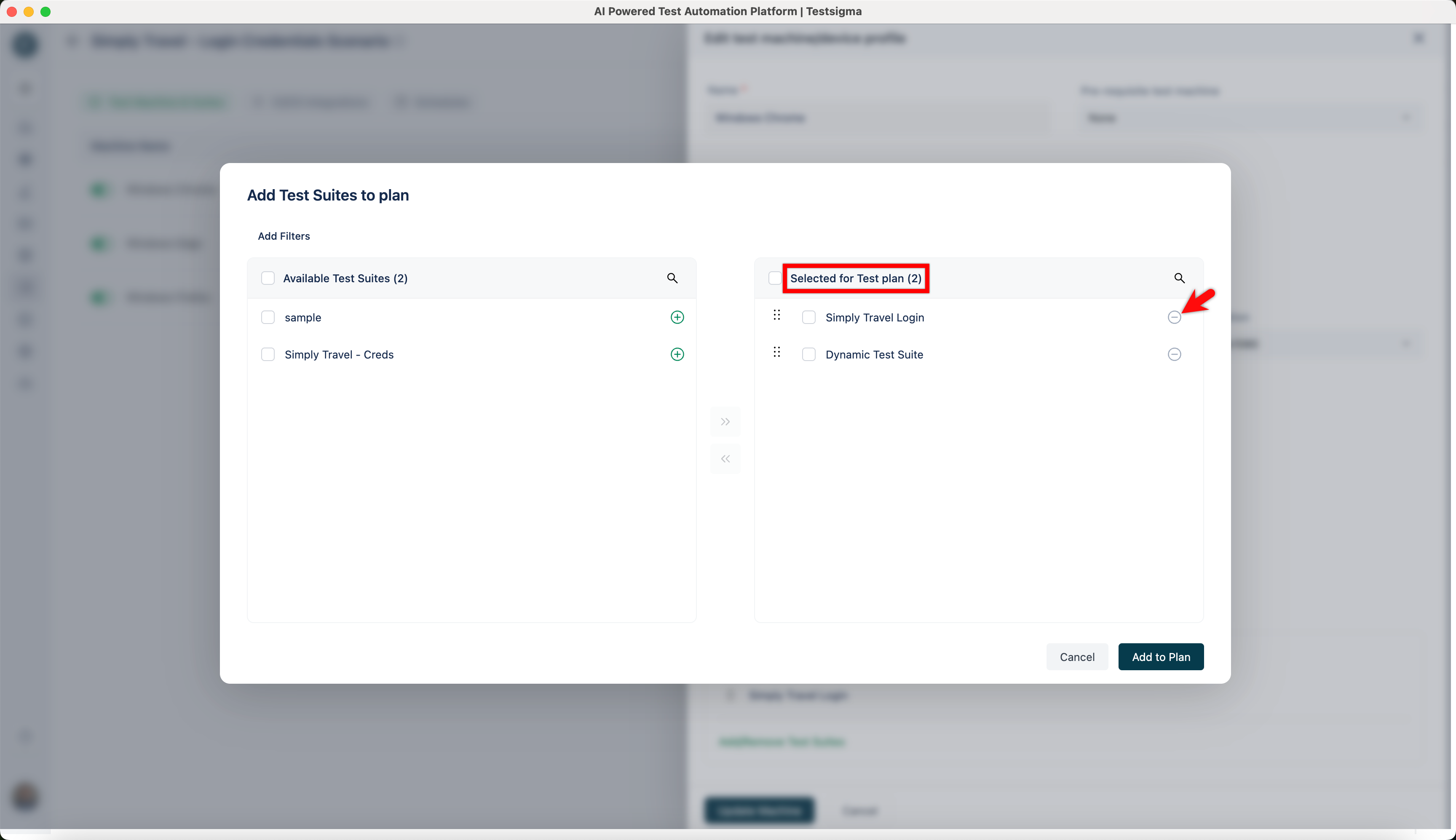
-
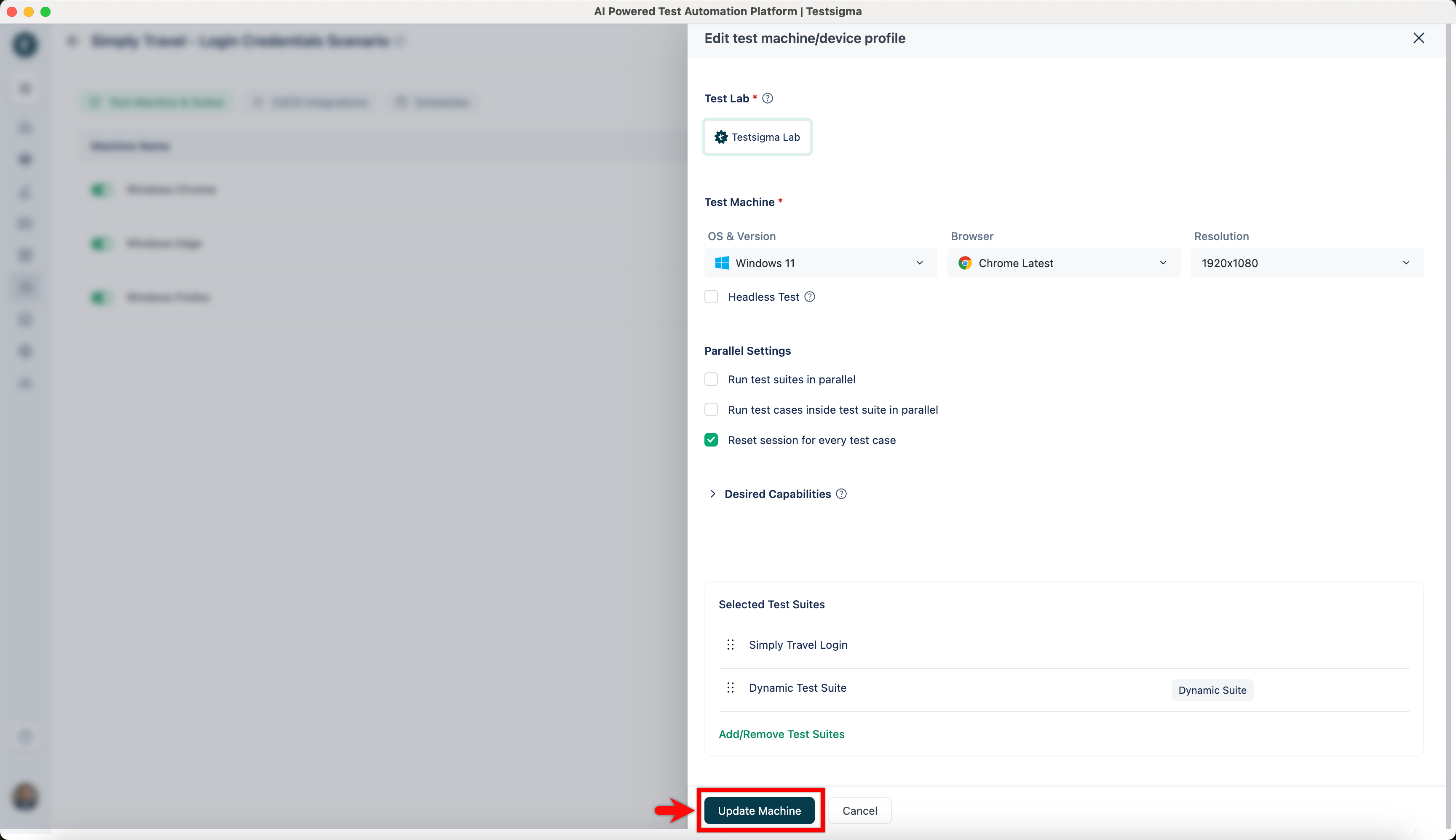
Once the Test Suites are added/removed from the test plan, click on Update Machine from Edit test machine/device profile overlay.