
Reports
Exporting PDF Reports
Prerequisites
Before you begin, ensure that you have referred to:
- Documentation on creaing test plans.
- Documentation on creaing test runs and having access to export test reports.
Exporting Test Reports in PDF Format
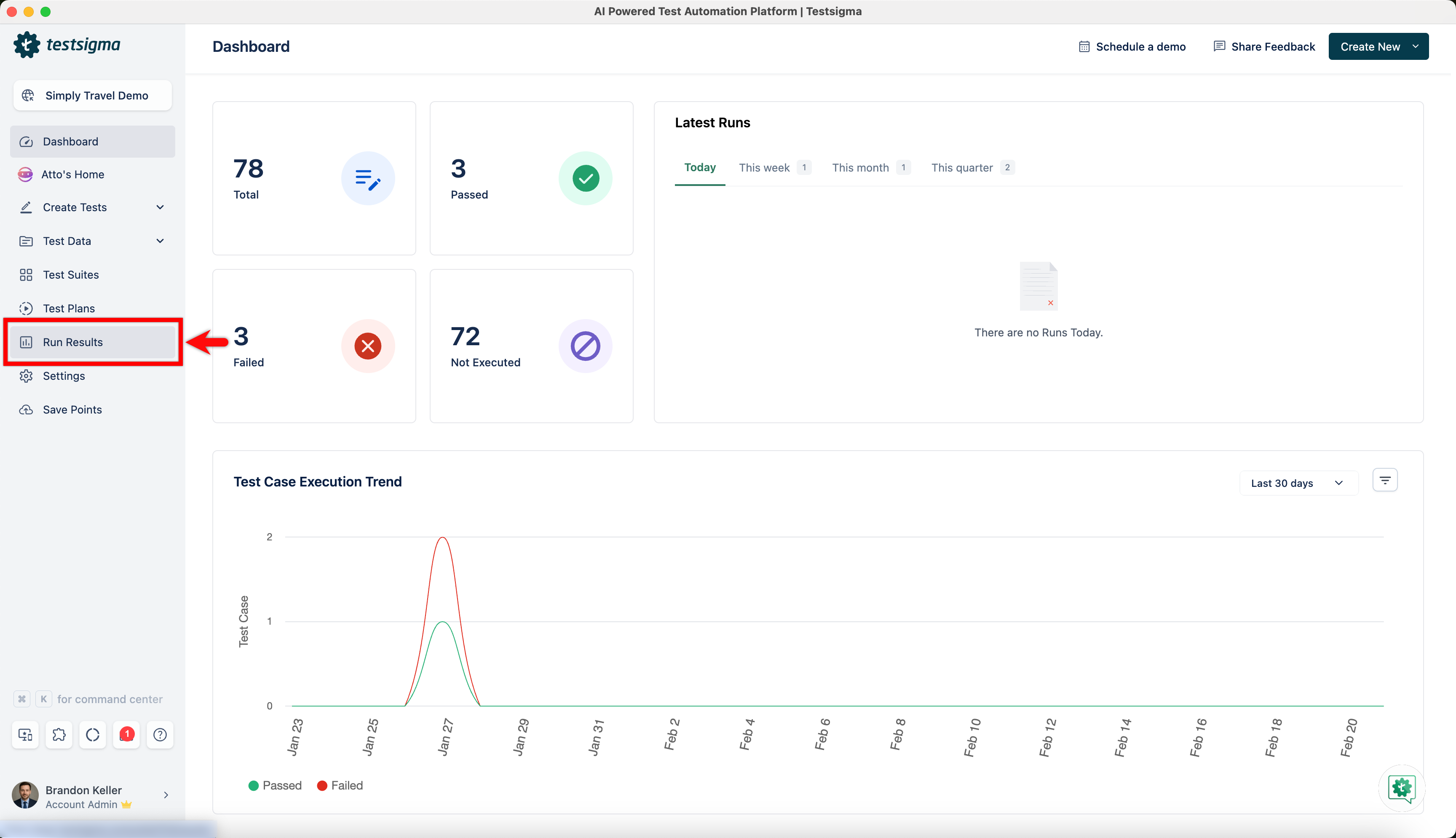
Section titled “Exporting Test Reports in PDF Format”- From the left navigation bar, navigate to Run Results.
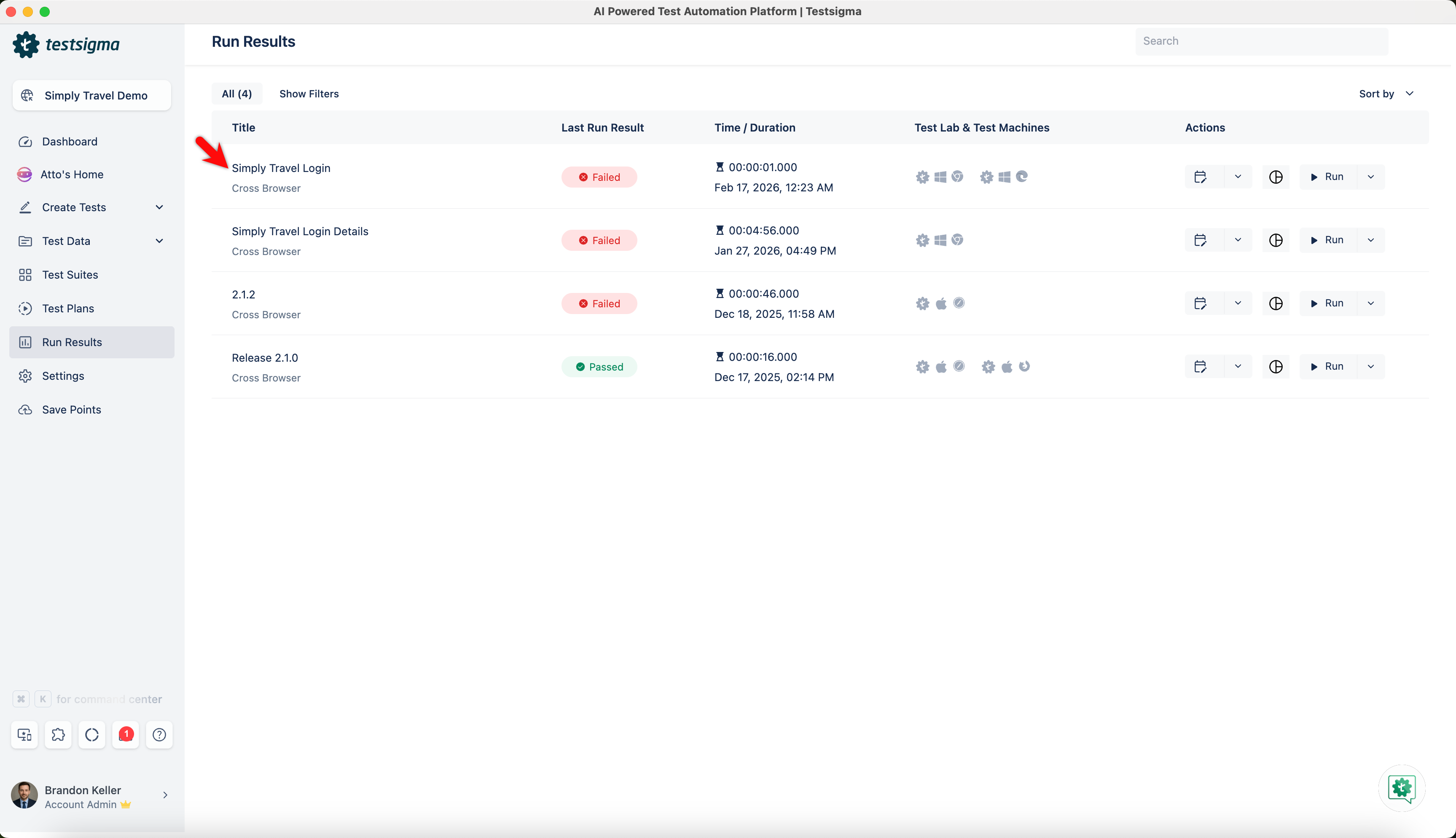
- Open the specific Test Run from the Run Result list page to export the test report file.
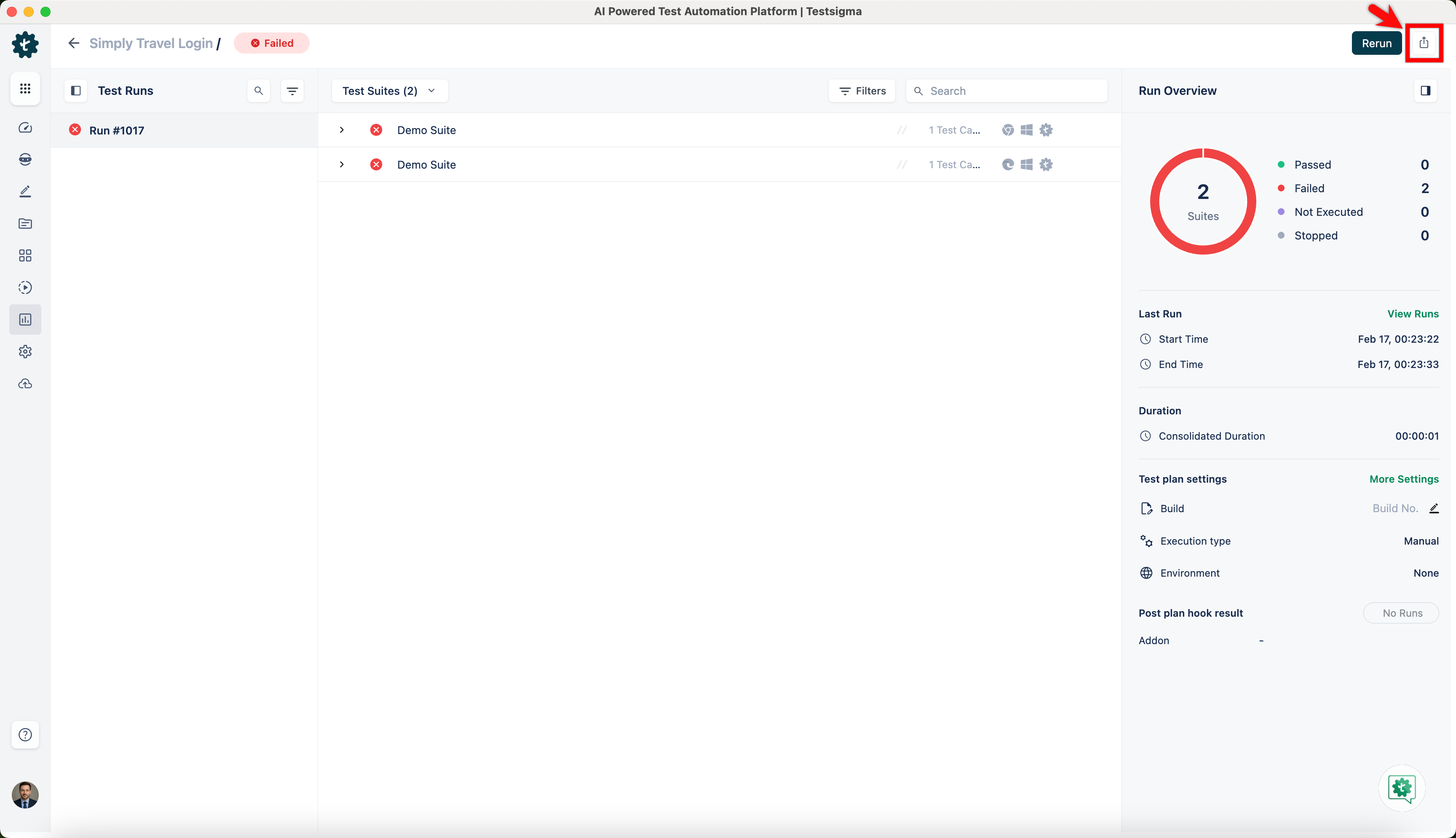
- Click the Export icon, and a dropdown list will appear.
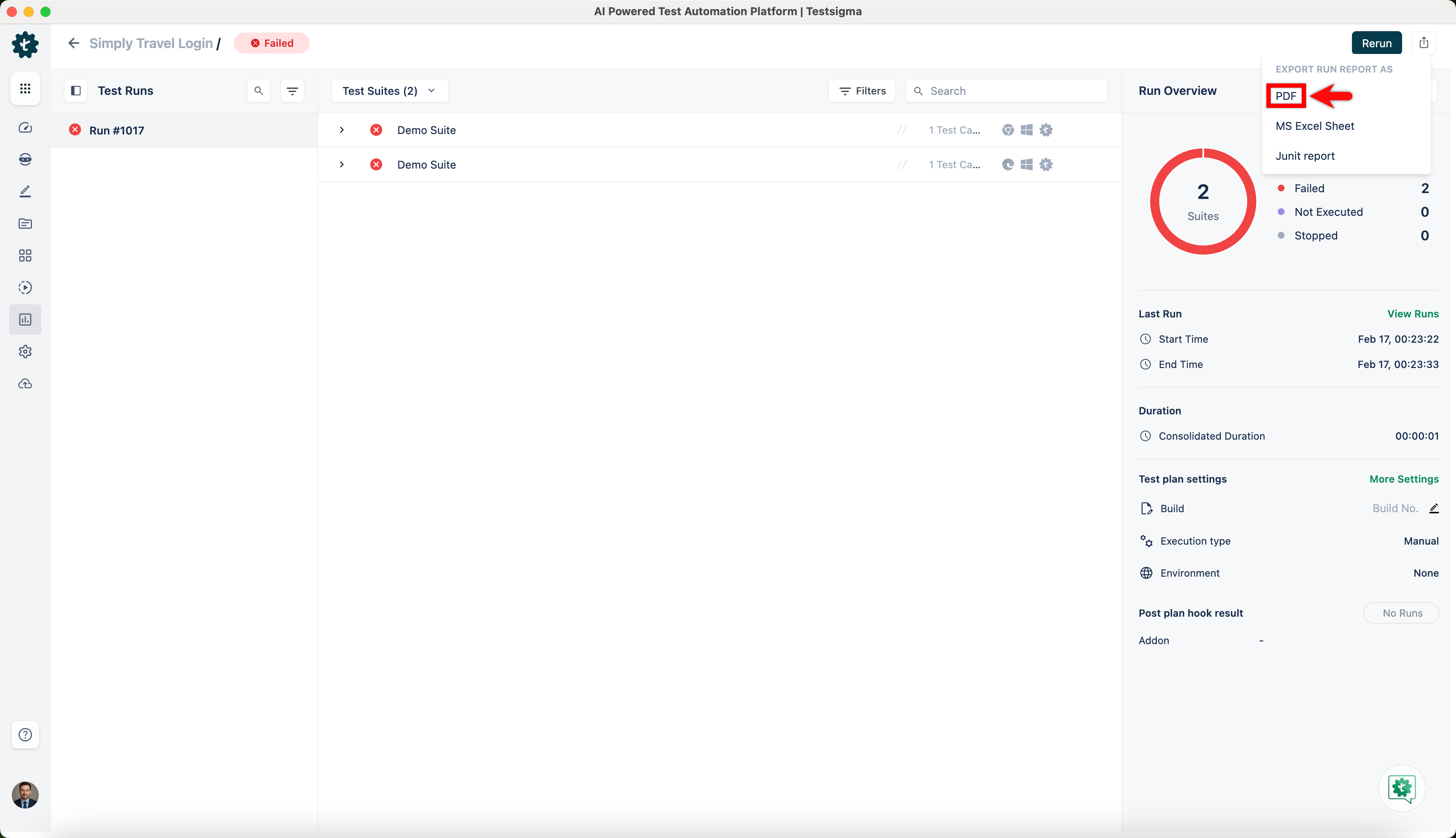
- Select PDF from the dropdown list to initiate the export of the Test Plan results.
- In the Export PDF dialog box, select one of the following options under Test step screenshots and Test step screenshots, and click Export:
- Failed Step Screenshots [Recommended]
- All Screenshots
- No Screenshots
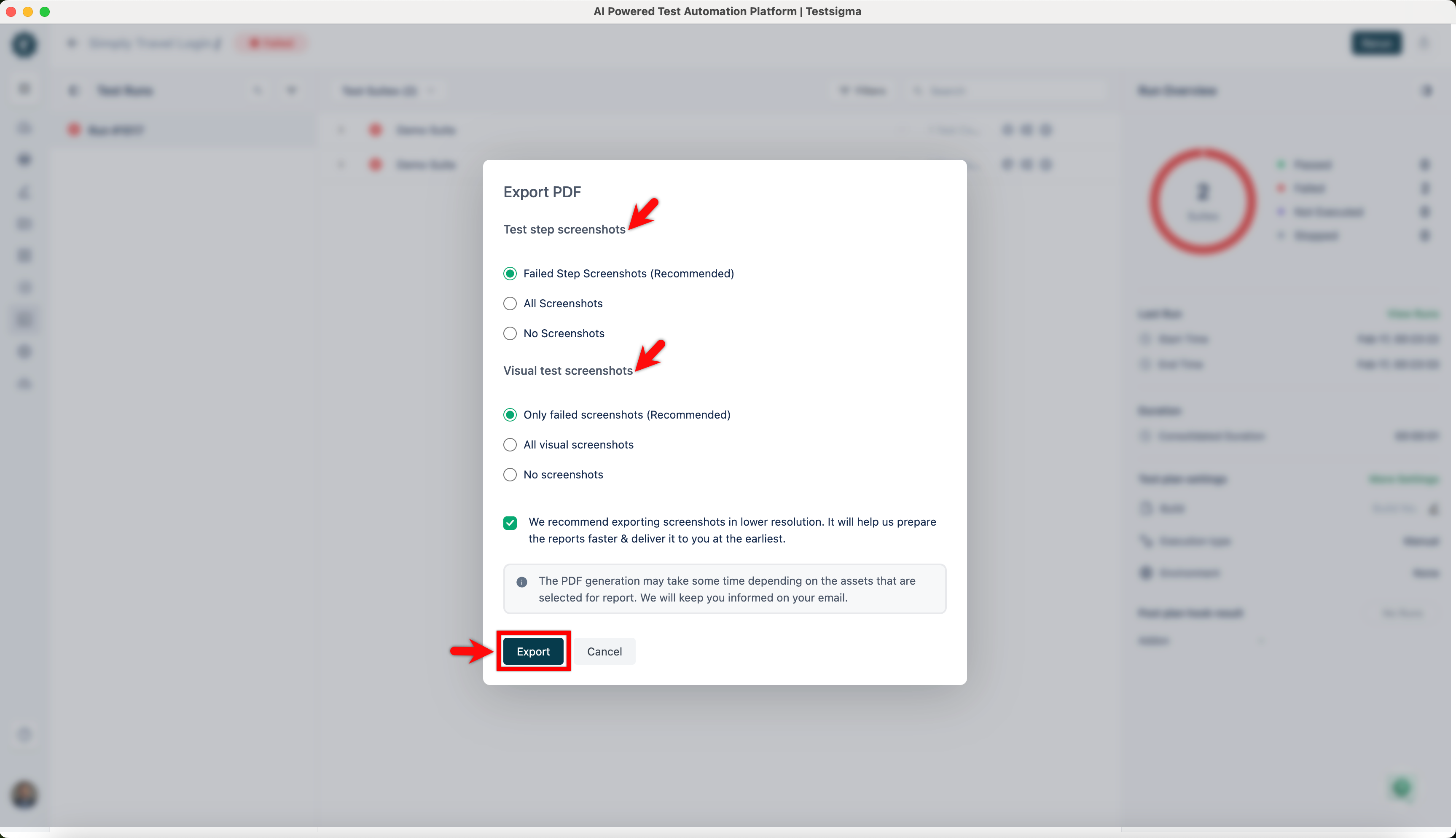
- Once you select, Testsigma will generate and automatically download a report in Excel format. Testsigma will notify you via email (using the email address associated with your Testsigma account) upon completion.
- Click on the file named (Test Plan Name with build run YYYYMMDD).pdf to access the exported results.