import 'package:appium_testing_app/main.dart'; as app;
callback: (WidgetTester tester) async {
// Perform any prerequisite steps or intialise any dependencies required by the app
// and make sure to pump the app widget using below statement.
await tester.pumpWidget(const app.MyApp());
flutter build apk --debug --target=integration_test/appium_test.dart
- For iOS Simulator (Debug):
flutter build ios integration_test/appium_test.dart --simulator
- For iOS Real Device (Release):
flutter build ipa --release integration_test/appium_test.dart
flutter build macos --release integration_test/appium_test.dart
6. Verify that the app is running.
1. Run the following command:
adb logcat | grep flutter
2. Open the application on the device or emulator manually.
3. Verify the logs in the console. Example output:
06-17 17:02:13.246 32697 32743 I flutter : The Dart VM service is listening on http://127.0.0.1:33339/E2REX61NaiI=/
06-17 17:02:13.584 32697 32735 I flutter : 00:00 +0: appium flutter server
06-17 17:02:14.814 32697 32735 I flutter : shelfRun HTTP service running on port 9000
06-17 17:02:14.814 32697 32735 I flutter : [APPIUM FLUTTER] Appium flutter server is listening on port 9000
06-17 17:02:14.866 32697 32735 I flutter : [APPIUM FLUTTER] New Request [GET] http://127.0.0.1:10000/status
06-17 17:02:14.869 32697 32735 I flutter : [APPIUM FLUTTER] response {message: Flutter driver is ready to accept new connections, appInfo: {appName: appium_testing_app, buildNumber: 1, packageName: com.example.appium_testing_app, version: 1.0.0, buildSignature: F2C7CEC8F907AB830B7802C2178515D1FD4BEBA154E981FB61FFC8EC9A8F8195}}
xcrun simctl spawn booted log stream | grep flutter
1. Check xcode device logs.
2. Open the application on the device or emulator manually.
3. Verify the logs in the console. Example output:
06-17 17:02:13.246 32697 32743 I flutter : The Dart VM service is listening on http://127.0.0.1:33339/E2REX61NaiI=/
06-17 17:02:13.584 32697 32735 I flutter : 00:00 +0: appium flutter server
06-17 17:02:14.814 32697 32735 I flutter : shelfRun HTTP service running on port 9000
06-17 17:02:14.814 32697 32735 I flutter : [APPIUM FLUTTER] Appium flutter server is listening on port 9000
06-17 17:02:14.866 32697 32735 I flutter : [APPIUM FLUTTER] New Request [GET] http://127.0.0.1:10000/status
## **Steps to Create Elements Using Flutter Properties**
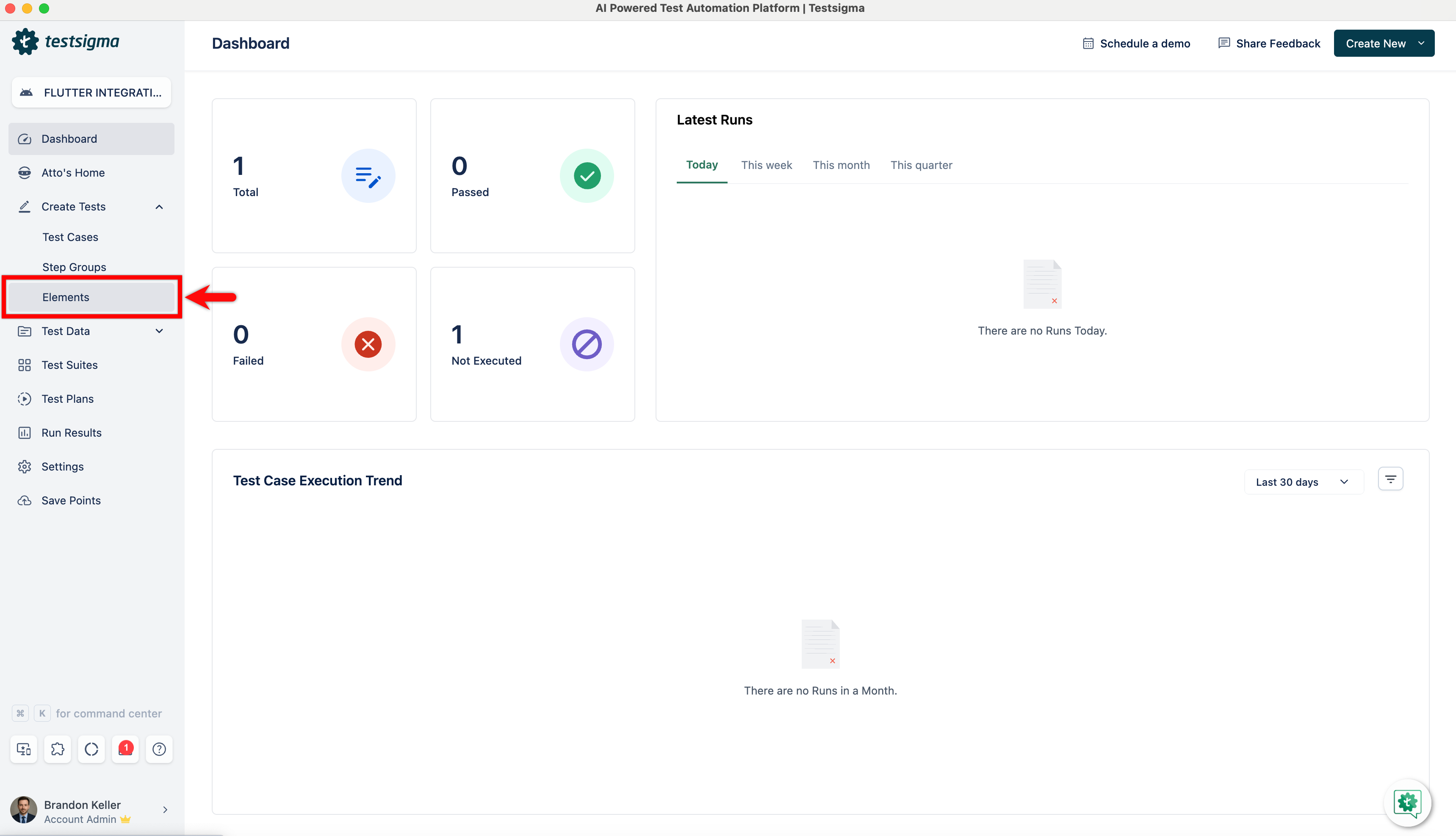
1. Navigate to **Create Tests > Elements**.
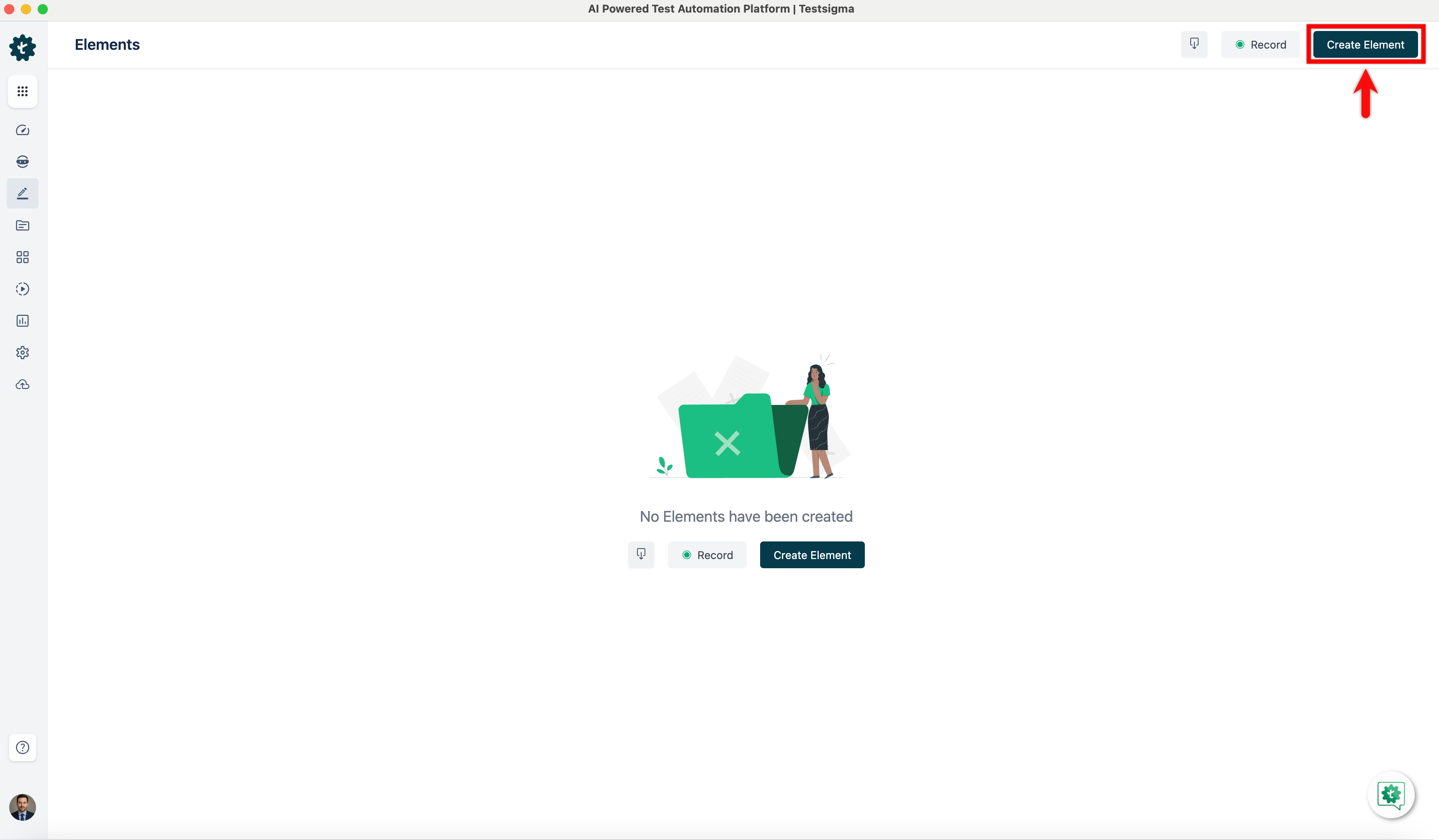
2. Create on **Create Element**.
3. On the **Create Element** overlay, you'll see the following fields:
- **Name:** Enter the name you want to give your element.
- **Screen Name:** Mention the screen that your element resides on.
- **Element Type:** Expand the drop-down and select a Flutter type.
- **Enter Value:** Enter the value corresponding to the Element Type you selected.
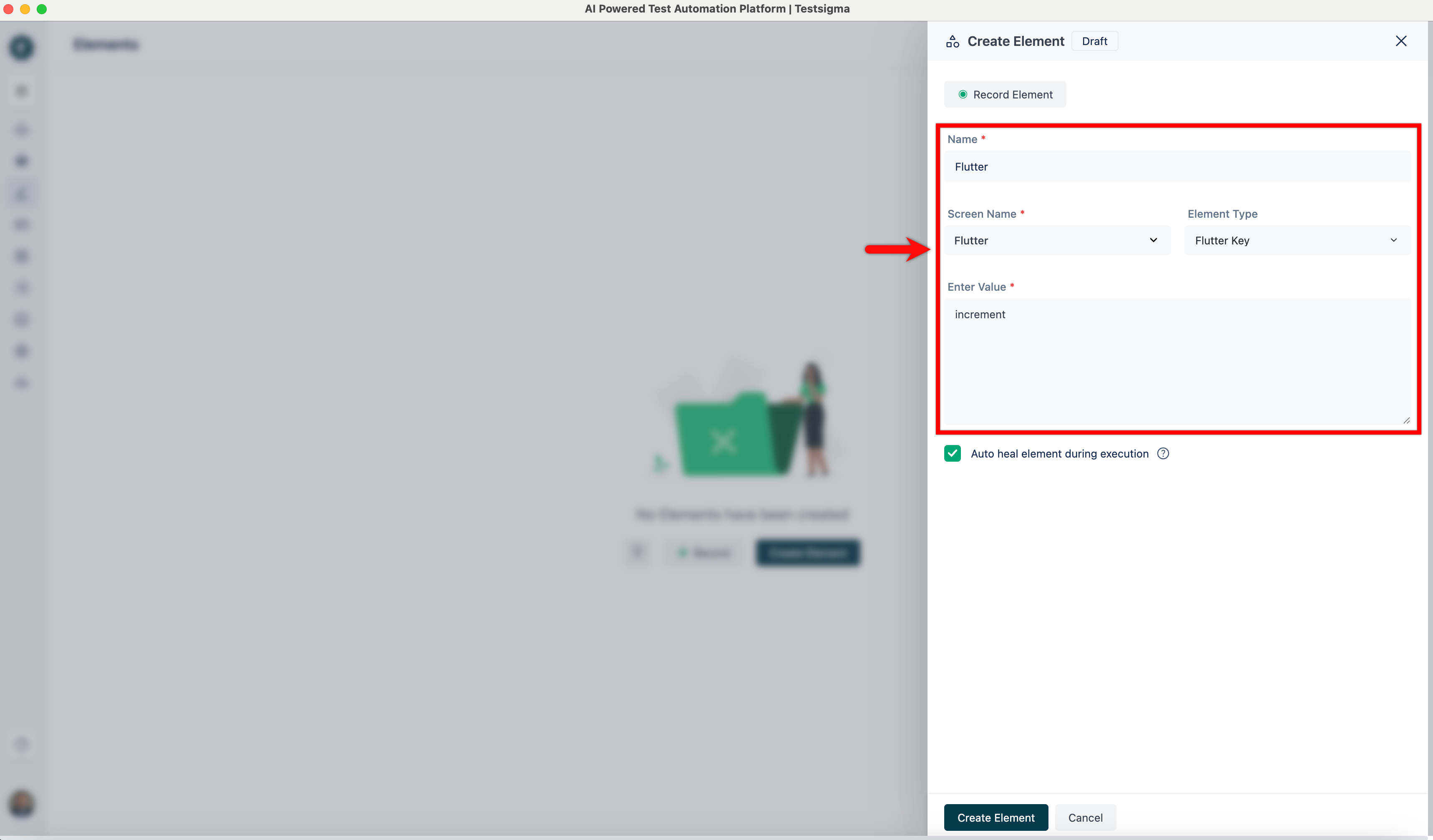
4. Once you have added all the details, click on **Create Element**.
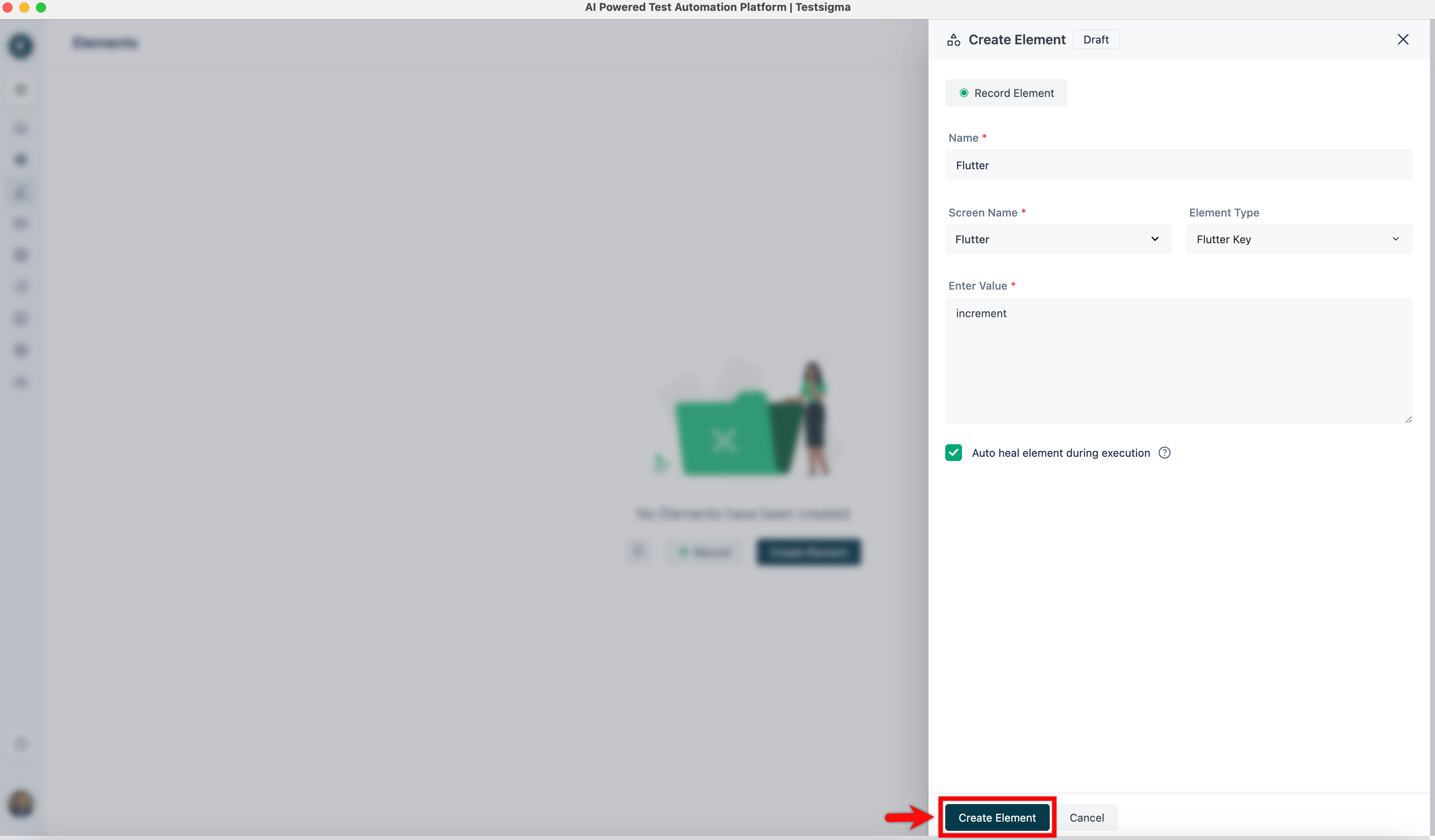
5. The element will be saved in the elements list.
## **Steps to Execute Tests Using Flutter Integration**
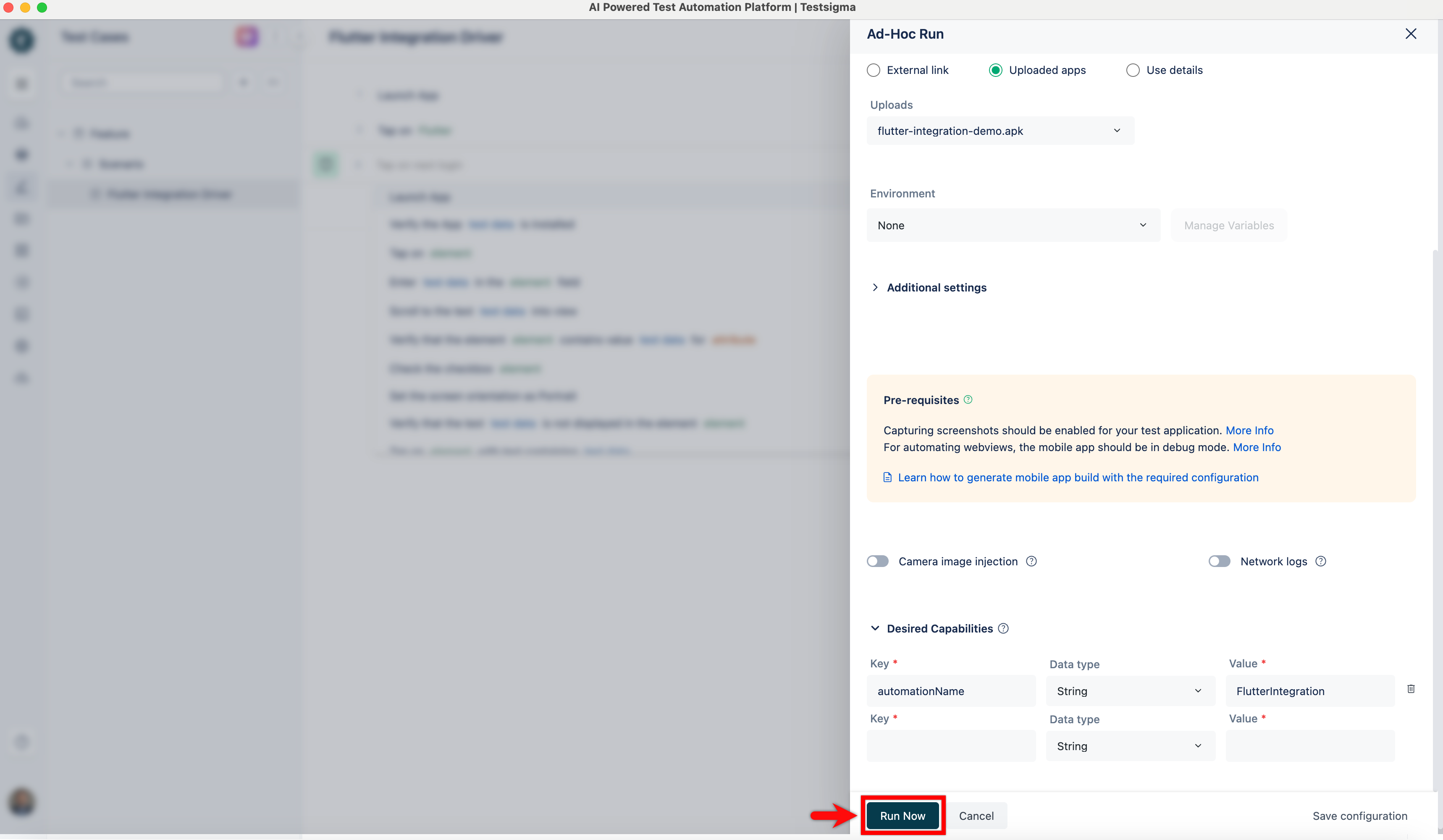
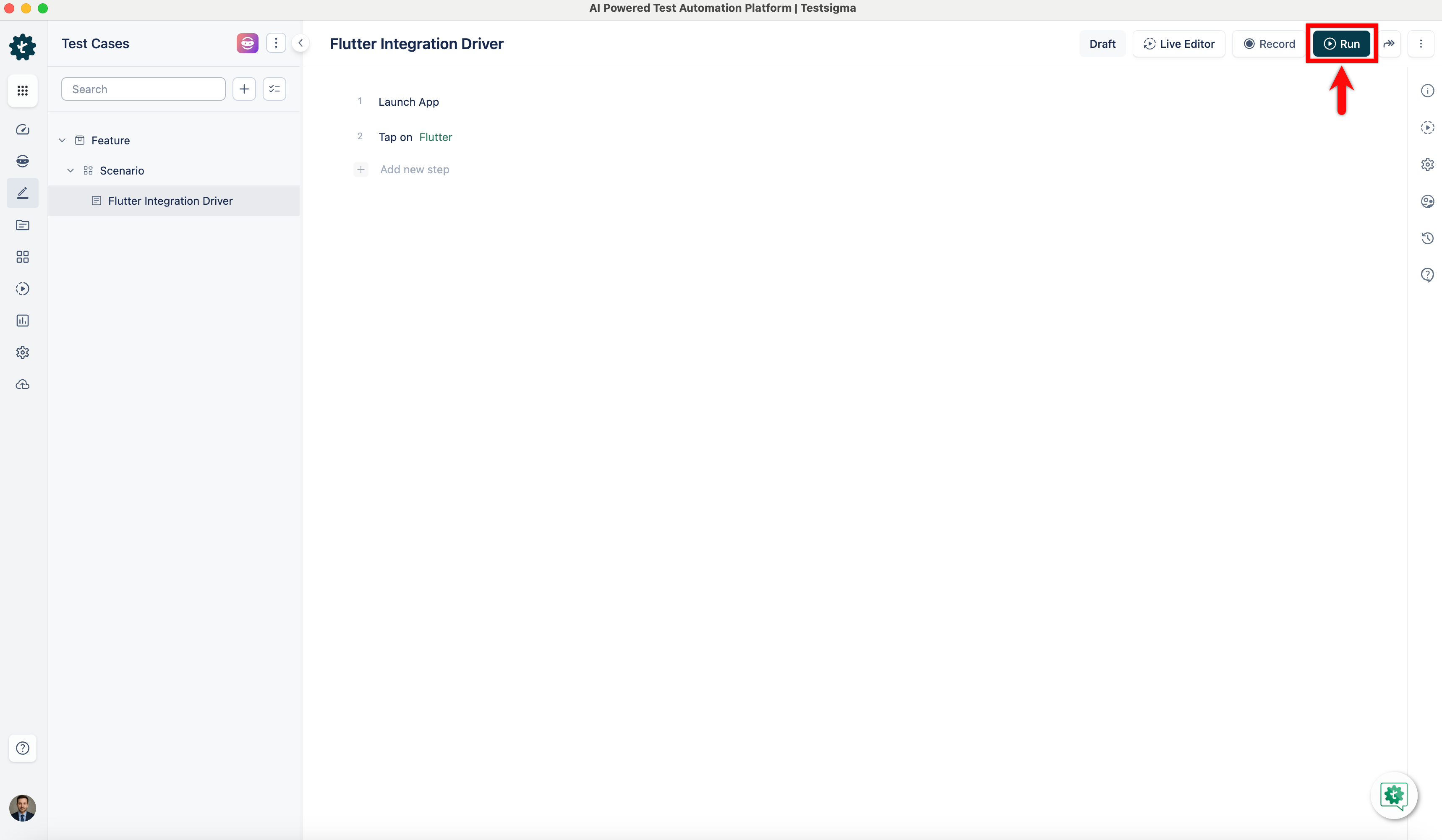
1. In the Test Case Details page, click **Run**.
2. In the **Ad-Hoc Run** overlay, select the required **Test Lab** and **Test Machine**.
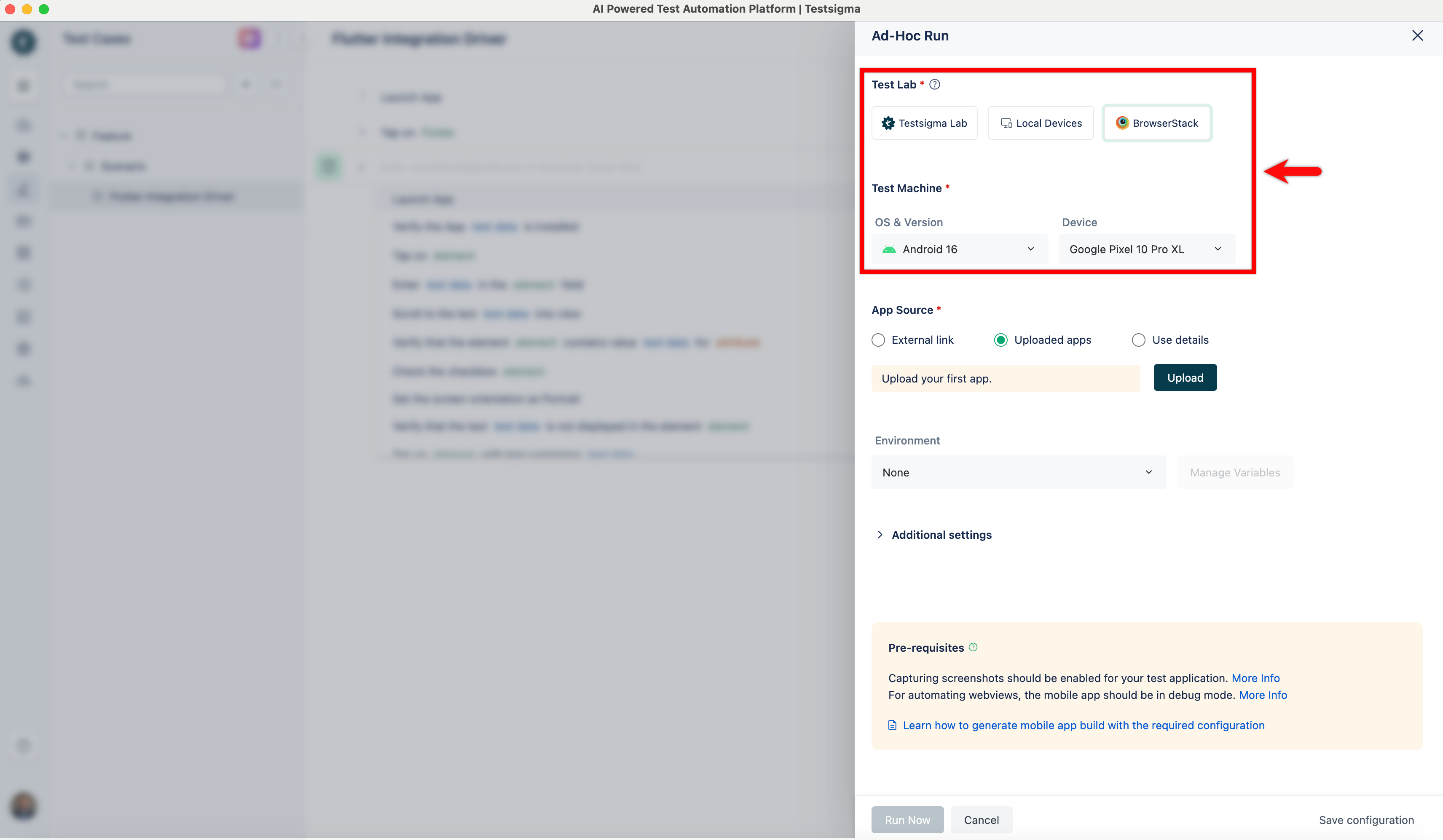
3. Under **App Source**, click **Upload** and upload the required file.
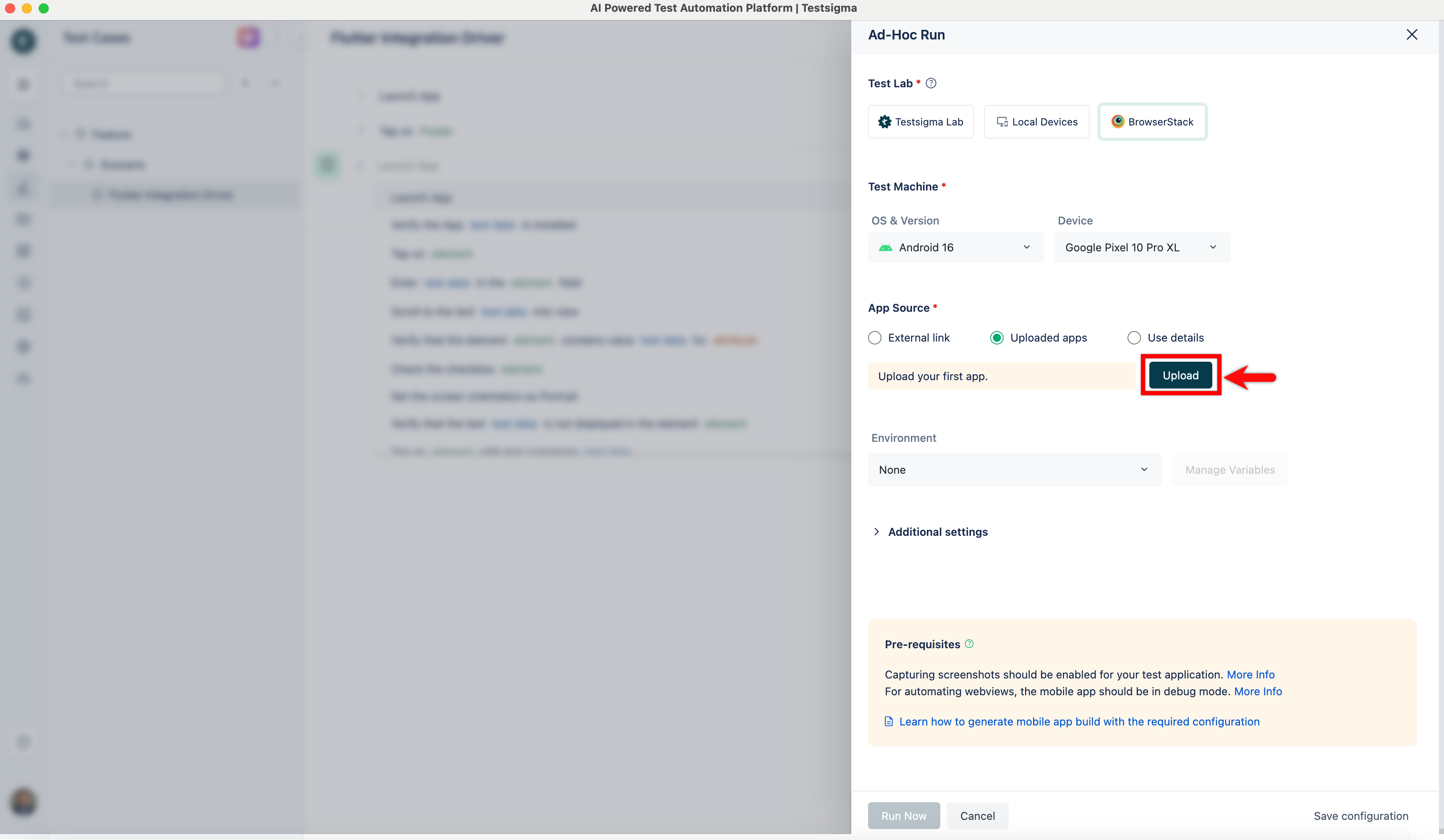
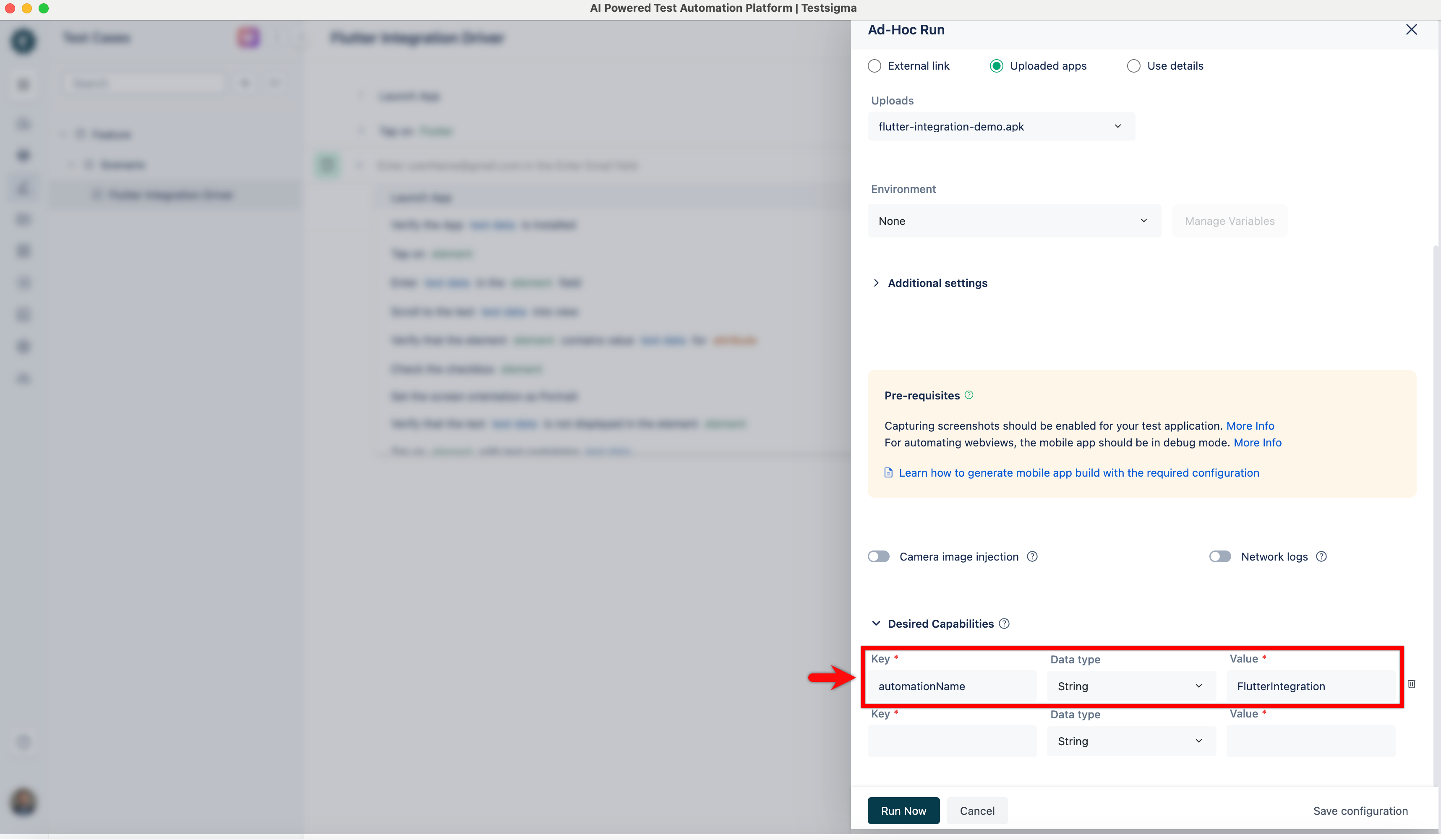
4. Expand **Desired Capabilities** and enter the following:
|automationName|String|FlutterIntegration|