
Integrations
Zephyr Cloud Integration with Testsigma
Prerequisites
Before you begin, ensure that:
- You have a valid Personal Access Token from Zephyr Cloud.
- You have your Jira Account URL, Username, and API key.
- You have referred to the documentation on creating test cases.
- You have referred to the documentation on creating test plans.
Steps to Integrate Testsigma with Zephyr Cloud
Section titled “Steps to Integrate Testsigma with Zephyr Cloud”-
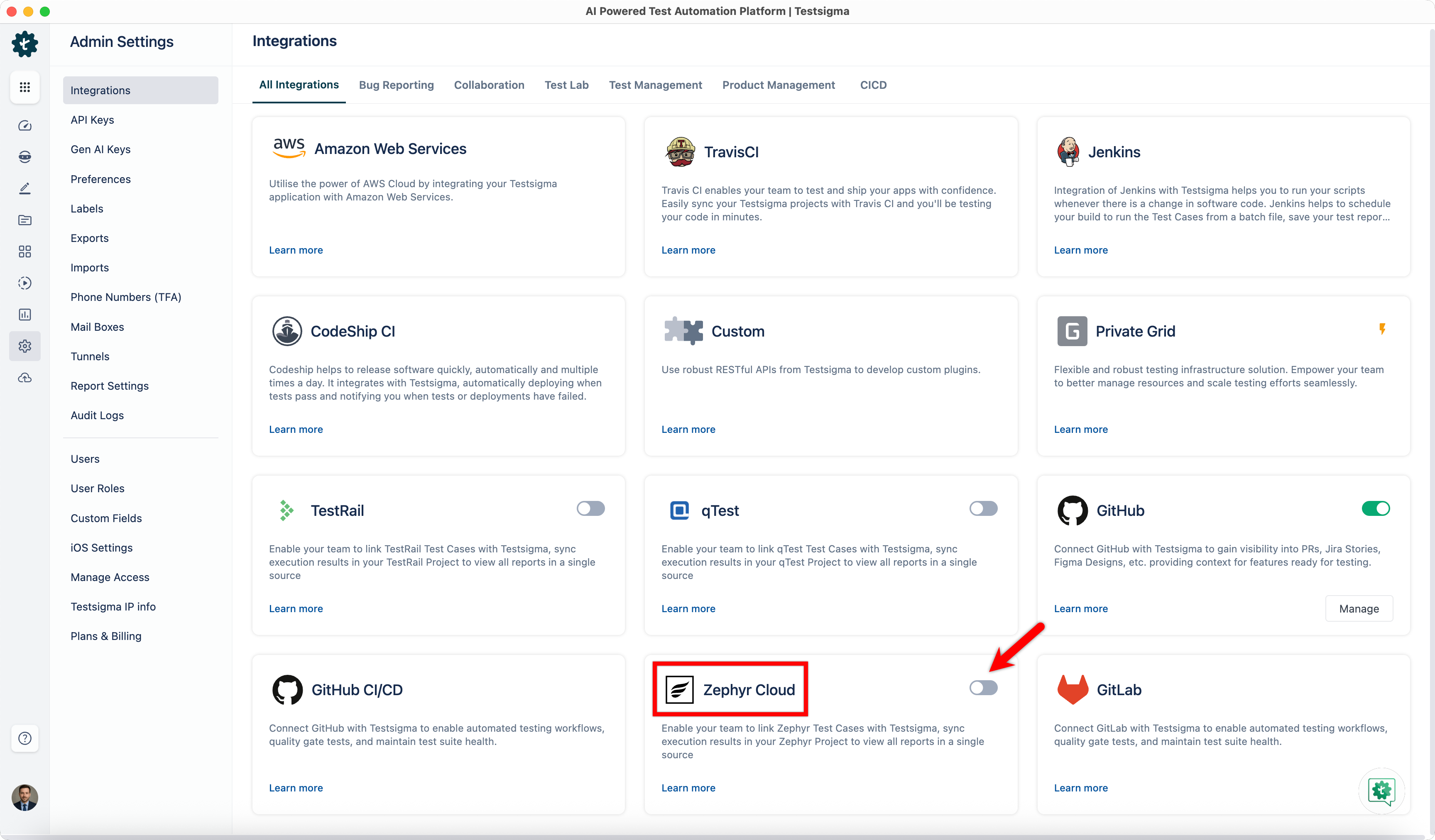
From the left navigation bar, go to Settings > Integrations.
-
Turn on the toggle for Zephyr Cloud.
-
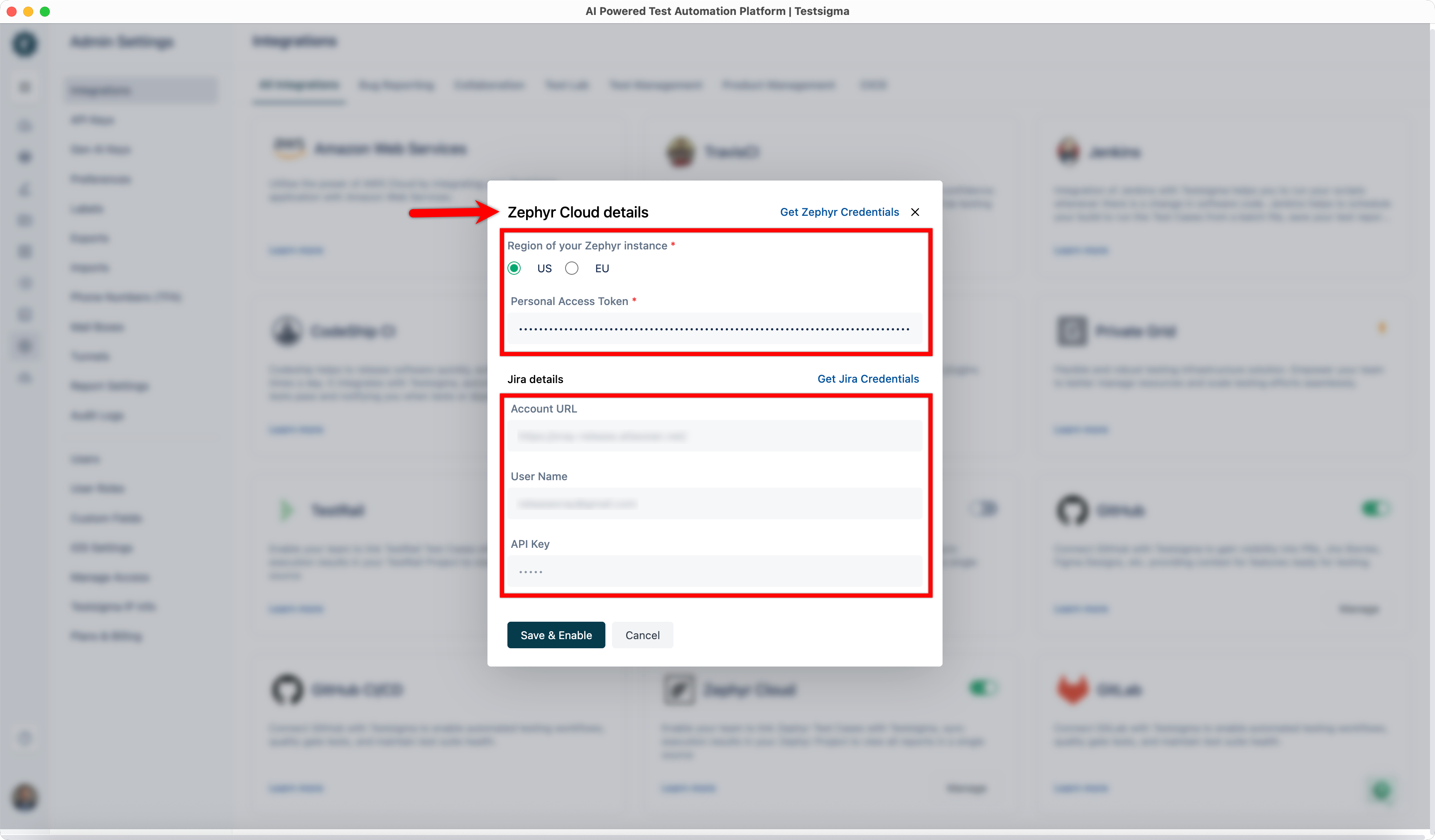
In the Zephyr Cloud Details dialog box, select Region of your Zephyr instance, enter your Personal Access Token and Jira Details.
-
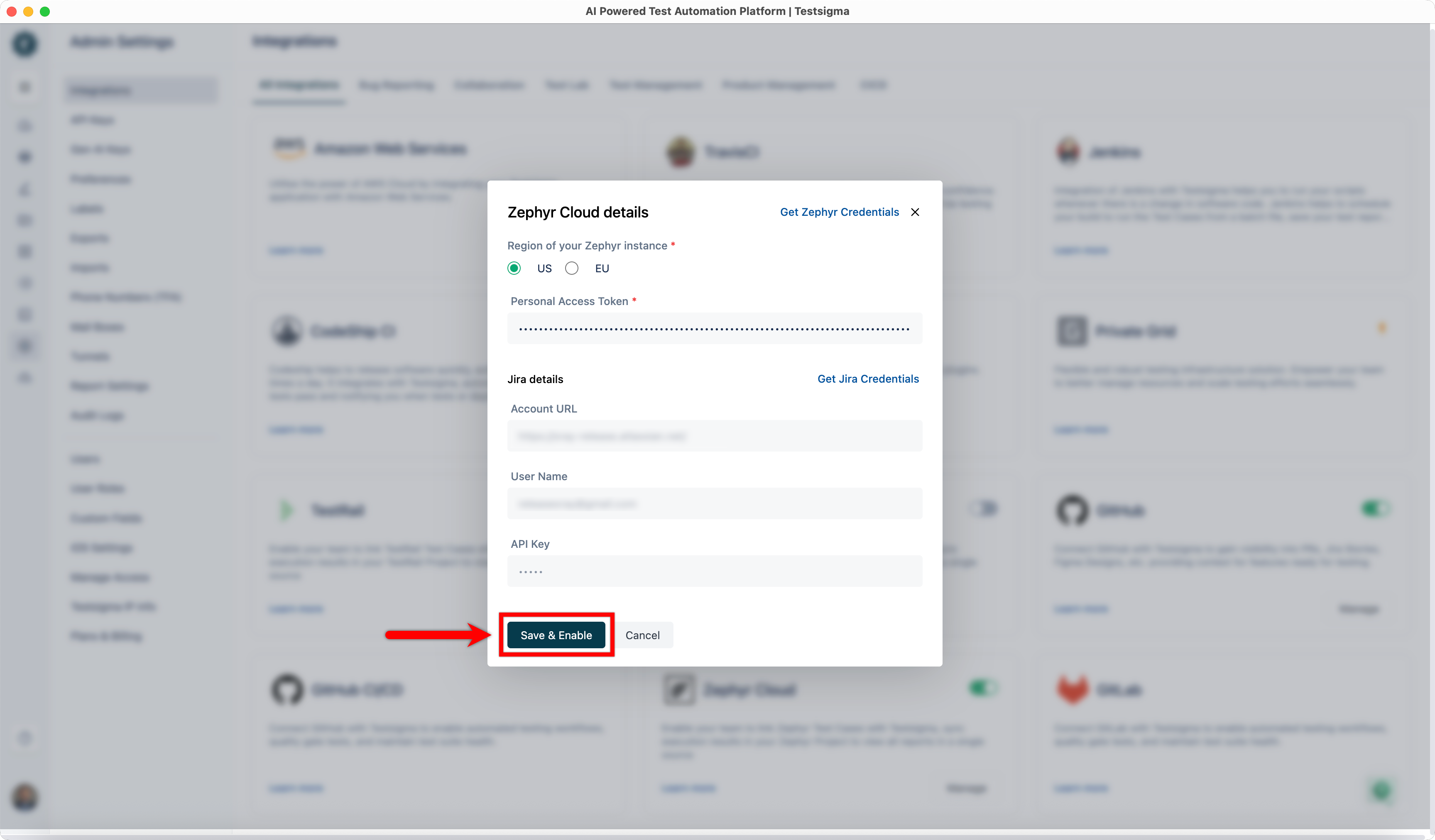
Click Save & Enable.
Link a Zephyr Test Case to a Testsigma Test Case
Section titled “Link a Zephyr Test Case to a Testsigma Test Case”-
Get the ID of an existing test case from Zephyr Cloud.
-
In Testsigma, go to Create Tests > Test Cases.
-
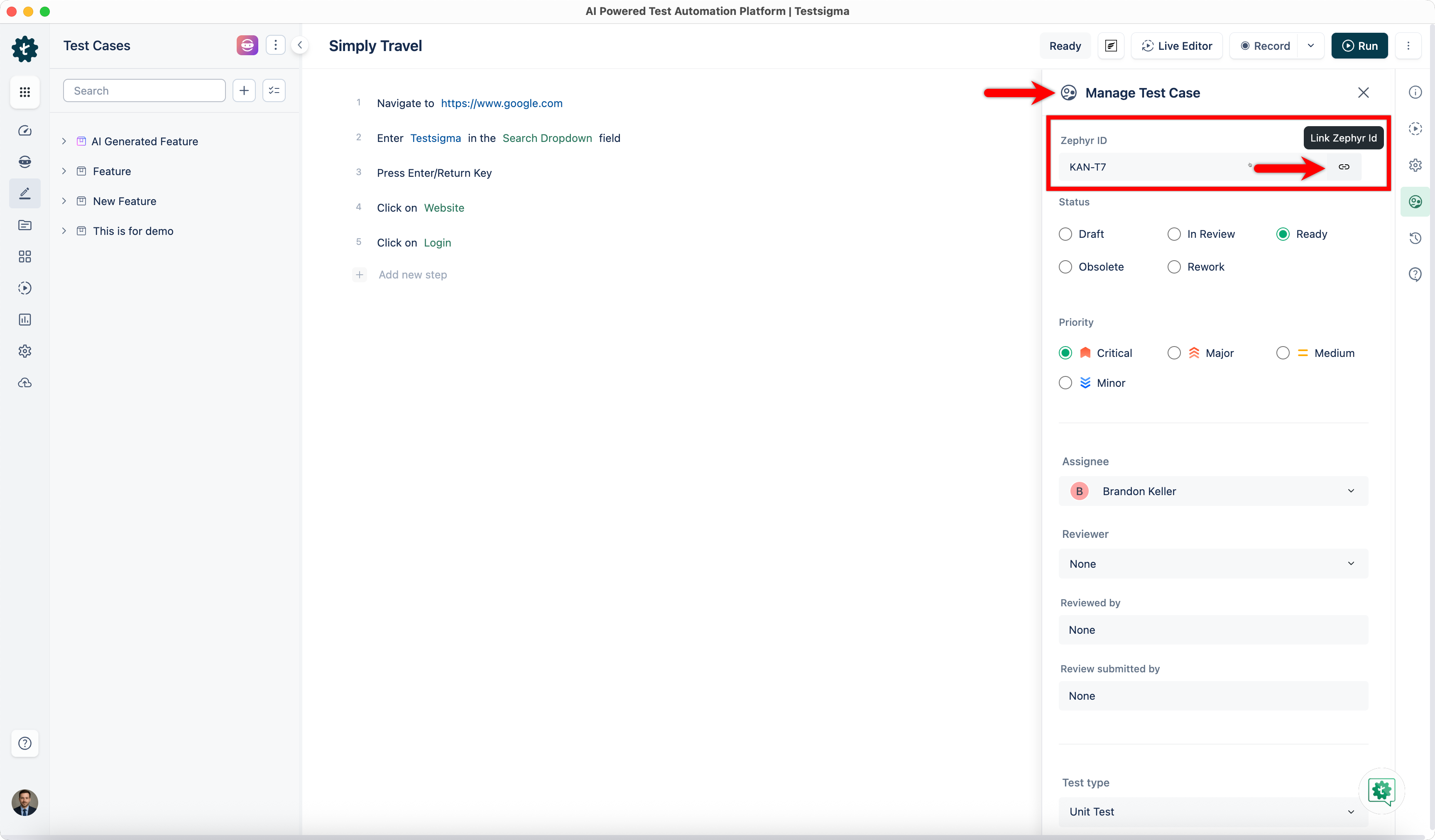
Open the test case you want to link, and click Manage Test Case.
-
Enter the Zephyr test case ID, and click the Link button.
Link a Zephyr Test Plan to a Testsigma Test Plan
Section titled “Link a Zephyr Test Plan to a Testsigma Test Plan”-
Get the ID of an existing test plan from Zephyr Cloud.
-
In Testsigma, go to Test Plans, and open the test plan you want to link.
-
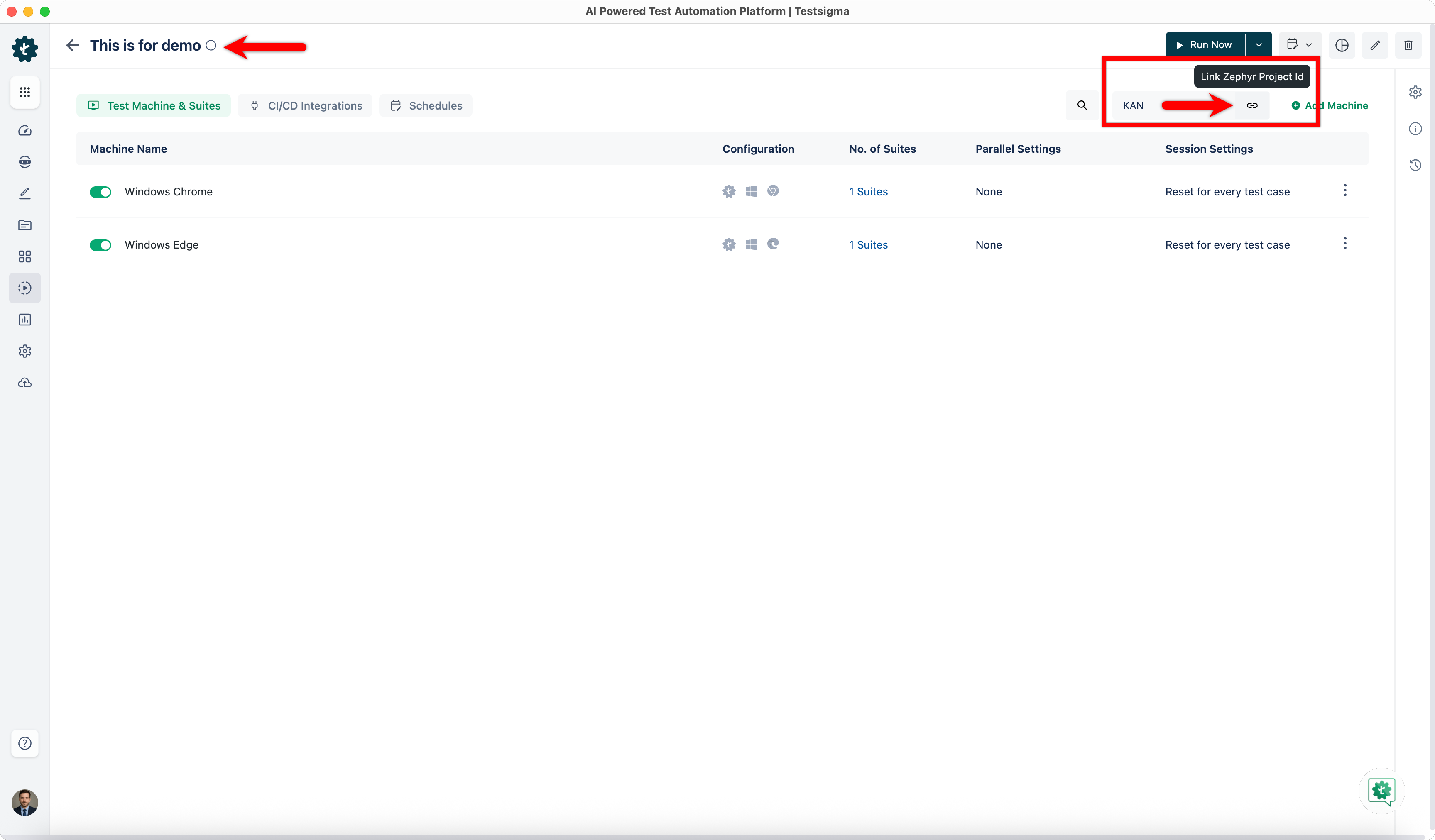
Enter the Zephyr test plan ID, and click the Link button.
Check Results in Zephyr
Section titled “Check Results in Zephyr”-
Execute the linked test plan in Testsigma, and wait for the execution to complete.
-
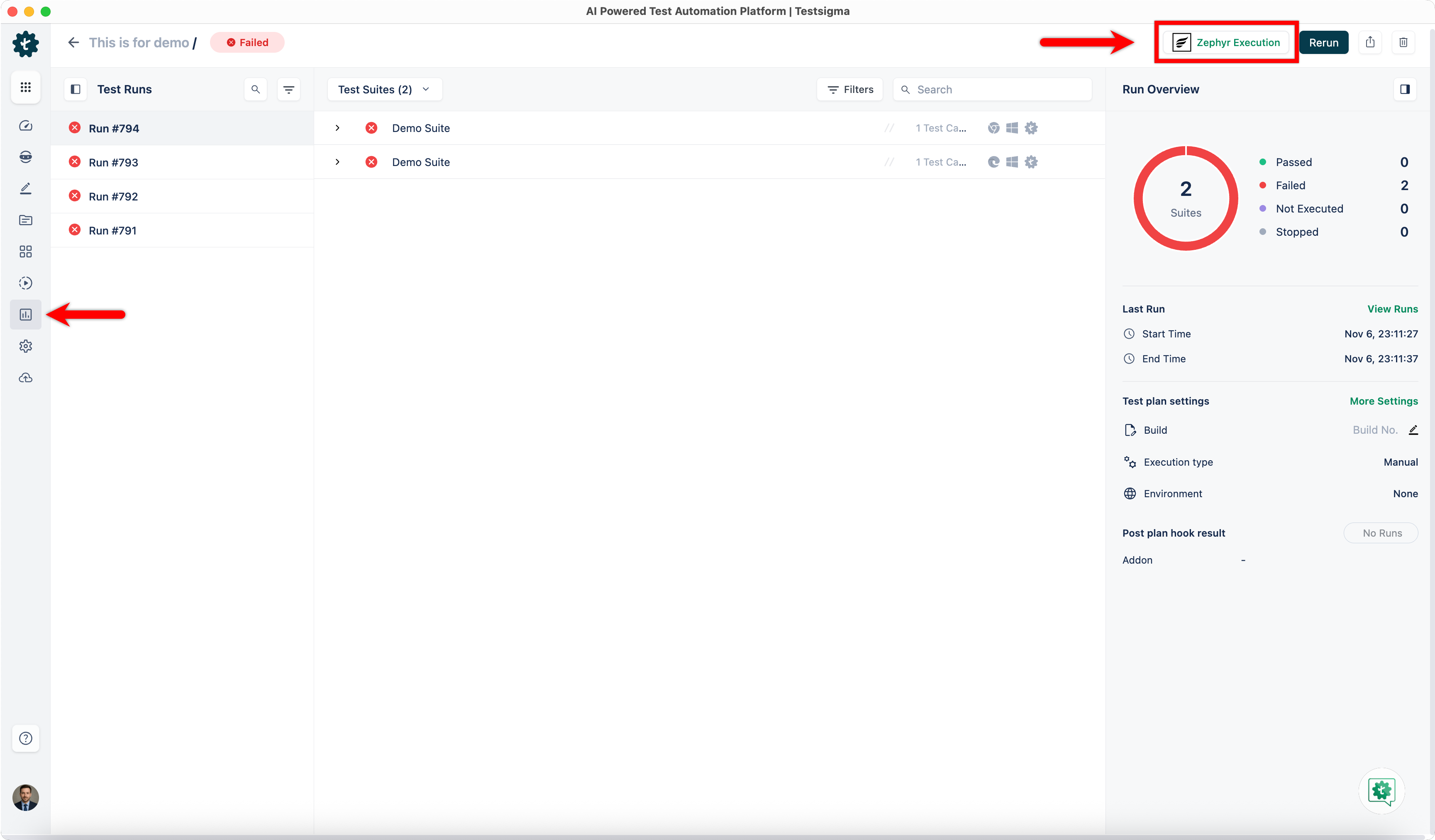
Once the execution is complete, click Zephyr Execution.
-
You’ll be redirected to Zephyr Cloud, where you can view the execution details.