
FAQs
How to Enable IE Mode in Microsoft Edge?
IE mode in Microsoft Edge lets you run legacy web applications that require Internet Explorer 11 directly within the Edge browser. Use the ts.ieMode capability in Testsigma to launch Edge in IE mode and automate tests against apps that depend on the IE rendering engine. This article discusses how to add a desired capability to launch Edge in IE mode in Testsigma.
Prerequisites
Before you start creating an addon, ensure that:
- You have a Testsigma account with access to Test Plans and Test Machines.
- The test machine running the Edge browser is on Windows and has registry access.
- Internet Explorer 11 is present on the machine (required by Edge for IE mode rendering)
Steps to Configure Registry Settings for IE Mode
Section titled “Steps to Configure Registry Settings for IE Mode”IE mode may hang if Protected Mode settings are inconsistent across Windows security zones. Before running tests, align the Protected Mode setting across all zones using the Windows Registry Editor.
-
Press Win + R, type regedit, and press Enter to open the Registry Editor.
-
Navigate to each of the following registry paths:
HKEY_CURRENT_USER\Software\Microsoft\Windows\CurrentVersion\Internet Settings\Zones\1HKEY_CURRENT_USER\Software\Microsoft\Windows\CurrentVersion\Internet Settings\Zones\2HKEY_CURRENT_USER\Software\Microsoft\Windows\CurrentVersion\Internet Settings\Zones\3HKEY_CURRENT_USER\Software\Microsoft\Windows\CurrentVersion\Internet Settings\Zones\4
-
For each zone, right-click in the right pane and select New > DWORD (32-bit) Value.
-
Name the new value 2500.
-
Double-click 2500 and set its value:
- Enter 3 to disable Protected Mode (recommended - set all four zones to 3)
- Enter 0 to enable Protected Mode
Steps to Add the IE Mode Desired Capability
Section titled “Steps to Add the IE Mode Desired Capability”-
Create a new Test Plan and navigate to the Add Test Suites & Link Machine Profiles tab.
-
Click Add Test Suites and add the required test suites.
-
Once you have added test suites, click Link Test Machine.
-
In the Select test machine profiles overlay, click Add Machine.
-
In the Add test machine/device profile overlay, enter a name for the machine and configure the required options.
-
Scroll to the Desired Capabilities section and add the following capability:
Key Data Type Value ts.ieMode Boolean true 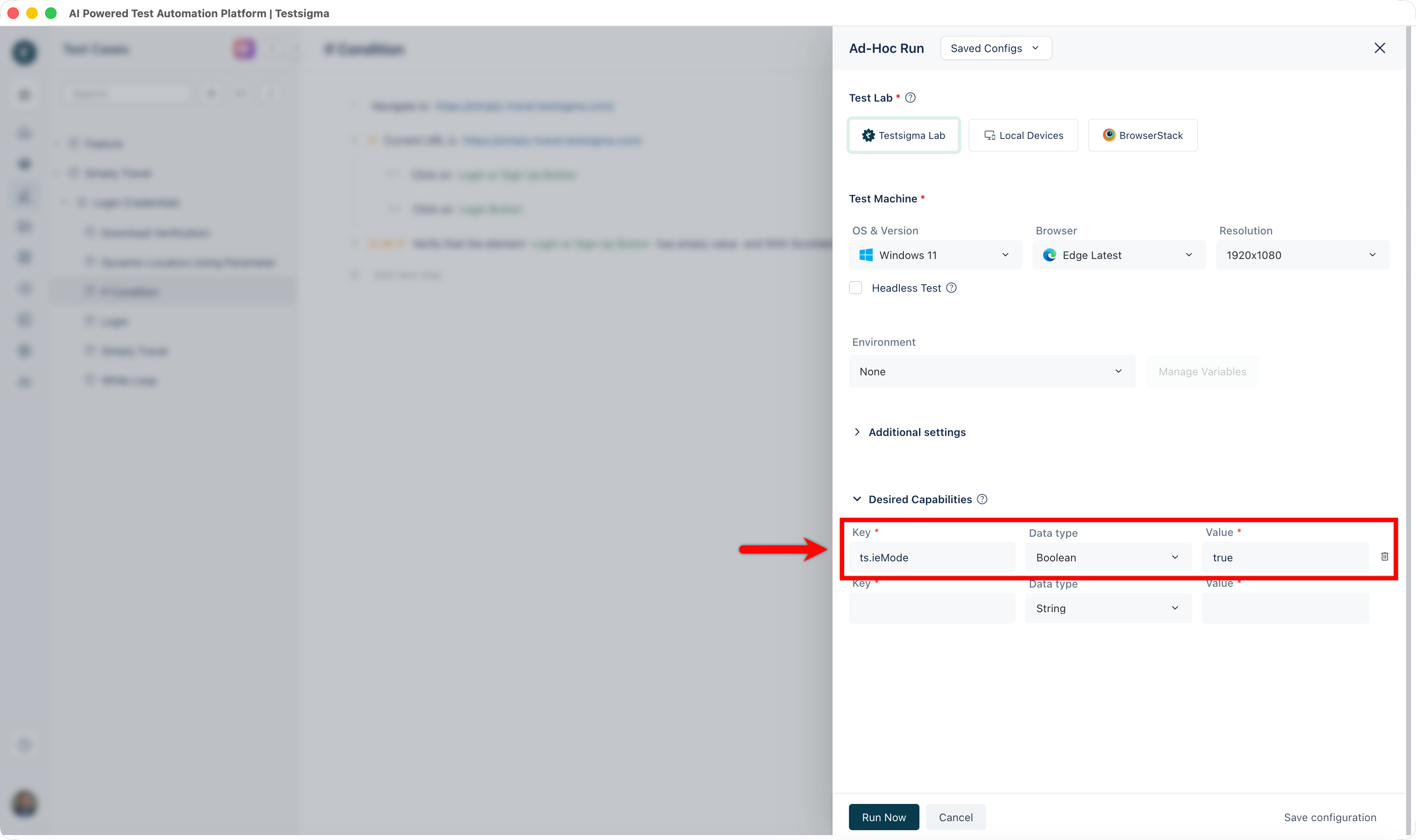
-
Click Create Profile to save the configuration.
Run Your Tests
Section titled “Run Your Tests”Once the registry is configured and the desired capability is added, trigger your test plan as usual. Edge will launch in IE mode, using the Trident (IE11) rendering engine for the application under test.