
On-Premise Setup
On-Premise: Troubleshooting
This article provides troubleshooting guide for general and network issues related to accessing the on-premise domains. Follow these steps to quickly identify and resolve issues.
General Issues
Section titled “General Issues”1. Application Not Accessible
Section titled “1. Application Not Accessible”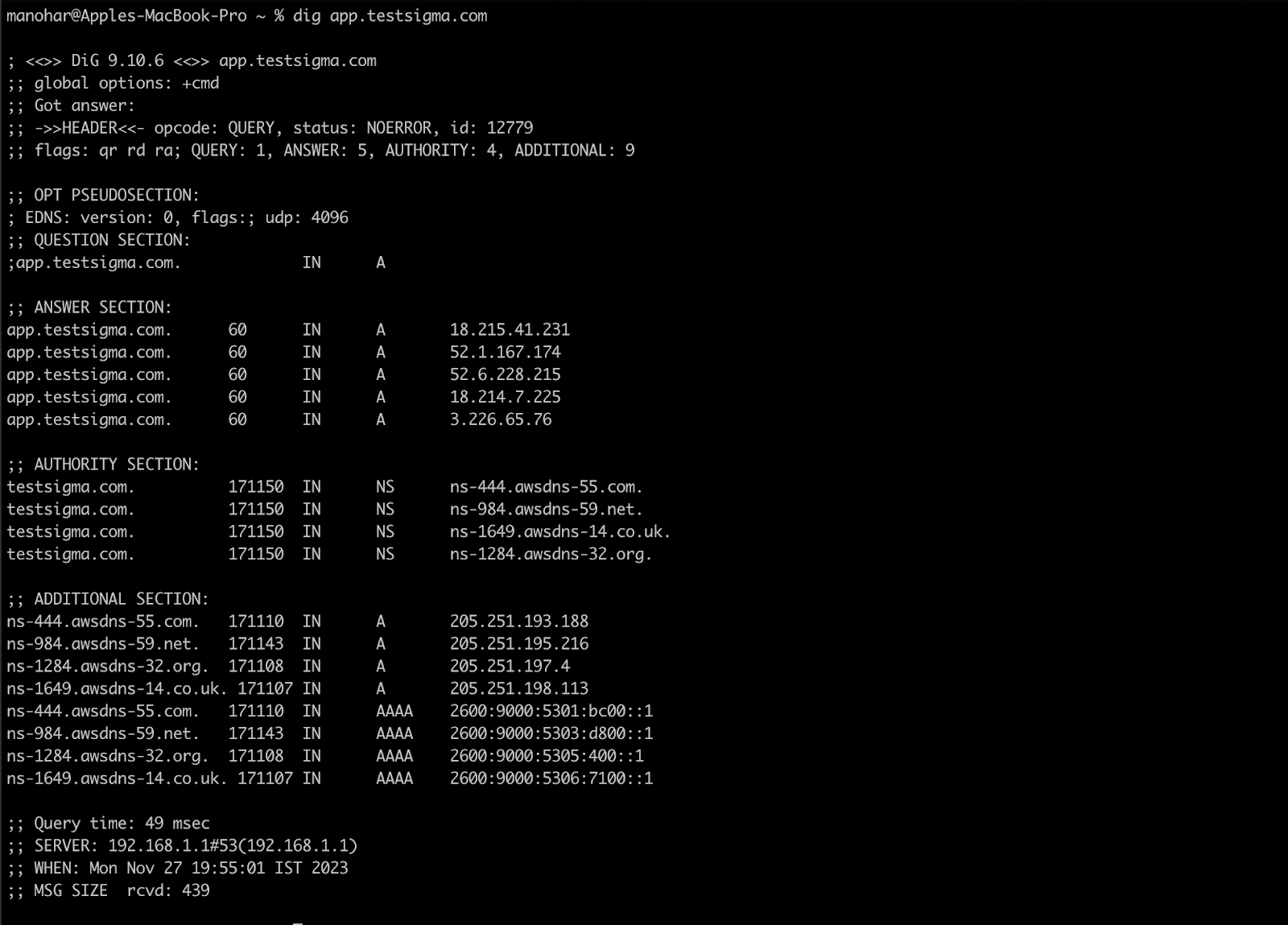
Host Configuration:
-
Open the /etc/hosts file on the server using a text editor.
-
Add the <system-Ip-address> <domain> mapping pairs.
For Example:
192.168.0.1 dev.testsigmaprivate.com192.168.0.1 dev-id.testsigmaprivate.com192.168.0.1 dev-addon.testsigmaprivate.com192.168.0.1 dev-visualtesting.testsigmaprivate.com192.168.0.1 dev-audit.testsigmaprivate.com192.168.0.1 dev-mobilerecorder.testsigmaprivate.com -
Save the changes and close the editor.
2. Server Refused to Connect:
Section titled “2. Server Refused to Connect:”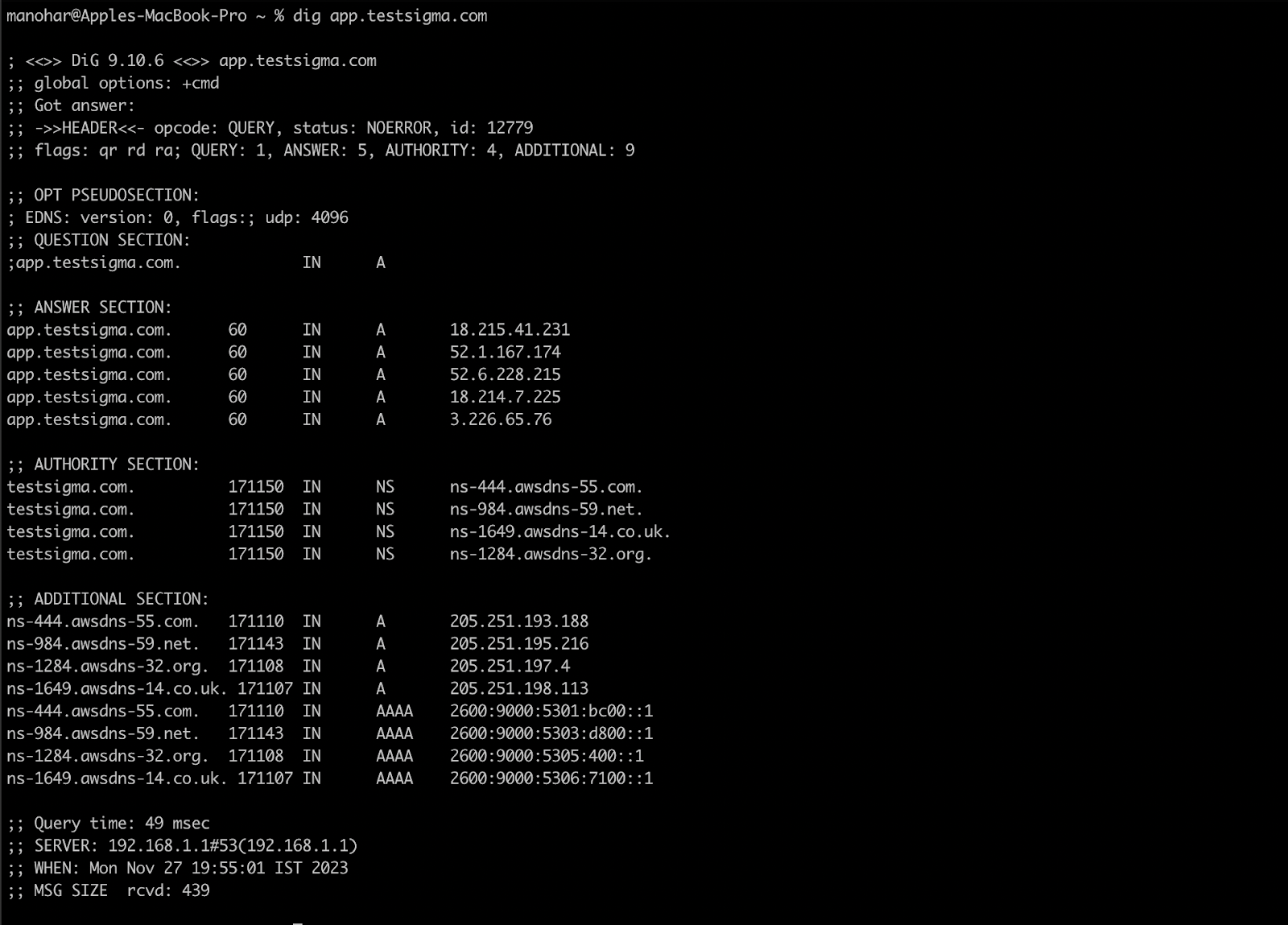
a. Check if the Server is Running:
- Connect to the server machine.
- Navigate to the Testsigma installation folder.
- Check the Testsigma server status by running:
- docker ps -a
- Ensure all containers are Up.
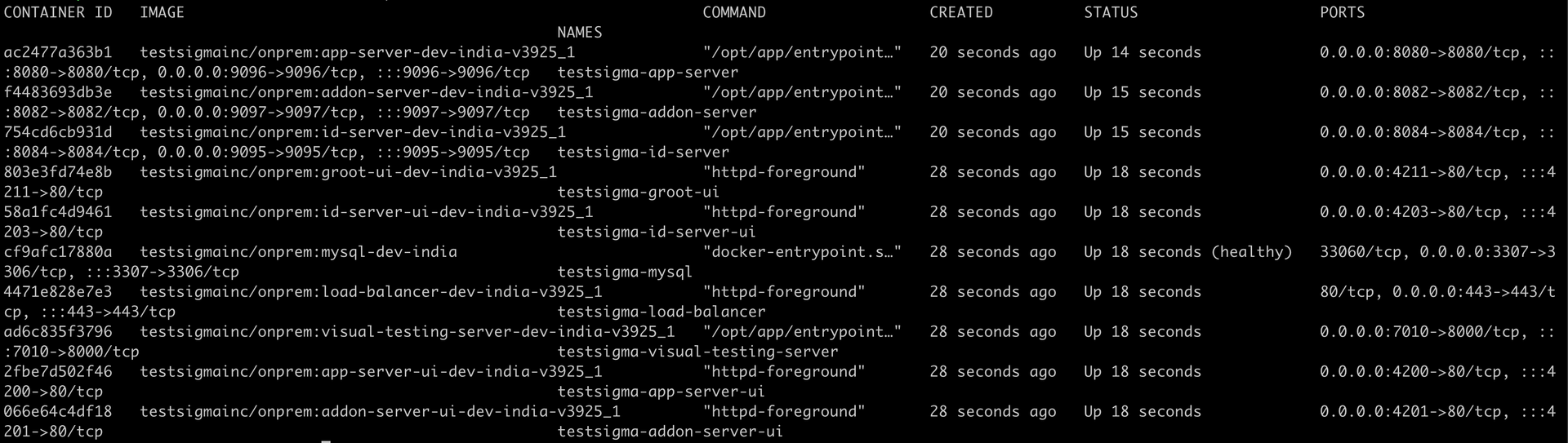
b. If Any Container is Shown as “Exited”
- Get the logs of that container and check the reason for failure.
- Restart the exited containers by running:
- docker compose up -d
If you’re still facing the issue, contact support@testsigma.com.
3. Checking the Logs of the Containers:
Section titled “3. Checking the Logs of the Containers:”-
Choose the container name as mentioned in the image below:
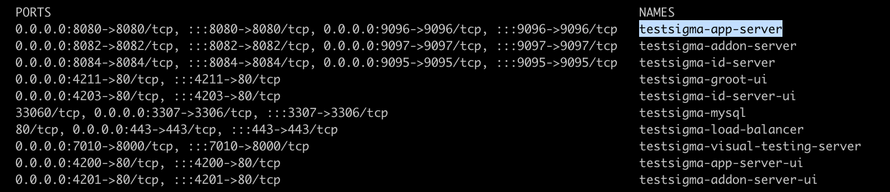
-
Execute the following command to check and print all the server logs in the command line:
- docker logs -f testsigma-app-server
-
Press CTRL + C to exit the log view.
4. Sharing the Logs with the Testsigma Team:
Section titled “4. Sharing the Logs with the Testsigma Team:”-
Choose the container name as mentioned in the image below:
-
Execute the following command to copy the logs from the container to the server by replacing <destination_location> with the desired directory path on the server:
- docker cp testsigma-app-server:/opt/logs <destination_location>/
-
Pull the Logs from the Server Machine and send the logs to support@testsigma.com for further help.
Network Issues
Section titled “Network Issues”1. Associated IP List
Retrieve the IP Address:
-
Use the dig command to find the IP address associated with the domain:
For Example:dig app-testsigma.de.youcompany.com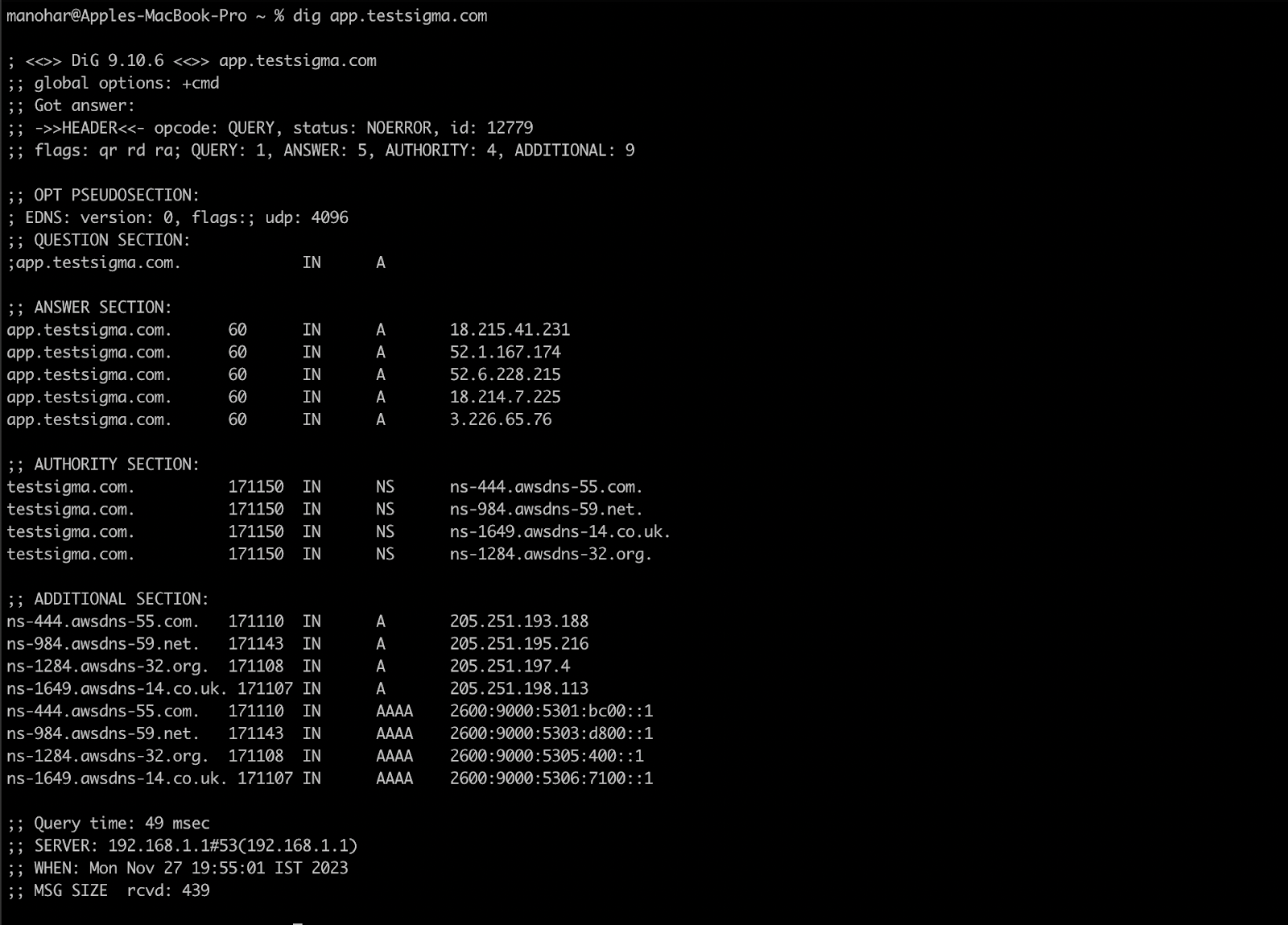
-
Alternatively, you use the nslookup command:
For Example:dig app-testsigma.de.youcompany.com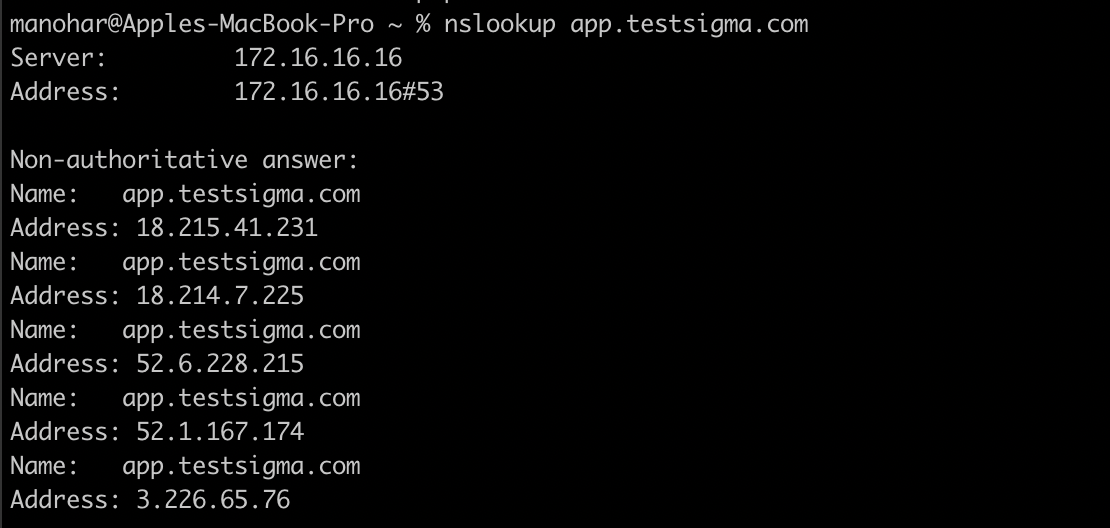
2. Check the Connection
-
Use the nc -vz <ip-address> 443 command to check the connection to the retrieved IP address on port 443:
For Example:
nc -vz 18.215.41.231 443

This command will confirm if the connection to the specified IP address and port is successful.
3. Curl Check
-
Use the curl command to check the HTTP response from the IP address:
curl -H "Host: http://app-testsigma.de.bosch.com" http://<ip-address>:<port>/
For Example:
curl -H "Host: http://app.testsigma.com" http://52.1.167.174:80/