Activity Monitoring
Audit Logs: Complete Record of Activities
Prerequisites
- Before you begin, ensure you are familiar with Activity Logs for all entities in Testsigma.
Interactive Demo: View & Export Audit Logs
Section titled “Interactive Demo: View & Export Audit Logs”View Audit Logs
Section titled “View Audit Logs”-
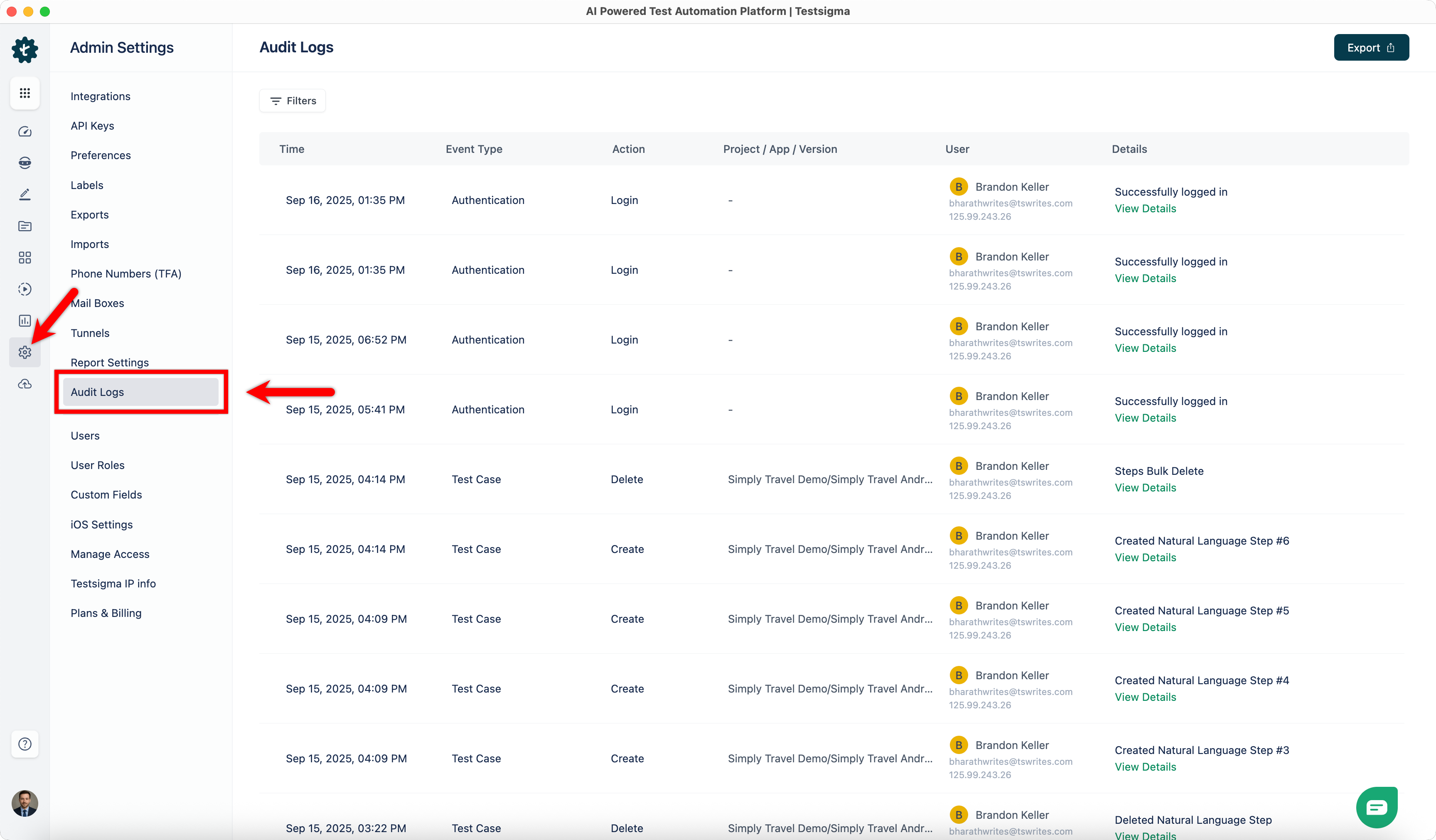
From the left navigation bar, go to Settings > Audit Logs.
-
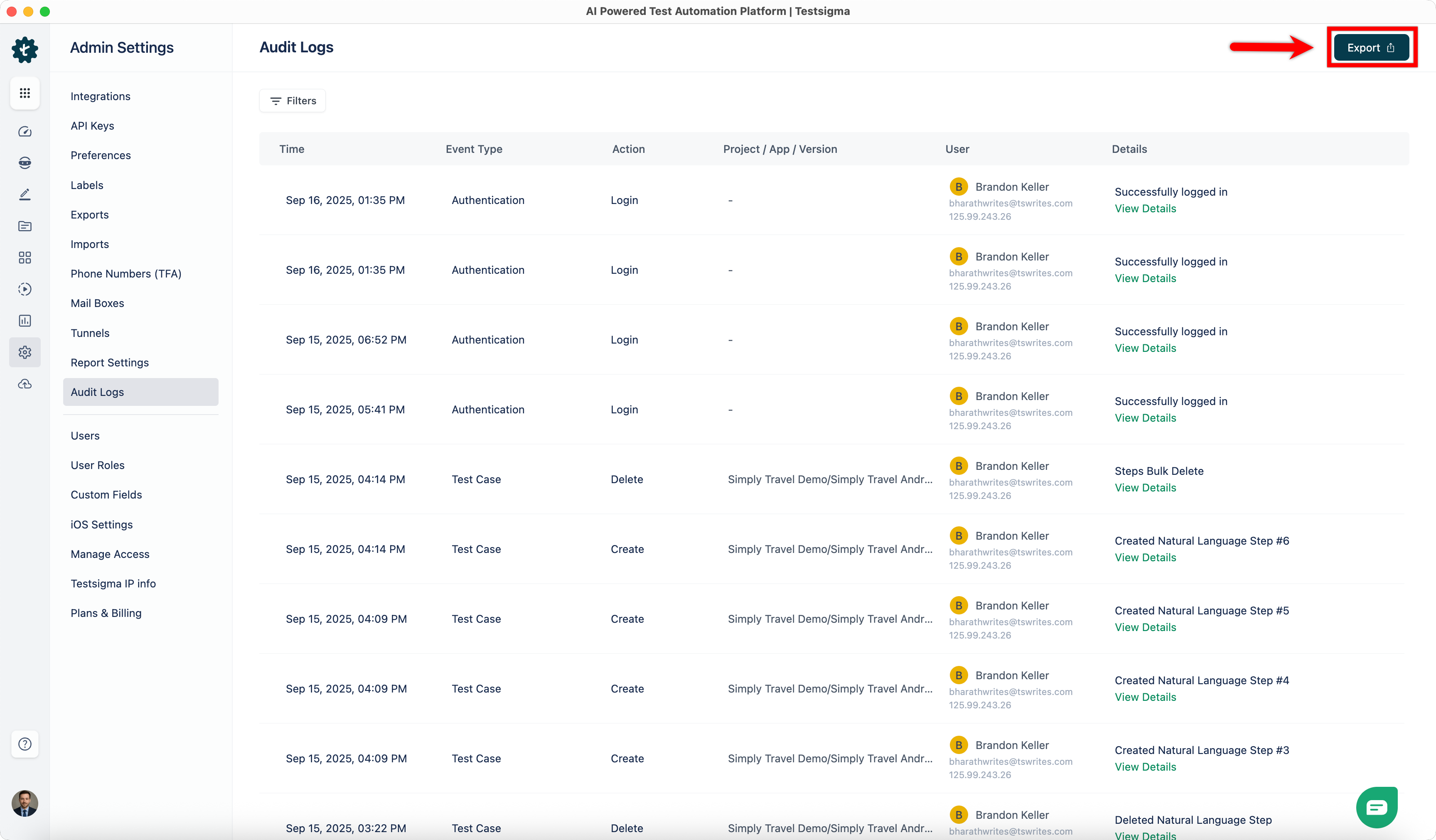
The Audit Logs page lists all recorded activities.
-
Each log entry includes the following details:
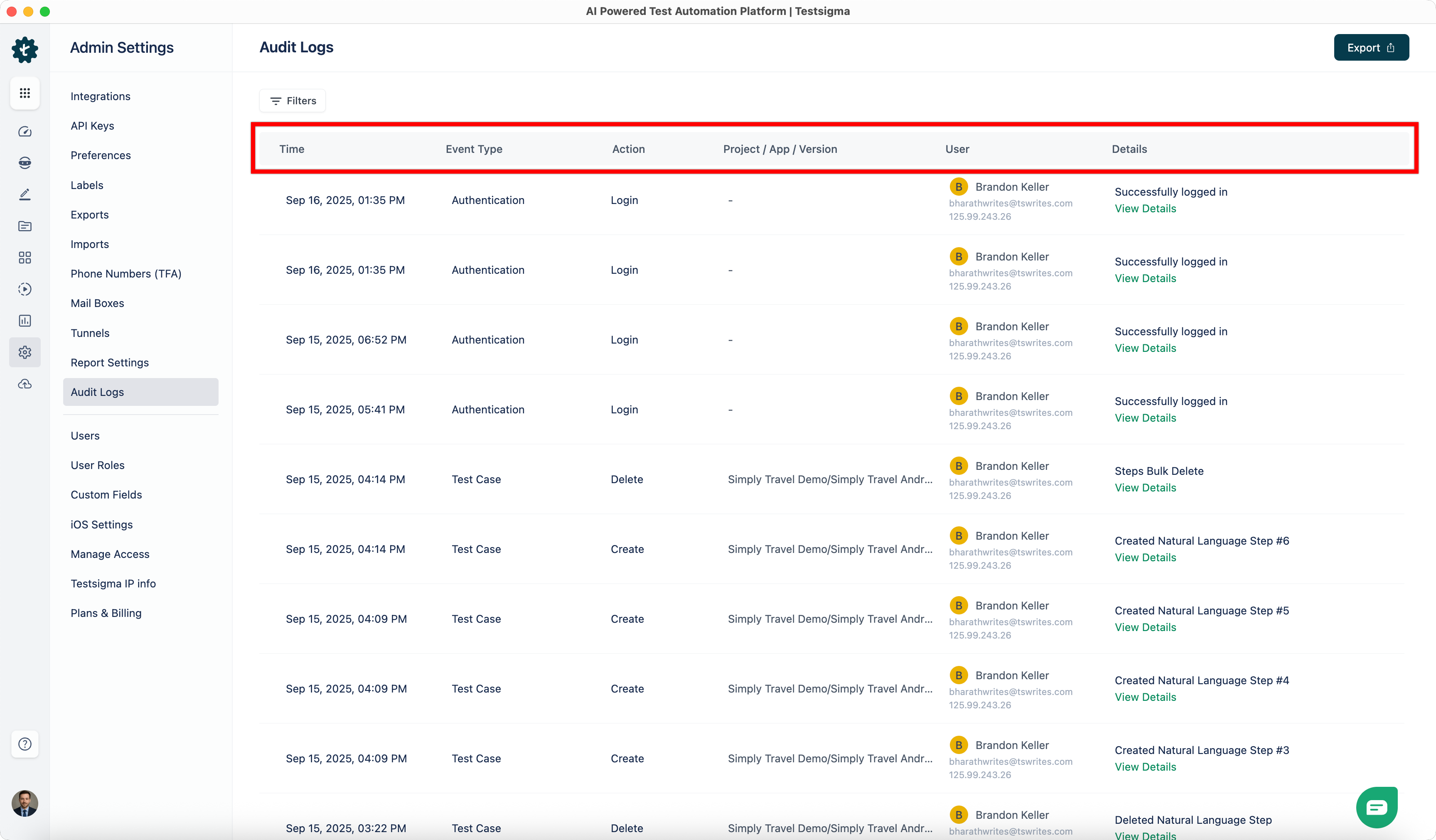
- Time: Date and time when the action occurred.
- Event Type: The entity type in Testsigma (Test Case, Test Suite, Test Plan, Test Data, Element, Environment, Authentication & Access Bridge).
- Project/App/Version: The project, application, and version where the change was made.
- Action: The action type (Create, Update, Delete, Login, or Logout).
- User: The user who performed the action.
- Details: The fields that were changed, with specific values.
Filter Audit Logs
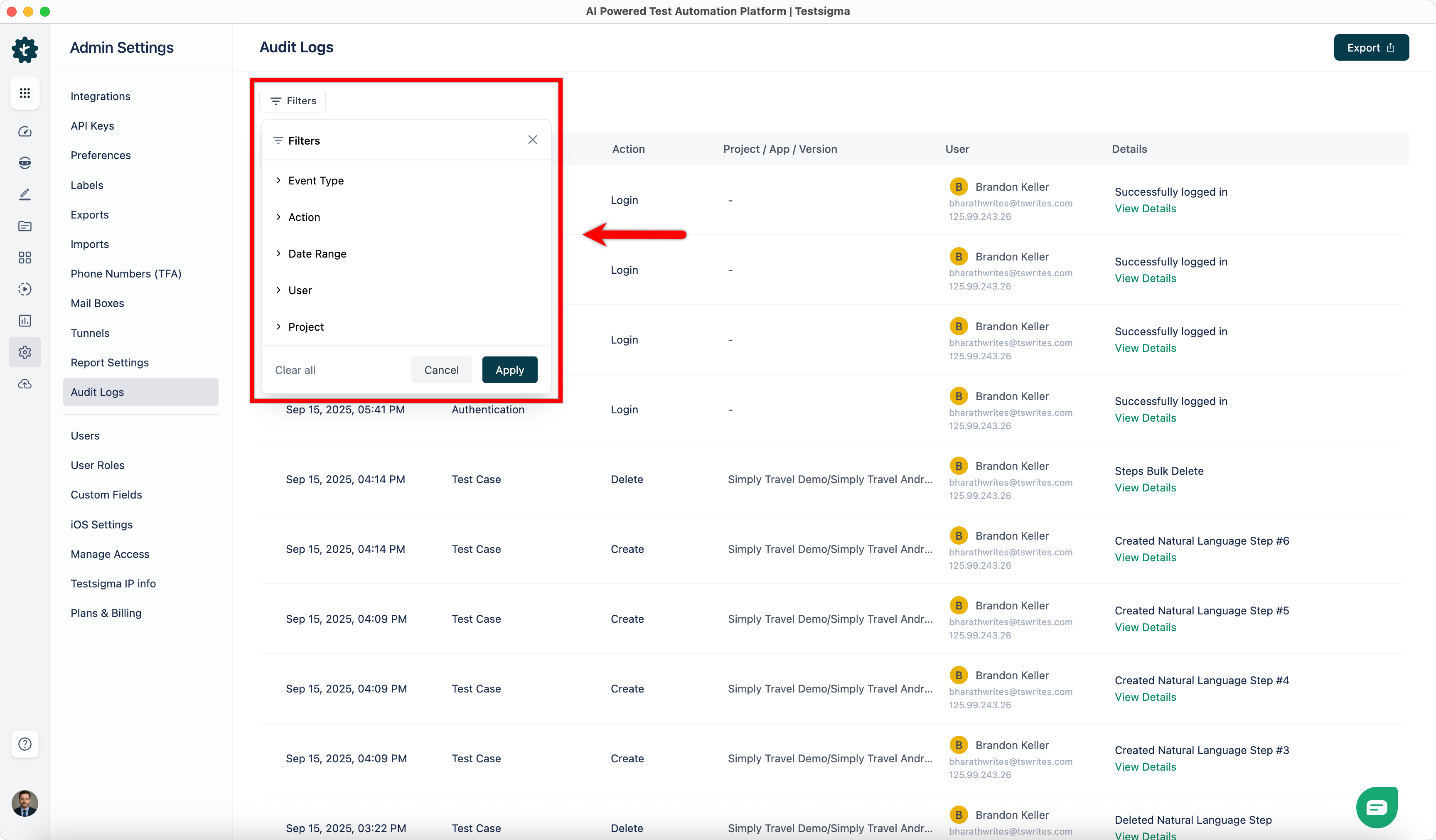
Section titled “Filter Audit Logs”You can narrow down audit log results using the following filters:
-
Event Type: Displays logs for a specific entity in Testsigma, such as Test Case, Test Suite, Test Plan, Test Data, Element, Environment, Authentication & Access Bridge.
-
Action: Filters logs by the type of activity performed, such as Create, Update, Delete, Login, or Logout.
-
Date Range: Limits results to activities that occurred within a selected time frame. You can choose ranges between From Date & Time and To Date & Time.
-
User: Shows activities performed by a specific user in your organization.
-
Project: Displays logs for actions within a selected project.
Export Audit Logs
Section titled “Export Audit Logs”-
On the Audit Logs page, apply the required filters.
-
In the top-right corner, click Export.
-
In the confirmation dialog, click Export. A confirmation message appears indicating that the export has been initiated.
-
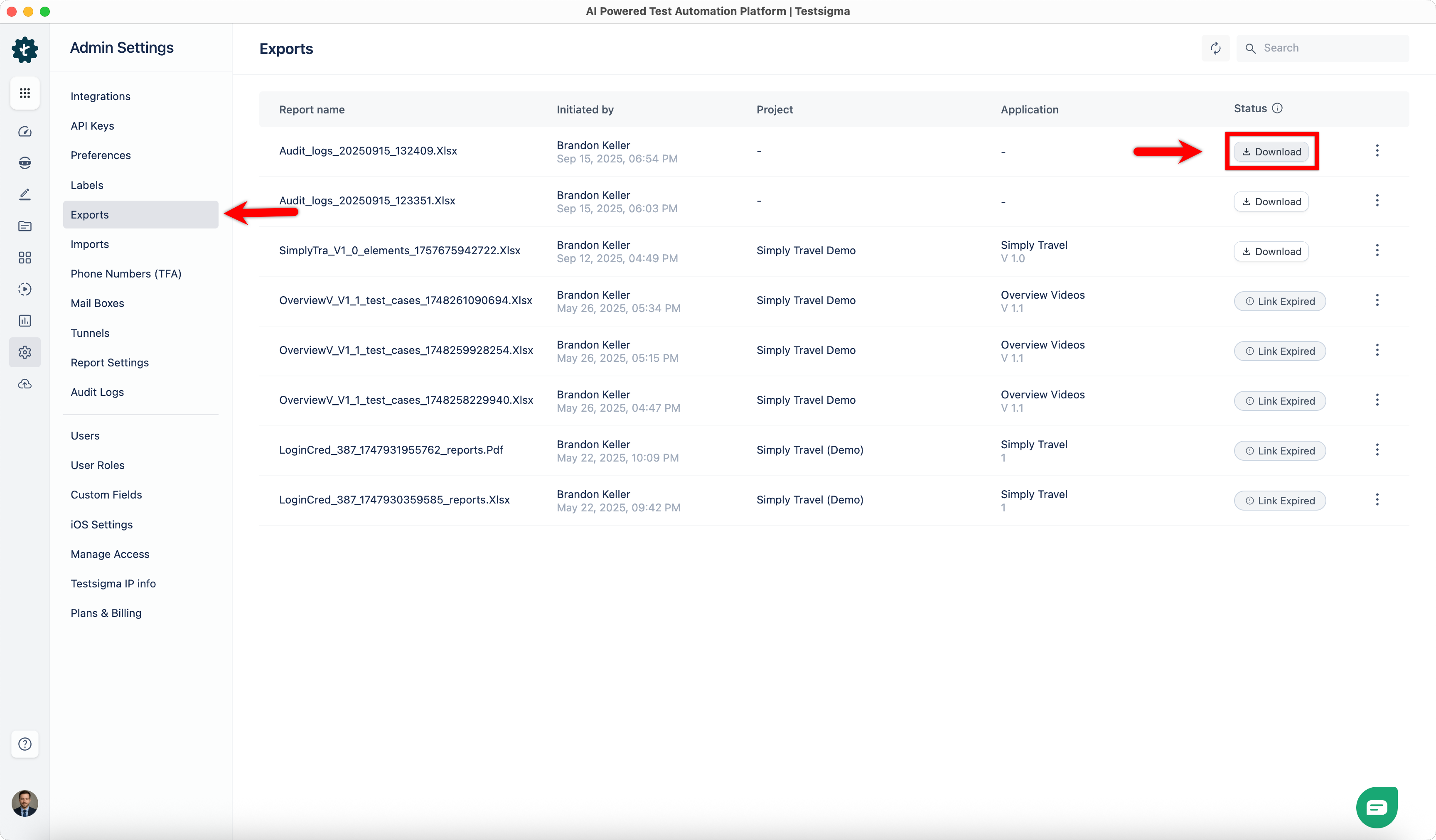
Once the file is generated, an entry appears in Settings > Exports.
-
Go to Settings > Exports.
-
On the Exports page, click Download next to the generated audit log report.