
Elements
Record Multiple Elements Using Recorder
Prerequisites
Before you begin, ensure that:
- You have referred to the documentation on creating projects.
- You have referred to the documentation on creating applications.
- You have installed the Testsigma Chrome Extension. For more information on installing Testsigma Chrome Extension, refer to the documentation on Testsigma Chrome Extension.
- You have an android application that is available for testing.
Steps to Record Multiple Elements
Section titled “Steps to Record Multiple Elements”-
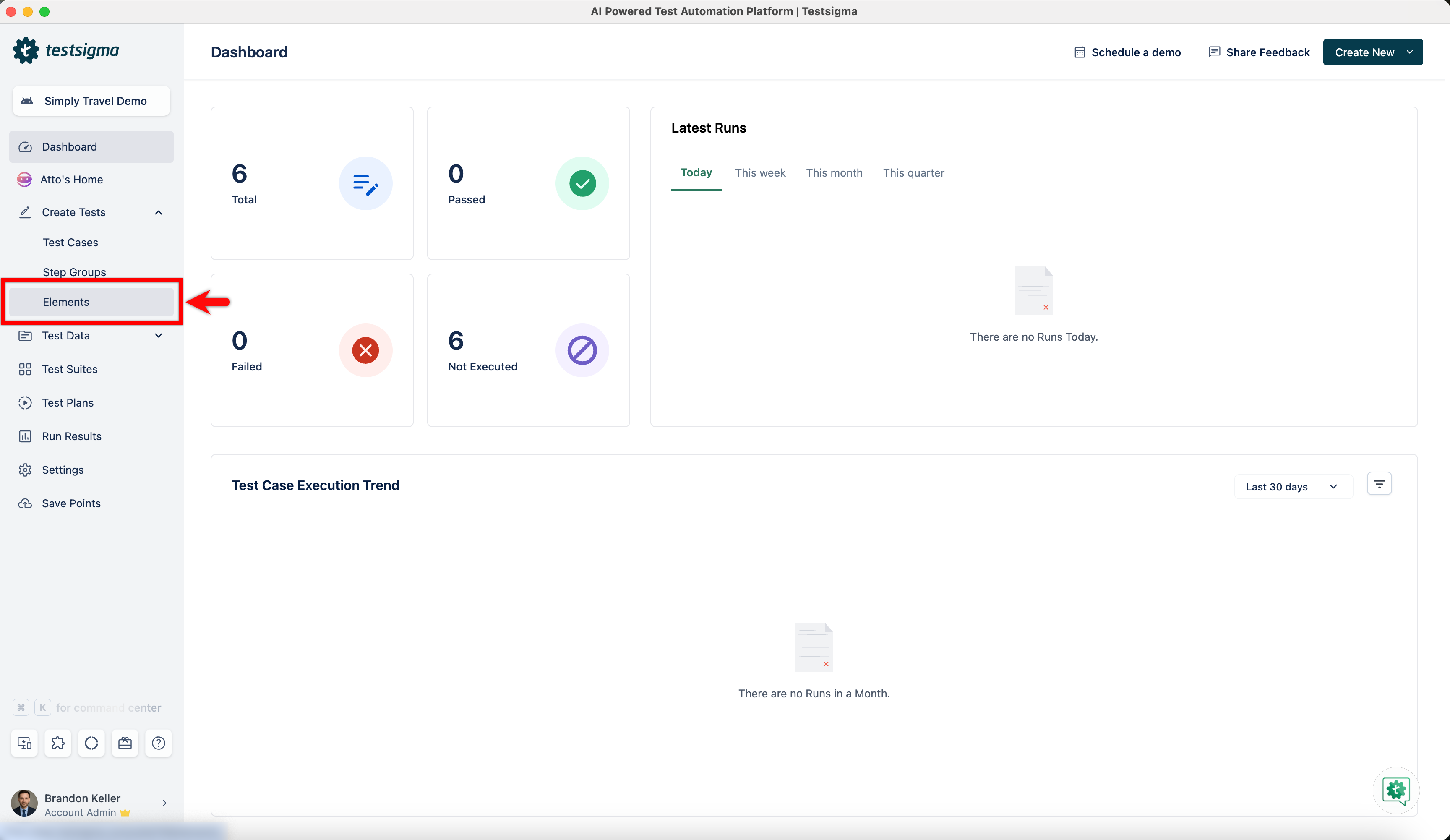
From the left navigation bar, go to Create Tests > Elements.
-
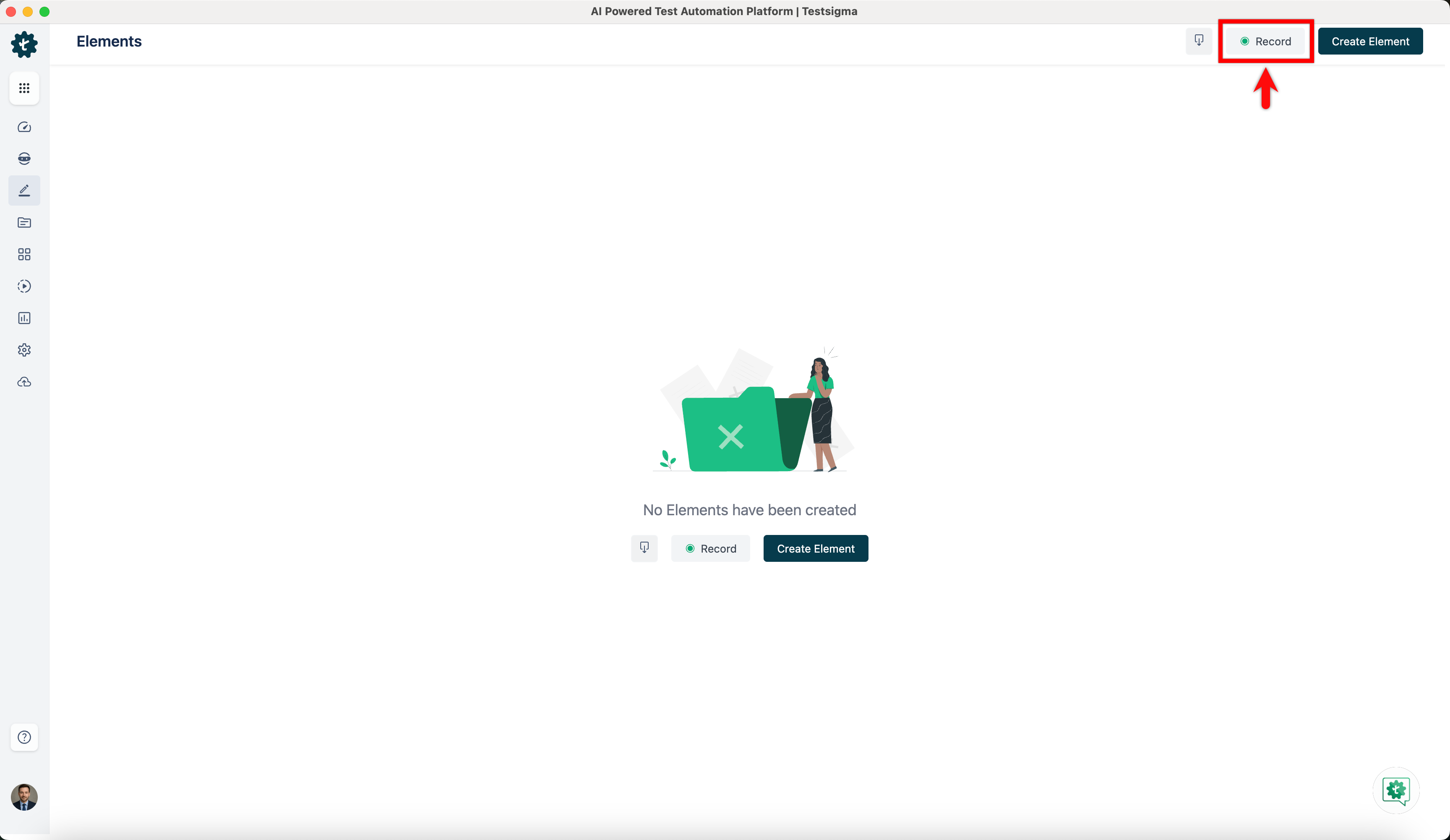
Click Record.
-
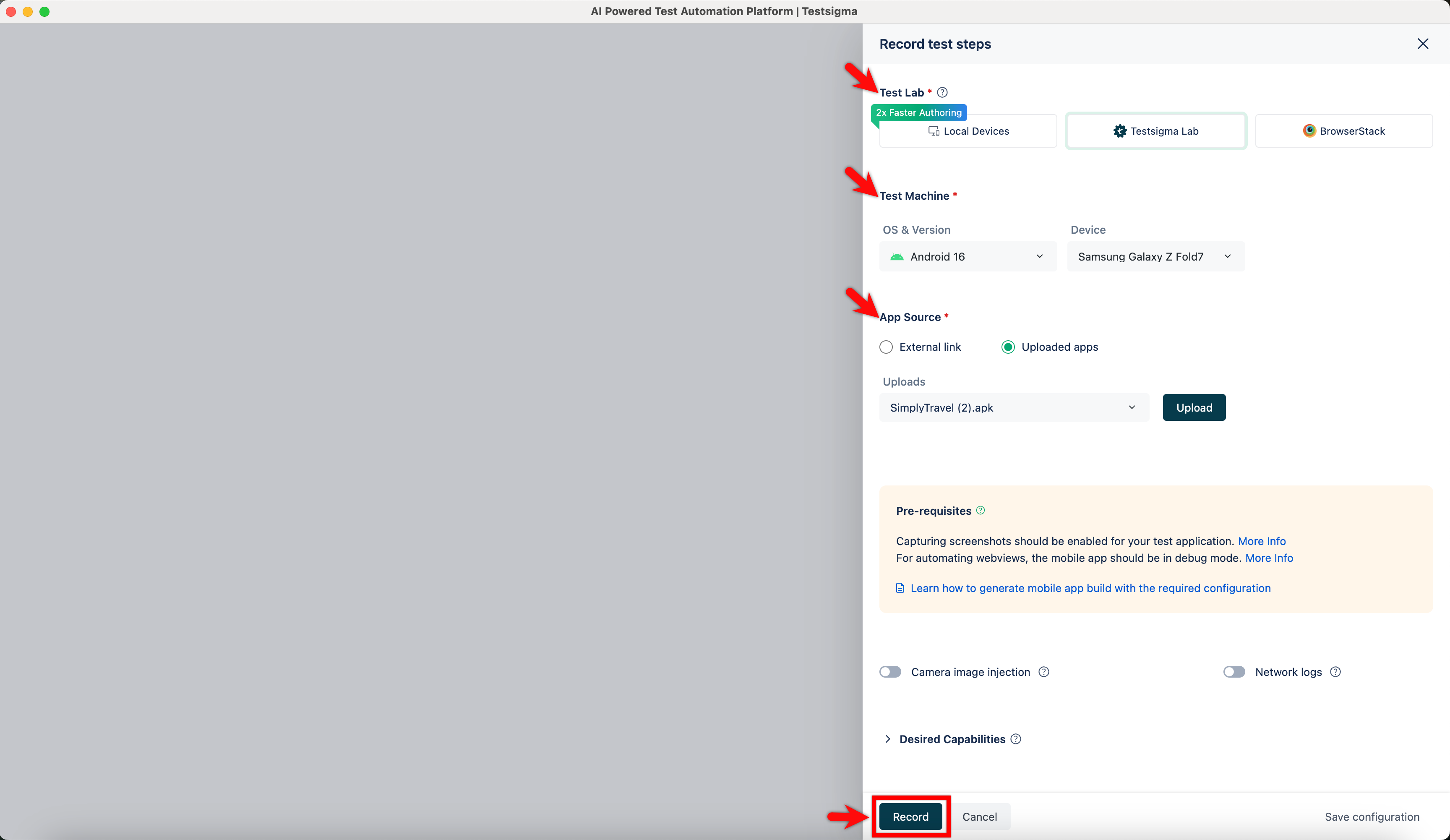
In the Record Elements overlay, select Test Lab, Test Machine, Upload App Source and click on Record.
-
Wait for the app to load fully.
-
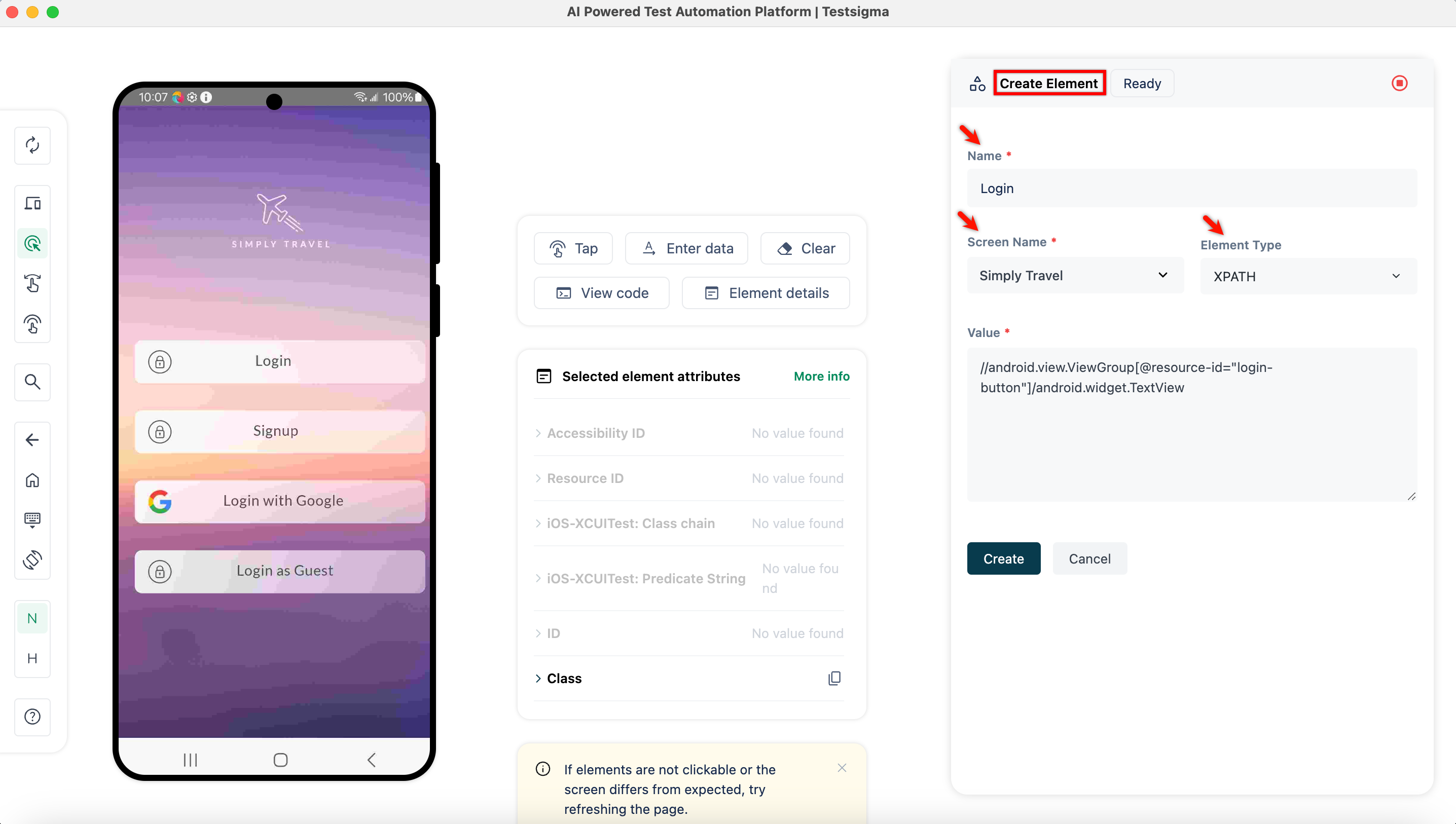
Once the app is loaded, click on element you want to capture.
-
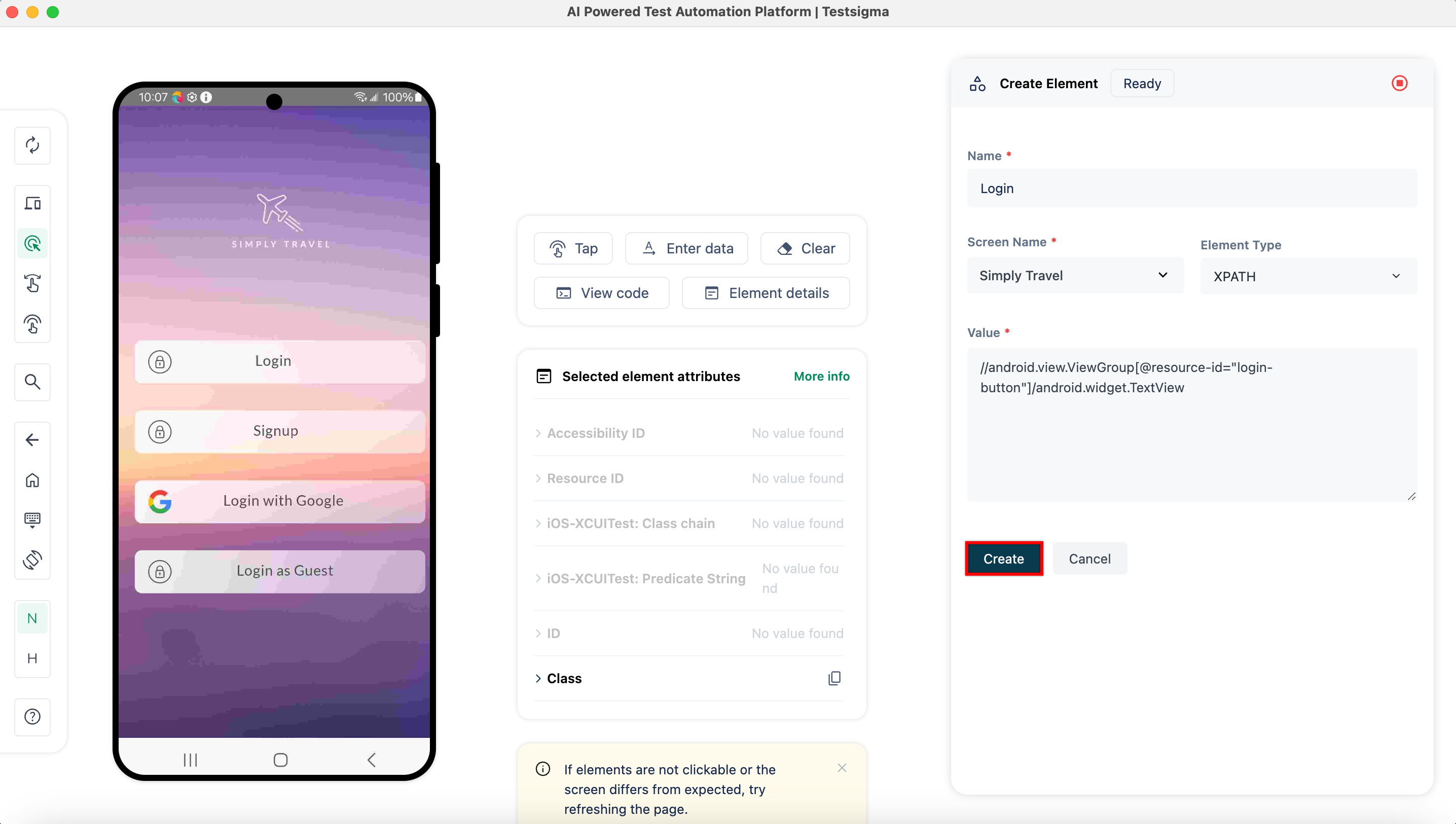
In the Create Element section, validate the Name, Screen Name, Element Type, and the Value.
-
Click Create.
-
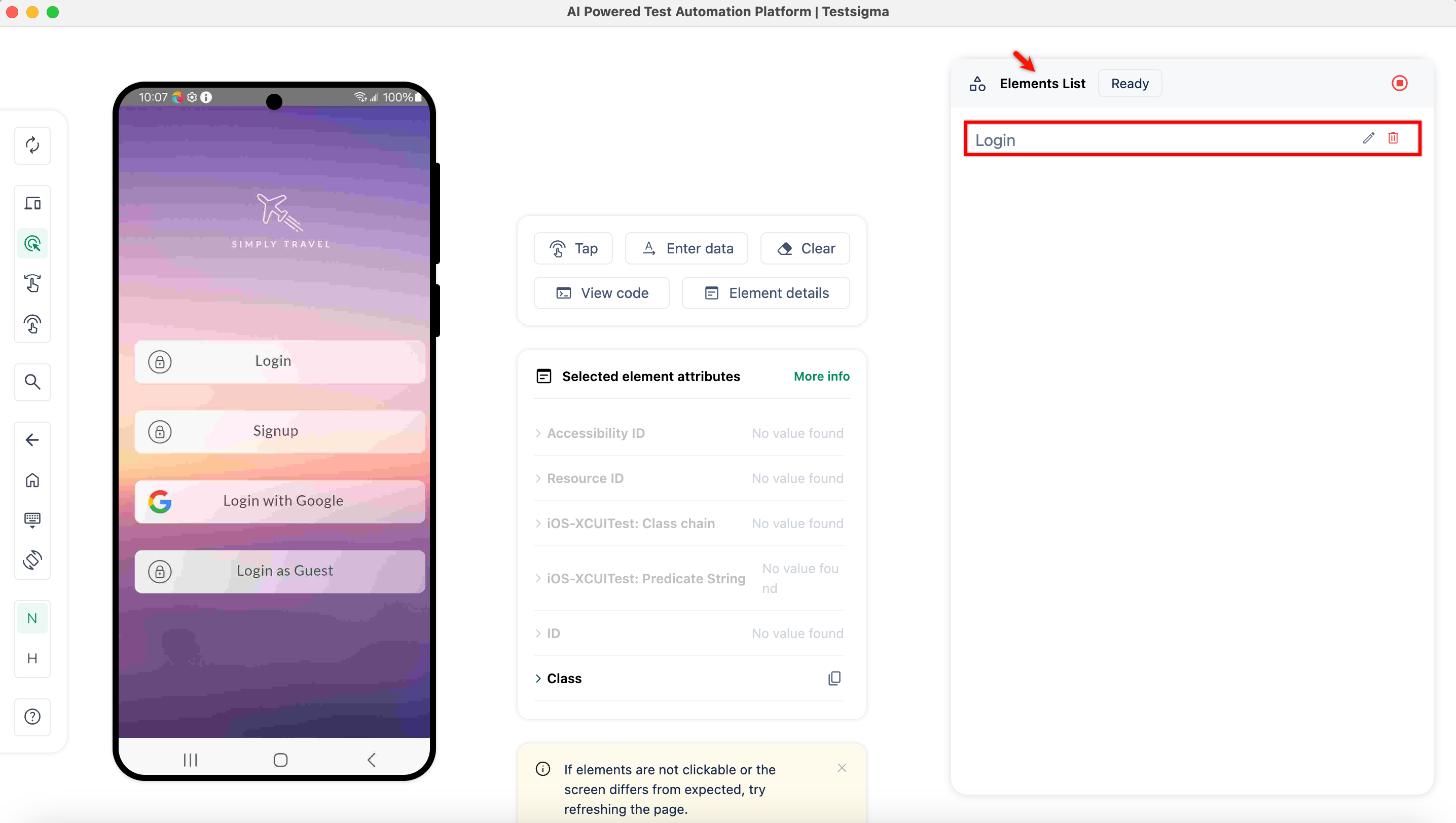
The element will be saved in the elements list.
-
Repeat steps 5 to 7 for every element you want to capture.
-
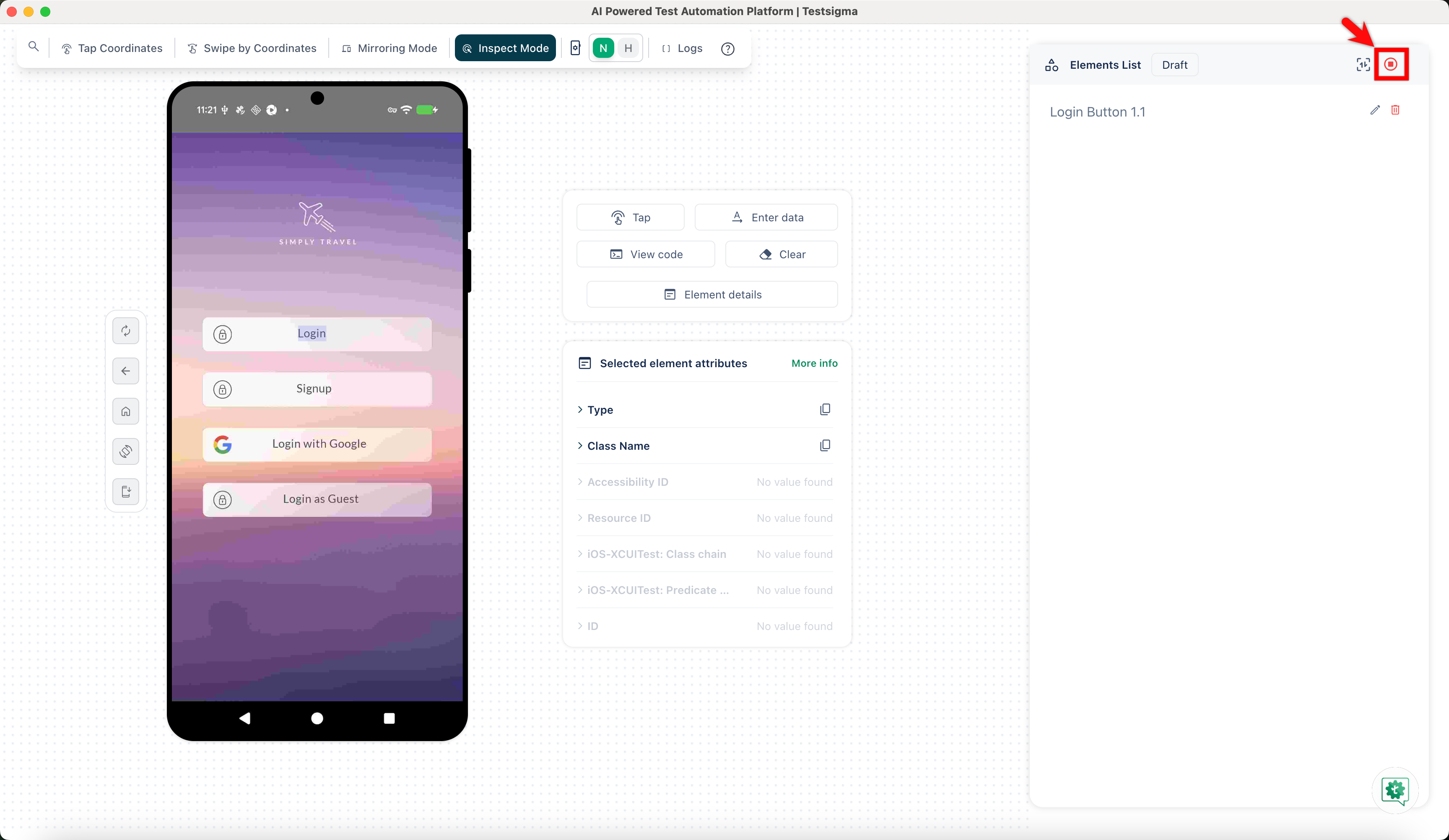
Once you have captured the elements, click Stop Recording.
-
You’ll be redirected to the Elements page, where you can see all recorded elements.