
Elements
Record Multiple Elements Using Recorder
Prerequisites
Before you begin, ensure that:
- You have installed the Testsigma Chrome Extension. For more information on installing Testsigma Chrome Extension, refer to the documentation on Testsigma Chrome Extension.
- You have a web application that is available for testing.
Steps to Create Multiple Elements
Section titled “Steps to Create Multiple Elements”-
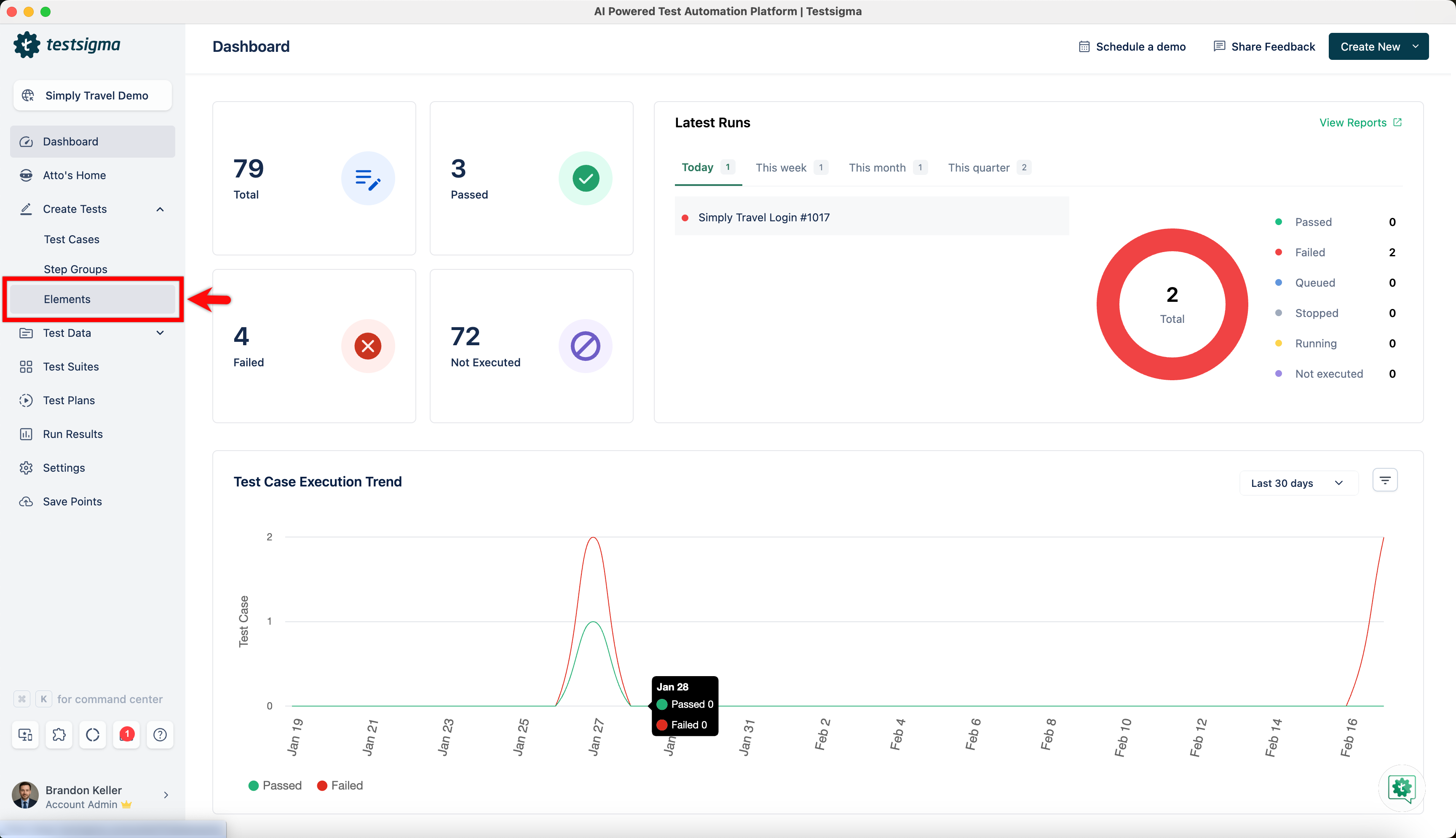
From the left navigation bar, go to Create Tests > Elements.
-
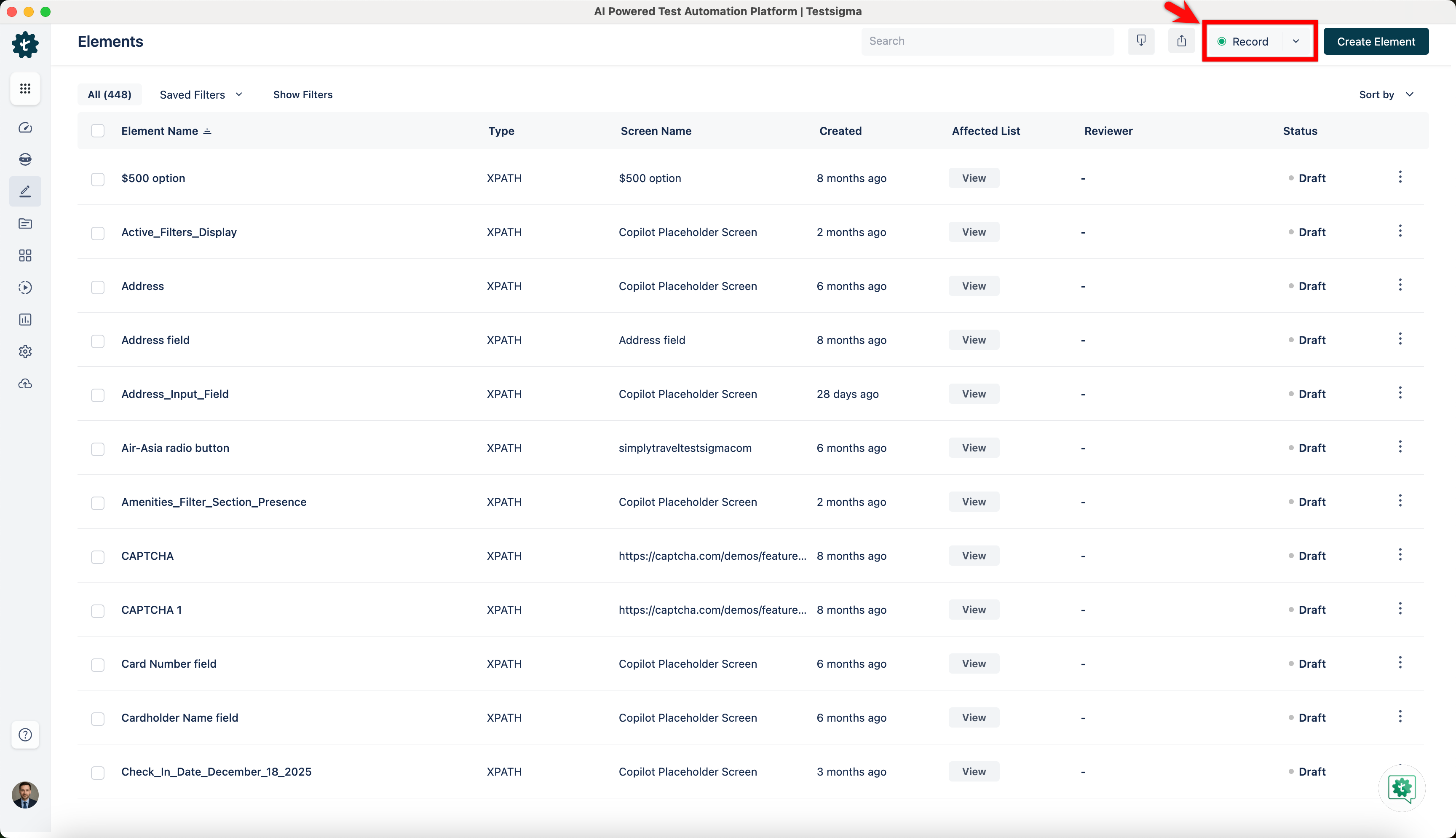
Click on Record on the top right corner.
-
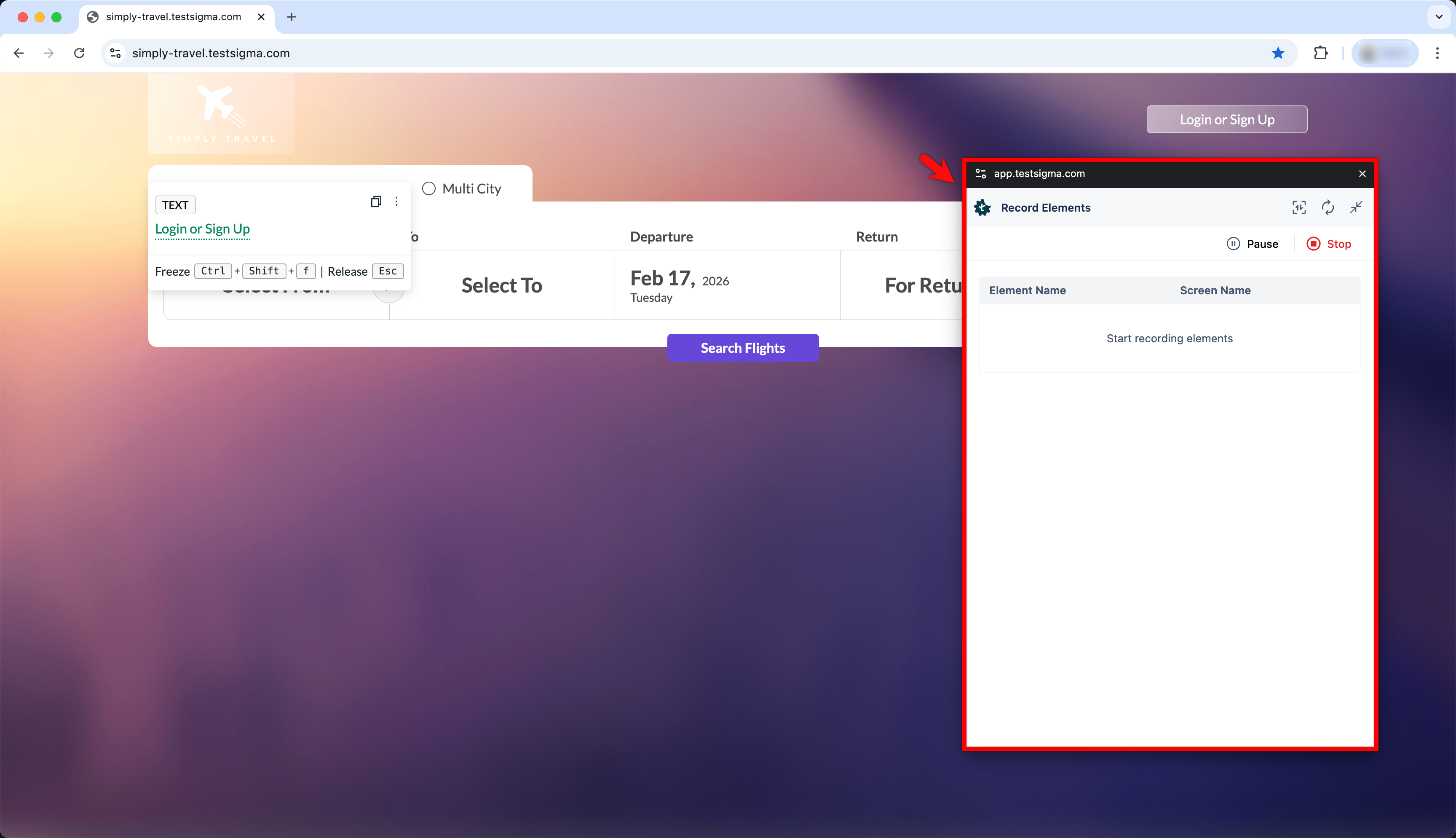
This will open a new tab. Enter the URL from which you want to capture the elements. The Testsigma test recorder will appear and will be ready to start recording. Here, we entered the URL for Simply Travel Web.
-
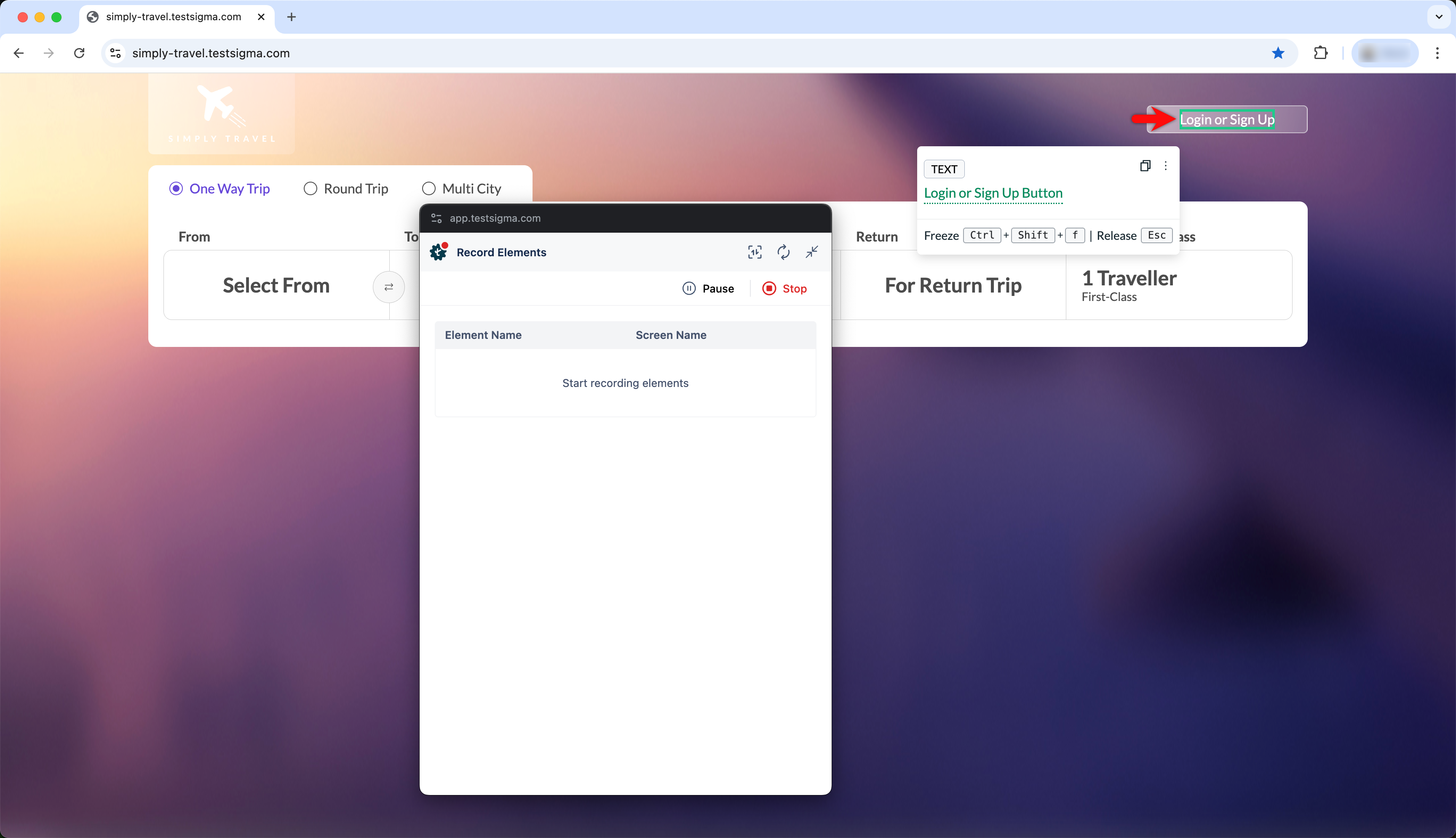
Hover over the element you want to capture and make sure that it is highlighted in green (for example, here we are capturing the Login or Signup field):
-
Click on the hovered element and wait for the element to appear in the recorder.
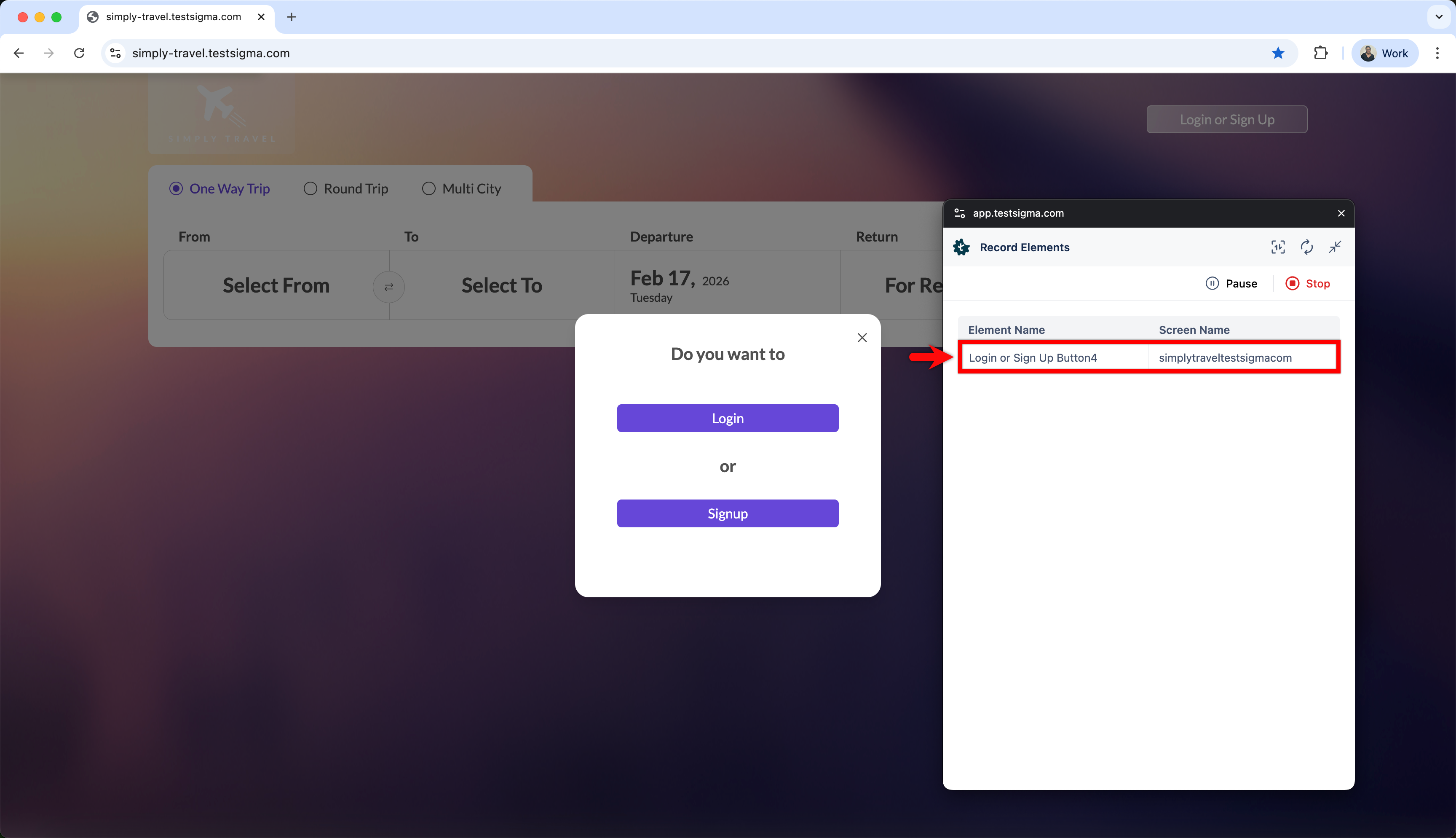
-
Repeat steps 4 and 5 for every element you want to capture.
-
Once you have captured the elements, click on Stop.
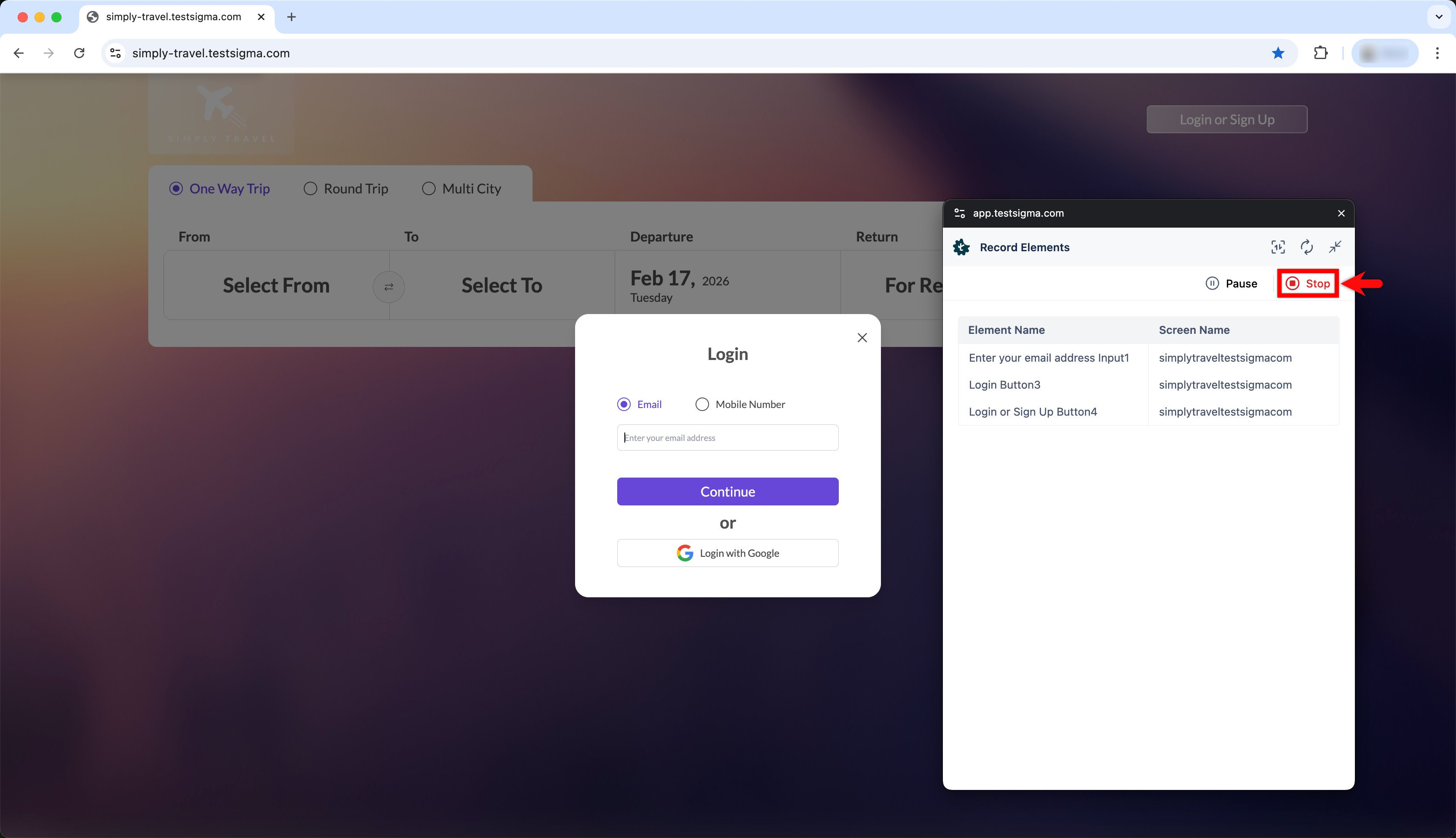
-
You’ll be redirected to the Elements page, where you can see all recorded elements.