Integrations
Integrating Google Chat with Testsigma
Prerequisites
Before you begin, ensure that:
- You have a valid Google Chat Incoming Webhook URL.
- You have referred to the documentation on creating test plans.
Steps to Fetch Connector URL
Section titled “Steps to Fetch Connector URL”-
Open Google Chat, and select the Chat Space where you want to add the connector.
-
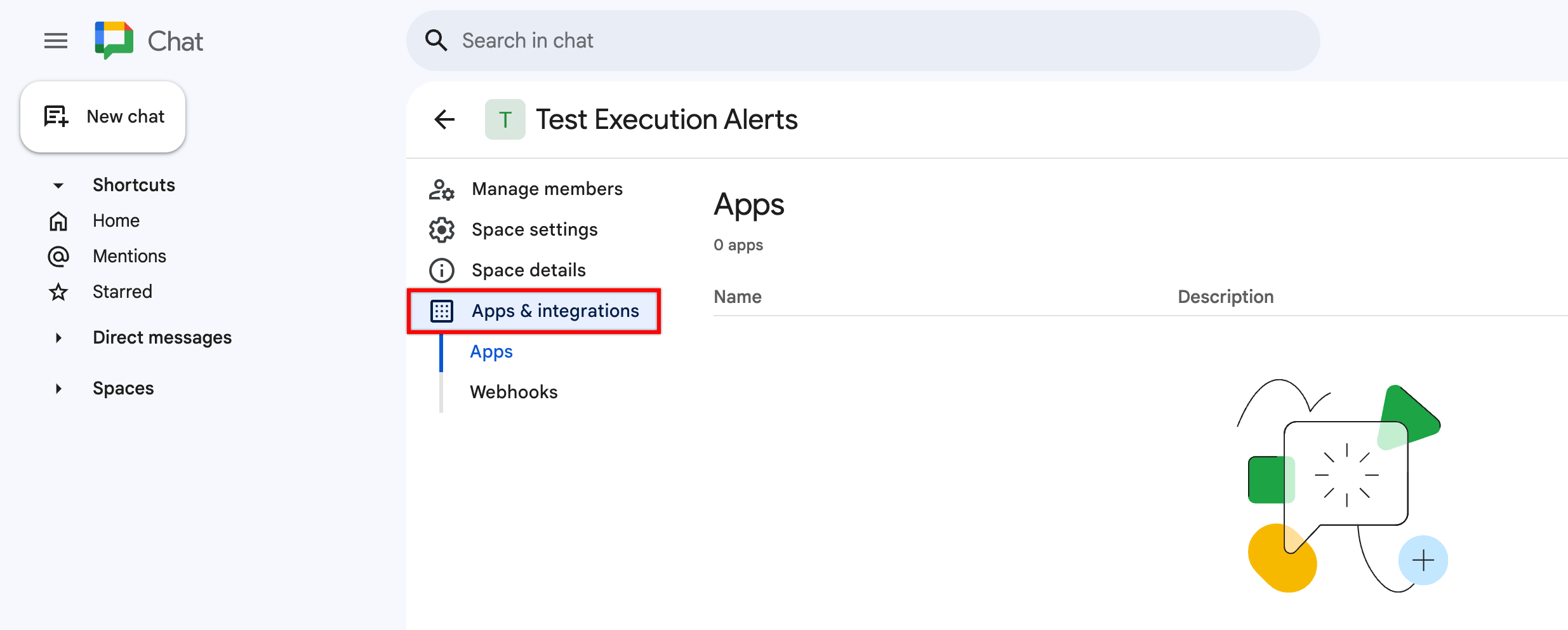
Click the Space Name, and select Apps & Integrations.
-
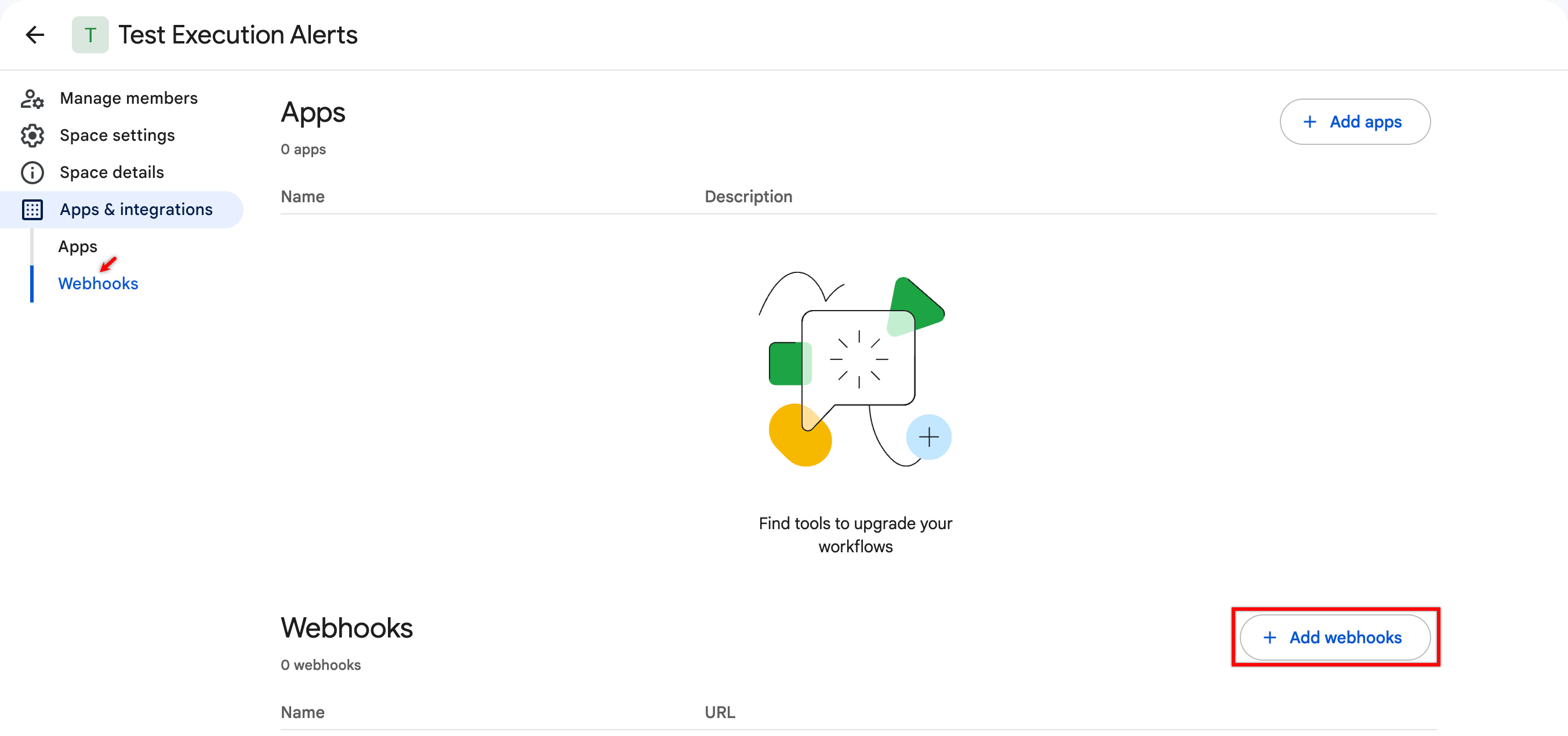
Under Integrations, go to Webhooks and click Add Webhook.
-
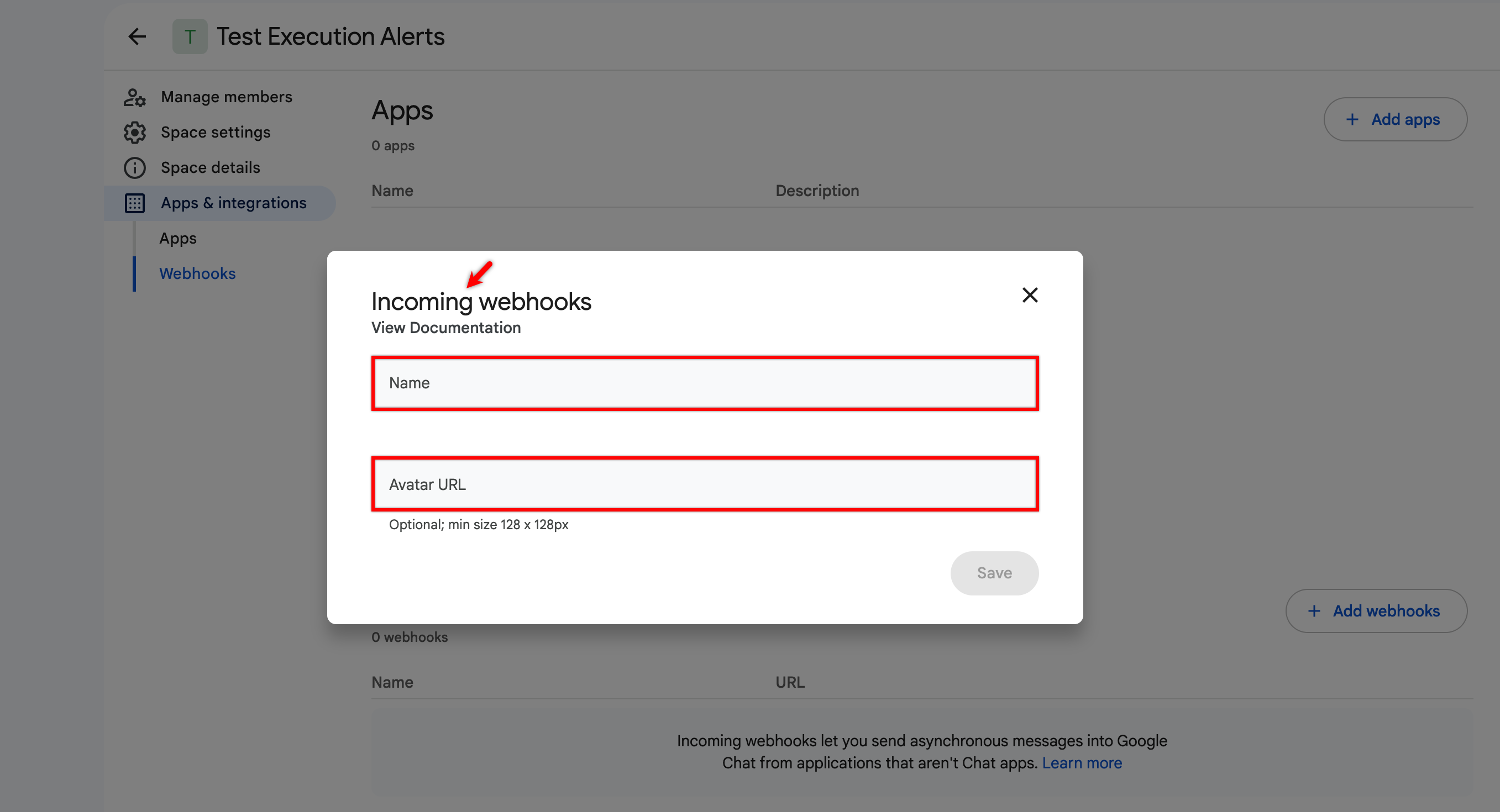
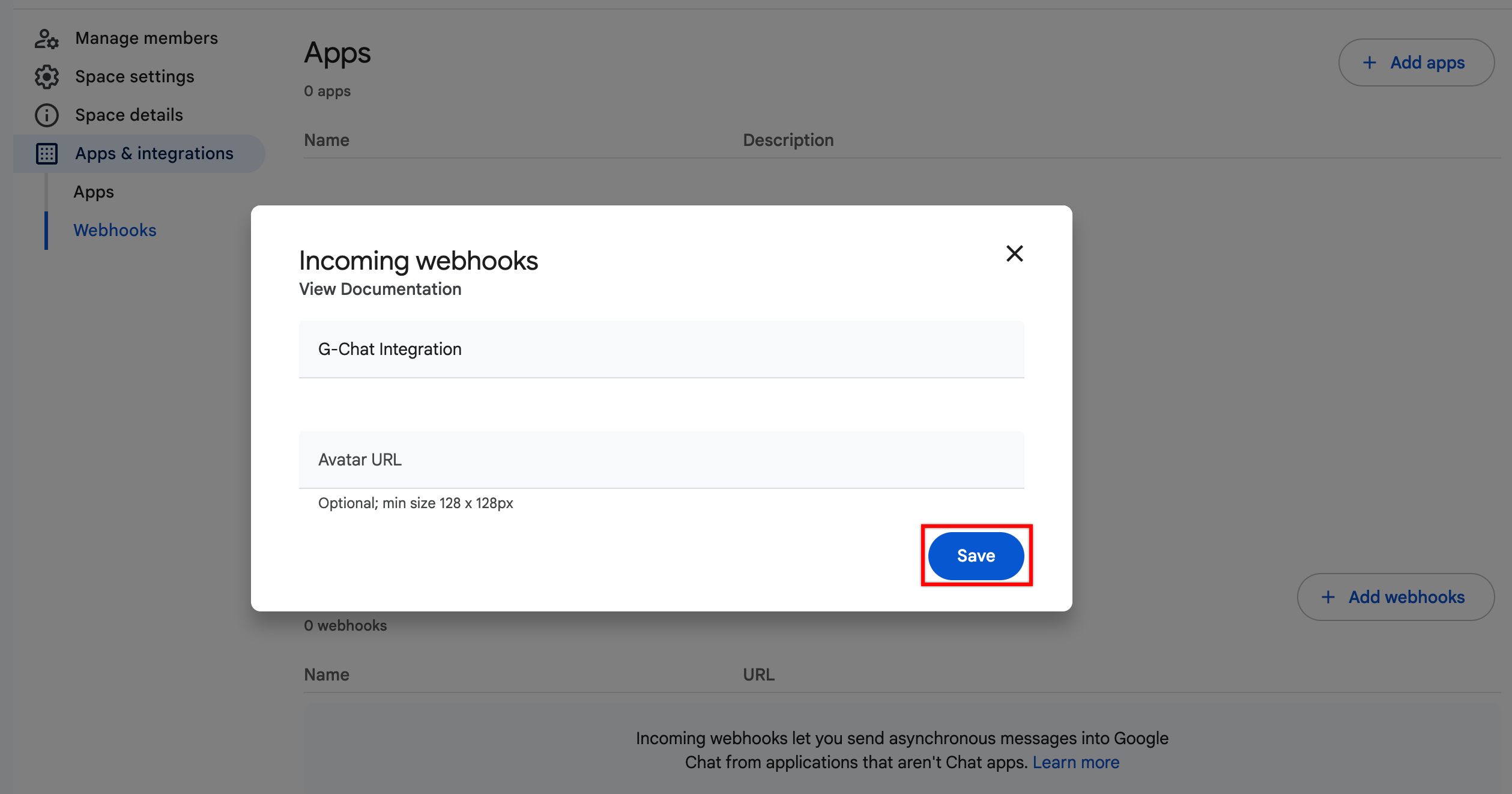
In the Incoming webhooks dialog, enter a Webhook Name, and optionally upload an image/avatar URL.
-
Click Save.
-
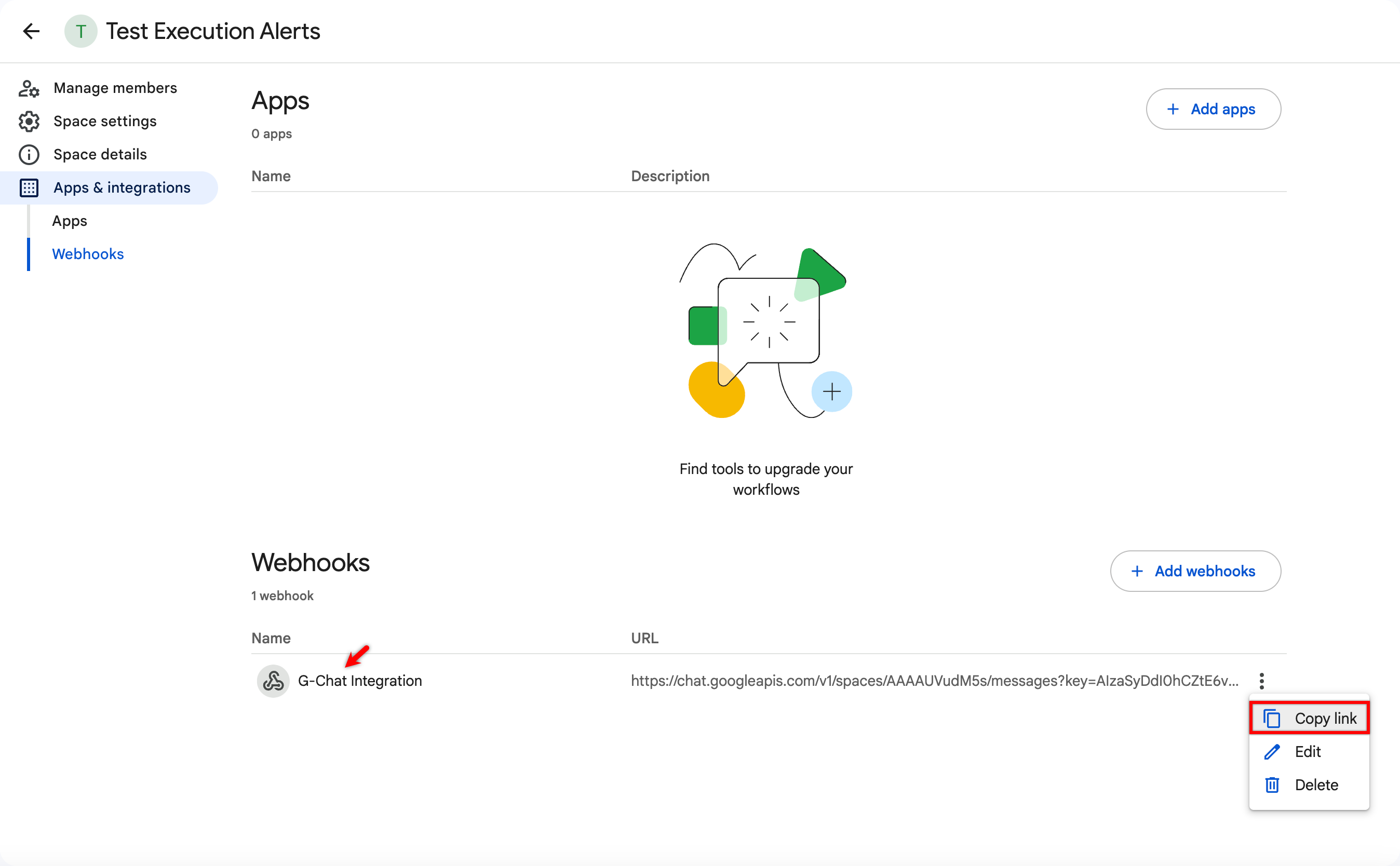
Click Copy link to copy the generated Webhook URL.
Steps to Integrate Google Chat with Testsigma
Section titled “Steps to Integrate Google Chat with Testsigma”-
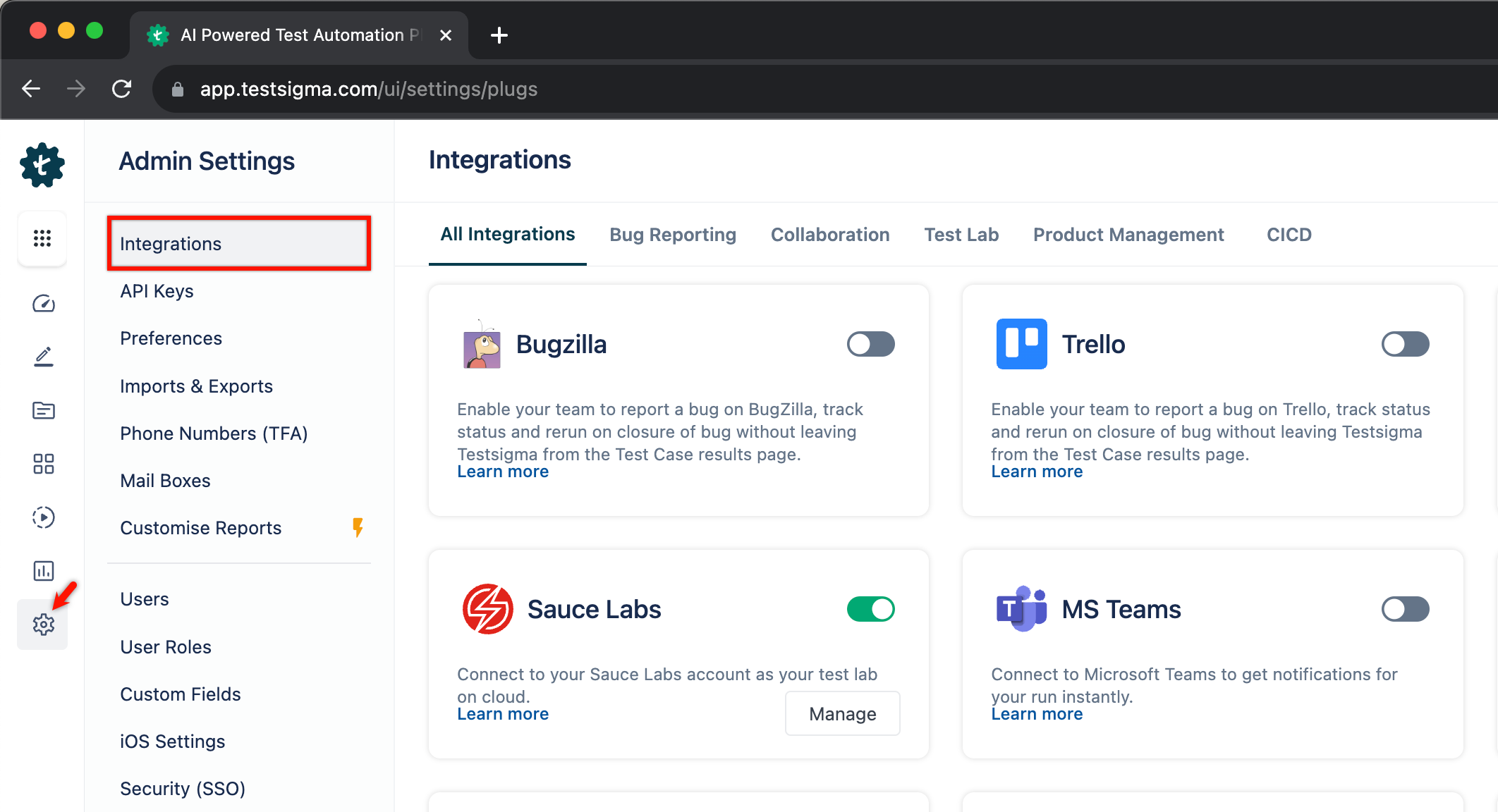
Navigate to Settings > Integrations.
-
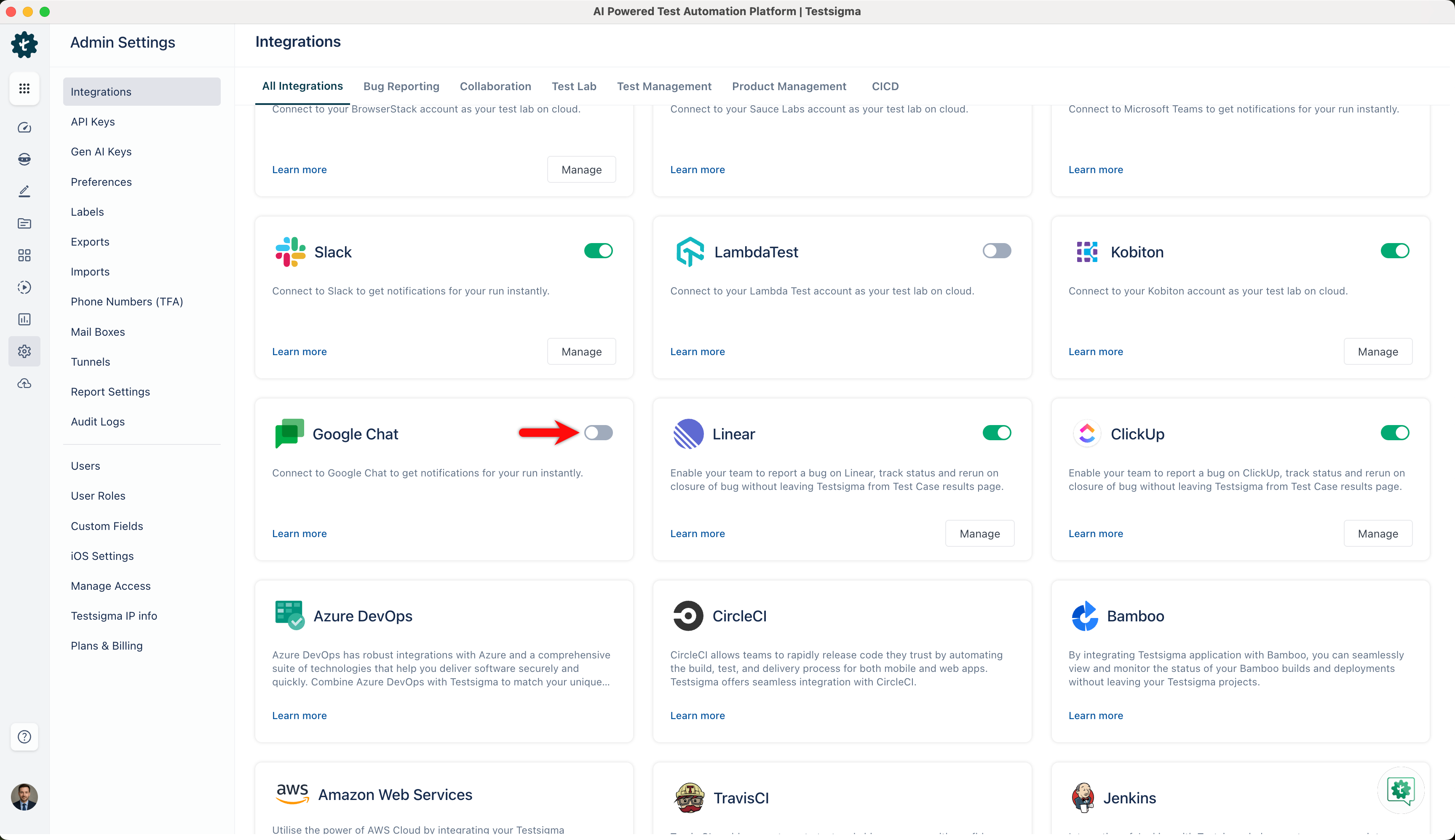
Enable the Google Chat toggle.
-
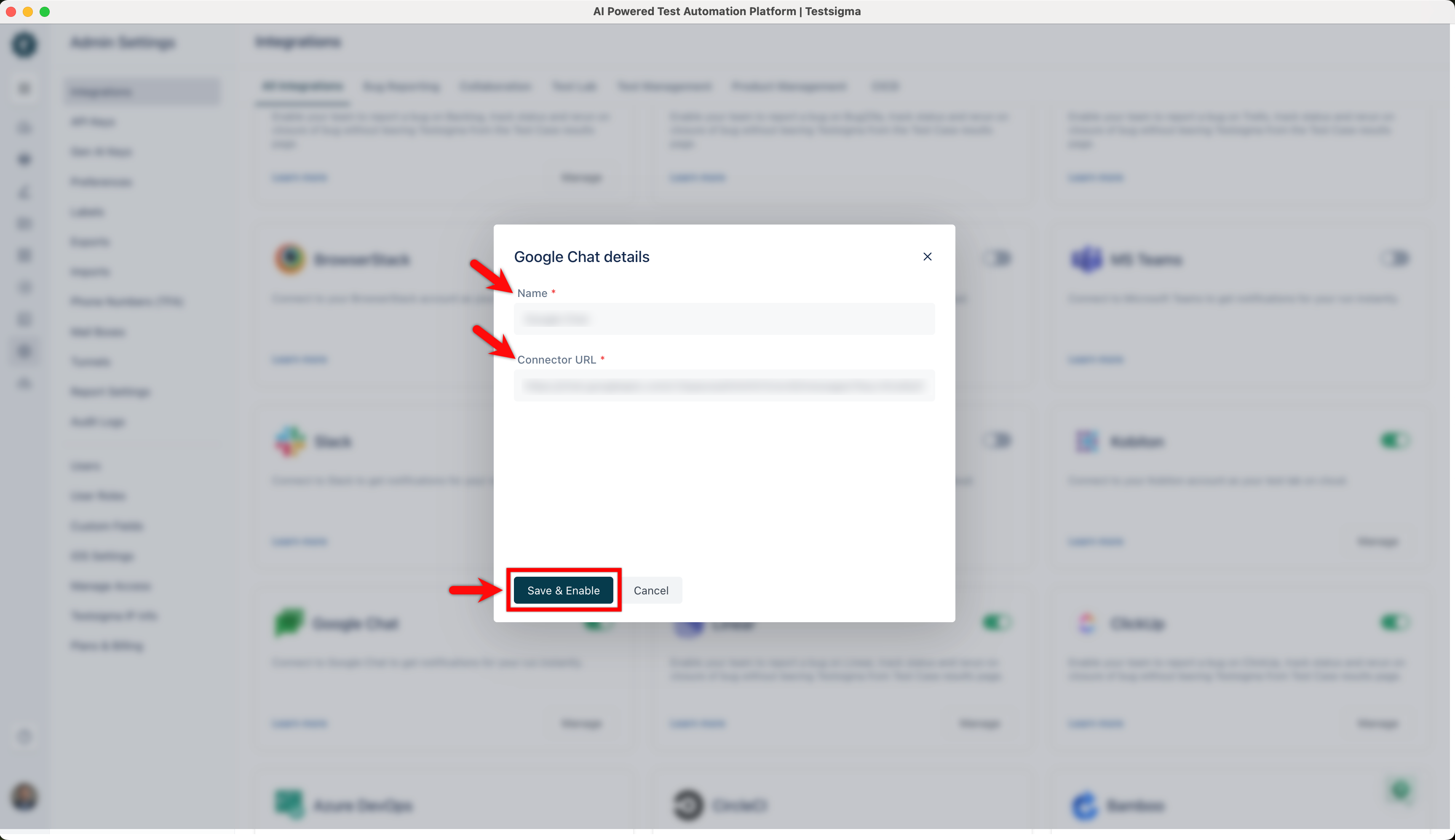
In the Google Chat details dialog, enter Name, Connector URL and click on Save & Enable.
Enabling Google Chat Notifications in Test Plan
Section titled “Enabling Google Chat Notifications in Test Plan”Once the Google Chat integration is added, you can enable the Google Chat notifications for your test plans while editing any existing ones or creating a new one.
-
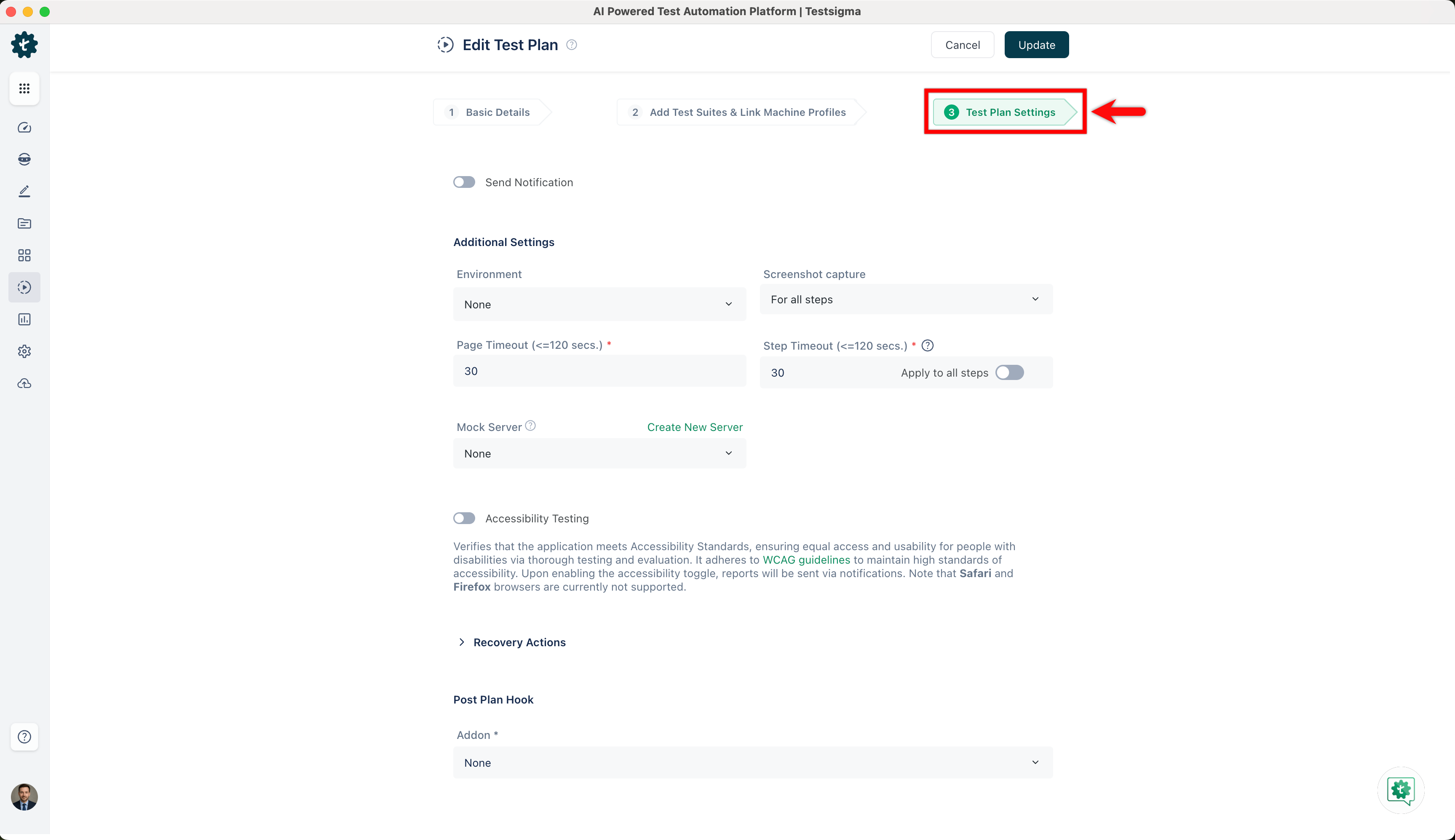
On Create Test Plan/Edit Test Plan page, click the Test Plan Settings tab.
-
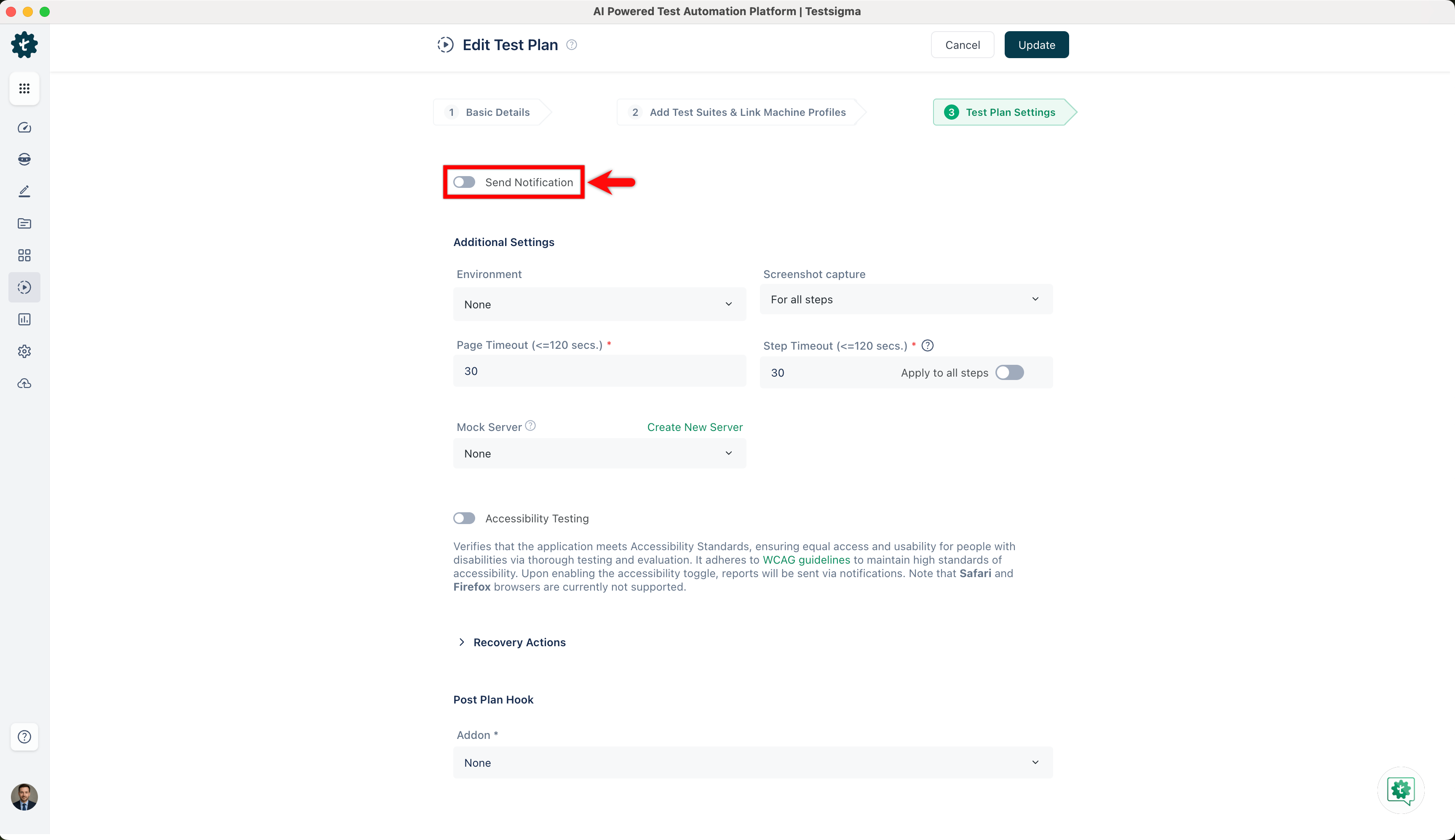
Enable the Send Notification toggle.
-
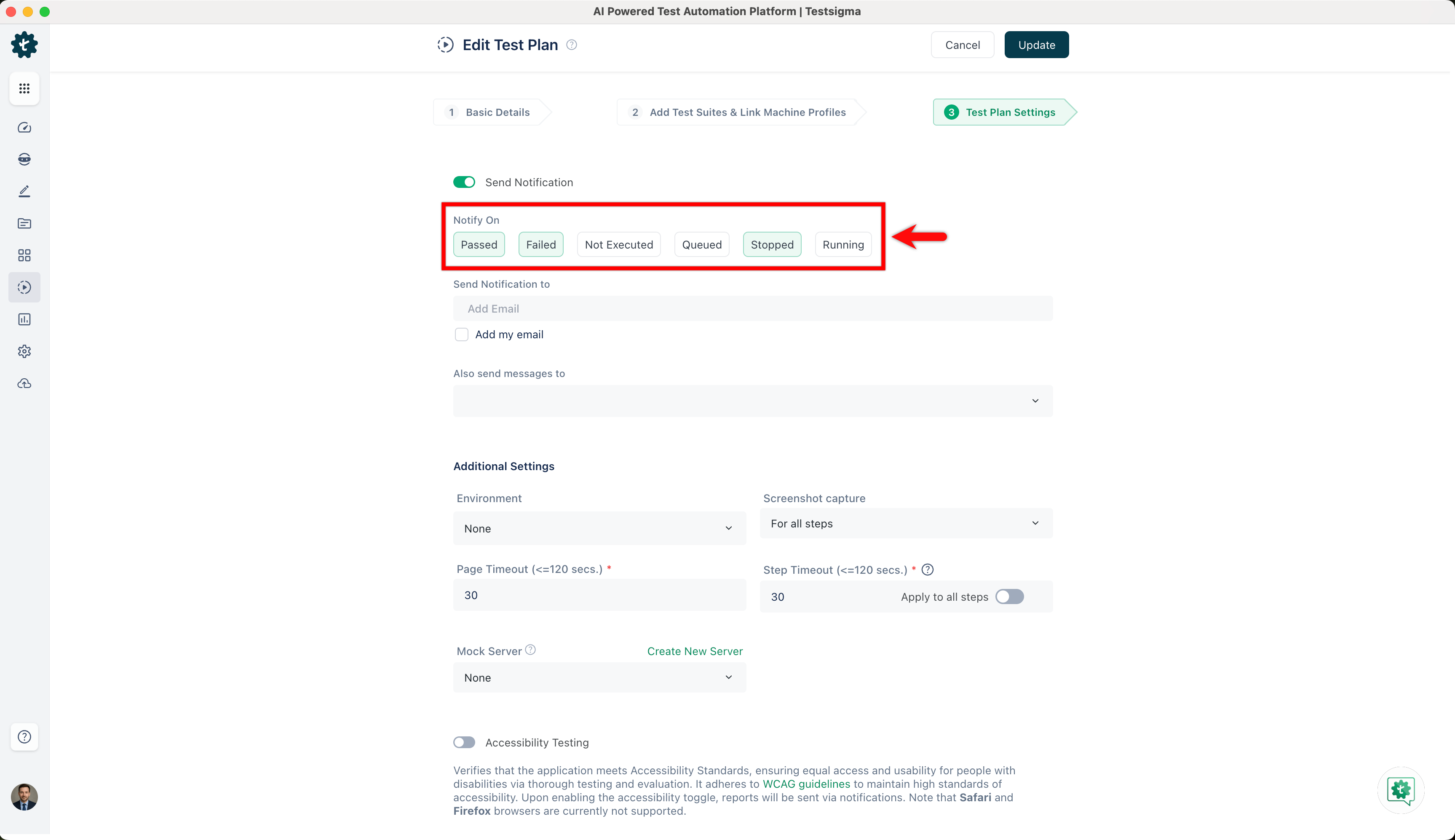
Under the Notify On section, select the status for which you want to be notified. You can select multiple statuses from the list.
-
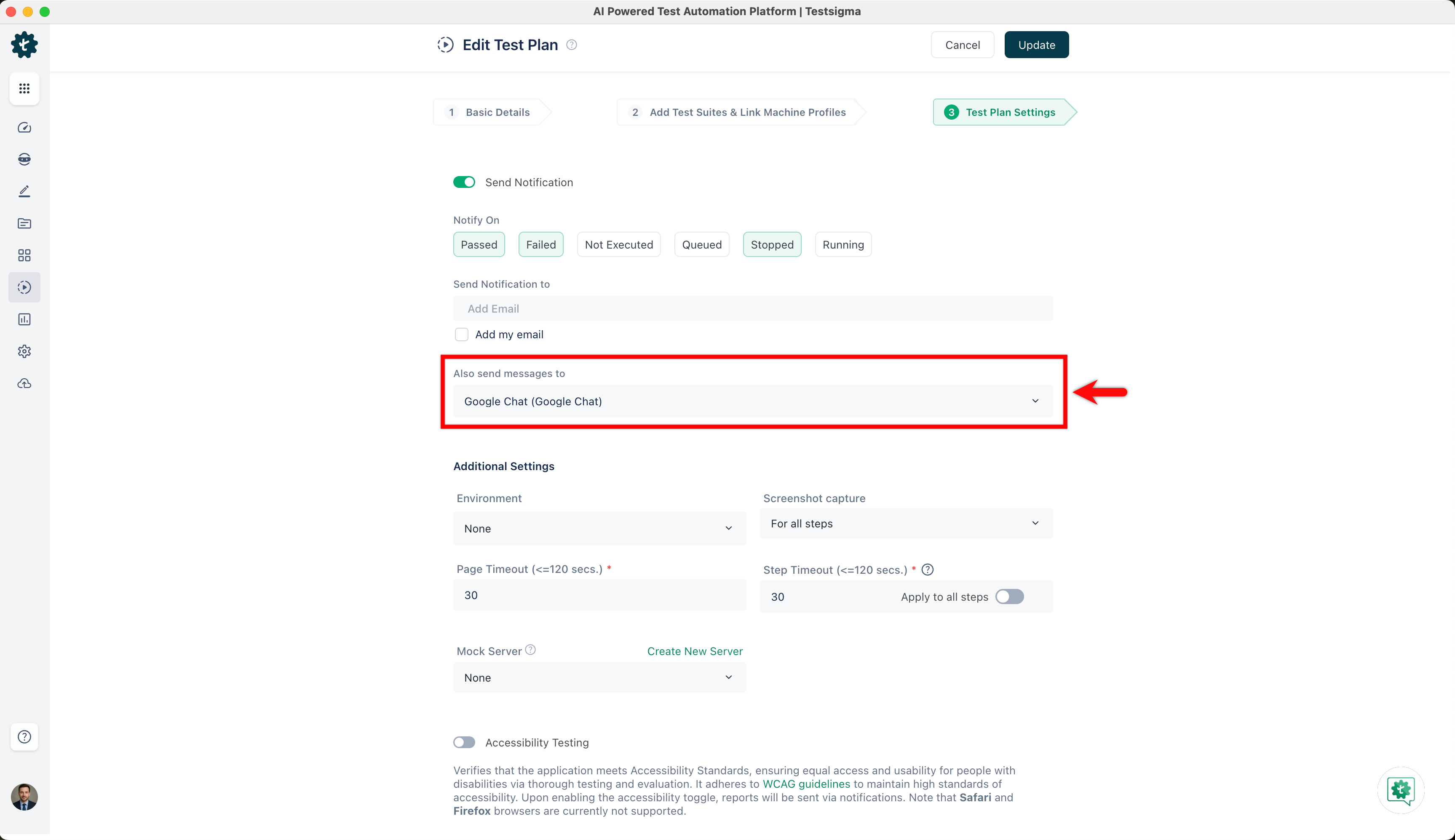
Click the dropdown under the Also send messages to section and click Google Chat (Google Chat).