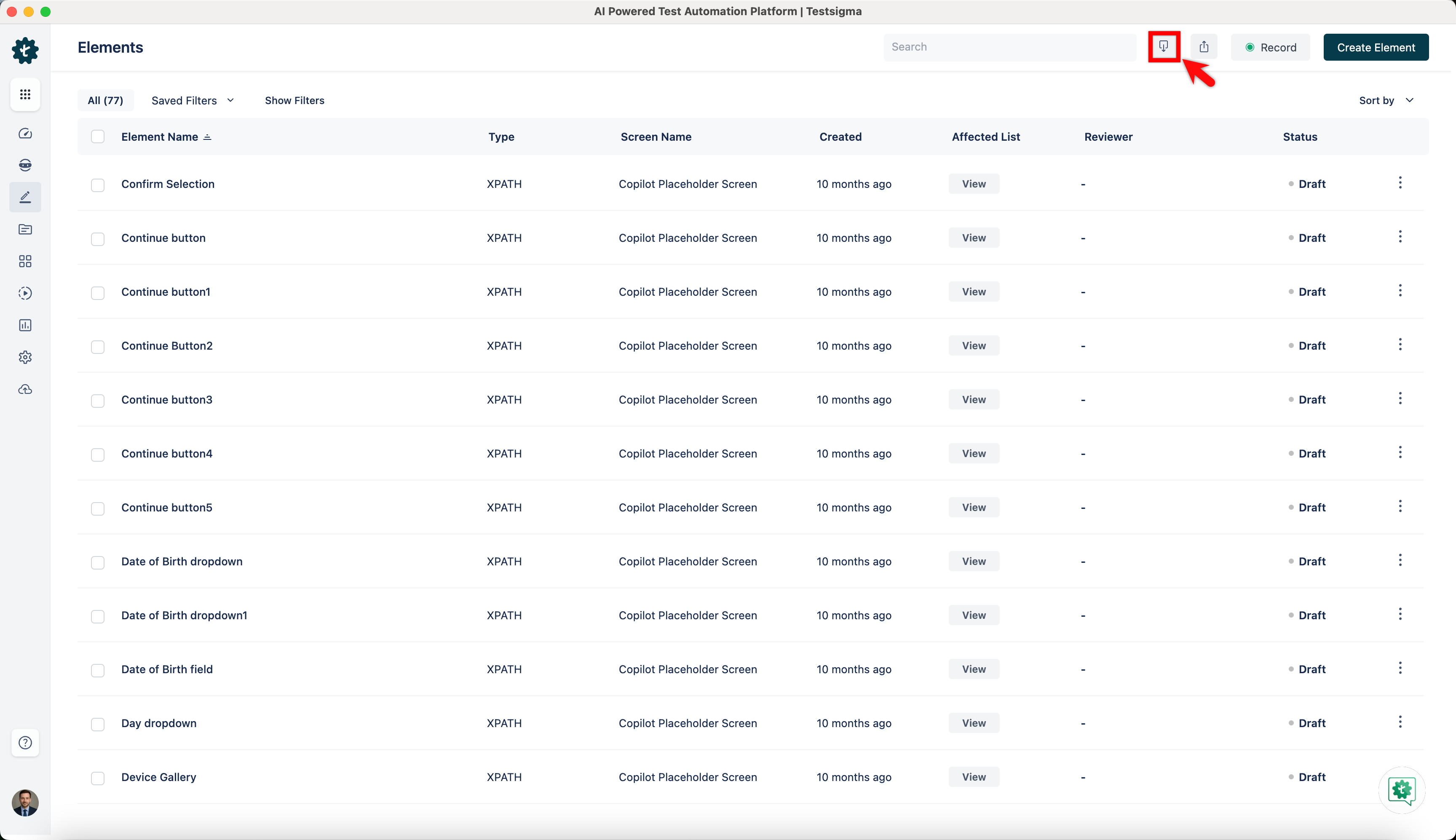
Elements
Create Elements Manually
Prerequisites
Before you begin, ensure that:
- You have referred to the documentation on creating projects.
- You have an iOS application that is available for testing.
Steps to Create an Element
Section titled “Steps to Create an Element”-
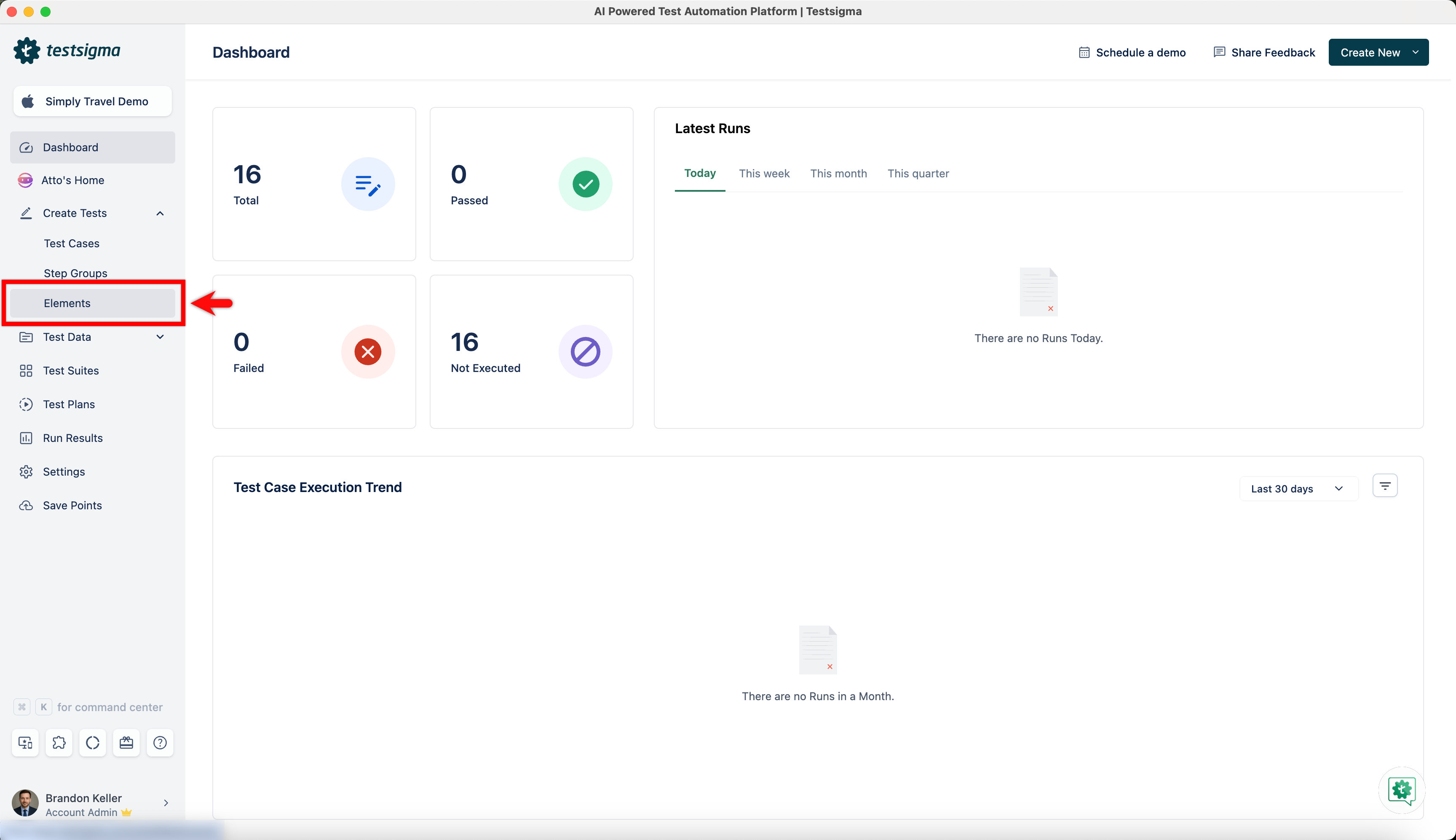
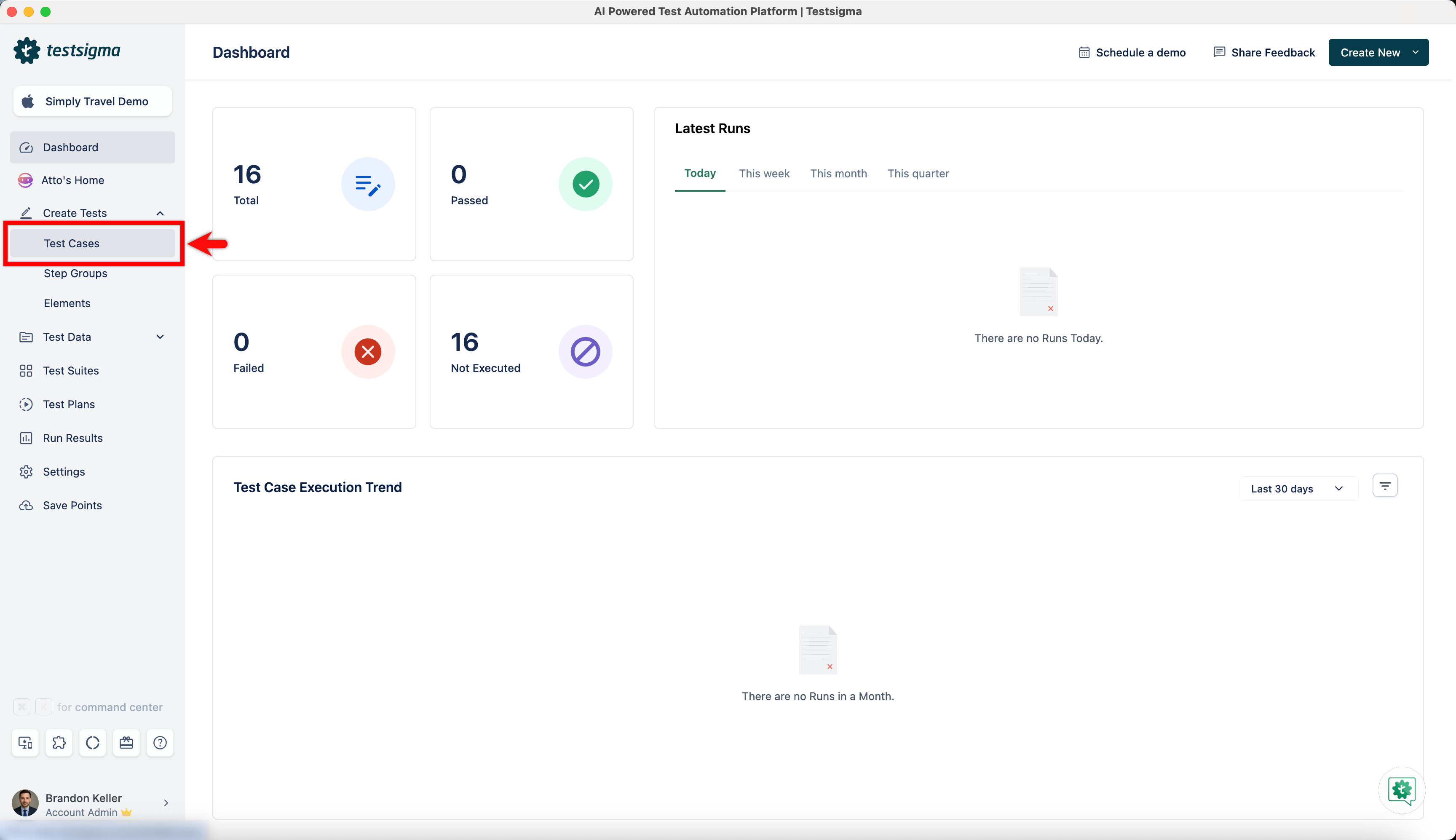
Navigate to Create Tests > Elements.
-
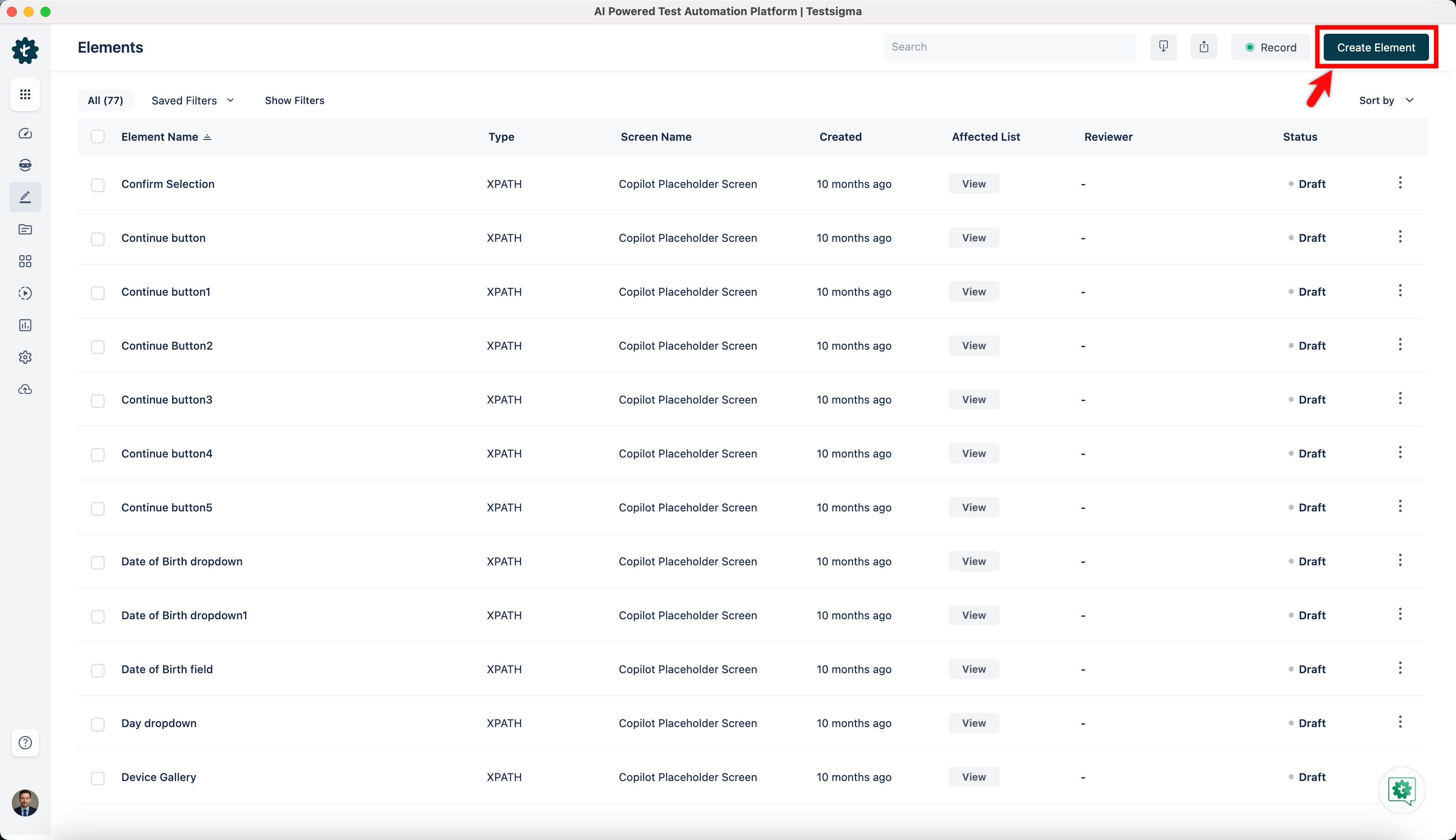
Click Create Element.
-
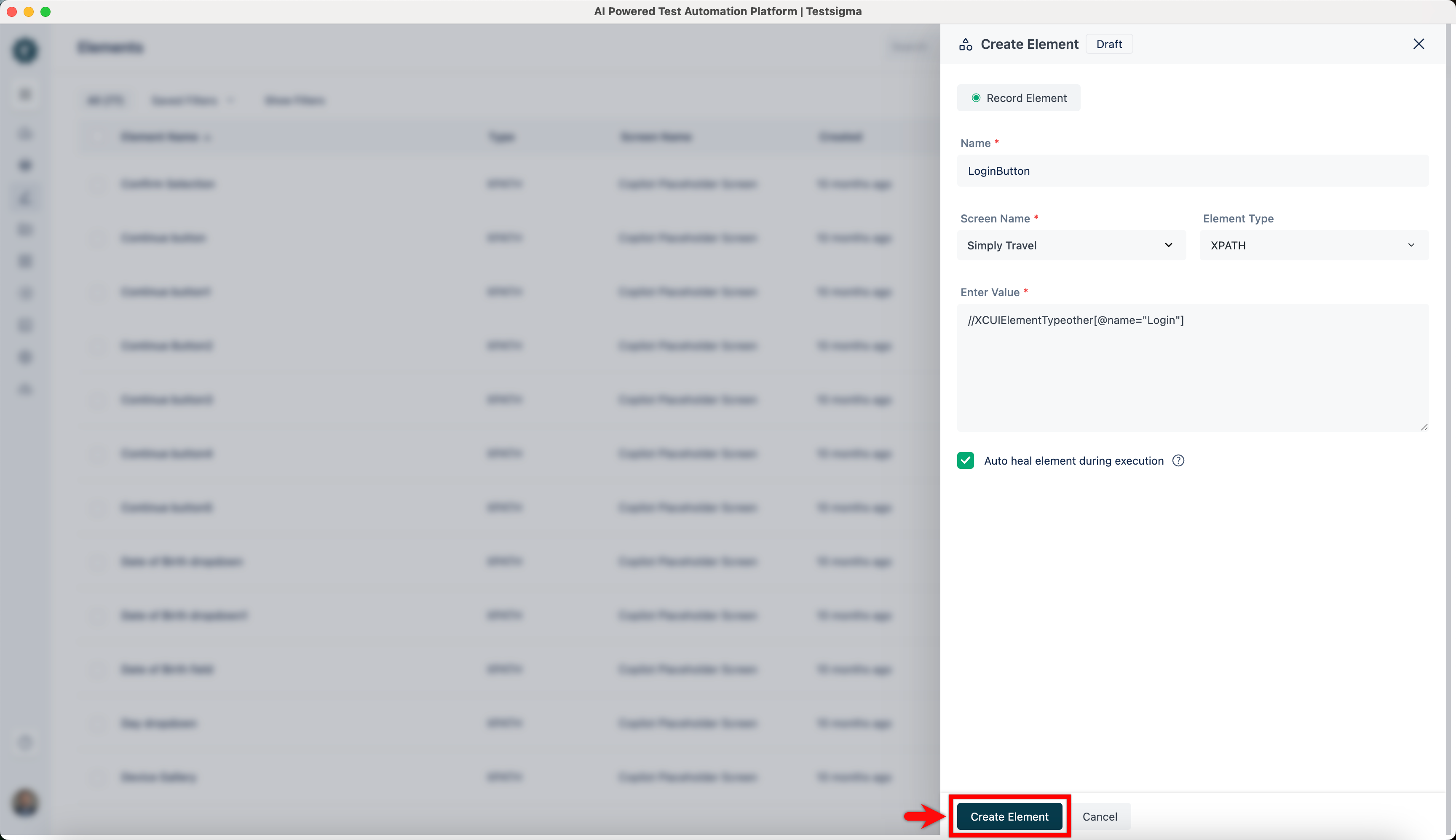
In the Create Element overlay, you can see the following fields:
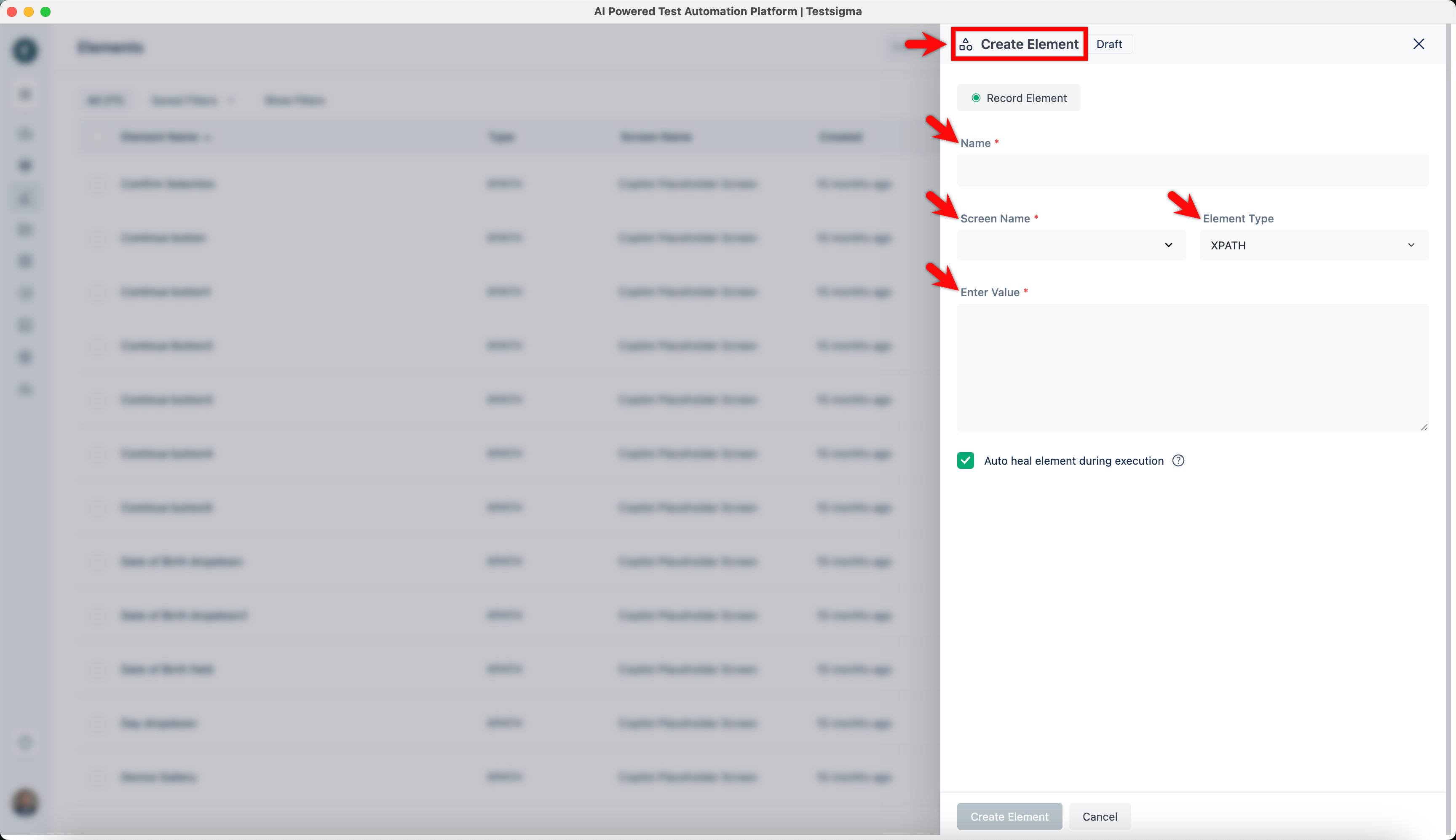
- Name: Enter the name you want to give your element.
- Screen Name: Mention the screen that your element resides on.
- Element Type: There are 5 types of element types supported in Testsigma. This field is a drop-down list; you can select any of them: XPATH, ID, Name, Class Name, or Accessibility ID.
- Enter Value: Enter the value corresponding to the Element Type you selected.
-
Once you have added all the details, click on Create element.
-
The element will be saved in the elements list.
Creating Element While Adding Test Steps
Section titled “Creating Element While Adding Test Steps”-
Navigate to Create Tests > Test Cases, click on Create Test Case or go to a pre-existing test case.
-
Add a test step to the test case that contains an element.
-
Hover over the element and select Create from the dropdown.
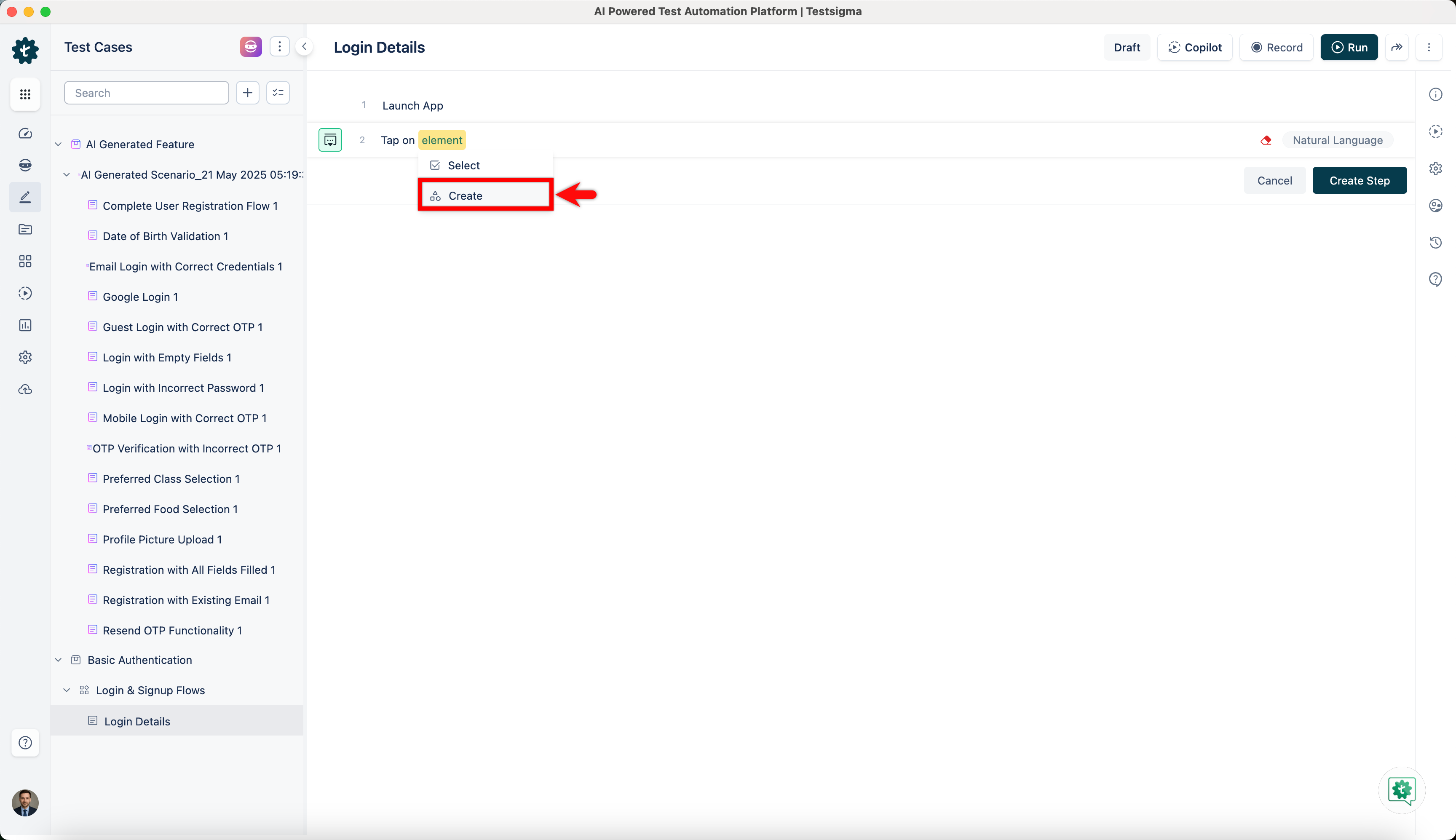
Follow the steps 3-5 from above section to create an element manually.
Updating an Element
Section titled “Updating an Element”-
Navigate to Create Tests > Elements.
-
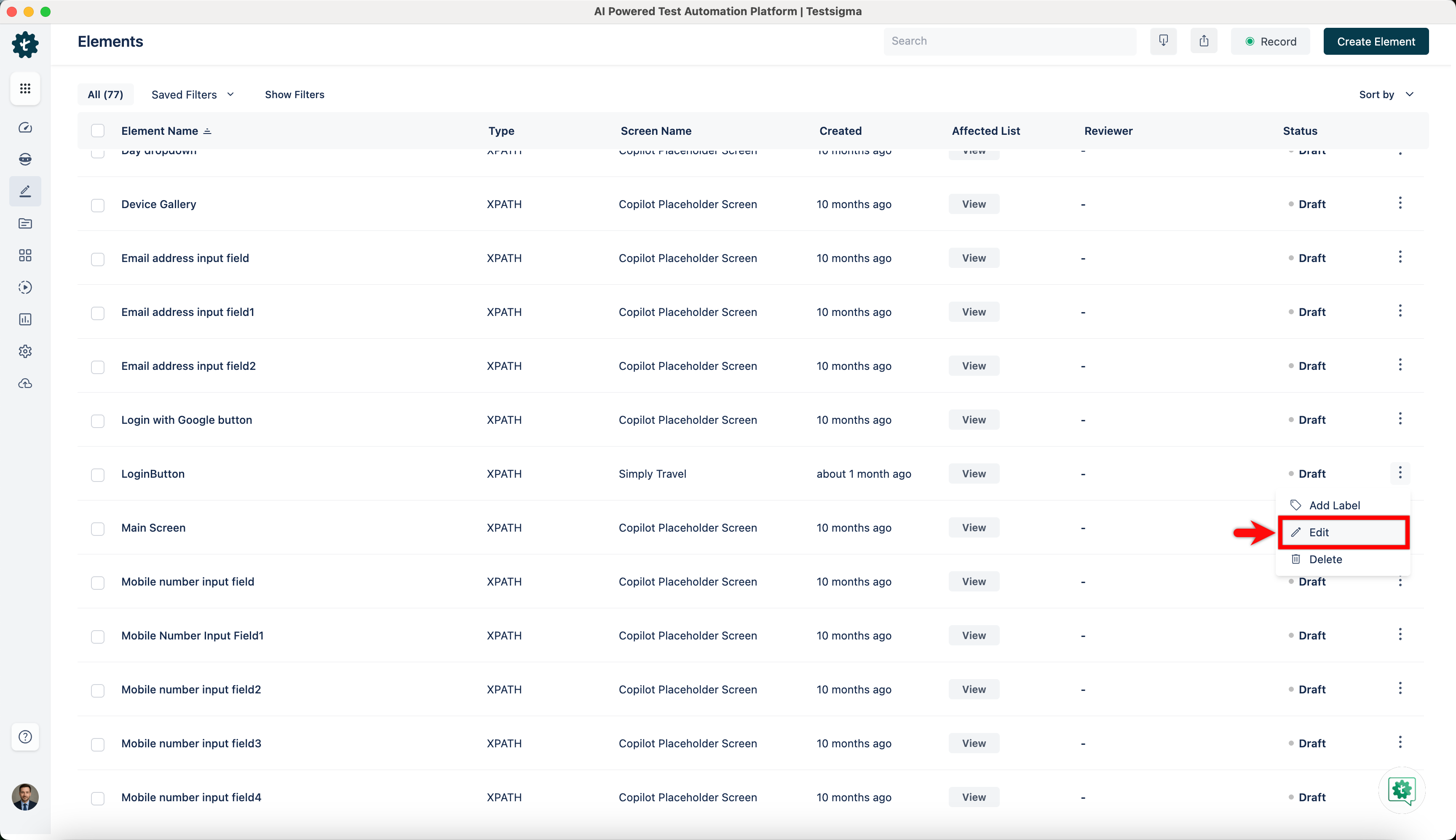
Hover over the element you want to update and click on the kebab menu to open a dropdown menu. Click on Edit from the dropdown.
-
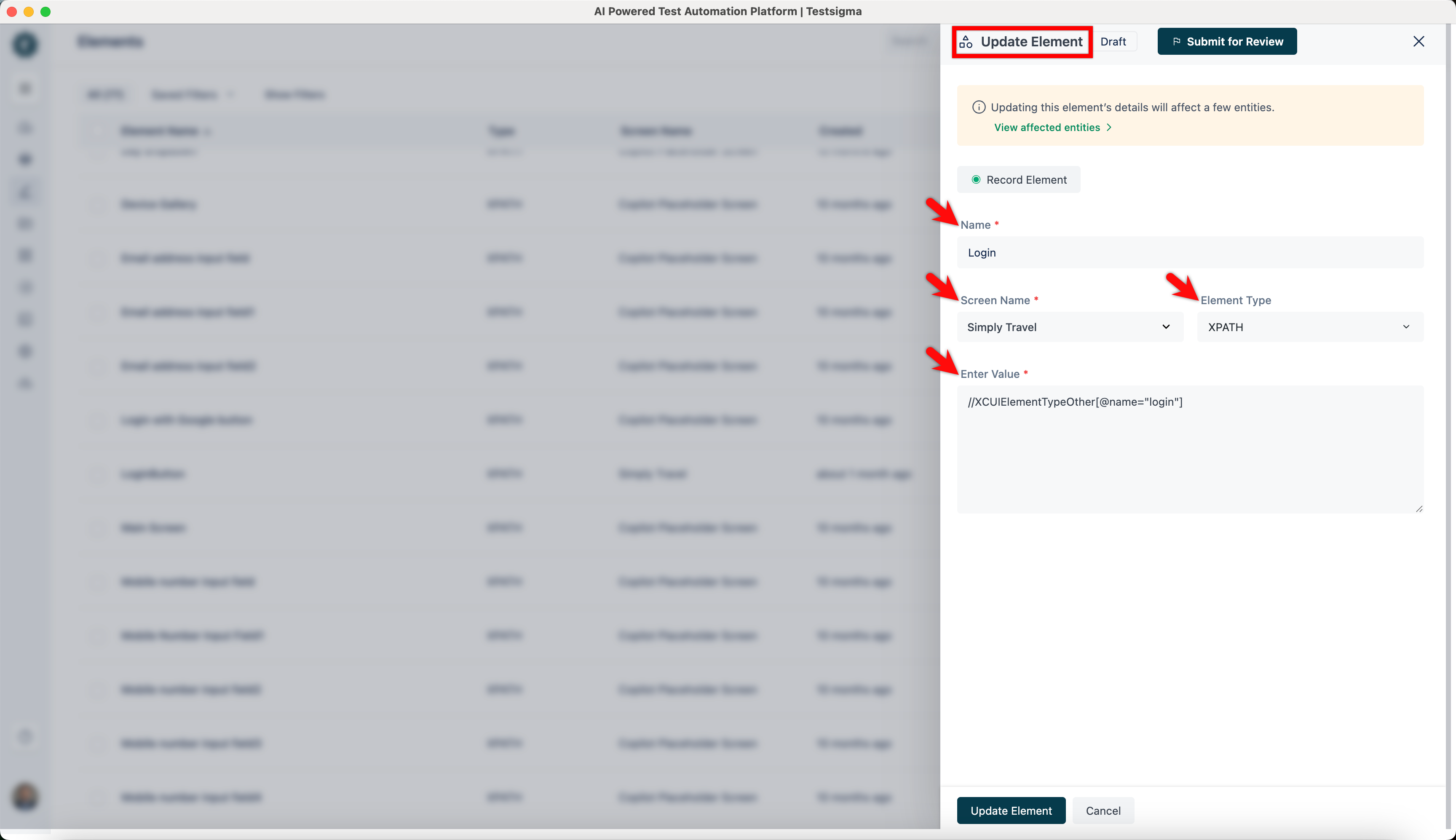
On the Update Element overlay, you can update the Name, Screen Name, select the Element Type.
-
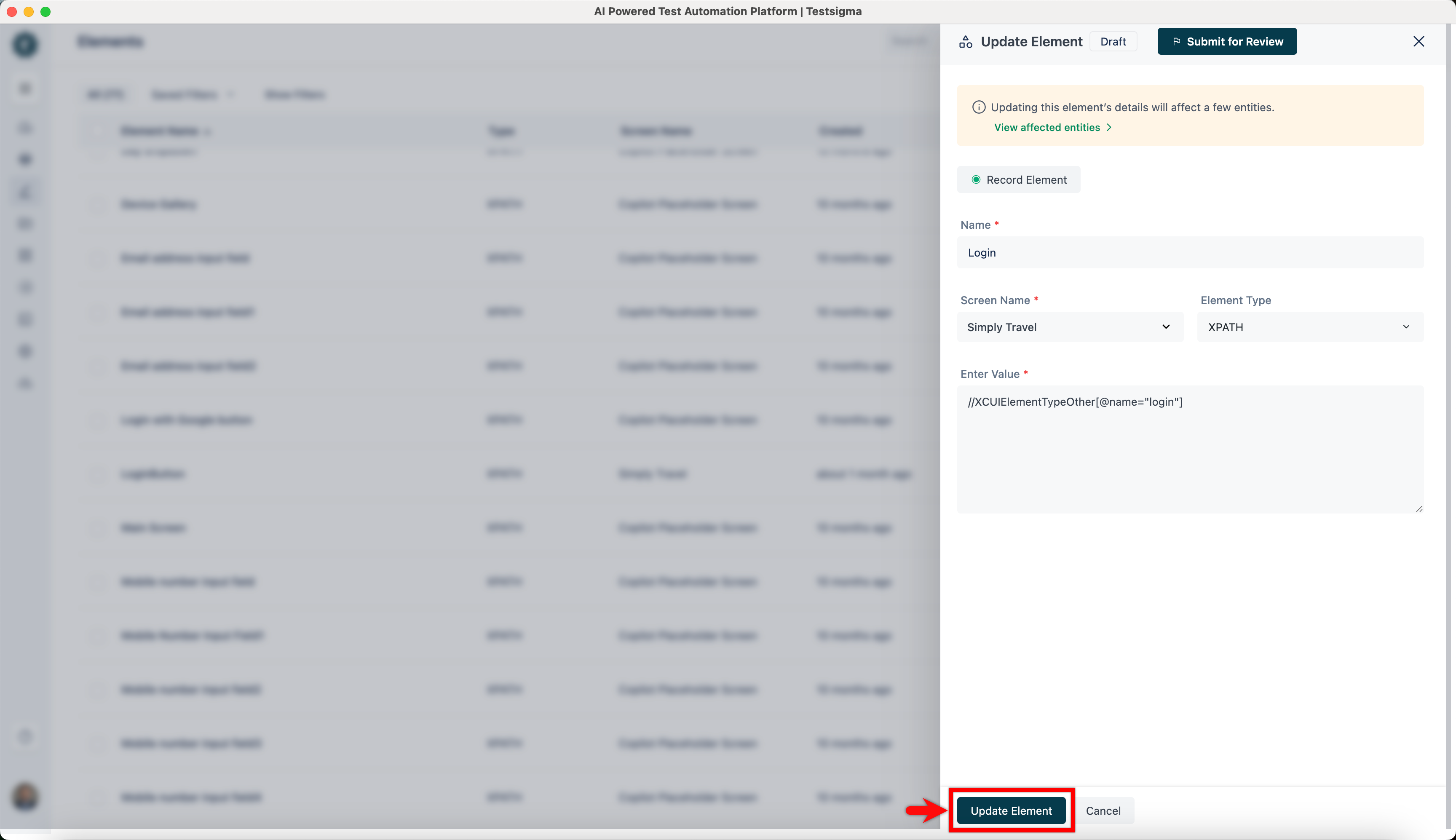
Click on Update.
Updating Multiple Elements
Section titled “Updating Multiple Elements”-
Navigate to Create Tests > Elements.
-
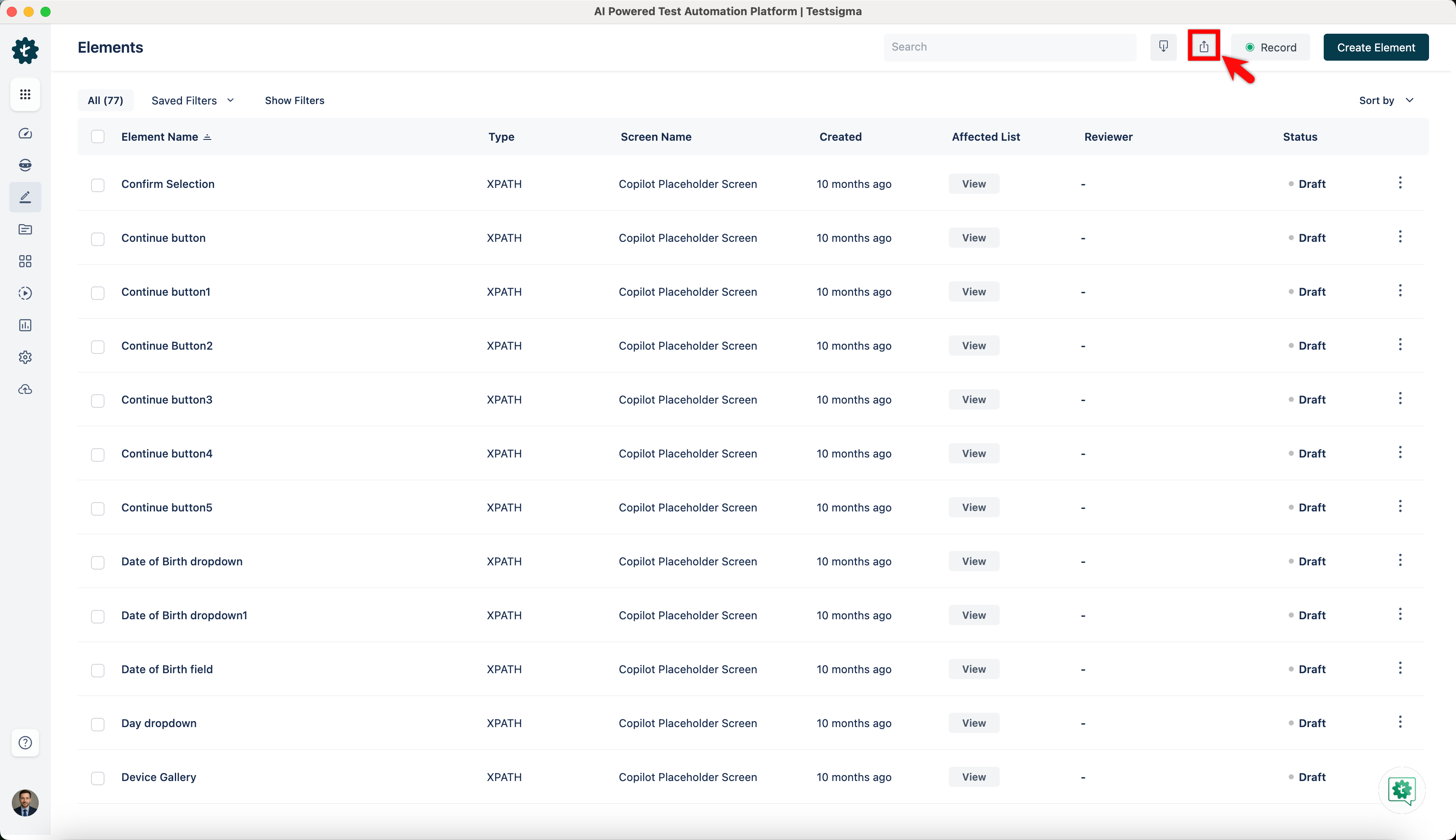
Click Export.
-
In the downloaded XLSX file, update the required fields for the required elements.
-
Click on Import and choose the updated XLSX file for import.