Test Step Recorder
Install Testsigma Recorder Extension: Chrome
Steps to Install Chrome Extension
Section titled “Steps to Install Chrome Extension”-
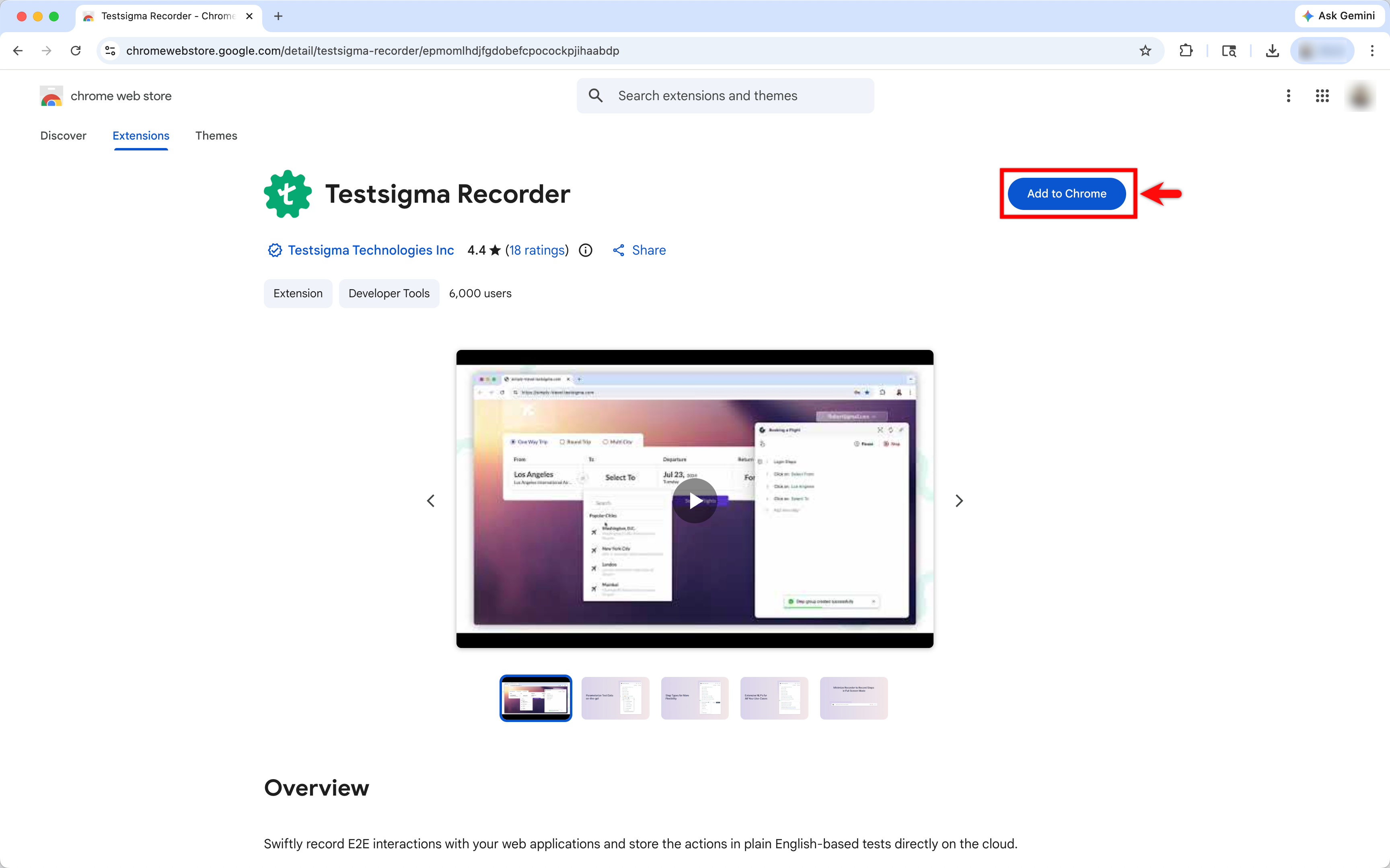
Go to Testsigma Recorder.
-
Click on Add to Chrome.
-
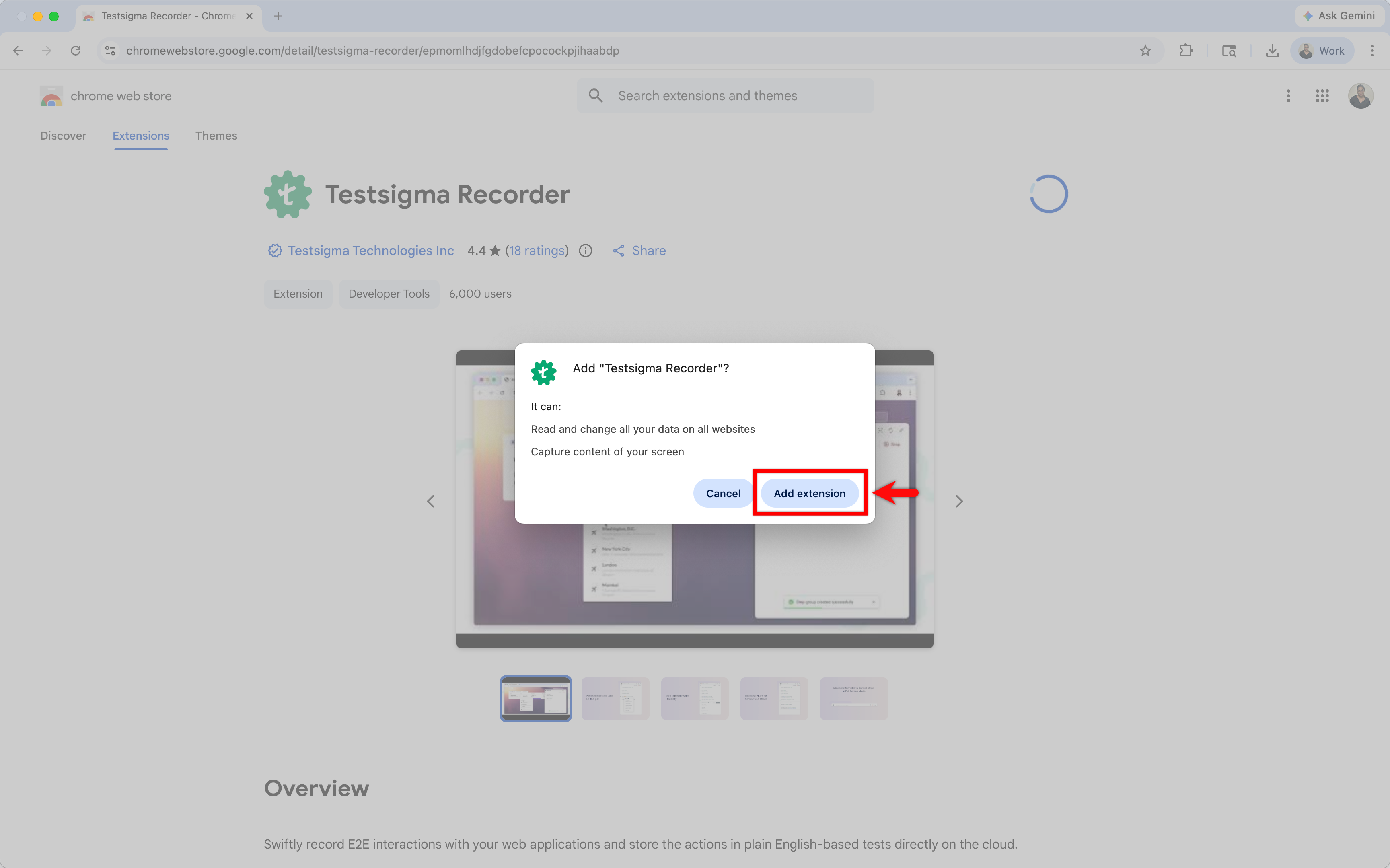
On the permission prompt, click on Add extension.
-
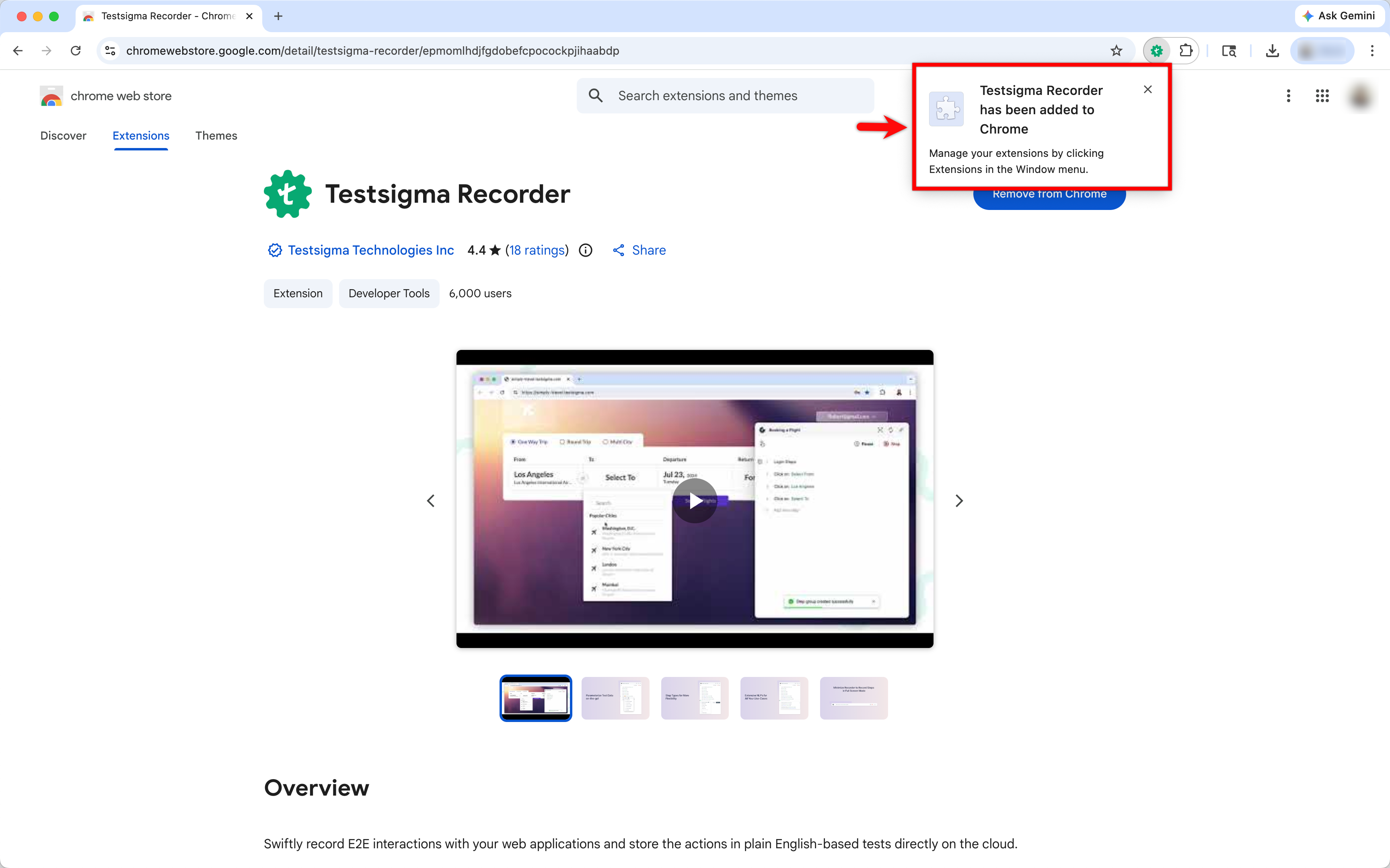
On successful installation, the following message will appear:
For more information on creating test steps using recorder, refer to the documentation on recording test steps.
Testsigma Recorder Extension Options
Section titled “Testsigma Recorder Extension Options”-
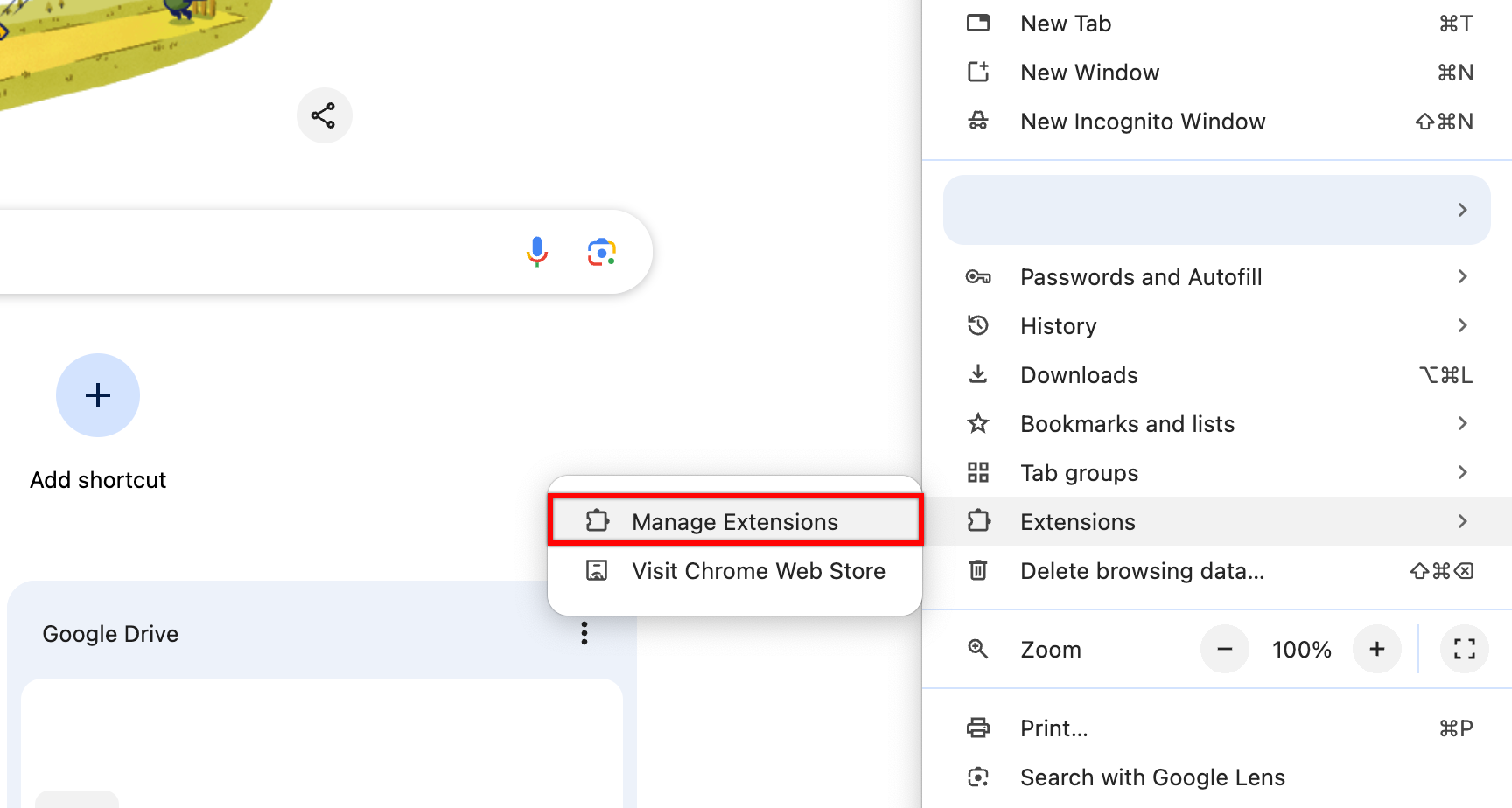
Navigate to Extensions > Manage Extensions.
-
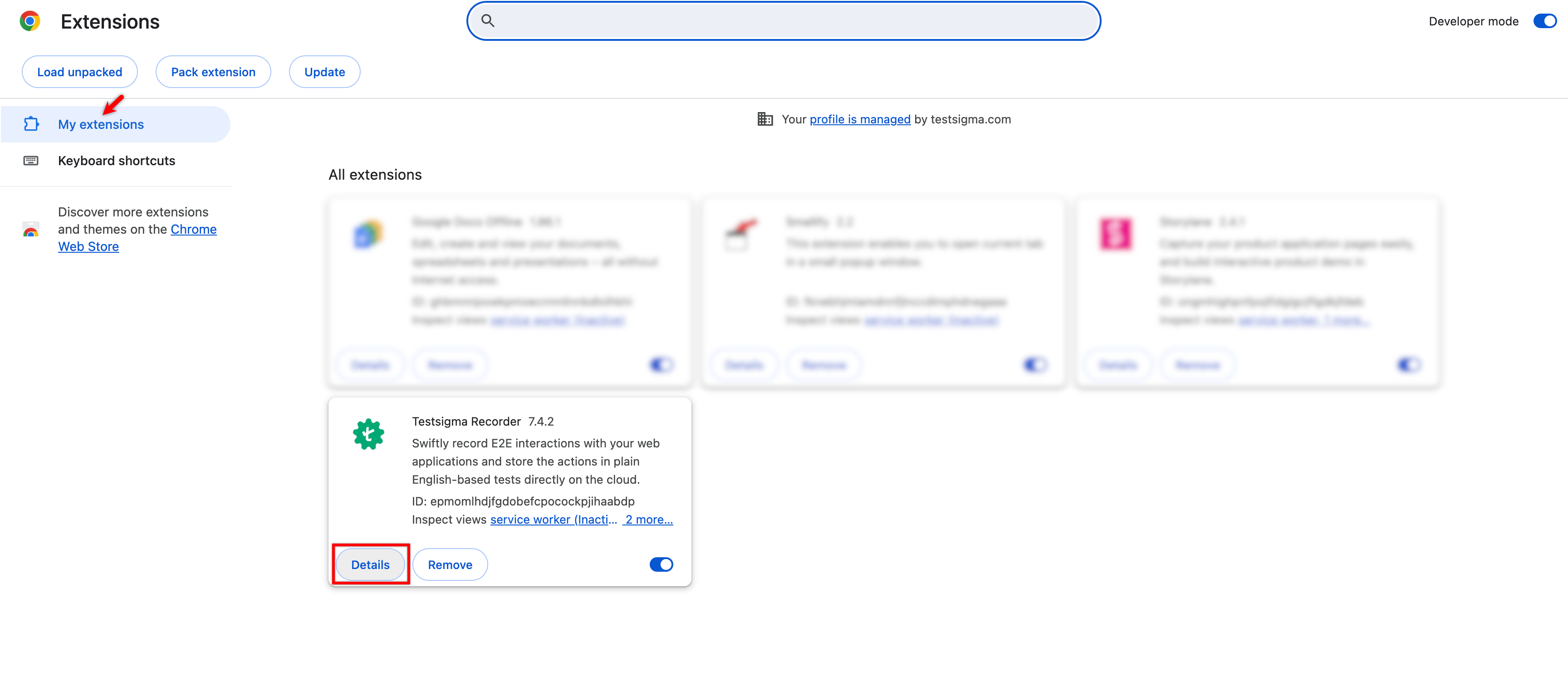
Click Details on the Testsigma Widget.
-
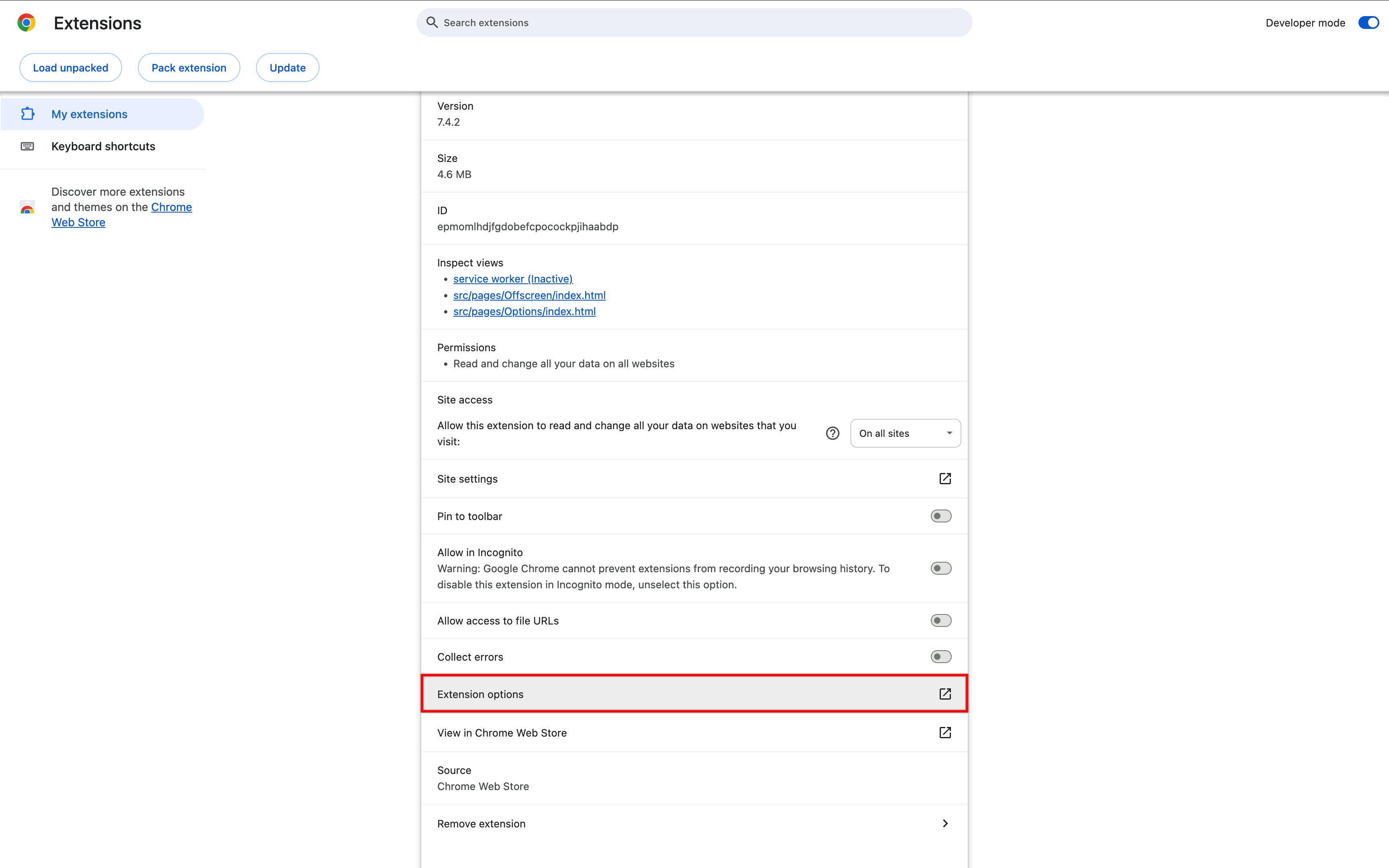
On the Testsigma Recorder menu, click Extension Options.
-
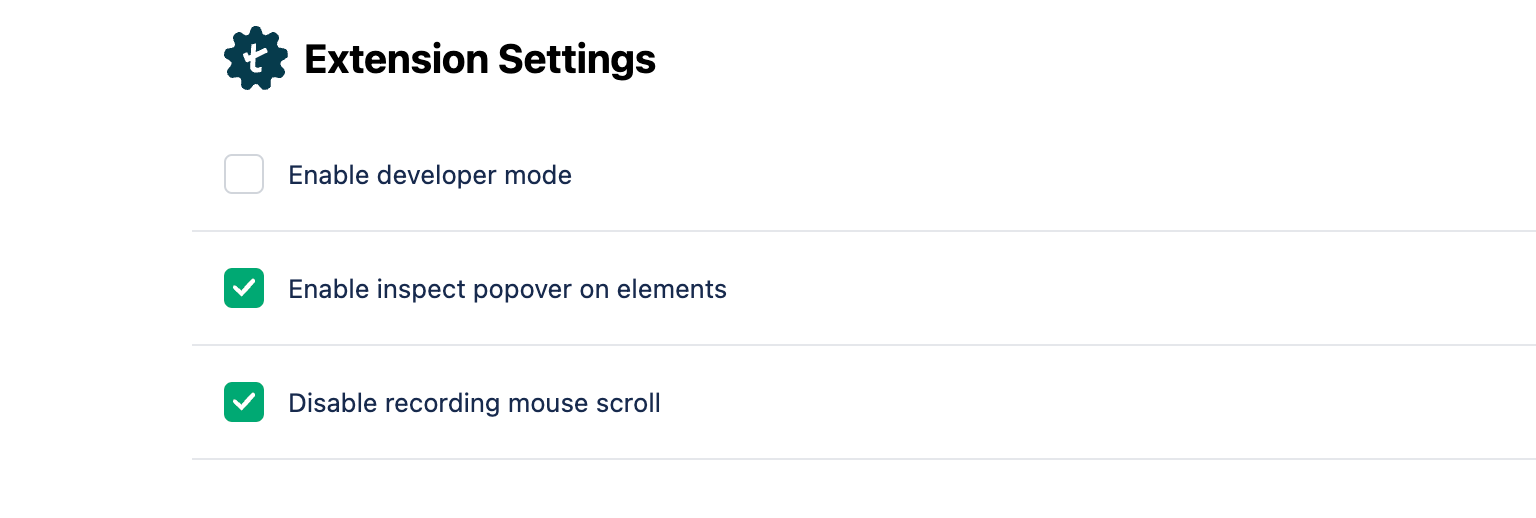
You can see the following options:
-
Enable Inspect Popover on Elements
-
Disable Recording Mouse Scroll
-
Enable Developer Mode
-
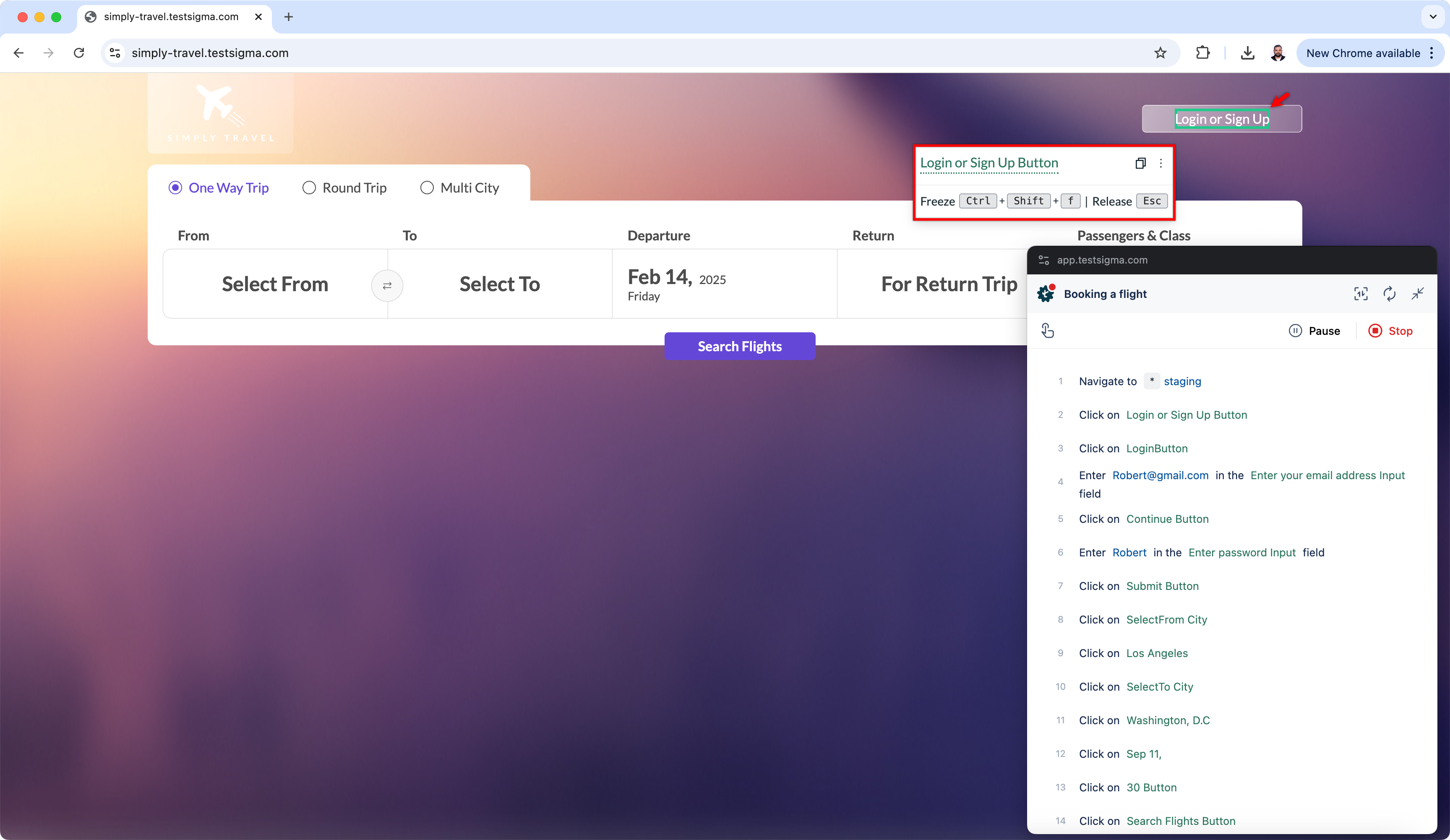
a. Enable Inspect Popover on Elements
Section titled “a. Enable Inspect Popover on Elements”This option highlights elements with a green rectangular box during web recording, which helps you with visual guidance for accurate element selection.
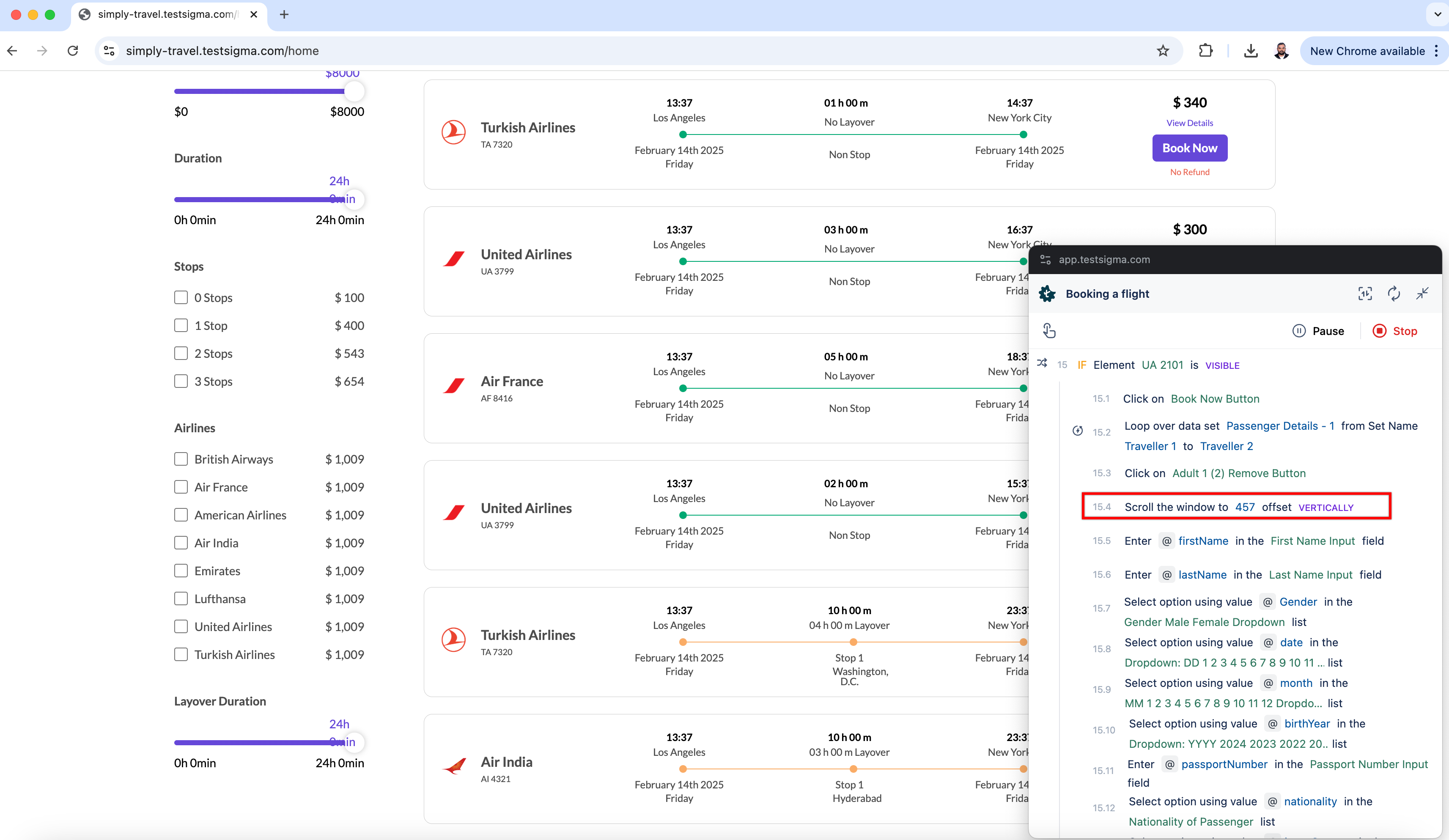
b. Disable Recording Mouse Scroll
Section titled “b. Disable Recording Mouse Scroll”This option will prevent the automatic addition of scroll NLPs in test cases, which helps you create clean test cases, especially for static applications without infinite loading.
c. Enable Developer Mode
Section titled “c. Enable Developer Mode”Activates Browser Developer Mode for advanced debugging, enabling element inspection, troubleshooting locators, and gaining deeper insights into application behavior.
Record Steps in Incognito Mode
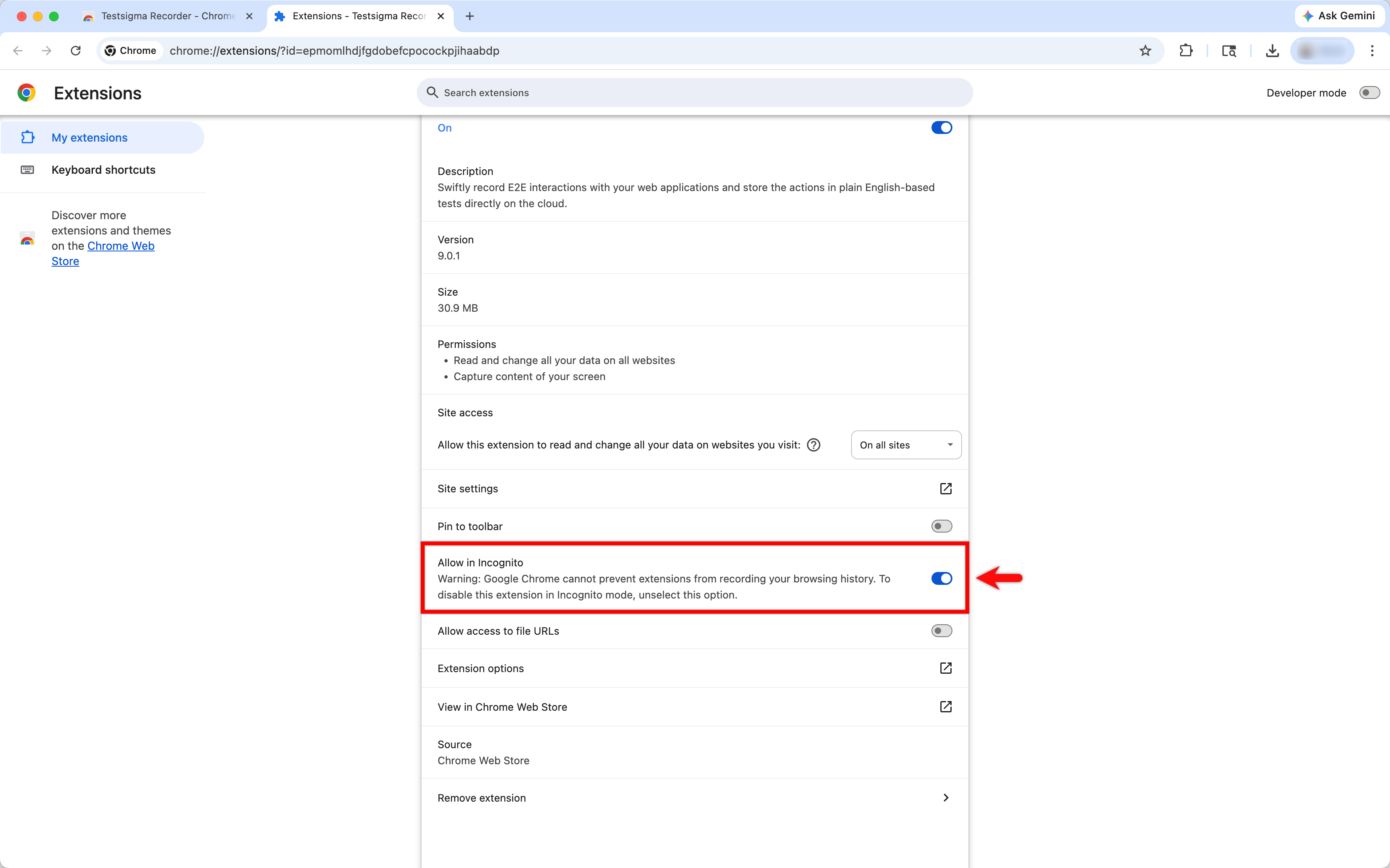
Section titled “Record Steps in Incognito Mode”You can record steps in incognito mode by enabling the “Allow in Incognito” option in the Testsigma manage extension. This feature lets you record steps privately without storing browsing history or cookies. Follow the steps below to enable the “Allow in Incognito” option in the Testsigma extension in Chrome browser.
Extension Settings for Incognito Mode
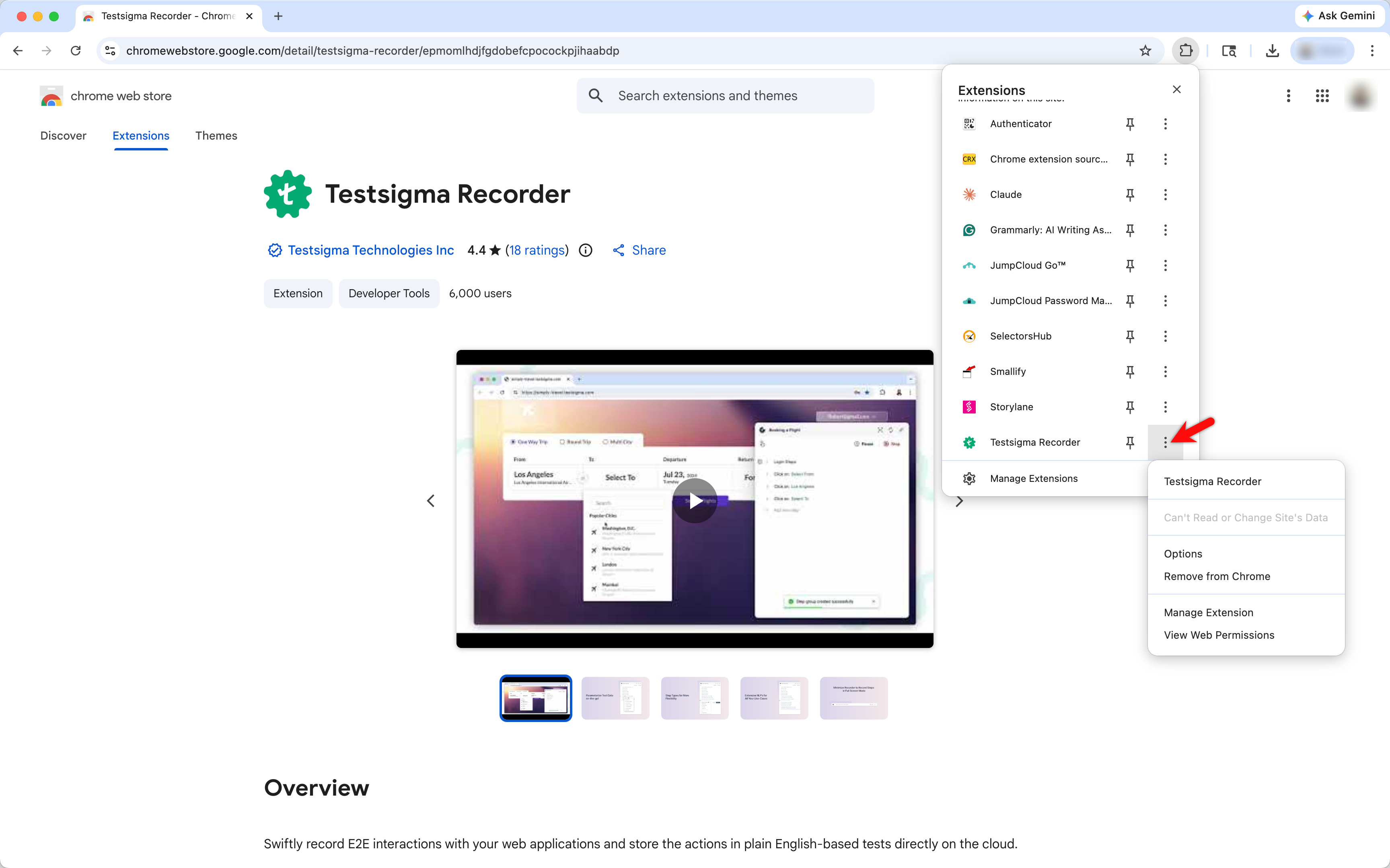
Section titled “Extension Settings for Incognito Mode”1. Open the Testsigma Extension: Right-click the Testsigma Extension icon in the browser toolbar.
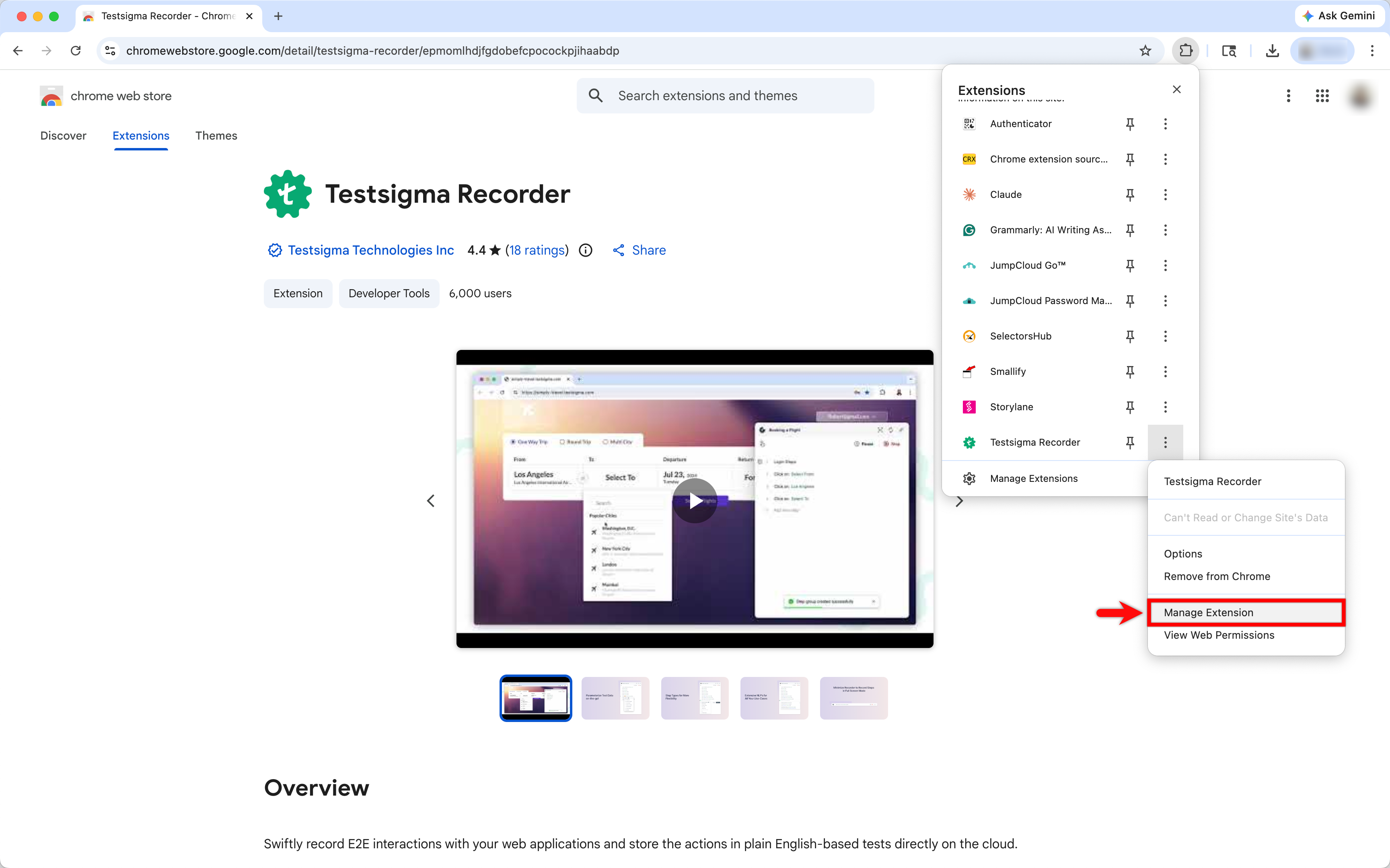
2. Access Extension Settings: From the extension menu, select Manage extension.
3. Enable Allow in Incognito: Toggle on Allow in Incognito option.