Elements
Import and Export Elements
Prerequisites
- Before you begin, ensure that you have a file to import.
Import File Format
Section titled “Import File Format”The Import file has the following Columns:
| Column Name | Description |
|---|---|
| UUID | The unique identifier of the Element when it is exported (Only applicable in case of exported Elements) |
| Name / fieldName | Name of the Element |
| Screen Name / screenName | Name of the Screen/Page where the Element is present. It can be any value and is used for organizing/grouping the Elements |
| Locator Type / locatorType | Type of the locator |
| Value / fieldDefintion | The value of the locator with the selected Locator Type |
| Created Using / createType | Mentions how the Element was created |
Steps to Import Elements
Section titled “Steps to Import Elements”-
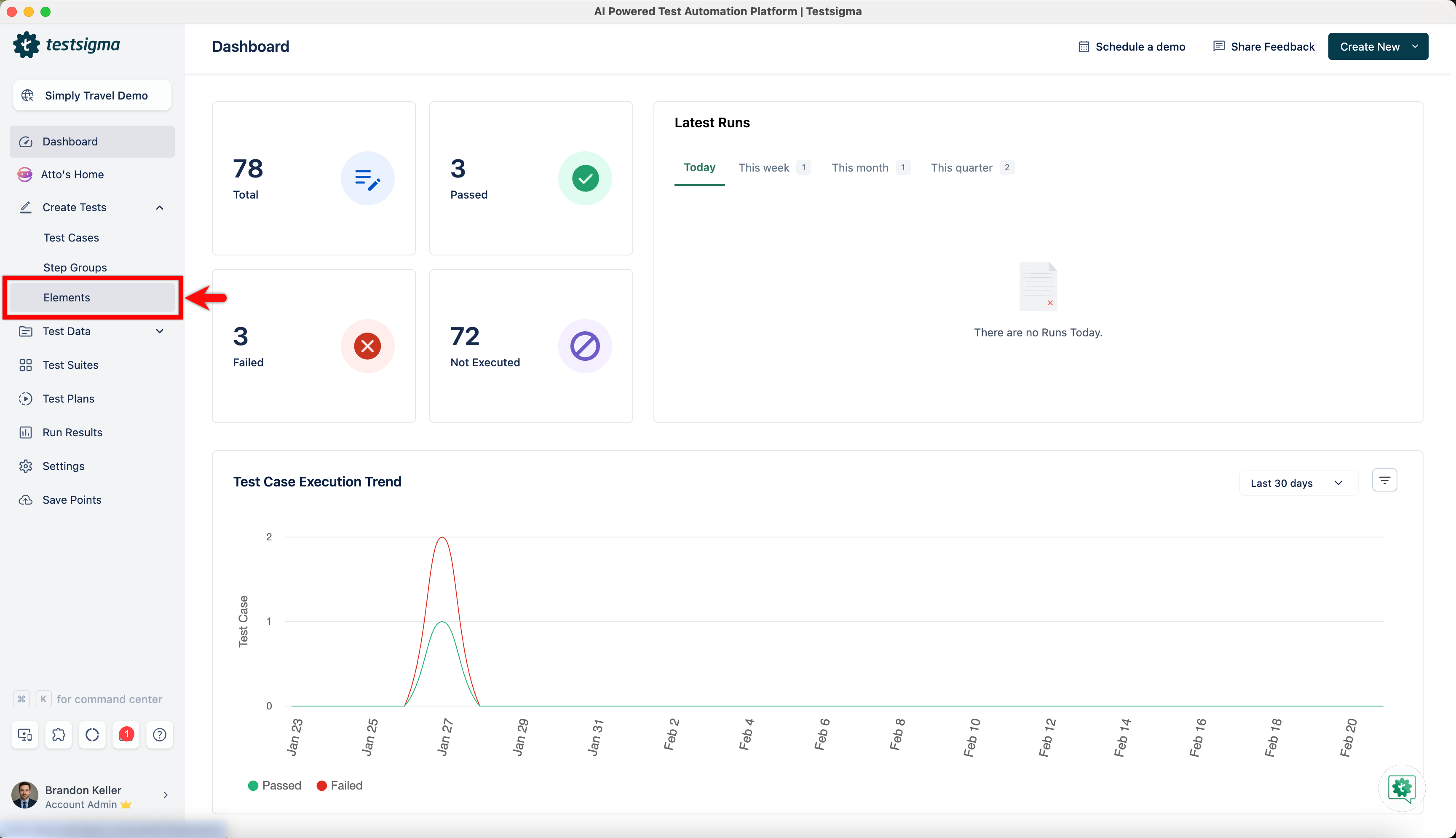
Navigate to Create Tests > Elements.
-
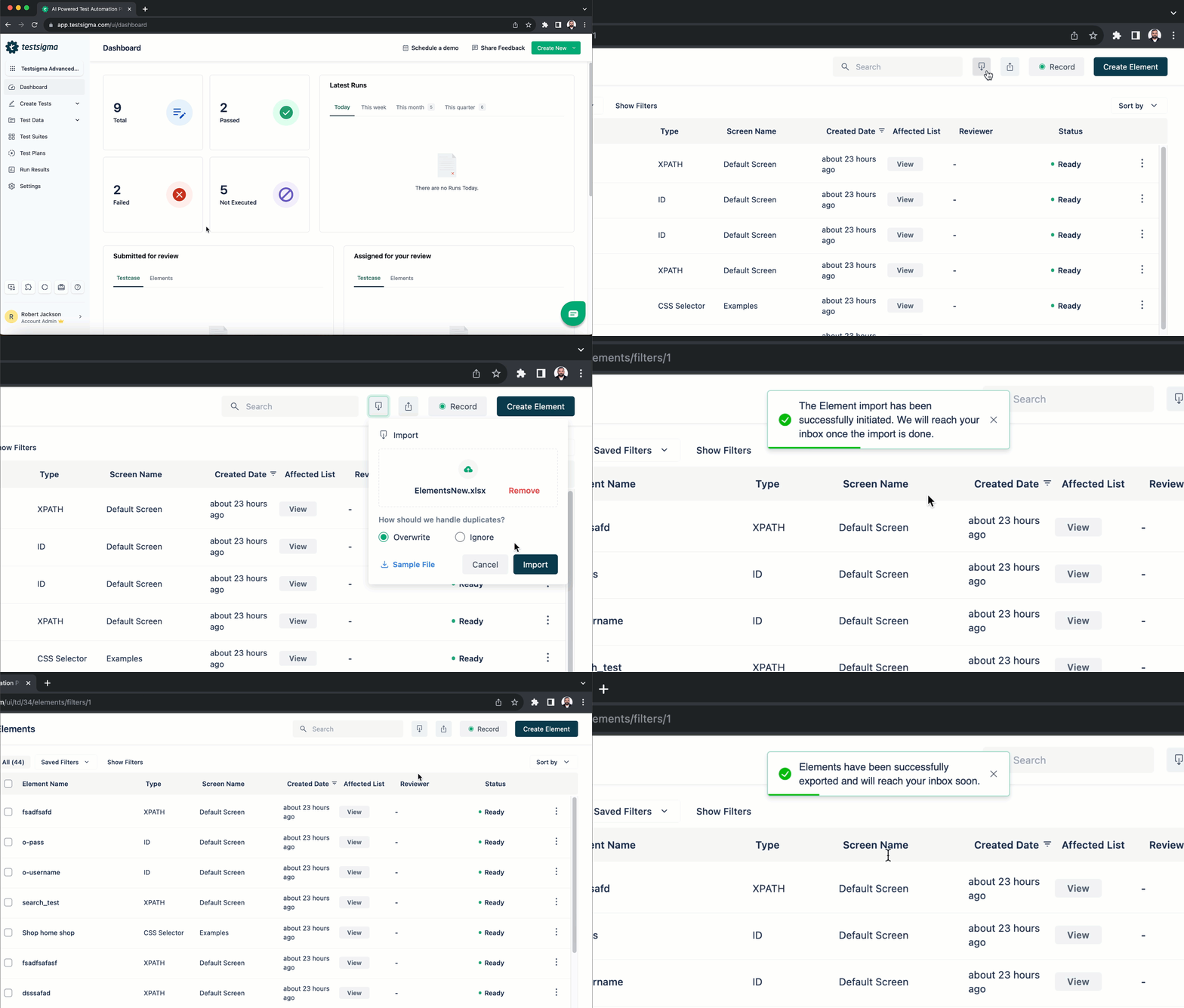
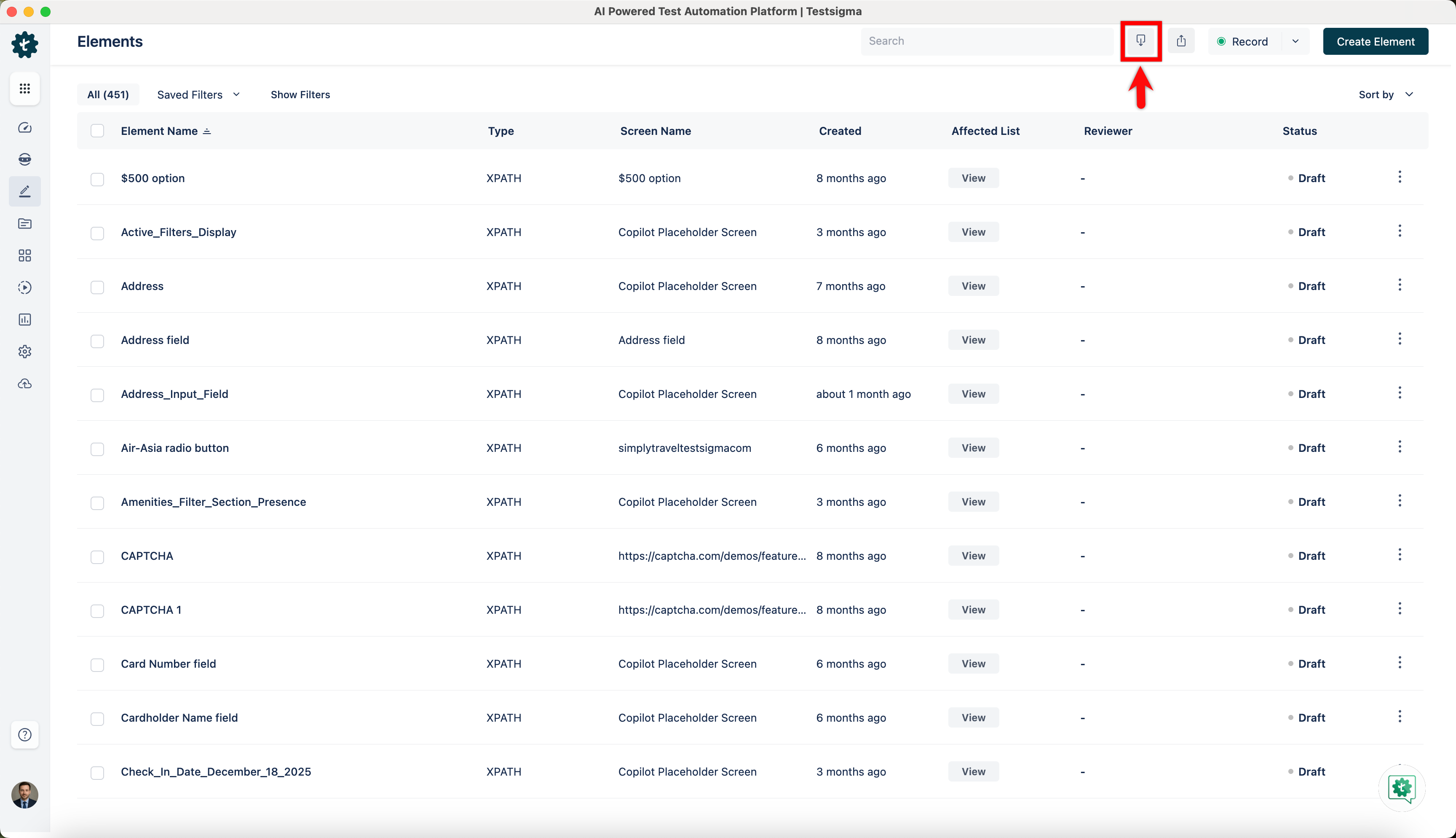
From the Elements page, click on the Import button to open the Import dialog.
-
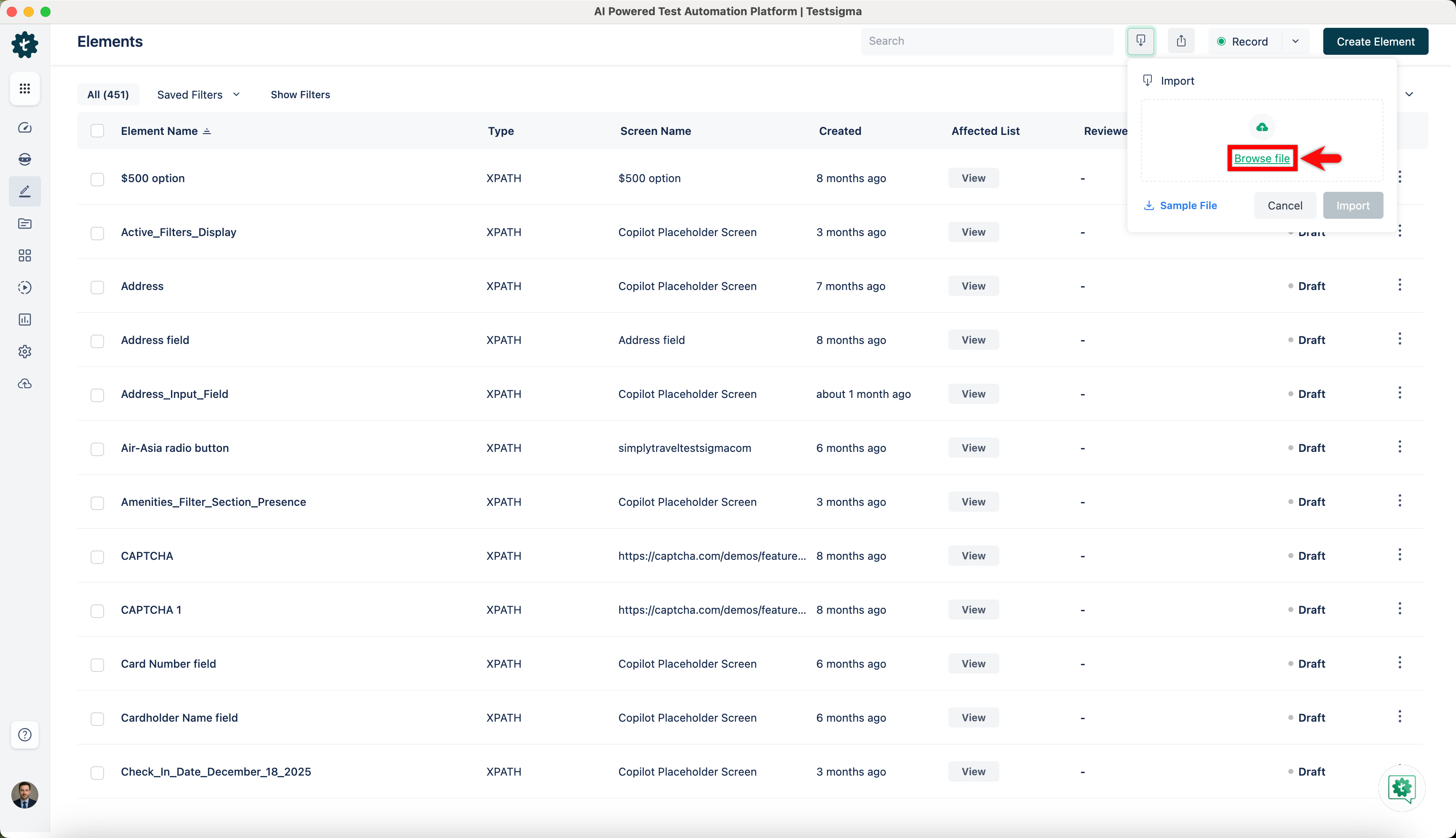
Click on Browse File to upload the file containing the Elements.
-
Once the file is uploaded, you will get two options to handle the duplicate elements.
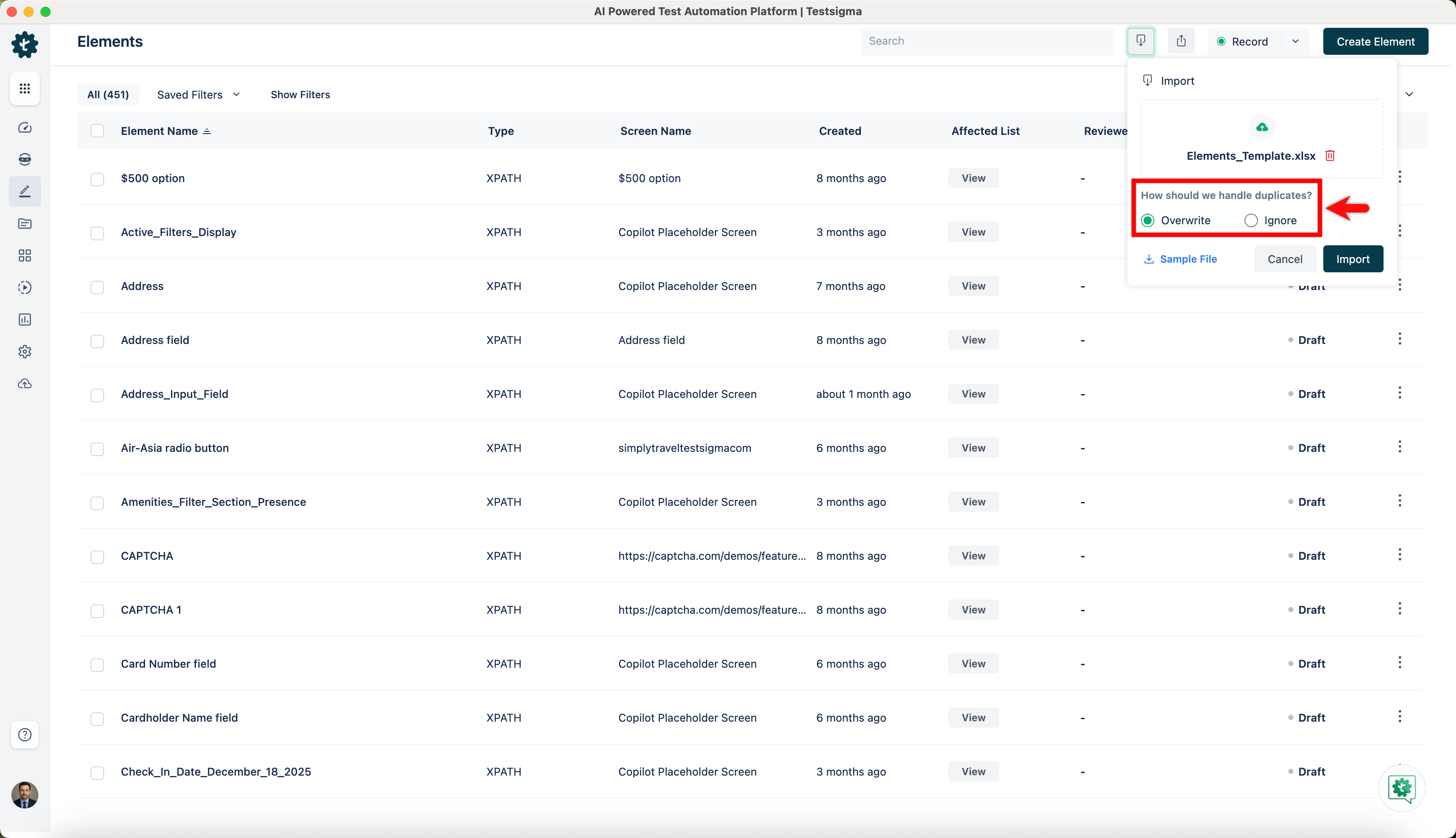
- Select the Overwrite option if you want to overwrite the data in the elements list.
- Select the Ignore option if you want to ignore the data from the elements file.
-
Click on Import.
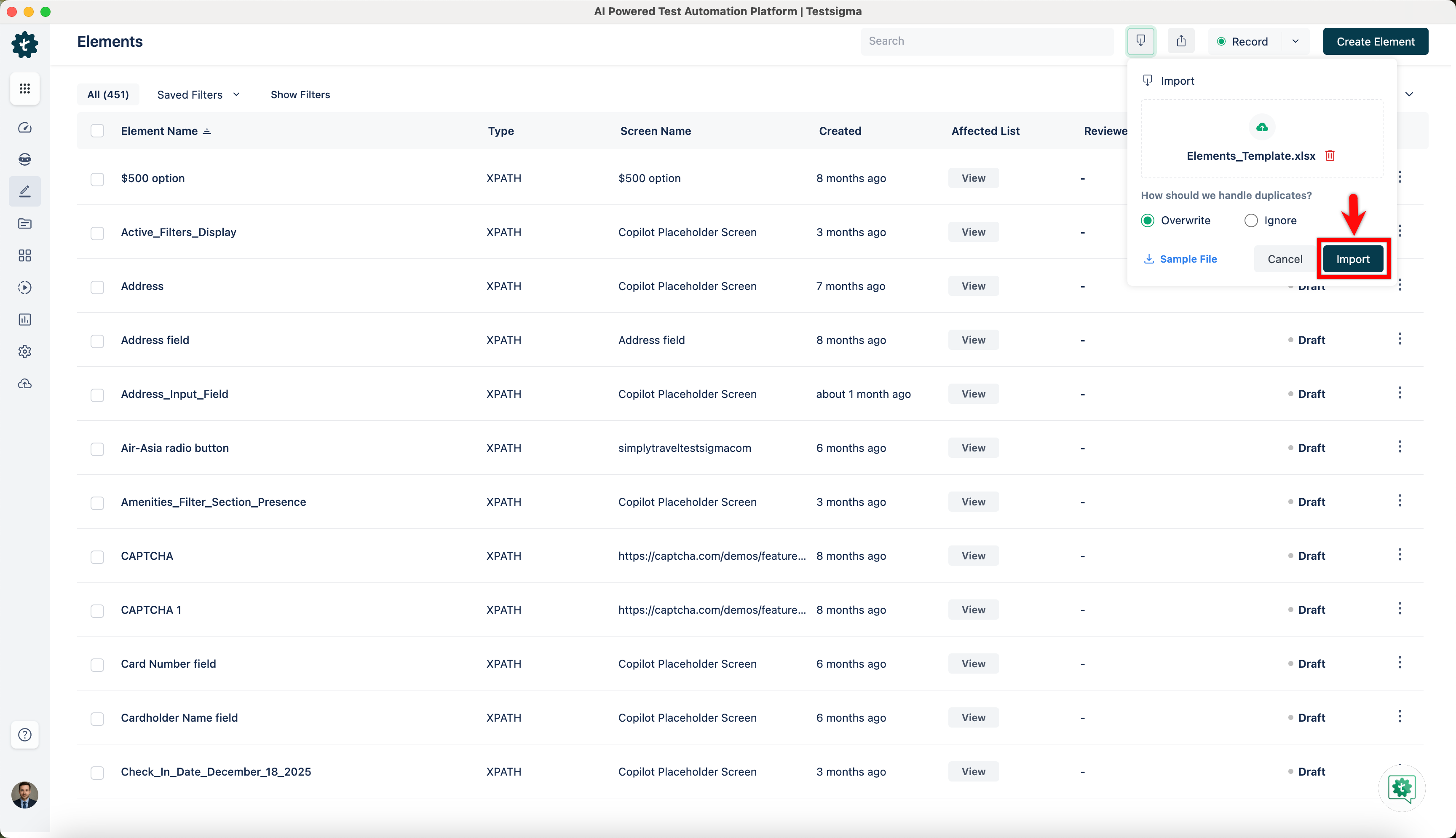
The elements will be imported in the background and you will receive an email once the import is complete.
Steps to Export Elements
Section titled “Steps to Export Elements”-
Navigate to Create Tests > Elements.
-
From the Elements page, click on the Export.
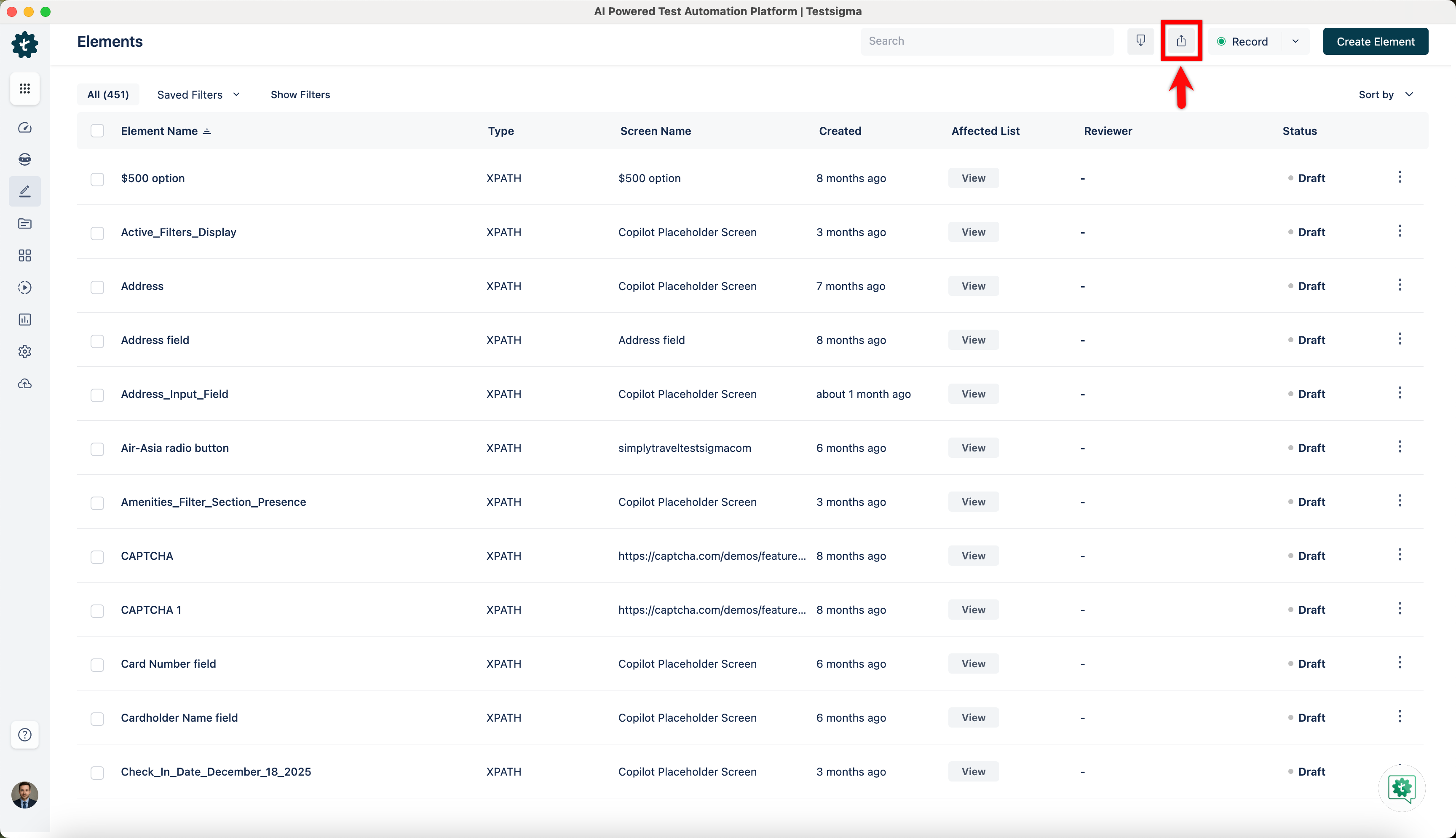
It will show a success message saying that the export has started. The Elements will be exported in the background, and you will receive an email once the export process is complete.
Here’s a quick GIF demonstrating how to import & export elements.