
Configuration
Creating WDA File for iOS App Testing
Prerequisites
Before you begin, ensure that you have:
- Paid Apple Developer Account
- Mac Machine
- Xcode and Xcode Command line tools
Steps to Create WDA File
Section titled “Steps to Create WDA File”-
Download from Appium Github.
-
Open WDA Xcode Project in Xcode.
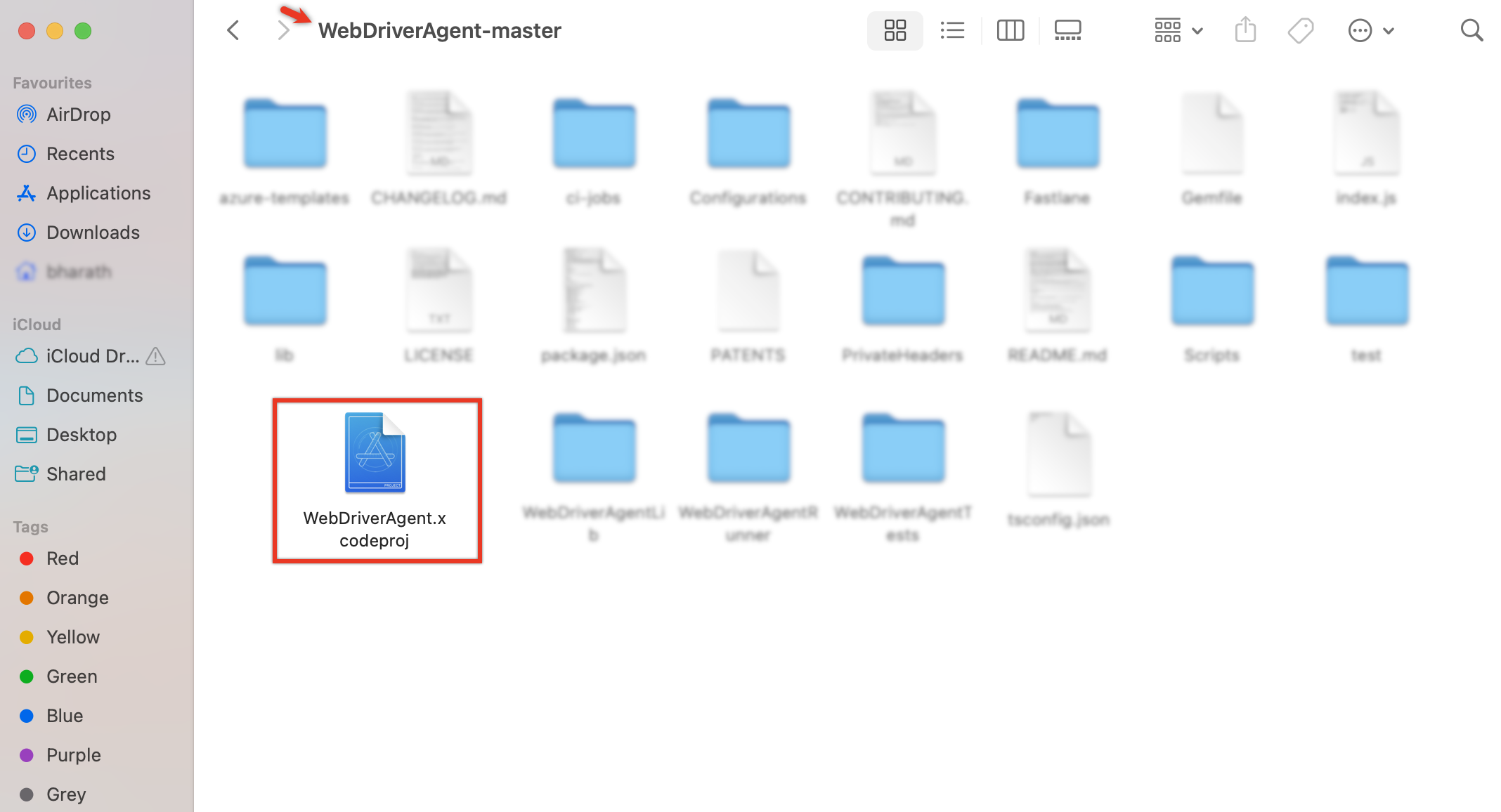
-
On Signing & Capabilities, add Apple Account for wherever necessary in Target OS & Integrations.
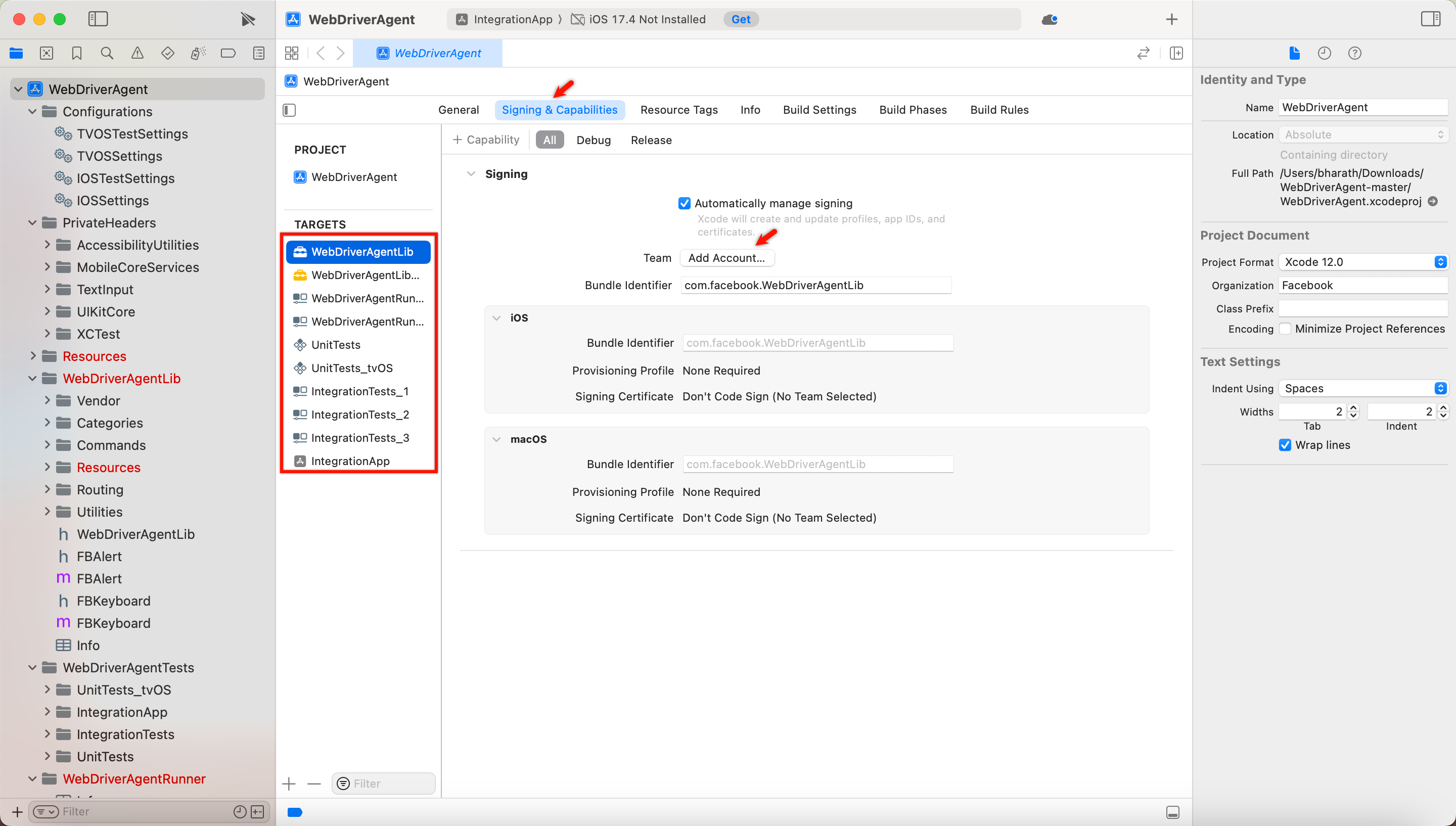
-
Once the signing is done, run the following command to build the latest WDA WebDriverAgent. This command will build the WDA project and prepare it for testing.
xcodebuild build-for-testing \-project WebDriverAgent.xcodeproj -scheme WebDriverAgentRunner \-destination 'id=<DEVICE_UDID>'
-
Create a Zip Archive from the Products Folder
Locate the Products folder within the Xcode derived data directory. The path looks like this:zip/Users/<user>/Library/Developer/Xcode/DerivedData/WebDriverAgent-<RANDOM-STRING>/Build/ProductsHere, you need to replace
with your username and with the random string associated with your WDA build. -
Generating a New WDA for Installation
Run the following commands to create a new WDA package for installation.
xcodebuild -scheme WebDriverAgentRunner -sdk iphoneos -configuration Release -derivedDataPath /tmp/derivedDataPathcd /tmp/derivedDataPath/Build/Products/Release-iphoneosmkdir -p Payloadmv WebDriverAgentRunner-Runner Payloadzip Payload wda.zipmv wda.zip wda.ipa
The above commands will generate a new wda.ipa file.