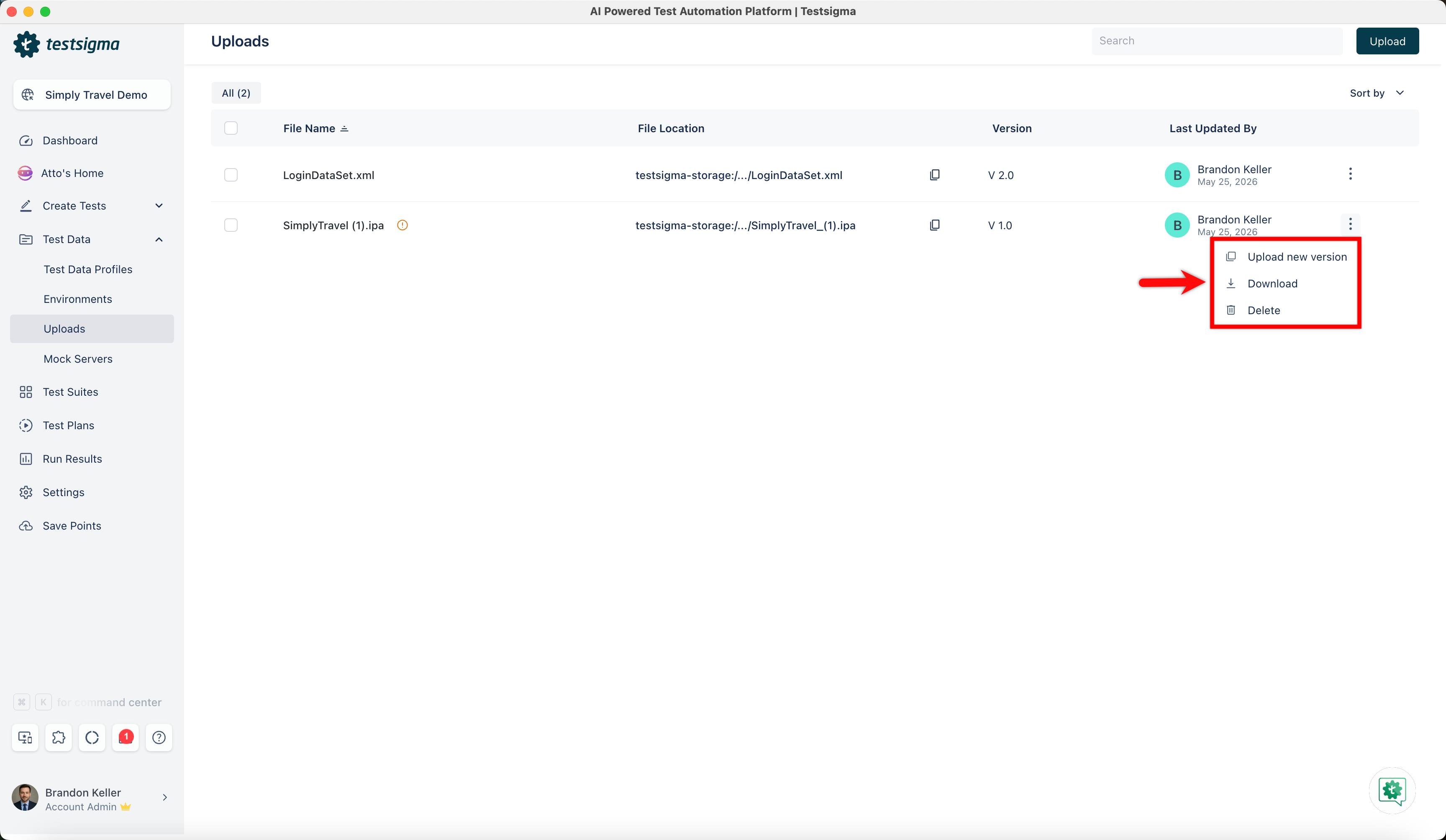
Uploads
Upload Android and iOS Apps
Prerequisites
Before you begin, ensure that you have referred to:
- Documentation on creating test cases.
- Documentation on creating projects.
- Uploadied the Android app as a .apk file and the iOS app as a .ipa file for testing.
Upload Applications
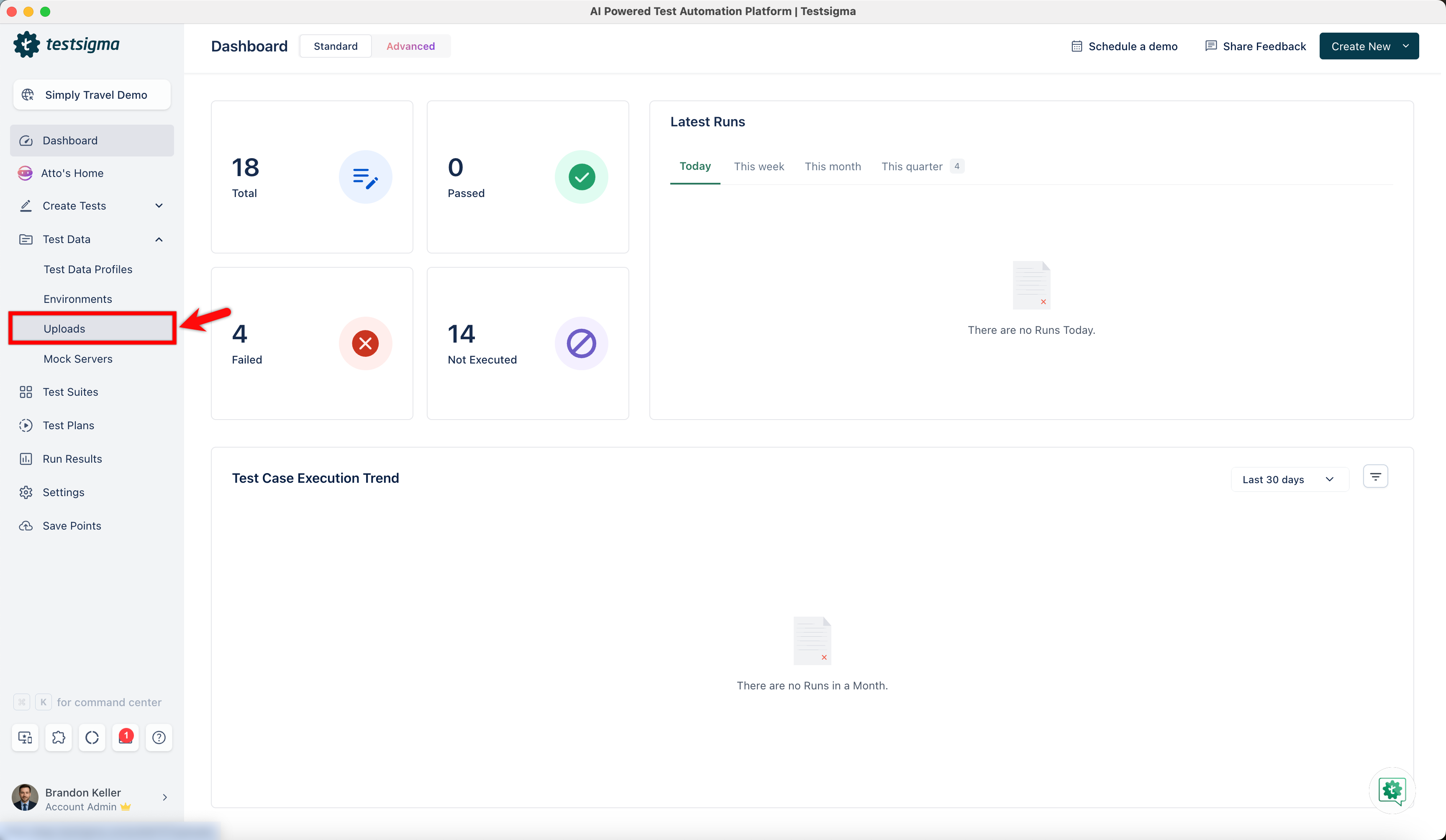
Section titled “Upload Applications”- From the left navigation bar, go to Test Data > Uploads.
-
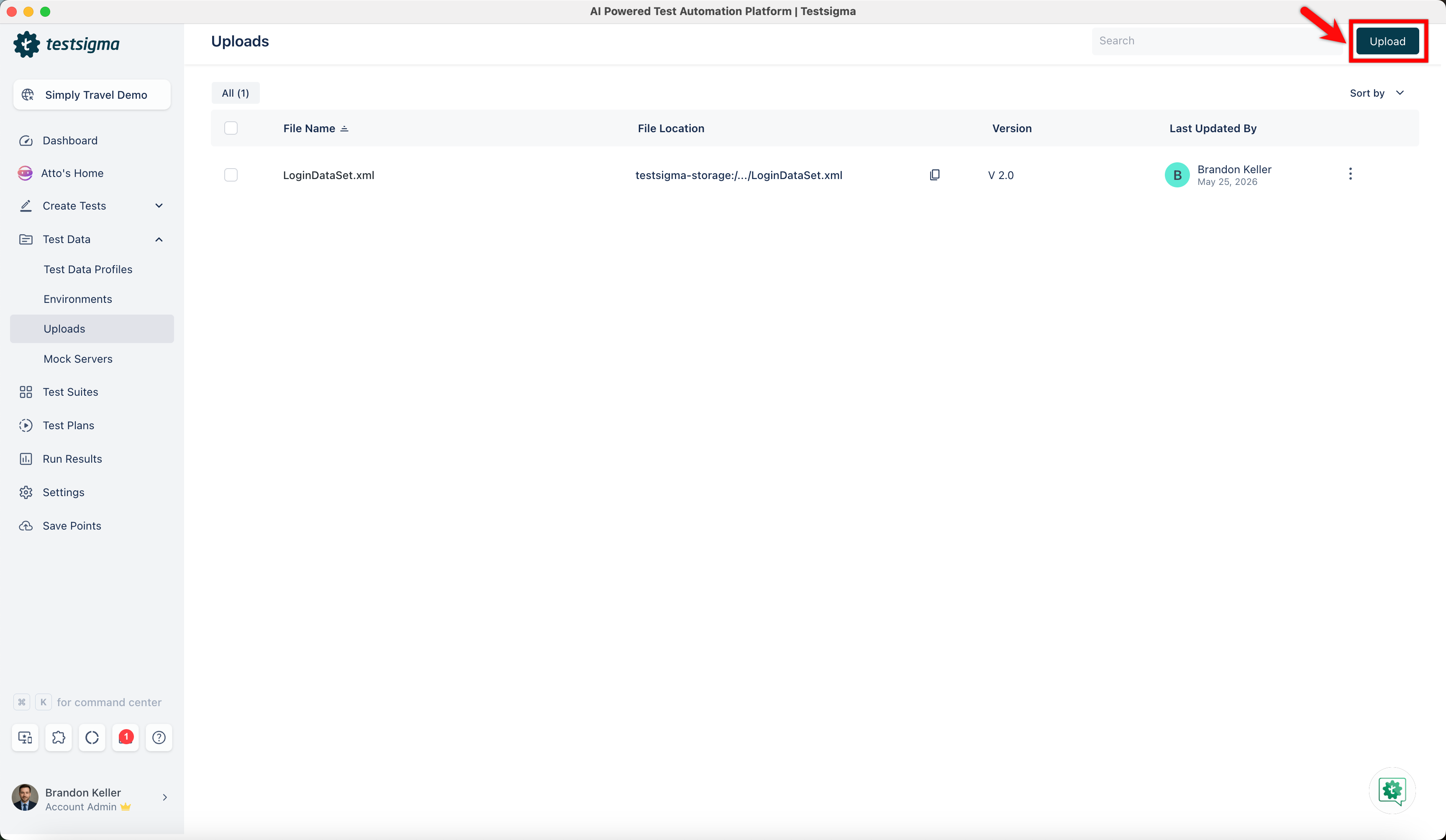
Click Upload.
-
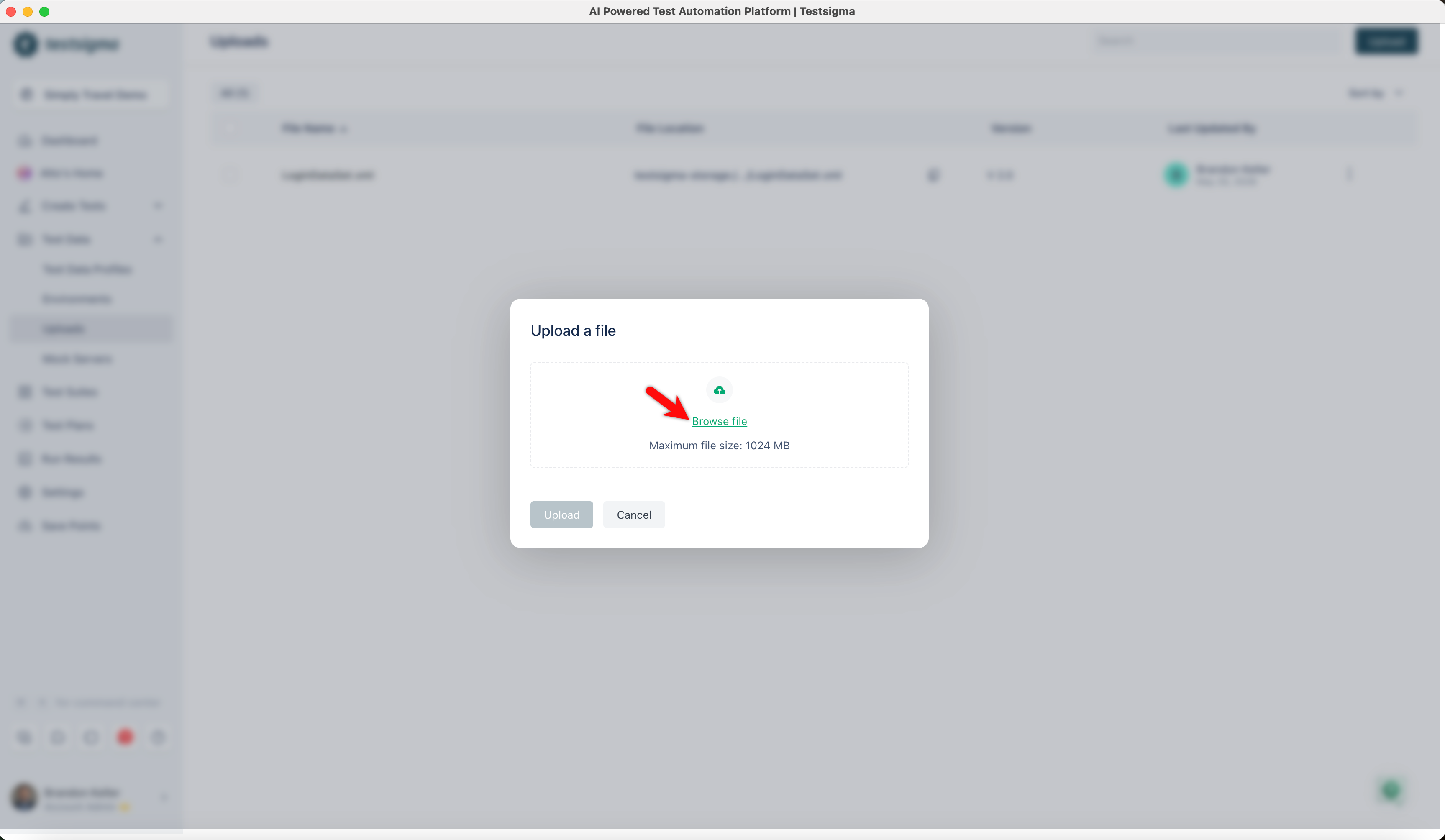
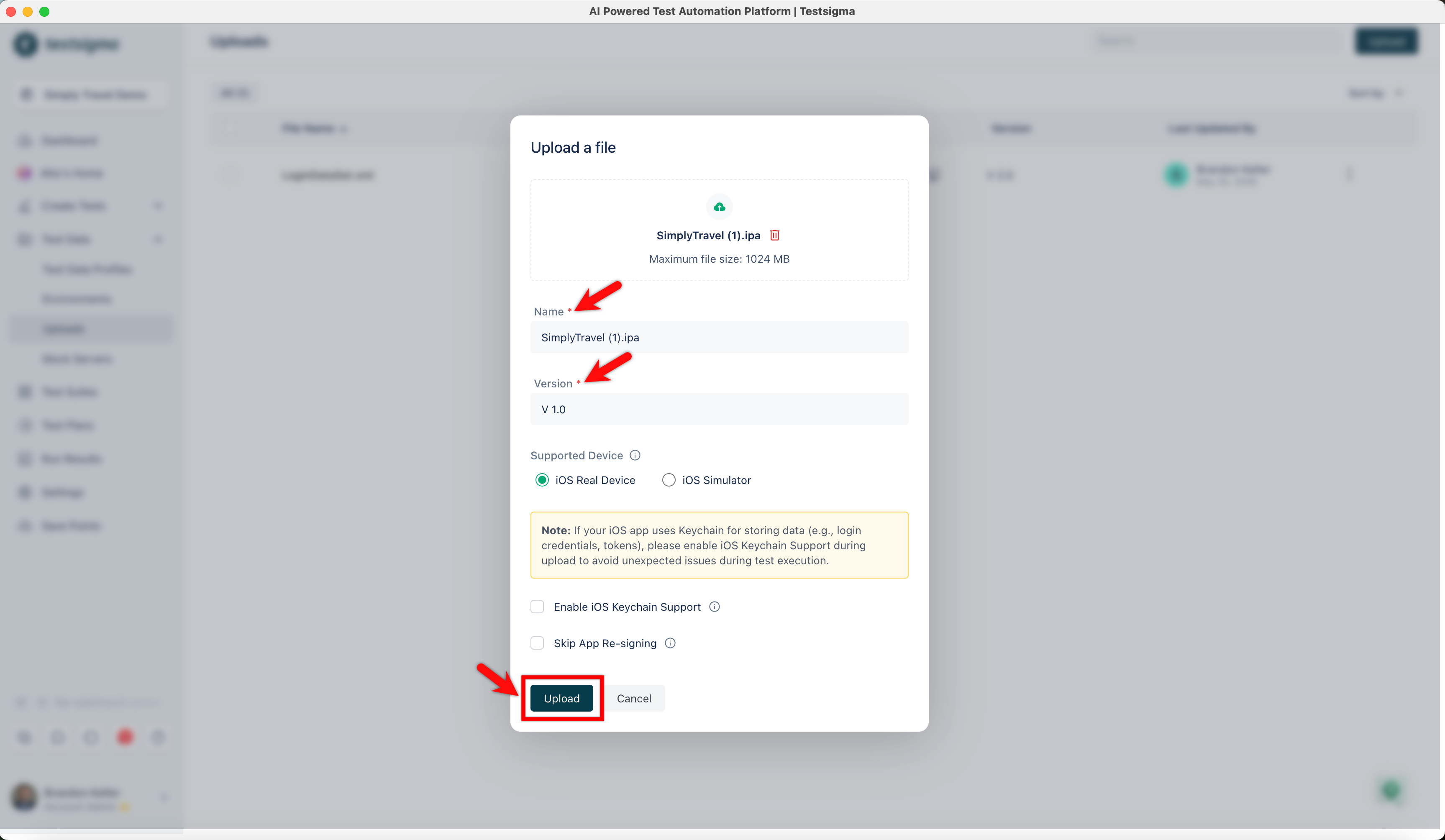
In the Upload a file dialog, drag and drop your file or click on Browse to select the file from your local folder.
-
Edit Name, Version, and click Upload.
Manage Upload Application
Section titled “Manage Upload Application”- In the Uploads list page, click the ellipsis icon next to the uploaded application you want to manage. The dropdown menu will appear, and you can then select options like Upload a new version, Download, or Delete the application.