
Integrations
Backlog Bug Reporting Integration
Prerequisites
Before you begin, ensure that:
- To integrate Backlog with Testsigma, you need the following information from your Backlog account
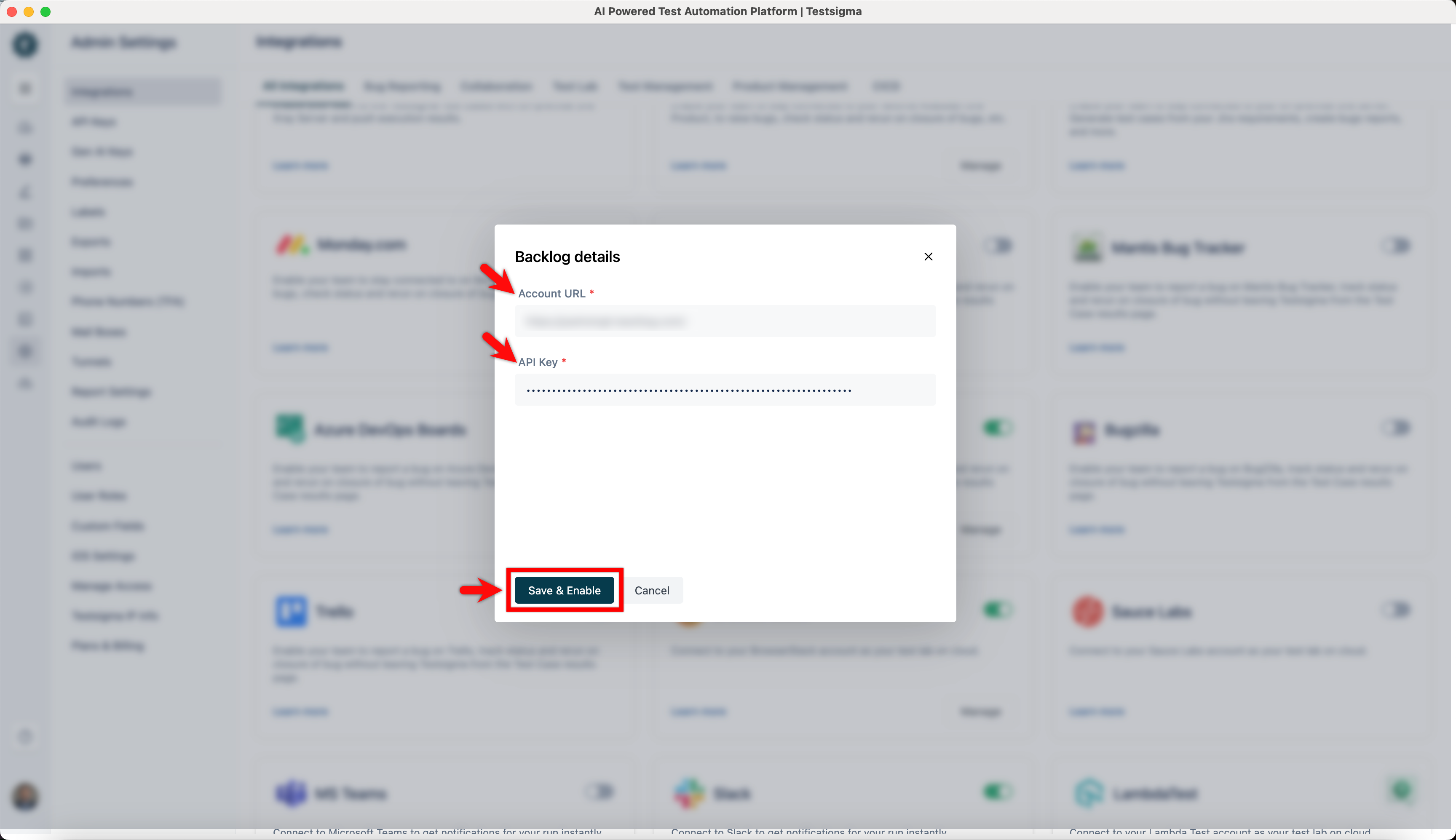
- Account URL: Your organization’s Backlog account URL
- API Key: Backlog API Token
- You have referred to the documentation on creating test plan runs and results.
Getting the API Key
Section titled “Getting the API Key”-
Log in to your Backlog account. You will find the Backlog URL on top of your browser’s address bar.
-
On the top-right corner of your Backlog instance, you will find a drop-down menu with your profile icon. Click on the drop-down and go to Personal Settings.
-
In your personal settings menu, click on the API option.
-
Under API Settings, we can see an option to generate a new API Key. Enter a suitable unique name in the Memo field and click on Submit. You will find an API key generated based on the Memo. You may enter some random text in the Memo field to generate a random API Key.
-
Copy this API key as it would be used to authenticate yourself while integrating Testsigma with Backlog.
Integrating Backlog with Testsigma
Section titled “Integrating Backlog with Testsigma”-
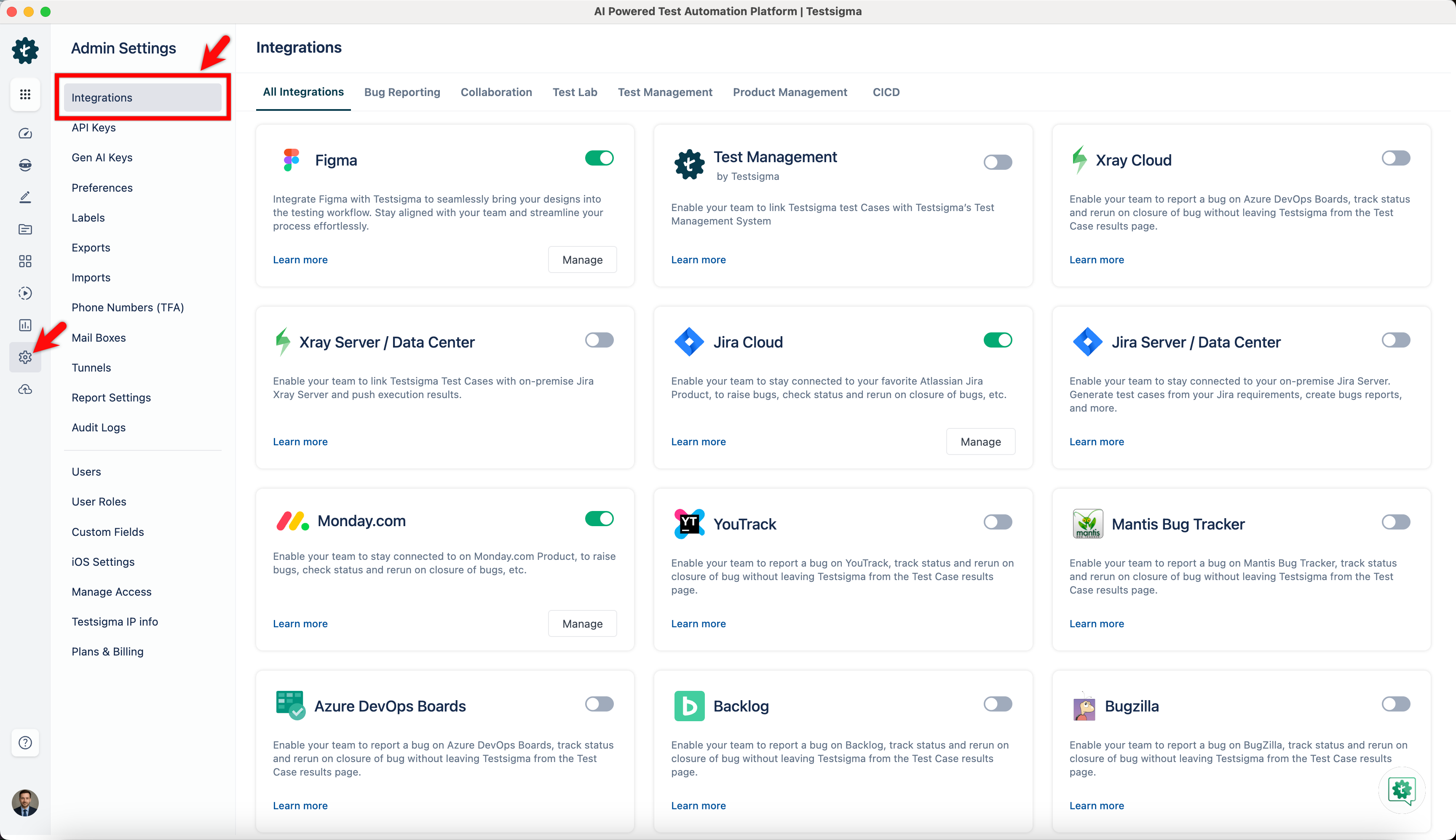
Navigate to Settings > Integrations.
-
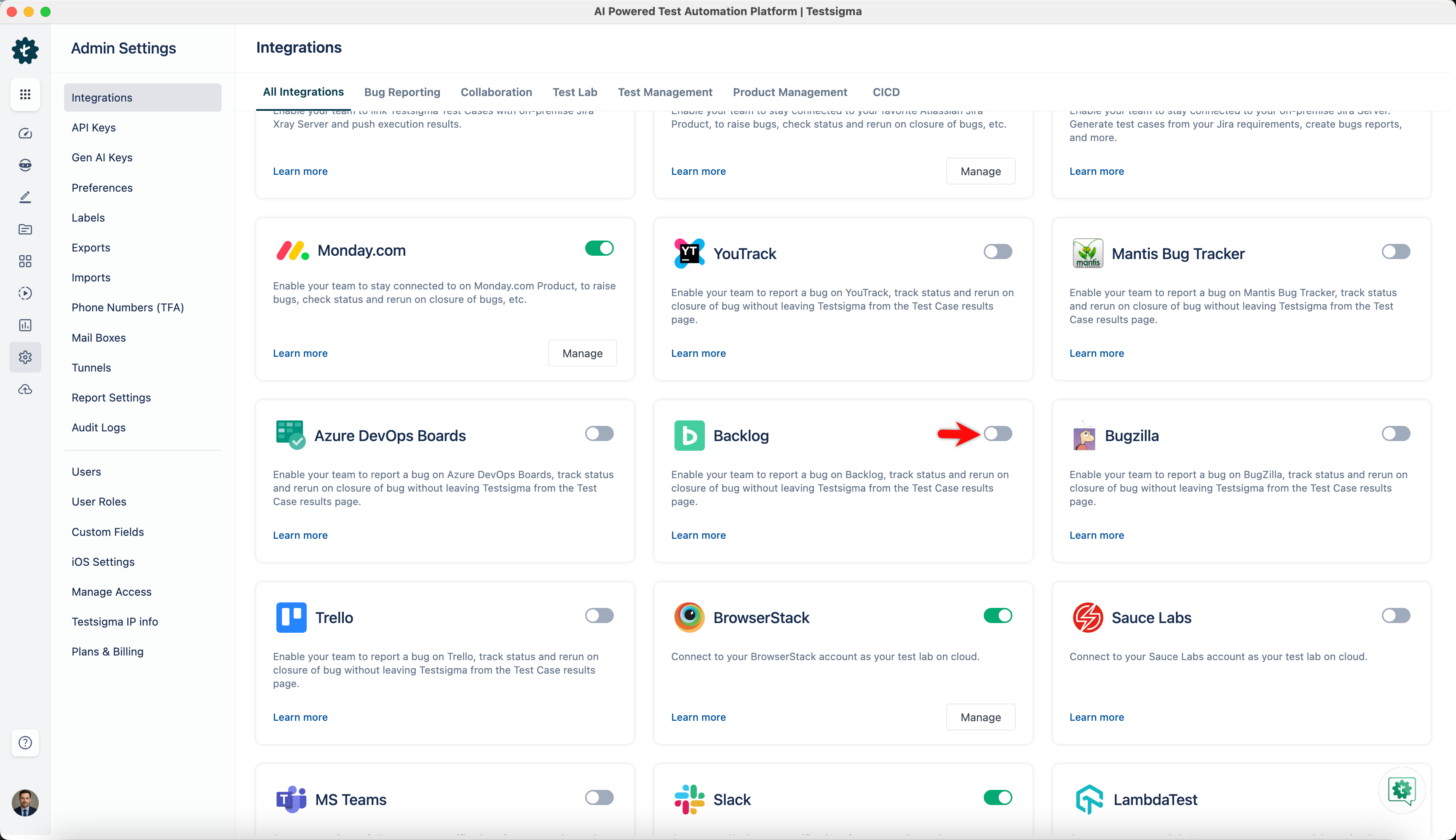
Enable toggle on Backlog widget.
-
In the Backlog details dialog, enter Account URL and API Key, and click on Save & Enable.
Creating a bug
Section titled “Creating a bug”-
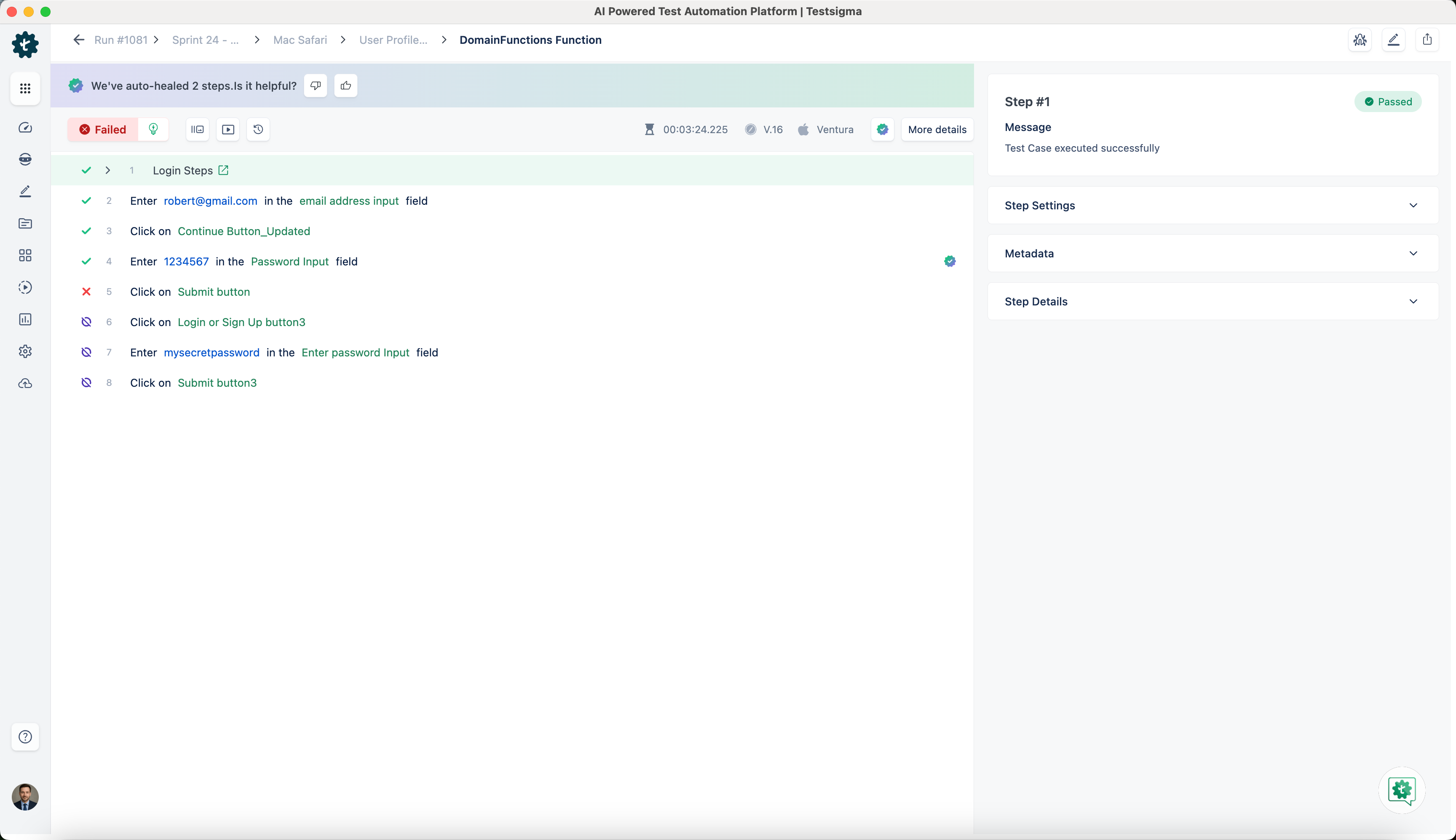
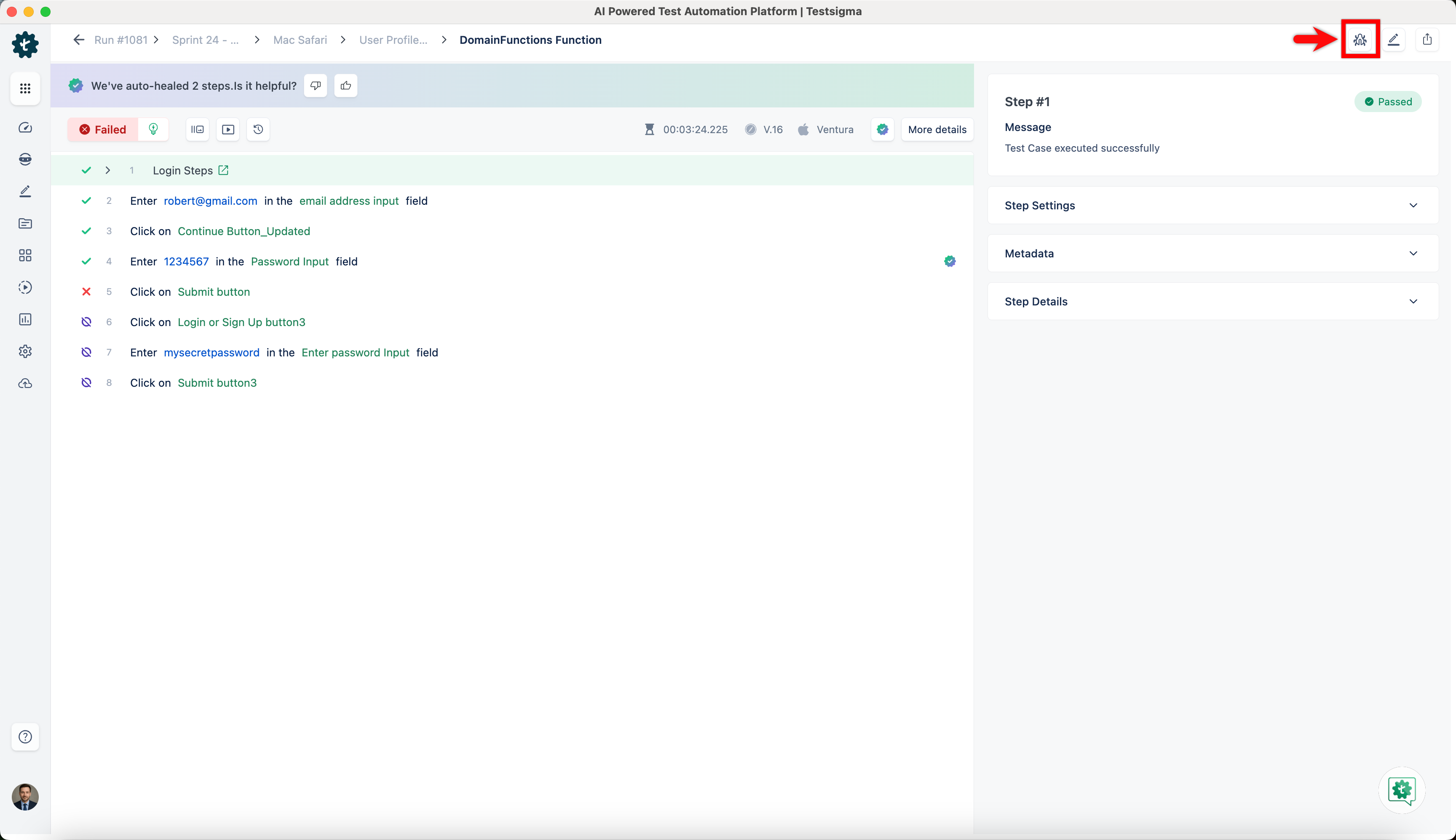
Navigate to Run Results > Test Case Result, where you want to add a bug.
-
Click Report Bug.
-
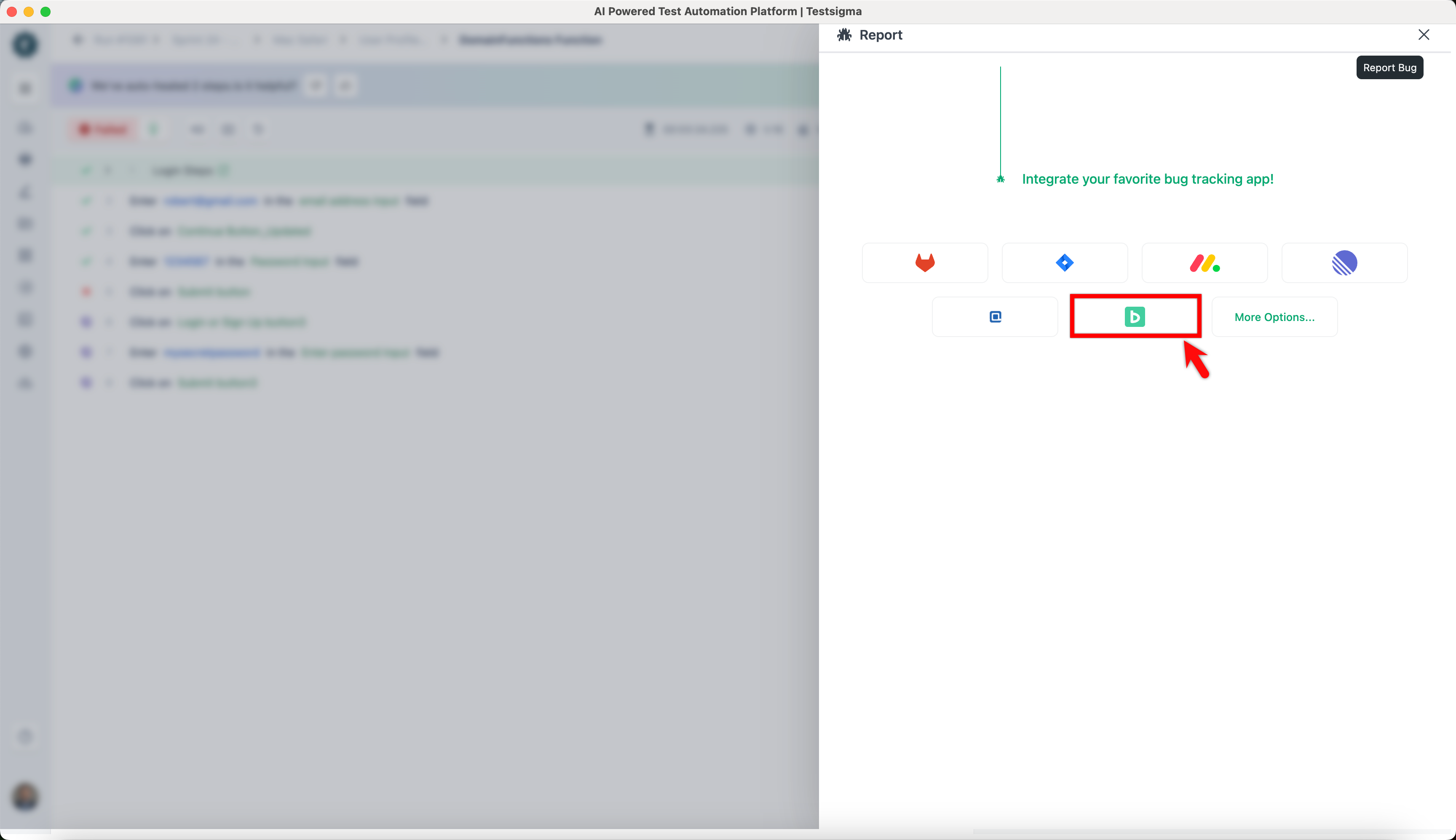
In the Report overlay, click the Backlog icon.
-
In the Report overlay, review the details and click Report Bug.
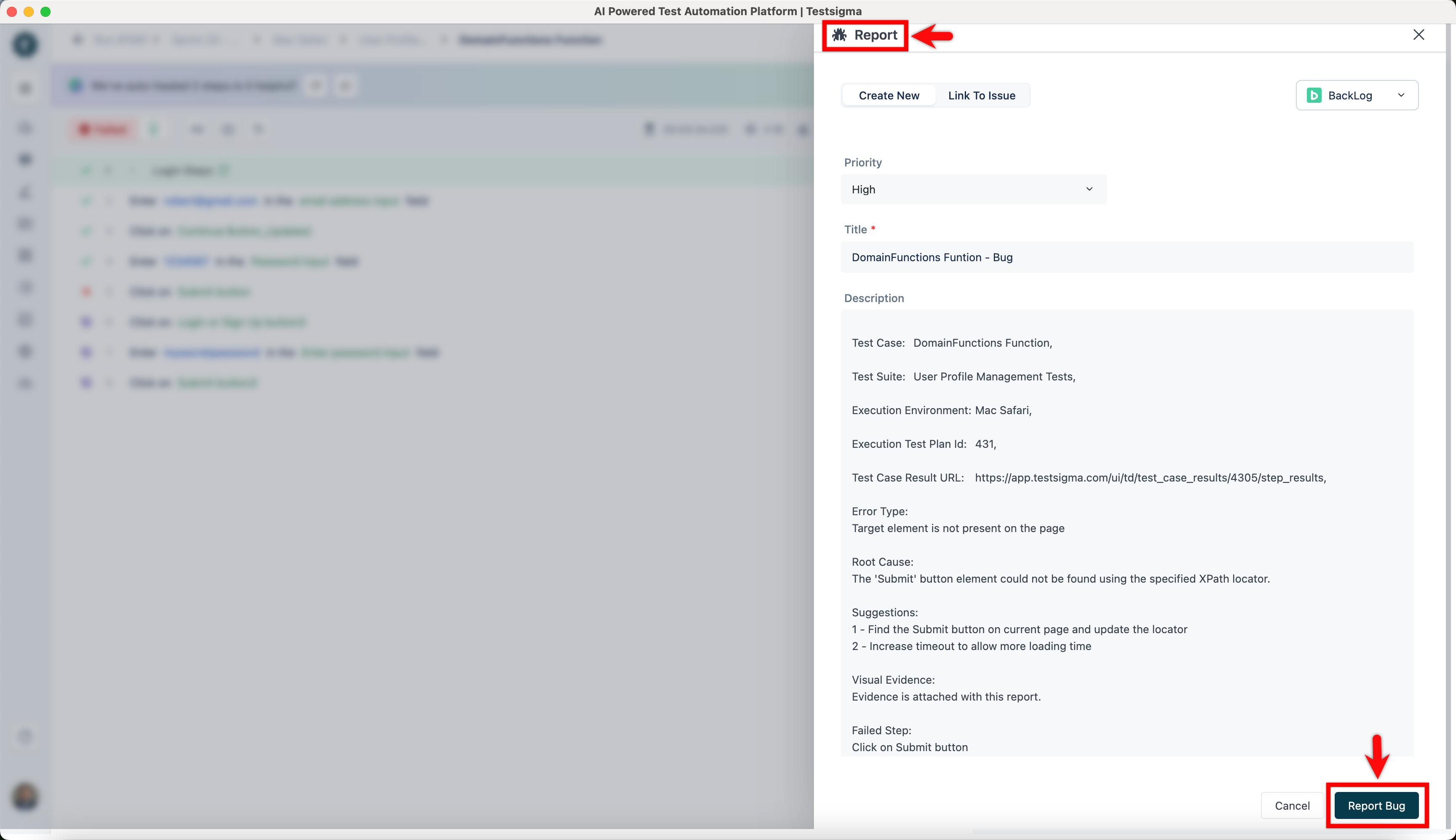
When the bug is created, some additional details regarding the test result, such as the test execution video and step screenshots, are automatically added to the issue on Backlog by Testsigma. This helps the developer who checks the issue in Backlog better understand the issue/bug with more context.