
Troubleshooting
Unable to capture dropdown element
A dropdown list is a commonly used graphical control element that allows users to select a value from the list. Many modern day applications implement dropdowns using <select>,<div>, <a>, or <span>. This article discusses on how to handle dropdowns using NLP’s in Testsigma.
Dropdowns using <select> tag
Section titled “Dropdowns using <select> tag”The <select> tag is most often used in a form, to collect user input. The following is the syntax of a <select> tag:
<select> <option></option> ... <option></option> </select>Select NLPs work for dropdowns that use the <select> tag. The following are the different NLPs that can be used:
Select multiple options
Section titled “Select multiple options”- Select multiple options using value test-data in the element list
- Select multiple options by text test-data in the element list
- Select multiple options by index test-data in the element list
Select option using index
Section titled “Select option using index”- Select option with index test-data in the button group element
- Select option by index test-data in the list with title attribute
- Select option by index test-data in the list with label text attribute
- Select option by index test-data in the element list
- Select option by index test-data in the list with text attribute
- Select option by index test-data in the list with label text containing attribute
- Select option by index test-data in the list with text containing attribute
Select option using label
Section titled “Select option using label”- Select option with label containing test-data in the button group element
- Select option with label test-data in the button group element
- Select option with label test-data in the radio button group element
Select option using value
Section titled “Select option using value”- Select option using value contains test-data in the element list
- Select option contains text test-data in the element list
- Select option using value test-data in the list with title attribute
- Select option using value test-data in the list with label text attribute
- Select option using value test-data in the element list
- Select option using value test-data in the list with text attribute
- Select option using value test-data in the list with label text containing attribute
- Select option using value test-data in the list with text containing attribute
Select option using text
Section titled “Select option using text”- Select option with text containing test-data in the button group element
- Select option with text test-data in the button group element
- Select option by text test-data in the list with title attribute
- Select option by text test-data in the list with label text attribute
- Select option by text test-data in the element list
- Select option by text test-data in the list with text attribute
- Select option by text test-data in the list with label text containing attribute
- Select option by text test-data in the list with text containing attribute
Dropdowns using non <select> tag
Section titled “Dropdowns using non <select> tag”Use any of the below NLP’s for dropdown associated with <div>, <a>, or <span>:
- Click on element with text test-data
- Click on element with text containing test-data
- Click on coordinates test-data (% of width , % of height from element top left) inside element element
- Click on element if visible
- Click on element -Click on element using javascript executor
Verify if a dropdown has a select tag
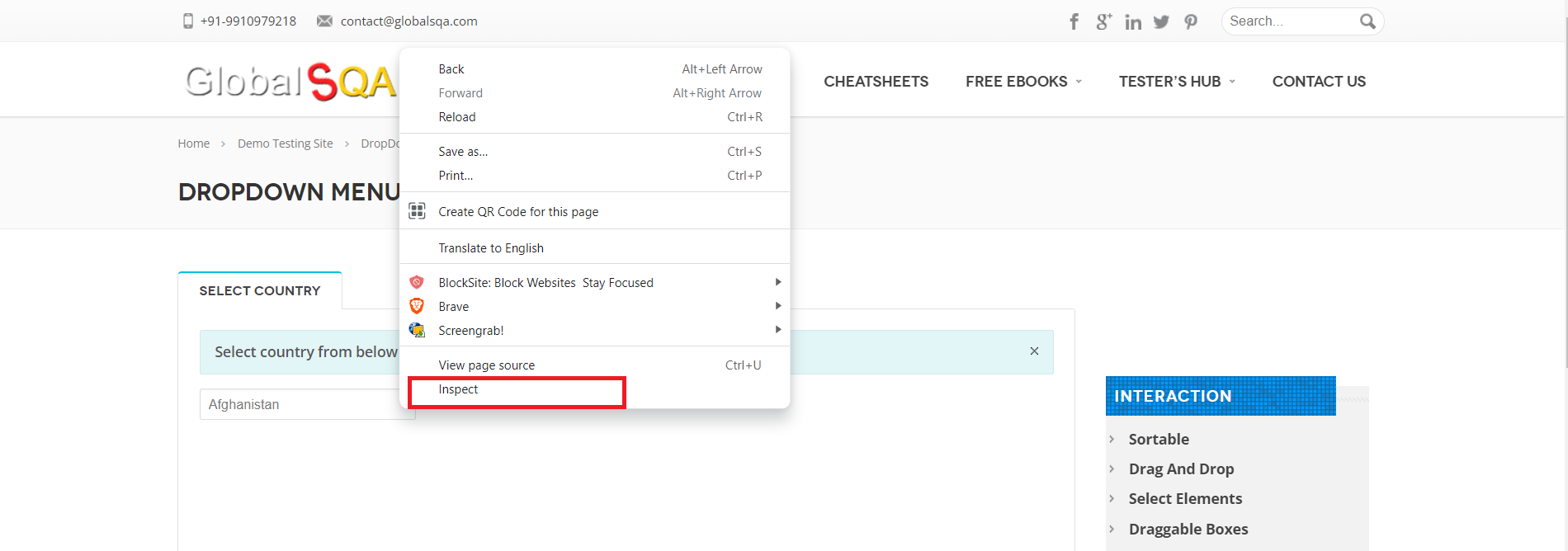
Section titled “Verify if a dropdown has a select tag”- Right-click on the element and select Inspect from the drop-down list.
- Check if the element is attached to the <select> tag as shown in the below screen shot.
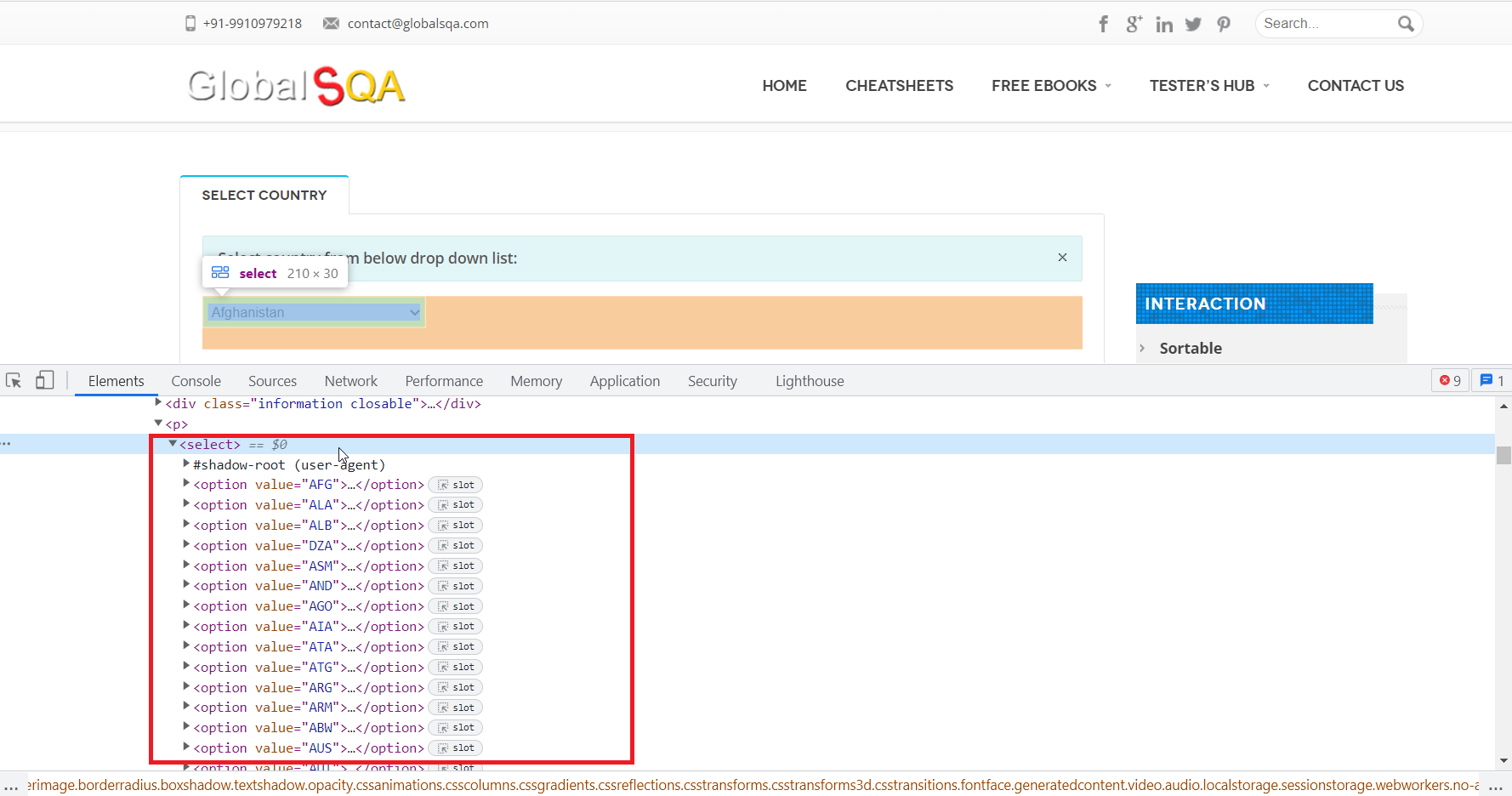
If the element is attached to the <select> tag use any of the following suitable NLP’s explained in the section dropdowns using <select> tag.
If the element uses any of the non <select> dropdown use cases, use any of the suitable NLPs explained in the section dropdowns using non <select> tag.